
Power Your Software Testing with AI Agents and Cloud
The Native AI-Agentic Cloud Platform to Supercharge Quality Engineering. Test Intelligently and Ship Faster.


- TestMu AI (Formerly LambdaTest)
- /
- Learning Hub
- /
- What Is Selenium? Selenium Testing & Automation Guide (2026)
Selenium Testing and Automation: The Complete Guide
Selenium testing automates real browsers to check web apps. Learn how Selenium testing works, its components, a worked example, and how to run it at scale.
Last Updated on:
Selenium testing means writing scripts that drive a real web browser, clicking, typing and checking results, to confirm a web app works, using Selenium, a free, open-source browser automation framework. Selenium automation runs those scripts repeatedly and in parallel across Chrome, Firefox, Edge and Safari, usually through Selenium WebDriver and Selenium Grid.
The selenium package on PyPI recorded about 28 million downloads in the past month, according to PyPI Stats.
This guide is maintained by TestMu AI (formerly LambdaTest), which runs Selenium tests on 3,000+ browser and OS combinations.
To use Selenium: install the library (e.g. pip install selenium), let Selenium 4's built-in Selenium Manager auto-download the matching browser driver, then write a test that launches the browser, navigates to a URL, locates elements by a stable ID or CSS, interacts, asserts the result, and quits the driver.
TL;DR
Selenium is an open-source framework that automates real browsers for testing. You use it by installing the language binding for your stack, driving the browser through Selenium WebDriver, locating elements by stable attributes, and waiting on conditions rather than fixed sleeps before asserting the result.
Which Selenium Component Do You Need?
- Selenium WebDriver: The component you write real tests against. It drives browsers directly through the W3C WebDriver protocol from Java, Python, JavaScript, C#, or Ruby.
- Selenium IDE: A Chrome and Firefox browser extension that records and replays browser interactions, useful for a codeless first test or a quick reproduction case.
- Selenium Grid: Distributes a suite across multiple browsers and machines at once, which is how a sequential run becomes a parallel one.
How Do You Write a Test That Does Not Break?
- Install Selenium for your language: Run pip install selenium, npm install selenium-webdriver, or gem install selenium-webdriver; Java adds the selenium-java dependency to Maven or Gradle, and C# uses dotnet add package Selenium.WebDriver.
- Locate Selenium elements by stable attributes: Target an id, name, or agreed data-testid. Absolute paths such as //div/div/div/span encode the whole DOM structure and break the moment anyone wraps an element.
- Wait on WebDriverWait conditions: Use WebDriverWait with an expected condition instead of a fixed sleep, and wait for an element to be clickable rather than merely present when the next step is a click.
Run the suite across 3,000+ browser and OS combinations and 50,000+ real devices on the TestMu AI Selenium automation cloud instead of maintaining local machines.
What Is Selenium Testing?
Selenium testing is the practice of automating a real web browser with the open-source Selenium framework to check that a web application behaves as expected. A script opens the browser, loads a page, finds elements, performs the actions a user would, and asserts the result, so the same check runs the same way on every build.
Selenium itself is a suite of tools and libraries rather than one product. It ships official bindings for Java, Python, C#, Ruby, and JavaScript, and the Selenium Downloads page lists 4.51.0, released on October 9, 2026, as the current stable version. Community bindings cover PHP and other languages.
It drives Chrome, Firefox, Safari, and Edge through each browser's own driver, and it plugs into test runners such as TestNG, JUnit, MSTest, pytest, and RSpec, which supply the assertions and reporting that Selenium does not include on its own.
Selenium Testing vs Selenium Automation
The two terms overlap, and Selenium automation testing is simply automation used to test. The difference is what the script is for.
| Aspect | Selenium testing | Selenium automation |
|---|---|---|
| Goal | Confirm a web app behaves as specified | Have a script perform browser actions without a person |
| Result | A pass or fail verdict from an assertion | The finished action, such as a submitted form or a saved screenshot |
| Assertions | Every test ends in one | Not required |
| Typical work | Regression, smoke, and cross-browser checks in CI | Repetitive browser chores, such as exporting reports or capturing screenshots |
How Does Selenium Testing Work?
A Selenium test is a program that sends commands to a browser through the W3C WebDriver protocol. The language binding turns each call, such as find_element or click, into an HTTP request; a browser driver executes it inside the real browser and returns the result, which the test then asserts against.
- Test script - Your code, written with a Selenium language binding, calls WebDriver methods such as driver.get() and find_element().
- WebDriver protocol - Each call becomes a JSON request over HTTP in the format the W3C WebDriver standard defines, which is why one script works across browsers.
- Browser driver - ChromeDriver, GeckoDriver, EdgeDriver, or safaridriver receives the request and performs the action in the browser it controls.
- Result - The driver returns an element reference, text, or an error such as NoSuchElementException, and your assertion decides whether the test passes.
Running locally
Running on a grid or cloud
Each command travels left to right and the result comes back the same way. Your assertion decides whether the test passes.
The grid path adds one hop: the script talks to a remote endpoint, which forwards each command to a browser on another machine. The WebDriver and Grid architecture diagrams under the components section show these pieces in detail.
Why Use Selenium for Automation Testing?
Selenium is chosen for automation testing because it is free, supports Java, Python, C#, Ruby, and JavaScript, runs on all major browsers, and fits into any CI/CD pipeline.
Open source - Selenium is licensed under Apache 2.0, so there is no license fee at any scale. The cost of Selenium testing is engineering time plus the machines or cloud grid that run the browsers.
Language choice - Official bindings cover Java, Python, C#, Ruby, and JavaScript, so a team writes tests in the language its application already uses instead of learning a vendor DSL.
Cross-browser and cross-platform - The same script runs on Chrome, Firefox, Edge, and Safari across Windows, macOS, and Linux. Only the driver or the capabilities change, never the test logic.
Parallel execution - Selenium Grid, or a cloud grid, runs the suite across many browsers at once, so a regression pass that takes hours sequentially finishes in minutes.
CI/CD integration - Tests run from any CI runner. Teams trigger them on every commit with the CI/CD tools they already use, such as Jenkins, GitHub Actions, GitLab CI, and CircleCI.
Reporting through the test runner - TestNG, JUnit, and pytest produce the results, and Allure or ExtentReports turn them into dashboards, so reporting fits whatever the team already reads.
Standards-based - Selenium pioneered the W3C WebDriver protocol, so the locator strategies and page objects you build transfer to Appium for mobile apps and to WebdriverIO.
Limitations of Selenium Testing
Selenium automates browsers and nothing else, so several common testing needs sit outside it. Each one has a standard workaround.
- No native mobile apps - Selenium drives web browsers only. For Android and iOS apps, use Appium, which speaks the same WebDriver protocol, so page objects and locator habits carry over.
- No API testing - Selenium cannot send HTTP requests on its own. Pair it with an HTTP client such as requests in Python or REST Assured in Java (the API testing guide compares the options), and seed test data through the API before the browser flow starts, which keeps UI tests short.
- No built-in assertions or reports - The test runner supplies assertions and result files, and Allure or ExtentReports turn them into dashboards. Selenium alone only returns element state.
- Timing failures on dynamic pages - A test that acts before an element is ready fails intermittently. WebDriverWait with an expected condition fixes most cases, and the best practices section below covers the rest.
- Infrastructure overhead - Every browser and OS combination needs a machine with a matching driver. A self-hosted Selenium Grid distributes the load but adds node maintenance and driver version drift; a cloud grid removes that work, as the parallel testing section shows.
- CAPTCHA and multi-factor login - Selenium cannot solve a CAPTCHA or read a one-time code. Use test accounts with those controls disabled in the test environment, and keep production credentials out of test code.

Note: Automate your Selenium testing on 3,000+ browser and OS combinations without maintaining a grid. Try TestMu AI Now!
What Types of Testing Can Selenium Automate?
Selenium automates functional, regression, end-to-end, smoke, cross browser, UI, data-driven, and visual testing for web applications, plus exploratory techniques such as monkey testing, because each of them reduces to driving a browser and checking what it shows.
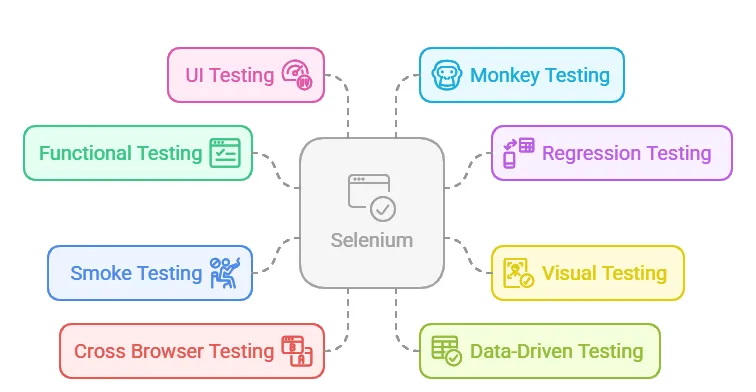
- Functional testing - Selenium checks that a feature works to its requirement by replaying the clicks, typing, and navigation a user performs and asserting the outcome.
- Regression testing - The same suite reruns after every change to confirm existing behavior still works, which is where automation pays back fastest because the checks repeat on every build.
- End-to-end testing - Selenium drives a complete user journey in a real browser, such as sign-up through checkout, which is how end-to-end testing confirms the UI, backend services, and data work together.
- Visual testing - Selenium captures screenshots at any point in a run. Combined with visual testing tools, teams compare them against a baseline to catch layout regressions across browsers.
- Smoke testing - A short Selenium suite validates the critical paths right after a build or deployment, so a broken login or checkout surfaces in minutes.
- Cross browser testing - Selenium runs the same tests across browsers for cross browser testing, confirming behavior and appearance stay consistent.
- Data-driven testing - Selenium reads input sets from CSV, Excel, or JSON through the test runner's parameterization and runs the same flow once per row.
- UI testing - Automated UI tests confirm buttons, inputs, and menus are present, visible, enabled, and respond to interaction.
- Monkey testing - Scripts feed random clicks, scrolls, and text into the application to find crashes that scripted paths miss.
History of Selenium
Selenium began in 2004 at Thoughtworks in Chicago, where Jason Huggins built JavaScriptTestRunner to test an internal time-and-expenses application, according to the Selenium project history.
Paul Hammant, also at Thoughtworks, saw the demo the same year and pushed to open-source the tool and add a remote "driven" mode that any language could call.
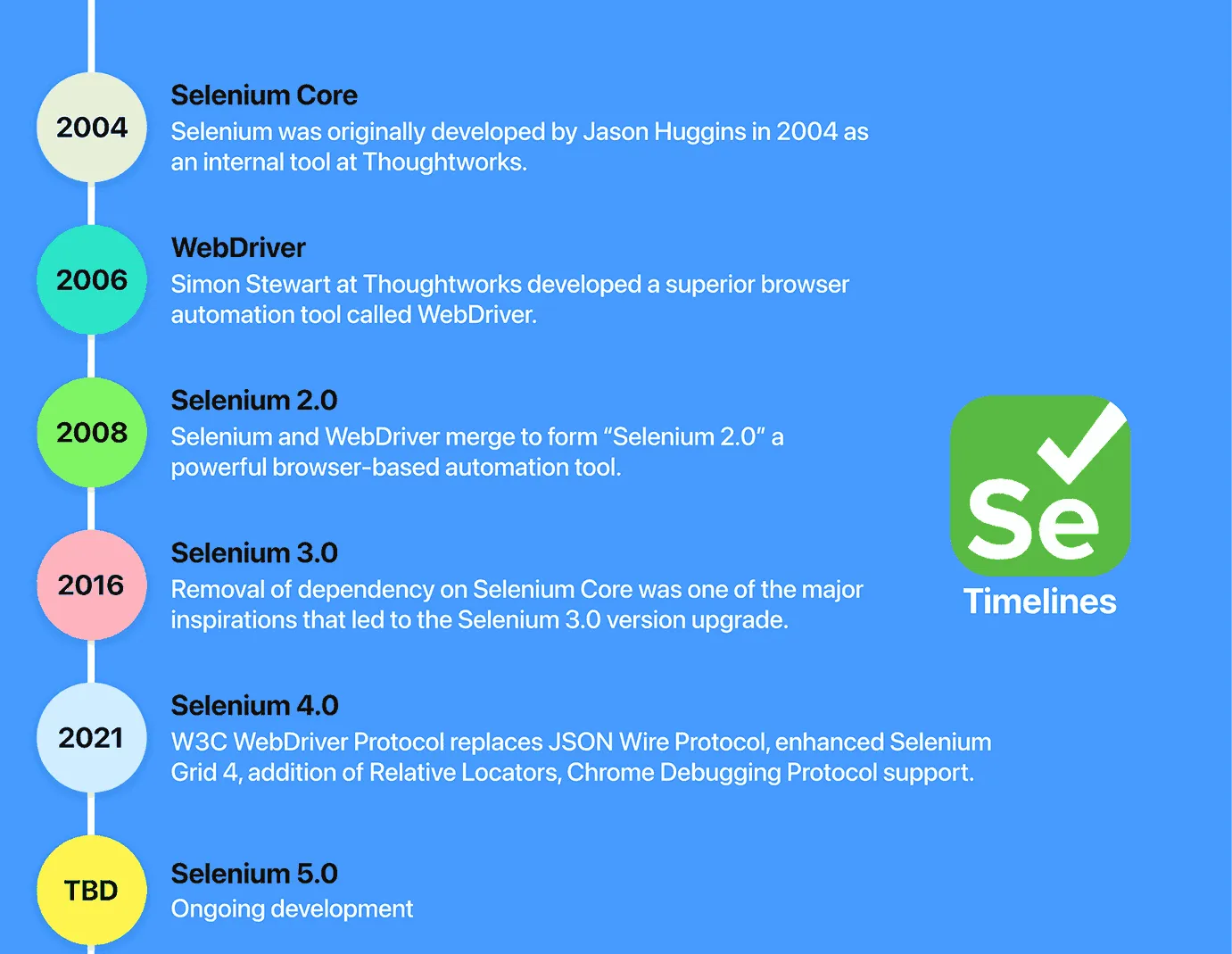
Dan Fabulich and Nelson Sproul then built a standalone server that became Selenium Remote Control, and Pat Lightbody worked with them to make Selenium RC stable enough for large-scale use in his Hosted QA service.
In 2007, Jason Huggins left Thoughtworks for the Selenium support team inside Google.
Simon Stewart, meanwhile, had been building a separate tool at Thoughtworks called WebDriver, which controlled browsers natively instead of injecting JavaScript. Making it compatible with Selenium RC led the two projects to merge.
What Are the Components of Selenium?
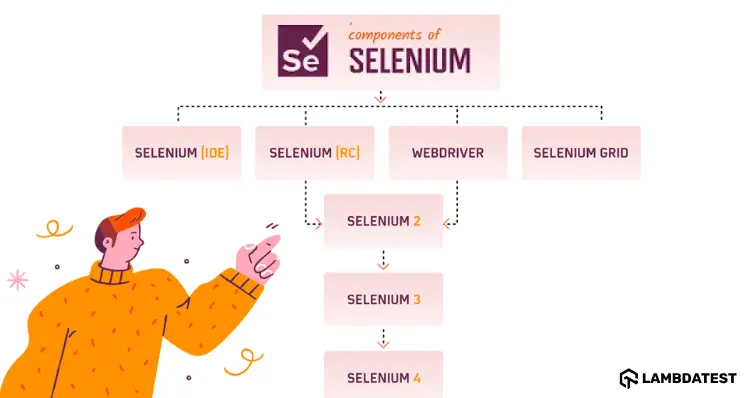
Selenium has four main components: Selenium IDE for recording tests, Selenium RC (deprecated), Selenium WebDriver for browser automation, and Selenium Grid for parallel testing.
Selenium IDE
Selenium IDE is a browser extension for Chrome and Firefox that records and replays tests inside the browser. It needs no project setup, which makes it the quickest way to capture a reproduction case or a first test.
Recordings are saved as .side files, and the IDE supports breakpoints and pausing on exceptions for debugging. Its command-line runner replays .side files on any browser and OS combination in parallel. There is no Safari version.
Selenium RC
Selenium RC was one of the first components in the suite. A server injected Selenium Core, a JavaScript program, into the browser and ran commands inside its JavaScript engine. WebDriver replaced it because controlling the browser directly is faster and simpler.
Selenium WebDriver
Selenium WebDriver is the component you write tests against. It lets a script click links, fill in forms, and read page data on a local machine or, through Selenium RemoteWebDriver, on a cloud grid. The browser drivers (ChromeDriver, FirefoxDriver, EdgeDriver, and SafariDriver) are all built on the RemoteWebDriver class, so they share its capabilities.
Selenium 4.6, released in November 2022, introduced Selenium Manager. It detects the installed browser, downloads the matching driver, and caches it, so you no longer download or update drivers by hand. It handles Chrome, Firefox, and Edge, and since Selenium 4.11 it can also download a browser build that is not installed locally, per the Selenium Manager documentation.
WebDriver became a W3C Recommendation on 5 June 2018, which standardized how browsers expose remote control to automation clients.
Architecture of Selenium WebDriver
Selenium RC and WebDriver started as separate projects and merged into Selenium 2. Selenium 3 still sent every command as JSON over the JSON Wire Protocol, so each request was encoded and each response decoded. Selenium 4 replaced it with the W3C WebDriver protocol, which removes that translation step and a common source of unstable tests. See what's new in Selenium 4 for the full list of changes and removals.
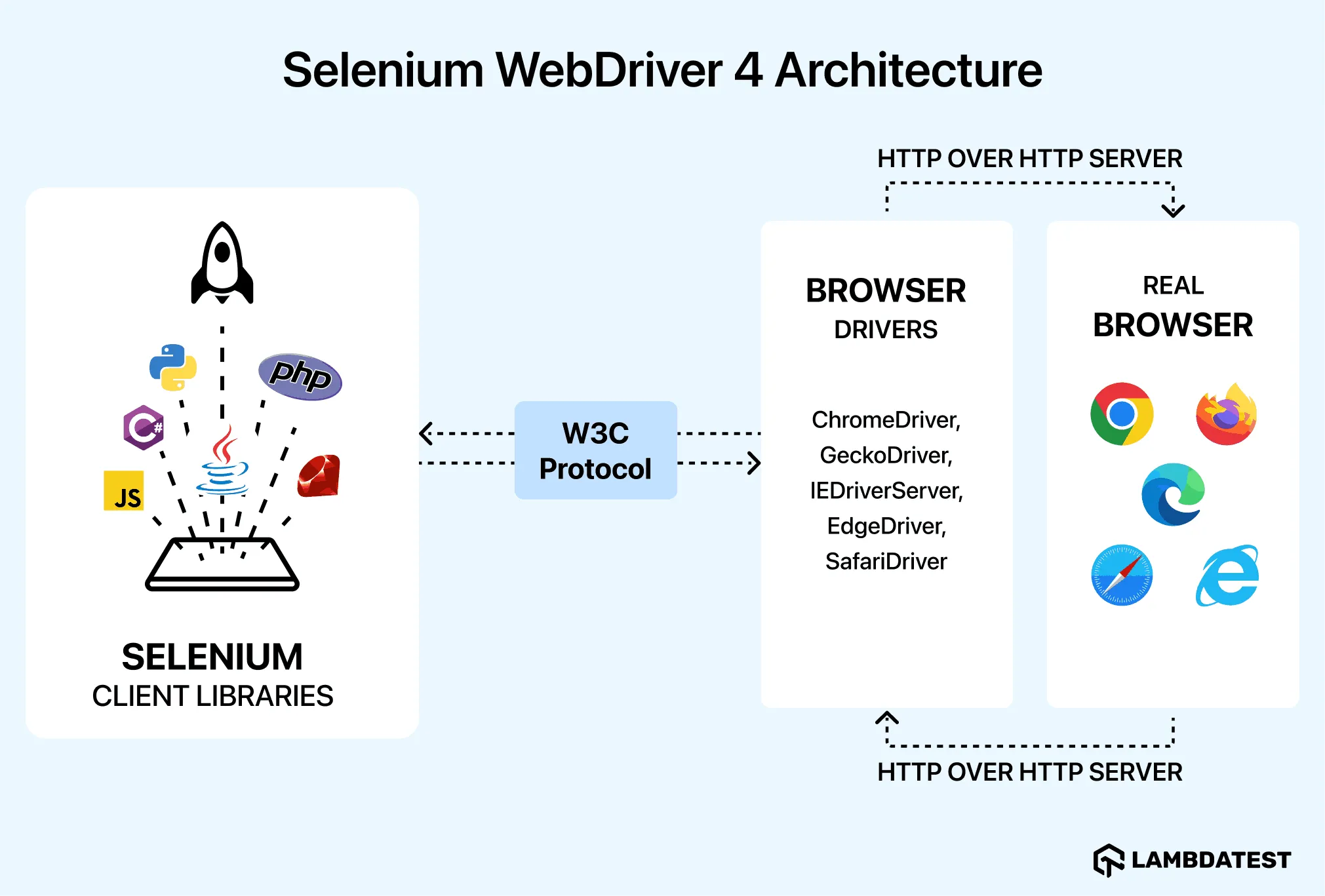
- Client libraries - Language bindings for Java, Python, C#, Ruby, and JavaScript, installed through each language's package manager and listed on the Selenium Downloads page.
- WebDriver W3C protocol - The shared format libraries and drivers use, so a Selenium 4 script behaves the same across browsers without per-browser changes.
- Browser drivers - One driver per browser that translates each command into an action that browser can execute.
- Real browsers - Chrome, Firefox, Edge, and Safari, where the test actually runs.
To interact with Selenium Server or write local WebDriver scripts, install the client library for your language:
| Language | Package / Download |
|---|---|
| Java | GitHub Releases |
| Python | PyPI: selenium |
| JavaScript | npm: selenium-webdriver |
| C# | NuGet: Selenium.WebDriver |
| Ruby | RubyGems: selenium-webdriver |
Selenium Grid
Selenium Grid runs multiple tests across different browsers, operating systems, and machines at once. Teams that outgrow a self-managed grid can run the same Selenium tests on TestMu AI's HyperExecute, which places each test and its browser on one just-in-time virtual machine instead of routing commands through a hub.
Selenium 4 shipped in October 2021 with a rebuilt Grid. Grid 4 is a single jar: standalone mode starts every component in one process with one command, while hub and node modes remain for distributed setups, per the Selenium Grid getting started guide. It also serves a web UI on the hub's port and has official Docker images in the docker-selenium repository. The Selenium 4 WebDriver hierarchy article covers the client-side class changes.
Architecture of Selenium Grid 4
Grid 3 had only a Hub and Nodes. Grid 4 splits the Hub into specialized components, which makes the Grid more scalable and observable.
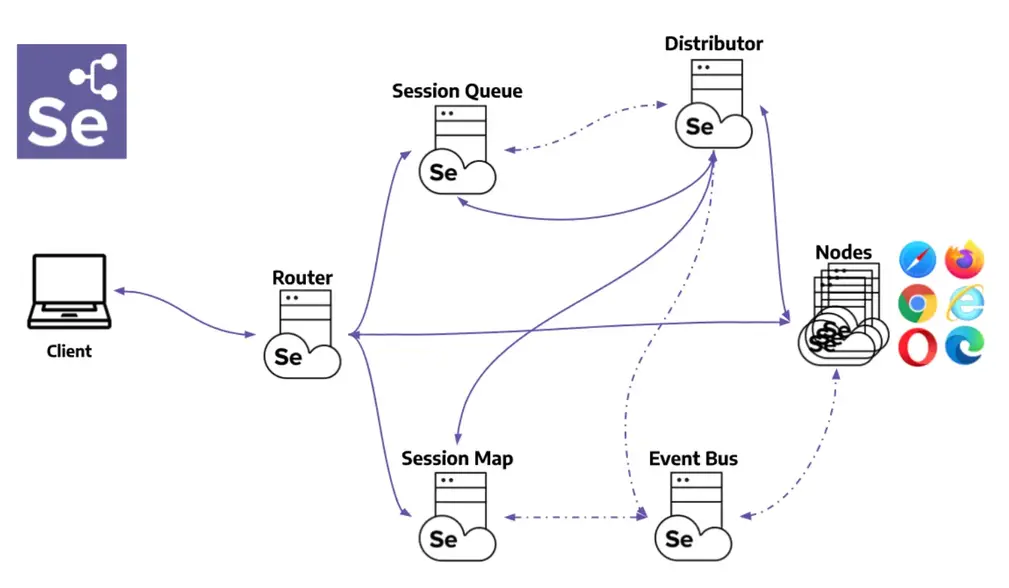
- Router - The entry point. It sends new session requests to the New Session Queue and routes commands for an existing session to the right Node, found through the Session Map.
- Distributor - Tracks the capabilities of every Node and assigns each queued session request to a Node that matches.
- Session Map - Stores which Node holds each session ID.
- New Session Queue - Holds new session requests first in, first out, for the Distributor to read.
- Event Bus - The message path between the Nodes, Distributor, New Session Queue, and Session Map.
- Nodes - Run the browser sessions through their drivers and execute each command.
What Are Popular Frameworks for Selenium Testing?
Popular Selenium frameworks include TestNG and JUnit for Java, pytest for Python, NUnit for C#, RSpec for Ruby, and Mocha or Jest for JavaScript.
How to Get Started With Selenium
Setting up Selenium requires three things: a supported browser, its matching driver, and the Selenium library for your language.
From Selenium 4.6 onwards, Selenium Manager handles driver setup automatically. You no longer need to download or configure browser drivers manually.
Step 1: Install the Selenium Library
Install Selenium using the package manager for your language. The command differs by language but takes under a minute to complete.
- Python - pip install selenium
- Java - Add the Selenium dependency to your pom.xml (Maven) or build.gradle (Gradle)
- JavaScript - npm install selenium-webdriver
- C# - dotnet add package Selenium.WebDriver via NuGet
- Ruby - gem install selenium-webdriver
Step 2: Set Up Your Browser Driver
Selenium 4 includes Selenium Manager, which auto-downloads the correct driver for your browser version. No manual setup is needed for Chrome, Firefox, or Edge.
For older Selenium versions, download the driver manually and add it to your system PATH. Each browser has a dedicated driver.
- Chrome - ChromeDriver. Matches your installed Chrome version.
- Firefox - GeckoDriver. Works with any recent Firefox release.
- Edge - EdgeDriver. Bundled with Microsoft Edge installations.
- Safari - SafariDriver. Built into macOS, enable via safaridriver --enable.
Step 3: Write Your First Selenium Test
Every Selenium test follows the same pattern regardless of language. A first test does the following, in order.
- Import WebDriver - Import the Selenium WebDriver module and the browser driver class for your target browser.
- Launch the browser - Instantiate the driver (e.g., webdriver.Chrome()) to open a new browser window.
- Navigate to a URL - Use driver.get("https://www.testmuai.com/selenium-playground/") to load the page you want to test.
- Interact with elements - Locate elements using find_element and perform actions like click(), send_keys(), or text.
- Assert and quit - Validate the expected result using an assertion, then call driver.quit() to close the browser.
Here is a working example using the Simple Form Demo on the Selenium Playground. It types a message, clicks the button, and asserts the output matches.
from selenium import webdriver
from selenium.webdriver.common.by import By

driver = webdriver.Chrome()

try:
    # Open Selenium Playground Simple Form Demo
    driver.get("https://www.testmuai.com/selenium-playground/simple-form-demo/")

    # Type a message into the input field
    message_input = driver.find_element(By.ID, "user-message")
    message_input.send_keys("Hello, Selenium!")

    # Click the "Get Checked Value" button
    driver.find_element(By.ID, "showInput").click()

    # Read the displayed output
    output = driver.find_element(By.ID, "message").text

    # Assert the output matches the input
    assert output == "Hello, Selenium!", f"Unexpected output: {output}"
    print("Test passed:", output)

finally:
    driver.quit()
The test uses three locator calls: one send_keys() to type, one click() to submit, and one text read to verify.
The try/finally block ensures driver.quit() always runs, even if an assertion fails, so no browser windows are left open.
Step 4: Run on a Local Selenium Grid
A local Selenium Grid lets you run the same test across multiple browsers in parallel on your own machine. In hub-and-node mode a Hub receives test requests and a Node executes them; standalone mode runs both roles in one process.
Download the Selenium Server jar from the GitHub releases page listed in the components table, then either start everything in one process with standalone mode or run the Hub and Node in separate terminals.
# Option 1: every Grid component in one process
java -jar selenium-server-<version>.jar standalone

# Option 2: Hub and Node in separate terminals
java -jar selenium-server-<version>.jar hub
java -jar selenium-server-<version>.jar node --hub http://localhost:4444
Once the grid is running, point your test at the Hub URL using webdriver.Remote. The rest of the test code stays exactly the same.
from selenium import webdriver

options = webdriver.ChromeOptions()
driver = webdriver.Remote(
    command_executor="http://localhost:4444",
    options=options
)

try:
    driver.get("https://www.testmuai.com/selenium-playground/simple-form-demo/")
    driver.find_element("id", "user-message").send_keys("Hello, Grid!")
    driver.find_element("id", "showInput").click()
    output = driver.find_element("id", "message").text
    assert output == "Hello, Grid!"
    print("Grid test passed:", output)
finally:
    driver.quit()
Open http://localhost:4444 in a browser to see the Grid UI. It shows active sessions, registered nodes, and test status in real time.
Selenium Locators and Waits for Stable Tests
Two things decide whether a Selenium test stays stable: how it finds an element and when it acts on it. A locator tied to page layout breaks when the layout changes, and an action that runs before the page is ready fails at random.
Choosing a Locator
Pick the most specific locator that will not change when the page is restyled. In order of preference: ID, then Name, then CSS selector, then XPath. The examples use Python.
| Locator | Example | Use it when |
|---|---|---|
| ID | By.ID, "user-message" | The element has a unique, stable id. This is the fastest and first choice. |
| Name | By.NAME, "email" | A form field has a name but no id. |
| CSS selector | By.CSS_SELECTOR, "form#signup input[type='email']" | There is no id, and tag, class, and attribute together identify the element. |
| XPath | By.XPATH, "//button[normalize-space()='Submit']" | You must match by visible text or by position relative to another element. |
| Link text | By.LINK_TEXT, "Sign in" | A link has stable copy. It breaks when the text changes or is translated. |
Positional XPath in Selenium such as //div[3]/span encodes the whole page structure and breaks as soon as an element is added or reordered. On internationalized sites, avoid link text and match a partial href instead. The locators in Selenium guide covers every strategy with examples.
Implicit, Explicit, and Fluent Waits
Never pause a test with Thread.sleep or time.sleep. A fixed pause is either too short, so the test fails, or too long, so every run is slower. Selenium waits let the test continue the moment the page is ready.
- Implicit wait - Sets one global timeout for every element lookup in the session.
- Explicit wait - WebDriverWait polls one named condition from ExpectedConditions, such as an element being clickable, until it holds or a timeout passes.
- Fluent wait - An explicit wait where you set the polling interval and the exceptions to ignore.
Use explicit waits. The Selenium waits documentation warns against mixing implicit and explicit waits because the combined timeout becomes unpredictable. Wait for an element to be clickable, not merely present, when the next step is a click.
from selenium.webdriver.common.by import By
from selenium.webdriver.support.ui import WebDriverWait
from selenium.webdriver.support import expected_conditions as EC

wait = WebDriverWait(driver, 10)

# Click only once the button is clickable
wait.until(EC.element_to_be_clickable((By.ID, "showInput"))).click()

# Read the message only once it is visible
message = wait.until(EC.visibility_of_element_located((By.ID, "message"))).text
How to Perform Parallel Testing With Selenium
Parallel testing with Selenium runs multiple tests simultaneously across browsers and OS combinations, cutting total execution time and expanding cross-browser coverage in a single run.
Parallelism happens in two places. The test runner starts the workers: TestNG uses the parallel attribute in its XML suite, pytest uses pytest-xdist, and JUnit 5 reads junit-platform.properties. The infrastructure then has to supply one browser per worker, which is where a single machine runs out of room.
TestMu AI's Automation Cloud runs an existing Selenium suite as it is: you keep your framework and language, point the remote driver at the cloud hub, and pass the browser, OS, build, and test names as capabilities to pick from 3,000+ browser and OS combinations. Every session records video, network logs, console logs, screenshots, and command logs automatically, and the optional smartWait capability runs visibility, enabled, and stability checks before each command (5 to 120 seconds) so fixed sleeps can go.
The Simple Form Demo test from the getting-started section needs only its driver setup changed to run on the cloud grid:
import os
from selenium import webdriver
from selenium.webdriver.common.by import By
from selenium.webdriver.support.ui import WebDriverWait
from selenium.webdriver.support import expected_conditions as EC

options = webdriver.ChromeOptions()
options.browser_version = "latest"
options.set_capability("LT:Options", {
    "username": os.environ["LT_USERNAME"],
    "accessKey": os.environ["LT_ACCESS_KEY"],
    "platformName": "Windows 11",
    "build": "Selenium Testing Guide Demo",
    "name": "Simple Form Demo",
    "video": True,
    "network": True,
    "console": True,
})

driver = webdriver.Remote(
    command_executor="https://hub.lambdatest.com/wd/hub",
    options=options,
)

try:
    driver.get("https://www.testmuai.com/selenium-playground/simple-form-demo/")
    driver.find_element(By.ID, "user-message").send_keys("Hello, Selenium!")
    driver.find_element(By.ID, "showInput").click()
    output = WebDriverWait(driver, 10).until(
        EC.visibility_of_element_located((By.ID, "message"))
    ).text
    assert output == "Hello, Selenium!", f"Unexpected output: {output}"
    driver.execute_script("lambda-status=passed")
    print("Cloud test passed:", output)
except AssertionError:
    driver.execute_script("lambda-status=failed")
    raise
finally:
    driver.quit()
This exact flow was run on the TestMu AI grid while this guide was updated on October 16, 2026, with the same capabilities. The session record returned by the automation API shows the build and test names from the code, the browser the grid provisioned, and the verdict set by lambda-status:
Session ID: b2b8a28d5b1cabcaaf5a3e67d29e00a6
Output: "Hello, Selenium!" | passed: true | elapsed ms: 13816

test_id:     DA-WIN-17458-1792147233130237488EVD
build_name:  Selenium Testing Guide Demo
name:        Simple Form Demo
browser:     chrome 155.0
platform:    win11
status_ind:  passed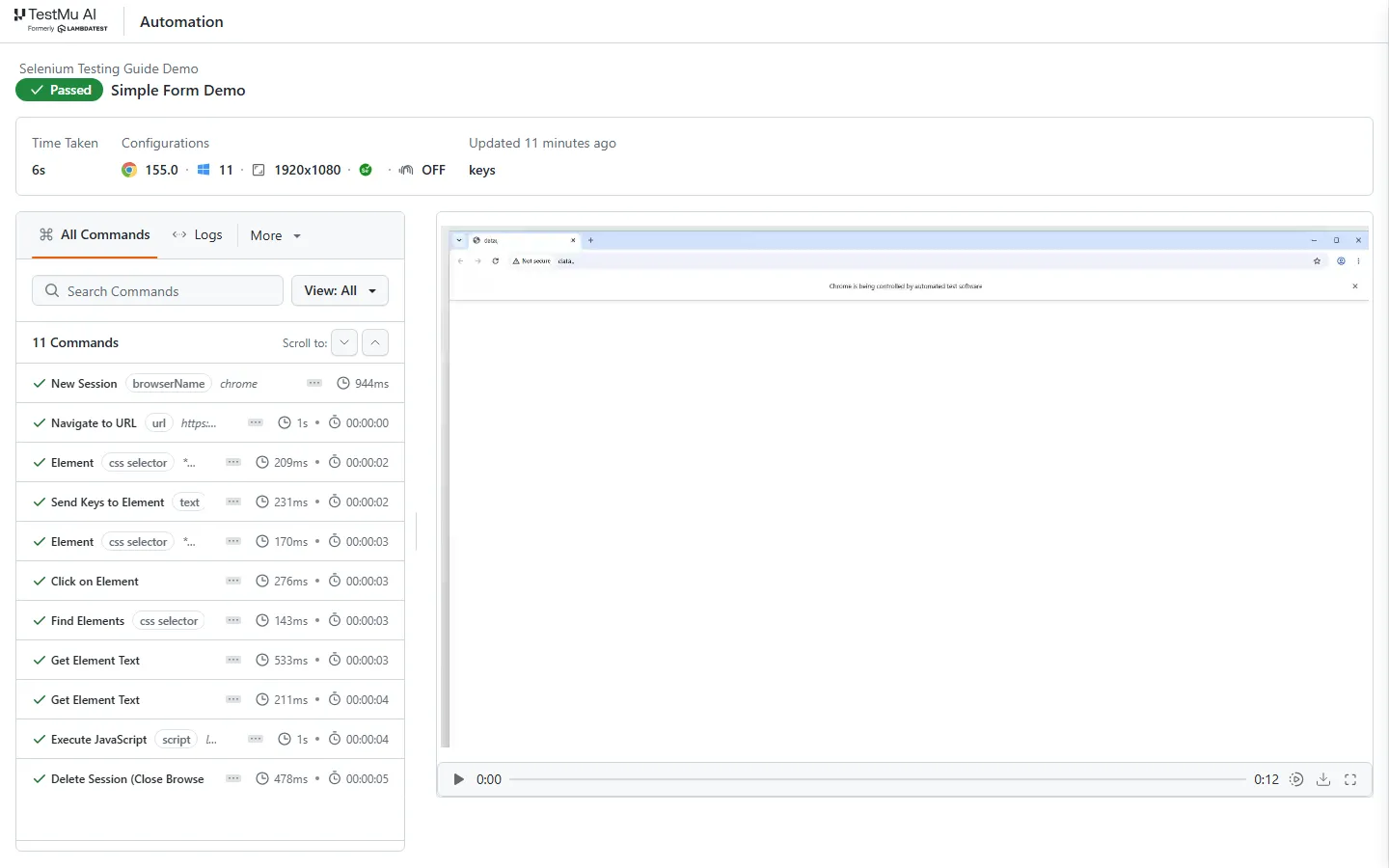
Run the same file under pytest -n 4 and the four workers open four cloud sessions at once; parametrize the capabilities to give each worker a different browser and OS. The Automation Capabilities Generator produces the exact LT:Options block for any browser, version, and OS, and the documentation on Selenium testing on TestMu AI walks through credentials and the first run.

Best Practices for Using Selenium
These practices come up in most Selenium testing code reviews, and each one prevents a specific class of failure. Locators and waits have their own section above.
Maximize the browser window - Selenium does not open browsers maximized by default, so screenshots attached to reports can miss part of the page and responsive layouts can push elements off-screen.
Call driver.maximize_window() right after creating the driver, or set a fixed window size so every browser in a cross-browser run captures the same viewport.
Use design patterns in Selenium - When writing Selenium automation scripts, maintainability and scalability are essential. If multiple scripts reference the same element, any UI change requires updates in every script location.
The Page Object Model (POM) centralizes web page controls, with each page as a separate class.
Scripts interact with elements through page objects, reducing duplication and simplifying maintenance across Selenium scripts.
Parallel test execution - Run tests in parallel using your test framework's built-in support. TestNG uses the parallel attribute in its XML config; pytest uses pytest-xdist; JUnit 5 supports parallel execution via junit-platform.properties.
For cross-browser parallelism at scale, use Selenium Grid or a cloud grid. Each node handles an independent browser session, keeping tests fully isolated.
Selenium vs Playwright and Cypress: When Selenium Is the Right Choice
Playwright and Cypress are the two tools teams most often weigh against Selenium. All three automate real browsers, but they differ in language support, browser coverage, and how they wait for the page.
| Aspect | Selenium | Playwright | Cypress |
|---|---|---|---|
| Languages | Java, Python, C#, Ruby, JavaScript | JavaScript and TypeScript, Python, Java, .NET | JavaScript and TypeScript |
| Browsers | Chrome, Firefox, Edge, Safari, each through its own driver | Chromium, Firefox, WebKit | Chrome-family browsers, Firefox, Edge; WebKit is experimental |
| How it controls the browser | W3C WebDriver protocol through a browser driver | Its own automation protocol, outside the page | Runs inside the browser next to your app |
| Waiting | You write explicit waits | Waits automatically before actions | Retries commands and assertions automatically |
| Native mobile apps | Yes, through Appium, which shares the protocol | No, device emulation for mobile web only | No, viewport emulation only |
Selenium is the better fit when:
- You already have a suite, or a team, in Java, C#, Ruby, or Python, and rewriting it would cost more than it saves.
- You need real Safari and the widest spread of browser and OS combinations, which a cloud grid supplies.
- Web and native mobile testing should share one protocol and one set of habits through Appium.
Playwright or Cypress tends to fit a new project in JavaScript or TypeScript where built-in auto-waiting and rich debugging tools matter more than language choice or browser breadth. The Playwright vs Selenium vs Cypress comparison tests all three side by side, and the Selenium alternatives guide covers the wider field.
Future of Selenium Testing
The Selenium project's published work, rather than speculation, shows where Selenium testing is heading.
- WebDriver BiDi - The WebDriver BiDi documentation describes BiDi as the W3C standard bidirectional protocol for browser automation. It adds a WebSocket channel so a test can receive browser events such as network requests, console messages, and JavaScript errors while the session runs. Selenium calls it the cross-browser replacement for the Chrome DevTools Protocol and is moving its implementation from WebDriver Classic to BiDi while keeping backwards compatibility; you opt in with the webSocketUrl capability, which is options.enable_bidi = True in Python.
- Browser management in Selenium Manager - Selenium Manager started downloading browsers, not just drivers, with Chrome for Testing in Selenium 4.11, Firefox in 4.12, and Edge in 4.14, so a CI runner no longer needs a pre-installed browser to run a Selenium test.
- Steady releases on the 4.x line - Selenium 4 went from 4.0.0 in October 2021 to 4.51.0 in October 2026, with each version listed on the Downloads page, so teams get protocol and driver fixes without a major migration.
- AI agents around the framework - Test generation, natural-language checks, and self-healing locators now sit beside Selenium rather than inside it, as the next section describes.
Selenium and AI Agents
AI tooling now works alongside Selenium rather than replacing it. The Selenium skill generates Selenium code for an existing suite, so you scaffold tests faster in your own framework. KaneAI authors end-to-end tests from plain English and exports them as code you can own and maintain. Kane CLI runs a check from a single sentence with no script to maintain, suited to quick smoke checks beside a Selenium suite. See Kane CLI vs Selenium for when to reach for each.
Conclusion
Start with the Simple Form Demo test from the getting-started section and run it locally once. Then point the same script at TestMu AI's online Selenium Grid with the capabilities shown above to cover the browsers and operating systems you cannot install locally. The Selenium 4 documentation for TestMu AI lists the credentials and capabilities for each language binding.
Learning Resources for Selenium
These tutorials cover Selenium testing in each language binding and test runner, from first scripts to framework-specific patterns.
Selenium Java
- What Is Selenium Java: Tutorial With Best Practices
- Complete Guide on Automation Testing using Java
- Local Website Testing Using Selenium And Java
- Using Selenium WebDriver For Full Page Screenshots
- Selenium Java Tutorial - How To Test Login Process?
- How to Automate Registration Page Using Selenium And Java
- How to Handle Auto Suggestions in Selenium Java
- How To Handle Login Pop-up In Selenium WebDriver Using Java?
- How to Use @FindBy Annotation in Selenium Java
- How to Fix NoSuchElementException in Selenium
Selenium TestNG
- TestNG Framework Tutorial: A Comprehensive Guide
- Create TestNG Project In Eclipse & Run Selenium Test Script
- Complete Guide For Your First TestNG Automation Script
- How To Automate Using TestNG In Selenium?
- TestNG Annotations Tutorial With Examples
- How To Use Assertions In TestNG Using Selenium
- Automation Testing With Selenium, Cucumber & TestNG
- How To Perform Parallel Test Execution In TestNG
- How To Use TestNG Reporter Log In Selenium
- TestNG Interview Questions
Selenium JUnit
- JUnit Tutorial: A Comprehensive Guide to JUnit Testing
- JUnit Automation Testing With Selenium
- Tutorial On JUnit Annotations In Selenium With Examples
- JUnit Asserts With Examples
- How to run JUnit Selenium Tests using TestNG
- How To Run JUnit Tests In Jupiter? [JUnit Jupiter Tutorial]
- How to execute JUnit 4 tests with JUnit 5 [Tutorial]
- How to Use JUnit ErrorCollector [With Examples]
- Parallel Testing With JUnit 5 And Selenium [Tutorial]
- JUnit Parameterized Test Using Selenium: With Examples
- JUnit 5 vs. TestNG: Choosing The Right Framework
Selenium Selenide
Selenium Gauge
Selenium Python
- Why Python Is A Preferred Language For Test Automation?
- 7 Top Python Automation Frameworks
- Selenium 4 With Python: All You Need To Know
- How to Set Up Selenium With Python for Modern Web Automation
- Using Selenium and Python Hypothesis for Automation Testing
- Python Behave for BDD Testing: A Complete Guide
- Getting Started With Selenium Python [Tutorial]
- Automated Browser Testing with Opera and Selenium in Python
- How To Take A Screenshot Using Python & Selenium?
- How To Drag And Drop In Selenium With Python?
- How To Switch Tabs In A Browser Using Selenium Python?
- How To Get Page Source In Selenium Using Python?
- How To Handle Dropdowns In Selenium WebDriver Using Python?
- Page Object Model (POM) In Selenium Python
- How To Read Configuration Files in Python Using Selenium
- How To Create an Automated Web Bot With Selenium in Python?
- How To Perform Web Scraping Using Selenium and Python?
- Adding Firefox Extensions With Selenium in Python
- How to Handle JavaScript Alert in Selenium WebDriver Using Python?
- Use Selenium Wait for Page to Load With Python
- Selenium Python Cheat Sheet for Test Automation
Selenium pytest
- Selenium Python Tutorial: Getting Started With pytest
- How To Do Parameterization In pytest With Selenium?
- End To End Tutorial For pytest Fixtures With Examples
- Selenium pytest Tutorial: A Comprehensive Guide
- pytest Report Generation For Selenium Automation Scripts
- What Is pytest: Complete Guide With Best Practices
- pytest Tutorial - Python Selenium Test in Parallel
- Debugging Selenium pytest Failures
- Commonly Asked pytest Interview Questions
Selenium Robot
- Robot Framework Tutorial with Selenium and Python
- How To Use For Loop In Robot Framework: A Detailed Guide
- How To Use Robot Framework For Parallel Test Execution
- Top 30 Robot Framework: Interview Q&A
Selenium unittest
Selenium JavaScript
- How To Implement Drag And Drop In JavaScript Using Selenium?
- Automation Testing with Selenium JavaScript [Tutorial]
- Best 9 JavaScript Testing Frameworks
- How To Use JavaScript Wait Function In Selenium WebDriver
- How To Get Data Of Attributes In JavaScript With Selenium
- How To Take Screenshots In Selenium WebDriver Using JavaScript
- How to Find Element by Text in Selenium
- Guide To Web Scraping With JavaScript And Selenium
Selenium Jest
- Jest Tutorial: Complete Guide to the JavaScript Testing Framework
- Jest Testing with Selenium and JavaScript: Beginner's Guide
- Jest vs. Mocha vs. Jasmine
- Unit Testing With Jest
Selenium Mocha
- Mocha Tutorial - A Detailed Guide On Mocha Testing
- Mocha JavaScript Tutorial With Examples For Selenium Testing
- Complete Guide on how to run Mocha npm Testing with Node.js
- How To Generate Mocha Reports With Mochawesome?
Selenium Jasmine
- Automated Testing with Jasmine Framework & Selenium
- Introduction to Jasmine Unit Testing: A Complete Tutorial
- Angular Testing With Jasmine And Karma Using Selenium
- How To Run Jasmine Integration Tests [Jasmine JS Tutorial]
Selenium WebdriverIO
- How To Generate HTML Reports With WebdriverIO?
- How To Use Deep Selectors In Selenium WebdriverIO
- Cross Browser Testing With WebDriverIO [Tutorial]
- How To Speed Up JavaScript Testing With Selenium and WebdriverIO?
- WebdriverIO Tutorial: Handling Alerts & Overlay In Selenium
- WebdriverIO Tutorial For Handling Dropdown In Selenium
- WebdriverIO Tutorial: Browser Commands for Selenium Testing
- Automated Monkey Testing with Selenium & WebdriverIO (Examples)
- Selenium WebdriverIO Tutorial
Selenium Nightwatch.js
- How To Perform Automation Testing With Cucumber And Nightwatch.js?
- E2E Headless Browser Testing Using Nightwatch.js
- Nightwatch Vs. Protractor: Which Testing Framework Is Right For You?
- Nightwatch.js Tutorial For Test Automation Beginners - With Examples
Selenium Cucumber.js
- Configure Cucumber Setup In Eclipse And IntelliJ [Tutorial]
- Cucumber.js Tutorial with Examples For Selenium JavaScript
- How To Use Annotations In Cucumber Framework [Tutorial]
- How To Integrate Cucumber With Jenkins?
- Top 5 Cucumber Best Practices For Selenium Automation
Selenium TestCafe
- Modern Web Testing With TestCafe Using JavaScript And Selenium
- Execute TestCafe Testing On Cloud
- Getting Started With TestCafe: Examples And Best Practices
- TestCafe Tutorial: How To Select Page Elements Using TestCafe Selectors
Selenium Protractor
- Selenium Protractor Tutorial: Examples and Best Practices
- Cross Browser Testing With Protractor & Selenium
- Protractor Tutorial: End To End Testing For AngularJS
- Complete Guide To Selenium Locators In Protractor
- How To Debug Protractor Tests for Selenium
- Protractor Tutorial: Handle Frames & iFrames in Selenium
- 50+ Protractor Interview Questions
- Protractor Tutorial: Handling Timeouts With Selenium
- Protractor Tutorial: Handle Mouse Actions & Keyboard Events
Selenium C#
- Selenium C# Tutorial: Setting Up Selenium In Visual Studio
- Selenium C# Tutorial: Using Implicit Wait in Selenium
- Selenium C# Tutorial: Using Explicit and Fluent Wait in Selenium
- Selenium C# Tutorial: Handling Alert Windows
- Selenium C# Tutorial: Handling Multiple Browser Windows
- Selenium C# Tutorial: Handling Frames & iFrames With Examples
- Selenium C#: Page Object Model Tutorial With Examples
Selenium NUnit
- NUnit Tutorial: Setting Up NUnit Environment With Visual Studio
- NUnit Tutorial: A Complete Guide With Examples and Best Practices
- NUnit Tutorial: Parameterized Tests With Examples
- NUnit Test Automation Using Selenium C#
- NUnit Annotations For Selenium Automation Testing
- How to Run Multiple NUnit Test Cases
- How To Use Asserts In NUnit Using Selenium?
- Top 28 Selenium WebDriver Commands in NUnit For Test Automation
Selenium xUnit
- Guide On xUnit Framework For Unit Testing With Selenium C#
- Selenium xUnit Tutorial: Setup Selenium WebDriver For xUnit Framework In C#
- NUnit vs. XUnit vs. MSTest: Comparing Unit Testing Frameworks In C#
- XUnit Tutorial: Parameterized Tests For Selenium Testing
- xUnit Testing Tutorial: Environment Setup For Selenium Testing
Selenium MSTest
- Most Complete MSTest Framework Tutorial Using .Net Core
- Selenium MSTest Tutorial: Setup Selenium WebDriver For MSTest Framework In C#
- MSTest Tutorial: Parameterized Tests For Selenium Testing
Selenium SpecFlow
- SpecFlow Tutorial: A Guide to Automation Testing with C# and Selenium
- Top 60+ SpecFlow: Interview Questions and Answers
- Understanding SpecFlow Framework and Running Tests on Cloud Selenium Grid
- How To Easily Perform Specflow Parallel Execution With NUnit
Selenium Ruby
Selenium RSpec
Selenium Cucumber
Selenium Locators
- Using Name Locator In Selenium Automation Testing
- Using TagName Locator In Selenium
- Using Class Name Locator In Selenium Automation Testing
- Using Link Text & Partial Link Text In Selenium
- How Selenium 4 Relative Locator Can Change The Way You Test?
- How WebdriverIO Uses Selenium Locators in a Unique Way
- Using CSS Selectors In Selenium Automation Testing
- Maven Tutorial For Selenium Test Automation
Use Cases of Selenium
- How To Automate Calendar Using Selenium WebDriver For Testing?
- How To Handle Web Table in Selenium WebDriver?
- How To Use Breakpoints For Debugging In Selenium WebDriver
- How To Create Data Driven Framework In Selenium
- How To Handle Cookies in Selenium WebDriver
- How To Scroll a Page Using Selenium WebDriver?
- How to use Assert and Verify in Selenium WebDriver
- How to perform Mouse Actions in Selenium WebDriver
- Tutorial On Handling Keyboard Actions In Selenium WebDriver
- How To Find Broken Images Using Selenium WebDriver?
- How To Find Broken Links Using Selenium WebDriver?
- How To Get Attribute Value In Selenium WebDriver?
- Auto Healing in Selenium Automation Testing
- Visual Regression Testing With Selenium
Miscellaneous
- Geolocation Testing With Selenium Using Examples
- Selenium Firefox Driver: Automate Testing With Firefox Browsers
- Why Selenium WebDriver Should Be Your First Choice for Automation Testing
- Best Cross Browser Testing Tools
- How To Speed Up Selenium Test Cases Execution?
- How To Perform Localization Testing Using Selenium WebDriver?
- How To Handle Internationalization In Selenium WebDriver?
- Complete Selenium WebDriver Tutorial with Examples
- Desired Capabilities in Selenium WebDriver
- How To Use JavaScriptExecutor in Selenium WebDriver?
Selenium Certifications to Boost Automation Career
The Selenium certifications from TestMu AI test the skills covered in this guide, one per language binding and test runner:
Author

Salman Khan
Blogs: 137


Salman is a Test Automation Evangelist and Community Contributor at TestMu AI, with over 6 years of hands-on experience in software testing and automation. He has completed his Master of Technology in Computer Science and Engineering, demonstrating strong technical expertise in software development, testing, AI agents and LLMs. He is certified in KaneAI, Automation Testing, Selenium, Cypress, Playwright, and Appium, with deep experience in CI/CD pipelines, cross-browser testing, AI in testing, and mobile automation. Salman works closely with engineering teams to convert complex testing concepts into actionable, developer-first content. Salman has authored 120+ technical tutorials, guides, and documentation on test automation, web development, and related domains, making him a strong voice in the QA and testing community.
Reviewer

Srinivasan Sekar
Reviewer
Srinivasan Sekar is Director of Engineering at TestMu AI, where he leads engineering and open-source initiatives behind the Selenium and Appium automation grid and owns TestMu AI's MCP Server. A committer to Appium and a contributor to Selenium, WebdriverIO, Taiko, and AppiumTestDistribution, he brings over 15 years of experience in quality engineering and open-source technologies. He is the author of the Apress book 'The MCP Standard: A Developer's Guide to Building Universal AI Tools with the Model Context Protocol,' a Certified Kubernetes and Cloud Native Associate, and an international conference speaker. Before TestMu AI he spent over eight years at Thoughtworks as a Principal Consultant and Quality Architect. Srinivasan holds a B.Tech in Information Technology from Anna University.
Selenium Testing FAQs
Did you find this page helpful?
More Related Learning Hubs

TestMu AI forEnterprise
Get access to solutions built on Enterprise
grade security, privacy, & compliance
- Advanced access controls
- Advanced data retention rules
- Advanced Local Testing
- Premium Support options
- Early access to beta features
- Private Slack Channel
- Unlimited Manual Accessibility DevTools Tests