

Power Your Software Testing with AI Agents and Cloud
The Native AI-Agentic Cloud Platform to Supercharge Quality Engineering. Test Intelligently and Ship Faster.


- TestMu AI (Formerly LambdaTest)
- /
- Blog
- /
- Selenium AI Tutorial: AI-Powered Automation Guide [2026]
Selenium AI Tutorial: AI-Powered Automation Guide [2026]
Learn how Selenium AI uses self-healing locators, visual testing & smart automation to reduce flaky tests, cut maintenance & boost test reliability.
Last Updated on:
Selenium is a powerful tool for automating web applications, but keeping test scripts up to date can become exhausting when the application changes frequently. Even small UI updates can break tests and increase maintenance effort significantly.
Using Selenium AI makes automation testing smarter and more practical. While tests break and fail due to locator changes, AI can automatically fix UI changes and reduce flaky tests. It also helps identify patterns, suggest better locators, and save time and effort. This allows automation engineers to focus on real quality improvements rather than fixing test script issues.
Overview
To enhance Selenium testing, use AI-powered tools like TestMu AI for cloud-based auto-healing and visual regression, or Healenium for open-source self-healing. These tools integrate machine learning and computer vision to automatically recover from broken locators, adapt to UI changes, and minimize test maintenance overhead.
What Does AI-Powered Selenium Automation Mean?
AI-powered Selenium automation enhances traditional testing frameworks with machine learning and computer vision, allowing test scripts to adapt to UI changes, recover from broken locators, and minimize maintenance overhead in dynamic web applications.
Which Selenium AI Tools Stand Out in the Current Landscape?
- Best for open-source self-healing: Healenium is an open-source library that wraps the WebDriver instance, intercepts locator failures, and uses machine learning to match the closest element in the updated DOM.
- Best for cloud-based quality engineering: TestMu AI is an agentic AI platform that offers auto-healing for Selenium, SmartUI for visual regression, and an accessibility suite across real browsers and devices.
- Best for computer vision analysis: OpenCV is a library that pairs with Selenium to detect layout shifts, broken images, and visual inconsistencies through image processing algorithms.
- Best for no-code automation: Autify is an AI-driven platform that builds and maintains web and mobile test scenarios as applications evolve, featuring cross-browser and CI/CD support.
- Best for difference testing: Retest is a GUI automation tool that applies neural networks and a Golden Master approach to detect functional and visual changes between application versions.
- Best for multi-platform open-source testing: OpenTest is a free, open-source framework supporting keyword-driven, data-driven, and distributed execution for web, mobile, and API testing with minimal scripting.
- Best for plain-English test authoring: Harness AI Test Automation allows users to author end-to-end tests in plain English, interpreting intent and dynamic UIs while offering self-healing and CI/CD integration.
How Can AI Be Applied to Selenium Test Automation?
Teams can integrate AI into Selenium workflows through open-source visual comparison using OpenCV, running self-healing tests on the TestMu AI cloud platform, or leveraging Selenium skill agents to generate production-grade WebDriver scripts across multiple programming languages.
In What Ways Does TestMu AI KaneAI Support Selenium Automation?
- Best for natural language test generation: TestMu AI KaneAI is a GenAI-native testing agent that lets teams author, refine, and execute tests through natural language while using built-in auto-healing to keep tests stable.
What Is AI-Powered Selenium Automation?
Selenium AI goes beyond traditional automation by adding intelligence to how tests are created, executed, and maintained. Instead of just running scripts, it helps teams build smarter, more robust automation frameworks that can adapt to real-world application changes.
The core idea is that Selenium automation testing, which has always relied on predefined locators and manual maintenance, can be enhanced by machine learning and computer vision to handle the dynamic, ever-changing nature of modern web applications.
Whether teams are dealing with brittle Selenium locators, frequent UI changes, or growing test suites that require constant upkeep, AI addresses each of these challenges directly by making tests more resilient and self-sustaining.
According to the Katalon State of Software Quality Report 2025, 72% of QA professionals now use AI for test case generation and script optimization, making intelligent automation a mainstream practice.
When AI is integrated with Selenium, automation moves beyond basic, repetitive script execution. It becomes a smarter, adaptive system that can learn from changes, reduce flaky tests, and optimize test execution over time.

Note: Perform Selenium AI automation across 3000+ browsers and OS combinations.Try TestMu AI Now!
What Are the Benefits of Using Selenium With AI?
Integrating AI into Selenium-based workflows does not replace the framework. It enhances it. The benefits listed below apply whether you are working with a small test suite or an enterprise-scale automation testing framework that runs hundreds of tests per build.
- Smart Element Identification: Selenium AI uses machine learning to identify web elements more intelligently. Even if an element's locator changes, such as an ID, XPath, or CSS selector, AI can still recognize it based on patterns and attributes, reducing the number of Selenium exceptions caused by element not found errors.
- Self-Healing Tests: Selenium with AI can automatically identify failing tests and update the locator. It can recognize elements through visual patterns, even when their attributes change. This is highly beneficial for applications with frequently changing locators and is one of the most impactful improvements teams can make to reduce flaky test failures.
- Visual Testing Support: AI-powered Selenium can detect visual changes in the UI by comparing layouts, colors, fonts, and element positions with the original image. Instead of relying only on locators, it validates how the application actually looks to the user, helping catch UI regressions and enabling a better user experience.
- Better Test Coverage: Selenium with AI can identify untested areas or suggest additional test scenarios based on user behavior patterns. It combines traditional automation with machine learning capabilities to make test execution smarter, more reliable, and easier to maintain.
- Faster Test Script Creation: AI-powered Selenium can assist in generating test steps, suggesting locators, and even auto-creating basic test scripts based on user flows. This reduces the time spent writing repetitive boilerplate code.
- Improved Test Stability: One of the biggest challenges in Selenium automation is flaky tests caused by dynamic elements or minor UI changes. AI-powered Selenium can detect similar elements and automatically update broken locators, improving test reliability. By analyzing past execution patterns, AI can also reduce false failures, leading to a more stable build.
- Support for Test Data Generation: AI can help generate realistic and relevant test data based on application requirements. This reduces dependency on manually created datasets and improves test coverage. It can also suggest boundary values or edge cases that testers might overlook. Better test data directly contributes to more meaningful and reliable test results.
- Comprehensive Test Reports: AI-enhanced reporting can go beyond pass and fail results by identifying failure patterns and grouping similar defects. It can highlight high-risk areas based on historical trends and test execution data. AI tools also provide visual insights that make reports easier for stakeholders to understand, enabling faster decision-making and better release planning.
Real-World Use Cases of AI in Selenium
AI can be applied in the following areas when automating tests with Selenium.
Self-Healing Locators
Let us take an e-commerce application as an example, where the UI is frequently updated to improve user experience. Initially, the Selenium tests identify the "Add to Cart" button using the following ID locator:
<button id="add-to-cart-btn">Add to Cart</button>After the UI update, the ID locator was changed to something like:
<button id="addToCartButton">Add to Cart</button>In a traditional Selenium automation testing, this minor change would immediately break the test. It would require someone to manually fix the locator in the test script, which is one of the most common challenges in Selenium maintenance.
With Selenium AI, auto-healing in Selenium automation testing allows tests to automatically detect updated locators by identifying the most likely matching element. Instead of breaking, tests adapt by considering attributes like button text, position, class name, and surrounding DOM structure, fixing the locator without any manual intervention.
Visual Testing AI
Let us take an example of an e-commerce application where the homepage layout was changed before a major sale or campaign. Functionally, all the Selenium tests pass. Everything works: links navigate correctly, buttons are clickable, and forms submit successfully.
However, after deployment, users report that the "Pay Now" button is partially hidden on a smaller screen. From a functional perspective, Selenium did not detect any issue as the element still existed in the DOM and was technically clickable.
This is where visual testing helps. It captures screenshots during test execution and compares them with a baseline image. If layout shifts, overlapping elements, missing icons, font issues, or alignment problems occur, the test flags a visual regression even if functionality is working fine.
Whereas the visual testing AI agent goes beyond simple pixel-by-pixel comparison. It can detect layout shifts, alignment issues, missing elements, and distorted components while intelligently ignoring dynamic or irrelevant content changes. This significantly reduces false positives in visual comparisons and ensures that only meaningful UI defects are reported.
Identifying the WebElements Smartly
Consider a large SaaS application where the frontend is built using React and is frequently updated. Developers often use dynamic ID locators like:
<input id="user_4587_ab12" type="text" placeholder="Enter Email" />In the next release, the same field may render as:
<input id="user_9834_xy89" type="text" placeholder="Enter Email" />If Selenium tests rely on an ID locator, they will break on every deployment because the dynamic portion changes, leading to errors like NoSuchElementException or StaleElementReferenceException, which are common Selenium exceptions found in applications with auto-generated element attributes.
In such cases, AI-powered Selenium test automation helps overcome the flakiness by analyzing the field based on multiple attributes, such as:
- Placeholder text
- Label text
- Element type
- Nearby elements
So even if the ID changes, the system can still identify the correct Email input field based on its overall characteristics.
AI Accessibility Testing
With traditional Selenium, you can automate functional checks, but accessibility testing requires additional logic.
Let us take an example of a government or banking web application that should comply with WCAG accessibility standards. The application functions correctly. Buttons are clickable, and navigation flows smoothly.
However, users who rely on screen readers report difficulties because some buttons lack proper ARIA labels, and certain images do not include descriptive alt text.
When Selenium is combined with AI-powered automated accessibility testing tools, it brings AI-driven capabilities that enhance traditional checks.
This is where AI accessibility automation testing comes in, enabling the framework to automatically scan pages during test execution and detect issues such as missing or incorrect ARIA attributes, insufficient color contrast, improper heading structure, and elements not accessible via keyboard navigation.
AI can analyze the page structure and identify patterns that may impact users with disabilities. It can also prioritize critical accessibility violations and reduce noise by filtering minor or duplicate issues.
Failure Analysis & Debugging
In large enterprise projects, hundreds of automated tests run within the CI/CD pipeline after every code commit. Occasionally, some tests fail intermittently, not because of real defects, but due to timing issues, slow API responses, or minor UI rendering delays. These are often classified as flaky tests.
The QA team then spends hours using debugging tools, reviewing logs, screenshots, and stack traces to determine whether the failure is genuine or not.
When AI testing tools are used alongside Selenium, they enhance Selenium testing by enabling smarter failure analysis and supporting AI debugging. These tools can analyze past execution data and identify patterns.
For example, they may detect that a specific test fails only under high server load or that a timeout occurs repeatedly on a particular page.
Instead of treating every failure equally, they can group similar failures, highlight probable root causes through AI root cause analysis, and flag likely flaky tests more efficiently.
Test Cases and Test Data Generation
Let's take an example of an e-commerce application where AI automation can be used to generate test cases covering positive, negative, and edge scenarios by analyzing user workflows such as login, product search, cart, and checkout. Instead of manually brainstorming every possible combination, teams can generate test cases with AI based on common user behavior patterns and past defect trends.
Use of generative AI tools can help you in generating realistic test data for user profiles, addresses, payment details, and boundary values to improve coverage. This reduces dependency on manually prepared datasets and ensures that Selenium tests execute with practical, scenario-based data, leading to more reliable validation of the application.
Test Impact Analysis and Risk-Based Prioritization
One of the emerging applications of AI in Selenium automation is test impact analysis. When code changes are committed, not all tests need to run. AI can analyze which parts of the application were changed and run only the Selenium tests that cover those areas. This keeps CI/CD pipelines fast without sacrificing coverage.
Risk-based test prioritization takes this further by ranking tests based on historical failure rates and the criticality of the features they cover. Tests with a high failure history or those covering checkout, payment, or authentication flows are executed first, so teams get meaningful feedback faster.
This approach becomes even more important when testing AI applications, where changes in models, data, or APIs can impact multiple parts of the system unpredictably. Prioritizing high-risk areas ensures that critical AI-driven functionalities are validated early, helping teams catch regressions faster in dynamic and non-deterministic environments.
What Are Some of the Best Selenium AI Tools?
Integrating Selenium AI can significantly improve test automation by making it smarter and more efficient through capabilities like self-healing and intelligent optimization.
There are multiple automation testing tools available in the Selenium AI space, depending on the use case and the team's preference for open-source versus commercial solutions.
Healenium
Healenium is the most widely adopted open-source self-healing library for Selenium. It wraps around your existing WebDriver instance and intercepts NoSuchElement failures. When a locator breaks, Healenium uses a machine learning algorithm to analyze the current state of the DOM, finds the closest matching element, and continues test execution automatically.
To add Healenium to an existing Selenium Java project, add the following dependency to the pom.xml file:
<dependency>
    <groupId>com.epam.healenium</groupId>
    <artifactId>healenium-web</artifactId>
    <version>3.4.4</version>
</dependency>
Then wrap your WebDriver instance with the Healenium driver:
import com.epam.healenium.SelfHealingDriver;
import org.openqa.selenium.WebDriver;
import org.openqa.selenium.chrome.ChromeDriver;

WebDriver delegate = new ChromeDriver();
WebDriver driver = SelfHealingDriver.create(delegate);
driver.get("https://ecommerce-playground.lambdatest.io/");
With this setup, your existing Selenium tests continue to work as before. When a locator fails, Healenium finds the updated element and logs the healed locator so you can update your scripts later. This is one of the fastest ways to add AI-powered self-healing to an existing Selenium automation setup without switching tools.
TestMu AI (formerly LambdaTest)
TestMu AI (formerly LambdaTest) is a full-stack agentic AI quality engineering platform that empowers teams to enhance Selenium testing with AI-driven capabilities and ship faster.
LambdaTest, now TestMu AI, brings the same reliable testing experience with new AI-powered capabilities.
Designed for scale, it enables teams to plan, author, execute, and analyze tests more intelligently, bringing the power of Selenium AI into modern automation workflows. With its AI-native approach, the platform supports testing across web, mobile, and enterprise applications on real devices, real browsers, and real-world environments.
- Auto-Healing Feature for Selenium: TestMu AI's auto-healing capability strengthens Selenium testing by automatically detecting and adapting to UI or locator changes during execution. This reduces flaky failures, improves test stability, and minimizes maintenance effort.
- SmartUI: SmartUI enables automated visual regression testing by detecting visual differences across browsers, devices, web applications, and PDFs using intelligent image comparison. It integrates seamlessly with Selenium AI workflows to extend validation beyond functional checks.
- Accessibility Testing Suite: TestMu AI's Accessibility Automation enhances Selenium testing by continuously scanning applications for WCAG compliance issues. It helps teams identify accessibility gaps early and maintain inclusive, standards-compliant applications as they evolve.
TestMu AI provides a comprehensive set of AI testing tools that enhance traditional Selenium automation. From self-healing tests to visual validation and accessibility checks, it helps teams write smarter and more stable Selenium automation tests.
OpenCV
Selenium alone cannot detect UI bugs such as broken images or alignment problems. However, when enhanced with AI capabilities, it becomes much more effective at identifying such visual defects. Several AI-powered Java libraries can be integrated with Selenium to support this, and one popular example is OpenCV.
Open Source Computer Vision Library (OpenCV) provides hundreds of algorithms for processing and analyzing images and video in real time. It offers a modular set of tools for tasks such as image filtering, object detection, feature extraction, and more. It can be used for visual UI testing by detecting UI changes, visual inconsistencies, and layout differences.
Autify
Autify is an AI-powered, no-code test automation platform that helps teams automate testing of web and mobile applications with minimal manual effort. It uses intelligent automation to create, run, maintain, and adapt test scenarios as applications evolve, reducing test maintenance and speeding up release cycles.
This tool also supports cross-browser/device testing, visual regression detection, parallel execution, and seamless integration with CI/CD workflows, making quality assurance faster and more efficient.
Retest
Retest is an intelligent GUI test automation solution that focuses on difference testing to make automated tests easier to create and maintain over time. It employs neural networks trained on typical user behavior to guide test generation and applies AI in its Golden Master approach to detect functional and visual changes across versions, reducing the need for manual assertions.
OpenTest
OpenTest is a free and open-source functional test automation framework for web applications, mobile apps, and APIs, designed with scalability in mind. It offers keyword-driven, data-driven, parallel, and distributed execution with minimal coding, while integrating with tools such as Git, Jenkins, and JIRA.
Harness AI Test Automation
Harness AI allows users to create automated tests in plain English using simple prompts. Its AI model understands user intent along with the application's dynamic UI, enabling both technical and non-technical users to build robust end-to-end tests without writing code. It supports self-healing capabilities and integrates with CI/CD pipelines for fast and reliable feedback throughout the development lifecycle.

How to Use AI for Selenium Test Automation?
There are several approaches to incorporating AI into Selenium-based automation workflows to make them more efficient and adaptive.
The sections below cover practical implementations, from open-source visual comparison with OpenCV to self-healing tests on the TestMu AI cloud platform.
For teams working specifically in Java, this end-to-end walkthrough of an AI agent to generate Selenium Java tests shows how to build a Python-based agent that ingests plain English scenarios, routes them through OpenAI or Ollama, and emits Page Object classes, a TestNG test class, and testng.xml ready to drop into a Maven project.
How to use OpenCV with Selenium WebDriver?
The steps below need to be followed to integrate OpenCV with Selenium WebDriver for visual regression testing.
- Install OpenCV and configure it to work with Selenium WebDriver.
- Load the OpenCV native library within your Java class.
- Use Selenium WebDriver to capture a screenshot of the webpage.
public class CaptureScreenshot {

   public static void captureActualImage () throws IOException {
       final WebDriver driver = new ChromeDriver ();

       driver.get ("https://ecommerce-playground.lambdatest.io/");
       driver.manage ()
           .timeouts ()
           .implicitlyWait (Duration.ofSeconds (3));

       final File screenshot = ((TakesScreenshot) driver).getScreenshotAs (OutputType.FILE);
       FileUtils.copyFile (screenshot, new File ("screenshots/actual.png"));

       System.out.println ("Screenshot captured!");
       driver.quit ();
   }
}
Compare the captured screenshot with a baseline image to detect differences between the current and original visuals:
public class ImageComparisonTest {
   static {
       // Update the path where jar file is generated on your machine
       System.load ("/Users/faisalkhatri/Github/opencv/build/lib/libopencv_java4130.dylib");
   }

   public static void main (final String[] args) throws IOException {
       CaptureScreenshot.captureActualImage ();
       final Mat img1 = Imgcodecs.imread ("screenshots/baseline.png");
       final Mat img2 = Imgcodecs.imread ("screenshots/actual.png");

       if (img1.empty () || img2.empty ()) {
           System.out.println ("Error: One or both images could not be loaded.");
           return;
       }

       if (img1.size ().width != img2.size ().width || img1.size ().height != img2.size ().height) {
           System.out.println ("Images have different sizes -- resizing img2 to match img1.");
           Imgproc.resize (img2, img2, img1.size ());
       }

       final Mat diff = new Mat ();
       Core.absdiff (img1, img2, diff);

       final Scalar sumScalar = Core.sumElems (diff);
       final double totalDiff = sumScalar.val[0] + sumScalar.val[1] + sumScalar.val[2];

       if (totalDiff == 0) {
           System.out.println ("Images are IDENTICAL.");
       } else {
           System.out.println ("Images are DIFFERENT. Total pixel difference: " + totalDiff);
           Imgcodecs.imwrite ("screenshots/comparison_diff_raw.png", diff);
           System.out.println ("Diff images saved.");
       }
   }
}
The ImageComparisonTest class loads the OpenCV native library, captures a webpage screenshot using Selenium, and reads both the baseline and actual images.
The program then compares the images using Core.absdiff. If differences exist, it calculates the total pixel difference and saves a diff image with the name "comparison_diff_new_raw.png" in the screenshots folder, highlighting the changes.
Test Data Generation Using DataFaker
Test data plays an important role in software testing. Realistic test data is required for robust testing, which can be tedious to generate and prone to errors. AI automation tools can help by generating random and edge-case data, enabling better test coverage.
With the Datafaker library in Java, multiple sets of test data can be generated quickly. Similarly, in JavaScript-based test environments, tools like the Faker.js library serve the same purpose, allowing teams to generate dynamic user data, addresses, and edge-case inputs for more realistic and scalable test scenarios.
Add the following Maven dependency to the pom.xml:
<dependency>
   <groupId>net.datafaker</groupId>
   <artifactId>datafaker</artifactId>
   <version>2.5.4</version>
</dependency>
The following code generates random test data for first name, last name, email address, and profession:
public class GenerateTestData {

   public static void main (final String[] args) {
       final Faker faker = new Faker ();
       System.out.println ("Random First Name:" + faker.name ()
           .firstName ());
       System.out.println ("Random Last Name:" + faker.name ()
           .lastName ());
       System.out.println ("Random Email:" + faker.internet ()
           .emailAddress ());
       System.out.println ("Random Profession: " + faker.company ()
           .profession ());
   }
}
Self-Healing Locators with Selenium
The Auto-Healing feature of TestMu AI automatically detects broken locators and repairs them without requiring manual updates. It enhances auto-healing in Selenium by using AI to identify and fix locator failures, improving test stability and reducing maintenance effort.
When a locator breaks due to UI changes, the feature dynamically finds the updated element and continues test execution, reducing test failures and minimizing maintenance effort.
Having a good understanding of Selenium locators and how they break is important before relying on auto-healing in production.
Auto-healing works best when teams are already following Selenium best practices, such as using stable descriptive locators, avoiding generated IDs, and applying proper Selenium wait strategies to handle timing issues.
The following test script demonstrates the auto-healing feature of TestMu AI by navigating to the Auto Healing webpage on the Selenium Playground demo website.
In this test scenario, the DOM ID of the username field changes after the user clicks on the "Change DOM ID" button. The auto-healing feature locates the updated element and continues execution automatically.
public class AutoHealingTests {

   private static final String          GRID_URL      = "@hub.lambdatest.com/wd/hub";
   private static final String          LT_ACCESS_KEY = System.getenv ("LT_ACCESS_KEY");
   private static final String          LT_USERNAME   = System.getenv ("LT_USERNAME");
   private              RemoteWebDriver driver;

   public ChromeOptions getChromeOptions () {
       final var browserOptions = new ChromeOptions ();
       browserOptions.setPlatformName ("Windows 11");
       browserOptions.setBrowserVersion ("latest");
       final HashMap<String, Object> ltOptions = new HashMap<> ();
       ltOptions.put ("project", "Selenium Demo");
       ltOptions.put ("build", "Selenium Playground tests");
       ltOptions.put ("name", "Selenium Auto Heal Demo");
       ltOptions.put ("w3c", true);
       ltOptions.put ("autoHeal", true);
       ltOptions.put ("plugin", "java-testNG");

       browserOptions.setCapability ("LT:Options", ltOptions);

       return browserOptions;
   }

   @BeforeTest
   public void setup () {
       try {
           this.driver = new RemoteWebDriver (new URL ("https://" + LT_USERNAME + ":" + LT_ACCESS_KEY + GRID_URL),
               getChromeOptions ());
       } catch (final MalformedURLException e) {
           System.out.println ("Could not start the remote session on LambdaTest cloud grid");
       }
       this.driver.manage ()
           .timeouts ()
           .implicitlyWait (Duration.ofSeconds (20));
   }

   @AfterTest
   public void tearDown () {
       this.driver.quit ();
   }

   @Test
   public void testAutoHealing () {
       this.driver.get ("https://www.testmuai.com/selenium-playground/auto-healing/");

       this.driver.findElement (By.id ("username"))
           .sendKeys ("faisalk@email.com");
       this.driver.findElement (By.id ("password"))
           .sendKeys ("Password221");
       this.driver.findElement (By.id ("password"))
           .sendKeys ("Password221");
       this.driver.findElement (By.cssSelector ("button.bg-black[type=\"submit\"]"))
           .click ();

       final WebElement changeDOMBtn = this.driver.findElement (By.cssSelector ("p.selenium_btn"));
       final JavascriptExecutor js = this.driver;
       js.executeScript ("arguments[0].click();", changeDOMBtn);
       System.out.println ("clicked on Change DOM ID");

       this.driver.findElement (By.id ("username"))
           .sendKeys ("faisalk@proton.com");
   }
}
Code Walkthrough
- Enabling the Auto-healing feature: The "autoHeal" capability should be set to true. It is configured in the getChromeOptions() method, along with other required capabilities for running the test on the TestMu AI platform.
- Setup and Teardown: The setup() method initiates a new RemoteWebDriver session on the TestMu AI platform using the latest Chrome browser on Windows 11. Similarly, the teardown() method gracefully closes the driver session once the test execution is complete.
- Auto Healing Test: The testAutoHealing() method navigates to the auto healing webpage, locates the Username and Password fields, enters values in them, and clicks on the Submit button. Next, it clicks the "Change DOM ID" button, which changes the locator of the Username field. The test again tries to locate the Username field using the earlier locator, which the auto-healing feature helps to locate and update the new values.
Test Execution
The test execution details with the auto-healed locator can be viewed on the TestMu AI platform on the Build window:
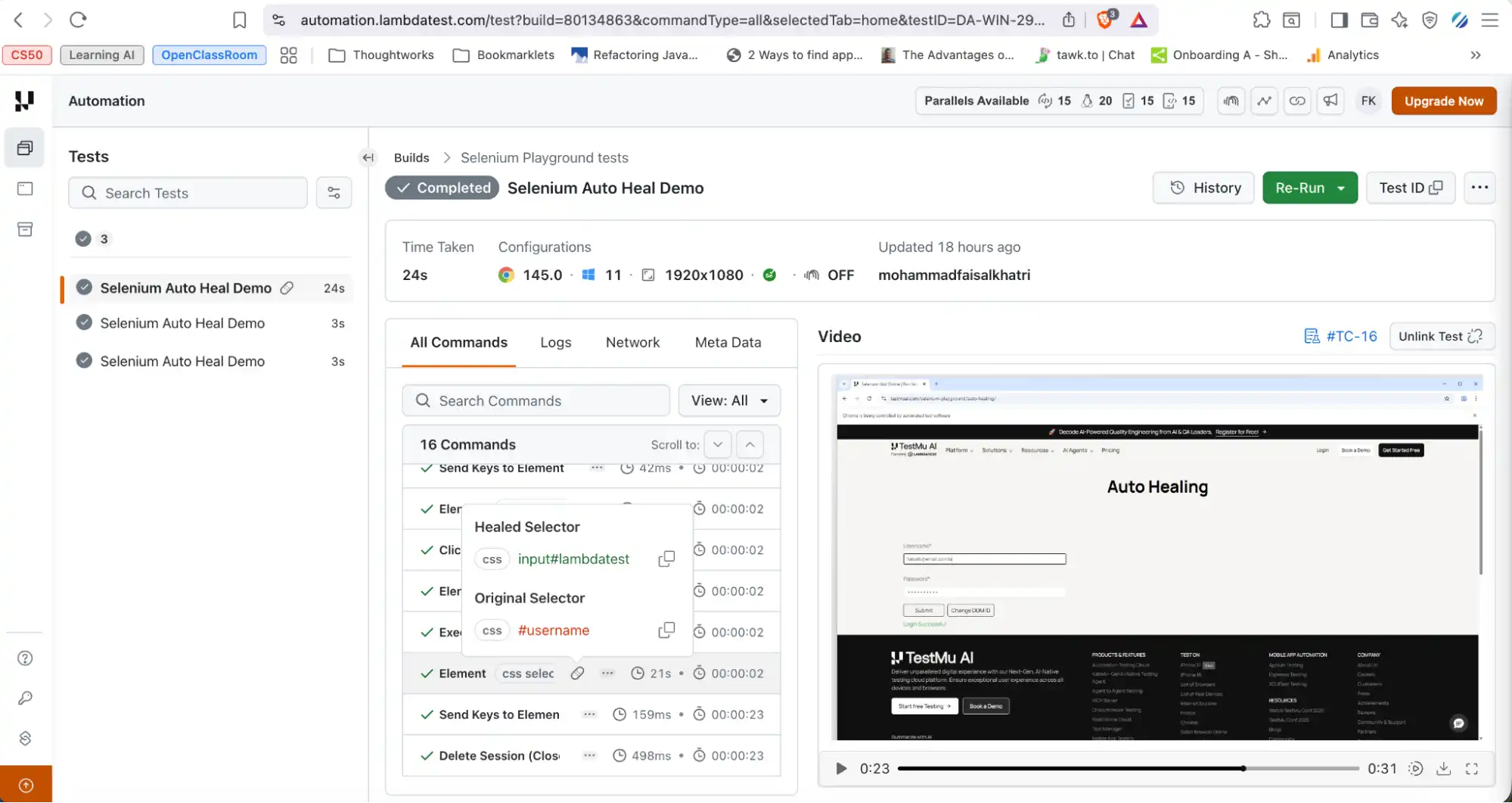
The healed locator can be identified by the bandage icon in the "All Commands" section. It displays both the healed and the original selector details, which can be used to update the test scripts if needed.
Selenium Skills Provided by TestMu AI Agent Skills
Once your Selenium AI tests are running on the TestMu AI platform, you can take automation further using the selenium-skill repository provided by TestMu AI agent-skills.
The Selenium skill is a purpose-built AI agent designed to generate production-grade Selenium WebDriver tests across multiple languages, covering both local execution and cloud-based runs on TestMu AI.
The Selenium skill intelligently understands requests related to Selenium testing, browser automation, and cross-browser execution. It can automatically generate reliable test scripts.
For teams that want the benefits of AI-assisted test generation without building a custom integration, the Selenium skill is a practical starting point.
If you are getting started with Selenium and want to generate production-ready test automation with Selenium Skill, please refer to this guide on Running First Test with Selenium Skill.
How TestMu AI KaneAI Helps With Selenium AI Test Automation?
KaneAI by TestMu AI is a GenAI-native testing agent that enables teams to design, create, and refine tests using natural language. It is built for fast-moving quality engineering teams and integrates smoothly with TestMu AI's ecosystem for test planning, execution, orchestration, and analysis.
It also uses the built-in auto-healing feature to handle flaky test scenarios, so teams do not need to worry about failures caused by minor UI changes.
Getting Started with KaneAI
The steps given below need to be followed to get started with KaneAI.
- Create an account on TestMu AI and log in.
- On the TestMu AI website, navigate to KaneAI > Agent
Type the following test scenario in the text box:
|
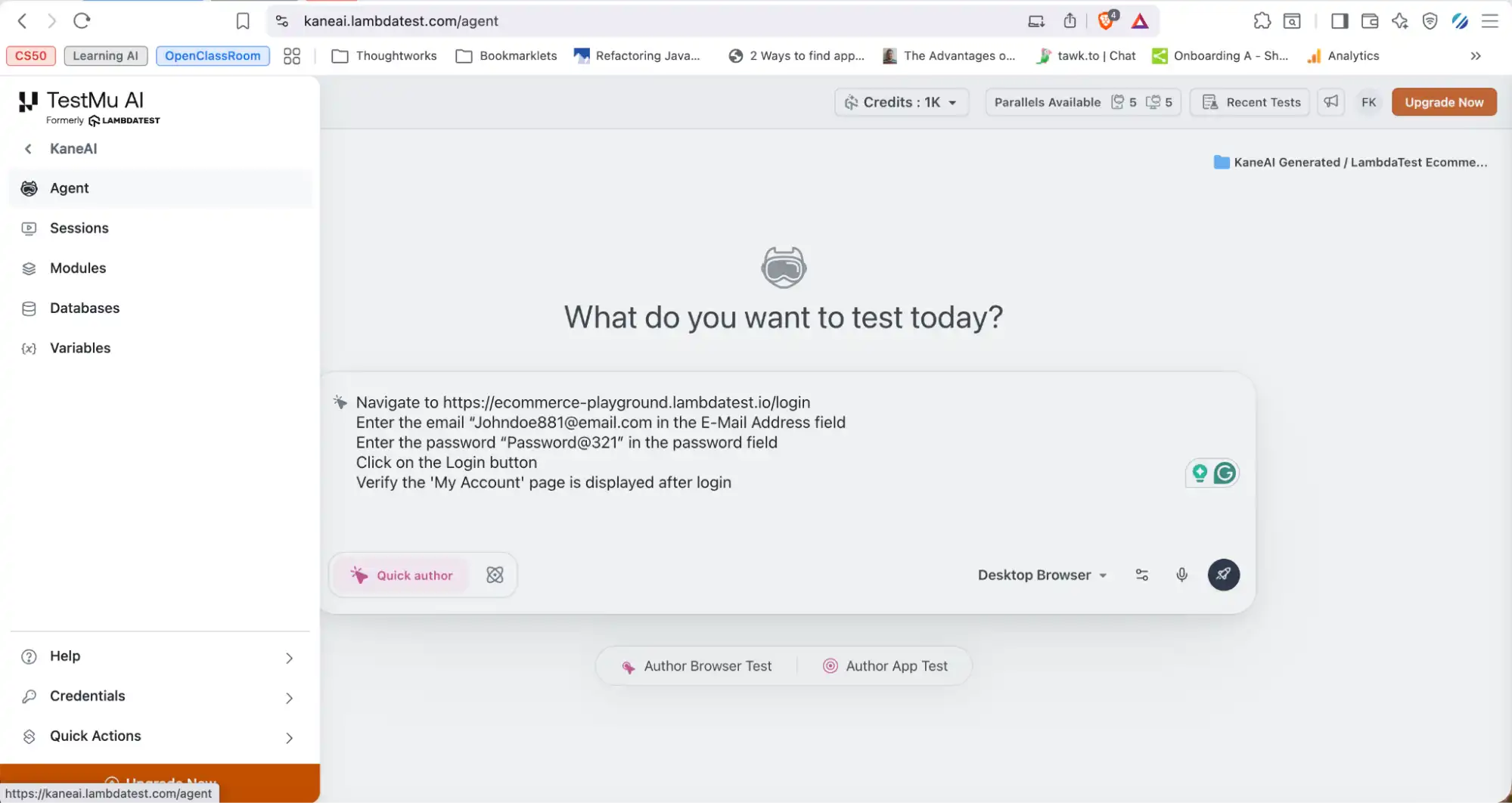
KaneAI will start executing the test steps by intelligently locating the elements and performing mouse clicks and key presses to interact with them.
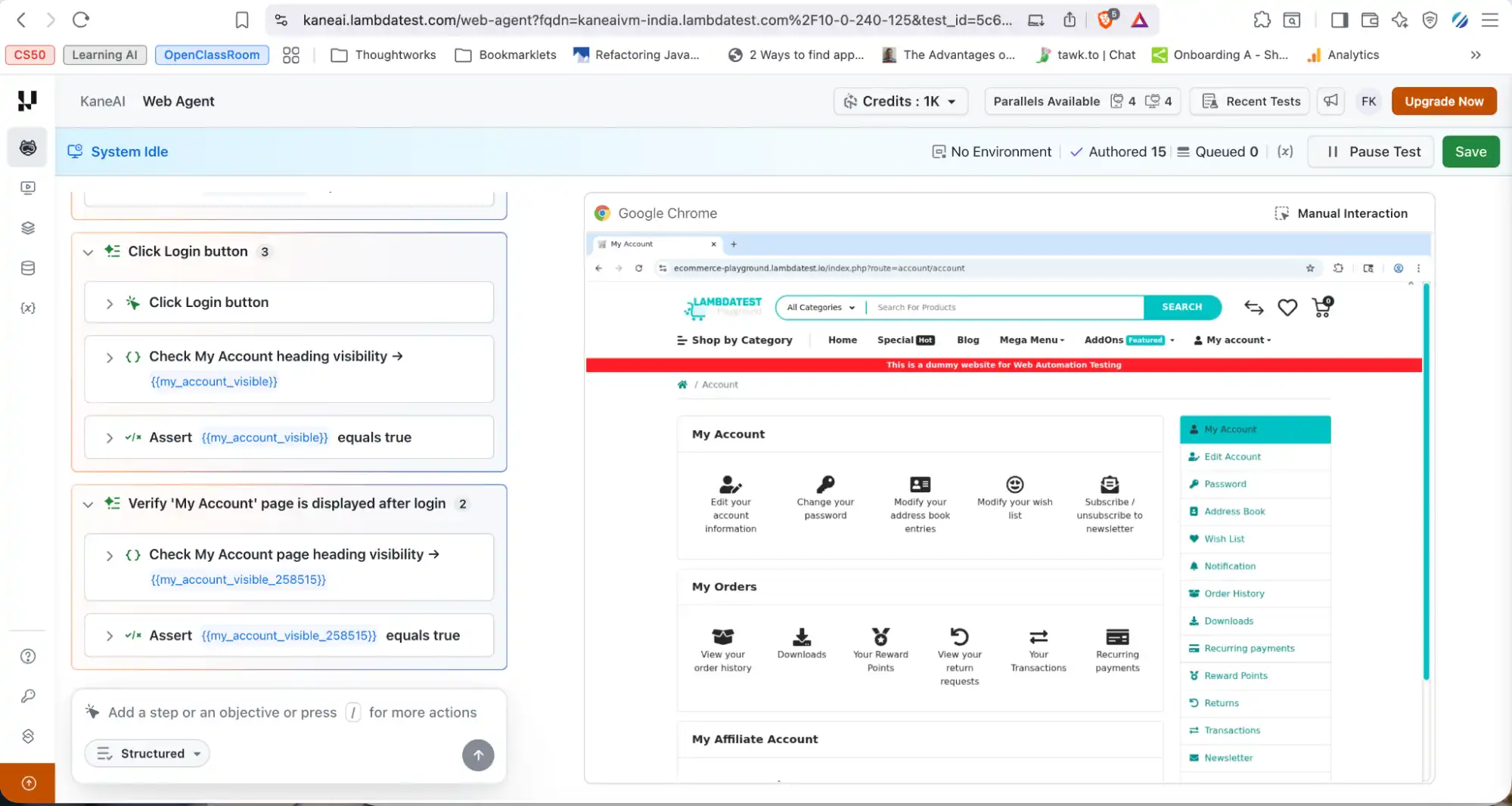
To get started with KaneAI Agent follow this support documentation on authoring your first desktop browser test and get the most out of KaneAI's natural language automation.
Selenium AI vs Traditional Selenium: A Comparative Breakdown
The following table presents a comparative breakdown of differences between Selenium AI and traditional Selenium.
| Criteria | Selenium AI | Traditional Selenium |
|---|---|---|
| Dependency on External Tools | Requires integration with AI-powered platforms or plugins; not native to Selenium itself. | Pure open-source framework without built-in AI capabilities. |
| Identifying Elements | Uses intelligent element recognition. It can adapt to attribute changes using pattern matching or AI-based locators. | Relies on predefined locators such as ID, XPath, and CSS selectors. Tests break if they change. |
| Auto Healing | Can support self-healing mechanisms (via AI-enabled tools integrated with Selenium). | Requires manual updates to the locators whenever there is a change on the UI. |
| Visual Testing Support | AI-based visual validation tools can be integrated for layout and performing UI regression. | Requires separate tools for visual validation; no built-in visual intelligence. |
| Test Creation | AI tools assist in generating test steps or suggesting locators. | It requires test scripts to be written manually by automation engineers. |
| Test Stability | Generally, more resilient to minor DOM or attribute changes when integrated with AI tools. | More prone to flaky tests due to dynamic elements or frequent UI updates. |
| Failure Analysis | Can provide smarter insights by grouping failures or identifying patterns when integrated with specific failure analysis tools. | Manual Analysis needs to be performed after checking the logs and stack traces provided by Selenium. |
| Maintenance Effort | Reduced maintenance when AI-based auto-healing and analysis features are enabled. | Higher maintenance effort, especially in fast-changing applications. |
| Execution Optimization | With the AI tool integration, intelligent test prioritization can be provided based on historical execution data. | Tests are executed as configured. The prioritization should be manually designed. |
| Learning Curve | An understanding of additional AI tooling and configuration may be required. | Selenium has extensive documentation and widespread adoption, backed by a large and active community. |
| Cost | Depending on the AI tool or platform, additional licensing or subscription costs are involved. Infrastructure and advanced features may increase overall investment. | Selenium is free and open source. Costs are mainly related to infrastructure, framework setup, and maintenance effort. |
| Open Source vs Commercial | AI capabilities are generally provided through commercial or hybrid platforms built on top of Selenium. Some may offer limited open-source components, but advanced features are usually paid. | Fully open-source under the Apache 2.0 license, with strong community support and no licensing fees. |
Limitations and Challenges of Selenium AI
Using Selenium AI provides multiple benefits, but it has limitations and challenges that teams should be aware of before committing to an AI-based approach.
- Risk of Masking Real Defects: Self-healing mechanisms may automatically adjust locators when elements change. In some cases, this could hide legitimate UI defects if not monitored properly.
If a button has genuinely moved to the wrong position or been removed from a critical flow, an auto-healing tool that finds a visually similar element and continues the test might report a pass when the application is actually broken.
It makes sense to perform a round of human review before widely accepting or committing the healed locator updates to ensure that no real UI issue is being overlooked.
- False Positives in Visual Analysis: Even though AI helps reduce unnecessary alerts, it is not flawless. AI-powered visual testing can sometimes report valid UI changes as issues, such as a deliberate redesign or a brand update, or fail to catch minor business logic problems that manifest visually in subtle ways.
Setting up proper baselines and reviewing flagged differences before marking them as failures helps keep visual test results trustworthy.
- High Initial Setup Cost: Implementing AI-based testing frameworks often requires additional tools, infrastructure, and configuration effort, which can make the initial investment relatively expensive compared to a plain Selenium setup.
Teams starting with automation testing tools for the first time should evaluate whether the AI layer is necessary at their current scale or whether a well-structured Selenium framework would serve them better first.
- Learning Curve: Teams need to understand not only Selenium but also the AI tool's configuration, behavior, and limitations. Common challenges in Selenium are already significant for new teams. Adding an AI layer on top increases that complexity. Misconfiguration can lead to incorrect healing or overlooked issues.
- Limited Control and Transparency: AI tools often operate as black boxes, making it difficult to fully understand how decisions such as auto-healing, failure analysis, and test prioritization are made.
This may lower confidence, especially for teams that prefer predictable and fully controlled test behavior. Reviewing healed locators and AI-generated test scripts regularly helps maintain transparency and trust in the automation suite.
- Flaky Behavior in Edge Cases: AI-based element identification relies on patterns and similarity scores. In edge cases where two elements look visually similar or share multiple attributes, the AI may identify the wrong element.
This is especially common in data-heavy tables or list-based UIs where rows share a similar structure. Combining AI healing with stable test design, including meaningful and unique Selenium locators and explicit Selenium waits, reduces the risk of misidentification.
Best Practices for Selenium AI Integration
To get the most value from AI-powered enhancements, teams must first establish strong Selenium best practices as a foundation. AI works best when built on stable, maintainable automation frameworks rather than compensating for weak test design.
- Review the pros and cons of the AI tools before integration: Before integrating any AI tool with Selenium, evaluate its advantages and limitations carefully to ensure it aligns with the project's needs. Understanding the trade-offs in terms of cost, maintenance, transparency, and control helps teams make informed decisions and avoid unnecessary complexity.
- Integrate with CI/CD pipeline: Integrate AI-enabled Selenium tests into the CI/CD pipeline so they run automatically with every build or deployment. This allows features like automatic failure analysis and self-healing locators to work in real time, helping identify root causes faster and adapt to minor UI changes without breaking the pipeline.
- Monitor the self-healing locators: Continuously monitor self-healing locators to ensure that automatic adjustments are accurate and do not mask real UI defects. Regular review and validation of healed changes help maintain trust in the automation suite and ensure that genuine issues are not overlooked.
- Review AI-generated test scripts and locators: Regularly review AI-generated test scripts and locators before adding them to the main automation suite. This ensures the logic is correct, the selectors are stable, and the tests truly reflect business requirements rather than just technical behavior. Human review helps maintain quality, readability, and long-term maintainability of the automation scripts.
- Finetune AI integration with human decisions: While AI can suggest locators, generate tests, and analyze failures, final decisions should involve human review to ensure alignment with business rules and testing strategy. This balanced approach keeps automation smart and avoids hallucinations.
- Review the AI-integrated visual checks carefully: AI-integrated visual checks should be carefully reviewed to ensure that reported differences represent real UI defects and not false positives. Human validation helps confirm layout changes, branding updates, or dynamic content variations before treating them as genuine issues.
- Refine AI models and settings for best performance: AI models and their configuration settings should be continuously refined to achieve the best results for our application. Adjust thresholds, healing sensitivity, and analysis rules based on project behavior to reduce noise and improve accuracy. Regular tuning ensures the AI remains aligned with our testing goals and evolving application changes.

Future of Selenium AI: Trends and Innovations
The future of Selenium with AI is moving toward more autonomous and context-aware test automation. You can expect smarter test generation based on user behavior, improved self-healing mechanisms, and deeper integration with CI/CD pipelines for real-time failure insights.
Large Language Model-generated tests are accelerating the shift toward AI-assisted testing by enabling teams to convert user stories, requirements, and acceptance criteria directly into executable test scenarios. This reduces manual scripting effort while improving test coverage.
According to the 2026 State of Testing Report, AI adoption is already widespread in QA, with 60.7% of teams using AI for test case creation, 50.5% for test case or script maintenance, and 38.7% for test case optimization.
The same report shows that beyond execution activities, AI is also supporting broader testing functions: 35.4% of teams use it for test planning, 33.4% for reporting and insights, 29.1% for test data management, and 17.7% for early risk identification.
In parallel, federated and distributed testing models are gaining traction, enabling teams to execute tests across multiple environments and infrastructures while maintaining centralized visibility and control.
The Forrester Wave™: Autonomous Testing Platforms, Q4 2025 report highlights how AI and generative technologies are shifting testing from scripted automation toward intelligent, self-directed validation that adapts to changes with minimal human intervention.
Additionally, Gartner predicts that by 2028, 70% of enterprises will incorporate AI-augmented testing tools into their software engineering toolchains, as highlighted in the Gartner Magic Quadrant for AI-Augmented Software Testing Tools.
TestMu AI is already aligned with this shift toward AI-augmented testing by combining AI-assisted test generation, cloud-based distributed execution, and deeper CI/CD integrations. It helps QA teams move closer to autonomous and scalable testing, in line with the evolving direction of AI-powered quality engineering.
Conclusion
Selenium AI can transform traditional test automation into a more intelligent and resilient process. With capabilities like auto-healing, smart locators, AI-driven visual checks, accessibility testing, and KaneAI for faster script generation, Selenium becomes more stable, efficient, and future-ready.
Adopting AI-powered Selenium is a strong step forward for teams aiming to reduce flakiness, improve coverage, and deliver high-quality applications with greater confidence. Whether you start with an open-source library like Healenium or go deeper with TestMu AI's full stack of Selenium AI tools, the key is to integrate AI thoughtfully alongside strong fundamentals rather than as a replacement for good test design.
Author

Faisal Khatri
Blogs: 40


Mohammad Faisal Khatri is a Software Testing Professional with 17+ years of experience in manual exploratory and automation testing. He currently works as a Senior Testing Specialist at Kafaat Business Solutions and has previously worked with Thoughtworks, HCL Technologies, and CrossAsyst Infotech. He is skilled in tools like Selenium WebDriver, Rest Assured, SuperTest, Playwright, WebDriverIO, Appium, Postman, Docker, Jenkins, GitHub Actions, TestNG, and MySQL. Faisal has led QA teams of 5+ members, managing delivery across onshore and offshore models. He holds a B.Com degree and is ISTQB Foundation Level certified. A passionate content creator, he has authored 100+ blogs on Medium, 40+ on TestMu AI, and built a community of 25K+ followers on LinkedIn. His GitHub repository “Awesome Learning” has earned 1K+ stars.


Frequently asked questions
Did you find this page helpful?
More Related Blogs
TestMu AI forEnterprise
Get access to solutions built on Enterprise
grade security, privacy, & compliance
- Advanced access controls
- Advanced data retention rules
- Advanced Local Testing
- Premium Support options
- Early access to beta features
- Private Slack Channel
- Unlimited Manual Accessibility DevTools Tests