
Run Web Automation Tests at Scale with Agentic AI
Generate tests with AI agents or automate test suites with Selenium, Playwright and other frameworks. Run tests in parallel on TestMu AI scalable cloud grid.

- TestMu AI (Formerly LambdaTest)
- /
- Blog
- /
- MSTest Tutorial: Setup Selenium WebDriver For MSTest Framework In C#
Selenium MSTest Tutorial: Setup Selenium WebDriver For MSTest Framework In C#
This MSTest testing tutorial covers different ways of installing Selenium WebDriver for the MSTest framework in C#.
Last Updated on:
Setting up Selenium WebDriver for MSTest in C# means creating an MSTest Test Project in Visual Studio, then installing the Selenium.WebDriver and Selenium.WebDriver.ChromeDriver NuGet packages. Both packages install through Visual Studio's NuGet Package Manager or its Package Manager Console, and the default [TestClass] and [TestMethod] attributes pick up the WebDriver calls with no extra configuration. This guide covers creating a new C# project, downloading Selenium WebDriver through Visual Studio or the Package Manager console, and how AI coding assistants speed up that setup.
Overview
To set up Selenium WebDriver for MSTest in C#, create an MSTest Test Project in Visual Studio and install the Selenium.WebDriver package using the NuGet Package Manager. This configuration enables you to write structured browser automation tests within a .NET environment using MSTest for test management.
- MSTest Test Project (.NET Core): Use this Visual Studio project template to establish a structured testing environment that contains default test classes with [TestClass] and [TestMethod] attributes.
- UnitTest1 class: Use this default class containing [TestClass] and [TestMethod] attributes as a placeholder to write and execute your Selenium automation logic.
- NuGet Package Manager: Use this built-in Visual Studio GUI tool to search for and install the required Selenium automation libraries.
- Package Manager Console: Use this command line interface tool in Visual Studio to quickly install testing packages using commands like Install-Package.
- Selenium.WebDriver: Install this core NuGet package to enable browser automation capabilities and handle browser interactions within your C# test scripts.
- Selenium.WebDriver.ChromeDriver: Install this specific driver package to enable direct communication and automation with the Google Chrome browser.
- OpenQA.Selenium namespaces: Add using OpenQA.Selenium and using OpenQA.Selenium.Chrome to your C# class to verify that the libraries are successfully imported without compilation errors.
- Get-Package command: Run this command in the Package Manager Console to list all installed dependencies and confirm successful installation of your testing packages.
Creating a New Project in C#
Starting your journey with Selenium WebDriver? Check out this step-by-step guide to perform Automation testing using Selenium WebDriver Tutorial. If you’re looking to improve your Selenium interview skills, check out our curated list of Selenium interview questions and answers.
Before installing Selenium WebDriver, we create a new project in C# by following the below-mentioned steps:
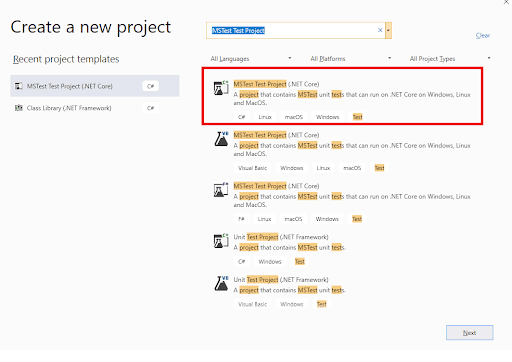
- 1. Open Visual Studio and create a new project of the type ‘MSTest Test Project (.Net Core).’
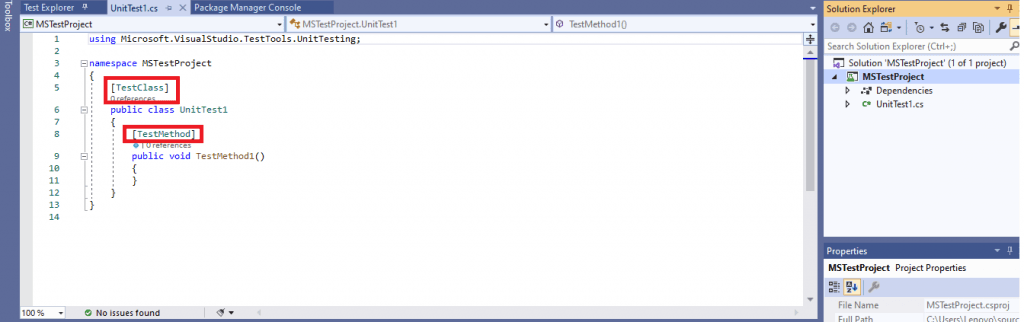
- As the created project is of type MSTest Test Project (.Net Core), the default C# class comes along with the attributes [TestMethod] and [TestClass] in it.

Steps to Download Selenium WebDriver
Before running your first script in MSTest, you need to download and set up Selenium WebDriver.
Selenium WebDriver on Visual Studio can be installed using NuGet, a free and open-source package manager that is specifically designed for the Microsoft Platform. There are two options for installing Selenium WebDriver – using the Visual Studio IDE and using the NuGet Package Manager (PM) Commands.
Using Visual Studio IDE
For installing Selenium WebDriver using the VS IDE, please perform the following steps:
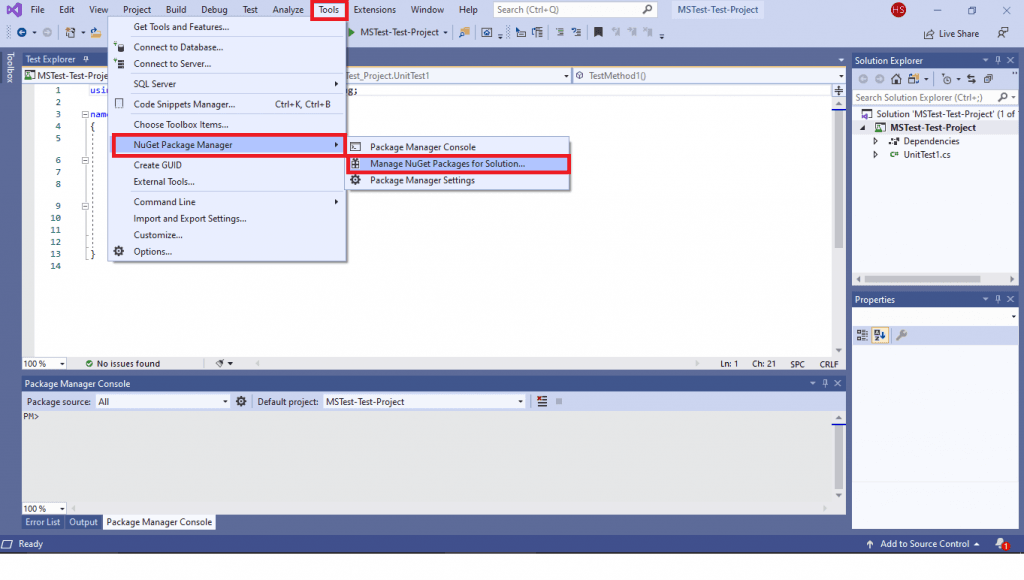
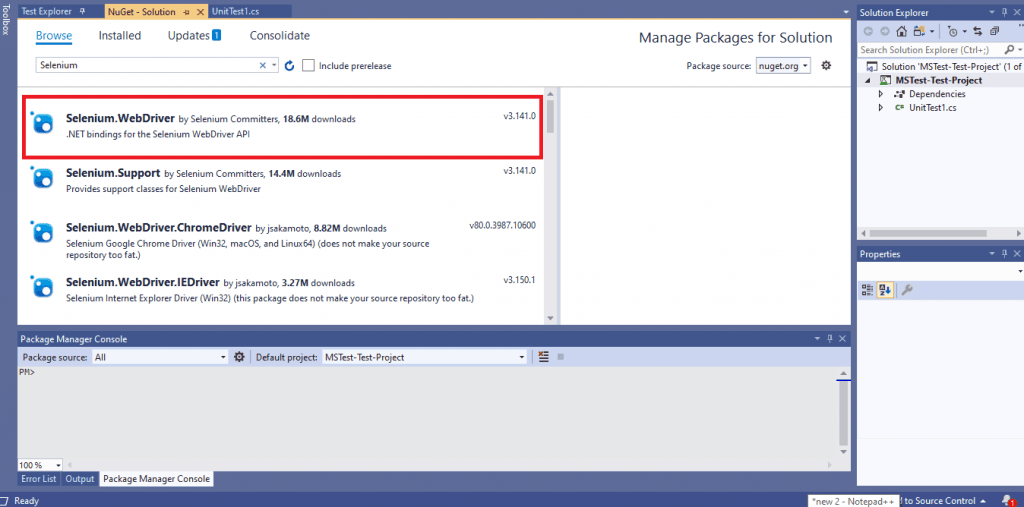
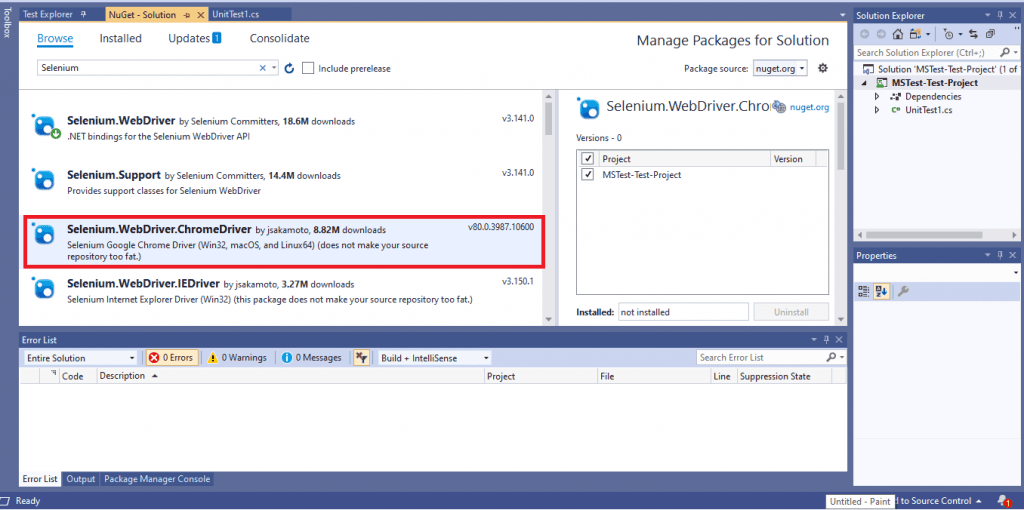
- Navigate to Tools -> NuGet Package Manager -> Manager NuGet Packages for Solution and search for ‘Selenium.’
- Select Selenium.WebDriver from the search list and click on the Install button.
- For automated browser testing, we make use of the Chrome web browser. Hence, we install the Selenium Chrome Driver. Select Selenium.WebDriver.ChromeDriver from the search list and click on the Install button.
- Now that the Selenium WebDriver installation is complete, you can use the package in the source code. Including the following statements in the source code to verify whether the Selenium WebDriver is installed or not.
using Microsoft.VisualStudio.TestTools.UnitTesting;
using OpenQA.Selenium;
using OpenQA.Selenium.Chrome;

namespace MSTest_Test_Project
{
    [TestClass]
    public class UnitTest1
    {
        [TestMethod]
        public void TestMethod1()
        {
        }
    }
}
Using Package Manager (PM) Commands
If you are more comfortable with the command-line terminal, Selenium WebDriver can also be installed by executing the relevant commands on the Package Manager (PM) console.
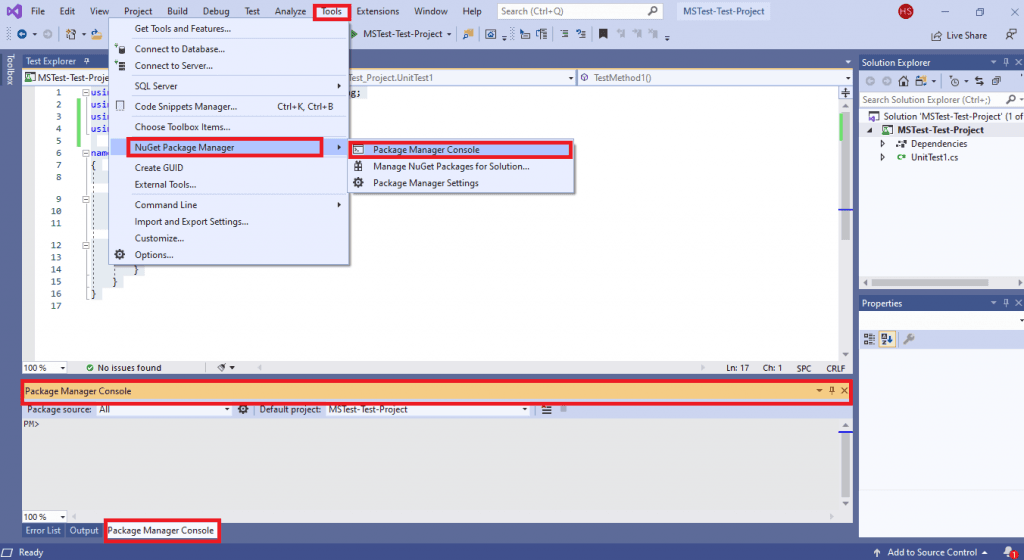
- In order to execute commands from the PM console, navigate to Tools -> NuGet Package Manager -> Package Manager Console.
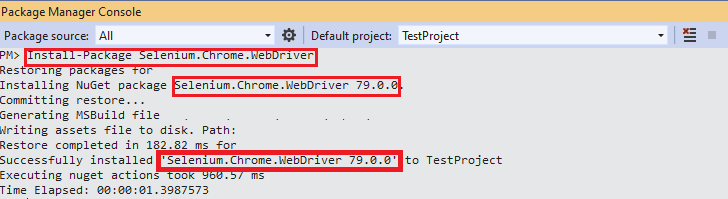
- The following commands have to be executed on the Package Manager (PM) console:
Install-Package Selenium.WebDriver
Install-Package Selenium.Chrome.WebDriver
Read: Most Complete MSTest Framework Tutorial Using .Net Core.
Shown below is the snapshot of the Package Manager Console:
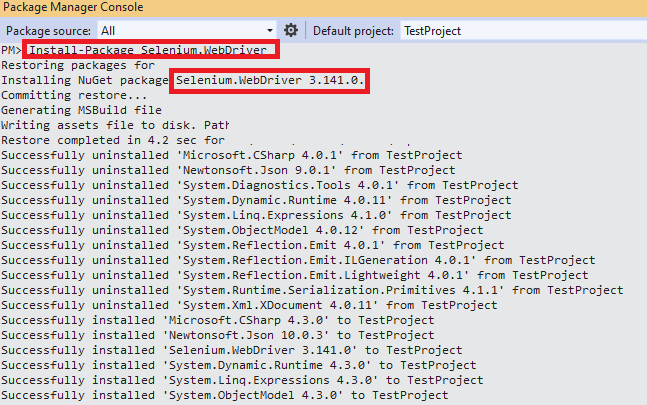
To verify whether the necessary packages are installed, execute the Get-Package command on the PM console.
PM> Get-Package

Id                                  Versions
--                                  --------
Selenium.WebDriver                  {3.141.0}
Selenium.Chrome.WebDriver           {79.0.0}
...... ......
...... ......
This MSTest Tutorial for beginners and professionals will help you learn how to use MSTest framework with Selenium C# for performing Selenium automation testing.
How Do AI Coding Assistants Help Set Up Selenium WebDriver In MSTest?
AI coding assistants inside Visual Studio, such as GitHub Copilot, generate the MSTest boilerplate and Selenium WebDriver initialization code from a plain-language prompt, cutting manual setup time for this exact workflow. They do not replace the NuGet install step covered above, but they remove most of the repetitive typing around it.
- Inline code completion: GitHub Copilot in Visual Studio autocompletes the [TestClass] and [TestMethod] skeleton and the using OpenQA.Selenium.Chrome; import shown earlier in this tutorial as you type.
- Chat-based scaffolding: Copilot Chat or Claude can generate the NuGet install command and a working ChromeDriver initialization block from one prompt, though the generated code still needs the manual verification steps covered above, since an assistant can suggest an outdated package version.
- Current package baseline: Selenium.WebDriver on NuGet is at version 4.49.0 and targets .NET 8.0, newer than the 3.141.0 driver shown in the Get-Package output above.
- MCP browser agents: Model Context Protocol servers built for Playwright or Selenium let an AI agent drive a real browser session directly from a natural-language instruction, a separate layer from the WebDriver setup this tutorial covers and not a replacement for it.
Conclusion

With this Selenium MSTest setup example, we had a look at setting up Selenium WebDriver for automated testing with MSTest and C#. The steps mentioned in this Selenium C# tutorial are essential to get started with automation testing with Selenium and C#. With the completion of the Selenium MSTest framework & Selenium installation, you are all set to perform cross browser testing or automated browser testing with MSTest, Selenium, and C# ☺.


Austin Siewert
Co-Founder, Steadfast Systems
Discovered @TestMu AI yesterday. Best browser testing tool I've found for my use case. Great pricing model for the limited testing I do 👏
3M+ Devs and QAs rely on TestMu AI
Deliver immersive digital experiences with Next-Generation Mobile Apps and Cross Browser Testing Cloud

Testing from the terminal? Kane CLI by TestMu AI lets SDETs and developers plan, write, run and debug tests from the command line.
Author

Himanshu Sheth
Blogs: 144


Himanshu Sheth is the Director of Marketing (Technical Content) at TestMu AI, with over 8 years of hands-on experience in Selenium, Cypress, and other test automation frameworks. He has authored more than 130 technical blogs for TestMu AI, covering software testing, automation strategy, and CI/CD. At TestMu AI, he leads the technical content efforts across blogs, YouTube, and social media, while closely collaborating with contributors to enhance content quality and product feedback loops. He has done his graduation with a B.E. in Computer Engineering from Mumbai University. Before TestMu AI, Himanshu led engineering teams in embedded software domains at companies like Samsung Research, Motorola, and NXP Semiconductors. He is a core member of DZone and has been a speaker at several unconferences focused on technical writing and software quality.


Selenium WebDriver for MSTest FAQs
Did you find this page helpful?
More Related Blogs

TestMu AI forEnterprise
Get access to solutions built on Enterprise
grade security, privacy, & compliance
- Advanced access controls
- Advanced data retention rules
- Advanced Local Testing
- Premium Support options
- Early access to beta features
- Private Slack Channel
- Unlimited Manual Accessibility DevTools Tests