
Power Your Software Testing with AI Agents and Cloud
The Native AI-Agentic Cloud Platform to Supercharge Quality Engineering. Test Intelligently and Ship Faster.


- TestMu AI (Formerly LambdaTest)
- /
- Blog
- /
- Cross Browser Testing With WebDriverIO [Tutorial]
Cross Browser Testing With WebDriverIO [Tutorial]
WebDriverIO is a Node.js browser automation framework. Learn to perform cross browser testing with WebDriverIO on local drivers or a cloud Selenium Grid.
Last Updated on:
WebdriverIO performs cross-browser testing by running the same test script against multiple browser capabilities defined in wdio.conf.js, on local browser drivers or a cloud Selenium Grid.
It extends the Selenium WebDriver API with a Node.js-based framework that integrates Mocha, Jasmine, and Cucumber, and ranks among the best 9 JavaScript testing frameworks for browser automation.
This guide covers the WebDriverIO architecture, why it suits cross-browser testing, how to test locally with each browser driver, and how to scale the same tests on a cloud Selenium Grid.
Overview
To perform cross-browser testing, use the WebDriverIO framework to automate test scripts across different browser environments locally, or run parallel tests on a cloud-based Selenium Grid like TestMu AI to scale your test coverage across multiple operating systems and devices.
What Is WebDriverIO and Why Is It Used for Cross Browser Testing?
- WebDriverIO framework: WebDriverIO is an open-source, Node.js-based framework that simplifies cross-browser testing across different browsers, devices, and operating systems.
- Selenium integration: WebDriverIO extends the traditional Selenium automation framework by providing a modern JavaScript-based framework with faster setup and broader integrations.
- Mocha framework: The Mocha testing framework integrates with the extensible design of WebDriverIO to support flexible behavior-driven development workflows.
- Jasmine framework: The Jasmine framework integrates with WebDriverIO to provide a clean syntax for writing test-driven development scripts.
- Cucumber tool: The Cucumber tool integrates with WebDriverIO to enable collaboration through plain-text behavior-driven development specifications for testing.
- Jenkins CI: The Jenkins continuous integration tool integrates with WebDriverIO to automate test execution within your software deployment pipeline.
- GitHub Actions: The GitHub Actions workflow automation tool runs WebDriverIO cross-browser tests automatically on code commits or pull requests.
How To Perform Cross Browser Testing Using WebDriverIO?
- ChromeDriver: Developers must download the ChromeDriver local browser driver to enable WebDriverIO to execute automated tests on the Chrome browser.
- GeckoDriver: Teams must install the GeckoDriver local driver to allow WebDriverIO to control and run automated tests on the Firefox browser.
- EdgeDriver: The EdgeDriver local driver enables WebDriverIO to connect with and run automated test scripts on the Microsoft Edge browser.
- wdio.conf.js configuration: The wdio.conf.js configuration file defines target browsers, versions, and environment capabilities for your WebDriverIO test runs.
- Multi-Remote Testing: The Multi-Remote Testing feature in WebDriverIO manages multiple browser sessions concurrently to simulate real-world multi-user interactions.
- TestMu AI: The TestMu AI cloud-based Selenium Grid runs WebDriverIO tests in parallel across multiple browser and operating system combinations to improve scalability.
Introduction to WebDriverIO automation framework
WebDriverIO is the next-generation browser and test automation framework that is preferred by JavaScript developers for performing cross browser testing. Here is the overall architecture of the WebDriverIO test automation framework:
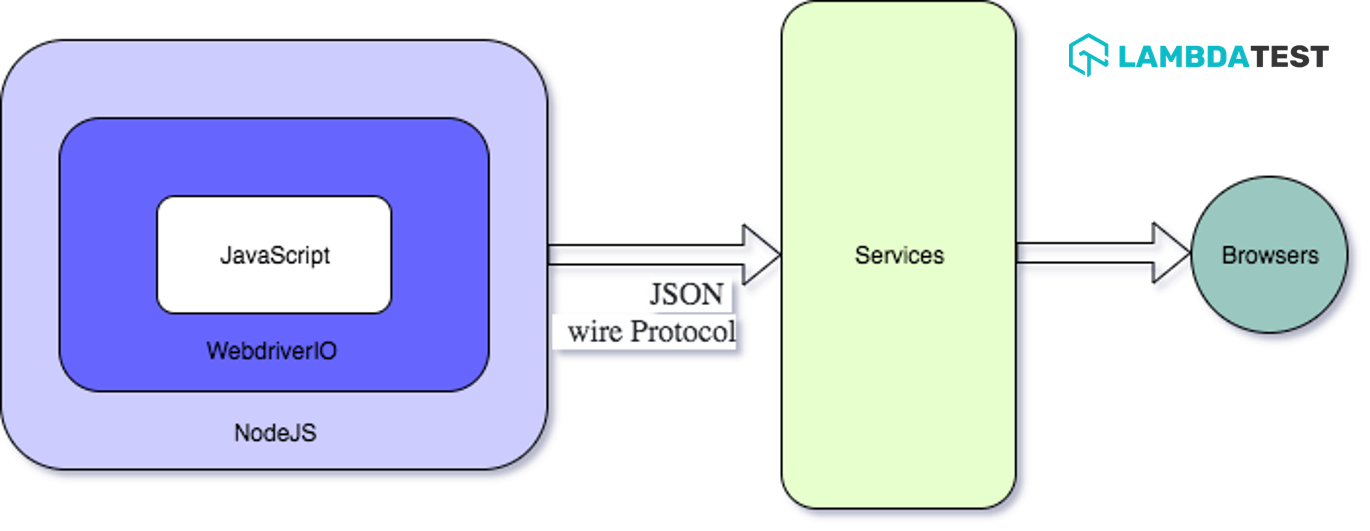
As seen in the architecture diagram, the JavaScript code implemented by the user is sent by the WebDriverIO via NodeJS to the Services through the WebDriver Protocol. The subsequent request is then sent to the corresponding browser where appropriate actions are performed on the WebElements in the DOM.
The WebDriverIO project is available on GitHub and the overall statistics speak to the popularity of this JavaScript framework. It has more than 9.8K stars and the project has been forked more than 2.6K times on GitHub.
You can also refer to our detailed WebDriverIO JavaScript tutorial for Selenium test automation to get a quick overview of the WebDriverIO framework. It will also provide you with information related to the setting up of the WebDriverIO framework.

Austin Siewert
Co-Founder, Steadfast Systems
Discovered @TestMu AI yesterday. Best browser testing tool I've found for my use case. Great pricing model for the limited testing I do 👏
3M+ Devs and QAs rely on TestMu AI
Deliver immersive digital experiences with Next-Generation Mobile Apps and Cross Browser Testing Cloud

You can take this certification as proof of expertise in the field of test automation with JavaScript to empower yourself and boost your career.
Here’s a short glimpse of the Selenium JavaScript 101 certification from TestMu AI:

You can aslo read – WebdriverIO Interview Questions for extra insights.
Why WebDriverIO for cross browser testing
For starters, cross browser compatibility testing is not only about testing the product features on different browser combinations. It is also about testing the compatibility on different devices and platforms (or operating systems). On the whole, cross browser compatibility testing does not cater only to web browsers.
Read – Why Cross Browser Testing Is Not Only About Web Browsers
WebDriverIO framework in JavaScript provides a range of commands that let you interact with the WebElements, perform navigation with the web browser, and manage page loads more effectively. Please refer to our blog titled Browser Commands in WebDriverIO where we have covered WebDriverIO commands for Selenium web automation.
To summarize, here are the major benefits of cross browser testing on a reliable and scalable cloud-based Selenium Grid:
- Faster browser coverage
- Fast platform coverage
- Great quality of product vastly
- Platform related issues
- Unique product behaviour
How to do cross browser testing using WebDriverIO
So far in this blog of the WebDriverIO JavaScript tutorial, we have covered the essentials of cross browser testing and features of the WebDriverIO framework. Before running cross browser tests with WebDriverIO, it is essential to download the browser driver of the web browser on which the test has to be performed.
Here are the links to download drivers for some major browsers:
In this WebDriverIO JavaScript tutorial, we will first show how to use WebDriverIO for cloud based browser testing on local Selenium Grid and later we will also demonstrate the usage of cloud-based Selenium Grid.
Once you have installed the browser driver, you need to mention the capability in the Wdio.conf.js file. You can also write different versions of each browser and platform.
Install the dev dependency by running the following command on the terminal:
npm install @wdio/selenium-standalone-service --save-dev
{
 "devDependencies": {
  @wdio/selenium-standalone-service": "^6.0.16"
 }
}
Here is how we set the web browser capabilities in WebDriverIO JavaScript.
.config = {
services: ["selenium-standalone"],

    // ...
    capabilities: {
            capabilities: {
                browserName: 'chrome'
            }
    }
    // ...
}
It is important that the services option is selected as selenium-standalone. As seen in the above snippet, the browser under test is Chrome. Shown below is the snippet where the browser capability is set to Firefox.
.config = {
services: ["selenium-standalone"],
    // ...
    capabilities: {
            capabilities: {
                browserName: 'firefox'
            }
    }
    // ...
}
You can add additional capabilities in WebDriverIO as shown below:
platformName: "macOS High Sierra", // macOS High Sierra & Windows 10
browserName: "Safari",
browserVersion: "11.0",
So far in this WebDriverIO JavaScript tutorial, we were using browser objects in order to write steps and execute them on the requisite browser(s) through configuring the Wdio.conf.js file. What if you want the automation on specified browser objects? You just have to configure each browser capability shown above and access each object using the browser name (e.g. Chrome, Firefox, etc.)
For demonstrating cross browser testing with WebDriverIO in JavaScript, we will run a single script on both browser combinations (i.e. Chrome and Firefox). Separate tests are run for each web browser.
If you get [0-0] Error: Failed to create session. , then check if the selenium-standalone server is running or not. If not, start the Selenium Standalone Server using the following command:
selenium-standalone start
Shown below is the configuration file (i.e. Package.json) that will be used for configuring the tests being run on the Selenium Grid:
{
   "name": "LambdaTestDemo",
   "version": "1.0.0",
   "description": "",
   "main": "index.js",
   "scripts": {
       "test": "echo "Error: no test specified" && exit 1"
   },
   "keywords": [],
   "author": "",
   "license": "ISC",
   "devDependencies": {
       "chromedriver": "^80.0.1",
       "wdio-chromedriver-service": "^6.0.0",
       "@wdio/cli": "^6.1.12",
       "@wdio/local-runner": "^6.1.12",
       "@wdio/mocha-framework": "^6.1.8",
       "@wdio/selenium-standalone-service": "^6.0.16",
       "@wdio/spec-reporter": "^6.1.12",
       "@wdio/sync": "^6.1.8"
   }
}
Now that you’ve seen how to set up browser capabilities and configure WebDriverIO for cross browser testing, watch the video below for a complete walkthrough—from setup to execution. It visually ties everything together and helps reinforce the concepts discussed above. 👇

Running Single Cross Browser Script on Multiple Browser Combinations
When performing cross browser testing with a JavaScript-based automation framework like WebDriverIO, you would come across scenarios where the same test has to be run on different browsers. The intent of such a test is to verify if the tests run in a similar way on those browsers, if not the discrepancies have to be caught!
Here is the implementation of how the WebDriverIO JavaScript framework is used for running automated browser test on different browser combinations:
describe("This is example of Cross browser Testing ", function () {

   it("Google - both browsers", function () {
       browser.url("/");
       browser.pause(5000);
       browser.$("=JavaScript Alerts").click();
       browser.pause(5000);
       browser.$(".//button[text()='Click for JS Alert']").click();
       browser.pause(5000);
       browser.acceptAlert();
       browser.pause(5000);
   });
});
capabilities: [
       {
           browserName: "firefox", // browserName: "chrome",
       },
   ],
As shown above, we have set the browser under test as Firefox. This is done using the browserName parameter.
Here is how you set the capabilities so that the same test runs on two different browsers (e.g. Chrome and Firefox).
capabilities: [
       {
           browserName: "firefox",
       },
       {
           browserName: "chrome",
       },
   ],
Running Separate Cross Browser Scripts on Multiple Browser Combinations
There are umpteen scenarios where you would want a specific set of tests to run on certain browsers and the remaining tests on other browser combinations. Shown below is the JavaScript implementation using WebDriverIO where two separate cross browser testing scenarios are run on the target URL.
As seen in the implementation, test – 1 is run on the Chrome browser and test – 2 is run on the Firefox browser.
describe("This is example of Cross browser Testing ", function () {
   it("Google - Chrome", function () {
       _chromeBrowser.url("http://the-internet.herokuapp.com/");
       _chromeBrowser.pause(5000);
       _chromeBrowser.$("=JavaScript Alerts").click();
       _chromeBrowser.pause(5000);
       _chromeBrowser.$(".//button[text()='Click for JS Alert']").click();
       _chromeBrowser.pause(5000);
       _chromeBrowser.acceptAlert();
       _chromeBrowser.pause(5000);
   });
   it("Google - firefox", function () {
       _firefoxBrowser.url("http://the-internet.herokuapp.com/");
       _firefoxBrowser.pause(5000);
       _firefoxBrowser.$("=JavaScript Alerts").click();
       _firefoxBrowser.pause(5000);
       _firefoxBrowser.$(".//button[text()='Click for JS Alert']").click();
       _firefoxBrowser.pause(5000);
       _firefoxBrowser.acceptAlert();
       _firefoxBrowser.pause(5000);
   });

});
This file contains the browser capabilities which are used by the test code.
capabilities: {
       _chromeBrowser: {
           capabilities: {
               browserName: "chrome",
           },
       },
       _firefoxBrowser: {
           capabilities: {
               browserName: "firefox",
           },
       },
   },
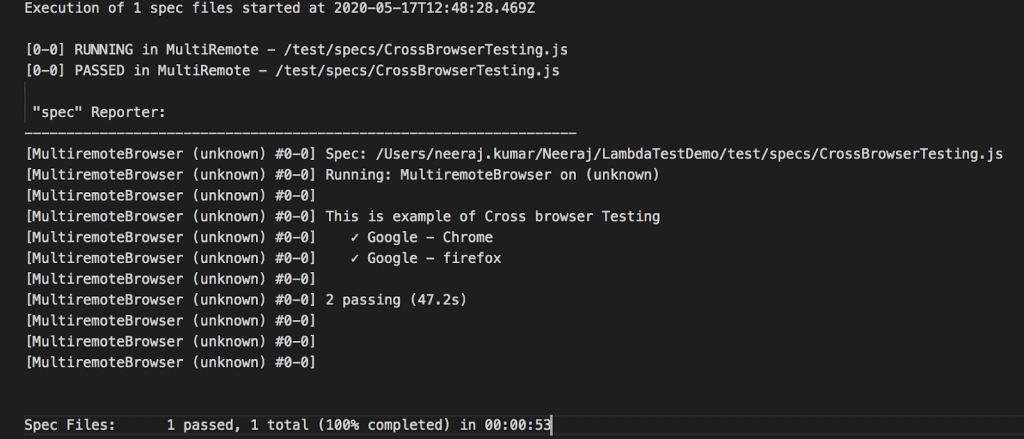
In scenario 2, we are using _chromeBrowser and _firefoxBrowser to control the script. Scenario 2 is also known as Multi-remote Browser in WebDriverIO, a concept in the WebDriverIO framework that we will cover in subsequent blogs of this WebDriverIO JavaScript tutorial.
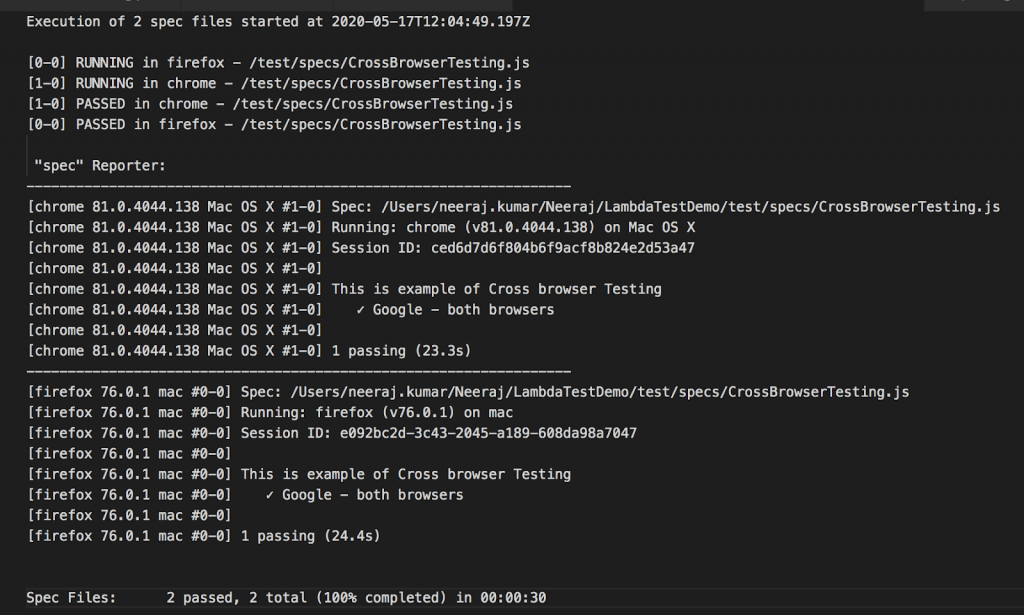
In scenario 1, both browsers start the execution at the same time whereas, in scenario 2, execution starts one by one.
Scenario 1 execution log
Scenario 2 execution log
How Do AI Agents Handle Cross-Browser Test Failures Now?
AI agents compare a failing browser's DOM and screenshot against a passing run, then flag the exact CSS or rendering difference instead of a generic timeout error.
- Visual-diff triage: An agent overlays a Chrome screenshot on the same test's Firefox or Safari screenshot and flags only the pixels that changed, instead of a human scanning both manually.
- Root-cause classification: An agent reads the WebDriver Protocol error alongside the DOM snapshot to separate a real cross-browser rendering bug from a flaky timing issue, the two failure types this article's Chrome and Firefox scenarios can both produce.
- Capability generation from natural language: An agent given the instruction "test this on Chrome, Firefox, and Safari" can generate the wdio.conf.js capability block covered above instead of a developer writing each combination by hand.
- Limitation: An agent still needs a real browser session, local or on a cloud Selenium Grid, to execute the test. It changes how a failure gets diagnosed, not the WebDriver Protocol call that runs it.
None of this replaces the WebDriver Protocol calls or the capability blocks covered earlier in this WebdriverIO tutorial. It only changes how fast a team spots which browser broke.
Cross browser testing with WebDriverIO on cloud Selenium Grid
One thing that you would have observed is that automated browser testing using JavaScript based frameworks require the installation of local browser drivers. This is a big bottleneck with automated browser testing performed on a local Selenium Grid.
Rather than running tests on a local Selenium Grid, you can opt for testing on a cloud-based Selenium Grid like TestMu AI. Selenium testing on the cloud (e.g. TestMu AI) provides benefits like improved scalability, reliability, faster test execution (through parallelism), improved test coverage, and detailed insights into test execution.

Once you create an account on TestMu AI, you need to make a note of the user-name and access-key from the LamdaTest profile section. You can use the TestMu AI capabilities generator to generate the capabilities for the corresponding browser & OS combination.
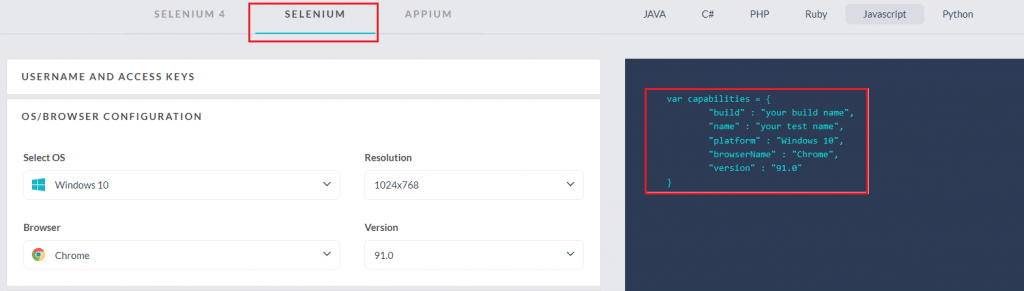
You can also perform parallel testing in Selenium by taking into account different browser and OS combinations on which tests have to be performed. Here is how you can create capabilities for two or more browsers in TestMu AI:
export.config = {
    // ...
    capabilities: {
        chromeBrowser: {
            capabilities: {
                browserName: 'chrome'
            }
        },
        firefoxBrowser: {
            capabilities: {
                browserName: 'firefox'
            }
        }
    }
    // ...
}
It is very easy to port an existing WebDriverIO test running on a local Selenium Grid to cloud-based Selenium Grid by TestMu AI. Let’s see how to configure it.
Open your terminal go to your project root folder, run below command to add the necessary dependencies:
npm i wdio-lambdatest-service --save-dev
On successful execution, you will see below entry in package.json file
{
    "devDependencies": {
        "wdio-lambdatest-service": "^1.0.0"
    }
}
If your website is hosted locally, then set tunnel:true in Wdio.config.js file.
// wdio.conf.js
export.config = {
    // ...
    user: process.env.LT_USERNAME,
    key: process.env.LT_ACCESS_KEY,
    services: [
        ['lambdatest', {
            tunnel: true
        }]
    ],
    // ...
};
In case you are not testing locally hosted pages (i.e. the pages are located on the server), you need to add the following JavaScript parameters in the Wdio.config.js file:
path: “/wd/hub”
user: "user_name_on_LambdaTeste",
key: "access_key_on_LambdaTest",
hostname: "hub.lambdatest.com",
port: 80,
services: ["lambdatest"],
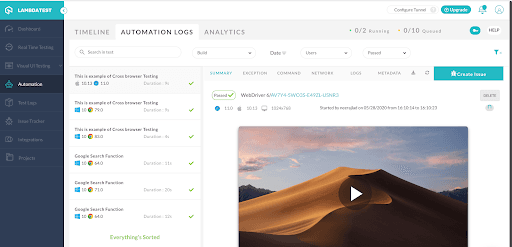
Here is the complete Configuration file (i.e. Wdio.config.js) where we have defined the number of parallel sessions to 5. The test is conducted on two different browser & OS combination (i.e. Chrome 79.0 on Windows 10 and Safari 11.0 on macOS High Sierra).
exports.config = {
   outputDir: "absolute_path_output_dir",
   runner: "local",
   path: "/wd/hub",
   specs: ["./test/specs/**/CrossBrowserTesting.js"],
   exclude: [
       // 'path/to/excluded/files'
   ],

   maxInstances: 10,
   user: "user_name",
   key: "access_key",
   capabilities: [
       {

           maxInstances: 5,
           name: "Cross browser testing - Safari-Mac", // name of the test,
           build: "CrossBrowserTesting",
           platformName: "macOS High Sierra", // macOS High Sierra & Windows 10
           browserName: "Safari",
           browserVersion: "11.0",
           video: true,
           console: true,
           visual: false,
       },
       {
           name: "Cross browser testing - Safari-Mac", // name of the test,
           build: "CrossBrowserTesting",
           platformName: "Windows 10", // macOS High Sierra & Windows 10
           browserName: "Chrome",
           browserVersion: "79.0",
           video: true,
           console: true,
           visual: false,
       },
   ],
   coloredLogs: true,
   hostname: "hub.lambdatest.com",
   port: 80,
   baseUrl: "http://the-internet.herokuapp.com/",
   waitforTimeout: 10000,
   connectionRetryTimeout: 90000,
   connectionRetryCount: 1,

   services: ["lambdatest"],
   // Test Code
};
Shown below is the execution snapshot on TestMu AI:

It’s a Wrap
In this part of the WebDriverIO JavaScript tutorial series, we looked at how to configure the Chrome and Firefox browsers for running WebDriverIO JavaScript tests on the respective web browsers. Using cloud-based Selenium Grid on TestMu AI, you can run tests using WebDriverIO on multiple browser & OS combinations. Accelerate the speed of cross browser tests by performing WebDriverIO testing in parallel on the cloud-based Grid. This is how you can take ultimate advantage of cross browser testing using WebDriverIO JavaScript.
Do check out the WebDriverIO Learning Hub on TestMu AI to get acquainted with the overall capabilities of WebDriverIO and how you can use those capabilities for achieving optimum test coverage.
I hope you have enjoyed reading this article that is a part of the ongoing WebDriverIO JavaScript tutorial series. Do leave a note as to how you run cross browser testing with the WebDriverIO framework…

Happy Testing!
Austin Siewert
Co-Founder, Steadfast Systems
Discovered @TestMu AI yesterday. Best browser testing tool I've found for my use case. Great pricing model for the limited testing I do 👏
3M+ Devs and QAs rely on TestMu AI
Deliver immersive digital experiences with Next-Generation Mobile Apps and Cross Browser Testing Cloud
Author

Rahul Jain
Blogs: 6


Rahul Jain is a community contributor with 7+ years of experience working within the software testing and QA platform ecosystem. At TestMu AI, he supports the adoption and visibility of cloud-based testing solutions, including KaneAI and HyperExecute, collaborating closely with product, engineering, and QA teams. Rahul contributes to initiatives that connect software testing platforms with developer and tester communities, helping teams understand and adopt modern testing workflows. He holds a Bachelor’s degree in Commerce and brings long-term experience working alongside large-scale testing products.
WebdriverIO Cross Browser Testing FAQs
Did you find this page helpful?
More Related Blogs

TestMu AI forEnterprise
Get access to solutions built on Enterprise
grade security, privacy, & compliance
- Advanced access controls
- Advanced data retention rules
- Advanced Local Testing
- Premium Support options
- Early access to beta features
- Private Slack Channel
- Unlimited Manual Accessibility DevTools Tests