

Power Your Software Testing with AI Agents and Cloud
The Native AI-Agentic Cloud Platform to Supercharge Quality Engineering. Test Intelligently and Ship Faster.


- TestMu AI (Formerly LambdaTest)
- /
- Blog
- /
- WebDriverWait in Selenium Java: A Detailed Tutorial
WebDriverWait in Selenium Java: A Detailed Tutorial
Learn to implement Explicit Wait command in Selenium with WebDriverWait class in Java. Improve web testing by precisely waiting for elements!
Last Updated on:
WebDriverWait in Selenium is used to apply explicit waits, allowing your test to pause until a specific condition is met, such as an element becoming clickable or visible.
Example of Selenium Webdriverwait
WebDriverWait wait = new WebDriverWait(driver, Duration.ofSeconds(10));
WebElement element = wait.until(
    ExpectedConditions.elementToBeClickable(By.id("login"))
);
element.click();
The examples here are in Java, though the WebDriverWait concept carries over to the other Selenium bindings such as Python and C#.
Key Takeaways
To handle dynamic web elements in Selenium Java, use WebDriverWait to apply explicit waits that pause test execution until specific conditions are met, and run these tests on the TestMu AI cloud Selenium Grid for scalable execution across real browsers.
- WebDriverWait: WebDriverWait pauses Selenium Java tests and repeatedly polls the DOM until a specific condition is met or a timeout is reached, which prevents timing-related test failures.
- ExpectedConditions: ExpectedConditions provides predefined methods like elementToBeClickable and visibilityOfElementLocated to specify the exact state an element must reach before the test script proceeds with interactions.
- TestMu AI: TestMu AI provides an online Selenium Grid to execute tests in parallel across a wide range of real browsers, devices, and operating system combinations.
- Fluent Wait: Fluent Wait offers advanced control for dynamic websites by allowing developers to configure custom polling intervals and handle specific exceptions during the wait period.
- Avoiding Thread.sleep(): Replacing fixed delays with dynamic explicit waits ensures tests run faster and eliminates flakiness caused by hardcoded sleep times.
What Is WebDriverWait in Selenium?
On many web pages, some elements like images, forms, or buttons load slower than others. This is a common challenge handled using Selenium waits. If a test tries to interact with these elements too early, it can fail. Selenium WebDriverWait helps solve this problem by pausing the test until a specific condition is met, such as an element becoming visible or clickable. It works by checking the element repeatedly until it is ready or the timeout is reached.
Here is how Selenium Webdriverwait works:
- Start the wait timer
- Check if the condition is met
- If not, wait briefly and check again
- Repeat until the condition is satisfied or timeout occurs
- If timeout is reached, throw an exception
It works by polling the Document Object Model (DOM) at regular intervals to check if the condition is met for the given WebElement within the specified timeout period.
WebDriverWait is usually used with ExpectedConditions, which define what Selenium should wait for, such as an element becoming visible or clickable.
6 Common ExpectedConditions Used with WebDriverWait
WebDriverWait is used with ExpectedConditions, which define what Selenium should wait for before proceeding with the test. These conditions help ensure that elements are in the correct state before any interaction is performed.
Below are some of the most commonly used ExpectedConditions in Selenium:
1. elementToBeClickable
Waits until the element is visible and clickable.
WebDriverWait wait = new WebDriverWait(driver, Duration.ofSeconds(10));
wait.until(ExpectedConditions.elementToBeClickable(By.id("login")));
2. visibilityOfElementLocated
Waits until the element is visible on the page.
wait.until(ExpectedConditions.visibilityOfElementLocated(By.id("username")));3. presenceOfElementLocated
Waits until the element is present in the DOM, but not necessarily visible.
wait.until(ExpectedConditions.presenceOfElementLocated(By.id("password")));4. invisibilityOfElementLocated
Waits until the element is no longer visible on the page.
wait.until(ExpectedConditions.invisibilityOfElementLocated(By.id("loader")));5. textToBePresentInElement
Waits until a specific text is present inside an element.
wait.until(ExpectedConditions.textToBePresentInElement(
    driver.findElement(By.id("message")), "Success"
));
6. alertIsPresent
Waits until an alert is present on the screen.
wait.until(ExpectedConditions.alertIsPresent());ExpectedConditions provide a simple and effective way to use WebDriverWait by offering predefined methods for common scenarios. This makes test scripts more reliable and easier to maintain.
How to Use WebDriverWait in Selenium Java?
Having understood the Selenium WebDriverWait, let’s move forward and learn how to use WebDriverWait in Selenium Java in test scripts. We will cover some of the most commonly used explicit wait implementations using the ExpectedConditions.
In this blog on using WebDriverWait in Selenium Java, we will use RemoteWebDriver for test execution. Using RemoteWebDriver allows you to harness the capabilities of the cloud grid, including speedy and parallel test execution in a more organized way.
Let’s use TestMu AI, an AI-powered test execution platform that offers an online Selenium Grid, enabling developers and testers to perform automation testing for websites and web applications on a wide range of real browsers, devices, and operating system combinations.

Note: Run Selenium tests on real browsers and operating systems. Try TestMu AI Today!
Setting Up Project
For demonstration purposes in this blog, let’s use Eclipse IDE. You can use any other of your choice, and do the project setup using the same steps.
- Create a new Maven Project and name it as WebDriverWait.
- Add a new package, Waits, under src/test/java package. This is the package in which we add our test classes to demonstrate the usage of different explicit waits using ExpectedConditions.
- Add Java class files inside this Waits package and name them as:
- TestBase.java: Contains the code to launch the browser by connecting to TestMu AI remote Selenium Grid and closing the browser.
- TestExplicitWait.java: Contains the test class file to demonstrate the implementation of WebDriverWait using different ExpectedConditions.
- TestFluentWait.java: Contains the test class file to demonstrate fluent wait implementation.
- Update the pom.xml file to have Selenium and TestNG dependencies. This is required as we are writing a web automation script using TestNG for test execution. The versions below were the current stable releases at the time of writing. Check Maven Central for newer ones before you copy them, since a pinned version in a tutorial ages faster than the tutorial does.
<project xmlns="http://maven.apache.org/POM/4.0.0"
   xmlns:xsi="http://www.w3.org/2001/XMLSchema-instance"
   xsi:schemaLocation="http://maven.apache.org/POM/4.0.0 https://maven.apache.org/xsd/maven-4.0.0.xsd">
   <modelVersion>4.0.0</modelVersion>
   <groupId>WebDriverWait</groupId>
   <artifactId>WebDriverWait</artifactId>
   <version>0.0.1-SNAPSHOT</version>
   <dependencies>
       <dependency>
           <groupId>org.seleniumhq.selenium</groupId>
           <artifactId>selenium-java</artifactId>
           <version>4.49.0</version>
       </dependency>
       <dependency>
           <groupId>org.testng</groupId>
           <artifactId>testng</artifactId>
           <version>7.12.0</version>
           <scope>test</scope>
       </dependency>
   </dependencies>
</project>
With this, our basic project setup is completed. Let’s move forward and have a look at the TestBase.java file.
To begin, create a RemoteWebDriver object and initialize it to null. You will need to include your TestMu AI Username and Access Key, which can be found in your Account Settings under the Password & Security tab. These credentials are used to connect to the TestMu AI cloud grid for test execution.
For added security, you can configure these values as environment variables instead of hardcoding them in the test script. Additionally, define a String variable called status and initialize it with the value failed. The @AfterMethod hook sets it from the TestNG result once the test has actually finished, then reports it to the TestMu AI Web Automation dashboard and quits the driver.
public class TestBase {


   public RemoteWebDriver driver = null;
   String username = System.getenv("LT_USERNAME") == null ? "<lambdatest_username>" : System.getenv("LT_USERNAME");
   String accessKey = System.getenv("LT_ACCESS_KEY") == null ? "<lambdatest_accesskey>" : System.getenv("LT_ACCESS_KEY");
   String status = "failed";


   @BeforeMethod
   public void setUp()
   {
       try
       {
           ChromeOptions chromeOptions = new ChromeOptions();
           chromeOptions.setPlatformName("Windows 10");
           chromeOptions.setBrowserVersion("latest");


           HashMap<String, Object> ltOptions = new HashMap<String, Object>();
           ltOptions.put("build", "WebDriverWaits in Selenium Java");
           ltOptions.put("name", "WebDriverWaits in Selenium Java");
           chromeOptions.setCapability("LT:Options", ltOptions);


           driver = new RemoteWebDriver(
                   new URL("https://" + username + ":" + accessKey + "@hub.lambdatest.com/wd/hub"), chromeOptions);
       } catch (MalformedURLException e) {
           // Printing and continuing would leave driver null and fail the test later
           // with a NullPointerException instead of the real cause.
           throw new RuntimeException("Could not build the TestMu AI hub URL", e);
       }
   }


   @AfterMethod
   public void tearDown(ITestResult result)
   {
       // TestNG decides the status. A test that sets this itself, before its own
       // assertions have run, can only report what it hoped would happen.
       status = result.isSuccess() ? "passed" : "failed";
       driver.executeScript("lambda-status=" + status);
       driver.quit();
   }
}

Next, create a setup() method, annotated with @BeforeMethod annotation from TestNG, to handle setting up browser properties and TestMu AI configurations before each test case. Use the TestMu AI Automation Capabilities Generator to fetch the required browser capabilities.
The browser version is set to latest rather than a specific build number. A pinned number such as 127.0 stops matching what the grid offers within a few months, and the session then fails to start for a reason that has nothing to do with your waits.
Then, connect to TestMu AI using RemoteWebDriver and a ChromeOptions object containing all the specified browser settings. After each test execution, a tearDown() method, annotated with @AfterMethod, will update the test status on TestMu AI and close the WebDriver. The main test class, TestExplicitWait, extends TestBase to inherit properties and methods required for the tests.
Writing Tests
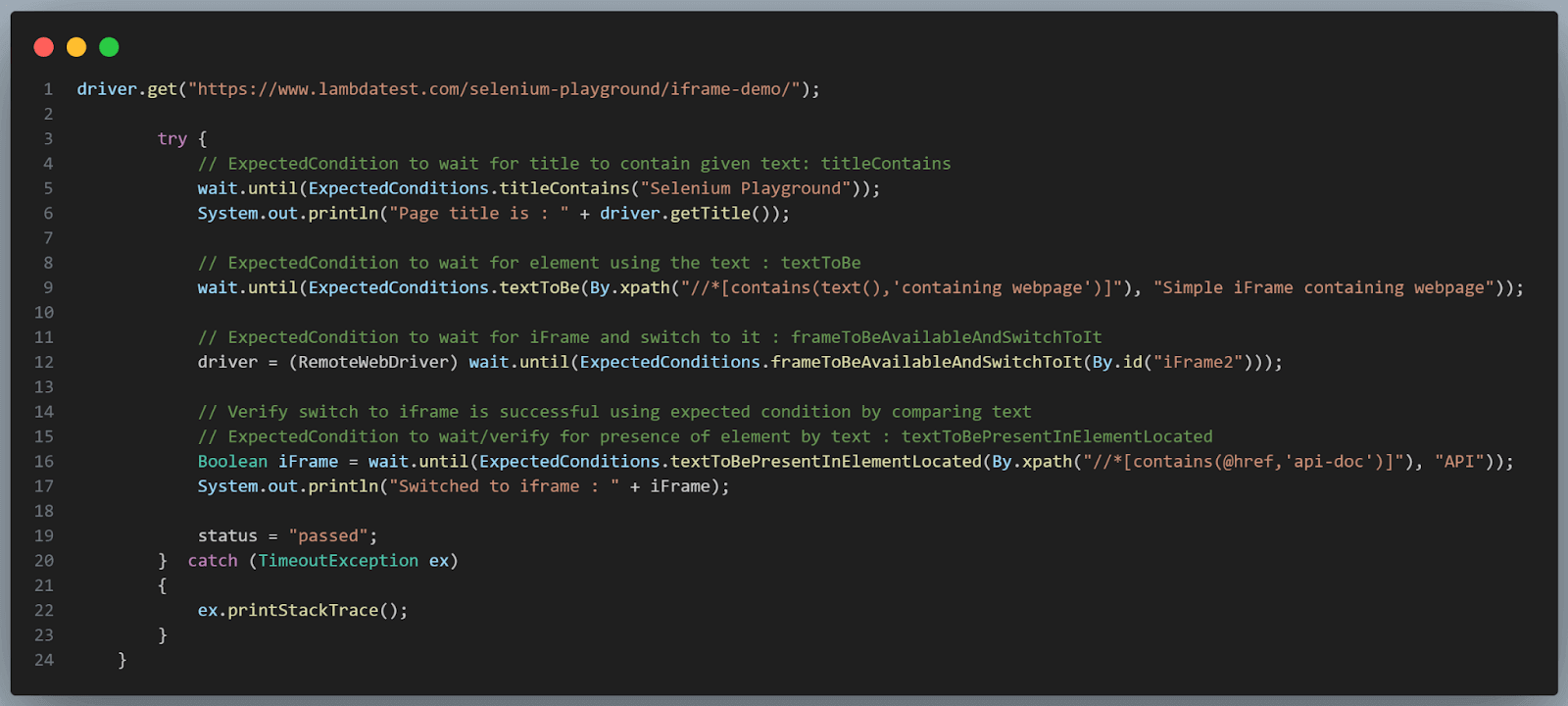
The TestExplicitWait class contains 4 different test methods to demonstrate different ExpectedConditions. Let’s have a look at these one by one.
Test Scenario 1:
- Initialize WebDriverWait with a timeout of 10 seconds.
- Navigate to the TestMu AI eCommerce Playground website.
- Use presenceOfElementLocated to locate a dynamic loading image.
- Use elementToBeClickable to wait for the element to be clickable and click on it.
- Use visibilityOfElementLocated to locate an element on the new page after clicking.
- Use visibilityOfAllElementsLocatedBy to locate all the elements on the newly loaded webpage and assert the size.
Test Implementation:
This test script uses explicit waits with WebDriverWait in Selenium Java. It interacts with a TestMu AI eCommerce website and performs a different set of actions:
@Test(description="WebDriverWait demonstration 1")
   public void testExplicitWait_1()
   {
       // Initialize WebDriverWait with a timeout of 10 seconds
       WebDriverWait wait =new WebDriverWait(driver, Duration.ofSeconds(10));

       // LambdaTest e-commerce website to check for dynamic loading elements
       driver.get("https://ecommerce-playground.lambdatest.io/");

       // ExpectedCondition to wait for element to be present : presenceOfElementLocated
       WebElement element = wait.until(ExpectedConditions.presenceOfElementLocated(By.id("entry_217966")));

       // ExpectedCondition to check if element is clickable and then click on it: elementToBeClickable
       element = wait.until(ExpectedConditions.elementToBeClickable(By.id("entry_217966")));
       element.click();

       // ExpectedCondition to wait for element to be visible after the click: visibilityOfElementLocated
       element = wait.until(ExpectedConditions.visibilityOfElementLocated(By.xpath("//*[@title='iPod Touch']")));

       // ExpectedCondition to wait for all input type elements : visibilityOfAllElementsLocatedBy
       // assert if the expected length of elements located is 15
       List<WebElement> elements = wait.until(ExpectedConditions.visibilityOfAllElementsLocatedBy(By.xpath("//*[@class='carousel-item active']")));
       Assert.assertEquals(elements.size(), 15);
   }
Code Walkthrough:
Start by initializing a WebDriverWait object, which will be used in the test case flow to implement ExpectedConditions as required. This will be a common step in all cases.
The maximum wait time for this is 10 seconds, which means the driver waits for a maximum of 10 seconds for the condition to be fulfilled before throwing an exception.
Navigate to the TestMu AI eCommerce Playground website. Start the try block for better exception handling and implement the ExpectedCondition to wait for the dynamic loading image WebElement to be present using the presenceOfElementLocated() method. Then, implement the ExpectedCondition to wait for the same element to be clickable after its presence is confirmed using the elementToBeClickable() method and then click on it.
After clicking the same, wait for an element to be visible on the newly loaded page after redirection. For this, we have used the visibilityOfElementLocated() method to wait for the image to be visible before proceeding. Next, we use the visibilityOfAllElementsLocatedBy() method to check if all the product images are loaded on the page. For this, we assert the size to verify it.
There is deliberately no try-catch around these waits. If a condition never holds, wait.until() throws TimeoutException, TestNG records the failure, and the @AfterMethod hook reports it to the TestMu AI Web Automation dashboard. Catching that exception to print a stack trace would let the method return normally, and the run would be filed as a pass.
Test Scenario 2:
- Initialize WebDriverWait with a timeout of 10 seconds.
- Navigate to the Simple iframe page of the TestMu AI Selenium Playground website.
- Use titleContains and verify the page title.
- Use textToBe and check if the iFrame section is present.
- Use frameToBeAvailableAndSwitchToIt to locate the frame and switch to it.
- Use textToBePresentInElementLocated to locate an element in iFrame to verify the switch.
Test Implementation:
This test script uses explicit waits using WebDriverWait in Selenium Java for handling dynamic content on a Simple iframe page.
@Test(description="WebDriverWait demonstration 2")
   public void testExplicitWait_2()
   {
       // Initialize WebDriverWait with a timeout of 10 seconds
       WebDriverWait wait =new WebDriverWait(driver, Duration.ofSeconds(10));

       // Navigate to iframe demo page
       driver.get("https://www.testmuai.com/selenium-playground/iframe-demo/");

       // ExpectedCondition to wait for title to contain given text: titleContains
       wait.until(ExpectedConditions.titleContains("Selenium Playground"));
       System.out.println("Page title is : " + driver.getTitle());

       // ExpectedCondition to wait for element using the text : textToBe
       wait.until(ExpectedConditions.textToBe(By.xpath("//*[contains(text(),'containing webpage')]"), "Simple iFrame containing webpage"));

       // ExpectedCondition to wait for iFrame and switch to it : frameToBeAvailableAndSwitchToIt
       driver = (RemoteWebDriver) wait.until(ExpectedConditions.frameToBeAvailableAndSwitchToIt(By.id("iFrame2")));

       // Verify switch to iframe is successful using expected condition by comparing text
       // ExpectedCondition to wait/verify for presence of element by text : textToBePresentInElementLocated
       Boolean iFrame = wait.until(ExpectedConditions.textToBePresentInElementLocated(By.xpath("//*[contains(@href,'api-doc')]"), "API"));
       System.out.println("Switched to iframe : " + iFrame);
   }
Code Walkthrough:
Create and initialize the WebDriverWait object with a max wait time of 10 seconds and then navigate to the Simple iframe demo website. Now, wait for the title of the page to contain Selenium Playground words using the titleContains() method before logging the title.

Next, we check if the required iFrame is present or not using the textToBe() method for its header. Switch to the iFrame once it is available using the frameToBeAvailableAndSwitchToIt() method and store its reference in the RemoteWebDriver object by casting the WebDriver object to it. After that, check for an element inside the iFrame using the textToBePresentInElementLocated() method to verify that the switch to iFrame was successful.

Test Scenario 3:
- Initialize WebDriverWait with a timeout of 10 seconds.
- Navigate to the Javascript Alert Box Demo page of the TestMu AI Selenium Playground website.
- Click on the button to get an alert.
- Use alertIsPresent to wait for the alert.
- Switch to alert and get the alert text.
Test Implementation:
This test script uses explicit waits using WebDriverWait in Selenium Java for handling JavaScript alerts on a Javascript Alert Box Demo page.
@Test(description="WebDriverWait demonstration 3")
   public void testExplicitWait_3()
   {
       // Initialize WebDriverWait with a timeout of 10 seconds
       WebDriverWait wait =new WebDriverWait(driver, Duration.ofSeconds(10));

       // Navigate to iframe demo page
       driver.get("https://www.testmuai.com/selenium-playground/javascript-alert-box-demo/");

       // Click on the button to get alert
       driver.findElement(By.xpath("(//*[@type='button'])[1]")).click();

       // ExpectedCondition to wait for alert : alertIsPresent
       wait.until(ExpectedConditions.alertIsPresent());
       System.out.println("Alert text is : " + driver.switchTo().alert().getText());
   }
Code Walkthrough:
Create and initialize the WebDriverWait object with a max wait time of 10 seconds and then navigate to the Javascript Alert Box Demo page. Now, click on the button to get an alert.
Next, use the alertIsPresent() method to wait for the alert. Once the condition is fulfilled, switch to the alert to get the alert text.
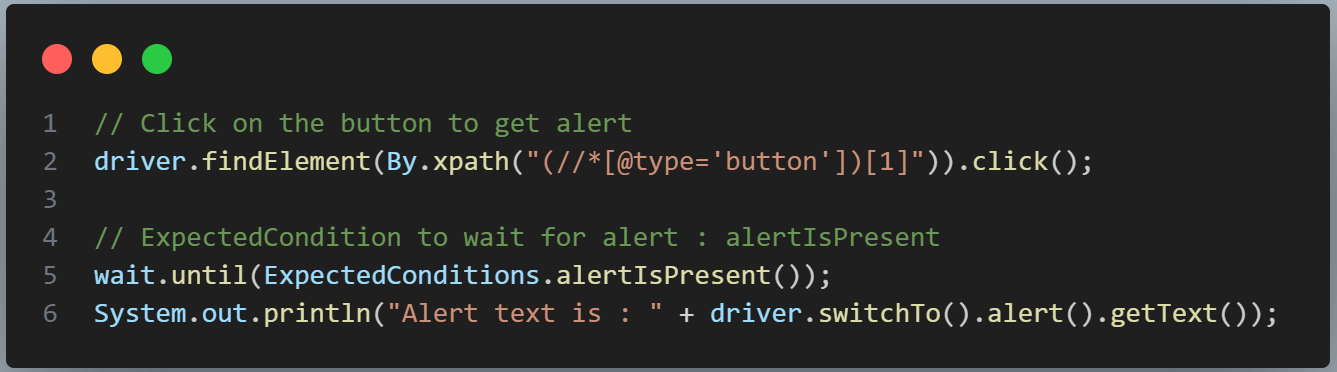
If the alert does not appear inside the 10 seconds, alertIsPresent() throws TimeoutException and the test fails, which is the result you want on the dashboard.
Test Scenario 4:
- Initialize WebDriverWait with a timeout of 10 seconds.
- Navigate to the Checkbox Demo page of the TestMu AI Selenium Playground website.
- Check the checkbox to get a message.
- Use elementToBeSelected to confirm the checkbox is checked.
- Uncheck the checkbox to hide the message.
- Use invisibilityOf to confirm that the message is hidden.
Test Implementation:
This test script uses explicit waits using WebDriverWait in Selenium Java for handling checkbox interactions on a Checkbox Demo page.
@Test(description="WebDriverWait demonstration 4")
   public void testExplicitWait_4()
   {
       // Initialize WebDriverWait with a timeout of 10 seconds
       WebDriverWait wait =new WebDriverWait(driver, Duration.ofSeconds(10));

       // Navigate to iframe demo page
       driver.get("https://www.testmuai.com/selenium-playground/checkbox-demo/");

       // check the checkbox to display message
       driver.findElement(By.id("isAgeSelected")).click();

       // ExpectedCondition to wait for checkbox to be selected: elementToBeSelected
       wait.until(ExpectedConditions.elementToBeSelected(By.id("isAgeSelected")));

       // uncheck the checkbox to hide the message
       driver.findElement(By.id("isAgeSelected")).click();

       // ExpectedCondition to wait for element to be invisible : invisibilityOf
       // Verify that the message is invisible now.
       Boolean isInvisible = wait.until(ExpectedConditions.invisibilityOf(driver.findElement(By.id("txtAge"))));
       System.out.println("Message is invisible : " + isInvisible);
   }
Code Walkthrough:
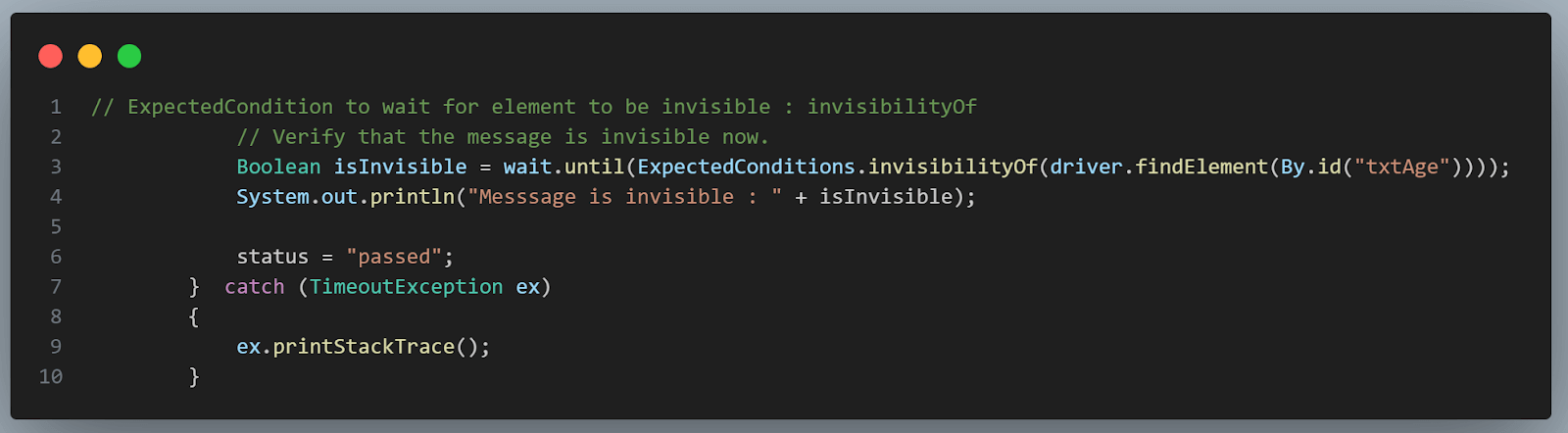
Create and initialize the WebDriverWait object with a max wait time of 10 seconds, and then navigate to the Checkbox Demo page. Now, check the checkbox and then use the elementToBeSelected() method to ensure that the checkbox is selected.
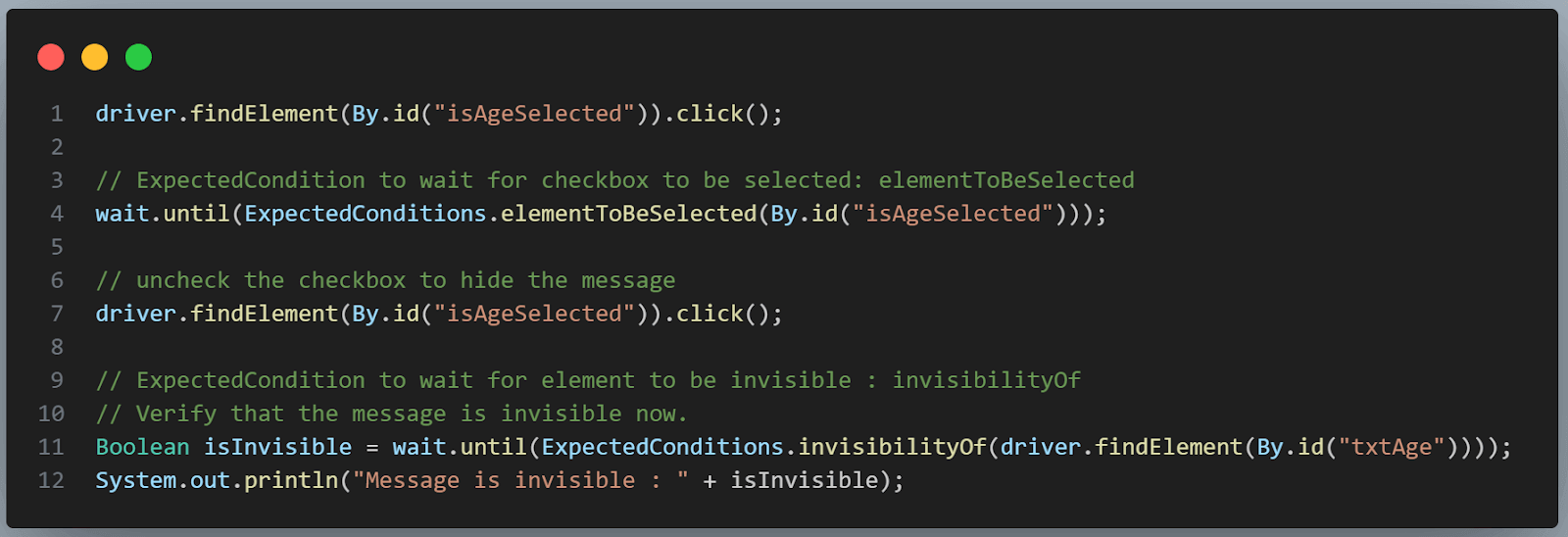
Then, uncheck the checkbox and use the invisibilityOf() method to wait and verify that the message displayed earlier is no longer visible after the checkbox is unchecked.
Running Tests
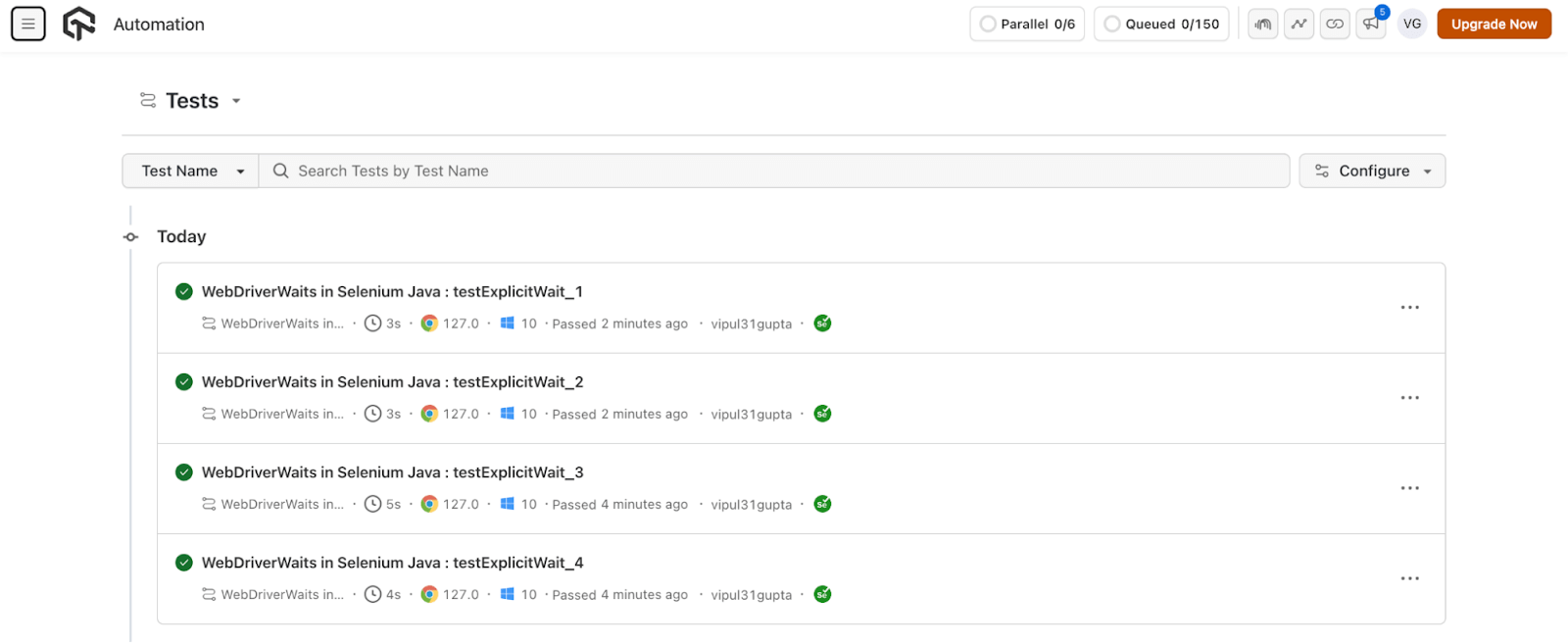
To view the execution results, navigate to the TestMu AI Web Automation dashboard.
Best Practices for Using Selenium WebDriverWait
A few best practices using which we can make the best use of WebDriverWait in our Selenium automation script are as follows:
- Analyze the Behavior: It is the first and foremost step before starting to implement waits. Analyzing the website thoroughly helps you to understand if waits are required are not. If required, which type of wait and with what timeout should you use to have properly balanced wait times to prevent any longer executions and flaky tests.
- Use Appropriate Wait and Timeouts: You need to set timeouts based on the expected behavior of the website. Avoid excessively long timeouts as they can slow down your tests and unnecessarily increase the execution time, giving false results.
Implicit waits should always be a reasonable time, not too short and not too long and explicit waits only in conditions where more precise and granular control is required over any WebElement before interacting.

Subscribe to the TestMu AI YouTube Channel and stay updated with more such tutorials.
- Combine Multiple Conditions: You can also combine multiple expected conditions using logical operators to create complex waiting scenarios for slow-loading dynamic elements. This is mostly used in cases where various conditions must be valid before proceeding further.
- Use Fluent Wait for Customizations: For newer versions of many dynamic customer-friendly websites, different elements might get loaded on different actions with different load times. In such cases, a more effective wait strategy is required. This can be achieved using fluent waits, as it gives more control over the waits in the automation scripts by supporting custom polling and exception handling.
- Let TimeoutException Fail the Test: A wait that times out means the condition you were waiting for never held, so the test has failed. A try-catch that only prints the stack trace hides that, because the method returns normally and the runner files a pass. Catch TimeoutException only when you want to add something to the report first, such as a screenshot or a page source dump, and rethrow it afterwards.
That last case looks like this. The catch block exists to capture evidence, and the rethrow is what keeps the result honest.
try {
    wait.until(ExpectedConditions.visibilityOfElementLocated(By.id("entry_217966")));
} catch (TimeoutException ex) {
    // capture evidence, then let the failure through
    System.out.println(driver.getPageSource());
    throw ex;
}

Conclusion
With this, we came to an end to this blog on WebDriverWait in Selenium Java, where we learned about different wait types and methods that can be used as per the requirement to make test scripts robust and reliable. We also saw how using WebDriverWait in Selenium Java helps in synchronizing test execution for the dynamic behavior of web pages.
By understanding and applying these different waits with the help of ExpectedConditions, you can handle various waiting scenarios effectively in your automation scripts and make the test results more precise and efficient.
You can also use WebDriverWait in Selenium with various programming languages such as C#. To know more, refer to this blog on WebDriverWait in Selenium C#.
Author

Vipul Gupta
Blogs: 24


Vipul Gupta is a Sr. Lead SDET at Zupee with over 9 years of experience in functional and automation testing. He has built 10+ automation projects from scratch covering web, API, and mobile applications. Vipul is skilled in Selenium, Appium, Rest Assured, Playwright, Java, Python, Pytest, BDD, TDD, Maven, Jenkins, TestNG, and JUnit. He has successfully led end-to-end QA efforts, including setting up teams from scratch and managing a 15-member QA team to ensure manual and automation testing run in parallel from day one. Vipul graduated in B.Tech CSE from CGC College of Engineering and is followed by 3,000+ QA and SDET professionals on LinkedIn, reflecting his strong influence in the testing community.
Reviewer

Himanshu Sheth
Reviewer
Himanshu Sheth is the Director of Marketing (Technical Content) at TestMu AI, with over 8 years of hands-on experience in Selenium, Cypress, and other test automation frameworks. He has authored more than 130 technical blogs for TestMu AI, covering software testing, automation strategy, and CI/CD. At TestMu AI, he leads the technical content efforts across blogs, YouTube, and social media, while closely collaborating with contributors to enhance content quality and product feedback loops. He has done his graduation with a B.E. in Computer Engineering from Mumbai University. Before TestMu AI, Himanshu led engineering teams in embedded software domains at companies like Samsung Research, Motorola, and NXP Semiconductors. He is a core member of DZone and has been a speaker at several unconferences focused on technical writing and software quality.


Selenium WebDriverWait FAQs
Did you find this page helpful?
More Related Blogs
TestMu AI forEnterprise
Get access to solutions built on Enterprise
grade security, privacy, & compliance
- Advanced access controls
- Advanced data retention rules
- Advanced Local Testing
- Premium Support options
- Early access to beta features
- Private Slack Channel
- Unlimited Manual Accessibility DevTools Tests