How to Run Selenium Tests With Java on TestMu AI
Run your Java Selenium tests on the TestMu AI cloud grid across 10,000+ browser/device combinations. The setup is the same for every framework: you connect to the grid, pass your capabilities, and run. This guide walks through that shared flow once, then gives you a per-framework quickstart for TestNG, JUnit, Cucumber, Selenide, Gauge, Geb, and Serenity, plus a zero-code Java SDK option.
Prerequisites
Before running any framework below, set up a TestMu AI account, your credentials, the JDK, and Maven.
- Create a TestMu AI account if you don't have one.
- Get your Username and Access Key from the TestMu AI Dashboard.
- Install the Java Development Kit (JDK) 11 or later.
- Install Apache Maven. The framework sample projects below all build with Maven.
Set Up Manually Without Maven (Optional)
If you prefer to run raw Selenium Java without a build tool, add the Selenium JARs to your IDE instead of using Maven.
- Download the latest Selenium Java Client and extract the ZIP file to your project directory.
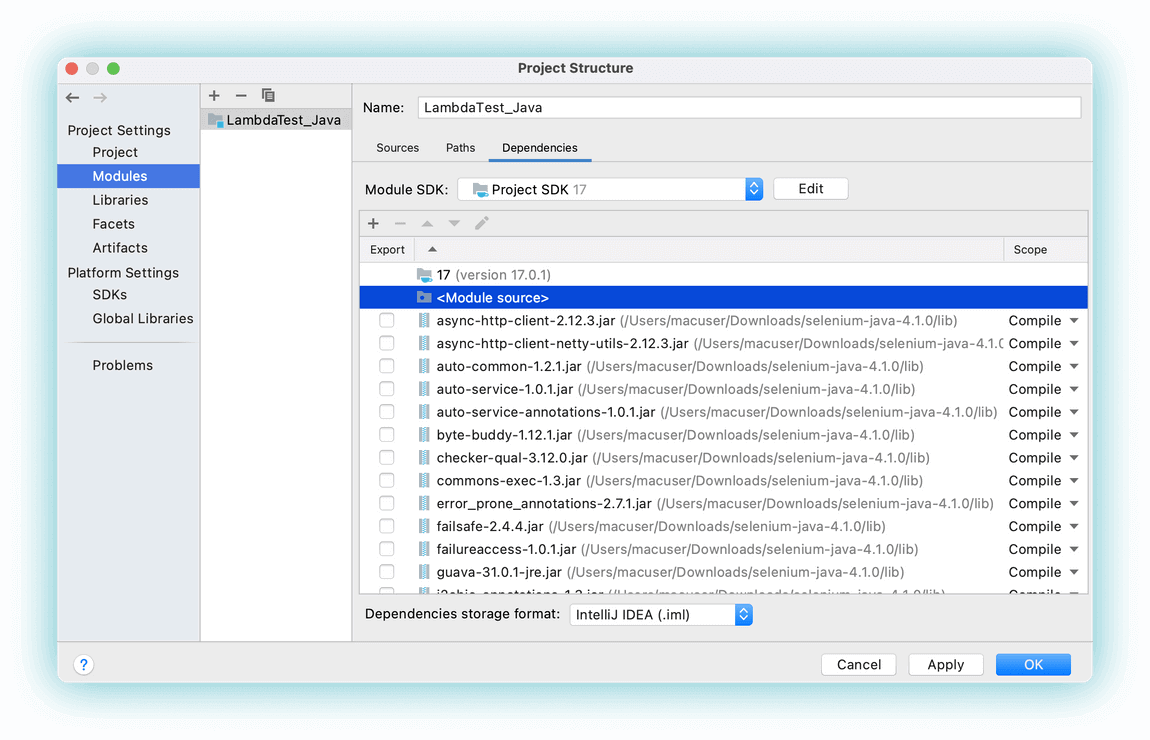
- Add the Selenium JARs to your project dependencies in your IDE.
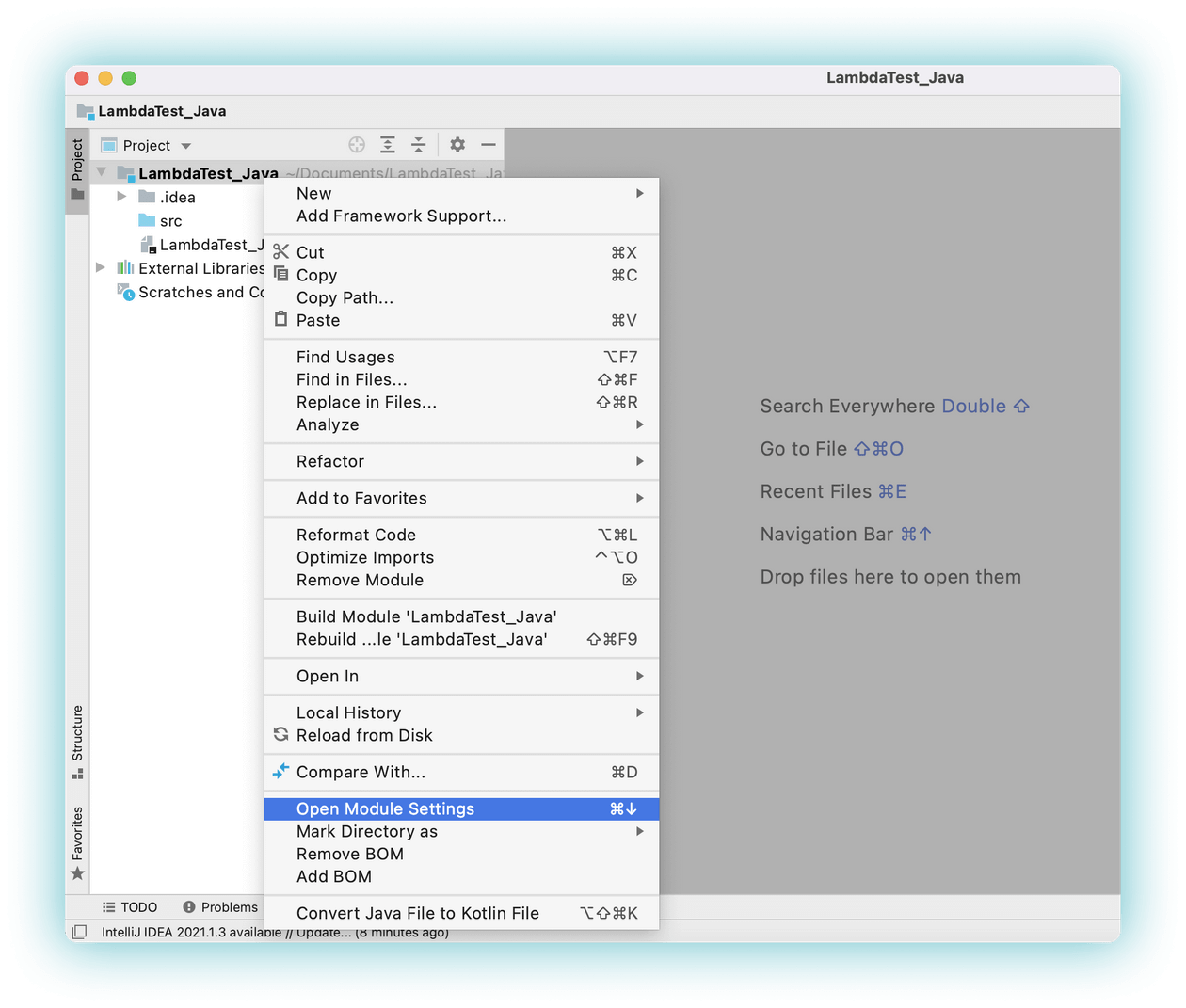
Navigate to Dependencies in module settings, click +, and add the downloaded Selenium JARs.
With the JARs added, compile and run the test directly from the terminal:
Verifiedcd to/file/location
javac -classpath ".:/path/to/selenium/jarfile:" JavaTodo.java
java -classpath ".:/path/to/selenium/jarfile:" JavaTodo
Set Your Credentials
Every framework authenticates the same way: your Username and Access Key are passed in the grid URL. Set them as environment variables so you don't hard-code them. Pick your operating system:
Verified- macOS / Linux
- Windows (CMD)
export LT_USERNAME="undefined"
export LT_ACCESS_KEY="undefined"
set LT_USERNAME=undefined
set LT_ACCESS_KEY=undefined
How the Sample Test Works
All the framework repos below run the same sample test, so you only need to understand it once. The test opens the to-do app, marks the first two items done, adds a new item, and verifies it appears:
Verifieddriver.get("https://lambdatest.github.io/sample-todo-app/");
driver.findElement(By.name("li1")).click();
driver.findElement(By.name("li2")).click();
driver.findElement(By.id("sampletodotext")).sendKeys("Yey, Let's add it to list");
driver.findElement(By.id("addbutton")).click();
The driver is a RemoteWebDriver pointed at the grid, with your browser/OS choices passed through LT:Options:
ChromeOptions browserOptions = new ChromeOptions();
browserOptions.setPlatformName("Windows 10");
browserOptions.setBrowserVersion("latest");

HashMap<String, Object> ltOptions = new HashMap<String, Object>();
ltOptions.put("build", "Java Selenium Build");
ltOptions.put("name", "Java Selenium Test");
ltOptions.put("w3c", true);
browserOptions.setCapability("LT:Options", ltOptions);

driver = new RemoteWebDriver(
    new URL("https://" + username + ":" + accesskey + "@hub.lambdatest.com/wd/hub"),
    browserOptions);
Use the Capabilities Generator to build an LT:Options block for any browser, version, and OS combination.
What changes between frameworks is only how that test is structured and run: the runner, its setup/teardown hooks, and any config files. That's what each tab below covers.
Run Selenium Tests With Java SDK
The Java SDK is the zero-code option: it runs your existing TestNG tests on the grid unchanged, injecting credentials and capabilities from a YAML file via a Java agent. Use this when you already have a local suite and don't want to edit test code. See the SDK reference project on GitHub.
- Add the SDK dependency and agent to your
pom.xml(the agent is attached to Surefire via-javaagent):
<dependency>
    <groupId>io.github.lambdatest</groupId>
    <artifactId>lambdatest-selenium-java-sdk</artifactId>
    <version>1.0.1</version>
</dependency>
<!-- plus the maven-dependency-plugin (copies lambdatest-agent.jar) and
     maven-surefire-plugin with -javaagent:.../lambdatest-agent.jar -->
- Create
lambdatest.ymlwith your credentials, platforms, and features. The SDK loads it automatically:
username: YOUR_LAMBDATEST_USERNAME
accesskey: YOUR_LAMBDATEST_ACCESS_KEY

platforms:
  - browserName: Chrome
    browserVersion: latest
    platformName: Windows 10

build: SDK Build v1
name: SDK Test
video: true
tunnel: true
- Register the SDK's TestNG listener in
testng.xml, then run. Your existing test classes execute as-is:
mvn test -D suite=testng.xml
The test then appears on the Automation Dashboard. A green status confirms it passed.
Run a Test in Your Framework
Each tab lists just the framework-specific pieces. Clone the matching repo (it contains the full, ready-to-run project), then run the command shown.
- TestNG
- JUnit
- Cucumber
- Selenide
- Gauge
- Geb
- Serenity
- Tesbo
TestNG is the most common choice. It wraps the shared test with @BeforeClass (create the driver) and @AfterClass (report status and quit), and drives cross-browser runs from a testng.xml suite.
- Clone the sample GitHub project:
git clone https://github.com/LambdaTest/Java-TestNG-Selenium
cd Java-TestNG-Selenium
- Set your browser and OS in the
testng.xmlsuite. Listing several environments withparallel="tests"and athread-countruns them concurrently:
<suite thread-count="3" name="LambdaTestSuite" parallel="tests">
  <test name="WIN10-Chrome">
    <parameter name="browser" value="chrome"/>
    <parameter name="platform" value="Windows 10"/>
    <classes><class name="LambdaTest.TestNGToDo"/></classes>
  </test>
  <test name="MAC-Safari">
    <parameter name="browser" value="safari"/>
    <parameter name="platform" value="macOS Catalina"/>
    <classes><class name="LambdaTest.TestNGToDo"/></classes>
  </test>
</suite>
- Run a single test, or the parallel suite:
mvn test -D suite=single.xml
mvn test -D suite=parallel.xml
The test then appears on the Automation Dashboard. A green status confirms it passed.
JUnit runs the same test as TestNG. The only difference is the lifecycle annotations: it uses @Before / @After instead of @BeforeClass / @AfterClass.
- Clone the sample GitHub project:
git clone https://github.com/LambdaTest/junit-selenium-sample
cd junit-selenium-sample
- Set your browser and OS in the
LT:Optionsblock:
ChromeOptions browserOptions = new ChromeOptions();
browserOptions.setPlatformName("Windows 10");
browserOptions.setBrowserVersion("latest");

HashMap<String, Object> ltOptions = new HashMap<String, Object>();
ltOptions.put("build", "LambdaTestSampleApp");
ltOptions.put("name", "LambdaTestJavaSample");
ltOptions.put("w3c", true);
browserOptions.setCapability("LT:Options", ltOptions);
- Run a single test or the parallel profile:
mvn test -P single
mvn test -P parallel
The test then appears on the Automation Dashboard. A green status confirms it passed.
Parallel JUnit runs need a custom Parallelized runner (extends Parameterized with a ThreadPoolScheduler). The cloned repo includes it; see the sample for the full class.
Cucumber is BDD on top of TestNG: you write scenarios in plain-language feature files, and a runner maps each step to WebDriver code. The grid setup lives in the runner.
- Clone the sample GitHub project:
git clone https://github.com/LambdaTest/cucumber-testng-sample
cd cucumber-testng-sample
- Write your scenario in Gherkin:
Feature: Add new item to ToDo list
  Scenario: Add an item to the list
    Given user is on home Page
    When select First Item
    Then select second item
    Then add new item
    Then verify added item
Each step maps to a WebDriver action in the step definitions, and the runner (TestRunner.java, annotated with @CucumberOptions) creates the RemoteWebDriver against the grid.
- Set your browser and OS in the runner (
TestRunner.java):
ChromeOptions browserOptions = new ChromeOptions();
browserOptions.setPlatformName(platform);
browserOptions.setBrowserVersion("latest");

HashMap<String, Object> ltOptions = new HashMap<String, Object>();
ltOptions.put("build", "Your Build Name");
ltOptions.put("w3c", true);
browserOptions.setCapability("LT:Options", ltOptions);
- Run the test:
mvn test
The test then appears on the Automation Dashboard. A green status confirms it passed.
@CucumberOptions sets the features and glue paths; TestNGCucumberRunner feeds scenarios into TestNG. The full runner and step definitions are in the cloned repo.
Selenide wraps WebDriver with a concise API ($(), open()) and reads browser/OS choices from JSON config files instead of inline capabilities.
- Clone and compile the sample GitHub project:
git clone https://github.com/LambdaTest/selenide-testng-sample
cd selenide-testng-sample
mvn compile
- Set your browser and OS. Environments are declared in a config file, one block per browser:
{
  "server": "hub.lambdatest.com",
  "user": "YOUR_USERNAME",
  "key": "YOUR_ACCESS_KEY",
  "capabilities": { "build": "Java Selenide Parallel" },
  "environments": {
    "chrome":  { "platformName": "Windows 10",  "browserName": "chrome",  "browserVersion": "latest" },
    "firefox": { "platformName": "Windows 10",  "browserName": "firefox", "browserVersion": "latest" },
    "safari":  { "platformName": "macOS Mojave", "browserName": "safari",  "browserVersion": "latest" }
  }
}
The test reads that config in @BeforeMethod, calls WebDriverRunner.setWebDriver(driver), then uses Selenide syntax.
- Run a single test or the parallel profile:
mvn test -P single
mvn test -P parallel
The test then appears on the Automation Dashboard. A green status confirms it passed.
Gauge is a BDD runner where steps are Java methods annotated with @Step, and the driver comes from a DriverFactory.
Prerequisite: install the Gauge CLI.
- Clone and compile the sample GitHub project:
git clone https://github.com/LambdaTest/gauge-selenium-sample
cd gauge-selenium-sample
mvn compile
- Define your steps. Steps map plain-language names to WebDriver actions:
@Step("Open the todo app")
public void gotoApp() {
    driver.get("https://lambdatest.github.io/sample-todo-app/");
    assertEquals(driver.getTitle(), "Sample page - lambdatest.com");
}

@Step("Add new item <itemName>")
public void addNewItem(String itemName) {
    driver.findElement(By.id("sampletodotext")).sendKeys(itemName);
    driver.findElement(By.id("addbutton")).click();
}
- Set your browser and OS in the
DriverFactorycapabilities:
ChromeOptions browserOptions = new ChromeOptions();
browserOptions.setPlatformName("Windows 10");
browserOptions.setBrowserVersion("latest");

HashMap<String, Object> ltOptions = new HashMap<String, Object>();
ltOptions.put("build", "LambdaTestSampleApp");
ltOptions.put("name", "LambdaTestJavaSample");
ltOptions.put("w3c", true);
browserOptions.setCapability("LT:Options", ltOptions);
- Run the test:
mvn test
The test then appears on the Automation Dashboard. A green status confirms it passed.
Parallel runs are configured by adding multiple browser specs under the env folder of the cloned project.
Geb is a Groovy wrapper around WebDriver. Its distinguishing trait is that capabilities live in a separate JSON file passed via a Maven property.
- Clone and compile the sample GitHub project:
git clone https://github.com/LambdaTest/geb-parallel-sample-code
cd geb-parallel-sample-code
mvn compile
- Set your browser and OS in the capabilities file:
{
  "build": "GebFirstTest",
  "platformName": "Windows 10",
  "browserName": "firefox",
  "browserVersion": "latest"
}
- Run the test, passing that file via the
lambdageb.capabilitiesproperty:
mvn -Dlambdageb.capabilities=capabilities clean test
The test then appears on the Automation Dashboard. A green status confirms it passed.
Serenity is BDD on top of Cucumber with rich reporting. You connect to the grid with a custom DriverSource and drive scenarios with page objects.
- Clone the sample GitHub project:
git clone https://github.com/LambdaTest/Serenity-Selenium-Sample
cd Serenity-Selenium-Sample
Scenarios are written in Gherkin and the grid connection lives in a DriverSource implementation (LambdaTestSerenityDriver) that builds LT:Options from Serenity's environment variables.
- Run a single scenario or the parallel profile:
mvn verify -P single
mvn verify -P parallel
The test then appears on the Automation Dashboard. A green status confirms it passed.
Parallel Serenity runs use one runner class per browser, each extending a shared base test. The full DriverSource and runners are in the cloned repo.
Tesbo is a keyword-driven hybrid framework on Selenium: you write scripts in plain English, and the grid setup lives in config.json.
- Clone the sample GitHub project:
git clone https://github.com/LambdaTest/LamdaTest_Tesbo_Demo
cd LamdaTest_Tesbo_Demo
- Set your browser and OS in
config.json(setIsGridtotrueand pointseleniumAddressat the grid):
{
  "run": {
    "seleniumAddress": "https://{userName}:{ApiKey}@hub.lambdatest.com/wd/hub",
    "browser": { "name": ["chrome"] },
    "capabilities": {
      "chrome": {
        "build": "Tesbo_With_TestMuAI",
        "name": "Tesbo",
        "platformName": "Windows 10",
        "browserName": "Chrome",
        "browserVersion": "latest"
      }
    },
    "IsGrid": true
  }
}
- Run the test from your IDE. Hit the run button, and your scripts execute on the grid.
The test then appears on the Automation Dashboard. A green status confirms it passed.
View Your Results
Your test results, including video, network logs, and command-by-command execution, appear on the TestMu AI Automation Dashboard.
Next steps: If this is your first run, walk through running your first Selenium test end to end. From there, explore the full set of Selenium automation capabilities you can pass to the grid, learn how to debug your Selenium tests, and organize and filter your Selenium tests as your suite grows.
Next Steps
Continue with these related guides:


 Chat with Us