

Power Your Software Testing with AI Agents and Cloud
The Native AI-Agentic Cloud Platform to Supercharge Quality Engineering. Test Intelligently and Ship Faster.


- TestMu AI (Formerly LambdaTest)
- /
- Blog
- /
- XPath in Selenium: Complete Guide With Examples 2026
XPath in Selenium: Complete Guide With Examples 2026
Learn XPath in Selenium with real examples: absolute vs relative XPath, dynamic XPath, axes, contains(), starts-with(), and Chrome tips.
Last Updated on:
On This Page
- What Is XPath in Selenium?
- Why XPath Is Important
- Types of XPath
- How to Find XPath in Chrome
- Write XPath in Selenium
- Common XPath Patterns
- XPath Functions
- Scale with TestMu AI Selenium Grid
- Logical Operators in XPath
- XPath Axes in Selenium
- Chained XPath
- Dynamic XPath in Selenium
- XPath vs CSS Selectors
- Troubleshoot XPath Issues
- Best Practices for XPath
The reliability of your Selenium test scripts depends on how consistently you can find and interact with the right web elements, even as the application changes. XPath in Selenium is the most flexible locator strategy available -- it can navigate both up and down the DOM, match elements by text, attributes, or position, and handle dynamic elements that CSS selectors and standard locators cannot reach.
This guide covers everything: what XPath is, the difference between absolute and relative XPath, how to find XPath in Chrome DevTools, how to write and validate XPath expressions, every major XPath function and axis, dynamic XPath patterns, and the most common reason XPath works in the browser but fails in Selenium code -- with the exact fix.
Overview
To locate dynamic web elements in Selenium, use relative XPath expressions with stable attributes or functions like contains() and starts-with(). For executing these tests at scale across multiple browsers without managing infrastructure, run your automation suites on the TestMu AI cloud-based online Selenium Grid.
Which XPath Functions Are Most Useful in Selenium?
- contains(): The contains() function matches elements when an attribute value partially aligns with a given string, making it ideal for React, Angular, or Vue apps with dynamic class names.
- starts-with(): The starts-with() function targets elements whose attributes begin with a predictable prefix, which is highly effective for handling auto-generated IDs like user_101 or user_202.
- text(): The text() function locates elements based on their visible text content, making it well-suited for static UI labels, buttons, and menu items where the displayed text remains consistent.
Why Teams Use TestMu AI for Scalable Selenium Automation?
- Parallel execution: TestMu AI runs Selenium tests in parallel across multiple browsers and operating systems to significantly reduce execution time for large automation suites.
- In-depth debugging: TestMu AI provides access to Selenium logs, screenshots, videos, and network traces to help teams quickly diagnose XPath failures and unstable tests.
- GenAI test insights: TestMu AI allows teams to monitor Selenium testing trends, flaky tests, and pass/fail metrics using GenAI-powered analytics and reporting dashboards.
- CI/CD integration: TestMu AI integrates Selenium automation workflows with Jenkins, GitHub Actions, and Azure DevOps without requiring teams to manage their own infrastructure.
What Is XPath in Selenium?
XPath (XML Path Language) is a query language used to locate elements in HTML or XML documents based on their attributes, relationships, or visible text.
In Selenium automation, XPath helps you locate elements inside the Document Object Model (DOM) based on their attributes, relationships, or text content.
When an element does not have a unique ID or predictable structure, XPath gives you the flexibility to locate it using combinations of conditions. You can target an element based on partial attribute matches, relative positioning, or even its displayed text. This flexibility makes XPath one of the most commonly used and reliable Selenium locators in real-world test automation -- and the only locator that can traverse the DOM in both directions, upward to parent elements and downward to children.
Syntax:
//tagname[@attribute='value']Here is an example of using XPath to locate a button element on a webpage. The highlighted SIGN UP button has a class attribute that includes justify-center.
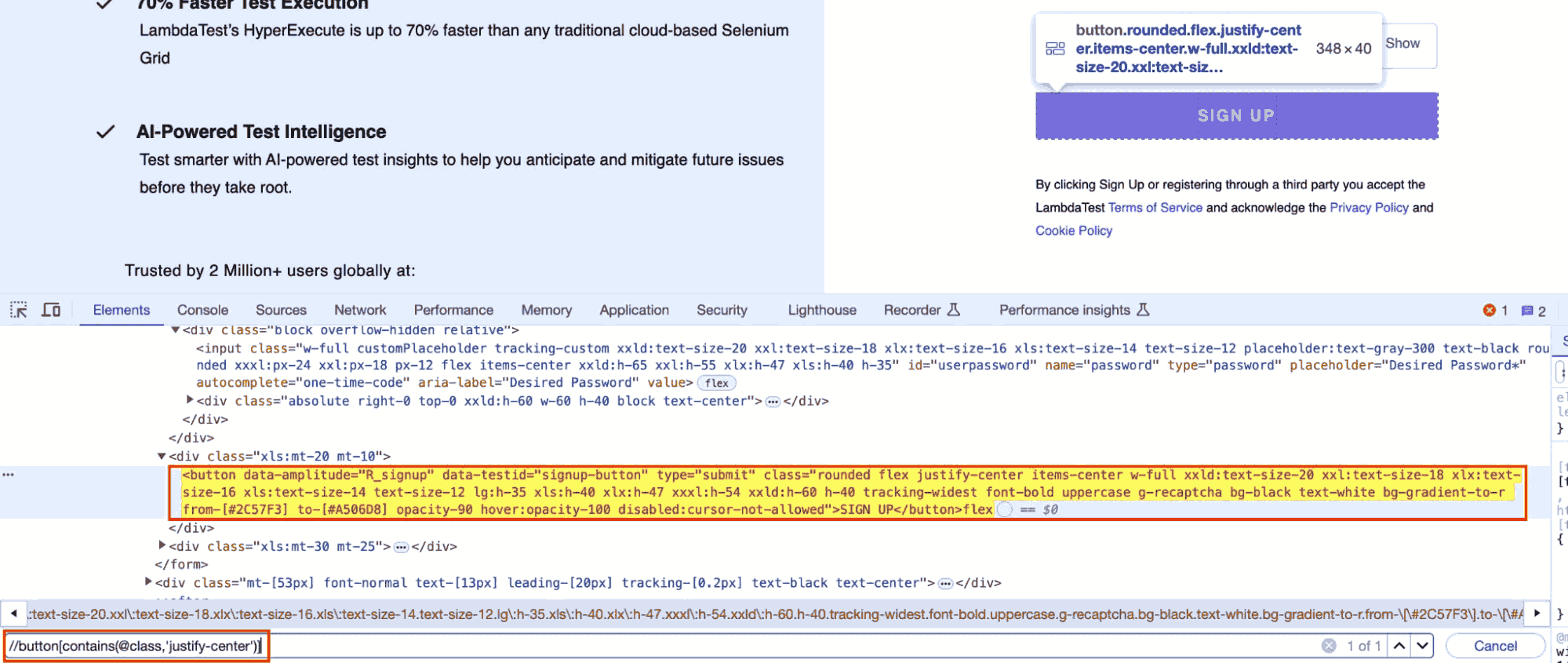
//button[contains(@class, 'justify-center')]This XPath selects the button element whose class attribute includes justify-center. Because it uses contains() rather than an exact match, it remains valid even if other classes are added to the element later.
Why Is XPath Important in Selenium?
XPath is important in Selenium because it handles scenarios that every other locator strategy fails on, including unstable IDs, dynamic elements, and deeply nested DOM structures.
Standard locators like ID, Name, and Class require stable, unique attributes -- which many modern web applications do not provide, especially when elements are dynamically generated or deeply nested.
- Unstable Identifiers: When elements lack consistent IDs, names, or classes, XPath provides flexible expressions to target them reliably using any combination of attributes or text.
- Frequent Layout Changes: XPath's relative paths ensure locators remain stable when page structures change, unlike absolute references that break with any DOM shift.
- Bidirectional DOM Navigation: CSS selectors can only move downward to child elements. XPath can also move upward to parent and ancestor elements -- essential for locating labels, error messages, or containers relative to a known element.
- Dynamic or Nested Elements: XPath handles dynamically generated IDs, deeply nested components, and complex hierarchies that standard locators cannot reach.
- Text-Based Location: XPath can locate elements by their visible text content using the
text()function -- something CSS selectors cannot do at all. - Advanced Logic Support: XPath enables conditional matching, partial attribute searches, and parent-child traversal, making it the right tool for complex and data-driven web applications.
What Are the Types of XPath in Selenium?
XPath expressions in Selenium are of two types: Absolute XPath, which traces the full path from the root, and Relative XPath, which can start from any node.
Both serve different purposes, and choosing the right one determines how resilient your locators are when the application changes.
Absolute XPath
Absolute XPath provides the complete path from the root element to the target element, following every node in the hierarchy. It is straightforward to understand but fragile in practice -- any structural change in the DOM, even adding a single new wrapper div, can break it entirely.
Syntax:
/html/body/div[1]/form/input[2]- Starts with a single forward slash (/): indicating the path begins at the root element.
- Easy to read but fragile: not suitable for dynamic or frequently updated pages.
- Use only for quick debugging: never in production test code. Use it to understand the DOM hierarchy, then refine it into a relative XPath.
Relative XPath
Relative XPath starts from any node within the DOM rather than the root. It uses double slashes (//) to search anywhere in the document, making it far more flexible and maintainable across real-world test suites.
Syntax:
//input[@type='email']- Starts with (//): meaning the search can begin anywhere in the DOM.
- Works with dynamic or frequently updated elements: and adapts to minor DOM changes.
- Supports functions, text content, and attribute combinations: for precise, resilient targeting.

Note: Run automation tests across 3000+ real browsers and platforms. Try TestMu AI Today!
How to Find XPath in Chrome for Selenium?
To find XPath in Chrome, right-click the element, choose Inspect, then in DevTools right-click the highlighted node and select Copy > Copy XPath.
Chrome DevTools gives you the DOM structure of any page and lets you copy, write, and validate XPath expressions before putting them into your test code. There are three methods -- DevTools copy, console validation, and an extension.
Method 1 -- Using Chrome DevTools to Copy XPath
This is the fastest way to get an XPath for any element on a page. Follow these steps on any website -- the example below uses the TestMu AI eCommerce Playground:
- Step 1: Open Chrome and navigate to the page you want to test.
- Step 2: Right-click the element you want to locate (for example, the search input field) and select Inspect. Chrome DevTools opens with the corresponding HTML node highlighted in blue.
- Step 3: In the Elements panel, right-click the highlighted HTML node.
- Step 4: Select Copy > Copy XPath from the context menu. This copies the absolute XPath to your clipboard.
- Step 5: For a more stable locator, select Copy > Copy full XPath and compare -- but almost always prefer to write a relative XPath manually using the element's attributes as shown in the DevTools panel.
Note: The XPath Chrome copies automatically is always absolute -- it starts from /html/body and breaks easily. Treat it as a starting point, then convert it to a relative XPath using the element's stable attributes like ID, name, or data-testid.
Method 2 -- Validate XPath in the Chrome Console
Before putting any XPath into your Selenium script, always validate it first. Chrome's Console tab lets you test XPath expressions live against the current page using the $x() function. This saves significant debugging time.
How to validate:
- Step 1: Open Chrome DevTools and click the Console tab.
- Step 2: Type your XPath expression inside
$x('')and press Enter. - Step 3: If the XPath is correct, the Console returns an array containing the matching DOM element(s). If it returns an empty array, the XPath does not match anything on the current page.
// Test a relative XPath in Chrome Console
$x("//input[@name='search']")

// Returns: [input#search] if found, [] if not found

// Test with contains() for partial match
$x("//button[contains(@class, 'search-btn')]")

// Test with text() for visible text
$x("//a[text()='Login']")
If the Console returns more than one element, your XPath is too broad and will cause a Selenium test to fail or interact with the wrong element. Refine the expression by adding more attributes or conditions until only one element is returned. You can also use the free TestMu AI XPath tester tool to validate expressions outside the browser.
Method 3 -- Using SelectorsHub Extension
SelectorsHub is the recommended Chrome extension for finding XPath in Selenium. It generates optimized relative XPath and CSS selectors directly in DevTools, shows how many elements match the expression on the current page, and handles Shadow DOM elements that standard DevTools cannot reach. ChroPath was the popular alternative but has been deprecated and removed from the Chrome Web Store -- SelectorsHub is the current standard replacement.
For a full list of Chrome extensions that help find XPath, see our dedicated guide on Chrome extensions to find XPath in Selenium.

How to Write XPath in Selenium?
To write XPath in Selenium, use the format //tagname[@attribute='value'], starting with a stable attribute and refining the expression until it matches exactly one element.
A good XPath is resilient to minor DOM changes and readable enough to maintain.
The basic structure of any XPath expression is:
XPath = //tagname[@attribute='value']Consider a login page on the TestMu AI eCommerce Playground. Inspecting the email input field in Chrome DevTools reveals:
<input type="email" name="email" placeholder="E-Mail Address" id="input-email" class="form-control" />From this, you can write several valid XPath expressions targeting this element:
// Using the ID attribute -- most stable
//input[@id='input-email']

// Using the name attribute
//input[@name='email']

// Using the type and placeholder together
//input[@type='email' and @placeholder='E-Mail Address']

// Using contains() for partial placeholder match
//input[contains(@placeholder, 'E-Mail')]
Use this expression in your Selenium script to fill the email field:
WebElement emailField = driver.findElement(By.xpath("//input[@id='input-email']"));
emailField.sendKeys("user@example.com");
Always validate the XPath in Chrome Console using $x("//input[@id='input-email']") before adding it to your script. If it returns exactly one element, the locator is ready to use.
What Are Common XPath Patterns in Selenium?
Most XPath expressions in real Selenium test suites fall into five patterns. Learning these patterns covers the majority of locator scenarios you will encounter in practice.
- Single Attribute: Finds an element based on one unique, stable attribute. Simple and reliable when the attribute does not change.
//input[@id='input-password']- Multiple Attributes: Combines two or more attributes using the and operator. Reduces ambiguity when a single attribute matches more than one element.
//input[@type='text' and @name='username']- Visible Text: Selects elements based on the text content that users see on screen. Best for buttons, links, and labels where the text label is stable.
//button[text()='Login']- Partial Attribute Match: Uses the
contains()function to match elements when attributes are only partially known or change slightly between sessions.
//input[contains(@name, 'user')]- Parent-Child Relationship: Navigates to a child element inside a specific parent container. Useful when elements are grouped inside forms, modals, or cards and you need to scope the search.
//div[@class='form-container']//input[@type='email']What Are XPath Functions in Selenium?
XPath functions in Selenium handle dynamic, partial, or text-based element matching. The three most used are contains(), starts-with(), and text().
These functions let you write expressions that handle dynamic, partial, or text-based element identification across modern web applications.
contains(): Matches elements when the attribute value partially matches the given string. Ideal for React, Angular, or Vue applications where CSS class names are generated dynamically and include a consistent prefix or suffix.
//input[contains(@id,'email')]starts-with(): Finds elements whose attribute value begins with a predictable prefix. Best for auto-generated IDs that follow a naming pattern likeuser_101,user_202, where the number at the end changes but the prefix is stable.
//input[starts-with(@name,'user')]text(): Locates elements using their visible text content. Works well for static UI labels, buttons, and menu items. Be cautious with dynamic or localized text that changes between environments or locales.
//a[text()='Forgot Password?']Why Use TestMu AI Online Selenium Grid for Scalable Automation?
Writing stable XPath locators is the first step. The second is running those locators against real browsers at scale. TestMu AI provides a cloud-based online Selenium Grid that executes Selenium automation tests across thousands of real browser and operating system combinations on demand -- without maintaining any local infrastructure.
To get started, see the guide on Selenium testing with TestMu AI.
- Parallel Test Execution at Scale: Execute hundreds of Selenium tests concurrently across multiple browsers and operating systems to drastically reduce testing time. Ideal for large test suites with many XPath-based locators to validate across environments.
- Comprehensive Debugging with Logs and Video Playback: Capture full execution details -- Selenium logs, network logs, step-by-step screenshots, and video recordings -- to debug XPath failures faster and build reliable bug reports.
- Test Insights: Leverage GenAI-native test insights to gain visibility into test trends with an interactive dashboard showing execution timelines, pass/fail rates, and environment breakdowns.
- CI/CD Integration: Connect directly to Jenkins, GitHub Actions, Azure DevOps, and other CI/CD tools for seamless pipeline integration.

What Are Logical Operators in Selenium XPath?
Selenium XPath supports three logical operators and, or, and not(), that let you combine or exclude conditions to build precise, adaptable locators.
and: Matches elements only when all conditions are true. Use when you need to combine two attributes to uniquely identify an element that would match too many elements on its own.
//input[@type='email' and @name='email']or: Matches elements that satisfy either condition. Useful when the same element uses different attributes across environments or when you want to create a fallback locator.
//input[@type='submit' or @name='login']not(): Excludes elements that match the given condition. Useful for filtering out hidden fields, disabled inputs, or elements you want to skip while interacting with the visible and active ones.
//input[not(@type='hidden')]What Are XPath Axes in Selenium?
XPath axes in Selenium let you navigate the DOM relative to a known element using directions like parent, child, ancestor, descendant, following, and preceding.
They are essential for dynamic UIs where element identifiers change frequently and the only stable reference is a nearby element like a label, heading, or container. The correct syntax for axes uses a single slash before the axis name -- not double slashes.
- following: Selects all nodes appearing after the current element in the document. Ideal for locating input fields that follow a label.
//label[text()='Password']/following::input[1]- following-sibling: Finds elements at the same hierarchy level that come after the current node. See our dedicated guide on following-sibling in XPath for detailed examples with form validation messages.
//div[@class='field-label']/following-sibling::div- preceding: Retrieves all nodes that appear before the current element in the document. Useful for targeting inputs before a recognizable reference point.
//button[@id='submit']/preceding::input[@type='password']- preceding-sibling: Selects sibling nodes located before the current element. Useful for associating error messages or labels that appear before related interactive fields.
//div[@class='error-message']/preceding-sibling::label- child: Targets direct child elements of a specific parent node. Used for working with lists, menu items, or table rows that share one container.
//ul[@class='menu']/child::li- parent: Moves one level up from the current element to its direct parent container. Useful when you know the child element and need to interact with its wrapper.
//input[@id='email']/parent::div- descendant: Selects all nested child nodes under the current element at any depth. Ideal for finding elements deep within a section without specifying the full path.
//div[@class='user-section']/descendant::input[@type='text']- ancestor: Moves upward through the DOM to find parent elements at any level above the current node. Commonly used to identify containing forms or panels for deeply nested elements.
//input[@id='username']/ancestor::formWhat Is Chained XPath in Selenium?
Chained XPath in Selenium links multiple XPath queries through parent-child paths to narrow the search to a specific section of the DOM and avoid ambiguous matches.
Instead of writing a single expression that must uniquely identify the element from anywhere in the document, you first locate a stable parent container, then find the target element within it.
This is especially useful when multiple elements share similar attributes across different sections of the page. By anchoring the search to a specific container, you avoid ambiguity without needing overly complex conditions.
Syntax:
//parentTag[@attribute='value']//childTag[@attribute='value']Example using the eCommerce Playground login form:
<div class="login-form-container">
    <form>
        <input id="input-email" type="email" name="email" />
        <input id="input-password" type="password" name="password" />
    </form>
</div>
To locate the email field specifically inside the login form container:
//div[@class='login-form-container']//input[@id='input-email']This remains stable even if another email input exists elsewhere on the page, because the search is scoped to the login container.
How to Create Dynamic XPath in Selenium?
Create dynamic XPath in Selenium using functions like contains() and starts-with(), logical operators, axes, careful indexing, and wildcards to handle changing attributes.
Modern JavaScript frameworks like React, Angular, and Vue often generate IDs and class names programmatically, making static locators brittle. These five techniques keep your XPath valid regardless of how the DOM changes.
Use XPath Functions
Functions like contains(), starts-with(), and text() match the stable part of an attribute rather than the full value. This keeps locators valid when only part of the attribute changes.
//button[contains(@class, 'submit')]Combine Logical Operators
Merging conditions with and or or makes locators resilient when one attribute changes or when the same element uses different attributes in different environments.
//input[@type='email' or @name='userEmail']Use Axes for Structural Navigation
When the element itself has no stable attributes, navigate from a stable neighbor using axes. The locator stays valid even when surrounding elements are added or reordered dynamically.
//label[text()='Email Address']/following-sibling::inputUse Indexes Carefully
Indexing selects a specific element among multiple matches. Use sparingly -- if the DOM order changes (items added, removed, or reordered), the index picks the wrong element silently.
//div[@class='row']//input[2]Wildcards for Unknown Tag Names
When tag names vary or are generated by a framework, use the wildcard * to match any tag and focus on the reliable attribute instead.
//*[@data-testid='login-btn']Pro-Tip: Keep a reference to the XPath locator cheat sheet alongside this guide. It covers every XPath expression pattern with syntax and examples in one place.
XPath vs CSS Selectors -- When to Choose Which?
Both XPath and CSS selectors are valid locator strategies in Selenium, and each has scenarios where it is the better choice. The key difference is that XPath can navigate both up and down the DOM tree, while CSS selectors can only move downward to child elements.
| Criteria | XPath | CSS Selectors |
|---|---|---|
| Best for | Complex or irregular HTML structures | Simple, consistent HTML layouts |
| DOM Navigation | Both up and down (parent, sibling, child, ancestor) | Downward only (child elements) |
| Text Matching | Yes -- using text() and contains(text()) | No -- cannot match text content |
| Performance | Slightly slower in most browsers | Generally faster, browser-optimized |
| Readability | More verbose | Cleaner and shorter |
| XML Support | Fully compatible with XML and namespaces | HTML/CSS environments only |
| Dynamic Elements | Handles well with contains(), starts-with(), axes | Limited -- no partial text matching |
| Common Use Cases | Web scraping, complex DOM traversal, legacy apps | UI testing, front-end automation, modern apps |
For an in-depth comparison with worked examples, see the guide on XPath vs CSS Selectors.
Common XPath Issues in Selenium and How to Troubleshoot Them
Most XPath failures in Selenium fall into predictable categories. Understanding the root cause of each failure type lets you fix them quickly rather than cycling through trial-and-error locator changes.
- Invalid or Malformed XPath: Syntax errors like missing brackets, unclosed quotes, incorrect axis syntax, or stray characters.
Fix: Use Chrome Console with $x('your_xpath') or SelectorsHub to validate and correct the expression. The error message usually indicates which part of the syntax is wrong.
- XPath Matches Nothing: The element is not present in the live DOM at the time Selenium queries it -- it may be inside an iframe, inside Shadow DOM, or loaded dynamically after the initial page render.
Fix: Check for iframes using DevTools. Use $x() in the Console to confirm the element is present after the page fully loads. Add explicit waits using WebDriverWait instead of fixed sleeps.
- XPath Returns Multiple Elements: The expression is too broad and matches more than one element on the page. Selenium will either throw an error or act on the wrong element.
Fix: Add more conditions to narrow the match. For example, change //div[@class='item'] to //div[@class='item' and @data-id='123']. Always verify in Console that $x() returns exactly one element.
- Dynamic Attributes Change Between Sessions: IDs or class names are generated programmatically and differ between page loads or user sessions.
Fix: Switch from exact attribute matching to contains() or starts-with() targeting the stable part of the value. For example: //div[contains(@class, 'btn')].
- Element Inside Shadow DOM: Standard XPath cannot traverse Shadow DOM boundaries. Selenium's
findElement(By.xpath())returnsNoSuchElementException.
Fix: Use JavaScript to access the Shadow DOM: element.shadowRoot.querySelector(). Alternatively, consider Playwright which handles Shadow DOM natively without JavaScript workarounds.
Why Does XPath Work in Chrome DevTools but Fail in Selenium?
This is one of the most common questions in Selenium automation, and it has a specific answer. When you inspect an element in Chrome DevTools, you are looking at the DOM after the page has fully rendered, including all JavaScript, dynamic content, and lazy-loaded elements. When Selenium executes the same XPath, it may do so before the element appears in the DOM.
There are three common causes and three corresponding fixes:
- Timing issue - element not yet rendered: Selenium may try to locate the element before JavaScript has fully loaded it. Instead of using fixed delays like
Thread.sleep(), it is better to use WebDriverWait in Seleniumfor reliable synchronization.
WebDriverWait wait = new WebDriverWait(driver, Duration.ofSeconds(10));

WebElement element = wait.until(
    ExpectedConditions.visibilityOfElementLocated(
        By.xpath("//input[@id='input-email']")
    )
);
If you're unsure about the difference between implicit, explicit, and fluent waits, this guide on Selenium waits explains when to use each approach. Fix: Replace Thread.sleep() with an explicit wait using WebDriverWait and ExpectedConditions.visibilityOfElementLocated().
- Element is inside an iframe: Selenium cannot interact with elements inside iframes unless you switch the driver context first. Fix: Switch to the iframe before locating the element.
driver.switchTo().frame(driver.findElement(By.id("iframe-id")));

WebElement element = driver.findElement(
    By.xpath("//input[@name='email']")
);

driver.switchTo().defaultContent(); // switch back after- Case sensitivity or typo: XPath is case-sensitive. Even a single character difference in a tag name or attribute value can cause Selenium to fail locating the element. Fix: Double-check tag names and attribute values against the actual HTML source in Chrome DevTools, not just the rendered visual output.
Best Practices for Using XPath in Selenium
Writing stable XPath is a key part of effective test automation. Following proven Selenium best practices helps create locators that remain reliable across UI updates, deployments, and changing DOM structures.
- Prefer Relative XPath Over Absolute XPath: Use // instead of /html/body/... to make your locators resilient to UI changes.
- Use Unique, Stable Attributes: Target id, name, or custom data-* attributes. CSS class names tied to styling change frequently -- avoid relying on them.
- Use
contains()for Partial Matching: When dealing with dynamic or generated attribute values, match only the stable portion withcontains(). - Use
text()for Visible Labels: When an element's visible text is consistent and unique,text()provides a readable, stable locator. - Combine Conditions to Reduce Ambiguity: Use and or or to narrow matches when a single attribute targets more than one element.
- Use
starts-with()for Prefixed Dynamic Attributes: For auto-generated IDs that share a consistent prefix,starts-with()handles the variation without breaking. - Avoid Index-Based XPath: Expressions like (//div[@class='item'])[3] break silently when DOM order changes. Prefer attribute-based locators.
- Use XPath Axes When Direct Attributes Are Insufficient: Axes like following-sibling::, parent::, and ancestor:: provide structural navigation when the element itself has no stable attributes.
- Keep XPath Short and Readable: Long, deeply chained expressions are harder to debug and break more easily. Aim for the minimum expression that uniquely identifies the element.
- Validate Before Using: Always test XPath in Chrome Console with
$x('your_xpath')or in the TestMu AI XPath tester before adding it to your script. - Use data-testid for Complex Elements: Where no stable semantic attribute exists, add data-testid or data-automation-id attributes specifically for test automation. This decouples locators from styling decisions entirely.
- Write Contextual Locators: Use nearby stable elements like labels or headings to anchor your XPath when the target element itself has no reliable attributes.

Conclusion
XPath in Selenium is the most flexible locator strategy available -- covering everything from simple attribute-based targeting to complex structural navigation with axes and functions. The key to writing XPath that stays reliable is preferring relative paths, using functions like contains() and starts-with() for dynamic attributes, validating every expression in Chrome Console before adding it to your script, and reaching for axes when the element itself has no stable attributes.
To scale your Selenium automation beyond local browsers, TestMu AI online Selenium Grid lets you run tests in parallel across 3000+ real browser and OS combinations, debug with full logs and video recordings, and integrate directly into your CI/CD pipeline without managing any infrastructure.

Austin Siewert
Co-Founder, Steadfast Systems
Discovered @TestMu AI yesterday. Best browser testing tool I've found for my use case. Great pricing model for the limited testing I do 👏
2M+ Devs and QAs rely on TestMu AI
Deliver immersive digital experiences with Next-Generation Mobile Apps and Cross Browser Testing Cloud

Citations
- XPath Wikipedia: https://en.wikipedia.org/wiki/XPath
- W3C XPath Specification: https://www.w3.org/TR/xpath/
Author

Vipul Gupta
Blogs: 25


Vipul Gupta is a Sr. Lead SDET at Zupee with over 9 years of experience in functional and automation testing. He has built 10+ automation projects from scratch covering web, API, and mobile applications. Vipul is skilled in Selenium, Appium, Rest Assured, Playwright, Java, Python, Pytest, BDD, TDD, Maven, Jenkins, TestNG, and JUnit. He has successfully led end-to-end QA efforts, including setting up teams from scratch and managing a 15-member QA team to ensure manual and automation testing run in parallel from day one. Vipul graduated in B.Tech CSE from CGC College of Engineering and is followed by 3,000+ QA and SDET professionals on LinkedIn, reflecting his strong influence in the testing community.
Reviewer

Sri Harsha
Reviewer
Sri Harsha is Engineering Manager of the Open Source Program Office at TestMu AI (formerly LambdaTest), where he leads open-source engineering behind the Selenium and Appium automation grid and builds agentic AI systems for quality engineering. He is a member of the Selenium Technical Leadership Committee and a committer to WebdriverIO and Appium, and was recognized with the LambdaTest Delta Award 2023 for Best Contributor in open-source testing. He brings over 10 years of experience in software testing and automation, with earlier roles at EPAM Systems and ZenQ. Sri Harsha holds a B.Tech in Computer Science from Jawaharlal Nehru Technological University.


XPath in Selenium FAQs
Did you find this page helpful?
More Related Blogs
TestMu AI forEnterprise
Get access to solutions built on Enterprise
grade security, privacy, & compliance
- Advanced access controls
- Advanced data retention rules
- Advanced Local Testing
- Premium Support options
- Early access to beta features
- Private Slack Channel
- Unlimited Manual Accessibility DevTools Tests