
Power Your Software Testing with AI Agents and Cloud
The Native AI-Agentic Cloud Platform to Supercharge Quality Engineering. Test Intelligently and Ship Faster.


- TestMu AI (Formerly LambdaTest)
- /
- Learning Hub
- /
- Jasmine Unit Testing Tutorial: A Comprehensive Guide
Jasmine Unit Testing Tutorial: A Comprehensive Guide
This Jasmine unit testing tutorial will help you get started with performing unit testing with Jasmine and Selenium.
Last Updated on:
Overview
To perform behavior-driven unit testing on JavaScript applications without external dependencies or a DOM, use the Jasmine framework. For scaling these tests across 3,000+ browser and operating system combinations on a cloud grid without maintaining local infrastructure, integrate Jasmine with TestMu AI.
- Dependency-free testing: Jasmine provides a behavior-driven development framework that runs out of the box without external dependencies, browsers, or a DOM environment, using native support for spies, mocks, and stubs to isolate code.
- Angular integration: Angular projects natively include Jasmine out of the box, making it an easy-to-configure choice for Angular developers to write and run unit tests.
- Cross-browser execution: Karma integrates smoothly with Jasmine to execute unit tests across different browsers, helping developers ensure their JavaScript code works consistently.
- Cloud-scale testing: TestMu AI allows teams to scale Jasmine test execution across more than 3,000 browser and operating system combinations on a cloud grid without maintaining local infrastructure.

What is Jasmine framework?
Jasmine is a popular open-source JavaScript-based testing framework for unit testing JavaScript applications. It follows a BDD procedure to ensure that each line of JavaScript code is appropriately tested.
In addition, Jasmine has over 15.5k stars and is used by over 2.6m projects on Jasmine GitHub repository. It has a strong community of developers, and great documentation is available if you get stuck.
In the next section of this Jasmine unit testing tutorial, we will explore what Jasmine is used for and what type of project you can integrate with Jasmine. You can learn more about the Jasmine framework through this blog on Jest vs Mocha vs Jasmine. The JavaScript testing framework landscape continues to evolve beyond Jasmine and Jest. For a comparison of Jest with its newest competitor, see our Vitest vs Jest guide covering performance, configuration, and ecosystem differences.

What is the Jasmine framework used for
With over 2.6m projects using Jasmine as their collaborative testing framework. It is clear that software testing remains vital, and Jasmine has gained industry recognition.
In 2000, JsUnit was the available automation testing framework for JavaScript applications, and later, this framework got upgraded to Jasmine.
Angular developers favor Jasmine because it is included natively in Angular projects. In addition, the key value proposition of Jasmine is that it's easy to set up and write tests.
In the next section of this Jasmine unit testing tutorial, we will elucidate how to use Jasmine. We will discuss the different ways to install, configure, and start using Jasmine to perform your automated testing and BDD.
Accelerate Jasmine automation testing over 3,000+ environments. Try TestMu AI Now!
How to use Jasmine
Now that the fundamentals are out let's get our hands dirty. Let's see how to go from zero to hero with Jasmine unit testing.
There are different ways to install, configure and start using Jasmine in your projects. Here are these different ways.
- Using Standalone Jasmine
- Using Jasmine as a Library
- Using Jasmine via CLI
- Jasmine for browsers
Jasmine is available in different programming languages and can be used to test different microservices written in different languages.
However, this Jasmine unit testing tutorial will focus on JavaScript and explore how to perform Selenium automation testing with Jasmine framework.
Using Standalone Jasmine
The standalone distribution allows you to run your specs in a web browser. You can start by downloading the latest version from the release page and extracting the file to your preferred location inside the project you want to test.
The extracted file will contain many default files, folders, and sample test cases to get you started:
- /src: This folder contains the source files you want to test. You can delete this folder if your project's folder is set up differently
- /lib: This folder contains the core Jasmine files and should not be deleted
- /spec: It contains the tests you will write
- SpecRunnner.html: This file is used as a test runner. You run your specs by launching this file in your browser
The code snippet below is the default content of the SpecRunner.html file:.
<!DOCTYPE html>
<html>
<head>
 <meta charset="utf-8">

 <link rel="shortcut icon" type="image/png" href="lib/jasmine-3.2.1/jasmine_favicon.png">
 <link rel="stylesheet" href="lib/jasmine-3.2.1/jasmine.css">

 <script src="lib/jasmine-3.2.1/jasmine.js"></script>
 <script src="lib/jasmine-3.2.1/jasmine-html.js"></script>
 <script src="lib/jasmine-3.2.1/boot.js"></script>

 <!-- include source files here... -->
 <script src="src/Player.js"></script>
 <script src="src/Song.js"></script>

 <!-- include spec files here... -->
 <script src="spec/SpecHelper.js"></script>
 <script src="spec/PlayerSpec.js"></script>

</head>
<body>
</body>
</html>
Most importantly, you can change the source location of the /src and /spec folders to locate your actual source and test files.
Using Jasmine as a Library
You can use Jasmine as a library in your project. The `jasmine` module is a command line interface and code for running Jasmine specs with Node.js.
- You can install Jasmine using npm in your project
npm install --save-dev jasmine
Here is the screenshot of the output
- Next, you can run the `init` command to initialize and set up Jasmine in your local project.
npx jasmine init
- Lastly, you can load it into your project with your configurations:
var Jasmine = require('jasmine');
var jasmine = new Jasmine();

jasmine.loadConfigFile('spec/support/jasmine.json');

jasmine.execute();
The configuration can be loaded from any location. Also, you can create a custom configuration to fix your project requirements.
Using Jasmine via CLI
- To use this approach, we will install Jasmine globally into our machine, allowing us to use Jasmine across different projects by installing again.
npm install -g jasmine
Here is the screenshot of the output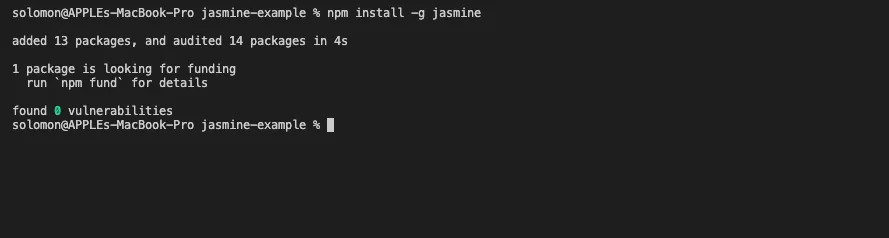
- In some cases, you may need to run the command with sudo when installing npm packages.
- Now, we can create a folder for your project and navigate inside it:
mkdir my-jasmine-project & cd ./my-jasmine-project
- Next, run the initialized command to setup Jasmine in your new project:
npx jasmine init
- The command will create the jasmine folder and some default configurations. The most important file is the `jasmine.json` file, which contains the configurations. You can customize the file to fit your project structures
{
 "spec_dir": "spec",
 "spec_files": [
   "**/*[sS]pec.?(m)js"
 ],
 "helpers": [
   "helpers/**/*.?(m)js"
 ],
 "env": {
   "stopSpecOnExpectationFailure": false,
   "random": true
 }
}
Below is the list of some of the important configurations inside the `jasmine.json` configuration file.
- spec_dir: It specifies where Jasmine looks for test files
- spec_files: It specifies the patterns of test files. All the javascript test files will default end with `.spec.js` or contain the word `spec.`
- helpers: The helper folder is where Jasmine looks for helper files. These files are executed before specs and can be used to define custom matchers
- stopSpecOnExpectionFailure: This tells Jasmine to stop execution if any test fails. This works if the configuration is set to true
- random: Jasmine will pseudo-randomly run the test cases when set to true
You can find more CLI options from the official documentation when running the Jasmine commands. Below are some of the useful CLI options:
- --config: The config option is used to specify the relative path to where the configuration file is located.
- --no-color: This option turns off colors in spec output.
- --filter: The filter option is used to run only the specs that match a given string.
Set Jasmine as your test script in your package.json file:
"scripts": { "test": "jasmine" }Jasmine for browsers
You can also use Jasmine in the browser, if you're working on the frontend, you can install Jasmine into your project and test out your frontend projects.
- Run the following command to add Jasmine to your package.json:
npm install --save-dev jasmine-browser-runner jasmine-core
Here is the screenshot of the output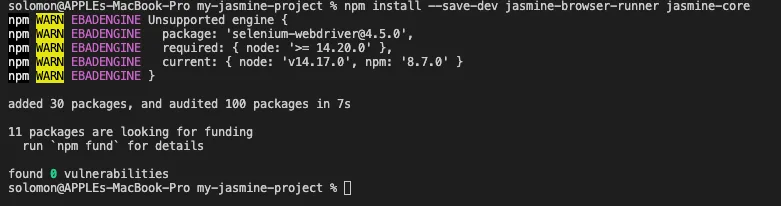
- Initialize Jasmine in your project:
npx jasmine-browser-runner init
- Set Jasmine as your test script in your package.json file:
"scripts": { "test": "jasmine" }
Moreover, choosing a specific approach depends on your project requirements and use cases. Is any approach still using Jasmine as your BDD? - Finally, to run your test, use the NPM command below:
npm test
In this section of this Jasmine unit testing tutorial, we explore different methods to set up Jasmine for your testing needs. In the next section of this Jasmine unit testing tutorial, we will understand the Jasmine testing framework deeper and explore the general keywords used in Jasmine and software testing.
Understanding Jasmine testing framework
This section will explore the basic elements of Jasmine testing, such as suites, specs, expectations, matchers, spies, etc.
We will start by creating a demo project that will enable us to practically learn and understand the different elements used in Jasmine testing.
- Create a project folder in your desired location and run the following command to initialize a new project's package.json file.
npm init -y - Next, create an `helpers.js` file and add the following code:
function fibonacci(num, memo) {
 memo = memo || {};

 if (memo[num]) return memo[num];
 if (num <= 1) return 1;

 return (memo[num] = fibonacci(num - 1, memo) + fibonacci(num - 2, memo));
}

module.exports = {
 fibonacci: fibonacci,
}
The snippet above is a simple Fibonacci series computation. We will use it to understand the different elements of Jasmine testing.
Suites
A suite is a group of specs or test cases. It's used to test a group of features or behavior of the JavaScript code. It's usually encapsulated by an object/class or a function. You can define a suite of test cases using the `describe` block.
The `describe` block takes two required parameters - a string for the suite name and a function that implements the actual code of the test suite.
Here is an example of our first Jasmine test suite:
describe('Test Helpers', function () {
 /**
  * Add all your related test cases here
  *
  */
});
With the `describe` block, you can group related blocks for better organizing and accurately describing test cases.
describe('Test Helpers', function () {
 /**
  * Add all your related test cases here
  *
  */
});

describe('Test Authentication', function () {
 /**
  * Add all your related test cases here
  *
  */
});
Excluding a suite can be done by adding `x` to the `describe` function for instance `xdiscribe()`. This will temporarily disable a suite making all the specs within the disabled `describe` block marked as pending and not executed in the report.
Specs
A spec declares a specific test that belongs to a test suite. This is achieved by calling the Jasmine global function `it()`, which takes two parameters. The spec title and a function that implements the actual test case.
A spec may contain one or more expectations used to determine the correctness of the test. Each expectation is simply an assertion that can return true or false. When an expectation returns true, the spec is passed but fails when the expectation returns false.
Here is how to declare a spec:
describe('Test Helpers', function () {
 it('should calculate Fibonacci series', function () {
   /*...*/
 });
});
We can also exclude individual specs from execution by adding x to the xit() function. Jasmine will ignore this particular test and also ignore reporting it.
Expectations
Expectations are created using the expect function. They take a value called the actual. The actual value is compared with a matcher function and returns the falsity or truthy of the comparison.
You can chain many expect() functions with multiple matchers to obtain different results from your test cases.
Here is a simple example of using the except function for comparison:
describe('Test Helpers', function () {
 it('should calculate Fibonacci series', function () {
   const fib = Fibonnaci(4);
   expect(fib).toEqual(3);
 });
});
Expectations can come in different formats depending on your use cases and the type of matchers you decide to use to obtain your result.
Matchers and Custom Matchers
Jasmine provides a rich set of built-in matchers. Here are some important ones:
- toBe(): It's used for testing identity.
- toBeNull(): It's used for testing for null.
- toBeUndefined()/toBeDefined(): It's used for testing for undefined and not undefined, respectively.
- toBeNaN(): It's used for testing for NaN (Not a Number).
- toBeFalsy()/toBeTruthy(): It tests falseness and truthfulness, respectively.
- toEqual: It's used for testing for equality.
You can find the full list of matchers from the docs.
The code snippet below shows a simple implementation of our specs with some of the matchers.
 describe('Test Helpers', function () {
it('should calculate Fibonacci series', function () {
const fib = Fibonnaci(4);
expect(fib).toEqual(5);
expect(fib).toBeDefined();
expect(fib).toBeNaN().toBeFalsy();
});
});
Jasmine provides the ability to define your custom matcher to satisfy your use case. You can create a custom assertion function not covered by the built-in matcher.
Using beforeEach and afterEach
Jasmine provides two global functions for initializing and cleaning your specs. They are the beforeEach and afterEach functions.
- The beforeEach function is called once before each spec in the suite.
- The afterEach function is called once before each spec in the suite.
For instance, if you need to initial variables to use in each of your test suites, you can simply add the initialization process inside the `beforeEach` function, and it will be initialized on every test case. Also, you can reset any variable of your choice using the `afterEach` function.
In the next section of this Jasmine unit testing tutorial, we will explore how to set up the Jasmine testing environment and configure Jasmine to work with our demo project setup.
How to set up the Jasmine test environment?
In the previous section of this Jasmine unit testing tutorial, we discussed the different ways to use Jasmine in your project. In this section, we will learn how to initialize your testing environment and configure Jasmine to work with our project setup.
We are going to use Jasmine as a library in this demo project. The `jasmine` module is a command line interface and code for running Jasmine specs with Node.js.
- You can install Jasmine using npm in your project:
npm install --save-dev jasmine
- Next, you can run the `init` command to initialize and set up Jasmine in your local project.
npx jasmine init
- The command will create a `spec` folder. Open the `./spec` folder and add all your test files. In addition, the configuration file is also found in this folder; you can configure it from there. Moreover, the configuration can be loaded from any location; also you can create a custom configuration to fix your project requirements.
Here are the default configuration file:
{
"spec_dir": "spec",
"spec_files": [
"**/*[sS]pec.?(m)js"
],
"helpers": [
"helpers/**/*.?(m)js"
],
"env": {
"stopSpecOnExpectationFailure": false,
"random": true
}
}
"scripts": {
"test": "jasmine"
}
npm run test
In the next section of this Jasmine unit testing tutorial, we will follow these steps to test the registration form demo Node.js application we have created for this Jasmine unit testing tutorial.

How to test Node.js applications with Jasmine?
In this Jasmine unit testing tutorial section, we will build and test a registration form in Node.js using Express and Jasmine.
- First, we will create a new project or clone from this repository.
- Open the `index.html` file and add the following code if you created a new project.
<h1>Registration form</h1>
<div className="form-container">
<form name="registerForm" method="POST">
<label for="firstName">First Name *</label>
<input
type="text"
id="firstName"
name="firstName"
placeholder="John"
required
/>
<p className="error-message"></p>
<label for="lastName">Last Name *</label>
<input type="text" id="lastName" placeholder="Doe" required />
<p className="error-message"></p>
<label for="e-mail">E-mail address *</label>
<input
type="text"
id="e-mail"
placeholder="john-doe@net.com"
required
/>
<p className="error-message"></p>
<label for="phoneNumber">Phone Number</label>
<input
type="text"
id="phoneNumber"
maxlength="9"
pattern=".{9,}"
required
title="9 characters length"
placeholder="223587972"
/>
<p className="error-message"></p>
<label for="country">Country</label>
<input type="text" id="country" placeholder="United Kingdom" />
<p className="error-message"></p>
<label for="password">Password *</label>
<input
type="password"
id="password"
pattern=".{8,}"
required
title="8 characters minimum"
/>
<p className="error-message"></p>
<p className="password-rules">
Your password should contain at least 8 characters and 1 number.
</p>
</form>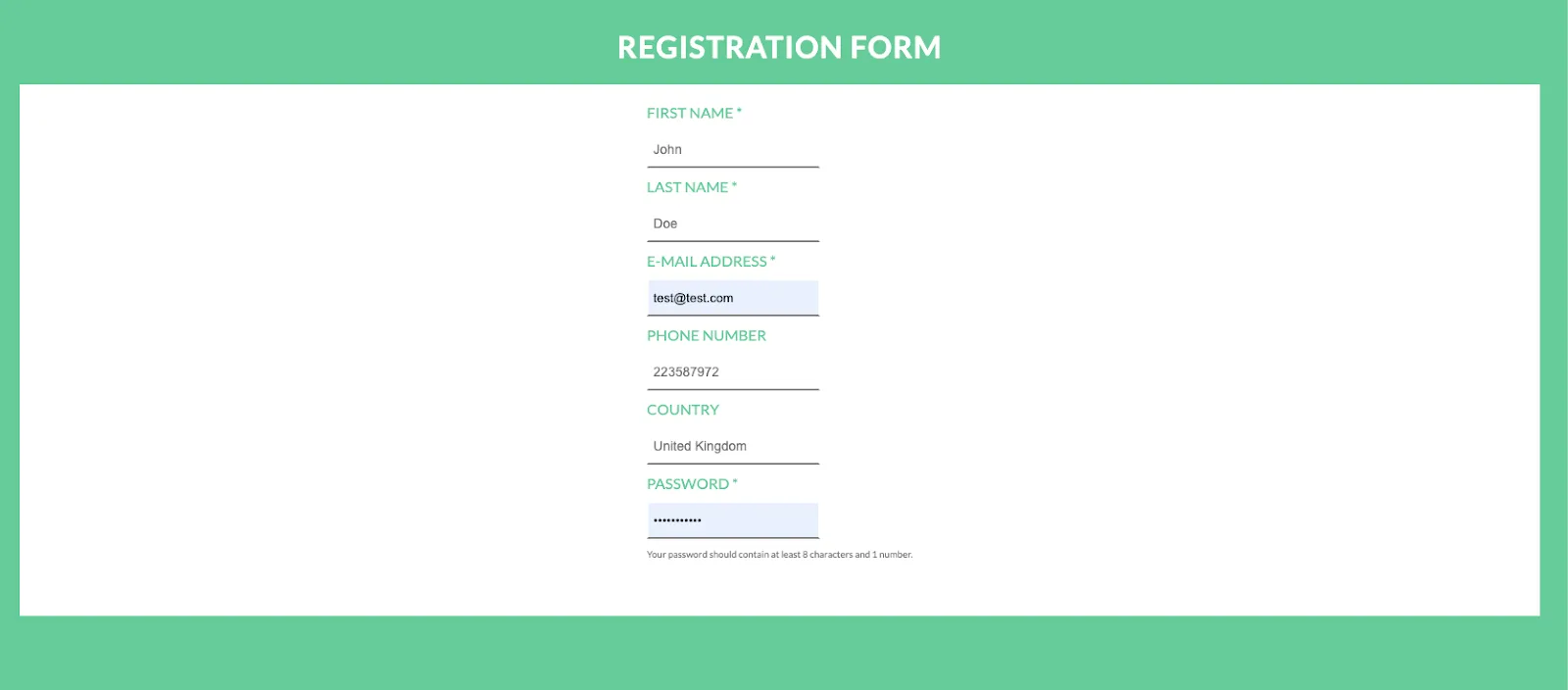
/*first name input validation*/
function FirstName(fname) {
var letters = /^[A-Za-z]+$/;
if (fname.match(letters)) {
return true;
} else {
return false;
}
}

/*last name input validation*/
function LastName(lname) {
var letters = /^[A-Za-z]+$/;
if (lname.match(letters)) {
text = '';
return true;
} else {
return false;
}
}

/*email address input validation*/
function Email(email) {
var mailformat = /^w+([.-]?w+)*@w+([.-]?w+)*(.w{2,3})+$/;
var atpos = email.indexOf('@');
var dotpos = email.lastIndexOf('.');

if (email.match(mailformat) || (atpos > 1 && dotpos - atpos > 2)) {
return true;
} else {
return false;
}
}

/*phone number validation*/
function PhoneNumber(pnumber) {
var numbers = /^[0-9]+$/;
if (pnumber.match(numbers)) {
return true;
} else {
return false;
}
}

/*country input validation*/
function Country(country) {
var letters = /^[A-Za-z]+$/;
if (country.match(letters)) {
return true;
} else {
return false;
}
}

/*validate password*/
function Password(password) {
var illegalChars = /[W_]/; // allow only letters and numbers
if (illegalChars.test(password)) {
return false;
} else if (password.search(/[0-9]+/) == -1) {
return false;
} else {
return true;
}
}
The code snippet is already self-explanatory with the use of comments. We are validating different inputs for each param passed to the individual functions.
Creating the test files
First, we will create the `validations.spec.js` file inside the newly created `spec` folder and add the following codes to cover the Validation test suites.
const {
validateCountry,
validatePassword,
validatePhoneNumber,
validateEmail,
validateLastName
} = require('../helpers');
describe('Validation Helpers', function () {
it('should validate country', function () {
const country = validateCountry('nigeria');
expect(country).toEqual(true);
});

it('should validate acceptable password', function () {
const password = validatePassword('Password1');
expect(password).toEqual(true);
});

it('should validate wrong password', function () {
const password = validatePassword('Password');
expect(password).toEqual(false);
});

it('should validate good PhoneNumber', function () {
const password = validatePhoneNumber('081456552232');
expect(password).toEqual(true);
});

it('should validate empty PhoneNumber', function () {
const password = validatePhoneNumber('');
expect(password).toEqual(false);
});

it('should validate good email', function () {
const email = validateEmail('test@test.com');
expect(email).toEqual(true);
});

it('should validate empty email', function () {
const email = validateEmail('');
expect(email).toEqual(false);
});

it('should validate good last name', function () {
const lastName = validateLastName('Solomon');
expect(lastName).toEqual(true);
});
});
The code snippet above uses the different concepts we have explained above to create a test suite for making sure our validation methods work as expected.
Running Jasmine Test
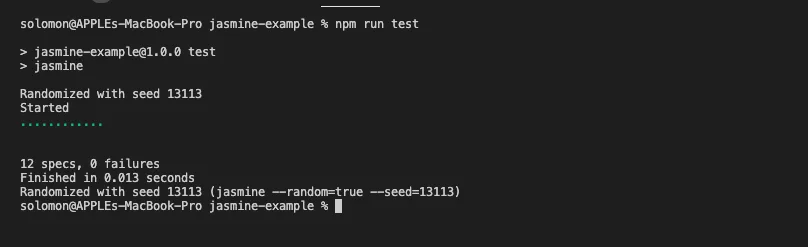
Lastly, we will run the test to see if it passes or not. Type the following command into your root terminal.
npm run testIf your test is successful, you should see three 12 cases passed, as shown in this figure.
In this section of this Jasmine unit testing tutorial, we have demonstrated how to configure and structure software testing with Node.js using the latest Jasmine testing library. We have also learned how to write a basic unit test.
However, you can use cloud testing platforms like TestMu AI to perform Jasmine unit testing at scale over a cloud Selenium Grid. TestMu AI offers a secure and reliable cloud-based Selenium Grid infrastructure that enables you to conduct cross browser testing on a large scale. With a vast selection of over 3000 browser and operating system combinations available on its online browser farm, TestMu AI allows you to test your code on various environments.

You can follow the TestMu AI YouTube Channel for more such videos around Selenium testing, CI/CD, Cypress UI testing, and more.
To perform Jasmine unit testing on a cloud grid-like TestMu AI, you can follow these steps:
- Sign up for a TestMu AI account and set up your cloud grid by choosing the browsers and operating systems you want to test on.
- Install the TestMu AI Selenium grid npm package on your local machine by running the command "npm install -g lambda-test"
- Create a new Jasmine test file and write your test cases.
- Execute your test cases on the cloud grid by running the command "lambda-test run --specs path/to/your/test/file.js --user [email] --key [access_key]".
- You can check the results of your test cases on the TestMu AI platform, where you can view detailed information about test execution, including screenshots and video recordings.
- You can also integrate TestMu AI with your CI/CD pipeline so that your tests are run automatically on every build.
If you're a JavaScript developer looking to improve your unit testing skills, consider taking the Selenium JavaScript 101 certification course from TestMu AI to gain the expertise needed to excel in the field.
"Furthermore, explore into an extensive compilation of commonly asked Jasmine Interview Questions in 2023. This resource is designed to aid interview preparation and enhance your Jasmine framework proficiency."
Advanced Jasmine: Mocking and Test Doubles With Spies
In a true unit test you isolate the unit under test from its dependencies. Jasmine's spies are its built-in test doubles for exactly that: they let you replace a real function with a tracked stand-in so you can control what it returns and verify how it was called.
A spy wraps a function and records every call. Combined with a few chained methods, it covers the common mocking needs:
- spyOn(object, 'method') replaces object.method with a spy.
- .and.returnValue(x) makes the spy return a fixed value instead of running the real code.
- .and.callThrough() keeps the real implementation running while still tracking calls.
- .and.callFake(fn) swaps in your own implementation.
describe("OrderService", () => {
  it("charges the payment gateway once", () => {
    const gateway = { charge: (amount) => 0 };
    spyOn(gateway, "charge").and.returnValue("txn_123");

    const result = placeOrder(gateway, 100);

    expect(gateway.charge).toHaveBeenCalledOnceWith(100);
    expect(result).toBe("txn_123");
  });
});
Here the real gateway is never called. The spy returns a fake transaction id and records the arguments, so the test verifies placeOrder's behavior without touching the network. Matchers like toHaveBeenCalled, toHaveBeenCalledTimes, and toHaveBeenCalledWith read the spy's recorded calls.
Testing for Exceptions
A related advanced check is confirming that code throws when it should. Jasmine's toThrow() and the stricter toThrowError() assert on thrown errors:
function withdraw(balance, amount) {
  if (amount > balance) {
    throw new Error("Insufficient funds");
  }
  return balance - amount;
}

it("throws when the amount exceeds the balance", () => {
  expect(() => withdraw(50, 100)).toThrowError("Insufficient funds");
});
Note the function is wrapped in an arrow function so Jasmine can invoke it and catch the error, rather than the error being thrown before expect runs.
Asynchronous Testing in Jasmine
Most real JavaScript (network calls, timers, file reads) is asynchronous, and a naive test will finish before the async work completes and pass for the wrong reason. Jasmine gives you three ways to tell it to wait.
- The done() callback: Jasmine passes a done function to your spec and waits until you call it.
- Promises: return the promise from your spec and Jasmine waits for it to settle.
- async/await: mark the spec async and await the operation, the cleanest modern style.
// done() style
it("loads the user (done)", (done) => {
  fetchUser(1).then((user) => {
    expect(user.name).toBe("Ada");
    done();
  });
});

// async/await style
it("loads the user (async)", async () => {
  const user = await fetchUser(1);
  expect(user.name).toBe("Ada");
});
Prefer async/await where you can; it avoids forgotten done() calls, a common cause of tests that hang until they time out.
Controlling Time With the Jasmine Clock
Code that uses setTimeout or setInterval should not force your test to wait in real time. jasmine.clock() installs a mock clock so you can fast-forward time deterministically:
it("fires the callback after 1 second", () => {
  jasmine.clock().install();
  const spy = jasmine.createSpy("callback");

  setTimeout(spy, 1000);
  jasmine.clock().tick(1001);   // advance mock time

  expect(spy).toHaveBeenCalled();
  jasmine.clock().uninstall();
});
tick() advances the virtual clock instantly, so a test for a one-second timer runs in microseconds and never flakes on timing.
Jasmine vs Karma
Jasmine and Karma are often mentioned together and sometimes confused, but they do different jobs and are frequently used side by side.
| Aspect | Jasmine | Karma |
|---|---|---|
| What it is | A testing framework (the syntax to write tests). | A test runner (executes the tests). |
| Responsibility | Provides describe, it, expect, spies, and matchers. | Launches browsers, runs specs, and reports results. |
| Runs where | Node or browser; framework-agnostic. | Real browsers (Chrome, Firefox) and headless mode. |
| Used together? | Yes, you write the tests in Jasmine. | Yes, it runs those Jasmine tests across browsers. |
In short, Jasmine describes what to test and Karma decides where the tests run. A common Angular setup, for example, writes specs in Jasmine and executes them across browsers with Karma.
UI Unit Testing: Pitfalls and Best Practices
"UI unit testing" is a common search, but it hides a trap: reaching into real UI interactions from a unit test produces slow, brittle tests that break whenever markup changes. Unit tests should verify logic in isolation, not render and click through a live interface, which is the job of integration and end-to-end tests.
Pitfalls to avoid:
- Querying the real DOM: coupling a unit test to specific selectors makes it fail on unrelated markup changes.
- Hitting real APIs or the network: introduces flakiness and slowness that unit tests are meant to avoid.
- Mixing business logic with rendering: if logic lives inside UI components, it cannot be tested without the UI.
Best practices to keep unit tests pure:
- Separate business logic from UI rendering so the logic can be tested as plain functions.
- Mock external dependencies such as APIs, services, and timers with Jasmine spies.
- Reserve real DOM interaction and full user journeys for E2E tools, keeping unit tests fast and deterministic.
Integrating Jasmine With Selenium
The keyword "selenium unit testing" points to a subtle shift: once you drive a real browser with selenium-webdriver from inside a Jasmine suite, you have crossed from pure unit testing into browser-based integration and end-to-end testing. Jasmine still provides the describe/it structure and assertions, while Selenium provides the browser automation.
const { Builder, By } = require("selenium-webdriver");

describe("Login page (browser)", () => {
  let driver;
  beforeEach(async () => { driver = await new Builder().forBrowser("chrome").build(); });
  afterEach(async () => { await driver.quit(); });

  it("shows the dashboard after login", async () => {
    await driver.get("https://your-app.com/login");
    await driver.findElement(By.id("username")).sendKeys("user");
    await driver.findElement(By.id("password")).sendKeys("pass");
    await driver.findElement(By.css("button[type=submit]")).click();
    const heading = await driver.findElement(By.css("h1")).getText();
    expect(heading).toBe("Dashboard");
  });
});
Because these tests are slower and need real browsers, they belong in a separate suite from your fast unit tests. To run the same selenium-webdriver tests across many browser and OS combinations without maintaining that infrastructure yourself, you can execute them on a cloud grid like TestMu AI.
Leveraging AI for Unit Testing
"AI unit testing" refers to using AI models to help write the tests themselves. Modern large language models such as GPT-4 and Claude can read a function and generate a full Jasmine spec, complete with describe/it blocks, mock data, and edge cases, in seconds, turning test authoring from a chore into a review task.
Where AI genuinely helps:
- Generating boilerplate specs and mock data from a function signature or requirement.
- Suggesting edge cases a developer might overlook, such as empty inputs, boundaries, and error paths.
- Drafting spies and async test scaffolding that you refine rather than write from scratch.
Where human QA is still essential:
- AI can assert what the code does rather than what it should do, baking a bug into the test.
- It can miss domain context and business rules that are not visible in the code.
- Coverage numbers can look high while meaningful behavior goes untested.
The practical workflow is AI-assisted, not AI-owned: let the model draft specs, then have a QA engineer validate intent, prune redundant cases, and confirm the tests would actually catch a regression. AI-native platforms such as KaneAI apply the same principle to end-to-end testing, generating and maintaining tests from natural language while keeping the human in the loop.
Summary
BDD encourages collaboration even in software testing, and Jasmine testing framework builds on these principles to deliver a collaborative testing environment for the software engineering team.
Software testing is a very important aspect of software development. It ensures that the software under test meets the intended requirement, is defect-free, and is free of errors and bugs.
In this Jasmine unit testing tutorial, we discussed the overview of Jasmine and how it implements BDD principles. We explored the different ways to use Jasmine in your JavaScript projects and elucidate the different elements of the Jasmine testing framework.
In this Selenium JavaScript tutorial, we implemented a simple registration form demo Node.js application using Expressjs. Lastly, we use Jasmine to implement the JavaScript unit testing method to validate users' input to ensure it's in the correct format.
Author

Solomon Eseme
Blogs: 4


Solomon Eseme is a Software Engineer with over 5 years of experience in backend development. He is the Founder and CTO of Mastering Backend, a platform dedicated to helping backend engineers enhance their skills. Solomon has contributed to impactful projects, including those that helped secure $20M in funding. He is passionate about building scalable, secure systems and promoting clean code principles. With over 11,000 followers on LinkedIn, Solomon’s network includes QA engineers, software testers, developers, DevOps professionals, tech enthusiasts, AI innovators, and tech leaders. He is also skilled in AWS, GraphQL, and blockchain technologies.
On This Page
- Table of Contents
- What is the Jasmine framework used for
- How to use Jasmine
- Understanding Jasmine testing framework
- How to set up the Jasmine test environment?
- How to test Node.js applications with Jasmine?
- Mocking and Test Doubles With Spies
- Asynchronous Testing in Jasmine
- Jasmine vs Karma
- UI Unit Testing: Pitfalls and Best Practices
- Integrating Jasmine With Selenium
- Leveraging AI for Unit Testing
- Summary
Jasmine Unit Testing FAQs
Did you find this page helpful?
More Related Learning Hubs

TestMu AI forEnterprise
Get access to solutions built on Enterprise
grade security, privacy, & compliance
- Advanced access controls
- Advanced data retention rules
- Advanced Local Testing
- Premium Support options
- Early access to beta features
- Private Slack Channel
- Unlimited Manual Accessibility DevTools Tests