

Power Your Software Testing with AI Agents and Cloud
The Native AI-Agentic Cloud Platform to Supercharge Quality Engineering. Test Intelligently and Ship Faster.


- TestMu AI (Formerly LambdaTest)
- /
- Blog
- /
- How To Use Name Locator In Selenium Automation Scripts?
How To Use Name Locator In Selenium Automation Scripts?
By.name locator in Selenium is used to identify the elements of a webpage. This attribute can be mentioned as part of multiple tags like input, button, etc.
Last Updated on:
The By.name locator in Selenium finds a webpage element through its HTML name attribute, used inside findElement or findElements.
The attribute is not guaranteed unique, so findElement returns only the first matching node, while findElements retrieves every element that shares the same name, such as grouped radio buttons.
This guide covers the DOM structure behind name attributes, two Java test scenarios for By.name, and how self-healing test tools now handle a name locator after it changes.
Key Takeaways
- The By.name locator in Selenium calls By.name with an HTML name attribute value inside a findElement or findElements command.
- findElement with By.name returns only the first element carrying a given name value, even when several elements on the page share it.
- Radio button groups commonly share one name attribute across multiple input elements, which makes findElements the correct method for selecting among them.
- The By.name locator performs faster than className, CSS selector, or XPath lookups but slower than the ID locator.
- Self-healing test frameworks relocate an element automatically when its name attribute changes, instead of failing the run until an engineer edits the script.
- The HTML name attribute stays required on form controls because browsers use it to submit field data to the server.
Understanding The DOM(Document Object Model)
The Document Object Model(DOM) defines the structure of a webpage which constitutes of various tag elements and their corresponding attributes. For example, below shows the TestMu AI login page: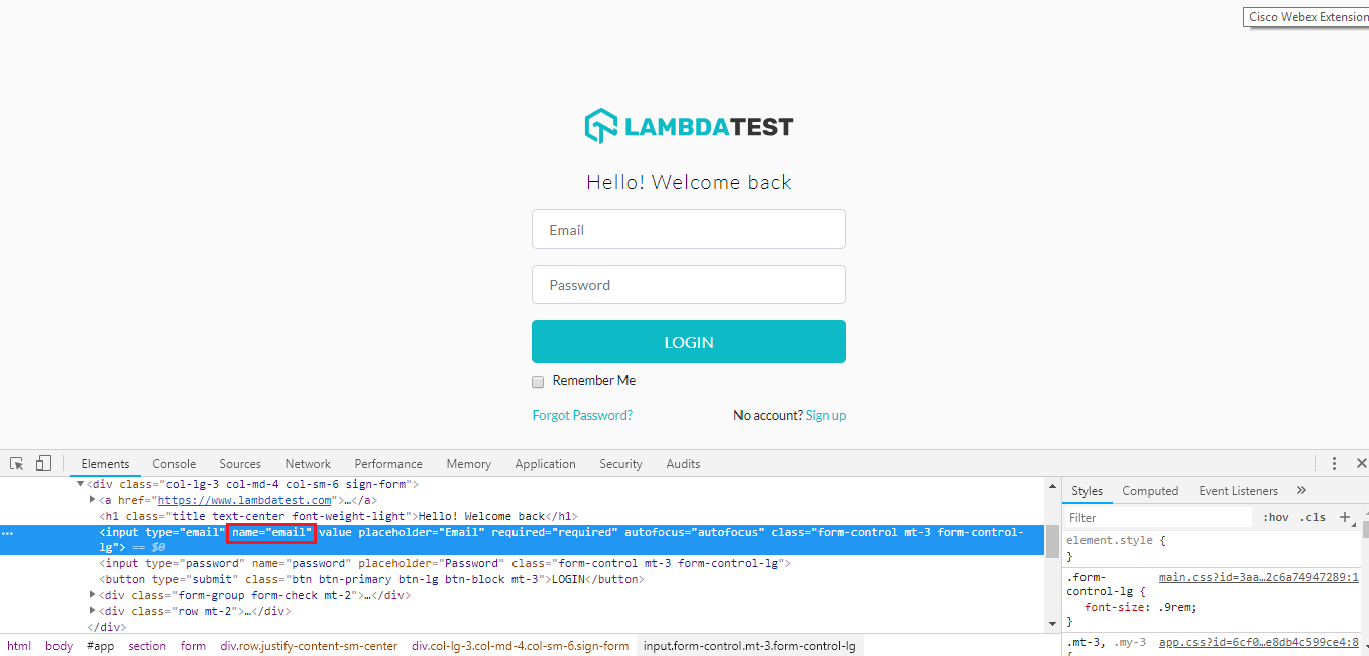
In the screenshot above, we are trying to locate the ‘email’ field. The DOM structure of the email field is displayed below:
< input type="email" name="email" value="" placeholder="Email" required="required" autofocus="autofocus" className="form-control mt-3 form-control-lg" >
The attributes for the above DOM structure are:
- Type
- Name
- Value
- Placeholder
- Required
- Autofocus
- Class
Understanding The By.name Locator In Selenium
By.name Selenium locator is used to identify the elements of a webpage. This attribute can be mentioned as part of multiple tags like < input >, < button >, < select > etc. Unlike ID, this may or may not be unique to a page. A webpage may contain multiple tags with the same By.name attribute value. In such a case, if your intent is to select your desired element, the By.name locator in Selenium may not be the correct choice.
A key point to note is when you tend to select an element with a desired name attribute value, it will select the first element it encounters. You may come across another scenario, where you wish to select elements with the same name attribute value, in this case, the By.name locator in Selenium may work using the findElements syntax. I will show both scenarios example in the code as we go ahead in the article.
In order to locate element via the By.name locator in Selenium, we use the below command:
driver.findElement(By.name(“Element NAME”));
Let’s dig into the code snippet to understand the usage of the By.namelocator.

Austin Siewert
Co-Founder, Steadfast Systems
Discovered @TestMu AI yesterday. Best browser testing tool I've found for my use case. Great pricing model for the limited testing I do 👏
2M+ Devs and QAs rely on TestMu AI
Deliver immersive digital experiences with Next-Generation Mobile Apps and Cross Browser Testing Cloud

This certification is for anyone who wants to stay ahead among professionals who are growing their career in Selenium automation testing.
Here’s a short glimpse of the Selenium 101 certification from TestMu AI:

Test Scenario 1 For By.nameLocator In Selenium
In the below code example, we are logging on to the TestMu AI platform. Here we will locate the ‘email’ and ‘password’ field using the By.name attribute.
package Chromedriver;

import org.openqa.selenium.By;
import org.openqa.selenium.WebDriver;
import org.openqa.selenium.WebElement;
import org.openqa.selenium.chrome.ChromeDriver;

public class Name_Locator {

    public static void main(String[] args) {

        //Setting up chrome using chromedriver by setting its property
        System.setProperty("webdriver.chrome.driver", "C:\Users\navyug\workspace\Lambdatest\src\Chromedriver\chromedriver.exe");

        //Opening browser
        WebDriver driver= new ChromeDriver() ;

        //Opening window tab in maximize mode
        driver.manage().window().maximize();

        //Opening application
        driver.get("https://accounts.lambdatest.com/login");

        //Locating the email field element via Name tag and storing it in the webelement
        WebElement email_field=driver.findElement(By.name("email"));

        //Entering text into the email field
        email_field.sendKeys("sadhvisingh24@gmail.com");

        //Locating the password field element via Name tag and storing it in the webelement
        WebElement password_field=driver.findElement(By.name("password"));

        //Entering text into the password field
        password_field.sendKeys("LoremIpsum");

        //Clicking on the login button to login to the application
        WebElement login_button=driver.findElement(By.xpath("//button[text()='LOGIN']"));

        //Clicking on the 'login' button
        login_button.click();

        //Closing the window
        driver.close();
        }
}

Test Scenario 2 For By.name Locator In Selenium
In the below code example, post-logging in, under the automation section of the menu bar, we have a page where two web elements containing radio button have the same By.name attribute value as radio. We intend to switch between these two buttons. Below is the DOM structure for both those elements: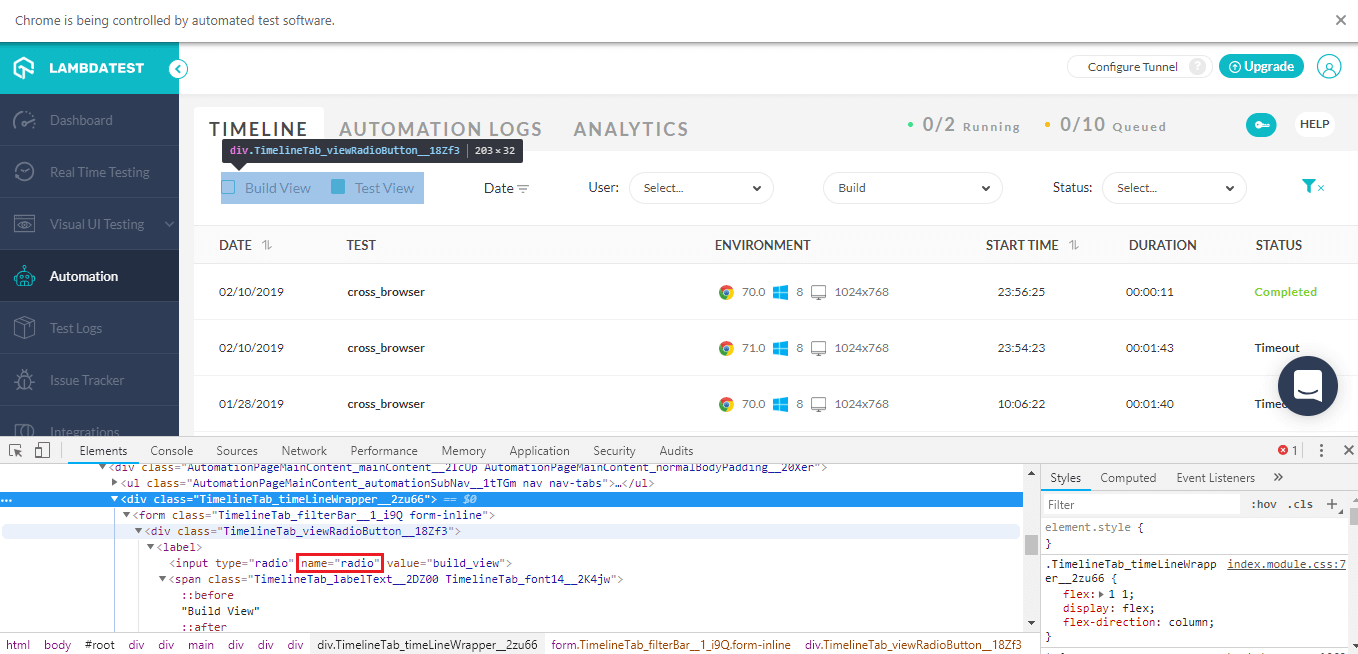
< div class="TimelineTab_viewRadioButton__18Zf3">
< label ><input type="radio" name="radio" value="build_view"><span class="TimelineTab_labelText__2DZ00 TimelineTab_font14__2K4jw">Build View</span>
<!-- label-->< label>< input type="radio" name="radio" value="test_view">
<span class="TimelineTab_labelText__2DZ00 TimelineTab_font14__2K4jw">Test View<!-- span--><!-- label -->< /div ></span>
The code snippet below:
package Chromedriver;


import java.util.List;
import java.util.concurrent.TimeUnit;

import org.openqa.selenium.By;
import org.openqa.selenium.WebDriver;
import org.openqa.selenium.WebElement;
import org.openqa.selenium.chrome.ChromeDriver;

public class Multiple_Name_Values {

    public static void main(String[] args) {

        //Setting up chrome using chromedriver by setting its property
                System.setProperty("webdriver.chrome.driver", "C:\Users\navyug\workspace\Lambdatest\src\Chromedriver\chromedriver.exe");

                //Opening browser
                WebDriver driver= new ChromeDriver() ;

                //Opening window tab in maximize mode
                driver.manage().window().maximize();

                //Maintaining an implicit wait for the entire application in case of throttling network or DOM not loaded
                driver.manage().timeouts().implicitlyWait(20, TimeUnit.SECONDS);
                //Opening application
                driver.get("https://accounts.lambdatest.com/login");

                //Locating the email field element via Name tag and storing it in the webelement
                WebElement email_field=driver.findElement(By.name("email"));

                //Entering text into the email field
                email_field.sendKeys("sadhvisingh24@gmail.com");

                //Locating the password field element via Name tag and storing it in the webelement
                WebElement password_field=driver.findElement(By.name("password"));

                //Entering text into the password field
                password_field.sendKeys("LoremIpsum");

                //Clicking on the login button to login to the application
                WebElement login_button=driver.findElement(By.xpath("//button[text()='LOGIN']"));

                //Clicking on the 'login' button
                login_button.click();

                //Click on the Automation menu link on the sidebar
                driver.findElement(By.xpath("//*[@id='app']/header/aside/ul/li[4]/a/span")).click();


                //Finding all the webelement on the page with name attribute value as radio
                List<webelement> radio_button=driver.findElements(By.name("radio"));

                //Click on the test view of the element
                radio_button.get(1).findElement(By.xpath("//span")).click();

                //Closing the driver
                driver.close();
    }
}
</webelement>
As you can see in the above two examples, we have used the By.name locator in different ways. One was via findElement and the other was via findElements command. In one, our target was to locate a single element while in the other we located multiple elements with the same By.name and attempted to switch to one of those elements. So as per defined need and business, we can use the By.name locator. By.name locators are easy to use and maintain, the trick lies in identifying their right usage.
You can also read my previous article where I have explained the demonstration of all the locators in Selenium WebDriver. I will also be writing down a series of dedicated articles to demonstrate thorough usage of each locator of Selenium in detail. Stay tuned! 🙂 Readers new to browser automation can start with our what is Selenium guide, and prepare for interviews with our Selenium interview questions collection.
How Do Self-Healing Frameworks Handle A Broken Name Locator?
Self-healing test tools detect a broken By.name locator at runtime and relocate the element automatically, instead of failing the script until an engineer edits the selector. Three generations of this approach now exist, according to a 2026 industry analysis of self-healing test automation.
- First-generation plug-ins: early self-healing Selenium and Playwright plug-ins patch a broken locator by trying nearby DOM attributes on the same element.
- Machine-learning scoring: some AI-assisted tools score candidate locators with machine learning and pick the closest match once a name attribute changes.
- Semantic and visual matching: newer frameworks identify an element by what it represents to a user through semantic and visual matching, rather than a single attribute like name.
A traditional By.name script still fails the moment the underlying attribute changes, which keeps manual locator maintenance relevant for teams that have not adopted a self-healing layer.
Author

Sadhvi Singh
Blogs: 8


Sadhvi Singh is a software testing and quality engineering leader with 14+ years of experience driving automation, performance, and AI-augmented QA initiatives. Currently Director of Quality Engineering at Brevo, she specializes in API and UI automation, performance testing, CI/CD integration, and vulnerability management systems (SCA, SAST, DAST). Sadhvi is ISTQB Foundation and Advanced Test Analyst certified and has led large QA teams across enterprise environments.
Reviewer

Navin Chandra
Reviewer
Navin Chandra is a Member of Technical Staff at TestMu AI (formerly LambdaTest), building the open-source automation that powers its Selenium and Appium cloud grid. A committer to both Selenium and Appium, he implemented WebDriver BiDi support in Selenium for real-time browser events and bidirectional control and is developing Apple's iOS RemoteXPC protocol in Appium to enable low-level wireless communication with iOS system services. He contributes to Selenium across multiple language bindings as a member of the Selenium GitHub organization. He has served as a Google Summer of Code mentee and mentor at openSUSE and an LFX mentee at CNCF's KubeArmor, and is a SUSE Certified Deployment Specialist. Navin holds a B.Tech in Computer Science.


Name Locator in Selenium FAQs
Did you find this page helpful?
More Related Blogs
TestMu AI forEnterprise
Get access to solutions built on Enterprise
grade security, privacy, & compliance
- Advanced access controls
- Advanced data retention rules
- Advanced Local Testing
- Premium Support options
- Early access to beta features
- Private Slack Channel
- Unlimited Manual Accessibility DevTools Tests