

Power Your Software Testing with AI Agents and Cloud
The Native AI-Agentic Cloud Platform to Supercharge Quality Engineering. Test Intelligently and Ship Faster.


- TestMu AI (Formerly LambdaTest)
- /
- Blog
- /
- How to Use JavaScriptExecutor in Selenium
How to Use JavaScriptExecutor in Selenium
Learn how to use JavaScriptExecutor in Selenium to execute JavaScript commands, enhance test scripts, and handle complex WebElements efficiently.
Last Updated on:
JavaScriptExecutor in Selenium allows you to run JavaScript code directly within the browser, helping you perform actions that regular Selenium methods cannot handle, such as clicking hidden elements, scrolling the page, or retrieving values.
It's because sometimes, Selenium WebDriver cannot interact with certain elements, especially when they are hidden, not clickable, or controlled by JavaScript. In such cases, the JavaScriptExecutor comes in handy.
In this guide, you'll learn how to use JavaScriptExecutor in Selenium WebDriver with syntax, examples, and best practices for handling real-world automation challenges.
Key Takeaways
To use JavaScriptExecutor in Selenium, cast your WebDriver instance to the JavaScriptExecutor interface and call executeScript() for synchronous execution or executeAsyncScript() for asynchronous tasks. This interface acts as a fallback to interact with hidden elements, custom overlays, or shadow DOM when standard WebDriver commands fail.
- executeScript(): Run synchronous JavaScript inside the active browser window using this method to interact with hidden elements, custom overlays, or shadow DOM when standard WebDriver commands fail.
- TestMu AI: Run Selenium scripts on the TestMu AI online cloud grid to validate JavaScriptExecutor behavior across 10,000+ real browsers and devices, ensuring browser-specific quirks do not break your tests.
- JavaScript-driven actions bypass user-event simulation, meaning tests can pass even if a real user cannot interact with the control. Always validate critical user flows on a real-browser grid.
- executeAsyncScript(): This method requires an explicit callback. You must read the callback from the last argument and invoke it, or the execution will hang until the script timeout fires.
- Return value casting: You must cast return values from executeScript() explicitly. JavaScript numbers return as Long or Double, strings return as String, and elements return as WebElement, while the method itself returns Object.
What Is JavaScriptExecutor in Selenium?
JavaScriptExecutor is an interface that lets Selenium execute JavaScript directly inside the currently selected window or frame. It is available in every language binding Selenium supports (Java, Python, C#, Ruby, JavaScript), and the script runs as the body of an anonymous function in the browser, with the return value marshalled back to the test.
In Java, you import it from the Selenium core package:
import org.openqa.selenium.JavascriptExecutor;JavaScriptExecutor exposes two methods to interact with WebElements:
- executeScript(): Runs JavaScript synchronously in the context of the currently selected window or frame and returns a value (Boolean, Long, Double, String, List, Map, WebElement, or null).
- executeAsyncScript(): Runs JavaScript asynchronously. The script must signal completion by invoking the callback function passed in as the last argument. Use this for AJAX or any flow that needs the browser to pause.
Note: The major difference between executeScript() and executeAsyncScript() is the explicit callback(). With executeAsyncScript, Selenium waits until the callback fires (or the script timeout elapses), which is essential for synchronizing tests with AJAX-driven UIs.
Why Use JavaScriptExecutor in Selenium?
There are scenarios where standard WebDriver commands either fail or behave inconsistently across browsers. JavaScriptExecutor is the escape hatch.
For example, locating WebElements with Selenium locators like ID, Name, CSS Selector, or XPath usually works. But when a locator stops resolving on a complex DOM, or when the click() method fires but the application does not respond (a common pattern with React or Angular overlays), JavaScriptExecutor lets you reach the element directly through the browser's JavaScript engine.
A regular WebDriver click looks like this:
driver.findElement(By.id("button")).click();If the click does not register, the JavaScriptExecutor equivalent bypasses the user-event layer:
JavascriptExecutor js = (JavascriptExecutor) driver;
WebElement button = driver.findElement(By.id("button"));
js.executeScript("arguments[0].click();", button);
Because every modern browser ships a JavaScript engine, JavaScriptExecutor gives you predictable behavior across Chrome, Firefox, Safari, and Edge for operations the standard API cannot reliably express, scrolling, hidden-element interaction, shadow DOM access, and direct DOM mutation. If you are choosing between AI-driven test creation and hand-coding these workarounds, see how KaneAI generates test steps from natural language.

Basics of JavaScriptExecutor in Selenium
Using JavaScriptExecutor in a Selenium test takes three steps. The examples below use Java, but the pattern is identical in Python, C#, and JavaScript bindings.
Step 1: Import the JavascriptExecutor package.
import org.openqa.selenium.JavascriptExecutor;Step 2: Create a JavascriptExecutor reference and assign the WebDriver instance to it via type-casting.
JavascriptExecutor js = (JavascriptExecutor) driver;Step 3: Call executeScript() or executeAsyncScript(). The signature for executeScript() is:
js.executeScript(java.lang.String script, java.lang.Object... args);Where script is the JavaScript string and args are the arguments passed to the script (accessed via arguments[0], arguments[1], etc.). Return values can be Boolean, Long, Double, String, List, Map, WebElement, or null.
Demo: Using JavaScriptExecutor in Selenium
Before running the demo, set up your environment:
- Install the Java Development Kit (JDK 17 or later).
- Download the Eclipse IDE for Java Developers (or your preferred IDE).
- Add the Selenium Java client (Selenium 4.x) and TestNG to your project as Maven or Gradle dependencies.
Create a new project in your IDE and add the Selenium Java JARs (or Maven coordinates). For the test scenario, we use the TestMu AI Ecommerce Playground.
Instead of a local Selenium Grid, run the tests on TestMu AI's online Selenium Grid. TestMu AI is an AI-native test execution platform that lets you run tests in parallel across 10,000+ real browsers and devices, which is essential when JavaScript behavior diverges between browser engines. See the Selenium with Java documentation for the full setup.
LambdaTest Now Called TestMu AI — the same trusted platform with a new name and powerful AI capabilities.

Note: Run Selenium JavaScriptExecutor tests across 10,000+ real browsers and devices on TestMu AI's cloud grid. Try TestMu AI free!
After creating a TestMu AI account, copy your Username and Access Key from Account Settings > Password & Security, then export them as environment variables.
Generate the browser capabilities for your run with the TestMu AI Automation Capabilities Generator.
Test Scenario 1:
Write a simple test that uses executeScript() to drive a login flow:
- Navigate to the Account Login page of the TestMu AI Ecommerce Playground.
- Enter valid login credentials and click the Login button after highlighting each field with a red border using JavaScript.
- Print the page title and domain name through executeScript().
- Assert that the My Account header is displayed on successful login.
Implementation:
Create a new TestJavaScriptExecutor class. The class declares a RemoteWebDriver field and a status string used to signal pass/fail back to the cloud grid.
public class TestJavaScriptExecutor {

    private RemoteWebDriver driver;
    private String status = "failed";
}
A new setup() method instantiates RemoteWebDriver and points it at the TestMu AI cloud grid hub. Credentials are read from environment variables so they are not hardcoded:
@BeforeTest
public void setup() {
    final String userName = System.getenv("LT_USERNAME");
    final String accessKey = System.getenv("LT_ACCESS_KEY");
    final String gridUrl = "@hub.lambdatest.com/wd/hub";
    try {
        this.driver = new RemoteWebDriver(
            new URL("https://" + userName + ":" + accessKey + gridUrl),
            getChromeOptions()
        );
    } catch (final MalformedURLException e) {
        System.out.println("Could not start the remote session on TestMu AI cloud grid");
    }
    this.driver.manage().timeouts().pageLoadTimeout(Duration.ofSeconds(20));
}
The getChromeOptions() method returns the capabilities that pin the run to a specific browser/OS combination. Pin to the latest stable Chrome on Windows 11 to match modern user environments:
public ChromeOptions getChromeOptions() {
    ChromeOptions browserOptions = new ChromeOptions();
    browserOptions.setBrowserVersion("latest");
    browserOptions.setPlatformName("Windows 11");
    HashMap<String, Object> ltOptions = new HashMap<String, Object>();
    ltOptions.put("project", "TestMu AI Ecommerce Playground");
    ltOptions.put("build", "JavaScriptExecutor Selenium Demo");
    ltOptions.put("name", "JavaScriptExecutor Selenium Tests");
    ltOptions.put("w3c", true);
    ltOptions.put("plugin", "java-testNG");
    browserOptions.setCapability("LT:Options", ltOptions);
    return browserOptions;
}
The tearDown() method updates the cloud test status and closes the browser:
@AfterTest
public void tearDown() {
    this.driver.executeScript("lambda-status=" + this.status);
    this.driver.quit();
}
Now create the testJavaScriptExecutorCommand() test method. It opens the Login page, highlights each field via executeScript, types credentials, submits, and asserts the My Account header.
@Test
public void testJavaScriptExecutorCommand() {
    driver.get("https://ecommerce-playground.lambdatest.io/index.php?route=account/login");
}
Code Walkthrough:
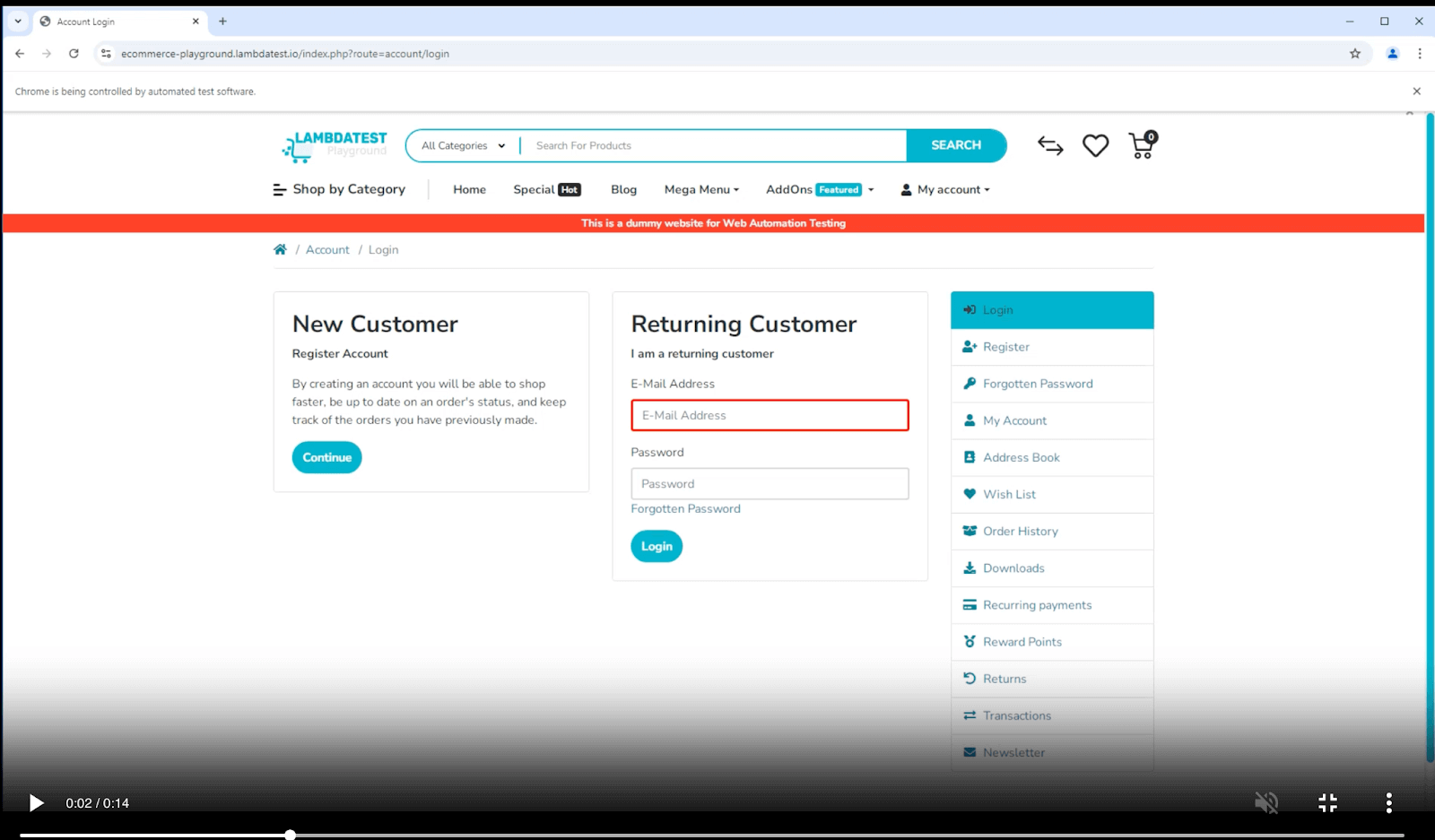
The code navigates to the Login page of the TestMu AI Ecommerce Playground. It locates the E-Mail Address field with the id locator, then uses JavaScriptExecutor to highlight the field with a red border so the screen recording on the cloud grid shows what the test is doing.
The Password field is located next and highlighted the same way. The Login button is located via CSS Selector and highlighted before the click. Highlighting steps make the cloud video far easier to debug.

The page title and domain name are read using JavaScriptExecutor and printed to the console.

After login, the My Account header is located and an assertion confirms it displays the expected text.
Test Execution:
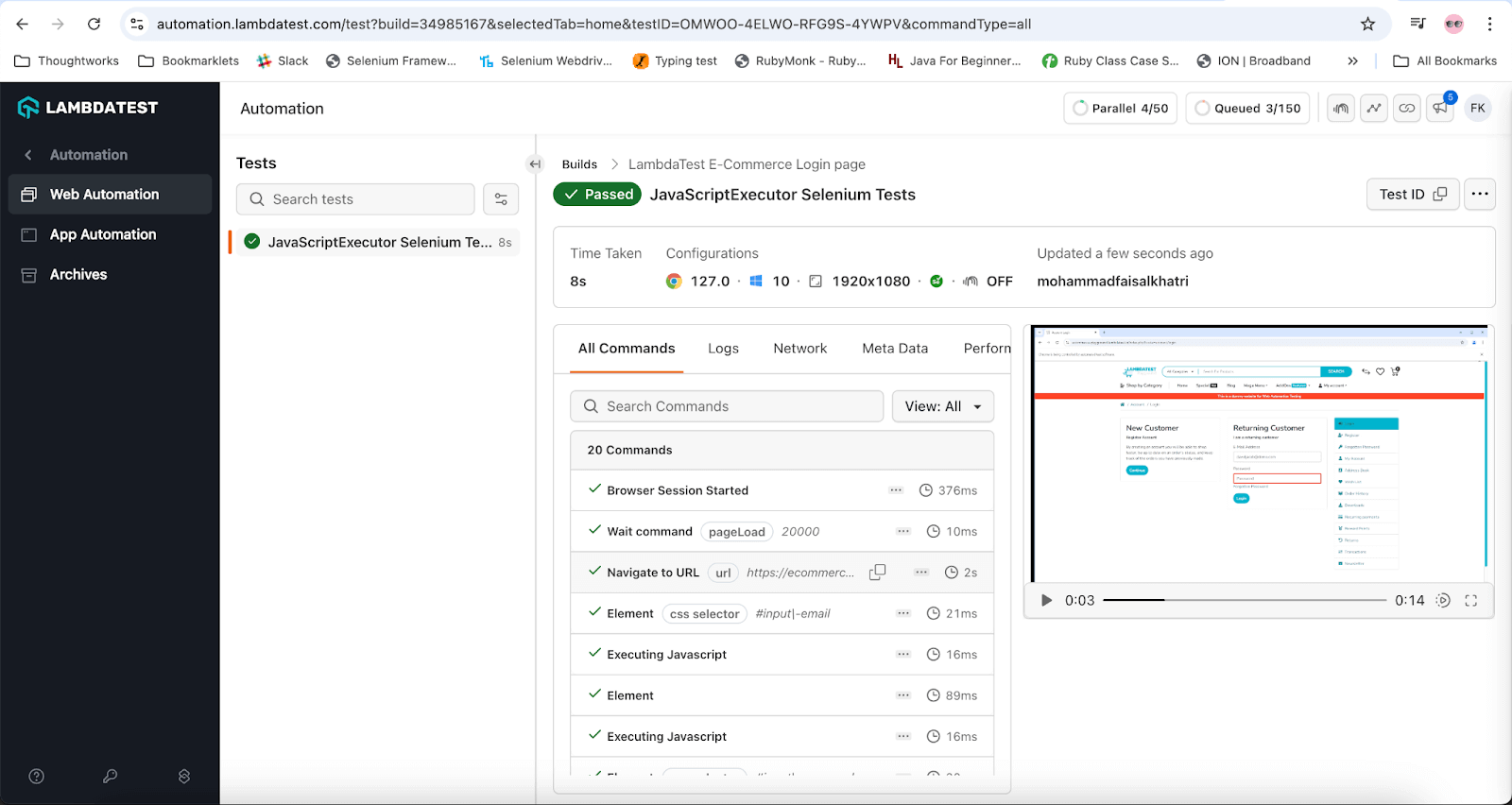
The screenshot below is from the actual run on the TestMu AI cloud grid, showing logs, screenshots, and the test execution video.
The next frame, captured from the cloud video, shows the E-Mail Address field highlighted in red while JavaScriptExecutor is running:
Test Scenario 2:
Write a test that uses executeAsyncScript() to scroll the page and assert content rendered after scroll:
- Navigate to the TestMu AI Ecommerce Playground homepage.
- Scroll to the bottom of the home page.
- Assert that the text FROM THE BLOG is displayed in the lower section.
Implementation:
Create a testExecuteAsyncScript() method in the existing TestJavaScriptExecutor class. Note the explicit callback() invocation, async scripts must signal completion or the call hangs until the script timeout expires.
@Test
public void testExecuteAsyncScript() {
    driver.get("https://ecommerce-playground.lambdatest.io");
    JavascriptExecutor js = (JavascriptExecutor) driver;
    js.executeAsyncScript(
        "var callback = arguments[arguments.length - 1];" +
        "window.scrollBy(0, document.body.scrollHeight);" +
        "callback();"
    );

    String fromTheBlogText = driver.findElement(By.cssSelector("#entry_217991 > h3")).getText();
    assertEquals(fromTheBlogText, "FROM THE BLOG");
}
Code Walkthrough:
The code opens the TestMu AI Ecommerce Playground homepage. executeAsyncScript() reads the callback off the last argument, scrolls to the bottom of the page, then fires the callback to release Selenium.
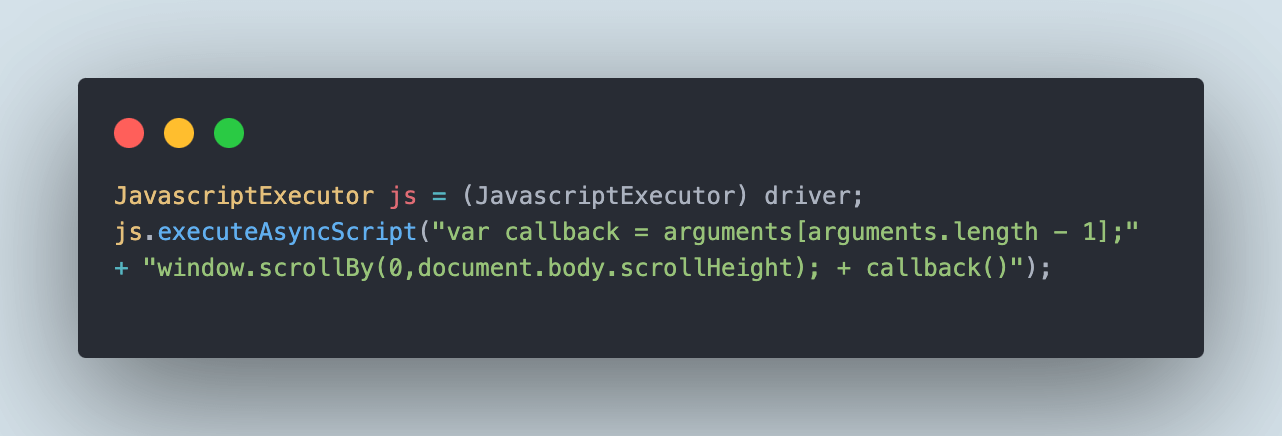
After the scroll, the FROM THE BLOG text is located via CSS selector and asserted.
Test Execution:
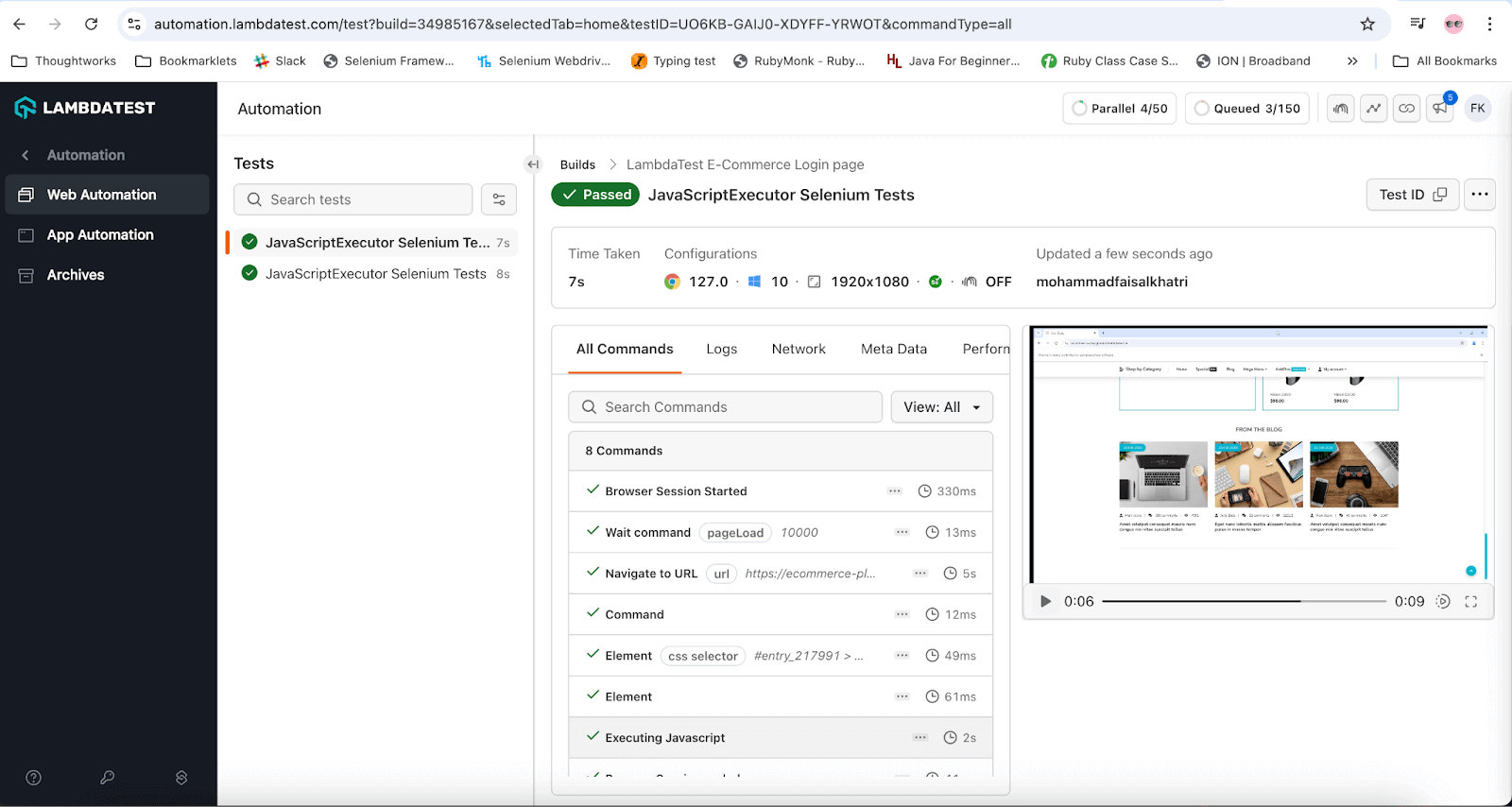
The screenshot below shows the run on TestMu AI Web Automation, captured from a real cloud build:
Limitations of JavaScriptExecutor (When NOT to Use It)
JavaScriptExecutor is powerful, but the same power makes it easy to write tests that pass in CI and fail for real users. Reach for it as a fallback, not the default.
- Bypasses user-event simulation: A JS-driven click does not fire mousedown, mouseup, or focus events the same way a real click does. Single-page apps that depend on these events (React synthetic events, Vue v-on:click handlers attached to a parent) may register the click but skip the side effect.
- No element visibility check: WebDriver's click() throws if the element is not visible. JavaScriptExecutor will happily click a hidden element. Tests pass, users still cannot reach the control.
- Bypasses Selenium's actionability waits: WebDriver waits for an element to be enabled and clickable. JavaScriptExecutor does not. Race conditions that WebDriver would catch slip through.
- Reduced cross-browser fidelity: JS execution semantics differ between Chromium, Firefox, and WebKit, especially around shadow DOM, event timing, and async script timeouts. Run JS-heavy tests on a real-browser grid like TestMu AI's Real Device Cloud to surface these gaps.
- Worse failure messages: A failed JavaScriptExecutor call returns a generic JavascriptException with the script string, not the rich element-not-interactable diagnostics WebDriver provides.
Rule of thumb: If a standard WebDriver command works, use it. Switch to JavaScriptExecutor only when WebDriver cannot express the action (shadow DOM, scroll-into-view, dynamic style mutation) or when a specific browser/framework combination is unreliable. For flaky tests caused by these issues, Test Intelligence can pinpoint the root cause across runs.

Common Errors and Fixes
These are the errors you will hit most often when introducing JavaScriptExecutor into a Selenium suite, and how to resolve each.
1. JavascriptException: arguments[0] is undefined. The script references an argument that was not passed in. Confirm you are passing the WebElement (or value) as a second parameter to executeScript and that the index in the script matches.
// Wrong: the script expects arguments[0] but none was passed
js.executeScript("arguments[0].click();");

// Right: pass the element as an argument
WebElement btn = driver.findElement(By.id("submit"));
js.executeScript("arguments[0].click();", btn);
2. ScriptTimeoutException with executeAsyncScript. The script never invoked the callback. Read the callback off the last argument and call it explicitly when the async work finishes.
String script =
    "var callback = arguments[arguments.length - 1];" +
    "setTimeout(function() { callback('done'); }, 2000);";
js.executeAsyncScript(script);
3. ClassCastException casting WebDriver to JavascriptExecutor. Most modern drivers (ChromeDriver, FirefoxDriver, RemoteWebDriver) implement JavascriptExecutor directly, so the cast works. If you wrapped your driver in a custom decorator or a third-party listener, the wrapper may not implement the interface, unwrap it before casting.
4. StaleElementReferenceException after a JS click. The page navigated or rerendered, but you held on to the old WebElement. Re-locate the element after any navigation or state change.
5. Wrong return type when reading values back. executeScript returns Object. JavaScript numbers come back as Long (integers) or Double (floats), not int. Cast accordingly:
Long height = (Long) js.executeScript("return window.innerHeight;");
String title = (String) js.executeScript("return document.title;");
Commands for Using JavaScriptExecutor in Selenium
The snippets below cover the operations you will reach for most often. Each assumes JavascriptExecutor js = (JavascriptExecutor) driver; has already run.
Click a button:
js.executeScript("document.getElementById('submit').click();");
// or, with an element reference
js.executeScript("arguments[0].click();", okButton);
Type into a text field without sendKeys():
js.executeScript("document.getElementById('email').value='hello@example.com';");Toggle a checkbox:
js.executeScript("document.getElementById('terms').checked=false;");Generate an alert popup:
js.executeScript("alert('Welcome to Selenium Testing');");Refresh the browser:
js.executeScript("history.go(0);");Get the inner text of the entire page:
String innerText = js.executeScript("return document.documentElement.innerText;").toString();
System.out.println(innerText);
Get the page title:
String titleText = js.executeScript("return document.title;").toString();
System.out.println(titleText);
Get the domain name:
String domainName = js.executeScript("return document.domain;").toString();
System.out.println(domainName);
Get the current URL:
String url = js.executeScript("return document.URL;").toString();
System.out.println(url);
Get the viewport height and width:
Long height = (Long) js.executeScript("return window.innerHeight;");
Long width = (Long) js.executeScript("return window.innerWidth;");
Click a hidden element:
WebElement element = driver.findElement(By.id("hidden-action"));
js.executeScript("arguments[0].click();", element);
Navigate to a different page:
js.executeScript("window.location = 'https://www.testmuai.com/selenium-playground/';");Scroll vertically by 500 pixels:
js.executeScript("window.scrollBy(0, 500);");Scroll vertically to the bottom of the page:
js.executeScript("window.scrollBy(0, document.body.scrollHeight);");Add an element to the DOM:
js.executeScript(
    "var btn = document.createElement('button');" +
    "btn.innerText = 'Dynamic Button';" +
    "document.body.appendChild(btn);"
);
Access a shadow root in the DOM:
WebElement element = driver.findElement(By.id("shadow-host"));
Object shadowRoot = js.executeScript("return arguments[0].shadowRoot;", element);
For more practical Selenium patterns, see our companion guide on JavaScript wait in Selenium WebDriver or pick from the Selenium 4 capabilities reference. You can also subscribe to the TestMu AI YouTube Channel for video walkthroughs.
Best Practices for JavaScriptExecutor
Apply these guidelines to keep JavaScriptExecutor usage maintainable and reliable in production suites.
- Prefer the WebDriver API. Try standard WebDriver commands first. JavaScriptExecutor is the fallback, not the starting point.
- Pass elements as arguments, not selectors as strings. js.executeScript("arguments[0].click();", element) is safer than embedding a selector inside the script string, which is harder to escape and debug.
- Always invoke the callback in executeAsyncScript. Forgetting callback() is the single most common cause of script timeouts.
- Cast return values explicitly. Numbers come back as Long or Double, not int or float. Strings come back as String. WebElements come back as WebElement.
- Run on a real-browser grid for cross-browser confidence. JavaScriptExecutor calls reveal browser-specific quirks. Validate critical flows on TestMu AI's cross-browser testing grid before shipping.
- Track flaky JS-driven tests. If a JavaScriptExecutor step is the most-failed step across runs, treat it as a smell. Test Intelligence surfaces these patterns automatically.
- Keep scripts short. If your inline script grows past a few lines, extract it into a JS file your test class loads as a string. Long inline strings break readability and IDE-level checking.
Conclusion
Start by adding JavascriptExecutor js = (JavascriptExecutor) driver; to one specific test where the standard WebDriver call is unreliable, hidden element, custom overlay, scroll-into-view, then expand from there. Treat it as a precision tool, not a default.
When you are ready to run the same scripts at scale across browsers and OS combinations, point your RemoteWebDriver at the TestMu AI Selenium Grid using the Automation Capabilities Generator and follow the Selenium with Java setup docs. From there, layer on Test Analytics to see which JS-heavy steps drive flakiness across builds, and let KaneAI generate the next batch of test steps from natural language so the JavaScriptExecutor escape hatch stays small.
Note: This article was researched and drafted with AI assistance, then reviewed, fact-checked, and published by Faisal Khatri, Community Contributor at TestMu AI, whose listed expertise includes Selenium and Automation Testing. Every code sample, link, and product claim was verified against primary sources, including the official Selenium Java API. Read our editorial process and AI use policy for details.
Author

Faisal Khatri
Blogs: 47


Mohammad Faisal Khatri is a Software Testing Professional with 17+ years of experience in manual exploratory and automation testing. He currently works as a Senior Testing Specialist at Kafaat Business Solutions and has previously worked with Thoughtworks, HCL Technologies, and CrossAsyst Infotech. He is skilled in tools like Selenium WebDriver, Rest Assured, SuperTest, Playwright, WebDriverIO, Appium, Postman, Docker, Jenkins, GitHub Actions, TestNG, and MySQL. Faisal has led QA teams of 5+ members, managing delivery across onshore and offshore models. He holds a B.Com degree and is ISTQB Foundation Level certified. A passionate content creator, he has authored 100+ blogs on Medium, 40+ on TestMu AI, and built a community of 25K+ followers on LinkedIn. His GitHub repository “Awesome Learning” has earned 1K+ stars.
Reviewer

Sri Harsha
Reviewer
Sri Harsha is Engineering Manager of the Open Source Program Office at TestMu AI (formerly LambdaTest), where he leads open-source engineering behind the Selenium and Appium automation grid and builds agentic AI systems for quality engineering. He is a member of the Selenium Technical Leadership Committee and a committer to WebdriverIO and Appium, and was recognized with the LambdaTest Delta Award 2023 for Best Contributor in open-source testing. He brings over 10 years of experience in software testing and automation, with earlier roles at EPAM Systems and ZenQ. Sri Harsha holds a B.Tech in Computer Science from Jawaharlal Nehru Technological University.


JavaScriptExecutor in Selenium FAQs
Did you find this page helpful?
More Related Blogs
TestMu AI forEnterprise
Get access to solutions built on Enterprise
grade security, privacy, & compliance
- Advanced access controls
- Advanced data retention rules
- Advanced Local Testing
- Premium Support options
- Early access to beta features
- Private Slack Channel
- Unlimited Manual Accessibility DevTools Tests