

Power Your Software Testing with AI Agents and Cloud
The Native AI-Agentic Cloud Platform to Supercharge Quality Engineering. Test Intelligently and Ship Faster.


- TestMu AI (Formerly LambdaTest)
- /
- Blog
- /
- Selenium C# Tutorial on Explicit and Fluent Wait
Using Explicit Wait and Fluent Wait in Selenium
Learn what explicit and fluent wait is in Selenium. See examples on how to implement them for your test automation scripts in Selenium C#. Read more.
Last Updated on:
On This Page
- Selenium C# Tutorial: Setting Up Selenium In Visual Studio
- Running First Selenium C# Script With NUnit
- Selenium C# Tutorial: Using Implicit Wait in Selenium
- Selenium C# Tutorial: Using Explicit and Fluent Wait in Selenium
- Selenium C# Tutorial: Handling Alert Windows
- Selenium C# Tutorial: Handling Multiple Browser Windows
- Selenium C# Tutorial: Handling Frames & iFrames With Examples
- Selenium C#: Page Object Model Tutorial With Examples
- AI Agents and WebDriverWait
Selenium engineers often call explicit wait 'smart wait' because, unlike implicit wait's fixed timeout applied for the WebDriver instance's whole lifetime, it targets one specific element and exits as soon as that element's condition, such as becoming present or clickable, is satisfied. This scoped approach lets each wait in Selenium C# match the exact scenario it protects.
What is Explicit Wait in Selenium C#
Unlike implicit wait, explicit wait in Selenium will wait for certain conditions to occur. The conditions could be waiting for the presence of the web element, waiting for the element to be clickable, waiting for the element to be visible, etc.
Explicit wait in Selenium is also called smart wait as the wait is not for the maximum time-out. If the condition for explicit wait is satisfied, the wait condition is exited and the execution proceeds with the next line of code. Depending on the test scenario, you should choose the best-suited wait condition for explicit wait.
Unlike implicit wait that applies till the time the Selenium WebDriver instance (or IWebDriver object) is alive, explicit wait in Selenium works only on the particular web element on which it is set, rather than all the elements on the page.
Explicit wait in Selenium can be used in test scenarios where synchronization is needed i.e. loading of the web page is complete and you are waiting for the element (under test) to be visible.
The figure shows what happens under the hoods when explicit wait in Selenium is triggered:
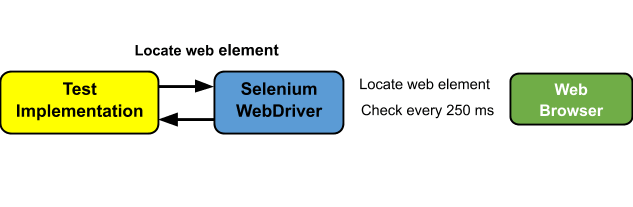
These steps are followed in sequence when Explicit Wait command is executed:
- The wait time is entered as a part of explicit wait command [e.g. WebDriverWait wait = WebDriverWait(driver, TimeSpan.FromSeconds(10));]
- Condition mentioned in .until() method is checked
- If the condition is not satisfied, a thread sleep is called at the frequency mentioned in the .pollingInterval property. By default, the polling interval is 500 ms.
- Step (c) is repeated till the timeout of the wait time mentioned in step (a) or exit before timeout is performed, if required web element is located. The status of .until() condition is monitored at the end of every polling duration

Features of Explicit Wait in Selenium
Apart from explicit wait, developers also have the choice of using implicit wait command in Selenium C#. Explicit wait in Selenium has a number of key features (or differences) than other types of Selenium waits:
- Unlike implicit wait, the explicit wait command in Selenium is documented and has a defined behavior.
- Explicit wait executes on the local part of Selenium i.e. the programming language of your code, whereas implicit wait works on the remote part of Selenium i.e. the one controlling the web browser.
- It can work with any possible condition (e.g. elementToBeClickable, alertIsPresent, invisibilityOfElementWithText, , stalenessOf, etc.) unlike implicit wait that only works on findelement methods.
- Explicit wait in Selenium can also be used in case you are checking for the absence of a web element on the page.
- The delay between retries can be customized using adjusting the .pollingInterval property which is by default set to 500 ms. On the other hand, delay in implicit waits can only be customized through the global timeout.
WebDriverWait and ExpectedCondition
Explicit wait in Selenium is facilitated by WebDriverWait and ExpectedCondition classes. WebDriverWait is present in the OpenQA.Selenium.Support.UI namespace in C#. ExpectedCondition provides a set of conditions on which wait can be performed.
When a search process for a particular web element is performed, the Selenium WebDriver polls the browser for the presence of the element in the DOM (Document Object Model). Below are some of the exceptional situations:
- NoSuchElementException – The element is not present in the DOM when the search operation is performed.
- StaleElementReferenceException – The web element is present in the DOM when the search is initiated but the element might have become stale (or its state in the DOM could have changed) when the search call is made.
- ElementNotVisibleException – The web element is present in the DOM but it is not yet visible when the search process is initiated.
- ElementNotSelectableException – The element is present on the page but it cannot be selected.
- NoSuchFrameException – The WebDriver tries switching to a frame which is not a valid one.
- NoAlertPresentException – The WebDriver attempts switching to an alert window which is not yet available.
- NoSuchWindowException – The WebDriver attempts switching to a window that is not a valid one.
For avoiding these exceptions, the description of the exception should be passed to the IgnoreExceptionTypes() method
WebDriverWait wait = new WebDriverWait(driver, TimeSpan.FromSeconds(10));
wait.IgnoreExceptionTypes(typeof(NoSuchElementException));
ExpectedConditions class in Selenium C# supplies a set of conditions that can be waited for using WebDriverWait. ExpectedConditions is present in the OpenQA.Selenium.Support.UI.ExpectedConditions namespace.
Some of the common methods exposed by the ExpectedConditions class:
- AlertIsPresent()
- ElementIsVisible()
- ElementExists()
- ElementToBeClickable(By)
- ElementToBeClickable(IWebElement)
- ElementToBeSelected(By)
- ElementToBeSelected(IWebElement)
- ElementToBeSelected(IWebElement, Boolean)
- TitleContains()
- UrlContains()
- UrlMatches()
- VisibilityOfAllElementsLocatedBy(By)
- VisibilityOfAllElementsLocatedBy(ReadOnlyCollection
) - StalenessOf(IWebElement)
- TextToBePresentInElement()
- TextToBePresentInElementValue(IWebElement, String)
More details about the ExpectedConditions class can be found here.

Austin Siewert
Co-Founder, Steadfast Systems
Discovered @TestMu AI yesterday. Best browser testing tool I've found for my use case. Great pricing model for the limited testing I do 👏
2M+ Devs and QAs rely on TestMu AI
Deliver immersive digital experiences with Next-Generation Mobile Apps and Cross Browser Testing Cloud

Take this certification to master the fundamentals of Selenium automation testing with C# and prove your credibility as a tester.
Here’s a short glimpse of the Selenium C# 101 certification from TestMu AI:

Demonstration of Explicit Wait in Selenium C#
To demonstrate the usage of explicit wait in Selenium C#, we perform a search for TestMu AI on Google. For the examples demonstrated in this Selenium C# tutorial, we use the NUnit test framework.
using NUnit.Framework;
using OpenQA.Selenium;
using OpenQA.Selenium.Chrome;
using OpenQA.Selenium.Firefox;
using OpenQA.Selenium.Support.UI;
using SeleniumExtras.WaitHelpers;
using System;

namespace Selenium_ExplicitWait_Demo
{
    class Selenium_ExplicitWait_Demo
    {
        String test_url = "https://www.google.com/ncr";

        IWebDriver driver;

        [SetUp]
        public void start_Browser()
        {
            // Local Selenium WebDriver
            driver = new ChromeDriver();
            driver.Manage().Window.Maximize();
        }

        [Test]
        public void test_search()
        {
            String target_xpath = "//h3[.='LambdaTest: Cross Browser Testing Tools | Free Automated ...']";
            WebDriverWait wait = new WebDriverWait(driver, TimeSpan.FromSeconds(10));
            driver.Url = test_url;
            driver.FindElement(By.Name("q")).SendKeys("LambdaTest" + Keys.Enter);

            /* IWebElement firstResult = driver.FindElement(By.XPath(target_xpath)); */
            IWebElement SearchResult = wait.Until(SeleniumExtras.WaitHelpers.ExpectedConditions.ElementExists(By.XPath(target_xpath)));

            SearchResult.Click();
        }

        [TearDown]
        public void close_Browser()
        {
            driver.Quit();
        }
    }
}
The OpenQA.Selenium.Support.UI & SeleniumExtras.WaitHelpers namespaces are included to use WebDriverWait and ExpectedConditions respectively.
An explicit wait in Selenium with a timeout of 10 seconds is set using the WebDriverWait class.
WebDriverWait wait = new WebDriverWait(driver, TimeSpan.FromSeconds(10));
The ExpectedCondition used is ElementExists. An explicit wait in Selenium is performed till the time the required web element is not found (via XPath) or a timeout occurs i.e. the web element does not exist on the DOM.
IWebElement SearchResult = wait.Until(SeleniumExtras.WaitHelpers.ExpectedConditions.ElementExists(By.XPath(target_xpath)));
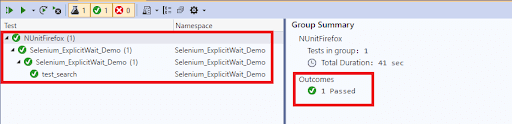
As shown in the VS-2019 screenshot, the target web page (TestMu AI Home Page) opens up after search and the test result is Success.
Now that we’ve covered what is explicit wait in Selenium test Automation and what are its features in this Selenium C# tutorial. We’ll now move onto the fluent wait in Selenium and discuss it in further detail.

What is Fluent Wait in Selenium C#
Fluent Wait is another Wait variant in Selenium C# that lets you control the maximum amount of time the Selenium WebDriver needs to wait for the defined condition to appear. Fluent Wait functionality in Selenium C# can be achieved by defining the frequency at which the WebDriver checks for the element before it throws ElementNotVisibleException.
One major difference between fluent wait and explicit wait in Selenium test automation is that the polling frequency (.pollingInterval) at which the presence for the web element is checked is controllable in fluent wait in Selenium, whereas it is 500 ms in explicit wait.
If the polling frequency in fluent wait is not set, it defaults to 500 ms. The user also has the flexibility to ignore exceptions that may occur during the polling period using the IgnoreExceptionTypes command. The DefaultWait class in C# is used to configure the timeout and polling interval on the fly.
Syntax of Fluent Wait command in Selenium C#
/
* Selenium C# tutorial-Syntax of Fluent Wait in Selenium*/

/* DefaultWait Class used to control timeout and polling frequency */
/* /* https://www.selenium.dev/selenium/docs/api/dotnet/html/T_OpenQA_Selenium_Support_UI_DefaultWait_1.htm */
DefaultWait<IWebDriver> fluentWait = new DefaultWait<IWebDriver>(driver);

/* Setting the timeout in seconds */
fluentWait.Timeout = TimeSpan.FromSeconds(5);

/* Configuring the polling frequency in ms */
fluentWait.PollingInterval = TimeSpan.FromMilliseconds(polling_interval_in_ms);
Demonstration of Fluent Wait in Selenium C#
To demonstrate fluent wait in Selenium test automation, the same test scenario which we used for explicit wait in Selenium, i.e. searching for TestMu AI on Google and clicking on the matching result.
using NUnit.Framework;
using OpenQA.Selenium;
using OpenQA.Selenium.Chrome;
using OpenQA.Selenium.Firefox;
using OpenQA.Selenium.Support.UI;
using SeleniumExtras.WaitHelpers;
using System;

namespace Selenium_ExplicitWait_Demo
{
    class Selenium_ExplicitWait_Demo
    {
        String test_url = "https://www.google.com/ncr";

        IWebDriver driver;

        [SetUp]
        public void start_Browser()
        {
            // Local Selenium WebDriver
            driver = new ChromeDriver();
            driver.Manage().Window.Maximize();
        }

        [Test]
        public void test_search()
        {
            String target_xpath = "//h3[.='LambdaTest: Cross Browser Testing Tools | Free Automated ...']";

            /* Explicit Wait */
            /* WebDriverWait wait = new WebDriverWait(driver, TimeSpan.FromSeconds(10)); */

            DefaultWait<IWebDriver> fluentWait = new DefaultWait<IWebDriver>(driver);
            fluentWait.Timeout = TimeSpan.FromSeconds(5);
            fluentWait.PollingInterval = TimeSpan.FromMilliseconds(250);
            /* Ignore the exception - NoSuchElementException that indicates that the element is not present */
            fluentWait.IgnoreExceptionTypes(typeof(NoSuchElementException));
            fluentWait.Message = "Element to be searched not found";

            driver.Url = test_url;
            driver.FindElement(By.Name("q")).SendKeys("LambdaTest" + Keys.Enter);

            /* Explicit Wait */
            /* IWebElement SearchResult = wait.Until(SeleniumExtras.WaitHelpers.ExpectedConditions.ElementExists(By.XPath(target_xpath))); */
            IWebElement searchResult = fluentWait.Until(x => x.FindElement(By.XPath(target_xpath)));
            searchResult.Click();
        }

        [TearDown]
        public void close_Browser()
        {
            driver.Quit();
        }
    }
}
The polling frequency is set to 250 ms and timeout for locating the web element is set to 5 seconds. NoSuchElementException is ignored in case if the web element is not found on the DOM.
DefaultWait<IWebDriver> fluentWait = new DefaultWait<IWebDriver>(driver);
fluentWait.Timeout = TimeSpan.FromSeconds(5);
fluentWait.PollingInterval = TimeSpan.FromMilliseconds(250);
/* Ignore the exception -NoSuchElementException that indicates that the element is not present */
fluentWait.IgnoreExceptionTypes(typeof(NoSuchElementException));
fluentWait.Message = "Element to be searchDefaultWaited not found";
The .until() method is used to search for the intended web element. The element is searched till the timeout (of 5 seconds) happens or until the element is found.
IWebElement searchResult = fluentWait.Until(x => x.FindElement(By.XPath(target_xpath)));
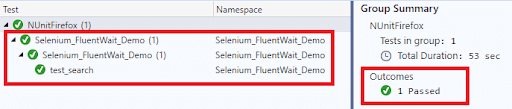
As seen in the execution snapshot; the element is found, the target page (TestMu AI homepage) is opened, and the WebDriver session is terminated.
Can AI Agents Replace WebDriverWait in Selenium C# Test Automation?
Not yet, for CI-grade suites. AI coding assistants such as GitHub Copilot and Claude can write the WebDriverWait or DefaultWait condition for you from a plain-language comment, but an autonomous browser agent's own wait loop is too slow to replace WebDriverWait inside a regression suite.
An AI coding assistant works at write time. You describe the condition in a comment, for example wait until the search result link is clickable, and the assistant fills in the ElementToBeClickable call and a sensible timeout, the same way it completes any other line of C#. An autonomous test agent works differently, at run time. Instead of a coded ExpectedCondition, it sends the current DOM or accessibility tree to a language model on every poll and asks whether the target state was reached.
That per-poll model call is the limitation. WebDriverWait and DefaultWait in Selenium C# default to checking every 500 ms with no network round trip, per the project's own source code. A model call in that same loop takes at least a second and costs money on every check, so it cannot hold that polling rate. Selenium C# teams still write the ExpectedCondition or DefaultWait clause by hand for a fast, high volume NUnit suite, and reserve an AI-driven agent for exploratory checks where a slower, adaptive wait is an acceptable trade for not coding a new condition for every UI change.
Wrapping it up
In this Selenium C# tutorial, we had a detailed look at explicit and fluent wait in Selenium. Both explicit and fluent wait in Selenium are ideal for performing waits on web elements in modern day websites as the wait can be used alongside ExpectedConditions.
Explicit and Fluent wait in Selenium look for the presence of the web element at regular intervals till the element is found or there is a timeout occurrence. By using Fluent wait in Selenium test automation, you can control the polling frequency (which is set default to 500 ms) and also configure exceptions that have to be ignored during the polling period.
So far in our Selenium C# tutorials we’ve covered How to set up Selenium in visual Studio,Using Implicit Wait in Selenium. There is a lot more content we’ve planned for this series, also if there’s any topic you want us to cover, do let us know.
I will see you in the next tutorial for this Selenium C# tutorial series, where I’ll show you how to handle alert windows in Selenium C#. That’s all folks!!! Let’s Automate!
Update: We’ve now completed the Selenium C# tutorial series, so in order to help you easily navigate through the tutorials, we’ve compiled the complete list of tutorials, which you can find in the section below.
Author

Himanshu Sheth
Blogs: 141


Himanshu Sheth is the Director of Marketing (Technical Content) at TestMu AI, with over 8 years of hands-on experience in Selenium, Cypress, and other test automation frameworks. He has authored more than 130 technical blogs for TestMu AI, covering software testing, automation strategy, and CI/CD. At TestMu AI, he leads the technical content efforts across blogs, YouTube, and social media, while closely collaborating with contributors to enhance content quality and product feedback loops. He has done his graduation with a B.E. in Computer Engineering from Mumbai University. Before TestMu AI, Himanshu led engineering teams in embedded software domains at companies like Samsung Research, Motorola, and NXP Semiconductors. He is a core member of DZone and has been a speaker at several unconferences focused on technical writing and software quality.


Frequently asked questions
Did you find this page helpful?
More Related Blogs
TestMu AI forEnterprise
Get access to solutions built on Enterprise
grade security, privacy, & compliance
- Advanced access controls
- Advanced data retention rules
- Advanced Local Testing
- Premium Support options
- Early access to beta features
- Private Slack Channel
- Unlimited Manual Accessibility DevTools Tests