

Power Your Software Testing with AI Agents and Cloud
The Native AI-Agentic Cloud Platform to Supercharge Quality Engineering. Test Intelligently and Ship Faster.


- TestMu AI (Formerly LambdaTest)
- /
- Blog
- /
- WebDriverIO Tutorial For Handling Dropdown In Selenium
WebdriverIO Tutorial For Handling Dropdown In Selenium
While dealing with access forms, you'd often have to handle dropdown. Here's how you can handle them with WebDriverIO in Selenium using 'Select' class.
Last Updated on:
WebdriverIO handles a dropdown in Selenium by calling built-in select methods instead of a dedicated Select class.
The Selenium WebDriver API exposes selectByIndex(), selectByVisibleText(), and selectByAttribute() on the Select class for normal dropdowns, while a custom div-based dropdown needs manual click and wait logic instead.
This guide covers the types of dropdowns in WebdriverIO, how to handle each one, and how to select every option in a multiple-value dropdown.
Overview
To handle dropdowns in WebdriverIO, use standard selectors to call built-in selection methods like selectByVisibleText for dynamic dropdowns or selectByIndex for static dropdown structures. These methods allow you to interact directly with both normal select-based dropdowns and custom div-based dropdown elements.
Types of Dropdowns in WebdriverIO
- Normal Dropdowns: These are standard HTML elements identified by a select tag, typically containing an id attribute like dropdown, commonly found in standard web forms.
- Custom Dropdowns: These elements are built using div or other custom tags instead of select to allow more styling flexibility, requiring custom event handling in automation scripts.
How to Handle Dropdowns in WebdriverIO
- selectByIndex(): This method selects a dropdown option using its numerical index starting at zero, making it ideal for static dropdowns but unsuitable for dynamically changing option lists.
- selectByVisibleText(): This method selects an option using its exact visible text label, providing a safer selection method for dynamic dropdowns where the order of values may change.
- selectByAttribute(): This method selects an option using any specified attribute and its corresponding value within the option tag, offering more flexibility than standard value-only selection methods.
What Are The Different Types Of Dropdown In WebDriverIO?
There are majorly two kinds of dropdowns you would often find on a website.
- Normal dropdown
- Custom dropdown
Normal Dropdown

Normal dropdowns are the ones we usually encounter while handling access forms in Selenium. It’s easy to identify a normal dropdown, you just have to open the element tab in the browser and see that dropdown HTML tag. HTML tag should be < select > and the ‘id’ should be ‘dropdown’.
Here is an example of a normal dropdown:
<select id="dropdown">
    <option value="" disabled="disabled" selected="selected">Please select an option</option>
    <option value="1">Option 1</option>
    <option value="2">Option 2</option>
  </select>
Custom Dropdown
Since with < Select > there aren’t many styling options, developers use custom dropdowns. As we discussed, custom dropdowns are not developed using the < Select > tag but with < div > tag or some other custom tag-based on the frontend framework.
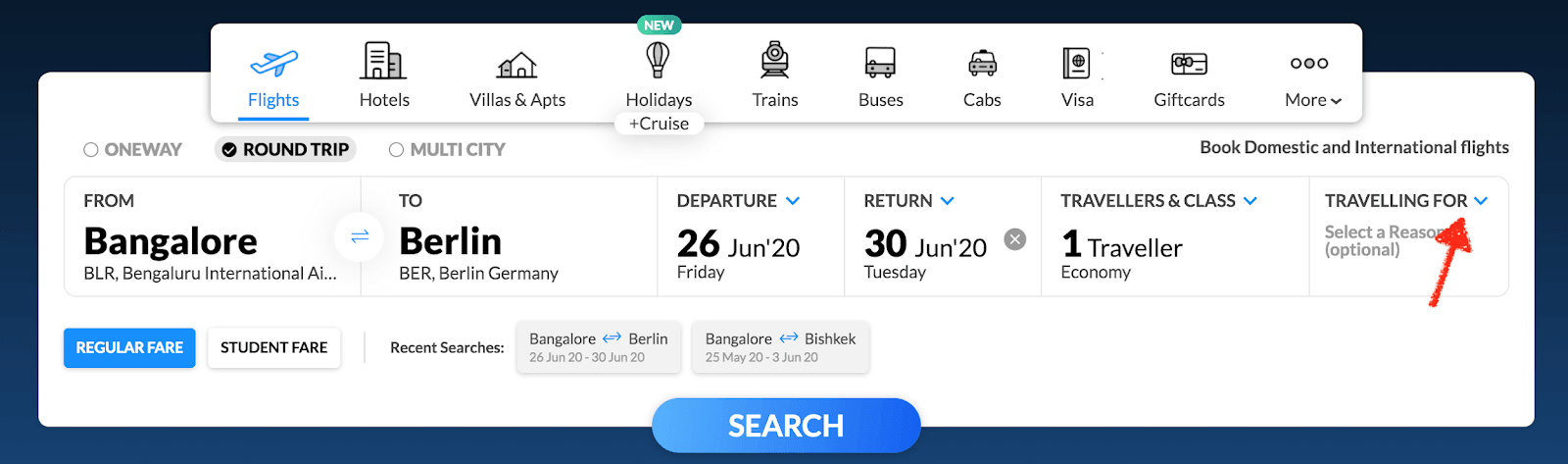
Here is an example for custom dropdown:
<div class="fsw_inputBox travelFor inactiveWidget ">
   <label data-cy="travellingFor" for="travelFor">
      <span class="lbl_input latoBold appendBottom10">Travelling For</span><input data-cy="travelFor" id="travelFor" type="text" class="hsw_inputField font20" readonly="" value="">
      <div class="code latoBold font14 blackText makeRelative">
         <p></p>
         <p class="font14 greyText">Select a Reason (optional)</p>
      </div>
   </label>
</div>
Now, you know the difference between these two dropdowns. In Test automation, custom dropdowns are handled based on the event defined by the developer while normal dropdowns are handled by a special Selenium class object called ‘Select’ class.

Austin Siewert
Co-Founder, Steadfast Systems
Discovered @TestMu AI yesterday. Best browser testing tool I've found for my use case. Great pricing model for the limited testing I do 👏
2M+ Devs and QAs rely on TestMu AI
Deliver immersive digital experiences with Next-Generation Mobile Apps and Cross Browser Testing Cloud

How To Handle Dropdown With WebDriverIO?
It’s pretty straight forward to handle dropdown in WebDriverIO! There isn’t a separate class object like Java or any other programming language. Here, WebDriverIO dropdown is also accessed by the simple selector.
Read More: What are Selenium Locators In WebDriverIO?
With the given HTML example on the normal dropdown, you can find dropdown objects using below syntax using ID selector.
Const drp = $("#dropdown");
There are two options for dropdowns.
- Single value dropdown
- Multiple value dropdown
There is no difference to access single or multiple value dropdowns except multiple value dropdowns allow the user to select multiple values from dropdown options.
WebDriverIO provides the following operation on the dropdown.
- selectByIndex
- selectByVisibleText
- selectByAttribute
selectByIndex
You can select the dropdown in value by providing the index of the value. The index is nothing but the position of the dropdown value. The index always starts at 0. So, the first value is considered as the 0th Index.

Here, Option 1 is considered as index 0 and Option 2 is index 1
Syntax:
$("selector").selectByIndex(index)
If you want to select Option 1 then you can use below code.
$("#dropdown").selectByIndex(0)
Note: Avoid using selectByIndex when the dropdown value changes dynamically as the value index gets changed frequently.
selectByVisibleText
Another option is selectByVisibleText. This option is very safe to use as we need to use dropdown visible text displayed in the dropdown value.

We can use Option 1 or Option 2 as a selection
Syntax:
$("Selector").selectByVisibleText(text)
If you want to select option 2 using selectByVisibleText() then use below code;
$("#dropdown").selectByVisibleText("Option 2")
Note: When you use selectByVisibleText() keep the visible text as it is or else the element will not identify.
selectByAttribute
selectByAttribute() is something new compared to other frameworks for Selenium test automation. Usually, in other Selenium test automation framework, you’d be using selectByValue option which allows the user to select dropdown using value attribute only. However, WebDriverIO provides a feature to use any attribute and its value exists in the dropdown.

Syntax:
$("Selector").selectByAttribute(attribute, value)
Here, the attribute parameter could be any attribute from < option > tag, and value parameter is the value of the provided attribute.
If you consider normal HTML dropdown code, you can see only one attribute that is “value”. In case, any other attribute provided then you can use that as well.
$("#dropdown").selectByAttribute("value", "1")
Multiple Value Dropdown
If you see the < select > tag has multiple="true" attribute then this dropdown has the capability to select multiple options. When you automate multiple value dropdowns, you have to call the above-explained methods multiple times.
WebDriverIO does not provide a selectAll() or deSelectAll() method option for multiple value dropdown. You need to write custom code for the same as shown below.
Austin Siewert
Co-Founder, Steadfast Systems
Discovered @TestMu AI yesterday. Best browser testing tool I've found for my use case. Great pricing model for the limited testing I do 👏
2M+ Devs and QAs rely on TestMu AI
Deliver immersive digital experiences with Next-Generation Mobile Apps and Cross Browser Testing Cloud
You can take this certification as proof of expertise in the field of test automation with JavaScript to empower yourself and boost your career.
Here’s a short glimpse of the Selenium JavaScript 101 certification from TestMu AI:

How Do AI Agents Handle Dropdown Selection In Browser Testing?
AI agents locate a dropdown from the page's accessibility tree, then call the same selectByIndex(), selectByVisibleText(), or selectByAttribute() method WebdriverIO already provides.
- Accessibility-tree resolution: An agent, including one built on the Model Context Protocol (MCP), queries the ARIA role, listbox or combobox, that the browser exposes instead of parsing raw HTML, so the locator survives a class name change that would break a hardcoded XPath.
- Natural-language test generation: A prompt such as "select Option 2 from the dropdown" gets translated into the matching selectByVisibleText() call, so the Select-based API covered in this WebdriverIO tutorial still runs underneath.
- Self-healing locators: An agent that re-matches an element by its visible option text, not its DOM index, keeps a test passing after a UI update reorders the option list.
- Custom dropdowns stay a limitation: A dropdown built without a native select tag or ARIA role gives an agent no accessibility data to resolve, so it still needs the manual click-and-wait logic covered earlier on this page.
AI-driven test generation changes how the locator gets found. It does not replace the WebdriverIO or Selenium method that performs the selection.
How To Select All Dropdown Methods?
 it("select all dropdown value", function () {
       browser.url("https://html.com/attributes/select-multiple/");
       browser.pause(5000);
       const list = $$("select option");
       list.forEach((element) => {
           element.click();
       });
       browser.pause(5000);
   });
A similar way you can deselect the all value by running the same code two times. If you want to select a particular dropdown value from multiple value dropdown then you can use if condition within for loop.
All In All
In this WebDriverIO tutorial, I explored how to handle dropdown with WebDriverIO and it’s methods. It’s easy to handle dropdown with WebDriverIO as you don’t have to use any additional class object. When you compare with Selenium there is one class that is a select class and using it you can perform actions on the dropdown also.

There is no dedicated method to deselect dropdown values in WebDriverIO but by custom code logic, you can perform Selenium test automation as shown in the above example in this WebDriverIO tutorial.
Enhance your WebdriverIO interview proficiency with our meticulously curated compilation of questions and answers. Explore the comprehensive list of WebdriverIO Interview Questions and Answers for valuable insights.
That’s all folks, I hope you liked this WebDriverIO tutorial for Selenium test automation. Help us reach out to more of your peers by retweeting us and sharing this article on social media. Happy Testing!!!?
Austin Siewert
Co-Founder, Steadfast Systems
Discovered @TestMu AI yesterday. Best browser testing tool I've found for my use case. Great pricing model for the limited testing I do 👏
2M+ Devs and QAs rely on TestMu AI
Deliver immersive digital experiences with Next-Generation Mobile Apps and Cross Browser Testing Cloud
Author

Aditya Dwivedi
Blogs: 8


Aditya Kumar Dwivedi is a Senior QA Engineer with 7+ years of experience in manual testing, UI automation, and API testing across web and mobile applications. He specializes in automation framework development from scratch using Selenium, Playwright, Appium, REST Assured, and Cucumber, with strong experience integrating tests into CI/CD pipelines using Jenkins. Aditya has worked extensively in Agile environments, contributing to scalable test architectures, efficient testing workflows, and reliable software releases, including hands-on experience at TestMu AI.


WebdriverIO Dropdown FAQs
Did you find this page helpful?
More Related Blogs
TestMu AI forEnterprise
Get access to solutions built on Enterprise
grade security, privacy, & compliance
- Advanced access controls
- Advanced data retention rules
- Advanced Local Testing
- Premium Support options
- Early access to beta features
- Private Slack Channel
- Unlimited Manual Accessibility DevTools Tests