

Power Your Software Testing with AI Agents and Cloud
The Native AI-Agentic Cloud Platform to Supercharge Quality Engineering. Test Intelligently and Ship Faster.


- TestMu AI (Formerly LambdaTest)
- /
- Learning Hub
- /
- Selenium C# Tutorial: With Best Practices and Examples
Selenium C# Tutorial: With Best Practices and Examples
Learn Selenium with C# in this tutorial. Discover how to automate web testing, navigate pages, interact with elements, and validate results step by step.
Last Updated on:
Selenium supports C#, Java, Python, and several other languages. C# is a natural fit for .NET teams: it runs on Visual Studio, integrates with NUnit, and keeps test code in the same ecosystem as the application.
Overview
Use Selenium with C# to automate web browsers directly within Visual Studio using your application's native language. This framework is best for .NET teams requiring compile-time type safety, while the TestMu AI cloud grid is best for running these automated test suites in parallel across multiple browsers.
Why choose C# for Selenium testing?
- Best for browser automation: Selenium - This open-source framework drives real browsers via the W3C WebDriver protocol, allowing developers to control browser actions programmatically.
- Best for type-safe test logic: C# - This language provides compile-time type safety to catch selector and method errors before tests run, reducing runtime failures for .NET development teams.
- Best for test development and debugging: Visual Studio - This IDE accelerates test creation and diagnostics through built-in tools like IntelliSense, an integrated debugger, and Test Explorer.
- Best for test lifecycle management: NUnit - This testing framework integrates directly with Selenium using [SetUp], [Test], and [TearDown] attributes to structure and execute test suites.
- Best for automated driver setup: Selenium Manager - This built-in Selenium 4 tool automatically detects installed browsers and downloads matching driver binaries, eliminating manual driver configuration.
- Best for scalable cross-browser testing: TestMu AI - This cloud-based Selenium grid executes C# test suites in parallel across 10,000+ real devices and browsers without local infrastructure maintenance.
What Is C# and Why Use It for Selenium Testing?
C# ( or C-Sharp) is an object-oriented language that runs on the .NET framework. It works with the Common Language Runtime (CLR).
In C#, software applications can be split into smaller components using functions. This makes C# a structured programming language.
It is chosen for Selenium testing because it's a modern, statically typed, object-oriented language with easy-to-read syntax, which simplifies writing and maintaining tests.
It provides a wide array of features for automation and comes with a rich set of libraries and frameworks, such as NUnit. These resources support testing across different types of applications, including desktop, web, mobile, and games.

You can find more Selenium C# tutorials on the TestMu AI YouTube Channel.
C# vs Selenium: What Is the Difference?
A common point of confusion, especially in search queries, is treating C# and Selenium as competing choices. They are not, they operate at completely different layers and are used together.
C# is a general-purpose, object-oriented programming language developed by Microsoft that runs on the .NET platform. Selenium is an open-source browser automation framework, it drives a real browser through the W3C WebDriver protocol. You write your test logic in the C# language, and you call Selenium's WebDriver API from that C# code to control the browser. In short, C# is the language and Selenium is the tool it commands.
| Aspect | C# | Selenium |
|---|---|---|
| What it is | Programming language (.NET) | Browser automation framework |
| Created by | Microsoft | Open-source community |
| Role | Writes the test logic and assertions | Drives the browser via WebDriver |
| Used with | Selenium, NUnit, xUnit, SpecFlow | C#, Java, Python, JavaScript, Ruby |
| Analogy | The language you speak | The tool you operate with it |
So the question is not "C# or Selenium" but rather how to use them together, which is exactly what the rest of this tutorial covers, along with a unit testing framework like NUnit or xUnit to structure and assert your tests.
Creating a Project in Visual Studio
Prerequisites
|
Before you get started, you need to have a code editor installed on your machine. For this Selenium C# tutorial, let’s use Visual Studio. However, you can use any IDE of your choice.
You can also check out this blog to set up Selenium in Visual Studio.
Follow the below steps to create a new project in Selenium with C#:
- Click Create a new project from the splash window.
- Select the type of project you want to use. Here, we will use the NUnit framework to automate web testing, so let’s click NUnit Test Project (.NET Core).
- Enter your project name and click Create. Visual Studio will automatically create a test class called UnitTest1.cs file:
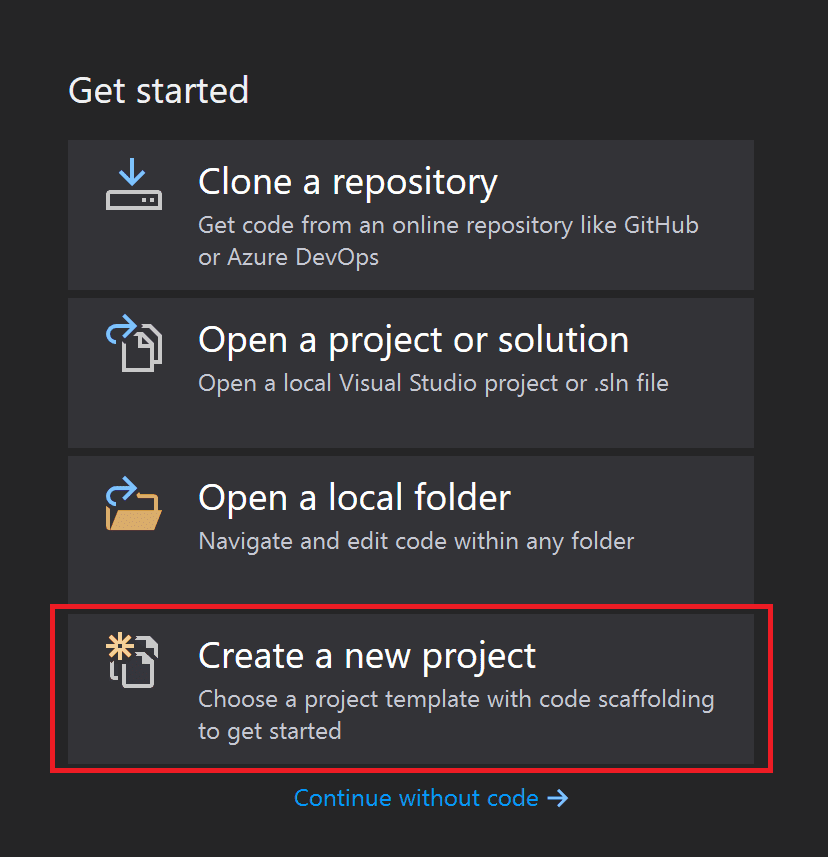
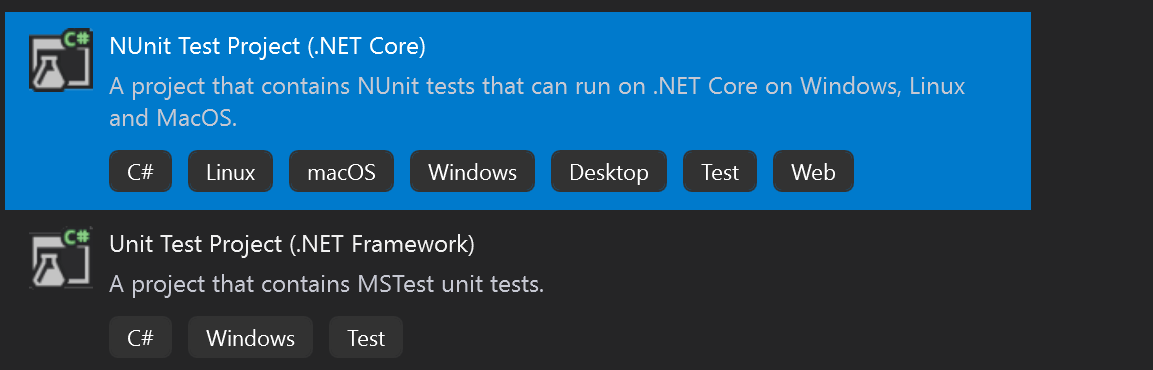
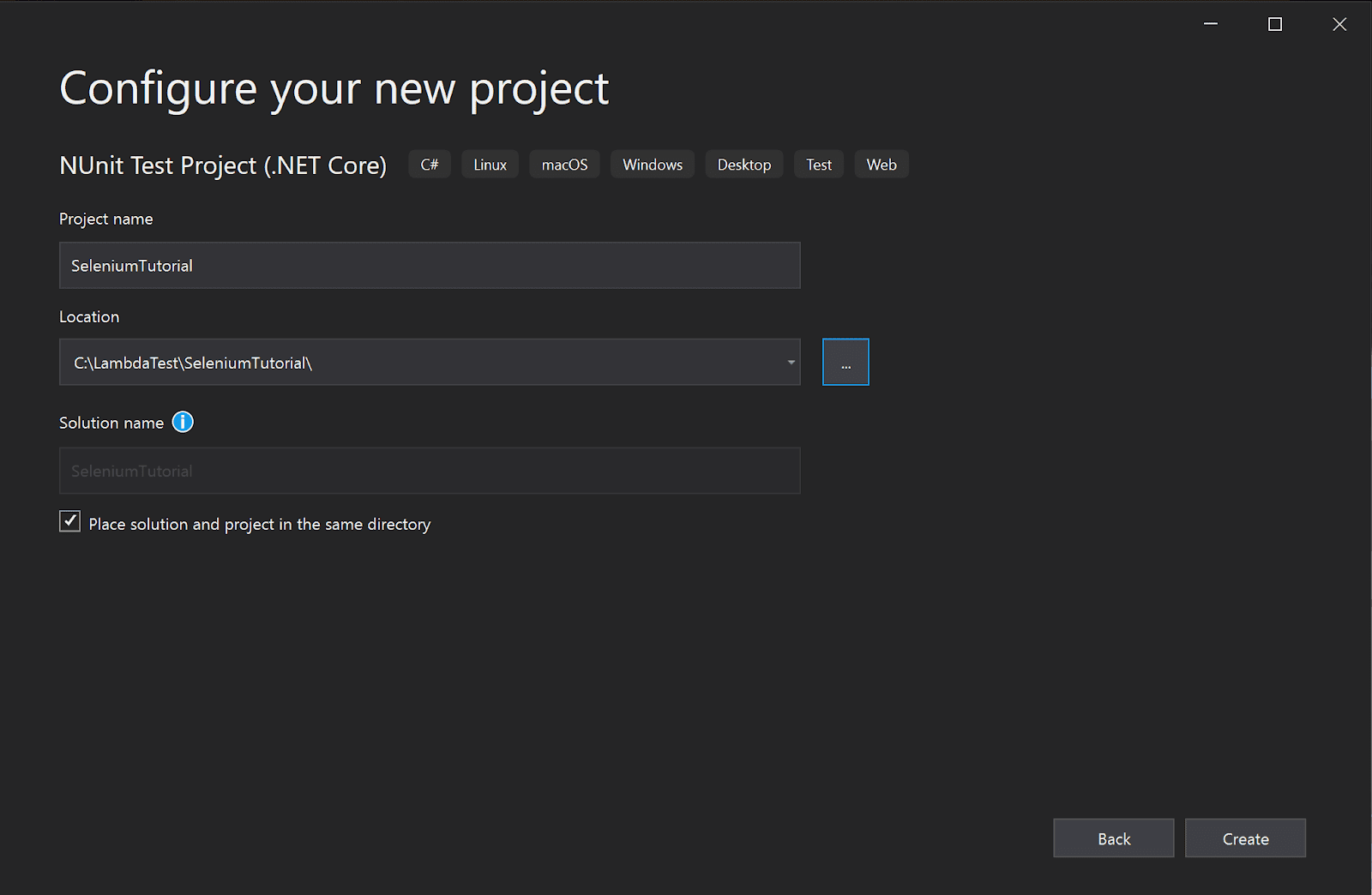
If you want to see and run the tests in the Visual Studio, you need to follow the below steps:
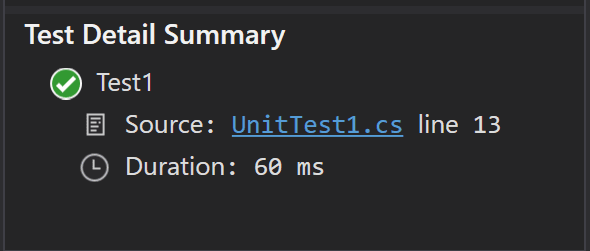
- Open the Test Explorer (if it’s not already opened). You can do that from the View menu → Test Explorer. In this panel, you can see all available tests grouped by project and test.
- Currently, we only have the one that Visual Studio Code has created for us, but we can right-click on it (or any tree in the node) and run it. We’ll see that it passes and the time it took for the test to run.

Note: Run C# automated tests with Selenium at scale on TestMu AI. Try TestMu AI free!
How to Run Selenium C# Tests?
The following are the prerequisites to run tests on the local grid:
- Add the Selenium.WebDriver NuGet package, which allows the test code to interact with the WebElements on the page using methods that are a part of the package.
- Right-click on the project name in the Solution Explorer → Select Manage NuGet packages. This will open the NuGet packages panel, where you can see the packages already installed on your project and add more.
- In the Browse tab, search for Selenium and select Selenium.WebDriver from the results. From the details panel on the right-hand side, choose an option from the Version drop-down, then click Install. I’ll be using Selenium version 4.43.0 for this Selenium C# tutorial.
To add a NuGet package to the project, please follow the below-mentioned steps:
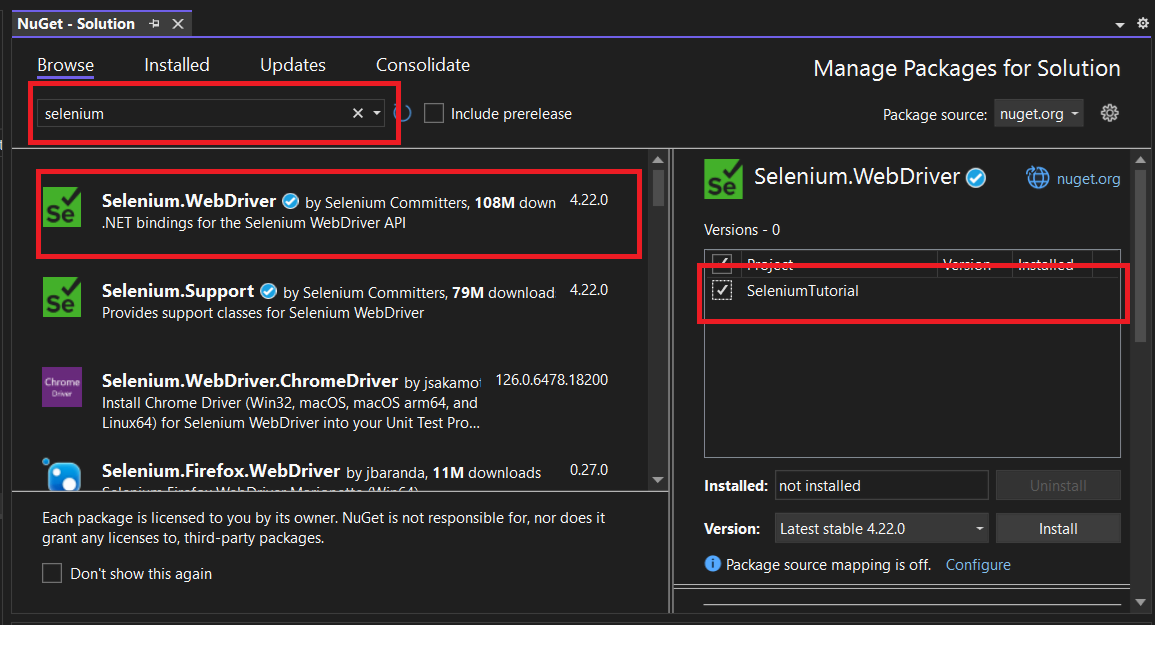
Alternatively, you can install NuGet packages from the command line by running this command in the project location:
dotnet add package Selenium.WebDriver --version 4.43.0Selenium 4 vs Selenium 3: Selenium 4 switches to the W3C WebDriver protocol by default. The DesiredCapabilities class is removed - use browser-specific Options classes instead (e.g., ChromeOptions). The AddAdditionalCapability() method is replaced by AddAdditionalOption(), which is what the TestMu AI cloud config uses. Selenium 4 also ships Selenium Manager as the default driver manager, so you no longer need to download driver executables or install driver NuGet packages like Selenium.WebDriver.ChromeDriver manually (see the dedicated section below).
TestMu AI: LambdaTest’s New Home - the same platform you trust, with AI-powered capabilities at its core.
One thing to make sure of here is to install the same driver version as the browser you have installed on your machine.
You can use the browser of your choice, and you can add the drivers the same way, for example, Selenium.WebDriver.MSEdgeDriver (for Microsoft Edge), Selenium.WebDriver.GeckoDriver (for Mozilla Firefox).
For the test scenario, let’s use the TestMu AI Selenium Playground.
Test Scenario:
|
Test Implementation:
Now, we should be ready to start our Selenium C# test. Let’s use the previously created class and rename it to SeleniumTests.
public class SeleniumTests
    {        private IWebDriver driver;
        [SetUp]
        public void Setup()
        {
            driver = new ChromeDriver();
        }
        [Test]
        public void ValidateTheMessageIsDisplayed()
        {
           driver.Navigate().GoToUrl("https://www.testmuai.com/selenium-playground/simple-form-demo/");
            driver.FindElement(By.Id("user-message")).SendKeys("TestMu AI rules");
            driver.FindElement(By.Id("showInput")).Click();
            Assert.IsTrue(driver.FindElement(By.Id("message")).Text.Equals("TestMu AI rules"),
                          "The expected message was not displayed.");
        }
        [TearDown]
        public void TearDown()
        {
            driver.Quit();
        }
    }
}

Code Walkthrough:
Import packages at the beginning of the test class. Then, create a new instance of the IWebDriver.
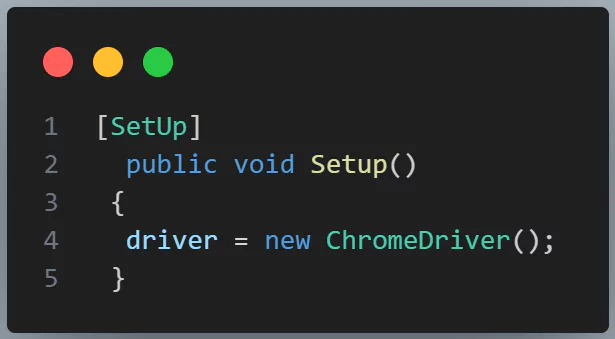
As a precondition to the test, start the browser. For this tutorial, it is done using the [SetUp] method because it’s something that will be used in all future tests, so here is where the driver is instantiated.
Next, there is our actual test, where the previously mentioned [Test] attribute from NUnit is used, and inside the test method, the test steps.
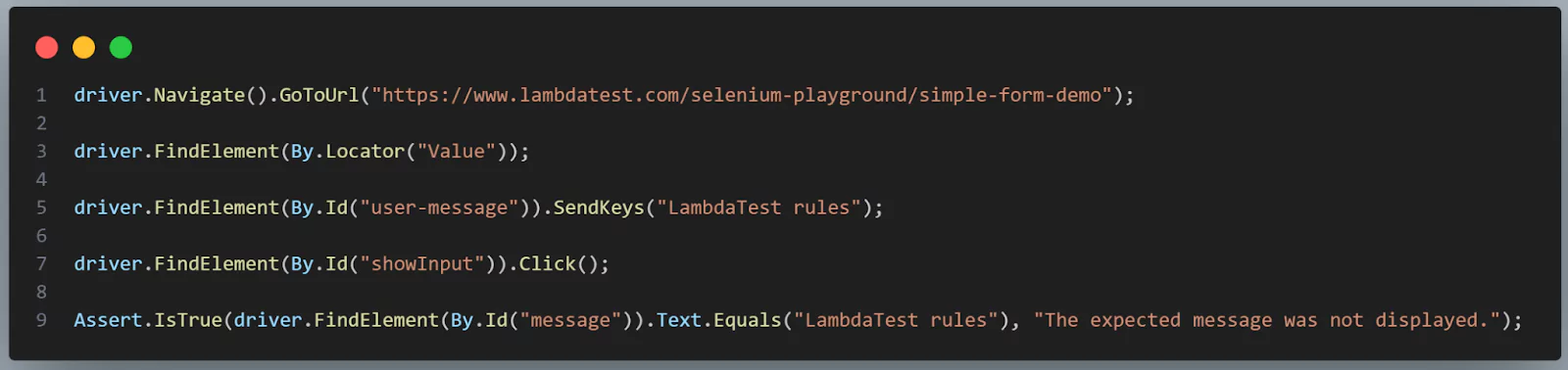
To navigate to a URL in Selenium with C#, use the Navigate().GoToUrl() method. When you need to interact with page elements, you can locate them using the FindElement() method, and it's best to go with the ID locator since it’s quicker.
After that, you can enter text using the SendKeys() method, click buttons using the Click() method, and check if everything worked as expected using Assert.IsTrue() method, adding a custom message for easier debugging if something goes wrong.
To close the browser at the end of the test, use the [TearDown] attribute and the quit() method.
Selenium C# method quick reference:
| Method / Property | Purpose |
|---|---|
| Navigate().GoToUrl(url) | Open a URL in the current browser session |
| FindElement(By) | Locate the first matching DOM element |
| FindElements(By) | Return all matching elements as a list |
| SendKeys(text) | Type text into an input element |
| Click() | Simulate a mouse click on an element |
| .Text | Read the visible text content of an element |
| Quit() | Close all browser windows and end the WebDriver session |
Test Execution:
Now that the test is ready, you can build the project (right-click on the project name and select Build or use the Ctrl+B shortcut) and run the test locally. The test will be visible in the Test Explorer:
If everything goes well, the test will pass, and the browser window will close at the end. The Test Explorer output looks like this:
Total: 1, Passed: 1, Failed: 0, Skipped: 0
ValidateTheMessageIsDisplayed [2.3s] PASSED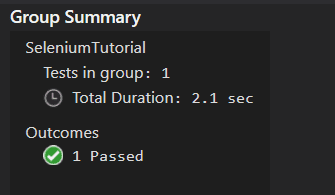
Modern Driver Management: Leveraging Selenium Manager in Selenium 4+
The single biggest setup improvement in Selenium 4 is Selenium Manager. In older workflows, you had to manually download the correct driver executable (ChromeDriver, GeckoDriver, EdgeDriver), match its version to your installed browser, and often install a driver NuGet package like Selenium.WebDriver.ChromeDriver. Version mismatches were one of the most common causes of broken Selenium C# setups.
Selenium Manager removes all of that. It is built into Selenium 4 and runs automatically in the background: when you create a driver, it detects your installed browser, downloads the matching driver binary if it is missing, and configures it for you, no manual download, no PATH setup, no driver NuGet package required.
- Install only the core package: dotnet add package Selenium.WebDriver. The driver packages become optional.
- Instantiate the driver as usual, for example new ChromeDriver(), and Selenium Manager resolves the binary for Chrome, Firefox, or Edge automatically.
- It works the same across Chrome, Firefox (GeckoDriver), and Edge, so multi-browser local runs need no extra driver setup.
For advanced interactions and waits, also add the Selenium.Support package (dotnet add package Selenium.Support), which provides helpers such as WebDriverWait, ExpectedConditions, and the SelectElement class for dropdowns.
How to Execute Selenium C# Tests on Firefox (GeckoDriver)
Running your tests on more than one browser is essential for real coverage. Firefox is driven by GeckoDriver, and in Selenium C# you initialize it with FirefoxDriver and configure it with FirefoxOptions. With Selenium Manager in Selenium 4+, you do not need to download GeckoDriver manually, just install the core package and instantiate the driver.
using OpenQA.Selenium;
using OpenQA.Selenium.Firefox;

FirefoxOptions options = new FirefoxOptions();
// options.AddArgument("--headless");   // run without opening a window

// Selenium Manager auto-resolves GeckoDriver, no manual download needed
IWebDriver driver = new FirefoxDriver(options);

driver.Navigate().GoToUrl("https://www.testmuai.com/selenium-playground/");
Console.WriteLine(driver.Title);

driver.Quit();
The test logic is identical to the Chrome example, only the Options and driver classes change (FirefoxOptions and FirefoxDriver instead of ChromeOptions and ChromeDriver). To cover many browser and OS combinations without maintaining any of them locally, run the same code against the TestMu AI cloud grid using RemoteWebDriver, as shown in the next section.
How to Run Selenium C# Tests on TestMu AI?
What if you want to run the automated tests cross-platform or cross-browser? Or using a setup different from your own machine?
These situations likely happen often because we want our web applications to work for all our users, and they will have various configurations set up on their computers.
The solution is porting your existing Selenium C# tests to a cloud-based Selenium Grid. TestMu AI provides an online Selenium Grid with 10,000+ real devices and browsers to run Selenium C# tests at scale, without managing local infrastructure.
For teams standardizing their pipeline, TestMu AI Selenium automation runs your C# suites in parallel on the cloud grid without any local driver upkeep.

The best part is that porting from a local Selenium Grid to the TestMu AI cloud grid requires minimal code changes. To run our tests on the cloud, let’s use the same Simple Form Demo test scenario from the Selenium Playground.
Test Implementation:
Here’s the test script configured to run on the TestMu AI cloud grid.
private static IWebDriver driver;
       public static string gridURL = "@hub.lambdatest.com/wd/hub";
       public static string LT_USERNAME = "LT_USERNAME"; // Add your TestMu AI username here
       public static string LT_ACCESS_KEY = "LT_ACCESS_KEY"; // Add your TestMu AI access key here
       [SetUp]
       public void Setup()
       {
            ChromeOptions capabilities = new ChromeOptions();
            capabilities.BrowserVersion = "latest";
            Dictionary<string, object> ltOptions = new Dictionary<string, object>();
            ltOptions.Add("username", LT_USERNAME);
            ltOptions.Add("accessKey", LT_ACCESS_KEY);
            ltOptions.Add("platformName", "Windows 10");
            ltOptions.Add("project", "SeleniumTutorial");
            ltOptions.Add("build", "Selenium CSharp");
            ltOptions.Add("w3c", true);
            ltOptions.Add("plugin", "c#-nunit");
            capabilities.AddAdditionalOption("LT:Options", ltOptions);
            driver = new RemoteWebDriver(new Uri($"https://{LT_USERNAME}:{LT_ACCESS_KEY}{gridURL}"), capabilities);
       }
Code Walkthrough:
When using TestMu AI, you need your Username and Access Key. Find them in your Account Settings > Password & Security.

A good idea is to store them as environment variables and read them from there. This way, in case any of the values change, you only need to update them in one place.
The biggest change, as you can see, is in the [Setup] method. ChromeOptions is a Selenium class used to configure browser attributes for cross browser testing using Chrome.
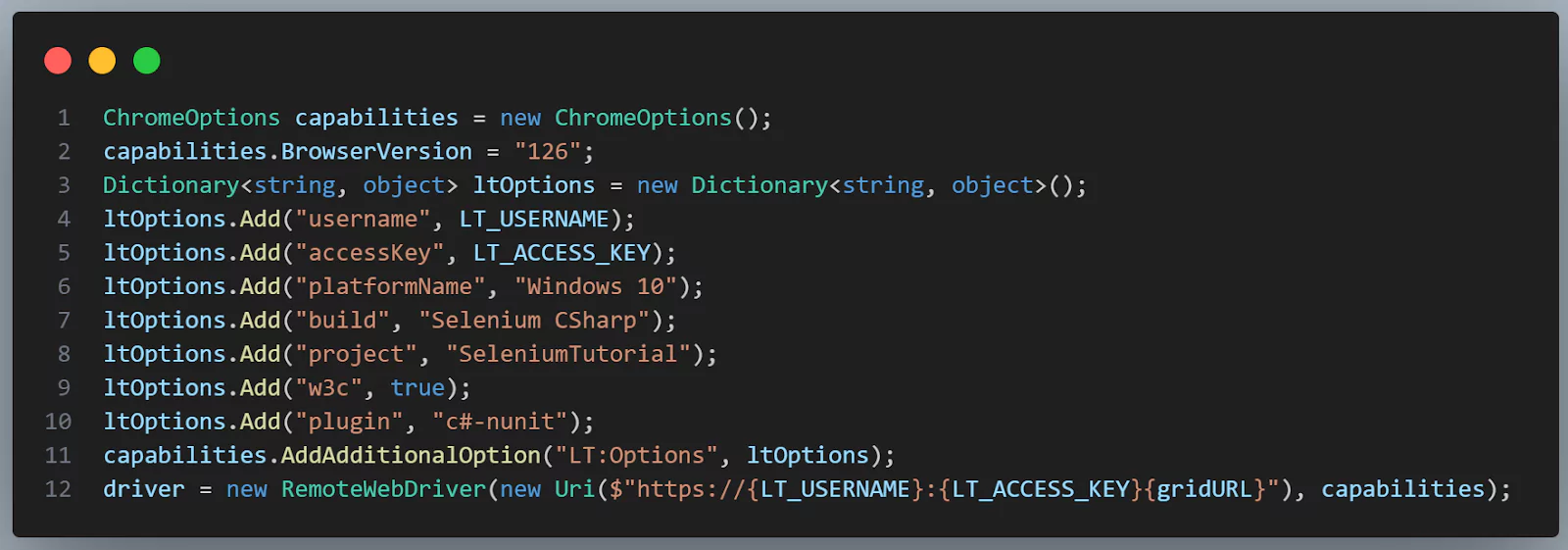
Use the TestMu AI Automation Capabilities Generator to build your desired capabilities without writing them by hand.
The remaining test script will remain unchanged.
Test Execution:
Run the test from Visual Studio as before. This time the browser does not open locally. You will see the live test execution in the TestMu AI Web Automation Dashboard instead.
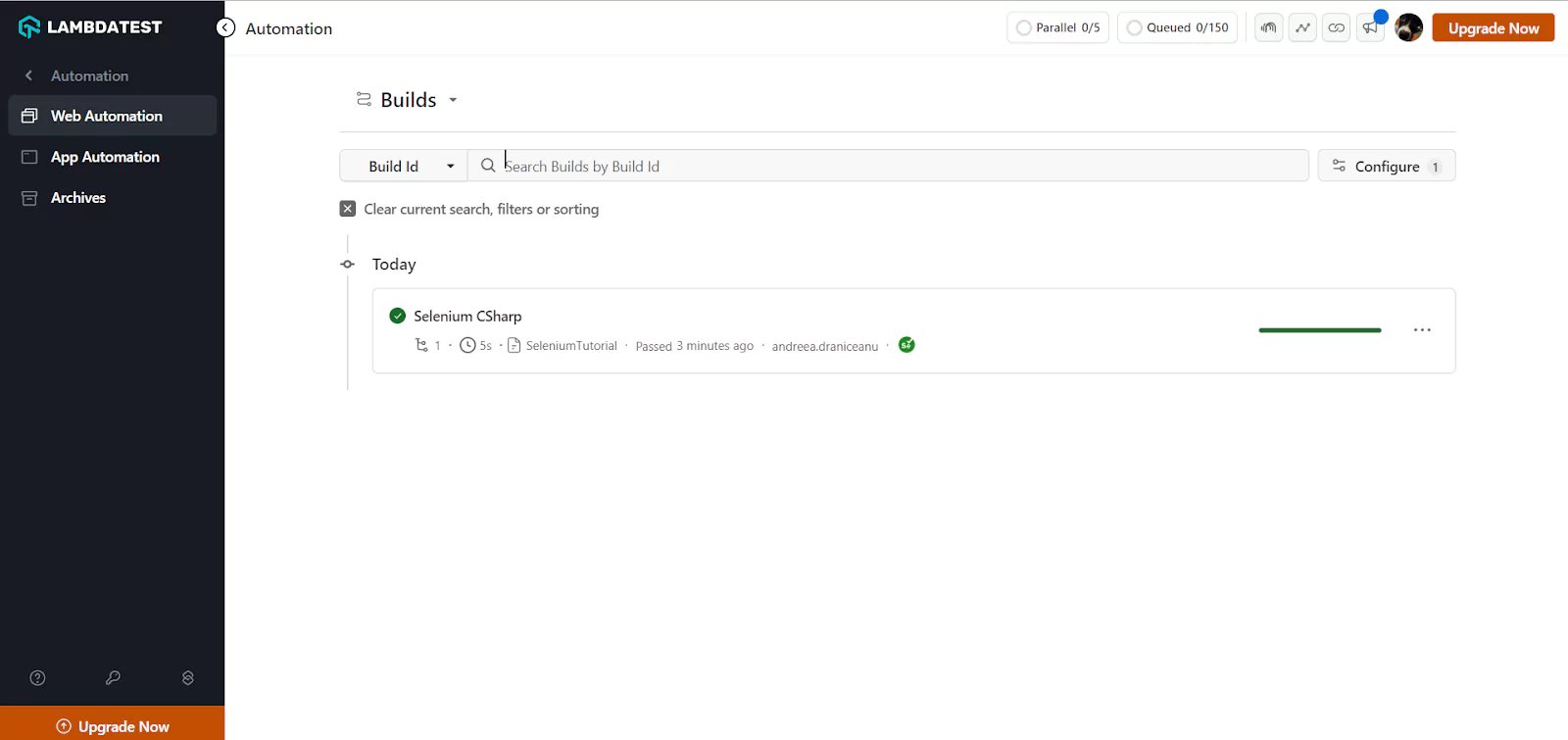
To integrate these tests into a CI/CD pipeline, use HyperExecute to run your NUnit suite in parallel across multiple browser and OS combinations with a single YAML config. For broader multi-browser strategy, the cross-browser testing guide explains how to structure your capability matrix.
Best Practices for Selenium C# Testing
These five practices separate maintainable Selenium C# test suites from fragile ones. Each includes a working code snippet you can apply directly to the Selenium Playground tests above.
- Use Explicit Waits: Replace Thread.Sleep() with WebDriverWait so your test waits only as long as needed. This eliminates the majority of flaky test failures caused by timing issues.
WebDriverWait wait = new WebDriverWait(driver, TimeSpan.FromSeconds(10));
IWebElement button = wait.Until(
    ExpectedConditions.ElementToBeClickable(By.Id("showInput")));
button.Click();- Implement the Page Object Model (POM): Separate page interaction logic from test logic. When a locator changes, you update one class, not every test that touches that element.
public class SimpleFormPage
{
    private IWebDriver driver;
    private By messageInput = By.Id("user-message");
    private By showInputBtn  = By.Id("showInput");
    private By messageOutput = By.Id("message");

    public SimpleFormPage(IWebDriver driver) { this.driver = driver; }
    public void EnterMessage(string text) => driver.FindElement(messageInput).SendKeys(text);
    public void ClickShow()               => driver.FindElement(showInputBtn).Click();
    public string GetMessage()            => driver.FindElement(messageOutput).Text;
}- Prefer ID Locators: ID is the fastest locator strategy because it maps directly to a single DOM node. Use By.Id() first; fall back to By.CssSelector() only when an ID is unavailable.
- Handle Exceptions Explicitly: Wrap risky interactions in a try-catch with a meaningful message. When a test fails at 3 AM, a clear assertion message cuts debugging time significantly.
- Use Version Control from Day One: Commit your NUnit project to Git before writing the first test. Tracking changes lets you bisect failures to the exact commit that introduced them.

Troubleshooting Common Selenium C# Errors
These four exceptions account for the majority of Selenium C# failures. Each entry includes what triggers it and how to fix it.
NoSuchElementException: Thrown when FindElement() cannot locate the element before the timeout.
Fix: switch from implicit waits to an explicit WebDriverWait with ExpectedConditions.ElementExists(), and verify the locator in DevTools before using it in code.
StaleElementReferenceException: The element was found, but the DOM refreshed before you interacted with it.
Fix: re-locate the element immediately before each interaction, or wrap the interaction in a retry loop using WebDriverWait.
InvalidSelectorException: The CSS selector or XPath expression is syntactically invalid.
Fix: test the selector in the browser console (document.querySelector() for CSS, $x() for XPath) before putting it in code.
WebDriverException (Chrome not reachable): ChromeDriver version does not match the installed Chrome version.
Fix: update the Selenium.WebDriver.ChromeDriver NuGet package to match your Chrome version, or use WebDriverManager to manage driver binaries automatically.
Conclusion
Start with the NUnit project setup from this tutorial, get the local Selenium C# test passing against the Selenium Playground, then swap in the TestMu AI cloud config to run across browsers and OS combinations without maintaining local drivers.
For the full cloud setup reference, see the TestMu AI Selenium documentation. To run tests across a distributed grid, the Selenium Grid tutorial covers parallel execution in depth.
If you want to validate your Selenium C# knowledge formally, the Selenium C# 101 certification by TestMu AI covers everything in this guide and beyond.
Note: This article was researched and drafted with AI assistance, then reviewed, fact-checked, and published by Andreea, Community Contributor at TestMu AI, whose listed expertise includes Selenium and C#. Every statistic, link, and product claim was verified against primary sources. Read our editorial process and AI use policy for details.
Author

Andreea


Andreea D. is an experienced QA Automation Engineer with over 10 years in software testing, specializing in UI and API automation using tools like Ranorex, SpecFlow, Selenium, and Postman. She has worked across diverse industries, mentoring peers, training aspiring testers, and contributing to Agile teams. Beyond her engineering expertise, Andreea is a technical blogger with multiple published articles, including guides on bug reporting, OOP principles in test automation, Appium reporting, and penetration testing. She also coordinates programs supporting senior citizens in Romania, blending technical leadership with community impact.
Reviewer

Srinivasan Sekar
Reviewer
Srinivasan Sekar is Director of Engineering at TestMu AI (formerly LambdaTest), where he leads engineering and open-source initiatives behind the Selenium and Appium automation grid and owns TestMu AI's MCP Server. A committer to Appium and a contributor to Selenium, WebdriverIO, Taiko, and AppiumTestDistribution, he brings over 15 years of experience in quality engineering and open-source technologies. He is the author of the Apress book 'The MCP Standard: A Developer's Guide to Building Universal AI Tools with the Model Context Protocol,' a Certified Kubernetes and Cloud Native Associate, and an international conference speaker. Before TestMu AI he spent over eight years at Thoughtworks as a Principal Consultant and Quality Architect. Srinivasan holds a B.Tech in Information Technology from Anna University.


Selenium C# Tutorial FAQs
Did you find this page helpful?
More Related Learning Hubs
TestMu AI forEnterprise
Get access to solutions built on Enterprise
grade security, privacy, & compliance
- Advanced access controls
- Advanced data retention rules
- Advanced Local Testing
- Premium Support options
- Early access to beta features
- Private Slack Channel
- Unlimited Manual Accessibility DevTools Tests