
Run Web Automation Tests at Scale with Agentic AI
Generate tests with AI agents or automate test suites with Selenium, Playwright and other frameworks. Run tests in parallel on TestMu AI scalable cloud grid.

- TestMu AI (Formerly LambdaTest)
- /
- Blog
- /
- WebDriverManager in Selenium: How to Use It in 2026
How To Use WebDriverManager In Selenium
Learn to set up WebDriverManager 6.4.0 in Selenium Java, how its resolution works, and when Selenium Manager makes it unnecessary, with real timing results.
Last Updated on:
On This Page
- Overview of Selenium WebDriver Architecture
- How to Use Third-Party WebDrivers?
- What is WebDriverManager in Selenium?
- What is Bonigarcia WebDriverManager?
- Resolution Algorithm of WebDriverManager
- How to Set Up WebDriverManager in Selenium?
- Driver Management with WebDriverManager
- Demo: How to Use WebDriverManager in Selenium on the Cloud?
- WebDriverManager vs Selenium Manager
- AI Agents and Driver Management
Selenium WebDriver is a widely used tool for web automation testing. Since Selenium 4.6, the built-in Selenium Manager downloads the right browser driver automatically, and since Selenium 4.11 it can also download the browser itself.
However, teams working on older Selenium versions still need to handle browser drivers manually, which can be time-consuming. A reliable solution to this challenge is WebDriverManager by Bonigarcia, which automates driver downloads, setup, and maintenance. This guide shows how WebDriverManager works, how to set it up, and when Selenium Manager already does the job.
TL;DR
- WebDriverManager by Bonigarcia is a Java library that finds, downloads, and configures the browser driver that matches your installed browser.
- To use it, add io.github.bonigarcia:webdrivermanager 6.4.0 to Maven or Gradle and call WebDriverManager.chromedriver().setup() before creating the driver.
- Selenium 4.6 and later include Selenium Manager, which handles drivers automatically, so many new projects no longer need WebDriverManager.
- In our run, both tools resolved chromedriver 154.0.8037.92 for Chrome 154, and Selenium Manager started Chrome faster from a cold cache.
- WebDriverManager still adds browsers in Docker, session recording, and helpers such as getBrowserPath() that Selenium Manager does not offer.
- On a cloud grid such as TestMu AI, drivers are managed for you, so neither tool is needed for remote runs.
Overview of Selenium WebDriver Architecture
Before you start using Selenium WebDriver, it will be helpful to understand how it works and solve the challenges that may be encountered in the future. In this section, I will summarize the Selenium WebDriver architecture.
By Sathwik Prabhu
Selenium WebDriver is a library that enables interaction between browsers and browser drivers. It is often used to create automated tests for web applications. This architecture of Selenium WebDriver consists of four components:
- Selenium Client Libraries
- WebDriver W3C Protocol
- Browser Drivers
- Real Web Browsers
- Selenium Client Libraries: One of the most significant advantages of Selenium WebDriver is that it supports multiple programming languages, such as Java, Python, JavaScript, C#, Ruby, etc. Selenium client libraries offer flexibility in programming language selection for test automation.
- W3C WebDriver Protocol: The W3C WebDriver Protocol, which has received the endorsement of W3C Protocol (World Wide Web Consortium), is used with Selenium 4 instead of the JSON Wire Protocol (used in Selenium 3). It means there is direct communication between the browser drivers and Selenium client libraries. It also offers the following advantages:
W3C WebDriver Protocol provides international W3C standards. Therefore, it is expected that the UI tests written with Selenium are expected to be much more stable (or less flaky). It provides an updated Actions API that offers new actions like zoom, multi-touch actions, and pressing two keys simultaneously. Also, you can use relative locators in Selenium 4 to locate web elements.

- Browser Drivers: The browsers supported by Selenium contain a separate browser driver. Browser driver binaries (ChromeDriver for Chrome, GeckoDriver for Firefox, or MSEdgedriver for Edge) communicate with the respective browser by hiding the implementation logic of the browser’s functionality.
When a browser driver has received any command with the help of W3C WebDriver Protocol, it will trigger the respective browser, and the response will go back as an HTTP response.
- Real Web Browsers: Selenium supports multiple browsers such as Chrome, Firefox, IE, Safari, etc. But remember! Before Selenium 4.6, you had to install the browser driver yourself, and before Selenium 4.11, the browser too.
On Selenium 4.6 or later, Selenium Manager downloads a matching driver when none is found, and from 4.11 it can also download Chrome for Testing when Chrome is not installed.
However, this only applies if you run tests on a local Selenium Grid. You would not face similar issues with a cloud grid since the onus of browser and browser driver update is not with us. Cloud-based testing platforms like TestMu AI offer various browsers with multiple versions readily available that can be plugged in and played quickly.
If you are preparing for an interview you can learn more through Selenium interview questions.

How to Use Third-Party WebDrivers?
Since we have basic knowledge about how Selenium WebDriver works, we can talk about how to use third-party WebDrivers. As understood from the architecture I tried to explain above, to perform web browser automation with Selenium, we need to place a binary file called driver between the Selenium client and the web browser on which the Selenium automation tests will be run. So how is it done? Let’s examine the use of third-party drivers in 4 steps:

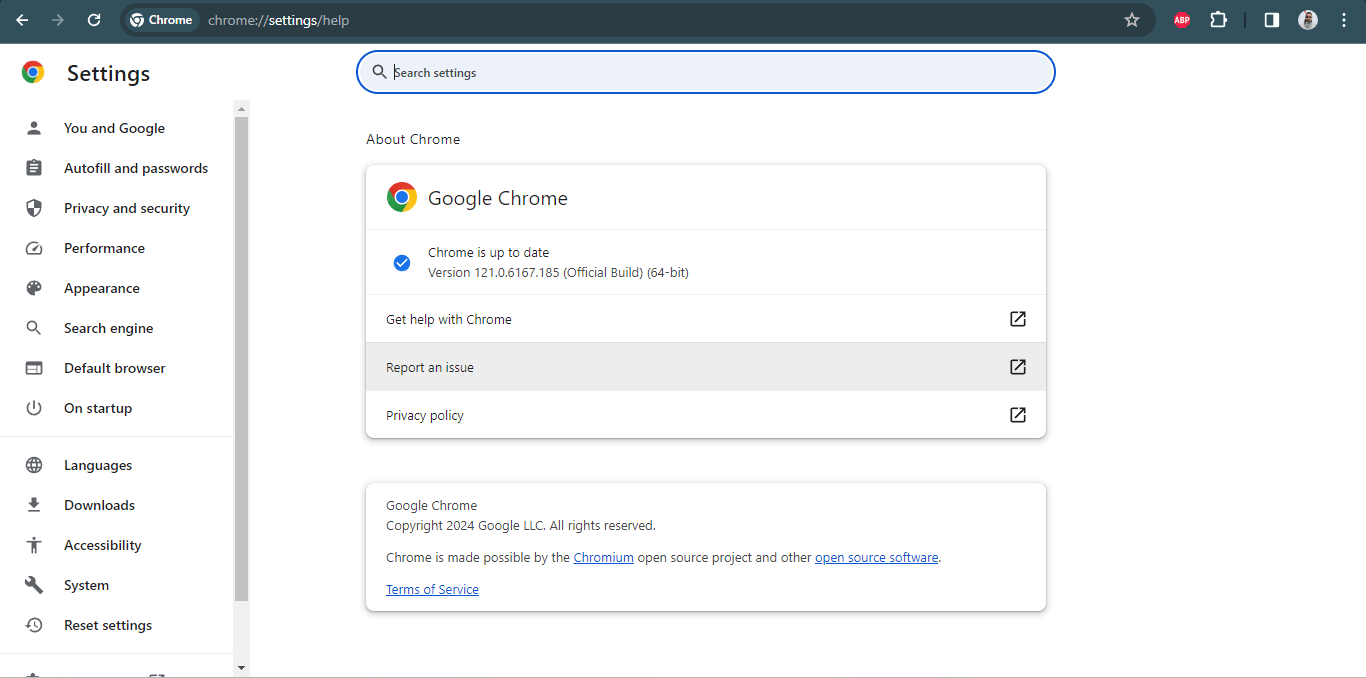
Before downloading the third-party driver, you need to ensure that the browser driver is in sync with the browser version on which the tests would be performed. For instance, you can find the Chrome version on the machine at chrome://settings/help.
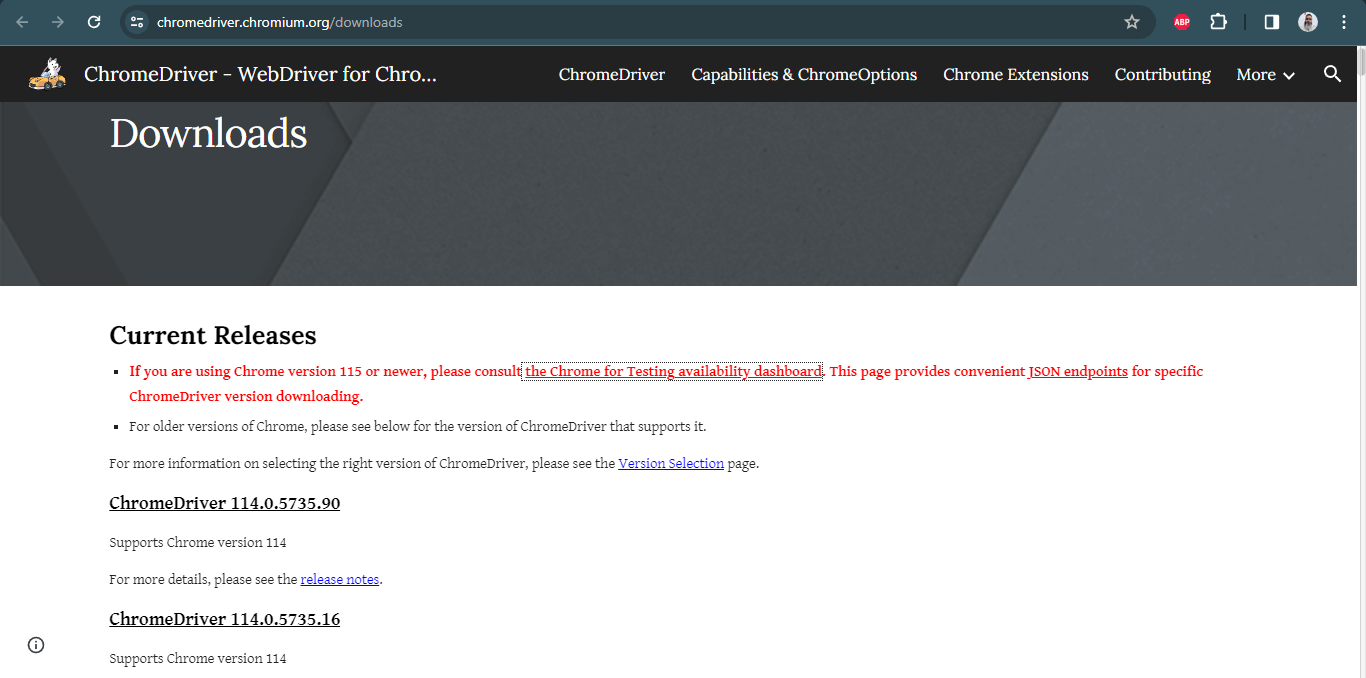
Next, you have to download ChromeDriver, which is in sync with the version of the Chrome browser. ChromeDriver with version 115 or below can be downloaded using the ChromeDriver downloads page.
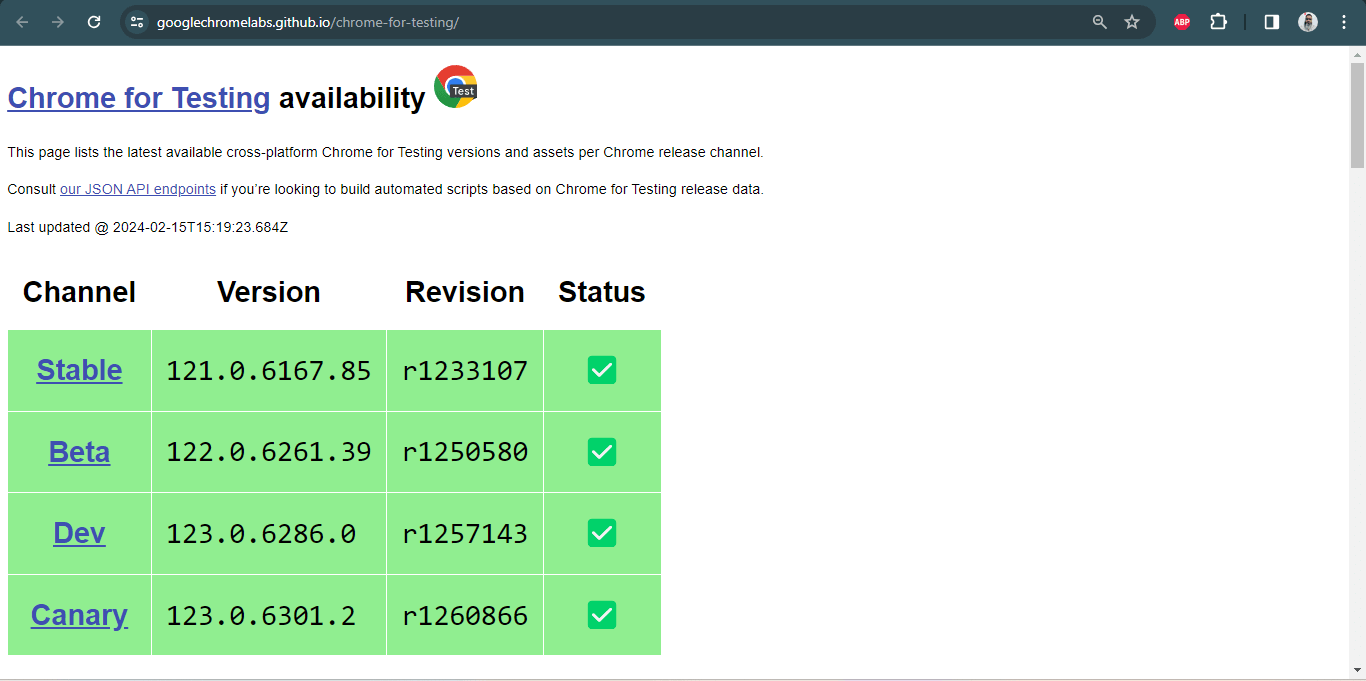
ChromeDriver with the version above 115 can be downloaded using the Chrome for Testing availability dashboard.
If the versions are not in sync, you will encounter a failure message. On the other hand, you would not get such issues when running tests on an online Selenium Grid like TestMu AI.
AI-powered test orchestration and execution platforms like TestMu AI allow you to run Selenium automation tests over an online browser farm of 3000+ browsers and operating systems. You can run tests in parallel, accelerate the release cycle, and cut down test execution by multiple folds.

Also, subscribe to the TestMu AI YouTube Channel and get detailed tutorials around automation testing, Selenium, Appium automation, and more.

The following error message could be encountered if the Chrome browser and ChromeDriver versions are not in sync.
selenium.common.exceptions.SessionNotCreatedException: Message: session not created: This version of ChromeDriver only supports Chrome version 94
Hence, we need to find the correct driver version for a specific browser release.
Drivers are platform-specific binary files. It means we must identify the driver type according to the operating system. For example, if we want to use Chrome, we need to download ChromeDriver by considering the operating system (Windows, Linux, or macOS) and the architecture (typically 32 or 64 bits).
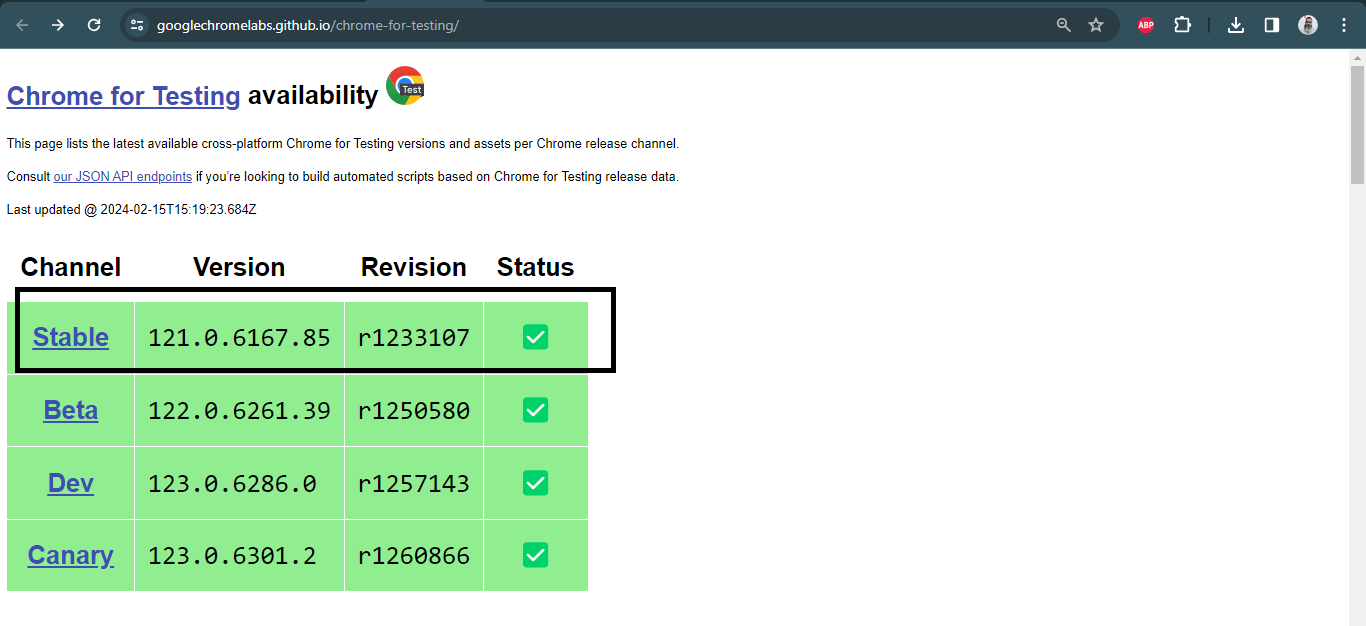
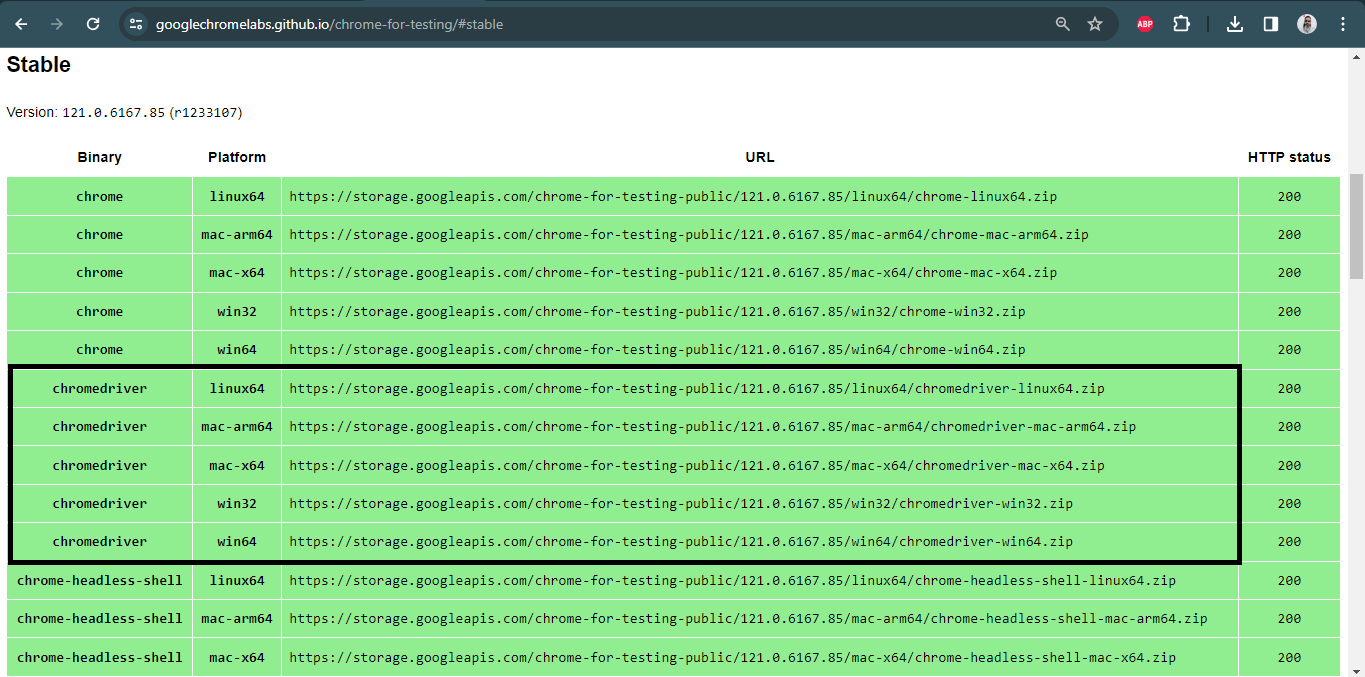
After finding and downloading the proper driver binary file, we can proceed to the setup phase. Here, we should ask a question: How will our Selenium tests find and use this binary driver file? In Java, we use Java system properties to export the driver path as follows:
System.setProperty("webdriver.chrome.driver", System.getProperty("user.dir")+"path of chrome driver");
System.setProperty("webdriver.gecko.driver", System.getProperty("user.dir")+"path of gecko driver");
System.setProperty("webdriver.edge.driver", System.getProperty("user.dir")+"path of msedge driver");
System.setProperty("webdriver.opera.driver", System.getProperty("user.dir")+"path of operadriver");
Let’s show the ChromeDriver implementation as an example. Firstly, we need to set the path of the ChromeDriver as follows:
String pathForChromeDriver= "write here your chromeDriver path";
System.setProperty("webdriver.chrome.driver",
System.getProperty("user.dir")+pathForChromeDriver);
After the path setting, we create an instance of the ChromeDriver.
WebDriver driver = new ChromeDriver();And we are ready to open the website with the get() method:
driver.get("https://ecommerce-playground.lambdatest.io/");So, the binary driver file we downloaded and completed the configuration will open the web page we want by interacting with the Chrome browser on the machine on which we run our tests.
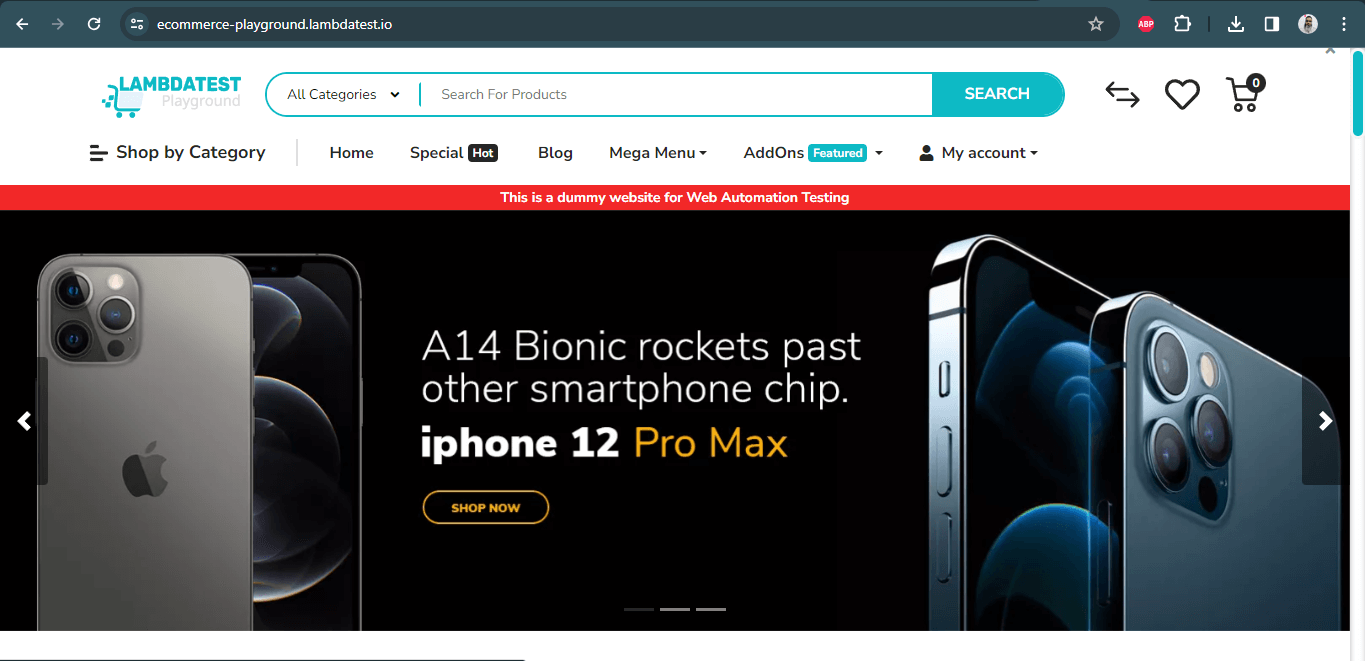
Here, I would like to remind you that the issue you will most likely encounter in the version control (Git, SVN, etc.) is that the driver is not executable if you use the binary driver file for Linux:
java.lang.IllegalStateException: The driver is not executableTo solve that issue, you need to import the class java.io.File and use the following two lines of code:
File file= new File(System.getProperty("user.dir")+"path of driver");
file.setExecutable(true);
The last step of the third-party driver usage process is maintenance. You’re probably questioning why we need maintenance. The answer is simple but annoying: Modern browsers automatically upgrade themselves. It means the compatibility between driver and browser is not warranted in the long term. That’s why you should do maintenance periodically.
As I mentioned above, our manual maintenance effort for automated tests is laborious. Also, this is an obstacle to universality (Independence from the environment, browser version, operating system, etc.), which is one of the most important test automation principles.
WebDriverManager from Bonigarcia is the solution to the problems mentioned above. Let’s dive deep into the integral aspects of WebDriverManager in Selenium.
What is WebDriverManager in Selenium?
WebDriverManager in Selenium is an open-source Java library automating the management of Selenium WebDriver drivers like chromedriver, geckodriver, msedgedriver. It facilitates automated download, setup, and maintenance, also offering features like browser discovery, WebDriver object building, and seamless Docker container integration.
What is Bonigarcia WebDriverManager?
Dr. Boni Garcia brought a great solution to the problem I mentioned above by creating the first version of the WebDriverManager library in 2015.
Here are some salient benefits of WebDriverManager in Selenium:
- Automates the management of WebDriver binaries, thereby avoiding installing any driver binaries manually.
- Supports all popular browser drivers like Chrome, Firefox, Edge, etc.
- Checks the version of the browser installed on your machine and download the proper driver binaries into the local cache (~/.cache/selenium by default) if not already present.
- Matches the version of the drivers. If unknown, it uses the latest version of the driver.
- Supports the browser options and allows passing on the browser capabilities while setting up the browsers.
- Offers cross browser testing without the hassle of installing and maintaining different browser driver binaries.
- Creates browser sessions in Docker containers.
Resolution Algorithm of WebDriverManager
Before using WebDriverManager in Selenium, let’s look at how it works. How does it find and download the proper versions of browsers? Let’s dive deep into it.

WebDriverManager executes a resolution algorithm to automate the process given above for the appropriate driver binary.
Here are the brief steps of the resolution algorithm:
Step 1: Find the Proper Driver Version
WebDriverManager tries to find the browser version using the knowledge database called the commands database. This database consists of shell commands used to discover a browser’s version in the different operating systems.
Here are the commands for the Linux environment:
google-chrome --version
firefox -v
microsoft-edge --version
opera --version
chromium --version
Also, with the help of another knowledge database called the versions database, WebDriverManager in Selenium maps the browser releases with the known proper driver versions.
Step 2: Download and Set Up the Driver
After the respective driver version is found, WebDriverManager downloads this driver to a local cache (~/.cache/selenium by default). Then, it sets the downloaded driver path using Java system properties corresponding to browsers:
webdriver.chrome.driver
webdriver.gecko.driver
webdriver.edge.driver
webdriver.opera.driver
Step 3: Maintenance
As mentioned earlier, the most problematic aspect of using third-party driver binaries is maintenance, i.e., finding the appropriate driver version for the browser we use for specific periods and downloading them repeatedly. So, how does WebDriverManager in Selenium handle this process automatically?
WebDriverManager has a resolution cache called resolution.properties. This cache stores the match between the downloaded driver and browser versions. Also, this match is valid for 1 hour for browsers and considered correct for one day for drivers.
Long story short, WebDriverManager does not try to find a new browser and driver version in every test run, so using the current driver and browser in subsequent test runs improves performance.
How to Set Up WebDriverManager in Selenium?
Installing WebDriverManager in Selenium is also very simple. If you are using a Maven project, then you need to go to the Maven Repository website and search for the WebDriverManager dependency.
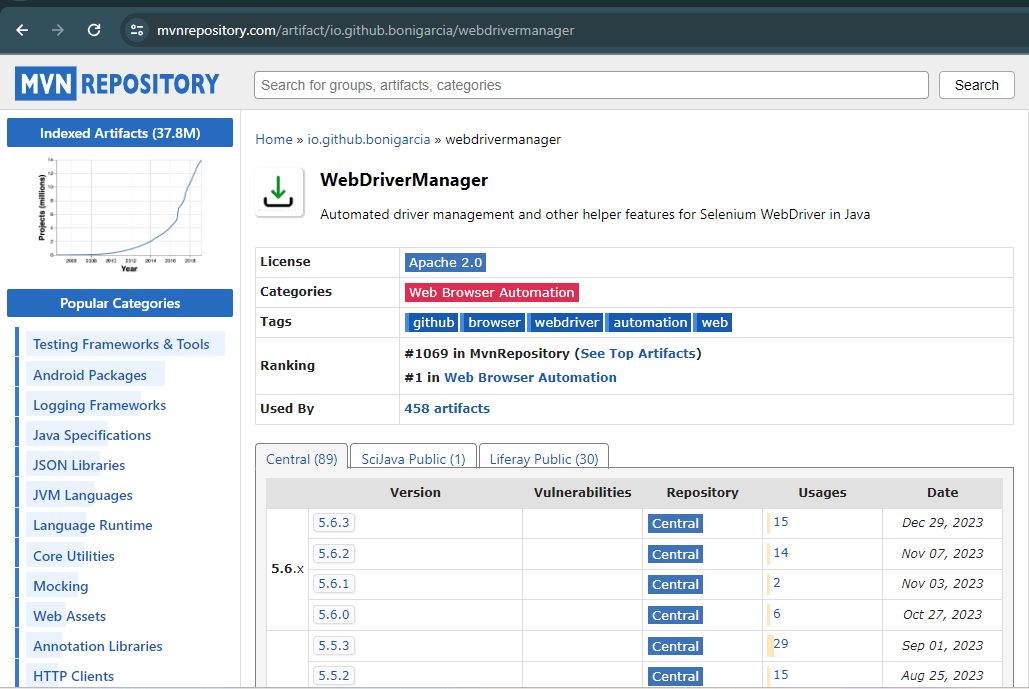

Simply add the following dependency to your pom.xml file. However, it should be noted that the dependency for Selenium WebDriver should also be added in the pom.xml:
<!-- https://mvnrepository.com/artifact/io.github.bonigarcia/webdrivermanager -->
<dependency>
    <groupId>io.github.bonigarcia</groupId>
    <artifactId>webdrivermanager</artifactId>
    <version>6.4.0</version>
</dependency>
Don’t forget to include the test scope because WebDriverManager in Selenium is usually used in the testing part of your project.
<dependency>
    <groupId>io.github.bonigarcia</groupId>
    <artifactId>webdrivermanager</artifactId>
    <version>6.4.0</version>
    <scope>test</scope>
</dependency>
If you are using a Gradle project, you can add WebDriverManager to your project as shown below:
dependencies {
    // https://mvnrepository.com/artifact/io.github.bonigarcia/webdrivermanager
implementation group: 'io.github.bonigarcia', name: 'webdrivermanager', version: '6.4.0'
}
Driver Management with WebDriverManager
After the simple setup above, WebDriverManager is ready to manage your browsers. First, let’s examine the components WebDriverManager uses for browser management, then see browser management in practice with an example.
WebDriverManager library provides a class called WebDriverManager:
io.github.bonigarcia.wdm.WebDriverManagerThis class consists of some static methods, as mentioned below, to create managers for driver management. To manage the driver, select a given manager in the WebDriverManager class to manage the driver and invoke the setup() method. Let’s say you want to work with Chrome driver; then you can implement it as shown below:
WebDriverManager.chromedriver().setup();WebDriverManager in Selenium offers a set of managers not only for Chrome but also for various browsers:
WebDriverManager.chromedriver().setup();
WebDriverManager.firefoxdriver().setup();
WebDriverManager.edgedriver().setup();
WebDriverManager.operadriver().setup();
WebDriverManager.chromiumdriver().setup()
WebDriverManager.iedriver().setup();
After version 5, WebDriverManager also started providing a Safari manager called safaridriver().
Now, let’s see the practical usage of WebDriverManager in Selenium. The following example shows a test case where the TestMu AI eCommerce Playground website will be loaded, and its URL will be checked to verify that it contains TestMu AI. This test will be run on the Chrome browser using Selenium WebDriver, WebDriverManager, and TestNG.
import io.github.bonigarcia.wdm.WebDriverManager;
import org.openqa.selenium.WebDriver;;
import org.openqa.selenium.chrome.ChromeDriver;
import org.testng.annotations.AfterTest;
import org.testng.annotations.BeforeTest;
import org.testng.annotations.Test;
import static org.testng.Assert.assertTrue;

public class ChromeWithWebDriverManagerTest {
    WebDriver driver;
    @BeforeTest
    public void setup() {
        WebDriverManager.chromedriver().setup();
        driver = new ChromeDriver();
    }
    @Test
    void checkTheUrl() {

        driver.get("https://ecommerce-playground.lambdatest.io/");
        String url = driver.getCurrentUrl();
        assertTrue(url.contains("lambdatest"));
    }
    @AfterTest
    void tearDown() {
        driver.quit();
    }
}
Code Walkthrough
If you are going to work on the Chrome browser with Selenium WebDriver, you need to import the WebDriver interface and the ChromeDriver class from Selenium as follows:

To use WebDriverManager in Selenium, the WebDriverManager class must be imported.
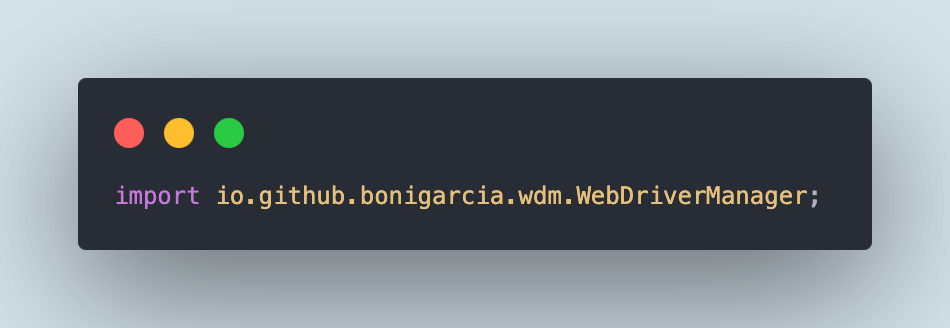
Since we want to run WebDriverManager on the Chrome browser, we use the static method chromedriver() by invoking the setup() method, and we also initialize the WebDriver object for the Chrome driver (driver = new ChromeDriver();)

By using @BeforeTest annotation in TestNG, we ensure this setup process happens automatically before each test.
Using driver.get(), the browser is opened to go to any website. Selenium interacts with the browser using the Chrome driver determined by the WebDriverManager resolution algorithm.

Using driver.quit(), we reset the driver object that we initialized and do this after each test with the help of @AfterTest annotation.

Note: Automate your tests with Selenium on the Cloud. Try TestMu AI Today!
Demo: How to Use WebDriverManager in Selenium on the Cloud?
In this demonstration, we will open the TestMu AI eCommerce Playground website and verify that the URL contains the word TestMu AI. This test will run on the latest version of the Chrome browser on Windows 10 using the TestMu AI cloud grid.
We would be using the remoteAddress() method from the WebDriverManager library to set the remote URL that will help us execute the test on the TestMu AI platform. The remoteAddress() method specifies the remote URL in the RemoteWebDriver instance, typically when using a Selenium Server or a cloud provider such as TestMu AI.
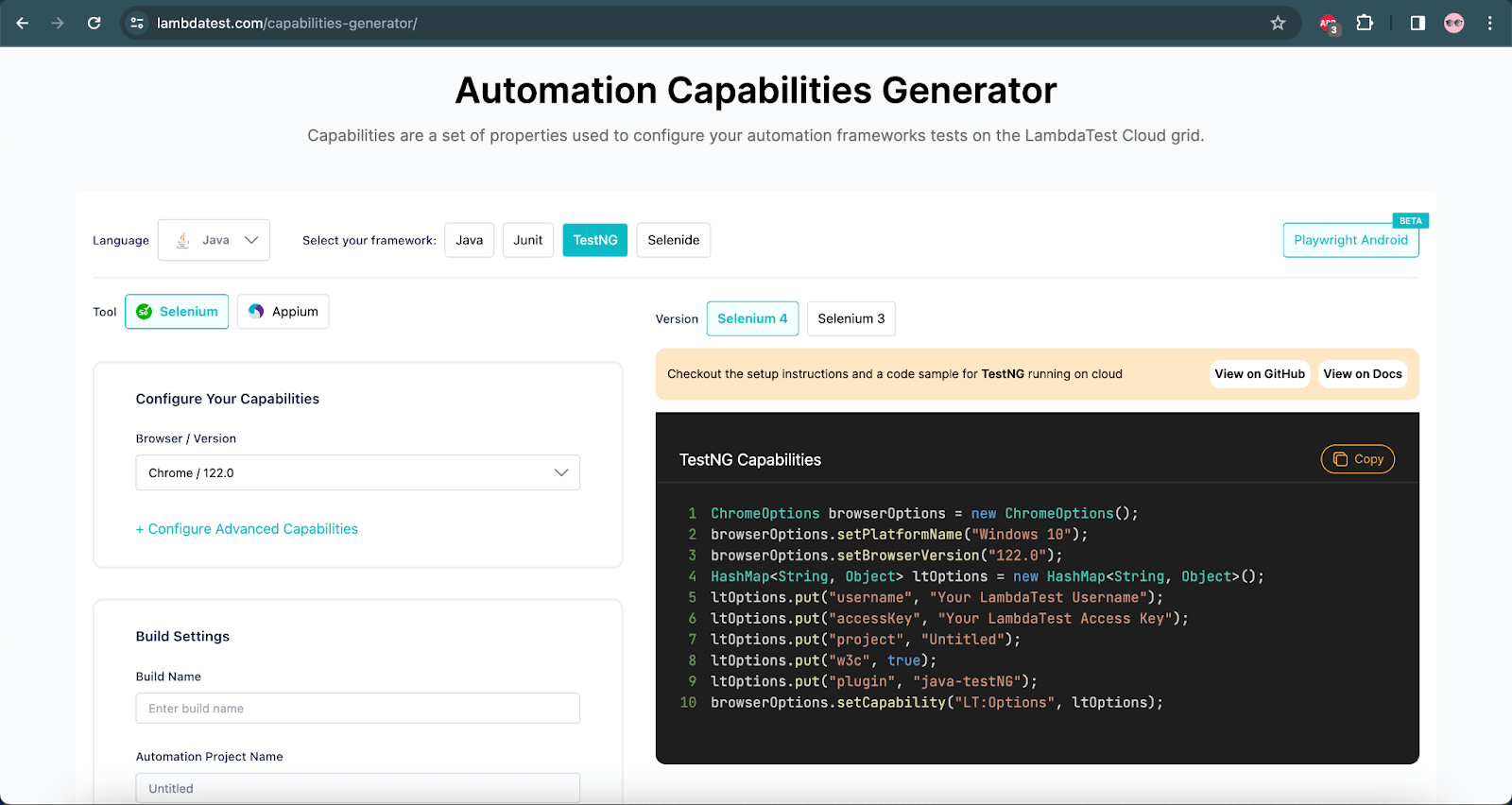
We need to add the capabilities for running the tests on the TestMu AI cloud grid. These capabilities can easily be set using the TestMu AI Capabilities Generator, which allows the user to set the capabilities using the UI and accordingly generates the configuration code that can be used in the tests directly.
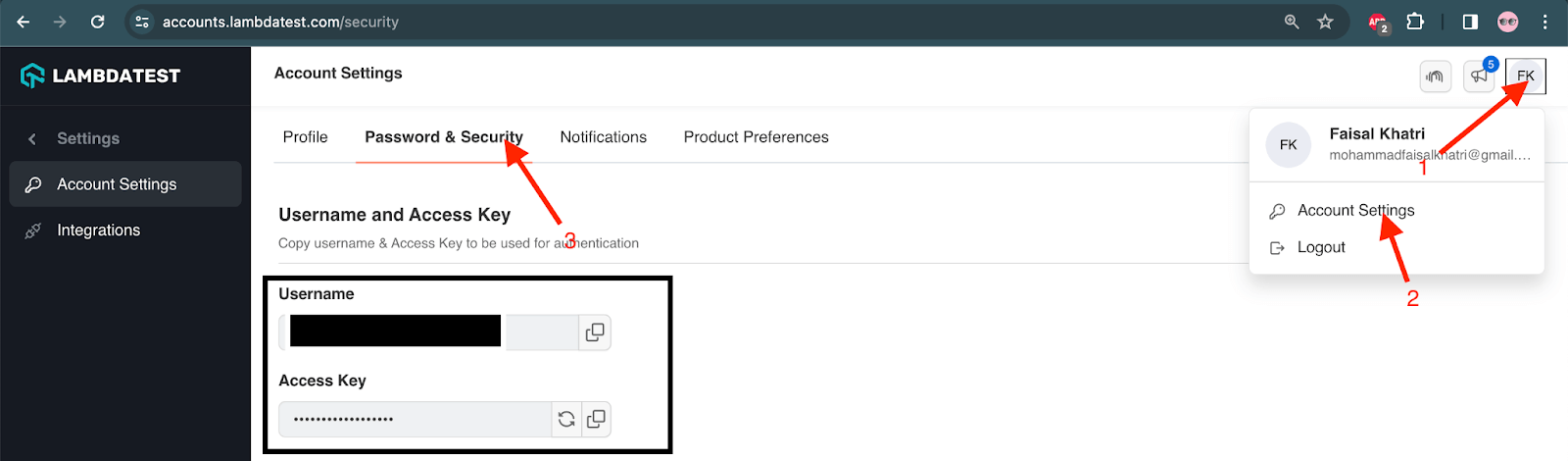
Before running the tests, we should use the terminal to set the environment variables LT_USERNAME and LT_ACCESS_KEY. You can find these credentials by visiting your Profile > Account Settings > Password & Security.
For Windows: set LT_USERNAME=LT_USERNAME set LT_ACCESS_KEY=LT_ACCESS_KEY
For macOS: export LT_USERNAME=LT_USERNAME export LT_ACCESS_KEY=LT_ACCESS_KEY
For Linux: export LT_USERNAME=LT_USERNAME export LT_ACCESS_KEY=LT_ACCESS_KEY
public class ChromeRemoteWithWebDriverManagerTest {

    WebDriver driver;
    String username = System.getenv("LT_USERNAME") == null ? "LT_USERNAME": System.getenv("LT_USERNAME");

    String accesskey = System.getenv("LT_ACCESS_KEY") == null ? "LT_ACCESS_KEY": System.getenv("LT_ACCESS_KEY");

    String gridURL = "@hub.lambdatest.com/wd/hub";

    @BeforeTest
    public void setup() {
        ChromeOptions browserOptions = new ChromeOptions();
        browserOptions.setPlatformName("Windows 10");
        browserOptions.setBrowserVersion("122.0");
        HashMap<String, Object> ltOptions = new HashMap<String, Object>();
        ltOptions.put("project", "WebDriverManager Demo");
        ltOptions.put("w3c", true);
        ltOptions.put("plugin", "java-testNG");
        ltOptions.put("build", "Demonstration: WebDriverManager on LambdaTest");
        browserOptions.setCapability("LT:Options", ltOptions);

        WebDriverManager webDriverManager = WebDriverManager.chromedriver().capabilities(browserOptions);
        webDriverManager.setup();
        driver = webDriverManager.remoteAddress("https://" + username + ":" + accesskey + gridURL).create();
    }

    @Test
    public void checkTheUrl() {
        driver.get("https://ecommerce-playground.lambdatest.io/");
        String url = driver.getCurrentUrl();
        assertTrue(url.contains("lambdatest"));
    }

    @AfterTest
    public void teardown() {
        driver.quit();
    }
}
Test Execution
The following screenshot shows the test execution performed using IntelliJ IDE:
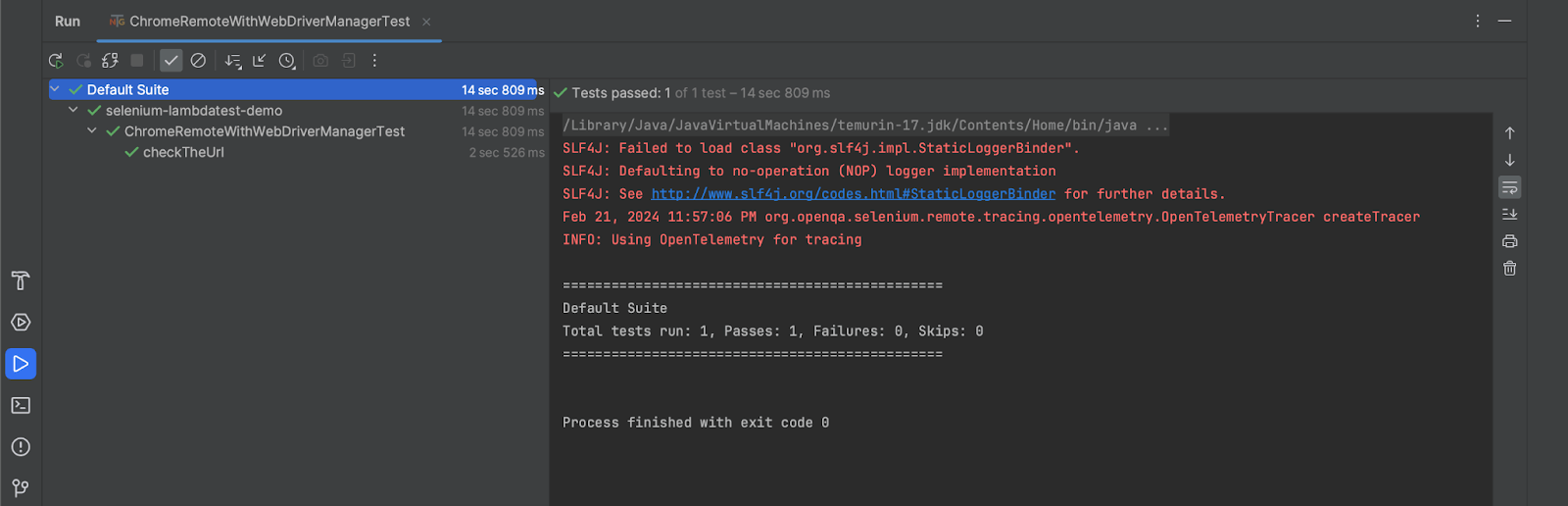
Navigate to the TestMu AI Web Automation Dashboard to look at the execution results.
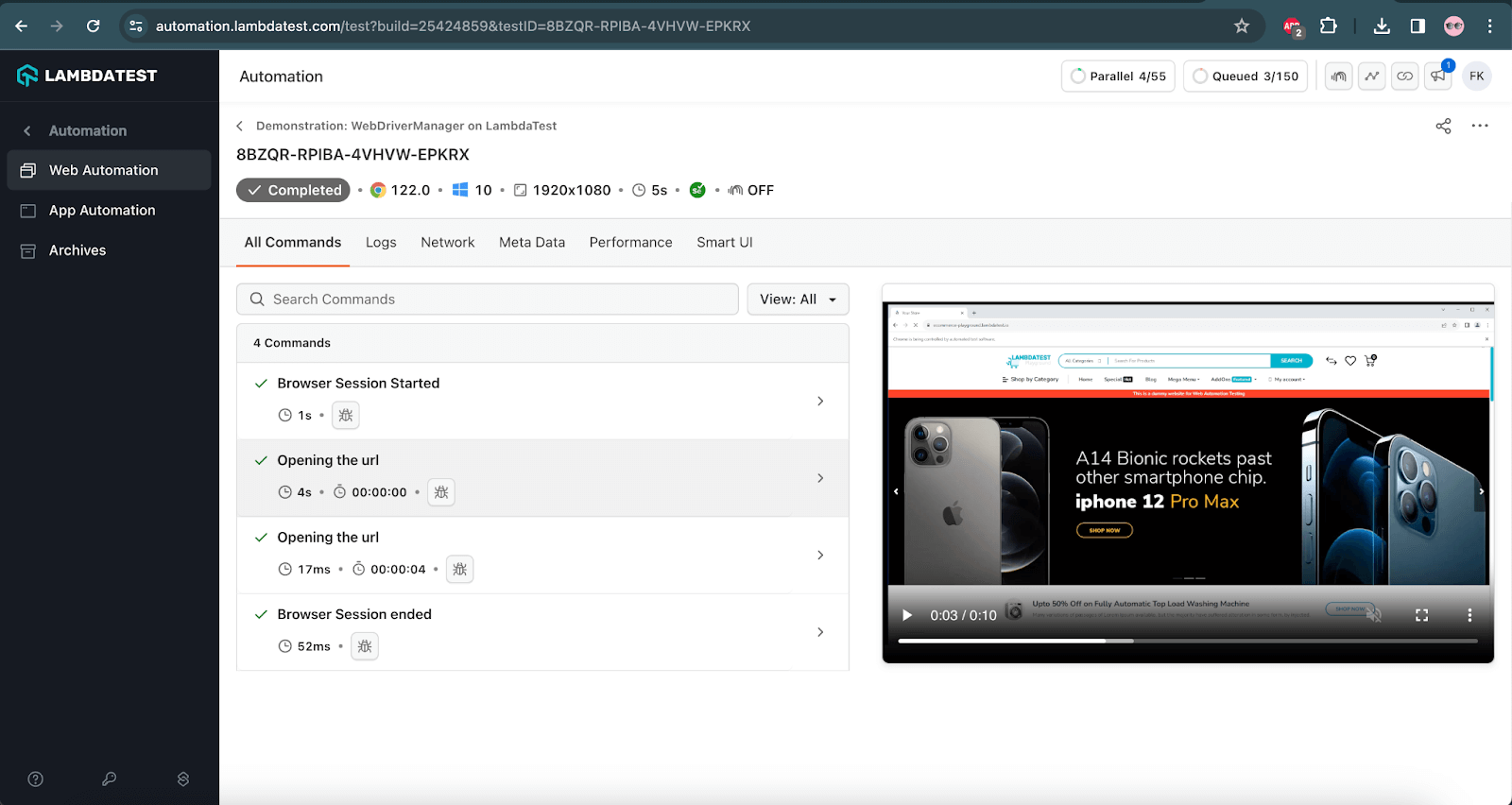
TestMu AI also provides a Test Analytics platform that can be leveraged to view the detailed analytics of the test execution. It also allows the creation of custom dashboards and widget variants for test analytics.
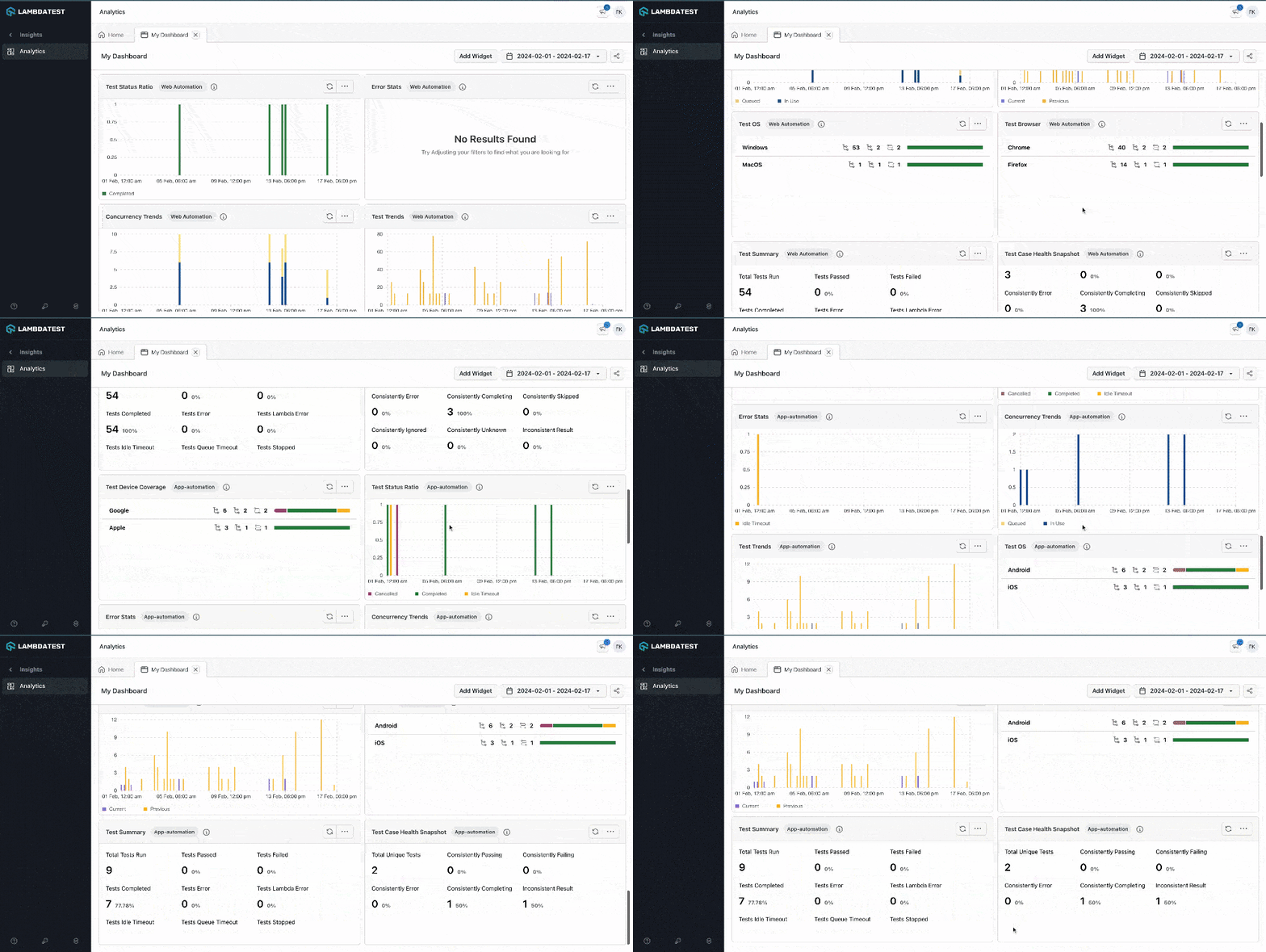
It allows building custom views with various widgets and getting the desired insights quickly by creating dashboards.
WebDriverManager vs Selenium Manager: Do You Still Need It?
To see the difference in practice, we ran the same headless Chrome test with each tool on October 5, 2026: Windows 10, JDK 17, Selenium 4.50.0, WebDriverManager 6.4.0, and Chrome 154.0.8037.92 installed. The test opened the TestMu AI ecommerce playground and read the page title. "Cold" means the ~/.cache/selenium folder was deleted first, and "warm" means the driver was already cached.
| Run | Driver resolved | Driver setup | Driver start | Total test time |
|---|---|---|---|---|
| WebDriverManager, cold cache | chromedriver 154.0.8037.92 | 7.0 s | 6.3 s | 20.8 s |
| WebDriverManager, warm cache | chromedriver 154.0.8037.92 | 2.6 s | 2.2 s | 8.6 s |
| Selenium Manager, cold cache | chromedriver 154.0.8037.92 | Inside driver start | 9.3 s | 13.2 s |
| Selenium Manager, warm cache | chromedriver 154.0.8037.92 | Inside driver start | 3.1 s | 6.5 s |
Both tools picked the same driver version for the installed browser, and both cached it in ~/.cache/selenium. These are single runs on one machine over a normal internet connection, so treat the times as an illustration rather than a benchmark. The practical point is that on current Selenium versions, a test with no driver setup code at all already works.
- Use Selenium Manager - For new projects on Selenium 4.6 or later that only need local Chrome, Firefox, or Edge. It needs no extra dependency or setup call.
- Use WebDriverManager - When you need browsers in Docker containers (version 6 uses docker-selenium images), session recording through getRecordingBase64(), the resolved browser path or version through getBrowserPath() and getResolvedBrowserVersion(), or support for older Selenium 3 projects.
- Use neither - For runs on a cloud grid, where the provider supplies matched browsers and drivers.
WebDriverManager is still actively maintained: version 6.4.0 was released on September 23, 2026, according to its changelog. The setup() API used in this guide is unchanged in version 6.
How Do AI Coding Agents Handle Driver Management in 2026?
AI coding agents write the WebDriverManager setup call for you, but they still depend on the same driver binaries and version checks described above.
- Copilot and Cursor autocomplete setup - GitHub Copilot and Cursor suggest the WebDriverManager.chromedriver().setup() line and the matching Maven dependency as you type, but they read only the open file, so a suggested version can still lag behind the driver actually installed on the machine.
- Claude Code runs the loop - Claude Code can open a terminal, run the failing Selenium test, read a SessionNotCreatedException like the one shown earlier, and edit the setup call itself, then rerun the test to confirm the fix instead of only proposing code.
- Playwright MCP server skips drivers - Playwright's MCP server lets an agent send browser actions directly over the Model Context Protocol, so it never calls a driver manager at all; that approach does not carry over to Selenium, whose WebDriver protocol still needs a driver binary in the middle.
The real limitation is verification: none of these agents confirm that the resolved driver actually matches the installed browser before the test runs, so a mismatched pair still throws the same error, and a person still has to read the stack trace to catch it.
Conclusion
In this blog on WebDriverManager in Selenium, we entered the world of WebDriverManager by examining how it solves an important problem in using Selenium WebDriver, how it works with an algorithm in the background, and how it is implemented in practice.
On Selenium 4.6 and later, Selenium Manager covers basic driver setup, so add WebDriverManager when you need its extras, such as Docker browsers or recording. To skip local driver management entirely, run the same tests on the TestMu AI automation cloud. See the Selenium capabilities documentation to get started.
Testing from the terminal? Kane CLI by TestMu AI lets SDETs and developers plan, write, run and debug tests from the command line.
Author

Cagri Ataseven
Blogs: 1

Dr. Cagri Ataseven is a Software Test Automation Engineer at LR Health & Beauty Systems GmbH with 8+ years of experience in software testing. He specializes in manual and automated testing for web-based applications using Java, Selenium WebDriver, Cucumber BDD, and Agile methodologies, along with API testing and performance testing. He is ISTQB Foundation Level (CTFL) certified and holds a Ph.D in Mathematics from Dumlupinar University. He is a contributor to TestMu AI.
Reviewer

Shahzeb Hoda
Reviewer
Shahzeb Hoda is the Associate Director of Marketing and a Community Contributor at TestMu AI, leading strategic initiatives in developer marketing, content, and community growth. With 10+ years of experience in quality engineering, software testing, automation testing, and e-learning, he has authored and reviewed 70+ technical articles on software testing and automation. Shahzeb holds an M.Tech in Computer Science from BIT, Mesra, and is certified in Selenium, Cypress, Playwright, Appium, and KaneAI. He brings deep expertise in CI/CD pipeline automation, cross-browser testing, AI-driven testing practices, and framework documentation. On LinkedIn, he is followed by 3,700+ engineers, developers, DevOps professionals, tech leaders, and enthusiasts.


WebDriverManager FAQs
Did you find this page helpful?
More Related Blogs

TestMu AI forEnterprise
Get access to solutions built on Enterprise
grade security, privacy, & compliance
- Advanced access controls
- Advanced data retention rules
- Advanced Local Testing
- Premium Support options
- Early access to beta features
- Private Slack Channel
- Unlimited Manual Accessibility DevTools Tests