

Power Your Software Testing with AI Agents and Cloud
The Native AI-Agentic Cloud Platform to Supercharge Quality Engineering. Test Intelligently and Ship Faster.


- TestMu AI (Formerly LambdaTest)
- /
- Learning Hub
- /
- Headless Browser Testing: Guide To ‘What,’ ‘Why,’ and ‘How’
Headless Browser Testing: Guide To ‘What,’ ‘Why,’ and ‘How’
Explore everything you need to know about headless browsers for testing, including benefits, testing frameworks like Selenium, and advanced techniques.
Last Updated on:
On This Page
- What is a Headless Browser?
- Importance of Headless Browser
- Why is Headless Browser Better Than Real Browsers in Terms of Performance?
- What is Headless Browser Testing?
- When to Use Headless Browser Testing
- When Not to Use Headless Testing
- Headless Browser Testing with Different Frameworks
- Headless Browser Testing on Selenium Cloud Grid
- Advantages of Headless Browser Testing
- Types of Headless Browsers in the Market
- Advanced Headless Testing Techniques
- Headless on Linux (No API)
- Debian vs Ubuntu (Playwright)
- Detecting Headless Browsers
- Headless for AI Agents
- Headless Browser Testing Best Practices
- Real World Use Cases
Web developers rely on popular browsers to ensure their web applications work seamlessly for users. Chrome, Firefox, Microsoft Edge, Safari, Opera, and Brave are among the most popular choices among the testers and QAs. These modern browsers come with resource-intensive graphical user interfaces (GUIs), so “Headless Browser” comes to the rescue.
A Headless Browser is a browser that executes a script without a GUI. In contrast to a real browser, a headless browser's user interface communicates with websites programmatically rather than presenting the content in a visible window. Testers and developers can automate tasks like website monitoring, web scraping, and automation testing that don't require a GUI.
The objective of this blog is to explore the significance of headless browsers, performing automation tests on well-known frameworks, their advantages and disadvantages, and best practices for efficient headless browser testing.
Key Takeaways
To run headless browser testing efficiently, use TestMu AI's cloud platform to execute automated tests in parallel, or run frameworks like Selenium locally. Headless testing executes a real browser engine without a graphical user interface, making it ideal for speeding up CI/CD pipelines, web scraping, and large-scale website monitoring.
What Is a Headless Browser?
- Headless browser execution: Headless browsers - run programmatically in the background without a visible graphical user interface to reduce CPU and memory usage.
When Should You Use Headless Testing?
- CI/CD and regression testing: Headless mode - executes tests faster in automated pipelines, web scraping, and large-scale monitoring where speed is critical.
- Visual and UX checks: Real browsers - provide a full graphical interface for pixel-level validation, visual checks, and manual debugging.
How Do You Run Headless Tests Across Browsers?
- TestMu AI: TestMu AI - runs Selenium, Cypress, and Playwright tests in parallel across real browser and operating system combinations via its automation cloud.
- Selenium: Selenium - automates headless tests across various operating systems using Headless Chrome or Firefox Headless to ensure web applications work seamlessly.
- Cypress: Cypress - executes end-to-end headless tests directly in the browser using Electron to provide better visibility and real-time debugging.
- Puppeteer: Puppeteer - manages headless Chrome or Chromium via a high-level API for tasks like site scraping, testing, and producing PDFs.
- Playwright: Playwright - automates Chromium, Firefox, and WebKit in headless mode to support efficient cross-browser testing and parallel execution.
What is a Headless Browser?
A headless browser is a browser without a graphical user interface(GUI), also known as “head”. Headless browsers are accessible via a command-line interface or using network connectivity. It offers automated control of a web page in an interface similar to that of common web browsers like Chrome. It is essential for web testing because it can accurately render and parse HTML, including layout, colors, fonts, and dynamic features like JavaScript and Ajax. Some popular headless browser options are Headless Chrome, Firefox in headless mode, Puppeteer, and Playwright.
Importance of Headless Browser
A Headless browser is an important tool in various fields of automation, web development, and testing due to the following:
- Efficiency: Headless browsers often utilize fewer system resources than their GUI equivalents since they lack a graphical user interface. This efficiency is significant when performing testing or web scraping operations on servers or in cloud environments, where resource allocation is crucial.
- Web Scraping: The practice of gathering data from webpages using headless browsers is known as web scraping. Various uses for this data include market analysis, competitive analysis, and data-driven decision-making. Developers can effectively automate the data extraction procedure thanks to headless browsers.
- Compatibility Testing: Web developers can utilize headless browsers for compatibility testing concerning network interactions with various browser setups and versions. This ensures that web apps work properly on different network settings.
- Headless Website Monitoring: Organizations frequently utilize headless browsers to keep tabs on the functionality and accessibility of their websites. Automated scripts can visit websites regularly, mimic user behaviors, and report any problems or outages. Learn about the Top 33 DevOps Monitoring tools that can help you to use it effortlessly.
- Server-Side Rendering: To enhance efficiency and search engine optimization (SEO), some contemporary online applications use server-side rendering (SSR). In SSR configurations, headless browsers transmit fully rendered HTML to clients and pre-render web pages on the server, lessening the burden on client-side JavaScript.
- Security Testing: Security experts can automate security testing, such as penetration testing and vulnerability scanning, using headless browsers. In web applications, this aids in identifying and reducing potential security issues.
- Web Page Screenshots and Rendering: Web page rendering and screenshot generation are both useful uses for headless browsers for creating screenshots or rendering web pages for documentation. This can be used to create reports, documentation, and previews.
- Development and Debugging: Developers can do web application debugging and profiling using headless browsers. They can mimic user interactions and examine network requests, JavaScript performance, and rendering performance to find and fix problems.
Why is Headless Browser Better Than Real Browsers in Terms of Performance?
Headless browsers are not inherently better than real browsers in every aspect. However, if we compare practically in terms of execution speed and resource usage, headless browsers will outperform real browsers. In this section, we will practically compare both browsers by running the same test case on Chrome browser using Selenium and Python.
For the test case, we will use the TestMu AI e-commerce website. We will fetch the website's title and then search for a product named iPhone.
from selenium import webdriver
from selenium.webdriver.common.by import By
from selenium.webdriver.chrome.options import Options as ChromeOptions
import time

def scrape_table_data():
    start = time.time()

    # Navigate to the url
    driver.get("https://ecommerce-playground.lambdatest.io/")
    print(driver.title)

    # Find the search input field
    search_input = driver.find_element(By.NAME, "search")

    # Enter "iphone" into the search bar
    search_input.send_keys("iPhone")

    # Submit the search form
    search_input.submit()

    # Close the driver
    driver.quit()
    end = time.time()
    execution_time = (end - start) * 10**3
    return execution_time

driver = webdriver.Chrome()
print("Chrome Browser")
execution_time = scrape_table_data()
print(f"Time taken: {execution_time:.03f}ms

")

options = ChromeOptions()
options.add_argument("--headless=new")
driver = webdriver.Chrome(options=options)
print("Chrome Headless Browser")
execution_time = scrape_table_data()
print(f"Time taken: {execution_time:.03f}ms")
Console Output:
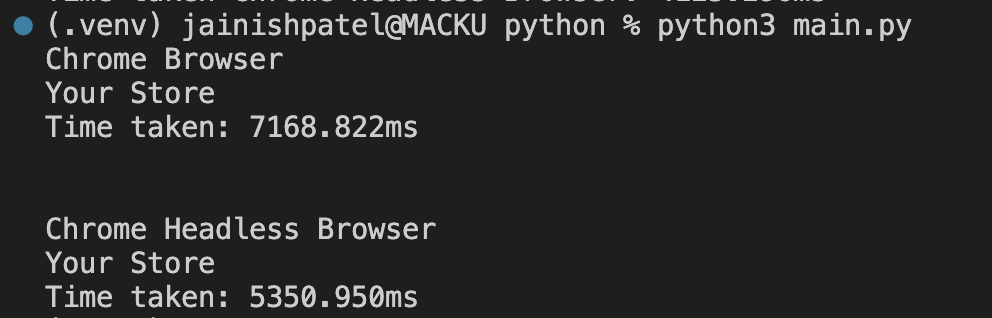
As you can see there is a drastic difference of 1817.872ms for just a single test. If we create it for multiple test cases then this difference is significant. If you are confused with the code then there is no need to worry about it. In the coming blog, we will see it in detail.
What is Headless Browser Testing?
Traditionally UI testing is used by developers to check the functionality of websites, but it has limitations including instability and slow execution. A paradigm shift is used to overcome these problems in headless browser testing. In contrast to UI-driven testing, it runs without loading the application's GUI and interacts directly with the website's document object model(DOM) to produce more consistent and repeatable findings. This shift has transformed testing approaches for the better.
Furthermore, since web applications change over time, headless browser testing is essential for assuring the creation of error-free and responsive web apps. It integrates smoothly with automation testing in a CI/CD pipeline, empowering development teams to confidently provide excellent online experiences to users. production teams may streamline their testing procedures and guarantee cross-browser compatibility by utilizing complete solutions offered by top platforms like TestMu AI, opening the door for the production of world-class web apps.
Why use headless browser testing? It runs faster, uses less CPU and memory, and slots into a CI pipeline that has no display attached.
Headless vs headed (real browser) testing is a common question. The difference is simple: headed testing runs a visible browser with a full graphical interface, while headless testing runs the same browser engine without rendering the UI. The table below shows when each is the right choice.
| Aspect | Headless Testing | Headed (Real Browser) Testing |
|---|---|---|
| User interface | No visible UI; runs in the background | Full graphical browser window is rendered |
| Speed and resources | Faster, lower CPU and memory (no rendering) | Slower, heavier due to rendering the UI |
| Debugging | Harder to watch; rely on logs and screenshots | Easy to watch the test run visually |
| Best for | CI/CD, regression, scraping, monitoring at scale | Visual/UX checks, debugging, and pixel-level validation |

When to Use Headless Browser Testing
The following situations offer special uses for headless browser testing, which is a flexible and useful tool for software testing:
- Handling JavaScript Execution: modern frontend frameworks like React.js, Angular.js, and Vue.js extensively use JavaScript. JavaScript has become essential for the functioning of web applications. JavaScript-based features can be tested and used by headless browsers, allowing for a thorough assessment of web page functionality.
- Scraping Content: Using a headless browser to perform web scraping can be a highly effective technique if you need to retrieve data from a website. Web page navigation, text extraction, HTML parsing, and data saving to a file or database are all possible.
- Network Activity Monitoring: Headless browsers include capabilities to keep track of network activity while pages load. Requests, responses, and other network-related metrics can all be tracked. This is helpful for troubleshooting and performance testing.
- AJAX call handling: AJAX calls are frequently used to retrieve data from a server without refreshing the full page. You may test how your application responds to asynchronous data loading by interacting with AJAX queries using headless browsers.
- Screenshot generation: Headless browsers can take screenshots of web pages, which helps produce visual reports, keep track of changes to a website's design, or record web content for documentation.
When Not to Use Headless Browser Testing
Headless mode costs you the picture of what the user sees. Run these checks in a headed browser instead:
- Visual regression testing: pixel-level comparison of colors, fonts, and layout needs the full rendering context a visible browser provides.
- Debugging a failing test: watching the run shows where an interaction goes wrong faster than reading logs and screenshots after the fact.
- Browser-specific visual behavior: some CSS rendering, animation, and GPU-dependent effects only appear correctly with a real display.
A practical split is to run the suite headless in CI for speed, then reproduce any failure in headed mode when you need to see it.
Headless Browser Testing with Different Frameworks
Modern web development frequently uses headless browser testing, and many testing frameworks support it. Here's how to utilize some well-liked testing frameworks to carry out headless browser testing:
Selenium
Selenium is an open-source framework used to automate web browsers. It enables test automation of websites or web applications across various operating systems & browsers. You can set up Selenium to run headless tests using a headless browser like Firefox Headless or Headless Chrome.
Let’s write a Python script to run a Selenium test using Headless Chrome. For the test case, we will use the TestMu AI E-commerce Playground website.
Getting Title of the Website
This test case fetches the title of the website:
# Import the necessary libraries
from selenium import webdriver
from selenium.webdriver.chrome.options import Options as ChromeOptions

# Create a ChromeOptions object
options = ChromeOptions()

# Enable the headless mode
options.add_argument("--headless=new")

# Create a ChromeDriver object
driver = webdriver.Chrome(options=options)

# Get the Ecommerce Playground website
driver.get('https://ecommerce-playground.lambdatest.io/')

# Print the title of the page
print(driver.title)

# Check if the title of the page is "Your Store"
assert "Your Store" in driver.title, "Title doesn't match 'Your Store'"

# Quit the browser
driver.quit()
Console Output:

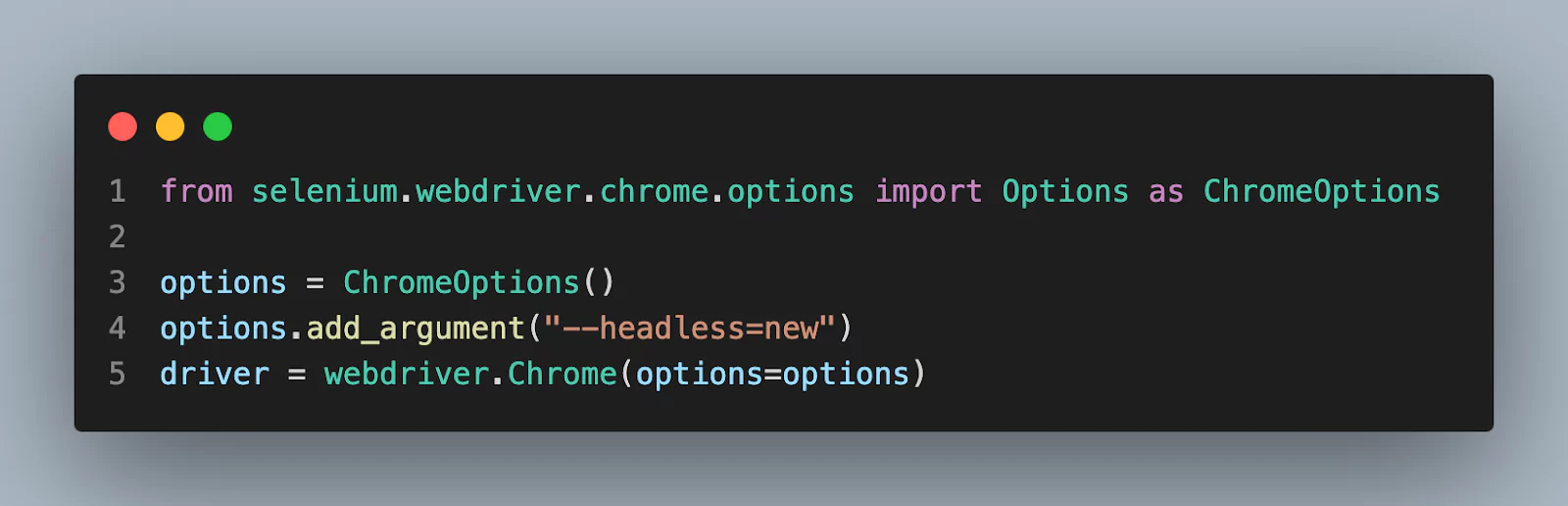
To enable the headless option in Chrome browser, we need to use the add_argument() method of Options. The --headless=new represents the new version of the Headless Chrome. Chrome 112 and later introduced --headless=new, which runs the same browser engine as headed Chrome, so behavior matches a real browser. The legacy mode, originally passed as just --headless, was a separate, lighter implementation with subtle rendering differences. Since Chrome 132 it ships only as the standalone chrome-headless-shell binary. Prefer --headless=new for results that mirror what users actually see.
Taking a Screenshot in a Headless Browser using Selenium
Selenium provides a feature to take screenshots using the save_screenshot() method. Below example will illustrate how to use the save_screenshot() method.
from selenium import webdriver
from selenium.webdriver.chrome.options import Options as ChromeOptions

options = ChromeOptions()
options.add_argument("--headless=new")
driver = webdriver.Chrome(options=options)

driver.get('https://ecommerce-playground.lambdatest.io/')
driver.save_screenshot("example.png")

driver.quit()
Taken Screenshot:
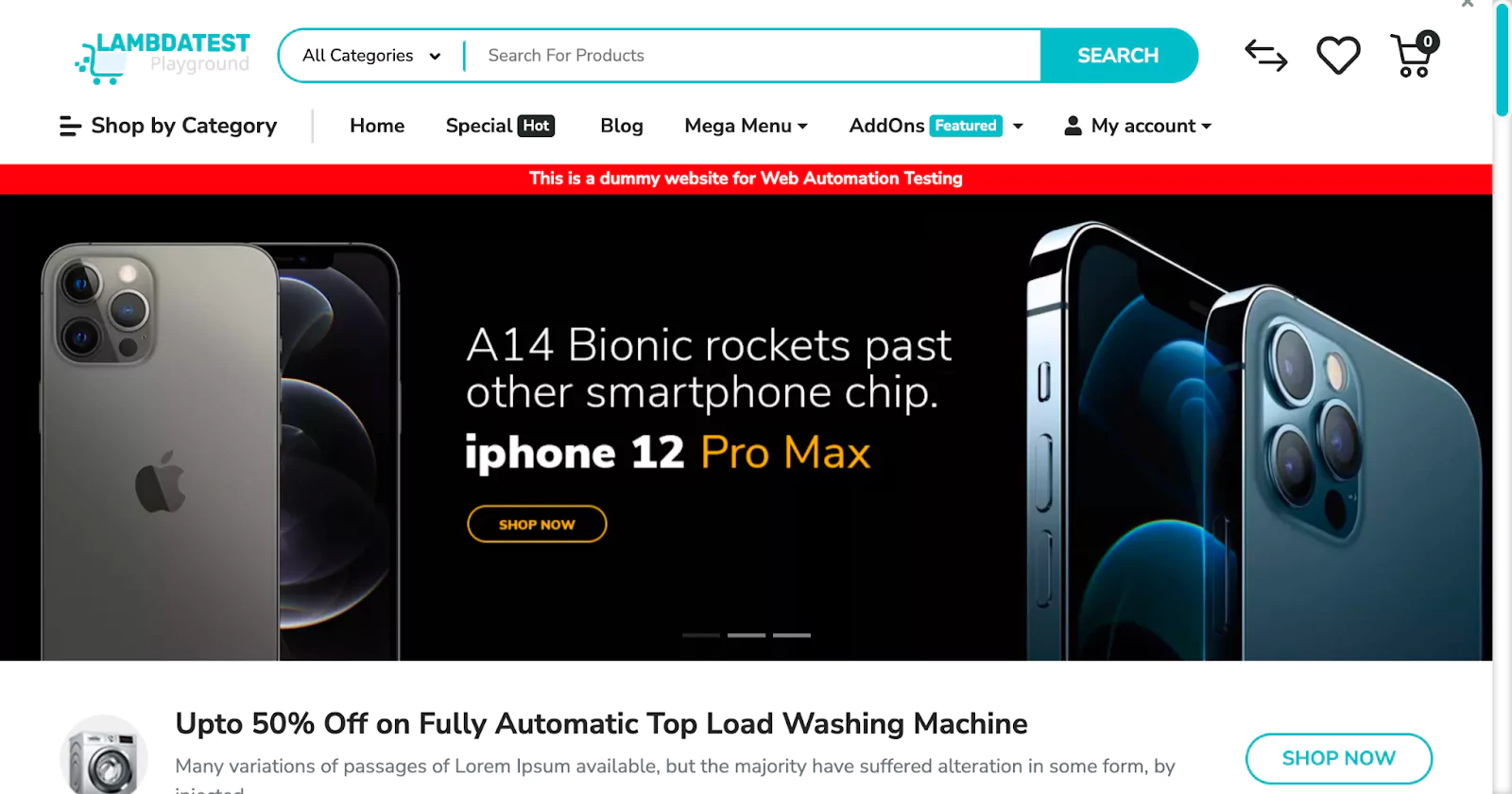
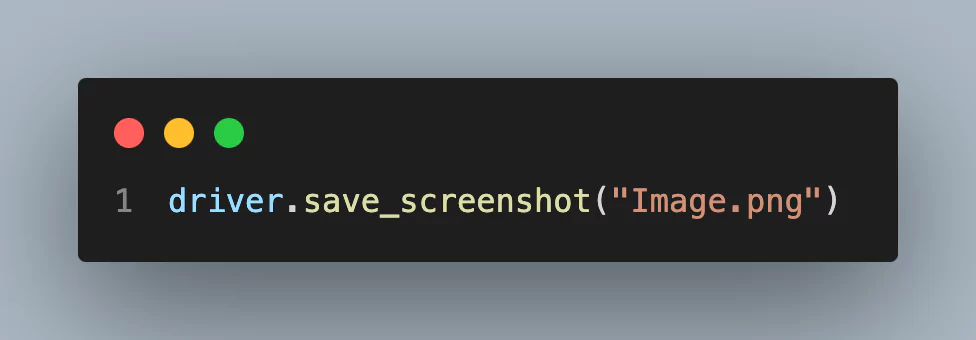
Selenium's driver.save_screenshot() method takes a screenshot of the active browser window and saves it to the given file directory. The file path must lead to a readable file and be legitimate. PNG is the format used to store the screenshot.
Cypress
Cypress is an end-to-end testing framework created for contemporary web applications. Instead of conventional headless browsers, Cypress performs tests directly in the browser, enabling better visibility and real-time debugging. You can run tests in headless mode by setting up Cypress to use Electron as the headless browser. Cypress's strong API for interacting with your application makes writing tests and assertions simple.
Let’s create and run a test on Cypress using Headless Chrome. For the test case, we will use the TestMu AI E-commerce Playground website.
Getting Title of the Website
This test case fetches the website's title. Add this below code is spec.cy.js file:
describe("template spec", () => {
  it("passes", () => {
    // Open the Ecommerce Playground website in headless mode
    cy.visit("https://ecommerce-playground.lambdatest.io/");

    // Verify that the page title is correct
    cy.title().should("eq", "Your Store");
  });
});
Over in the command log you'll see Cypress display the suite, the test, and your assertion (which should be passing in green).
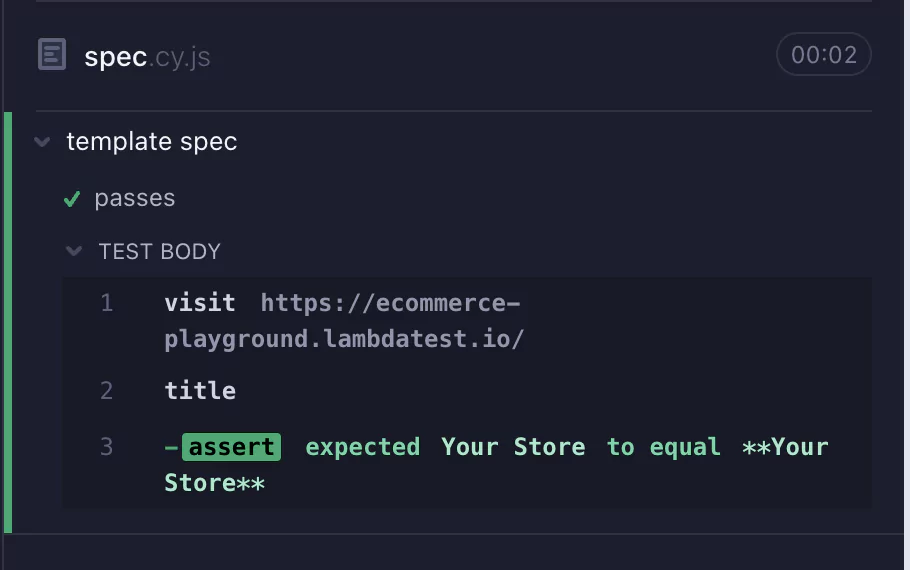
Console Output:

Taking a Screenshot in a Headless Browser using Cypress
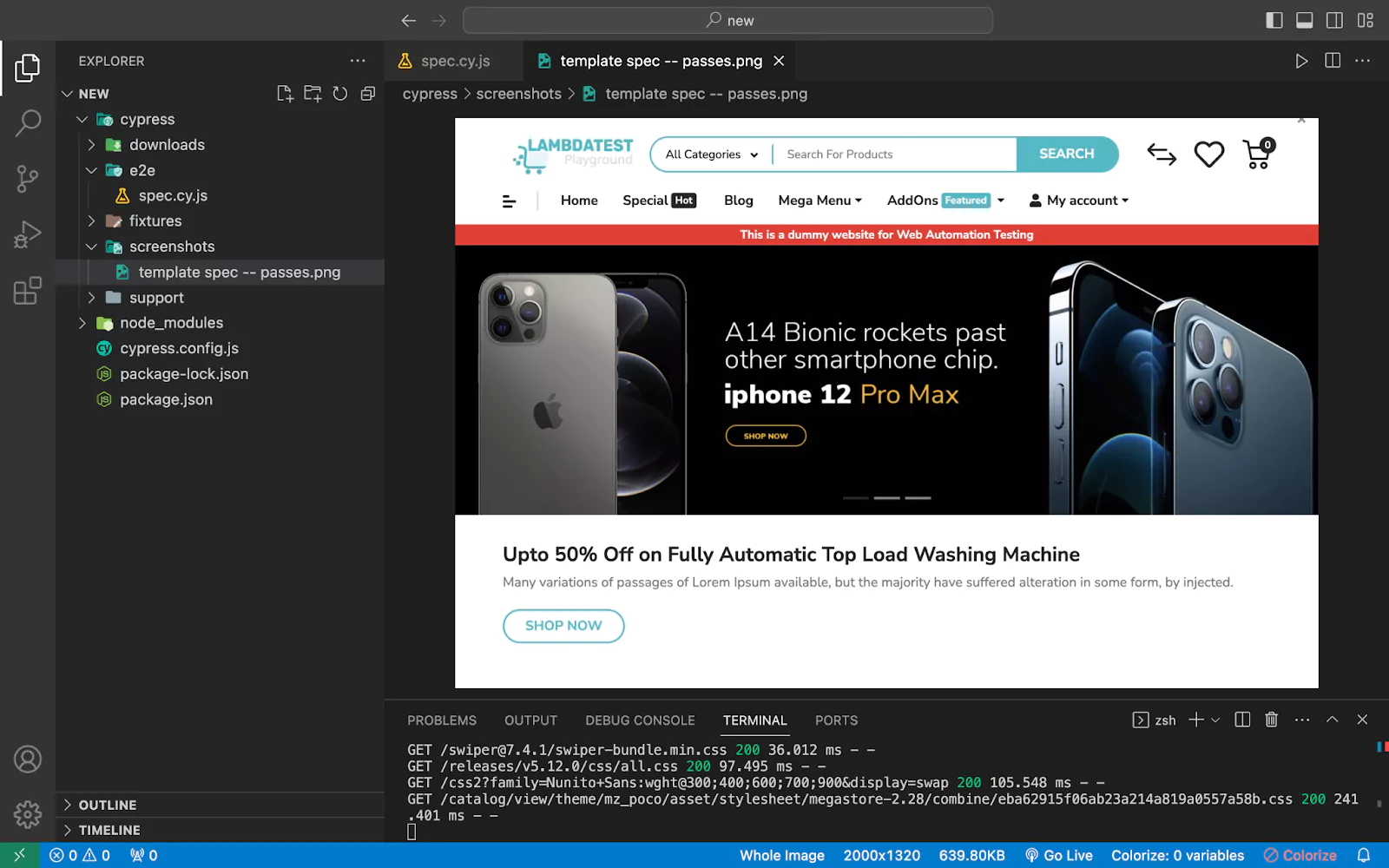
Cypress itself provides a feature to take screenshots using the screenshot() function. Below example will illustrate how to use the screenshot() function.
describe("template spec", () => {
  it("passes", () => {
    cy.visit("https://ecommerce-playground.lambdatest.io/");

    // Take a screenshot of the top-left corner of the page
    cy.screenshot({ clip: { x: 0, y: 0, width: 1000, height: 660 } });
  });
});
Output:
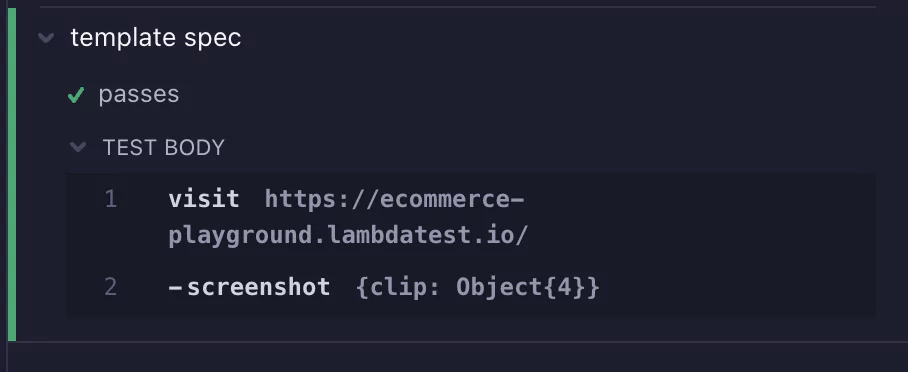
The taken screenshot will in the screenshots folder.
Puppeteer
Google created the Node.js library Puppeteer to manage headless Chrome or Chromium. Puppeteer provides a high-level API for automating processes like form submission, navigation, and screenshotting. It works very well for site scraping, testing, and producing PDFs. Puppeteer can be used with a visible browser window even if its default mode is headless.
Let’s create and run a test on Puppeteer using Headless Chrome. We will use the TestMu AI Playground website for the test case.
Getting Title of the Website
This test case fetches the website's title.
const puppeteer = require("puppeteer");

async function main() {
  // Launch a headless Chrome browser.
  const browser = await puppeteer.launch({
    headless: true,
  });

  // Create a new Puppeteer page.
  const page = await browser.newPage();

  // Navigate to the LambdaTest Playground page.
  await page.goto(
    "https://www.testmuai.com/selenium-playground/select-dropdown-demo"
  );
  // Get the page title.
  const title = await page.title();

  // Print the page title to the console.
  console.log(title);

  // Close the browser.
  await browser.close();
}

// Call the main function.
main();
Console Output:

Taking a Screenshot in a Headless Browser using Puppeteer
Puppeteer itself provides a feature to take screenshots using the screenshot() function. Below example will illustrate how to use the screenshot() function.
const puppeteer = require("puppeteer");

async function main() {
  const browser = await puppeteer.launch({
    headless: true,
  });

  const page = await browser.newPage();

  await page.goto(
    "https://www.testmuai.com/selenium-playground/select-dropdown-demo"
  );
  // Capture a screenshot of the full page
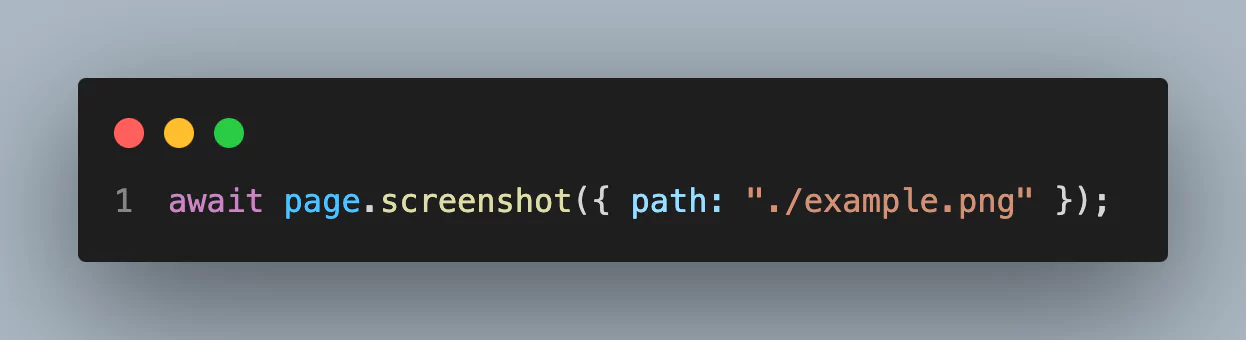
  await page.screenshot({ path: "./example.png" });

  await browser.close();
}

main();
Taken Screenshot:
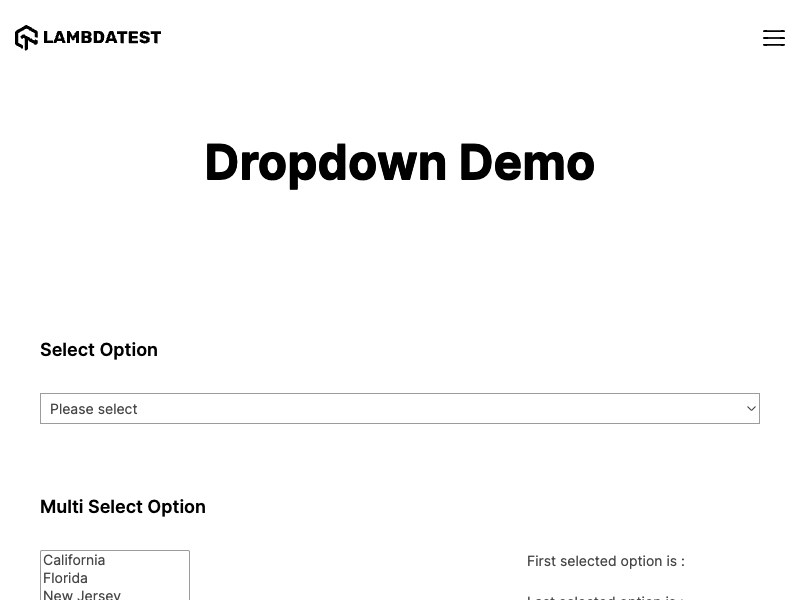
By using page.screenshot() method a snapshot of the currently displayed page will be taken and saved as example.png in the working directory.
Check out our Puppeteer tutorial for a detailed understanding of it.
Playwright
Microsoft's Playwright framework, which is relatively new, offers browser automation for Chromium, Firefox, and WebKit. The author offers both headless and headful execution techniques. It assists with cross browser testing and parallel execution. You can automate a variety of browser interactions with Playwright, and you can even test mobile browsers.
Let’s create and run a test on Playwright using Firefox in Headless mode. For the test case, we will use the To-do list web app.
By default, Playwright runs the browsers in headless mode. To see the browser UI, pass the headless=False flag while launching the browser.
Getting Title of the Website
This test case fetches the title of the website.
from playwright.sync_api import sync_playwright

with sync_playwright() as p:
    browser = p.firefox.launch(headless=True)
    page = browser.new_page()
    page.goto("https://lambdatest.github.io/sample-todo-app/")
    print(page.title())
    # Check if the title of the page is "Sample page - lambdatest.com"
    assert "Sample page - lambdatest.com" in page.title(), "Title doesn't match 'Sample page - lambdatest.com'"
    browser.close()
Console Output:

Taking a Screenshot in a Headless Browser using Playwright
Playwright itself provides a feature to take screenshots using the screenshot() function. Below example will illustrate how to use the screenshot() function.
from playwright.sync_api import sync_playwright

with sync_playwright() as p:
    browser = p.firefox.launch()
    page = browser.new_page()
    page.goto("https://lambdatest.github.io/sample-todo-app/")
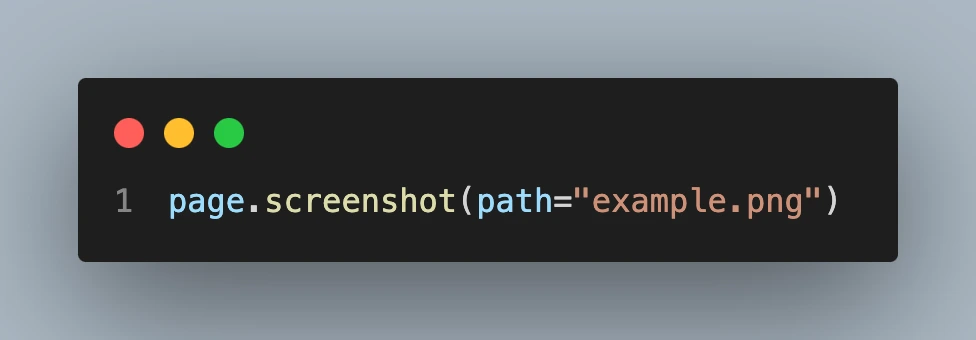
    page.screenshot(path="example.png")
    browser.close()
Taken Screenshot:
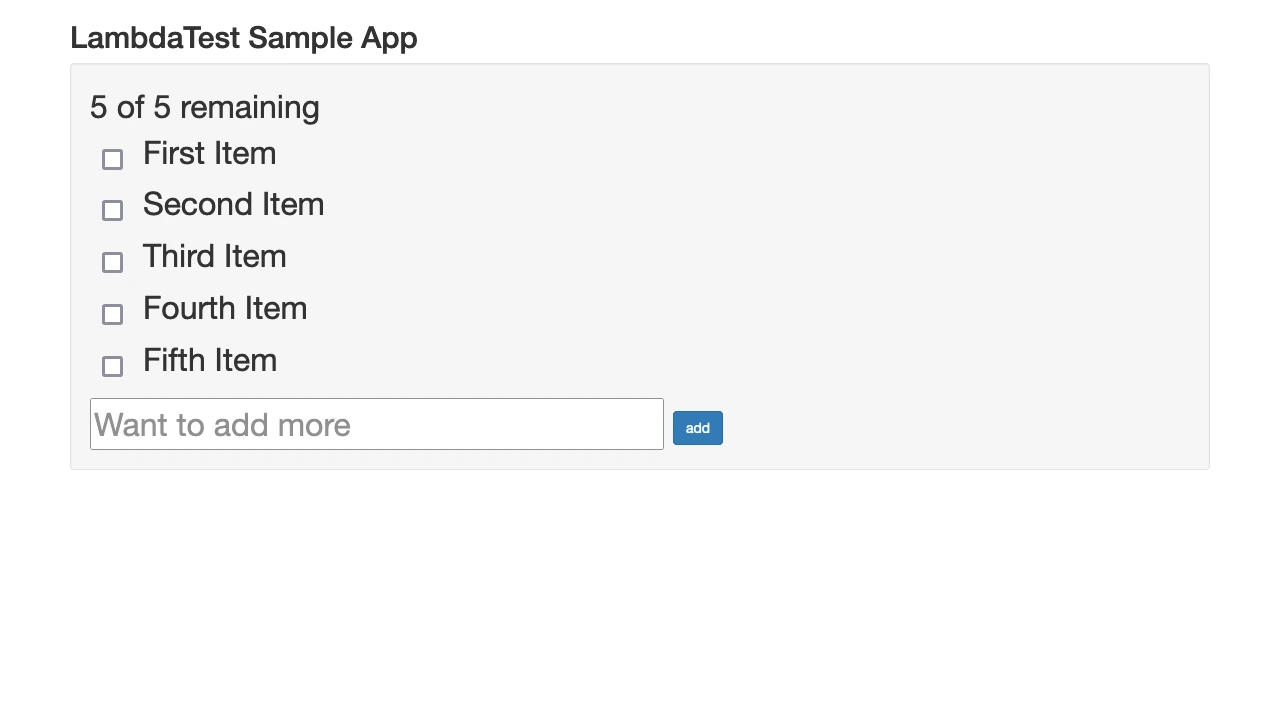
In Playwright, you can use the page.screenshot() method with the path parameter set to the file path where you wish to save the screenshot to capture the complete page. For instance, you would use the following code to take a snapshot of the full website and save it as an example.png:
TestCafe
A cross-browser end-to-end testing framework called TestCafe works without WebDriver or browser add-ons. TestCafe supports several browsers and performs tests by default in headless mode. You may test your web application on many hardware and software platforms by writing tests in JavaScript or TypeScript.
Let’s create and run a test on TestCafe using Headless Firefox. For the test case, we are going to use the TestMu AI website.
Getting Title of the Website
This test case fetches the title of the website.
import { Selector, fixture, test } from "testcafe";

// This fixture launches the Firefox browser and navigates to the LambdaTest website.
fixture("LambdaTest Website").page("https://www.testmuai.com/");

// This test prints the title of the LambdaTest website to the console.
test("Print the title of the LambdaTest website", async (t) => {
// Get the title of the LambdaTest website.
const title = await Selector("title").textContent;

// Print the title to the console.
console.log(title);
});
Use the following command to run the above code:
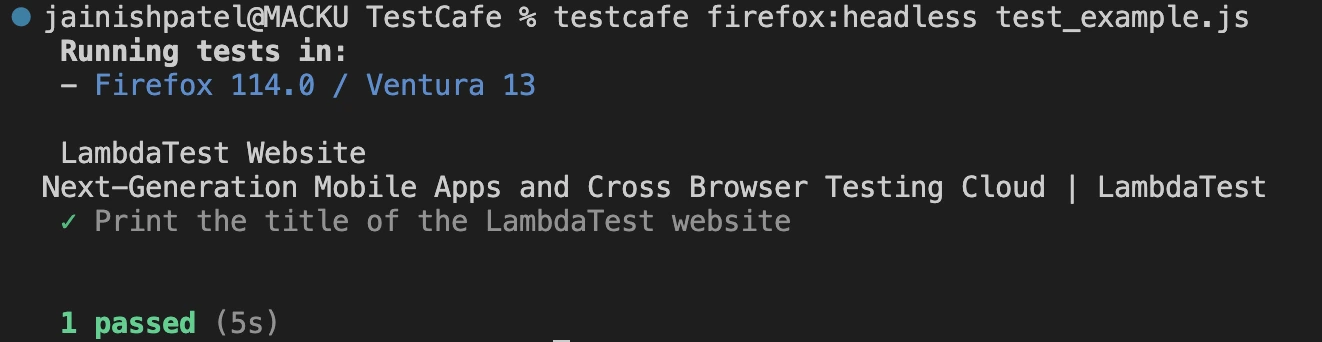
testcafe firefox:headless test_example.jsHere the test_example.js is the filename and to run the browser in headless mode you have to add firefox:headless or chrome:headless in the command.
Console Output:
Taking a Screenshot in a Headless Browser using TestCafe
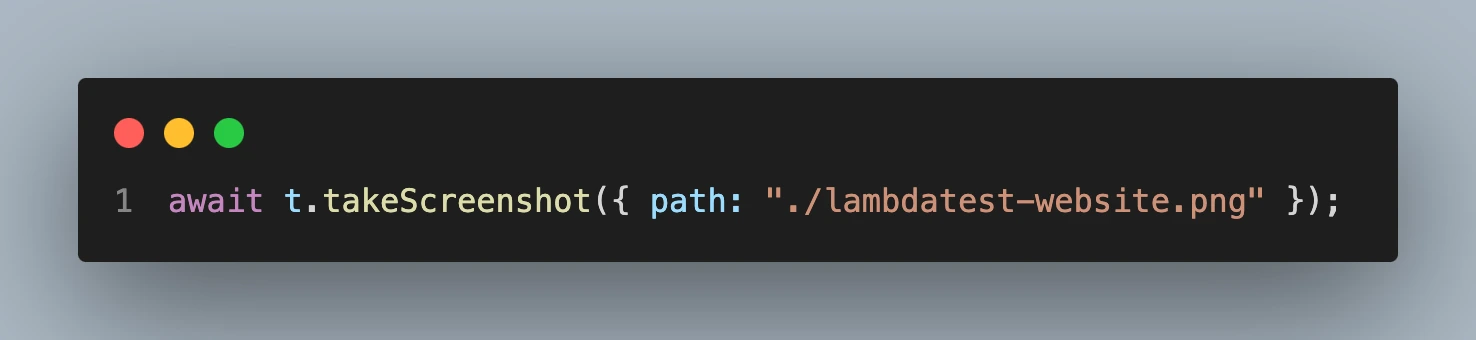
TestCafe itself provides a feature to take screenshots using the takeScreenshot() function. Below example will illustrate how to use the takeScreenshot() function.
import { Selector, fixture, test } from "testcafe";

fixture("LambdaTest Website").page("https://www.testmuai.com/");

test("Print the title of the LambdaTest website", async (t) => {
// Take a screenshot of the entire page.
await t.takeScreenshot({ path: "./lambdatest-website.png" });
});
Taken Screenshot:
The options object passed to the t.takeScreenshot() method can be used to specify the screenshot type and the file directory where the image should be saved. The screenshot won't be saved to the disk if you don't give a file path. The snapshot will be saved as a PNG file if no screenshot type is specified.
Headless Browser Testing on Selenium Cloud Grid
Testing of Headless Browser on Cloud Grid Without worrying about setting up and maintaining your infrastructure, TestMu AI is an effective way to test your web apps across various browsers and OS systems. In this section, we will do it for the Selenium Framework. If you are evaluating a managed Kernel alternative that supports Selenium out of the box, see this Kernel alternative. See the HyperExecute pricing plan for the right tier.
Before running a Python test on TestMu AI, follow the simple steps.
- Create a TestMu AI account and complete all the required processes.
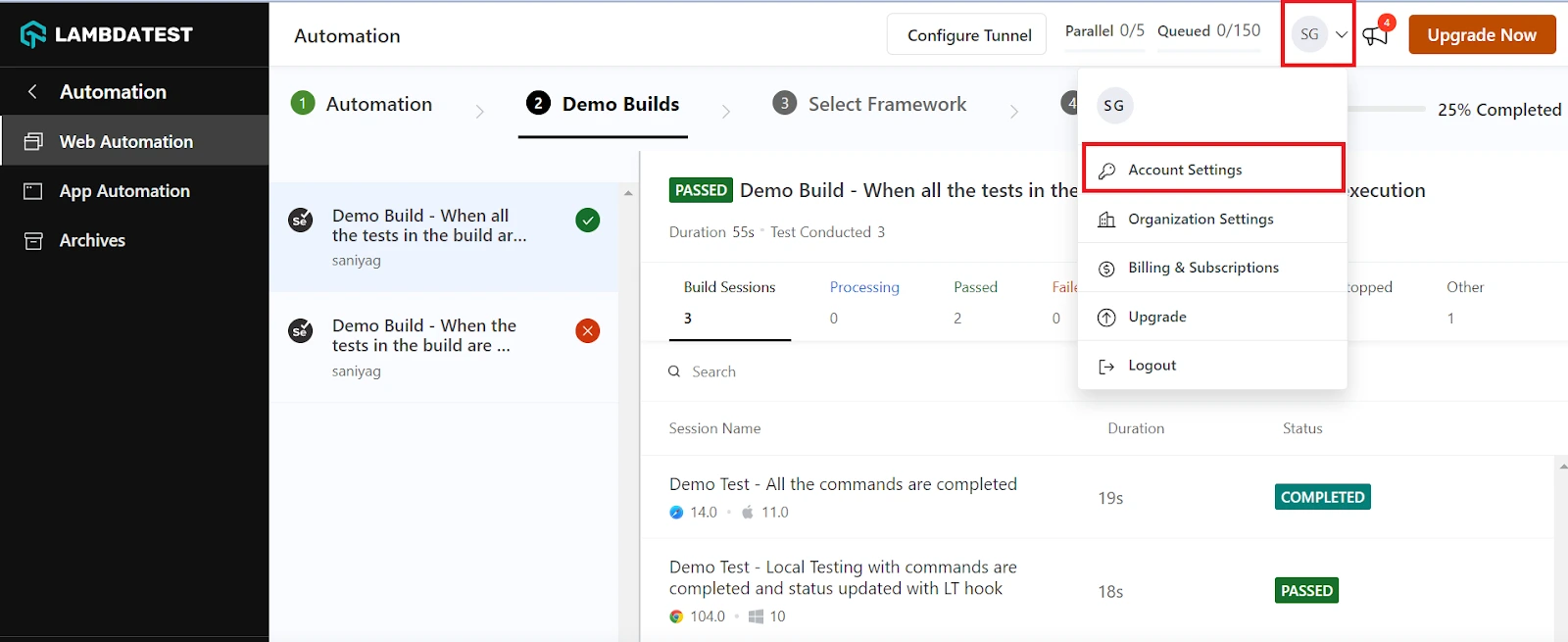
- Go to the TestMu AI Dashboard. To get your credentials, navigate to your Profile avatar in the top right corner.
- Get your credentials from the profile icon located in the top right corner, and then select Account Settings it will redirect to the profile screen.
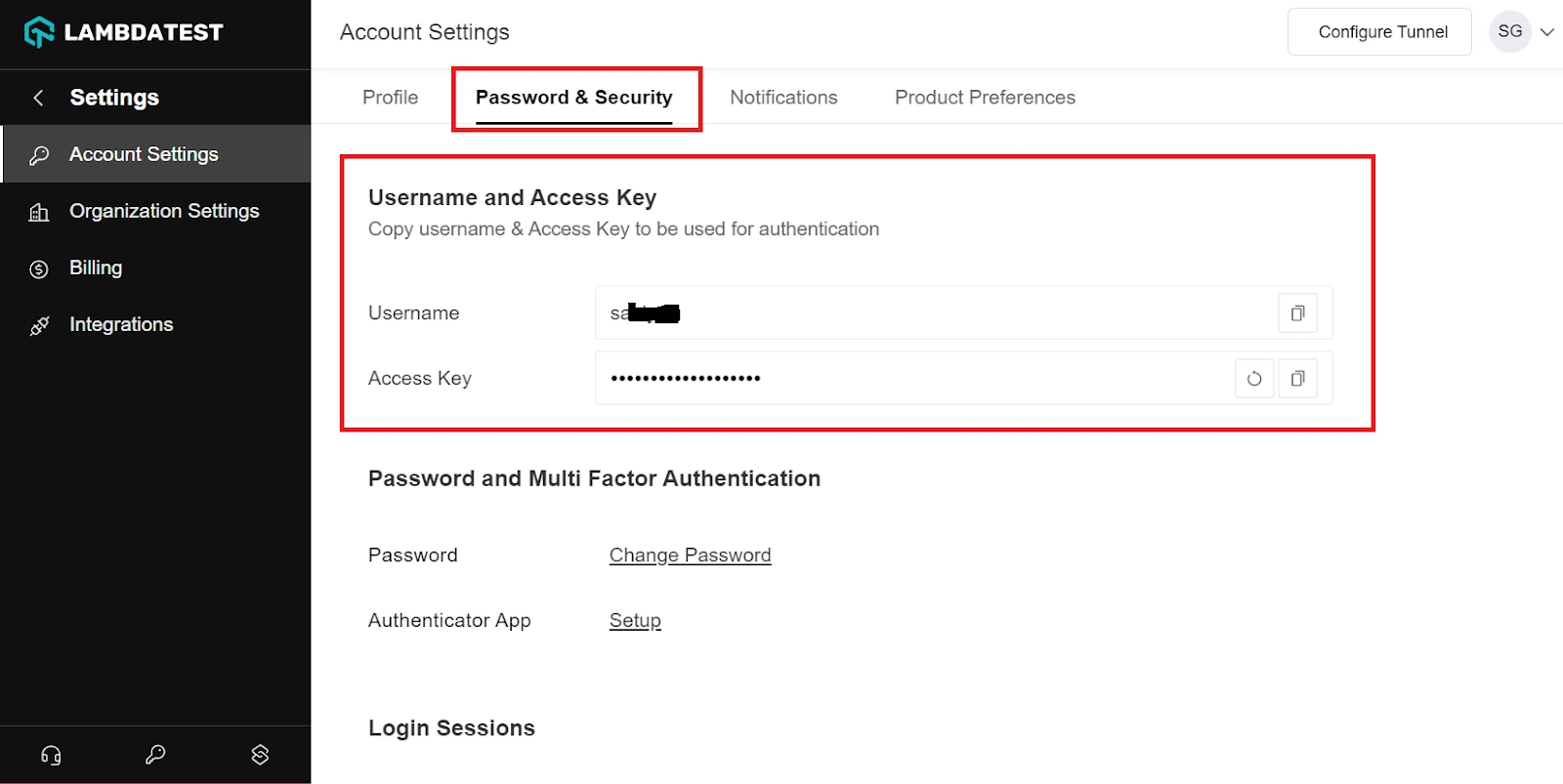
- Then go to Password & Security. You can find your Username and Access Key and save it for future use.
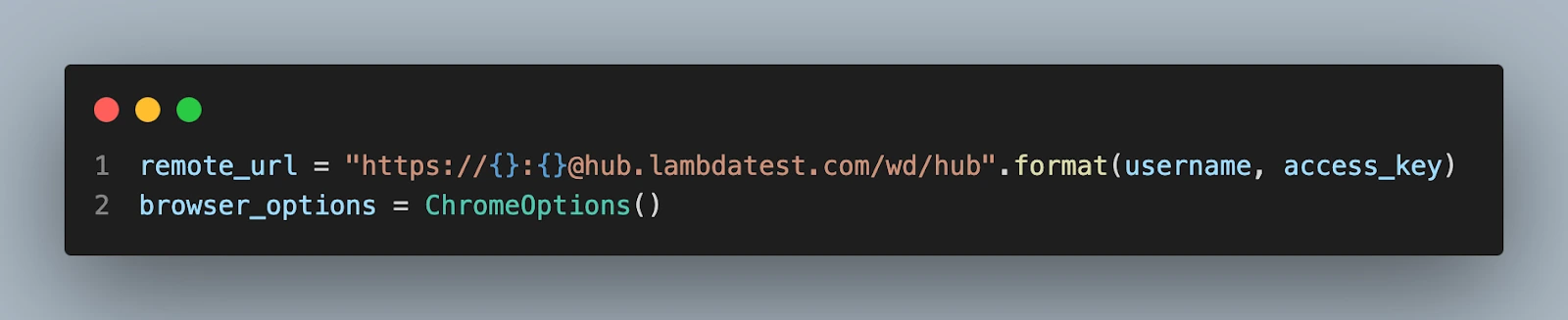
After following the above steps, running tests on a cloud grid is easy. You just have to add a few lines to the existing code.
from selenium import webdriver
from selenium.webdriver.chrome.options import Options as ChromeOptions

username = "YOUR USERNAME"
access_key = "YOUR ACCESS KEY"

# Desired capabilities for the LambdaTest test
lt_options = {
"browserName": "Chrome",
"browserVersion": "latest",
"platformName": "macOS Sonoma",
"project": "First Selenium Test",
"build": "E-commerce web Test",
"name": "Get Website Title Test",
"headless": True, # This line will run the browser in headless mode
"w3c": True # to run on Selenium 4
}

remote_url = "https://{}:{}@hub.lambdatest.com/wd/hub".format(username, access_key)
browser_options = ChromeOptions()

# adding the capability to the chrome
browser_options.set_capability("LT:Options", lt_options)

# initializing remote server
driver = webdriver.Remote(command_executor=remote_url, options=browser_options)

driver.get('https://ecommerce-playground.lambdatest.io/')
print(driver.title)

driver.quit()
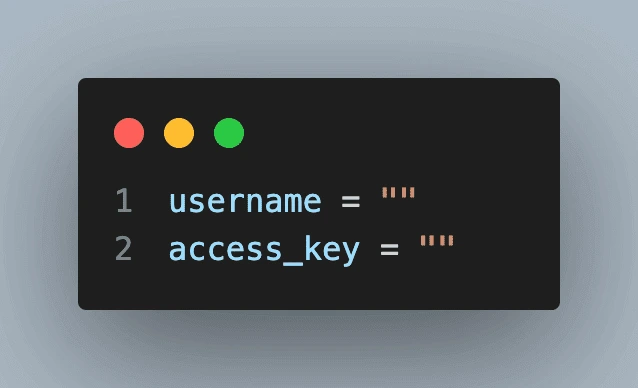
In the above script, add your TestMu AI credentials (Username and Access Key) in the above test script or set them in your Environment Variables, as it will help the TestMu AI run tests on your account.
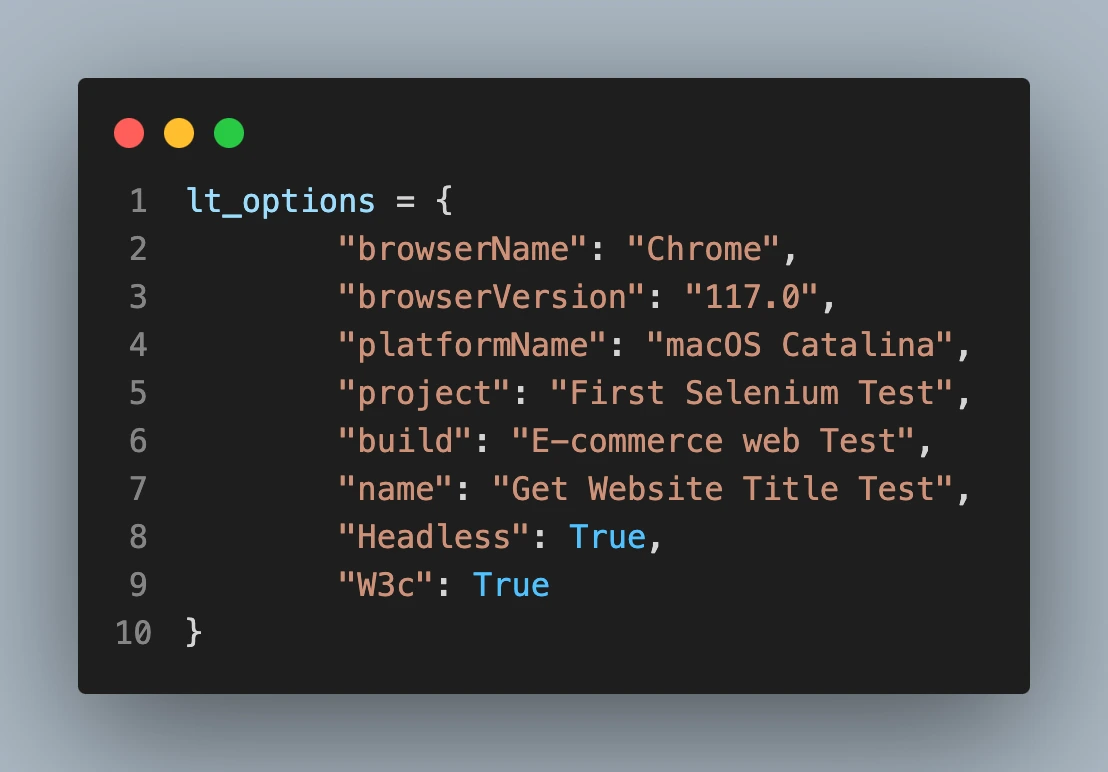
Get your desired capabilities generated from the TestMu AI capabilities generator
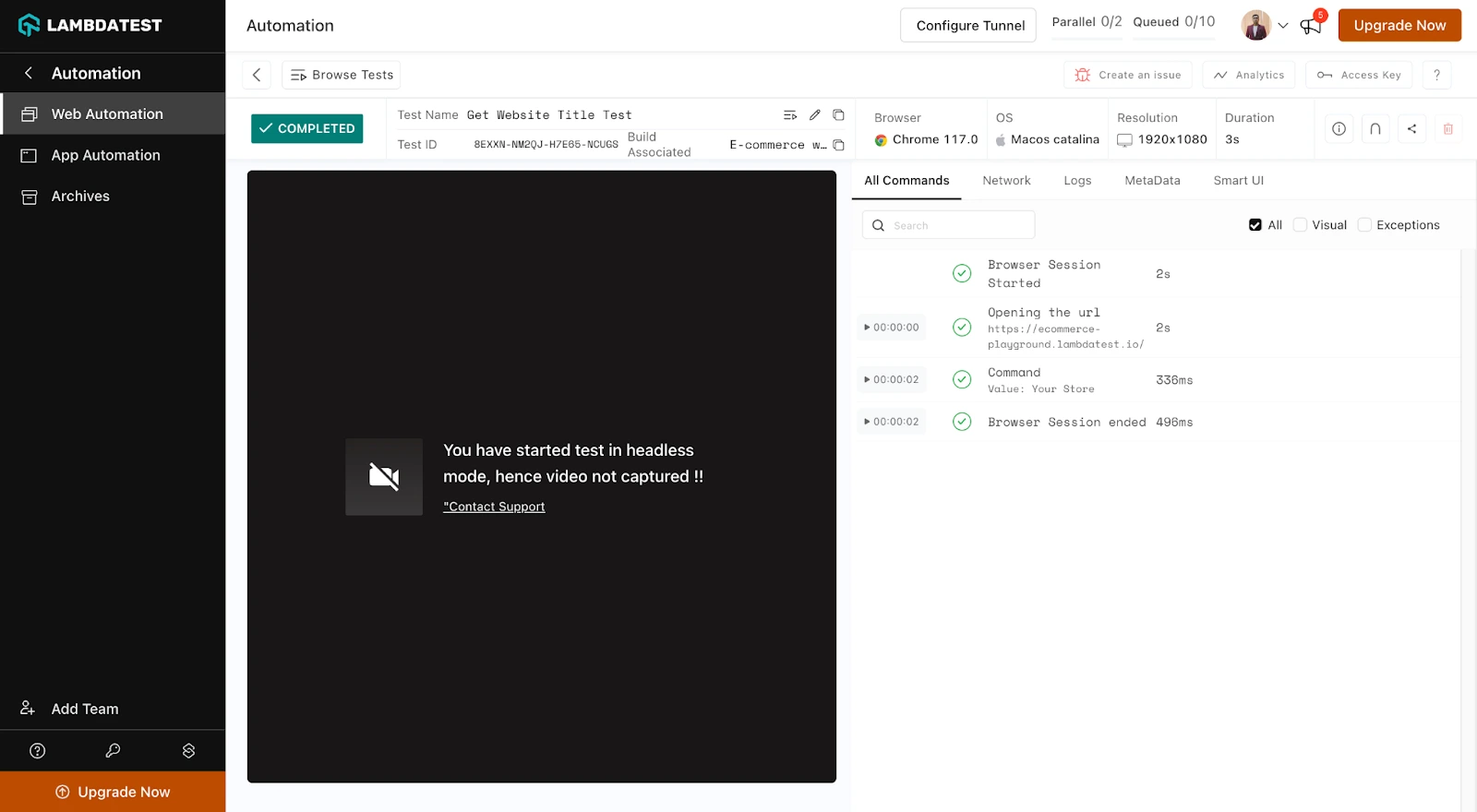
Go to the Dashboard. Find details of your test case under Automation > Web Automation.
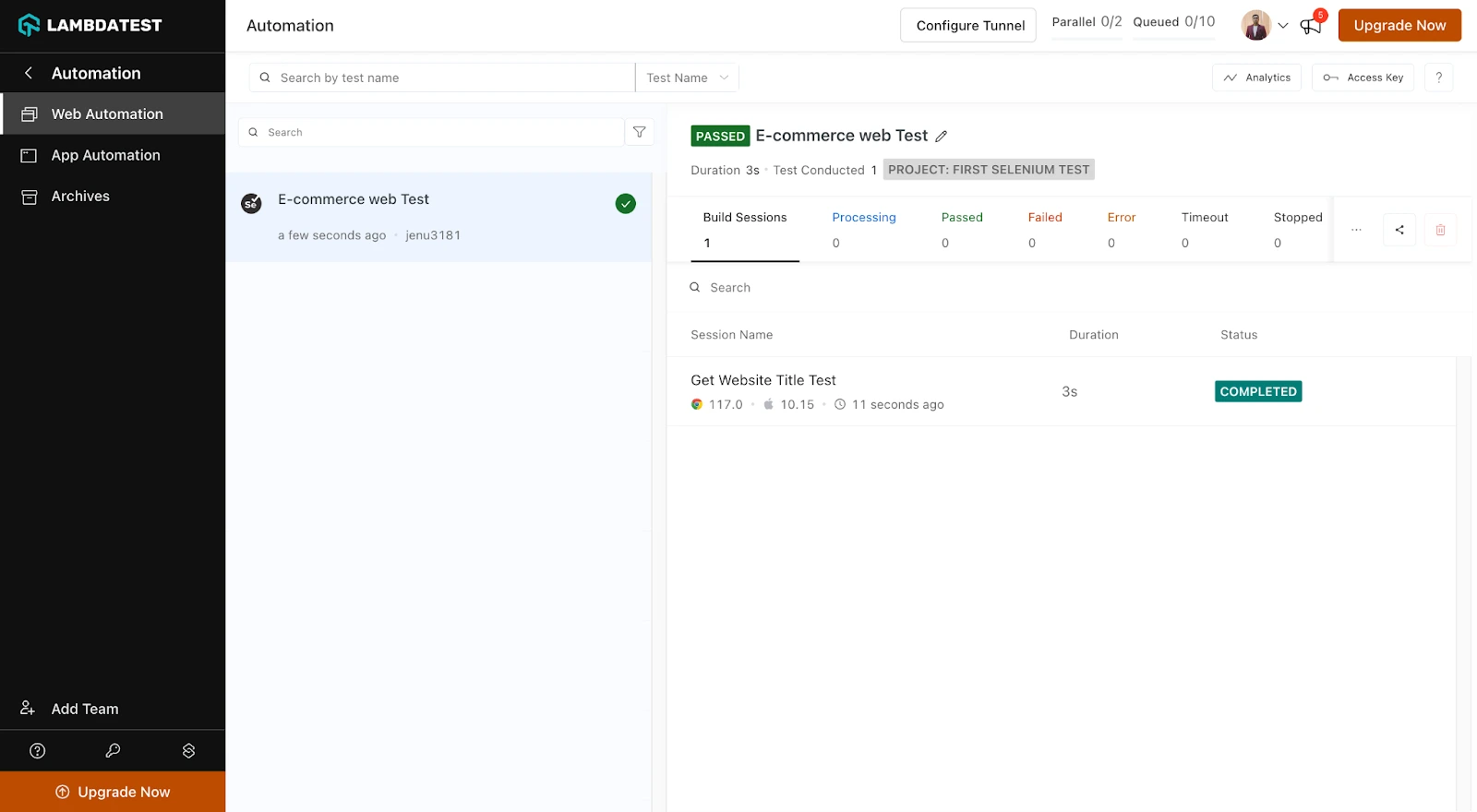
You can also explore other available options to get a better idea of the TestMu AI platform.
Advantages of Headless Browser Testing
Compared with traditional browser testing techniques, headless browser testing has a few important benefits:
- Performance: It is one of the main advantages of headless browser testing. Compared to traditional testing, which includes interacting with a visible browser window, tests can be conducted substantially faster because it doesn't need to render a graphical user interface. Due to its typical 2X faster execution than actual browser testing, it enhances test execution performance.
- Scalability: Without requiring costly hardware infrastructure, it enables you to conduct several tests simultaneously on different configurations.
- Cost-effectiveness: Headless browser testing is cost-effective because it does not require the overhead of launching graphical browsers. Since you can accomplish more with fewer resources, it lowers testing operational expenses. This cost-effectiveness is especially helpful for businesses on a tight budget or those looking to streamline their testing procedures.
Types of Headless Browsers in the Market
Five options cover most headless testing work today:
- Headless Chrome - Chrome's own headless mode, the most widely used and the closest match to what users run.
- Headless Firefox - Firefox's headless mode, for checking Gecko rendering and Firefox-specific behavior.
- Puppeteer - Google's Node.js library driving headless Chrome or Chromium through a high-level API.
- Playwright - Microsoft's framework covering headless Chromium, Firefox, and WebKit from one API.
- WebKit through Playwright - Safari's engine in headless mode, the closest local proxy for Safari behavior.
The sections below add the wider set, including older tools you may still meet in legacy suites.
Headless Chrome (Google Chrome in headless mode)
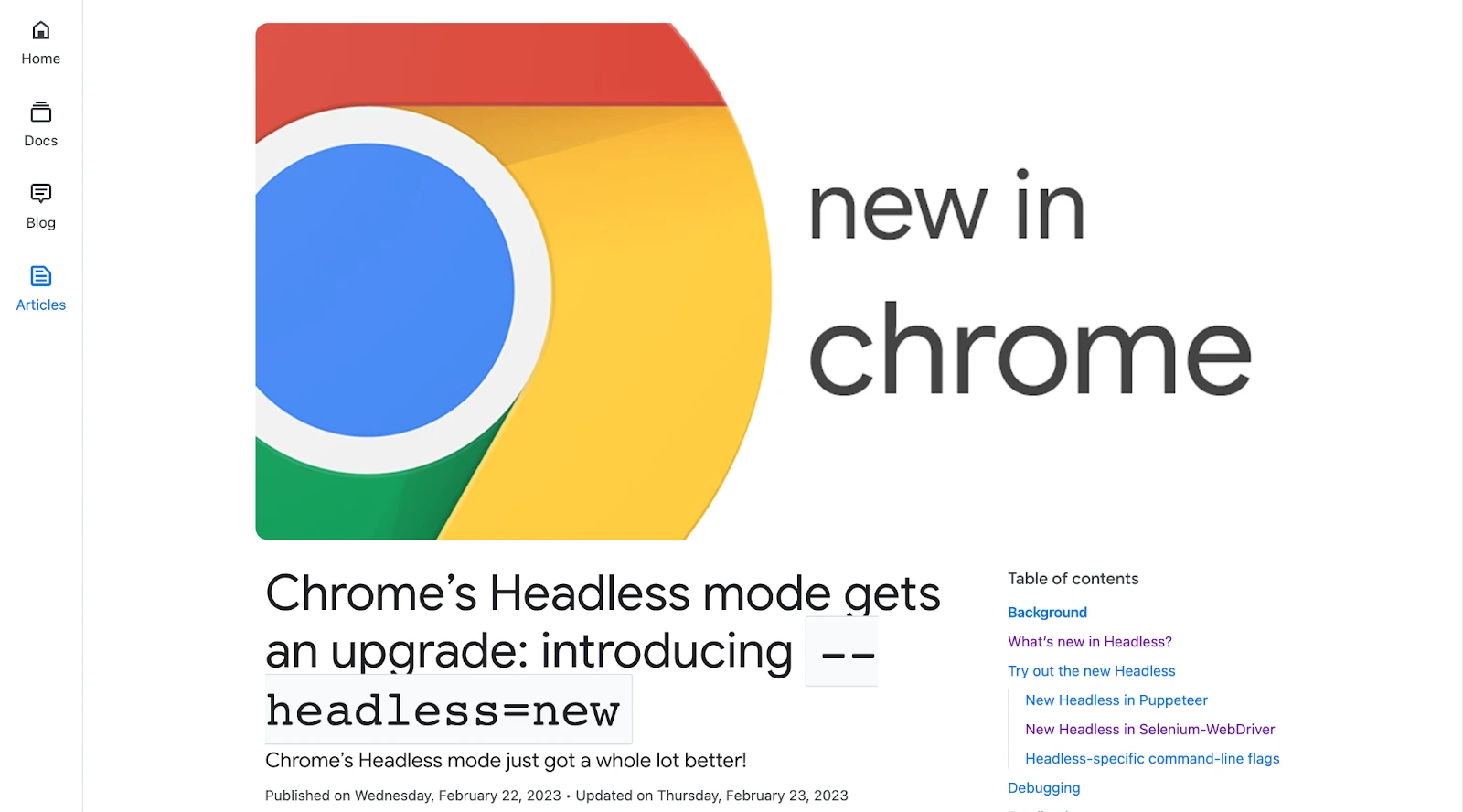
Headless Chrome is a headless version of the well-known Google Chrome browser. In Chrome version 59, Google formally debuted it in the year 2017. Since then, it has been actively maintained by Google, which makes it the most resource and performance-efficient. Headless JavaScript and HTML5 are only a couple of the cutting-edge web technologies that Chrome is well known for supporting. For automation testing, web scraping, and other web-related operations, it offers the same rendering engine and supports the DevTools Protocol. It is renowned for being quick and working with current web technologies.
Firefox Headless Mode
Firefox also provides a headless mode that is similar to Headless Chrome. Version 56 of Mozilla Firefox marked the experimental debut of headless mode, improving reliability and stability over time. It gives developers who prefer Firefox's rendering engine a substitute for Headless Chrome. It helps with task automation and Firefox-specific feature and behavior testing.
Nightwatch.js
Nightwatch.js, a Node.js library tailored for headless browsing, streamlines web automation. With a user-friendly design and a versatile API, it seamlessly integrates with headless Chrome and Electron. Nightwatch.js excels in automating web tasks, such as running JavaScript, filling forms, and taking screenshots, making it suitable for both simple and complex tasks. Its extensibility allows for the incorporation of unique capabilities, enhancing its adaptability for various use cases.
Learn more about Nightwatch.js from our article on Headless Browser Testing Using Nightwatch JS
HtmlUnit
HtmlUnit, a Java-based headless browser, is lauded for its speed and efficiency. It's open-source, free, and actively maintained by a robust developer community. HtmlUnit excels at handling JavaScript, simulating user interactions, and automating web app testing. It's text-based, lacking visual rendering, which sacrifices visuals but ensures exceptional speed and resource efficiency.
Zombie.js
Zombie.js is a headless browser designed specifically for testing web applications. It's based on Node.js and is renowned for being straightforward and user-friendly. Zombie.js is a popular option for online testing in Node.js applications since it can explore websites, interact with forms, and run JavaScript.
Zyte API (Splash)
Splash is a headless browser that specializes in web scraping. It offers an HTTP API for displaying web pages, making data extraction from websites efficient. Splash excels in handling complex rendering tasks and supports JavaScript execution. Its high efficiency makes it ideal for large-scale scraping projects, including tasks like scrolling through lengthy pages and waiting for JavaScript functions to complete. With its HTTP API, integrating Splash with other tools is straightforward. Best of all, Splash is free and open source.
TrifleJS
TrifleJS is a headless browser that utilizes the Trident rendering engine and is ideal for Windows-based automation. It's scriptable with JavaScript and particularly valuable for tasks requiring Internet Explorer compatibility, like automating logins on IE-only websites or testing IE-specific web apps, simulating user interactions, and uncovering potential application flaws.
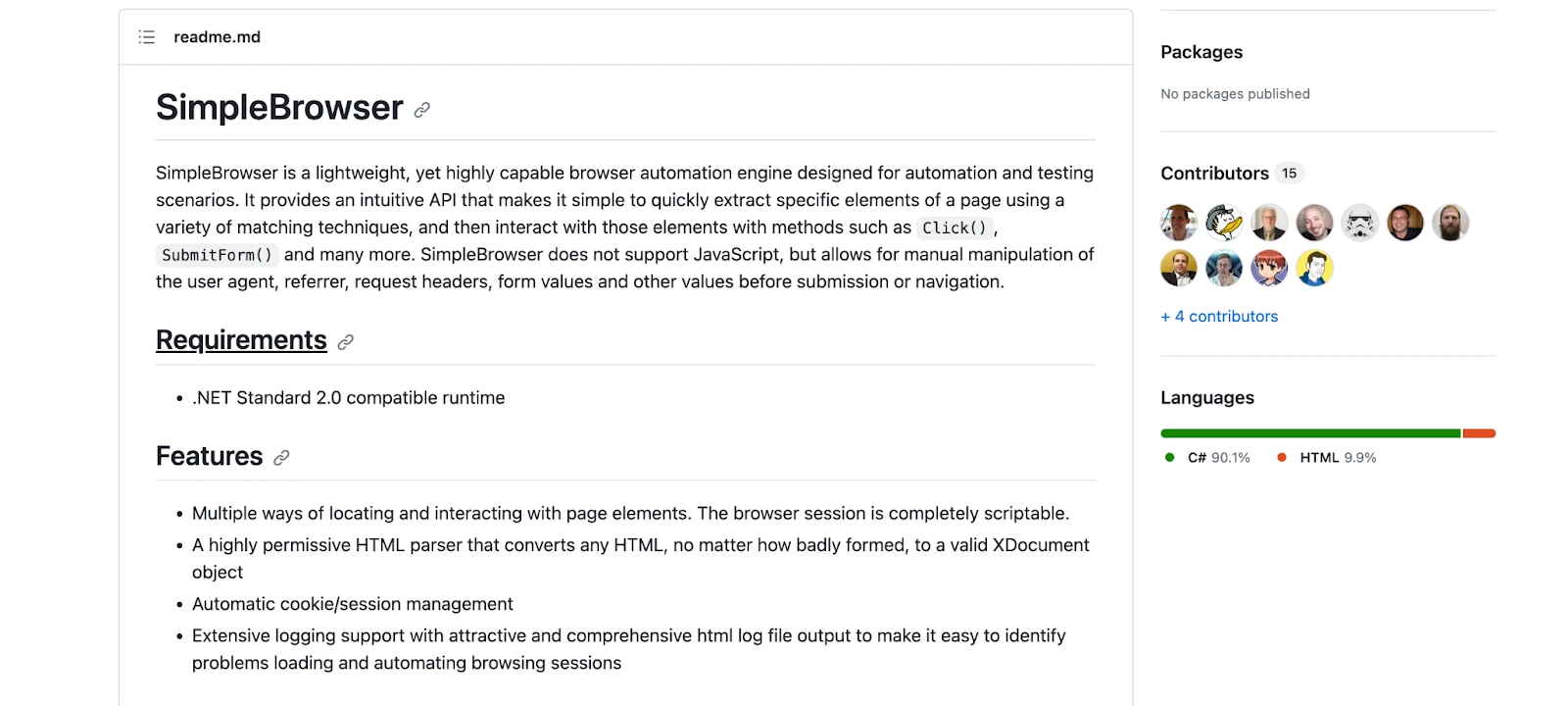
SimpleBrowser
SimpleBrowser is a lightweight and highly customizable headless browser package for .NET projects, ideal for tasks like automation testing and web interaction. It's open source, offers strong community support, and has thorough documentation, making it a dependable choice for automating online interactions in .NET applications.
PhantomJS
PhantomJS, whose development was suspended in 2018 and which is no longer maintained, was built for web scraping, automation testing, and performance analysis. It lacks a graphical interface, making it suitable for server-side tasks. With a JavaScript API, it controls web content and browser behavior. Its strength lies in handling JavaScript-heavy web pages, making it valuable for scraping dynamic content.
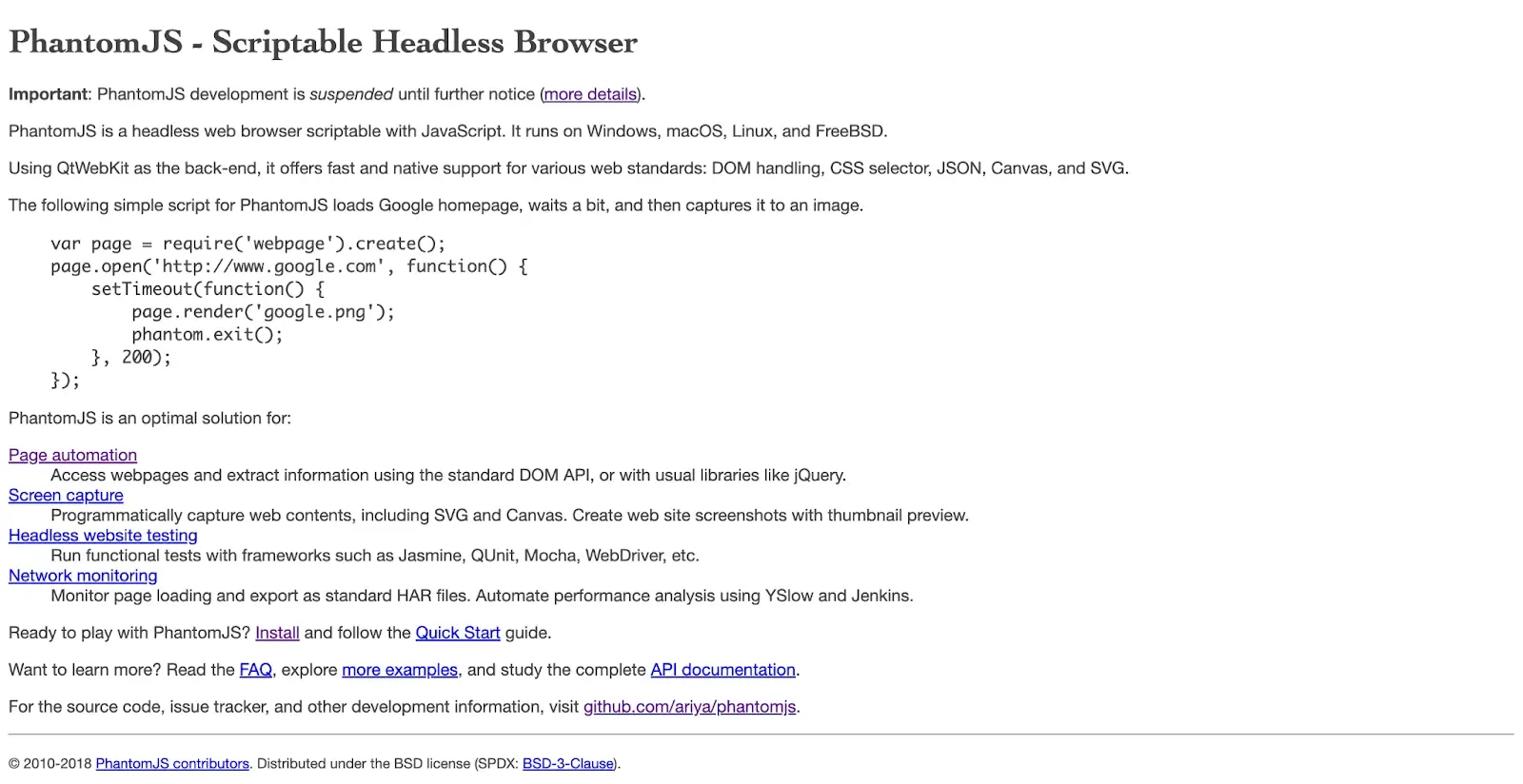
Explore more about PhantomJS with our blog on How To Setup And Install PhantomJS In Python.
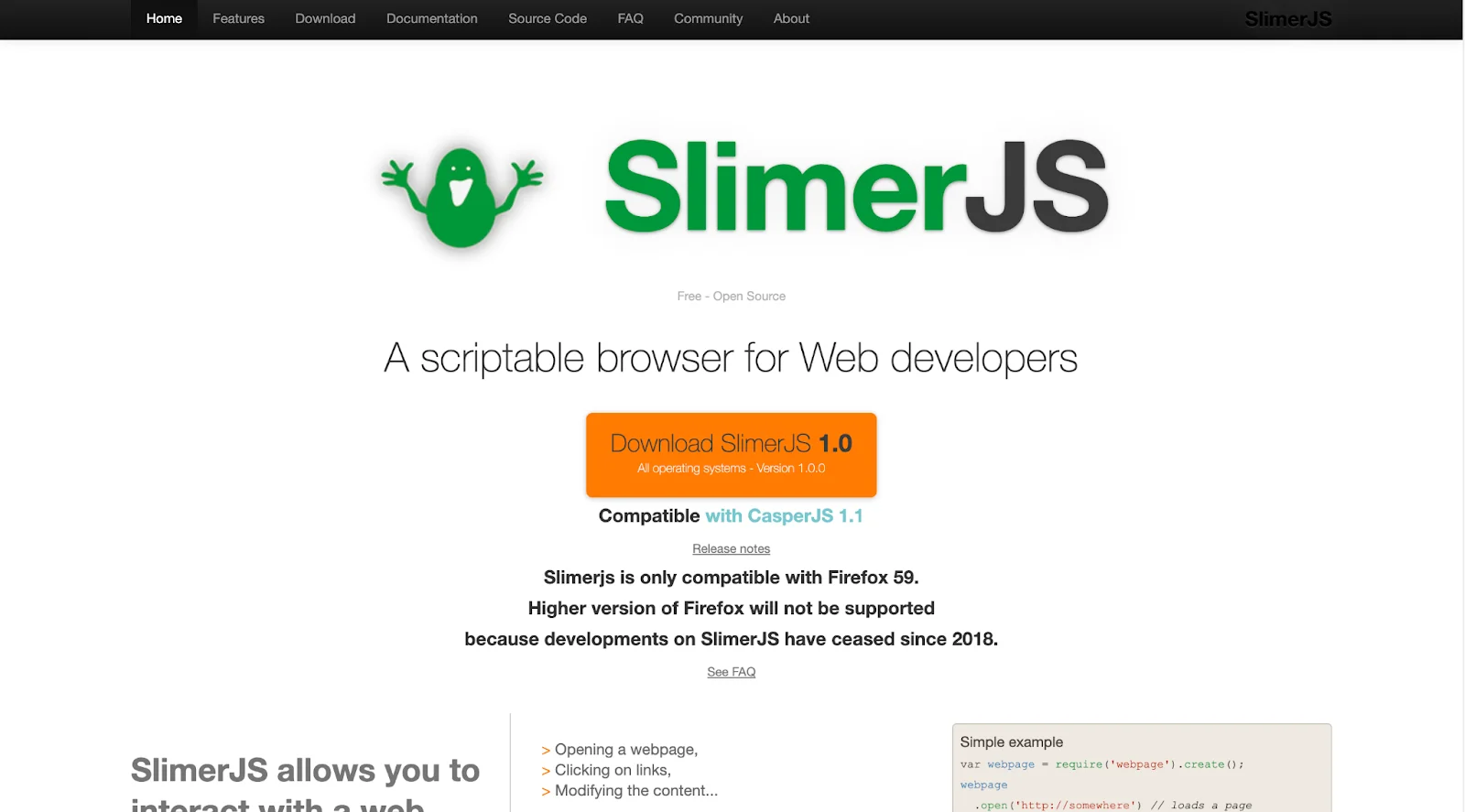
SlimerJS
An open-source headless browser called SlimerJS, now retired along with CasperJS, was built on top of Firefox's Gecko rendering engine. It is made to run JavaScript, interact with websites, and offer an automated JavaScript API. It is renowned for working with capabilities exclusive to Firefox. However, one major drawback is that it has not been actively maintained since 2018.
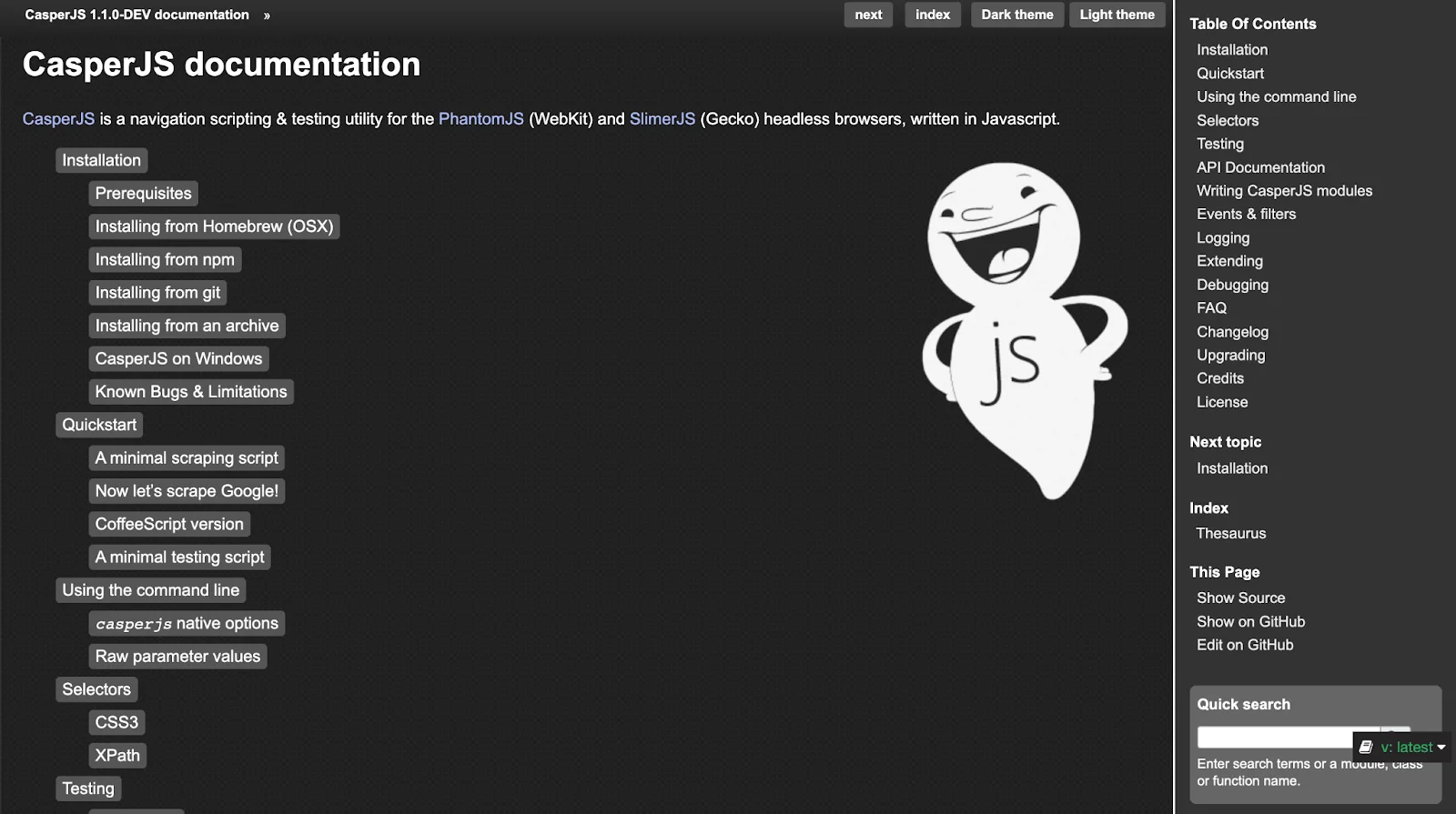
CasperJS
CasperJS is a navigation and testing utility for PhantomJS (and SlimerJS). It offers a high-level API for automation testing and browser interactions. CasperJS, like PhantomJS, is no longer actively maintained, so programmers are urged to look at more recent options.
Advanced Headless Testing Techniques
For tackling specific issues in web development and testing, advanced headless testing techniques are helpful. Here are several sophisticated strategies, including handling webpages with a lot of JavaScript and manipulating user agents:
Manipulation of the User Agent
Manipulating the user agent string that the browser delivers to the server is known as user agent manipulation. For emulating various browser types or versions, this can be helpful.
Use Cases
- Browser Compatibility Testing: Testing a website's compatibility with other browsers or versions, including headless browsers, can be done by switching the user agent.
- Mobile Device Simulation: To verify responsive web design and mobile compatibility, mobile browser simulation is essential.
Implementation Techniques
- You can use the page in Puppeteer to change the user agent. The method Page.setUserAgent().
- In Playwright, you can use userAgent or headers (extraHTTPHeaders)
- Selenium offers features for Chrome or Firefox that let you change the user agent.
Handling JavaScript-Heavy Websites
JavaScript and its frameworks like React.js, Vue.js, and Next.js are key components of dynamic content and user interactions on many modern websites. The use of JavaScript handling techniques is necessary for effective headless testing of such websites.
Use Cases
- SPA (Single-Page Application) Testing: By interacting with and validating dynamic elements, it guarantees that Single-Page web applications work properly.
- Data Loading and AJAX Calls: Make that the website refreshes dynamically and that data is properly loaded via AJAX calls.
Implementation Techniques
- Waits: Before interacting with elements, use explicit waits to ensure they are present, visible, or have the desired properties.
- JavaScript Execution: Use page.evaluate() (Puppeteer) and other functions to run JavaScript code on the execute_script() in Selenium or page.evaluateHandle() in Playwright.
- Event Simulation: Simulate user events like clicks, input, and form submissions using the browser's event system.
- Network Monitoring: Monitor network requests and responses to verify data fetching and API calls.
Emulating Mobile Devices
Emulating different device characteristics is essential to test a website's responsiveness and operation on mobile devices.
Use Cases
- Mobile-First Development: Ensure that a website is mobile-friendly from the outset.
- Cross-Device Compatibility: Check how the website functions on several mobile devices with different screen sizes, resolutions, and features.
Implementation Techniques
- There are built-in options for simulating mobile devices in Puppeteer and Playwright. You can customize a device's screen size and user agent.
- Selenium can simulate mobile devices via the Chrome DevTools Protocol (CDP).

Handling Authentication and Cookies
User authentication and session management are necessities for many web applications. Authentication and cookie management are required for testing such situations.
Use Cases
- User-Specific Testing: Test websites using various user roles, profiles, or authentication settings.
- Session Management: Ensure session data, including cookies and user credentials, is handled properly.
Implementation Techniques
- Cookie Handling: To mimic various user sessions, you can create, retrieve, and alter cookies.
- Login Automation: You can automate the login process by entering login information and submitting login forms.
- Session Isolation: To separate sessions for distinct users, utilize browser contexts or profiles.
By enhancing the capabilities of headless browser testing, these cutting-edge strategies let you test JavaScript-heavy websites across various platforms and contexts while taking on challenging scenarios and simulating real-world user interactions. Comprehensive web application testing requires effectively utilizing these strategies.
How to Run Headless Browser Automation on Linux Without API Calls
Running headless browsers directly on a Linux server (Debian or Ubuntu) lets you automate and scrape without paying for third-party proxy or scraping APIs. The one catch is that a headless Chromium binary still needs a set of system libraries that a minimal server image does not ship with. Installing them is what makes the browser launch instead of crashing with a shared-library error.
# Install the system dependencies Chromium needs on Debian/Ubuntu
sudo apt-get update
sudo apt-get install -y libnss3 libatk1.0-0 libatk-bridge2.0-0 \
  libcups2 libdrm2 libxkbcommon0 libxcomposite1 libxdamage1 \
  libxrandr2 libgbm1 libasound2 libpangocairo-1.0-0 fonts-liberation
With those in place, tools like Playwright, Puppeteer, or Selenium can launch Chromium in native headless mode. If you are deciding between the first two, these Puppeteer vs Playwright benchmarks time both on the same page. Some browsers or legacy setups, however, do not support a true headless flag. For those cases, use Xvfb (X Virtual Framebuffer), which creates an in-memory virtual display so a normal, headed browser runs on a server that has no monitor.
# Run a headed browser on a headless server via a virtual display
sudo apt-get install -y xvfb
xvfb-run --auto-servernum python your_test_script.py
This is the standard pattern for CI runners and headless servers: install the dependencies, then either run native headless or wrap the command in Xvfb when a real display is required.
Debian vs Ubuntu for Playwright Headless Performance
Both Debian and Ubuntu run Playwright well in headless mode, but they trade off differently between image size and convenience. The choice usually comes down to how you build your Docker image.
| Factor | Debian (e.g. node:slim) | Ubuntu |
|---|---|---|
| Image size / memory | Smaller footprint with slim images; fewer packages preinstalled | Larger base image; more comes preinstalled |
| Dependency setup | You add fonts, media codecs, and Chromium libs yourself | More dependencies present by default, so setup is often simpler |
| Startup / build | Smaller images can pull and start faster in CI | Fewer surprises, at the cost of a heavier image |
| Best for | Optimized, size-conscious CI images where you control every dependency | Getting a working environment quickly with less manual setup |
The simplest path on either distribution is to use Playwright's own base images or its dependency installer, which pulls exactly the libraries and fonts the bundled browsers need. Reach for a slim Debian image when you want the smallest possible container and are willing to add fonts and codecs by hand; reach for Ubuntu when you value a working setup with minimal fuss.
How to Detect Headless Browsers (and How to Avoid It)
Some websites try to tell automated headless browsers apart from real users, either to block bots or to serve them different content. Knowing the signals they check helps you understand why a test sometimes behaves differently in headless mode.
- The navigator.webdriver property: browsers under automation set navigator.webdriver to true, which is the single most common detection check.
- User-agent string: older headless Chrome included "HeadlessChrome" in the user agent, an obvious giveaway that newer versions have removed.
- Canvas and WebGL fingerprinting: headless environments can render graphics slightly differently, producing a fingerprint that stands out from real hardware.
- Missing browser features: absent plugins, unusual screen dimensions, or missing permissions can flag a session as automated.
When automation engineers legitimately need to avoid these checks (for example, testing how a site behaves for real users), they use stealth tooling such as puppeteer-extra-plugin-stealth, which patches the tell-tale signals like navigator.webdriver so the headless browser looks like an ordinary one. Use such techniques only on systems you own or are authorized to test.
Headless Browsers for AI Agents and LLMs
Headless browsers are moving beyond testing to become the "hands" of autonomous AI agents. Frameworks such as LangChain and browser-use let an LLM drive a real browser to click, type, read pages, and complete multi-step tasks, and a headless browser is what actually executes those actions.
Traditional Chromium is heavy for this: it carries rendering, persistent state, and sessions that agent workloads do not need. That has driven a new class of lightweight, cloud-native headless engines built from scratch. Lightpanda, written in the Zig systems language, is one example; it reports roughly 9x faster execution and around 16x lower memory use than Chrome by skipping graphical rendering entirely.
Running these agents reliably at scale still needs managed browser infrastructure. TestMu AI Browser Cloud provides cloud browsers purpose-built for AI agents, so agent-driven scraping and automation run in isolated, scalable sessions instead of on a single local instance.
Headless Browser Testing Best Practices
Following best practices can help you optimize your headless browser testing procedure and provide effective, dependable, and maintainable testing. Here are some essential recommended practices to consider:
- Implement Page Object Model (POM): If using Selenium or similar frameworks, consider implementing the Page Object Model (POM) to create reusable and maintainable test code. POM separates test logic from page-specific details, making tests more robust.
- Use Assertions Wisely: Implement clear and informative assertions to verify expected behavior in your tests. Use descriptive error messages to aid debugging. Avoid using overly strict assertions that may make tests brittle.
- Handle Asynchronous Operations: Web applications often involve asynchronous operations. Ensure your tests can wait for elements to appear, data to load, or AJAX requests to complete. Leverage explicit waits or built-in mechanisms provided by your testing framework.
- Monitor Test Performance:Monitor the performance of your headless browser tests, including execution time and resource utilization. Address performance bottlenecks as needed. Consider using profiling tools to identify slow or resource-intensive test cases.
Real World Use Cases
Headless browser testing has been beneficial to businesses in a range of industries. Here are a few examples of actual use cases demonstrating the benefits of headless browser testing:
Checkout Flow Optimization:
- Form validation: To find any perplexing or improperly validated inputs throughout the checkout process, headless browser testing can automate the submission of various form fields.
- Load testing: To identify payment gateways that take a long time to load and evaluate the effect on user experience, simulate many customers checking out.
- Error handling: Ensure that any error messages displayed during the checkout process are understandable and helpful so customers can quickly find solutions.
Reliability of Payment Gateways:
- Transaction Testing: Automate transactions using various payment methods to test transactions to make sure the payment gateway reliably and successfully handles payments.
- Security Testing: To find weaknesses that could result in data breaches or unauthorized access, conduct security assessments.
Data Privacy Compliance:
- Security Breach Scanning: Automated tests to find potential security flaws in the web application that can jeopardize data privacy are known as security scanning.
- Access Control Testing: To ensure that only authorized users can access sensitive information.
Integrity of Financial Transactions:
- Transaction reconciliation: To assure the accuracy of financial data, automate financial transactions, and compare the outcomes with what was anticipated.
- Logging and auditing: Verify that transaction logs reflect transactions correctly and that measures are in place to catch discrepancies and mistakes.
Content Consistency:
- Media Testing: Verify that videos play flawlessly and that photos and other multimedia information are shown accurately through media testing.
- Link Checking: Automate the process of examining all of the website's links to identify any that are broken or have navigational difficulties.
- Text Formatting: Verify that text formatting is consistent and follows style conventions.
Performance of a Website:
- Load Testing: To discover slow-loading pages, stress-test the website, and find performance bottlenecks, use load testing, which simulates high traffic.
- Link validation: Keep an eye out for any broken links that could be hurting users' experiences.
How to Run Headless Browser Tests for Continuous Monitoring
One of the highest-value real-world uses of headless testing is synthetic monitoring: running lightweight, scripted browser tests on a schedule against production to catch outages and slowdowns before users report them. Because headless browsers are fast and cheap to run, you can execute a critical user journey (log in, search, checkout) every few minutes from a CI job or a cron schedule, assert that each step succeeds within a time budget, and alert the moment one fails.
The setup is straightforward: reuse an existing headless test, wrap it in a scheduler, capture a screenshot and timing on each run, and send failures to your alerting channel. This turns the tests you already have into an early-warning system for uptime, performance, and broken flows, without a separate monitoring tool.
Conclusion
This guide covered the importance of headless browsers and their advantages over regular browsers. We explored headless browser testing frameworks like Selenium, Cypress, Puppeteer, Playwright, and TestCafe for tasks like extracting website titles and taking screenshots.
We delved into the benefits of cloud-based testing, examined a wide range of headless browsers, and discussed advanced strategies such as modifying user agents, handling JavaScript-heavy sites, simulating mobile devices, and managing cookies and authentication.
Best practices for headless browser testing were highlighted to ensure dependable and resilient web apps. Real-world use cases showcased the utility of headless browser testing across different contexts.
Headless browser testing is essential for delivering high-quality web experiences in today's digital landscape. Armed with the knowledge and skills from this tutorial, you're well-prepared to tackle the challenges of contemporary web development and testing.
Author

Jainish Patel
Blogs: 6


Jainish Patel is a tech enthusiast specializing in web development. With a primary focus on React.js, React.native, and core front-end languages, He is well-equipped to tackle the ever-evolving world of web technologies. Building sleek and interactive Mobile and web applications is one of his strengths. Moreover, he is passionate about crafting seamless user experiences and transforming ideas into reality through programming. You can also follow him on Twitter.


Frequently asked questions
Did you find this page helpful?
More Related Learning Hubs
TestMu AI forEnterprise
Get access to solutions built on Enterprise
grade security, privacy, & compliance
- Advanced access controls
- Advanced data retention rules
- Advanced Local Testing
- Premium Support options
- Early access to beta features
- Private Slack Channel
- Unlimited Manual Accessibility DevTools Tests