

Power Your Software Testing with AI Agents and Cloud
The Native AI-Agentic Cloud Platform to Supercharge Quality Engineering. Test Intelligently and Ship Faster.


- TestMu AI (Formerly LambdaTest)
- /
- Blog
- /
- CSS Selectors in Selenium: Pro-Tester's Mastering Guide
CSS Selectors in Selenium: Pro-Tester’s Mastering Guide
CSS Selectors in Selenium are used to identifying a user desired HTML web element. Here I will show different ways of identifying CSS Selectors, like a pro!
Last Updated on:
CSS selectors in Selenium locate web elements by tag name, ID, class, attribute or position in the DOM, and a test passes them to WebDriver through By.cssSelector().
The syntax is standard CSS, so a tester can check any selector in the browser DevTools console with document.querySelectorAll() before adding it to a script.
This guide explains why testers choose CSS selectors over other element identifiers, the different ways of identifying them, and how AI tools now help write and repair them.
Key Takeaways
- A CSS selector in Selenium is a pattern string passed to By.cssSelector() that matches elements by tag, ID, class or attribute.
- In a CSS selector, the # prefix matches an element ID and the . prefix matches a class name.
- Attribute selectors such as [role='dialog'] locate elements that have no unique ID or class.
- The ^=, $= and *= operators match attribute values that start with, end with or contain a given string.
- Standard CSS has no text-matching pseudo-class, so locating an element by its visible text in Selenium requires XPath.
- The CSS :has() pseudo-class selects a parent element by its children and has worked in all major browsers since December 2023.
Why Choose CSS Selectors in Selenium Over Other Element Identifiers?
- Faster Identification and reduced test execution time – Compared to XPath CSS selectors in Selenium would tend to identify the elements better as most used browsers such as Chrome and Firefox are tuned for better performance with CSS selectors in Selenium.
- Availability of better documentation.
- Enhanced readability.
Different Ways Of Identifying CSS Selectors in Selenium
Let’s discuss the different ways of identifying the CSS Selenium locators of web elements.
New to CSS selectors? Check out this CSS selectors cheat sheet before working through the examples below.
Class Selector Conundrum
‘.’ represents a class in CSS and is used to identify web elements with a specific class. For example, if our web element of p is consisting of the class below. The following could be correlated to XPath programming of identifying the class with the tag name [@class = ’value’ ] or it could also be correlated with class name element locator in Selenium.
<p class=" pages-sub-title"> Lambda Test blog post on validating CSS Selectors in Selenium </p>
CSS selector in Selenium for the same could be identified with the class name as“.pages-sub-title”The CSS syntax in Selenium of class selector would be – <.> < Class Name> (or) <.> 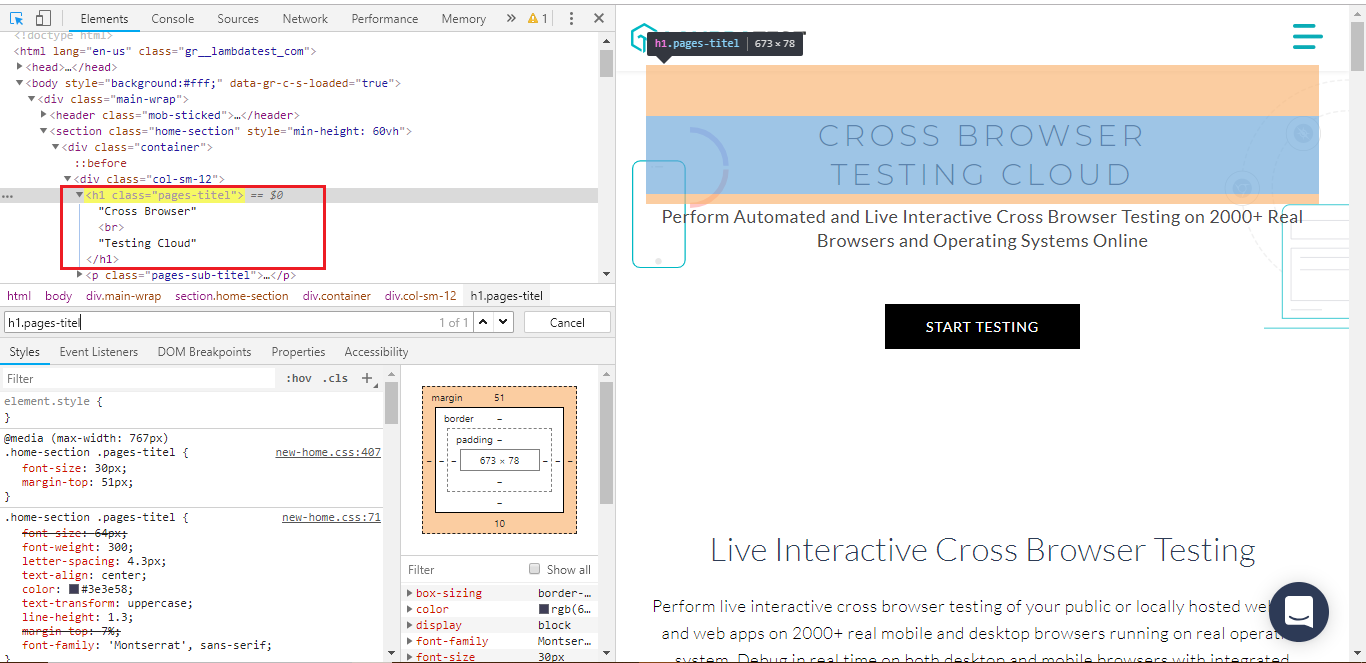

Austin Siewert
Co-Founder, Steadfast Systems
Discovered @TestMu AI yesterday. Best browser testing tool I've found for my use case. Great pricing model for the limited testing I do 👏
2M+ Devs and QAs rely on TestMu AI
Deliver immersive digital experiences with Next-Generation Mobile Apps and Cross Browser Testing Cloud

This certification is for anyone who wants to stay ahead among professionals who are growing their career in Selenium automation testing.
Here’s a short glimpse of the Selenium 101 certification from TestMu AI:

ID Selector Conundrum
‘#’ represents id in CSS and is used to identify web elements with a specific id. Please find an example listed below for matching the web element with ID. If you observe it at a high level this can be compared to that of ID name selector using Selenium methods and also locating the element with id in XPath programming such as tag name [@id = ‘id_value’ ].
<li id="menu-item-143" class="menu-item menu-item-type-taxonomy menu-item-object-category menu-item-143">
<a href="https://www.testmuai.com/blog/category/testmu-ai-updates/">Product Updates</a>
</li>
CSS selector in Selenium for the same could be identified with the ID as #menu-item-143 or li#menu-item-143
The CSS syntax in Selenium of the ID selector would be – <#> < ID Name> (or) <#> 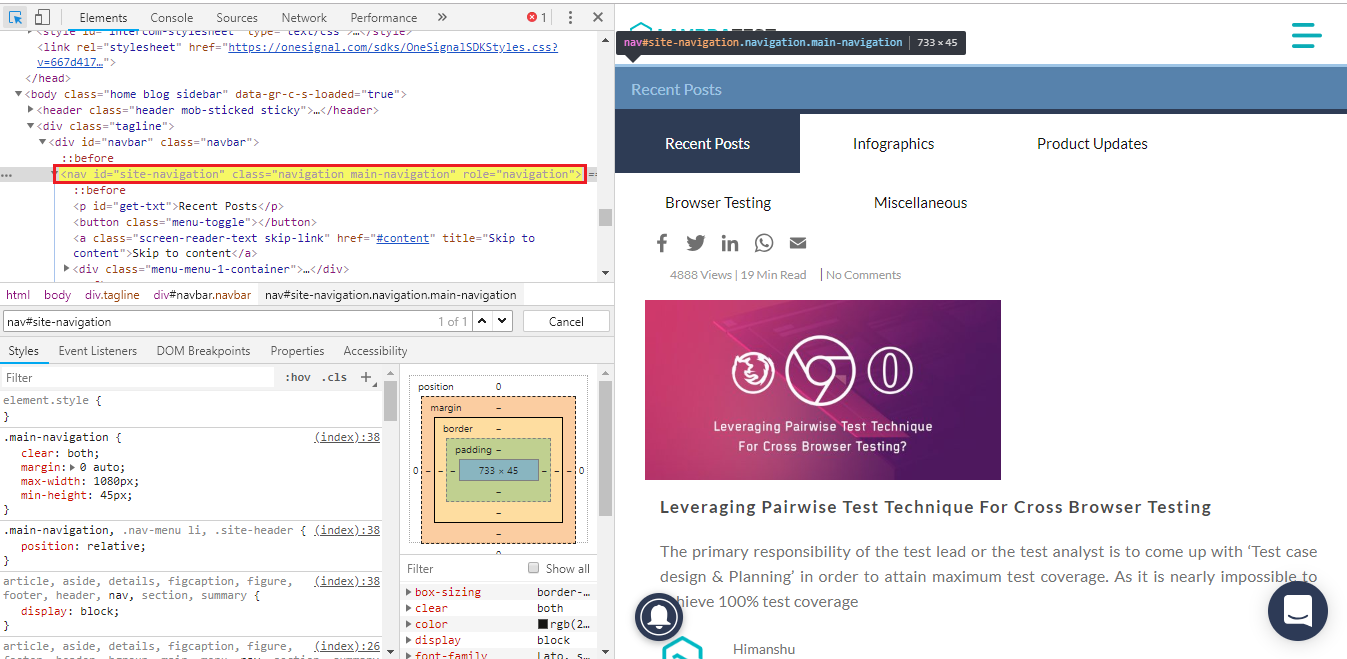
Attribute Selector Conundrum
Attributes could be represented in key-value pairs, for example in the below example we have multiple attributes and values such as ‘role = dialog’, ‘data-dismiss = modal’ etc. Xpath programming version of attribute selector could be correlated as tag name [@attribute key = ‘attribute value’ ].
<div class="modal fade" id="whitepaper-modal" tabindex="-1" role="dialog" aria-labelledby="myModalLabel">
   <span class="close" data-dismiss="modal"  style="top: 4px; position: absolute; right: 10px;">
<span aria-hidden="true">×</span>
 </span>
CSS selector in Selenium for the same could be identified with the attribute asdiv[role=’dialog’] or [role=’dialog’]

‘Class or ID’ & Attribute Selector Conundrum
Class or ID and attribute combination could serve as a better strategy which is more powerful than that of using a class, id or attribute selector alone. In order to achieve uniqueness of the element, if above 3 ways of identifying fails due to multiple instances of the same locator this could be a go-to solution. Let’s deduct the element locator strategy for below example from our TestMu AI blog.
<nav id="site navigation" class="navigation main-navigation" role="navigation">
In the above HTML snippet if you observe there is a space in the class name which is “navigation main-navigation” this could be represented as navigation.main-navigation space can be ignored and replaced with ‘.’
CSS Selector in Selenium for the same could be identified as below:
nav.navigation.main-navigation[role='navigation']
The CSS syntax in Selenium of class or id and attribute selector would be:
<HTML Tag> <Class Or ID> [ <attribute key> = ‘<attribute value>’ ]
<Class Or ID> [ <attribute key> = ‘<attribute value>’ ]
SubString Match Conundrum
In order to enable even powerful querying technique, we can make use of sub-string matches with ^ indicated prefix, $ indicating suffix and * indicating substring. If you observe closely this is similar to the representation of XPath functions such as starts-with, contains and ends with. Let’s get into detailed usage of all the three ways of dealing with matches.
^ Indicating a prefix match
Syntax:
<HTML Tag> [ <Class Or ID> ^= <Class or ID Name> ]
Example:
div[class^=’aria-label’]
$ Indicating a suffix match
Syntax:
<HTML Tag> [ <Class Or ID> $= <Class or ID Name> ]
Example:
a[class$=’aria-label’]
* Indicating a substring match
Syntax:
<HTML Tag> [ <Class Or ID> *= <Class or ID Name> ]
Example:
p[class*=’aria-label’]
Inner Text Conundrum:
The :contains() pseudo-class shown below is not part of the CSS standard. It works only in libraries such as jQuery, so browsers reject it and Selenium's By.cssSelector() throws an InvalidSelectorException.
To locate an element by its inner text, use an XPath expression such as //div[contains(text(),'Sign in')] instead.
Syntax:
<HTML Tag> <:> <contains> < (text) >
Example
div:contains("^lambdatest$")
Nth Child For Opting A Specific Value From A List
This is an advanced way of handling the element locators through CSS selectors in Selenium while navigating through child elements. There are three possibilities as below:
- Direct Child
- Sub Child
- Nth Child
Direct Child
Direct child to the parent locator is represented with a ‘>’ symbol. Let’s assume we have a button tag inside a div tag which happens to be a direct child as shown in HTML snippet below.
Example:
<div class="lambdatest-xs-ng">
<button id="tertiary" class="sidebar-container" role="complementary">
div is parent locator and the button is the child locator is represented as:
div.lambdatest-xs-ng>button
Syntax:
Parentlocator > directchildlocator
Sub Child or Child
Sub child identification includes the same way to identify the elements as that of the direct child but we can ignore ‘>’ symbol as sub child as shown in the example below.
Example:
<div id="primary" class="content area">
<div id="content" class="site content" role="main">
<header class="archive header">
<h1 class="archive title">Category Archives : Infographics </h1>
Sub Child or child would be represented as:
Syntax:
<Parent locator> <child locator> or <sub child locator>
Nth Child For Opting A Specific Value From A List
N-th child concept would be useful while navigating through ordered or unordered list elements. N becomes the number of the desired list user wants to select. Let’s go through below example to understand how n-th child works.
Example:
<<ul id = "lambdaTestBrowsers">
<li>Chrome</li>
<li>Firefox</li>
<li>Edge</li>
<li>Safari</li>
</ul>
Nth child of firefox from the list of lambda test browsers would be represented as:
#lambdaTestBrowsers li:nth-child(2)
Syntax:
<HTML Tag> <Clas or ID> <list> <:> <nth-child (number of desired item in the list)>
How Do AI Tools Help With CSS Selectors in Selenium?
AI tools help in two places: assistants draft CSS selectors from pasted HTML, and self-healing libraries repair a broken selector while the test runs. A tester still verifies every selector against the live page.
- AI-drafted selectors: Assistants such as GitHub Copilot and ChatGPT turn a pasted HTML snippet into a CSS selector. The assistant sees only that snippet, so it cannot confirm the selector is unique on the full page.
- Uniqueness check: Run document.querySelectorAll() with the drafted selector in the DevTools console. A result length of exactly 1 means the selector matches a single element.
- Healenium self-healing: Healenium, an open-source Apache 2.0 library, brings self-healing test automation to Selenium. It wraps WebDriver, reacts to a NoSuchElementException, scores candidate replacement locators and reports each healed one.
- Test-only attributes: A selector such as [data-testid='login-button'] survives class and layout changes better than a generated class chain, whether a person or a model writes it.
- Wrong-element risk: A healed or AI-drafted selector can match the wrong element without failing. Keep assertions on the element's text or state so a wrong match fails the test.
Conclusion
We have come across different identification strategies through the above element locator conundrums. To get familiar with CSS Selectors in Selenium by querying you make use of Chrome dev tools and also there is an open-sourced tool for the same to try out and view results more interactively at http://flukeout.github.io/. We also discussed the benefits of using CSS selectors in Selenium over other element locators.
The classic difference in XPath vs CSS selectors is direction. XPath moves from child to parent and from parent to child, while CSS selectors traditionally moved only from parent to child. The CSS :has() selector now matches a parent by its children, as in div:has(button). The pseudo-class has worked across all major browsers since December 2023, according to MDN.
If you have any queries or suggestions regarding the CSS Selectors please drop a comment below and I would love to interact. Have fun locating elements through CSS Selectors. Happy testing!

Author

Bharadwaj Pendyala
Blogs: 4

Bharadwaj Pendyala is a software engineer with more than a decade of experience in test automation, quality engineering, and applied AI. He is a Senior Member of Technical Staff at Salesforce and previously worked as an SDET and automation engineer at Tide, Joveo, Accenture, and Cognizant. On TestMu AI (formerly LambdaTest) he authored guides on Selenium with Cucumber and TestNG, the Gauge framework, and CI/CD pipelines.


CSS Selectors in Selenium FAQs
Did you find this page helpful?
More Related Blogs
TestMu AI forEnterprise
Get access to solutions built on Enterprise
grade security, privacy, & compliance
- Advanced access controls
- Advanced data retention rules
- Advanced Local Testing
- Premium Support options
- Early access to beta features
- Private Slack Channel
- Unlimited Manual Accessibility DevTools Tests