

Power Your Software Testing with AI Agents and Cloud
The Native AI-Agentic Cloud Platform to Supercharge Quality Engineering. Test Intelligently and Ship Faster.


- TestMu AI (Formerly LambdaTest)
- /
- Blog
- /
- JUnit Jupiter: What It Is and How to Run Jupiter Tests
JUnit Jupiter: What It Is and How to Run Jupiter Tests
In this JUnit Jupiter tutorial, we explore the basic usage of Jupiter, its unit testing capabilities, and how you can run JUnit tests in Jupiter.
Last Updated on:
JUnit Jupiter is the JUnit 5 module that provides the programming and extension model for writing and running Jupiter-based tests.
It carries over JUnit 4's annotations and test structure, and its TestEngine API lets other frameworks run on the same platform.
This guide covers what JUnit Jupiter is, the JUnit 5 architecture, what changed in JUnit 6, writing and running Jupiter tests, and scaling them on a cloud grid.
See our JUnit Tutorial hub for the fundamentals.
TL;DR
- JUnit Jupiter is the JUnit 5 programming and extension model for writing and running Java tests.
- JUnit 5 consists of JUnit Platform, JUnit Jupiter, and JUnit Vintage, which runs older JUnit 3 and 4 tests.
- The JUnit 5 @Tag annotation groups tests, such as smoke tests, so a subset can run separately.
- JUnit 5 @RepeatedTest runs a test several times, while @ParameterizedTest runs one test with different inputs.
- On Selenium 4, JUnit tests no longer need System.setProperty for drivers, because Selenium Manager downloads them.
What is JUnit?
JUnit is one of the most powerful unit testing frameworks that has been widely used for carrying out unit tests. JUnit 5, now succeeded by JUnit 6, is still widely used and is consisting of three different sub-components, namely JUnit Platform, JUnit Jupiter, and JUnit Vintage. JUnit 5 requires Java version 8 or any other higher version, which makes it stand out from its previous versions. But surprisingly, the unit tests written in JUnit4 or previous versions can still be compiled and tested with JUnit 5. Now let us understand the three sub-components of JUnit 5.
Also Read - How to execute JUnit 4 tests with JUnit 5 [Tutorial]

JUnit 5: The Next Generation Testing Framework
JUnit 5 is a modular and highly extensible version of JUnit. The JUnit platform is the basic foundation of the testing framework, which helps in framework development. The JUnit framework is made up of three modules:
- JUnit Platform provides a clean and functional API for managing, executing, and reporting the results of tests. Tools built with the JUnit Platform can rely on the JUnit tooling ecosystem to discover, run, report, and diagnose test execution.
- JUnit Jupiter is used for writing the tests and the Jupiter sub-project provides a TestEngine for running Jupiter-based tests on the platform.
- JUnit Vintage is used for running earlier versions of JUnit tests such as JUnit 3 and JUnit 4 based tests. This backward-compatible design also eases JUnit 6 migration when teams are ready to upgrade.
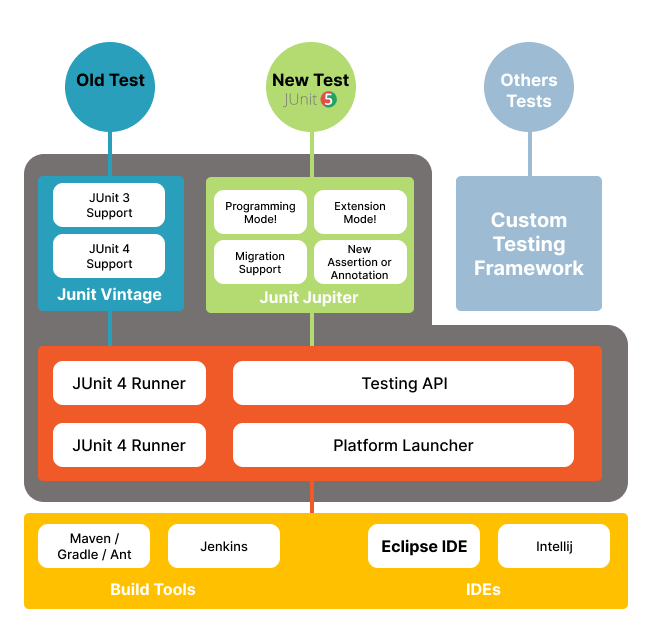
JUnit 5 Architecture
Annotations used in JUnit 5
JUnit annotations are required while performing Selenium automation testing with JUnit. So, basically, annotations are the meta-tags that provide additional information about the methods and classes defined in our code structure. Below are some of the annotations that are used in JUnit 5.
- @Test - This annotation is used for declaring a test.
- @TestFactory - This annotation is used for defining a method which is a test factory for dynamic tests which are generated at the runtime
- @RepeatedTest - This annotation is used to specify that the method is a template for the tests that can be repeated a specific number of times.
- @ParameterizedTest - This annotation is used to indicate that the method is a parameterized test. These parameterized tests are similar to normal test methods, but we have to specify a source to provide parameters for each invocation used in the test.
- @TestMethodOrder - This annotation is used to define the order of the test execution.
- @DisplayName - This annotation is used to specify a customized display name for the method or class.
- @Tag - This annotation is used for filtering the tests at the method or class level by defining the tags.
- @Disabled - This annotation is used to disable a test method or class.
- @BeforeEach - This annotation is used to specify that the specific test method has to be executed before each @Test, @RepeatedTest, @ParameterizedTest, or @TestFactory method.
- @AfterEach - This annotation is used to specify that the specific test method has to be executed after each @Test, @RepeatedTest, @ParameterizedTest, or @TestFactory method.
- @BeforeAll - This annotation is used to specify that the specific test method has to be executed before all @Test, @RepeatedTest, @ParameterizedTest, or @TestFactory method.
- @AfterAll - This annotation is used to specify that the specific test method has to be executed after all @Test, @RepeatedTest, @ParameterizedTest, or @TestFactory method.
To understand the difference between JUnit 5 and JUnit 4, please refer to our article on executing JUnit 4 tests with JUnit 5. Now let us see how to create simple test cases in JUnit 5 and run them using Jupiter.

TestMu AI offers free JUnit certification for Java developers that can be helpful to accelerate your career in Java development and testing.
Here’s a glimpse of the JUnit Certification offered by TestMu AI:

Key Takeaway: JUnit 5 is modular: JUnit Platform runs and reports tests, JUnit Jupiter writes them, and JUnit Vintage runs JUnit 3 and 4 tests. Annotations like @Test, @Tag, and @BeforeEach control test behavior.
What Changed in JUnit 6?
JUnit 6, released in 2025, raises the minimum Java version to 17, unifies Platform, Jupiter, and Vintage under one version number, and drops the legacy JUnit 4 runner module.
Existing JUnit 5 suites keep running unmodified on Java 8 through 16; the version bump matters mainly when starting a new project or raising the Java baseline.
- Java 17 baseline: JUnit 6 needs Java 17 or newer to run, up from Java 8 for JUnit 5; a project still on an older JDK stays on JUnit 5.
- Unified versioning: JUnit Platform, Jupiter, and Vintage now share one version number, replacing the separate version pairs JUnit 5 shipped.
- JSpecify annotations: JUnit 6's modules mark which parameters and return types can be null, giving static analysis tools more to check.
- junit-platform-runner removed: The JUnit 4 based runner for launching the platform from an older IDE integration is gone in JUnit 6.
The examples in this article run on JUnit 5.7.1 and stay valid on JUnit 5; move to JUnit 6 only after the project's Java baseline reaches 17 and any IDE tooling drops its dependency on junit-platform-runner.
Writing simple JUnit 5 test cases using Jupiter
Prior to writing the test cases, let us quickly understand the scenarios and steps to automate the tests. We will be using the https://www.testmuai.com website for writing our test cases.
Scenario 1: Launch TestMu AI website and verify the tabs on the main page:
- Navigate to https://www.testmuai.com website.
- Verify the tabs like Automation, Pricing, Resources, etc., are displayed on the main page or not.
Scenario 2: Login into the TestMu AI website and verify whether the user could successfully navigate to the LT Browser page:
- Navigate to https://www.testmuai.com website.
- Enter the valid credentials.
- Upon successful login, verify if the user is able to navigate to the LT Browser page.
Scenario 3: Verify if the user is able to navigate to his profile page
- Navigate to https://www.testmuai.com website.
- Login to the website using valid credentials.
- Verify if the user is able to navigate to his profile.
Scenario 4: Verify the list of options available under the Resources tab:
- Navigate to https://www.testmuai.com website.
- Under the Resources tab, verify if the list of options is displayed or not.
To write and run your JUnit 5 tests cases using Jupiter, make sure that you have added the below dependencies in the pom.xml file.
Pom.xml
<?xml version="1.0" encoding="UTF-8"?>
<project xmlns="http://maven.apache.org/POM/4.0.0"
         xmlns:xsi="http://www.w3.org/2001/XMLSchema-instance"
         xsi:schemaLocation="http://maven.apache.org/POM/4.0.0 http://maven.apache.org/xsd/maven-4.0.0.xsd">
    <modelVersion>4.0.0</modelVersion>

    <groupId>org.example</groupId>
    <artifactId>Demo</artifactId>
    <version>1.0-SNAPSHOT</version>

    <properties>
        <maven.compiler.source>1.8</maven.compiler.source>
        <maven.compiler.target>${maven.compiler.source}</maven.compiler.target>
        <junit.jupiter.version>5.7.1</junit.jupiter.version>
    </properties>

    <dependencies>
        <dependency>
            <groupId>org.junit.jupiter</groupId>
            <artifactId>junit-jupiter-engine</artifactId>
            <version>${junit.jupiter.version}</version>
            <scope>test</scope>
        </dependency>
        <dependency>
            <groupId>org.junit.jupiter</groupId>
            <artifactId>junit-jupiter-api</artifactId>
            <version>${junit.jupiter.version}</version>
            <scope>test</scope>
        </dependency>

        <dependency>
            <groupId>org.seleniumhq.selenium</groupId>
            <artifactId>selenium-java</artifactId>
            <version>3.141.59</version>
        </dependency>
    </dependencies>
</project>
Version note - The examples use JUnit 5.7.1 and Selenium 3.141.59. On Selenium 4, Selenium Manager downloads the browser driver, so the System.setProperty line can go, and waits take a Duration, such as new WebDriverWait(driver, Duration.ofSeconds(20)). Selenium 4 also replaces pageLoadTimeout(10, TimeUnit.SECONDS) with pageLoadTimeout(Duration.ofSeconds(10)), and cloud capabilities move into an LT:Options map with browserVersion and platformName. The site has since rebranded, so update expected page titles that still end in LambdaTest.
Below is the automation test script covering all the above-mentioned scenarios.
package demo;

import org.junit.jupiter.api.*;
import org.openqa.selenium.By;
import org.openqa.selenium.WebDriver;
import org.openqa.selenium.WebElement;
import org.openqa.selenium.chrome.ChromeDriver;
import org.openqa.selenium.interactions.Actions;
import org.openqa.selenium.support.ui.ExpectedConditions;
import org.openqa.selenium.support.ui.WebDriverWait;

import java.util.ArrayList;
import java.util.Arrays;
import java.util.List;
import java.util.concurrent.TimeUnit;

@TestMethodOrder(MethodOrderer.OrderAnnotation.class)
public class demoTests {

    WebDriver driver;
    String urlToTest ="https://www.testmuai.com/";

    @BeforeAll
    public static void start() {
        System.out.println("=======Starting junit 5 tests========");
    }

    @BeforeEach
    public void setup() {
        System.out.println("Setting up the drivers");
        System.setProperty("webdriver.chrome.driver", "C:\\path\\to\\chromedriver.exe");
        driver = new ChromeDriver();
    }

 /*To test the tabs available in the main page like Resources,Documentation,login etc */
  @Test
    @DisplayName("HeaderTabs_Test")
    @Tag("Smoke")
    @Order(1)
    public void headers_Test() {
        String methodName = Thread.currentThread()
                .getStackTrace()[1]
                .getMethodName();
        System.out.println("********Execution of "+methodName+" has been started********");
        System.out.println("Launching LambdaTest website started..");
        driver.get(urlToTest);
        driver.manage().window().maximize();
        driver.manage().timeouts().pageLoadTimeout(10, TimeUnit.SECONDS);

        List<WebElement> elements = driver.findElements(By.xpath("//*[contains(@class,'md:text-right')]/a"));
        List<String> actualList = new ArrayList<>();
        for(WebElement ele :elements){
            actualList.add(ele.getText());
        }

        System.out.println("Actual elements : "+actualList);
        List<String> expectedList = Arrays.asList("Live","Automation","Pricing","Documentation","Login","Start Free Testing");
        System.out.println("Expected elements : "+expectedList);

        boolean boolval = actualList.equals(expectedList);
        System.out.println(boolval);
        Assertions.assertTrue(boolval);
        System.out.println("********Execution of "+methodName+" has ended********");
    }


    @Test
    @DisplayName("LTBrowser_Test")
    @Tag("Smoke")
    @Order(2)
    public void click_LTBrowser_Test() {
        String methodName = Thread.currentThread()
                .getStackTrace()[1]
                .getMethodName();
        System.out.println("********Execution of "+methodName+" has been started********");
        System.out.println("Launching LambdaTest website started..");
        driver.get(urlToTest);
        driver.manage().window().maximize();
        driver.manage().timeouts().pageLoadTimeout(10, TimeUnit.SECONDS);
        driver.findElement(By.xpath("//a[text()='Login']")).click();
        driver.findElement(By.xpath("//input[@name="email"]")).sendKeys("your_email@example.com");
        driver.findElement(By.xpath("//input[@name="password"]")).sendKeys("your_password");
        driver.findElement(By.xpath("//button[text()='Login']")).click();
        driver.manage().timeouts().pageLoadTimeout(20, TimeUnit.SECONDS);

        List <WebElement> options = driver.findElements(By.xpath("//div[contains(@class,'aside__menu__item')]//a"));
        for(WebElement ele : options){
            if(ele.getText().equals("LT Browser")) {
                ele.click();
                break;
            }

        }
        driver.manage().timeouts().implicitlyWait(20,TimeUnit.SECONDS);
        String actualText = driver.findElement(By.xpath("//*[contains(@class,'lt__demo__box__title')]")).getText();
        String expectedText = "LT Browser- Desktop App for Fast and Easy Mobile View Testing";
        Assertions.assertEquals(expectedText, actualText);
        System.out.println("The user has been successfully navigated to LT browser page");
        System.out.println("********Execution of "+methodName+" has ended********");
    }


    @Test()
    @DisplayName("editProfile_Test")
    @Order(3)
    public void editProfile_Test() {
        String methodName = Thread.currentThread()
                .getStackTrace()[1]
                .getMethodName();
        System.out.println("********Execution of "+methodName+" has been started********");
        System.out.println("Launching LambdaTest website started..");
        driver.get(urlToTest);
        driver.manage().window().maximize();
        driver.manage().timeouts().pageLoadTimeout(10, TimeUnit.SECONDS);
        driver.findElement(By.xpath("//a[text()='Login']")).click();
        driver.findElement(By.xpath("//input[@name="email"]")).sendKeys("your_email@example.com");
        driver.findElement(By.xpath("//input[@name="password"]")).sendKeys("your_password");
        driver.findElement(By.xpath("//button[text()='Login']")).click();
        driver.manage().timeouts().pageLoadTimeout(20, TimeUnit.SECONDS);

        driver.findElement(By.id("profile__dropdown")).click();

        driver.findElement(By.xpath("//*[contains(@class,'profile__dropdown__item')]")).click();

        String actualTitle = driver.getTitle();
        Assertions.assertEquals(actualTitle,"Profile - LambdaTest");
        System.out.println("********Execution of "+methodName+" has ended********");
    }

    @Test
    @DisplayName("ResourcesOption_Test")
    @Order(4)
    public void getListOfOptionsUnderResourcesTab() {
        String methodName = Thread.currentThread()
                .getStackTrace()[1]
                .getMethodName();
        System.out.println("********Execution of "+methodName+" has been started********");
        System.out.println("Launching LambdaTest website started..");
        driver.get(urlToTest);
        driver.manage().window().maximize();
        driver.manage().timeouts().pageLoadTimeout(10, TimeUnit.SECONDS);
        WebElement resources = driver.findElement(By.xpath("//*[text()='Resources ']"));
        List<WebElement> options_under_resources = driver.findElements(By.xpath("//*[text()='Resources ']/../ul/a"));
        boolean flag = resources.isDisplayed();
        if(flag) {
            System.out.println("Resources header is visible in the webpage");
            Actions action = new Actions(driver);
            action.moveToElement(resources).build().perform();
            WebDriverWait wait=new WebDriverWait(driver, 20);
            wait.until(ExpectedConditions.visibilityOfAllElements(options_under_resources));
            List<String> options = new ArrayList<>();
            for(WebElement element : options_under_resources) {
                options.add(element.getText());
            }
            System.out.println(options);
            List<String> list = Arrays.asList("Blog", "Certifications", "Learning Hub", "Webinars", "Videos", "Newsletter", "Community", "Case Studies", "Product Updates");
            boolean boolval = list.equals(options);
            System.out.println(boolval);
            Assertions.assertTrue(boolval);
        }
        else {
            Assertions.fail("Resources header is not visible");
        }
        System.out.println("********Execution of "+methodName+" has ended********");
    }


    @AfterEach
    public void tearDown() {
        System.out.println("Quitting the browsers has started");
        driver.quit();
        System.out.println("Quitting the browsers has ended");

    }

    @AfterAll
    public static void end() {
        System.out.println("Tests ended");

    }

}
In the above script, you could have noticed some JUnit 5 annotations. Let us understand them one by one.
- @DisplayName - This annotation is used to specify a customized display name for the method or class.
- @Tag - This annotation is used for filtering the tests at the method or class level by defining the tags.
- @Order - This annotation is used for providing the sequence or order in which the tests have to be executed.
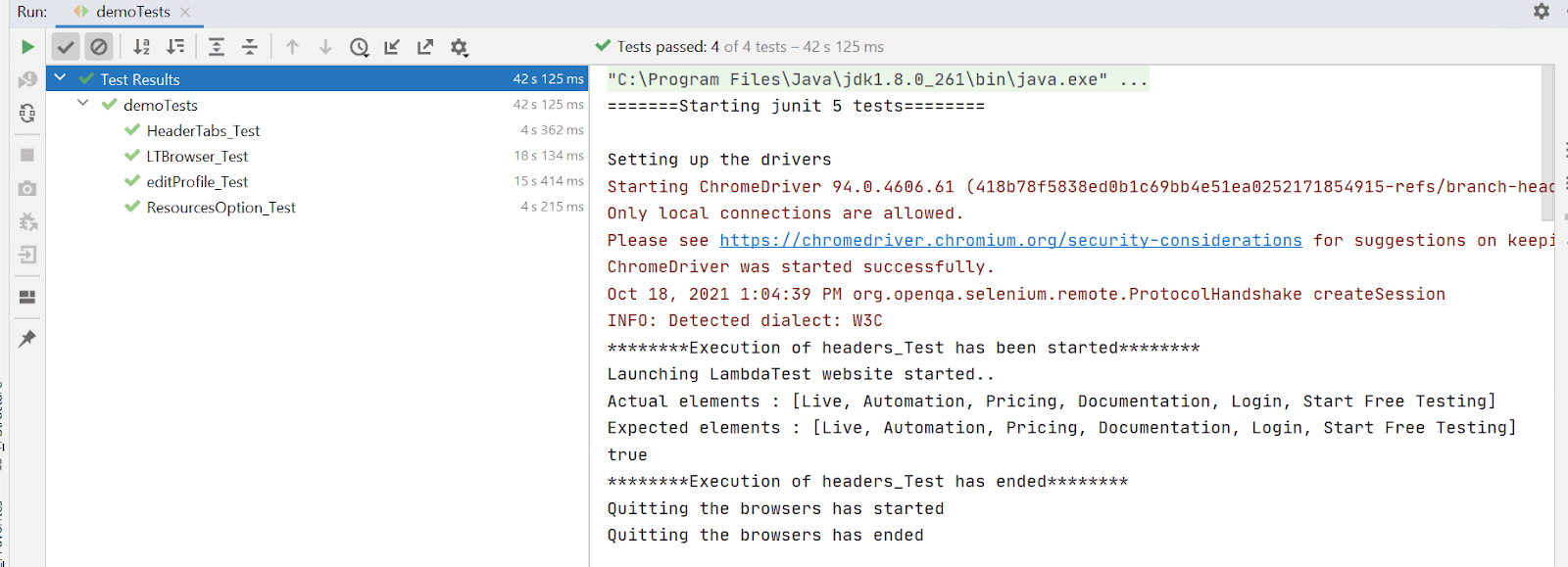
To execute the JUnit Tests, right-click on the class and click Run.
Console Output:
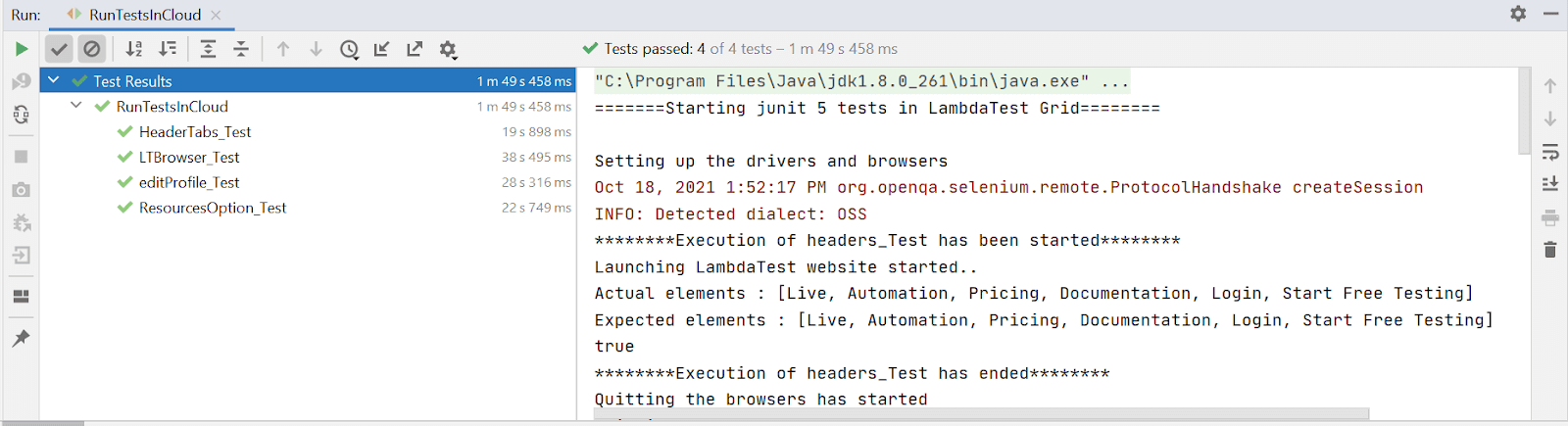
The test cases would be run in the respective order that has been provided.
You can check our blog on junit interview questions, this will come in handy if your are preparing for an interview.
Running JUnit 5 tests with specific tags
In our test script, we have used tags for grouping the test cases. For example, during the process of testing, there would be a need to run only smoke or sanity cases. In such cases, we can group the tests using tags and execute them. To run the test cases specific to a tag,
- Right-click on your test class.
- Click Edit ‘your test class name.’
- In the Edit Run Configuration dialog box, select Test Kind as Tags and enter the tag value in the Tag expression field.
- Now Run your tests.
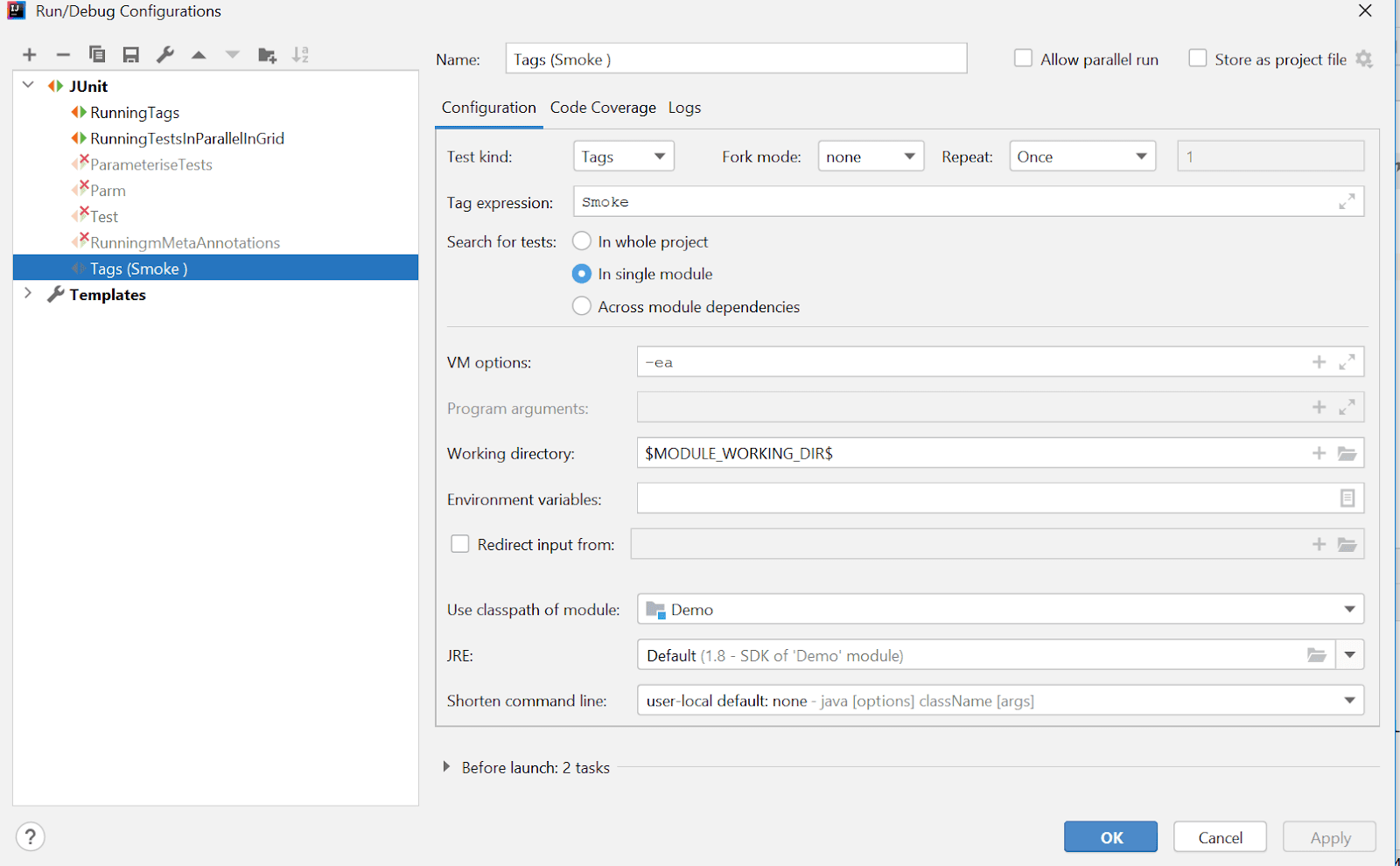
Console Output:
In the console, you could see the execution of the tests specific to the tags.

Also read - Mastering Selenium Testing: JUnit Asserts With Examples
Writing JUnit 5 tests with composed annotation
Annotations in JUnit Jupiter can be used as meta-annotations. This allows you to create a custom composed annotation that will automatically inherit the semantics of its meta-annotations. For example, you can use @Test and @Tag(“Smoke”) annotations as meta-annotations and create a composed annotation named @SmokeTest which can be used as a replacement for the other two annotations on tests.
package demo;

import org.junit.jupiter.api.*;
import org.openqa.selenium.By;
import org.openqa.selenium.WebDriver;
import org.openqa.selenium.WebElement;
import org.openqa.selenium.chrome.ChromeDriver;
import org.openqa.selenium.support.ui.ExpectedConditions;
import org.openqa.selenium.support.ui.WebDriverWait;

import java.lang.annotation.ElementType;
import java.lang.annotation.Retention;
import java.lang.annotation.RetentionPolicy;
import java.lang.annotation.Target;
import java.util.ArrayList;
import java.util.Arrays;
import java.util.List;
import java.util.concurrent.TimeUnit;

public class RunningMetaAnnotations {

    @Target({ ElementType.TYPE, ElementType.METHOD })
    @Retention(RetentionPolicy.RUNTIME)
    @Tag("Smoke")
    @Test
    public @interface SmokeTest {
    }

    WebDriver driver;
    String urlToTest ="https://www.testmuai.com/";

    @BeforeAll
    public static void start() {
        System.out.println("=======Starting junit 5 tests========");
    }

    @BeforeEach
    public void setup() {
        System.out.println("Setting up the drivers");
        System.setProperty("webdriver.chrome.driver", "C:\\path\\to\\chromedriver.exe");
        driver = new ChromeDriver();
    }

    @SmokeTest
    @DisplayName("HeaderTabs_Test")
    public void headers_Test() {
        String methodName = Thread.currentThread()
                .getStackTrace()[1]
                .getMethodName();
        System.out.println("********Execution of "+methodName+" has been started********");
        System.out.println("Launching LambdaTest website started..");
        driver.get(urlToTest);
        driver.manage().window().maximize();
        driver.manage().timeouts().pageLoadTimeout(10, TimeUnit.SECONDS);

        List<WebElement> elements = driver.findElements(By.xpath("//*[contains(@class,'md:text-right')]/a"));
        List<String> actualList = new ArrayList<>();
        for(WebElement ele :elements){
            actualList.add(ele.getText());
        }

        System.out.println("Actual elements : "+actualList);
        List<String> expectedList = Arrays.asList("Live","Automation","Pricing","Documentation","Login","Start Free Testing");
        System.out.println("Expected elements : "+expectedList);

        boolean boolval = actualList.equals(expectedList);
        System.out.println(boolval);
        Assertions.assertTrue(boolval);
        System.out.println("********Execution of "+methodName+" has ended********");
    }

    @SmokeTest
    @DisplayName("LTBrowser_Test")
    public void click_LTBrowser_Test() {
        String methodName = Thread.currentThread()
                .getStackTrace()[1]
                .getMethodName();
        System.out.println("********Execution of "+methodName+" has been started********");
        System.out.println("Launching LambdaTest website started..");
        driver.get(urlToTest);
        driver.manage().window().maximize();
        driver.manage().timeouts().pageLoadTimeout(10, TimeUnit.SECONDS);
        driver.findElement(By.xpath("//a[text()='Login']")).click();
        driver.findElement(By.xpath("//input[@name="email"]")).sendKeys("your_email@example.com");
        driver.findElement(By.xpath("//input[@name="password"]")).sendKeys("your_password");
        driver.findElement(By.xpath("//button[text()='Login']")).click();
        driver.manage().timeouts().pageLoadTimeout(20, TimeUnit.SECONDS);

        List <WebElement> options = driver.findElements(By.xpath("//div[contains(@class,'aside__menu__item')]//a"));
        for(WebElement ele : options){
            if(ele.getText().equals("LT Browser")) {
                ele.click();
                break;
            }

        }
        driver.manage().timeouts().implicitlyWait(20,TimeUnit.SECONDS);
        String actualText = driver.findElement(By.xpath("//*[contains(@class,'lt__demo__box__title')]")).getText();
        String expectedText = "LT Browser- Desktop App for Fast and Easy Mobile View Testing";
        Assertions.assertEquals(expectedText, actualText);
        System.out.println("The user has been successfully navigated to LT browser page");
        System.out.println("********Execution of "+methodName+" has ended********");
    }


    @SmokeTest
    @DisplayName("editProfile_Test")
    public void editProfile_Test() {
        String methodName = Thread.currentThread()
                .getStackTrace()[1]
                .getMethodName();
        System.out.println("********Execution of "+methodName+" has been started********");
        System.out.println("Launching LambdaTest website started..");
        driver.get(urlToTest);
        driver.manage().window().maximize();
        driver.manage().timeouts().pageLoadTimeout(10, TimeUnit.SECONDS);
        driver.findElement(By.xpath("//a[text()='Login']")).click();
        driver.findElement(By.xpath("//input[@name="email"]")).sendKeys("your_email@example.com");
        driver.findElement(By.xpath("//input[@name="password"]")).sendKeys("your_password");
        driver.findElement(By.xpath("//button[text()='Login']")).click();
        driver.manage().timeouts().pageLoadTimeout(20, TimeUnit.SECONDS);

        driver.findElement(By.id("profile__dropdown")).click();

        driver.findElement(By.xpath("//*[contains(@class,'profile__dropdown__item')]")).click();

        String actualTitle = driver.getTitle();
        Assertions.assertEquals(actualTitle,"Profile - LambdaTest");
        System.out.println("********Execution of "+methodName+" has ended********");
    }
    @AfterEach
    public void tearDown() {
        System.out.println("Quitting the browsers has started");
        driver.quit();
        System.out.println("Quitting the browsers has ended");

    }

    @AfterAll
    public static void end() {
        System.out.println("Tests ended");

    }
}
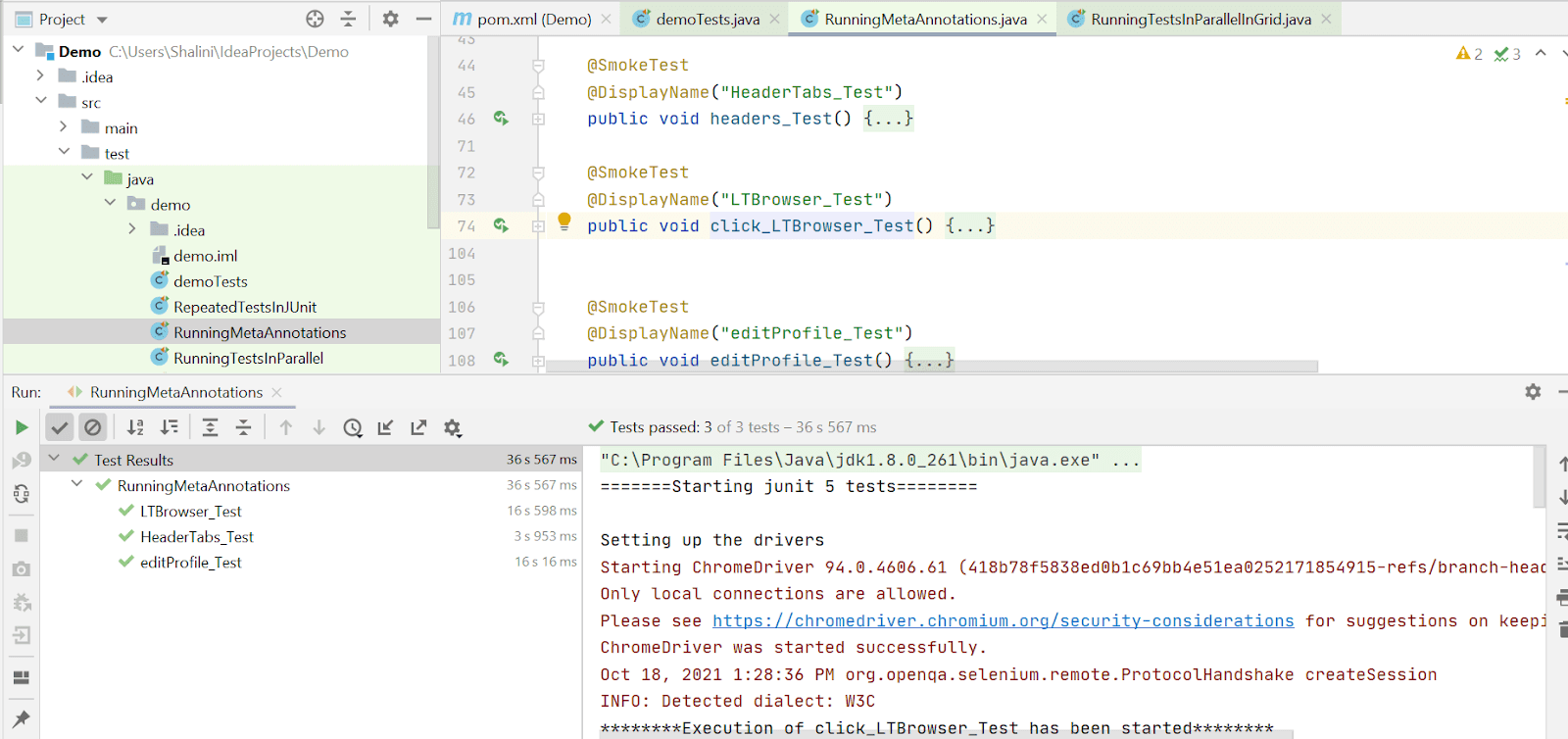
Console Output:
The tests marked with composed annotation have been executed.
Writing test cases repeatedly in JUnit5
To run our JUnit tests repeated a certain number of times, JUnit 5 provides an annotation @RepeatedTest. Using the RepeatedTest class, you can write a test method that repeats the same execution a set number of times. For different input data, use @ParameterizedTest instead. This class gets used when your tests need to be repeated multiple times with data, such as when running performance profiling or simulating everyday use of your app.
package demo;

import org.junit.jupiter.api.*;
import org.openqa.selenium.WebDriver;
import org.openqa.selenium.chrome.ChromeDriver;

import java.util.concurrent.TimeUnit;

public class RepeatedTestsInJUnit {

    WebDriver driver;
    String urlToTest ="https://www.testmuai.com/";

    @BeforeAll
    public static void start() {
        System.out.println("=======Starting junit 5 tests========");
    }

    @BeforeEach
    public void setup() {
        System.out.println("Setting up the drivers");
        System.setProperty("webdriver.chrome.driver", "C:\\path\\to\\chromedriver.exe");
        driver = new ChromeDriver();
    }


    @RepeatedTest(value=7,name="{displayName} {currentRepetition}/{totalRepetitions}")
    @DisplayName("Repeat_Test")
    public void launchAndVerifyTitle_Test(RepetitionInfo repetitionInfo) {
        String methodName = Thread.currentThread()
                .getStackTrace()[1]
                .getMethodName();
        System.out.println("********Execution of "+methodName+" has been started********");
        System.out.println("Launching LambdaTest website started..");
        driver.get(urlToTest);
        driver.manage().window().maximize();
        driver.manage().timeouts().pageLoadTimeout(10, TimeUnit.SECONDS);
        String actualTitle = driver.getTitle();
        System.out.println("The page title is "+actualTitle);
        String expectedTitle ="Most Powerful Cross Browser Testing Tool Online | LambdaTest";
        System.out.println("Verifying the title of the webpage started");
        Assertions.assertEquals(expectedTitle, actualTitle);
        System.out.println("The webpage has been launched and the title of the webpage has been veriified successfully");
        System.out.println("********Execution of "+methodName+" has ended********");
        Assertions.assertEquals(7,repetitionInfo.getTotalRepetitions());
    }
    @AfterEach
    public void tearDown() {
        System.out.println("Quitting the browsers has started");
        driver.quit();
        System.out.println("Quitting the browsers has ended");

    }

    @AfterAll
    public static void end() {
        System.out.println("Tests ended");

    }

}
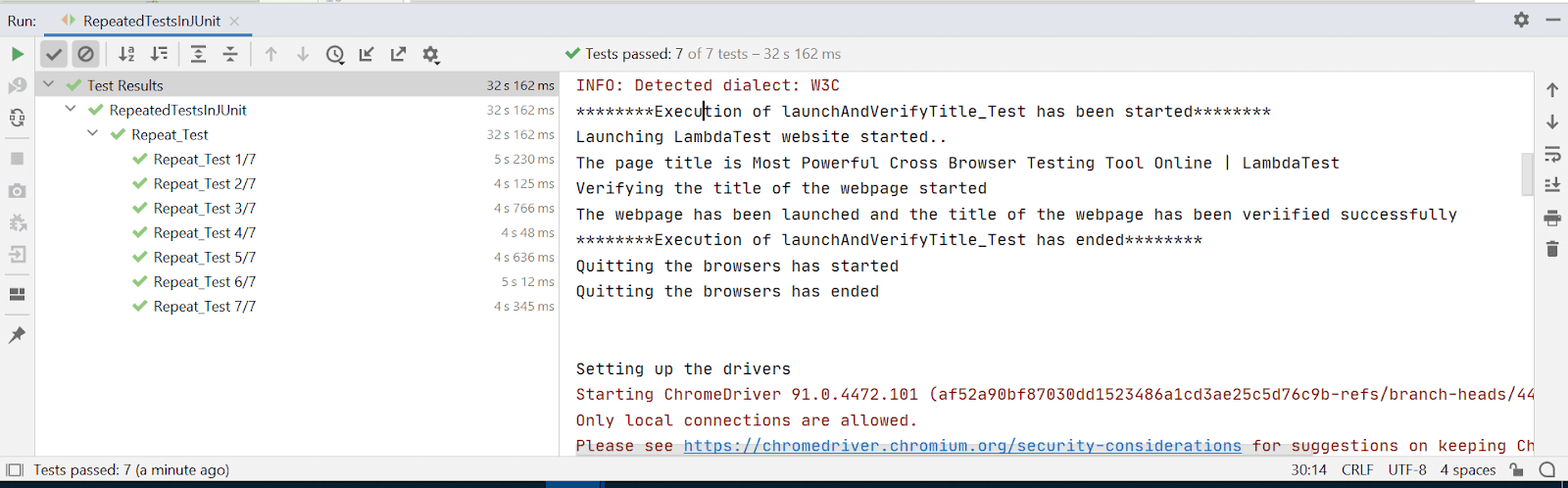
Running JUnit 5 tests using Jupiter
To run the same JUnit test with multiple inputs, we can use @ParameterizedTest annotation in JUnit 5. While parameterizing the values, the test has to be annotated with @ParameterizedTest instead of @Test.
Scenario: Verify the Login functionality of the website using different sets of credentials to cover valid and negative cases.
For parameterizing the tests, we have to add the below maven dependency in the pom.xml file.
<dependency>
            <groupId>org.junit.jupiter</groupId>
            <artifactId>junit-jupiter-params</artifactId>
            <version>5.7.1</version>
            <scope>test</scope>
        </dependency>
Pom.xml
<?xml version="1.0" encoding="UTF-8"?>
<project xmlns="http://maven.apache.org/POM/4.0.0"
         xmlns:xsi="http://www.w3.org/2001/XMLSchema-instance"
         xsi:schemaLocation="http://maven.apache.org/POM/4.0.0 http://maven.apache.org/xsd/maven-4.0.0.xsd">
    <modelVersion>4.0.0</modelVersion>

    <groupId>org.example</groupId>
    <artifactId>SampleJunitTests</artifactId>
    <version>1.0-SNAPSHOT</version>

    <properties>
        <maven.compiler.source>1.8</maven.compiler.source>
        <maven.compiler.target>${maven.compiler.source}</maven.compiler.target>
        <junit.jupiter.version>5.7.1</junit.jupiter.version>
    </properties>

    <dependencies>
        <dependency>
            <groupId>org.junit.jupiter</groupId>
            <artifactId>junit-jupiter-engine</artifactId>
            <version>${junit.jupiter.version}</version>
            <scope>test</scope>
        </dependency>
        <dependency>
            <groupId>org.junit.jupiter</groupId>
            <artifactId>junit-jupiter-api</artifactId>
            <version>${junit.jupiter.version}</version>
            <scope>test</scope>
        </dependency>
        <dependency>
            <groupId>org.seleniumhq.selenium</groupId>
            <artifactId>selenium-java</artifactId>
            <version>3.141.59</version>
        </dependency>
        <dependency>
            <groupId>org.junit.jupiter</groupId>
            <artifactId>junit-jupiter-params</artifactId>
            <version>5.7.1</version>
            <scope>test</scope>
        </dependency>

    </dependencies>

</project>
Test script for parameterizing our tests.
package demo;

import org.junit.jupiter.api.AfterAll;
import org.junit.jupiter.api.AfterEach;
import org.junit.jupiter.api.Assertions;
import org.junit.jupiter.api.BeforeAll;
import org.junit.jupiter.api.BeforeEach;
import org.junit.jupiter.params.ParameterizedTest;
import org.junit.jupiter.params.provider.Arguments;
import org.junit.jupiter.params.provider.MethodSource;
import org.openqa.selenium.By;
import org.openqa.selenium.WebDriver;
import org.openqa.selenium.WebElement;
import org.openqa.selenium.chrome.ChromeDriver;
import org.openqa.selenium.support.ui.ExpectedConditions;
import org.openqa.selenium.support.ui.WebDriverWait;


import java.util.concurrent.TimeUnit;
import java.util.stream.Stream;


import static org.junit.jupiter.params.provider.Arguments.arguments;

public class test {

    WebDriver driver;
    String urlToTest ="https://www.testmuai.com/";

    @BeforeAll
    public static void start() {
        System.out.println("=======Starting junit 5 tests========");
    }

    @BeforeEach
    public void setup() {
        System.out.println("Setting up the drivers");
        System.setProperty("webdriver.chrome.driver", "C:\\path\\to\\chromedriver.exe");
        driver = new ChromeDriver();
    }

    @ParameterizedTest
    @MethodSource("userList")
    public void login_Test(String user,String passwd) {
        String methodName = Thread.currentThread()
                .getStackTrace()[1]
                .getMethodName();
        System.out.println("********Execution of "+methodName+" has been started********");
        System.out.println("Launching LambdaTest website started..");
        driver.get(urlToTest);
        driver.manage().window().maximize();
        driver.manage().timeouts().pageLoadTimeout(10, TimeUnit.SECONDS);
        WebElement login = driver.findElement(By.xpath("//a[text()='Login']"));
        login.click();
        WebElement username = driver.findElement(By.xpath("//input[@name='email']"));
        WebElement password = driver.findElement(By.xpath("//input[@name='password']"));
        WebDriverWait wait = new WebDriverWait(driver,20);
        wait.until(ExpectedConditions.visibilityOf(username));
        username.clear();
        username.sendKeys(user);
        password.clear();
        password.sendKeys(passwd);
        WebElement loginButton = driver.findElement(By.xpath("//button[text()='Login']"));
        loginButton.click();
        driver.manage().timeouts().pageLoadTimeout(10, TimeUnit.SECONDS);
        String actual = driver.getTitle();
        String expected = "Welcome - LambdaTest";
        Assertions.assertEquals(expected, actual);
        System.out.println("The user has been successfully logged in");
        System.out.println("********Execution of "+methodName+" has ended********");
    }

    static Stream<Arguments> userList() {
        return Stream.of(
                arguments("xxxxxx@gmail.com","abc@123" ),
                arguments("yyyyyyyy@gmail.com", "one@123")
        );
    }
@AfterEach
public void tearDown() {
    System.out.println("Quitting the browsers has started");
    driver.quit();
    System.out.println("Quitting the browsers has ended");
}

@AfterAll
public static void end() {
    System.out.println("Tests ended");
}
}
Key Takeaway: JUnit 5 @ParameterizedTest runs the same test with multiple inputs, such as valid and invalid login credentials. Replace @Test with @ParameterizedTest and add the junit-jupiter-params dependency to pom.xml.

Running JUnit 5 tests in TestMu AI Grid
Using Selenium along with JUnit is a good option due to its capabilities to run tests on multiple browsers and platforms, providing flexibility in choosing any third-party language.
TestMu AI provides an online cloud platform to perform Selenium automation testing with ease at scale. Test automation platform like TestMu AI allows you to perform cross browser testing on an online device farm of 10,000+ real devices running real operating systems.
Once you are logged into the website you will be provided with a username and an access key which can be used to run your scripts in the cloud.
Below is the code snippet for executing the JUnit 5 tests using Jupiter in the TestMu AI platform.
package demo;

import org.junit.jupiter.api.*;
import org.openqa.selenium.By;
import org.openqa.selenium.WebElement;
import org.openqa.selenium.interactions.Actions;
import org.openqa.selenium.remote.DesiredCapabilities;
import org.openqa.selenium.remote.RemoteWebDriver;
import org.openqa.selenium.support.ui.ExpectedConditions;
import org.openqa.selenium.support.ui.WebDriverWait;

import java.net.MalformedURLException;
import java.net.URL;
import java.util.ArrayList;
import java.util.Arrays;
import java.util.List;
import java.util.concurrent.TimeUnit;

@TestMethodOrder(MethodOrderer.OrderAnnotation.class)
public class RunTestsInCloud {

    String username = "YOUR_USERNAME"; //Enter your username
    String accesskey = "YOUR_ACCESSKEY"; //Enter your accesskey

    static RemoteWebDriver driver = null;
    String gridURL = "@hub.lambdatest.com/wd/hub";
    String urlToTest = "https://www.testmuai.com/";

    @BeforeAll
    public static void start() {
        System.out.println("=======Starting junit 5 tests in LambdaTest Grid========");
    }

    @BeforeEach
    public void setup() {
        System.out.println("Setting up the drivers and browsers");
        DesiredCapabilities capabilities = new DesiredCapabilities();
        capabilities.setCapability("browserName", "chrome");   //To specify the browser
        capabilities.setCapability("version", "70.0");    //To specify the browser version
        capabilities.setCapability("platform", "win10");      // To specify the OS
        capabilities.setCapability("build", "Running_Junit5Tests_In_Grid");               //To identify the test
        capabilities.setCapability("name", "JUnit5Tests");
        capabilities.setCapability("network", true);      // To enable network logs
        capabilities.setCapability("visual", true);          // To enable step by step screenshot
        capabilities.setCapability("video", true);       // To enable video recording
        capabilities.setCapability("console", true);         // To capture console logs
        try {
            driver = new RemoteWebDriver(new URL("https://" + username + ":" + accesskey + gridURL), capabilities);
        } catch (MalformedURLException e) {
            System.out.println("Invalid grid URL");
        } catch (Exception e) {
            System.out.println(e.getMessage());
        }
    }


    /*To test the tabs available in the main page like Resources,Documentation,login etc */
    @Test
    @DisplayName("HeaderTabs_Test")
    @Tag("Smoke")
    @Order(1)
    public void headers_Test() {
        String methodName = Thread.currentThread()
                .getStackTrace()[1]
                .getMethodName();
        System.out.println("********Execution of "+methodName+" has been started********");
        System.out.println("Launching LambdaTest website started..");
        driver.get(urlToTest);
        driver.manage().window().maximize();
        driver.manage().timeouts().pageLoadTimeout(10, TimeUnit.SECONDS);

        List<WebElement> elements = driver.findElements(By.xpath("//*[contains(@class,'md:text-right')]/a"));
        List<String> actualList = new ArrayList<>();
        for(WebElement ele :elements){
            actualList.add(ele.getText());
        }

        System.out.println("Actual elements : "+actualList);
        List<String> expectedList = Arrays.asList("Live","Automation","Pricing","Documentation","Login","Start Free Testing");
        System.out.println("Expected elements : "+expectedList);

        boolean boolval = actualList.equals(expectedList);
        System.out.println(boolval);
        Assertions.assertTrue(boolval);
        System.out.println("********Execution of "+methodName+" has ended********");
    }

    @Test
    @DisplayName("LTBrowser_Test")
    @Tag("Smoke")
    @Order(2)
    public void click_LTBrowser_Test() {
        String methodName = Thread.currentThread()
                .getStackTrace()[1]
                .getMethodName();
        System.out.println("********Execution of "+methodName+" has been started********");
        System.out.println("Launching LambdaTest website started..");
        driver.get(urlToTest);
        driver.manage().window().maximize();
        driver.manage().timeouts().pageLoadTimeout(10, TimeUnit.SECONDS);
        driver.findElement(By.xpath("//a[text()='Login']")).click();
        driver.findElement(By.xpath("//input[@name="email"]")).sendKeys("your_email@example.com");
        driver.findElement(By.xpath("//input[@name="password"]")).sendKeys("your_password");
        driver.findElement(By.xpath("//button[text()='Login']")).click();
        driver.manage().timeouts().pageLoadTimeout(20, TimeUnit.SECONDS);

        List <WebElement> options = driver.findElements(By.xpath("//div[contains(@class,'aside__menu__item')]//a"));
        for(WebElement ele : options){
            if(ele.getText().equals("LT Browser")) {
                ele.click();
                break;
            }

        }
        driver.manage().timeouts().implicitlyWait(20,TimeUnit.SECONDS);
        String actualText = driver.findElement(By.xpath("//*[contains(@class,'lt__demo__box__title')]")).getText();
        String expectedText = "LT Browser- Desktop App for Fast and Easy Mobile View Testing";
        Assertions.assertEquals(expectedText, actualText);
        System.out.println("The user has been successfully navigated to LT browser page");
        System.out.println("********Execution of "+methodName+" has ended********");
    }


    @Test()
    @DisplayName("editProfile_Test")
    @Order(3)
    public void editProfile_Test() {
        String methodName = Thread.currentThread()
                .getStackTrace()[1]
                .getMethodName();
        System.out.println("********Execution of "+methodName+" has been started********");
        System.out.println("Launching LambdaTest website started..");
        driver.get(urlToTest);
        driver.manage().window().maximize();
        driver.manage().timeouts().pageLoadTimeout(10, TimeUnit.SECONDS);
        driver.findElement(By.xpath("//a[text()='Login']")).click();
        driver.findElement(By.xpath("//input[@name="email"]")).sendKeys("your_email@example.com");
        driver.findElement(By.xpath("//input[@name="password"]")).sendKeys("your_password");
        driver.findElement(By.xpath("//button[text()='Login']")).click();
        driver.manage().timeouts().pageLoadTimeout(20, TimeUnit.SECONDS);

        driver.findElement(By.id("profile__dropdown")).click();

        driver.findElement(By.xpath("//*[contains(@class,'profile__dropdown__item')]")).click();

        String actualTitle = driver.getTitle();
        Assertions.assertEquals(actualTitle,"Profile - LambdaTest");
        System.out.println("********Execution of "+methodName+" has ended********");
    }

    @Test
    @DisplayName("ResourcesOption_Test")
    @Order(4)
    public void getListOfOptionsUnderResourcesTab() {
        String methodName = Thread.currentThread()
                .getStackTrace()[1]
                .getMethodName();
        System.out.println("********Execution of "+methodName+" has been started********");
        System.out.println("Launching LambdaTest website started..");
        driver.get(urlToTest);
        driver.manage().window().maximize();
        driver.manage().timeouts().pageLoadTimeout(10, TimeUnit.SECONDS);
        WebElement resources = driver.findElement(By.xpath("//*[text()='Resources ']"));
        List<WebElement> options_under_resources = driver.findElements(By.xpath("//*[text()='Resources ']/../ul/a"));
        boolean flag = resources.isDisplayed();
        if(flag) {
            System.out.println("Resources header is visible in the webpage");
            Actions action = new Actions(driver);
            action.moveToElement(resources).build().perform();
            WebDriverWait wait=new WebDriverWait(driver, 20);
            wait.until(ExpectedConditions.visibilityOfAllElements(options_under_resources));
            List<String> options = new ArrayList<>();
            for(WebElement element : options_under_resources) {
                options.add(element.getText());
            }
            System.out.println(options);
            List<String> list = Arrays.asList("Blog", "Certifications", "Learning Hub", "Webinars", "Videos", "Newsletter", "Community", "Case Studies", "Product Updates");
            boolean boolval = list.equals(options);
            System.out.println(boolval);
            Assertions.assertTrue(boolval);
        }
        else {
            Assertions.fail("Resources header is not visible");
        }
        System.out.println("********Execution of "+methodName+" has ended********");
    }

    @AfterEach
    public void tearDown() {
        System.out.println("Quitting the browsers has started");
        driver.quit();
        System.out.println("Quitting the browsers has ended");

    }

    @AfterAll
    public static void end() {
        System.out.println("Tests ended");

    }

}
To run this test in the TestMu AI platform:
- Right-click on the test class that you have created in the IDE.
- Click Run. Now the test will be started on the TestMu AI platform.
- Once your tests are executed, navigate to your TestMu AI Account in the browser and click Dashboard in the left-hand side panel. This page shows an overview of the tests that are run on the platform.
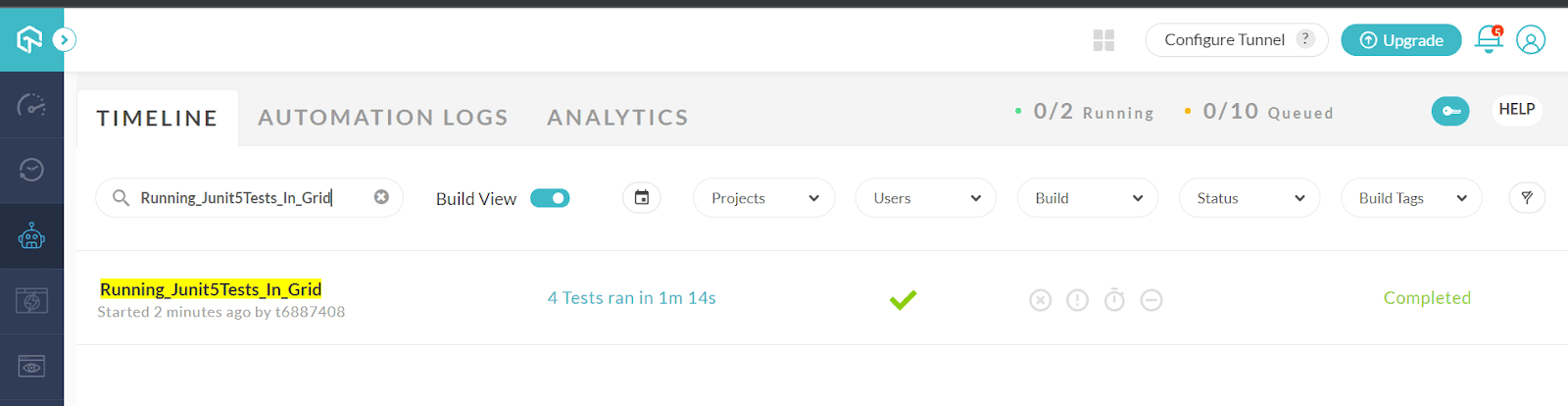
- Next, click the Automation label in the left-hand side panel. This is the place where you have to identify your executed tests. It contains multiple tests, and to identify the specific test, you have to search using the build name that you have provided in the script.
- In the code above, we have named the build as ” Running_Junit5Tests_In_Grid” and now search for that build. This page also shows the status of your build and the time taken for execution.
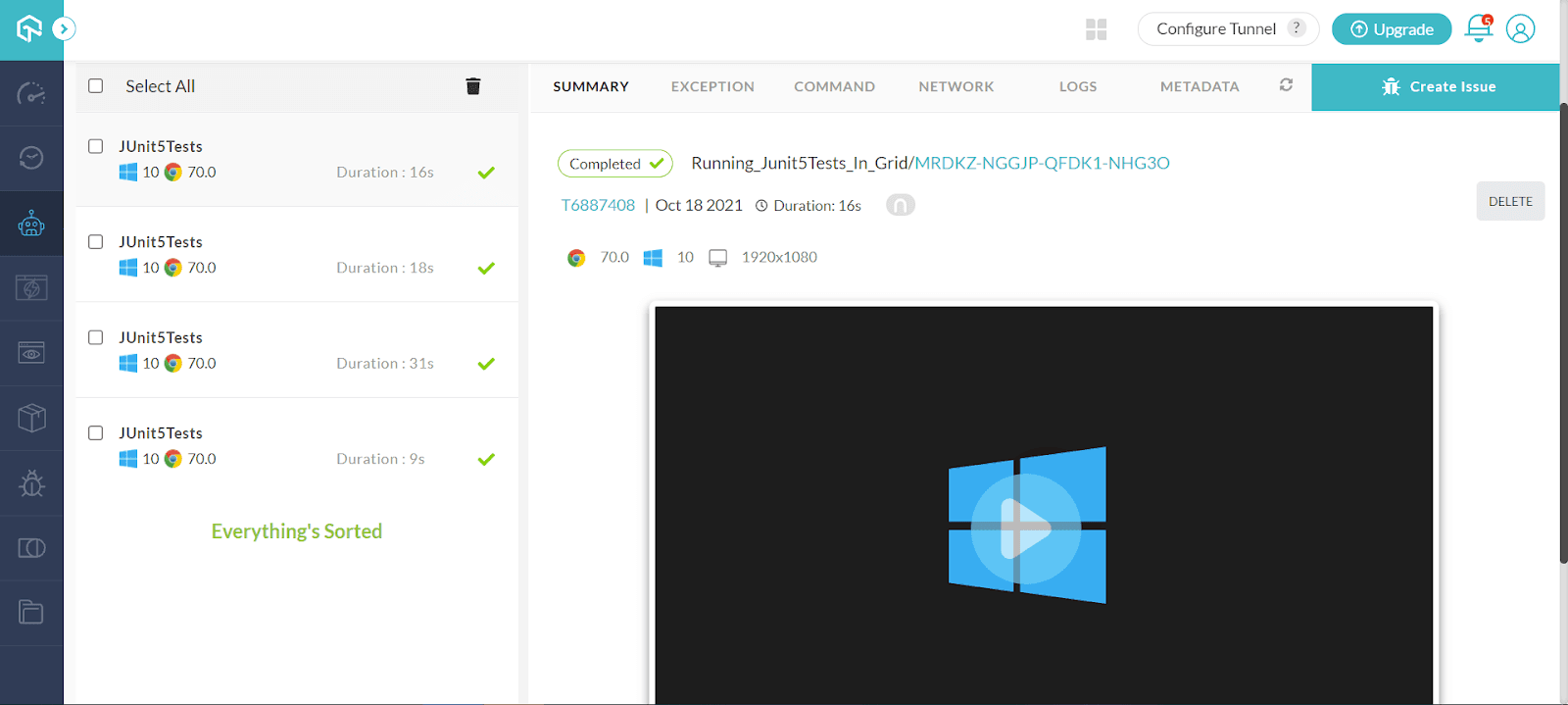
- Click the build to view the tests that were run. You can see the test “JUnit5Tests”, which was provided in the script, and this is how we identify our tests in TestMu AI. We will see four tests run in the grid as written in our script. Here you can verify all the test details that have been provided in the script, like the browser, browser version, operating system, and version in which the test was executed. This would be the same as provided in the test script.
As we have enabled video recording in the code, you will see a video attached to the test on this page, which has recorded all the test steps while executing the test.
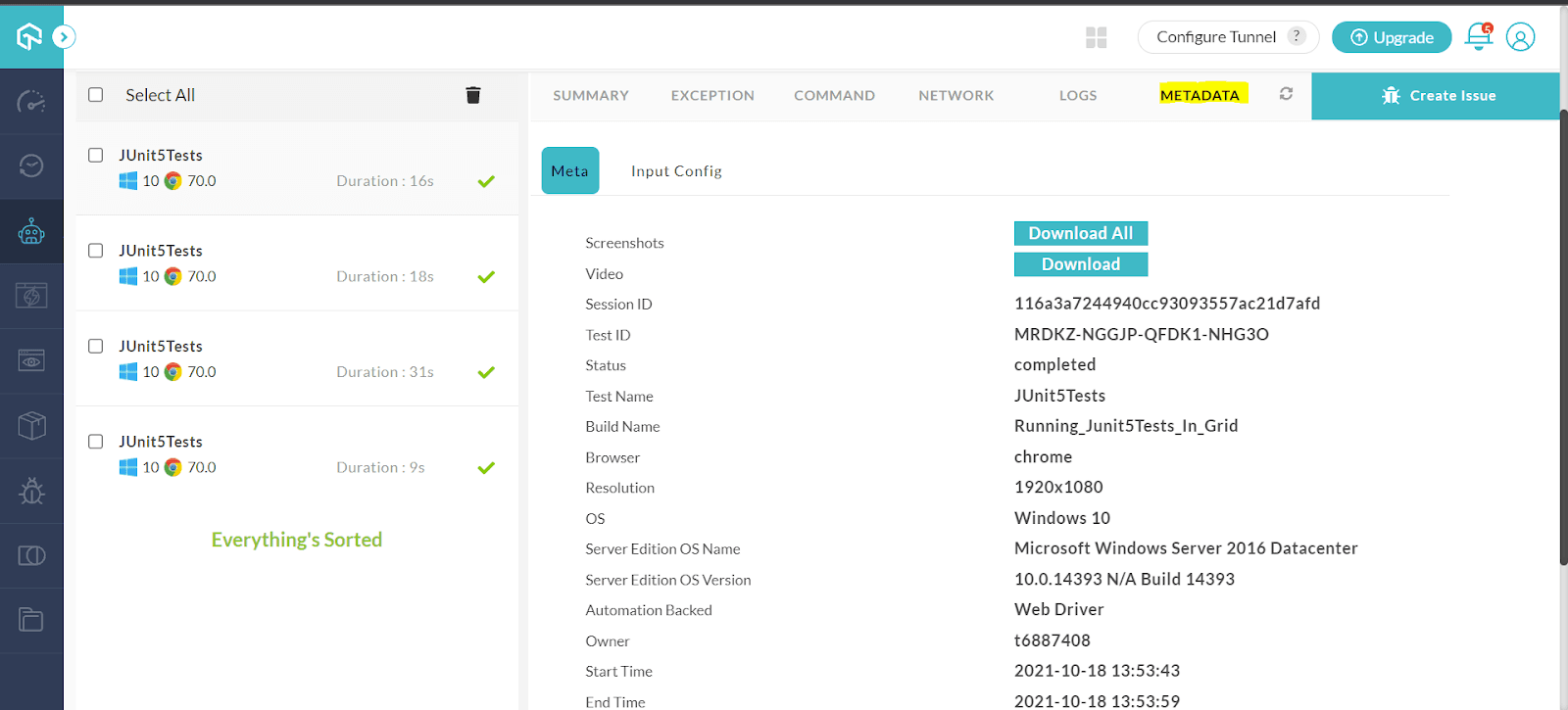
By playing the video, you can view how the tests were executed. In case of failure, this would help analyze the point where the failure has occurred. We can also have a quick view of the tests on the Meta tab.
To see the steps executed in a test, click a Test and go to the COMMAND tab. This displays the list of steps that are executed as part of the test.
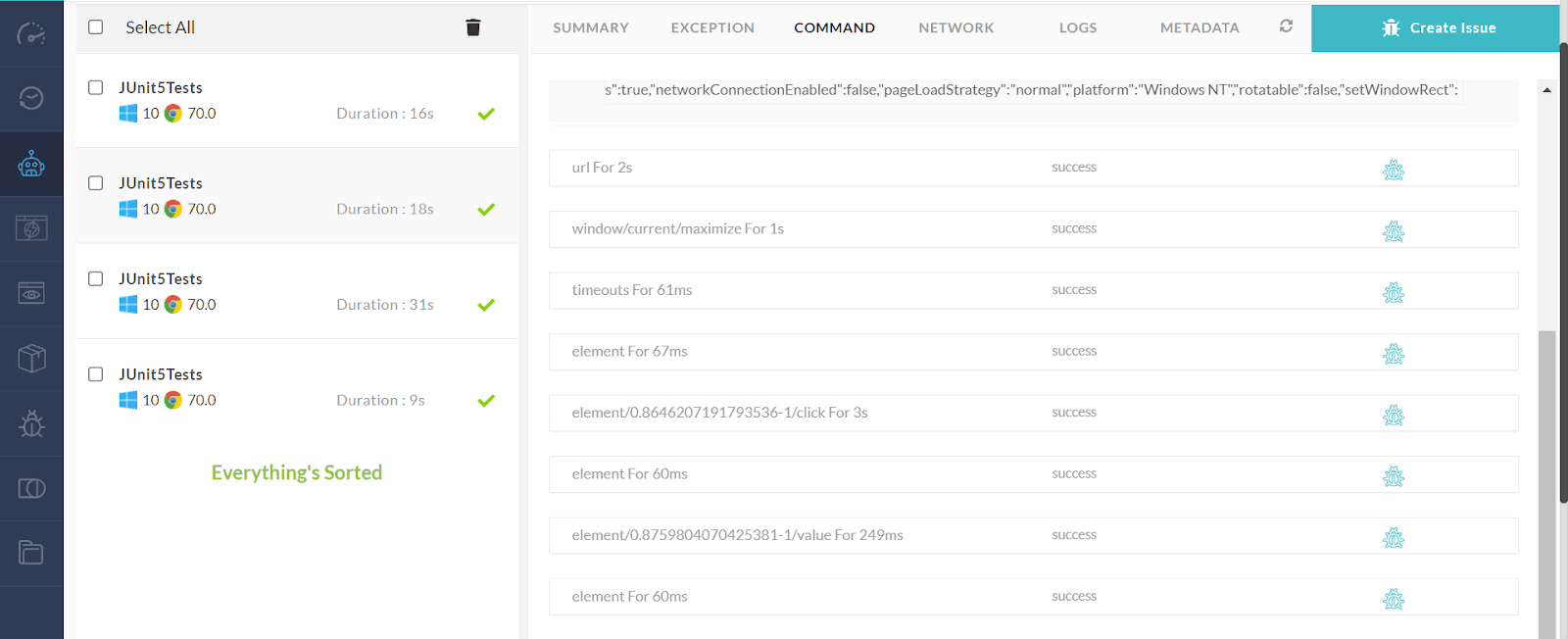
If the test doesn’t behave as per the expectation as a result of which failure occurs in any step, it can be directly marked as a bug by clicking the Mark Bug icon in the test step.
Console Output:
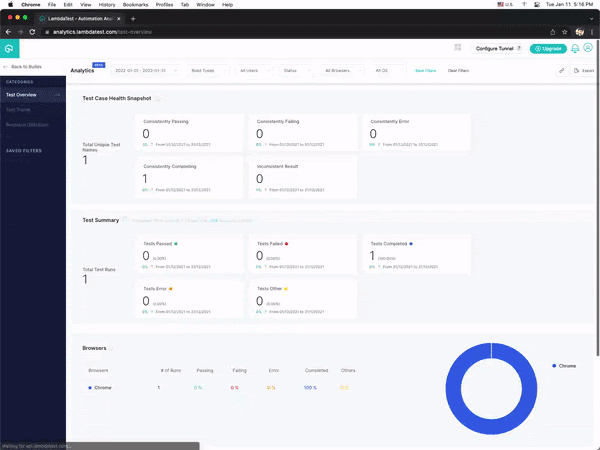
TestMu AI also allows users to get a clear view of the quality and performance of their applications by tracking the health of test cases through TestMu AI Test Analytics. Visit Analytics under the Automation page to see your failed tests, download a report, and track test progress.
You can go through the following video on JUnit Tutorial for beginners series, to run JUnit tests in parallel in the Selenium cloud using multiple browsers and platforms. The video demonstrates cross-browser testing with JUnit using the TestMu AI platform. By the end of this tutorial video, you will be in a position to run JUnit tests in parallel across different browsers and platforms.

You can also Subscribe to the TestMu AI YouTube Channel and stay updated with the latest tutorials around Selenium testing, Cypress testing, CI/CD, and more.
Conclusion
JUnit 5 gives each testing need its own tool, so a suite rarely needs custom workarounds:
- Smoke or sanity runs - Group tests with @Tag and run only the matching tag expression.
- Same test, many inputs - Use @ParameterizedTest with the junit-jupiter-params dependency.
- Repeated execution - Use @RepeatedTest to profile performance or simulate everyday use.
- Less annotation clutter - Combine @Test and @Tag into a composed annotation such as @SmokeTest.
Pick the annotation that matches the goal first, then run the suite on a cloud grid when automated browser testing must cover several browsers.
Running JUnit Tests In Jupiter
The Jupiter sub-project is a TestEngine for running Jupiter-based tests on the platform. It also defines the TestEngine API, so new frameworks can plug in. Its model draws on JUnit 4's conventions.
To understand this better we will look at a use case by following the below test scenario.
Test Scenario:
- Launch the TestMu AI website: https://www.testmuai.com.
- Maximize the browser window.
- Validate header tabs: Platform, Enterprise, Resources, Developers, Pricing, Login, Book a Demo, and Get Started Free.
- Navigate to the LT Browser page.
- Confirm the displayed content matches the expected LT Browser 2.0 Best Browser For Developers.
- Click the Login button.
- Enter your Username and Password and click the LOGIN button.
- Click on Profile Avatar and select Account Setting.
- Verify the Account Setting text from the page.
- Verify the visibility of the Resources header.
- Check the displayed options match: Blogs, Webinars, Learning Hub, Certifications, Videos, Newsletter, TestMu AI for Community, and Customer Stories.
Below is the code for the above test scenario.
package demo;


import org.junit.jupiter.api.*;
import org.openqa.selenium.By;
import org.openqa.selenium.WebElement;
import org.openqa.selenium.interactions.Actions;
import org.openqa.selenium.chrome.ChromeOptions;
import org.openqa.selenium.remote.DesiredCapabilities;
import org.openqa.selenium.remote.RemoteWebDriver;
import org.openqa.selenium.support.ui.ExpectedConditions;
import org.openqa.selenium.support.ui.WebDriverWait;


import java.net.MalformedURLException;
import java.net.URL;
import java.util.ArrayList;
import java.util.HashMap;
import java.util.Arrays;
import java.util.List;
import java.time.Duration;


@TestMethodOrder(MethodOrderer.OrderAnnotation.class)
public class RunTestsInCloud {


    String username = "YOUR_USERNAME"; //Enter your username
    String accesskey = "YOUR_ACCESSKEY"; //Enter your accesskey


    static RemoteWebDriver driver = null;
    String gridURL = "@hub.lambdatest.com/wd/hub";
    String urlToTest = "https://www.testmuai.com/";


    @BeforeAll
    public static void start() {
        System.out.println("=======Starting junit 5 tests in TestMu AI Grid========");
    }


    @BeforeEach
    public void setup() {
        System.out.println("Setting up the drivers and browsers");


ChromeOptions browserOptions = new ChromeOptions();
browserOptions.setPlatformName("Windows 10"); // To specify the OS
browserOptions.setBrowserVersion("121.0"); //To specify the browser version
HashMap<String, Object> ltOptions = new HashMap<String, Object>();
ltOptions.put("username", "YOUR_LT_USERNAME");
ltOptions.put("accessKey", "YOUR_LT_ACCESS_KEY");
ltOptions.put("project", "YOUR_PROJECT");
ltOptions.put("selenium_version", "4.0.0"); //To specify the Selenium version
ltOptions.put("build", "Running_Junit5Tests_In_Grid"); //To identify the test
ltOptions.put("name", "JUnit5Tests");
ltOptions.put("console", "true");     // To capture console logs
ltOptions.put("visual", true);  // To enable step by step screenshot
ltOptions.put("network", true); // To enable network logs
ltOptions.put("video", true); // To enable video recording
ltOptions.put("w3c", true);
browserOptions.setCapability("LT:Options", ltOptions);
        try {
            driver = new RemoteWebDriver(new URL("https://" + username + ":" + accesskey + gridURL), browserOptions);
        } catch (MalformedURLException e) {
            System.out.println("Invalid grid URL");
        } catch (Exception e) {
            System.out.println(e.getMessage());
        }
    }
    /*To test the tabs available in the main page like Resources,Documentation,login etc */
    @Test
    @DisplayName("HeaderTabs_Test")
    @Tag("Smoke")
    @Order(1)
    public void headers_Test() {
        String methodName = Thread.currentThread()
                .getStackTrace()[1]
                .getMethodName();
        System.out.println("********Execution of "+methodName+" has been started********");
        System.out.println("Launching TestMu AI website started..");
        driver.get(urlToTest);
        driver.manage().window().maximize();
        driver.manage().timeouts().pageLoadTimeout(Duration.ofSeconds(10));


        List<WebElement> elements = driver.findElements(By.xpath("//*[contains(@class,'md:text-right')]/a"));
        List<String> actualList = new ArrayList<>();
        for(WebElement ele :elements){
            actualList.add(ele.getText());
        }


        System.out.println("Actual elements : "+actualList);
        List<String> expectedList = Arrays.asList("Platform","Enterprise","Resources","Developers","Pricing","Login","Book a Demo","Get Started Free");
        System.out.println("Expected elements : "+expectedList);


        boolean boolval = actualList.equals(expectedList);
        System.out.println(boolval);
        Assertions.assertTrue(boolval);
        System.out.println("********Execution of "+methodName+" has ended********");
    }


    @Test
    @DisplayName("LTBrowser_Test")
    @Tag("Smoke")
    @Order(2)
    public void click_LTBrowser_Test() {
        String methodName = Thread.currentThread()
                .getStackTrace()[1]
                .getMethodName();
        System.out.println("********Execution of "+methodName+" has been started********");
        System.out.println("Launching TestMu AI website started..");
        driver.get(urlToTest);
        driver.manage().window().maximize();
        driver.manage().timeouts().pageLoadTimeout(Duration.ofSeconds(10));
        driver.findElement(By.xpath("//a[text()='Login']")).click();
        driver.findElement(By.xpath("//input[@name="email"]")).sendKeys("example@example.com");
        driver.findElement(By.xpath("//input[@name="password"]")).sendKeys("Demo@123");
        driver.findElement(By.xpath("//button[text()='Login']")).click();
        driver.manage().timeouts().pageLoadTimeout(Duration.ofSeconds(20));


        List <WebElement> options = driver.findElements(By.xpath("//div[contains(@class,'aside__menu__item')]//a"));
        for(WebElement ele : options){
            if(ele.getText().equals("LT Browser")) {
                ele.click();
                break;
            }


        }
        driver.manage().timeouts().implicitlyWait(Duration.ofSeconds(20));
        String actualText = driver.findElement(By.xpath("//*[contains(@class,'lt__demo__box__title')]")).getText();
        String expectedText = "LT Browser 2.0 Best Browser For Developers";
        Assertions.assertEquals(expectedText, actualText);
        System.out.println("The user has been successfully navigated to LT browser page");
        System.out.println("********Execution of "+methodName+" has ended********");
    }


    @Test()
    @DisplayName("editProfile_Test")
    @Order(3)
    public void editProfile_Test() {
        String methodName = Thread.currentThread()
                .getStackTrace()[1]
                .getMethodName();
        System.out.println("********Execution of "+methodName+" has been started********");
        System.out.println("Launching TestMu AI website started..");
        driver.get(urlToTest);
        driver.manage().window().maximize();
        driver.manage().timeouts().pageLoadTimeout(Duration.ofSeconds(10));
        driver.findElement(By.xpath("//a[text()='Login']")).click();
        driver.findElement(By.xpath("//input[@name="email"]")).sendKeys("example@example.com");
        driver.findElement(By.xpath("//input[@name="password"]")).sendKeys("Demo@123");
        driver.findElement(By.xpath("//button[text()='Login']")).click();
        driver.manage().timeouts().pageLoadTimeout(Duration.ofSeconds(20));


        driver.findElement(By.id("profile__dropdown")).click();


        driver.findElement(By.xpath("//*[contains(@class,'profile__dropdown__item')]")).click();


        String actualTitle = driver.getTitle();
        Assertions.assertEquals(actualTitle,"Account Settings");
        System.out.println("********Execution of "+methodName+" has ended********");
    }
    @Test
    @DisplayName("ResourcesOption_Test")
    @Order(4)
    public void getListOfOptionsUnderResourcesTab() {
        String methodName = Thread.currentThread()
                .getStackTrace()[1]
                .getMethodName();
        System.out.println("********Execution of "+methodName+" has been started********");
        System.out.println("Launching TestMu AI website started..");
        driver.get(urlToTest);
        driver.manage().window().maximize();
        driver.manage().timeouts().pageLoadTimeout(Duration.ofSeconds(10));
        WebElement resources = driver.findElement(By.xpath("//*[text()='Resources ']"));
        List<WebElement> options_under_resources = driver.findElements(By.xpath("//*[text()='Resources ']/../ul/a"));
        boolean flag = resources.isDisplayed();
        if(flag) {
            System.out.println("Resources header is visible in the webpage");
            Actions action = new Actions(driver);
            action.moveToElement(resources).build().perform();
            WebDriverWait wait = new WebDriverWait(driver, Duration.ofSeconds(20));
            wait.until(ExpectedConditions.visibilityOfAllElements(options_under_resources));
            List<String> options = new ArrayList<>();
            for(WebElement element : options_under_resources) {
                options.add(element.getText());
            }
            System.out.println(options);
            List<String> list = Arrays.asList("Blog", "Webinars", "Certifications", "Learning Hub", "Videos", "Newsletter", "TestMu AI for Community", "Customer Stories");
            boolean boolval = list.equals(options);
            System.out.println(boolval);
            Assertions.assertTrue(boolval);
        }
        else {
            Assertions.fail("Resources header is not visible");
        }
        System.out.println("********Execution of "+methodName+" has ended********");
    }


    @AfterEach
    public void tearDown() {
        System.out.println("Quitting the browsers has started");
        driver.quit();
        System.out.println("Quitting the browsers has ended");


    }


    @AfterAll
    public static void end() {
        System.out.println("Tests ended");


    }


}
You can view the complete JUnit Jupiter tutorial. It covers Jupiter's fundamentals, its unit testing capabilities, and how to run JUnit tests in Jupiter.
Author

Shalini Baskaran
Blogs: 11


Shalini Baskaran is a Senior Software Engineer with over 7 years of experience in test automation, quality engineering, and SDET practices. She is skilled in Selenium, Cucumber, JBehave, TestNG, Cypress, REST-Assured, Postman, SOAP UI, Jenkins, GitHub Actions, Docker, JMeter, AWS, Kibana, and Datadog. She has designed automation frameworks that reduced test script development time and integrated testing into CI/CD pipelines across banking, telecom, and cloud domains.
Reviewer

Srinivasan Sekar
Reviewer
Srinivasan Sekar is Director of Engineering at TestMu AI (formerly LambdaTest), where he leads engineering and open-source initiatives behind the Selenium and Appium automation grid and owns TestMu AI's MCP Server. A committer to Appium and a contributor to Selenium, WebdriverIO, Taiko, and AppiumTestDistribution, he brings over 15 years of experience in quality engineering and open-source technologies. He is the author of the Apress book 'The MCP Standard: A Developer's Guide to Building Universal AI Tools with the Model Context Protocol,' a Certified Kubernetes and Cloud Native Associate, and an international conference speaker. Before TestMu AI he spent over eight years at Thoughtworks as a Principal Consultant and Quality Architect. Srinivasan holds a B.Tech in Information Technology from Anna University.
On This Page
- What is JUnit?
- JUnit 5: The Next Generation Testing Framework
- JUnit 6 Changes
- Writing simple JUnit 5 test cases using Jupiter
- Running JUnit 5 tests with specific tags
- Writing JUnit 5 tests with composed annotation
- Writing test cases repeatedly in JUnit5
- Running JUnit 5 tests using Jupiter
- Running JUnit 5 tests in TestMu AI Grid
- Running JUnit Tests In Jupiter
JUnit Jupiter FAQs
Did you find this page helpful?
More Related Blogs
TestMu AI forEnterprise
Get access to solutions built on Enterprise
grade security, privacy, & compliance
- Advanced access controls
- Advanced data retention rules
- Advanced Local Testing
- Premium Support options
- Early access to beta features
- Private Slack Channel
- Unlimited Manual Accessibility DevTools Tests