
Test Your Website on Real Desktop and Mobile Browsers
Run live and automated cross browser tests on Chrome, Safari, Firefox, and Edge across 3,000+ browser-OS combinations. No setup, no device lab.

Chrome Old Version Download: How to Get an Older Chrome Safely
Part of: Cross Browser Testing
Need a Chrome old version download? Use Chrome for Testing (113+), Chromium snapshots or an enterprise rollback, or test old Chrome online, no install.
Published on:
Google doesn't publish old Chrome installers, as the old builds have no security fixes. The only safe ways to get an older version of Chrome are the Chrome for Testing builds, the Chromium snapshots or (on managed Windows machines) the enterprise MSI with ALLOWDOWNGRADE=1. To test a site in an older version, you simply run it in a cloud browser and install nothing.
Most guides will tell you to just uninstall Chrome and then download an installer from some download site. That effectively replaces the browser you use every day, wipes your profile clean, and you end up with a binary that you can't verify. This guide looks at the official options first, then looks at when a cloud browser is actually the better option.
TL;DR
A safe Chrome old version download comes from Google's official sources: Chrome for Testing covers Chrome 113 and later, Chromium snapshots reach older versions, and managed Windows fleets can downgrade with the enterprise MSI. To check a site in an older version of Chrome without installing anything, use a cloud browser.
Where Do You Download an Older Chrome Version Safely?
- Chrome for Testing: Google's Chrome for Testing builds install with npx @puppeteer/browsers as a separate binary that never auto-updates, from Chrome 113.0.5672.0 onward, with matching
chromedriverbuilds from Chrome 115. Replaces your installed Chrome: No. - Chromium snapshots: Chromium snapshots cover Chrome older versions below 113. You look up the release's base position and download that build from the snapshot archive; a branch-point build can differ slightly from the Stable release. Replaces your installed Chrome: No.
- Download portals: Sites that host an old version of Chrome as an installer give you a binary you cannot verify, and Chromium's download page says the Chrome team does not recommend running third-party portable builds. Official source: No.
Should You Downgrade Chrome or Test Old Versions in the Cloud?
- Enterprise MSI downgrade: To downgrade Chrome or roll back a Chrome update on managed Windows machines, Google documents msiexec with
ALLOWDOWNGRADE=1and an archived enterprise MSI. The downgrade deletes all user profiles and cache data. Replaces your installed Chrome: Yes. - Cloud browser: TestMu AI opens Chrome versions from 15 to 159 in a live cloud session, so checking a site in an older Chrome needs no download, install or cleanup. For automation, set the Selenium browserVersion capability. Needs a local install: No.
Where Can You Get a Chrome Old Version Download Safely?
From official test builds rather than from an installer. The Chromium project makes it very clear that Google doesn't provide old builds, as they don't have the up-to-date security fixes (chromium.org). Google does, however, provide two official sources of specific builds for testing:
- Chrome for testing: Chrome builds made for test automation (no auto-update).
- Chromium snapshots: builds of the open source Chromium project from a particular source revision.
Windows fleets managed by an IT team have a third option (the enterprise downgrade described below). All the rest of the options (download portals, portable builds, etc.) are third-party. Chromium's download page states that the Chrome team doesn't recommend running third-party portable builds for security reasons.
Before you go downloading anything, use the Chrome version checker to find out what version you currently have. It'll tell you exactly what version, what platform and what user agent you're running. If you just want to view a page in an old version of Chrome (no need to actually install it), then a cloud browser will do that for you without you having to download anything.
If your team is regularly going to need old Chrome builds, then a hosted browser cloud is typically far less effort than having to maintain the installs yourself. Our BrowserStack alternative comparison scores nine of them.
For a quick visual walkthrough of this concept, watch the video below from TestMu AI.
Subscribe to the TestMu AI YouTube channel for more tutorials on testing and automation.
How Do You Install an Older Chrome Version Alongside Your Current One?
Chrome for Testing is the cleanest way to run an older version of Chrome alongside your normal browser. It installs as a separate binary, doesn't auto-update and leaves your installed Chrome untouched.
Chrome for Testing has a floor. The Chrome for Testing repo lists Chrome builds from 113.0.5672.0, chromedriver from 115.0.5763.0 and chrome-headless-shell from 120.0.6098.0. For anything pre-Chrome 113, use a Chromium snapshot or a cloud browser.
Chromium's docs point to the @puppeteer/browsers command-line utility as the easiest way to get a Chrome for Testing build:
# Requires Node.js. Installs a specific Chrome for Testing build.
npx @puppeteer/browsers install chrome@116.0.5793.0

# Or the current stable build
npx @puppeteer/browsers install chrome@stable
Swap 116.0.5793.0 for the full version you require (113.0.5672.0 or later). The Chrome for Testing availability dashboard has the current builds for linux64, linux-arm64, mac-arm64, mac-x64, win32 and win64. Matching chromedriver downloads are available from Chrome 115 and chrome-headless-shell from Chrome 120.
To see which builds you've got installed, just run npx @puppeteer/browsers list. Then start the build's executable with its own profile folder (so it never touches your actual profile). On Linux, from the build's folder:
# Linux example: run from the downloaded build's folder
./chrome --user-data-dir="$HOME/chrome-116-profile"
On Windows and macOS, pass the same --user-data-dir flag to that build's executable.
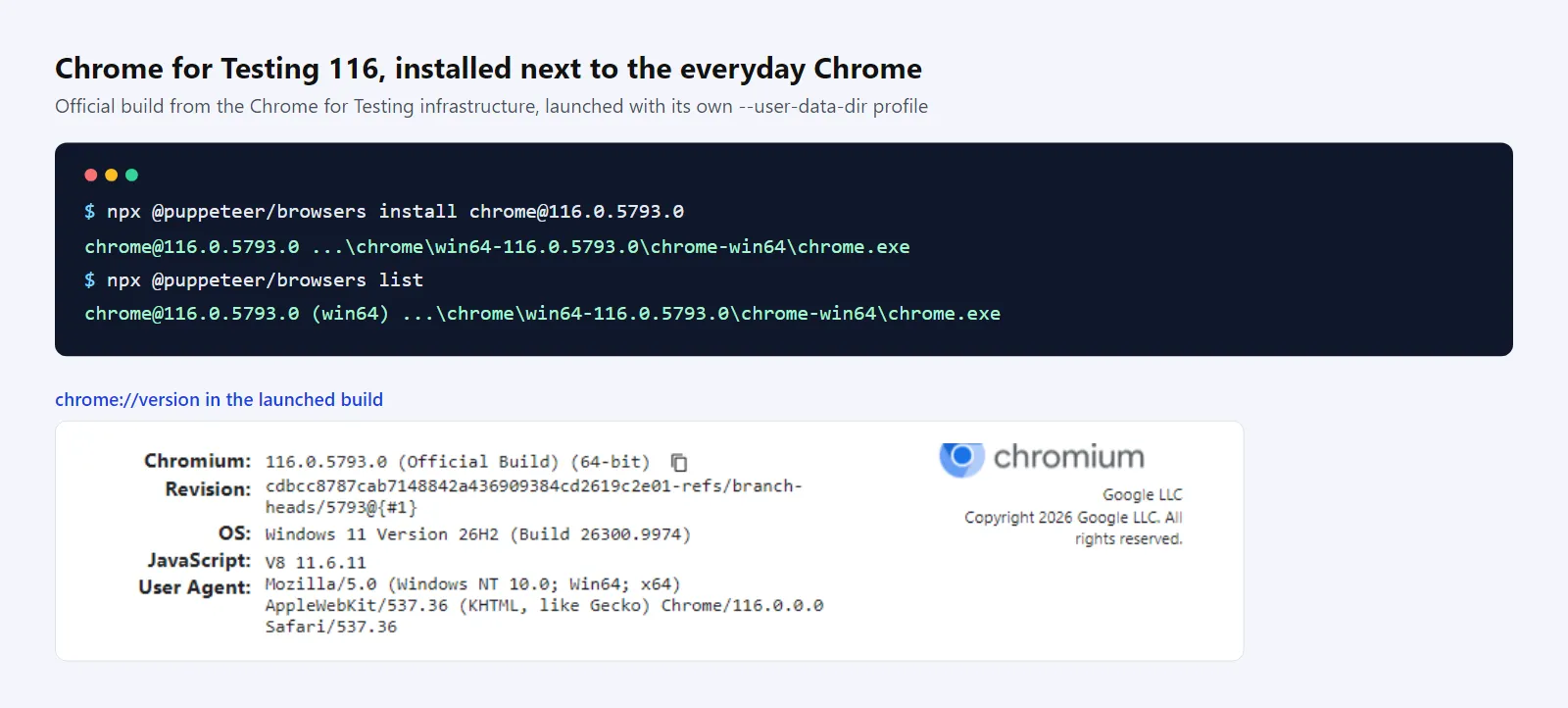
Chrome for testing builds are "do not auto-update, and do not have symbols" (according to the Chromium download page). That's perfectly correct if you're trying to reproduce a bug in a particular version, but the wrong thing to do if you're just browsing normally.
If all you need to do is check how a page renders in an old Chrome, then you may well not need to download anything at all (see the cloud option below).

Need Chrome 91 on Windows by lunchtime, no installer, no profile risk?
Note: TestMu AI will run Chrome versions from 15 to 159 (159 is the current Beta) on real Windows and Mac machines in the cloud. That covers the various versions of Chrome that are below the Chrome for Testing floor (i.e., Chrome 91). Just open the version, enter your URL and test. Test on older Chrome versions online.
How Do You Get a Chromium Snapshot for an Old Version?
Chromium snapshots are useful if you need a build older than the Chrome 113 testing floor or a build from a particular source revision. Chromium docs the steps to download Chromium:
- Find the latest Stable release for your major version (e.g., "44.") on the Chrome Releases blog.
- Look up that full version number in the Position Lookup tool to get its base position.
- Open the snapshot archive, pick your platform and filter on that base position. If nothing comes up, then just reduce the number until a build appears.
- Download the zip and run the browser binary inside it again, this time with a separate
--user-data-dir.
Two caveats. Snapshots are provided on a best-effort basis from an arbitrary revision. A branch-point build will also not contain any changes that were merged during beta, so it can be slightly different from the Stable release of the same major number.
Use Chrome for Testing if you need the exact released version.
How Do You Downgrade Chrome on Windows Without a Third-Party Installer?
On managed Windows machines, Google documents an enterprise downgrade via the Chrome MSI (Downgrade your Chrome version (Windows)). That page is clearly marked "For Google Workspace and Chrome Browser Enterprise Support customers only".
The path assumes you already have the older enterprise MSI archived, as Google doesn't provide the old installers. Read the warning first, as downgrading will automatically wipe all user profiles and cache data.
- Temporarily stop Chrome from auto-updating so it doesn't just go back and update again.
- From a command prompt, install your archived older enterprise MSI with downgrade allowed:
msiexec /i GoogleChromeStandaloneEnterprise.msi ALLOWDOWNGRADE=1. To go back to the version you last installed manually from the MSI file, Google's page provides this variant:msiexec /fvomus GoogleChromeStandaloneEnterprise.msi ALLOWDOWNGRADE=1. - Relaunch Chrome and confirm the version.
- Make sure every user relaunches Chrome. Users may see a profile version mismatch and will need to create a new profile.
- Turn auto-updates back on when you're finished.
Google will only recommend a downgrade in the case where it's absolutely necessary. You'd need to test it with a small group first, and you'd need to be certain that the downgrade actually fixes the problem.
Google points admins to a separate article on how to roll back to the three most recent major releases. That route is to replace the Chrome that's already installed, so it's the route that makes sense for IT fleets rather than a developer who just needs one old version of Chrome for an afternoon.
Which Way to Get an Older Chrome Version Should You Use?
The correct method depends on whether you actually need a real installed browser, the exact release and whether your Chrome is otherwise untouched:
| Method | Official source | Keeps your current Chrome | Exact version | Platforms | Best for |
|---|---|---|---|---|---|
| Chrome for Testing (@puppeteer/browsers) | Yes (Google) | Yes, separate binary | Yes, from Chrome 113 (chromedriver from 115) | Windows, macOS, Linux | Reproducing a bug in Chrome 113 or later; automation |
| Chromium snapshot | Yes (Chromium archive, best effort) | Yes, separate binary | Close, not exact (branch point) | Per archive platform folders | Versions below 113, or specific revisions |
Enterprise MSI with ALLOWDOWNGRADE=1 | Yes (Google; Workspace and Chrome Browser Enterprise Support customers) | No, it replaces it and deletes profiles | Yes, if you archived that MSI | Windows | IT rolling back a managed fleet |
| Third-party download sites | No | Usually no (uninstall first) | Unverifiable | Varies | Not recommended |
| Cloud browser (TestMu AI) | Real Chrome builds on real machines | Yes, nothing installed | Yes, pick the version (15 to 159) | Windows and macOS in the cloud | Checking a site or bug across many old versions fast, including below 113 |
The Old-Chrome Safety Checklist
Use these six checks every time you run an outdated Chrome:
- Write down the exact version you need (from the bug report, the analytics or the version checker) prior to downloading.
- Prefer the official sources: Chrome for Testing first, a Chromium snapshot second and the enterprise MSI only for managed fleets.
- Use a separate profile (
--user-data-dir) so the old build never opens your actual profile. - Never browse or sign in to any personal accounts with an old build, as it's devoid of the security fixes.
- Keep it on auto-update only during the testing phase, then either remove it or update it.
- Delete the binary and its profile folder when the bug occurs, either when it's reproduced or when it's fixed.
How Can You Test a Website on an Older Chrome Version Without Having to Install It?
A cloud browser opens up the old version on a remote machine so there's nothing to download, sandbox or clean up. That's the TestMu AI desktop real-time testing flow.
- Open 'Open Real Time' in the left-hand sidebar.
- Under Web Browser Testing, select Desktop.
- Enter your URL, select the OS, browser, browser version and screen resolution.
- Click Start.
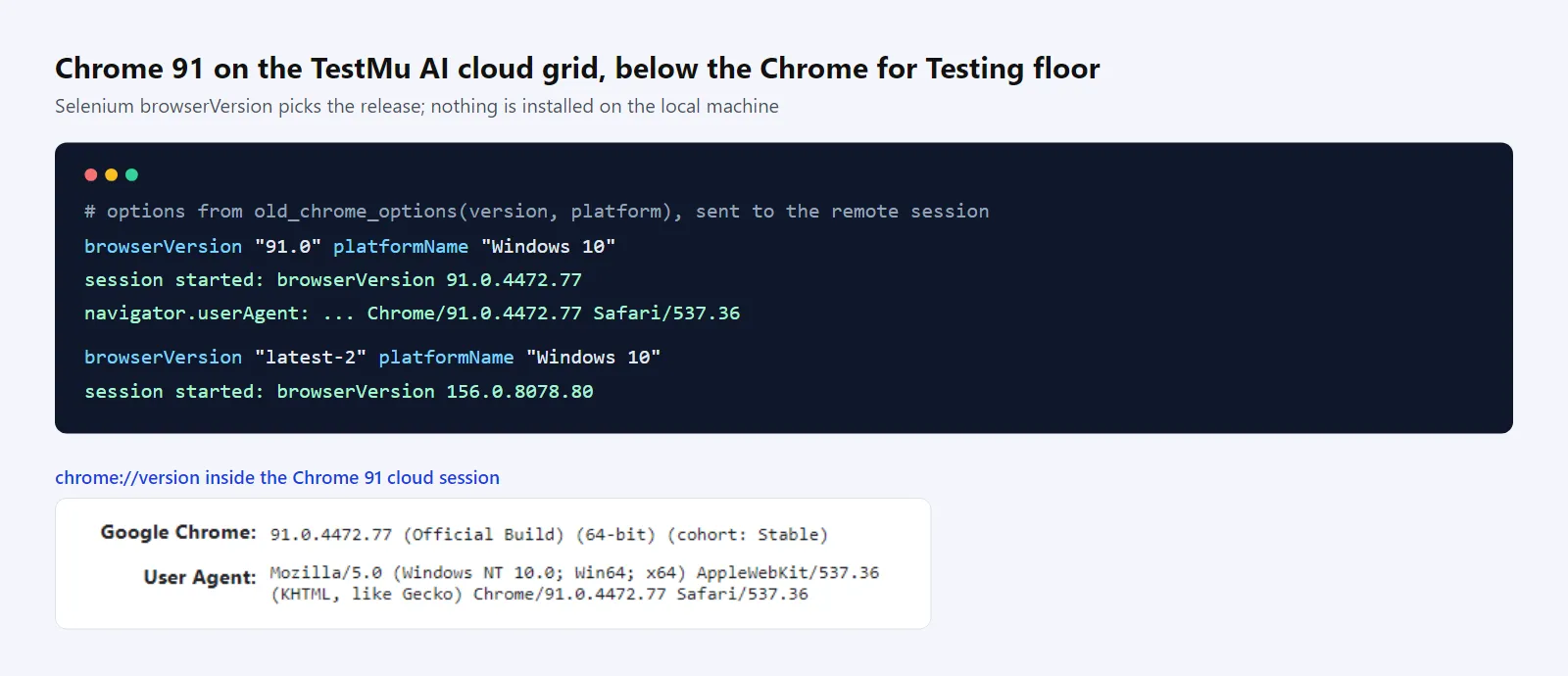
For the automated checks, Selenium's standard browserVersion will pick the version. TestMu AI's Selenium capabilities reference document values such as "91.0", "latest" and "latest-1":
from selenium import webdriver

def old_chrome_options(version: str, platform: str) -> webdriver.ChromeOptions:
   "Build options for a particular Chrome version, e.g. version='latest-2'"
   options = webdriver.ChromeOptions()
   options.browser_version = version
   options.platform_name = platform
   return options
Pass those options to the remote session you're already using. latest-N selects the version N releases behind the latest, so a "last three Chrome releases" check in CI would run latest, latest-1 and latest-2.
What Breaks When You Run an Old Version of Chrome?
An old Chrome changes three things you should plan for:
- Your profile. Newer profiles may not open in older builds. Google will warn you of a profile version mismatch if you've done an enterprise downgrade. A separate
--user-data-dirwill, of course, avoid that entirely. - Security. The older builds don't get the security fixes, and that's why Google doesn't distribute them. Treat the build as a test tool, not a browser.
- Drivers. You need a
chromedriverthat is compatible with the browser version. Chrome for Testing publisheschromedriverbuilds that match the browser version from Chrome 115 onwards, and the Chrome for Testing session recap explains why Google went down that route.
For a wider plan as to which old versions to cover and why, see the guide to cross-browser testing on older browser versions.
Watch: Testing on Desktop Browser Versions in Real Time
Conclusion
Downloading an older Chrome version is safe when it comes from an official source, runs with its own profile and gets deleted afterward. When you need many old versions, or need one in the next five minutes, skip the install. Open the Chrome version you need on TestMu AI and test in the Chrome browser using a real machine.
Found the bug on an old Chrome? TestMu AI's Real-Time Testing keeps DevTools, screenshots and Mark as Bug inside the live session, so the ticket carries the browser, OS and screen resolution automatically.
Author

Harshit Paul
Blogs: 100


Harshit Paul is Director of Product Marketing at TestMu AI, with over 8 years of experience in product and growth marketing for developer and QA tools, leading the Agentic AI in Quality Engineering space. He has authored 80+ technical articles for TestMu AI on software testing and automation, and hosted webinars on Selenium, automation testing, browser compatibility, DevOps, and continuous testing. He has led go-to-market and technical marketing initiatives across software testing products, contributing to SEO, content strategy, and developer marketing. He began his career as a certified Salesforce developer at Wipro Technologies, where he worked for 2 years before moving into marketing. Harshit holds a degree in computer programming from Vivekananda Institute of Professional Studies.
Reviewer

Srinivasan Sekar
Reviewer
Srinivasan Sekar is Director of Engineering at TestMu AI, where he leads engineering and open-source initiatives behind the Selenium and Appium automation grid and owns TestMu AI's MCP Server. A committer to Appium and a contributor to Selenium, WebdriverIO, Taiko, and AppiumTestDistribution, he brings over 15 years of experience in quality engineering and open-source technologies. He is the author of the Apress book 'The MCP Standard: A Developer's Guide to Building Universal AI Tools with the Model Context Protocol,' a Certified Kubernetes and Cloud Native Associate, and an international conference speaker. Before TestMu AI he spent over eight years at Thoughtworks as a Principal Consultant and Quality Architect. Srinivasan holds a B.Tech in Information Technology from Anna University.
Chrome Old Version Download FAQs
Did you find this page helpful?
More Related Blogs

TestMu AI forEnterprise
Get access to solutions built on Enterprise
grade security, privacy, & compliance
- Advanced access controls
- Advanced data retention rules
- Advanced Local Testing
- Premium Support options
- Early access to beta features
- Private Slack Channel
- Unlimited Manual Accessibility DevTools Tests