
Power Your Software Testing with AI Agents and Cloud
The Native AI-Agentic Cloud Platform to Supercharge Quality Engineering. Test Intelligently and Ship Faster.


- TestMu AI (Formerly LambdaTest)
- /
- Blog
- /
- Video and Audio Autoplay Policies Across Browsers
Video and Audio Autoplay Policies Across Browsers
Why an autoplay video works in Chrome but freezes in Safari and Firefox, the play() NotAllowedError trap that hides the bug, and how to test autoplay on real browser engines.
Published on:
A visitor opens your landing page on an iPhone. The hero video that autoplayed perfectly on your Chrome dev machine sits on a black, frozen frame. To that visitor the page just looks broken, so they leave, and your team never sees a thing because the build passed every check in Chrome.
That is the trap with autoplay. A hero video is often the first thing a visitor sees, so when it silently fails on one engine, a real slice of your traffic lands on a page that looks unfinished. Each browser engine decides for itself whether a video may start on its own, and those decisions do not match.
Chrome started blocking videos that play sound on their own back in Chrome 66, released in April 2018, per the Chrome autoplay policy. Safari and Firefox each set their own rules, so a page that plays fine in one browser can fail in another with no warning.
This guide explains how muted and unmuted autoplay differ across Chrome, Safari, and Firefox, the play() error that makes the bug silent, and how to test autoplay on the real engines your visitors use.
What Is a Browser Autoplay Policy?
A browser's autoplay policy is simply the rule it uses to decide whether a video or sound can start on its own, before the visitor clicks anything. Browsers added these rules to stop pages from suddenly blasting sound and to save data and battery.
One idea sits behind every version of the rule: sound is the problem. The MDN autoplay guide says it plainly. A video with no sound, or one that is muted, is not blocked. A video that plays sound usually is.
So two things decide whether your video plays on load:
- Does it play sound, or is it muted?
- Has the visitor clicked or tapped on the page yet?
A muted video is the safe bet almost everywhere. Add sound before the visitor interacts, and each browser steps in with its own rule. That is why autoplay belongs in every cross-browser testing pass: the browser decides, not your HTML.
Why Does Autoplay Work in Chrome but Not Safari or Firefox?
Because each browser answers those two questions differently. Chrome is the most relaxed, Safari is the strictest, and Firefox lands in the middle. Here is how each one behaves, based on the browser makers' own rules.
| Browser | Muted video | Video with sound plays when | The catch |
|---|---|---|---|
| Chrome | Always plays | The visitor has already clicked on your site, has watched video with sound there before (desktop only), or has installed your site as an app. | On phones that history does not count, so a first-time mobile visitor gets the strict treatment. |
| Safari | Plays only if muted and on screen | The visitor taps or clicks to start it, or has allowed auto-play for your site in Safari settings. | Turning sound on without a tap pauses the video, and Low Power Mode pauses it even when muted. |
| Firefox | Always plays | The visitor has clicked on the site, or has allowed it in Firefox settings. | A video with sound stays paused on the first visit by default. |
Chrome's own autoplay policy says muted video is always allowed, and that sound needs a previous click, enough viewing history, or an installed app. Safari, per the WebKit auto-play policy for macOS, blocks video with sound by default and lets each visitor decide site by site.
You do not need to memorize all of this. The one thing to remember: a video that plays in one browser proves nothing about the other two, because each one renders with a different browser engine that applies its own autoplay rules.

Note: Autoplay behaves differently on every engine, so check it on real browsers, not one. Run your page on 3,000+ browser and OS combinations with TestMu AI Real-Time Testing. Start testing free.
What Happens to the play() Promise?
When a browser blocks a video, it does not show an obvious error. In code, the video's play() call fails with an error named NotAllowedError. If your code does not check for it, the video just never starts and nothing tells you why.
The fix, from the MDN autoplay guide, is to catch that error and recover: play the video muted instead, which every browser allows, then give the visitor a button to turn sound on.
| What you see | Why it happens | What to do about it |
|---|---|---|
| NotAllowedError | The browser blocked playback because the video carries sound and the visitor has not interacted with the page. | Catch the rejection, fall back to muted playback, and surface an unmute control. |
| Nothing at all | The rejected play() promise was never handled, so the failure never reaches your code. | Always attach a catch to the play() promise and log the error name. |
| Muted video still paused | Low Power Mode on iOS pauses autoplay to save battery, even when the video is muted. | Check whether playback actually started, and show a play button or an animated fallback when it did not. |
const video = document.querySelector('#hero-video');
const startPromise = video.play();

if (startPromise !== undefined) {
  startPromise.catch((error) => {
    if (error.name === 'NotAllowedError') {
      // Autoplay with sound was blocked. Fall back to muted,
      // which every engine allows, then let the user opt into sound.
      video.muted = true;
      video.play();
      showUnmuteButton(video);
    } else {
      // A genuine load or decode error, handle separately.
      showPlayButton(video);
    }
  });
}
The same rule covers sound played with code through the Web Audio API. The MDN autoplay guide notes that starting audio this way without a click or tap is blocked too, so trigger it from a button press rather than on page load.
So the bug you are testing for is subtle: a video that silently never starts in one browser while working fine in another, which you only catch by opening the page in that browser.
How Does iOS Change the Autoplay Rules?
iPhones are where most autoplay bugs show up, because Safari on iOS asks for more than the desktop does. The WebKit video policies for iOS list what a video needs to start playing on its own:
- The video must be muted or have no sound, or Safari will not start it on its own.
- On iPhone, add the playsinline attribute, or the video tries to jump to fullscreen instead of playing in place.
- The video has to be visible on screen, not hidden or scrolled out of view.
- If sound gets switched on without a tap, Safari pauses the video again.
So a video that autoplays on iPhone needs all three attributes together:
<video autoplay muted playsinline>
  <source src="/hero.mp4" type="video/mp4" />
</video>
Even with all three in place, one thing still stops the video: Low Power Mode. When a phone is in Low Power Mode, Safari pauses autoplay to save battery, even for a muted video, as developers have confirmed in the Apple Developer Forums. Since you cannot count on autoplay, check whether the video actually started, and show a play button or an animated image when it did not.

How Do You Test Autoplay Across Browsers?
This bug reaches users for one reason: the page was only ever run in the browser it was built in. The fix is to run it on every real engine before release. One shortcut to avoid is the phone view in Chrome DevTools, which is still Chrome underneath, so it follows Chrome's autoplay rules, not Safari's, and never shows a Safari-only failure. You have to open the page in the real browser.
One simple check is to ask the page whether the video is paused after it loads. This short Playwright script does that, and the same script runs on the TestMu AI cloud grid through an automation cloud:
const { webkit } = require('playwright');

(async () => {
  const browser = await webkit.launch();
  const page = await browser.newPage();
  await page.goto('https://www.testmuai.com/');
  // A muted, playsinline video should have started; paused === false.
  const paused = await page.$eval('video', (v) => v.paused);
  console.log('WebKit reports paused:', paused);
  await browser.close();
})();
A script tells you paused or not, but the clearest check for Safari is to see it yourself. In TestMu AI Real-Time Testing, an iOS simulator session runs real Safari and opens Safari Web Inspector, so you can watch your video succeed or fail and debug it live, without owning a Mac. The mobile browser real-time testing docs show how to start one.
Running the same test page in a real Chrome session on TestMu AI Real-Time Testing shows the rule in action: the muted video plays, while the identical video with sound is blocked with a NotAllowedError.
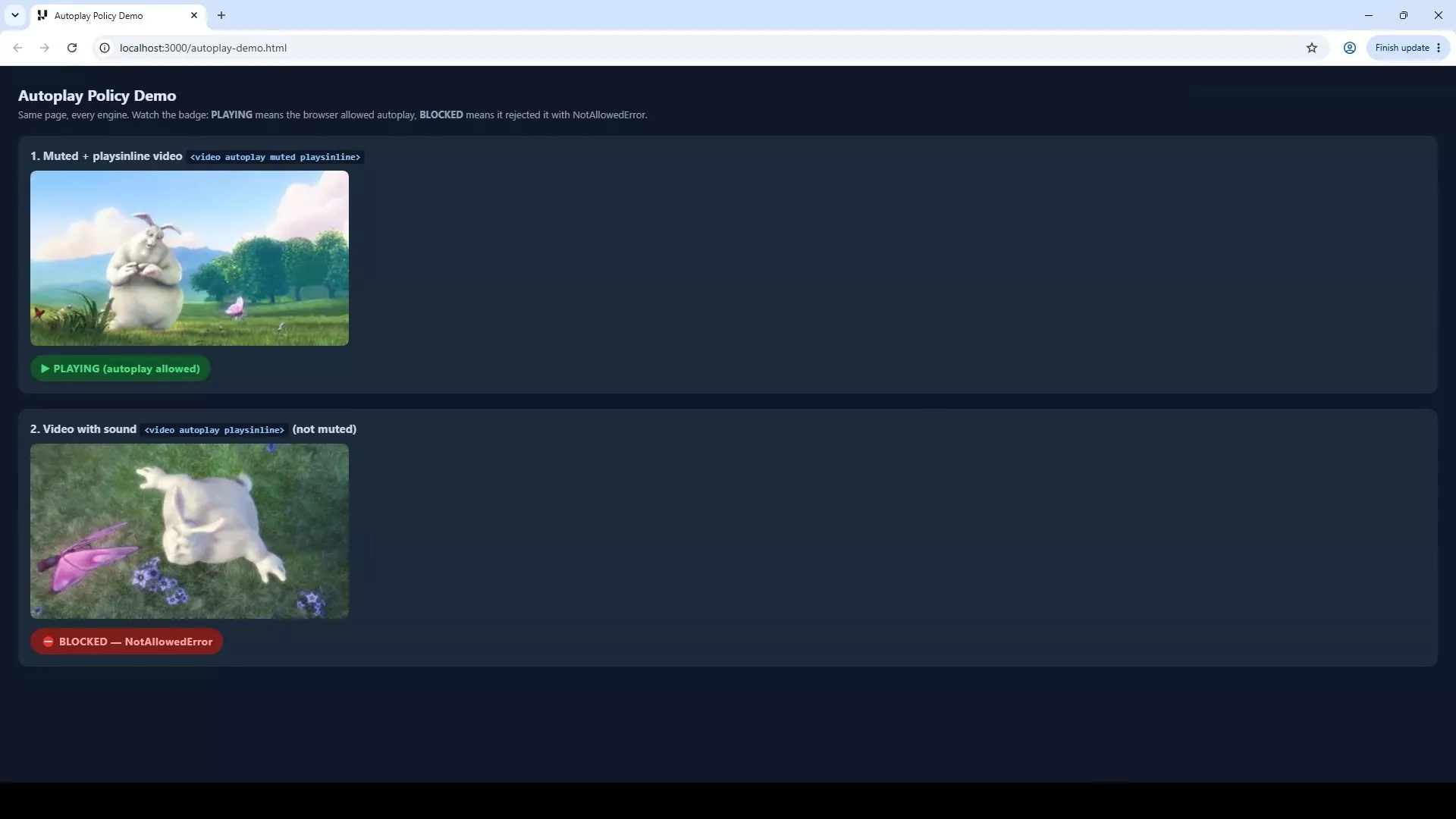
This is what a real cross-browser check gives you, because the browser itself, not a resized window, decides whether autoplay works. Checking a page on real Chrome, Safari, Firefox, and Edge is exactly what the TestMu AI cross-browser testing platform is for.

Which Autoplay Checks Should You Run?
Turn the policy differences into a short, repeatable checklist and run it on every engine your audience uses, not just the one on your machine.
- Check that every hero video has autoplay, muted, and playsinline, then confirm it starts on a real iPhone Safari.
- Open the page fresh in Firefox and make sure any video with sound stays paused and shows a play button.
- Check that a first-time visitor on mobile Chrome, with no history on your site, still gets a working page.
- Turn on Low Power Mode on an iPhone and confirm your fallback appears when autoplay is paused.
- Force the blocked case on purpose and confirm your page falls back to a muted video instead of failing silently.
Each item matches a rule that changes from browser to browser, so the checklist only counts when you run it on the real ones. Run it on every browser and device your audience uses, so a single pass covers the behavior that only breaks in a specific one.
Conclusion
Treat autoplay as something the browser decides, not something your HTML guarantees. Add autoplay, muted, and playsinline to every hero video, handle the case where the video is blocked, and always include a fallback so a paused video never looks broken.
Then check it where it matters. Working in Chrome tells you nothing about Safari or Firefox, and the phone view in Chrome DevTools cannot copy a real Safari block.
Open a TestMu AI Real-Time Testing session, run your page on a real iOS Safari engine and on Firefox, and confirm the video plays or falls back cleanly on each one. When autoplay is tested on the engines your visitors actually use, a green build finally means a working page.
Author

Naima Nasrullah
Blogs: 17

Naima Nasrullah is a Community Contributor at TestMu AI, holding certifications in Appium, Kane AI, Playwright, Cypress and Automation Testing. She writes practical, hands-on content that helps QA engineers and developers build reliable test automation frameworks across web and mobile platforms. Drawing on her expertise in automation testing, Naima breaks down complex tools and workflows into clear, actionable guidance that readers can apply directly to their own projects and testing pipelines.
Reviewer

Himanshu Sheth
Reviewer
Himanshu Sheth is the Director of Marketing (Technical Content) at TestMu AI, with over 8 years of hands-on experience in Selenium, Cypress, and other test automation frameworks. He has authored more than 130 technical blogs for TestMu AI, covering software testing, automation strategy, and CI/CD. At TestMu AI, he leads the technical content efforts across blogs, YouTube, and social media, while closely collaborating with contributors to enhance content quality and product feedback loops. He has done his graduation with a B.E. in Computer Engineering from Mumbai University. Before TestMu AI, Himanshu led engineering teams in embedded software domains at companies like Samsung Research, Motorola, and NXP Semiconductors. He is a core member of DZone and has been a speaker at several unconferences focused on technical writing and software quality.


Autoplay Testing FAQs
Did you find this page helpful?
More Related Blogs

TestMu AI forEnterprise
Get access to solutions built on Enterprise
grade security, privacy, & compliance
- Advanced access controls
- Advanced data retention rules
- Advanced Local Testing
- Premium Support options
- Early access to beta features
- Private Slack Channel
- Unlimited Manual Accessibility DevTools Tests