

Power Your Software Testing with AI Agents and Cloud
The Native AI-Agentic Cloud Platform to Supercharge Quality Engineering. Test Intelligently and Ship Faster.


- TestMu AI (Formerly LambdaTest)
- /
- Blog
- /
- How to Test Your Site on a Beta Browser Version Before It Ships
How to Test Your Site on a Beta Browser Version Before It Ships
Chrome Beta ships over a month before Stable. Here is how to test your site on a beta browser version in a live session and catch breaking changes early.
Published on:
In about a month, the version of Chrome your users run will change. That version already exists, and you can open your site in it this afternoon.
Chrome ships a major release every four weeks and its Beta channel runs over a month ahead of Stable, so anything due to break your site is sitting in a browser you can launch now. The browser will usually say so in the console before it removes anything.
Most cross browser testing looks sideways, across the browsers people are using today. This looks forward, at the one they will be using next month. The walkthrough below covers how to run that check, what to read once the page loads, and how to tell a browser change from your own.
TL;DR
- The Chrome Beta channel carries upcoming changes over a month before the Stable channel receives them, which is the window in which a breaking change can still be scheduled rather than hotfixed.
- Beta is the channel to test releases against, because Google describes Canary as released daily with minimal testing and states that Canary can and does break.
- A console deprecation warning that appears in Beta and not in Stable is a dated notice about work that has to happen before that version reaches users.
- Chrome, Firefox and Edge each expose their current beta in the TestMu AI real-time version picker, tagged Beta with a release date, so a beta session needs no install on your own machine.
- A difference only counts once the same flow has been re-run on the current Stable version, which separates a browser change from a change in your own build.
- Checking one critical flow on the current beta each release cycle costs about fifteen minutes and matches the four-week cadence Chrome already follows.
What Does That Window Save You?
Nothing forces you to look, which is why the window gets missed. A release goes out, your site works, and the version of Chrome your users will have in five weeks is not something anyone on the team has opened.
The difference shows up in what the fix costs.
- Found in Beta - a fix goes into the normal sprint, with the browser release as a deadline rather than an incident.
- Found in Stable - the same fix is a hotfix, and the report arrives from a customer rather than from you.
- The work is identical in both cases. The cost is not.
Which Channel Should You Test Against?
Chrome publishes four channels, and only one of them is a sensible default for release testing.
| Channel | Update cadence | Use it for |
|---|---|---|
| Stable | Major release every four weeks, minor updates every two to three weeks | The baseline. What your users are running right now. |
| Beta | Weekly, with major updates every four weeks | Release testing. Over a month of warning, at close to stable reliability. |
| Dev | Once or twice weekly | Following a specific feature that has not reached Beta yet. |
| Canary | Daily, minimal testing | Chasing one upcoming change. Google states that Canary can and does break. |
Every figure in that table comes from Google's Chrome release channels documentation.
The distinction matters because a failure on Canary is ambiguous. It might be your site and it might be the browser, and separating the two costs more time than the check saved. Beta carries near-stable reliability, so a failure there is worth acting on.
How Do You Start a Beta Browser Session?
Most advice on this subject begins with installing a second browser beside your normal one. That works, and it leaves a second Chrome on your machine that updates on its own schedule and eventually gets confused with the first.
In a real-time session the beta build is one entry in the version list, beside the stable ones.
- Open Real Time, choose Desktop under Web Browser Testing, and pick your operating system.
- Select Chrome, Firefox or Edge and look at the top of the version list. The newest entry carries a Beta tag with its release date beside it, above the stable versions.
- Pick the same resolution you use for your normal checks, so the only thing changing is the browser version.
- Enter the URL and start the session. Nothing installs, and nothing stays behind when you end it.
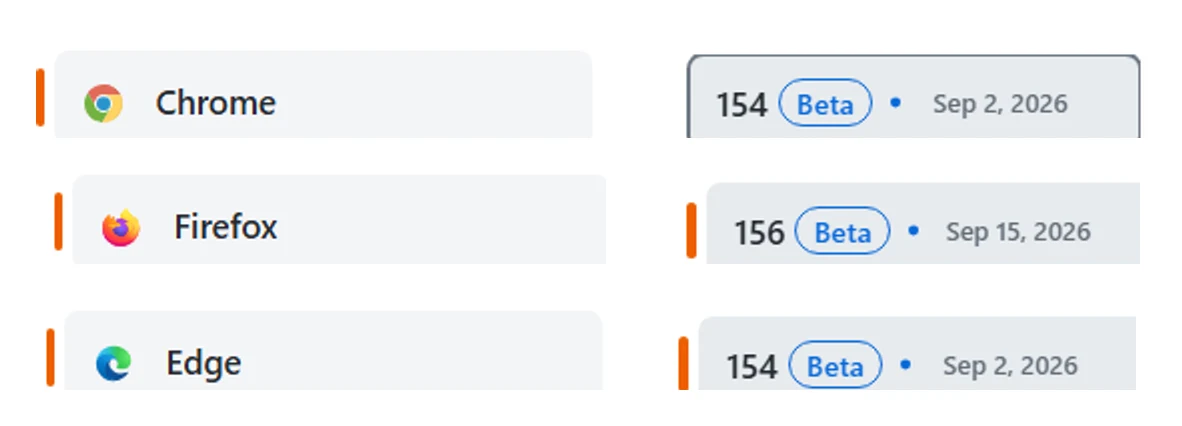
Three vendors, three beta builds, one picker. The version number, the Beta tag and the release date are all shown, which is enough to record what you tested against. The stable versions sitting below them go back years, and the full list of browsers covers every browser and version combination available.
Run the beta check against staging where you can. A deprecation that appears against production tells you the same thing, but a staging URL lets you fix and re-check without waiting for a deploy.

Note: TestMu AI Real-Time Testing gives you live, hands-on sessions across 3,000+ browser, OS, and virtual device configurations, with beta builds listed beside the stable versions. Try it free!
What Should You Look For Once It Loads?
DevTools is the point of the exercise, not the page. A visual check tells you what already broke; the Issues panel and the console tell you what is about to.
| Where to look | What you are looking for | Why it matters |
|---|---|---|
| Issues panel | Browser-reported problems, with third-party cookie issues included | It collects deprecations and policy warnings in one place instead of leaving them scattered through the console log. |
| Console | Deprecation and intervention warnings absent from your stable run | Chrome flags behavior it intends to change before it removes it, so this is the earliest notice you get. |
| Network tab | Requests that now fail, or headers being treated differently | Policy changes around cookies, referrers and mixed content show up here rather than on the page. |
| Critical flows | Login, forms, checkout, upload, anything with a third-party embed | These carry the most third-party code, which is where changes you do not control land first. |
| Layout | Components built on newer CSS features | Rendering changes are visible, so they are the one category a quick look actually catches. |
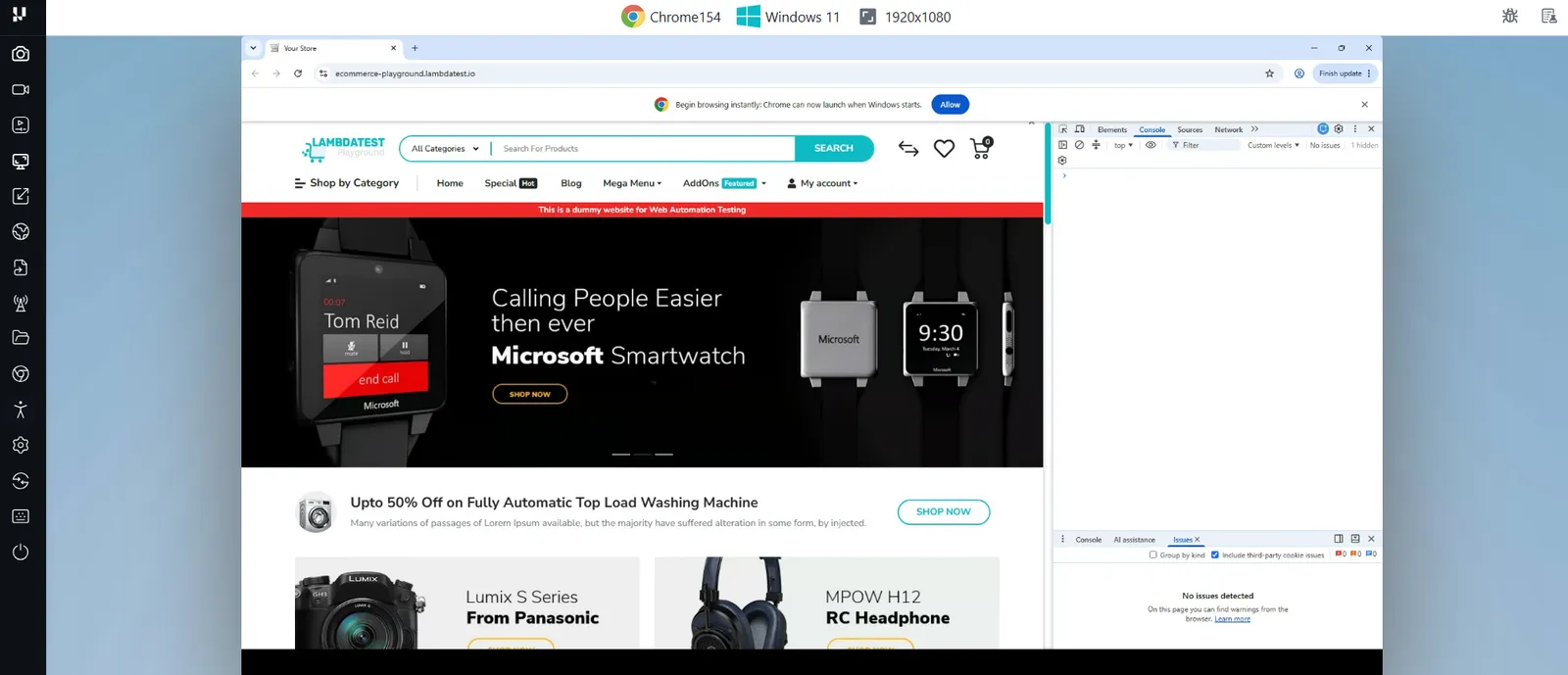
This is the result you want most of the time. The session header confirms the build under test, and the Issues panel reports nothing on this page with third-party cookie issues included, which means nothing in that version affects it. A clean result is an answer rather than a wasted check, and it takes about a minute to get.
Record the session if the flow is long. A warning that scrolls past in the console is easier to find again in a recording than by walking the whole flow a second time.

What Does One of These Changes Actually Look Like?
Chrome is removing XSLT. It is a useful worked example because the whole timeline is published, the warning arrived long before the removal, and the removal has still not happened.
| Chrome version | Date | What happens |
|---|---|---|
| 142 | Oct 28, 2025 | Early warning console messages added. |
| 143 | Dec 2, 2025 | Official deprecation. Warnings begin showing in the console and in Lighthouse. |
| 152 | Aug 25, 2026 | An origin trial goes live so sites can keep the feature past the removal date. |
| 158 | Nov 17, 2026 | XSLT stops functioning on Stable, for everyone outside the origin trial and enterprise policy. |
| 176 | Aug 17, 2027 | The origin trial and enterprise policy stop working too. |
The XSLTProcessor class goes, and so does the XSLT processing instruction that sits at the top of an XML document. The full schedule is published in Google's XSLT removal documentation.
Read those dates as a warning system rather than a single event. A console message existed from October 2025 and the feature stops working in November 2026, so anyone who opened a beta build in that window had more than a year of notice. Anyone who did not will find out when a page stops rendering.
Chrome deprecations follow this shape in general. Google's deprecation documentation states that warnings are displayed in the Chrome DevTools Issues panel when deprecated features are used, and draws the distinction that deprecation is not removal. A deprecated feature still works, which is exactly why it is easy to ignore until it does not.
How Do You Know the Beta Is the Cause?
A failure in a beta session has three possible explanations, and only one of them is worth a ticket.
- Your build changed - the flow would fail on Stable too. Re-run it on the current stable version before assuming the browser is involved.
- The browser changed - the same build passes on Stable and fails on Beta. This is the finding, and the console usually names the cause.
- The beta is at fault - real, but rarer than it feels. Check the Chrome release notes for that version before filing against your own code.
Switching between the beta and the current stable version inside one session is the quickest way to tell the first two apart, because the page, the resolution and the data stay the same while only the version moves. The discipline that keeps that comparison honest is covered in comparing one flow across browsers.
When it is genuinely the browser, the ticket writes itself: the flow, the two versions, the console output, and the date the change reaches Stable. That last detail is what turns it into scheduled work instead of a backlog item.
What About the Other Browsers?
Chrome is the usual starting point because it moves fastest and carries the largest share, but it is not the only browser with a preview channel, and the others are not on the same clock. Which ones belong in your matrix at all is a separate decision, covered in this rundown of the best browsers for website testing.
| Browser | Preview channel | What the vendor says it is for |
|---|---|---|
| Chrome | Beta, Dev, Canary | Beta carries changes over a month ahead of Stable; Canary ships daily and can break. |
| Edge | Beta, Dev, Canary | Beta is for validating against a sample of users, with new features about every two weeks. |
| Firefox | Nightly, Beta | Beta runs one major version ahead of the Release channel. |
| Safari | Safari Technology Preview | Apple describes it as a sneak peek at upcoming web technologies in macOS and iOS. |
Microsoft states the case for this practice more directly than anyone else. Its Edge channel documentation describes the Beta channel as a chance to validate that things work as expected in your environment, and says that if you find an issue, it can be remediated before the release is published to the Stable Channel. That is the entire argument for beta testing, written by a browser vendor.
Edge documentation also carries a detail worth knowing if you sell to enterprises. Alongside Stable, Microsoft offers Extended Stable, an eight-week major release cycle for organisations that need longer to validate. Feature updates land every fourth Stable release, so some of your corporate users are deliberately running an older browser than everyone else.
Three of these are available without leaving the session. Chrome, Firefox and Edge each list their current beta at the top of the version picker, so a sweep across all three betas is the same few clicks as a sweep across their stable builds.
Safari is the one where a preview check pays for itself fastest, because Safari changes are the hardest to work around and the slowest to reach users on older operating systems. Apple ships Safari Technology Preview for that purpose, and it runs on macOS rather than as a second Safari beside the one you already have.
Where Do You Find Out What Is Changing?
A beta session tells you that something broke. It does not always tell you what changed, and the answer is usually published before the release.
- Vendor release notes - each browser publishes what is in the version you are testing. Reading the notes for one version takes a few minutes and often names the exact behavior your console flagged.
- Deprecation and removal lists - the changes most likely to break a working site are the ones being taken away, and these are announced ahead of the version that removes them.
- The console message itself - Chrome deprecation warnings usually name the feature and the version in which the behavior changes, which is enough to search the release notes directly.
- Your own dependency list - a change to cookie handling or referrer policy tends to surface through a third-party embed rather than your own code, so knowing which embeds you carry narrows the search.
Reading the notes first and testing second also works, and it is faster when a release is small. The session is what confirms whether a documented change affects your site in particular, which the notes cannot tell you.
What Goes Wrong With a Beta Check?
| What you see | What is happening | What to do |
|---|---|---|
| The console looks empty and you expected warnings | The level filter hides them by default, and a hidden count sits beside the issue counter | Turn on Warnings in the level dropdown, then reload with DevTools already open so load-time messages are captured. |
| No beta appears in the version list | Beta tags follow the vendor release cycle, so there is a gap right after a beta is promoted to stable | Check again after the next major. The top entry carries the Beta tag and its release date whenever one is live. |
| A warning appears in Beta and in Stable | Not a new change, just one nobody had read before | Treat it as ordinary technical debt and schedule it normally rather than as release-blocking work. |
| The page breaks, but on your build rather than the browser | Your deploy moved between the stable check and the beta check | Re-run both on the same build, the way you would when reproducing browser-specific bugs. Two builds across two browser versions proves nothing. |
| A warning names a feature you do not use | It came from a third-party embed rather than your own code | Find the script in the network tab and raise it with that vendor, because the fix is not yours to make. |
What Should You Write Down?
A beta check is only worth repeating if the next person can tell what changed since the last one. Six lines cover it, and they take longer to explain than to fill in.
- Date - when the check ran.
- Beta version - the browser and number, for example Chrome 154 Beta.
- Stable version - what you compared it against.
- Build or environment - the staging URL or release tag, so the comparison can be repeated.
- Flow checked - which journey you walked, not just which page you opened.
- Result - clean, or the warning text verbatim with the version it names.
Record the clean runs as well. A row saying Chrome 154 Beta was clean on the signup flow is what tells you, three versions later, that whatever broke arrived after that date.
How Do You Keep Doing It?
A check nobody owns stops happening after the second sprint. The cadence is already set for you, since Chrome majors land every four weeks.
- One flow, not the suite - pick the single flow that would hurt most if it broke, and check only that. Fifteen minutes survives a busy sprint where an afternoon does not.
- Tie it to the release, not the calendar - run it when a new beta major appears, so the check tracks the browser rather than your sprint boundaries.
- Write down what you checked - the flow, the beta version, the stable version, and the date. Next cycle starts from that note instead of from memory.
- Widen only on a signal - a console warning is the reason to test more flows on that version, not a standing instruction to test everything every time.
The same habit points backwards as well. Users on older builds need the opposite check, which is the subject of cross browser testing on older browser versions. Once the same check runs every cycle without a person driving it, it has become a regression test, and it belongs in an automation cloud run against the beta version instead of in someone's calendar.
Wrapping Up
Before the next release, open your most important flow on the current Chrome Beta and read the console. That single check is the difference between a deprecation you schedule and one that arrives as a support ticket.
Beta builds sit in the version picker on TestMu AI live testing, alongside every stable version you already test on. The real-time desktop browser testing tools documentation lists the in-session controls you will use once the beta loads.
Author

Naima Nasrullah
Blogs: 17

Naima Nasrullah is a Community Contributor at TestMu AI, holding certifications in Appium, Kane AI, Playwright, Cypress and Automation Testing. She writes practical, hands-on content that helps QA engineers and developers build reliable test automation frameworks across web and mobile platforms. Drawing on her expertise in automation testing, Naima breaks down complex tools and workflows into clear, actionable guidance that readers can apply directly to their own projects and testing pipelines.
Reviewer

Harshit Paul
Reviewer
Harshit Paul is Director of Product Marketing at TestMu AI (formerly LambdaTest), with over 8 years of experience in product and growth marketing for developer and QA tools, leading the Agentic AI in Quality Engineering space. He has authored 80+ technical articles for TestMu AI on software testing and automation, and hosted webinars on Selenium, automation testing, browser compatibility, DevOps, and continuous testing. He has led go-to-market and technical marketing initiatives across software testing products, contributing to SEO, content strategy, and developer marketing. He began his career as a certified Salesforce developer at Wipro Technologies, where he worked for 2 years before moving into marketing. Harshit holds a degree in computer programming from Vivekananda Institute of Professional Studies.


Beta Browser Testing FAQs
Did you find this page helpful?
More Related Blogs
TestMu AI forEnterprise
Get access to solutions built on Enterprise
grade security, privacy, & compliance
- Advanced access controls
- Advanced data retention rules
- Advanced Local Testing
- Premium Support options
- Early access to beta features
- Private Slack Channel
- Unlimited Manual Accessibility DevTools Tests