

Power Your Software Testing with AI Agents and Cloud
The Native AI-Agentic Cloud Platform to Supercharge Quality Engineering. Test Intelligently and Ship Faster.


- TestMu AI (Formerly LambdaTest)
- /
- Blog
- /
- How to Set a Custom User-Agent String for Browser Testing
How to Set a Custom User-Agent String for Browser Testing
A practical guide to setting a custom user-agent string in Chrome DevTools, Selenium, and Playwright, plus why the string alone is not enough to test cross-browser rendering.
Published on:
Every user-agent string follows a fixed product, version, and comment format, for example ending in AppleWebKit/537.36 and Chrome/143.0.0.0 for a typical desktop Chrome browser. That AppleWebKit segment is boilerplate nearly every browser still includes for compatibility, while Chrome now freezes most of the version digits after Chrome/ at 0.0.0 rather than revealing its real build number.
TL;DR
- A user-agent string identifies the browser to a server through the User-Agent header and to scripts through navigator.userAgent.
- Overriding the user-agent string never changes the rendering engine, so Chrome carrying a Safari string still renders with Blink.
- Chrome DevTools sets a custom user agent from the Network conditions panel, but only for one tab while DevTools stays open.
- Selenium sets a custom user agent through the --user-agent argument on ChromeOptions, before the driver is created.
- Playwright sets a custom user agent with the userAgent option on a browser context, scoping the override to a single test.
- Confirming how a page renders in Safari needs the real engine, which TestMu AI real-time testing provides without a Mac.
What Is a User-Agent String?
A user-agent string is a line of text a browser sends in the User-Agent HTTP request header to identify itself to a web server. The server reads it to decide what to serve, and JavaScript can read the same value through navigator.userAgent.
Per the MDN User-Agent reference, the header follows a product, version, and comment structure. A current desktop Chrome string looks like this:
Mozilla/5.0 (Windows NT 10.0; Win64; x64) AppleWebKit/537.36 (KHTML, like Gecko) Chrome/143.0.0.0 Safari/537.36Each part tells the server something:
- The part in brackets (Windows NT 10.0; Win64; x64) names the operating system and device type.
- AppleWebKit/537.36 (KHTML, like Gecko) is old text almost every browser still adds for compatibility, so do not read too much into it.
- Chrome/143.0.0.0 names the browser and version. Chrome now keeps most of these digits fixed at 0.0.0 so it shares less detail about itself.
A custom user-agent string is any value you substitute for the browser default so the server and page code treat your request as a different browser, device, or OS.
Why Do Testers Set a Custom User-Agent?
Many sites still change what they show based on the user-agent string, so testers need to check each of those paths. This matters most for browsers you cannot open on your own machine.
Safari holds 15.31% of the global browser market as of June 2026, according to Statcounter Global Stats, and all of those visitors use Safari's engine, which Chrome cannot imitate.
Common reasons to set a custom user agent during testing:
- Adaptive content: confirm a server that sends different HTML or redirects to an m-dot site responds correctly to mobile and desktop strings.
- Bot and crawler simulation: send a Googlebot string to see the markup search engines receive, or verify that bot-blocking rules fire as intended.
- Feature gating: validate code paths that enable or hide features based on detected browser or version.
- Legacy support: check how an app degrades when it thinks it is talking to an old browser it no longer supports.
- Bug reproduction: match a customer's reported browser identity as one input while you reproduce browser-specific bugs in their exact configuration.
MDN warns that serving different content based on the user agent is usually a bad idea, precisely because the header is easy to spoof and unreliable.
That warning is a testing signal: if your app makes decisions from the user-agent string, those paths need testing, and that testing has to go beyond the string itself.
Is Changing the User-Agent String Enough?
Here is the point every user-agent tutorial skips. A custom user agent changes what the browser says about itself, not how the browser works. The Chrome DevTools documentation states it plainly: overriding the user-agent string does not change how the Chrome browser functions internally.
So when you set an iPhone Safari string in Chrome, this is what actually happens and what does not:
- What changes: the identity the browser reports. The website's server and any code that checks the browser now see Safari.
- What does not change: the engine that actually draws the page. Chrome keeps using its own engine (Blink), not Safari's engine (WebKit).
That gap is where bugs hide. A CSS feature Safari handles differently, a date Safari reads differently, or a layout that only breaks in Safari will never show up while Chrome is doing the drawing.
Your test passes, and the real Safari user still hits the bug.
A simple rule: use a custom user agent to test code that reads the string, and use a real browser to test how the page looks and behaves. The sections below cover both.
Set a Custom User-Agent in Chrome DevTools
The fastest way to set a custom user agent for a manual check is through the Network conditions panel. Per Chrome's documentation, the steps are:
- Open DevTools, then open the Network conditions panel from the More tools menu or the command menu.
- In the User agent section, disable the Use browser default checkbox.
- Choose a preset from the list, or type your own string. You can copy a real value from this list of Chrome user-agent strings.
- Refresh the page so the new user agent is sent with the request.
One limit to remember: the change applies only to the current tab and only while DevTools stays open. It is a quick manual check, not a repeatable test.
To see what the server actually sent back for the changed string, pair it with Chrome remote debugging.
To confirm the override took effect, open the Console and read the value back:
console.log(navigator.userAgent);
// Expected: the custom string you entered in Network conditions
Note: Skip the manual DevTools override and launch real browsers on 3,000+ browser and OS combinations with TestMu AI Real-Time Testing. Start testing free.
Set a Custom User-Agent in Selenium & Playwright
For repeatable, automated coverage, set the user agent in code. In Selenium, pass the string as a Chrome argument before the driver starts, and attach cloud capabilities so the same test runs across environments on the TestMu AI grid:
ChromeOptions options = new ChromeOptions();
options.addArguments("--user-agent=Mozilla/5.0 (iPhone; CPU iPhone OS 17_0 like Mac OS X) AppleWebKit/605.1.15 (KHTML, like Gecko) Version/17.0 Mobile/15E148 Safari/604.1");

HashMap<String, Object> ltOptions = new HashMap<>();
ltOptions.put("username", "YOUR_USERNAME");
ltOptions.put("accessKey", "YOUR_ACCESS_KEY");
ltOptions.put("build", "Custom User-Agent Testing");
ltOptions.put("name", "Custom UA session");
ltOptions.put("platformName", "Windows 11");
options.setCapability("browserName", "Chrome");
options.setCapability("browserVersion", "latest");
options.setCapability("LT:Options", ltOptions);

WebDriver driver = new RemoteWebDriver(
    new URL("https://hub.lambdatest.com/wd/hub"), options);
driver.get("https://www.testmuai.com/selenium-playground/");
System.out.println(((JavascriptExecutor) driver)
    .executeScript("return navigator.userAgent;"));
In Playwright, you set the user agent when you create the browser context, so it stays tied to that one test:
const { chromium } = require('playwright');

(async () => {
  const browser = await chromium.launch();
  const context = await browser.newContext({
    userAgent: 'Mozilla/5.0 (iPhone; CPU iPhone OS 17_0 like Mac OS X) AppleWebKit/605.1.15 (KHTML, like Gecko) Version/17.0 Mobile/15E148 Safari/604.1'
  });
  const page = await context.newPage();
  await page.goto('https://www.testmuai.com/selenium-playground/');
  console.log(await page.evaluate(() => navigator.userAgent));
  await browser.close();
})();
Running the Playwright example above, the page reads back the exact iOS Safari string that was set, confirming the override took effect:
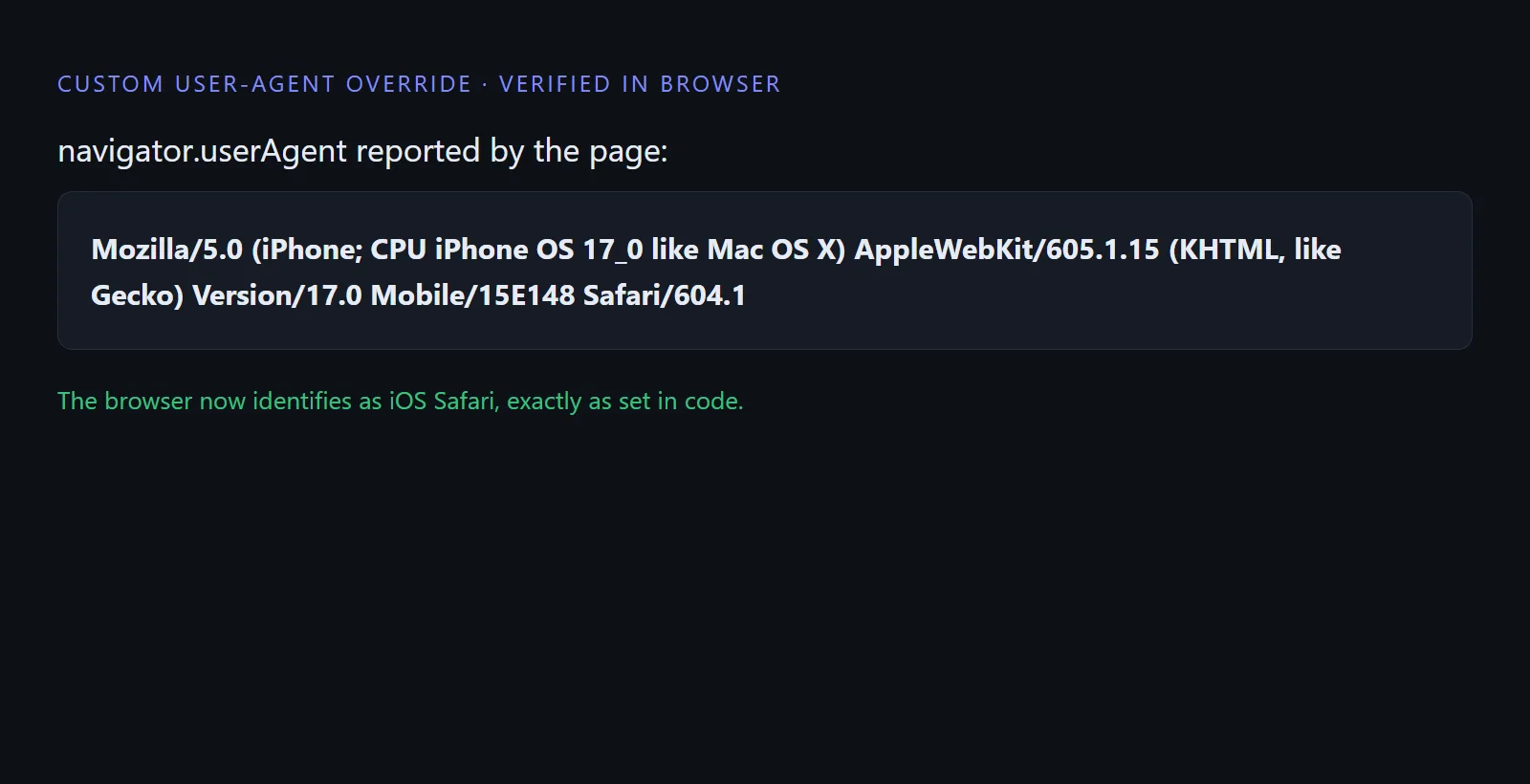
Both approaches scale to hundreds of parallel runs when pointed at an automation cloud. But this still runs Chrome. To check how the page really behaves in Safari, you need the real browser, which the next section covers.
How Do You Test on Real Browser Engines?
The only way to know a page works in Safari is to run it in Safari. Rather than spoof a string, launch the real browser.
TestMu AI live testing gives interactive access to 3,000+ browser, OS, and resolution combinations in the cloud, so you can drive an actual browser session without owning the hardware.
For WebKit specifically, two surfaces solve the Safari problem:
- Desktop Safari on a macOS VM: launch a real Safari version on Sequoia, Sonoma, or an earlier macOS build and debug with the built-in Safari Web Inspector.
- iOS Safari on a simulator: the iOS simulator renders with real WebKit and sends the genuine mobile Safari user agent, so mobile Safari rendering is authentic even though the session runs on a virtual device, not physical hardware.
Because a real session sends the browser's own user agent, you validate the header logic and the rendering at the same time, on the same engine. To get started, see the desktop browser real-time testing docs.
This is the difference between assuming a page works and confirming it. Running your site on real browsers across engines is exactly what TestMu AI's cross-browser testing platform is built for.

Which Method Should You Use?
Each method answers a different question. Match the tool to what you are actually verifying.
| Method | Changes the engine? | Repeatable? | Best for |
|---|---|---|---|
| Chrome DevTools override | No, stays on Blink | No, manual and temporary | A quick one-off check of UA-based redirects or content on your own machine. |
| Selenium or Playwright | No, stays on the launched browser engine | Yes, scriptable and parallel | Automated regression of string-reading logic across many configurations. |
| Real browser session | Yes, uses the actual engine | Yes, live or scripted | Confirming rendering, CSS, and JavaScript behavior on Safari, Firefox, or Edge. |
A practical workflow uses all three: DevTools to reproduce a UA branch fast, automation to lock that check into regression, and a real session to prove the page renders correctly on the target engine.
Which Method Should You Use?
Each method answers a different question, so match the tool to what you are actually verifying.
| Method | Changes the engine? | Repeatable? | Best for |
|---|---|---|---|
| Chrome DevTools override | No, the page still renders on Blink. | No, manual and it lasts only while DevTools stays open. | A one-off check of a user-agent redirect or adaptive content on your own machine. |
| Selenium or Playwright | No, it stays on whichever engine the launched browser uses. | Yes, scriptable and parallelizable. | Automated regression of code that reads the user-agent string, across many configurations. |
| Real browser session | Yes, the actual engine renders the page. | Yes, live or scripted. | Confirming rendering, CSS, and JavaScript behaviour on Safari, Firefox, or Edge. |
A practical workflow uses all three: DevTools to reproduce a user-agent branch quickly, automation to lock that check into regression, and a real session to prove the page renders correctly on the target engine.
Conclusion
Start by separating the two jobs. If you are testing logic that reads the user-agent string, set a custom string in DevTools for a quick check or in Selenium and Playwright for repeatable runs.
If you are testing how a page looks and behaves, stop spoofing and launch the real engine, because a changed string on the Chrome engine never proves Safari or Firefox behavior.
The quickest path to a real engine is to open a session on TestMu AI Real-Time Testing, pick the exact browser and OS you need, and verify the page where your users actually run it. Pair a custom user agent with a real browser, and a passing test finally means a working page.
Author

Naima Nasrullah
Blogs: 17

Naima Nasrullah is a Community Contributor at TestMu AI, holding certifications in Appium, Kane AI, Playwright, Cypress and Automation Testing. She writes practical, hands-on content that helps QA engineers and developers build reliable test automation frameworks across web and mobile platforms. Drawing on her expertise in automation testing, Naima breaks down complex tools and workflows into clear, actionable guidance that readers can apply directly to their own projects and testing pipelines.
Reviewer

Himanshu Sheth
Reviewer
Himanshu Sheth is the Director of Marketing (Technical Content) at TestMu AI, with over 8 years of hands-on experience in Selenium, Cypress, and other test automation frameworks. He has authored more than 130 technical blogs for TestMu AI, covering software testing, automation strategy, and CI/CD. At TestMu AI, he leads the technical content efforts across blogs, YouTube, and social media, while closely collaborating with contributors to enhance content quality and product feedback loops. He has done his graduation with a B.E. in Computer Engineering from Mumbai University. Before TestMu AI, Himanshu led engineering teams in embedded software domains at companies like Samsung Research, Motorola, and NXP Semiconductors. He is a core member of DZone and has been a speaker at several unconferences focused on technical writing and software quality.


Custom User-Agent Testing FAQs
Did you find this page helpful?
More Related Blogs
TestMu AI forEnterprise
Get access to solutions built on Enterprise
grade security, privacy, & compliance
- Advanced access controls
- Advanced data retention rules
- Advanced Local Testing
- Premium Support options
- Early access to beta features
- Private Slack Channel
- Unlimited Manual Accessibility DevTools Tests