
Test Your Website on Real Desktop and Mobile Browsers
Run live and automated cross browser tests on Chrome, Safari, Firefox, and Edge across 3,000+ browser-OS combinations. No setup, no device lab.

Chrome Canary: What It Is, How to Install It and When to Use It
Part of: Cross Browser Testing
Chrome Canary is Google's nightly Chrome build. Install it beside Chrome, compare it with Beta and Dev, automate it and report the bugs you find.
Chrome Canary is Google's nightly build of Chrome. It ships at least once a day, is tested purely via automation and installs alongside your normal Chrome with its own profile.
You can use it to get an early look at one particular upcoming change. For release sign-off, you'll need to test on Chrome Beta, which is well in advance of Stable (by more than a month) and at a quality level very close to Stable.
TL;DR
Chrome Canary is the Chrome channel that receives new code first, ahead of Dev, Beta and Stable, and it installs beside your regular Chrome with its own profile. Use it on your own machine to watch one upcoming change early, then confirm any failure on Chrome Beta and Stable, which TestMu AI runs in the cloud.
How Do Canary, Dev, Beta and Stable Differ?
- Chrome Canary: Released daily with automated testing only, so a single build can crash or break a site. On November 27, 2026, Canary was at Chrome 160, the same major version as Dev.
- Chrome Dev: Released once or twice a week and tested more than Canary, though bugs are still likely. Chrome Dev suits following one feature that has not reached Beta yet.
- Chrome Beta: Updated about weekly and more than a month ahead of Stable, with reliability close to Stable. Chrome Beta is the channel to gate a release on, at Chrome 159 when this was written.
- Chrome Stable: Gets minor updates every two to three weeks and a major release every four weeks, after automated testing and manual checks. Chrome Stable is what your users run, so a Stable failure is a bug to fix now.
Where Can You Install Chrome Canary?
- Desktop: Chrome Canary installs on Windows, macOS and Linux from Google's Canary download page, into its own directory with its own user data. Linux joined the Canary channel in November 2024. Replaces your regular Chrome: No.
- Chrome Canary Android: Google Play lists the Android build as Chrome Canary (Unstable), a separate app beside regular Chrome that Google marks as untested and meant for developers and advanced users. Available on Android: Yes.
- iPhone and iPad: Google publishes no Chrome Canary build for iOS. Chrome Beta through TestFlight is the closest preview channel on an iPhone or iPad. Available on iOS: No.
How Do You Confirm a Canary Failure in the Cloud?
- TestMu AI cloud: TestMu AI opens Chrome 15 to 159 in Real Time sessions, with 159 as the current Beta, and automation sessions accept the
betaanddevlabels forbrowserVersion. Canary itself is not offered, so it stays local.
What Is Chrome Canary?
Chrome Canary is the most experimental of the public Chrome builds. Code changes go into Canary first, then Dev, then Beta and finally Stable.
Google's developer docs say it quite plainly: "Canary can (and does) break". Some builds will crash, and some will make certain sites completely unusable.
Three facts matter for anyone testing a website on Canary:
- Release cadence: Google's developer docs state that Canary is released daily. The Chromium channel page states builds are pushed out twice a day with only automated testing. Either way, the build you're testing today is gone by tomorrow.
- Crash and usage reporting is on by default. Canary will send crash reports and usage stats to Google unless you turn that off.
- It's a standalone app. Canary has its own icon (yellow), its own install directory and its own user data. Installing it in no way interferes with your normal Chrome.
The name comes from the canary in the coal mine, really: if something's going to break, it should break here first (as few people depend on it). Chrome Canary is not the same as a canary release (the practice of shipping a change to a small subset of users first), which is covered in our canary testing guide.
Chrome Canary is Google's daily automatically tested build of Chrome that installs alongside Stable and shows you the changes before they get to Dev, Beta and then Stable.
For a quick visual walkthrough of this concept, watch the video below from TestMu AI.
Subscribe to the TestMu AI YouTube channel for more tutorials on testing and automation.
Chrome Canary vs Chrome Dev vs Chrome Beta: What's the Difference?
Chrome Canary is different from regular Chrome (Stable) in that it updates much more frequently and each build gets far less testing. Dev and Beta fall somewhere in between. The version numbers below are from Google's Chrome for Testing dashboard on 27th November 2026.
| Channel | Release cadence | Testing | Version | Platforms | Use it for |
|---|---|---|---|---|---|
| Stable | Minor updates every 2 to 3 weeks, major release every 4 weeks | Automated plus manual checks | 158 | Windows, macOS, Linux, Android, iOS | What your users run |
| Beta | About weekly, major update every 4 weeks | Much more polished; over a month ahead of Stable | 159 | Windows, macOS, Linux, Android, iOS (TestFlight) | Release checks on your site |
| Dev | Once or twice a week | More than Canary, still buggy | 160 | Windows, macOS, Linux, Android | Following a feature that has not reached Beta |
| Canary | Daily (Chromium says twice daily) | Automated only | 160 | Windows, macOS, Linux, Android | Watching one change as soon as it lands |
Cadence and testing columns come from Google's Chrome release channels page. Platform columns come from the Chromium release channels page, which lists only Stable and Beta for iOS. There is no Chrome Canary for iPhone or iPad.
The practical difference between Canary and Dev is just noise. Dev gets a bit more testing and significantly fewer builds per week, so a Dev failure is slightly more likely to be a real one. Canary gets you the change a few days sooner.
For which channel should you gate a release? The short answer is Beta. Our guide to testing your site on a beta browser version explains why a Beta failure is worth acting on and why a Canary failure is often pretty much just noise.
If you're looking at cloud grids as part of your evaluation of a BrowserStack alternative, make sure the current Chrome Beta and previous versions are available in both live and automated sessions and that a new Beta appears fairly quickly. Coverage on TestMu AI is in the cloud browser section below.
How Do You Install Chrome Canary?
You get Chrome Canary from the official Google Chrome Canary download page (or from Google Play on Android). Don't use any third-party APKs or download mirrors that come up when you search for "chrome canary download" as you can't verify what they've changed.
Windows and macOS
- Open the Chrome Canary download page in your current browser.
- Click the download button and run the installer (on Windows) or drag the app into Applications (on macOS).
- Launch Google Chrome Canary from the Start menu or Applications (the yellow icon is what sets it apart from Stable).
- Open
chrome://versionand note the version number (you'll need it for any bug report you may end up submitting).
Linux
Chrome on Linux launched on the Canary channel in November 2024 (announced on the chromium-dev group).
The Linux package is available from the Canary download page. If Linux isn't listed there, use the 'Other Platforms' link at the bottom of the page. Any older articles stating there is no Canary for Linux predate that launch.
Android
- Open the Google Play Store and search for Chrome Canary (Unstable) by Google LLC.
- Install it. The listing makes it very clear that the release "has not been tested" and is for developers and advanced users.
- It appears as a separate app next to Chrome (so your normal browser is unchanged).
iPhone and iPad
There's no Chrome Canary for iOS. The closest you can get is Chrome Beta via TestFlight.
Can You Test on Chrome Canary in a Cloud Browser?
Chrome Canary is not available on TestMu AI in Real Time sessions or in automation. The Chrome page in TestMu AI goes from Chrome 15 up to 159, and 159 is the current Beta, so the cloud does indeed cover Stable, the older versions and Beta. Canary remains on your own machine.
Canary changes daily, so run it locally and confirm findings on Beta in the cloud. On TestMu AI:
| Where you test | Chrome builds | How to pick them |
|---|---|---|
| Real Time (live testing) | Stable versions and the current Beta | Real Time > Desktop > choose OS > Chrome > top version with the Beta tag |
| Selenium automation | Stable versions; Beta and Dev through the beta and dev labels | browserVersion set to latest, latest-1 or a version number, per the Selenium 4 capabilities doc |
| Your laptop or CI runner | Canary, Dev, Beta, Stable | Install locally (steps above) |
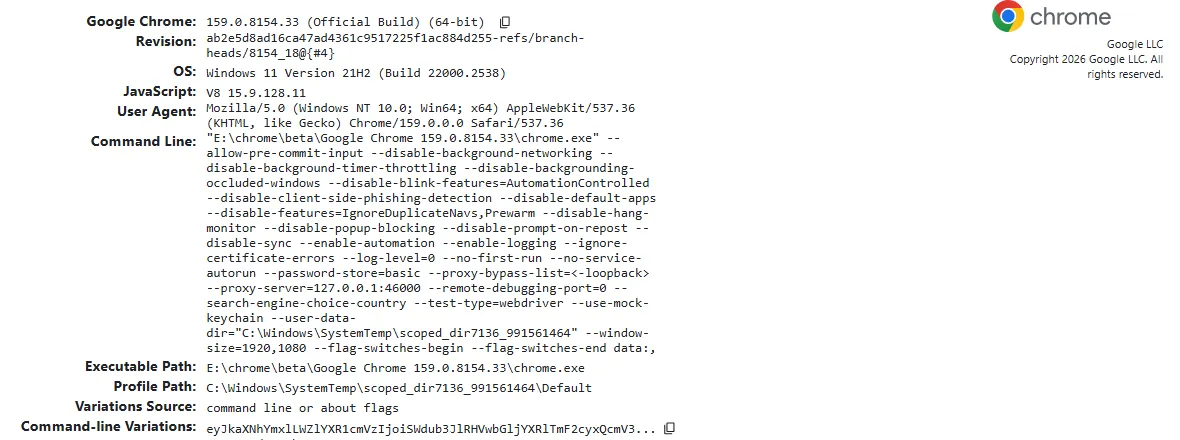
In a Real Time session, you can right-click the page and choose Inspect Element to open developer tools, as the developer tools doc describes. That is how you compare a Canary finding against Beta and Stable without installing either.

Note: Spotted something odd in Canary? Open the same URL in Chrome Beta and Chrome Stable side by side in TestMu AI Real Time. Nothing to install. Test it on Chrome browsers online.
How Do You Run Chrome Canary Next to Regular Chrome?
Chrome Canary runs side by side with Stable by design. As per the Chromium channel page, all channels "install into distinct directories and use dedicated User Data directories", so the bookmarks, extensions, cookies and settings in Canary are entirely separate from your main browser.
A few habits keep the two from getting confused:
- Sign in with a test account or not at all. The risk of syncing your primary Google account into a build that can break on a daily basis is simply not worth the benefit.
- Keep extensions to a minimum. Extensions are the first thing you think of when a page breaks. A clean Canary profile removes that as a variable.
- Check what build you're on. Open
chrome://versionbefore you do anything else. It's quite easy to accidentally create a "Canary bug" in Stable. - Leave crash reporting on as you're testing. Crash reports are how Google sees Canary breakage at scale. Only turn crash reporting off if your policy requires it.
On managed machines, Google's Enterprise Help states that Canary uses the Dev policy template. On macOS, the same page states that policies set for Stable also apply to the other channels installed on that same machine. Always check with IT before you assume Canary is unmanaged.
How Do You Use Chrome Flags in Canary?
Chrome flags in Canary work exactly the same as in Stable (open chrome://flags, search for the feature, enable it and then restart). The difference is the timing.
New experimental flags will appear in Canary, Dev and Beta before they appear in Stable. Our Chrome flags guide has all the details on enabling, resetting and command line flags.
How Do You Run Automated Tests on Chrome Canary?
You run your automated tests against Chrome Canary by having your framework point at the locally installed Canary build. Both Playwright and Selenium support this. Run your Canary jobs as a separate, non-blocking job so a broken nightly doesn't block your merges.
Playwright
Playwright uses the channel option for the branded Chrome and Edge builds. The Playwright browsers doc lists chrome-canary and msedge-canary as channels.
Two caveats from the same page: Playwright won't install these browsers by default (you have to install the Canary first) and "The current Playwright version will support Stable and Beta channels of these browsers." Canary is a valid channel, but a Canary-only failure is a signal to look into it rather than a failure that you can be certain Playwright will support.
// playwright.config.ts
import { defineConfig, devices } from '@playwright/test';

export default defineConfig({
  projects: [
    { name: 'chrome-stable', use: { ...devices['Desktop Chrome'], channel: 'chrome' } },
    { name: 'chrome-canary', use: { ...devices['Desktop Chrome'], channel: 'chrome-canary' } },
  ],
});
A first check that can actually fail: load your page and fail on any console error, recording the exact browser version with the result.
// tests/canary-smoke.spec.ts
import { test, expect } from '@playwright/test';

const TARGET_URL = process.env.TARGET_URL;
if (!TARGET_URL) {
  throw new Error('Set TARGET_URL to the page you want to check, e.g. TARGET_URL=https://staging.example.com');
}

test('page loads without console errors', async ({ page, browser }) => {
  test.info().annotations.push({ type: 'browser-version', description: browser.version() });
  const consoleErrors: string[] = [];
  page.on('console', (msg) => {
    if (msg.type() === 'error') consoleErrors.push(msg.text());
  });
  const response = await page.goto(TARGET_URL);
  expect(response?.ok(), `HTTP status ${response?.status()}`).toBeTruthy();
  expect(consoleErrors).toEqual([]);
});
Run it on both builds and compare:
TARGET_URL=https://staging.example.com npx playwright test --project=chrome-stable --project=chrome-canary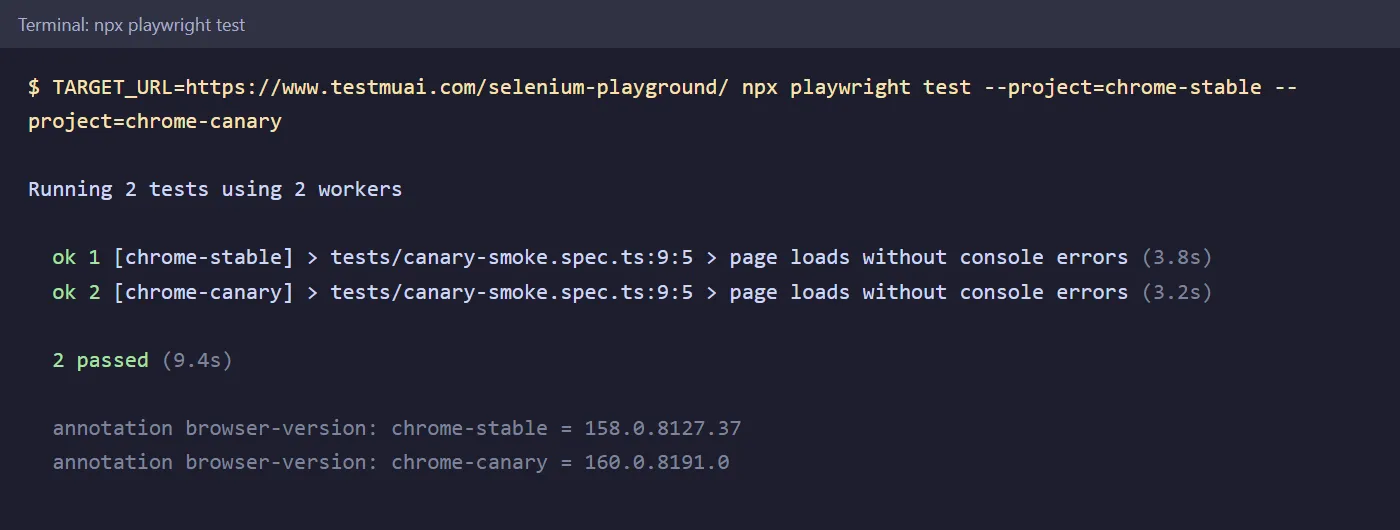
If only the chrome-canary project fails, go to the triage checklist below before you change any code.
Selenium (Python)
Selenium Manager takes the channel label as the browser version. The Selenium Manager docs list beta, dev and canary (or nightly) as valid values. It first looks for an installed browser of that channel.
The docs go on to describe the process of downloading a Chrome for Testing build if no browser is found of that channel, although their example in the docs uses 'beta', so if you're relying on the download path for canary you'll want to verify that at least once on your CI image. Our Selenium Manager guide shows the same channel labels in the context of a Java and TestNG run.
The check below will fail on any SEVERE browser console entry (the Selenium equivalent of the Playwright test above) and will print out the browser version that the session actually used.
# canary_smoke.py
import os
from selenium import webdriver

target_url = os.environ.get("TARGET_URL")
if not target_url:
    raise SystemExit("Set TARGET_URL to the page you want to check")

options = webdriver.ChromeOptions()
options.browser_version = "canary"  # Selenium Manager resolves the Canary build
options.set_capability("goog:loggingPrefs", {"browser": "SEVERE"})

driver = webdriver.Chrome(options=options)
try:
    print("Browser version:", driver.capabilities.get("browserVersion"))
    driver.get(target_url)
    errors = driver.get_log("browser")
    assert not errors, f"Console errors on {target_url}: {errors}"
finally:
    driver.quit()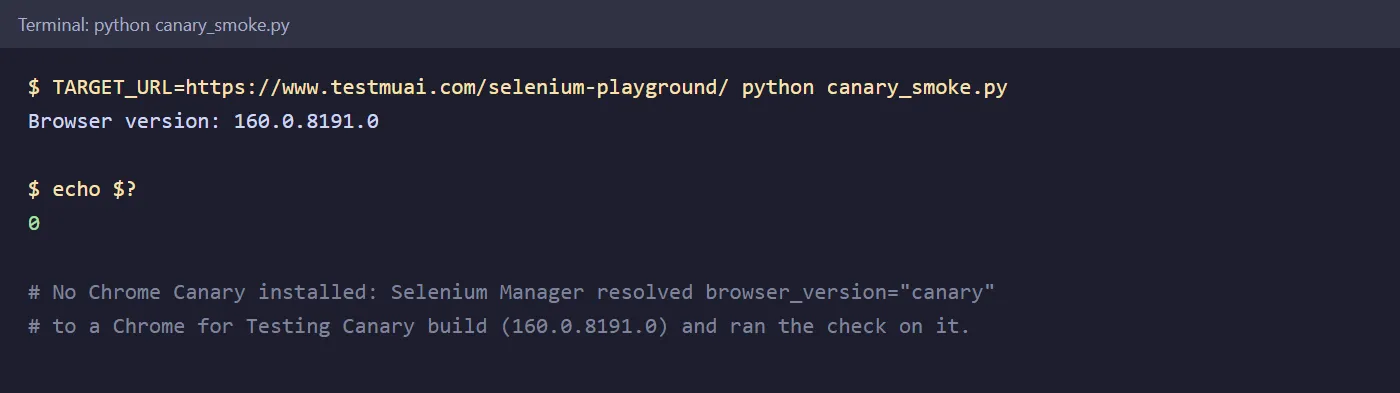
To do the same test against Beta on TestMu AI's cloud grid, just set browserVersion to beta and again keep your credentials in your environment variables (LT_USERNAME, LT_ACCESS_KEY) rather than in the hub URL.
Is It Canary, Beta or Your Site? The Three-Build Check
The Three-Build Check is a 5-step process for working out whether a Canary failure is a Chrome bug, a change you're going to need to deal with or a bug in your own code. You run it before you open any ticket.
| Step | What to do | What it tells you |
|---|---|---|
| 1. Clean repro | Reproduce in Canary with a fresh profile and no extensions. Note chrome://version. | Rules out your local setup |
| 2. Next build | Update Canary (or wait a day) and retry. | Many Canary breakages vanish in the next build |
| 3. Beta | Open the same URL on Chrome Beta, locally or in a Real Time session. | A Beta failure means the change is on its way to users |
| 4. Stable | Open it on Chrome Stable. | A Stable failure means the bug is yours today |
| 5. Decide | Use the outcome rules below. | Who acts, and how soon |
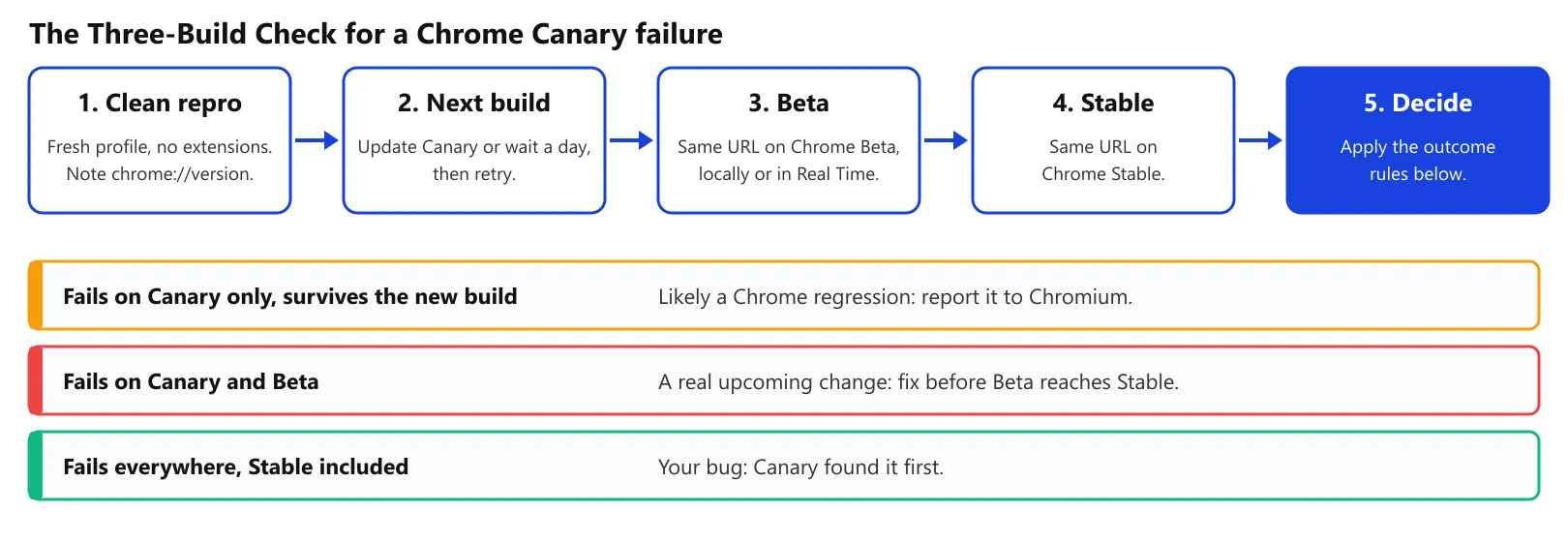
Outcome rules:
- Fails on Canary only, survives in the new build: very likely a Chrome regression. Report it to Chromium (next section) and keep an eye on it.
- Fails on Canary and Beta (a real upcoming change): See the Chrome release notes for that milestone and fix your site before Beta becomes Stable.
- Fails everywhere, including Stable (your bug): Canary found it first.
The desktop Real Time getting-started doc shows how to start the Beta and Stable sessions for steps 3 and 4, including a Tunnel option when the page only exists on your local or staging network.
How Do You Report a Bug You've Found in Chrome Canary?
You report Chrome Canary bugs on the Chromium issue tracker (sign in with a Google account). The Chromium bug reporting guidelines ask that you:
- Confirmation that the bug does indeed reproduce on the latest Chromium or Chrome Canary build.
- A brief, high-level description of the issue.
- Detailed steps to reproduce, plus the expected behavior.
- A URL which demonstrates the issue (site compatibility issues).
- Results from other browsers.
- Screenshots and, where possible, a reduced test case attached to the report.
Search the open issues first, as someone may have already filed it. Add the exact version from chrome://version so the Chrome team can see which build the problem was introduced in.
What Is Edge Canary?
Edge Canary is Microsoft's daily build of Microsoft Edge (the Edge equivalent of Chrome Canary). The channel documentation describes it as a daily build and the most cutting-edge of the Edge channels.
The Edge Insider download page states that the preview channels install alongside the released version of Edge and don't remove it, and lists Canary for desktop. The mobile entries on that page are only for Beta and Dev.
As Edge is built on Chromium, any breakage you see in both Chrome Canary and Edge Canary is indicative of a Chromium change rather than a browser-specific one. In Playwright, you would use channel: 'msedge-canary'.
Who Should Use Chrome Canary and Who Should Not?
Chrome Canary is ideal for front-end developers and QA engineers who are tracking a specific change (a new CSS feature, a deprecation, a cookie or permissions change, etc.) and want to see it as soon as it lands. It's also good for teams who run a nightly non-blocking smoke job.
Chrome Canary does not suit release sign-off, everyday browsing, or anyone who can't tolerate a browser that sometimes crashes. For sign-off, check Beta and Stable. For bugs your customers report on older builds, see our guide to downloading an older Chrome version safely.
Watch: Real-Time Testing on Desktop Browsers
This TestMu AI walkthrough shows you how to start a desktop browser session in real time (the same flow as steps 3 and 4 of the Three-Build Check).

Conclusion
Start by installing Chrome Canary beside your regular Chrome, with a clean profile and a test account. Then add the console-error check from this guide as a non-blocking nightly job on Stable and Canary, and run the Three-Build Check on any failure before you file a ticket.
Next step: keep Canary on your machine for early warning and verify every finding against the builds that your users actually run. Create a free TestMu AI account and open Chrome Beta in Real Time.
Found a Canary bug that also shows on Beta? TestMu AI's Real-Time Testing keeps DevTools, screenshots and Mark as Bug inside the live session, so the ticket carries the browser, OS and screen resolution automatically.
Was this helpful?
Authors

Harshit Paul
Author · 102 posts
Harshit Paul is Director of Product Marketing at TestMu AI, with over 8 years of experience in product and growth marketing for developer and QA tools, leading the Agentic AI in Quality Engineering space. He has authored 80+ technical articles for TestMu AI on software testing and automation, and hosted webinars on Selenium, automation testing, browser compatibility, DevOps, and continuous testing. He has led go-to-market and technical marketing initiatives across software testing products, contributing to SEO, content strategy, and developer marketing. He began his career as a certified Salesforce developer at Wipro Technologies, where he worked for 2 years before moving into marketing. Harshit holds a degree in computer programming from Vivekananda Institute of Professional Studies.


Srinivasan Sekar
Reviewer
Srinivasan Sekar is Director of Engineering at TestMu AI, where he leads engineering and open-source initiatives behind the Selenium and Appium automation grid and owns TestMu AI's MCP Server. A committer to Appium and a contributor to Selenium, WebdriverIO, Taiko, and AppiumTestDistribution, he brings over 15 years of experience in quality engineering and open-source technologies. He is the author of the Apress book 'The MCP Standard: A Developer's Guide to Building Universal AI Tools with the Model Context Protocol,' a Certified Kubernetes and Cloud Native Associate, and an international conference speaker. Before TestMu AI he spent over eight years at Thoughtworks as a Principal Consultant and Quality Architect. Srinivasan holds a B.Tech in Information Technology from Anna University.
Chrome Canary FAQs

TestMu AI forEnterprise
Get access to solutions built on Enterprise
grade security, privacy, & compliance
- Advanced access controls
- Advanced data retention rules
- Advanced Local Testing
- Premium Support options
- Early access to beta features
- Private Slack Channel
- Unlimited Manual Accessibility DevTools Tests