

Power Your Software Testing with AI Agents and Cloud
The Native AI-Agentic Cloud Platform to Supercharge Quality Engineering. Test Intelligently and Ship Faster.


- TestMu AI (Formerly LambdaTest)
- /
- Learning Hub
- /
- Chrome Flags: How to Enable Experimental Features in Chrome
Chrome Flags: How to Enable Experimental Features in Chrome
How to open chrome://flags and switch experimental Chrome features on or off, on desktop and Android, plus how to reset them when something breaks.
Last Updated on:
Chrome flags are hidden experimental settings in Google Chrome that can be accessed only through chrome://flags. They are not enabled by default and must be turned on manually. To enable one, type chrome://flags, search for the flag, set its dropdown to Enabled, and relaunch Chrome. Because they are still under testing, they can reduce stability or performance.
Chrome flags give you early access to experimental features in Google Chrome, letting you explore upcoming browser capabilities before they are rolled out to everyone.
While they are mainly used by developers and testers to validate new functionalities, advanced users can also experiment with them to customize their browsing experience.
Their importance lies in offering a testing ground that helps shape Chrome’s future while balancing innovation with stability.
Key Takeaways
To enable experimental features in Google Chrome, navigate to chrome://flags in the address bar, search for a flag, set it to Enabled, and relaunch the browser. For automated testing, you can pin these flags using Selenium or validate them across environments on the TestMu AI cloud platform.
- Parallel Downloading: This flag splits files into smaller chunks and fetches them simultaneously using separate connections to speed up large downloads.
- Zero-Copy Rasterizer: This setting writes directly into GPU memory to skip CPU to GPU transfer steps, which speeds up page rendering and graphics performance.
- GPU Rasterization: This feature offloads page content rasterization to the GPU, reducing the layout and scripting load on the CPU to improve rendering speed.
- Auto Dark Mode for Web Contents: This option automatically forces websites to display in a dark theme, making it ideal for night reading or users who prefer dark interfaces.
- Multi-Lingual Live Caption: This flag extends automatic speech to text generation to non-English languages for online videos, helping accessibility testers validate inclusive user flows.
- Side by Side Split View: This feature combines two open tabs into a single split-screen view inside the browser without detaching them into separate windows, aiding multitasking.
- Tab Audio Muting: This setting turns the audio icon on a noisy tab into a one-click mute toggle, allowing users to bypass the right-click menu for quick silencing.
- Disable Smooth Scrolling: This flag removes the easing animation applied during scrolling, which helps reduce eye strain and headaches for users with motion sensitivity.
- Debugging Keyboard Shortcuts: This ChromeOS flag enables search and shift shortcuts, such as disabling the touchpad to prevent accidental palm clicks during debugging.
- chrome://version: This address displays the Command Line entry listing every active flag Chrome was launched with, allowing users to verify which features are running.
- Selenium and Playwright: These automation frameworks allow teams to pin flag-dependent behavior in CI pipelines by passing the --enable-features switch through browser launch options.
- TestMu AI: This cloud platform enables manual and automated testing across 10,000+ real devices and desktop browsers to validate experimental flags on specific Chrome versions.
- Stacking multiple GPU, memory, or multithreading flags can crash or slow down Chrome, so you should toggle them one at a time.
- Flag IDs frequently change or get removed between Chrome releases, requiring validation across the specific versions your users run.
What Are Chrome Flags?
Chrome flags are hidden experimental settings in Google Chrome that can be accessed only through chrome://flags. They are not enabled by default and must be turned on manually.
Since these features are still under testing, they may introduce risks such as higher resource usage, reduced stability, or potential security and privacy issues.
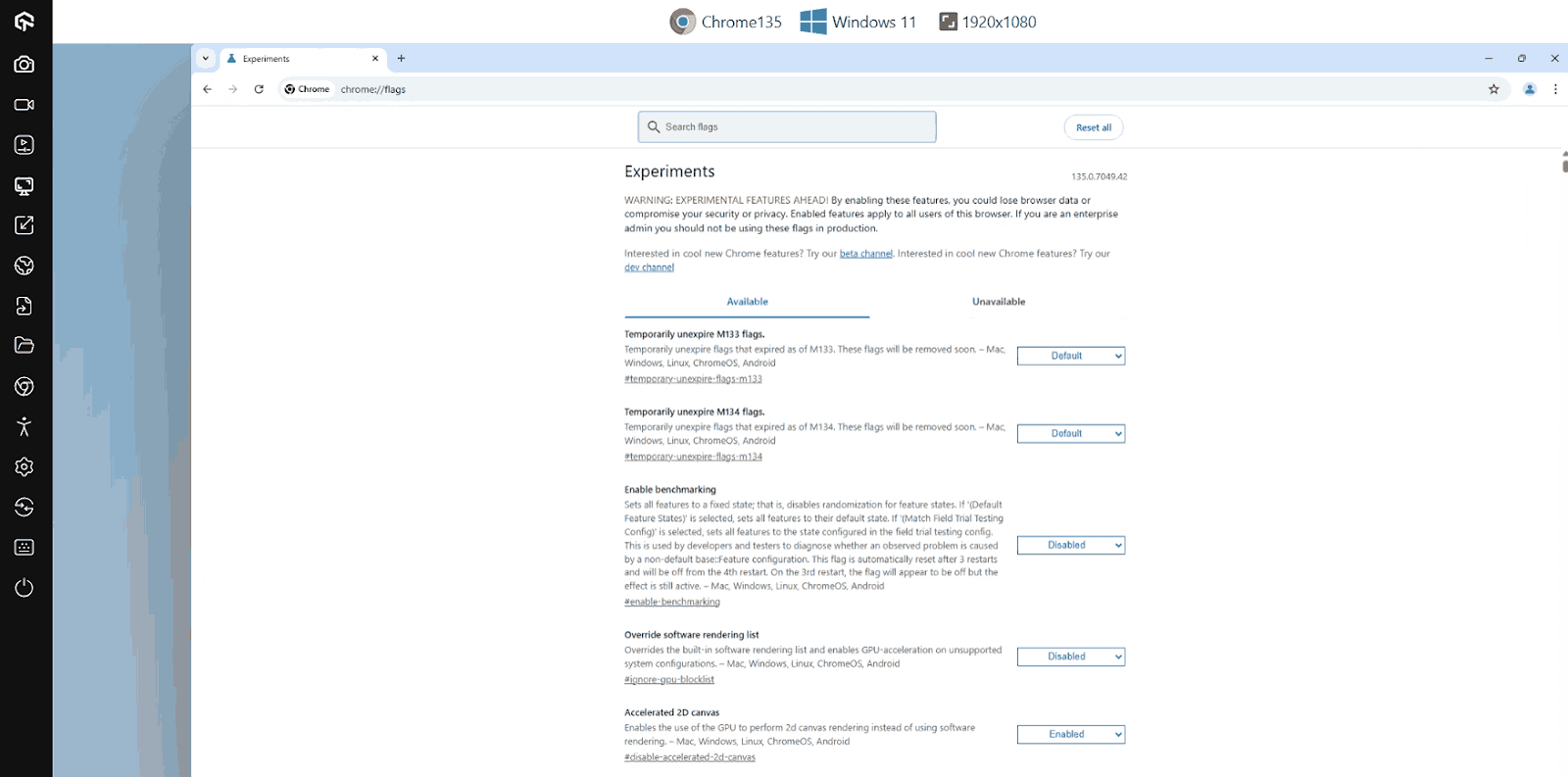
It’s also important to note that not every flag makes it into Chrome’s stable releases. Many are eventually removed based on user feedback or discovered vulnerabilities. In this way, Chrome flags serve as a testing ground where features are validated before deciding whether they should become part of the browser.

Note: Test Chrome flags on 10,000+ real iOS and Android devices and a full desktop browser matrix on TestMu AI. Sign up free and validate experimental features on the Chrome versions your users actually run.
How to Enable or Disable Chrome Flags?
A user can enable or disable Google Chrome flags using the address chrome://flags. To do so, type chrome://flags in the address bar, which will open the list of flags.
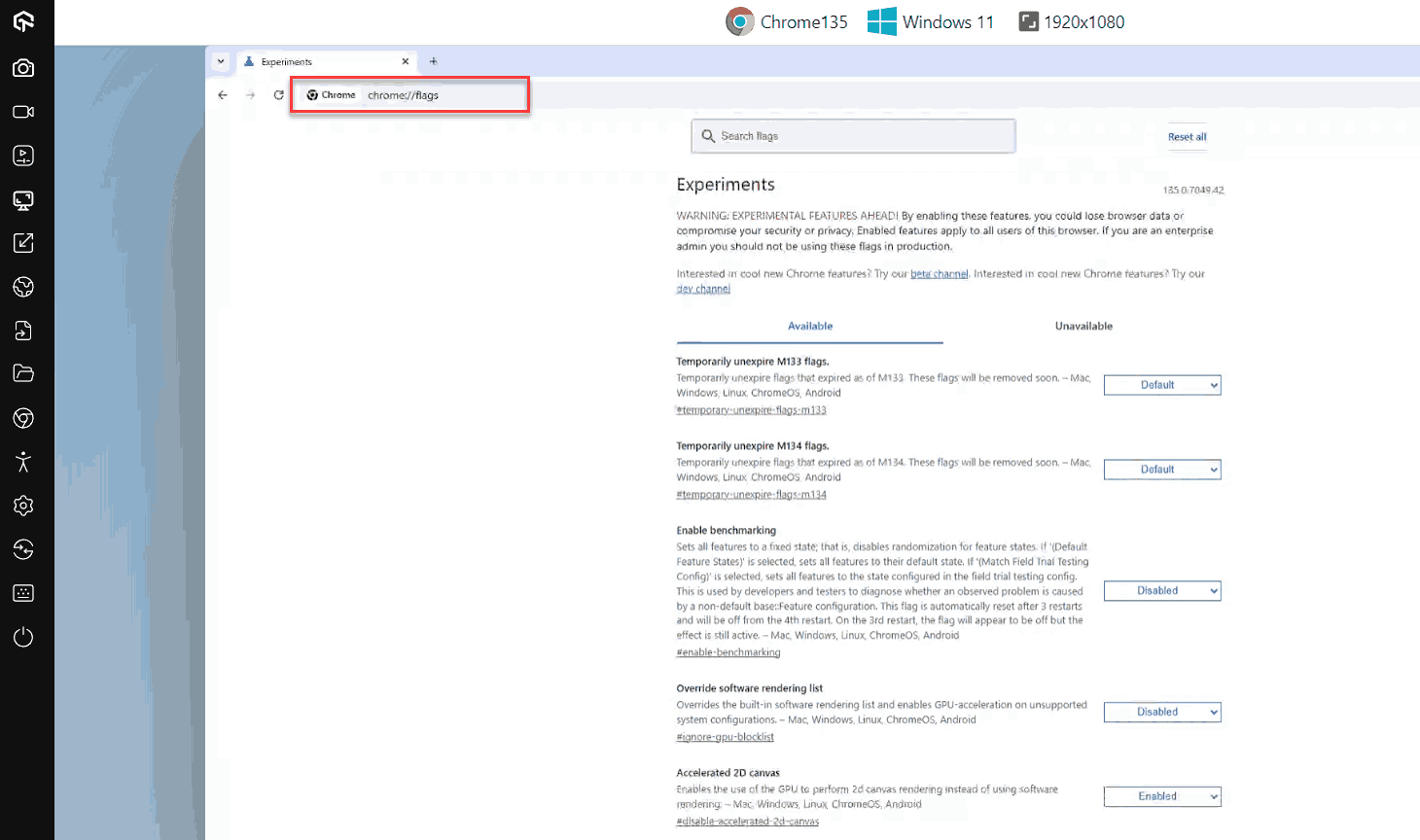
Here, you can search for specific flags and enable the ones you want to test. For this demonstration, we will be enabling the “Show Autofill predictions” flag. Search for this flag and set it to Enabled.
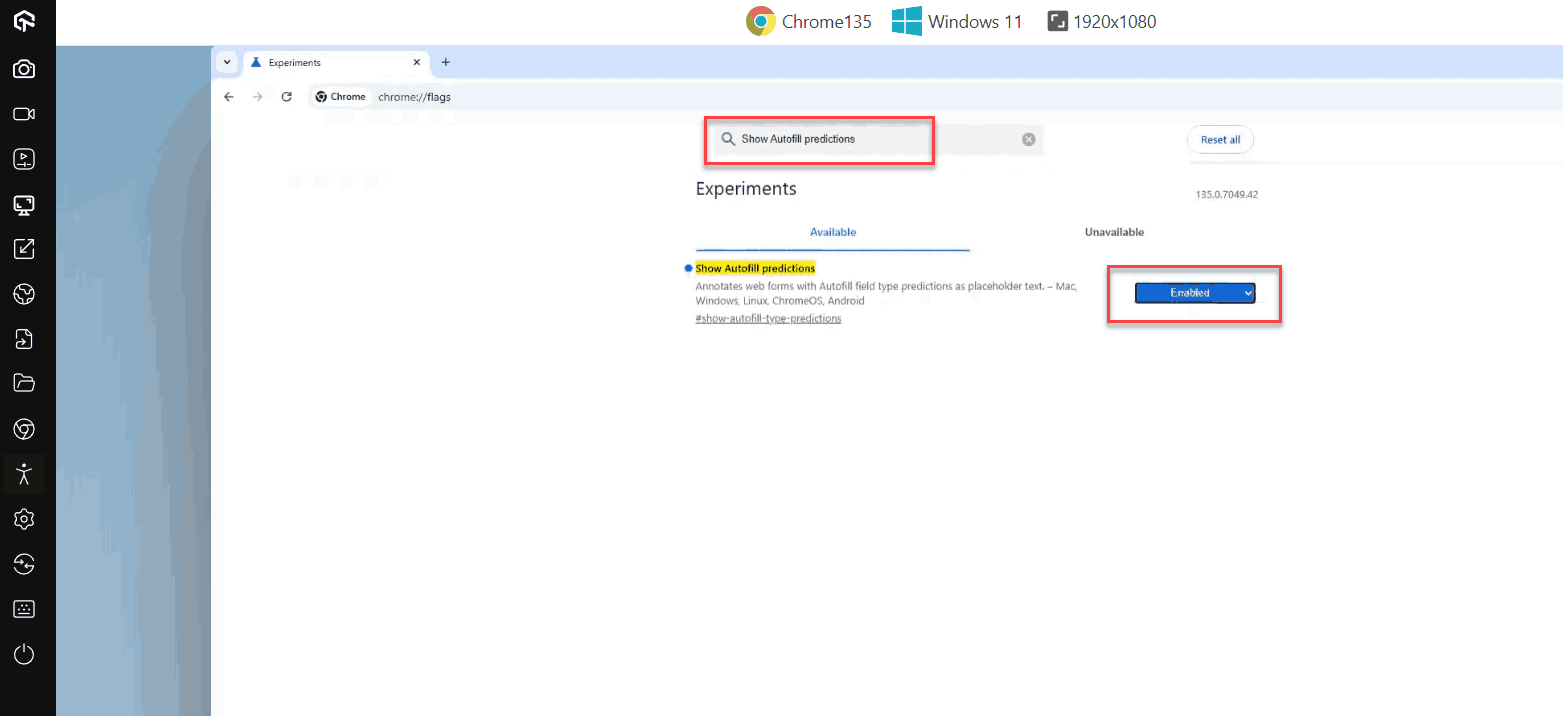
Relaunch Chrome to apply the change. This particular flag annotates input fields on a form with the autofill attribute. You can then open any form on the web, right-click on it, select Inspect, and see the attribute.
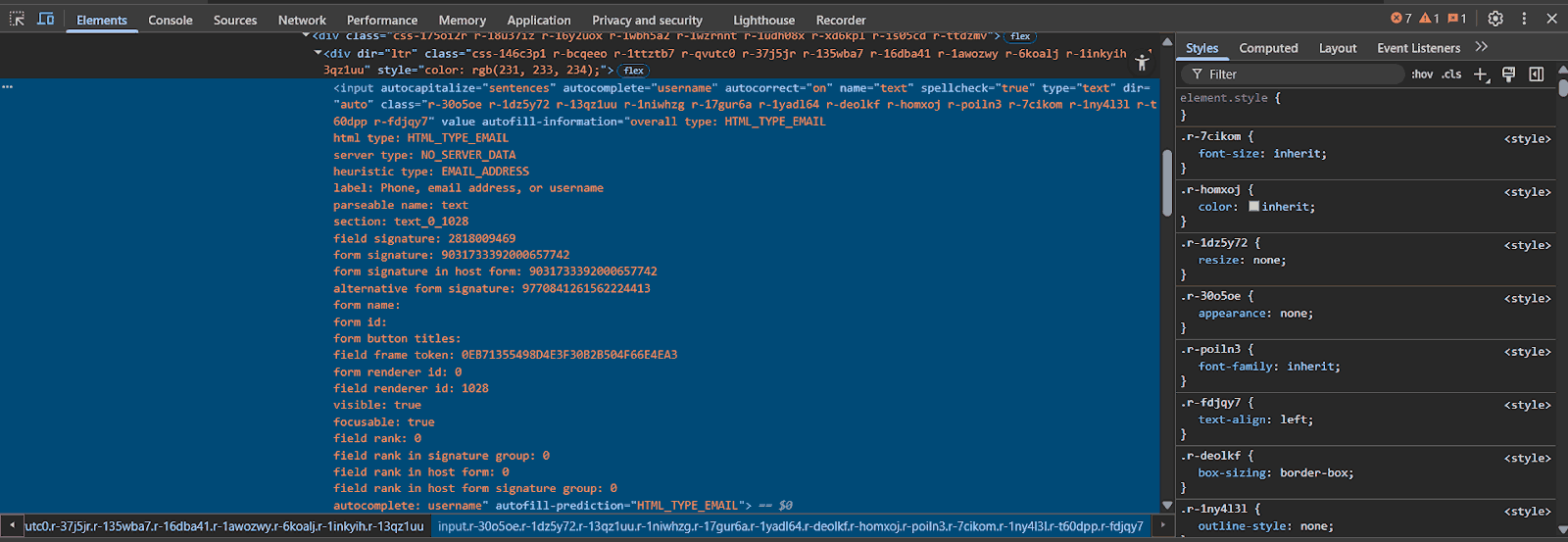
This indicates that the flag is active, although the behaviour may vary depending on your Chrome version and platform. Since flag descriptions are often short and not detailed, it’s important to understand what a flag does before enabling it. To disable a flag, repeat the steps and set it to Disabled or Default.
Quick checks that a flag is actually active:
- Confirm the toggle persisted: Reload chrome://flags after restart and verify the flag still shows Enabled. If it reverted, an enterprise policy or another profile may be overriding it.
- Check the active list: Visit chrome://version and inspect the Command Line entry. Flags toggled via chrome://flags appear there alongside any command-line switches Chrome was launched with.
- Test the feature directly: Trigger the behaviour the flag controls (a download, a render path, a UI option). If the expected change does not appear, the flag may have been removed in your Chrome version, gated by a sub-experiment, or limited to a specific channel.
Resetting Chrome Flags
Resetting Chrome flags is a common requirement due to many factors. Sometimes, too many enabled flags may conflict with each other’s behaviour and create a troublesome experience for users.
Other times, a developer may just want to reset everything to the default state and try new flags without any previous flag involvement.
In any such case, it is just a matter of a few steps to resetchrome://flags in Google Chrome.
- Search: Enter chrome://flags in the browser’s address bar.
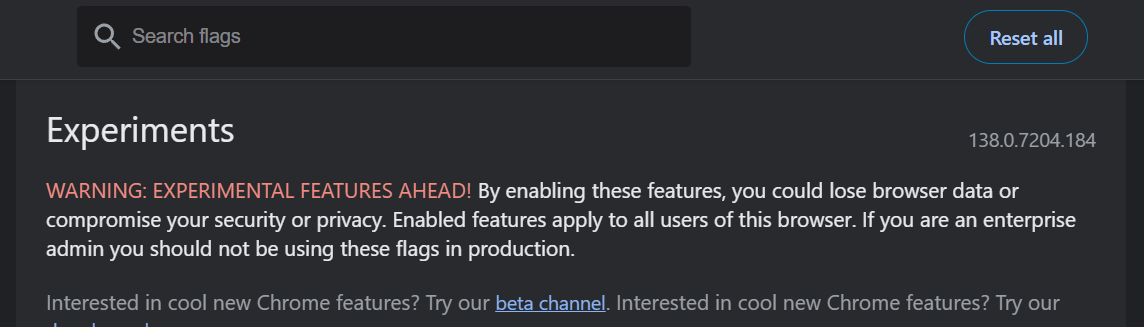
- Reset All Flags: Click the option “Reset all” beside the search bar.
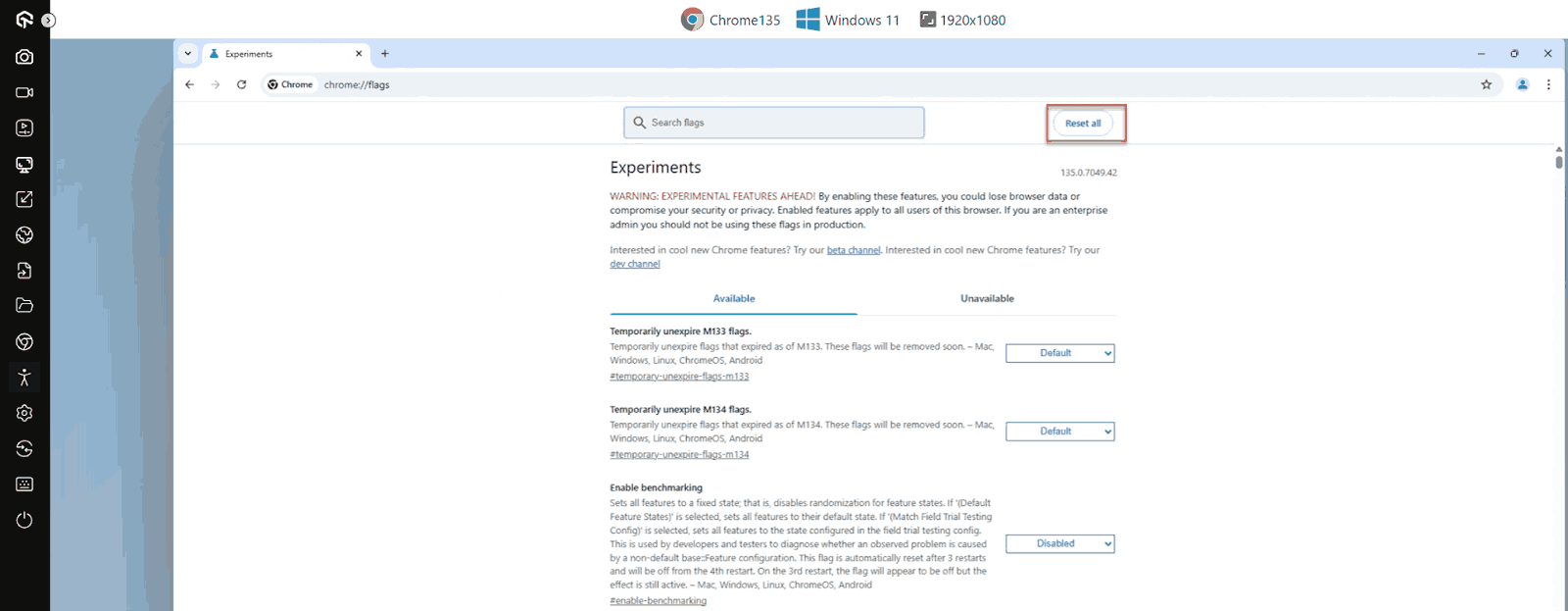
This will reset all the flags in the list to their default state. Once done, relaunch the browser to apply the changes.

How to Enable Chrome Flags Using the Command Line?
To enable or disable Chrome flags via the command line, the developer must first know the “internal name” of the flag. The #-prefixed flag name shown in chrome://flags cannot be used directly in a shell or script.
Next, locate where chrome.exe is installed on your system. Let’s refer to this location as <loc>
Then, open Terminal or PowerShell with administrative access and run the appropriate command:
Windows (cmd or PowerShell):
<loc>\chrome.exe --enable-features=FlagName --disable-features=AnotherFlagmacOS:
/Applications/Google\ Chrome.app/Contents/MacOS/Google\ Chrome --enable-features=FlagNameLinux:
google-chrome --enable-features=FlagNameLaunching Chrome with this command starts a new session with the defined flags. Closing the session reverts the flags to their previous state, so the switch only affects that run.
The same --enable-features switch works in automated tests. For Selenium, pass it through Chrome options so every test run boots Chrome with the flag enabled:
from selenium import webdriver
from selenium.webdriver.chrome.options import Options

options = Options()
options.add_argument("--enable-features=AutoDarkMode")
options.add_argument("--disable-features=SiteIsolation")

driver = webdriver.Chrome(options=options)
driver.get("https://www.testmuai.com/selenium-playground/")
For Playwright, pass the same switch via chromiumLaunchOptions.args. This is how teams pin a flag-dependent behaviour across CI runs without relying on each developer to toggle chrome://flags manually. See the Selenium getting-started docs for running these options on the TestMu AI cloud grid.
How to Use Chrome Flags Across Different Browsers?
Chrome flags are specific to Google Chrome and other Chromium-based browsers like Microsoft Edge, Brave, or Opera, because they rely on Chrome’s experimental feature framework.
Non-Chromium browsers cannot use Chrome flags directly, but they have their own experimental testing mechanisms:
- Firefox: Use about:config to access experimental tweaks.
- Safari: Enable experimental features through Develop > Experimental Features.
- Edge (Chromium-based): Supports edge://flags, very similar to Chrome flags.
Testing browser-specific experimental features across multiple browsers and devices can be complex.
For instance, a QA tester or developer may need to validate a Chrome flag on different Chrome versions, test an about:config tweak on Firefox, and verify experimental Safari features, each on its respective platform.
Manually setting up multiple browsers, operating systems, and device configurations is time-consuming, resource-intensive, and increases the risk of inconsistencies in testing results.
This is where cloud testing platforms become useful. They allow testers to access a wide range of real browsers and devices remotely, making it easier to experiment with Chrome flags and other browser-specific features safely and efficiently.
TestMu AI is one such platform. It runs manual and automated tests on 10,000+ real iOS and Android devices and across a wide desktop browser matrix, so you can validate a Chrome flag on the exact Chrome version, OS, and resolution your users have. Every Chrome version from 15 to the latest is available to test on Chrome browser online. See the real device cloud for the device list.
To test chrome://flags on TestMu AI:
- Sign up: Create a free account on TestMu AI.
- Open Real Time: Go to the Real Time tab, which provides both web browser testing and real-device testing.
- Pick Desktop: Under Web Browser Testing, select Desktop.
- Enter a URL: Add the URL you want to validate, or leave it blank to land on a new tab.
- Choose Chrome: Pick the OS (Windows, macOS, Linux) and a Chrome version. Flags often differ between Chrome 120, 125, and Canary, so pick the version that matches the bug or feature you are testing.
- Set resolution: Match the viewport your users have.
- Start the session: Click Start to launch the cloud browser.
Once the session launches, type chrome://flags in the address bar of the cloud browser and toggle the flag as you would locally.
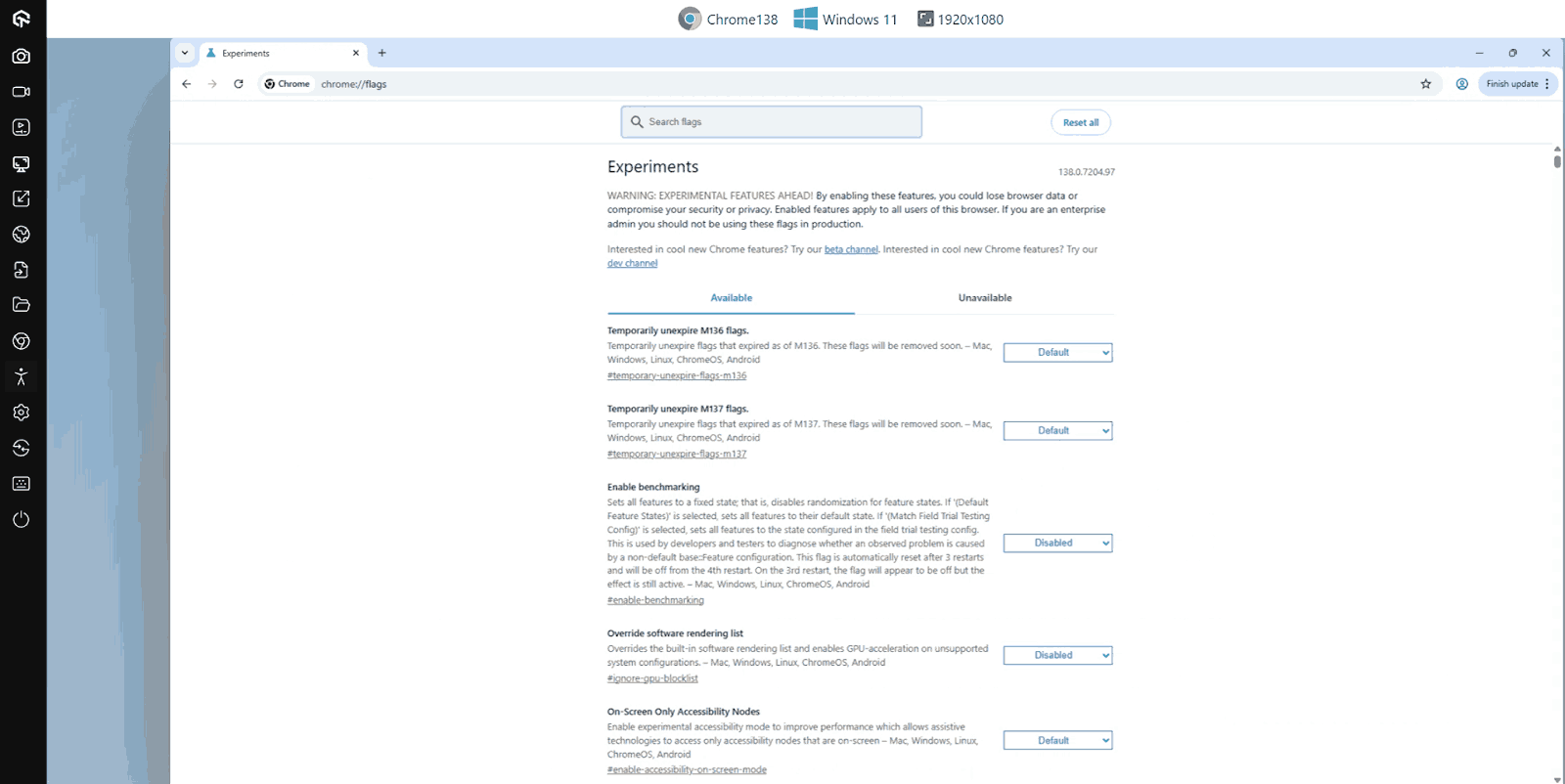
This is also how to repro a flag-specific bug a user reported on an older Chrome version: spin up that exact Chrome version on the cloud, enable the flag, and observe the behaviour without downgrading your local Chrome install.
Why and When to Use Chrome Flags?
Chrome flags let users enable experimental features, customize settings, test performance, debug issues, and explore upcoming browser or web technologies before they’re widely available.
The most common reasons developers and testers reach for chrome://flags:
- Test features before they ship: Try APIs and behaviours still under development, then file feedback while there is still time to influence the final design.
- Repro version-specific bugs: A flag may be on by default in Chrome 130 and off in Chrome 122. Toggling it locally helps narrow down which side of a regression a customer is on.
- Tune performance for testing: Flags like #enable-parallel-downloading, #enable-zero-copy, and #enable-gpu-rasterization let you measure the impact of GPU and network changes on your own app.
- Enable advanced logging: Some flags surface deeper logs (network, GPU, V8) that help diagnose internal browser behaviour you cannot see from DevTools alone.
- Switch on accessibility helpers: Auto Dark Mode and Multi-Lingual Live Caption are flag-gated until they graduate, but enabling them lets accessibility testers validate inclusive flows now.

Essential Chrome Flags for Better Experience
There are hundreds of chrome://flags to enable and enhance the browsing and testing experience. However, certain flags provide an extended version of Google Chrome with exciting features for the users.
Parallel Downloading
By default, Google Chrome downloads files sequentially using a single server connection. This process can be sped up by enabling chrome://flags/#enable-parallel-downloading (paste this URL in the address bar).

Once enabled, files selected for download are split into smaller chunks and separate connections fetch each chunk simultaneously. Chrome merges them into a single file once all chunks finish, which can speed up large or batched downloads.
Enable this only for larger files or multiple files at once. Smaller files may not benefit and could take slightly longer than the default sequential download.
Performance Flags
Raster threads are usually sent from the CPU to the GPU for processing. The Zero-copy rasterizer flag (chrome://flags/#enable-zero-copy) lets Chrome skip this step and write directly into GPU memory, which can speed up rendering of graphics and page content.
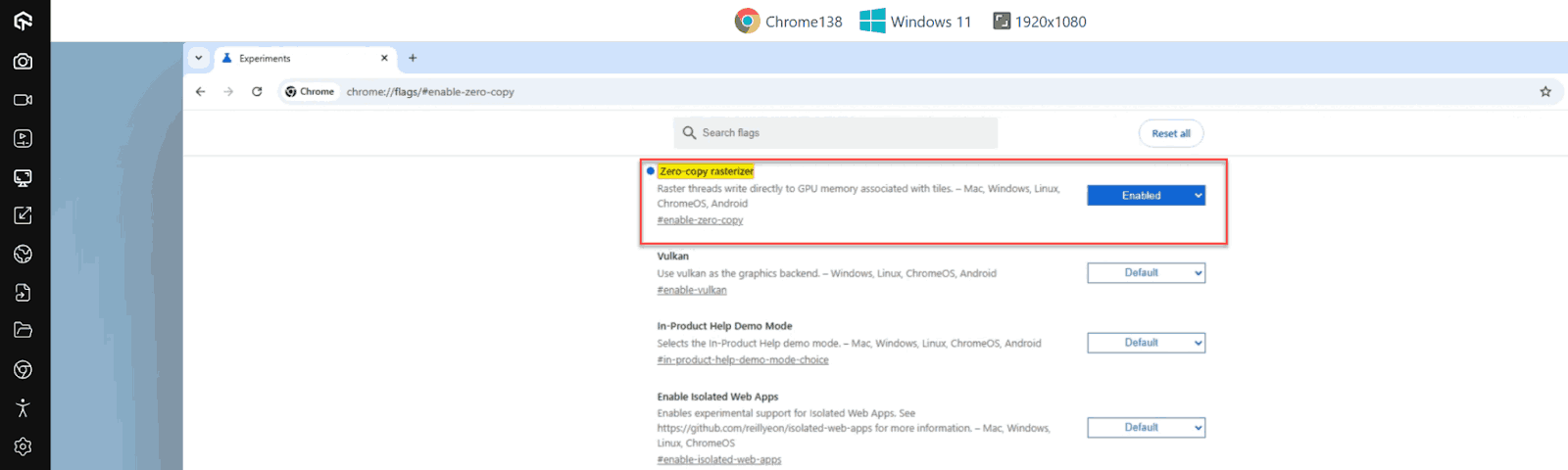
A related flag is GPU rasterization (chrome://flags/#enable-gpu-rasterization), which lets Chrome rasterize page content on the GPU. Only certain parts of the content are offloaded; most of the layout and scripting still happens on the CPU.
Dark Mode
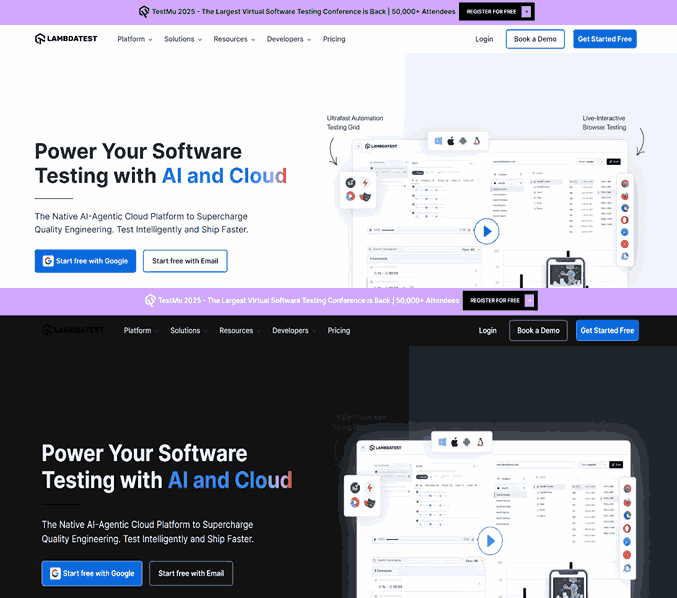
Users who prefer dark mode on their devices can enable this flag to automatically display websites in dark mode. The flag ID is chrome://flags/#enable-force-dark, named Auto Dark Mode for Web Contents. The images below show the difference before and after enabling the flag.
Multi-Lingual Live Caption
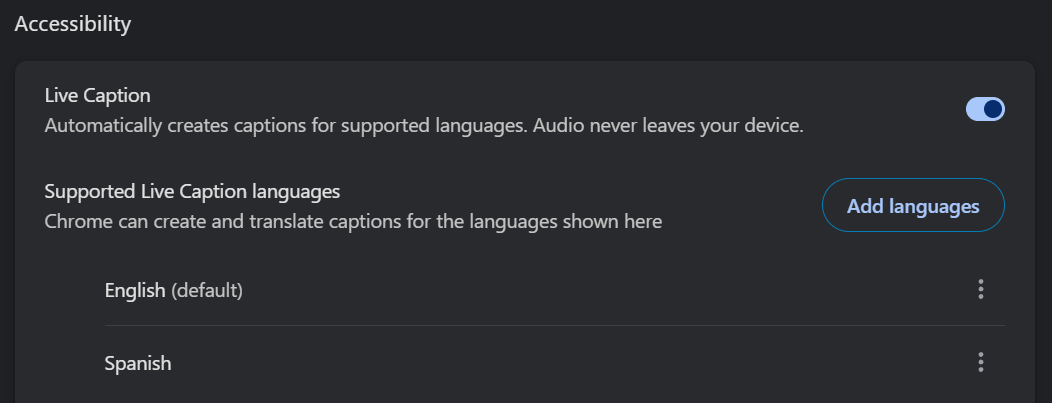
Google Chrome can automatically generate captions for English audio on videos, including platforms like YouTube and Netflix. Enabling the flag chrome://flags/#enable-live-caption-multilang extends live caption to other languages for any online video.
After enabling the flag, open Settings > Accessibility > Live Captions and download the language you want. Relaunch Chrome and captions will appear on supported videos.
This is a useful checkpoint for accessibility testing: validate that live captions, screen reader output, and visual UI stay consistent across the Chrome versions and devices your users have. TestMu AI lets you run that check against real devices instead of emulators.
Split View
Viewing two windows side by side is a common multitasking pattern. Chrome usually relies on the OS to do this by detaching a tab into its own window.
The Chrome flag Side by Side (chrome://flags/#side-by-side) does the same thing inside the browser without detaching a tab, combining two tabs into one split view.
Once the flag is enabled, open at least two tabs. Open the tab you want on the left, right-click on the other tab, and select “Add tab to split view” to dock it on the right.
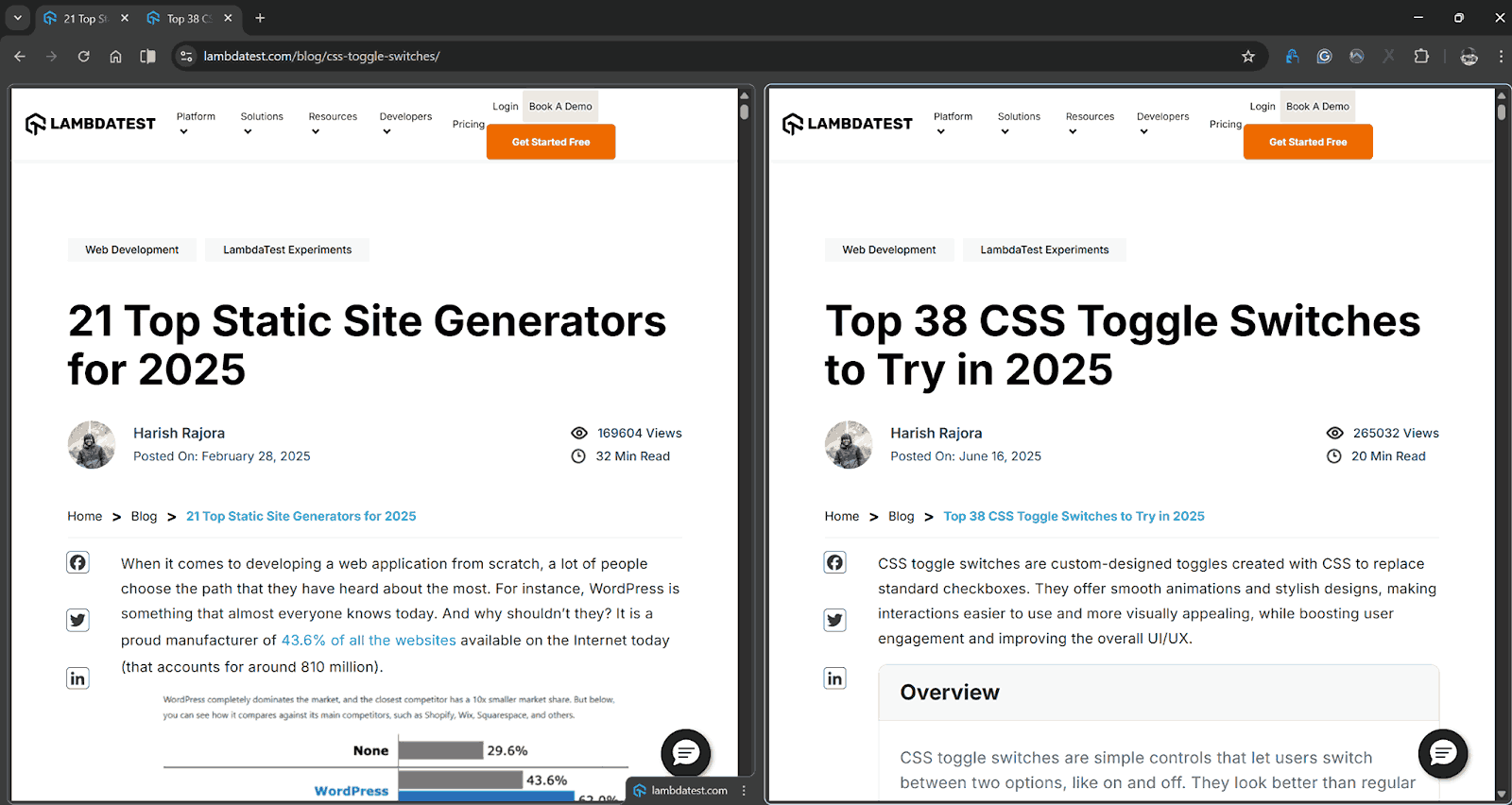
To separate the views, right-click in the tab strip and choose “Arrange split view” > “Separate”.
Chrome flags depend on the current Chrome version. If a flag is not visible, the version you are on may not ship it, may have removed it, or may have graduated it into a normal setting.
Beyond the five flags above, the next three are picks the Chrome power-user community on Reddit keeps coming back to. They are smaller quality-of-life wins, not headline features, which is exactly why they survive across Chrome releases.

Tab Audio Muting
Flag ID: chrome://flags/#enable-tab-audio-muting. Once enabled, the audio icon that appears on a tab playing sound becomes a one-click mute toggle. No more right-clicking the tab and digging into the menu to silence a noisy ad or autoplay video. This is the single most-cited "why is this not on by default" flag in r/chromeos threads.
Disable Smooth Scrolling
Flag ID: chrome://flags/#smooth-scrolling. Setting this to Disabled kills the easing animation Chrome applies when you scroll with the wheel or trackpad. Reddit users with motion sensitivity, eye strain, or vestibular issues report fewer headaches after disabling it. It is also a useful flag to remember when you are testing accessibility on Chrome, since some users browse with reduced motion enabled.
Debugging Keyboard Shortcuts (ChromeOS)
Flag ID: chrome://flags/#ash-debug-shortcuts. On ChromeOS only, this flag enables a set of Search + Shift shortcuts including Search + Shift + P to toggle the touchpad on and off. r/chromeos users who plug in an external mouse and want to stop accidental palm clicks on the trackpad call this a daily-use lifesaver.
Flags You Can Skip
Not every flag aged well. Two the community no longer recommends:
- PWA Tabbed Application Mode: Users once enabled flags to force Progressive Web Apps into tabbed windows. This is now handled by the tabbed display mode in the web app manifest, so the flag is obsolete and the implementation belongs to the PWA developer, not the user.
- Audio Focus: The flag that pauses one media element when another starts playing sounds useful, but Reddit users describe the result as "too chaotic" on media-heavy sites where multiple players coexist (X/Twitter, ad-laden news pages). Leave it off unless you have a single-player workflow.
Are Chrome Flags Available on Mobile?
Yes, Chrome flags are available on both Android and iOS. Access them the same way as on desktop, by typing chrome://flags in the URL bar of the mobile Chrome app.
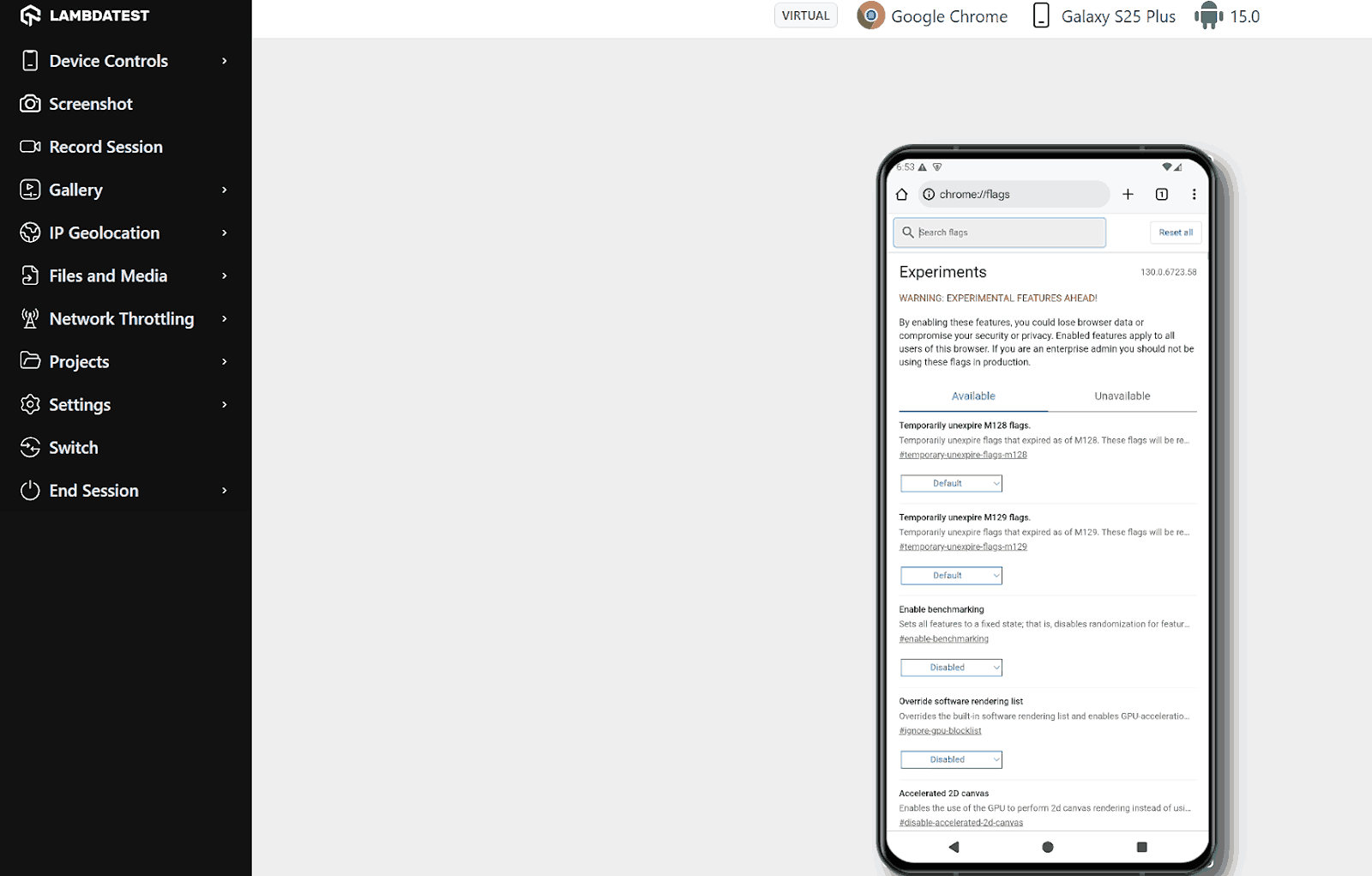
The available flags on mobile differ from desktop. Some flags are desktop-only, and iOS uses the WebKit engine instead of Blink, so flags that depend on Blink internals are not exposed on iOS Chrome.
Common Chrome flags Android users reach for include #enable-force-dark (Auto Dark Mode), #enable-parallel-downloading (faster downloads over mobile data), and the reader mode flags surfaced under #reader-mode-heuristics. Validate them across Android versions before publishing, because flag IDs change between Chrome releases on mobile more often than on desktop. The TestMu AI real device cloud covers a range of Android devices and Chrome versions for this kind of verification.
How to Troubleshoot Chrome Flags?
The downside of using chrome://flags is that Google does not provide specific issue warnings or detailed information on possible side effects.
Hence, troubleshooting must be done by the user, especially when the causes are common and solutions are straightforward.
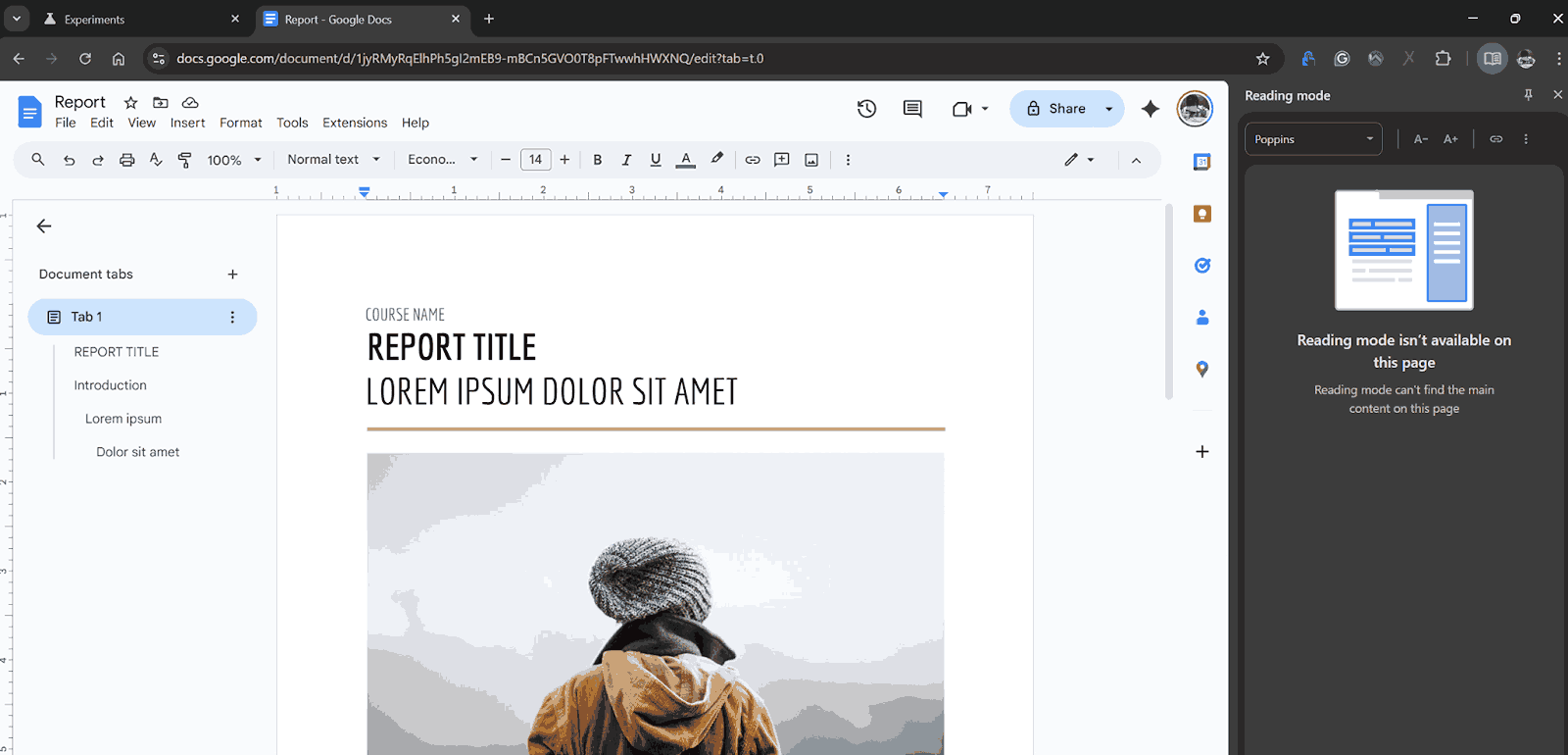
- Feature not working even after enabling: It is common for a flag toggle to not change visible behaviour right away. For example, chrome://flags/#read-anything-docs-integration should enable reading mode for Google Docs, but enabling it may still show the standard interface. Confirm via chrome://version that the flag appears in the Command Line list and that you have restarted Chrome.
- Feature working after reset: A feature may still work after a Reset All. This usually means it has graduated into a default setting; the flag is gone because the feature is no longer experimental.
- Browser instability: Flags can cause crashes, slow startup, or conflicts. If Chrome misbehaves after toggling flags, disable them one by one to find the culprit, or click Reset All.
- Performance degradation: If pages render or load slower, suspect flags related to threads, rasterization, GPU, CPU, or anything mentioning "System". UI/UX flags rarely cause performance regressions.
- Not finding a flag: A flag that appears on a Google support page may not show up locally. The flag may have been removed, graduated into a default setting, or be gated to a different Chrome channel or version.
- Flag combinations break unrelated features: There is no official documentation of side effects from mixing flags. Users on r/chromeos report that random flag combinations have prevented the Linux development environment (Crostini) from launching. If a core feature stops working after a flag change, the fastest path back is Reset All, then enable flags one at a time.
Conclusion
Start small. Pick one flag from the Essential list above, enable it via chrome://flags, restart Chrome, and verify it via chrome://version. Once you have the local workflow down, move the same flag into your test pipeline using --enable-features=FlagName in Selenium or Playwright so the behaviour is pinned across CI runs.
For repro work on a Chrome version you do not have locally, run the flag on the TestMu AI real device cloud across the Chrome version, OS, and resolution your users actually have. The Selenium getting-started docs show the exact capabilities to set for a cloud session.
Note: This article was researched and drafted with AI assistance, then reviewed, fact-checked, and published by Harish Rajora, Software Developer 2 at Oracle, whose listed expertise includes Web Testing and Software Testing. Every statistic, link, and product claim was verified against primary sources. Read our editorial process and AI use policy for details.
Author

Harish Rajora
Blogs: 100


Harish Rajora is a software developer at TestMu AI with over 6 years of hands-on experience in Python and cross-platform application development across Windows, macOS, and Linux. He has authored 800+ technical articles and worked on large-scale projects, including GenAI applications and core engineering features used by millions. Harish has led DevOps initiatives building CI/CD pipelines with Jenkins, AWS, GitLab, and GitHub, and holds an M.Tech in Software Engineering from IIIT Allahabad.
Reviewer

Shubham Suri
Reviewer
Shubham Suri is a Lead Member of Technical Staff at TestMu AI (formerly LambdaTest), building the frontend and web interfaces of the quality engineering platform. He works across React.js, HTML5, CSS3, Bootstrap, jQuery, JavaScript, and Angular to create and maintain webpages and web applications. He brings around a decade of experience in web and frontend development, with earlier roles as a Software Engineer at Hard Shell Technologies and an IT Analyst at Cyrus Group. Shubham holds a B.Tech in Computer Science from Uttar Pradesh Technical University.


Frequently asked questions on Chrome Flags
Did you find this page helpful?
More Related Learning Hubs
TestMu AI forEnterprise
Get access to solutions built on Enterprise
grade security, privacy, & compliance
- Advanced access controls
- Advanced data retention rules
- Advanced Local Testing
- Premium Support options
- Early access to beta features
- Private Slack Channel
- Unlimited Manual Accessibility DevTools Tests