
Assure your AI deployment - across enterprise and real world
We assure that your AI works as intended. Safely and securely.

TestMu AI Is Now in the Google Antigravity Marketplace
TestMu AI is now in the Google Antigravity Marketplace. The plugin adds our hosted MCP server, the Kane CLI skill and the Rook skill to run and triage tests.
Published on:
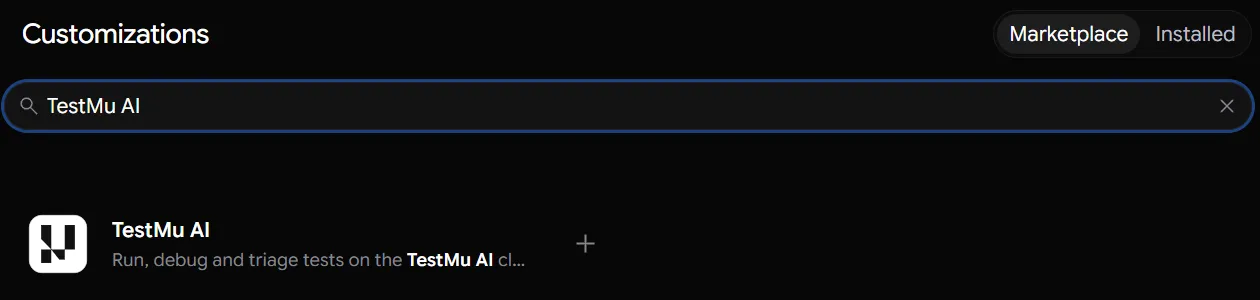
TestMu AI is now on the Google Antigravity Marketplace. Add our plugin, and the Antigravity agent can run your tests on TestMu AI, look into failures and tell you what broke, all in the same chat where it writes your code. To get it, open Customizations > Marketplace in the Antigravity App and search for TestMu AI.
If you are still deciding whether Antigravity is right for your team, read our Google Antigravity review first. This post covers what our plugin adds and how to set it up.
What Does the TestMu AI Plugin Add to Antigravity?
In Antigravity, a plugin is a package that can bundle skills, MCP servers, custom agents, rules and hooks, as Google's Antigravity plugins documentation explains. Ours includes one MCP server and two skills:
| What's in it | What it is | What it lets you do |
|---|---|---|
| TestMu AI MCP server | A server we host at https://mcp.lambdatest.com/mcp, so there is nothing to install on your machine. | Ask the agent about failed builds, visual changes, accessibility issues, test cases and HyperExecute jobs, the same way you would ask a teammate. |
| /kanecli-skill | Instructions that show the agent when and how to use Kane CLI. | Open your app in a real browser, check that something works and get a pass or fail. |
| /rook-skill | Instructions that show the agent how to use rook, the command-line tool for Agent Assurance. | Test an AI agent in your project: write test scenarios, run them against the agent and read the results. |
On the plugin page, the two skills are listed under Commands and the server appears as testmu-ai under MCP servers:
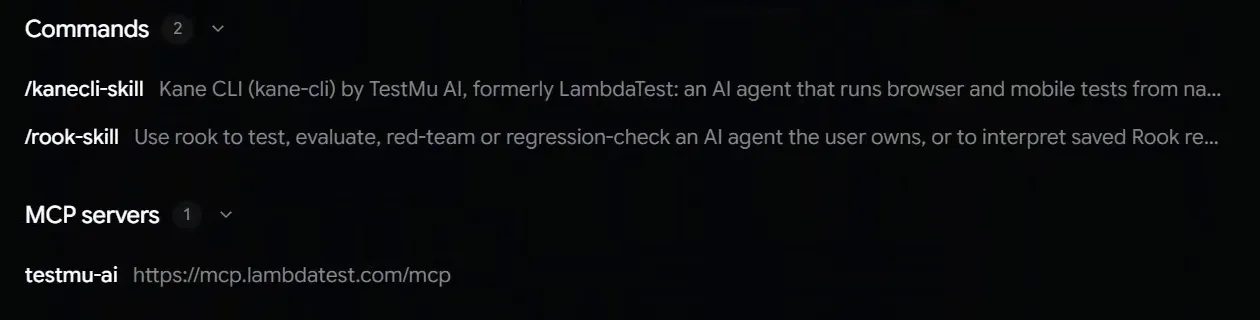
You don't need to remember the skill names. Antigravity reads a skill's full instructions when your request matches it, so asking the agent to "use Kane CLI" or "use rook" brings in the right one. You can also type /kanecli-skill or /rook-skill to call one directly.
How Do You Install the TestMu AI Plugin in Antigravity?
The quickest way is the Marketplace inside the Antigravity App. These steps follow Google's Antigravity Marketplace guide:
- In the left sidebar, click Customizations (just below Automations), then open the Marketplace tab.
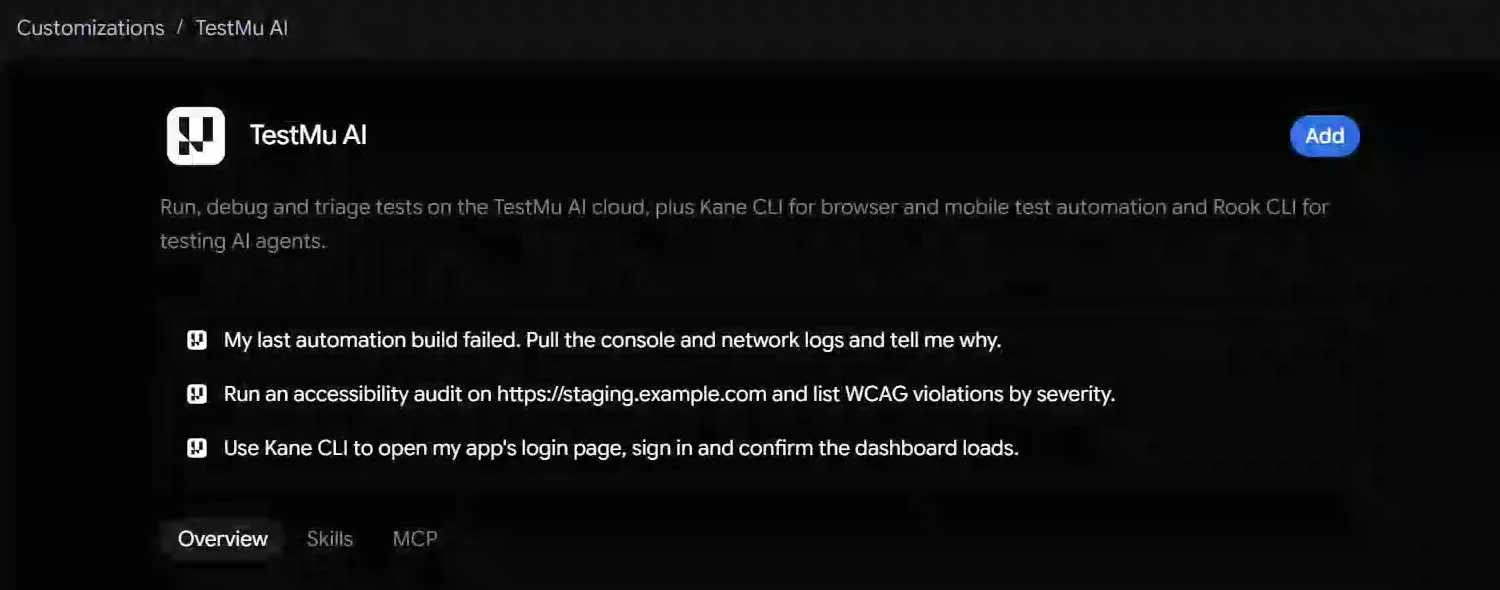
- Search for TestMu AI and click the card. You'll see three suggested prompts and the Overview, Skills and MCP tabs.
- Click Add. You can also click the + on the card to install it straight from the search results.
- Try a prompt. The first time the plugin connects, Antigravity opens your browser so you can sign in to TestMu AI. You don't need to paste an API key anywhere.
If the server ever shows as "Unauthorized", go to Customizations > MCP Servers, click Authenticate next to testmu-ai and sign in again. To switch to a different TestMu AI account, click Sign out first. If Antigravity says it can't find kane-cli or rook, install that tool and make sure it is on the PATH Antigravity uses.
Install the Plugin From the Command Line
If you work in the terminal, the plugin's code is public in our mcp-server-guide repository on GitHub. Clone it and install it with agy, the Antigravity command-line tool:
git clone https://github.com/LambdaTest/mcp-server-guide.git
agy plugin install ./mcp-server-guide/antigravity
You only need one of the two methods. Anything you install in the Antigravity App also shows up in the command-line tool.
Add Only the TestMu AI MCP Server
If you only want the MCP server and not the two skills, add this to your Antigravity MCP settings. Antigravity calls the address serverUrl, while Cursor and Cline call it url:
{
  "mcpServers": {
    "testmu-ai": {
      "serverUrl": "https://mcp.lambdatest.com/mcp"
    }
  }
}
Antigravity asks you to sign in to TestMu AI in your browser the first time it connects. For other tools such as Cursor or Claude Code, see the TestMu AI MCP server documentation.
What Can the TestMu AI MCP Server Do in Antigravity?
The TestMu AI MCP server connects the agent to these TestMu AI products. You don't call these tools yourself. You ask a question about your tests, and the agent picks the right one:
- Automation - pulls the logs from a failed test (commands, network and console) so the agent can explain why it failed.
- SmartUI - explains in simple words what changed in a SmartUI visual comparison, from pixels and layout to the page structure.
- Accessibility - checks a live website or a local React app for accessibility problems and tells you how to fix each one.
- HyperExecute - looks at your project, writes the HyperExecute YAML file, answers questions about HyperExecute and tells you the status of a job once it runs.
- Test Manager - writes test cases with AI, sets up test runs, records results in bulk and tracks milestones and coverage.
- Native App Automation - helps you debug mobile app tests that already ran on TestMu AI. Controlling a device live needs a separate Appium MCP server, which isn't part of this plugin.
Once you're signed in, try asking things like these, with your own URL in the accessibility check:
My last automation build failed. Pull the console and network logs and tell me why.

Summarize the SmartUI visual differences in my latest build.

Run an accessibility audit on https://staging.example.com and list WCAG violations by severity.

Analyze this project and create a HyperExecute YAML file.
Automation, SmartUI and Accessibility started out as separate servers when we first launched TestMu AI MCP servers. They now run behind one address, so a single sign-in in Antigravity gives you all of them.

Note: The MCP server works with your own TestMu AI account, so it needs tests running there before it has failed builds to look into. Create a free TestMu AI account before you connect Antigravity.
Check Your App in a Real Browser With the Kane CLI Skill
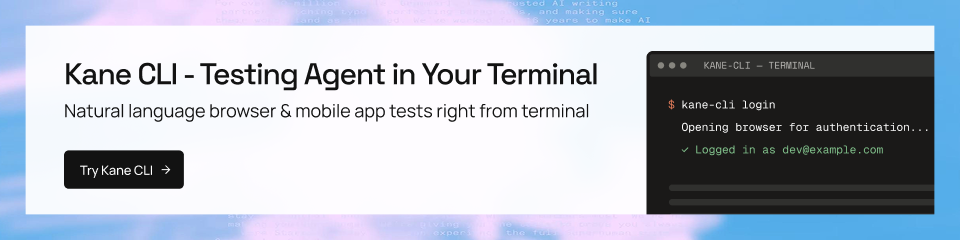
Kane CLI opens your app in a real Chrome browser, follows instructions written in plain language and tells you whether it passed or failed, with proof. With the skill installed, the Antigravity agent can use it to check that a change actually works before it tells you the task is done.
With the skill, the agent can:
- Follow steps like "sign in and check the dashboard loads" and report pass or fail, with proof.
- Write test cases from a short description of a feature.
- Build a set of tests from a spec, each linked to a requirement.
- Run mobile app tests on emulators, simulators or the TestMu AI cloud.
Use Kane CLI to open my app's login page, sign in and confirm the dashboard loads.You need Node.js 18 or later and Kane CLI (npm install -g @testmuai/kane-cli), according to the plugin's Antigravity README. If Kane CLI isn't installed, the skill offers to install it for you. Kane CLI has its own sign-in: run kane-cli login. To learn more, read our Kane CLI introduction.
Test AI Agents With the Rook Skill
If the project you're building is itself an AI agent, one that calls tools, writes files or calls APIs, Agent Assurance checks what the agent actually did, not just what it said it did. The Rook skill lets the Antigravity agent run rook, the Agent Assurance command-line tool, to create test scenarios, run them, read the results and set up CI runs.
Use Rook to test the refund agent in this repository against its refund policy.Here's what happens when you run it:
- rook reads your code to find the agent and work out what it does. Then it writes test scenarios for normal use, plus attack scenarios such as prompt injection.
- It runs those scenarios against the real agent, through its HTTP endpoint, a command or an MCP tool.
- It checks each result against evidence, such as the tool calls the agent made and what changed. Anything it couldn't check is listed separately, never counted as a pass or a fail.
Run it against a staging setup, not production. The agent takes real actions during a test, and you approve those actions and the credits it will use before it starts. To try it before using your own agent, start with the refund-desk sample in the rook repository.
To install rook, use Homebrew or the shell installer on macOS and Linux, or npm install -g @testmuai/rook@latest, which needs Node.js 20 or later and also works on Windows x64. Then sign in with rook login, or type /login inside rook. Agent Assurance comes with a 14-day free trial that includes 4,000 credits.
To use the skill in other coding agents, see the rook coding agents guide. To run rook in CI, see our post on rook CLI with GitHub Actions.

Get Started With TestMu AI in Antigravity
Add TestMu AI from Customizations > Marketplace, sign in, and ask the agent why your last automation build failed. That question only needs the MCP server, so you can see the plugin working before you install Kane CLI or rook.
If you get stuck or find a problem, check the plugin's GitHub repository and the MCP server documentation linked above.
Author

TestMu AI
Blogs: 282


TestMu AI is World's First Full Stack AI Agentic Quality Engineering platform that empowers teams to test intelligently, smarter, and ship faster. Built for scale, it offers a full-stack testing cloud with 50K+ real devices and 3,000+ browsers. With AI-native test management, MCP servers, and agent-based automation, TestMu AI supports Selenium, Appium, Playwright, and all major frameworks. AI Agents like HyperExecute and KaneAI bring the power of AI and cloud into your software testing workflow, enabling seamless automation testing with 120+ integrations. TestMu AI Agents accelerate your testing throughout the entire SDLC, from test planning and authoring to automation, infrastructure, execution, RCA, and reporting.


Did you find this page helpful?
More Related Blogs

TestMu AI forEnterprise
Get access to solutions built on Enterprise
grade security, privacy, & compliance
- Advanced access controls
- Advanced data retention rules
- Advanced Local Testing
- Premium Support options
- Early access to beta features
- Private Slack Channel
- Unlimited Manual Accessibility DevTools Tests