
Run Web Automation Tests at Scale with Agentic AI
Generate tests with AI agents or automate test suites with Selenium, Playwright and other frameworks. Run tests in parallel on TestMu AI scalable cloud grid.

How to Use Playwright Proxy: A Complete Tutorial
Part of: Playwright
Learn how to configure and use Playwright proxy for automation testing, including global, context-specific setups, and proxy rotation strategies.
Last Updated on:
A Playwright proxy is a server that sits between the browser Playwright drives and the web application under test. It decides how requests and responses are routed during a test run.
You can use it to run tests from different geographic locations, spread traffic across IPs to stay under rate limits, and inspect what the browser sends. This tutorial covers launch-level, per-context, and per-page proxies, authentication, Python, rotation, and running proxied tests on TestMu AI. The Playwright tutorial covers the setup these examples assume.
TL;DR
To use a proxy in Playwright, pass a proxy object with a server URL to chromium.launch() to route the whole browser, or to browser.newContext() to give one context its own proxy. Add username and password for authenticated HTTP proxies. The same keys work in Python, in playwright.config, and in test.use().
- Global proxy (browserType.launch) - In Playwright, the proxy option in browserType.launch() or use.proxy in playwright.config sends every browser context through one proxy server.
- Per-context or per-page proxy - In Playwright, browser.newContext({ proxy }) or browser.newPage({ proxy }) overrides the launch-level proxy for that one context or page.
- Playwright proxy authentication - Playwright takes username and password next to server in the proxy object, and its docs scope these credentials to HTTP proxies.
- Built-in proxy rotation: No - Playwright fixes the proxy when a context is created, so rotate by picking a proxy from a pool before each new context.
To run the same suite from other countries without managing a proxy pool, run it on the TestMu AI Playwright cloud with the geoLocation capability.
How to Configure Proxy in Playwright?
Set a proxy in Playwright with the proxy option at one of three levels: browser launch (or playwright.config for the test runner), browser context, or a single page. A launch-level proxy covers every context, and a context-level or page-level proxy overrides it.
Before configuring a Playwright proxy, make sure you have:
- Node.js and npm installed.
- A Playwright project. If you don't have one, install Playwright with the command below.
- At least one sample test that passes, so you know the environment works before adding a proxy.
npm init playwright@latestGlobal Proxy Configuration
A global proxy applies to all browser contexts and pages in one browser instance. Pass the proxy option to browser.launch():
const { chromium } = require("playwright");

(async () => {
  const browser = await chromium.launch({
    proxy: {
      server: "http://proxy.example.com:8080",
      bypass: "localhost,.internal.example.com",
    },
  });

  const page = await browser.newPage();
  const response = await page.goto("https://httpbin.org/ip");
  console.log(await response.json()); // { origin: "<proxy IP>" }
  await browser.close();
})();
The server value accepts HTTP proxies and SOCKS proxies such as socks5://proxy.example.com:1080. A short form like proxy.example.com:8080 is treated as an HTTP proxy. The optional bypass value is a comma-separated list of domains that skip the proxy.
With the Playwright test runner, set the same object under use in the config file so every test picks it up:
// playwright.config.ts
import { defineConfig } from "@playwright/test";

export default defineConfig({
  use: {
    proxy: {
      server: "http://proxy.example.com:8080",
      bypass: "localhost,127.0.0.1",
    },
  },
});
To override the proxy for one spec file, call test.use({ proxy: { server: "http://proxy-uk.example.com:8080" } }) at the top of that file.
Context-Specific Proxy Configuration
A context-level proxy applies only to one browser context. It overrides the launch-level proxy for that context, and any context created without a proxy option keeps using the launch-level proxy.
This example routes two contexts through two different proxies:
const { chromium } = require("playwright");

(async () => {
  const browser = await chromium.launch();
  const url = "https://httpbin.org/ip";

  // Context 1 routes through the US proxy
  try {
    const context1 = await browser.newContext({
      proxy: { server: "http://proxy-us.example.com:8080" },
    });
    const page1 = await context1.newPage();
    await page1.goto(url, { timeout: 10000 });
    const content1 = await page1.textContent("body");
    console.log("content1:", content1);
    await context1.close();
  } catch (err) {
    console.error("Context1 error:", err.message);
  }

  // Context 2 routes through the UK proxy
  try {
    const context2 = await browser.newContext({
      proxy: { server: "http://proxy-uk.example.com:8080" },
    });
    const page2 = await context2.newPage();
    await page2.goto(url, { timeout: 10000 });
    const content2 = await page2.textContent("body");
    console.log("content2:", content2);
    await context2.close();
  } catch (err) {
    console.error("Context2 error:", err.message);
  }

  await browser.close();
})();
Every page opened from a context uses that context's proxy. Each context sits in its own try/catch block, so a dead proxy in one context does not stop the other.
For a proxy on a single page, pass the option to browser.newPage(). It creates the page in its own new context, so closing the page also closes that context:
const page = await browser.newPage({
  proxy: { server: "http://proxy-de.example.com:8080" },
});
await page.goto("https://httpbin.org/ip");
Playwright Proxy in Python
The Python API takes the same keys as a dictionary. Pass it to chromium.launch() for the whole browser or to browser.new_context() for one context, as shown in the Playwright Python network docs:
import os
from playwright.sync_api import sync_playwright

with sync_playwright() as p:
    # Launch-level proxy with credentials for every context
    browser = p.chromium.launch(proxy={
        "server": "http://proxy.example.com:8080",
        "username": os.environ["PROXY_USER"],
        "password": os.environ["PROXY_PASS"],
    })
    page = browser.new_page()
    response = page.goto("https://httpbin.org/ip")
    print(response.json())
    browser.close()

    # Per-context proxy on a browser launched without one
    browser = p.chromium.launch()
    context = browser.new_context(proxy={"server": "http://proxy-uk.example.com:8080"})
    page = context.new_page()
    response = page.goto("https://httpbin.org/ip")
    print(response.json())
    browser.close()
The async API is the same with await in front of each call. The bypass key works here too, and browser.new_page(proxy=...) gives a single page its own proxy.
Playwright Proxy Authentication
Most paid proxy providers require a username and password. In Playwright, username and password are separate keys that sit next to server inside the proxy object, at launch level or context level.
const { test, expect, chromium } = require("@playwright/test");

test("uses an authenticated proxy", async () => {
  // Launch level: every context in this browser uses these credentials
  const browser = await chromium.launch({
    proxy: {
      server: "http://proxy.example.com:8080",
      username: process.env.PROXY_USER,
      password: process.env.PROXY_PASS,
    },
  });

  // Context level: a different authenticated proxy for this context only
  const context = await browser.newContext({
    proxy: {
      server: "http://proxy-eu.example.com:8080",
      username: process.env.PROXY_EU_USER,
      password: process.env.PROXY_EU_PASS,
    },
  });

  const page = await context.newPage();
  const response = await page.goto("https://httpbin.org/ip");
  expect(response.ok()).toBeTruthy();
  console.log(await response.json());

  await browser.close();
});
If the credentials are missing or wrong, navigation fails with an error such as net::ERR_INVALID_AUTH_CREDENTIALS instead of loading the page. The Playwright API reference documents username and password for HTTP proxies that require authentication, and its SOCKS example (socks5://myproxy.com:3128) has no credentials.

Note: Run Playwright tests across 3,000+ browser and OS combinations. Try TestMu AI Now!
Playwright Proxy Rotation Strategies
Proxy rotation sends different tests or sessions through different IPs. During automation testing, rotation keeps you under IP-based rate limits and lets you test from several regions or networks.
Playwright fixes a context's proxy when the context is created, so each strategy below picks a proxy and then opens a new context with it. Third-party rotating proxy services do the switching behind a single endpoint instead: point server at that endpoint and skip the selection code.
Round-Robin Rotation
Round-robin rotation cycles through the proxy list in order and gives each new test the next proxy. It spreads traffic evenly, which suits parallel or repeated runs.
let proxyIndex = 0;
function getNextProxy(proxies) {
  const proxy = proxies[proxyIndex % proxies.length];
  proxyIndex++;
  return proxy;
}
Session-Based Rotation
Session-based (sticky) rotation assigns a proxy to each browsing session and keeps it for that session. Use it when cookies or a login must survive several steps while different sessions still use different proxies.
const sessionProxies = new Map();
const getSessionProxy = (sessionId, proxies) => {
  if (!sessionProxies.has(sessionId)) {
    const proxy = proxies[Math.floor(Math.random() * proxies.length)];
    sessionProxies.set(sessionId, proxy);
  }
  return sessionProxies.get(sessionId);
};
Random, Time-Based, and Request-Count Rotation
Random selection picks any proxy for each new context. Time-based rotation switches proxies on a fixed interval, and request-count rotation moves to the next proxy after a set number of contexts. The example below defines all three and passes the chosen proxy into browser.newContext():
const { chromium } = require("playwright");

const proxies = [
  "http://proxy1.example.com:8080",
  "http://proxy2.example.com:8080",
  "http://proxy3.example.com:8080",
];

// Random: any proxy for each new context
const getRandomProxy = () =>
  proxies[Math.floor(Math.random() * proxies.length)];

// Time-based: switch to a random proxy every 5 minutes
let timedProxy = proxies[0];
const timer = setInterval(() => {
  timedProxy = getRandomProxy();
}, 5 * 60 * 1000);

// Request-count: move to the next proxy after maxPerProxy contexts
let contextCount = 0;
let countIndex = 0;
const getProxyByCount = (maxPerProxy) => {
  if (contextCount > 0 && contextCount % maxPerProxy === 0) {
    countIndex = (countIndex + 1) % proxies.length;
  }
  contextCount++;
  return proxies[countIndex];
};

(async () => {
  const browser = await chromium.launch();

  for (let i = 0; i < 6; i++) {
    const server = getProxyByCount(2); // or getRandomProxy() or timedProxy
    const context = await browser.newContext({ proxy: { server } });
    const page = await context.newPage();
    const response = await page.goto("https://httpbin.org/ip");
    console.log(server, await response.json());
    await context.close();
  }

  clearInterval(timer);
  await browser.close();
})();
Health-Based Rotation
Health-based rotation checks each proxy before use and drops the ones that fail, so one dead proxy does not break the suite. The check below calls a test URL through every proxy in parallel with Axios and keeps only the ones that answer within 5 seconds. Axios's proxy option handles HTTP proxies only, so check SOCKS proxies another way.
const axios = require("axios");

const checkProxy = async (proxyUrl) => {
  try {
    const { protocol, hostname, port } = new URL(proxyUrl);
    await axios.get("http://httpbin.org/ip", {
      proxy: { protocol: protocol.replace(":", ""), host: hostname, port: Number(port) },
      timeout: 5000,
    });
    return true;
  } catch {
    return false;
  }
};

const getHealthyProxies = async (proxyList) => {
  const results = await Promise.all(proxyList.map(checkProxy));
  return proxyList.filter((_, i) => results[i]);
};

const markProxyBad = (pool, badProxy) => pool.filter((p) => p !== badProxy);

(async () => {
  let pool = await getHealthyProxies([
    "http://proxy1.example.com:8080",
    "http://proxy2.example.com:8080",
  ]);
  const proxy = pool[Math.floor(Math.random() * pool.length)];
  console.log("Healthy:", pool, "Using:", proxy);

  // If a test then fails with a network error on this proxy:
  pool = markProxyBad(pool, proxy);
})();
Geo-Location-Based Proxy Rotation
Geo-location rotation picks proxies by country, city, or region. Use it for geolocation testing of regional content, pricing, localization, and feature availability.
const geoProxies = {
  US: ["http://us-proxy1.example.com:3128", "http://us-proxy2.example.com:3128"],
  UK: ["http://uk-proxy1.example.com:3128"],
  JP: ["http://jp-proxy1.example.com:3128", "http://jp-proxy2.example.com:3128"],
};

const getGeoProxy = (region) => {
  const proxies = geoProxies[region];
  if (!proxies || proxies.length === 0) throw new Error("No proxies for region " + region);
  return proxies[Math.floor(Math.random() * proxies.length)];
};

// Usage: open one context per region on a launched browser
const openRegionContext = (browser, region) =>
  browser.newContext({ proxy: { server: getGeoProxy(region) } });
How to Test Behind a Proxy With Playwright?
This scenario runs a test from the US. You need a working proxy whose exit IP is in the US.
Create the following files in your project:
- tests/local_regional.spec.js
- tests/remote_regional.spec.js
- setup.js
The project structure looks like this:
playwright_proxy
├─ package-lock.json
├─ package.json
├─ setup.js
└─ tests
   ├─ local_regional.spec.js
   └─ remote_regional.spec.js
Here's the local_regional.spec.js file. It compares the IP address the site sees with and without the proxy:
const { test, expect, chromium, request } = require("@playwright/test");

const US_PROXY = process.env.US_PROXY || "http://us-proxy.example.com:8080";

test("should use a proxy", async () => {
  // IP address the site sees without a proxy
  const direct = await request.newContext();
  const directIp = (await (await direct.get("https://httpbin.org/ip")).json()).origin;
  await direct.dispose();

  // IP address the site sees through the US proxy
  const browser = await chromium.launch({ proxy: { server: US_PROXY } });
  const page = await browser.newPage();
  const response = await page.goto("https://httpbin.org/ip");
  const { origin: proxyIp } = await response.json();
  console.log({ directIp, proxyIp });

  expect(proxyIp).not.toBe(directIp);
  await browser.close();
});
Code Walkthrough:
- Import the Libraries - Import test, expect, chromium, and request from @playwright/test.
- Record the Direct IP - An API request context without a proxy reads the machine's own public IP from httpbin.org.
- Set the Proxy - Launch Chromium with the US proxy, so every request from this browser goes through it.
- Assert the Exit IP - httpbin.org returns the IP it received the request from. If it differs from the direct IP, the browser used the proxy.
Test Execution:
Run the following command to execute the test:
npx playwright test tests/local_regional.spec.js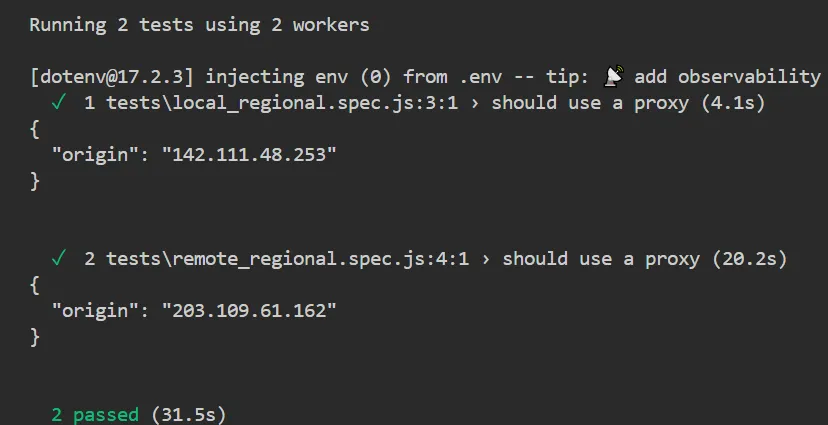
How to Run Playwright Test Behind a Proxy With TestMu AI?
The next step runs the same regional check on TestMu AI with its geolocation capability, so you do not need your own US proxy.
TestMu AI is a cloud testing platform that runs Playwright tests on a Playwright automation cloud with 3,000+ browser and OS combinations. For full setup details, see the guide on Playwright testing with TestMu AI.
Step 1: Set up TestMu AI:
- Set TestMu AI Credentials - Export your Username and Access Key as the LT_USERNAME and LT_ACCESS_KEY environment variables. You can find them under Account Settings, then Password and Security, in your TestMu AI dashboard.
- Generate Capabilities - Use the TestMu AI Automation Capabilities Generator to generate capabilities for your test environment, including OS, browser, and browser version.
- Connect via WebSocket Endpoint - Connect to the TestMu AI Playwright endpoint at wss://cdp.lambdatest.com/playwright with the capabilities in the query string.
Here is the setup.js file that runs Playwright tests on TestMu AI:
const { test: base, chromium } = require("@playwright/test");
const cp = require("child_process");

const playwrightClientVersion = cp
  .execSync("npx playwright --version")
  .toString()
  .trim()
  .split(" ")[1];

const capabilities = {
  browserName: "Chrome",
  browserVersion: "latest",
  "LT:Options": {
    platform: "Windows 11",
    build: "Playwright Proxy",
    name: "Playwright Proxy Test",
    user: process.env.LT_USERNAME,
    accessKey: process.env.LT_ACCESS_KEY,
    network: true,
    video: true,
    console: true,
    tunnel: false,
    geoLocation: "US",
    playwrightClientVersion: playwrightClientVersion,
  },
};

exports.test = base.extend({
  page: async ({ page }, use, testInfo) => {
    // Run locally when executeOn=local
    if (process.env.executeOn === "local") {
      await use(page);
      return;
    }

    // Otherwise connect to TestMu AI
    const browser = await chromium.connect({
      wsEndpoint: `wss://cdp.lambdatest.com/playwright?capabilities=${encodeURIComponent(
        JSON.stringify(capabilities)
      )}`,
    });
    const ltPage = await browser.newPage();

    await use(ltPage);

    // Report pass/fail to the TestMu AI dashboard
    const testStatus = {
      action: "setTestStatus",
      arguments: {
        status: testInfo.status,
        remark: testInfo.error?.message || "",
      },
    };
    await ltPage.evaluate(() => {}, `lambdatest_action: ${JSON.stringify(testStatus)}`);

    await ltPage.close();
    await browser.close();
  },
});
Code Walkthrough:
- Define Browser Capabilities - Set the browser, version, OS, credentials, and LT:Options. The geoLocation capability runs the session from the US.
- Extend Playwright's Test Fixture - test.extend() overrides the default page fixture and picks local or cloud execution based on process.env.executeOn.
- Switch Between Local and Cloud Execution - When executeOn is "local", the test uses the local page. Otherwise it connects to the TestMu AI Playwright grid over WebSocket with the capabilities above.
- Send Test Status to TestMu AI - After the test, the fixture reads the result from testInfo and sends a lambdatest_action command to mark the test passed or failed on the TestMu AI Web Automation dashboard.
Step 2: Create the test inside remote_regional.spec.js:
const { test } = require("../setup");
const { expect } = require("@playwright/test");

test("should run from the US", async ({ page }) => {
  const response = await page.goto("https://ipinfo.io/json");
  const { ip, country } = await response.json();
  console.log({ ip, country });
  expect(country).toBe("US");
});
Code Walkthrough:
- Import the Custom Fixture - Import test from setup.js so the test runs on the TestMu AI cloud grid, and expect from @playwright/test.
- Check the Country - ipinfo.io returns the IP and country it sees. The assertion passes only when the session exits from the US.
Note: The TestMu AI WebSocket endpoint gives you a browser that is already launched, so you can't pass Playwright's proxy option to it. Use the geoLocation capability for location, or the dedicatedProxy capability (a separate paid plan) to reach IP-whitelisted environments. To bring your own proxy, route the traffic through TestMu AI Tunnel.
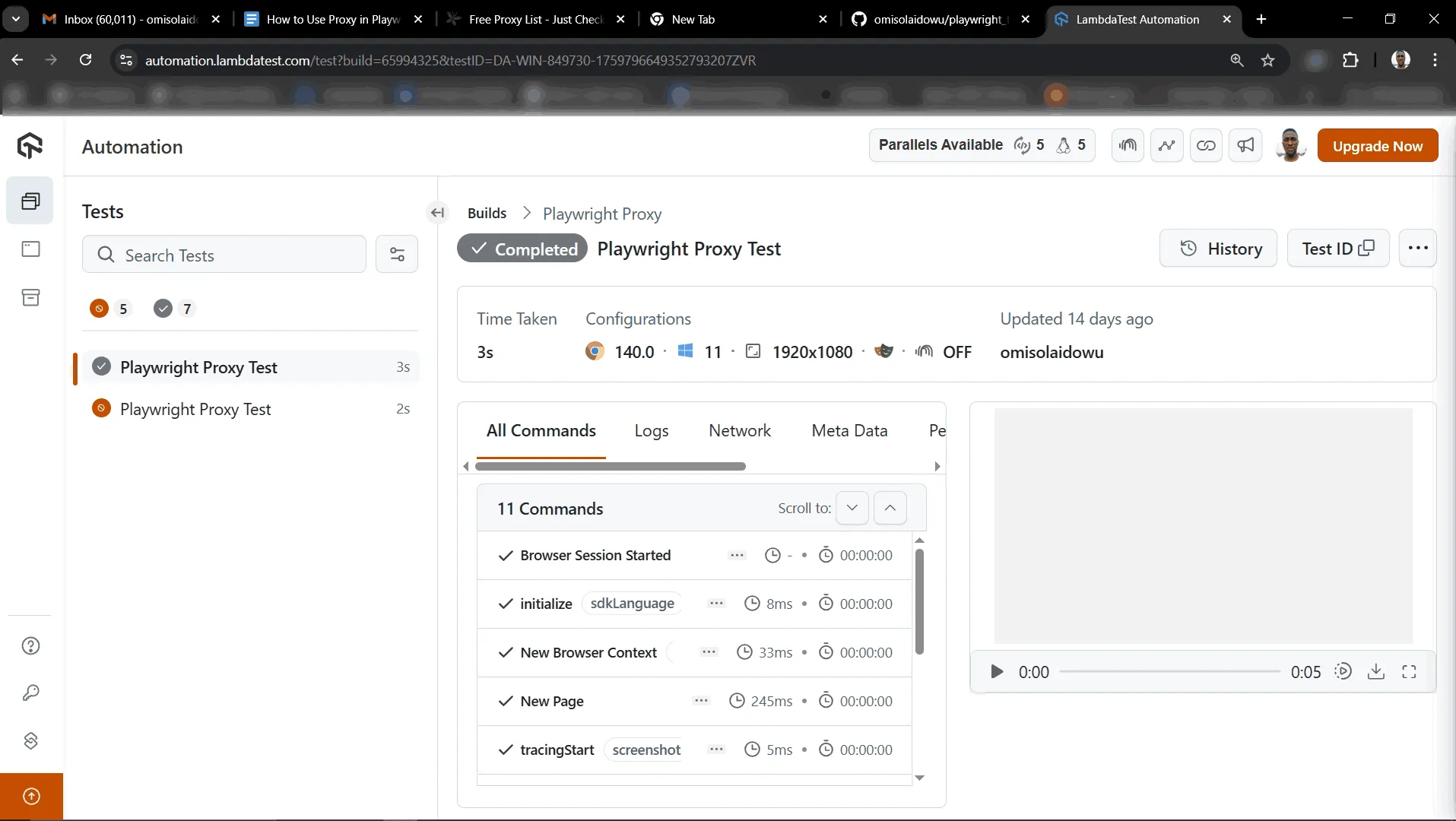
Test Execution:
Run the cloud test with the following command:
npx playwright test tests/remote_regional.spec.jsOpen the TestMu AI Web Automation dashboard to view the Playwright test results:
How to Use a Proxy With Playwright MCP?
AI agents in Claude Desktop, Cursor, and other MCP clients drive the browser through the Playwright MCP server. The Playwright MCP README documents two proxy flags: --proxy-server and --proxy-bypass.
In Claude Desktop, add the flags to the args in claude_desktop_config.json:
{
  "mcpServers": {
    "playwright": {
      "command": "npx",
      "args": [
        "@playwright/mcp@latest",
        "--proxy-server=http://proxy.example.com:8080",
        "--proxy-bypass=localhost,127.0.0.1"
      ]
    }
  }
}
The README documents no credential flag. For an authenticated proxy, put the proxy in a config file under browser.launchOptions, which takes Playwright's launch options:
{
  "browser": {
    "launchOptions": {
      "proxy": {
        "server": "http://proxy.example.com:8080",
        "username": "proxy_user",
        "password": "proxy_pass"
      }
    }
  }
}
Then replace the proxy flags in args with "--config", "/path/to/mcp-config.json" and restart Claude Desktop. New browser sessions from your Playwright MCP server now go through the proxy.
Best Practices for Setting Up Proxies With Playwright
- Choose the Right Proxy Type - Use an HTTP proxy when you need authentication, since Playwright documents credentials for HTTP proxies. Use SOCKS5 only for unauthenticated routing.
- Avoid Free Public Proxies - Free proxy lists go offline often and can read unencrypted traffic. Use a paid provider or your own proxy for test runs.
- Keep Credentials Out of Code - Read proxy usernames and passwords from environment variables or a secret manager, as in the authentication example above.
- Bypass Local Hosts - Add localhost and internal domains to bypass so local services and mocks are not routed through the proxy.
- Assert the Exit IP - Check the IP or country the site sees, as in the tests above, so a misconfigured proxy fails the test instead of passing silently.
- Health Check Before the Run - Run the proxy health check before the suite and drop slow or failing proxies from the pool.

Conclusion
Start with a launch-level proxy and a test that asserts the exit IP, then add per-context proxies, authentication, or rotation as you need more regions. To run the same suite from other countries without maintaining a proxy pool, run it on TestMu AI with the geoLocation capability, or use a TestMu AI dedicated proxy for IP-whitelisted environments.
Testing from the terminal? Kane CLI by TestMu AI lets SDETs and developers plan, write, run and debug tests from the command line.
Citations
- Playwright Network Documentation: https://playwright.dev/docs/network
Author

Salman Khan
Blogs: 136


Salman is a Test Automation Evangelist and Community Contributor at TestMu AI, with over 6 years of hands-on experience in software testing and automation. He has completed his Master of Technology in Computer Science and Engineering, demonstrating strong technical expertise in software development, testing, AI agents and LLMs. He is certified in KaneAI, Automation Testing, Selenium, Cypress, Playwright, and Appium, with deep experience in CI/CD pipelines, cross-browser testing, AI in testing, and mobile automation. Salman works closely with engineering teams to convert complex testing concepts into actionable, developer-first content. Salman has authored 120+ technical tutorials, guides, and documentation on test automation, web development, and related domains, making him a strong voice in the QA and testing community.
Reviewer

Srinivasan Sekar
Reviewer
Srinivasan Sekar is Director of Engineering at TestMu AI, where he leads engineering and open-source initiatives behind the Selenium and Appium automation grid and owns TestMu AI's MCP Server. A committer to Appium and a contributor to Selenium, WebdriverIO, Taiko, and AppiumTestDistribution, he brings over 15 years of experience in quality engineering and open-source technologies. He is the author of the Apress book 'The MCP Standard: A Developer's Guide to Building Universal AI Tools with the Model Context Protocol,' a Certified Kubernetes and Cloud Native Associate, and an international conference speaker. Before TestMu AI he spent over eight years at Thoughtworks as a Principal Consultant and Quality Architect. Srinivasan holds a B.Tech in Information Technology from Anna University.
On This Page
- How to Configure Proxy in Playwright?
- Playwright Proxy Authentication
- Playwright Proxy Rotation Strategies
- How to Test Behind a Proxy With Playwright?
- How to Run Playwright Test Behind a Proxy With TestMu AI?
- How to Use a Proxy With Playwright MCP?
- Best Practices for Setting Up Proxies With Playwright
- Conclusion
- Citations
Playwright Proxy FAQs
Did you find this page helpful?
More Related Learning Hubs







TestMu AI forEnterprise
Get access to solutions built on Enterprise
grade security, privacy, & compliance
- Advanced access controls
- Advanced data retention rules
- Advanced Local Testing
- Premium Support options
- Early access to beta features
- Private Slack Channel
- Unlimited Manual Accessibility DevTools Tests