
Power Your Software Testing with AI Agents and Cloud
The Native AI-Agentic Cloud Platform to Supercharge Quality Engineering. Test Intelligently and Ship Faster.

- TestMu AI (Formerly LambdaTest)
- /
- Blog
- /
- Playwright LangChain Agent: Patterns & Integration Guide
Playwright LangChain Agent: Patterns & Integration Guide
Master Playwright LangChain integration with 6 real patterns: failure triage, test generation, accessibility audit & visual regression. Full TypeScript code inside.
Last Updated on:
Browser automation with Playwright is deterministic. You write a script, it clicks, it asserts, it passes or fails. But the moment you need to interpret what happened, why a test failed, what changed between environments, whether the page is accessible, you are back to human judgment. Someone reads the error, investigates the DOM, and decides what it means. After years of writing Playwright scripts, I kept running into this same wall: scripts do not think.
LangChain agents close that gap. They wrap Playwright's browser control as callable tools, then let an LLM reason about the results: classify failure root causes, explore pages without a fixed script, generate test code from plain English, or audit accessibility by reading the ARIA tree. The agents sit on top of ordinary Playwright, so the Playwright tutorial is the prerequisite.
This makes Playwright automation genuinely intelligent rather than just fast, and it is one of the most practical applications of agentic AI in software testing today. It is part of a wider move toward pairing Playwright with AI, where the framework handles execution and a model handles the judgment that plain scripts cannot. The same pattern extends to data extraction in AI web scraping, where LLM agents drive browsers to pull structured data from pages without hand-written selectors.
Overview
To build a Playwright LangChain agent, use LangGraph with custom TypeScript tools for production-ready test automation, or use LangChain's prebuilt PlayWrightBrowserToolkit for quick prototyping. This integration connects large language model reasoning with deterministic browser execution to automate complex web tasks and evaluate dynamic page states.
What Is a LangChain Playwright Agent?
- Intelligent browser control: The LangChain Playwright Agent is an LLM-driven program that operates a real browser by reasoning about tasks and calling Playwright actions as tools, combining AI judgment with deterministic execution.
Which Architecture Should Connect Playwright and LangChain?
- Early prototyping: PlayWrightBrowserToolkit is a prebuilt LangChain toolkit providing out-of-the-box browser tools for quick setup, though it is limited to Python and lacks screenshot capabilities.
- Production test automation: LangGraph with custom tools uses custom TypeScript or Python tools to provide maximum control over locators, screenshots, and security in CI pipelines.
- IDE-based workflows: Playwright MCP Server exposes browser automation as Model Context Protocol tools, allowing developers to run agentic workflows directly inside compatible editors like VS Code.
- Scalable cloud execution: TestMu AI BrowserCloud is a managed cloud infrastructure that runs browser agents without local setup, offering built-in stealth mode, CAPTCHA solving, and session persistence.
- Standardized AI coding assistance: TestMu AI provides standardized Agent Skills, including playwright-skill, allowing AI coding assistants to generate and run browser automation without manual configuration.
How Do You Set Up LangChain With Playwright?
- Production-ready setup: LangGraph with custom TypeScript tools requires Node.js 22 or newer and an LLM API key, organizing the project to separate test execution, agent logic, tools, and reporting.
Where Does Building the Agent Start?
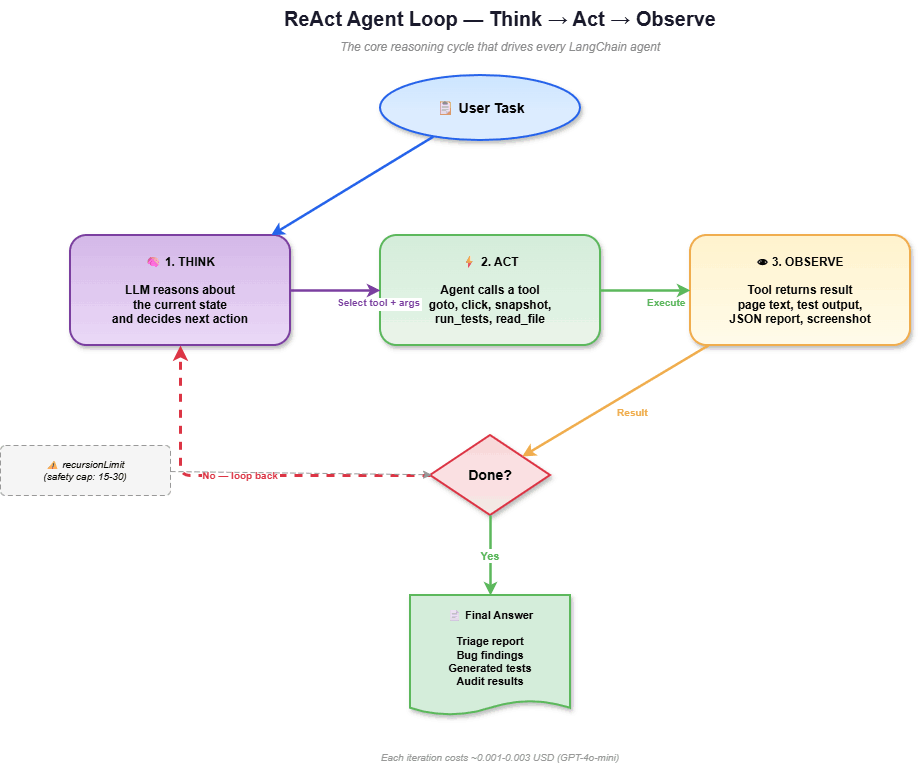
- Agent initialization: A ReAct-style agent is built by wrapping browser actions as typed tools with clear descriptions, then connecting them to an agent that loops through reasoning and action.
When Is an Agent the Wrong Choice?
- Deterministic tasks: Plain Playwright scripts should be used instead of AI agents for established test suites, element visibility checks, pixel-precise screenshot comparisons, or structured data reporting where LLM reasoning is unnecessary.
What Is a LangChain Playwright Agent?
A LangChain Playwright agent is an LLM-powered program that can control a real browser. It sits at the intersection of two growing areas in modern QA: AI test automation, where machine learning handles tasks that previously required human judgment, and browser automation, where a framework drives real browsers to simulate user behavior. It combines two technologies:
- Playwright:Microsoft's open-source browser automation framework. It drives Chromium, Firefox, and WebKit with a single API, handling clicks, navigation, screenshots, and built-in Playwright assertions that verify whether elements, text, and page states match expected outcomes. Playwright is deterministic: it does exactly what the script says.
- LangChain: a framework for building LLM-powered applications. It provides the
tool()abstraction to wrap any function for LLM use, andcreateAgent()to build a ReAct agent that loops through: think, call a tool, observe the result, think again.
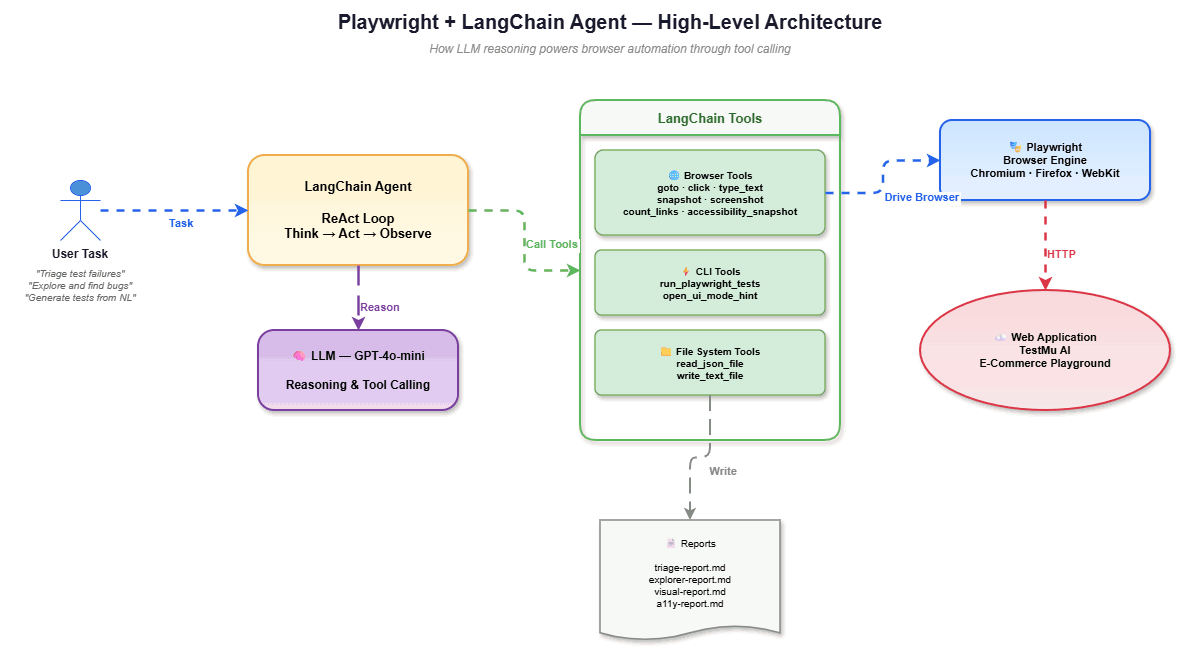
When combined, the agent works like this:
User Task → LLM reasons about the task → Calls a Playwright tool (goto, click, snapshot, screenshot) → Observes the browser state → Decides what to do next → Calls another tool → ... repeats until task complete → Returns a final answer |
The LLM never touches the browser directly. It calls well-defined tools with validated inputs. The Playwright handles execution; the LLM handles reasoning. That separation keeps things safe and predictable.
It is worth separating this from Playwright Agents, the planner, generator, and healer roles that Playwright now ships natively. Those run inside the Playwright toolchain to author and repair tests, while the LangChain approach in this guide puts an LLM in charge of tools you define and control. The two are complementary, and knowing which one you mean keeps your architecture decisions clear.
Why not just use Playwright scripts?
Scripts are better when the test path is known. The agent adds value when the task requires judgment, classifying why tests failed, deciding what to explore next, comparing two pages semantically, or explaining accessibility violations in human terms.
For teams already doing AI test automation or trying to build an AI QA agent that goes beyond simple script execution, the Playwright LangChain combination is a natural fit.

Which LangChain Playwright Architecture Should You Use?
There are three main ways to connect Playwright with LangChain. Each has different trade-offs depending on whether your goal is quick prototyping, production Playwright automation, or IDE-based agent workflows.
PlayWrightBrowserToolkit
PlayWrightBrowserToolkit is LangChain's built-in, pre-packaged integration. It ships in the langchain-community package (Python) and provides seven ready-made tools:
| Tool Name | What It Does |
|---|---|
NavigateTool (navigate_browser) | Go to a URL |
NavigateBackTool (previous_page) | Go back one page |
ClickTool (click_element) | Click an element using a CSS selector (CSS selectors only; no XPath, text, or role selectors) |
ExtractTextTool (extract_text) | Extract all visible text (requires beautifulsoup4, install via pip install beautifulsoup4) |
ExtractHyperlinksTool (extract_hyperlinks) | Extract all links from the page |
GetElementsTool (get_elements) | Select elements using a CSS selector |
CurrentPageTool (current_page) | Return the current URL |
Setup (Python):
from langchain_community.agent_toolkits import PlayWrightBrowserToolkit
from langchain_community.tools.playwright.utils import create_async_playwright_browser

async_browser = create_async_playwright_browser()
toolkit = PlayWrightBrowserToolkit.from_browser(async_browser=async_browser)
tools = toolkit.get_tools()
When to use it: Quick prototyping, simple browse-and-extract workflows, Python projects that need browser tools without custom logic.
Limitations:
- Python-only limitation: The system supports only Python execution; JavaScript and TypeScript are not supported.
- No screenshot capability: There is no tool available to capture or generate screenshots of web pages.
- No accessibility snapshot support: The system cannot generate accessibility trees or structured accessibility snapshots.
- No output trimming or domain restrictions: The system does not automatically trim responses, and there is no host allowlisting to restrict which websites can be accessed.
ClickToollimitation (CSS only):ClickToolaccepts only CSS selectors; XPath, text-based, and role-based selectors are not supported.ExtractTextTooldependency issue: Requiresbeautifulsoup4, which is not pre-installed withlangchain-community; running it without installation leads toModuleNotFoundError, requiring manual installation viapip install beautifulsoup4. To use these dependencies effectively, refer to the guide on web crawler in Python, which demonstrates how these dependencies work.ExtractTextToolcontext overload risk: Extracts full page text without filtering or summarization, which can easily overflow LLM context windows on content-heavy pages.- No customization without subclassing: Tool behavior cannot be modified directly; any customization requires subclassing the original implementation.
LangGraph + Custom Playwright Tools
This is the architecture used throughout this guide. Instead of pre-packaged tools, you write your own Playwright tools using LangChain's tool() function and wire them into a LangGraph-based ReAct agent via createAgent().
This approach gives you full control over Playwright locators, output trimming, security controls, and screenshot capture, making it the right choice for production Playwright testing at scale.
// Custom tool with host allowlist, output trimming, and Zod schema

const goto = tool(
  async ({ url }: { url: string }) => {
    assertAllowedUrl(url);
    await ctx.page.goto(url, { waitUntil: "domcontentloaded" });
    return `Navigated to ${url}`;
  },
  {
    name: "goto",
    description: "Navigate the browser to a URL. Must be on the allowlist.",
    schema: z.object({ url: z.string().url() }),
  }
);
When to use it: Production test automation, CI pipelines, any scenario needing screenshots, accessibility snapshots, output trimming, security controls, or TypeScript/JavaScript.
Advantages over PlayWrightBrowserToolkit:
- Full control over every tool (add host allowlists, trim output, add screenshots, ARIA snapshots)
- Works in TypeScript/JavaScript (LangChain.js)
- LangGraph provides graph-based execution with recursion limits and state management
- You can add non-browser tools (CLI runners, file I/O) alongside browser tools
Trade-off: More code to write. You build and maintain the tools yourself.
Playwright MCP Server
The Playwright MCP server (@playwright/mcp) is Microsoft's official Model Context Protocol server for Playwright. It exposes browser automation as an MCP tool that any MCP-compatible client (VS Code, Claude Desktop, Cursor, Windsurf, etc.) can call.
For a deeper look at the built-in Planner, Generator, and Healer agents that pair with this MCP server, see this guide to AI and Playwright MCP, which walks through terminal and VS Code setup and an end-to-end Jira-ticket-to-tests workflow.
If you spend most of your time inside an agentic IDE like Cursor, a packaged Playwright skill is another way to give your assistant the same browser control, with the setup handled for you instead of wired by hand.
TestMu AI- Formerly Known as LambdaTest provides Agent Skills, including playwright-skill, that standardize this setup so AI coding assistants can generate and run browser automation without manual configuration.
Setup:
{
  "mcpServers": {
    "playwright": {
      "command": "npx",
      "args": ["@playwright/mcp@latest"]
    }
  }
}
Key characteristics:
- Uses Playwright's accessibility tree (not screenshots), so no vision model is needed
- Deterministic tool application operates on structured data, not pixels
- Supports Playwright headless testing and headed modes, device emulation, proxy, and storage state
- Capabilities are opt-in:
--caps=visionfor screenshot support,--caps=testingfor assertions,--caps=devtoolsfor CDP access - Runs as a standalone server with HTTP transport for headless environments
When to use it: IDE-based agent workflows (VS Code Copilot, Claude Desktop), exploratory automation where maintaining a continuous browser context matters, or when you want browser tools without writing any tool code.
Limitations:
- Tied to MCP protocol: Requires an MCP-compatible client to function, limiting standalone or alternative integration use.
- Not suitable for batch CI pipelines: Not designed for CI/CD batch execution workflows; custom LangGraph agents with CLI-based tools are more appropriate.
- Limited control over tool behavior: Offers less flexibility and fine-grained control compared to fully custom-built tools or frameworks.
TestMu AI BrowserCloud
TestMu AI BrowserCloud is a cloud testing infrastructure designed specifically for AI agents. You connect to it using Playwright, Puppeteer, or Selenium as the transport layer. Your existing automation code stays the same, but the browser runs on TestMu AI's managed cloud instead of locally or on a WebDriver grid.
Setup:
import { chromium } from "playwright";

const browser = await chromium.connectOverCDP(
  `wss://cloud.testmuai.com?token=${process.env.TESTMU_API_KEY}`
);
const page = await browser.newPage();
Key Characteristics:
- Browsers run on managed cloud infrastructure, no local Chrome process, no Docker containers
- Built-in stealth mode with fingerprint masking, CAPTCHA solving, and ad blocking
- Session persistence: transfer cookies, local storage, and login state across sessions
- Full network capture, video replay, and console logs for every session
- Supports Chrome extensions, localhost tunneling, and file upload/download
- Works with any Playwright/Puppeteer/Selenium code: swap the connection string, and everything else stays the same
When to use it: AI agents that need to interact with production websites (Playwright web scraping, monitoring, autonomous browsing), scenarios requiring CAPTCHA bypass or anti-bot evasion, long-running sessions that need persistence, or when you do not want to manage browser infrastructure.
Limitations:
- Network dependency: Introduces additional network latency since tests run on a remote browser environment instead of locally.
- Not ideal for local testing: Can be overkill for localhost or small-scale development testing where a local browser setup is faster and simpler.
Architecture Comparison
A quick comparison of different automation and agent execution approaches used for browser-based testing and AI-driven workflows.
| Criteria | Browser Toolkit | LangGraph + Custom Tools | Playwright MCP | TestMu AI Browser Cloud |
|---|---|---|---|---|
| Language | Python only | TypeScript / Python | Any MCP client | Any (Playwright / Puppeteer / Selenium) |
| Setup effort | Minimal (3 lines) | Moderate (write and maintain tools) | Low (JSON config) | Low (connection string) |
| Screenshot support | No | Yes (custom tool) | Opt-in (--caps=vision) | Via Playwright SDK |
| Accessibility tree | No | Yes (custom tool) | Yes (default) | Via Playwright SDK |
| Host allowlist / SSRF protection | No | Yes (custom) | Yes (--allowed-origins) | N/A |
| Output trimming | No | Yes (custom) | Automatic (structured data) | N/A |
| CI pipeline ready | Yes | Yes | Limited | Yes |
| Customization | Low (subclass) | Full | Config flags | Via SDK |
| Best for | Prototyping | Production test automation | IDE agent workflows | Cloud agent workflows / Scalable cloud test execution |
How to Set Up LangChain and Playwright
LangGraph + custom tools architecture (TypeScript), which is what the rest of this guide uses. If you are evaluating the Playwright LangChain stack for the first time, this is the setup path that gives you the most control and is the most production-ready out of the three architectures covered earlier.
Prerequisites
Before getting started, ensure your environment is ready with the required runtime and model access.
- Node.js 22+: Required to run the application and ensure compatibility with modern JavaScript runtime features and dependencies.
- LLM API key (OpenAI or LangChain-supported provider): Needed to enable AI model access for executing workflows, generating responses, and powering automation logic.
Project Structure
The project is organized into a clear separation of test execution, AI agents, tools, and reporting to support scalable browser automation workflows.
pw-lang-agents/
├── playwright.config.ts          # JSON + HTML + list reporters
├── tests/
│   ├── smoke.spec.ts             # Passing smoke tests
│   ├── failing.spec.ts           # Intentionally failing tests (4 patterns)
│   └── generated.spec.ts         # AI-generated tests (agent output)
├── agent/
│   ├── package.json              # ESM, LangChain dependencies
│   ├── tsconfig.json             # ES2022, NodeNext
│   ├── .env                      # OPENAI_API_KEY
│   └── src/
│       ├── tools/
│       │   ├── playwright-tools.ts  # Browser control tools
│       │   ├── cli-tools.ts         # Test runner tools
│       │   └── fs-tools.ts          # File I/O tools
│       ├── triage-agent.ts       # Failure triage
│       ├── explorer-agent.ts     # Exploratory testing
│       ├── testgen-agent.ts      # Test generation
│       ├── drift-agent.ts        # Drift detection
│       ├── visual-agent.ts       # Visual regression
│       └── a11y-agent.ts         # Accessibility audit
└── reports/                      # Agent-generated outputs
Installation
Follow these steps to set up the project, install dependencies, and configure your environment.
# Clone the repo
git clone https://github.com/rakesh-vardan/pw-lang-agents
cd pw-lang-agents

# Install Playwright and root dependencies
npm install
npx playwright install

# Set up the agent workspace
cd agent
npm install

# Add your API key
echo "OPENAI_API_KEY=sk-your-key-here" > .env
Dependencies
The agent workspace uses these packages:
| Package | Version | Purpose |
|---|---|---|
langchain | 1.x | createAgent, tool |
@langchain/openai | 1.x | ChatOpenAI LLM connection |
@langchain/langgraph | 1.x | Graph-based agent execution |
@langchain/core | 1.x | HumanMessage for multimodal prompts |
playwright | 1.58+ | Browser automation (non-test usage) |
zod | 4.x | Tool parameter schemas |
dotenv | 17.x | Environment variable loading |
Full dependency list: agent/package.json
How to Build a LangChain Playwright Agent
Building the agent involves two steps: wrapping Playwright operations as LangChain agent tools, then wiring those tools into a ReAct agent.
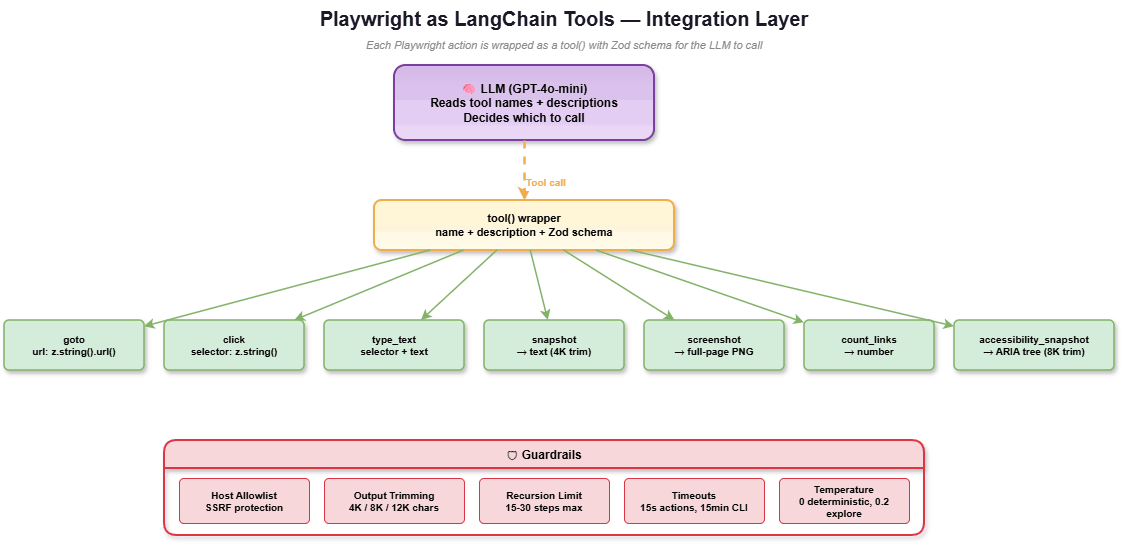
- Create Playwright Tools: Each browser action becomes a
tool()with a name, description, and Zod schema. The LLM reads the descriptions to decide which tool to call.
// agent/src/tools/playwright-tools.ts (key excerpts)

import { tool } from "@langchain/core/tools";
import * as z from "zod";

// Navigation with host allowlist (SSRF protection)
const goto = tool(
  async ({ url }: { url: string }) => {
    assertAllowedUrl(url);
    await ctx.page.goto(url, { waitUntil: "domcontentloaded" });
    return `Navigated to ${url}`;
  },
  {
    name: "goto",
    description: "Navigate the browser to a URL. Must be on the allowlist.",
    schema: z.object({ url: z.string().url() }),
  }
);

// Page snapshot with output trimming (4K chars)
const snapshot = tool(
  async () => {
    const text = await ctx.page.locator("body").innerText();
    return text.slice(0, 4_000);
  },
  {
    name: "snapshot",
    description: "Get visible text content of the current page (first 4000 chars).",
    schema: z.object({}),
  }
);

// Accessibility tree via ariaSnapshot()
const accessibilitySnapshot = tool(
  async () => {
    const tree = await ctx.page.locator("body").ariaSnapshot();
    return tree.slice(0, 8_000);
  },
  {
    name: "accessibility_snapshot",
    description: "Capture the ARIA accessibility tree of the current page.",
    schema: z.object({}),
  }
);
The integration provides seven browser tools (goto, click, type_text, snapshot, count_links, screenshot, accessibility_snapshot), plus CLI tools to run the Playwright test suite and file I/O tools to read reports and write outputs.
Three key design decisions:
- Host allowlist on
goto: The LLM can only navigate to approved domains. Without this, an agent could browse to internal infrastructure or cloud metadata endpoints (SSRF). - Output trimming: Page snapshots: 4K chars. ARIA tree: 8K. Test output: 8K. JSON reports: 12K. This prevents context overflow and keeps token costs predictable.
- Zod schemas with descriptions: Each tool parameter has a typed schema. This is how LangChain tells the LLM what parameters a tool accepts and what they mean.
Full tool source: playwright-tools.ts · cli-tools.ts · fs-tools.ts
- Wire Tools into a ReAct Agent:
createAgent()is a function exported from thelangchainpackage. It builds a LangGraph-based ReAct agent that loops through think → tool call → observe:
import { ChatOpenAI } from "@langchain/openai";
import { createAgent } from "langchain";

const model = new ChatOpenAI({ model: "gpt-4o-mini", temperature: 0 });
const agent = createAgent({
  model,
  tools: [goto, click, type_text, snapshot, screenshot, accessibilitySnapshot],
  systemPrompt: "You are a browser automation specialist. Use tools to interact with the page.",
});

const result = await agent.invoke(
  { messages: [{ role: "user", content: "Navigate to the site and take a screenshot" }] },
  { recursionLimit: 15 }
);
Key parameters:
temperature: 0Deterministic output for predictable agent behavior. Use 0.2 for exploratory patterns where some variety is desirable.recursionLimit: Caps the think, tool, observe loop. Prevents infinite loops and controls costs. 15 is a safe default; increase to 25-30 for complex exploratory tasks.systemPrompt: Defines the agent's role and classification taxonomy. This is where you encode domain expertise.
How to Use LangChain Playwright Agents for Test Automation
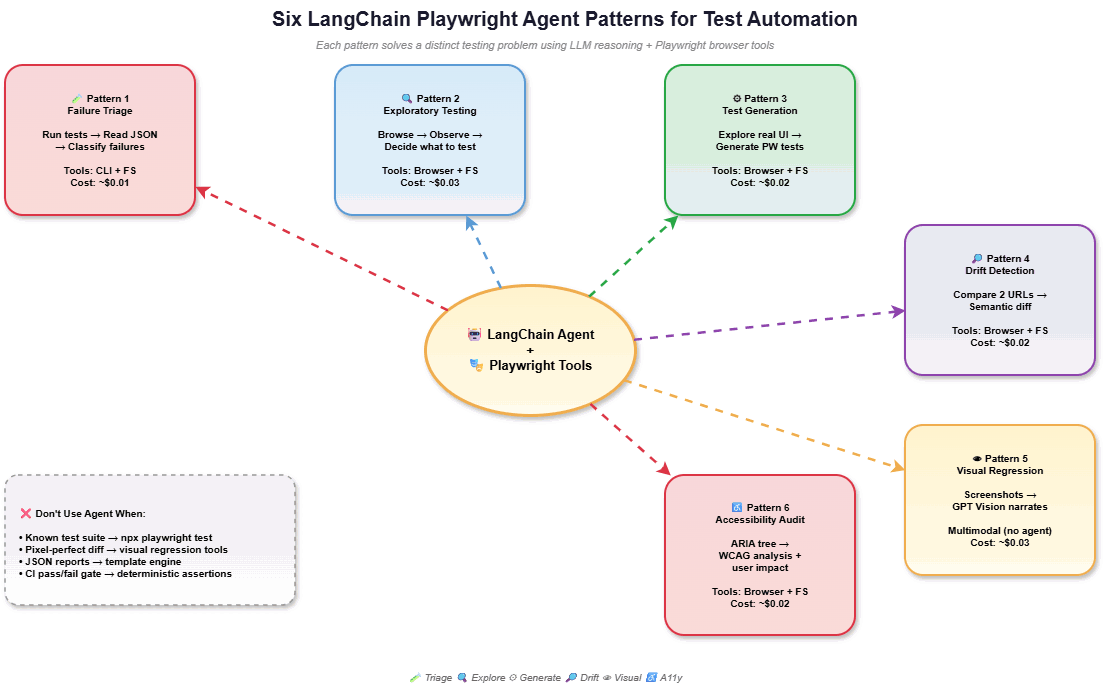
Six patterns where the combination actually pays off. Each one targets a testing task where LLM reasoning made a real difference over scripting alone. These are the automation patterns that practitioners working on AI test automation and AI-driven test automation will find most immediately applicable, and they represent the clearest evidence of what the Playwright LangChain integration can do that neither tool can do alone.
Pattern 1: Intelligent Failure Triage
The problem: Your CI pipeline broke. 11 tests failed across 3 browsers. Some are selector drift from a UI refactor, some are genuine bugs, and some are flaky timeouts. Classification takes 30+ minutes even when you know the codebase.
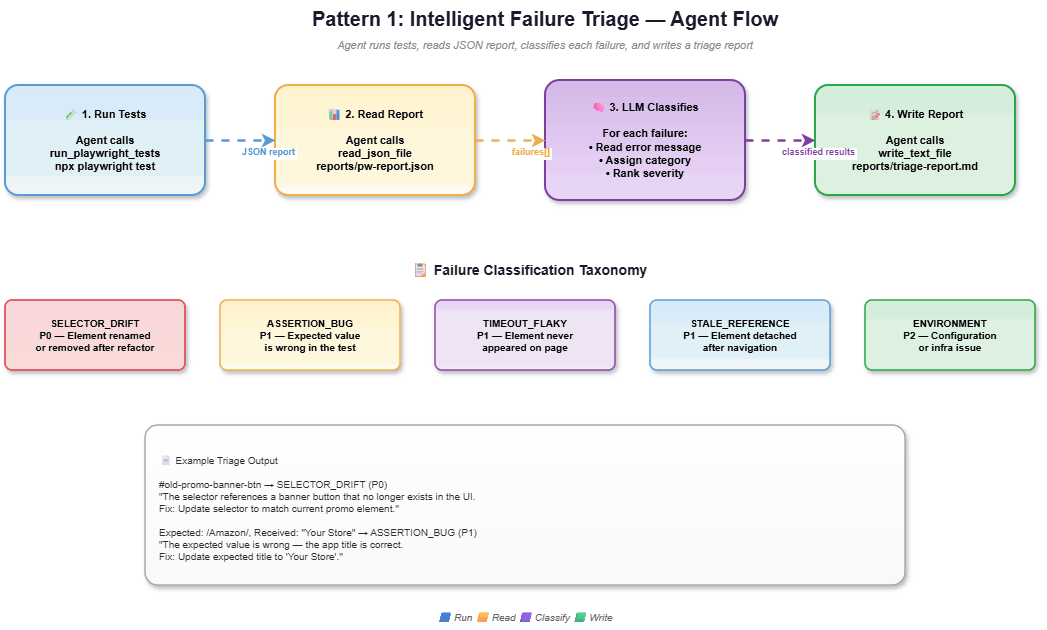
The integration: The agent uses CLI tools to run the Playwright suite, file tools to read the JSON report, and LLM reasoning to classify each failure into a root-cause category with a suggested fix.
you create tests that break in four distinct, realistic patterns selector drift, wrong assertion, missing element timeout, and stale reference after navigation:
// tests/failing.spec.ts (abbreviated)

// Pattern 1: Stale selector after UI refactor
test("FAIL: click on non-existent element (selector drift)", async ({ page }) => {
  await page.goto(BASE_URL);
  await page.click("#old-promo-banner-btn", { timeout: 3_000 });
});

// Pattern 2: Wrong expected value
test("FAIL: homepage title should be Amazon (wrong expectation)", async ({ page }) => {
  await page.goto(BASE_URL);
  await expect(page).toHaveTitle(/Amazon/, { timeout: 3_000 });
});
The triage agent's system prompt defines the failure taxonomy:
// agent/src/triage-agent.ts (key excerpt)

const agent = createAgent({
  model,
  tools: [...buildCliTools(repoRoot), ...buildFsTools(repoRoot)],
  systemPrompt: [
    "You are a senior test failure triage specialist.",
    "Classify each failure into: SELECTOR_DRIFT, ASSERTION_BUG,",
    "TIMEOUT_FLAKY, STALE_REFERENCE, or ENVIRONMENT.",
    "Quote the exact error, assign ONE category, explain reasoning,",
    "suggest a fix, rank severity (P0/P1/P2).",
  ].join("\n"),
});
Real output from npm run agent:triage:
| Test Name | Category | Severity | Suggested Fix |
|---|---|---|---|
| click on a non-existent element | SELECTOR_DRIFT | P0 | Update selector to match current UI |
| homepage title should be Amazon | ASSERTION_BUG | P1 | Update expected title to "Your Store." |
| wait for spinner that never appears | TIMEOUT_FLAKY | P1 | Confirm if the spinner should exist |
| interact with element after navigation | STALE_REFERENCE | P1 | Re-query the element after navigation |
Why this needed LLM reasoning: The agent read #old-promo-banner-btn and recognized it as a stale selector name. It read Expected: /Amazon/, Received: "Your Store" and identified the expected value as the bug, not the app. A regex-based classifier cannot make these judgment calls. This is what separates an AI QA agent from a simple log parser.
For a deeper breakdown of how AI systems classify issues, follow the detailed blog on bug severity and priority to understand how AI-driven testing systems evaluate impact, assign priority, and distinguish critical failures from minor UI inconsistencies during automation runs.
- Full Source: triage-agent.ts
- Full Output: reports/triage-report.md
Pattern 2: Exploratory Testing with LLM-Driven Decisions
A new feature ships with no regression tests. You need someone to poke around, try edge cases, and report findings. Instead of writing a test script, the agent uses Playwright browser tools to navigate and interact, while the LLM decides what to test next based on each snapshot.
The path is not scripted. The agent adapts based on what it sees, behaving much like a human QA tester doing unscripted exploratory testing.
// agent/src/explorer-agent.ts (key excerpt)

const agent = createAgent({
  model: new ChatOpenAI({ model: modelName, temperature: 0.2 }),
  tools: [
    ...buildPlaywrightTools(ctx, ["ecommerce-playground.lambdatest.io"]),
    ...buildFsTools(repoRoot),
  ],
  systemPrompt: [
    "You are an expert exploratory tester with a real browser.",
    "Snapshot the homepage, identify interactive areas,",
    "for EACH area, decide what to test, try edge cases,",
    "snapshot to see what changed, record observations.",
    "Do NOT follow a fixed script. Decide based on what you see.",
    "Categorize: BUG, USABILITY_ISSUE, OBSERVATION, or POSITIVE.",
  ].join("\n"),
});
Real output: the agent autonomously discovered:
- BUG: Search with
!@#$%^&*()showed "no product matches" with no input sanitization message - BUG: Empty search submission produced a blank results page with no prompt to enter a term
- USABILITY_ISSUE: Special, Hot, and My Account navigation links timed out - unresponsive elements
The agent saw the search box, decided to try edge cases, then independently moved to navigation testing. Each decision came from observing the page, much like a human tester would work, but without needing a script upfront.
- Full source: explorer-agent.ts
- Full output: reports/explorer-report.md
Pattern 3: Natural-Language to Playwright Test Generation
A product manager writes: "Users should be able to search for a product by name, see results with thumbnails, and add a product to the cart." You need Playwright test code. Instead of guessing selectors, the agent uses browser tools to explore the real application, discovers actual DOM elements, and generates test code from what it found on the live page.
This is generative AI testing applied directly to browser automation: the agent writes the tests so you do not have to start from scratch. Describing the outcome in plain language and letting the agent produce the working steps is the same instinct behind vibe testing with Playwright, applied here to generate committed test code rather than to poke around a UI.
// agent/src/testgen-agent.ts (key excerpt)

const agent = createAgent({
  model,
  tools: [
    ...buildPlaywrightTools(ctx, ["ecommerce-playground.lambdatest.io"]),
    ...buildFsTools(repoRoot),
  ],
  systemPrompt: [
    "You are a Playwright test generation specialist.",
    "Explore the REAL application to discover actual UI elements.",
    "Generate working test code based on what you observed.",
    "Only use selectors you actually found on the page.",
  ].join("\n"),
});
Real output: the agent browsed the site, searched for "iMac," and generated:
// tests/generated.spec.ts (AI-generated, unedited)

test('Search for a product and add to cart', async ({ page }) => {
  await page.goto(BASE_URL);
  await page.fill('input[name="search"]', 'iMac');
  await page.click('button[type="submit"]');
  await expect(page).toHaveURL(/.*search=iMac/);
  await page.click('div.caption a');
  await expect(page.locator('h1')).toHaveText('iMac');
  await page.click('button[id="button-cart"]');
  await expect(page.locator('.alert-success')).toContainText('Success: You have added');
});
Honest assessment: approximately 80% correct scaffolding across my runs. input[name="search"] and button[type="submit"] were correct (discovered from the live DOM). div.caption a was fragile. Human review is always the final step.
Full source: testgen-agent.ts · Generated test: tests/generated.spec.ts
Pattern 4: Cross-Environment Drift Detection
The problem: You deploy to staging and need to verify nothing unexpected changed. A raw text diff would flag every dynamic timestamp and session ID, useless noise.
The integration: The agent visits two URLs, takes snapshots, then uses LLM reasoning to semantically compare them, distinguishing meaningful regressions from expected differences. This pattern directly addresses one of the most common challenges in AI app testing: separating signal from noise across environments.
// agent/src/drift-agent.ts (key excerpt)

const agent = createAgent({
  model,
  tools: [
    ...buildPlaywrightTools(ctx, ["ecommerce-playground.lambdatest.io"]),
    ...buildFsTools(repoRoot),
  ],
  systemPrompt: [
    "You are a cross-environment drift detection specialist.",
    "Visit two URLs, snapshot each, compare them intelligently.",
    "Classify: REGRESSION, EXPECTED_DIFFERENCE, or NOISE.",
  ].join("\n"),
});
Real output: comparing the homepage vs. the Laptops category page:
| Difference | Classification | Reasoning |
|---|---|---|
| Page title: "Your Store" vs "Laptops & Notebooks" | EXPECTED_DIFFERENCE | Different pages have different titles |
| Link count: 333 vs 170 | EXPECTED_DIFFERENCE | The homepage has more content than the category page |
| Navigation structure identical | NOISE | Positive indicator, shared layout is consistent |
A diff tool would have said, "everything is different." The agent understood that 333 versus 170 links are expected for a homepage versus a category page. It filtered the noise from the signal.
- Full Source: drift-agent.ts
Pattern 5: Visual Regression Narrator
Pixel-diff tools generate heat maps that say "247 pixels changed at coordinates (340, 120)." Technically accurate, completely useless for a QA standup. This pattern takes a different approach.
Playwright captures full-page screenshots of two environments, and a vision-capable LLM (GPT-4o-mini supports image input) describes the visual differences in plain English.
This is automated visual testing with a human-readable output layer on top, combining the precision of visual testing tools with the communication value of natural language. Unlike the other patterns, it uses direct screenshot capture and a multimodal HumanMessage, not a tool-calling agent loop:
// agent/src/visual-agent.ts (key excerpt)

// Capture screenshots with Playwright
await ctx.page.goto(urlA, { waitUntil: "load" });
await ctx.page.screenshot({ path: pathA, fullPage: true });
await ctx.page.goto(urlB, { waitUntil: "load" });
await ctx.page.screenshot({ path: pathB, fullPage: true });

// Send both images to the vision model
const response = await model.invoke([
  new HumanMessage({
    content: [
      { type: "text", text: "Compare these two screenshots..." },
      { type: "image_url", image_url: { url: `data:image/png;base64,${imageA.toString("base64")}`, detail: "high" } },
      { type: "image_url", image_url: { url: `data:image/png;base64,${imageB.toString("base64")}`, detail: "high" } },
    ],
  }),
]);
Real output:
| Area | Finding | Severity |
|---|---|---|
| Hero Section | Homepage shows iPhone promo; category page shows headphones banner | LOW (expected) |
| Main Content | Homepage uses a grid layout; category page has a list layout with sidebar filters | MODERATE |
| Navigation | The category page adds a breadcrumb and a price/manufacturer filter panel | MODERATE |
- Full source: visual-agent.ts
- Full output: reports/visual-report.md
Pattern 6: Accessibility Audit Agent
The problem: Running axe-core in Playwright accessibility tests gives you a list of rule IDs, such as color-contrast, image-alt, and label, with no context about who is affected or how badly. Accessibility testing becomes meaningful only when violations are explained in terms of real user impact, not just WCAG criterion codes.
The integration: The agent uses Playwright's ariaSnapshot() to capture the full ARIA tree, every role, name, and structure that assistive technology sees. The LLM then reasons about WCAG compliance, explaining the user impact of each violation.
This is web accessibility testing taken beyond rule-based scanning into genuine reasoning about the experience of users with disabilities.
// agent/src/a11y-agent.ts (key excerpt)

const agent = createAgent({
  model,
  tools: [
    ...buildPlaywrightTools(ctx, ["ecommerce-playground.lambdatest.io"]),
    ...buildFsTools(repoRoot),
  ],
  systemPrompt: [
    "You are a web accessibility audit specialist (WCAG 2.1).",
    "Use the accessibility_snapshot tool to capture the ARIA tree.",
    "For each finding: state the WCAG criterion, explain the USER IMPACT,",
    "suggest a concrete fix, and rate severity.",
  ].join("\n"),
});
Real output:
| Finding | WCAG Criterion | Severity | User Impact |
|---|---|---|---|
| Images without alt text | 1.1.1 Non-text Content | CRITICAL | Screen reader users cannot understand product images |
| Form inputs without labels | 1.3.1 Info and Relationships | MAJOR | Assistive tech users cannot identify form field purposes |
| Missing landmark regions | 1.3.1 Info and Relationships | MAJOR | Screen reader users cannot jump to main content or nav |
| Low-contrast text | 1.4.3 Contrast (Minimum) | MAJOR | Users with visual impairments cannot read descriptions |
Why this matters over axe-core alone: axe-core outputs "image-alt: 23 violations." The agent explained who is affected: "Screen reader users cannot understand the content or purpose of product images." That reframing is what makes AI and Accessibility meaningful in an actual sprint review.
- Full Source: a11y-agent.ts
- Full Output: reports/a11y-report.md
Common LangChain Playwright Errors and How to Fix Them
Frequent runtime issues in Playwright-based LangChain automation typically come from timing, selectors, and CI environment constraints rather than framework instability.
1. Error: Timeout 30000ms exceeded on goto or click
Cause: A Playwright timeout occurs when the page or element does not load in time. This is common in CI environments with a slower network or when selectors do not match.
Fix: Set explicit timeouts and use waitUntil: "domcontentloaded" instead of networkidle for navigation. For click actions, verify the selector exists first with a snapshot.
// Instead of waiting for all network requests to settle:
await page.goto(url, { waitUntil: "domcontentloaded" });

// Set a default timeout for all actions:
page.setDefaultTimeout(15_000);
2. recursionLimit exceeded: agent loops infinitely
Cause: The agent keeps calling tools without converging on an answer. Usually happens when the system prompt is too vague, or the task is too broad.
Fix: Increase the limit if the task genuinely needs more steps, or narrow the system prompt to give clearer stopping criteria.
const result = await agent.invoke(
  { messages },
  { recursionLimit: 25 }  // Increase from default 15
);
3. Tool input did not match expected schema: Zod validation failures
Cause: The LLM passed arguments that don't match your Zod schema. Common with z.string().url() when the LLM passes a relative path instead of a full URL.
Fix: Make tool descriptions more explicit about the expected input format. Add .describe() to schema fields.
schema: z.object({
  url: z.string().url().describe("The FULL URL including https://"),
})
4. page.accessibility.snapshot is not a function
Cause: page.accessibility.snapshot() was removed in Playwright 1.50+. The API moved to ariaSnapshot() on locators.
Fix: Use the updated Playwright 1.50+ approach for accessibility snapshots.
// Old (removed):
const tree = await page.accessibility.snapshot();

// New (Playwright 1.50+):
const tree = await page.locator("body").ariaSnapshot();
5. Context window overflow: agent responses get truncated or incoherent
Cause: Page snapshots, test output, or JSON reports are too large for the LLM's context window.
Fix: Trim all tool outputs to predictable sizes:
const snapshot = tool(async () => {
  const text = await ctx.page.locator("body").innerText();
  return text.slice(0, 4_000);  // Trim to 4K chars
}, { /* ... */ });
6. Agent navigates to unexpected URLs (SSRF risk)
Cause: Without URL validation, the LLM can navigate to internal services, cloud metadata endpoints, or arbitrary websites.
Fix: Implement a host allowlist on the goto tool:
function assertAllowedUrl(url: string) {
  const host = new URL(url).hostname;
  if (!allowedHosts.includes(host)) {
    throw new Error(`Navigation blocked: ${host} is not in the allowlist`);
  }
}
7. ERR_MODULE_NOT_FOUND when running agents
Cause: ESM module resolution issue. The agent/ workspace uses "type": "module" and needs the ts-node/esm loader.
Fix: Run with the ESM loader:
node --loader ts-node/esm src/triage-agent.tsOr use the npm scripts in agent/package.json, which already include this.
When to Migrate Playwright Agent From LangChain to LangGraph?
If you started with PlayWrightBrowserToolkit and a basic LangChain agent, you will eventually hit limitations that push you toward LangGraph.
You Should Migrate When:
- Your agent needs multi-step workflows with branching logic: A basic LangChain agent runs a flat tool-calling loop. LangGraph lets you define explicit state machines, for example, a triage agent that first runs tests, then branches to different analysis paths based on the failure count.
- You need recursion limits and state management: LangGraph's
recursionLimitparameter caps the think→tool→observe loop at a predictable count. Without this, a confused agent can loop indefinitely, burning tokens and time. - You're building multiple agents that share context: LangGraph's graph-based execution model lets you chain agents, run the Explorer first, feed its findings to the Test Generator, then validate with the Triage Agent. Each agent is a node in the graph.
- You need to run in CI with cost controls: LangGraph agents have deterministic recursion bounds, making cost estimation possible. A triage agent with
recursionLimit: 15using gpt-4o-mini costs ~$0.01 per run, predictable enough for CI budgets.
You Can Stay on Basic LangChain When:
- Your agent only needs 2-3 tool calls per task
- You're using
PlayWrightBrowserToolkitfor simple browse-and-extract workflows - You don't need to chain agents together
- Cost control isn't critical (prototyping or local development)
What Changes in the Migration
Migration from LangChain to LangGraph shifts you from implicit, linear agent execution to structured, state-driven workflow orchestration with explicit control over execution flow and context.
| Aspect | Basic LangChain | LangGraph |
|---|---|---|
| Agent creation | AgentExecutor | createAgent() (LangGraph-based) |
| Loop control | Implicit | recursionLimit parameter |
| State management | Conversation history only | Graph state with custom fields |
| Multi-agent | Manual chaining | Graph nodes with edges |
| Import | langchain/agents | langchain + @langchain/langgraph |
The migration is mostly about replacing AgentExecutor with createAgent() from the langchain package, which already uses LangGraph under the hood. In LangChain.js 1.x, createAgent() is the LangGraph path; there's no separate migration step.
When Should You Not Use a LangChain Playwright Agent?
Not everything needs an agent. For many testing scenarios, a plain Playwright script is faster, cheaper, and more reliable. Understanding when to reach for an AI agent and when to stick with deterministic automation is one of the most important judgments a QA engineer can develop.
Don't use an agent when:
| Scenario | Better Alternative | Why |
|---|---|---|
| Running a known test suite | npx playwright test | Faster, cheaper, deterministic |
| Generating reports from JSON data | A template engine (Handlebars, EJS) | No LLM reasoning needed |
| Checking if an element exists | await expect(locator).toBeVisible() | A single assertion, not a judgment call |
| Screenshot comparison with pixel precision | playwright-visual-regression-testing | Pixel-diff tools are deterministic and faster |
| Running the same test across browsers | Playwright's built-in projects config | Automatic - no agent needed |
| Load testing or performance benchmarking | k6, Locust, Artillery | LLMs add latency, not load |
On cost: Each agent invocation costs $0.01 - $0.03 with gpt-4o-mini. That's negligible for occasional use but adds up at scale. Running 100 triage analyses per day costs ~$1-3/day in API fees. A bash script that parses JSON is free.
There's also a reliability angle. LLM output is non-deterministic. The same triage agent may classify a failure as SELECTOR_DRIFT in one run and TIMEOUT_FLAKY in another. For CI gates that need pass/fail decisions, use deterministic assertions. Use agents for analysis and reporting, not for gating.
Conclusion
Playwright handles browser execution with precision; LangChain adds the reasoning layer on top. The integration works best when you wrap Playwright operations as guarded LangChain tools, with host allowlists, output trimming, and recursion limits, so the LLM never touches the browser directly. Use agents for tasks that need judgment (failure triage, exploratory testing, accessibility narration) and plain scripts for everything else.
The pattern that surprised me most was the triage agent. What used to take 30 minutes of reading stack traces now takes a single command. It is not perfect. The classifications occasionally disagree between runs. But it cuts initial triage time dramatically.
Every agent and output shown in this blog was run against the live TestMu AI E-Commerce Playground. The companion repository has the full source. Clone it, set your OPENAI_API_KEY, and try the patterns against your own application.
Citations
- Playwright Documentation, Microsoft
- LangChain.js Documentation, LangChain
- LangChain PlayWrightBrowserToolkit, LangChain Community
- Playwright MCP Server, Microsoft
- LangGraph Documentation, LangChain
- Model Context Protocol (MCP), Anthropic
- OpenAI GPT-4o-mini, OpenAI
- Playwright ariaSnapshot() API, Microsoft
- WCAG 2.1 Guidelines, W3C
- TestMu AI E-Commerce Playground, TestMu AI / LambdaTest
Author

Rakesh Vardhan
Blogs: 4


Rakesh Vardan is a Principal Software Engineer at Medtronic with over 15 years of experience in software engineering and test automation. He has led automation initiatives at Medtronic and EPAM Systems, architecting full-suite regression and CI/CD frameworks using Java, Selenium, REST-Assured, and DevOps tools. Rakesh has mentored over 60 mentees through 10,227+ minutes on Preplaced, authored a full Java test automation course on GeeksforGeeks, and spoke at TestIstanbul 2024 on deploying LLMs via Ollama. His stack spans Java, .NET, Spring Boot, Cypress, Playwright, Docker, Kubernetes, Terraform, and more. He holds certifications including GCP Architect, Azure AI Fundamentals (AZ-900), and ISTQB credentials. As a tech blogger and speaker, Rakesh now focuses on building scalable, maintainable, and cloud-resilient automation frameworks that align with modern testing and DevOps workflows.
On This Page
- What Is LangChain Playwright Agent?
- LangChain Playwright Architecture
- Architecture Comparison
- Setting Up LangChain Playwright Agent
- Building LangChain Playwright Agent
- Six Automation Patterns
- LangChain Playwright Agent Issues and Fixes
- Migrate to LangGraph
- When Not to Use LangChain Playwright Agent
- Conclusion
- Citations
Frequently asked questions
Did you find this page helpful?
More Related Blogs

TestMu AI forEnterprise
Get access to solutions built on Enterprise
grade security, privacy, & compliance
- Advanced access controls
- Advanced data retention rules
- Advanced Local Testing
- Premium Support options
- Early access to beta features
- Private Slack Channel
- Unlimited Manual Accessibility DevTools Tests