

Power Your Software Testing with AI Agents and Cloud
The Native AI-Agentic Cloud Platform to Supercharge Quality Engineering. Test Intelligently and Ship Faster.


- TestMu AI (Formerly LambdaTest)
- /
- Blog
- /
- Playwright Web Accessibility Tests With axe-core
Playwright Web Accessibility Tests With axe-core
Learn to write Playwright web accessibility tests with @axe-core/playwright: setup, WCAG scoping, what automation misses, and running tests across browsers.
Last Updated on:
Your Playwright suite is green. Every functional test passes. Then a screen reader user can't submit your signup form, because the submit button has no accessible name and a color-contrast-failing error message never gets announced. Functional tests don't catch this class of bug at all - they check that code runs, not that people can actually use what it renders.
This guide covers @axe-core/playwright, the standard, open-source way to add automated accessibility checks to a Playwright suite: installation, writing your first test, scoping scans to specific WCAG levels, what automated testing structurally cannot catch, and running the same tests across real browsers instead of just one.
Overview
Playwright web accessibility tests use the @axe-core/playwright package to run the axe-core engine against a rendered page inside a normal Playwright test, asserting on WCAG violations the same way you'd assert on any other page state. Install the package, wrap your page in AxeBuilder, call analyze(), and check the violations array.
What This Guide Covers
- Setup and first test: installing @axe-core/playwright and writing a scan that fails a build on real violations.
- Scoping scans: using include(), exclude(), disableRules(), and withTags() to target specific parts of a page and specific WCAG levels.
- Coverage limits: what percentage of WCAG automated testing actually catches, backed by a 300,000-issue study, and why manual testing still matters.
- Cross-browser accessibility: why the same page can pass an accessibility scan in one browser engine and fail in another, and how to test across more than one.
- CI/CD integration: wiring the scan into a pipeline so violations block a build instead of shipping to production.
Why Automated Accessibility Tests Matter
Over 1.3 billion people worldwide live with some form of disability, per the World Health Organization, and digital accessibility law is not hypothetical: the Americans with Disabilities Act, Section 508, and the EU's European Accessibility Act (effective June 2025) carry real legal exposure for non-compliant products.
Manual accessibility audits are thorough but slow - a full WCAG audit of a large site takes weeks, which doesn't fit a team shipping weekly. Automated checks in the same Playwright suite that already runs on every pull request catch a real, measurable share of issues before they reach production, at effectively zero marginal cost per run. TestMu AI builds its own Accessibility Testing suite on the same axe-core engine this guide teaches, which is why the tests below transfer directly to running at scale later in this article.
Accessibility Testing vs. Playwright's Accessibility Tree
Playwright uses the word "accessibility" for two unrelated things, and it's worth separating them before writing any code. Playwright's locator APIs and its accessibility tree/snapshot features (used by tools like Playwright MCP) expose the page's accessibility tree structure so AI agents and assistive technology can understand what's on screen.
Accessibility testing, the subject of this guide, is different: it checks that structure against WCAG success criteria to find real compliance violations - missing labels, insufficient color contrast, keyboard traps - the kind of issues that block real users, not AI agents.
Setting Up @axe-core/playwright
Per the official Playwright documentation, install the package alongside an existing Playwright project:
npm install @axe-core/playwright
No further configuration is required. The package exports an AxeBuilder class that wraps a Playwright page object and drives the axe-core engine against whatever is currently rendered.
Writing Your First Test
Here's a scan of the TestMu AI eCommerce Playground - a real site, not a synthetic demo page:
import { test, expect } from '@playwright/test';
import AxeBuilder from '@axe-core/playwright';

test('homepage has no WCAG 2.1 A/AA violations', async ({ page }) => {
  await page.goto('https://ecommerce-playground.lambdatest.io/');

  const results = await new AxeBuilder({ page })
    .withTags(['wcag2a', 'wcag2aa'])
    .analyze();

  expect(results.violations).toEqual([]);
});
Running this exact test against that page turns up 3 real violations, not a hypothetical example:
VIOLATION_COUNT: 3
PASSES_COUNT: 28

[
  { "id": "color-contrast", "impact": "serious", "help": "Elements must meet minimum color contrast ratio thresholds", "nodeCount": 10 },
  { "id": "image-alt", "impact": "critical", "help": "Images must have alternative text", "nodeCount": 1 },
  { "id": "link-name", "impact": "serious", "help": "Links must have discernible text", "nodeCount": 1 }
]
Each violation object includes the axe rule id, an impact rating (minor, moderate, serious, or critical), a human-readable help string, and the count of DOM nodes affected - enough detail to file a real bug without opening a browser DevTools panel.
Scoping and Customizing Scans
AxeBuilder exposes a chainable API to scope what gets scanned and which rules apply:
- include(selector) - scan only the elements matching a CSS selector, useful for testing one component or page region in isolation.
- exclude(selector) - skip an element and its children, for a known third-party widget you don't control.
- disableRules(ruleIds) - turn off specific axe rule IDs across the whole scan, for a rule that doesn't apply to your context.
- withTags(tags) - filter to specific WCAG versions and levels instead of running every rule axe-core knows about.
const results = await new AxeBuilder({ page })
  .include('#main-content')
  .exclude('.third-party-widget')
  .disableRules(['color-contrast'])
  .withTags(['wcag2a', 'wcag2aa', 'wcag21aa'])
  .analyze();
Use exclude() and disableRules() deliberately and document why - excluding an element hides every violation inside it, not just the one you meant to skip.
Choosing WCAG Conformance Levels
axe-core ships rule tags for WCAG 2.0, 2.1, and 2.2. Most legal compliance requirements (ADA, Section 508, EAA) map to WCAG 2.1 Level AA, so that's the default most teams should start with:
- wcag2a, wcag2aa - WCAG 2.0 Level A and AA.
- wcag21a, wcag21aa - WCAG 2.1 Level A and AA (adds mobile and low-vision criteria).
- wcag22aa - WCAG 2.2 Level AA (adds newer criteria like target size and focus visibility).
Level AAA rules exist but are not typically required for legal compliance and include some criteria that are difficult to satisfy for all content types - most teams target AA, not AAA.
What Automated Tests Can't Catch
This is the part most tutorials skip, and it matters for setting the right expectations. Deque's Automated Accessibility Coverage Report, built from over 300,000 issues across 13,000+ pages, found two different numbers depending on how you measure coverage:
- By issue volume, automated tools catch 57.38% of all issues found - a figure skewed upward by color-contrast checks, which automation detects with near-perfect accuracy.
- By WCAG success criteria, only 16 of the 50 Level AA criteria (32%) can be meaningfully automated at all. The rest structurally requires a human.
axe-core cannot judge whether alt text is meaningful (only that it exists), whether tab order makes logical sense, whether a screen reader announcement is coherent, or whether a timeout gives a real user enough time to respond. Pair automated scans with periodic manual testing using an actual screen reader (NVDA, JAWS, or VoiceOver) and keyboard-only navigation.

Running Tests Across Real Browsers
Accessibility rendering isn't identical across browser engines. Focus indicators, computed ARIA roles, and how a screen reader interprets a given element can differ between Chromium, Firefox (Gecko), and WebKit - a page that passes a scan in one engine can still fail in another. Testing accessibility in a single local browser only tells you about that one engine.
Because @axe-core/playwright runs as a standard Playwright page action, the exact test above runs unmodified on TestMu AI's cloud grid across 3,000+ real browser and OS combinations - just point the connection at a remote endpoint instead of a local browser:
import { test, expect, chromium } from '@playwright/test';
import AxeBuilder from '@axe-core/playwright';

const LT_USERNAME = process.env.LT_USERNAME;
const LT_ACCESS_KEY = process.env.LT_ACCESS_KEY;

test('accessibility scan on TestMu AI cloud grid', async () => {
  const capabilities = {
    browserName: 'Firefox',
    browserVersion: 'latest',
    'LT:Options': {
      platform: 'Windows 11',
      build: 'Playwright Accessibility Build',
      name: 'a11y-cross-browser-scan',
      user: LT_USERNAME,
      accessKey: LT_ACCESS_KEY,
    },
  };

  const wsEndpoint = `wss://cdp.lambdatest.com/playwright?capabilities=${encodeURIComponent(JSON.stringify(capabilities))}`;
  const browser = await chromium.connect(wsEndpoint);
  const page = await browser.newPage();

  await page.goto('https://ecommerce-playground.lambdatest.io/');
  const results = await new AxeBuilder({ page }).withTags(['wcag2a', 'wcag2aa']).analyze();
  expect(results.violations).toEqual([]);

  await browser.close();
});
This is separate from TestMu AI's own proprietary accessibility auto-scan capability (enabled via an accessibility.autoscan setting), which layers scanning onto automation you already run without writing axe-core code yourself - that specific managed feature currently supports Chrome only for Playwright. The approach above, using your own @axe-core/playwright code, isn't subject to that limitation since axe-core itself runs as ordinary page JavaScript. See the Playwright accessibility testing docs if the managed, no-code-required path fits your team better.

Note: See the full setup for scanning across browsers and OS combinations. Try TestMu AI Now!
CI/CD Integration
Because an axe-core scan is just another Playwright test, it runs in CI exactly like the rest of your suite - no separate pipeline step required:
npx playwright test tests/accessibility --reporter=html
A failed expect(results.violations).toEqual([]) assertion fails the build the same way a broken functional test would, which is what turns accessibility from an annual audit into a gate that blocks regressions before they merge. For orchestrating a larger accessibility suite across a full test matrix, Playwright's self-healing and retry patterns reduce noise from unrelated flaky failures so accessibility violations don't get lost in the signal.
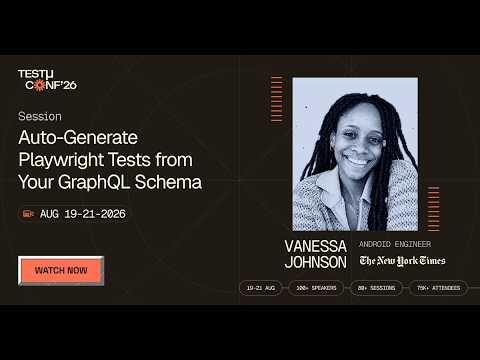
Once the gate exists, the next question is where the expected accessible names and roles come from. In this TestMu Conf 2026 session, Stop Guessing A11y: Auto-Generate Playwright Tests from Your GraphQL Schema, Vanessa Johnson makes those checks contract-driven, adding lightweight @a11y hints for labels and roles to a GraphQL schema, generating Playwright and axe-core tests from it, and treating the schema as the source of truth so CI fails when accessible names and roles break.
Conclusion
@axe-core/playwright turns accessibility from a periodic audit into a check that runs on every pull request, using tests you already know how to write. It catches a real, measurable share of WCAG issues automatically, but not all of them - pair it with manual screen reader and keyboard testing for full coverage, and run it across more than one browser engine since accessibility rendering genuinely varies between them.
To run the cross-browser example above at scale, follow the Playwright accessibility testing documentation linked earlier, or explore the full TestMu AI Accessibility Testing suite for multi-page scanning and scheduled monitoring beyond what a CI-triggered test suite covers on its own. For the broader picture on accessibility testing methodology beyond Playwright specifically, see the accessibility testing hub.
For a first-hand account, see Auto-Generate Playwright Tests from Your GraphQL Schema from Testμ 2026.
Note: This article was researched and drafted with AI assistance. Ajay Balamurugadas, Co-Founder of Weekend Testing at TestMu AI with expertise in Web Accessibility Testing, reviewed, fact-checked, and approved this article, including running the code example against a live site to confirm its output. It was technically reviewed for WCAG accuracy by Mayank Bhola, who owns TestMu AI's Accessibility Testing product line. Our editorial process and AI use policy describes how every claim is verified before publication.
Author
Reviewer

Rahul Mishra
Reviewer

Rahul Mishra is a Lead Member of Technical Staff at TestMu AI (formerly LambdaTest), leading frontend engineering and accessibility testing across the quality engineering platform. He mentors frontend engineers, runs code reviews and sprint planning, optimizes React.js rendering performance, and makes product features accessible to users with disabilities through WCAG and ADA-compliant accessibility audits. He brings 10+ years of experience across React.js, VueJS, TypeScript, Swift, Objective-C, and AWS, with earlier work as a Technical Lead at VectoScalar Technologies. Rahul holds a B.E. in Information Technology.


Playwright Web Accessibility Tests FAQs
Did you find this page helpful?
More Related Blogs
TestMu AI forEnterprise
Get access to solutions built on Enterprise
grade security, privacy, & compliance
- Advanced access controls
- Advanced data retention rules
- Advanced Local Testing
- Premium Support options
- Early access to beta features
- Private Slack Channel
- Unlimited Manual Accessibility DevTools Tests