

Power Your Software Testing with AI Agents and Cloud
The Native AI-Agentic Cloud Platform to Supercharge Quality Engineering. Test Intelligently and Ship Faster.


- TestMu AI (Formerly LambdaTest)
- /
- Blog
- /
- Playwright API Mocking: How to Mock API Responses for Testing
Playwright API Mocking: How to Mock API Responses for Testing
Learn how to mock, modify, and block API responses in Playwright using page.route(), route.fetch(), and HAR files. Includes working TypeScript code examples.
Published on:
There are many libraries and tools available to mock the API responses in different frameworks. Mocking API responses in Playwright is an efficient technique to test web-based applications without depending on the real APIs.
It helps to simulate and test different scenarios and responses from the APIs, making tests more independent and robust.
It is useful while performing Playwright end-to-end testing when the entire backend is not available, and only the UI is available. Teams using Playwright TypeScript or Playwright JavaScript will find these patterns straightforward to apply in their existing test suites. If you are also writing tests in Playwright Python, the same concepts apply with syntax differences specific to that language.
Overview
To mock API responses in Playwright, use page.route() to intercept network requests and return simulated data, or replay recorded sessions with page.routeFromHAR(). For scaling tests across real browsers and operating systems, execute your mocking workflows on the TestMu AI cloud platform.
- Full mock using route.fulfill(): Playwright's route.fulfill() completely replaces the API response and prevents the real backend call from happening, which is ideal for simulating dummy responses without depending on actual backend services.
- Partial mock using route.fetch(): Playwright's route.fetch() calls the real API but modifies the response before returning it, which is useful for modifying specific data fields while the backend implementation is still pending.
- Blocking requests using route.abort(): Playwright's route.abort() cancels the request entirely and returns a network error, which is useful for blocking non-essential resources like analytics, ads, or images to reduce network usage during tests.
- HAR File Mocking: Playwright uses page.routeFromHAR() to capture and replay headers, payloads, status codes, and cookies from a real session, providing stable, deterministic, and backend-independent test execution in CI environments.
- TestMu AI: The TestMu AI cloud platform allows you to run your Playwright cloud testing workflows across real browsers and operating systems, providing detailed execution insights, network logs, and video recordings for faster debugging.
What Is API Mocking?
API mocking creates a simulated version of an API that behaves like the real one, returning a dummy response for testing without depending on the actual backend service.
API mocking helps you perform reliable Playwright API testing by allowing you to control responses, simulate different scenarios, and validate how your application behaves under different data conditions.
In Playwright, you can intercept and modify API responses using methods like page.route(), while features such as Playwright waitForResponse can help you monitor and validate network responses during test execution.

Note: Run Playwright tests across real browsers with advanced debugging. Try TestMu AI now!
What Are the Core Benefits of API Mocking?
API mocking gives you a controlled way to validate app behavior by simulating real API responses, testing different scenarios, and improving efficiency without live backend services.
- Isolation for Testing: By mocking API responses, front-end and back-end components can be tested independently. This ensures the front-end behavior is validated without relying on the availability or stability of back-end services.
- Efficiency in Testing: Mocked responses allow testers to simulate multiple scenarios quickly without waiting for real API calls. This significantly speeds up test execution and enables faster feedback cycles. Teams running automated website testing in CI pipelines benefit particularly from this since mocked APIs remove network variability entirely.
- Controlled Testing Environment: Mocking provides complete control over test data and response scenarios. This makes it easy to validate success cases, failure paths, and boundary conditions in a predictable manner.
- Cost Reduction: Using mocked APIs minimizes the need for real API invocations during testing. This helps reduce costs, especially when working with third-party services that charge per request.
- Testing Edge Cases: Mocked responses make it possible to simulate rare or hard-to-reproduce scenarios such as network failures or unexpected errors. This allows thorough validation of error handling and system resilience.
Mocking the API Requests With Playwright
Mocking API requests means intercepting an API request call and returning a mock response using the fulfill() method, which routes a request with the response you provide as the mock value.
It is worth noting that page.route() applies only to the specific page it is registered on. If the test opens multiple pages or popup windows within the same browser context, those pages will not be covered by page.route().
For mocking that needs to apply across all pages in a browser context, use context.route() instead. It accepts the same URL pattern and handler arguments and ensures the mock is active for every page opened within that context. This distinction matters when writing Playwright fixtures or when test setup is handled at the browser context level rather than the page level.
The code below mocks the API request */**/api/v1/fruits and fetches the original response, modifying it by adding a fruit named "TestMu AI". Once it is added, you can assert the web page and verify whether the web page has the text "TestMu AI".
test("API tests Request Mocking", async ({ page }) => {
  // Register route BEFORE navigation
  await page.route("**/api/v1/fruits", async (route) => {
    await route.fulfill({
      status: 200,
      contentType: "application/json",
      body: JSON.stringify([
        { name: "Apple", id: 1 },
        { name: "Banana", id: 2 },
        { name: "TestMu AI", id: 100 }
      ]),
    });
  });

  // Now navigate (this triggers API call)
  await page.goto("https://demo.playwright.dev/api-mocking");

  // Assertion
  await expect(
    page.getByText("TestMu AI", { exact: true })
  ).toBeVisible();
});
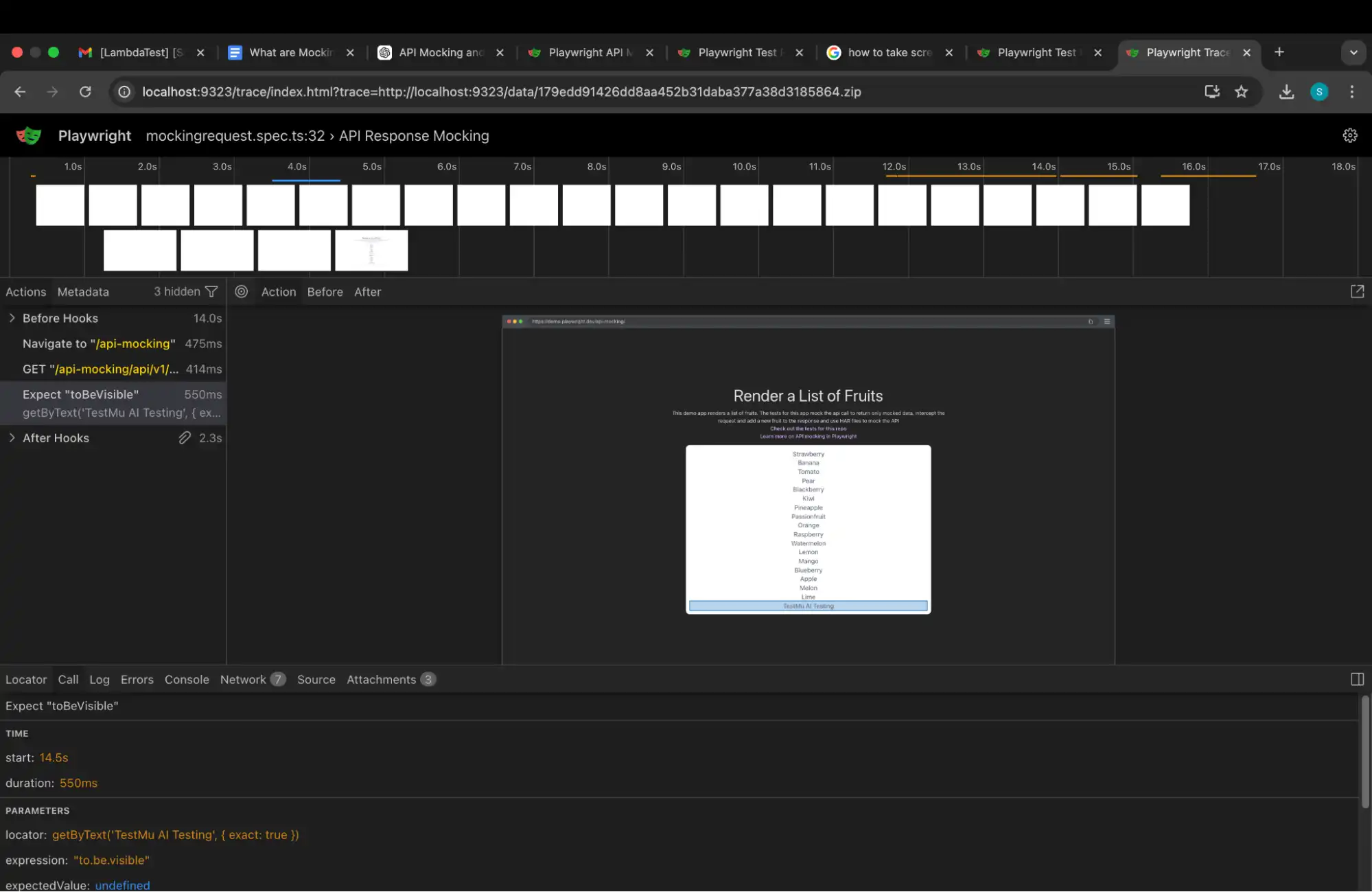
The modified response data that you created is displayed on the web page. You can also view the network calls where the API call has been intercepted and the mock response has been returned.
Blocking API Requests With Playwright
Blocking an API request means canceling it entirely with route.abort(), which returns a network error instead of a response, useful for blocking analytics, ads, or images during tests.
When called inside a route handler, route.abort() cancels the request and returns a network error to the page without forwarding it to the server. This is distinct from route.fulfill(), which returns a custom response, and route.fetch(), which passes the request through to the real server.
test("Block image requests during testing", async ({ page }) => {
  await page.route("**/*.{png,jpg,jpeg,gif,svg}", (route) => route.abort());

  await page.goto("https://demo.playwright.dev/api-mocking");

  // Page loads without images, test runs faster
});
This is particularly useful in test automation platform and CI environments where image loading adds unnecessary overhead and third-party scripts introduce flakiness. When running tests on a test automation cloud like TestMu AI (formerly LambdaTest), blocking non-essential resources also reduces network usage and keeps execution time predictable.
Modifying the API Responses With Playwright
Modifying an API response means using route.fetch() to get the real response, then route.fulfill() to return it with your changes, useful while the backend is still pending.
In this case, you can use route.fetch() to intercept the route instead of mocking. This fetches the result and modifies the response. Then you can use the route.fulfill() method to pass the response as an argument, which is an API response to fulfill the request that will contain the new fruit "TestMu AI Testing".
test("API Response Mocking", async ({ page }) => {
  // Get the response and add to it
  await page.route("*/**/api/v1/fruits", async (route) => {
    const response = await route.fetch();
    const json = await response.json();
    json.push({ name: "TestMu AI Testing", id: 100 });
    // Fulfill using the original response, while patching the response body
    // with the given JSON object.
    await route.fulfill({ response, json });
  });

  // Go to the page
  await page.goto("https://demo.playwright.dev/api-mocking");

  // Assert that the new fruit is visible
  await expect(page.getByText("TestMu AI Testing", { exact: true })).toBeVisible();
});
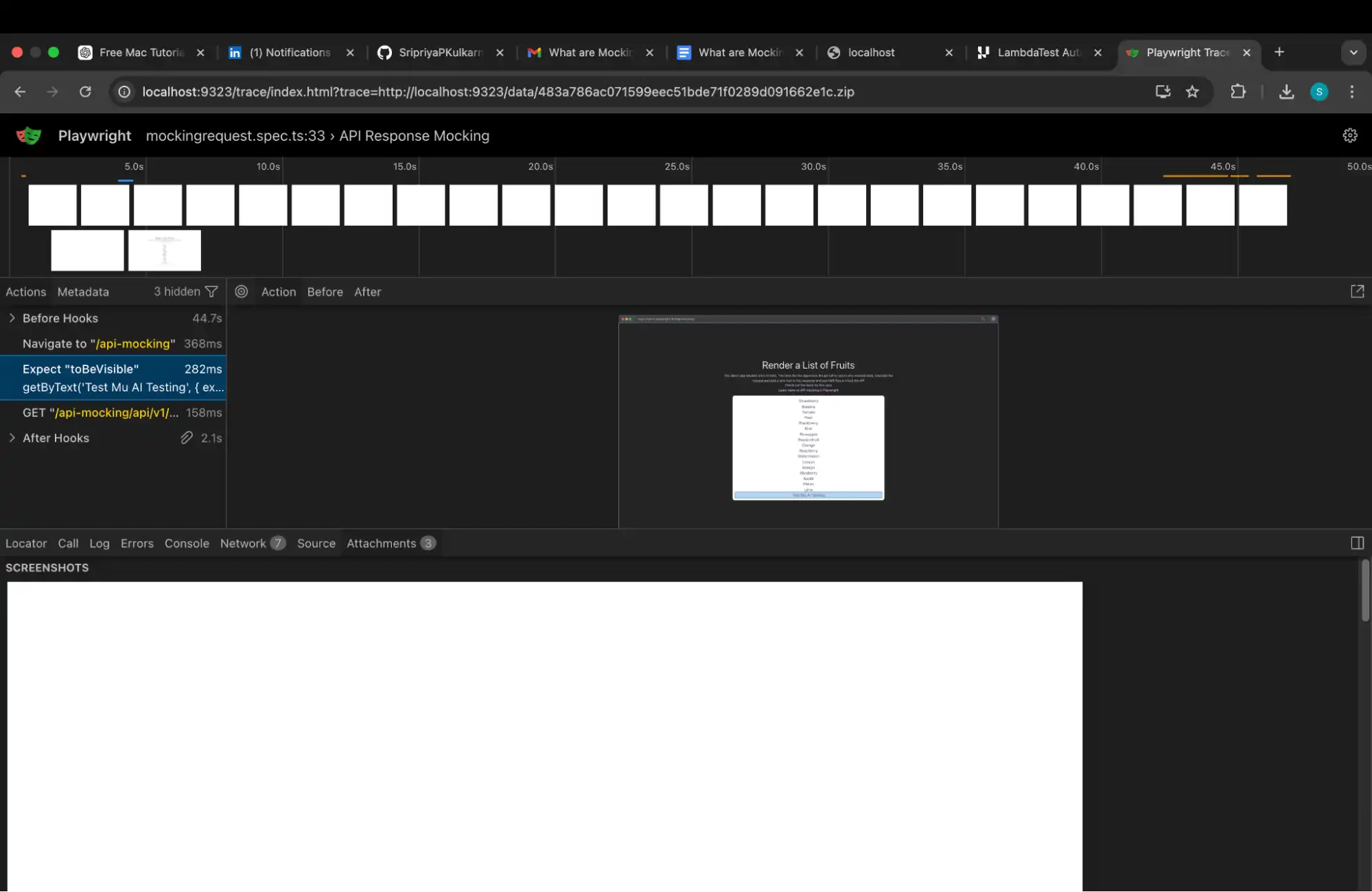
The data that you added to the response is displayed on the web page. You can also view the network calls where the API call has been intercepted and the mock request has been returned after modifying the first response.
Mocking with HAR Files
HAR file mocking captures everything a server returned during a real session and replays those responses exactly, letting you simulate the backend even when it is unavailable.
Rather than writing custom route handlers for every endpoint, HAR files capture request and response headers, payloads, status codes, and cookies. This makes them particularly useful for testing complex multi-API workflows where writing individual route.fulfill() calls for each endpoint would be impractical.
HAR files contain a record of all the network requests that were created during a browsing session. You can use these HAR files to mock the network requests and modify them as per your needs to test the system.
routeFromHAR() method is used to mock requests using an existing HAR file. This method records the network requests and creates a folder in the project root named HAR. It takes the path of the HAR file as input. The update option is used to update the HAR file with the actual network information. If it is set to false, it will use the existing HAR file without hitting the network again.
test.only("API tests Request Mocking from HAR", async ({ page }) => {
  await page.routeFromHAR("./hars/fruits.har", {
    url: "*/**/api/v1/fruits",
    update: false,
  });

  // Go to the page
  await page.goto("https://demo.playwright.dev/api-mocking");

  // Assert that the fruit is visible
  await expect(page.getByText("Test Mu AI")).toBeVisible();
});
Below is a simplified excerpt of the HAR file created:
{
  "log": {
    "version": "1.2",
    "creator": {
      "name": "Playwright",
      "version": "1.53.2"
    },
    "browser": {
      "name": "chromium",
      "version": "138.0.7204.97"
    },
    "entries": [
      {
        "startedDateTime": "2025-07-05T11:18:09.915Z",
        "time": 12.018,
        "request": {
          "method": "GET",
          "url": "https://demo.playwright.dev/api-mocking/api/v1/fruits",
          "httpVersion": "HTTP/1.1",
          "cookies": [],
          "headers": [
            { "name": "Accept", "value": "*/*" },
            { "name": "Host", "value": "demo.playwright.dev" }
          ],
          "queryString": [],
          "headersSize": -1,
          "bodySize": -1
        },
        "response": {
          "status": 200,
          "statusText": "OK",
          "httpVersion": "HTTP/1.1",
          "cookies": [],
          "headers": [
            { "name": "Content-Type", "value": "application/octet-stream" }
          ],
          "content": {
            "size": -1,
            "mimeType": "application/octet-stream",
            "_file": "25cc30e4a440111abd545551113b7bf2e2cad209.bin"
          },
          "headersSize": -1,
          "bodySize": -1,
          "redirectURL": ""
        },
        "cache": {},
        "timings": { "send": -1, "wait": -1, "receive": 12.018 }
      }
    ]
  }
}
In the HAR file, in the content section, you will see the name of a .txt file with a name in hashcode. This file contains the JSON requests and responses of the network from the API call, and it is stored. When you open the hashcode-named file in the HAR folder, it contains the full response of your API. You can use it for testing and modify it as per your requirements.
Setting update: false enables replay mode, where Playwright strictly serves responses from the HAR file without making real network calls. This ensures stable, deterministic, and backend-independent test execution, ideal for CI environments.
Modifying the HAR File
You can edit a saved HAR file and run tests against the modified responses, which helps add new data before the API implementation is ready or perform quick ad-hoc testing.
You need to set update: true so that it will update the HAR file data with the request from the API and override the changes. If you set it to false, the modified HAR content will be used.
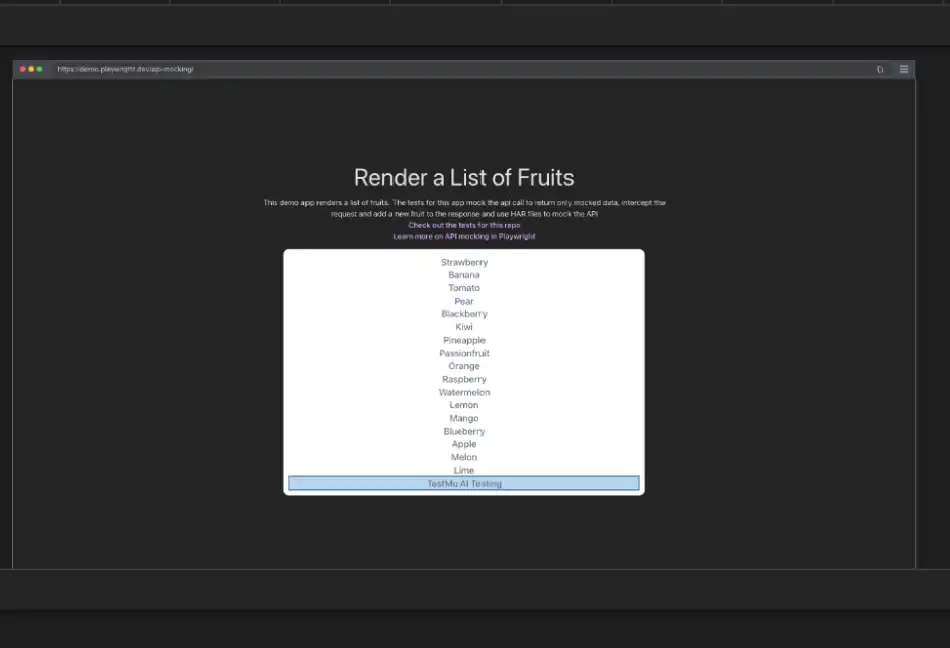
After adding "Test Mu AI Testing" to the HAR file manually, you can run the test with update: false to see it reflected in the UI.
test.only("API tests Request Mocking from HAR", async ({ page }) => {
  await page.routeFromHAR("./hars/fruits.har", {
    url: "*/**/api/v1/fruits",
    update: false,
  });

  // Go to the page
  await page.goto("https://demo.playwright.dev/api-mocking");

  // Assert that the fruit is visible
  await expect(page.getByText("Test Mu AI Testing")).toBeVisible();
});
When you check Playwright's trace viewer, you can see "Test Mu AI Testing" is added to the list. The Playwright Inspector is also useful here for stepping through the test execution and inspecting what the page actually contains at the point of the assertion, particularly when the HAR-served response does not match expectations.
Running Playwright API Mocking Tests on the Cloud
Playwright API mocking works effectively in local environments, but scaling beyond local execution introduces challenges that cloud-based platforms like TestMu AI solve directly.
Playwright API mocking works effectively in local environments, allowing you to intercept network requests, simulate API responses, and validate application behavior without depending on real backend services.
However, when you scale your Playwright automation workflows beyond local execution, you may face challenges such as:
- Limited browser and operating system coverage
- Difficulty validating tests across multiple real browser environments
- Managing local testing infrastructure and maintenance
- Reproducing failures that occur only on specific browser and OS combinations
- Limited visibility into debugging details such as network activity, console logs, and execution videos
Cloud-based testing platforms with AI-powered capabilities, like TestMu AI (formerly LambdaTest), help you overcome these challenges by enabling you to run Playwright API testing across a wide range of real browser and operating system combinations without managing local infrastructure.
With TestMu AI, the same page.route() API mocking approach that you use locally can be executed on the cloud grid. The route handlers are registered before navigation, allowing you to intercept API requests and control responses during remote Playwright test execution.
TestMu AI also provides additional debugging capabilities that improve your testing workflow, including:
- Network logs to analyze API requests and mocked responses
- Video recordings to review the complete test execution
- Console logs to identify browser-side issues
- Detailed test execution reports to understand failures
These capabilities make debugging failed API mocking tests easier because you can analyze issues directly from the cloud execution environment without needing to reproduce them locally.
Project Setup Overview
To run Playwright API mocking tests on TestMu AI, you need to separate the cloud execution logic from your test specifications. The setup file acts as a bridge between your Playwright test suite and the TestMu AI cloud platform. By keeping the execution configuration separate, your test files remain focused only on API mocking and validation logic.
Import the custom TestMu AI execution setup into your test files:
import test from "../testMuAI-setup";This custom Playwright fixture allows you to execute tests locally or remotely on the TestMu AI Grid without changing your test implementation.
TestMu AI Playwright Configuration
The custom fixture extends Playwright's default test object and adds support for cloud execution. With this configuration, you can:
- Run Playwright tests locally during development
- Execute automation workflows on TestMu AI Grid
- Configure browsers and operating systems dynamically
- Connect to remote browsers using WebSocket/CDP
- Capture execution details
- Update test status automatically
TestMu AI Setup File
The setup file contains the configuration required to connect Playwright with TestMu AI. First, import the required Playwright modules and load environment variables:
import * as base from "@playwright/test";
import path from "path";
import { chromium } from "@playwright/test";
import dotenv from "dotenv";

dotenv.config();
The capabilities object defines the browser and environment where your Playwright testing will execute.
const capabilities = {
  browserName: "MicrosoftEdge",
  browserVersion: "latest",

  "LT:Options": {
    platform: "Windows 11",
    build: "Playwright TestMUAI",
    name: "Playwright TestMUAI",

    user: process.env.LT_USERNAME,
    accessKey: process.env.LT_ACCESS_KEY,

    network: true,
    video: true,
    console: true,

    tunnel: false,
    tunnelName: "",
  },
};
These settings enable TestMu AI capabilities such as:
- Network capture
- Video recording
- Console logging
- Remote browser execution
Dynamic Capability Configuration
When you run Playwright automation across multiple browsers and operating systems, you can avoid creating separate configurations by updating capabilities dynamically.
The modifyCapabilities() method reads the project name and updates: browser name, browser version, operating system, and test execution name.
Example project configuration: MicrosoftEdge:latest:Windows 11@lambdatest
Before execution starts, these values are extracted and applied to the TestMu AI capabilities.
Package Scripts
The package.json file contains commands to execute tests across different environments.
package.json
{
  "name": "testMuAI_playwright",
  "version": "1.0.0",
  "description": "",
  "main": "index.js",
  "scripts": {
    "win11:chrome": "npx playwright test --project=\"chrome:latest:Windows 11@lambdatest\"",
    "win10:chrome": "npx playwright test --project=\"chrome:latest:Windows 10@lambdatest\"",
    "win11:edge": "npx playwright test --project=\"MicrosoftEdge:latest:Windows 11@lambdatest\"",
    "mac:chrome": "npx playwright test --project=\"chrome:latest:MacOS Catalina@lambdatest\"",
    "mac:edge": "npx playwright test --project=\"MicrosoftEdge:latest:MacOS Ventura@lambdatest\"",
    "win11:pw-firefox": "npx playwright test --project=\"pw-firefox:latest:Windows 11@lambdatest\"",
    "win10:pw-webkit": "npx playwright test --project=\"pw-webkit:latest:Windows 10@lambdatest\"",
    "test": "npx playwright test"
  },
  "keywords": [],
  "author": "",
  "license": "ISC",
  "devDependencies": {
    "@playwright/test": "^1.53.2",
    "@types/node": "^20.11.30",
    "dotenv": "^16.4.5",
    "prettier": "^3.6.2"
  },
  "lib": ["dom", "es6", "scripthost"]
}
playwright.config.ts
import { defineConfig, devices } from "@playwright/test";

/**
 * See https://playwright.dev/docs/test-configuration.
 */
export default defineConfig({
  testDir: "./e2e",
  /* Run tests in files in parallel */
  fullyParallel: true,
  /* Fail the build on CI if you accidentally left test.only in the source code. */
  forbidOnly: !!process.env.CI,
  /* Retry on CI only */
  retries: process.env.CI ? 2 : 0,
  /* Opt out of parallel tests on CI. */
  workers: process.env.CI ? 1 : undefined,
  /* Reporter to use. See https://playwright.dev/docs/test-reporters */
  reporter: "html",
  /* Shared settings for all the projects below. */
  use: {
    /* Collect trace when retrying the failed test. */
    trace: "on",
    video: "on",
    screenshot: "on",
  },

  /* Configure projects for major browsers */
  projects: [
    {
      name: "chrome:latest:Windows 11@lambdatest",
      use: {
        viewport: { width: 1280, height: 1080 },
      },
    },
  ],
});
API Mocking Test Example
In this example, you intercept the API request before the application loads. This allows you to control the API response and validate the application behavior using Playwright API mocking.
File: mockingrequest.spec.ts
import * as base from "@playwright/test";
import path from "path";
import { chromium } from "@playwright/test";
import dotenv from "dotenv";

dotenv.config();

const capabilities = {
  browserName: "MicrosoftEdge",
  browserVersion: "latest",
  "LT:Options": {
    platform: "Windows 11",
    build: "Playwright TestMUAI",
    name: "Playwright TestMUAI",
    user: process.env.LT_USERNAME,
    accessKey: process.env.LT_ACCESS_KEY,
    network: true,
    video: true,
    console: true,
    tunnel: false,
    tunnelName: "",
  },
};

const modifyCapabilities = (configName, testName) => {
  let config = configName.split("@lambdatest")[0];
  let [browserName, browserVersion, platform] = config.split(":");
  capabilities.browserName = browserName ? browserName : capabilities.browserName;
  capabilities.browserVersion = browserVersion ? browserVersion : capabilities.browserVersion;
  capabilities["LT:Options"]["platform"] = platform ? platform : capabilities["LT:Options"]["platform"];
  capabilities["LT:Options"]["name"] = testName;
};

const getErrorMessage = (obj, keys) =>
  keys.reduce((obj, key) => (typeof obj == "object" ? obj[key] : undefined), obj);

const test = base.test.extend({
  page: async ({ page, playwright }, use, testInfo) => {
    let fileName = testInfo.file.split(path.sep).pop();

    if (testInfo.project.name.match(/lambdatest/)) {
      modifyCapabilities(testInfo.project.name, `${testInfo.title} - ${fileName}`);

      const browser = await chromium.connect({
        wsEndpoint: `wss://cdp.lambdatest.com/playwright?capabilities=${encodeURIComponent(JSON.stringify(capabilities))}`,
        timeout: 60000,
      });

      const ltPage = await browser.newPage(testInfo.project.use);

      await ltPage.waitForLoadState("domcontentloaded");
      await ltPage.setViewportSize({ width: 1920, height: 1080 });
      await ltPage.waitForTimeout(2000);

      await use(ltPage);

      const testStatus = {
        action: "setTestStatus",
        arguments: {
          status: testInfo.status,
          remark: getErrorMessage(testInfo, ["error", "message"]),
        },
      };

      await ltPage.evaluate(() => {}, `lambdatest_action: ${JSON.stringify(testStatus)}`);

      await ltPage.close();
      await browser.close();
    } else {
      await use(page);
    }
  },
});
export default test;
GitHub Link: playwright-api-mocking-demo
With this setup, you can run Playwright API mocking tests remotely, validate applications across multiple browser and operating system combinations, and use cloud-based debugging capabilities without maintaining local browser infrastructure.
Run Test: npm run test to execute all the tests.
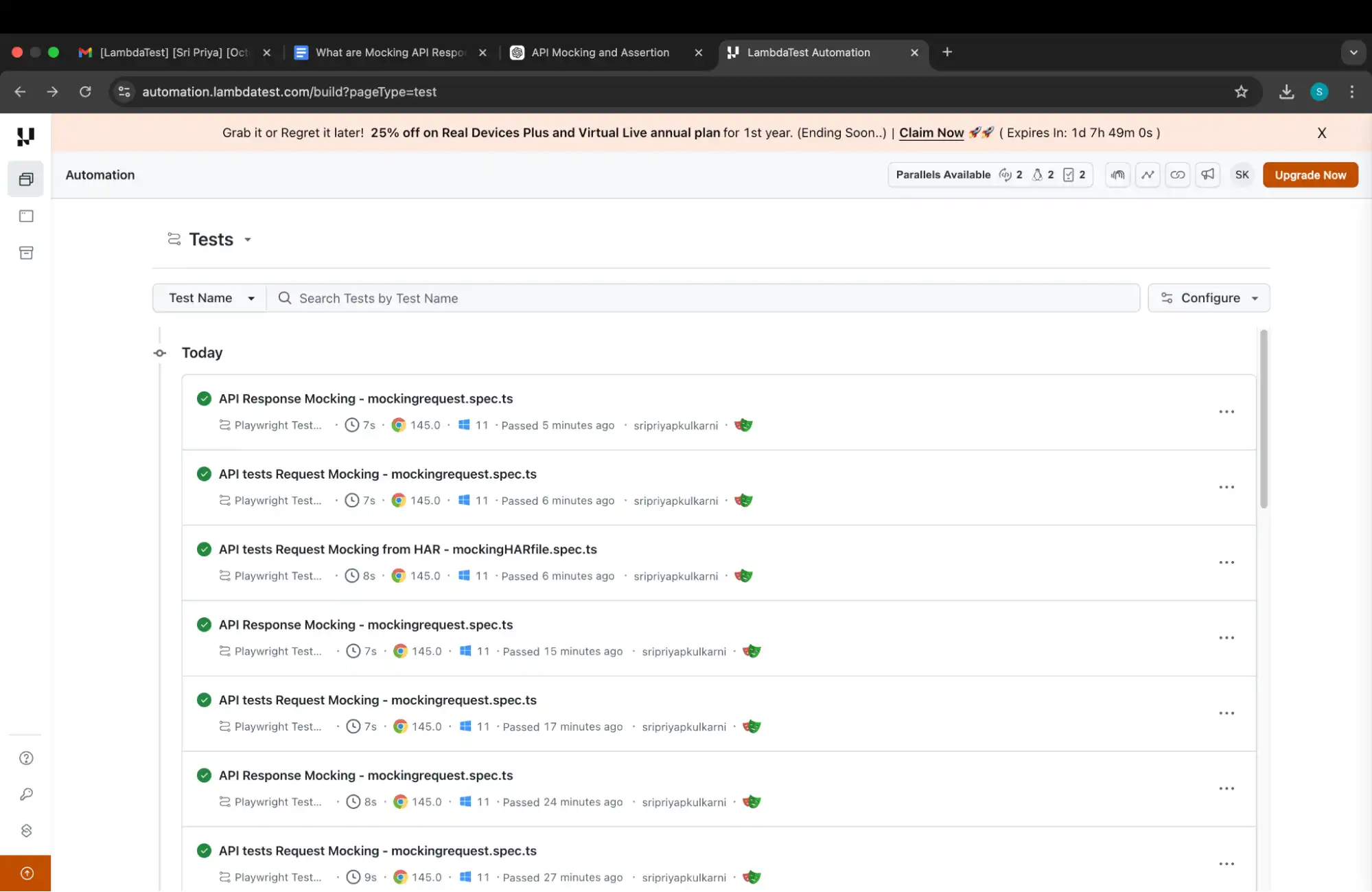
Execution of each file
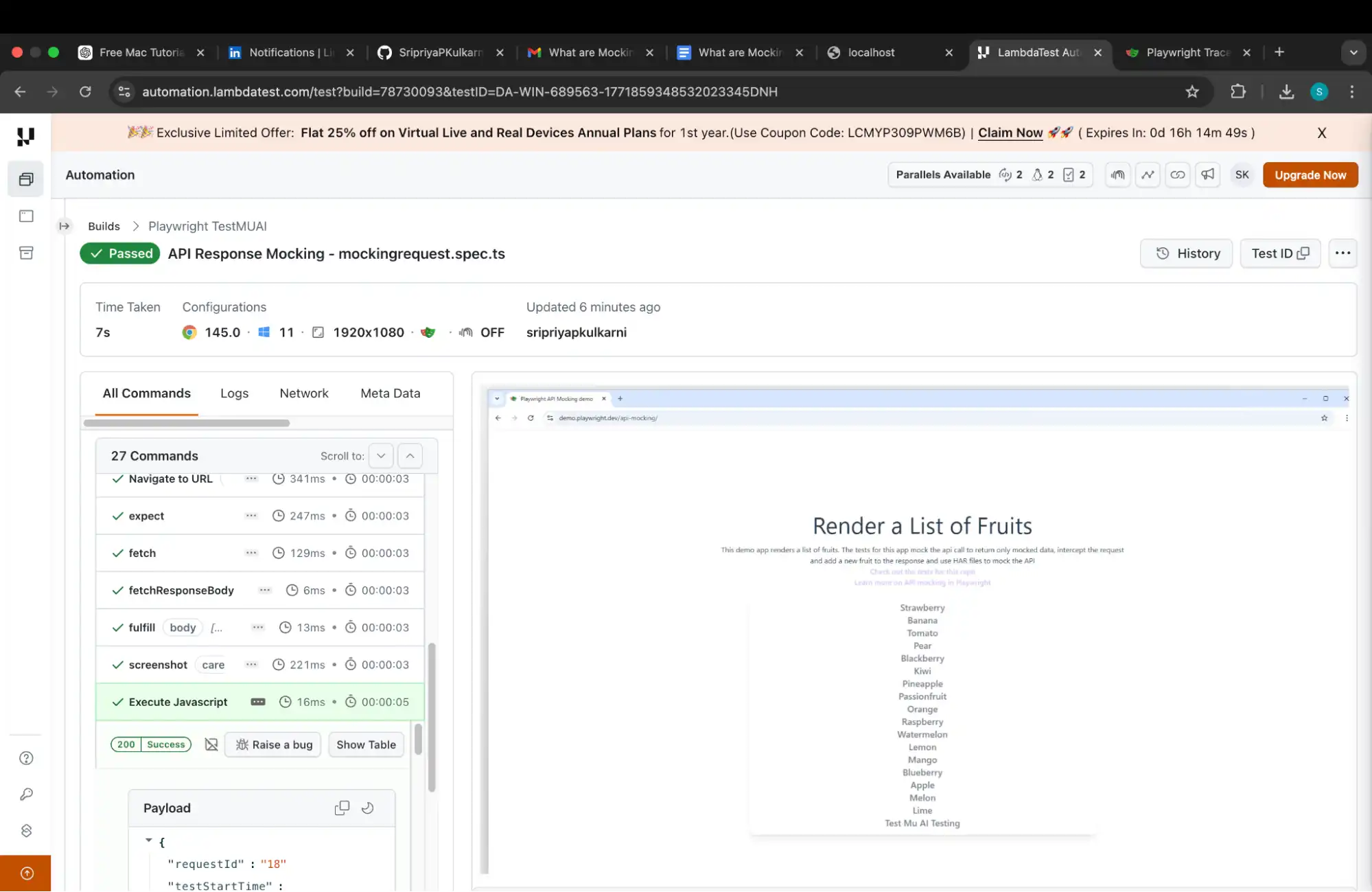
API mocking helps you create predictable testing environments by simulating backend responses and validating application behavior without depending on real services. As testing workflows become more complex, TestMu AI extends your Playwright workflow with AI-powered capabilities that help improve test analysis, coverage, and validation.
To get started, refer to the documentation on Playwright testing with TestMu AI
.While API mocking allows you to control responses during execution, AI API testing helps you analyze application behavior, identify issues, and gain deeper confidence in your workflows.

Using Playwright Agents for Smarter Test Automation
Playwright Agents enhance traditional automation with AI-assisted capabilities for understanding application behavior and creating test workflows, reducing the manual effort of defining every step.
When combined with Playwright API mocking, Playwright Agents can help you validate different application states by working with controlled API responses. This allows you to test user flows, application behavior, and different scenarios without depending on live backend services.
Playwright AI and TestMu AI Agent Skills
As AI becomes part of modern testing workflows, Playwright AI capabilities help make automation more intelligent by assisting with test creation, analysis, and maintenance.
With TestMu AI Agent Skills, you can extend your Playwright workflows with AI-powered assistance while running tests on the cloud. Using Playwright Skills, you can improve how you create, execute, and manage automation workflows by reducing repetitive tasks and enabling smarter validation of application behavior.
These capabilities help you build more efficient testing workflows by combining AI assistance with Playwright automation, allowing you to analyze scenarios, improve test coverage, and validate application workflows more effectively.
Best Practices for Playwright API Mocking
Mocking APIs in Playwright improves test speed and reliability when done right: mock at the network layer, use static JSON fixtures, mock only required APIs, and block unnecessary resources.
Following these ensures your tests remain deterministic and scalable regardless of the automation testing tool or platform they run on.
- Mock at the network layer using
page.route(): Isolate UI tests from backend dependencies by intercepting and controlling network requests directly. - Use static JSON fixtures: Maintain consistent and repeatable test data across multiple test runs by using predefined mock responses.
- Mock only required APIs: Prefer partial mocking instead of mocking every API to keep tests realistic and closer to actual application behavior.
- Simulate different HTTP status codes: Test application behavior for different scenarios by mocking responses such as 200, 400, 401, and 500 status codes.
- Add artificial delays: Use methods like
setTimeoutto simulate slow API responses and validate loading states, spinners, and timeout handling. - Override responses conditionally: Customize mocked responses based on request payloads, headers, or other request conditions for advanced testing scenarios.
- Keep mocks close to test cases: Place mock logic near related tests to improve readability and make maintenance easier.
- Create reusable mock helpers: Separate common mocking logic into reusable utilities when working with large test suites.
- Avoid mocking in E2E smoke tests: Use API mocking mainly for functional and UI-focused testing where controlled responses are required.
- Validate request payloads: Verify request data before returning mocked responses to ensure frontend and backend contracts remain correct.
- Use
context.route()for shared mocks: Apply mocks across multiple pages or popup windows opened within the same browser context by usingcontext.route()instead ofpage.route(). - Block unnecessary resources with
route.abort(): Prevent third-party scripts, analytics, or image assets from loading to reduce test execution time and improve network trace clarity.
Troubleshooting Tips
If mocks are not intercepted, check that the URL pattern matches, the contentType and body are correct, async calls are awaited, and no service worker intercepts requests first.
For harder-to-diagnose problems, the Playwright Inspector with --debug mode is the fastest way to step through execution and confirm whether the route handler is being triggered at all.
- Correct URL Pattern: Ensure the URL pattern in
page.route()accurately matches the API endpoint you intend to mock. Mismatches are a common cause of mocking failures. - Content Type and Body: Verify that the
contentTypeandbodyinfulfill()are correctly set according to the expected response format (e.g.,application/jsonfor JSON responses). - Asynchronous Operations: Remember that network operations in Playwright are asynchronous. Use
awaitwhen dealing withroute.fetch()or other asynchronous calls within the route handler. - Order of Operations: If you have multiple
page.route()calls, the order can matter if patterns overlap. Playwright applies the first matching route handler. - Service Worker Conflicts: If you are using a tool like Mock Service Worker (MSW) alongside Playwright's native routing, the MSW service worker can intercept requests before Playwright sees them, making
page.route()appear to have no effect. Disable service workers by settingserviceWorkers: 'block'in the browser context options when this conflict occurs. - Debugging: Use Playwright's tracing feature or add
console.log()statements within your route handlers to inspect network requests and responses during test execution.
Conclusion
Using route.fulfill() completely replaces the API response and prevents the actual backend call from happening. This is a full mock.
If you want to call the real API but modify the response, you can use route.fetch() and then route.fulfill() with the modified data. This is a partial mock.
If you want to block a request entirely, use route.abort(). This is useful for preventing analytics, image, or third-party script calls from interfering with test execution.
You can also modify the API response and the data as per your requirement using the routeFromHAR method. You can intercept and modify the HAR file and run your tests against the modified data. Faster delivery teams that follow Agile can benefit a lot from this.
Author

Sri Priya
Blogs: 6


Sri Priya P Kulkarni is an ISTQB Foundation Level certified software development engineer in test (SDET) at American Express in Bengaluru. Her primary focus is software quality and making sure that software is bug free, with a strong background in testing tools, API testing, Linux OS, and UI and backend automation testing using Selenium, Playwright, and Java. As a contributor to TestMu AI (formerly LambdaTest), she shares her knowledge and writes about the latest technology stacks.


Frequently asked questions
Did you find this page helpful?
More Related Blogs
TestMu AI forEnterprise
Get access to solutions built on Enterprise
grade security, privacy, & compliance
- Advanced access controls
- Advanced data retention rules
- Advanced Local Testing
- Premium Support options
- Early access to beta features
- Private Slack Channel
- Unlimited Manual Accessibility DevTools Tests