
Power Your Software Testing with AI Agents and Cloud
The Native AI-Agentic Cloud Platform to Supercharge Quality Engineering. Test Intelligently and Ship Faster.


- TestMu AI (Formerly LambdaTest)
- /
- Learning Hub
- /
- Playwright API Testing Tutorial
Playwright API Testing: A Complete Guide With Examples
Learn Playwright API testing with the request fixture. Send POST, GET, PUT, PATCH, and DELETE calls, assert status codes, and validate response bodies.

Last Updated on:
OVERVIEW
In modern web development, APIs play a significant role. The API economy refers to the use of Application Programming Interfaces (APIs) to facilitate the creation of new products, services, and business models. APIs allow different software applications and systems to interact with each other, enabling data sharing, integration, and communication between different services and devices.
APIs have become fundamental building blocks of modern software development, allowing businesses to develop new products and services more quickly and efficiently by leveraging the capabilities of existing software and platforms.
It also provides new opportunities for businesses to generate revenue and reach new markets. For example, many companies offer APIs that allow third-party developers to build applications that integrate with their services, creating new business opportunities for both the API provider and the developers.
APIs are integral to microservices architecture, as they enable communication and interaction between the individual services that make up the application. Each microservice exposes a set of well-defined APIs that other services can use to access its functionality.
When doing automation testing, you must automate use cases on UI, API, or both. Let's take an example where you need to log in using the token, or you want to quickly create a dataset using API and then run the UI test. You need an automation testing framework to run UI tests and trigger API endpoints. Further, it helps in end to end testing, creating prerequisite data, configuring microservices, and setting up the environment.
Playwright is one such framework that provides the ability to not only automate your UI flow, but it can also help you automate the APIs. Playwright added support for API testing from v1.16, making the perfect solution for E2E testing.
Before we get into further details in this Playwright API testing tutorial, let's first understand CRUD operations in APIs.
Overview
To perform API testing, use Playwright to send direct HTTP(S) requests for validating backend services alongside frontend UI tests. You can also integrate the faker-js library to generate realistic, dynamic test data, ensuring robust end-to-end integration workflows without relying on hardcoded values.
How to Use Playwright for API Testing?
- Creating resources: Playwright's request.post() sends data to the server to create new entities, which is essential for initiating processes or creating bookings.
- Retrieving resources: Playwright's request.get() fetches and validates data returned by the server, making it ideal for verifying details like booking information.
- Replacing resources: Playwright's request.put() completely replaces an existing resource with new data, which is useful for updating user or booking details.
- Partially updating resources: Playwright's request.patch() modifies specific attributes of an existing resource without overwriting the entire entity, ensuring efficient partial updates.
- Removing resources: Playwright's request.delete() removes data and entities from the server, which is used to clean up records or delete system resources.
- Synchronizing UI and API: Playwright's waitForResponse method synchronizes on the exact API call a UI action triggers, capturing the status code and JSON body without polling.
- Mocking APIs: Playwright's page.route() method intercepts network requests to test failure paths and edge cases without depending on a live backend.
How to Handle Dynamic Data in Playwright API Testing?
- Generating test data: The faker-js library generates realistic, unique test data at runtime, enabling flexible API testing without relying on hardcoded values.
- Managing dates: The luxon library manages dates dynamically during API testing, helping to avoid hardcoded date values in your test payloads.
Best Practices for Playwright API Testing
- Validating responses: Assertions validate the response status and data using expect conditions to ensure the API behaves as expected and returns correct values.
- Testing edge cases: Error handling tests failure paths and edge cases to confirm proper API behavior and ensure the system handles errors gracefully.
- Managing environments: Environment configuration using the Playwright config file manages base URLs and environments, preventing the need to hardcode URLs in individual tests.
- Maintaining clean environments: Data cleanup removes any created test resources after execution to maintain a clean environment for future automated test runs.
What Are CRUD Operations in an API?
CRUD stands for Create, Read, Update, and Delete, the four basic operations an API exposes on a resource. In REST terms they map to POST, GET, PUT or PATCH, and DELETE. Playwright's request fixture has a matching method for each one, so a single spec file can exercise a resource from creation to deletion.
When building an API, it is common to implement CRUD functionality to allow customers to perform these operations on the resources the API exposes. Here is how each operation is implemented:
Create (POST)
This operation is used to create a new resource. The client sends a POST request to the API endpoint with the data for the new resource in the request body. The API then creates the resource and returns a response with the details of the newly created resource, including its unique identifier.
Read (GET)
This operation retrieves an existing resource or a list of resources. The client sends a GET request to the API endpoint, optionally with query parameters to filter, sort, or paginate the results. The API then returns the requested resource or resources in the response body.
Update (PUT or PATCH)
This operation is used to modify an existing resource. The client sends a PUT or PATCH request to the API endpoint with the updated data for the resource in the request body. PUT replaces the entire resource with the new data, while PATCH only updates the specified fields. The API then updates the resource and returns a response with the updated resource details.
Delete (DELETE)
This operation is used to remove an existing resource. The client sends a DELETE request to the API endpoint with the unique identifier of the resource to be deleted. The API then removes the resource and returns a response with a status code indicating success or failure.
Implementing CRUD in an API provides a simple and consistent interface for clients to interact with the underlying data. It is a common pattern used by many web APIs and is essential to building scalable and maintainable systems.
When validating these CRUD endpoints from inside a UI test, Playwright waitForResponse lets you synchronize on the exact API call your action triggers, capture the status code and JSON body, and assert on response data without polling or arbitrary waits.
To test failure paths and edge cases without depending on a live backend, see this guide to Playwright mock API testing, which covers page.route() interception, route.fulfill() with custom status codes, HAR-file mocking, and request blocking.

Note: Run your Playwright API and UI specs across 3,000+ browser and OS combinations on TestMu AI. Try TestMu AI Now!
Why Use Playwright for API Testing?
Use Playwright for API testing when your team already runs Playwright UI tests. Its APIRequestContext sends HTTP(S) requests without launching a browser, so one project, one runner, one config, and one report cover both API and UI checks. Playwright introduced API testing in v1.16, released October 2021.
Playwright is useful for testing the user interface of applications that rely on APIs, such as single-page applications (SPAs) or progressive web apps (PWAs) that use APIs to fetch data or perform other operations in the background.
In Playwright API testing, we will use APIRequestContext class, which sends all kinds of HTTP(S) requests over the network. APIRequest class is used for creating APIRequestContext instances. API Request's instance can be created by Playwright's request.
By the end of this Playwright API testing tutorial, you will understand how API testing can be done.
Let's quickly look into how Playwright can be set up for API testing in the next section of this Playwright API testing tutorial.

You can also subscribe to the TestMu AI YouTube Channel and stay updated with the latest tutorial around Selenium testing, Cypress testing, and more.
How Do You Set Up Playwright for API Testing?
Install Node.js, run npm init playwright@latest in an empty folder, then set baseURL in playwright.config.js to the API under test. The request fixture is then available in every test. Pure API specs need no browser binaries, so the setup is smaller than a UI project.
The steps below install Playwright and the supporting packages used across the examples in this tutorial.
Step 1
To start with, you need to have Node.js installed on your machine. You can download it directly from the Node.js website and install it on your machine if you are not already using it. Once installed, check the version:
node -v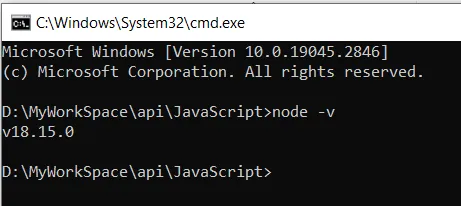
Step 2
Download and Install Visual Studio Code.
Step 3
Open your integrated terminal and run the following command.
mkdir playwright-api-testingStep 4
Open the directory.
cd playwright-api-testingStep 5
You can install Playwright using npm or yarn, and another way is by VS Code Extension.
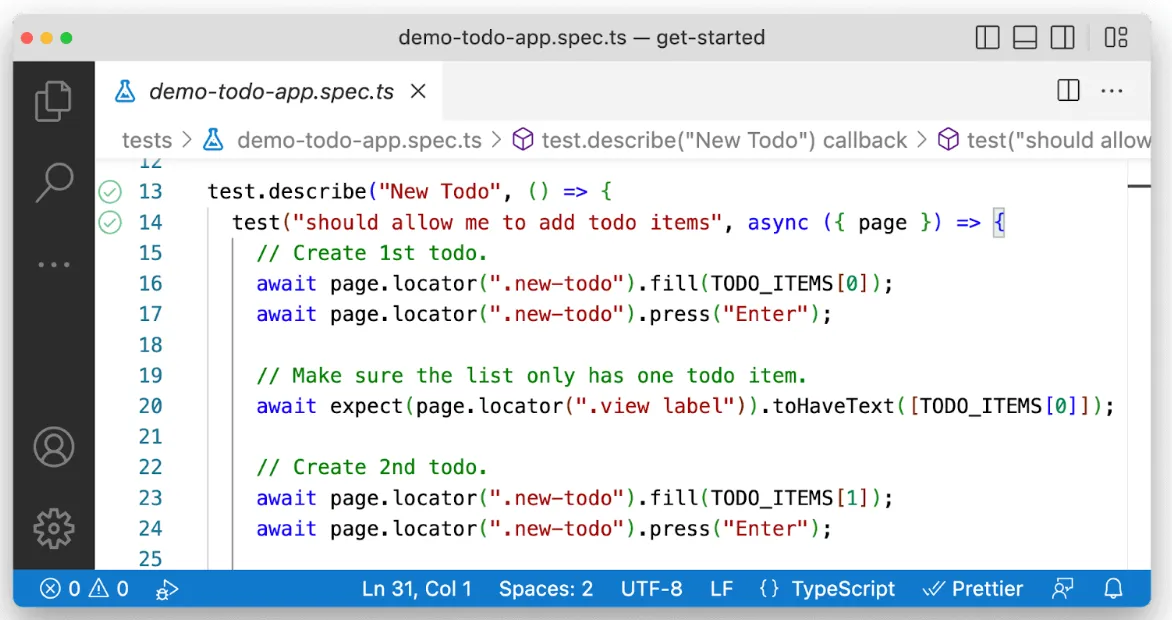
In this Playwright API testing tutorial, we will install the Playwright using the npm command.
On your terminal, type:
npm init playwright@latest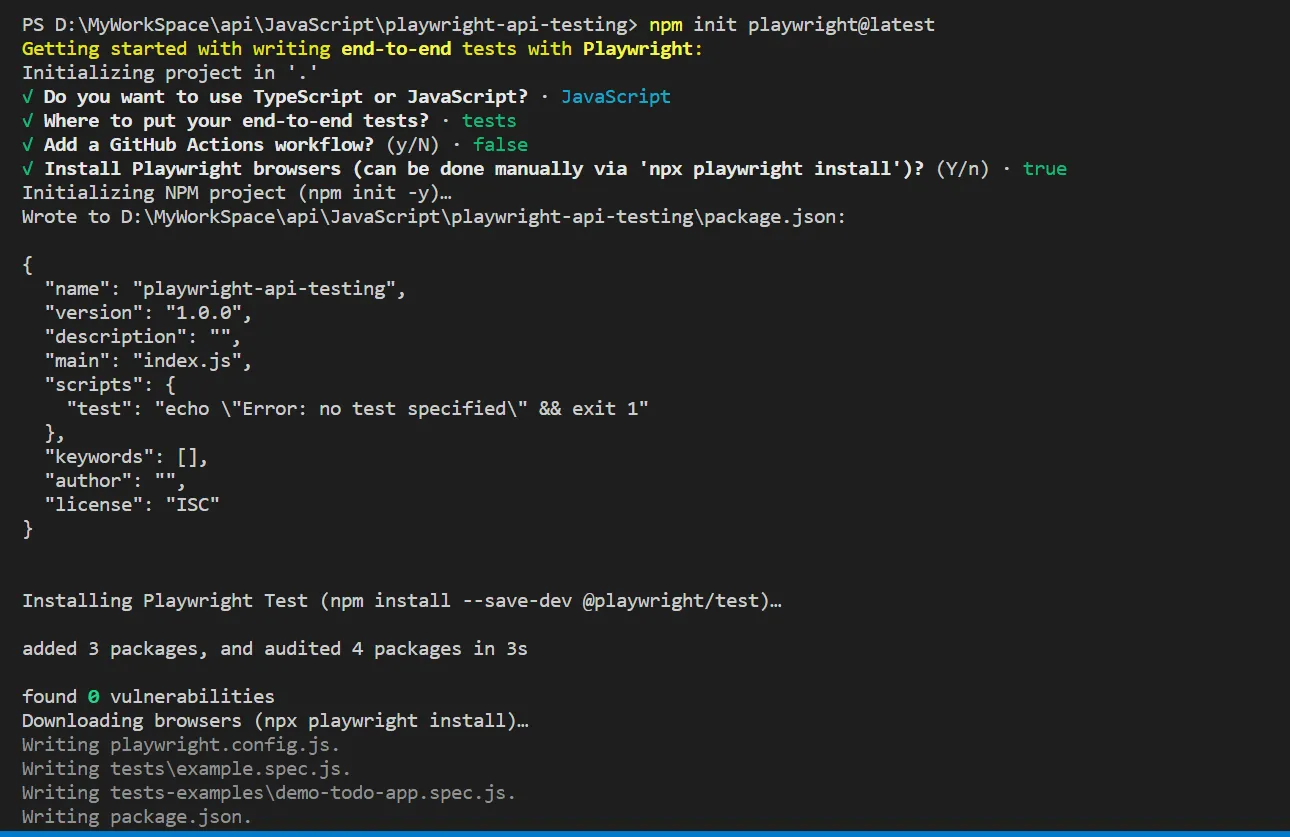
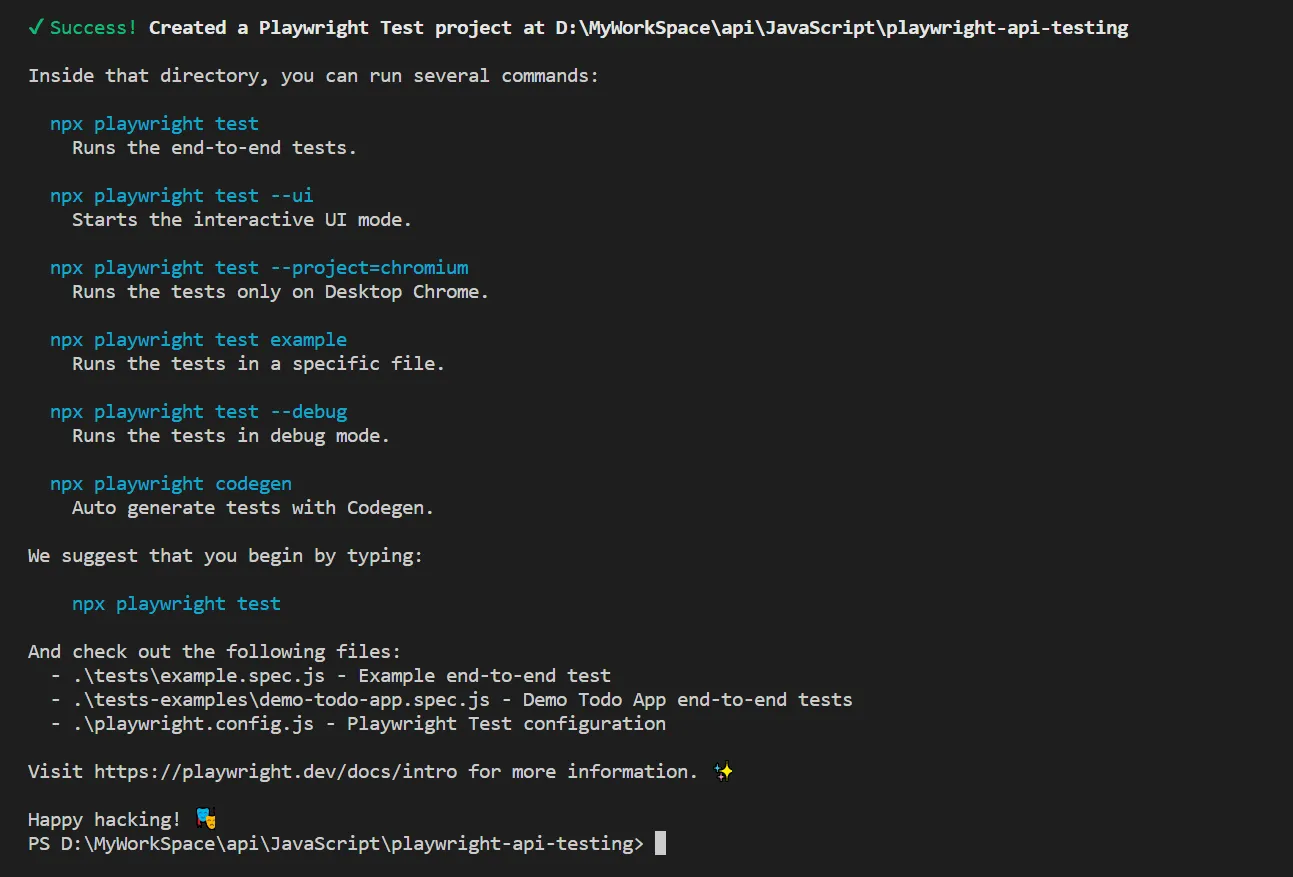
Step 6
Let's install a few other packages we will use, like faker-js to generate test data, luxon to generate date, and rimraf to clean up the folder before each test run.
npm install --save-dev @faker-js/faker luxon rimraf
Once the installation of packages is complete, a folder node_module will be created with all the dependencies.
Step 7
By default .gitignore file will be created so that unwanted files are not committed to the code repository.
node_modules/
/test-results/
/playwright-report/
/playwright/.cache/
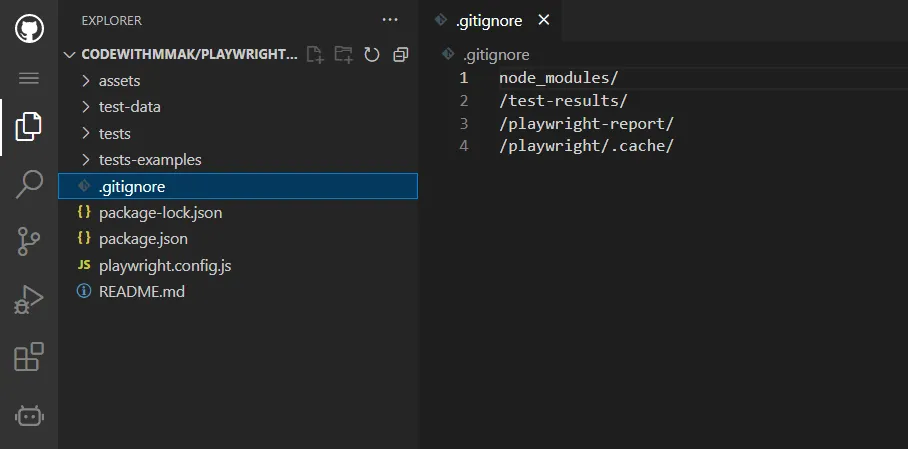
Clone the Playwright API testing GitHub repository to follow the steps mentioned in this Playwright API testing tutorial.

Let's take a deep dive into the Playwright API testing example in the below section
Let Claude Code write Playwright tests that actually pass.

What Does a Playwright API Testing Example Look Like?
A Playwright API test calls request.get(), request.post(), request.put(), request.patch(), or request.delete() and asserts on the response. Each example below tests one endpoint of the Restful-booker API and checks both the status code and the response body.
The sample project below tests the Restful-booker API. This site contains a list of API endpoints developed to test the different API operations like POST, GET, PUT, PATCH, and DELETE with status codes and responses, and it acts as a playground..
You can learn more about it through this blog on getting Response Status Code.
API Testing Approach
For easy understanding, we will create a simple Playwright API testing approach:
POST - We will look into three different ways to do a POST call.
- Create a booking by providing static data.
- Create a booking by providing data from the JSON file.
- Create a booking by creating data at run time that looks realistic and unique. To achieve this, we will use the faker-js npm package, which will give you test data.
Response Validation - Assert the response by either comparing it with JSON data or matching it with data stored in the variable.
GET - Get the booking details by using some of the techniques of query param, without query param and path param. And assert the response for each type.
PUT - Update booking attributes for an existing resource and assert the response.
PATCH - Partially update an existing resource (not all attributes required) and assert the response.
DELETE - Finally, we will delete the booking and assert the response code.
Configuration
With little changes in the playwright.config.js file, you can start creating API tests.
Step 1:
Update baseURL in the playwright.config.js file so you can use it in each endpoint testing without specifying them.
baseURL: 'https://restful-booker.herokuapp.com'
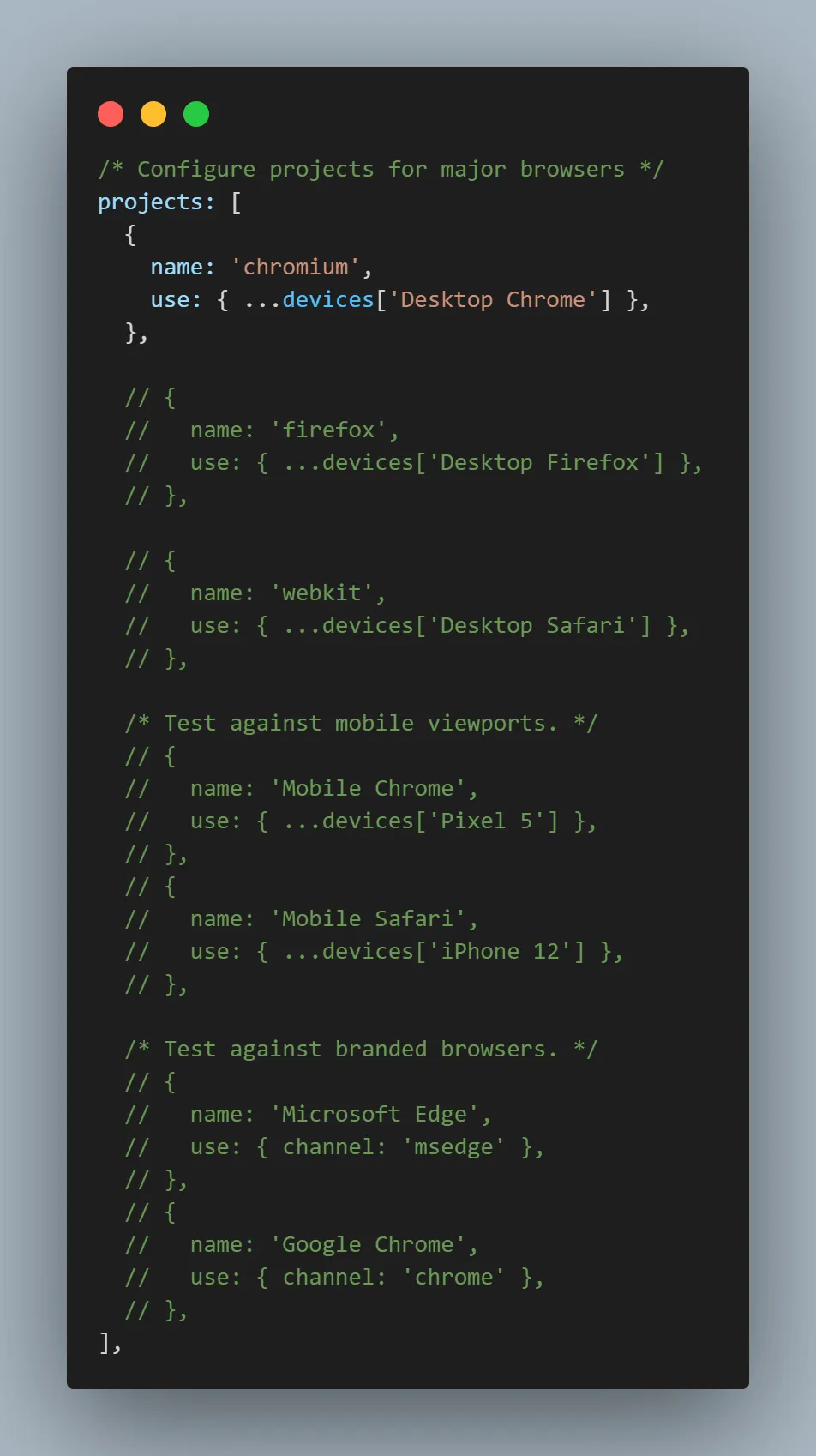
Step 2
Keeping one browser enabled, you can disable all other browsers in the configuration file.
How Do You Send a POST Request in Playwright?
Call request.post() with a data object holding the payload. Playwright serializes that object to a JSON string and sets the content-type header to application/json unless you set it explicitly. Assert on response.status() and on the returned body to confirm the resource was created.
Below are three different ways to pass the data in the body while making a POST request.
POST - Booking with static data
Sends HTTP(s) POST request and returns its response. In this Playwright API testing tutorial section, you will see how a POST call can be made by passing the static data in the body.
Implementation
To create a new booking, we will send a POST request to the /booking endpoint, and you need to provide the request body or payload in the request. Print the JSON response in the console to ensure you have received the entire response. As the endpoint will return a status code of 200 and ok as a status message, you should confirm this using an expect condition.
Also, you can verify if the response body has certain data:
- firstname
- lastname
- totalprice
- depositpaid
// @ts-check
const { test, expect } = require('@playwright/test');


test('should be able to create a booking', async ({ request }) => {
    const response = await request.post("/booking", {
        data: {
            "firstname": "Jim",
            "lastname": "Brown",
            "totalprice": 111,
            "depositpaid": true,
            "bookingdates": {
                "checkin": "2026-01-13",
                "checkout": "2026-01-13"
            },
            "additionalneeds": "Breakfast"
        }
    });
    console.log(await response.json());
    expect(response.ok()).toBeTruthy();
    expect(response.status()).toBe(200);
    const responseBody = await response.json()
    expect(responseBody.booking).toHaveProperty("firstname", "Jim");
    expect(responseBody.booking).toHaveProperty("lastname", "Brown");
    expect(responseBody.booking).toHaveProperty("totalprice", 111);
    expect(responseBody.booking).toHaveProperty("depositpaid", true);
});
Code Walkthrough
In this test, we have made a POST call to an endpoint /booking. Since it's a POST request, we must specify the body mentioned in the data.
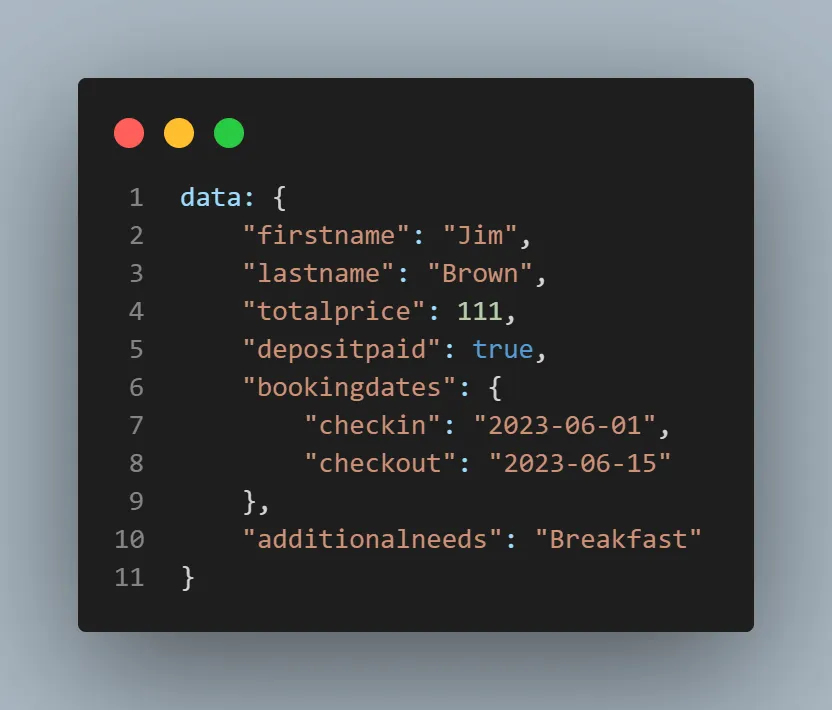
Once the request is completed, we will receive the response. We assert by using expect condition for the ok message and status code 200.
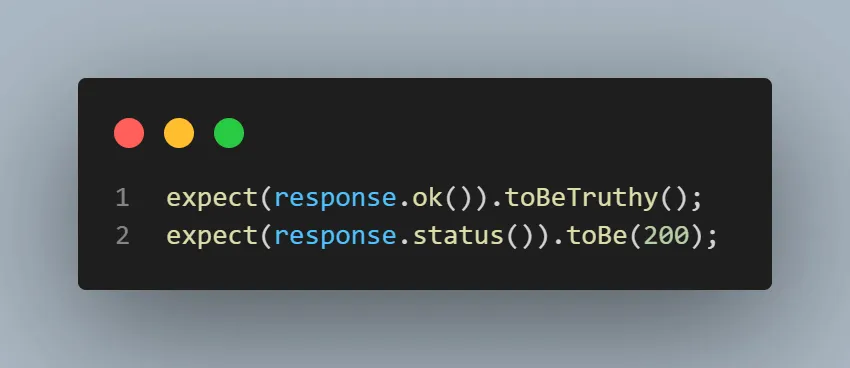
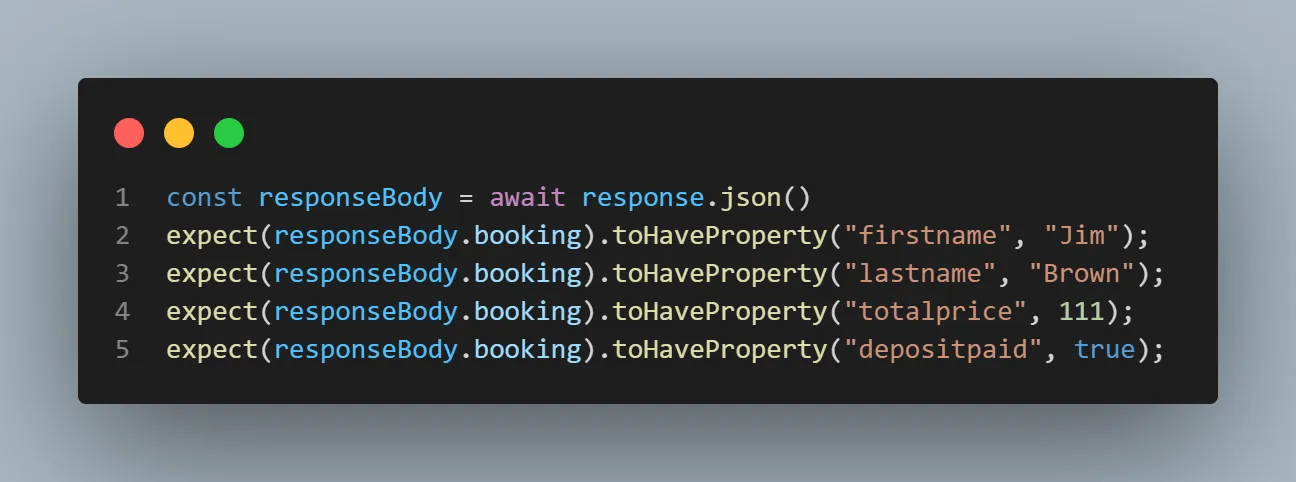
Also, we assert the response body to check the key and value. First, we store the JSON response data in a constant, then verify the firstname, lastname,totalprice, and depositpaid.
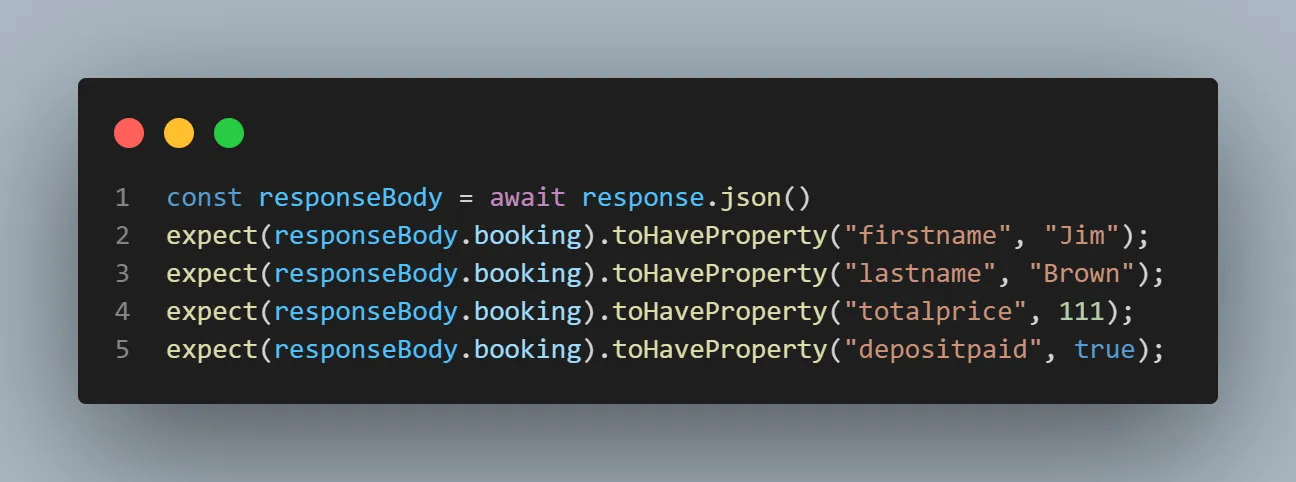
Execution
Run the following command:
npx playwright test tests/01_post_static_data.spec.js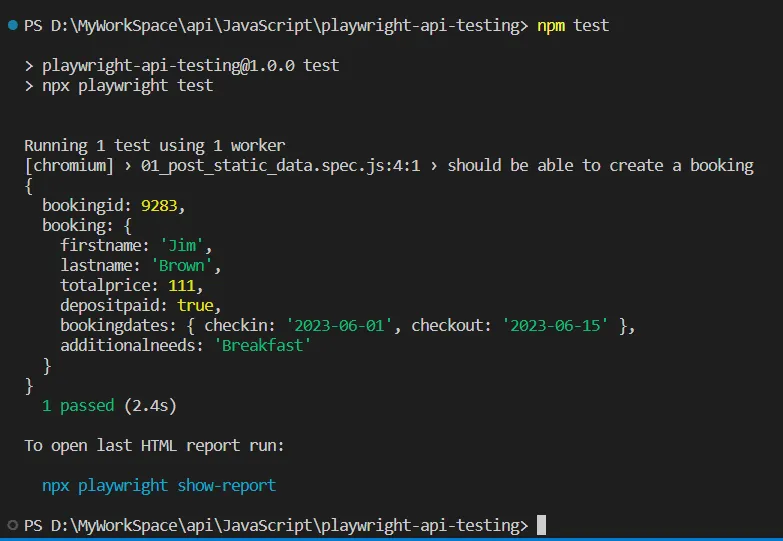
When we execute the request, it prints the response body as we have used console.log, then it asserts and marks the test as passed.
HTML Report
To get the HTML report, you can run the command:
npx playwright show-report
POST - Booking with static data specified in JSON file
In this section of the Playwright API testing tutorial, we will see how a POST call can be made by passing the static data in the body, which is mentioned in the JSON file.
Create a folder with the name test-data and then add a JSON file with the name booking-details.json. In the booking-details file, mention all the booking details you must pass while making a POST call.
{
    "firstname": "Jim",
    "lastname": "Brown",
    "totalprice": 111,
    "depositpaid": true,
    "bookingdates": {
        "checkin": "2026-01-13",
        "checkout": "2023-061-15"
    },
    "additionalneeds": "Breakfast"
}
Implementation
To create a new booking by passing the data from JSON in POST request to the /booking endpoint, we need to provide the request body by using a JSON file. The rest of the implementation of the code would be the same as mentioned in the previous approach.
// @ts-check
const { test, expect } = require('@playwright/test');
const bookingDetails = require('../test-data/booking-details.json');


test('should be able to create a booking', async ({ request }) => {
    const response = await request.post("/booking", {
        data: bookingDetails
    });
    console.log(await response.json());
    expect(response.ok()).toBeTruthy();
    expect(response.status()).toBe(200);
    const responseBody = await response.json()
    expect(responseBody.booking).toHaveProperty("firstname", "Jim");
    expect(responseBody.booking).toHaveProperty("lastname", "Brown");
    expect(responseBody.booking).toHaveProperty("totalprice", 111);
    expect(responseBody.booking).toHaveProperty("depositpaid", true);
});
Code Walkthrough
In this test, we made a POST call to an endpoint /booking. Since it's a POST request, we must specify the body mentioned in the data. However, we specify this data in the JSON file and then call this JSON data in the test. To achieve this, we first import the JSON data, store it in constant, and then call this in the test under data.
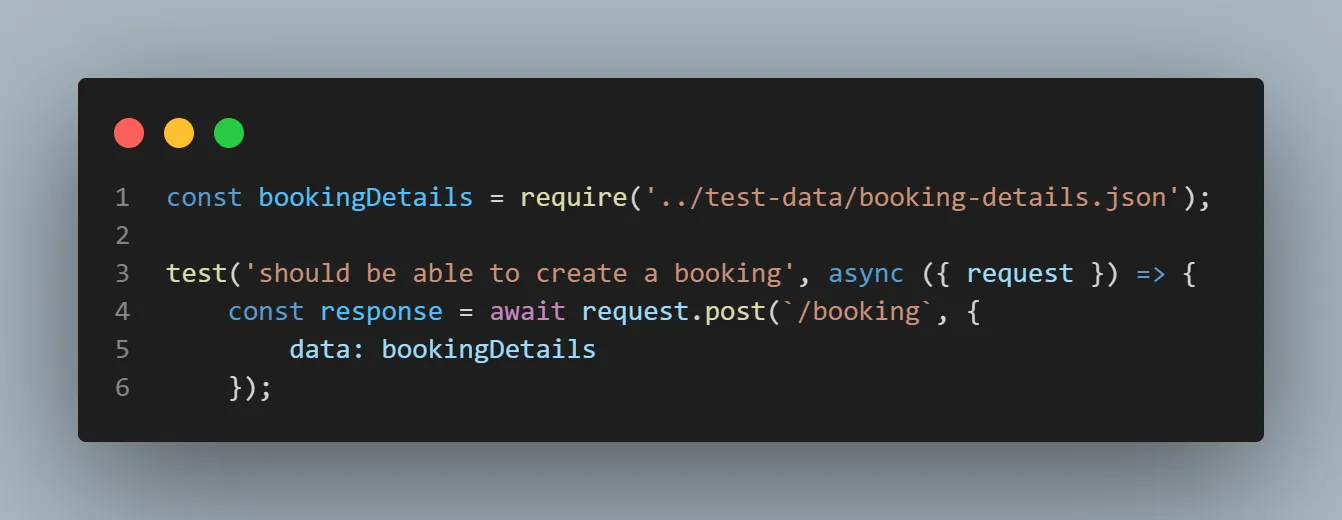
Once the request is completed, we will receive the response. We assert by using expect condition for the ok message and status code 200.
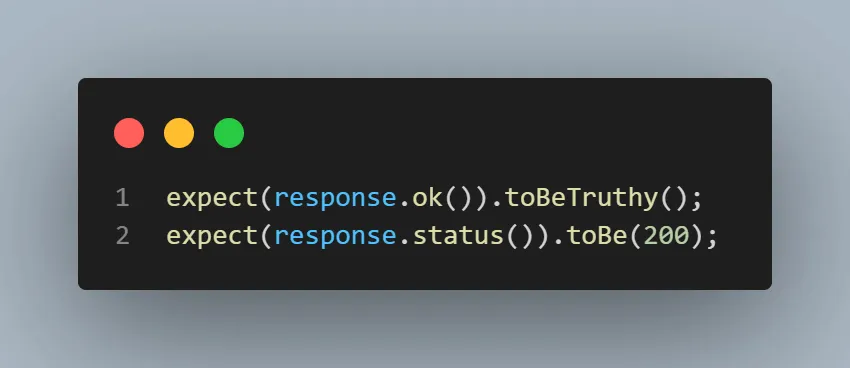
Also, we assert the response body to check the key and value.
Execution
Run the following command:
npx playwright test tests/02_post_static_json_data.spec.js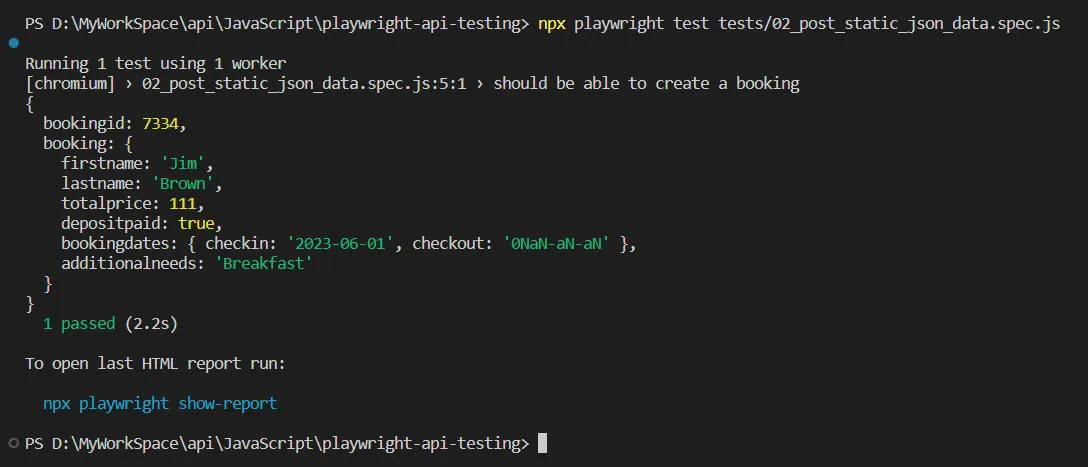
When we execute the request, it prints the response body as we have used console.log, then it does the assertions and marks the test as passed. It is the same as the previous one, but we have only optimized the test to use data from a JSON file.
HTML Report
To get the HTML report, you can run the command:
npx playwright show-report
POST - Booking with dynamic data
In this Playwright API testing tutorial section, we will see how a POST call can be made by passing the dynamically generated data in the body.
You must import faker-js to create random test data and luxon to generate dates. Store the value in const and use it to build the JSON body.
Implementation
To create a new booking by passing the dynamically generated data in the body by faker-js and luxon library in the POST request to the /booking endpoint. The rest of the implementation of the code would be the same as mentioned in the previous approach.
// @ts-check
const { test, expect } = require('@playwright/test');
import { faker } from '@faker-js/faker';
const { DateTime } = require("luxon");


const randomFirstName = faker.name.firstName()
const randomLastName = faker.name.lastName()
const randomNumber = faker.random.numeric(4)
const currentDate = DateTime.now().toFormat('yyyy-MM-dd')
const currentDatePlusFive = DateTime.now().plus({ days: 5 }).toFormat('yyyy-MM-dd')


test('should be able to create a booking', async ({ request }) => {
    const response = await request.post("/booking", {
        data: {
            "firstname": randomFirstName,
            "lastname": randomLastName,
            "totalprice": randomNumber,
            "depositpaid": true,
            "bookingdates": {
                "checkin": currentDate,
                "checkout": currentDatePlusFive
            },
            "additionalneeds": "Breakfast"
        }
    });
    console.log(await response.json());
    expect(response.ok()).toBeTruthy();
    expect(response.status()).toBe(200);
    const responseBody = await response.json()
    expect(responseBody.booking).toHaveProperty("firstname", randomFirstName);
    expect(responseBody.booking).toHaveProperty("lastname", randomLastName);
});
Code Walkthrough
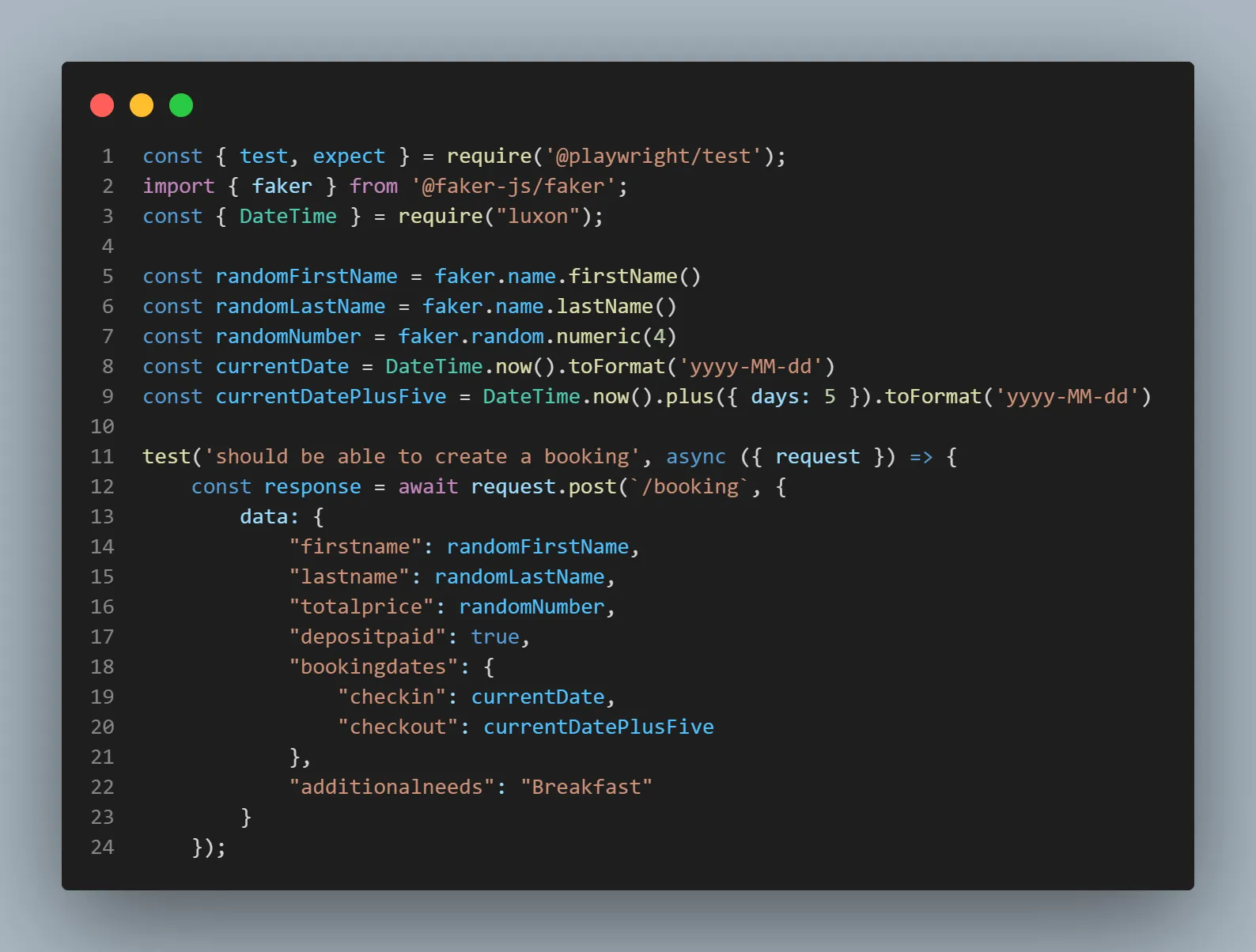
In this test, we made a POST call to an endpoint /booking. Since it's a POST request, we must specify the body mentioned in the data. However, we dynamically generate this data at the run time by using faker-js and luxon npm packages so that it will send a new set of data every time we request.
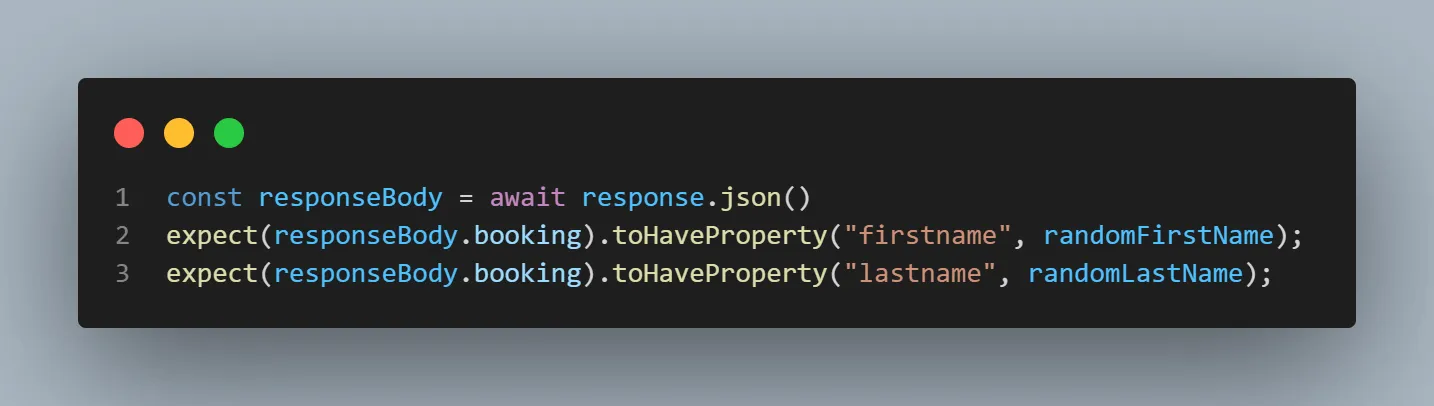
Once the request is completed, we will receive the response. We assert by using expect condition for the ok message and status code 200.
Also, we assert the response body to check the key and value.
Execution
Run the following command:
npx playwright test tests/03_post_dynamic_data.spec.js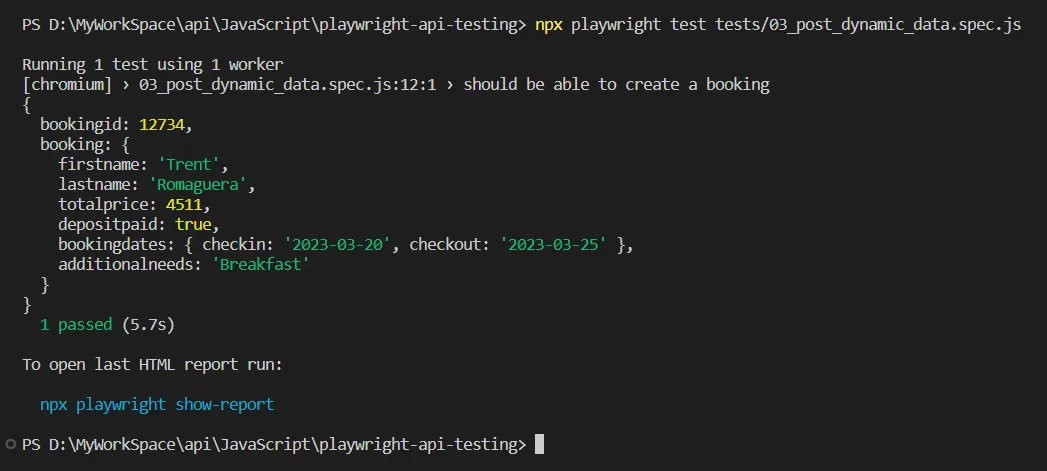
When we execute the request, it prints the response body as we have used console.log, and then it asserts and marks the test as passed. It is the same as the previous one, but here, we have only optimized the test to use data from a faker-js library and will always generate a new data set.
HTML Report
To get the HTML report, you can run the command:
npx playwright show-report
How Do You Send a GET Request in Playwright?
Call request.get() with the endpoint path. A GET request carries no body. Append the resource ID to the path to fetch a single record, or pass a params object to add query strings and filter the collection.
Below are four different ways to make a GET request.
GET all bookings IDs
Here, we will see how a GET call can be made to return the ids of all the bookings within the API.
Implementation
To get all bookings, we will use a GET request to the /booking endpoint and need not provide the request body or payload in this request.
You can print the complete JSON response in the console to check what you receive as a complete response. Since this endpoint will give you 200 status codes and ok as a status message, you must verify it with the expect condition.
// @ts-check
const { test, expect } = require('@playwright/test');


test('should be get all the booking details', async ({ request }) => {
    const response = await request.get("/booking");
    console.log(await response.json());
    expect(response.ok()).toBeTruthy();
    expect(response.status()).toBe(200);
});
Code Walkthrough
In this test, we made a GET call to an endpoint /booking. Since it's a GET request, we don't need to specify the body and skip using data, and here we will get all the booking details.
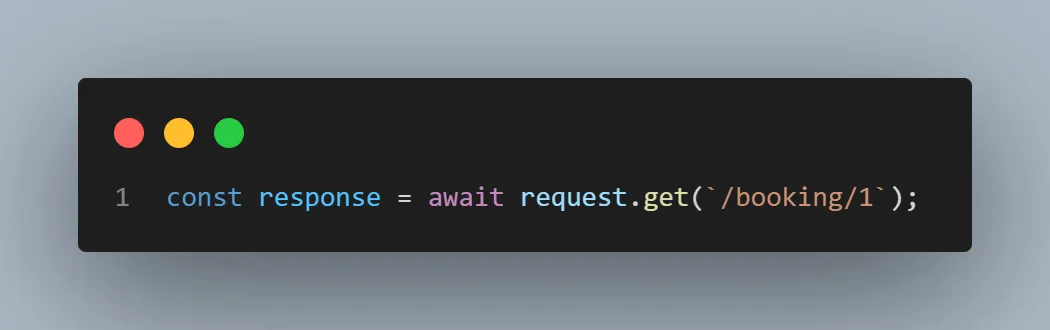
Once the request is completed, we will receive the response. Here, we assert by using expect condition for the ok message and status code 200.
Execution
Run the following command:
npx playwright test tests/04_get_all_booking_details.spec.js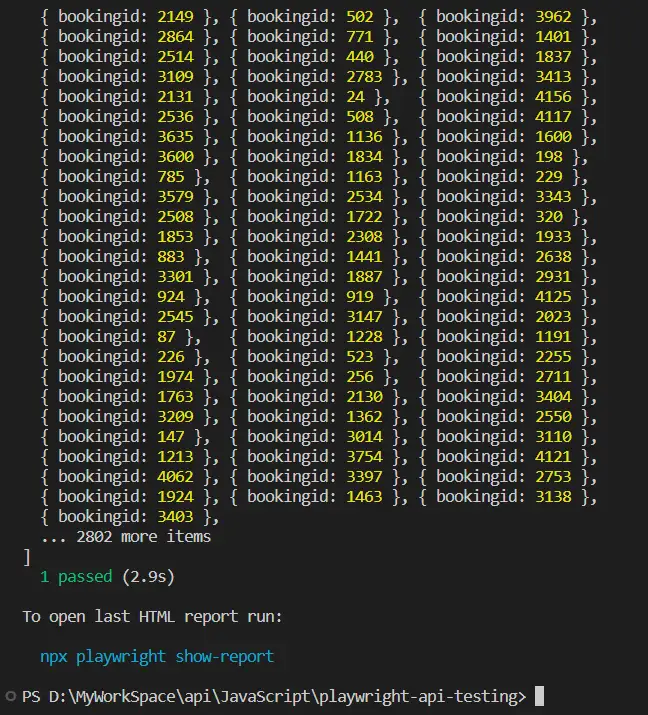
When you execute the request, it prints the response body as we have used console.log, and then it asserts and marks the test as passed.
HTML Report

GET specific booking IDs
In this Playwright API testing tutorial section, we will see how a GET call can be made to return a specific booking based on the booking ID provided.
Implementation
To get a specific booking, we will use a GET request to the /booking/:id endpoint, and we don't need to provide the request body or payload in this request. You can print the complete JSON response in the console just to check what you receive as a complete response. Since this endpoint will give you 200 status codes and ok as a status message, you must verify it with the expect condition.
// @ts-check
const { test, expect } = require('@playwright/test');


test('should be get specific booking details', async ({ request }) => {
const response = await request.get('/ booking / 1');
console.log(await response.json());
expect(response.ok()).toBeTruthy();
expect(response.status()).toBe(200);
});
Code Walkthrough
In this test, we made a GET call to an endpoint /booking/1. Since it's a GET request, we don't need to specify the body and skip using data, and here we will get only one booking detail.
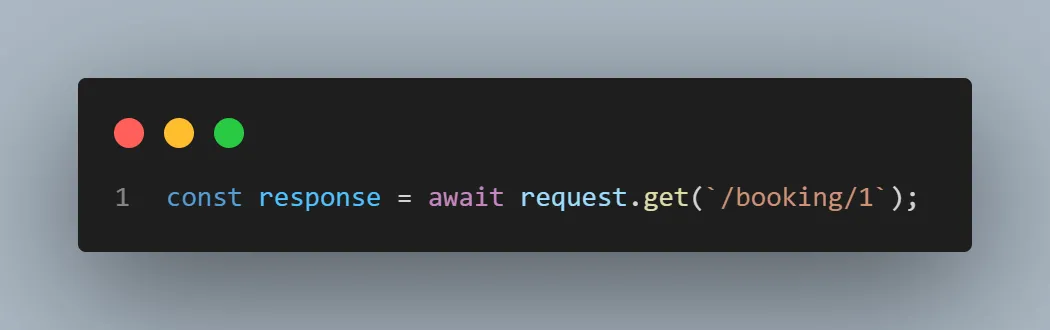
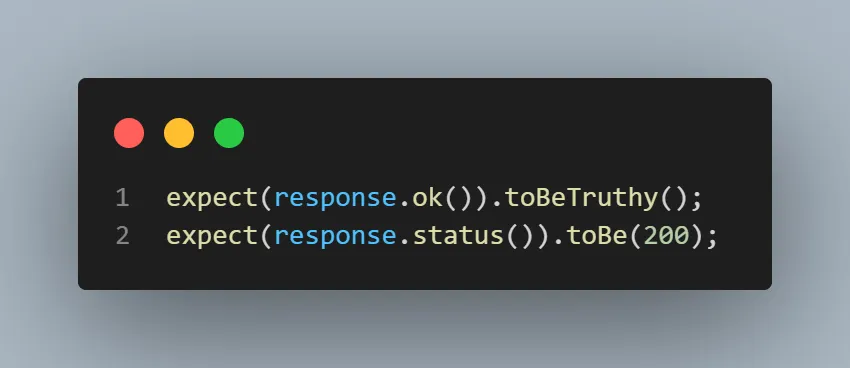
Once the request is completed, we receive the response. Here, we assert by using expect condition for the ok message and status code 200.
Execution
Run the following command:
npx playwright test tests/05_get_specific_booking_details.spec.js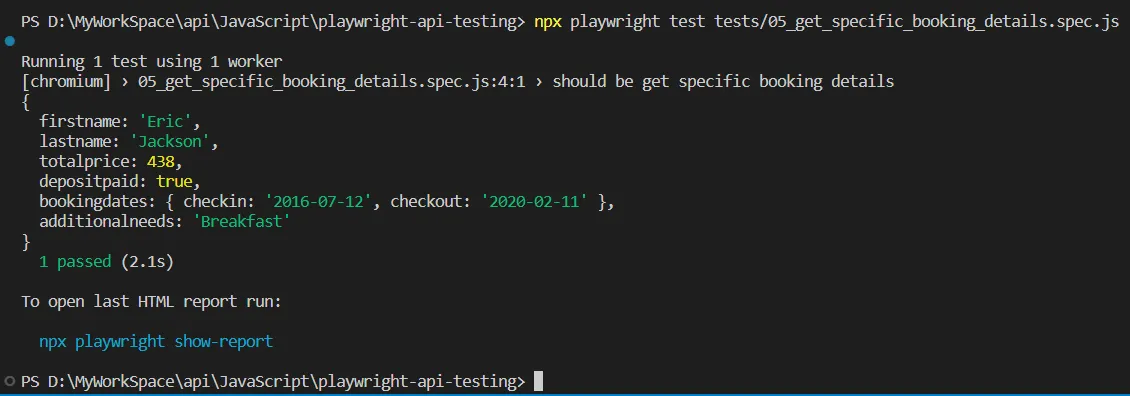
When you execute the request, it prints the response body as we have used console.log, and then it asserts and marks the test as passed.
HTML Report
To get the HTML report, you can run the command:
npx playwright show-report
GET bookings by applying Filter example 1
In this section of this Playwright API testing tutorial, we will see how a GET call can be made to optionally add query strings to search and return a subset of booking IDs based on the filter string provided.
Implementation
To get the subset of booking, we will use a GET request to the /booking endpoint, and we don't need to provide the request body or payload in this request.
You can print the complete JSON response in the console to check what you receive as a complete response. Since this endpoint will give you 200 status codes and ok as a status message, you need to verify it with the expect condition.
// @ts-check
const { test, expect } = require('@playwright/test');


test('should be able to get subset of booking details using query parameters', async ({ request }) => {
const response = await request.get('/booking', {
params: {
firstname: "Susan",
lastname: "Jackson"
},
});
console.log(await response.json());
expect(response.ok()).toBeTruthy();
expect(response.status()).toBe(200);
});
Code Walkthrough
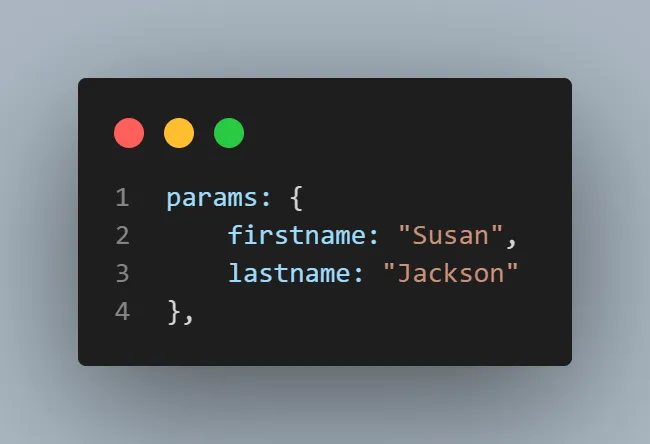
In this test, we made a GET call to an endpoint /booking. Since it's a GET request, we need not specify the body and skip using data. Here, we apply a filter on the data by using parameters in params, and it returns all the matching booking details.
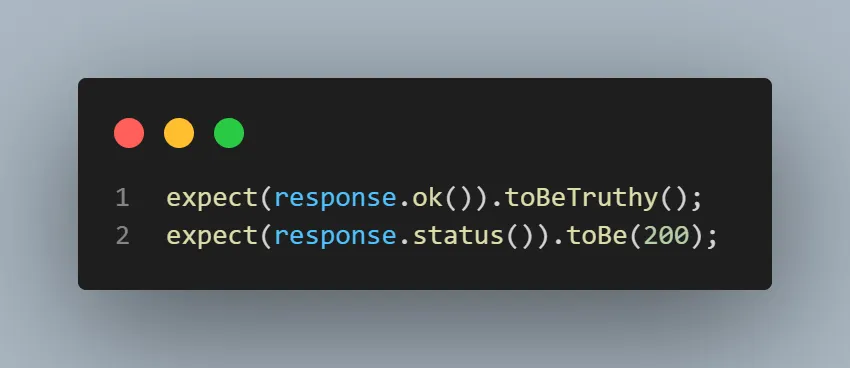
Once the request is completed, we will receive the response. Here, we assert by using expect condition for the ok message and status code 200.
Execution
Run the following command:
npx playwright test tests/06_get_booking_details_query_param.spec.js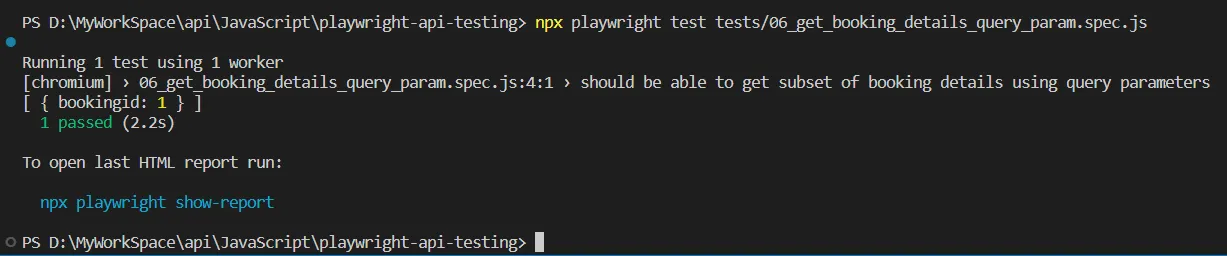
When you execute the request, it prints the response body as we have used console.log, and then it asserts and marks the test as passed.
HTML Report
To get the HTML report, you can run the command:
npx playwright show-report
GET bookings by applying Filter example 2
In this Playwright API testing tutorial section, we will see how a GET call can be made. This is another example where we can optionally add query strings to search and return a subset of booking IDs based on the filter string provided
Implementation
To get the subset of bookings, we will use a GET request to the /booking endpoint, and we don't need to provide the request body or payload in this request.
You can print the complete JSON response in the console to check what you receive as a complete response. Since this endpoint will give you 200 status codes and an ok as a status message, you need to verify it with the expect condition.
// @ts-check
const { test, expect } = require('@playwright/test');


test('should be able to get subset of booking details using query parameters - checkin date example', async ({ request }) => {
const response = await request.get('/booking', {
params: {
checkin: "2026-01-13",
checkout: "2026-01-13"
},
});
console.log(await response.json());
expect(response.ok()).toBeTruthy();
expect(response.status()).toBe(200);
});
Code Walkthrough
This is another test where we make a GET call to an endpoint /booking. Since it's a GET request, we don't need to specify the body and skip using data. Here, we apply a filter of check-in and check-out dates by using parameters in params, and it returns all the matching booking details.
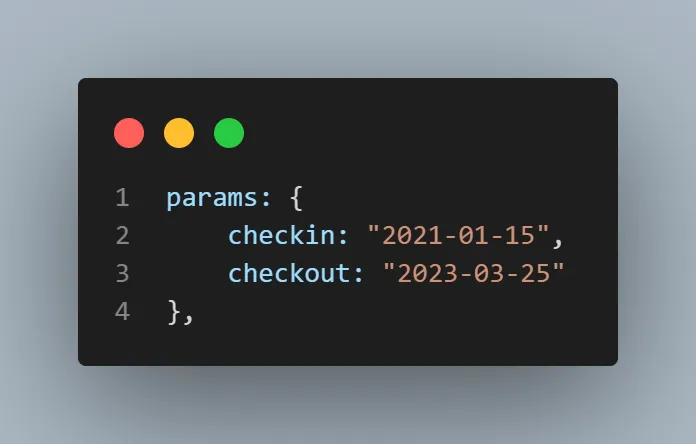
Once the request is completed, we will receive the response. Here, we assert by using expect condition for the ok message and status code 200.
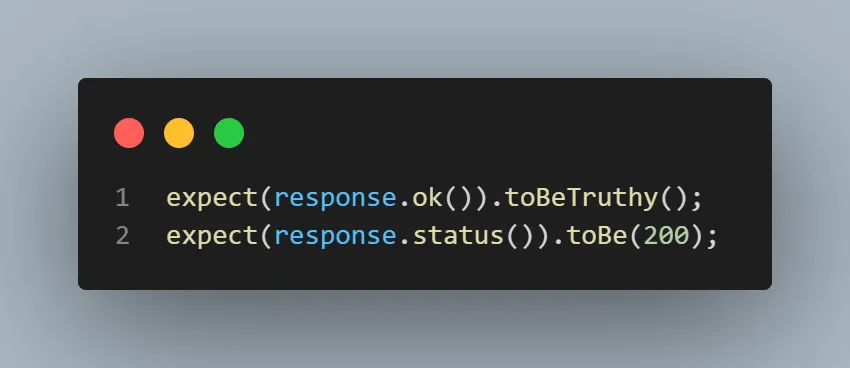
Execution
Run the following command:
npx playwright test tests/07_get_booking_details_query_param.spec.js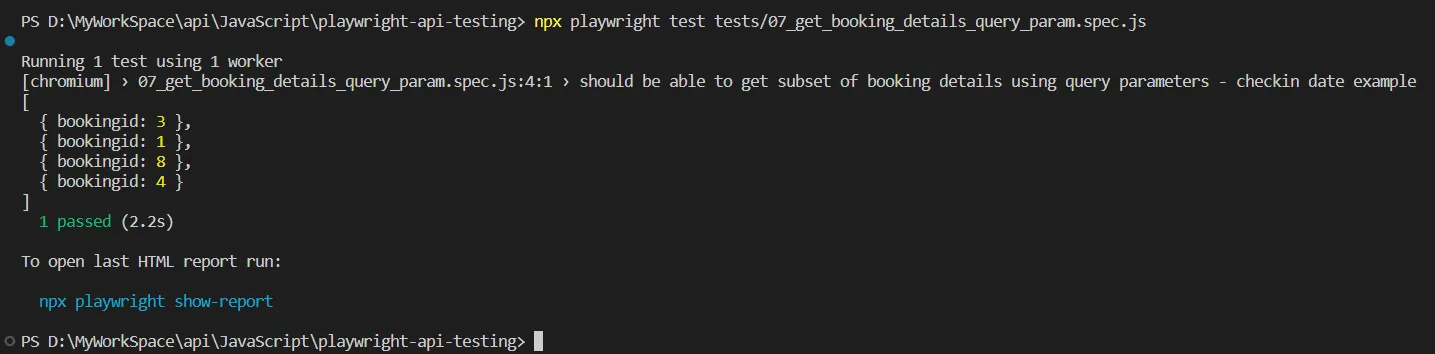
When you execute the request, it prints the response body as we have used console.log and asserts and marks the test as passed.
HTML Report
To get the HTML report, you can run the command:
npx playwright show-report
How Do You Send a PUT Request in Playwright?
Call request.put() with the complete replacement payload and any auth header the endpoint requires. PUT replaces the whole resource, so every field must be present in the body. Fields you leave out are cleared, not preserved.
This section updates the current booking details, so we need to specify a fully updated body.
Implementation
To update the current booking details, we will use a PUT request to the /booking/1 endpoint, and we need to provide the request body or payload in the request, which needs to be updated.
You can print the complete JSON response in the console to check what we receive as a complete response. Since this endpoint will give you 200 status codes and ok as a status message, you need to verify it with the expect condition.
// @ts-check
const { test, expect } = require('@playwright/test');


var token


test('should be able to update the booking details', async ({ request }) => {


// Create a Token which will be used in PUT request


const response = await request.post('/auth', {
data: {
"username": "admin",
"password": "password123"
}
});
console.log(await response.json());
expect(response.ok()).toBeTruthy();
expect(response.status()).toBe(200);
const responseBody = await response.json();
token = responseBody.token;
console.log("New Token is: " + token);


// PUT
const updateRequest = await request.put('/booking/1', {
headers: {
'Content-Type': 'application/json',
'Accept': 'application/json',
'Cookie': 'token=$'{token}',
},
data: {
"firstname": "Jim",
"lastname": "Brown",
"totalprice": 111,
"depositpaid": true,
"bookingdates": {
"checkin": "2026-01-13",
"checkout": "2026-01-13"
},
"additionalneeds": "Breakfast"
}
});
console.log(await updateRequest.json());
expect(updateRequest.ok()).toBeTruthy();
expect(updateRequest.status()).toBe(200);
const updatedResponseBody = await updateRequest.json()
expect(updatedResponseBody).toHaveProperty("firstname", "Jim");
expect(updatedResponseBody).toHaveProperty("lastname", "Brown");
expect(updatedResponseBody).toHaveProperty("totalprice", 111);
expect(updatedResponseBody).toHaveProperty("depositpaid", true);
});
Code Walkthrough
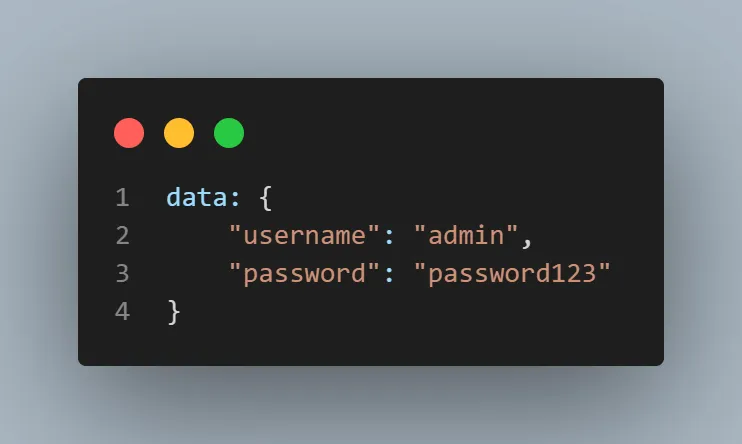
In this test, we make a POST call to an endpoint /auth to generate the token, which needs to be passed with the PUT request. The username and password need to be specified in the body mentioned in the data.
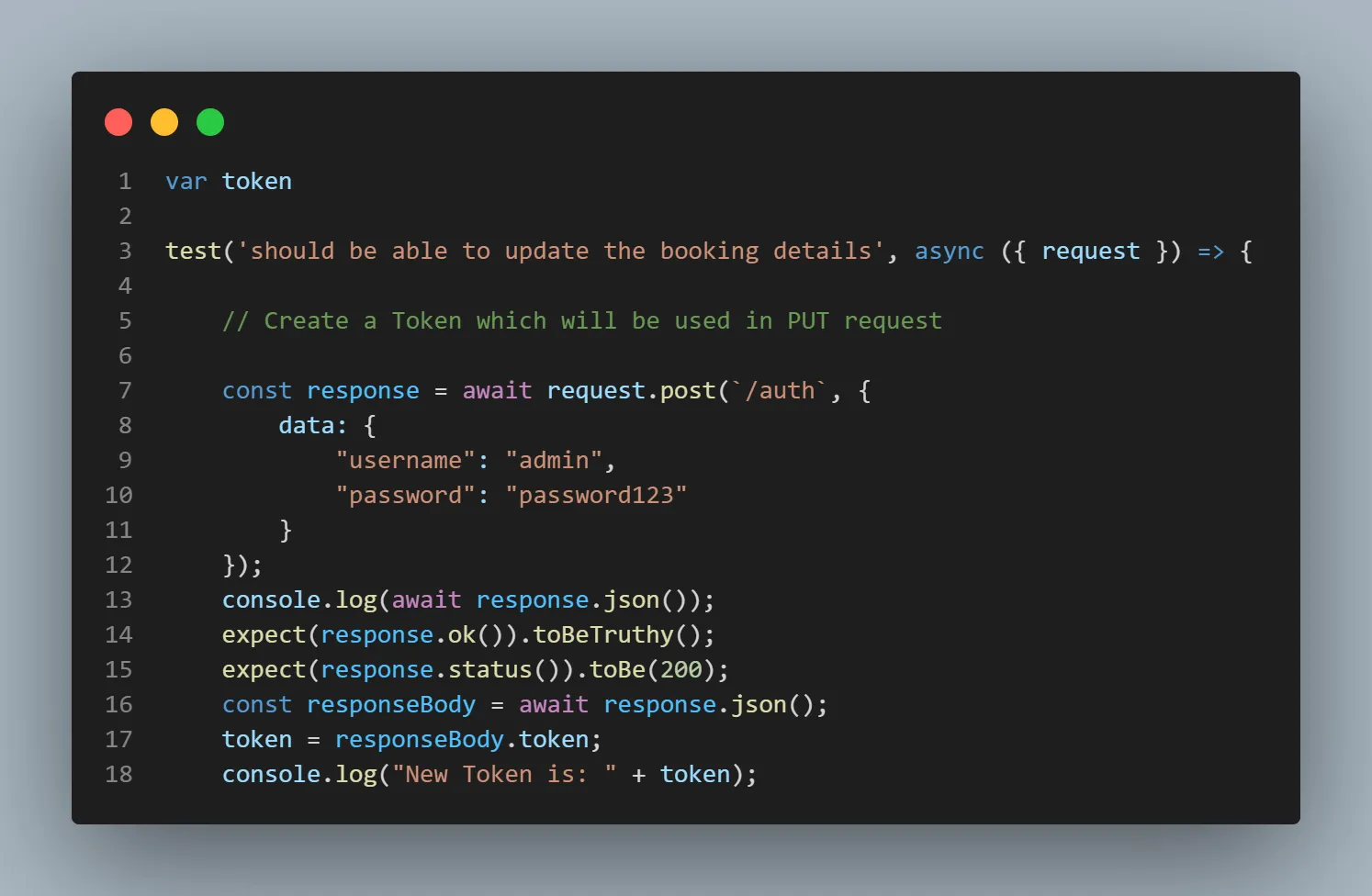
Once the request is completed, we receive the response. Here, we store the token in a variable.
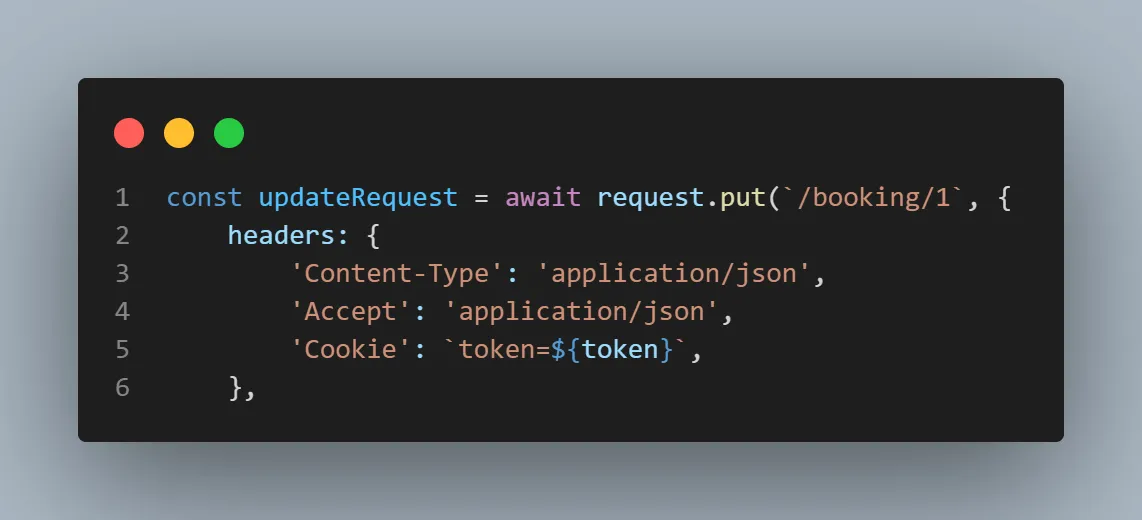
Now we make a PUT call to an endpoint /booking/1 and pass the token in the header and body in the data.
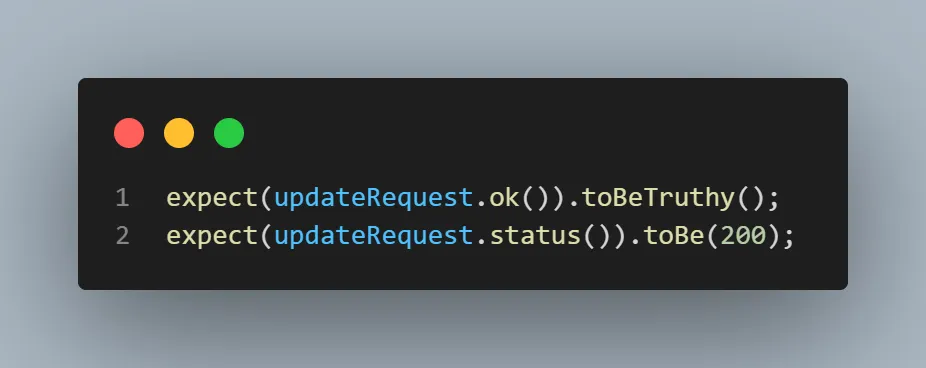
We will receive the response and need to make an assert by using expect condition for the ok message and status code 200.
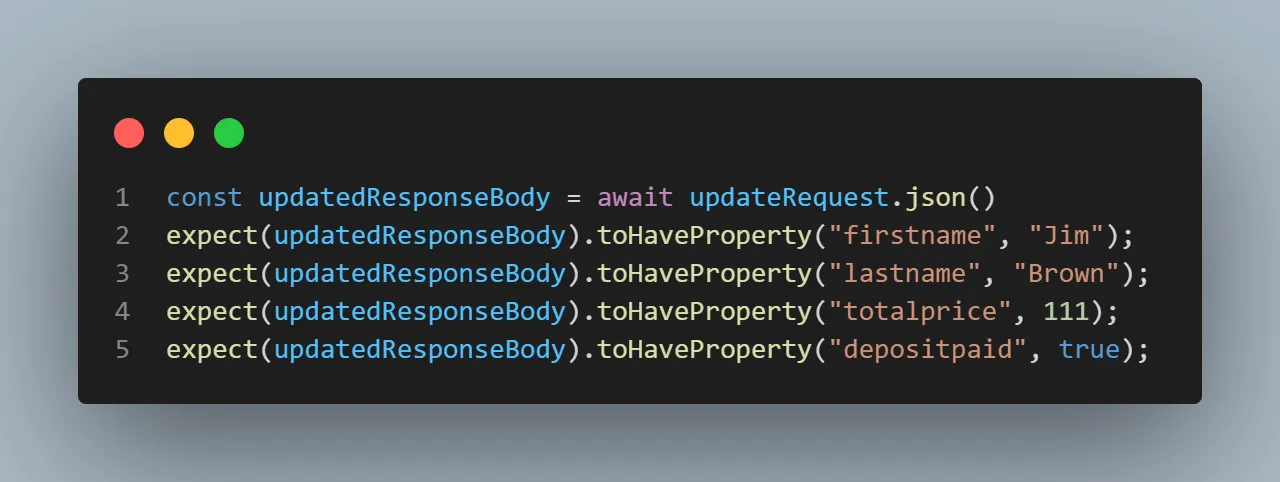
Also, we will assert the response body to check the key and value.
Execution
Run the following command:
npx playwright test tests/08_update_booking_details.spec.js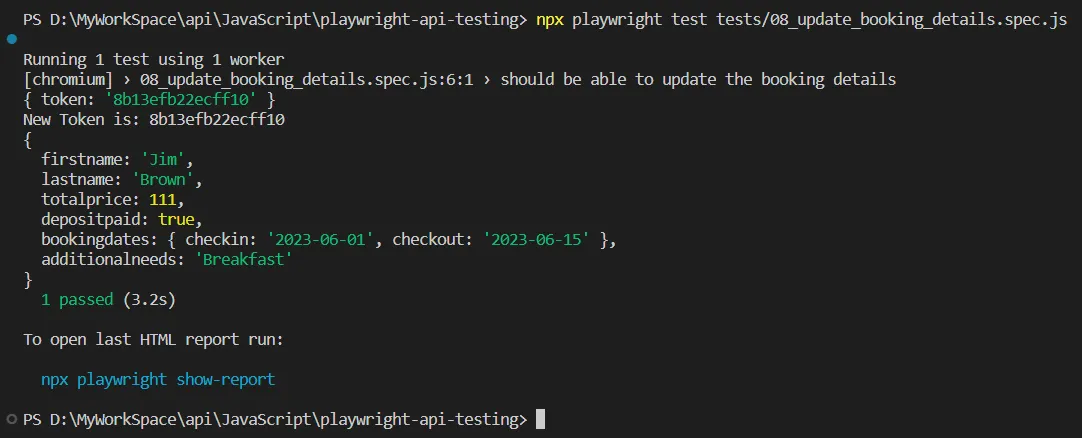
When you execute the request, it prints the response body as we have used console.log, a newly generated token, and then it prints another response in the console, which is for the PUT request, and then it asserts and marks the test as passed.
HTML Report
To get the HTML report, you can run the command:
npx playwright show-report
How Do You Send a PATCH Request in Playwright?
Call request.patch() with only the fields that change. Unlike PUT, PATCH leaves every field you omit untouched, which makes it the correct method for updating one or two attributes of an existing resource.
This section uses PATCH to update the current booking with a partial payload.
Implementation
To update the booking with the partial payload, we will use a PATCH request to the /booking/1 endpoint, and we need to provide the partial request body or payload, which needs to be updated. You can print the complete JSON response in the console to check what you receive as a complete response. Since this endpoint will give you 200 status codes and ok as a status message, we need to verify it with the expect condition.
// @ts-check
const { test, expect } = require('@playwright/test');


var token


test('should be able to partial update the booking details', async ({ request }) => {


// Create a Token which will be used in PATCH request


const response = await request.post('/auth', {
data: {
"username": "admin",
"password": "password123"
}
});
console.log(await response.json());
expect(response.ok()).toBeTruthy();
expect(response.status()).toBe(200);
const responseBody = await response.json();
token = responseBody.token;
console.log("New Token is: " + token);


// PATCH


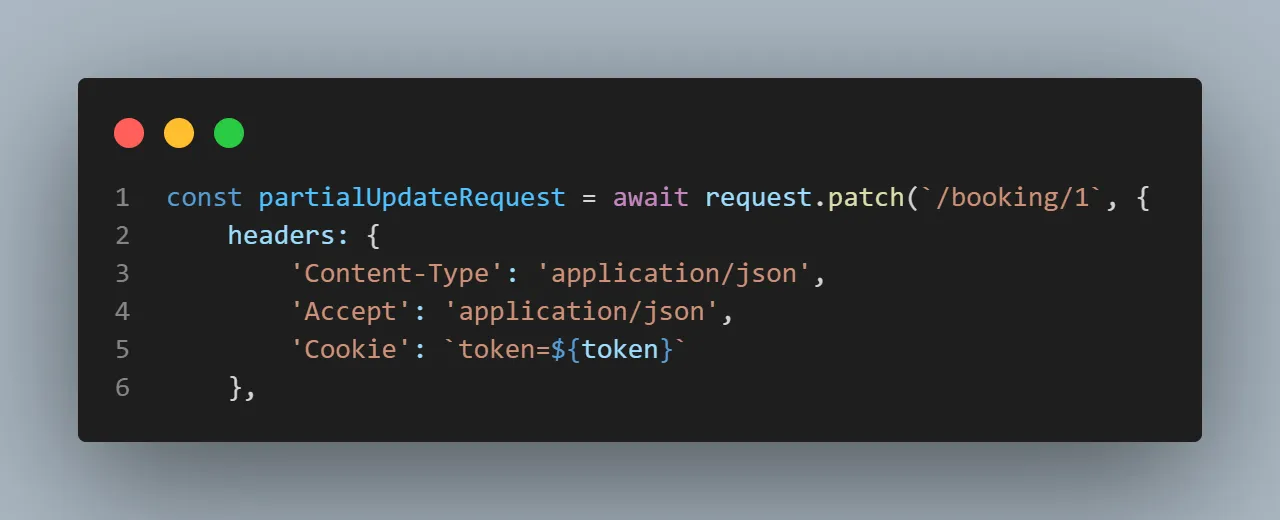
const partialUpdateRequest = await request.patch('/booking/1', {
headers: {
'Content-Type': 'application/json',
'Accept': 'application/json',
'Cookie': 'token=${token}'
},
data: {
"firstname": "Sim",
"lastname": "Son",
"totalprice": 333,
"depositpaid": false
}
});
console.log(await partialUpdateRequest.json());
expect(partialUpdateRequest.ok()).toBeTruthy();
expect(partialUpdateRequest.status()).toBe(200);
const partialUpdatedResponseBody = await partialUpdateRequest.json()
expect(partialUpdatedResponseBody).toHaveProperty("firstname", "Sim");
expect(partialUpdatedResponseBody).toHaveProperty("lastname", "Son");
expect(partialUpdatedResponseBody).toHaveProperty("totalprice", 333);
expect(partialUpdatedResponseBody).toHaveProperty("depositpaid", false);
});
Code Walkthrough
In this test, we make a POST call to an endpoint /auth to generate the token, which needs to be passed with the PATCH request. The username and password need to be specified in the body, which is mentioned in the data.
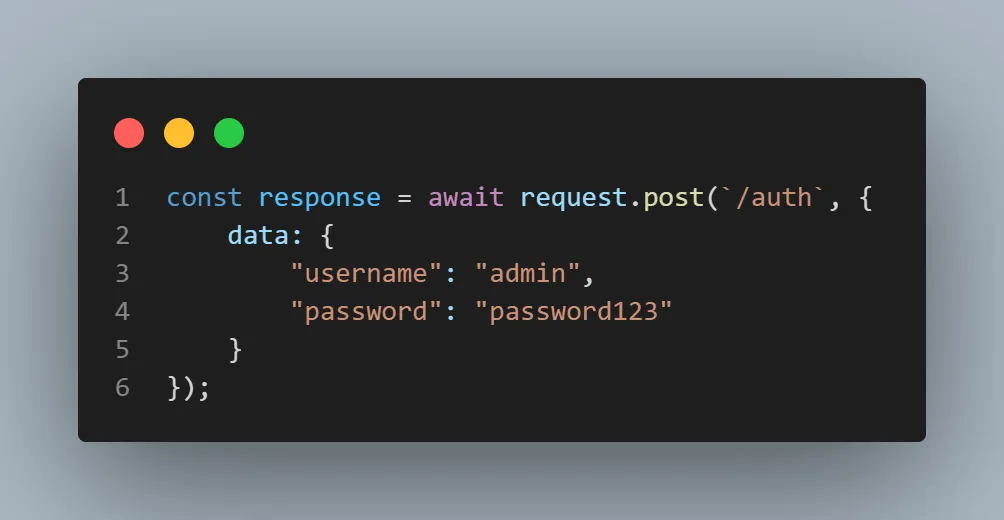
Once the request is completed, we will receive the response. Here, we will store the token in a variable.
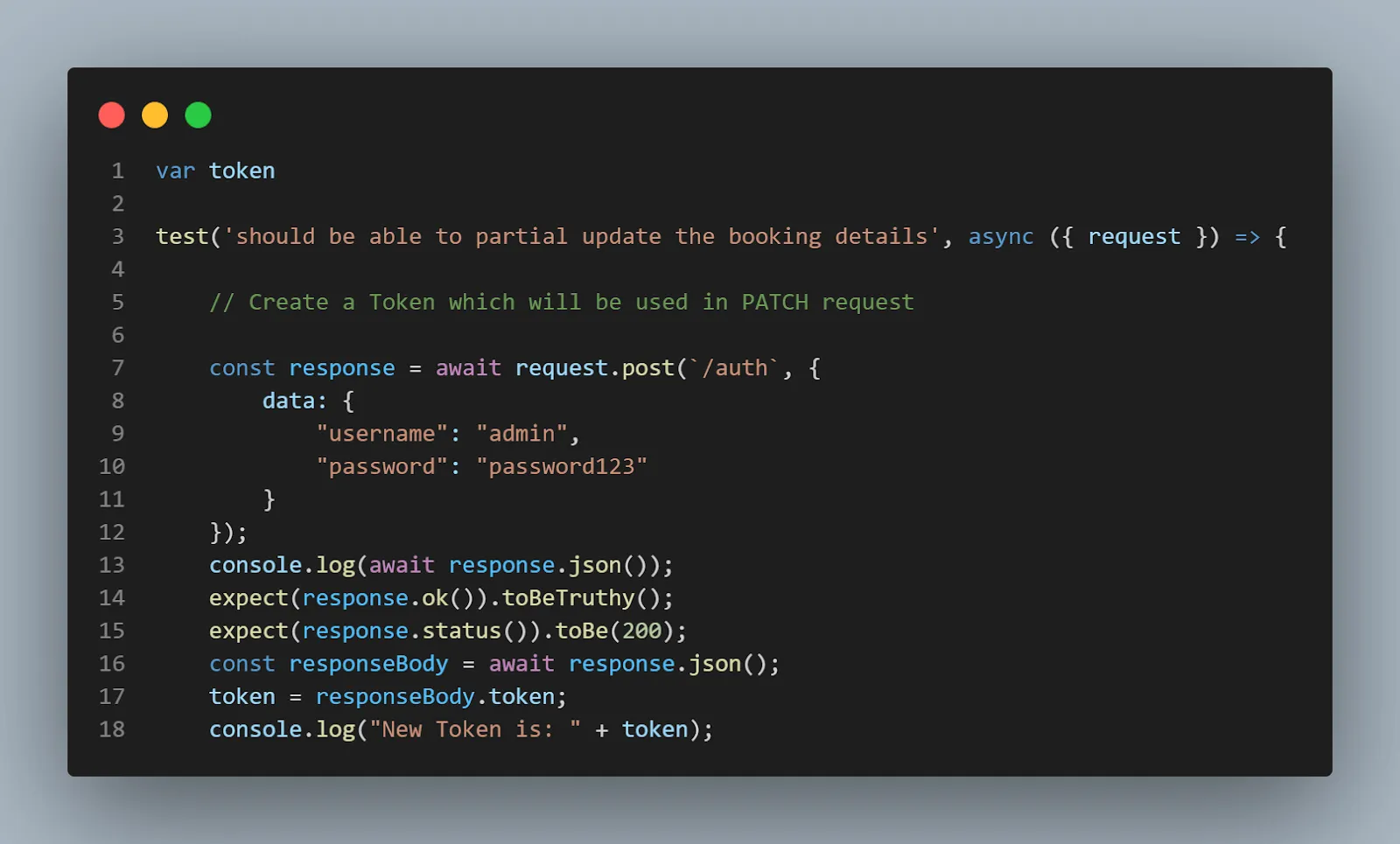
Now we will make a PATCH call to an endpoint /booking/1 and pass the token in the header and body in the data.
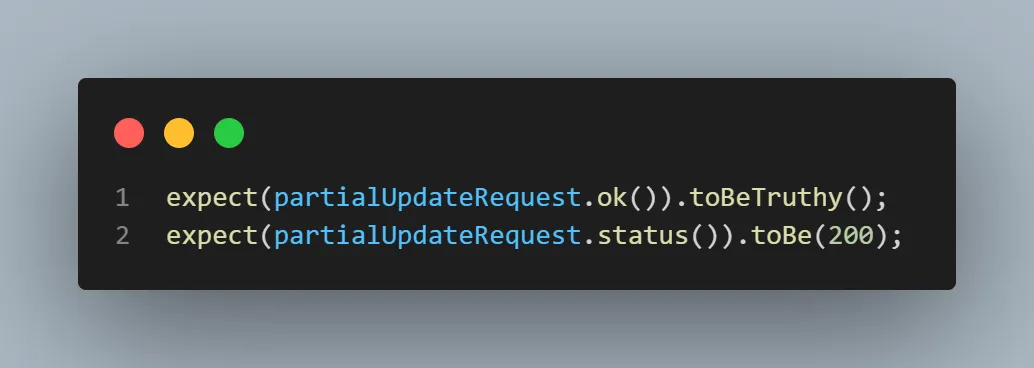
We will receive the response and assert by making use of expect condition for the ok message and status code 200.
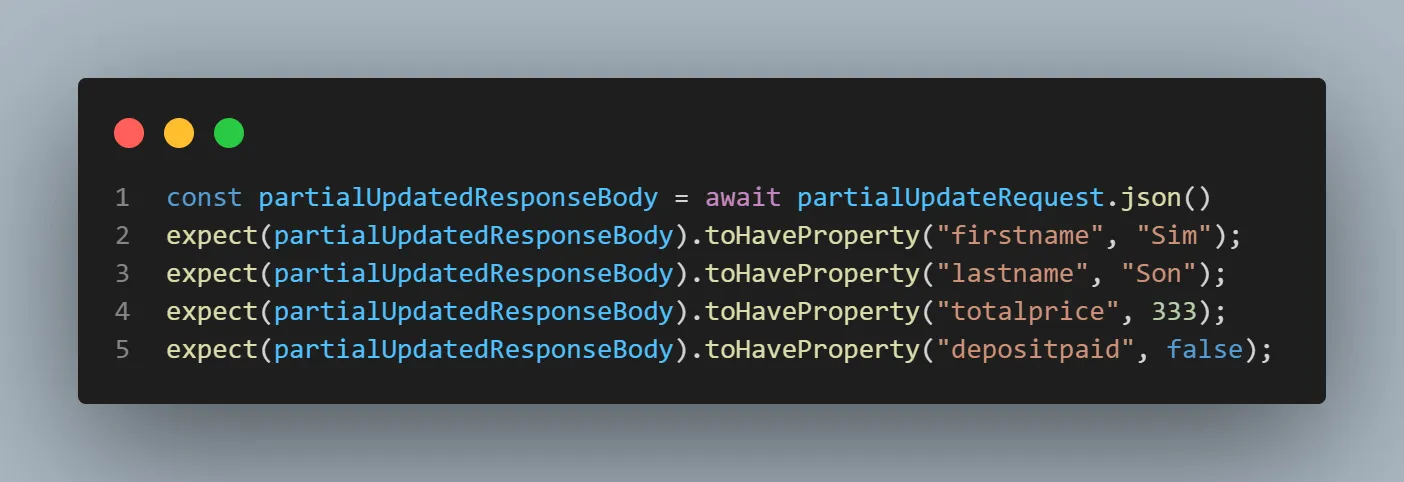
Also, we will assert the response body to check the key and value.
Execution
Run the following command:
npx playwright test tests/09_partial_update_booking_details.spec.js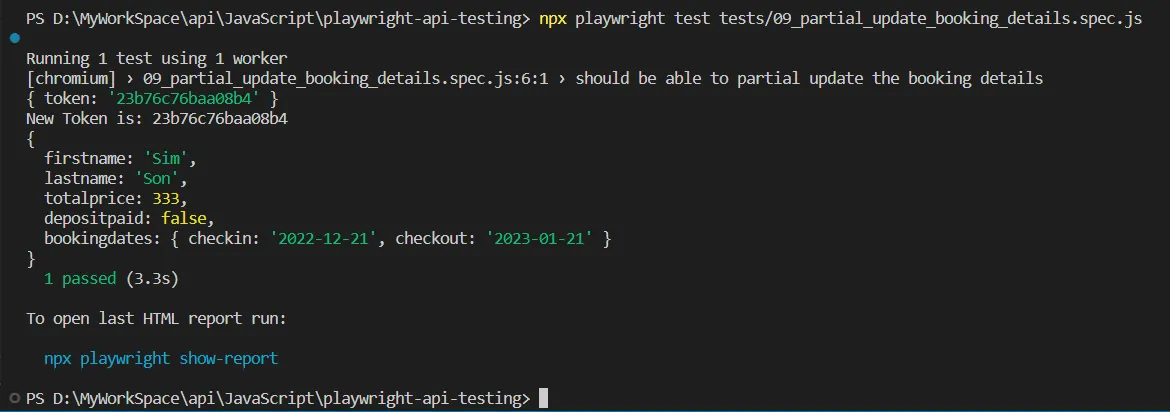
When you execute the request, it prints the response body as we have used console.log, a newly generated token, and then it prints another response in the console, which is for the PATCH request, and then it asserts and marks the test as passed.
HTML Report
To get the HTML report, you can run the command:
npx playwright show-report
How Do You Send a DELETE Request in Playwright?
Call request.delete() with the resource path and the auth header. A DELETE request needs no body. Assert on the status code rather than the response body, because a successful delete usually returns an empty payload.
This section deletes the booking details created earlier.
Implementation
To delete a booking, we will use the DELETE request to the /booking/1 endpoint, and we don't need to provide the request body or payload in this request.
You can print the complete JSON response in the console to check what you receive as a complete response. Since this endpoint will give you 200 status codes and ok as a status message, you need to verify it with the expect condition.
// @ts-check
const { test, expect } = require('@playwright/test');


var token


test('should be able to delete the booking details', async ({ request }) => {


// Create a Token which will be used in DELETE request


const response = await request.post('/ auth', {
data: {
"username": "admin",
"password": "password123"
}
});
console.log(await response.json());
expect(response.ok()).toBeTruthy();
expect(response.status()).toBe(200);
const responseBody = await response.json();
token = responseBody.token;
console.log("New Token is: " + token);


// DELETE


const deleteRequest = await request.delete('/booking/1', {
headers: {
'Content-Type': 'application/json',
'Cookie': 'token=${token}'
}
});
expect(deleteRequest.status()).toEqual(201);
expect(deleteRequest.statusText()).toBe('Created');
});
Code Walkthrough
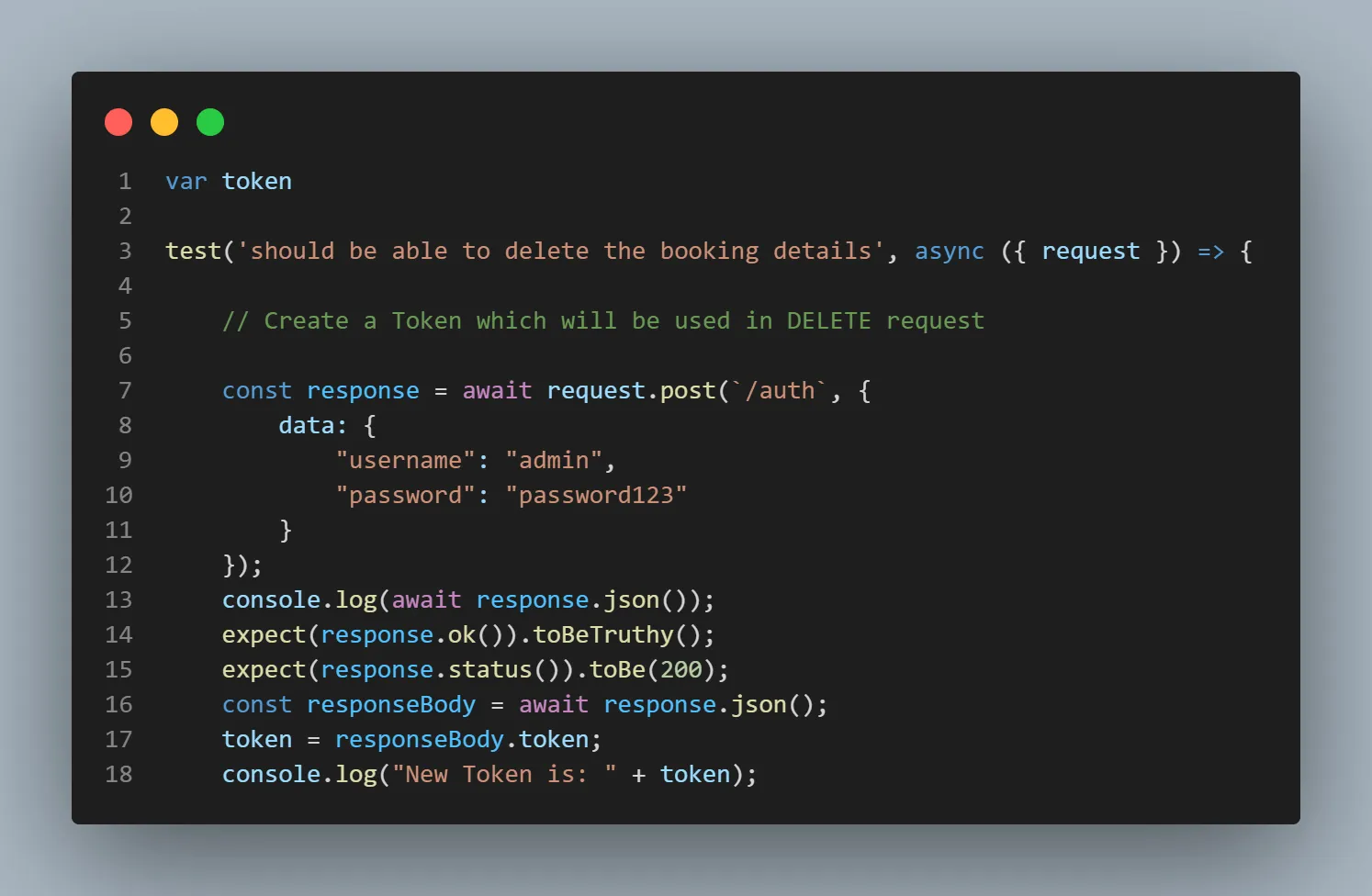
In this test, we make a POST call to an endpoint /auth to generate the token, which needs to be passed with the DELETE request. The username and password need to be specified in the body, which is mentioned in the data.
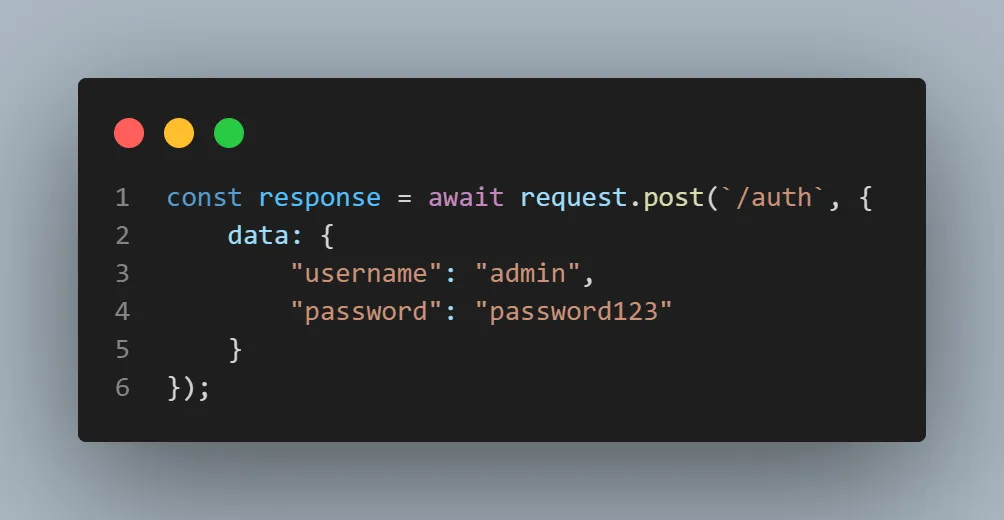
Once the request is completed, we will receive the response. Here, we will store the token in a variable.
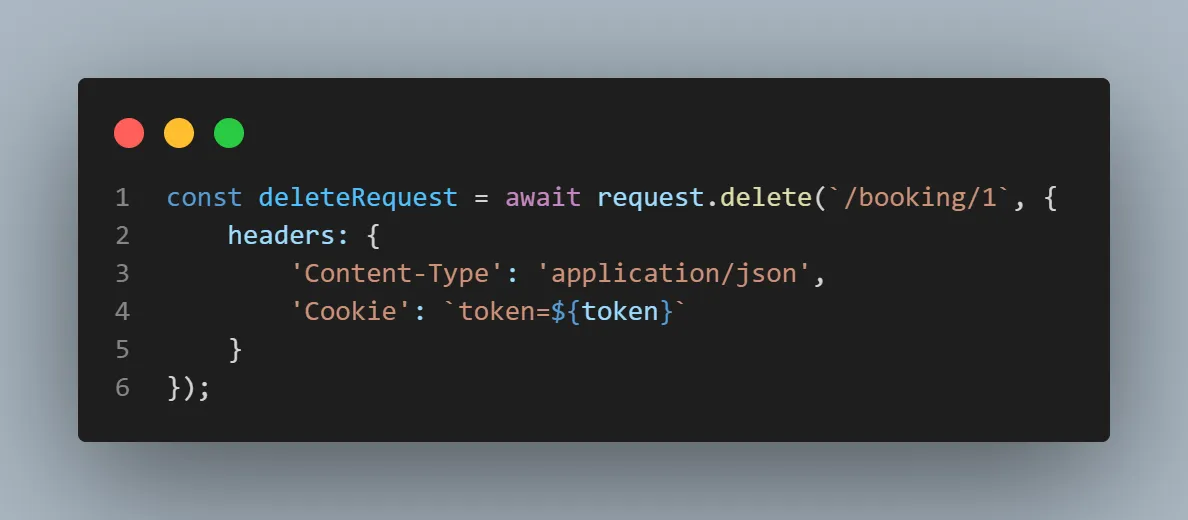
Now we will make a DELETE call to an endpoint /booking/1 and pass the token in the header, and the body is not required.
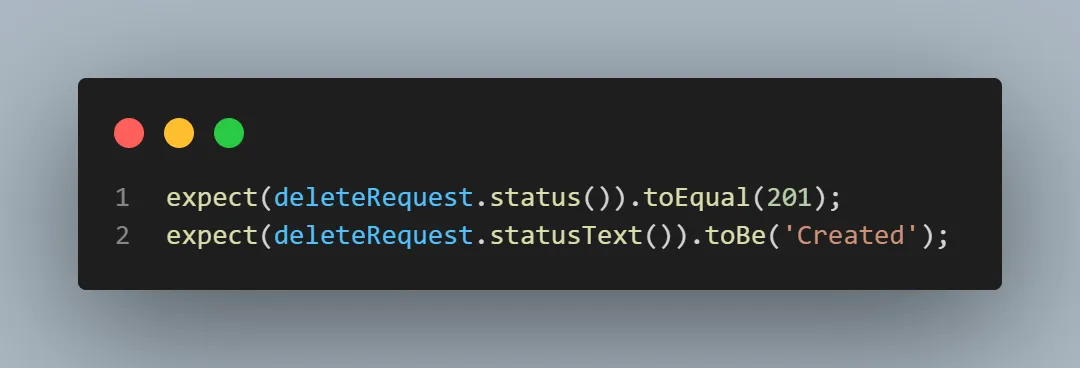
We will receive the response and assert by using expect condition for Created message and status code 201.
Execution
Run the following command:
npx playwright test tests/10_delete_booking_details.spec.js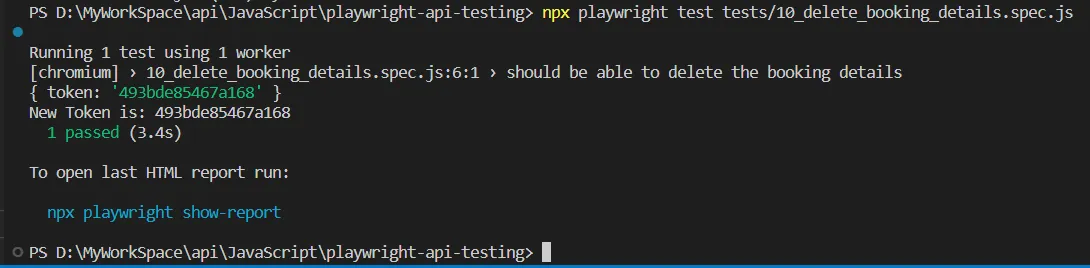
When you execute the request, it prints the response body as we have used console.log and then asserts and marks the test as passed.
HTML Report
To get the HTML report, you can run the command:
npx playwright show-report
Once the API specs pass locally, the same project can run on a cloud grid instead of local infrastructure. TestMu AI's test automation cloud runs your existing Playwright suite across 3,000+ browser and OS combinations in parallel, with no rewrite of the test code. Every session captures network logs, console logs, video, and a command-by-command replay, so a failed assertion arrives with the exact request and response that produced it. That improves your overall test coverage while keeping the same test scripts.

Conclusion
Start by cloning the sample repository, running the POST spec against Restful-booker, then changing baseURL in playwright.config.js to point at your own API. Once that passes, add the request fixture to an existing UI spec so it can seed data before the test and verify server state after it, which is the workflow that makes API testing inside Playwright worth the setup.
The Playwright testing documentation covers running the same suite on the TestMu AI cloud grid, and REST API testing covers the assertion and status-code patterns that apply to any API client, not just Playwright.
Author


Reviewer

Shahzeb Hoda
Reviewer
Shahzeb Hoda is the Associate Director of Marketing and a Community Contributor at TestMu AI, leading strategic initiatives in developer marketing, content, and community growth. With 10+ years of experience in quality engineering, software testing, automation testing, and e-learning, he has authored and reviewed 70+ technical articles on software testing and automation. Shahzeb holds an M.Tech in Computer Science from BIT, Mesra, and is certified in Selenium, Cypress, Playwright, Appium, and KaneAI. He brings deep expertise in CI/CD pipeline automation, cross-browser testing, AI-driven testing practices, and framework documentation. On LinkedIn, he is followed by 3,700+ engineers, developers, DevOps professionals, tech leaders, and enthusiasts.
Playwright API Testing FAQs
Did you find this page helpful?
More Related Learning Hubs

TestMu AI forEnterprise
Get access to solutions built on Enterprise
grade security, privacy, & compliance
- Advanced access controls
- Advanced data retention rules
- Advanced Local Testing
- Premium Support options
- Early access to beta features
- Private Slack Channel
- Unlimited Manual Accessibility DevTools Tests