

Power Your Software Testing with AI Agents and Cloud
The Native AI-Agentic Cloud Platform to Supercharge Quality Engineering. Test Intelligently and Ship Faster.


- TestMu AI (Formerly LambdaTest)
- /
- Blog
- /
- How to Use Playwright WaitForResponse to Reduce Flaky Tests
How to Use Playwright WaitForResponse to Reduce Flaky Tests
Learn how to use Playwright waitForResponse for reliable API validation, network synchronization, and stable end-to-end automation tests.
Published on:
Modern web applications rely heavily on background network activity, where actions like page loads, button clicks, and form submissions trigger API calls through XHRs, Fetch requests, or GraphQL queries. To avoid flaky tests and synchronization issues, Playwright provides powerful network handling capabilities through the Playwright waitForResponse feature.
Using the Playwright waitForResponse, you can pause execution until a specific network response is received, ensuring that the application state is fully updated before validations are performed.
The core API, page.waitForResponse() enables waiting for requests based on conditions such as a specific URL, status code, request method, or custom response criteria. This makes Playwright API testing highly effective for validating API-driven workflows, synchronizing UI interactions with backend activity, and creating stable end-to-end tests for modern web applications.
Overview
To reduce flaky tests, use Playwright's page.waitForResponse() to pause test execution until a specific network response is received. This synchronizes assertions with actual network events rather than arbitrary timeouts, ensuring that the application state is fully updated before validations run.
What Does Playwright waitForResponse Do?
- page.waitForResponse(): This method halts test execution until a network response matching a string, RegExp, or predicate function is received, returning a Response object to synchronize assertions.
Which Methods Are Available in the Response Object API?
- response.dispose(): This method releases the response body from memory, preventing gradual memory accumulation in long-running test suites that intercept many large responses.
- response.headers(): This method returns all response headers synchronously as a plain object, which is useful for reading specific values like content-type or authorization.
- response.headersArray(): This method asynchronously returns headers as an ordered array of name and value objects, allowing you to handle duplicate headers or iterate through entries.
- response.json(): This method asynchronously parses the response body as JSON, allowing direct validation of returned API payloads in your test assertions.
- response.ok(): This method returns a boolean confirming whether the response HTTP status code falls within the successful 200 - 299 range.
- response.status(): This method returns the raw numeric HTTP status code, allowing precise validation of server behaviors like 200, 404, or 500.
- response.text(): This method asynchronously reads the response body as a raw string, which is ideal for non-JSON payloads, HTML, XML, or raw diagnostics.
- response.url(): This method returns the exact URL of the matched response, helping you log or assert on the endpoint during debugging.
- response.body(): This method returns the raw response body as a Node.js Buffer, which is ideal for validating images, PDFs, or file downloads.
How Can You Apply Playwright waitForResponse in Real Tests?
- Initial page validation: Verify the page title by navigating to the application's home page and confirming that the title loads correctly before triggering further actions.
- Authentication testing: Capture the login API response by executing a complete login workflow and intercepting the network response generated immediately after clicking the login button.
- Credential security: Organize tests under a flat structure with a single playwright.config.ts and a .env file to securely manage credentials outside the source code.
How Do You Scale These Tests on the TestMu AI Cloud Grid?
- Cloud execution: TestMu AI runs Playwright tests across real browsers and devices with built-in AI-driven execution, debugging, and analysis for distributed CI/CD pipelines.
- Secure authentication: Store your TestMu AI username and access key as environment variables to keep credentials out of the test code.
- Configuration simplicity: Update playwright.config.ts with TestMu AI remote settings inside the use block, eliminating the need for a separate capabilities file.
- Cloud browser routing: Connect via the secure wss://cdp.lambdatest.com/playwright endpoint with encoded capabilities to route execution to cloud browsers.
- Local-to-cloud parity: Trigger tests using npx playwright test to reuse core test logic for both local and remote environments without code changes.
What is Playwright waitForResponse?
The page.waitForResponse() method pauses test execution until a network response that satisfies your criteria is received by the browser page. Once the match is found, it resolves with a Response object that you can inspect in full detail, including status code, headers, and body.
The method signature is:
page.waitForResponse(
  urlOrPredicate: string | RegExp | ((response: Response) => boolean | Promise<boolean>),
  options?: { timeout?: number }
): Promise<Response>
The first argument accepts three forms:
- A string: Playwright matches responses whose URL equals the string exactly.
- A RegExp: Playwright tests the URL against the regular expression.
- A predicate function: the most flexible form, letting you match on any combination of URL, status code, HTTP method, or response headers.
Playwright waitForResponse is designed specifically for API and XHR calls, which makes it different from navigation utilities.
For page-level navigation events, you can pair it with Playwright waitForNavigation methods, which handles full page loads and URL transitions. Together, they give you coverage of both sides of browser network activity.

Note: Run Playwright tests at scale across 3000+ browsers and OS combinations.Try TestMu AI Now!
Why Use waitForResponse for Playwright Automation Testing?
Below are the reasons why using the Playwright waitForResponse method helps to address the above issues:
- True Synchronization with Network Events: Without network synchronization, your test races against the browser. A button click may fire an API call that takes anywhere from 100ms to several seconds, depending on server load, and asserting immediately after the click is unreliable.
Playwright waitForResponse ties your assertion to the actual moment the response completes, removing the guesswork entirely. This is the difference between a test that sometimes passes and one that always passes for the right reason.
- Reliable Testing of Dynamic Content: Single-page applications built with React, Vue, or Angular constantly refresh parts of the page via background API calls after the initial load. A fixed delay, such as
page.waitForTimeout(3000)may be too short on a slow CI runner and wasteful on a fast one.Using playwright waitForResponse removes the arbitrary time estimate and replaces it with a concrete, observable event. Your test only moves forward when the data it needs has actually arrived from the server.
- Handling Asynchronous JavaScript: Any UI interaction in a JavaScript application, whether a form submit, a search keystroke, or a tab switch, may trigger one or more asynchronous fetch calls in the background. These calls are completed at unpredictable times, especially under CI load.
Playwright waitForResponse keeps your test script in sync with those background events, so you always assert on real, fully loaded data rather than a partially rendered intermediate state.
- Precise, Customizable Matching: When multiple network calls fire at the same time, a broad URL check risks capturing the wrong response. You might inadvertently match a CSS file, an analytics ping, or an image request instead of the API call you actually care about.
Using a predicate that combines URL path, HTTP method, and expected status code ensures you capture exactly the right response every time, even in pages with heavy concurrent network activity.
- Reduced Test Flakiness: Flaky tests erode trust, waste CI minutes, and slow down release cycles. Waiting for a real network event rather than a guessed timeout is one of the most impactful changes you can make to a Playwright suite.
Pair this technique with well-written Playwright assertions, and you have a full verification chain from network response all the way through to rendered UI. The combination of
waitForResponse()for synchronization andexpect()for assertion produces tests that are both fast and deterministic, regardless of server response time variability.
For more examples and practical use cases, explore the Playwright testing tutorial, which is focused on network response handling and reliable end-to-end test automation.
The Response Object: Complete API Reference
When the predicate is satisfied, waitForResponse() resolves with a Response object. This object exposes a full set of methods for inspecting every aspect of the server response, from the HTTP status code through to the raw binary body.
The API response class contains methods that return the responses.
| Method | Description | Common Use | Return Type | Example |
|---|---|---|---|---|
await apiResponse.dispose() | Releases the response body from memory. | Prevent memory leaks after using the response data. | Promise<void> | await apiResponse.dispose(); |
apiResponse.headers() | Returns all response headers as an object. | Read specific headers like content-type or authorization. | Object | apiresponse = await page.waitForResponse(response => response.headers(), { timeout: 60000 }); |
apiResponse.headersArray() | Returns all response headers as an array. | Handle duplicate headers or iterate through headers. | Array<Object> | apiresponse = await page.waitForResponse(response => response.headersArray(), { timeout: 60000 }); |
await apiResponse.json() | Parses response body as JSON. | Validate API response data. | Object | Array | apiresponse = await page.waitForResponse(response => response.json(), { timeout: 60000 }); |
apiResponse.ok() | Checks whether response status is successful (200–299). | Verify API request success. | Boolean | apiresponse = await page.waitForResponse(response => response.ok(), { timeout: 60000 }); |
apiResponse.status() | Returns the HTTP status code. | Validate status codes like 200, 404, or 500. | Number | apiresponse = await page.waitForResponse(response => response.status(), { timeout: 60000 }); |
await apiResponse.text() | Returns response body as plain text. | Read HTML, XML, or text responses. | String | apiresponse = await page.waitForResponse(response => response.text(), { timeout: 60000 }); |
apiResponse.url() | Returns the response URL. | Verify the API endpoint or the redirected URL. | String | apiresponse = await page.waitForResponse(response => response.url(), { timeout: 60000 }); |
Quick Examples for Each Playwright Method
The examples below show the minimum code needed to call each method after receiving a response from playwright wait for the response.
Each snippet is self-contained and can be dropped directly into a test.
response.url()
Use response.url() when you need to log or assert on the exact URL of the matched response. This is especially useful during debugging to confirm that your predicate matched the intended request and not a different one with a similar path.
const response = await page.waitForResponse(
  (resp) => resp.url().includes('/api/products') && resp.status() === 200
);
console.log(response.url()); // https://example.com/api/products?q=camera
response.status() and response.ok()
response.status() returns the numeric HTTP status code of the response. response.ok() is a boolean convenience that returns true for any status in the 200 to 299 range. Use status() when you need an exact value and ok() for a quick pass/fail health check.
const response = await page.waitForResponse('/api/login');

// Exact numeric status code
expect(response.status()).toBe(200);

// Boolean convenience: true for any 200-299 status
expect(response.ok()).toBe(true);
response.headers()
response.headers() returns all response HTTP headers as a plain JavaScript object with lowercase header names as keys. This method is synchronous, so no await is needed. Use it when you need to assert on a specific header value, such as Content-Type or Cache-Control.
const response = await page.waitForResponse('/api/data');
const headers = response.headers(); // synchronous - no await
console.log(headers['content-type']); // 'application/json; charset=utf-8'
expect(headers['content-type']).toContain('application/json');
response.headersArray()
response.headersArray() returns all headers as an array of name/value objects, which allows you to iterate over them or handle cases where multiple headers share the same name. Unlike response.headers(), this method is async and must be awaited before you can use its result.
const response = await page.waitForResponse('/api/data');
const headers = await response.headersArray(); // async - must await
for (const { name, value } of headers) {
  console.log(`${name}: ${value}`);
}
response.json()
response.json() parses the response body as JSON and returns the resulting JavaScript value. It is async and must be awaited. If the body is not valid JSON, this method throws a parse error, so always confirm the Content-Type header is application/json before calling it on an unknown endpoint.
const response = await page.waitForResponse('/api/products');
const body = await response.json();
expect(body.items.length).toBeGreaterThan(0);
expect(body).toHaveProperty('totalCount');
response.text()
response.text() returns the response body as a raw string. It is useful for non-JSON endpoints, for diagnosing unexpected responses, or as a first step before manually parsing the body. Always await this method before using the result.
const response = await page.waitForResponse('/api/health');
const text = await response.text();
expect(text).toContain('OK');
response.body()
response.body() returns the raw response body as a Node.js Buffer, which is the right choice when the response contains binary data such as images, PDFs, or file downloads. For text or JSON responses, prefer response.text() or response.json() respectively, as they handle encoding automatically.
const response = await page.waitForResponse('/assets/logo.png');
const buffer = await response.body();
expect(buffer.byteLength).toBeGreaterThan(0);
response.dispose()
response.dispose() explicitly releases the memory that Playwright holds for the response body. Playwright retains response bodies until the browser context closes, so in long-running suites that intercept many large responses, calling dispose() immediately after reading the body prevents gradual memory accumulation.
const response = await page.waitForResponse('/api/large-dataset');
const body = await response.json();
// Extract what you need, then free the memory immediately
await response.dispose();
In suites that intercept many large responses back-to-back, skipping dispose() can cause gradual memory growth that slows down the full test run over time.
These commonly used Playwright functions help testers validate network responses, inspect API behavior, and improve synchronization in end-to-end automation workflows.
How to Use Playwright waitForResponse?
The following four tests automate a real workflow on the TestMu AI's eCommerce Playground and demonstrate Playwright waitForResponse() across the most common usage patterns, from validating response headers to handling a complete login flow.
TestMu AI – Formerly Known as LambdaTest remains your go-to platform for AI-powered software testing at scale.
Each test is self-contained and can be executed individually using the --grep flag, allowing you to explore one scenario at a time.
Test Scenario:
|
Project Structure
The project follows a flat layout that is easy to extend. All test files live under the tests/ directory and share a single playwright.config.ts. Credentials are kept out of source code using a .env file loaded at runtime.
playwright-network-demo/
├── tests/
|   └── network-response.spec.ts
├── playwright.config.ts
├── package.json
└── .env
package.json
The only dependencies are @playwright/test for the test runner, @types/node for TypeScript support, and dotenv for loading credentials from the .env file. Keeping the dependency list minimal reduces install time in CI pipelines significantly.
{
 "name": "lambdatest_playwright",
 "version": "1.0.0",
 "description": "",
 "main": "index.js",
 "scripts": {
   "win11:chrome": "npx playwright test --project=\"chrome:latest:Windows 11@lambdatest\"",
   "win10:chrome": "npx playwright test --project=\"chrome:latest:Windows 10@lambdatest\"",
   "win11:edge": "npx playwright test --project=\"MicrosoftEdge:latest:Windows 11@lambdatest\"",
   "mac:chrome": "npx playwright test --project=\"chrome:latest:MacOS Catalina@lambdatest\"",
   "mac:edge": "npx playwright test --project=\"MicrosoftEdge:latest:MacOS Ventura@lambdatest\"",
   "win11:pw-firefox": "npx playwright test --project=\"pw-firefox:latest:Windows 11@lambdatest\"",
   "win10:pw-webkit": "npx playwright test --project=\"pw-webkit:latest:Windows 10@lambdatest\"",
   "test": "npx playwright test"
 },
 "keywords": [],
 "author": "",
 "license": "ISC",
 "devDependencies": {
   "@playwright/test": "^1.53.2",
   "@types/node": "^20.11.30",
   "dotenv": "^16.4.5",
   "prettier": "^3.6.2"
 }
}
playwright.config.ts
The configuration below runs tests across three browser engines in parallel, enabling you to catch browser-specific network behavior early.
It uses the HTML reporter from Playwright reporting and saves a trace on the first retry of any failed test, which is invaluable for diagnosing waitForResponse timeout issues after a CI run.
If you use shared setup logic across multiple spec files, Playwright fixtures provide a clean pattern for sharing authenticated page state without duplicating login logic.
import { defineConfig, devices } from '@playwright/test';

/**
 * Read environment variables from file.
 * https://github.com/motdotla/dotenv
 */
// require('dotenv').config();

/**
 * See https://playwright.dev/docs/test-configuration.
 */
export default defineConfig({
 timeout: 300000,
 expect: {timeout: 60000},
 testDir: './tests',
 workers: 5,
 /* Run tests in files in parallel */
 fullyParallel: true,
 /* Fail the build on CI if you accidentally left test.only in the source code. */
 forbidOnly: !!process.env.CI,
 /* Retry on CI only */
 retries: process.env.CI ? 2 : 0,
 /* Opt out of parallel tests on CI. */
 // workers: process.env.CI ? 1 : undefined,
 /* Reporter to use. See https://playwright.dev/docs/test-reporters */
 reporter: 'html',
 /* Shared settings for all the projects below. See https://playwright.dev/docs/api/class-testoptions. */
 use: {
   /* Base URL to use in actions like `await page.goto('/')`. */
   // baseURL: 'http://127.0.0.1:3000',

   /* Collect trace when retrying the failed test. See https://playwright.dev/docs/trace-viewer */
   trace: 'on-first-retry',
 },

 /* Configure projects for major browsers */
 // -- LambdaTest Config --
 // name in the format: browserName:browserVersion:platform@lambdatest
 // Browsers allowed: `Chrome`, `MicrosoftEdge`, `pw-chromium`, `pw-firefox` and `pw-webkit`
 // Use additional configuration options provided by Playwright if required: https://playwright.dev/docs/api/class-testconfig
 projects: [
   {
     name: "chrome:latest:Windows 10@lambdatest",
     use: {
       viewport: { width: 1280, height: 1080 },
     },
   },
   {
     name: "chrome:latest:Windows 11@lambdatest",
     use: {
       viewport: { width: 1280, height: 1080 },
     },
   },
   {
     name: "MicrosoftEdge:latest:Windows 11@lambdatest",
     use: {
       viewport: { width: 1280, height: 1080 },
     },
   },
   {
     name: "chrome:latest:MacOS Catalina@lambdatest",
     use: {
       viewport: { width: 1920, height: 1080 },
     },
   },
   {
     name: "pw-firefox:latest:Windows 11@lambdatest",
     use: {
       viewport: { width: 1280, height: 1080 },
     },
   },
   {
     name: "MicrosoftEdge:latest:MacOS Ventura@lambdatest",
     use: {
       viewport: { width: 1920, height: 1080 },
     },
   },
 ],
});
Test Implementation: network-response.spec.ts
The selectors in the login steps use XPath and attribute-based strategies. For an overview of all available selector types and when each one is most stable, see the Playwright locators guide.
Credentials are read from environment variables rather than being hardcoded, keeping the test file safe to commit to any repository.
import { expect } from "@playwright/test";
import test from "../testmuai-setup";
import dotenv from "dotenv";
dotenv.config();

test("API tests headers", async ({ page }) => {
 await page.goto("https://ecommerce-playground.lambdatest.io");

 // Expect a title "to contain" a substring.
 await expect(page).toHaveTitle("Your Store");

 const response = await page.waitForResponse(
   (resp) => resp.url().includes("lambdatest.io") && resp.status() === 200,
   { timeout: 60000 },
 );

 const apiresponse = response.headers();
 console.log(apiresponse);
});

test("API tests response all headers method", async ({ page }) => {
 await page.goto("https://ecommerce-playground.lambdatest.io");

 // Expect a title "to contain" a substring.
 await expect(page).toHaveTitle("Your Store");

 const response = await page.waitForResponse(
   (resp) => resp.url().includes("lambdatest.io") && resp.status() === 200,
   { timeout: 60000 },
 );

 const apiresponse = Object.entries(response.headers());
 console.log(apiresponse);
});

test("API tests response headersArray", async ({ page }) => {
 await page.goto("https://ecommerce-playground.lambdatest.io");

 // Expect a title "to contain" a substring.
 await expect(page).toHaveTitle("Your Store");

 const response = await page.waitForResponse(
   (resp) => resp.url().includes("lambdatest.io") && resp.status() === 200,
   { timeout: 60000 },
 );

 const apiresponse = await response.headersArray();
 console.log(apiresponse);
});

test("API tests response OK", async ({ page }) => {
 await page.goto("https://ecommerce-playground.lambdatest.io");

 // Expect a title "to contain" a substring.
 await expect(page).toHaveTitle("Your Store");

 const response = await page.waitForResponse(
   (resp) => resp.url().includes("lambdatest.io") && resp.status() === 200,
   { timeout: 60000 },
 );

 const apiresponse = response.status() === 200;
 console.log(apiresponse);
});
Code Walkthrough
- Import Playwright Assertion:
import { expect } from "@playwright/test";imports Playwright assertions. - Import Custom Test Setup:
import test from "../testmuai-setup";loads the custom test fixture. - Load Environment Variables:
dotenv.config();initializes .env variables. - Create Test Case:
test("API tests headers", async ({ page }) => {defines a Playwright test. - Open Application:
await page.goto("https://ecommerce-playground.lambdatest.io");launches the website. - Validate Page Title:
await expect(page).toHaveTitle("Your Store");checks the page title. - Wait for API Response:
page.waitForResponse()waits for a matching network response. - Filter Response:
resp.url().includes("lambdatest.io") && resp.status() === 200ensures the response URL and status are valid. - Get Headers Object:
response.headers();fetches response headers as an object. - Convert Headers to Array:
Object.entries(response.headers());converts headers into key-value pairs. - Fetch Headers Array:
response.headersArray();returns headers in array format. - Validate Response Status:
response.status() === 200;checks if the API response is successful. - Print API Data:
console.log(apiresponse);displays the response data in the console.
Test Execution:
Use the commands below to complete the Playwright install process, execute the tests, and review the results. The HTML report is generated automatically after each run and provides a visual breakdown of pass/fail status along with detailed network request timelines.
npm install
npx playwright install
npx playwright test

# Run with a visible browser window for debugging
npx playwright test --headed

# Open the HTML report after the run
npx playwright show-report
Local Execution:
npx playwright test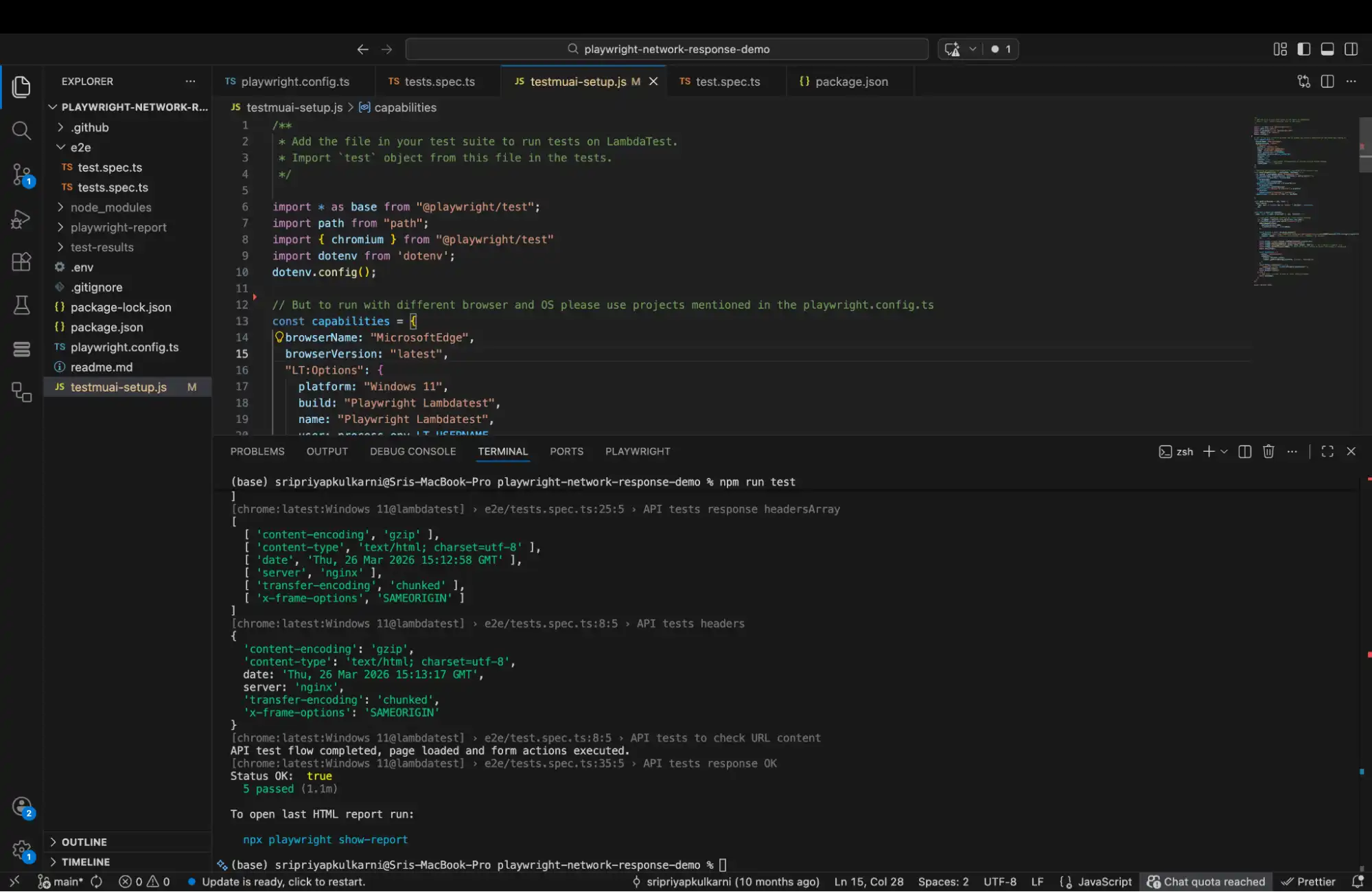
Running Playwright Tests on TestMu AI Cloud Grid
For scalable Playwright testing across different browsers and operating systems, these tests can also be executed on cloud platforms such as TestMu AI (formerly LambdaTest). The platform enables teams to run Playwright tests on real browsers and real devices with built-in support for AI-driven test execution, debugging, and analysis, making network response validation more reliable across distributed CI/CD environments.
To execute the same Playwright waitForResponse() scenarios on the TestMu AI cloud infrastructure, you only need a few additional configurations in your existing Playwright automation framework. This enables scalable Playwright automation across real browsers, operating systems, and parallel environments without requiring any changes to the core test logic itself.
- Configure Environment Variables: Store your TestMu AI credentials securely outside the test code:
export LT_USERNAME="your_username"
export LT_ACCESS_KEY="your_access_key"- Configure Remote Playwright Capabilities: Instead of creating a separate capabilities.ts file, you can directly extend the existing
playwright.config.tsused for local execution. This keeps both local and cloud execution configurations centralized in a single place. Update the project configuration to include TestMu AI remote execution settings inside theuseblock.
import { defineConfig } from "@playwright/test";
import dotenv from "dotenv";
dotenv.config();

export default defineConfig({
  timeout: 300000,
  expect: { timeout: 60000 },
  testDir: "./tests",
  use: {
    trace: "on-first-retry",
    // TestMu AI Remote Connection
    connectOptions: {
      wsEndpoint: `wss://cdp.lambdatest.com/playwright?capabilities=${encodeURIComponent(
        JSON.stringify({
          browserName: "Chrome",
          browserVersion: "latest",
          "LT:Options": {
            platform: "Windows 11",
            build: "Playwright waitForResponse Build",
            name: "Network Response Validation",
            user: process.env.LT_USERNAME,
            accessKey: process.env.LT_ACCESS_KEY,
          },
        })
      )}`,
    },
  },
  projects: [
    {
      name: "chrome:latest:Windows 11@lambdatest",
      use: {
        viewport: { width: 1280, height: 1080 },
      },
    },
  ],
  reporter: "html",
});
This approach reuses the same Playwright configuration for both local and remote execution while adding cloud browser connectivity through the secure CDP WebSocket endpoint. It also keeps the Playwright testing setup cleaner by avoiding additional fixture or capability management files.
Run the tests using the configured Playwright project:
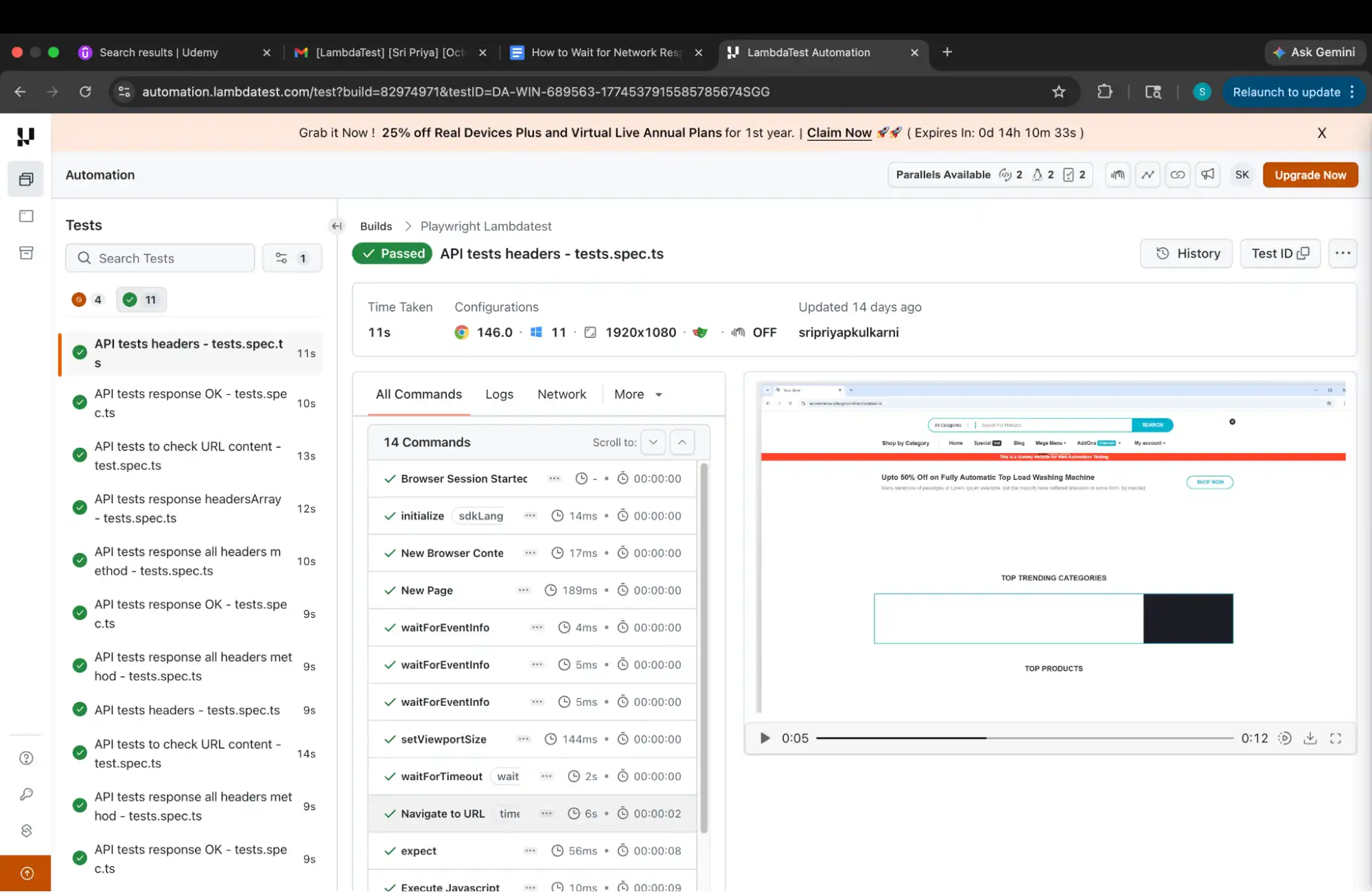
npx playwright testThe TestMu AI Dashboard below provides comprehensive insights into test execution, including step-by-step results, video recordings, execution logs, and detailed environment information such as browser, browser version, and operating system.
When validating API responses in a 150+ test regression suite, we noticed that flaky failures were often caused by timing issues where UI actions completed before network responses were fully received.
By implementing Playwright's waitForResponse() method within a reusable fixture-driven approach, we were able to synchronize tests with backend API calls, reduce flaky failures, and achieve more stable execution across local and CI environments.
To get started, refer to the documentation on Playwright testing with TestMu AI.
In addition to scalable cloud execution, TestMu AI also provides Playwright Agents designed to simplify modern Playwright AI automation workflows. These Playwright Agents can assist teams with intelligent test execution analysis, debugging support, failure investigation, and automated quality insights, helping reduce the manual effort involved in maintaining large Playwright automation suites.
The platform also includes specialized Playwright Skills through the TestMu AI agents-skills ecosystem, enabling smarter handling of network validations, flaky test detection, synchronization analysis, and execution diagnostics.
These playwright-skills, when combined with Playwright's waitForResponse() capabilities, these Agent Skills help teams build more reliable and scalable end-to-end automation pipelines across local, cloud, and CI/CD environments.

Best Practices for Using Playwright waitForResponse
Using precise response predicates and validating both the API response and UI state helps make Playwright tests more stable and reliable across different environments.
Proper synchronization with waitForResponse() also reduces flaky behavior and improves consistency during Playwright test runs in local and CI pipelines.
- Always Register the Listener Before the Triggering Action: This is the single rule that prevents the most failures in Playwright network tests. Silent race conditions caused by listening after the click appear as intermittent timeouts in CI logs that are nearly impossible to reproduce locally, making them very expensive to debug. Make it a coding habit to always write the
responsePromiseline first and the triggering action below it. Code reviewers should treat anywaitForResponsethat appears after a click or fill as a defect, because no linter can catch this mistake automatically. - Use Precise Predicates: Matching only on a domain name risks capturing the wrong response. When a page makes ten simultaneous requests to the same origin, a broad predicate may resolve on a CSS file, a font, or an analytics call instead of the API response you intend to validate. Include the URL path, the HTTP method via
resp.request().method(), and the expected status code in every predicate.// Too broad: may match a CSS or image response from the same domain (resp) => resp.url().includes('example.com') && resp.status() === 200 // Precise: path, method, and status all verified together (resp) => resp.url().includes('/api/search') && resp.request().method() === 'GET' && resp.status() === 200 - Always Assert on the Response: Waiting for a response without validating it creates weak test coverage. The test only confirms that the request was made, not that the server returned the correct data. In Playwright end-to-end testing, combining network-level validations with assertions on visible UI elements provides stronger confidence that the complete request-to-render flow executed successfully.
const response = await responsePromise; // Network-layer assertion expect(response.status()).toBe(200); // Body assertion const body = await response.json(); expect(body).toHaveProperty('items'); expect(body.items.length).toBeGreaterThan(0); // UI-layer assertion: confirm the page reflected the data await expect(page.locator('.product-grid')).toBeVisible(); - Set Explicit Timeouts: The default timeout for
waitForResponseis inherited from yourplaywright.config.ts. For slow APIs or unstable CI environments, setting an explicit timeout on the method itself produces a clear, actionable failure message when the response does not arrive in time. See Playwright timeouts for a full breakdown of how global, test-level, and action-level timeouts interact and override each other.const response = await page.waitForResponse( (resp) => resp.url().includes('/api/data'), { timeout: 30_000 } // explicit 30-second ceiling for this call only ); - Encapsulate Network Waits in the Page Object Model: In large test suites, scattering
waitForResponsecalls throughout individual spec files makes them difficult to maintain. When a URL changes, you need to find and update every file that references it. Encapsulating network waits inside methods on your page objects solves this problem cleanly. The Playwright Page Object Model covers this pattern in depth and shows how to apply it to suites with complex network dependencies.// pages/SearchPage.ts export class SearchPage { constructor(private page: Page) {} async searchAndWaitForResults(term: string) { // Listener registered before the action - always the correct order const responsePromise = this.page.waitForResponse( (resp) => resp.url().includes('/api/search') && resp.status() === 200 ); await this.page.locator('[data-testid="search-input"]').fill(term); return responsePromise; } } - Call
response.dispose()for Large Responses: If your test reads the body of a large API response but does not need to retain it beyond that point, callresponse.dispose()immediately after extraction. Playwright holds response bodies in memory until the browser context closes, so this matters most in suites with many large intercepts running back to back in the same context.As a practical rule, if the response body is larger than a few kilobytes and you only need one or two fields from it, parse what you need and dispose immediately to keep memory usage flat across the suite.
These synchronization and validation techniques form the foundation for more reliable modern Playwright workflows, including emerging approaches such as AI-assisted and vibe testing with Playwright.
Troubleshooting Common Issues
When working with waitForResponse(), most failures are caused by incorrect predicates, timing issues, or unexpected API responses. Understanding how Playwright handles network synchronization helps diagnose flaky behavior faster and keeps Playwright tests stable across local and CI environments.
- Test Times Out Waiting for the Response: A timeout almost always means the predicate never matched any response. Before increasing the timeout value, verify that the request is actually happening and that your predicate describes it accurately, because a higher timeout on a broken predicate just means a longer wait before the same failure. Work through these steps in order to narrow down the cause quickly:
- Open the Playwright Trace Viewer (
npx playwright show-trace trace.zip) and inspect the Network panel to see which requests fired and what their exact URLs and status codes were. - Compare the observed URLs against your predicate character by character. A single extra slash, query parameter, or case difference is enough to prevent a match.
- Confirm the triggering action is actually executing. Add a
console.logbefore and after the click or fill call to verify the code path is being reached. - Check that you are registering the listener before the triggering action, not after it. This is by far the most common cause of unexpected timeouts.
- Open the Playwright Trace Viewer (
- Intermittent (Flaky) Failures: Intermittent timeouts, where the test sometimes passes and sometimes fails, are almost always caused by registering the response listener after the triggering action. The test succeeds when the response is slow enough that the listener gets registered in time, and fails when the server responds quickly.
Restructure the code so the
responsePromiseis created before the action. Also, check for anypage.waitForTimeout()calls in the same test block, as these introduce artificial timing dependencies that interact unpredictably with real network latency under different CI environments. - Wrong Response Being Captured: If your assertions are failing even though the test is not timing out, the predicate is probably matching an unintended response. Log
resp.url()andresp.status()inside the predicate temporarily to see exactly which responses Playwright is evaluating against your conditions.Tighten the predicate by adding the HTTP method via
resp.request().method(), a more specific URL path, or a distinctive query parameter that only appears on the target request and not on other concurrent calls. - JSON Parse Error from response.json(): A JSON parse error means the server returned a body that is not valid JSON. This happens most often when an error page returns HTML, when the server sends an empty body with a 204 status, or when a proxy intercepts the request and returns its own response in a different format. Use
response.text()first to inspect the raw body before callingresponse.json().const raw = await response.text(); console.log('Raw body:', raw); // inspect the actual content first const body = JSON.parse(raw); // then parse once you have confirmed it is JSON
Conclusion
Playwright's waitForResponse() provides a reliable and deterministic way to synchronize tests with backend network activity. Instead of depending on fixed delays or unstable UI waits, it allows tests to wait for specific API responses based on conditions such as URL, status code, headers, or response body. This results in faster, more stable, and less flaky test execution.
By combining waitForResponse() with precise response predicates, Playwright Assertions, and API validations, teams can confidently verify both the network layer and the resulting UI behavior. It is especially useful in modern applications where data loading depends heavily on asynchronous API calls.
Following best practices such as registering the listener before triggering the action, validating both API and UI outcomes, and properly managing response objects with dispose() in long-running suites helps improve test reliability and maintainability across local and CI environments.
Author

Sri Priya
Blogs: 6


Sri Priya P Kulkarni is an ISTQB Foundation Level certified software development engineer in test (SDET) at American Express in Bengaluru. Her primary focus is software quality and making sure that software is bug free, with a strong background in testing tools, API testing, Linux OS, and UI and backend automation testing using Selenium, Playwright, and Java. As a contributor to TestMu AI (formerly LambdaTest), she shares her knowledge and writes about the latest technology stacks.


Frequently asked questions
Did you find this page helpful?
More Related Blogs
TestMu AI forEnterprise
Get access to solutions built on Enterprise
grade security, privacy, & compliance
- Advanced access controls
- Advanced data retention rules
- Advanced Local Testing
- Premium Support options
- Early access to beta features
- Private Slack Channel
- Unlimited Manual Accessibility DevTools Tests