
Power Your Software Testing with AI Agents and Cloud
The Native AI-Agentic Cloud Platform to Supercharge Quality Engineering. Test Intelligently and Ship Faster.


- TestMu AI (Formerly LambdaTest)
- /
- Learning Hub
- /
- Playwright Testing Tutorial: Setup, First Test & CI (2026)
Playwright Testing: How It Works and How to Get Started
Playwright is Microsoft's open-source browser automation framework with 95,000+ GitHub stars. Install it, run your first test, and learn Playwright online free.
Last Updated on:
Playwright testing means writing automated tests with Playwright, Microsoft's open-source framework that drives Chromium, Firefox, and WebKit browsers through one API. A test opens a real browser, performs user actions such as navigation, clicks, and form entry, and asserts the results, with auto-waiting that cuts flaky timing failures. Tests are written in JavaScript, TypeScript, Python, Java, or .NET.
What Is Playwright?
Playwright is a browser automation framework that enables programmatic control of real web browsers to simulate user interactions such as navigation, clicks, form submissions, and UI validation. It is designed to help developers and QA teams verify that web applications behave correctly from an end-user perspective across different browsers and operating systems.
Playwright drives each browser over one persistent connection and waits for an element to be ready before it acts on it. That is why its tests can interact reliably with dynamic pages, even while content is loading or changing.
Playwright supports both headless and headed execution modes. Headless mode runs browsers without a visible UI and is commonly used in CI/CD pipelines for faster, resource-efficient test execution, while headed mode runs tests with a visible browser window, making it useful for debugging and local test development.
Beyond end-to-end testing, Playwright is also used for regression testing, UI validation, and automating workflows that require consistent, repeatable browser behavior.

Note: Run Playwright tests at scale across 3,000+ browser and OS combinations. Try TestMu AI Now!
How Playwright Testing Works
Classic WebDriver sends each command as a separate HTTP request and waits for the response. Playwright keeps one live connection per browser and sends commands over it, which removes a round trip from every action. Three parts of the design matter most in practice.
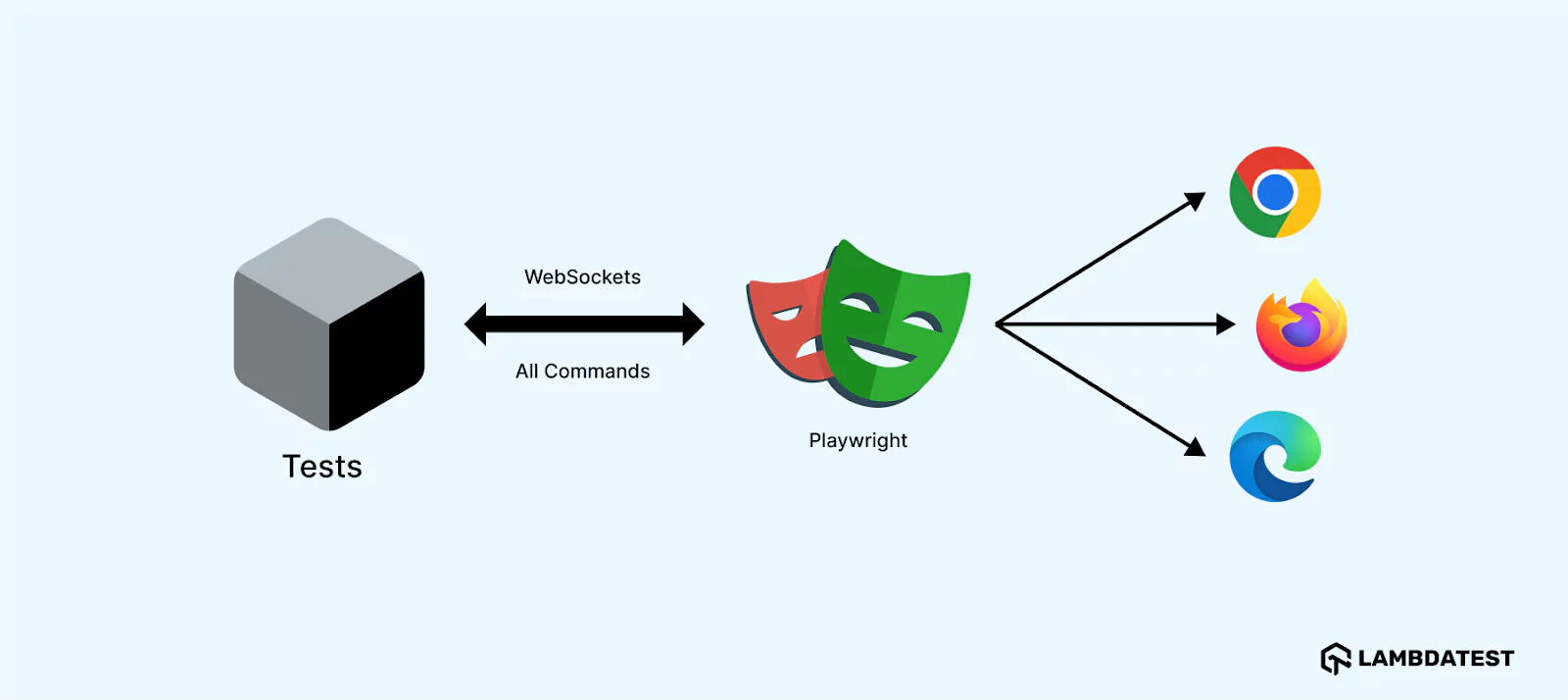
- Persistent Connection - Playwright opens one connection to each browser at the start of a session and keeps it open for the entire run. It is a pipe when Playwright launches the browser on your machine and a WebSocket when it connects to a remote one. Commands and events share that channel, so no action pays for a new HTTP request.
- Lightweight Browser Contexts - Each test runs in an isolated browser context with its own cookies, storage, and cache. Creating a context is far cheaper than launching a browser, so every test gets a clean one without a relaunch. Parallelism comes from worker processes: Playwright Test starts several workers, each with its own browser, and no state crosses between tests.
- Built-in Network Awareness - The same persistent connection that carries commands also surfaces network-level events. You can intercept API calls, mock responses, and pause until a specific request completes without bolting on an external proxy.
Let Claude Code write Playwright tests that actually pass.

Key Playwright Testing Capabilities
Each of these capabilities has a dedicated guide:
- Core automation building blocks - Provides the fundamental constructs for interacting with web pages and structuring automation logic using Playwright functions and selectors.
- Element targeting strategy - Enables resilient identification of web elements through Playwright locators using chainable, filterable, and strict-mode selection techniques.
- Test validation approach - Implements Playwright assertions with web-first, auto-retrying checks to ensure stable validation in dynamic applications.
- Backend integration testing - Supports Playwright API testing to validate backend endpoints and combine API and UI workflows in a single test flow.
- Test architecture pattern - Uses Playwright Page Object Model to organize interactions into reusable classes for improved maintainability.
- Execution mode configuration - Enables Playwright headless testing for fast, non-UI execution in CI/CD environments.
- Network synchronization handling - Provides Playwright waitForResponse capability to wait for specific API responses instead of relying on static timeouts.
Playwright vs Selenium vs Cypress: Which Should You Use in 2026?
Choosing the right automation testing framework depends on the languages your team uses, the browsers you need to cover, and the type of application under test.
| Criteria | Playwright | Selenium | Cypress |
|---|---|---|---|
| Browser support | Chromium, Firefox, WebKit (Safari) | Chrome, Firefox, Safari, Edge | Chrome, Firefox, Edge (limited WebKit) |
| Language support | JS, TS, Python, Java, .NET | Java, Python, JS, C#, Ruby, Kotlin | JavaScript, TypeScript only |
| Architecture | Single persistent connection per browser | HTTP request per command (WebDriver) | Runs inside the browser (in-process) |
| Auto-waiting | Built-in, no manual waits needed | Implicit/explicit waits required | Built-in for Cypress commands |
| Multi-tab / multi-window | Native support | Supported with driver switching | Limited, not natively supported |
| Parallel execution | Native, via worker processes | Via Selenium Grid or third-party tools | Via Cypress Cloud (paid) or workers |
| API testing | Built-in request context | Not built-in | Built-in cy.request() |
| Best for | Modern web apps, CI/CD, cross-browser | Legacy systems, large existing suites | Frontend-focused, simpler setups |
| Setup complexity | Low: one command scaffolds everything | High: requires WebDriver, browser drivers | Low for basic setup |
- Choose Playwright - Best suited for Playwright testing automation projects that require cross-browser coverage, multiple language support, and a modern CI/CD-friendly testing framework.
- Choose Selenium - Ideal for Selenium testing in large existing test suites, enterprise systems, or strict Java-based automation environments where legacy infrastructure is already in place.
- Choose Cypress - Recommended for Cypress testing in frontend-focused automation projects running primarily in Chromium-based environments with a simpler setup and developer-centric workflow.
For a deeper breakdown, see the full Playwright vs Selenium vs Cypress comparison.
How to Install Playwright Using Command Line?
Installation takes one command; the full walkthrough is in how to install Playwright. The CLI scaffolds a complete project with a config file, sample tests, GitHub Actions workflow, and browser binaries, with no separate browser driver to install. Every command and flag the CLI supports is listed in the reference of Playwright CLI commands.
The config file it creates is also where you define Playwright projects, one for each browser or environment the suite should run against.
- Create a project directory - Create a folder to organize your automation files.
- Initialize a Node.js Project - Run the command below to generate a package.json file.
npm init -y- Install Playwright - Run the command below to install Playwright and its browser binaries (Chromium, Firefox, and WebKit).
npm init playwright@latestMake sure a supported Node.js release is installed: Playwright requires the latest Node.js 22.x, 24.x or 26.x release. If not, download and install it from the official Node.js website. Playwright downloads its own browser binaries during installation, so you do not need Chrome, Firefox, or Safari installed separately.
How to Install Playwright Using Visual Studio Code?
The official Playwright VS Code extension by Microsoft brings test running, debugging, and code generation directly into your editor. Use this setup if you want to write and debug tests without switching between the terminal and IDE.
- Open VS Code - Launch the Visual Studio Code editor on your system.
- Open the Extensions view - Click the Extensions icon on the sidebar, or press:
Ctrl + Shift + XCtrl + Shift + P (or Cmd + Shift + P on macOS)Then run the command:
Install PlaywrightOnce set up, the VS Code extension lets you run and debug individual tests with a single click, generate tests using the Playwright recorder (Codegen, recording-based test generation), pick locators by hovering over elements, and view Trace Viewer output directly in the sidebar.
How Do You Run Your First Playwright Test?
You run a test by passing your test file to the Playwright test runner. Playwright tests run in a real browser, so navigation, interactions and assertions happen against the page a user would see.
To run your first Playwright test, follow the test scenario below. The example uses the TestMu AI eCommerce Playground and covers navigation, a locator and an assertion.
Test Scenario:
- Open the eCommerce Playground homepage.
- Locate the "Shop by Category" button by its role and accessible name.
- Assert that the button's aria-expanded attribute is "false".
Code Implementation:
import { test, expect } from '@playwright/test';

test('shop by category button has aria-expanded false', async ({ page }) => {
  await page.goto('https://ecommerce-playground.lambdatest.io/');
  await expect(page.getByRole('button', { name: 'Shop by Category' })).toHaveAttribute('aria-expanded', 'false');
});
Code Walkthrough:
- Navigation -
page.goto()navigates to the eCommerce Playground homepage and waits for the page to reach the load state before continuing. - Locator Strategy -
page.getByRole()finds the "Shop by Category" button by its accessible role and name. It is the most resilient locator strategy in Playwright because it mirrors how users and screen readers perceive the element. - Assertion -
expect().toHaveAttribute()verifies the button has an aria-expanded attribute set to "false". Because this is a web-first assertion, Playwright retries it automatically until the condition is met or the timeout expires.
Test Execution:
npx playwright testTo view the HTML execution report:
npx playwright show-report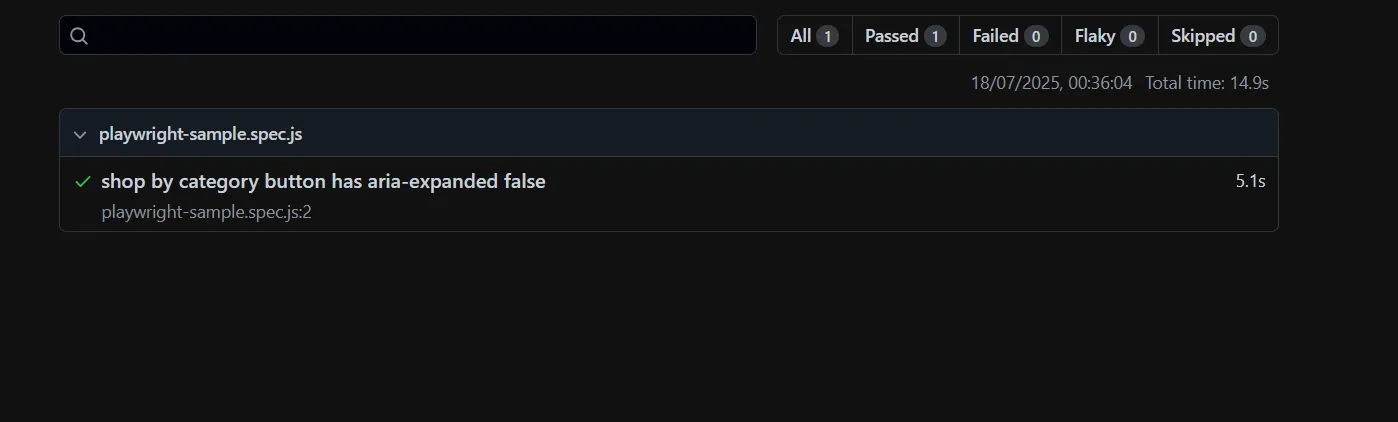
Several Playwright GitHub repositories contain example projects, reusable utilities, and framework integrations that demonstrate different Playwright testing patterns and automation setups.
A local run covers the browsers installed on one machine. Covering more browser and OS combinations, or running more tests in parallel than one machine allows, means maintaining browser infrastructure.
Cloud testing platforms host those browsers for you and run the tests in parallel.
One such platform is TestMu AI, which runs Playwright tests on cloud browsers across 3,000+ browser and OS combinations.
How to Run Playwright Tests in Parallel on TestMu AI Cloud?
TestMu AI is a full-stack AI testing platform, and its Playwright cloud runs your Playwright tests at scale. Your tests run on real browsers across operating systems, and each run comes back with logs, video and network traces.
Tests run in parallel on the cloud, so a suite finishes sooner and you maintain no browser infrastructure of your own.
To run the same Playwright tests on TestMu AI cloud, you need a few extra configuration steps. They connect your local test suite to the cloud via the CDP WebSocket endpoint, so you get real browser coverage without managing browser infrastructure yourself.
Code Implementation:
- Set up the environment variables - Create a
.envfile in your project root. - Add TestMu AI credentials - Add your LT_USERNAME and LT_ACCESS_KEY from TestMu AI > Account Settings > Password & Security.
- Configure Playwright - Update your playwright.config.ts to include cloud connection logic.
Connect via the TestMu AI WebSocket URL:
wsEndpoint: `wss://cdp.lambdatest.com/playwright?capabilities=${encodeURIComponent(JSON.stringify(capabilities))}`Set your credentials as environment variables and define the browser, version, platform, and capabilities:
// TestMu AI capabilities
const capabilities = {
  browserName: "Chrome", // Browsers: 'Chrome', 'MicrosoftEdge', 'pw-chromium', 'pw-firefox', 'pw-webkit'
  browserVersion: "latest",
  "LT:Options": {
    platform: "Windows 11",
    build: "Playwright Demo",
    name: "Playwright Demo",
    user: process.env.LT_USERNAME,
    accessKey: process.env.LT_ACCESS_KEY,
    network: false,
    video: false,
    console: false
  },
};
This script puts the endpoint and the capabilities into one runnable file. Save it as cloud.js, export LT_USERNAME and LT_ACCESS_KEY, and run node cloud.js. On Playwright 1.64 it opened Chrome on Windows 11 in the cloud, loaded the eCommerce Playground and printed the page title in 21 seconds.
// cloud.js
const { chromium } = require('@playwright/test');

const capabilities = {
  browserName: 'Chrome',
  browserVersion: 'latest',
  'LT:Options': {
    platform: 'Windows 11',
    build: 'Playwright Demo',
    name: 'First cloud run',
    user: process.env.LT_USERNAME,
    accessKey: process.env.LT_ACCESS_KEY,
  },
};

(async () => {
  const browser = await chromium.connect({
    wsEndpoint: `wss://cdp.lambdatest.com/playwright?capabilities=${encodeURIComponent(JSON.stringify(capabilities))}`,
  });
  const page = await browser.newPage();
  await page.goto('https://ecommerce-playground.lambdatest.io/');
  console.log(await page.title());
  await browser.close();
})();
Generate required capabilities using the TestMu AI Automation Capabilities Generator. For a full suite, move the connection into a shared fixture file, named lambdatest-setup in the documentation linked below, and import its test in each spec:
import { expect } from '@playwright/test';
import test from "../lambdatest-setup";
Execute the tests:
npx playwright testMonitor your results in real time on the TestMu AI Web Automation Dashboard:
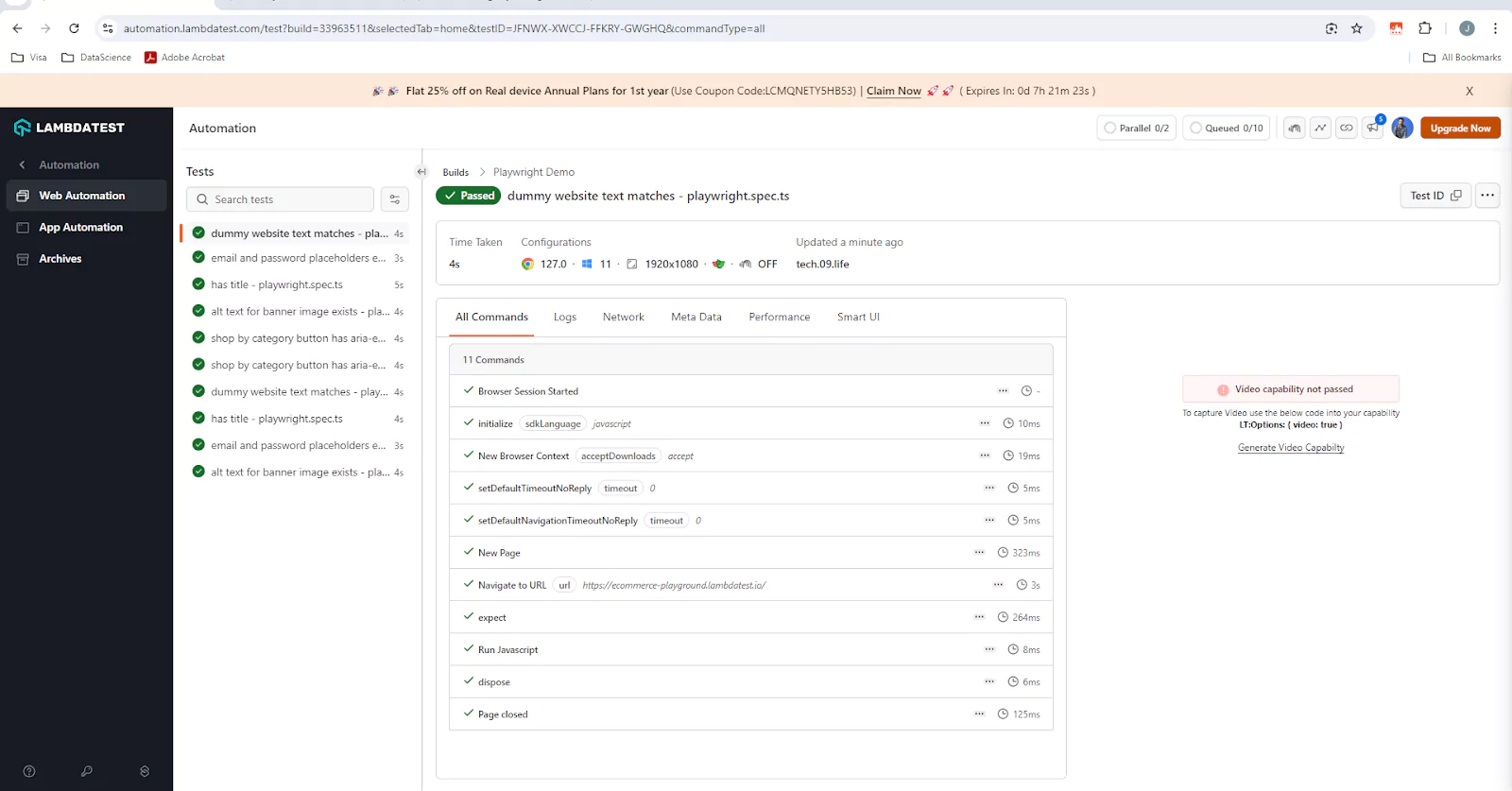
To get started, refer to the documentation on Playwright testing with TestMu AI.
Playwright itself now ships Playwright Agents: a planner, a generator and a healer that explore an application, write tests for it and repair the ones that fail. They run inside an AI coding tool and produce ordinary Playwright test files.
TestMu AI also publishes playwright-skills in its open-source TestMu AI agent-skills repository on GitHub. A skill is a set of instructions an AI coding assistant loads before it writes Playwright tests, covering local runs and runs on the TestMu AI cloud.
The guide to Playwright Skill for AI agents shows how to install one and use it with an AI coding assistant.
How Do Playwright with AI, Agents, and Vibe Testing Work Together?
Once you write and run your first Playwright test and the suite runs at scale on the TestMu AI cloud, the remaining work is writing and maintaining the tests. AI tools now generate Playwright scripts from a natural-language description, so fewer locators are written by hand.
Playwright Agents go a step further. The planner explores the application, the generator writes the tests, and the healer reruns a failing test and patches it when the UI has changed. Vibe Testing with Playwright comes at the same problem from the other side, turning user journeys described in plain language into executable scripts that run in real browsers.
Both produce ordinary Playwright code, so these Playwright futuristic features run on the same engine as a hand-written test. The AI decides what to test. Auto-waiting, web-first assertions and context isolation still decide whether the run can be trusted.
Note: Skip the locator-and-assertion boilerplate. Describe your scenario in plain language and ship Playwright tests with KaneAI. Book a Demo!
Best Practices for Playwright Testing
Apply these practices to keep your Playwright suites reliable across deployments, team changes, and application updates.
- Use Built-In Locators - Prefer
getByRole,getByText, orgetByPlaceholderover CSS or XPath selectors. Role-based locators mirror how users perceive the page and are resilient to DOM changes. - Chain and Filter Locators - Narrow element targets using
.filter()and locator chaining to improve precision and reduce flakiness in list and table scenarios. - Use Web-First Assertions - Assertions like
toBeVisible()auto-wait until conditions are met. Never usewaitForTimeout()as a substitute. - Avoid Fragile Selectors - Do not rely on CSS classes tied to styling or deeply nested DOM positions. Use user-facing attributes like roles, labels, or data-testid attributes.
- Generate Locators with Codegen - Use
npx playwright codegen <url>to automatically pick stable, role-first locators rather than writing them manually from HTML source. - Debug with Inspector or Trace Viewer - Run tests with
--debugor--trace onto inspect element matches, network activity, and DOM snapshots at each step. - Isolate Tests with beforeEach - Use
test.beforeEachto give every test a clean start. Tests that share state fail unpredictably in parallel runs and CI. - Optimize CI Browser Installs - Install only the browsers you need with
npx playwright install chromium --with-depsto reduce CI setup time. - Keep Playwright Updated - Run
npm install -D @playwright/test@latestregularly to stay aligned with the latest browser support and fix known issues. - Use TypeScript and Linting - Use ESLint with
@typescript-eslint/no-floating-promisesto catch missingawaitstatements before they cause flaky tests.

How to Learn and Run Playwright Online
Learning Playwright online is free. The framework is open source, and the chapters, videos and scripts listed here cost nothing to use. Running Playwright online means the browsers start on a CI runner or on cloud machines, so your laptop does not have to download them.
To learn Playwright online, start with these:
- Tutorial Chapters - The Playwright Tutorial Chapters section below groups the written chapters by topic, from installation and locators to CI/CD and Playwright with AI.
- Video Courses - 15 videos across the TypeScript, Java and JavaScript tracks, including a five-hour Playwright Java course.
- Script Examples - These Playwright script examples are 24 scripts that run against public pages, so you can paste one into a spec file and run it.
- Certifications - Playwright 101 and Playwright 102 check what you learned with hands-on tasks.
To run Playwright online, choose where the browsers should live:
- A CI Runner -
npm init playwright@latestoffers to add a GitHub Actions workflow. It installs the browsers on a hosted runner withnpx playwright install --with-deps, runs the suite on every push and pull request to the main branch, and uploads the HTML report as an artifact. - Cloud Browsers - Keep the Playwright package in your project and connect to browsers hosted on TestMu AI. Installing
@playwright/testdownloads no browsers on its own, so the package is all that sits on your machine. The parallel testing section above has the connection code. - The Playwright Testing Tool - The Playwright testing tool page is where to start if you want to run Playwright tests online on TestMu AI across browsers and operating systems.
- A Public Playground - Try Playwright (try.playwright.tech) is an interactive playground with ready-made examples, handy for trying one snippet before you set anything up.
A hosted runner or a cloud browser cannot reach localhost on your machine. Point the tests at a deployed URL, or open a tunnel first.
Learning Resources for Playwright Automation
TestMu AI has Playwright video tutorials in TypeScript, Java and JavaScript, and two certifications.
TestMu AI Playwright Video Tutorials
Complete Playwright TypeScript Tutorial
- Run Playwright Tests on 50+ Browser and OS Combinations
- Step-by-Step Playwright Setup with TypeScript
- How To Use Functions And Selectors
- Playwright Testing Features
- Page Object Model In Playwright
- What Are Playwright Fixtures
- Cross Browser Testing On TestMu AI Cloud
- Running Playwright Tests Using Jenkins
Complete Playwright Java Tutorial
- Playwright Introduction and Installation
- How To Run Your First Playwright Test
- Testing Complex Web Applications With POM
- Learn Playwright Java in 5 Hours
- How to Run Tests on Cloud
Playwright JavaScript Tutorial
TestMu AI Playwright Certifications
TestMu AI offers structured Playwright certifications with hands-on testing components backed by the cloud.
Conclusion
Playwright is a sound default for new web automation in 2026. It gives you one API across Chromium, Firefox, and WebKit, with auto-waiting and web-first assertions that remove most timing-related flakiness. Role-first locators, the Page Object Model, context isolation and trace-based debugging build on that base. When CI runners become the bottleneck, TestMu AI's HyperExecute can split a Playwright suite across parallel virtual machines and merge the reports into one view.
If you are starting today, run npm init playwright@latest, write your first locator-based test against the TestMu AI eCommerce Playground then point the same test at a real-browser cloud by connecting via the TestMu AI CDP WebSocket. From there, layer in Playwright with AI: install a Playwright Skill so your AI assistant generates production-grade test code, or describe scenarios in plain language and let KaneAI turn them into Playwright scripts.
To go deeper, jump into the Playwright testing documentation for cloud setup, or pick up the Playwright 101 certification for a structured, hands-on path.
Playwright Tutorial Chapters
The chapters run in learning order: installation and a first test, the language guides, locators and page interactions, assertions and waits, test structure and debugging, running tests in CI/CD, the main test types, and Playwright with AI. The last two compare Playwright with Selenium and Cypress and list Playwright GitHub repositories.
Getting Started
Languages and Examples
Locators and Interactions
- Playwright Locators
- Playwright Functions and Selectors
- Playwright click() Method
- Handling Inputs and Buttons in Playwright
- Scroll to an Element in Playwright
- Handling Alerts and Dropdowns in Playwright
- Automate Date Pickers With Playwright
- Handling Frames and Windows in Playwright
- Handling iFrames in Playwright
Assertions and Waits
Test Structure and Debugging
Execution and CI/CD
Test Types and Use Cases
AI and Agents
Comparisons and Resources
Author

Jaydeep Karale
Blogs: 6


Jaydeep is a software engineer with 10 years of experience, most recently developing and supporting applications written in Python. He has extensive with shell scripting and is also an AI/ML enthusiast. He is also a tech educator, creating content on Twitter, YouTube, Instagram, and LinkedIn.
Reviewer

Parth Mistry
Reviewer
Parth Mistry is a Member of Technical Staff at TestMu AI, building SmartUI, the visual regression testing product. He developed and owns the SmartUI CLI, a modular TypeScript tool built on Playwright for multi-browser automation, and built the Storybook CLI for visual regression of UI components. He maintains cross-language SDKs in Python, Java, Ruby, C#, and Node.js, and engineered a Node-based visual rendering service on Kafka, Redis, MySQL, and S3. His migration of that service to an event-driven, KEDA-autoscaled architecture improved execution speed by 60% and cut annual infrastructure cost by $9,600. He also built the end-to-end SmartUI integration with KaneAI. Parth is a Google Summer of Code 2024 contributor and an alumnus of IIT Jodhpur.
On This Page
Playwright FAQs
Did you find this page helpful?
More Related Learning Hubs

TestMu AI forEnterprise
Get access to solutions built on Enterprise
grade security, privacy, & compliance
- Advanced access controls
- Advanced data retention rules
- Advanced Local Testing
- Premium Support options
- Early access to beta features
- Private Slack Channel
- Unlimited Manual Accessibility DevTools Tests