
Power Your Software Testing with AI Agents and Cloud
The Native AI-Agentic Cloud Platform to Supercharge Quality Engineering. Test Intelligently and Ship Faster.


- TestMu AI (Formerly LambdaTest)
- /
- Learning Hub
- /
- What Is iOS Testing: A Complete Guide
What Is iOS Testing: A Complete Guide
iOS testing checks an app's behavior, performance, and compatibility across iPhone and iPad. Learn the test types, frameworks, distribution, and CI setup.
Published on:
On This Page
- What Is iOS Testing
- Why iOS Is Hard to Test
- Types of iOS Tests
- How to Test an iOS App
- Manual vs Automated
- Simulator vs Real Device
- iOS Testing Frameworks
- Your First Unit Test
- Async Code and Mocking
- Test Plans and Coverage
- Build Distribution
- Fixing Flaky Tests
- iOS Tests in CI/CD
- iOS Testing Checklist
- Why iOS Testing Matters
OVERVIEW
Every other mobile platform lets you build and ship from whatever machine you own. iOS does not. The compiler, the simulator, the test runner, and the signing tools all live inside Xcode, Xcode runs only on macOS, and a build will not launch on a phone until Apple's signing chain has approved it. That single constraint shapes every practical decision in iOS testing: where your tests run, how a build reaches a tester, how much of your pipeline needs Apple hardware, and which problems you can only catch on a real iPhone.
What Is iOS Testing?
iOS testing is the practice of verifying that an app behaves correctly on iPhone and iPad hardware, across the iOS versions and device models your users actually run. In practice it is several activities under one name: unit tests that check logic in isolation, UI tests that drive the app the way a person would, integration tests that exercise the seams between components, and release validation that runs the signed build on physical devices before it reaches the App Store.
The test-writing is familiar to anyone coming from web or Android; the environment around it is stricter. On Android you can sideload a debug build onto almost any handset in seconds. On iOS the same step requires a developer account, a provisioning profile, and a signature, and the toolchain that produces all three runs on exactly one operating system.
Testing also decides whether a build gets through review at all. According to Apple's App Review page, over 40% of unresolved issues relate to guideline 2.1, App Completeness, which covers crashes, placeholder content, and incomplete information. Those are defects a basic release pass on a real device catches.
Correctness, Compatibility, Performance, and Accessibility
- Correctness - the logic produces the right result for ordinary and edge-case input.
- Compatibility - the app behaves the same on the oldest iOS version you support as on the newest.
- Interface behaviour - navigation, gestures, and state survive rotation, backgrounding, and interruption.
- Performance - launch time, scrolling, memory, and battery stay within budget on real silicon.
- Accessibility - the app is usable with VoiceOver, Dynamic Type, and the other assistive settings people rely on.
What Makes iOS a Challenging System to Test?
iOS is often described as the easy platform because the device catalog is smaller than Android's. The device count is smaller. The constraints are tighter, and they are the part that costs teams time.
The toolchain only runs on macOS
Xcode is macOS-only, and it owns the compiler, the simulator, the test runner, and the signing tools. There is no supported way to produce a signed iOS build on Linux or Windows. This turns a question that is trivial elsewhere, "where do the tests run?", into a procurement decision: Macs for every engineer, a shared build machine, a hosted macOS runner, or some combination.
Code signing gates everything
A build will not launch on a physical device until it carries a valid signature and a provisioning profile that names that device or distribution channel. Certificates expire, profiles go stale, and a CI machine that cannot see the signing identity fails with an error that looks like a test failure. When an iOS pipeline goes red without a code change, check the certificate and profile before you check the tests.
Hardware behaviour cannot be faked
The simulator runs your app on your Mac's processor against macOS frameworks. It does not reproduce the device chipset, thermal throttling, battery drain, the cellular radio, the camera, or the real biometric sensors. Anything that depends on those is unverified until it runs on hardware.
Older iOS versions still carry real users
iOS adoption moves fast, but not to 100%. Apple's App Store usage figures, measured on June 7, 2026, show 79% of all iPhones on iOS 26, 14% on iOS 18, and 7% on earlier versions, and older iPhones stop receiving the newest version entirely. Supporting two or three versions back is normal, and the differences between them are real. If you need the long view on how far back to test, our note on iOS version fragmentation covers how to size that matrix.

What Types of Tests Should You Run on an iOS App?
Most iOS teams end up with the same shape: a wide base of fast unit tests, a thinner layer of integration tests, and a small set of end-to-end UI tests covering the flows that must never break. The ratio matters because UI tests are the slowest and the most fragile, so a suite that inverts the shape spends most of its runtime on its least reliable tests.
Unit tests
A unit test exercises one type or function with its dependencies replaced. It runs in milliseconds, needs no device, and tells you exactly which piece of logic broke. View models, formatters, parsers, and business rules belong here. A test that needs the network or the file system is an integration test, and belongs in the next layer.
Integration tests
These check that components work together: a repository against a real local store, a networking layer against a stub server, a view model against the service it calls. They catch the mistakes unit tests cannot see, such as a mismatched JSON key or a migration that drops a field.
UI and end-to-end tests
UI tests launch the app and drive it through the accessibility tree, tapping and typing the way a person would. They are the only tests that prove a flow works from the outside, and they are also the slowest and most timing-sensitive. Keep them for the journeys that carry revenue or risk: sign-in, checkout, onboarding.
Performance tests
XCTest can measure a block of work and fail when it regresses against a recorded baseline. This only means something on real hardware, because a Mac's CPU will absorb a regression that an older iPhone will not.
Accessibility tests
Checking that every control has a label, that focus order is sensible, and that the app survives the largest Dynamic Type setting. These overlap with UI testing because both read the accessibility tree, which is a useful side effect: an app that is properly labelled for assistive technology is also far easier to automate. Our walkthrough of iOS VoiceOver testing covers the manual side.
How Do You Test an iOS App, Start to Finish?
The sequence below is the path a build takes from a developer's machine to a verified release.
- Add a test target. A unit test target for logic, a UI test target for flows. Xcode creates both from the template.
- Decide the support matrix. Pick the oldest iOS version and the oldest device you will support, and write them down. Every later decision refers back to this.
- Write unit tests alongside the code. Cover the logic first, where failures are cheapest to diagnose.
- Add accessibility identifiers as you build UI. Doing this while the view is fresh costs minutes; retrofitting it across a shipped app costs days.
- Write UI tests for the critical journeys only. Resist covering every screen.
- Group the tests into test plans. A fast plan for pull requests, a fuller one for nightly runs.
- Run the fast plan on a simulator in CI. Simulators are cheap and parallelise well, which is what you want on every commit.
- Run the full plan on real devices before release. This is where hardware-dependent defects surface.
- Distribute a signed build to testers. TestFlight for a wide beta, ad hoc for a small internal lab.
- Read the artifacts, not just the exit code. Screenshots, device logs, and crash reports are what turn a red build into a fix.
When Should You Test iOS Manually and When Should You Automate?
Automate the checks you already know how to state, and test by hand to find the ones you do not yet know to write.
| Situation | Manual | Automated |
|---|---|---|
| A regression suite run on every commit | Too slow to repeat | The core use case |
| A brand-new feature nobody has used yet | Finds what a script cannot predict | Premature, the design will move |
| Gesture feel, animation smoothness | Requires human judgement | Hard to assert meaningfully |
| A matrix of 12 device and OS combinations | Impractical by hand | Runs in parallel |
| Reproducing a user-reported crash | Exploratory, on the real device | Only once you know the steps |
| Accessibility with VoiceOver | Needed to judge the experience | Catches missing labels only |
A reasonable rule: automate a test the second time you find yourself running it by hand for the same reason. When the suite grows past what one machine can run quickly, iOS automation testing across parallel devices is what keeps the feedback loop short.
What Can an iOS Simulator Not Do That a Real iPhone Can?
A simulator is not an emulator. It does not reproduce iPhone hardware; it runs your app against macOS frameworks on your Mac's own processor. That makes it fast and makes a specific set of behaviours untestable.
| Capability | iOS Simulator | Real iPhone or iPad |
|---|---|---|
| Processor | Your Mac's CPU | The actual Apple silicon in the device |
| Performance and thermal behaviour | Not representative | Real throttling under sustained load |
| Battery drain | Not measurable | Measurable |
| Cellular radio and carrier behaviour | Absent | Real radio stack |
| Camera | No real capture | Real sensor input |
| Face ID and Touch ID | Simulated enrolment only | The real authentication path |
| Push notifications | Limited, via a payload file | End to end through APNs |
| Speed of a single run | Fastest option | Slower, but authoritative |
The practical split is to iterate on a simulator and validate on hardware. Keeping a physical device for every model you support is rarely realistic, which is why most teams rent them. TestMu AI is an AI-native test orchestration and execution platform whose real device cloud runs iOS app testing on real iPhones and iPads, from iPhone 7 to iPhone 18 Pro on iOS 14 to 27, with builds re-signed automatically so you do not have to register a UDID for every device. For quick layout checks without a local Xcode install, an iOS simulator online covers the fast end of the loop.
Which Frameworks Should You Use for iOS Testing?
Three names cover almost every iOS test suite, and they divide cleanly by job.
- Swift Testing - the Swift-native framework for unit tests, built on macros such as
@Testand#expect. It is the clearer choice for new unit tests in Swift. - XCTest - Apple's long-standing framework, documented at developer.apple.com. It still hosts UI tests and performance tests, and it remains the right home for an existing Objective-C or mixed codebase.
- XCUITest - the UI automation layer that drives the app through the accessibility tree. Its API now ships as the separate XCUIAutomation framework. Our XCUITest tutorial goes deeper than this section can.
Outside Apple's own stack, Appium testing tutorial is the usual answer when one suite has to cover both iOS and Android, since it speaks WebDriver to both platforms. For a wider survey of what is available, including the AI-assisted tools that have appeared in the last two years, see our roundup of iOS testing tools. Our note on the Swift Testing framework covers the newer macro syntax in detail.
Run iOS + Android tests written by your AI agent.

How Do You Write and Run Your First iOS Unit Test?
Take a small piece of logic worth protecting. A discount calculator is a good first subject because the edge cases are obvious and the behaviour is easy to state.
struct Cart {
    var subtotal: Decimal
    var isMember: Bool

    func total(discountCode: String?) -> Decimal {
        var amount = subtotal
        if isMember { amount -= subtotal * 0.10 }
        if discountCode == "SAVE5" { amount -= 5 }
        return max(amount, 0)
    }
}
Written with Swift Testing, the test reads as a plain statement of what should be true:
import Testing
@testable import ShopApp

@Test("Member discount applies before the code")
func memberDiscountApplies() {
    let cart = Cart(subtotal: 100, isMember: true)
    #expect(cart.total(discountCode: nil) == 90)
}

@Test("Total never drops below zero")
func totalNeverNegative() {
    let cart = Cart(subtotal: 3, isMember: false)
    #expect(cart.total(discountCode: "SAVE5") == 0)
}
The same checks in XCTest, which is what you will see in most existing projects:
import XCTest
@testable import ShopApp

final class CartTests: XCTestCase {

    func testMemberDiscountApplies() {
        let cart = Cart(subtotal: 100, isMember: true)
        XCTAssertEqual(cart.total(discountCode: nil), 90)
    }

    func testTotalNeverNegative() {
        let cart = Cart(subtotal: 3, isMember: false)
        XCTAssertEqual(cart.total(discountCode: "SAVE5"), 0)
    }
}
Run them from Xcode with Command-U, or from the terminal, which is the form your CI will use:
xcodebuild test \
  -scheme ShopApp \
  -destination 'platform=iOS Simulator,name=iPhone 16,OS=latest' \
  -resultBundlePath ./TestResults.xcresult
The -resultBundlePath flag matters more than it looks. Without it a CI failure gives you an exit code; with it you get a bundle containing per-test logs, failure messages, and attached screenshots.
How Do You Test Asynchronous Code and Mock Dependencies?
This is the step where most first test suites start to hurt, and it is the part the beginner guides on this topic tend to skip. A test that calls the network is slow, fails when the network does, and proves nothing about your code.
Testing async/await
Mark the test async and await the call. No expectation, no timeout, no sleep.
@Test("Profile loads from the service")
func profileLoads() async throws {
    let service = StubProfileService(result: .success(Profile(name: "Ada")))
    let viewModel = ProfileViewModel(service: service)

    try await viewModel.load()

    #expect(viewModel.name == "Ada")
}
Testing callback-based APIs
Older APIs hand you a closure instead. XCTest expectations exist for exactly this, and the timeout should be generous enough to survive a loaded CI machine.
func testLegacyFetchCallsBack() {
    let expectation = expectation(description: "fetch completes")
    var received: Profile?

    legacyClient.fetchProfile { profile in
        received = profile
        expectation.fulfill()
    }

    wait(for: [expectation], timeout: 5.0)
    XCTAssertEqual(received?.name, "Ada")
}
Replacing the dependency
Swift has no runtime mocking library in the way some languages do, and it does not need one. Define the dependency as a protocol, inject it, and provide a test implementation that returns whatever the case under test requires.
protocol ProfileService {
    func fetch() async throws -> Profile
}

struct StubProfileService: ProfileService {
    let result: Result<Profile, Error>

    func fetch() async throws -> Profile {
        try result.get()
    }
}
The same stub covers the failure path by holding a .failure case, which is how you test error handling without taking the network offline. Avoid solving async timing with Thread.sleep: it encodes the timing of the machine you wrote it on, and CI runners are slower and busier than laptops.
How Do You Organize iOS Tests Into Test Plans and Measure Coverage?
Once a suite outgrows "run everything", a test plan is how you keep control of it. A plan is a configuration file attached to a scheme that records which tests run, with which settings, in which environments, so one scheme can carry several run profiles without duplicating targets.
A plan can hold multiple configurations, and each one can change the environment the tests run in. The usual uses are a different app language or region for localization runs, a simulated location, and code coverage switched on for the run where you want the report.
PR, Nightly, and Release Plans
- PR plan - unit tests plus a handful of smoke UI tests, on one simulator. Minutes, not tens of minutes.
- Nightly plan - the full UI suite across the device matrix, with coverage enabled.
- Release plan - the nightly set on real hardware, plus performance tests against their baselines.
Enable coverage per plan rather than globally, because gathering it slows a run and you rarely need it on every commit:
xcodebuild test \
  -scheme ShopApp \
  -testPlan Nightly \
  -destination 'platform=iOS Simulator,name=iPhone 16,OS=latest' \
  -enableCodeCoverage YES \
  -resultBundlePath ./Nightly.xcresult
Use the coverage report to find the paths nothing exercises. A suite at 80 percent that misses the payment path is worse than one at 50 percent that covers it completely.
How Do You Distribute an iOS Test Build to Testers?
Getting a build onto someone else's iPhone is the step that surprises teams arriving from Android. There is no equivalent of emailing an APK. Every install path runs through Apple's signing chain, and the one you pick sets the limits you will live with.
TestFlight
The standard route for a beta. Apple's published limits are up to 100 internal testers who hold a role on your App Store Connect team, up to 10,000 external testers, 30 devices per tester, and 100 builds, according to Apple's TestFlight page. A build becomes unavailable to testers 90 days after upload, as App Store Connect's own TestFlight overview states. External builds go through a review step; internal ones do not, which is why internal testing is the faster loop.
Ad hoc distribution
Installs straight onto devices whose UDIDs you have registered, with no review. Good for a small internal device lab. The constraint, per Apple's devices overview, is 100 registered devices per product family per membership year, and removing a device does not hand its slot back until the membership renews, so burning it on short-lived test devices is a mistake teams make once.
Running on a cloud device instead
A device cloud sidesteps the UDID ledger entirely: builds are re-signed for the device the session allocates, so no provisioning profile has to name it in advance. That is the practical reason teams use one for the device matrix and keep their 100-device allowance for the handsets people carry. The setup is covered in the docs for app testing on real devices, and our walkthrough on how to test apps on iPhones covers the manual flow.

Note: Skip the UDID ledger: TestMu AI re-signs your .ipa by default, so it installs on any iPhone or iPad in a pool of 10,000+ real Android and iOS devices without a provisioning profile that names the device. Start testing on real iPhones free
Why Do iOS Tests Become Flaky, and How Do You Stabilize Them?
A flaky test passes and fails on the same code. On iOS the cause is almost always timing, and almost never the logic the test is checking. Once a team learns that a red build might mean nothing, it stops treating the suite as evidence.
Common Causes of iOS Test Flakiness
- Querying before the hierarchy settles - the element exists in code but has not been laid out yet.
- Animations still running - a tap lands on a view that is mid-transition and misses.
- Fixed sleeps - a delay tuned on a laptop fails on a loaded CI runner.
- Locating by visible label - the test breaks when copy changes, or when the device language is not English.
- State left behind - a previous test leaves a logged-in session or cached file that changes the next test's starting point.
- Real network calls - latency varies, and so does the result.
How to Stabilize a Flaky iOS Test
Wait for the state you expect rather than for a duration, and give every control a stable accessibility identifier so queries do not depend on visible text.
// Fragile: a guess about timing, and a label that changes with copy
sleep(3)
app.buttons["Continue to checkout"].tap()

// Stable: wait for the condition, query by identifier
let checkout = app.buttons["checkout_button"]
XCTAssertTrue(checkout.waitForExistence(timeout: 10))
checkout.tap()
Load-Time Variance on Real iPhones
I checked how much a single wait varies on real hardware with the mobile web version of the same race. On the TestMu AI real device cloud I opened the Selenium Playground Dynamic Data Loading demo in Safari, tapped Get Random User, and read the result container twice: once straight after the tap, and once with a wait for the loaded state. I ran it three times in one build on 2026-10-18.
| Run | Device | Read right after the tap | Wait-for-state check passed at |
|---|---|---|---|
| 1 | iPhone 16, iOS 18.0 | Empty, read at 164 ms | 4,662 ms |
| 2 | iPhone 16, iOS 18.0 | Empty, read at 127 ms | 1,564 ms |
| 3 | iPhone 15, iOS 17 | Empty, read at 178 ms | 2,123 ms |
The same tap took three times longer in run 1 than in run 2. A fixed two-second sleep would have failed run 1 and wasted 436 ms on run 2; the wait-for-state check passed all three because it waited exactly as long as each run needed. Console output from run 1:
CAP deviceName "iPhone 16"
CAP platformVersion "18.0"
UA Mozilla/5.0 (iPhone; CPU iPhone OS 18_0 like Mac OS X) AppleWebKit/605.1.15 (KHTML, like Gecko) Version/18.0 Mobile/15E148 Safari/604.1
H1 Dynamic Data Loading
READ IMMEDIATELY AFTER TAP: randomuser images = 0 (164 ms after tap)
WAIT-FOR-STATE: randomuser image present after 4662 ms
LOADED BLOCK TEXT "First Name : StormLast Name : Christensen"
API 200 {"build_id":108916227,"device":"iPhone 16","os":"ios-18.0","status":"passed"}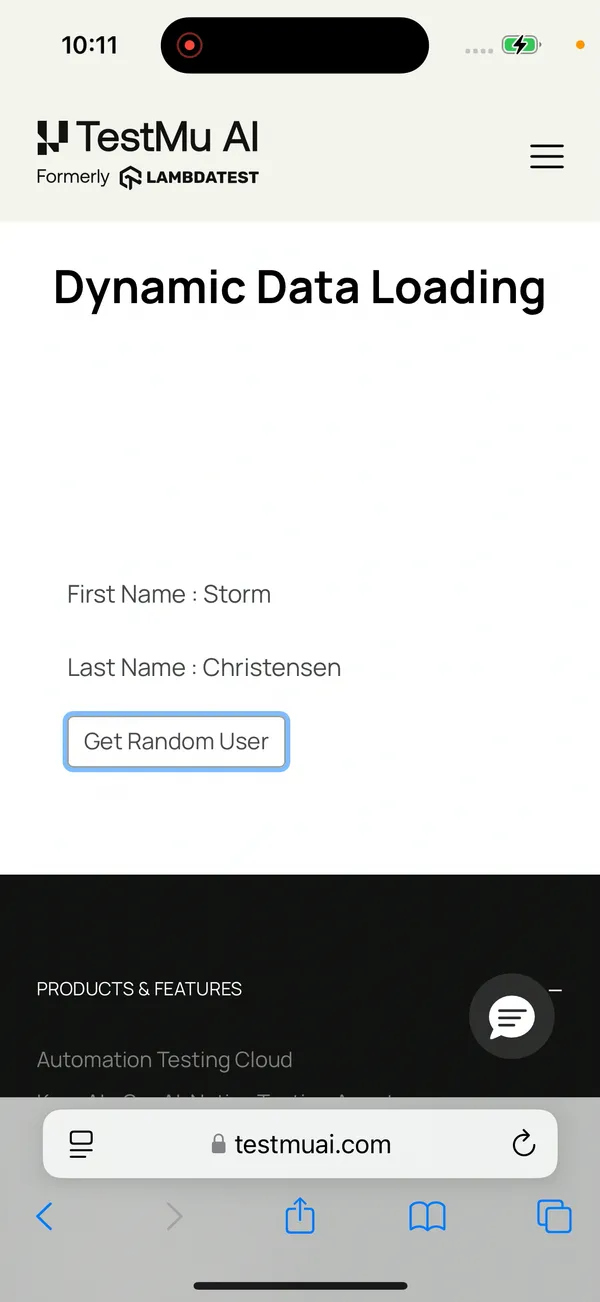
Beyond that: reset app state between tests by launching with a known argument, stub the network so responses are deterministic, and disable animations for UI runs. Track which tests fail intermittently rather than re-running the suite until it is green, because a retry that hides a real race condition is worse than a failure.
How Do You Run iOS Tests in a CI/CD Pipeline?
An iOS pipeline has one requirement no other mobile platform imposes: the runner must be a Mac with Xcode installed. Everything else follows from that.
- Provision a macOS runner. Hosted or self-managed, with the Xcode version your project expects. Pin it, because a silent Xcode upgrade changes behaviour.
- Make signing available to the build. The certificate and provisioning profile have to be installed on the runner, usually from an encrypted secret into a temporary keychain.
- Run the fast plan on every pull request. Simulators, parallel destinations, minutes.
- Run the full plan on real devices on a schedule. Nightly, or before release.
- Publish the result bundle. Archive the
.xcresultso a failure arrives with screenshots and logs attached.
The device matrix is where pipelines get slow. Running one destination at a time turns a twenty-minute suite into hours, so parallel execution across devices is what keeps nightly runs inside the night. Teams that need the real-hardware leg without maintaining a lab point the same xcodebuild invocation at a cloud grid and test on iOS devices remotely. The framework setup is covered in getting started with XCUITest.
What Should Be on Your iOS Testing Checklist?
A pre-release pass, grouped so you can hand it to someone who has not read the rest of this guide.
Functionality
- Critical journeys pass on the oldest supported iOS version, not only the newest.
- The app recovers from being backgrounded mid-flow and from an incoming call.
- Deep links open the right screen from a cold start, not just a warm one.
- Offline and slow-network states show something useful rather than a spinner.
Interface
- Layout holds on the smallest and largest screens you support, and in landscape if you allow it.
- Dark mode is checked on every screen, not just the first.
- The largest Dynamic Type setting does not truncate or overlap text.
- Safe areas are respected around the camera housing and the home indicator.
Device and system
- Permission prompts appear at the right moment and the denial path works.
- Face ID or Touch ID succeeds, fails, and falls back to passcode correctly.
- Push notifications arrive and route correctly from a terminated state.
- Memory and battery stay reasonable during a sustained session on an older device.
Release readiness
- The signed release build, not a debug build, has run on real hardware.
- Crash reporting is live and symbolicating correctly in the build you are shipping.
- Any new permission has a usage description string that explains why.
- The build has been through TestFlight with real testers before it goes to review.
Why Does iOS Testing Matter?
Start with one unit test on the logic you would least like to break, run it with xcodebuild test in your pipeline, and add a real-device leg before your next release.
A defect that slips past that leg is slow to fix after release. Apple's App Review page says review typically completes for 50% of submissions within 24 hours and 90% within 48 hours, so even a one-line crash fix usually waits a day or two before users get it.
For the real-device leg, TestMu AI App Automation runs XCUITest and Appium suites in parallel on real iPhones and iPads, and every run records device logs, network logs, video, screenshots, and crash reports. To wire it into CI, upload your app build through the API from the same job that runs your fast plan.
Author

Sai Krishna
Blogs: 23

Sai Krishna is Director of Engineering at TestMu AI, where he leads agentic AI for quality engineering, building AI agents that autonomously drive mobile and conversational test automation. His current focus is Agent Testing and Model Context Protocol (MCP) support for mobile. He is a core contributor and member of the Appium open-source project and the creator of AppiumTestDistribution and appium-device-farm. With over 14 years of experience including more than 9 years at Thoughtworks as a Principal Consultant, he holds a BSc in Electronics and speaks regularly at TestMu and Appium Conf on Appium, mobile automation, and agentic AI in testing.
Reviewer

Srinivasan Sekar
Reviewer
Srinivasan Sekar is Director of Engineering at TestMu AI, where he leads engineering and open-source initiatives behind the Selenium and Appium automation grid and owns TestMu AI's MCP Server. A committer to Appium and a contributor to Selenium, WebdriverIO, Taiko, and AppiumTestDistribution, he brings over 15 years of experience in quality engineering and open-source technologies. He is the author of the Apress book 'The MCP Standard: A Developer's Guide to Building Universal AI Tools with the Model Context Protocol,' a Certified Kubernetes and Cloud Native Associate, and an international conference speaker. Before TestMu AI he spent over eight years at Thoughtworks as a Principal Consultant and Quality Architect. Srinivasan holds a B.Tech in Information Technology from Anna University.


iOS Testing FAQs
Did you find this page helpful?
More Related Learning Hubs

TestMu AI forEnterprise
Get access to solutions built on Enterprise
grade security, privacy, & compliance
- Advanced access controls
- Advanced data retention rules
- Advanced Local Testing
- Premium Support options
- Early access to beta features
- Private Slack Channel
- Unlimited Manual Accessibility DevTools Tests