

Power Your Software Testing with AI Agents and Cloud
The Native AI-Agentic Cloud Platform to Supercharge Quality Engineering. Test Intelligently and Ship Faster.


- TestMu AI (Formerly LambdaTest)
- /
- Learning Hub
- /
- How to Handle Playwright Alerts and Dropdowns
How to Handle Playwright Alerts and Dropdowns
In this tutorial, learn how to handle Playwright alerts and dropdowns including prompt and modal alerts, plus single-select, multi-select, and more.
Last Updated on:
When you work with Playwright, alerts and dropdowns often appear as part of normal web application flow. Knowing how to handle Playwright alerts and dropdowns allows you to keep your automated tests running without interruption.
By handling these elements the right way, you can avoid unexpected test failures, match real user actions more closely, and ensure your tests give consistent results.
Overview
To handle browser alerts and dropdowns in Playwright, use the page.on('dialog') event listener to capture and resolve dialogs, and use the locator.selectOption() method to interact with standard dropdown elements. For custom dropdowns, perform standard DOM clicks to open and select options.
How to Handle Playwright Alerts?
- page.goto(): This method loads the target web page before triggering any dialog events or interacting with dropdowns during Playwright test execution.
- page.on('dialog'): This event listener intercepts browser alerts, confirms, or prompts when they appear during a Playwright test run to handle them programmatically.
- dialog.message(): This method inspects the text content of the active browser dialog to verify that it matches expected values during test execution.
- dialog.accept() and dialog.dismiss(): These methods programmatically accept or dismiss the active browser dialog in Playwright based on your specific automated test requirements.
- dialog.accept(text): This method simulates user text entry by passing an input string directly into the active browser prompt dialog during execution.
- expect(): This assertion method verifies that the web page state or displayed text updated correctly after the browser dialog was resolved.
- Browser context closure: This cleanup step closes the page or browser context at the end of the Playwright test to ensure stable test runs.
How to Handle Playwright Dropdowns?
- get_by_role() and CSS selectors: These locators identify standard HTML select elements or custom dropdown containers reliably to ensure accurate element targeting in Playwright.
- locator.selectOption(): This method selects single or multiple options by value, label, or index, and is preferred over page-level selection in Playwright.
- DOM click interactions: These actions open non-standard widgets like Bootstrap or jQuery dropdowns and click options using text-based locators in Playwright.
- keyboard.press(): This method simulates arrow keys or search-based selection for dropdowns that support keyboard controls to verify accessibility during testing.
- TestMu AI: This cloud platform runs Playwright tests in parallel across 50+ real browsers and operating systems with automated auto-heal capabilities.
What Are Playwright Alerts?
Playwright alerts are browser dialogs that appear during page execution to show messages or request user actions like confirmations and text input.
Here, you’ll rely heavily on good Playwright functions and selectors since alerts and dropdowns often appear only after user interaction, and these functions and selectors make targeting those elements much more reliable.

Note: Run Playwright tests across over 3000 real environments. Try TestMu AI Now!
How to Handle Alerts in Playwright?
Playwright allows handling prompt alerts and modal dialogs that interrupt normal page interaction. Prompt alerts can be handled using page.on("dialog") to provide input, and modal dialogs are handled via standard DOM interactions.
Prompt Alert
Prompt alerts request input from the user and pause interaction until a value is entered and OK or Cancel is clicked.
Test Scenario:
- Navigate to the Javascript Alert Box Demo page.
- Click the Click Me button under the Prompt box.
- Enter a value and accept the prompt.
Implementation:
The test script below listens for the prompt alert, enters a value, and verifies that the text appears in the output.
import { expect, test } from "@playwright/test";

test("Prompt alert", async ({ page }) => {
await page.goto("https://www.testmuai.com/selenium-playground/javascript-alert-box-demo
");

page.on("dialog", async (alert) => {
console.log(alert.message());
await alert.accept("koushik");
});

await page.locator("button:has-text('Click Me')").nth(2).click();

await expect(page.locator("#prompt-demo")).toContainText("'koushik'");
});
Code Walkthrough:
- Imports and Test Setup: Imports expect and test from Playwright and defines a test named Prompt alert with a page object.
- Navigation: Navigates the browser to the JavaScript alert demo page using page.goto() method.
- Dialog Handling: Sets up a dialog event listener that logs the alert message and accepts it with the input koushik.
- Trigger Prompt: Clicks the third button with text Click Me to trigger the prompt dialog.
- Verification: Verifies that the element with ID #prompt-demo contains the text koushik.
Modal Alert
Modal alerts are page-based pop-ups that appear over the main content to capture attention. They are handled using standard DOM interactions rather than browser-level dialog methods.
Test Scenario:
- Navigate to the Bootstrap Modal page.
- Click the Launch Modal button.
- Click the Save Changes button inside the modal.
Implementation:
The test script below interacts with a Bootstrap modal by clicking the buttons using standard selectors.
import { test } from "@playwright/test";

test("Modal alert", async ({ page }) => {
await page.goto("https://www.testmuai.com/selenium-playground/bootstrap-modal-demo
");

await page.click("//button[@data-target='#myModal']");
await page.click("(//button[text()='Save Changes'])[1]");
});
Code Walkthrough:
- Imports and Test Setup: Imports test from Playwright and defines a test named Modal alert with a page object.
- Navigation: Navigates the browser to the Bootstrap modal demo page using the page.goto() method.
- Modal Trigger: Clicks the button that launches the modal using the data-target='#myModal' XPath selector.
- Interaction: Clicks the Save Changes button inside the modal using its XPath selector.
Since modals rely on precise DOM clicks, understanding the Playwright click() method helps you handle edge cases like overlapping elements or delayed rendering.
Once an alert is handled, Playwright assertions help confirm the page updated as expected, whether that’s a message appearing or a field changing value.
Test Execution:
Now, let's run the test for Playwright alerts (prompt and modal) using the following command:
npx playwright test tests/alerts.test.ts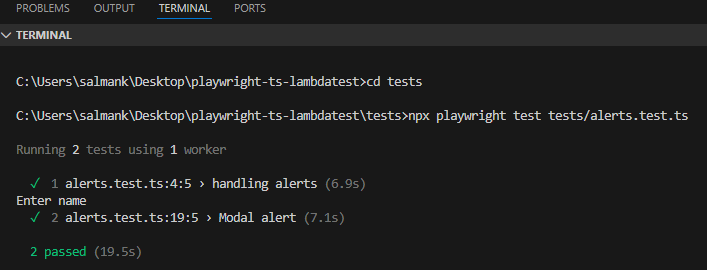
You can also check out this video on handling Playwright alerts by Vignesh Srinivasa Raghavan, a Senior SDET with 10+ years of expertise in software automation testing, specializing in web, mobile, API, and performance testing.

What Are Playwright Dropdowns?
Playwright dropdowns are HTML elements that let you select one or more options from a list, typically built with the <select> tag or custom UI controls.
Dropdowns can be single-select or multi-select, and interacting with them requires choosing the correct option by value, label, or index. If you also need to automate other form elements, check out the guide on handling inputs and buttons in Playwright.
How to Handle Dropdowns in Playwright?
Dropdowns allow you to select single or multiple options. Playwright provides selectOption() for standard HTML <select> elements, and standard DOM interactions for custom dropdowns like Bootstrap or jQuery-based dropdowns.
Note: The page.selectOption() method is discouraged by Playwright. Use the locator-based locator.selectOption() instead for more reliable and maintainable tests.
Single-Select Dropdown
Single-select dropdowns allow choosing only one option at a time.
Test Scenario:
- Navigate to the Select Dropdown Demo page.
- Select an option from the dropdown using index, label, or value.
Implementation:
The test script below selects an option from a single-select dropdown.
import { test } from "@playwright/test";

test("Single-select dropdown", async ({ page }) => {
  await page.goto("https://www.testmuai.com/selenium-playground/select-dropdown-demo");

  await page.selectOption("#select-demo", {
    index: 5 // alternatively, use label: "Tuesday" or value: "Friday"
  });
});
Code Walkthrough:
- Imports and Test Setup: Imports test from Playwright and defines a test named Single-select dropdown with a page object.
- Navigation: Navigates the browser to the select dropdown demo page using the page.goto() method.
- Dropdown selection: Uses page.selectOption() on #select-demo to select the option at index: 5 (alternatively can use label or value).
Multi-Select Dropdown
Multi-select dropdowns allow selecting multiple options simultaneously.
Test Scenario:
- Navigate to the Select Dropdown Demo page.
- Select multiple options using a mix of index, label, and value.
Implementation:
import { test } from "@playwright/test";

test("Multi-select dropdown", async ({ page }) => {
  await page.goto("https://www.testmuai.com/selenium-playground/select-dropdown-demo");

  await page.selectOption("#multi-select", [
    { label: "Texas" },
    { index: 2 },
    { value: "Washington" }
  ]);
});
Code Walkthrough:
- Imports and Test Setup: Imports test from Playwright and defines a test named Multi-select dropdown with a page object.
- Navigation: Navigates the browser to the select dropdown demo page using page.goto().
- Dropdown Selection: Uses page.selectOption() on #multi-select to select multiple options with label, index, and value.
Bootstrap / jQuery Dropdown
Custom dropdowns like Bootstrap or jQuery require opening the menu and selecting items using DOM locators. Choosing the right targeting strategy is critical here, so having a solid understanding of Playwright locators makes your dropdown tests more resilient to UI changes.
Test Scenario:
- Navigate to the jQuery Dropdown Search Demo page.
- Select multiple countries using the dropdown search functionality.
Implementation:
import { test } from "@playwright/test";

test("Bootstrap/jQuery dropdown", async ({ page }) => {
  await page.goto("https://www.testmuai.com/selenium-playground/jquery-dropdown-search-demo");

  await selectCountry("India");
  await selectCountry("Denmark");
  await selectCountry("South Africa");

  async function selectCountry(countryName) {
    await page.click("#country+span");
    await page.locator("ul#select2-country-results")
      .locator("li", { hasText: countryName })
      .click();
  }
});
Code Walkthrough:
- Imports and Test Setup: Imports test from Playwright and defines a test named Bootstrap/jQuery dropdown with a page object.
- Navigation: Navigates the browser to the jQuery dropdown search demo page using page.goto().
- Country Selection: Calls selectCountry() for each country: "India", "Denmark", and "South Africa".
- Function Definition: Defines selectCountry(countryName) which clicks the dropdown #country+span, locates the results list ul#select2-country-results, finds the li containing the given country, and clicks it.
Test Execution:
Now, let's run the test for Playwright dropdowns using the following command:
npx playwright test tests/dropdown.test.ts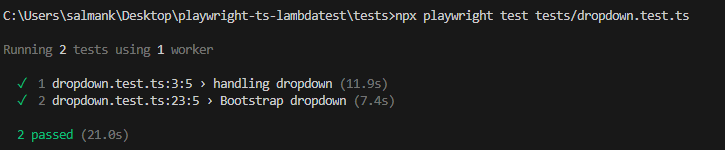
Scale Playwright Testing With TestMu AI (Formerly LambdaTest)
You can leverage the true capabilities of the Playwright test automation framework by running the test on cloud grids like TestMu AI.
Cloud testing platforms like TestMu AI offers Playwright cloud that allows you to run Playwright tests online on 50+ browsers and browser versions such as Chrome, Firefox, Opera, Edge, etc.
- Parallel Testing at Scale: Run Playwright test scripts across real browsers and OS combinations, including Chromium, WebKit, Edge, and Firefox. Supports Windows, Linux, and macOS.
- Playwright SDK for Faster Cloud Execution: Integrate the Playwright SDK for efficient workflows, granular control over test runs, and consistent cross-environment results.
- Auto Heal Capability: Locator recovery ensures test resilience even if the application UI changes, maintaining stable automation at scale.
- Visual Testing: AI-native SmartUI platform for visual testing across desktop and mobile environments, compatible with Playwright.
To get started, check out this documentation on Playwright testing with TestMu AI.

Conclusion
You now have a clear view of how Playwright handles alerts and dropdowns. You can detect, read, and control alerts, including prompts and modal dialogs, without interrupting your test flow.
You can also manage single-select, multi-select, and custom dropdowns with direct, reliable interactions. With these skills, you can create stable tests that handle real user scenarios and respond accurately to page behavior. To continue building on this, learn how to automate frames and windows in Playwright for multi-context test scenarios.
Citations
- Playwright Dialogs Documentation: https://playwright.dev/docs/dialogs
- Playwright selectOption Documentation: https://playwright.dev/docs/api/class-page#page-select-option
Author

Mehul Gadhiya
Blogs: 6


Mehul Gadhiya is a Community Contributor with experience in creating content and strategies around software testing, automation, and emerging technologies. At TestMu AI, he has worked on initiatives spanning product messaging, sales enablement, and lifecycle campaigns, supporting testing solutions like KaneAI and HyperExecute. He has also contributed to community-focused efforts, including the Testμ Conference, building awareness and collaboration across the QA and developer ecosystem
Reviewer

Himanshu Sheth
Reviewer
Himanshu Sheth is the Director of Marketing (Technical Content) at TestMu AI, with over 8 years of hands-on experience in Selenium, Cypress, and other test automation frameworks. He has authored more than 130 technical blogs for TestMu AI, covering software testing, automation strategy, and CI/CD. At TestMu AI, he leads the technical content efforts across blogs, YouTube, and social media, while closely collaborating with contributors to enhance content quality and product feedback loops. He has done his graduation with a B.E. in Computer Engineering from Mumbai University. Before TestMu AI, Himanshu led engineering teams in embedded software domains at companies like Samsung Research, Motorola, and NXP Semiconductors. He is a core member of DZone and has been a speaker at several unconferences focused on technical writing and software quality.
Alerts & Dropdowns in Playwright FAQs
Did you find this page helpful?
More Related Learning Hubs
TestMu AI forEnterprise
Get access to solutions built on Enterprise
grade security, privacy, & compliance
- Advanced access controls
- Advanced data retention rules
- Advanced Local Testing
- Premium Support options
- Early access to beta features
- Private Slack Channel
- Unlimited Manual Accessibility DevTools Tests