
Power Your Software Testing with AI Agents and Cloud
The Native AI-Agentic Cloud Platform to Supercharge Quality Engineering. Test Intelligently and Ship Faster.

- TestMu AI (Formerly LambdaTest)
- /
- Blog
- /
- Playwright Agents: Planner, Generator and Healer, Hands-On
Playwright Agents: Planner, Generator and Healer, Hands-On
How Playwright's planner, generator and healer agents work, how to set them up for Claude Code or VS Code, what they can't do, and when you need more.
Last Updated on:
Writing spec files for a new feature takes sprint time. Then a frontend change breaks the locators, and someone has to fix them.
Playwright Agents take on both jobs inside the framework you already use.
Playwright ships three agent definitions. The planner opens the live application, explores it, and writes a Markdown test plan. The generator turns that plan into spec files, checking each selector in a browser as it goes.
The healer runs a failing test, finds the locator, wait or data that broke, and patches the code. It runs when you call it, and every fix lands as a code change you review.
The agents run inside a coding agent: VS Code with Copilot, Claude Code, Codex or OpenCode. The setup commands in this guide, and the files they write, were checked on Playwright 1.64.0. The guide is one chapter of the Playwright tutorial.
TL;DR
Playwright Agents are three AI agent definitions that have shipped with Playwright since version 1.56. Run npx playwright init-agents --loop=claude (or vscode, codex, opencode) to add them to a project, then call each agent by name from your coding agent.
- The Planner (test planning) - Runs your seed test, explores the app in a browser, and saves a Markdown test plan under specs/.
- The Generator (test creation) - Performs each planned step in a live browser to confirm selectors and assertions, then writes Playwright test files under tests/.
- The Healer (test repair) - Runs a failing test, patches the locator, wait or data that broke, and re-runs it. If it believes the feature is broken, it skips the test.
What Are Playwright Agents
Playwright Agents are three AI modules built into Playwright v1.56, the Planner, Generator, and Healer, that automate test planning, spec-file generation, and locator repair from inside VS Code.
Later releases keep adding agent-facing APIs: Playwright 1.64 adds page.getByRef(), which turns a ref from an aria snapshot back into a locator, and WebMCP testing for the tools a page exposes to agents. The Playwright 1.64 release guide covers both.
They run inside VS Code through Playwright's MCP and AI agents integration. Each agent reads its own definition file and uses the configured LLM to act on your prompt. Here is what each one does:
Teams that want to build their own agent instead of the built-in modules can follow this guide to Playwright LangChain.
It covers wrapping Playwright actions as LangChain tools, running a ReAct loop for failure triage and test generation, and the security patterns a production agent browser needs.
For a deeper look at how these agents communicate with the underlying MCP server, see this guide to AI and Playwright MCP, which covers MCP setup and an end-to-end Jira-ticket-to-tests workflow.
| Agent | Input | Output | Job |
|---|---|---|---|
| Planner | Running app + natural language prompt | test-plan.md | Explore flows, document test scenarios |
| Generator | test-plan.md + scenario reference | Playwright spec files (.spec.ts) | Write executable code with locators and assertions |
| Healer | Failing test output + error logs | Fixed spec files | Diagnose failures and apply targeted fixes |
Planner, Generator and Healer Agents in Playwright
Each agent covers one phase of the test lifecycle. The details here come from the Playwright Test Agents docs and from the definition files and MCP tools that Playwright 1.64.0 ships.
Planner Agent
- Runs the seed test first - Its planner_setup_page tool executes the seed, so your global setup, project dependencies, fixtures and hooks run before any exploring starts. Without a seed file it creates a default one.
- Copies the seed's style - The docs say the planner uses the seed test as the example for all generated tests.
- Plans more than the happy path - The definition asks for edge cases, error handling and negative scenarios, each written to run independently from a fresh state.
- Accepts a PRD - A product requirement document is optional context alongside the request.
- Saves a Markdown plan - The planner_save_plan tool writes the file, under specs/ by convention. Each scenario lists its steps, its expected results and the spec file it should become.
Generator Agent
- Reads a plan - Add the Markdown file to the context or name it in the prompt.
- Checks selectors live - It performs each step in a browser, then reads back the recorded log of those actions before it writes code.
- Writes one test per file - The definition requires a describe block named after the plan's top-level item, the scenario name as the test title, and a comment with the step text before each step.
- First runs can fail - The docs note that generated tests may include initial errors, which the healer can fix.
Healer Agent
- Runs the tests itself - It starts with the test_run tool and then debugs each failing test, so you can hand it one failing test or a folder.
- Inspects the paused page - When the debug run stops on the error, it reads a page snapshot to find the equivalent element or flow.
- Edits the test code - The definition lists updated selectors, fixed assertions and expected values, and regular expressions for dynamic data as remedies.
- Skips what looks broken - If the error persists and it is confident the test is correct, it marks the test test.fixme() and leaves a comment on what the app did instead.
Self-healing Playwright tests, in the healer's sense, are edits to the spec file made when you ask. Nothing changes while the suite runs.

Note: Run your Playwright tests across 3,000+ browser and OS combinations on TestMu AI. Try TestMu AI Today!
How Do Playwright Test Agents Work?
Playwright Test Agents are built on the Model Context Protocol (MCP). The init-agents command writes the agent definitions and registers Playwright's test MCP server, which starts with npx playwright run-test-mcp-server.
On 1.64.0 that server identifies itself as Playwright Test Runner and exposes 92 tools. Most are browser actions such as browser_click and browser_snapshot. A handful belong to the agents, among them planner_save_plan, generator_read_log, generator_write_test, test_run and test_debug.
When you call an agent, your coding agent loads its definition, and the model picks the next tool call. Browser actions go through the MCP server, so the planner and generator work against the real page.
The agents hand work to each other in this order:
- Planner receives a request and a seed test, explores the app in a browser, and saves a Markdown plan with scenarios, steps and expected results.
- Generator reads the plan, performs the steps in a browser, and writes a Playwright test file with locators and assertions.
- Playwright runs the generated tests. The test runner executes each spec file and outputs pass or fail results with full error logs.
- Healer runs the failing tests in debug mode, patches the code, and re-runs to verify.
The --loop flag only chooses which coding agent the definitions are written for. It does not run or chain anything.
Chaining is up to you. Ask for all three agents in one prompt, or call one at a time, such as only the healer when a locator breaks or only the generator for new scenarios.
How to Set Up Playwright Agents
Run npx playwright init-agents with the --loop flag for your coding agent. The command writes the three agent definitions into your project, and you then call the agents from that coding agent's chat.
Prerequisite: a Coding Agent
Playwright Agents extend an existing Playwright project and run inside a coding agent. The docs list four.
- VS Code - Version 1.105 or later, which the docs require for the agent experience. The vscode loop writes GitHub Copilot agent files.
- Claude Code, Codex or OpenCode - Each has its own loop value and its own folder for the definitions.
- Model - The agents use the model your coding agent runs. The definitions name a default, which on 1.64.0 is Claude Sonnet 4.6 in the VS Code files and sonnet in the Claude Code files, and you can edit it.
- TypeScript and JavaScript output - The agents write Playwright Test spec files. As of October 2026 the Test Agents page exists only in the Node.js docs, with no Python, Java or .NET equivalent.
Step 1: Install or Update Playwright
If you do not have a Playwright project, follow the guide on how to install Playwright first, then return here. The first command below scaffolds a new project with playwright.config.ts and a tests/ directory. The second updates an existing one. Each install flag is explained in the reference of Playwright CLI commands.
npm init playwright@latest               # new project
npm install -D @playwright/test@latest   # existing project
npx playwright install                   # browsers for the installed version
The scaffold asks for TypeScript or JavaScript and for a test directory. Keep the default tests/ unless you have a reason to change it, because the seed test and the generated specs go there.
Step 2: Generate the Agent Definitions
Run init-agents from your project root with the loop value for your coding agent. On Playwright 1.64.0 each loop wrote these files:
| Coding agent | Command | Agent definitions | MCP server config |
|---|---|---|---|
| VS Code (Copilot) | npx playwright init-agents --loop=vscode | .github/agents/playwright-test-planner.agent.md, plus generator and healer | .vscode/mcp.json, plus .github/workflows/copilot-setup-steps.yml |
| Claude Code | npx playwright init-agents --loop=claude | .claude/agents/playwright-test-planner.md, plus generator and healer | .mcp.json |
| Codex | npx playwright init-agents --loop=codex | .codex/agents/playwright_test_planner.toml, plus generator and healer | Inside each .toml file |
| OpenCode | npx playwright init-agents --loop=opencode | .opencode/prompts/playwright-test-planner.md, plus generator and healer | opencode.json |
Every loop also creates a specs/ folder for test plans and a default seed test. This is the console output for the Claude Code loop:
$ npx playwright init-agents --loop=claude
 🎭 Using project "" as a primary project
 📝 specs/README.md - directory for test plans
 🌱 tests/seed.spec.ts - default environment seed file
 🤖 .claude/agents/playwright-test-generator.md - agent definition
 🤖 .claude/agents/playwright-test-healer.md - agent definition
 🤖 .claude/agents/playwright-test-planner.md - agent definition
 🔧 .mcp.json - mcp configuration
 ✅ Done.
After that command the project looks like this:
repo/
  .claude/agents/          # agent definitions (folder depends on --loop)
  .mcp.json                # MCP server config
  specs/                   # Markdown test plans from the planner
  tests/
    seed.spec.ts           # seed test
  playwright.config.ts
Re-run init-agents after every Playwright upgrade. The docs say the definitions should be regenerated to pick up new tools and instructions.
On 1.64.0, npx playwright init-agents --help lists two more loop values that the docs do not cover: copilot, which wrote the same files as vscode, and vscode-legacy, which wrote the older .github/chatmodes/ files.
The vscode loop also prints an MCP block for GitHub's Copilot coding agent, to paste under Settings, Copilot, Coding agent, MCP configuration.
Step 3: Write a Seed Test
The seed test gets your app into a usable state. The planner runs it before exploring, so your global setup, project dependencies, fixtures and hooks are in place when exploration starts. This is the default file init-agents creates:
import { test, expect } from '@playwright/test';

test.describe('Test group', () => {
  test('seed', async ({ page }) => {
    // generate code here.
  });
});
Replace the placeholder with the steps that reach your feature. A seed for a store can be one line that opens it:
// tests/seed.spec.ts
import { test } from '@playwright/test';

test('seed', async ({ page }) => {
  await page.goto('https://ecommerce-playground.lambdatest.io/');
});
If your app needs login, put it in a setup project that saves storageState, or in a fixture, and have the seed test use it. That keeps the login steps out of every generated test.
Step 4: Call the Agents From Your Coding Agent
In VS Code, the three agents appear by name in the chat's agent picker. In Claude Code, ask for an agent by name, for example "Use the planner agent with tests/seed.spec.ts".
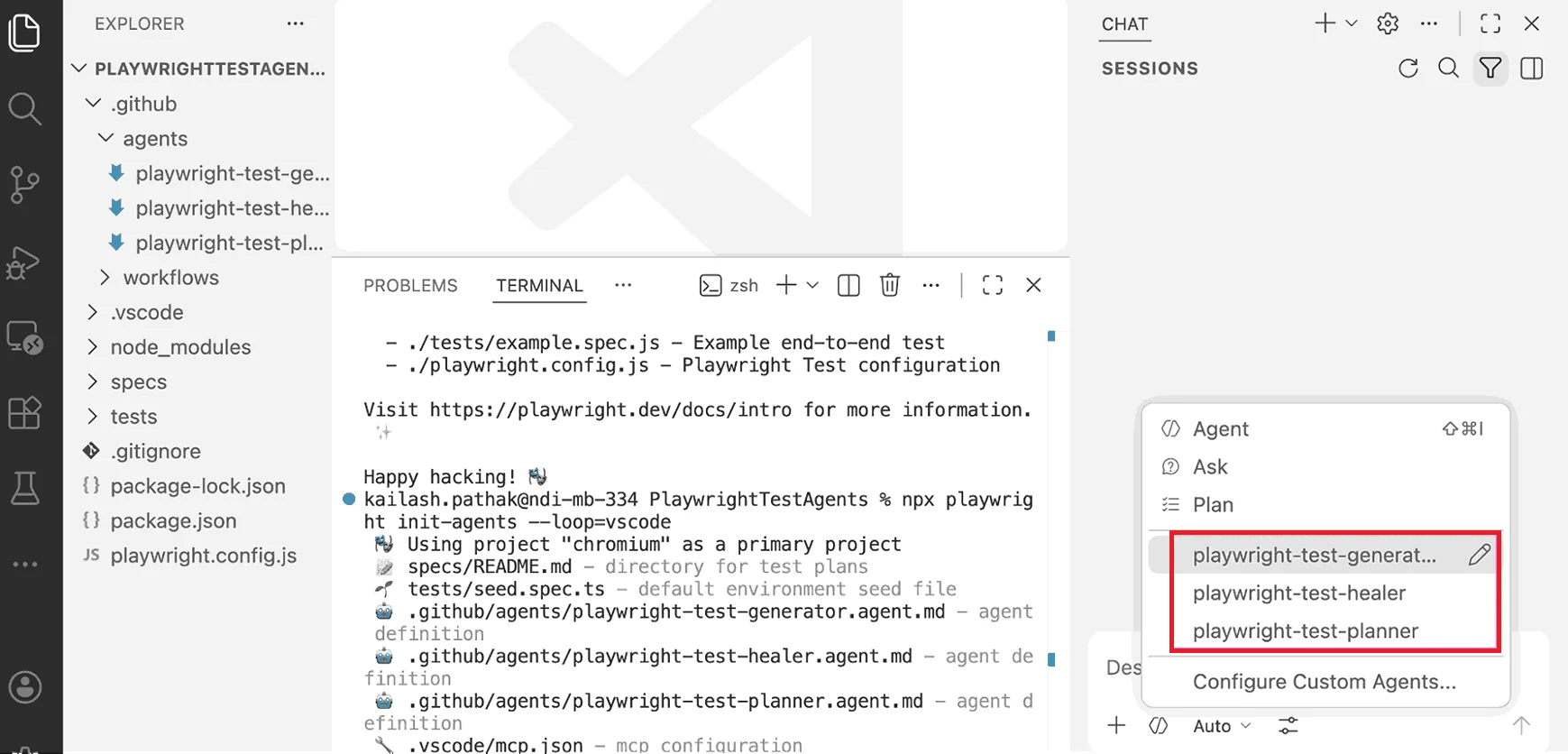
Start your web application before running any agent. The planner and generator open a real browser and interact with the running app, so unstable state or slow rendering shows up as gaps in the plan and in the generated code.
How to Use Playwright Test Agents (Step-by-Step Example)
Run the Planner to map your app's flows, pass the plan to the Generator to create a spec file, then use the Healer on whatever fails.
The screenshots in this section come from one run in VS Code, set up with --loop=vscode and using Claude Sonnet 4 as the model. The app is a demo store, and the test covers its login.
Each step gives a prompt you can adapt, what the agent produced in that run, and what to check before you move on.
1. Create a Test Plan (Planner Agent)
The Planner opens your app in a browser, explores the flows you name, and saves a Markdown test plan. Add the seed test to the context or name it in the prompt.
Prompt
Use the Playwright test planner with tests/seed.spec.ts. Create a test plan for login and checkout, and save it as test-plan.md.
The prompt names a file, so the Planner saved test-plan.md in the project root. Without a name, the convention is a file under specs/, the folder init-agents creates for plans.
In the saved plan, each scenario names the spec file it should become and lists numbered steps. The login scenario from this run points at tests/authentication/login-valid.spec.ts:
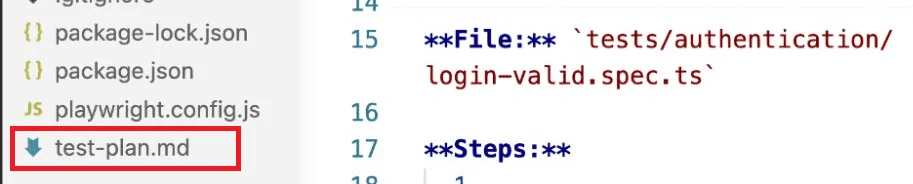
Edit the plan before passing it to the Generator. Remove out-of-scope flows and add edge cases the Planner missed. The plan is plain Markdown, so the edit can go through a pull request.
Use fixed test data and a stable app state before running the Planner. Inconsistent state between runs produces gaps in the plan.
2. Generate the Test Script (Generator Agent)
The Generator reads the plan and turns one scenario into an executable Playwright spec file. Reference the scenario by number or by name so it picks the right one.
Prompt
Use the Playwright test generator to create the test for the login scenario in test-plan.md.
The Generator opens a browser, performs each step of the scenario, and writes the spec to the path the plan gave it. In this run that was tests/authentication/login-valid.spec.ts, with a describe block named Authentication and a test named Successful Login with Valid Credentials.
Comments in the file mirror the plan's steps, which makes the code easy to review against the plan. See Playwright assertions for the expect() checks it writes. This excerpt is from the generated file:
// Verify demo credentials are visible on the page
await expect(page.getByText('demo@demo.com')).toBeVisible();
await expect(page.getByText('demo')).toBeVisible();

// 2. Fill email field
await page.getByRole('textbox', { name: 'Email' }).fill('demo@demo.com');
Run the generated spec before you treat it as finished. Check that every assertion reflects a business requirement and does more than confirm the page loaded.
3. Execute the Test
Run the generated spec with the command below. For more Playwright run tests options, including filters and reporters, see the linked guide.
npx playwright test tests/authentication/login-valid.spec.tsIf you would rather not install browsers locally, the Playwright testing tool runs the same spec online on the TestMu AI cloud.
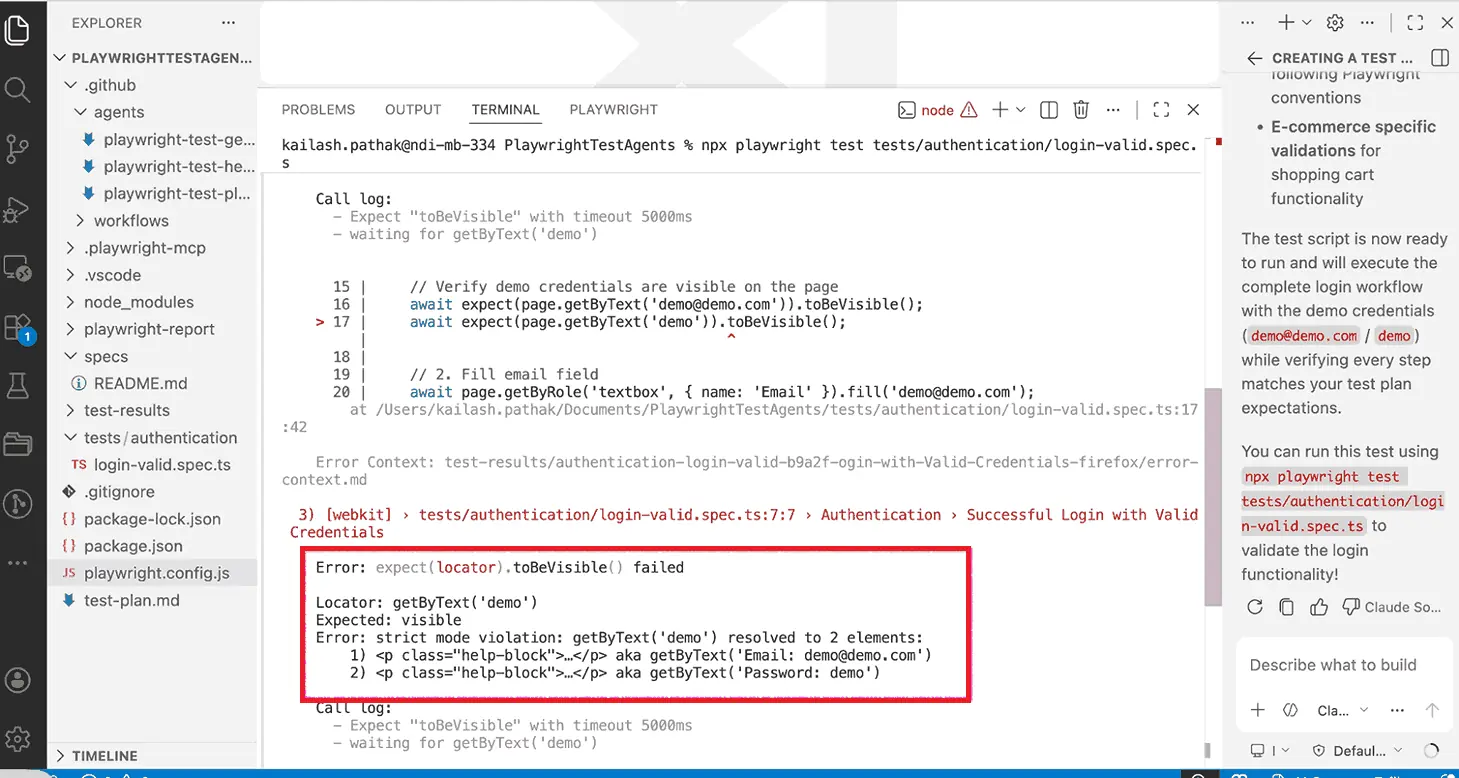
The project runs each test in Chromium, Firefox and WebKit, and the first run failed. This is the WebKit failure, the third in the report:
Error: expect(locator).toBeVisible() failed

Locator: getByText('demo')
Expected: visible
Error: strict mode violation: getByText('demo') resolved to 2 elements:
    1) <p class="help-block">…</p> aka getByText('Email: demo@demo.com')
    2) <p class="help-block">…</p> aka getByText('Password: demo')
Playwright's strict mode requires a locator to match exactly one element. getByText('demo') matches by substring, so it resolved to both help texts on the login page, the one with the demo email and the one with the demo password. The error lists each match with a locator that would single it out.
Do not fix this by hand yet. Pass it to the Healer.
4. Fix Failures (Healer Agent)
The Healer runs the failing test in debug mode, reads the page where it stopped, and rewrites the affected lines. Point it at the failing file.
Prompt
Use the Playwright test healer to find why tests/authentication/login-valid.spec.ts fails and fix it.
In this run the Healer went past the reported failure. Its summary lists three more locators it tightened before the test passed:
- Category heading ambiguity - It added { exact: true } to getByText('Men Fashion').
- Electronics selector conflict - It switched to getByRole('heading', { name: 'Electronics', exact: true }) so the locator targets only the heading.
- Cart count check - getByText('0') matched several elements, including discounts and the copyright year, so it used page.locator('#cartCount').
Each fix follows the same principle as auto-heal in Playwright, which is to narrow the selector to exactly one element.
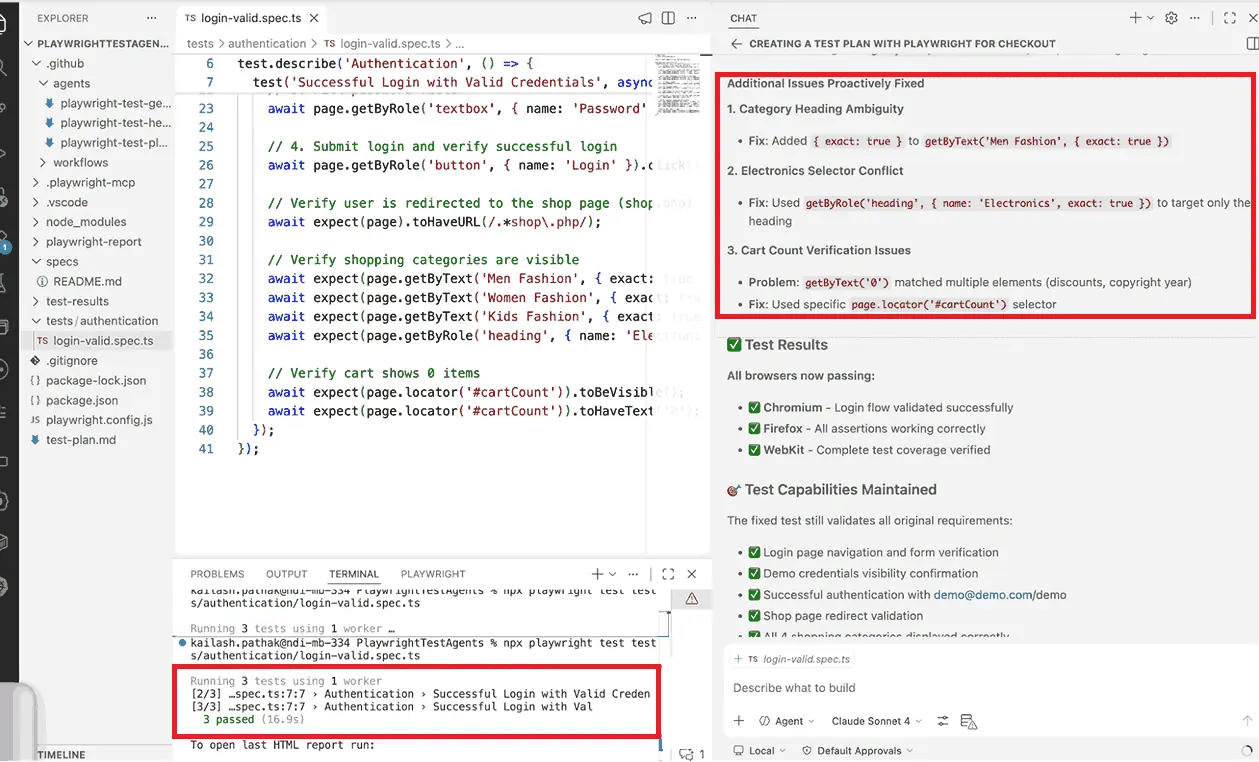
Read the diff before you commit it. The third fix trades a text locator for an element id. It works, but Playwright's best practices prefer user-facing attributes to CSS selectors, so it is a change to question in review.
A heal can also change what the test verifies. The Healer's definition lists fixing assertions and expected values among its remedies, and tells it to do the most reasonable thing possible to pass the test.
The Healer does not repair a test that fails because of an application bug. If it is confident the test is right, it marks the test test.fixme() and comments on what the app did instead, so investigate every skip.
5. Re-run and Confirm
After the Healer applies its fixes, re-run the spec to confirm the repair holds.
npx playwright test tests/authentication/login-valid.spec.tsThe run reported the test passing in each of the three browsers:
Running 3 tests using 1 worker
  3 passed (16.9s)
From here the spec is ordinary Playwright code, and it runs in CI with the same command.
Running the Full Playwright Agents Loop
Chained together, the agents take a feature description to a reviewed, passing test suite in five steps, with a human checkpoint after the plan and another after the code.
- Seed - Write or update tests/seed.spec.ts so it reaches the feature, logged in and with the right data.
- Plan - Ask the planner for the feature, optionally attaching the PRD or ticket. Review the Markdown plan and edit it.
- Generate - Ask the generator to build tests from that plan.
- Run - Run npx playwright test on the new folder. Expect some failures on the first run.
- Heal - Send the failures to the healer. Review the diffs and investigate any test it skipped.
After that, the suite runs in CI with npx playwright test. When the UI changes later, you send the new failures to the healer again.
In Claude Code, one prompt can cover the whole loop and still stop for review:
Use the planner to plan checkout from tests/seed.spec.ts, then the generator to write the tests, then run them and use the healer on any failures. Stop and show me the plan before generating.
What Don't Playwright Agents Do?
Playwright Agents speed up writing and repairing Playwright code, but you still own that code, its coverage and its infrastructure.
| Limit | What it means in practice |
|---|---|
| You maintain the output | Every generated and healed test is code in your repo. Reviews, refactors and flaky-test triage stay with your team. |
| Assertions can encode bugs | The plan's expected results come from what the planner sees in the running app. If the app is wrong on the day you plan, a test can assert the wrong behavior. Reviewing the plan is the safeguard. |
| A heal can change the assertion | The healer's remedies include fixing assertions and expected values, and its definition tells it to do the most reasonable thing possible to pass the test. A real regression can be healed into a green test, so read each diff for changed expectations. |
| No requirement-level coverage | The agents output plans and test files. Nothing reports which acceptance criteria have a passing test, so a green suite can leave a rule untested. |
| Healing runs on request | The healer works when you call it, on one test or a folder. Nothing watches your CI runs, and every heal is a diff someone reviews. |
| Web only | The agents work on web apps through Playwright's browsers. Native iOS and Android apps are out of scope. |
| TypeScript and JavaScript only | Output is Playwright Test spec files. Teams on Playwright for Python, Java or .NET have no equivalent in their docs as of October 2026. |
| Results vary run to run | Plans and code depend on the model behind your coding agent and on the prompt. Two planner runs can produce different scenarios. |
| Scale is your problem | The agents and their MCP server run on your machine. Cross-browser runs, parallelism, device coverage and test management need separate tooling. |
The agents are built for teams that want to own Playwright code. Decide first whether yours does.
Playwright Agents vs Kane CLI vs KaneAI
Choose Playwright Agents if your team wants AI help writing Playwright code it will own. Choose Kane CLI if developers or coding agents want a verified pass or fail on a flow without maintaining scripts. Choose KaneAI if manual testers and PMs need to author and manage tests in natural language as a team.
Kane CLI and KaneAI are both from TestMu AI and share one automation engine. The Kane CLI and KaneAI columns are taken from their product pages.
| Playwright Agents | Kane CLI | KaneAI | |
|---|---|---|---|
| What you give it | A request, a seed test, optionally a PRD | A natural-language objective for each flow | Test steps in natural language, or a ticket or PRD, in a web app |
| What you get | Markdown plans and Playwright test files in your repo | A pass or fail with a replayable .evidence pack | Test cases that run on the TestMu AI cloud, on demand or on a schedule |
| Who maintains the tests | Your team, with the healer patching failing tests when asked | Autoheal re-resolves the target when the page changes, with no selectors to update | Self-healing re-anchors the step and surfaces the change for review |
| Coverage | The planner proposes scenarios, and nothing measures what they cover | Measured per acceptance criterion, with gaps ranked by risk | Scenarios generated from a ticket or PRD |
| Verdict | Your Playwright assertions | Oracle-checked, and the model does not vote on pass or fail | Run results with root-cause analysis for failures |
| Native mobile apps | No | Local iOS Simulator and Android Emulator, with scaling to 10,000+ real iOS and Android devices listed on the product page | Yes, iOS and Android |
| Runs in CI | Yes, as Playwright tests | Yes, with exit codes 0 pass, 1 fail, 2 setup error and 3 timeout, and NDJSON output with --agent | Yes, on demand, on a schedule or from CI |
| Code export | The output is already Playwright code | Python Playwright | Selenium, Playwright, Cypress or Appium |
| Cost | Free and open source, plus your coding agent | The CLI and local runs are free, and cloud runs bill against a TestMu AI plan | Licensed per agent, on credit plans |
Teams That Can Stop at Playwright Agents
- Your team already writes Playwright and reviews test code in pull requests.
- You test a web app only, with no native mobile.
- Writing new tests is your bottleneck, and suite maintenance is under control.
- Nobody asks you for requirement-level coverage reports.
Reasons to Add Kane CLI or KaneAI
- Coding agents ship features faster than your team can write tests for them. Kane CLI checks the flow an agent touched and returns a verdict the agent can act on, which is the case covered in testing apps built with Claude Code.
- Test maintenance, more than test creation, is eating your sprint.
- You need proof per acceptance criterion for audits or release sign-off.
- Manual testers and PMs need to own tests without learning TypeScript.
- You test native mobile apps alongside web. AI app testing with KaneAI by TestMu AI runs on 3,000+ browser and OS combinations and 10,000+ real devices.
The two approaches can run side by side: Playwright Agents for the regression suite engineers own, and Kane CLI for fast-changing flows and code written by coding agents.
With Kane CLI you hand over one objective instead of a plan and a spec. This command ran against the TestMu AI eCommerce Playground on October 11, 2026, with Kane CLI 0.8.17:
npm install -g @testmuai/kane-cli
kane-cli run --url https://ecommerce-playground.lambdatest.io/ \
  "search for a laptop, add the first result to the cart and verify the cart shows one item" \
  --agent --headless
The run reported a duration of 111.8 seconds and exited with code 0. This is its closing event, trimmed to the fields that carry the verdict:
{"type":"run_end","status":"passed","one_liner":"added the first laptop search result to the cart on ecommerce-playground.lambdatest.io","final_state":{"cart_item_count":"1"},"reason":"Objective completed","duration":111.8}The pass came from a check on the page. Kane CLI read the quantity cell in the cart, extracted 1 from "x1", and compared it with the expected value.
Get Kane CLI to try it. The product page lists 10,000 Kane CLI credits, free for a month. For the web app, start with the KaneAI getting started guide.
Running Agent-Generated Playwright Tests at Scale
Tests from the generator are standard Playwright Test files, so they run anywhere Playwright runs: locally, in CI, or on a cloud across many browsers in parallel.
Agents make a suite grow faster, and a larger suite is where one machine or one CI runner starts to slow down.
- Cross-browser - Point playwright.config.ts at the TestMu AI cloud with the wsEndpoint connection option and your LT_USERNAME and LT_ACCESS_KEY. The same generated tests then run on Chrome, Chromium, Firefox, WebKit and Edge across Windows, macOS and Linux, which the product page counts as 3,000+ browser and OS combinations. See Playwright testing on TestMu AI.
- Speed - HyperExecute splits a large Playwright suite into parallel tasks, retries real failures, and collects logs, screenshots and video per test.
- Visual checks - Generated tests assert behavior, and the healer never looks at layout. SmartUI visual testing compares screenshots across browsers to catch layout shifts.
- Triage - When a healed test keeps failing on one browser, the cloud session's video and network logs show whether the test or the app is at fault.
Troubleshooting Playwright Agent Issues
The first three failures below were reproduced on Playwright 1.64.0. All of them come from the project around the agents.
Seed Test in the Wrong Folder
Run from a folder with no Playwright config, init-agents reports an empty project name and writes the seed test to the project root:
 🎭 Using project "" as a primary project
 🌱 seed.spec.ts - default environment seed file
With a config whose testDir is ./tests, the same command writes tests/seed.spec.ts. Run init-agents from the folder that holds playwright.config.ts, or pass the config path with -c.
No Tests Found
Playwright prints this when it finds no spec files in testDir. Check that the path the plan gave each test sits inside the directory your config names.
Error: No tests foundBrowser Executable Missing
A fresh install or an upgrade leaves Playwright without browsers for that version, and the first test run fails like this:
Error: browserType.launch: Executable doesn't exist at ~/Library/Caches/ms-playwright/chromium_headless_shell-1248/chrome-headless-shell-mac-arm64/chrome-headless-shell
╔════════════════════════════════════════════════════════════╗
║ Looks like Playwright was just installed or updated.       ║
║ Please run the following command to download new browsers: ║
║                                                            ║
║     npx playwright install                                 ║
║                                                            ║
║ <3 Playwright Team                                         ║
╚════════════════════════════════════════════════════════════╝
Run npx playwright install, and keep the Node.js and Playwright versions the same across local, staging and CI.
Stale Agent Definitions
The definitions belong to the Playwright version that generated them. After an upgrade, re-run init-agents so they pick up new tools and instructions, as the docs advise. In VS Code, also confirm the editor is on 1.105 or later.
Permissions and File Access
In Playwright Docker images and CI runners, check that the agent can read the config and write to tests/, specs/ and the folder that holds the definitions. Confirm that .dockerignore and .gitignore do not exclude the spec files.
Best Practices for Playwright Agents
Playwright Agents produce better output when the inputs are unambiguous and the environment is stable.
- Choose a capable model. Run two models on the same plan and keep the one that follows your locator instructions and writes real assertions.
- Write specific prompts. Give the target URL, each step, test data and expected outcome, so the planner has less to guess.
- State your locator strategy. Request getByRole(), getByLabel(), and getByTestId() explicitly, and pair with the Playwright Skill to enforce it.
- Review every generated spec before merging. Agents cannot verify that assertions match business logic, so a passing test can still be wrong.
- Run agents against a stable environment. Slow rendering and flaky APIs make agents miss flows, so use fixed test data.
- Run the Planner after major releases. Point it at the new UI, and treat plan scenarios with no spec file as coverage gaps.
- Version-control the generated files. Commit the definitions and the MCP config so the whole team shares one setup, and review the diff each time init-agents regenerates them.
In the TestMu Conference 2026 workshop Advanced Web Testing with Playwright and AI, Andrew Knight covers keeping a suite of hundreds of Playwright tests fast and maintainable.
Each practice above has you check what the Planner, Generator and Healer changed before you trust it. TestMu AI Agent Assurance does the same for agents your team builds, such as a custom Playwright LangChain agent. It reads the agent's codebase, derives functional, non-functional and adversarial scenarios (prompt injection and tool misuse among them), invokes the agent for real, and grades each criterion on observed evidence such as files changed and tool calls, not on the agent's own summary. In CI, its exit codes separate an agent that did something wrong from a run it could not test.
Note: Building your own test agent on top of Playwright? You cannot regression-test a vibe. Early access is opening in batches. Join the Agent Assurance waitlist
Getting Started With One Flow
Start with one flow. Run npx playwright init-agents with the loop for your coding agent, write a seed test that reaches your most-tested path, and prompt the Planner on it.
Trim the plan to the scenarios you need, pass it to the Generator, and review every assertion before merging. Coverage and business-logic checks still belong to the engineer.
Once generated, the tests are ordinary spec files, so each CI run executes the same code. For a hosted, CLI-driven agent, compare a Playwright CLI alternative.
Citations
- Playwright Test Agents - https://playwright.dev/docs/test-agents
- Playwright MCP - https://github.com/microsoft/playwright-mcp
- Playwright v1.56 Release Notes - https://playwright.dev/docs/release-notes
- Playwright Best Practices - https://playwright.dev/docs/best-practices
Author

Kailash Pathak
Blogs: 11


Kailash Pathak is a Senior QA Lead Manager at 3Pillar Global with over 18 years of experience in software testing and automation. He has built scalable automation frameworks using Selenium, Cypress, and Playwright, integrating them with CI/CD pipelines and aligning them with business goals. He is the author of Web Automation Testing Using Playwright, which ranked #1 in Amazon’s “API & Operating Environments” category for six consecutive months. He is a Microsoft MVP (Most Valuable Professional) in Quality Assurance, a LinkedIn “Top QA Voice” with 19,500+ followers, and a core member of TestMu AI Spartans, DZone, and Applitools Ambassador programs. Kailash holds certifications including AWS (CFL), PMI-ACP®, ITIL®, PRINCE2 Practitioner®, and ISTQB. He has delivered 25+ QA talks across conferences and webinars and actively mentors engineers while driving quality strategies, shift-left testing, and continuous improvement.
Reviewer

Himanshu Sheth
Reviewer
Himanshu Sheth is the Director of Marketing (Technical Content) at TestMu AI, with over 8 years of hands-on experience in Selenium, Cypress, and other test automation frameworks. He has authored more than 130 technical blogs for TestMu AI, covering software testing, automation strategy, and CI/CD. At TestMu AI, he leads the technical content efforts across blogs, YouTube, and social media, while closely collaborating with contributors to enhance content quality and product feedback loops. He has done his graduation with a B.E. in Computer Engineering from Mumbai University. Before TestMu AI, Himanshu led engineering teams in embedded software domains at companies like Samsung Research, Motorola, and NXP Semiconductors. He is a core member of DZone and has been a speaker at several unconferences focused on technical writing and software quality.
Playwright Agents FAQs
Did you find this page helpful?
More Related Blogs

TestMu AI forEnterprise
Get access to solutions built on Enterprise
grade security, privacy, & compliance
- Advanced access controls
- Advanced data retention rules
- Advanced Local Testing
- Premium Support options
- Early access to beta features
- Private Slack Channel
- Unlimited Manual Accessibility DevTools Tests