

Power Your Software Testing with AI Agents and Cloud
The Native AI-Agentic Cloud Platform to Supercharge Quality Engineering. Test Intelligently and Ship Faster.


- TestMu AI (Formerly LambdaTest)
- /
- Learning Hub
- /
- Playwright Functions & Selectors: Complete Guide
Playwright Functions & Selectors: Complete Guide
Master Playwright functions and selectors with examples: goto, click, fill, locator, assertions, browserContext, and Playwright AI with login automation.
Last Updated on:
Playwright automation is built on two foundations: functions that tell the browser what to do, and selectors that tell it where to do it.
Selectors (or locators) help identify elements reliably, even in dynamic applications, while functions perform actions like clicking, typing, navigating, and validating results. Together, they ensure your tests are stable, readable, and less prone to breaking with UI changes.
Understanding how to combine them effectively is key to writing efficient and maintainable Playwright automation tests.
Overview
To automate browser testing efficiently, use Playwright functions to execute actions and target elements with selectors. Use the page.locator() API to create resilient element references with automatic waiting, and prioritize semantic role-based selectors like getByRole() to identify elements reliably.
- page.goto(): Navigates the browser to a specified URL and waits for the page load event by default before starting a test.
- page.click(): Clicks a target element after automatically waiting for that element to become visible, enabled, and stable to prevent test flakiness.
- page.fill(): Clears an input field and types the specified value in a single, reliable step, making it preferred over key-by-key typing.
- page.hover(): Moves the mouse pointer over a specific element to trigger dropdowns, tooltips, or other hover-activated user interface elements.
- page.waitForSelector(): Pauses test execution until a matching element appears in the DOM, which helps prevent timing issues with dynamic content.
- page.locator(): Creates a lazy element reference that automatically waits and retries before every action to eliminate flaky tests.
- The deprecated page.$() API immediately queries the DOM without auto-waiting, which can lead to flaky tests, and should be replaced with page.locator().
- CSS Selectors: Target elements quickly by ID or class, though class-based selectors can break if styling changes within the application.
- XPath Selectors: Navigate the DOM tree structurally to locate elements when CSS selectors cannot uniquely identify them, though deep nesting can be fragile.
- Text Selectors: Find elements by their visible text content, making them highly reliable for buttons and links with stable labels.
- Role-Based Selectors: Use semantic locators like getByRole and getByLabel to target elements the way users perceive them, ensuring resilient test design.
What Are Functions and Selectors in Playwright?
Playwright functions are async methods that perform browser actions, while selectors are strings that identify which element on the page each function should target.
Playwright functions are async methods -- like page.goto(), page.click(), page.fill(), and page.locator() -- that tell the browser what action to perform. Selectors are strings that tell Playwright which element on the page to target. You cannot have one without the other: a function without a selector has nothing to act on, and a selector without a function does nothing.
Understanding both is what makes the difference between a script that runs once and a test suite that stays reliable.

What Does Each Playwright Function Do?
Each Playwright function performs one action: goto navigates, click triggers events, fill enters text, hover moves the mouse, locator finds elements, and waitForSelector pauses for them.
Understanding what each function does -- and when not to use it -- is what separates maintainable Playwright automation from brittle scripts. Here is a reference table of every core function:
| Function | What It Does | When to Use It |
|---|---|---|
page.goto(url) | Navigates to a URL. Waits for the load event by default. | Start of every test. Pass waitUntil: 'networkidle' if your app fires requests after initial load. |
page.click(selector) | Clicks an element. Auto-waits for it to be visible, enabled, and stable first. | Buttons, links, checkboxes -- any interactive element. No manual wait needed. |
page.fill(selector, value) | Clears the field and types the value in one step. | Standard form inputs. More reliable than type() because it always starts clean. |
page.type(selector, text) | Simulates key-by-key typing without clearing first. | Autocomplete fields, search suggestions, or any UI that reacts to individual keystrokes. |
page.hover(selector) | Moves the mouse over an element. | Dropdowns, tooltips, or any UI that only appears on mouse-over. |
page.press(selector, key) | Simulates pressing a single keyboard key. | Form submission via Enter, Tab navigation, Escape to close modals. |
locator.setChecked(bool) | Checks or unchecks a checkbox or radio button. | Any checkbox or radio input. Preferred over click() for toggle elements. |
locator.selectOption(value) | Sets a select dropdown to the specified value, label, or index. | Single and multi-select dropdowns. |
page.screenshot() | Captures the current page or element as an image. | Visual regression baselines, debugging, CI artifacts on failure. |
page.waitForSelector(selector) | Pauses until the element appears in the DOM. | Waiting for dynamic content, modals, or redirects. Preferred over fixed timeouts. |
page.waitForLoadState(state) | Pauses until the page reaches a load condition: 'domcontentloaded', 'load', or 'networkidle'. | Correct replacement for waitForTimeout in most scenarios. |
page.waitForTimeout(ms) | Pauses for a fixed duration regardless of page state. | Last resort only. The Playwright team explicitly discourages this -- use waitForSelector or waitForLoadState instead. |
page.locator(selector) | Creates a lazy locator that auto-waits and retries before every action. | Every element interaction. This is the modern, recommended API -- always prefer it over page.$(). |
What Are Selectors in Playwright?
Selectors are strings that tell Playwright which element on the page to target, supporting CSS, XPath, text, and semantic locators like getByRole or getByLabel.
Selectors are the strings that identify which element on the page a Playwright function should act on. Every interaction -- a click, a fill, a hover -- needs a selector to locate the right element first.
The modern way to work with selectors in Playwright is through Playwright locators -- the page.locator() API that wraps any selector with built-in auto-waiting and retry logic, so your tests act on elements only when they are ready.
Playwright supports multiple selector types, and the choice you make directly determines how resilient your tests are when the application changes.
The recommended pattern is always to wrap selectors in page.locator() or use the semantic locator methods like getByRole() and getByLabel() -- both of which are significantly less flaky in practice than raw CSS class selectors.
What Selector Types Does Playwright Support?
Playwright supports CSS selectors, XPath selectors, text selectors, and recommended role-based locators like getByRole, getByText, getByLabel, and getByTestId for resilience.
Playwright supports several selector strategies. The right choice directly affects how resilient your tests are to UI changes.
CSS Selectors
CSS selectors target elements by ID, class, attribute, or element type. They are fast and widely supported, but CSS class names are styling decisions, not contracts. A developer renaming button.submit-btn to button.hero-cta-primary silently breaks your test. A CSS ID is stable and unique -- use it when available. A CSS class tied to styling is fragile -- prefer getByRole() or getByLabel() instead.
await page.locator('#input-email').fill('user@example.com');
await page.locator('input[name="password"]').fill('Pass123$');
XPath Selectors
XPath selectors navigate the DOM tree structurally, most useful when CSS cannot uniquely identify an element. Use them selectively -- deeply nested expressions break easily when the DOM changes.
await page.locator("//a[@data-toggle='dropdown']//span[contains(.,'My account')]").hover();If you are using XPath in Selenium, the same XPath can be used with By.xpath() to locate the element and perform actions like hover using the Actions class.
Text Selectors
Text selectors find elements by their visible text content. Readable and reliable for buttons and links where the label is stable across deployments.
await page.locator("text=Login").click();
await page.locator("text=My account").hover();
Role-Based Selectors (Recommended)
Playwright's semantic locators -- getByRole, getByText, getByLabel, getByTestId -- are the most resilient strategy. They target elements the way users perceive them, not by CSS classes developers change freely. If your team cannot find stable roles or labels, that reveals accessibility gaps in the application -- a useful conversation to have with engineering.
await page.getByRole('button', { name: 'Login' }).click();
await page.getByLabel('Email Address').fill('user@example.com');
await page.getByTestId('submit-btn').click();
Let Claude Code write Playwright tests that actually pass.

How Does the Playwright Locator API Work?
The Locator API creates lazy element references that auto-wait for visibility and stability before every action, reducing flaky tests in modern Playwright automation.
The Locator API is the central abstraction in modern Playwright testing. It also aligns closely with how Playwright structures interactions more broadly, including in Playwright API testing, by emphasizing reliability and clear intent.
Locators do not immediately query the DOM, they are lazy references that resolve only at the moment an action is performed, and they automatically verify that the element is visible, enabled, and stable before every interaction. This built-in auto-waiting is the single biggest reason Playwright automation produces fewer flaky tests than older frameworks.
What Is the Difference Between page.locator() and page.$()?
page.$() is the deprecated API that immediately queries the DOM. page.locator() is the modern replacement that is always up-to-date and auto-waits before every action. For all new code, always use page.locator().
| Aspect | page.$() | page.locator() |
|---|---|---|
| DOM query timing | Immediately on call | Lazily at point of action |
| Auto-waiting | None | Built-in before every action |
| Reflects DOM changes | No -- snapshot at call time | Yes -- always up-to-date |
| Returns | ElementHandle or null | Locator object (chainable) |
| Status | Deprecated | Recommended |
How Do You Chain and Filter Locators?
Locators can be chained to narrow scope to a specific part of the page, and filtered to find elements containing specific text or child elements -- useful in lists and tables where multiple elements share the same structure.
// Filter a list to the item containing 'MacBook', then click its button
await page.getByRole('listitem')
  .filter({ hasText: 'MacBook Pro' })
  .getByRole('button', { name: 'Add to cart' })
  .click();
What Happens When a Locator Matches Multiple Elements?
Playwright runs tests in strict mode by default. If a locator matches more than one element, it throws a strict mode violation error rather than silently acting on the wrong one. Resolve it with .first(), .nth(index), or .filter():
await page.getByRole('button', { name: 'Add to cart' }).first().click();
await page.getByRole('button').nth(2).click();
Note: Run Playwright automation tests across 3000+ real browsers and OS combinations with TestMu AI. Try it free!
How Do You Build Playwright Helper Functions?
As your Playwright testing suite grows, repeating the same locator logic across multiple spec files creates maintenance debt. Playwright helper functions extract common interactions into reusable async functions any spec can import. The standard pattern is a utils/ folder alongside your tests:
// utils/authHelpers.ts
import { Page } from '@playwright/test';

export async function loginUser(page: Page, email: string, password: string) {
  await page.goto("https://ecommerce-playground.lambdatest.io/");
  await page.locator("//a[@data-toggle='dropdown']//span[contains(.,'My account')]").hover();
  await page.locator("text=Login").click();
  await page.locator("input[name='email']").fill(email);
  await page.locator("input[name='password']").fill(password);
  await page.locator("input[value='login']").click();
}
Import and call it from any test. Fix the login logic once and every test that calls the helper picks up the fix automatically.
import { test } from '@playwright/test';
import { loginUser } from '../utils/authHelpers';

test('should access dashboard after login', async ({ page }) => {
  await loginUser(page, 'user@example.com', 'Pass123$');
  await page.waitForSelector('#account-account');
});
Test Isolation with beforeEach
Each test should be completely isolated. A test that relies on state left by a previous test will pass locally and fail in CI. Use test.beforeEach to give every test a clean start:
import { test, expect } from '@playwright/test';

test.beforeEach(async ({ page }) => {
  await page.goto('https://ecommerce-playground.lambdatest.io/index.php?route=account/login');
  await page.getByLabel('E-Mail Address').fill('user@example.com');
  await page.getByLabel('Password').fill('Pass123$');
  await page.getByRole('button', { name: 'Login' }).click();
});

test('can view account dashboard', async ({ page }) => {
  await expect(page.getByRole('heading', { name: 'My Account' })).toBeVisible();
});
What Are newPage and browserContext in Playwright?
newPage and browserContext are core Playwright concepts that define how browser tabs and sessions are created and managed. These concepts are also used internally by Playwright fixtures to control test isolation and browser state.
newPage
A page in Playwright represents a single browser tab or popup window. Pages opened within the same context share the same cookies -- so if you log in on one tab and open a second tab in the same context, the second tab also shows the logged-in state. Logging out on one tab logs out on both. This shared session behaviour is what makes multi-tab test scenarios possible.
browserContext
browserContext creates a fully isolated browser session with its own cookies, local storage, and cache. This is how Playwright enables parallel tests for different users without interference -- a logged-in context and a guest context can run simultaneously without sharing any state.
const newContext = await browser.newContext();
const newPage = await newContext.newPage();
await newPage.goto("https://ecommerce-playground.lambdatest.io/index.php?route=account/login");
await newPage.waitForSelector('#input-email');
How Do Assertions Work in Playwright?
Playwright uses the expect() function with web-first assertions like toBeVisible, toHaveText, and toHaveURL that auto-retry until the condition is met or timeout expires.
Assertions are what turn a script that clicks through a page into a test that verifies it works correctly. Playwright provides the expect() function from @playwright/test, and these Playwright assertions are designed to be web-first, they automatically retry until the expected condition is met or the timeout expires, eliminating race conditions without any manual waiting.
Common Playwright Assertions
toBeVisible(): Asserts an element is visible. Use this instead of checking DOM existence -- an element can exist in the DOM but be hidden.toHaveText(): Asserts an element contains specific text. Accepts a string or regular expression.toHaveURL(): Asserts the page URL matches the expected value. Use this after login, redirects, or navigation flows.toHaveValue(): Asserts an input field contains a specific value. Useful for verifying form pre-population.toBeChecked(): Asserts a checkbox or radio button is checked.toBeEnabled()/toBeDisabled(): Asserts the interactive state of a button or input.toHaveTitle(): Asserts the page title. A quick check the right page loaded.
import { test, expect } from '@playwright/test';

test('login flow completes successfully', async ({ page }) => {
  await page.goto('https://ecommerce-playground.lambdatest.io/index.php?route=account/login');
  await page.locator('input[name="email"]').fill('user@example.com');
  await page.locator('input[name="password"]').fill('Pass123$');
  await page.locator('input[value="login"]').click();

  await expect(page).toHaveURL(/account/);
  await expect(page.getByRole('heading', { name: 'My Account' })).toBeVisible();
  await expect(page).toHaveTitle(/My Account/);
});
There are no manual waits between the click and the assertions. Because toHaveURL() and toBeVisible() retry automatically, Playwright handles the redirect timing without any waitForTimeout() calls.
How Do You Write a Login Script Using Playwright?
Write a Playwright login script by launching a browser, navigating to the login page, locating fields with selectors, filling credentials, and clicking the login button.
Before writing your first test, make sure you install Playwright and set up the test environment correctly. Once you install Playwright, you can start creating scripts that automate real user flows like login, navigation, and validation with minimal setup.
This example uses the TestMu AI eCommerce Playground to demonstrate a full login flow -- combining the functions, selectors, and assertions covered above into a single working script.
Test Scenario:
- Navigate to the application, open the My Account menu, and click on the Login option to proceed with authentication.
- Under My account, right-click and choose Inspect to locate the element selectors.
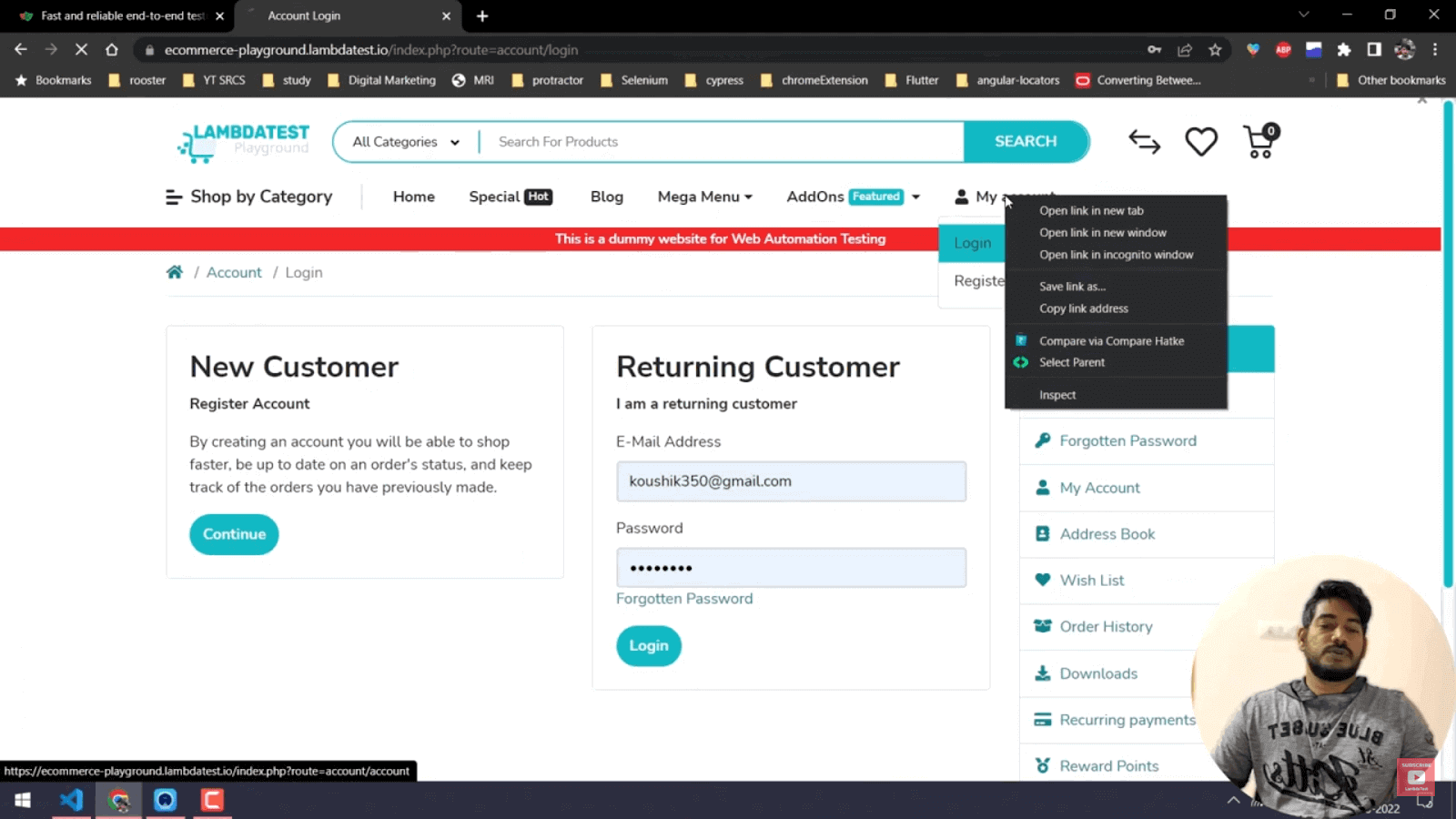
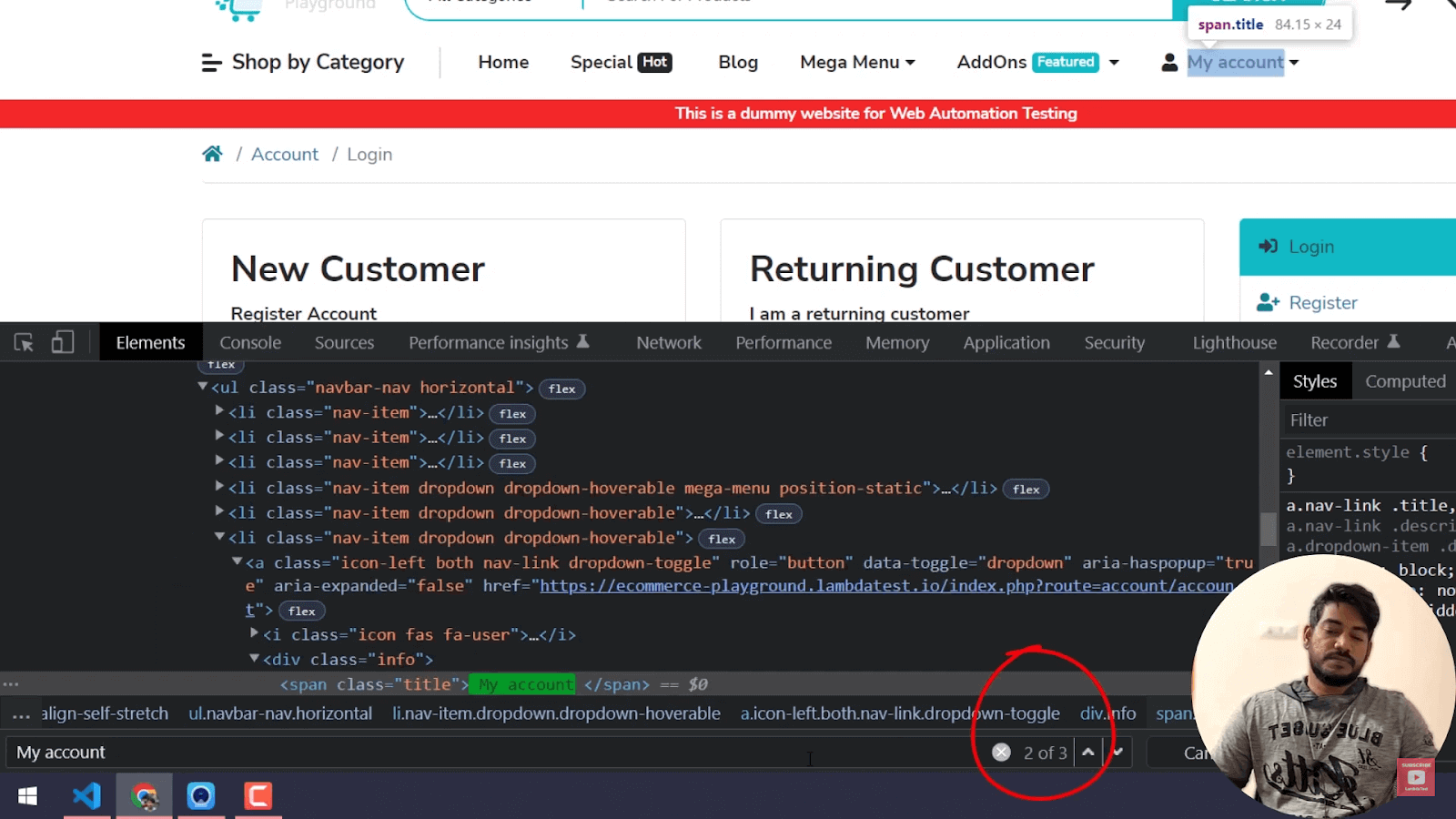
When you inspect "My account" in the browser, the term may appear in multiple places in the DOM. When a selector matches more than one element, you need a more specific XPath or attribute-based CSS selector. For the Login button, only one element matches -- so a text locator works directly.
import { chromium, test } from "@playwright/test";

test("Login test demo", async () => {
  const browser = await chromium.launch({ headless: false });
  const context = await browser.newContext();
  const page = await context.newPage();

  await page.goto("https://ecommerce-playground.lambdatest.io/");
  await page.hover("//a[@data-toggle='dropdown']//span[contains(.,'My account')]");
  await page.locator("text=Login").click();
});
Executing the Script
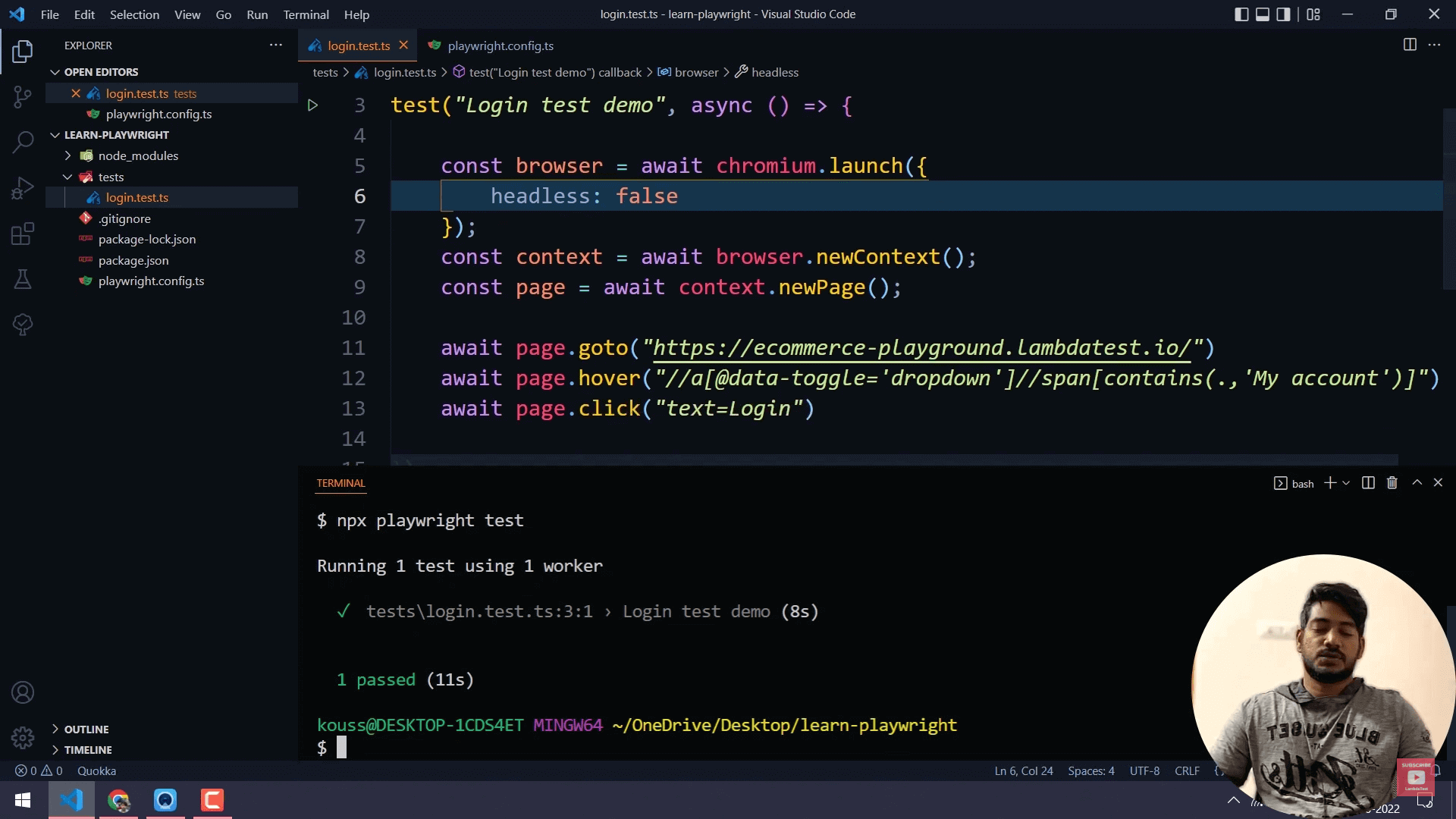
Open the terminal in VS Code with Ctrl+J and run:
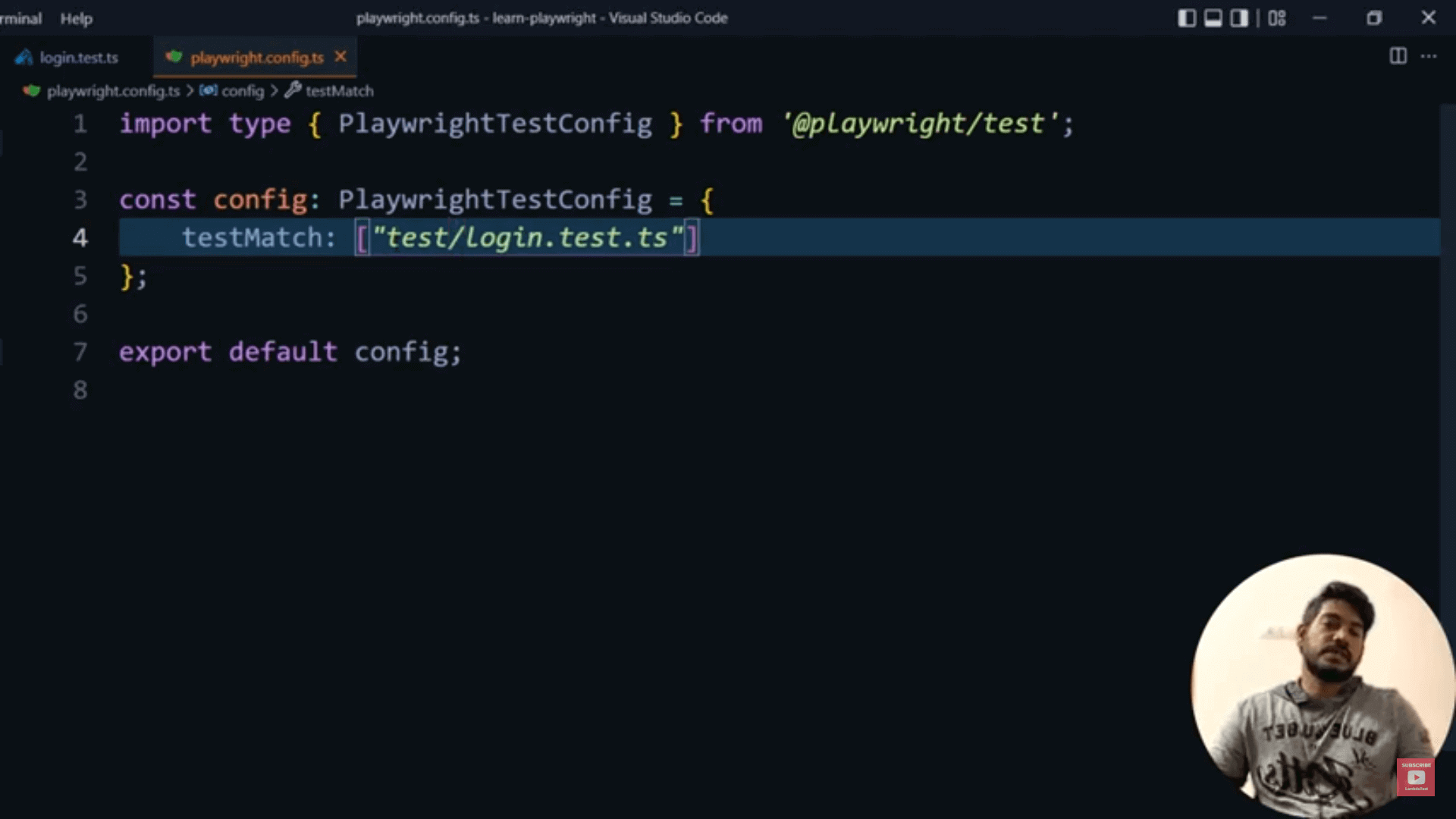
npx playwright test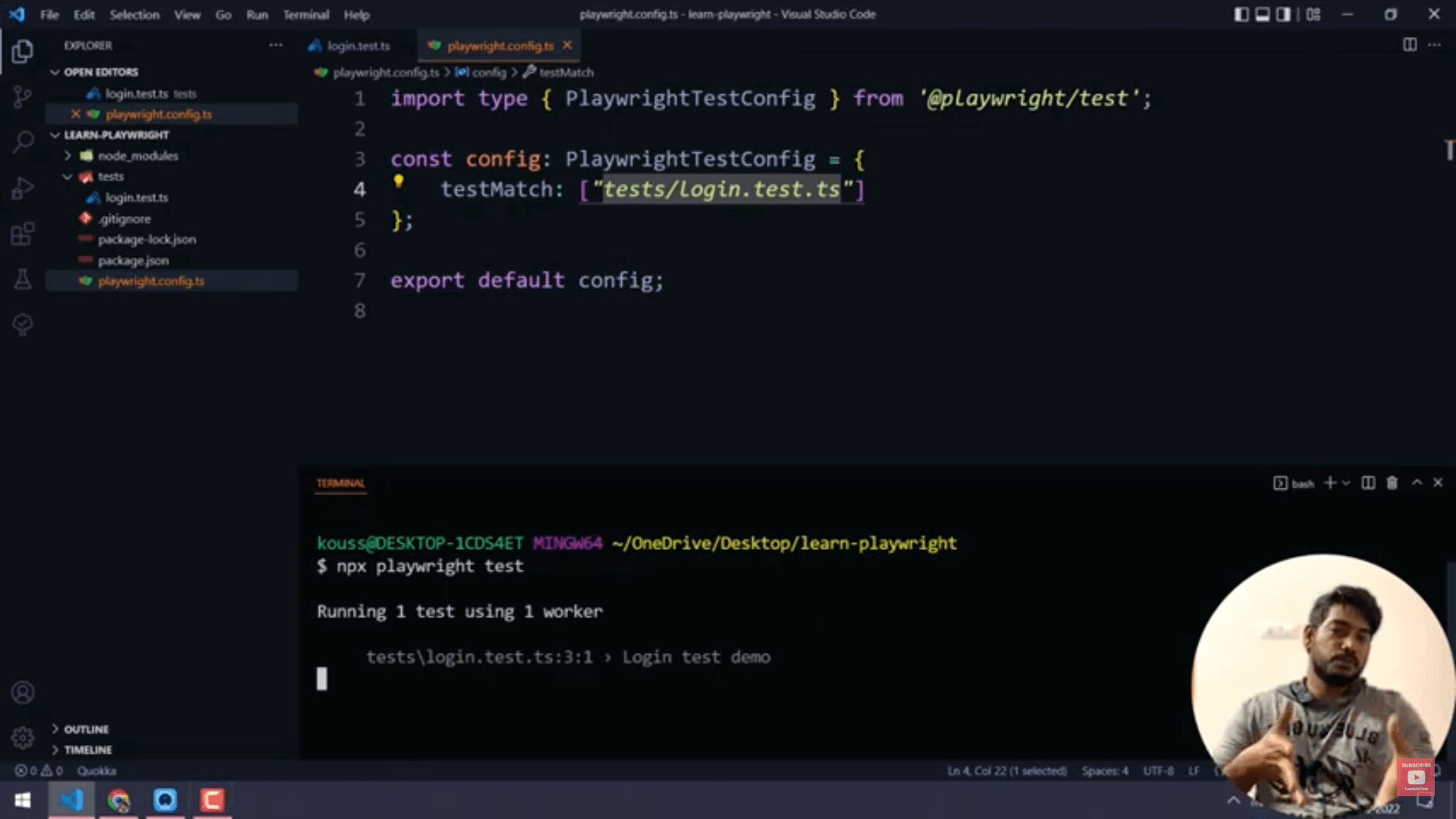
Playwright runs in headless mode by default as part of Playwright headless testing, which allows tests to execute faster without opening a visible browser. To watch the browser during execution, add headless: false to the launch options:
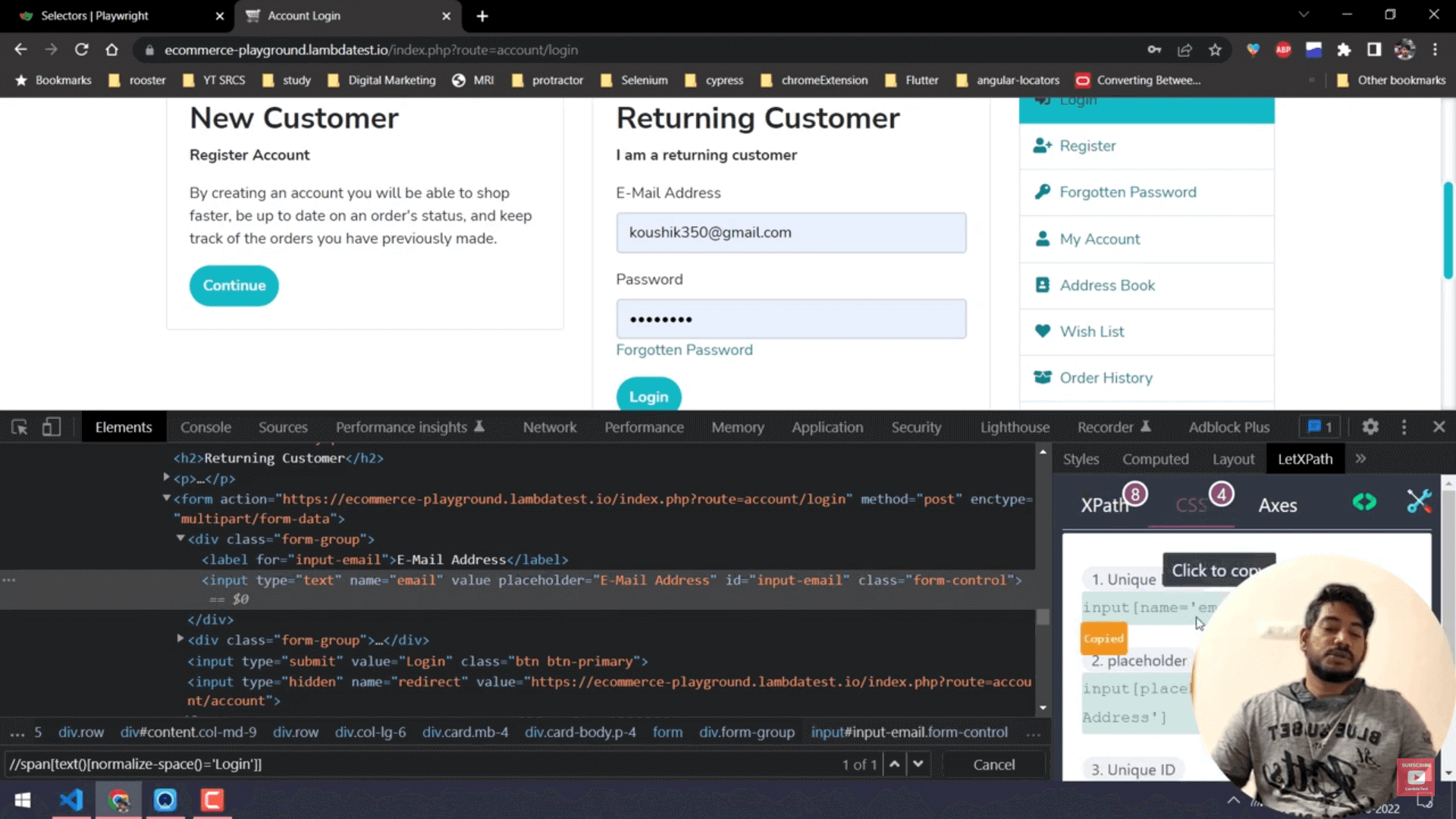
Inspect the email and password fields. Under CSS you will find unique attribute selectors for each input:
await page.fill("input[name='email']", "koushik350@gmail.com");
await page.fill("input[name='password']", "Pass123$");
await page.click("input[value='login']");
await page.waitForSelector('#account-account');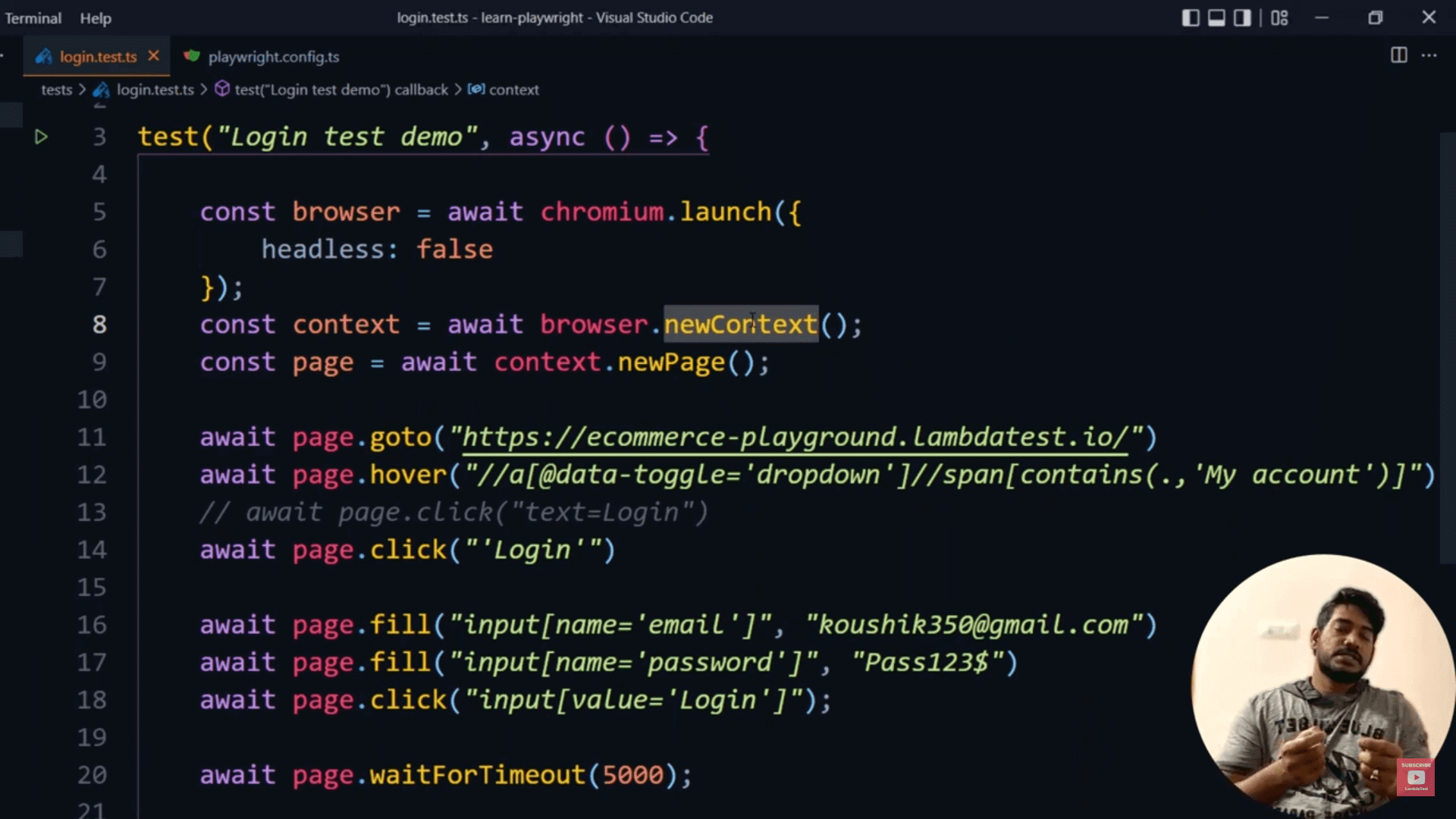
How Do You Scale Playwright Testing with the TestMu AI Cloud?
Scale Playwright testing on TestMu AI Cloud by running parallel tests across 3000+ browser and OS combinations with full logs, video recordings, and HyperExecute speed.
LambdaTest, now TestMu AI, brings the same reliable testing experience with new AI-powered capabilities.
Running Playwright testing locally limits you to the browsers installed on your machine. To validate across real browsers, operating systems, and device types at scale, TestMu AI (formerly LambdaTest) provides a cloud automation grid across over 3000+ browser and OS combinations.
Run parallel Playwright tests over 3000+ browser and OS configurations to compress your feedback loop and accelerate releases. Debug efficiently with full logs, including network activity, command traces, and video recordings for every test run.
.With HyperExecute, tests execute significantly faster, helping teams maintain rapid delivery cycles without sacrificing test coverage or reliability. You can also integrate seamlessly with CI/CD pipelines, enabling centralized dashboards and better visibility into test analytics across builds.
Beyond infrastructure, TestMu AI enhances Playwright with AI-driven capabilities. This includes smarter test execution, adaptive debugging, and support for emerging approaches like vibe testing with Playwright , where tests align more closely with user behavior and real-world interaction patterns.
TestMu AI's automation testing cloud also supports Selenium, Cypress, Puppeteer, and app automation frameworks such as Appium, Espresso, and XCUITest.

What Is Playwright AI and Vibe Testing?
Playwright AI uses agents like Claude, Copilot, and KaneAI to generate tests from natural language, while vibe testing validates user journeys described in plain language.
AI coding assistants like Claude Code, GitHub Copilot, and Cursor can now generate production-ready Playwright test code from natural language descriptions, but the quality of that output depends entirely on whether the underlying Playwright knowledge is correct.
Understanding goto, locator, assertions, and selector strategy is what makes the difference between AI-generated code that holds up and code that breaks on the first real test run.
How Do TestMu AI Agent Skills Work with Playwright?
TestMu AI introduces intelligent Playwright Agents that extend automation beyond static scripts.
TestMu AI agents provide Playwright skills that enable tests to dynamically interpret UI changes, suggest fixes, and optimize execution without constant manual updates.
With TestMu AI agent-skills, your Playwright tests can:
- Adapt to UI changes: If a locator breaks due to a UI update, the Playwright agent can analyze the change, identify the new locator, and update the test automatically.
- Suggest fixes: When a test fails, the agent reviews logs and suggests code changes to resolve common issues like timeouts or selector mismatches.
- Optimize execution: The agent identifies redundant steps or inefficient patterns in your Playwright tests and recommends improvements for faster execution.
These Playwright Skills reduce maintenance overhead and make automation more resilient, especially in fast-changing applications.
The Future of Playwright Features
Playwright is steadily evolving with more intelligent and developer-friendly capabilities, often described as Playwright futuristic features focused on reducing manual effort and improving test reliability.
With the growing influence of Playwright AI, these advancements aim to make automation more adaptive, faster, and easier to maintain across modern applications.
- Self-healing locators: Automatically adjust when UI elements change, reducing test failures due to minor updates.
- AI-assisted test generation: Helps create test cases based on user flows or application behavior.
- Smarter auto-waiting mechanisms: Further minimizes flakiness by improving how Playwright handles dynamic content.
- Enhanced debugging tools: Richer logs, traces, and visual insights to speed up issue resolution.
- Deeper CI/CD integration: Better support for scalable, parallel, and cloud-based execution workflows.
Conclusion
Playwright automation starts with functions and selectors, but it matures through the choices you make around them: using the Locator API over deprecated methods, role-based selectors over fragile CSS classes, waitForLoadState() and waitForSelector() instead of fixed timeouts, web-first assertions with expect(), and extracting repeated logic into helper functions. These are the practices that make the difference between a test suite that passes once and one that stays reliable across deployments.
As the field moves toward Playwright AI and vibe testing, those same foundations matter even more -- because AI-generated tests are only as good as the Playwright knowledge behind them. Whether you write tests by hand or guide an AI agent to generate them, the skills in this Playwright testing tutorial apply directly. For cloud-scale execution and AI agent support to go with them, the TestMu AI platform and TestMu AI Agent Skills have you covered.
Subscribe to the TestMu AI YouTube Channel and stay updated with the latest Playwright topics.
Author

Mythili Raju
Blogs: 58


Mythili is a Community Contributor at TestMu AI with 3+ years of experience in software testing and marketing. She holds certifications in Automation Testing, KaneAI, Selenium, Appium, Playwright, and Cypress. At TestMu AI, she leads go-to-market (GTM) strategies, collaborates on feature launches, and creates SEO optimized content that bridges technical depth with business relevance. A graduate of St. Joseph’s University, Bangalore, Mythili has authored 35+ blogs and learning hubs on AI-driven test automation and quality engineering. Her work focuses on making complex QA topics accessible while aligning content strategy with product and business goals.
Reviewer

Srinivasan Sekar
Reviewer
Srinivasan Sekar is Director of Engineering at TestMu AI (formerly LambdaTest), where he leads engineering and open-source initiatives behind the Selenium and Appium automation grid and owns TestMu AI's MCP Server. A committer to Appium and a contributor to Selenium, WebdriverIO, Taiko, and AppiumTestDistribution, he brings over 15 years of experience in quality engineering and open-source technologies. He is the author of the Apress book 'The MCP Standard: A Developer's Guide to Building Universal AI Tools with the Model Context Protocol,' a Certified Kubernetes and Cloud Native Associate, and an international conference speaker. Before TestMu AI he spent over eight years at Thoughtworks as a Principal Consultant and Quality Architect. Srinivasan holds a B.Tech in Information Technology from Anna University.
Playwright Functions & Selectors FAQs
Did you find this page helpful?
More Related Learning Hubs
TestMu AI forEnterprise
Get access to solutions built on Enterprise
grade security, privacy, & compliance
- Advanced access controls
- Advanced data retention rules
- Advanced Local Testing
- Premium Support options
- Early access to beta features
- Private Slack Channel
- Unlimited Manual Accessibility DevTools Tests