
Run Web Automation Tests at Scale with Agentic AI
Generate tests with AI agents or automate test suites with Selenium, Playwright and other frameworks. Run tests in parallel on TestMu AI scalable cloud grid.

Handling Frames and Windows in Playwright: A Complete Guide [2026]
Part of: Playwright
Learn how to handle frames and windows in Playwright, including interacting with frames, multiple tabs, pop-ups, and nested pages efficiently.
Last Updated on:
Playwright handles frames with page.frameLocator() or locator.contentFrame(), which find the iframe again on every action, and handles windows by waiting for the popup event with page.waitForEvent('popup'). Each new tab or pop-up window becomes a separate Page object that you use like any other page.
Frames and windows are commonly used to display third-party content, embedded pages, or external resources within a website. In automation testing, handling frames and windows in Playwright can be challenging because tests must correctly switch between different browsing contexts, whether it's an iframe, a new tab, or a separate browser window.
Playwright streamlines this process through clean, intuitive APIs that make switching between frames, interacting with pop-ups, and managing multiple tabs both reliable and efficient. Understanding how to handle frames and windows in Playwright is essential for building stable and effective end-to-end test automation.
TL;DR
To handle frames in Playwright, reach the iframe with page.frameLocator() or locator.contentFrame(). To handle windows, start page.waitForEvent('popup') before the click that opens the new tab, then work with the returned Page object like any other page.
- Frames - page.frameLocator() finds the iframe again on every action, so it also works for late-loading frames, while page.frame() returns null until the frame is attached.
- Nested frames - Chain frame locators, such as frame.frameLocator(), to operate inside multi-level iframes.
- Windows - Each new tab or pop-up is a separate Page object, so keep a reference to the original page to switch back.
- Load states - waitForLoadState() accepts load and domcontentloaded, and the Playwright docs mark networkidle as discouraged, so assert on the element the test needs instead.
- Debugging - page.pause(), screenshots, video, console logs, and Trace Viewer show where a frame or window interaction fails.
What Are Frames in Playwright?
A Frame is an <iframe> or the main document that is part of a page. The frame can let you create a new experience inside the page. These new experiences are then accessible through interactions with the page. Every time you need to inspect the page, you can access the current frame tree using the frame.childFrames() and page.mainFrame() methods. (It’s not automatically displayed when the page loads.)
Three events on the page object regulate the lifecycle of the frame object:
- page.on('frameattached'): This event is triggered only once when a new frame is successfully attached to the page.
- page.on('framenavigated'): This event is triggered every time a frame navigates or loads a different URL inside the page.
- page.on('framedetached'): This event is triggered only once when an existing frame is removed or detached from the page.
How to Handle Frames in Playwright?
When handling frames and windows in Playwright, you must pay special attention to iframe-based content, as elements inside frames cannot be accessed through the main page context. Properly handling iframes in Playwright ensures your automation script interacts with all nested and dynamic elements reliably.
For a quick visual walkthrough of this concept, watch the video below from TestMu AI.

Subscribe to the TestMu AI YouTube channel for more tutorials on testing and automation.
To understand how to handle frames and windows in Playwright, let’s consider a practical test scenario.
Test Scenario:
Let's use https://letcode.in/frame to demonstrate how handling iframes in Playwright works. When you inspect this page, you can see multiple <iframe> tags embedded within the document.
Code Implementation:
import { expect, test } from "@playwright/test";
test("Interact with frames", async ({ page }) => {
    await page.goto("https://letcode.in/frame");
    const allframes = page.frames();
    console.log("No.of frames: " + allframes.length);
})
Code Walkthrough:
- Create a Test File: In VS Code, create a file named frames.test.ts. Import expect and test from @playwright/test. Define a test block called "Interact with frames".
- Navigate to the Website: Use Playwright to open the target URL. Inspect the page to check the number of frames present on the page.
Note that dynamic content, such as advertisements, may affect the frame count, so the number in the output can change from run to run.
Viewing Test Reports:
There are two ways to view the test results:
- Playwright HTML Report: Open the Playwright reports and view the HTML report. Click on stdout to see detailed information, including the number of frames.
- Console Output: Configure playwright.config.ts to match the test by name and update package.json if needed. Execute the test script in the terminal to see the number of frames directly in the console.


How to Interact With Frames in Playwright?
A page can have one or more frame objects attached via the <iframe> HTML tag. Each page has a main frame, and page-level interactions like click are assumed to work within the main frame. The <iframe> tag allows for the attachment of additional frames to a page.
To interact with elements inside these frames, you can access the frame objects. Frame objects can be obtained using the page.frame() API. You can also use page.frames() to get all frames or frame.childFrames() to access nested frames. The Playwright docs mark the Frame object's own action methods, such as frame.fill() and frame.click(), as discouraged. Call locator() on the Frame object and act on the locator.
A page can have one or more frame objects attached to the iframe HTML tag. Each page has a main frame and page-level interactions like “click” that are assumed to work within the main frame.
For a practical demo on handling frames and windows in Playwright, we will use the same website as before, and interact with the “First Name” and “Last Name” fields.
Test Scenario:
- Navigate to https://letcode.in/frame in your browser.
- Right-click on the page and select Inspect, or press F12.
- Hover over the “First Name” or “Last Name” input fields in the Elements tab. The entire frame will be highlighted in blue, indicating which <iframe> contains the elements.
- Once you identify the frame, use Playwright’s frame locator to interact with elements inside the frame during your test.
Code Implementation:
import { expect, test } from "@playwright/test";

test("Interact with frames", async ({ page }) => {
    await page.goto("https://letcode.in/frame");
    const allframes = page.frames();
    console.log("No.of frames: " + allframes.length);

    // page.frame() looks the frame up once and returns null until the iframe is attached,
    // so poll until the frame named "firstFr" exists.
    await expect.poll(() => page.frame("firstFr")).not.toBeNull();
    const myFrame = page.frame("firstFr")!;

    await myFrame.locator("input[name='fname']").fill("yourname");
    await myFrame.locator("input[name='lname']").fill("yourexample");
    await expect(myFrame.getByText("You have entered")).toContainText("yourname yourexample");
});

Code Walkthrough:
- Get the Frame: Use page.frame() and provide the frame’s name. Hover in the inspector to select the correct frame.
- Check for Frame Existence: page.frame() looks the frame up once and returns null if the iframe is not attached yet. expect.poll() repeats the lookup until the frame exists. Optional chaining (?.) would skip the fill calls without an error when the frame is missing, so the sample avoids it.
- Copy the Locator: From the inspector, copy the locator for the “First Name” field.
- Fill the Field: Use the fill function to enter the test data into the “First Name” input field.
- Fill the Last Name Field: Inspect the “Last Name” field and use the
fillfunction to pass the locator and test data. - Assert the Result: The frame shows "You have entered" followed by both names. toContainText() waits until that text appears.
How to Handle Frames in Playwright with Frame Locators?
When you need to test iframes, you can use a frame locator, one of the Playwright locators, to access the iframe and interact with elements inside it. The frame locator helps you target elements within the frame efficiently.
Code Implementation:
import { expect, test } from "@playwright/test";

test("Interact with frames", async ({ page }) => {
    await page.goto("https://letcode.in/frame");
    const allframes = page.frames();
    console.log("No.of frames: " + allframes.length);

    const frame = page.frameLocator("#firstFr");
    await frame.locator("input[name='fname']").fill("Koushik");
    await frame.locator("input[name='lname']").fill("Chatterjee");

    // locator.contentFrame() returns the same frame locator from a regular locator
    const sameFrame = page.locator("#firstFr").contentFrame();
    await expect(sameFrame.getByText("You have entered")).toContainText("Koushik Chatterjee");
});
Code Walkthrough:
- Use the Frame ID: In VS Code, use the id from the inspector instead of the frame name or URL to identify the frame.
- Select the Frame: Frame locators are strict, so the selector must match exactly one iframe. If it matches several, pick one with locator.first(), locator.last(), or locator.nth() and then call contentFrame(). The Playwright docs mark frameLocator.first(), frameLocator.last(), and frameLocator.nth() as deprecated.
- Fill the First Name Field: Use the .fill() function to pass the locator and enter the test data for the “First Name” field.
- Fill the Last Name Field: Inspect the “Last Name” field and use the .fill() function to pass the locator and enter the test data.
- Reuse an Existing Locator: page.locator("#firstFr").contentFrame() returns the same frame locator. Use it when you already hold a locator for the iframe element. The sample uses it to assert the "You have entered" message.
How to Handle Nested Frames in Playwright?
Nested frames occur when one iframe is embedded inside another iframe. This allows for more complex page layouts, as frames can be nested to multiple levels.
In modern web pages, <iframe> elements are used instead of the older <frameset> approach. Playwright provides tools like frame locators to interact with both parent and nested frames.
Code Implementation:
import { expect, test } from "@playwright/test";

test("Interact with frames", async ({ page }) => {
    await page.goto("https://letcode.in/frame");
    const allframes = page.frames();
    console.log("No.of frames: " + allframes.length);

    // Parent frame
    const frame = page.frameLocator("#firstFr");
    await frame.locator("input[name='fname']").fill("Koushik");
    await frame.locator("input[name='lname']").fill("Chatterjee");

    // Nested frame inside the parent frame
    const innerFrame = frame.frameLocator("iframe[src='/innerframe']");
    await innerFrame.locator("input[name='email']").fill("koushik@gmail.com");

    // Back in the parent frame, with no step to switch
    await expect(frame.getByText("You have entered")).toContainText("Koushik Chatterjee");
    await expect(innerFrame.locator("input[name='email']")).toHaveValue("koushik@gmail.com");
});
Code Walkthrough:
- Navigate to the Page: Use page.goto() to open https://letcode.in/frame in the browser.
- Get All Frames: Use page.frames() to retrieve all frames on the page and log the count for verification.
- Use the Frame ID: In VS Code, use the ID from the inspector (e.g., #firstFr) instead of the frame name or URL to identify the parent frame.
- Fill the First Name Field: Use the frame locator to target the “First Name” field and enter the test data.
- Fill the Last Name Field: Use the frame locator to target the “Last Name” field and enter the test data.
- Target the Nested Frame: Use the parent frame locator to access the nested iframe (iframe[src='/innerframe']).
- Fill the Email Field: Use the nested frame locator to enter the email in the “Email” input field.
- Return to the Parent Frame: Use the parent frame locator again to check the "You have entered" message. Playwright needs no step to switch back from the nested frame.
- Run and Observe: Execute the test in VS Code. Observe the browser or console to verify that the test data is populated correctly.
- Assert the Result: toContainText() and toHaveValue() retry until the values appear, so the test needs no fixed pause such as page.waitForTimeout(). To watch the browser while the test runs, use npx playwright test --headed.
Result:
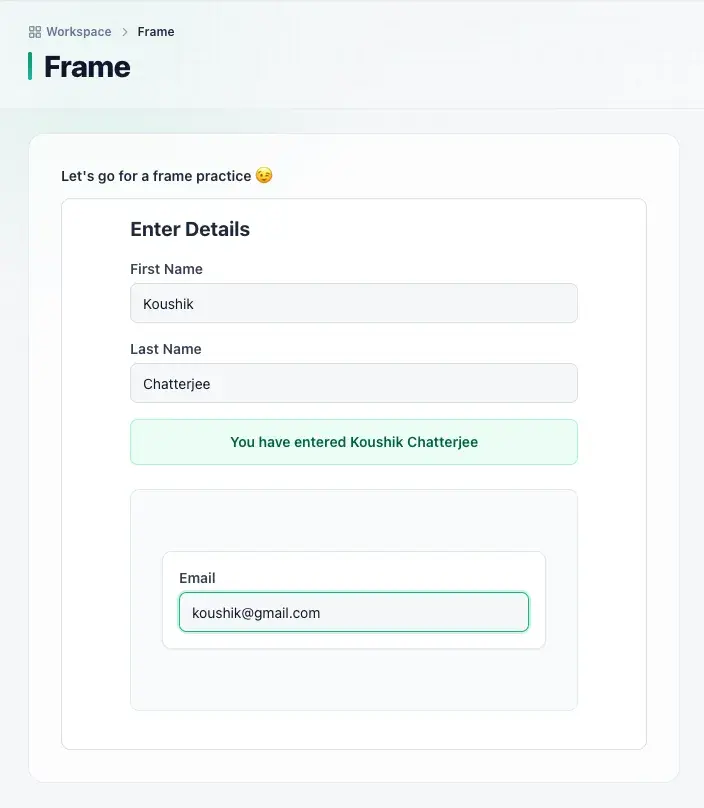
Now that we’ve explored how to automate single and nested frames in Playwright, the next step is understanding how to handle full window interactions.
Playwright allows you to work within embedded content, but real-world applications often trigger entirely new tabs or pop-up windows.
Let’s move on and see how to handle windows in Playwright effectively.
How to Handle Windows in Playwright?
Handling windows in Playwright is simple. Each browser can have multiple pages, and a Page refers to a single tab or a pop-up window within a browser context. You can use it to navigate URLs and interact with the page content.
Using context.waitForEvent("page") or page.waitForEvent("popup"), you can get a reference to a new window and wait for it to load. Once the new window appears, you can use Playwright’s assertion library to ensure that your user journey is successful.
When handling windows in Playwright, it’s important to understand that your automation may involve not just a single window but also multiple tabs or additional pop-up windows that open during user actions. Playwright treats each of these as a separate page, and your test must be structured to detect and interact with them correctly.
Let’s understand how to handle multiple windows and tabs in Playwright in the sections below.
How to Handle Multiple Windows in Playwright?
When working with web applications, certain actions, such as clicking a link, opening a pop-up, or triggering a new tab, can create additional browser windows.
Understanding how to handle multiple windows in Playwright ensures your tests remain stable and accurately simulate real user behavior.
To understand how this works, let’s consider a test scenario.
Test Scenario:
- Visit the Website: Go to the TestMu AI Selenium Playground website, which provides examples for window and modal handling.
- Locate the Multiple Window Popup Section: Scroll down to the section labeled “Open Twitter & Facebook Popup”.
- Open the Popups: Click the "Follow Twitter & Facebook" button, and two new windows (Facebook and Twitter) will open in the browser.
The demo page attaches its click handlers during hydration, a moment after it loads. A click that lands before that opens no window. Each window sample below waits for the next-route-announcer element first, which Next.js adds after hydration. The wait is specific to this demo page, so leave it out of tests for other sites.
Code Implementation:
import { expect, test } from "@playwright/test";

test("Handle multiple windows in Playwright", async ({ page }) => {
  await page.goto("https://www.testmuai.com/selenium-playground/window-popup-modal-demo/");
  // The page attaches its click handlers during hydration. Next.js adds this element after that.
  await expect(page.locator("next-route-announcer")).toBeAttached();

  // Start waiting for the popup before the click. No await on this line.
  const popupPromise = page.waitForEvent("popup");
  await page.getByRole("link", { name: "Follow Twitter & Facebook" }).click();
  const multiPage = await popupPromise;
  await multiPage.waitForLoadState();

  // The click opens two popups. Wait until the context holds all three pages.
  // A popup is listed once its first response arrives, so allow more than the 5-second default.
  await expect.poll(() => multiPage.context().pages().length, { timeout: 15000 }).toBe(3);

  const pages = multiPage.context().pages();
  console.log("No.of tabs: " + pages.length);
  pages.forEach(tab => console.log(tab.url()));
});
x.com answers the headless Chrome user agent with a 403, so in a headless run the Twitter window reports chrome-error://chromewebdata/ as its URL. The window still opens and is still counted. With the regular Chrome user agent, which a --headed run sends, the profile page loads. Playwright adds a popup to context.pages() only after the first response for its URL arrives, so the count reaches three only once facebook.com and x.com have both answered. The samples allow 15 seconds for that in place of the 5-second default.
Code Walkthrough:
- Navigate to the Test Page: Open the windows.test.ts file and navigate to the TestMu AI Window Popup Demo URL.
- Start Waiting for the Popup: Call page.waitForEvent("popup") before the click and keep the promise without awaiting it. The listener is then in place when the window opens.
- Click the Multi-Window Button: Locate the button with getByRole("link") and its name, Follow Twitter & Facebook, then call click() on the locator to open multiple popup tabs.
- Capture the Multi-Window Event: Await the promise and store the resulting popup page in a variable named multiPage (not newWindow) because multiple tabs will open.
- Wait for Both Popups: The promise resolves with the first popup while the second may still be opening. expect.poll() repeats the check until the context holds three pages.
- Retrieve All Open Tabs: Use const pages = multiPage.context().pages(); to collect every active page in the browser context.
- Log the Total Tab Count: Add console.log("No.of tabs: " + pages.length); to verify how many tabs were opened.
- Print Each Tab’s URL: Use pages.forEach(tab => console.log(tab.url())); to output the URL of every open tab.
How to Handle Tabs in Playwright?
Handling tabs in Playwright is an essential part of handling windows in Playwright, especially when user actions open new browser tabs alongside pop-ups. Playwright allows you to detect, wait for, and interact with these tabs just like standalone pages, ensuring smooth workflows even when switching between multiple views. When combined with handling frames and windows in Playwright, this gives you full control over complex, multi-surface user journeys.
Test Scenario:
- Open the Page: Visit the TestMu AI Selenium Playground Window Popup Demo page.
- Trigger the Single Window Popup: Under the "Single Window popup Modal" section, click the "Like us On Facebook" link to open a new tab or pop-up.
- Inspect and Interact: Inspect the link element and interact with it using the available XPath or link text.
- Capture the New Tab URL: Retrieve the URL of the newly opened tab and log it in the terminal to verify successful navigation.
Code Implementation:
import { expect, test } from "@playwright/test";

test("Handle tabs in Playwright", async ({ page }) => {
  // Navigate to the demo page and wait until its click handlers are attached
  await page.goto("https://www.testmuai.com/selenium-playground/window-popup-modal-demo/");
  await expect(page.locator("next-route-announcer")).toBeAttached();
  console.log("Main page URL: " + page.url());

  // Start waiting for the new tab, then click the "Like us On Facebook" link
  const popupPromise = page.waitForEvent("popup");
  await page.getByRole("link", { name: "Like us On Facebook" }).click();
  const newWindow = await popupPromise;

  // Wait for the new tab to load, then check and log its URL
  await newWindow.waitForLoadState();
  await expect(newWindow).toHaveURL(/facebook/);
  console.log("New tab URL: " + newWindow.url());
});
Code Walkthrough:
- Create Test File: Create a file named windows.test.ts in VS Code and ensure it is included in your playwright.config.ts.
- Navigate to the Demo Page: Use page.goto() to open the TestMu AI Window Popup Demo page.
- Trigger New Tab: Start waiting for the popup event, then click the element that opens the new tab.
- Wait for the Popup Event: Call page.waitForEvent("popup") before the click and keep the promise without awaiting it.
- Click the Like us On Facebook Link: Trigger the popup by calling click() on the getByRole("link") locator.
- Capture the New Tab: Await the promise and store the resulting popup page in a variable named newWindow.
- Log URLs: Call newWindow.waitForLoadState(), then use console.log() to print both the main page URL and the new tab URL for verification.
Test Execution:
Open the terminal, and run the following command given below:
npx playwright test tests/windows.test.ts
npx playwright test tests/windows.test.ts

Running 1 test using 1 worker

[1/1] tests/windows.test.ts:3:5 › Handle tabs in Playwright
tests/windows.test.ts:3:5 › Handle tabs in Playwright
Main page URL: https://www.testmuai.com/selenium-playground/window-popup-modal-demo/

New tab URL: https://www.facebook.com/testmuai/

  1 passed (7.4s)
Handling frames, iframes, windows, and tabs in Playwright locally can pose several challenges, such as browser inconsistencies, dynamic content like pop-ups or ads, and nested frames can lead to flaky tests.
Limited hardware resources make running multiple windows or tabs simultaneously difficult, and differences between local and production environments can cause unexpected failures. Observing complex test flows and debugging multi-window interactions also becomes cumbersome on a local setup.
Cloud-based platforms, such as TestMu AI, help overcome these challenges by providing multiple browser versions, operating systems, and screen resolutions for testing. They support scalable parallel execution, real-time debugging, and reliable network conditions, ensuring stable interactions with frames and windows.
With cloud testing, teams can efficiently run, monitor, and maintain complex Playwright automation scenarios, making tests faster, more reliable, and easier to manage.
How to Handle Frames and Windows in Playwright Tests at Scale?
TestMu AI is a GenAI-native test execution platform that allows you to perform manual and Playwright testing at scale across 3000+ browsers and OS combinations.
To get started with the TestMu AI platform, follow the steps below:
- Set Environment Variables: Add your TestMu AI Username and Access Key as environment variables to authenticate your tests on the TestMu AI cloud platform.
- Define Automation Capabilities: Specify the browser, version, platform, build name, test name, and additional settings such as network logs, video recording, and console logs to configure how your test will run on TestMu AI.
const capabilities = {
  browserName: "Chrome",
  browserVersion: "latest",
  "LT:Options": {
    platform: "Windows 10",
    build: "Playwright Test from config",
    name: "Playwright Windows Test",
    user: process.env.LT_USERNAME,
    accessKey: process.env.LT_ACCESS_KEY,
    network: true,
    video: true,
    console: true
  }
};
Use the TestMu AI Automation Capabilities Generator to create the capabilities block for any browser, OS, or configuration you need.
 connectOptions: {
      wsEndpoint: `wss://cdp.lambdatest.com/playwright?capabilities=${encodeURIComponent(
        JSON.stringify(capabilities)
      )}`
    },
Test Execution:
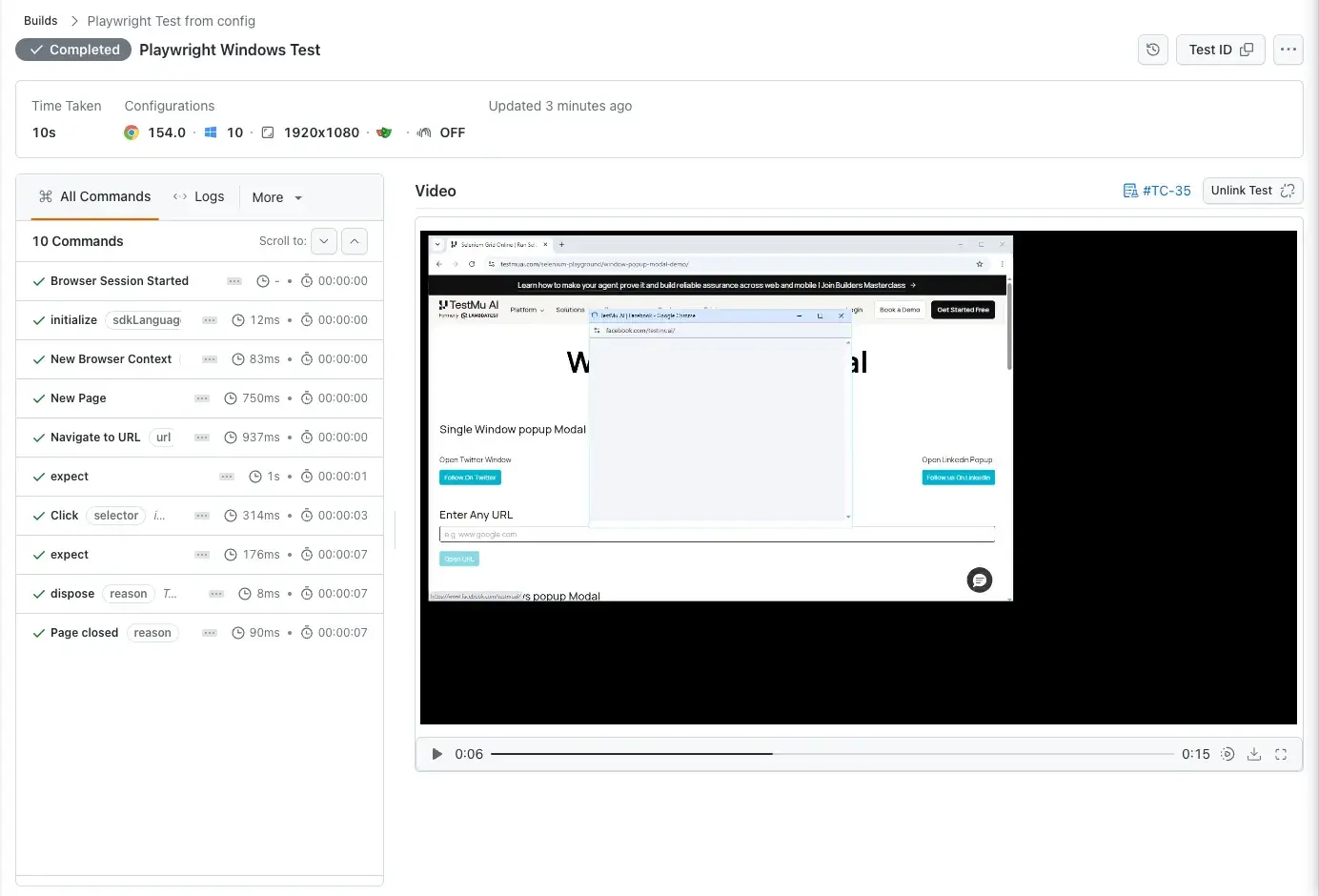
To get started, refer to the documentation on Playwright testing with TestMu AI.
Advanced Techniques for Handling Windows in Playwright
Once you understand the basics of handling frames and windows in Playwright, the next level of complexity usually comes from managing multiple windows, tabs, and multi-page interactions. These advanced techniques help ensure your tests remain stable when dealing with dynamic browser behaviors such as pop-ups, external links, or multiple tabs.
When new windows or tabs open, Playwright may try to proceed before the pages finish loading. To prevent this, call waitForLoadState() on each new page after triggering actions like clicking the Follow Twitter & Facebook button. The Playwright docs note that this method is not needed most of the time, because Playwright auto-waits before every action. It matters for reads that do not wait, such as url() and title().
Playwright supports three load states:
- domcontentloaded: Triggered when the initial HTML document has been completely loaded and parsed, without waiting for images or stylesheets.
- load: Fired when the entire page, including all dependent resources such as images, stylesheets, and scripts, has fully loaded.
- networkidle: Reached when the page has had no network connections for at least 500 ms. The Playwright docs mark this state as discouraged for testing and recommend web-first assertions for readiness.
Handling Windows in Playwright Using DOMContentLoaded Load State
When opening new windows or pop-ups in Playwright, it’s important to wait until the page is fully ready before interacting with elements. Using the domcontentloaded load state ensures that the HTML is completely parsed and ready for actions, even if other resources like images or scripts are still loading. This is especially useful when automating multi-window workflows.
To understand the working of the domcontentloaded load state in Playwright for handling windows in Playwright, let's take a test scenario.
Test Scenario:
- Navigate to TestMu AI’s Selenium Playground Window Popup Demo page.
- Click the "Follow Twitter & Facebook" button to open multiple windows.
- Wait for each new page to reach the domcontentloaded state before performing any actions.
Code Implementation:
import { expect, test } from "@playwright/test";

test("Handle windows with domcontentloaded load state", async ({ page }) => {
  // Navigate to the test page and wait until its click handlers are attached
  await page.goto("https://www.testmuai.com/selenium-playground/window-popup-modal-demo/");
  await expect(page.locator("next-route-announcer")).toBeAttached();

  // Start waiting for the popup, then click the button that opens the windows
  const popupPromise = page.waitForEvent("popup");
  await page.getByRole("link", { name: "Follow Twitter & Facebook" }).click();
  const multiPage = await popupPromise;

  // Wait until the context holds the main page and both popups
  await expect.poll(() => multiPage.context().pages().length, { timeout: 15000 }).toBe(3);
  const pages = multiPage.context().pages();

  // Wait until every page reaches DOMContentLoaded
  for (const tab of pages) {
    await tab.waitForLoadState("domcontentloaded");
  }

  console.log("No. of tabs: " + pages.length);

  // Print URL of each open tab
  pages.forEach(tab => console.log(tab.url()));
});
Code Walkthrough:
- Navigate to the Test Page: Open the TestMu AI Window Popup Demo page using page.goto().
- Trigger Multiple Window Actions: Start page.waitForEvent("popup") before the click, click the Follow Twitter & Facebook button, then await the promise.
- Retrieve All Open Tabs: After expect.poll() confirms three pages, use const pages = multiPage.context().pages(); to get an array of all open windows or tabs.
- Wait for DOMContentLoaded: Loop over the pages and call await tab.waitForLoadState("domcontentloaded") on each one, so the HTML of every window is fully parsed.
- Log Tab Count: Add console.log("No. of tabs: " + pages.length); to verify that all windows are detected.
- Print Each Tab URL: Iterate through each page using pages.forEach(tab => console.log(tab.url())); to confirm which URLs are open.
Handling Windows in Playwright Using Load Load State
When automating multiple windows or pop-ups, you may need to ensure that all page resources, including images, scripts, stylesheets, and media, are completely loaded before interacting with the page. Using theload load state in Playwright ensures that the entire page and its associated resources are ready, making it ideal for resource-heavy or visually rich pages.
To understand the working of the load load state in Playwright for handling windows, let’s take a test scenario.
Test Scenario:
- Navigate to TestMu AI’s Selenium Playground Window Popup Demo page.
- Click the "Follow Twitter & Facebook" button to open multiple windows.
- Wait for each newly opened page to reach the load state before performing any actions.
Code Implementation:
import { expect, test } from "@playwright/test";

test("Handle windows with load state", async ({ page }) => {
  // Navigate to the test page and wait until its click handlers are attached
  await page.goto("https://www.testmuai.com/selenium-playground/window-popup-modal-demo/");
  await expect(page.locator("next-route-announcer")).toBeAttached();

  // Start waiting for the popup, then click the button that opens the windows
  const popupPromise = page.waitForEvent("popup");
  await page.getByRole("link", { name: "Follow Twitter & Facebook" }).click();
  const multiPage = await popupPromise;

  // Wait until the context holds the main page and both popups
  await expect.poll(() => multiPage.context().pages().length, { timeout: 15000 }).toBe(3);
  const pages = multiPage.context().pages();

  // Wait until every page is fully loaded (all resources)
  for (const tab of pages) {
    await tab.waitForLoadState("load");
  }

  console.log("No. of tabs: " + pages.length);

  // Print URL of each open tab
  pages.forEach(tab => console.log(tab.url()));
});
Code Walkthrough:
- Navigate to the Test Page: Open the TestMu AI Window Popup Demo page using page.goto().
- Trigger Multiple Window Actions: Start page.waitForEvent("popup") before the click, click the Follow Twitter & Facebook button, then await the promise.
- Retrieve All Open Tabs: After expect.poll() confirms three pages, use const pages = multiPage.context().pages(); to get an array of all open windows or tabs.
- Wait for Full Page Load: Loop over the pages and call await tab.waitForLoadState("load") on each one, so the HTML and all external resources are fully loaded.
- Log Tab Count: Add console.log("No. of tabs: " + pages.length); to confirm all windows are detected.
- Print Each Tab URL: Iterate through the pages using pages.forEach(tab => console.log(tab.url())); to check the URLs of all open windows.
Handling Windows in Playwright Using NetworkIdle Load State
When automating dynamic pages or multi-window workflows, some pages continue to load resources in the background such as AJAX calls or API requests. Thenetworkidle load state waits until a page has had no network connections for at least 500 ms. The Playwright docs mark it as discouraged: "Don't use this method for testing, rely on web assertions to assess readiness instead." The sample keeps the call so you can recognize it in older suites, and follows it with the recommended form, a web-first assertion on the content the test needs.
To understand the working of the networkidle load state in Playwright for handling windows in Playwright, let's take a test scenario.
Test Scenario:
- Navigate to TestMu AI’s Selenium Playground Window Popup Demo page.
- Click the "Follow Twitter & Facebook" button to open multiple windows.
- Wait for each new page to reach the networkidle state before interacting with elements.
Code Implementation:
import { expect, test } from "@playwright/test";

test("Handle windows with networkidle load state", async ({ page }) => {
  // Navigate to the test page and wait until its click handlers are attached
  await page.goto("https://www.testmuai.com/selenium-playground/window-popup-modal-demo/");
  await expect(page.locator("next-route-announcer")).toBeAttached();

  // Start waiting for the popup, then click the button that opens the windows
  const popupPromise = page.waitForEvent("popup");
  await page.getByRole("link", { name: "Follow Twitter & Facebook" }).click();
  const multiPage = await popupPromise;

  // Wait until the context holds the main page and both popups
  await expect.poll(() => multiPage.context().pages().length, { timeout: 15000 }).toBe(3);
  const pages = multiPage.context().pages();

  // Discouraged by the Playwright docs: returns once a page has had no network connections for 500 ms
  for (const tab of pages) {
    await tab.waitForLoadState("networkidle");
  }

  // Recommended: assert on the content the test needs. The assertion retries until it passes.
  const facebookPage = pages.find(tab => tab.url().includes("facebook.com"))!;
  await expect(facebookPage).toHaveTitle(/Facebook/);

  console.log("No. of tabs: " + pages.length);

  // Print URL of each open tab
  pages.forEach(tab => console.log(tab.url()));
});
Code Walkthrough:
- Navigate to the Test Page: Open the TestMu AI Window Popup Demo page using page.goto().
- Trigger Multiple Window Actions: Start page.waitForEvent("popup") before the click, click the Follow Twitter & Facebook button, then await the promise.
- Retrieve All Open Tabs: After expect.poll() confirms three pages, use const pages = multiPage.context().pages(); to get an array of all open windows or tabs.
- Wait for Network Idle: Loop over the pages and call await tab.waitForLoadState("networkidle"). It returns once a page has had no network connections for 500 ms. The Playwright docs discourage this call in tests.
- Assert on Content: await expect(facebookPage).toHaveTitle(/Facebook/) is the recommended form. It retries until the Facebook window shows that title.
- Log Tab Count: Add console.log("No. of tabs: " + pages.length); to verify that all windows were successfully detected.
- Print Each Tab URL: Iterate through each page using pages.forEach(tab => console.log(tab.url())); to view URLs of all open tabs.
Interacting With Multiple Pages in Playwright
When working with multiple browser windows or tabs in Playwright, it becomes essential to identify which page corresponds to a specific URL and interact only with the required page. Playwright provides flexibility by allowing you to iterate through all open pages and selectively perform actions on the correct window, a key skill in accurate multi-window automation.
To understand how to interact with multiple web pages or frames in Playwright, let's consider the following test scenario.
Test Scenario:
- Navigate to TestMu AI’s Selenium Playground Window Popup page.
- Click the "Follow Twitter & Facebook" button. Three pages are then open: the demo page and two popups. The test finds the Facebook page by its URL and works only with that page.
Code Implementation:
import { expect, test } from "@playwright/test";

test("Interact with multiple pages", async ({ page }) => {
  // Navigate to the test page and wait until its click handlers are attached
  await page.goto("https://www.testmuai.com/selenium-playground/window-popup-modal-demo/");
  await expect(page.locator("next-route-announcer")).toBeAttached();

  // Start waiting for the popup, then click the button that opens the windows
  const popupPromise = page.waitForEvent("popup");
  await page.getByRole("link", { name: "Follow Twitter & Facebook" }).click();
  const multiPage = await popupPromise;

  // Wait until the context holds the main page and both popups
  await expect.poll(() => multiPage.context().pages().length, { timeout: 15000 }).toBe(3);
  const pages = multiPage.context().pages();
  console.log("No. of tabs: " + pages.length);

  // Identify the Facebook page
  let facebookPage;
  for (let index = 0; index < pages.length; index++) {
    await pages[index].waitForLoadState();
    const url = pages[index].url();
    if (url.includes("facebook.com")) {
      facebookPage = pages[index];
    }
  }
  if (!facebookPage) {
    throw new Error("No open page has a facebook.com URL");
  }

  // Work only with the Facebook page: check its title and print it
  await expect(facebookPage).toHaveTitle(/Facebook/);
  console.log(await facebookPage.title());
});
Code Walkthrough:
- Navigate to the Test Page: Open the TestMu AI Window Popup Demo page using page.goto().
- Trigger Multiple Window Actions: Start page.waitForEvent("popup") before the click, click the Follow Twitter & Facebook button, then await the promise.
- Retrieve All Open Pages: After expect.poll() confirms three pages, use const pages = multiPage.context().pages(); to access all open windows or tabs.
- Identify the Target Page: Iterate through the pages array, wait for each page to load, compare each page's URL, and assign the Facebook page to facebookPage when a match is found. The test stops with an error if no page matches.
- Extract Content: Use expect(facebookPage).toHaveTitle() to check the title of the identified page and facebookPage.title() to read it.
- Log Results: Print the retrieved title using console.log() to confirm successful interaction with the correct window.
Conclusion
Handling frames, windows, and multiple pages in Playwright is a crucial skill for automating complex web applications. Frames, including nested iframes, allow you to interact with embedded content that exists outside the main page context, and Playwright provides APIs like page.frame(), page.frames(), and frameLocator() to facilitate these interactions safely.
When dealing with new windows or tabs, Playwright treats each as a separate Page object, which can be captured using page.waitForEvent('popup') and interacted with just like any other page, ensuring seamless automation across multiple surfaces. Stability in multi-window and multi-frame workflows comes from waiting for a load state such as domcontentloaded or load before reading a new page, and from web-first assertions on the content the test needs. The Playwright docs discourage networkidle as a readiness signal.
By combining these techniques, testers can precisely target frames, navigate between tabs, and perform reliable interactions even on dynamic, resource-heavy, or nested page layouts. Overall, Playwright’s capabilities for handling frames and windows make it possible to create resilient and maintainable automation scripts that accurately replicate real user journeys, while cloud-based testing platforms further enhance scalability and consistency across different browsers and operating systems.
Testing from the terminal? Kane CLI by TestMu AI lets SDETs and developers plan, write, run and debug tests from the command line.
Author

Mythili Raju
Blogs: 55


Mythili is a Community Contributor at TestMu AI with 3+ years of experience in software testing and marketing. She holds certifications in Automation Testing, KaneAI, Selenium, Appium, Playwright, and Cypress. At TestMu AI, she leads go-to-market (GTM) strategies, collaborates on feature launches, and creates SEO optimized content that bridges technical depth with business relevance. A graduate of St. Joseph’s University, Bangalore, Mythili has authored 35+ blogs and learning hubs on AI-driven test automation and quality engineering. Her work focuses on making complex QA topics accessible while aligning content strategy with product and business goals.
Reviewer

Parth Mistry
Reviewer
Parth Mistry is a Member of Technical Staff at TestMu AI, building SmartUI, the visual regression testing product. He developed and owns the SmartUI CLI, a modular TypeScript tool built on Playwright for multi-browser automation, and built the Storybook CLI for visual regression of UI components. He maintains cross-language SDKs in Python, Java, Ruby, C#, and Node.js, and engineered a Node-based visual rendering service on Kafka, Redis, MySQL, and S3. His migration of that service to an event-driven, KEDA-autoscaled architecture improved execution speed by 60% and cut annual infrastructure cost by $9,600. He also built the end-to-end SmartUI integration with KaneAI. Parth is a Google Summer of Code 2024 contributor and an alumnus of IIT Jodhpur.
Frames & Windows in Playwright FAQs
Did you find this page helpful?
More Related Learning Hubs





TestMu AI forEnterprise
Get access to solutions built on Enterprise
grade security, privacy, & compliance
- Advanced access controls
- Advanced data retention rules
- Advanced Local Testing
- Premium Support options
- Early access to beta features
- Private Slack Channel
- Unlimited Manual Accessibility DevTools Tests