
Test on 50,000+ Real Android and iOS Devices
Live and Automated Real Device Testing on 50,000+ iOS and Android Devices. No Need to Buy or Maintain Device Lab

On This Page
- What Is Android Testing?
- What Are the Benefits of Android Testing?
- What Makes Android a Challenging System to Test?
- What Are the Common Myths About Android Testing?
- What Types of Tests Should You Perform on Android Apps?
- Which Tools and Frameworks Are Used for Android Testing?
- What Strategies Should You Follow for Android Testing?
- How Do You Set Up and Test on a Physical Android Device With ADB?
- What Is the Difference Between Local Unit Tests and Instrumented Tests in Android?
- How Do You Test an Android Service Component?
- How Do You Design a Testable Android Architecture?
- How Do You Perform Android Testing Over the Cloud?
- How Is AI Changing Android Testing?
- Why Does Android Testing Matter?
OVERVIEW
Android's device fragmentation makes testing hard: manufacturers have shipped roughly 24,000 distinct Android devices from nearly 1,300 brands, each varying in screen size, resolution, and hardware. Since Statcounter puts Android's mobile OS share at 72 percent, testing across that device sprawl is unavoidable for most apps.

Despite its popularity, Android's ecosystem faced challenges like device fragmentation. Device fragmentation refers to the diverse array of Android smartphones available, each with varying screen sizes, resolutions, hardware configurations, and software versions. To overcome these challenges, developers can use tools and strategies to ensure their applications are compatible with various devices.
This guide covers what Android testing involves, the test types worth running, the tools that support them, and how to run a suite on real devices.
TL;DR
Android testing checks that an app behaves correctly across the device models, OS versions, and hardware its users actually have. It combines fast local unit tests with instrumented tests on devices, and exists because Android fragmentation makes any single test environment unrepresentative of the install base.
- Local unit tests: Live in src/test and run on your machine's JVM in milliseconds against mocked Android dependencies. Use them for business logic, view models, and utility classes.
- Instrumented tests: Live in src/androidTest and run on a real device or emulator, exercising genuine framework APIs through Espresso. Use them for UI flows, database migrations, and anything touching the Android runtime.
- Device fragmentation: Roughly 24,000 distinct Android devices across nearly 1,300 brands, which is why a device matrix drawn from your own analytics beats testing whatever handsets the team happens to own.
- Emulators versus real devices: Emulators give fast feedback during development but cannot reproduce manufacturer skins, sensors, or battery behavior. TestMu AI provides 50,000+ real devices for the release checks that need physical hardware.
- ADB: The Android Debug Bridge connects your machine to a device or emulator, and it is how you install builds, read logcat output, and trigger instrumented test runs.
What Is Android Testing?
Android testing is a process to ensure that an Android application works correctly and meets quality standards before it is released to users. Even minor issues can result in significant business losses. It aims to address these issues and improve the overall user experience.
Teams conducting Android testing should also consider their application's specific functionalities and create custom goals to ensure its quality. This approach builds a quality assurance process that holds up and simplifies testing in the long run. Once all testing goals are met, the team can deem the Android application as "tested" and ready for release.
Google's own distribution figures show a long tail of active devices on years-old releases, so the versions you support rarely stop at the newest one.

Older releases often lack APIs the app depends on, and the devices still running them tend to sit at the low end for screen size and memory, so they surface layout and performance faults nothing else does.
The Android ecosystem is vast, with many applications available to users. Developers must ensure their applications behave consistently across Android versions and devices to retain and attract customers. Unlike iOS development, which targets a narrower device lineup and gradual capability enhancements, Android development requires adherence to various performance and optimization standards.
Testing is critical in Android development, especially ensuring compatibility across diverse device ecosystems. Testing across that range is what keeps usability and performance predictable.
While Android testing may pan out to multiple areas, generally, it aims towards (and comprises of) specific fixed goals as follows:
- It ensures that users have a consistent experience, including a user interface and user experience.
- It ensures that the application should not contain significant bugs that can halt its execution entirely, although achieving a completely bug-free state is often challenging.
- It ensures the application does not consume excessive device resources during runtime.
- It ensures that the application's functionalities accurately reflect its user interface, avoiding confusing or misleading text.
- It ensures that the application is reliable and stable in the customer's eyes, fostering positive word of mouth and organic business growth.
- It ensures the application is secure, protecting user data and preventing unauthorized access.
- It ensures the application complies with local laws and regulations, such as content licensing agreements for streaming services.
What Are the Benefits of Android Testing?
Android testing prevents bugs at low cost, improves app quality and reliability, saves time, scales easily, and supports faster, more frequent releases.
- Preventing bugs with minimal costs: A crucial aspect of Android testing is unit testing, which focuses on testing a singular part of the code. This targeted approach allows developers to identify and address bugs in the code they are currently working on. When a unit test fails, developers can pinpoint the source of the bug and its reasons, facilitating quicker resolution.
- Enhance application quality: The fewer bugs that reach the end-user, the higher the quality of the application. Android testing plays a crucial role in achieving this goal. It is a significant phase in the Software Development Life Cycle (SDLC) that not only ensures the quality of the production-ready setup but also refines it through different stages of development.
- Makes the application more reliable: A direct benefit of having a bug-free or high-quality application is that it behaves predictably. Unpredictable behaviors are quickly noticeable by end-users, and they remember them for a long time. Reducing such occurrences leads to positive word-of-mouth and loyalty from customers.
- Enhances business revenue: Most businesses build mobile applications and aim to deliver a better mobile experience. Any issues related to mobile applications, such as functionality or performance, can directly impact the revenues of the business.
- Saves costs and time: What matters most to organizations with applications on the Google Play Store is reducing operational costs and eliminating overhead time and costs to invest in other areas. Android testing is instrumental in achieving these goals.
- Ease of scale: For small and medium enterprises, scaling is inevitable. If an application receives a good response, scaling is the only way to grow vertically. However, as the application's codebase grows, so do its bugs.
- Helps keep documentation: When Android testing is performed, teams document their work for reference and as a knowledge transfer guide for new employees. This documentation is valuable in the long run, helping new members self-train and serving as a bridge between technical and non-technical members of the organization.
- Increases release cycles: The more bugs the team solves, the fewer bugs they will encounter in the future. It quickly allows the team to release the Android application to end-users faster, increasing their release cycles and aligning with Agile methodologies.
If unit testing is not performed, bugs may only be detected at higher levels of testing, such as integration testing. Similarly, bugs that slip through integration testing may only be caught during end-to-end testing.
Users abandon apps that crash or stall, so stability work shows up in retention and, eventually, in revenue.
By focusing on Android testing, teams aim to minimize post-release bugs, ideally reducing them to zero. Since fixing post-release bugs is more costly, identifying and addressing them before release saves time and money. Every benefit discussed in this section saves time and costs, which are the ultimate goals.
Sometimes, the team may encounter dormant bugs that become active and hinder newly implemented functionalities. Without Android testing, the number of bugs can become so complex that the team may need to backtrack and redesign strategies. It can also increase maintenance time. Such events can stall the scaling program, giving competitors an advantage, which no team would want.
What Makes Android a Challenging System to Test?
Android testing presents specific challenges that make it a complex task. While installing the application, checking for functionality and accuracy, and reporting bugs may seem straightforward, the journey from development to test team delivery can be challenging. Android, as an operating system, poses both hidden and explicit challenges for the testing team due to its popularity and unique characteristics.
Deep fragmentation
Deep fragmentation is a challenge in Android testing because the various devices run the same operating system. As per the Android stats, nearly 1300 brands manufactured 24000 distinct Android devices, each potentially costing as little as $50; it is difficult for the testing team to anticipate the devices end-users will use. Taking risks in such a competitive environment is not feasible.
The only practical approach is testing on as many devices as possible, which can be daunting, leading to project delays and high expenses. While there are methods to mitigate this challenge, such as test automation, dealing with the constant influx of new devices remains a significant challenge for testing teams. To narrow that list down to a defensible set, this guide to building an Android app testing device matrix ranks API levels and OEMs by their real share of the installed base.

Mimicking real-world conditions
A significant challenge in Android testing is replicating real-world conditions to obtain accurate results, detect errors, and create a plan to address them. The ability to do so largely depends on the type of Android application being tested. However, there are some general challenges as well.
For example, simulators or emulators cannot accurately measure the impact of hardware on an application. Even if these tools are perfect, the team must rely on something other than the battery drain statistics they provide.
Another challenge is assessing the impact of network bandwidth on the application, especially when the user is stationary versus when they are moving. Predicting the application's behavior under varying network conditions is complex, making it challenging to draw definitive conclusions in the test report.
Security and its loopholes
The device's security is a critical aspect to evaluate in Android testing. End-users trust developers with their personal information, and developers and organizations must always protect this data. However, security testing can never be considered foolproof. It is a form of negative testing where testers can only be specific once a security breach occurs. The team should strive to ensure all security measures are in place, but the uncertainty of security testing makes Android testing challenging.
Frequency of changing trends
The growth of Android app development and the entire mobile app development industry has been remarkable. This growth is attributed to the increasing number of mobile devices worldwide, surpassing the global population. Consequently, there is a vast number of applications competing for user attention.
With such intense competition, technologies are advancing rapidly. For example, Facebook developed React Native to address concerns about their app's speed in displaying data on mobile devices. As technologies and trends evolve, testing methods must also adapt. This constant evolution makes it challenging to keep up with the pace of change and implement internal changes regularly.
Android acceptance in other devices
While Android is most popular on mobile devices, it is not the only area where it rules. Android TV and Google TV allow users to view and install Google Play Store applications (Android apps) on their televisions. Additionally, Android is used in desktops, tablets, and even digital cameras. It broadens the scope of impact for a developer, who may need to work beyond smartphones based on the application and project requirements. Testing in these diverse environments can be challenging and is typically carried out by specific, experienced individuals.
Responsive issues
Mobile responsiveness refers to an application's ability to scale according to the screen size of the device it is used on. It is a crucial aspect of mobile app development, as errors in responsiveness can have a significant impact, especially on smaller screens. Mobile applications require precise scaling, unlike web applications, where zooming in or out can temporarily solve display issues. Additionally, deep fragmentation in the Android ecosystem makes responsive testing more challenging as the list of target devices grows each month.
To enhance the testing experience for mobile responsiveness, you can use tools like LT Browser to test your mobile application on various viewports. To get started with responsive design testing, you can download LT Browser using the button below.

Accessibility
Accessibility research has consistently found that most Android applications are not designed to be accessible to differently-abled users. There are several reasons for this behavior among developers and organizations that require deep understanding and analysis:
- A small percentage of the audience suffers from accessibility issues, leading developers to prioritize other features over accessibility.
- Due to the small number of users with accessibility needs, the ratings and reviews provided by these individuals may be overshadowed and lost over time.
- Developers and organizations may be unaware of accessibility design principles and methods to implement them during the planning stages of development.
Because of the lack of emphasis on accessibility in development, testing becomes challenging. Teams not only have to prioritize accessibility but also keep bugs open for extended periods. Addressing this challenge requires a collaborative effort from every team involved in the development process to ensure that the application can serve all sectors of its audience.
What Are the Common Myths About Android Testing?
Common myths about Android testing are that emulators are enough, that Android is inherently insecure, and that testing on a few popular devices covers every user.
The statement "Android is not as secure as iOS" is a common myth in discussions about mobile devices. Believing in such myths can influence a tester's behavior and shape the entire testing phase, potentially impacting the quality of the application. Therefore, discussing and debunking these myths is essential to Android testing.
Each target device is required
One of the biggest myths among testers is that they need to test on all target devices for Android testing, which is not only a myth but also an impossible task to execute. A target device includes a unique mobile device and the various combinations generated by the selection of specifications used in its testing. For example, Samsung Galaxy S24 with Chrome 100 on resolution 1366x768 running Android 11 is one target device, while Samsung Galaxy S24 with Chrome 100 on resolution 1366x768 running Android 14 is another.
According to the Future of Quality Assurance report, handling device diversity is a major issue. Approximately 81.1% of the respondents indicated using fewer than 10 devices to test their applications. Organizations can run the same suites on cloud-based device platforms to test their applications on multiple handheld devices.

In Android testing, testers must curate the most optimized list of devices covering all necessary combinations. While this may require some time initially, the list can be used in all future releases, saving time for the team. This task's parameters depend on the application type and may require the developer's assistance. Testers can consult with developers about new releases to understand potential impacts. If an upcoming Android release changes a permission or background-execution rule your app depends on, that version belongs in the matrix before it reaches users.
Additionally, you can refer to these Android device statistics to test on the right set of devices.
Perform mobile app testing on the latest Android OS versions. Try TestMu AI Now!
Emulators are a risky business
Android emulators are software that provides an alternative to physical devices. They run on any system and offer a selection of device specifications for testing. There is a myth that emulators should only be used for development and not for testing due to their perceived unreliability. While this perception has some truth, it is only partially accurate.
They are unreliable in certain areas, such as accurately simulating battery drain rates, which physical devices can do better. However, emulators excel in other places, especially considering their cost-effectiveness. They are beneficial for testing user interfaces, visual anomalies, and user experience. Emulators provide a fast solution to initiate installation, rebooting, and manual inspection within minutes. Follow this guide to learn the key differences between emulators, simulators, and real devices.
An emulator belongs inside a wider mobile app testing strategy, mixed with other solutions rather than used individually. Testers should analyze various testing domains and use emulators where they are most effective to achieve a faster testing cycle.
Testing comes after the development
The traditional software development process involves testing after development, with repeated steps based on feedback leading up to the software release. This approach was also followed in agile and sprint models, maintaining the standard that software cannot be tested before the feature code is written. However, modern methods have evolved.

Today, post-development testing has been replaced with in-sprint development. Quality Assurance (QA) and testing team members work with the development team during sprints. Test cases are prepared while the feature is being developed, initiating quick testing and facilitating the feedback cycle. This modern approach challenges the myth that testing must always follow development, aligning with current standards and practices.
Android lacks high-end security features
A common misconception among end-users, especially non-technical ones, is that Android is less secure than other operating systems. This misconception often leads developers and organizations to prioritize security testing and allocate more time to it, sometimes at the expense of different functional areas. However, this notion is a myth.
While the open nature of Android systems has historically led to security vulnerabilities, recent Android OS versions have significantly improved security, surpassing iOS in some aspects.

Developers must understand that while security testing is essential and mandatory in every software release, including minor releases, investing excessive resources in security testing based on outdated perceptions can harm the overall development process.
What Types of Tests Should You Perform on Android Apps?
Android apps need functional, unit, integration, UX, performance, and accessibility tests, split between local tests and instrumented tests on devices.
A detailed testing plan for Android applications requires a combination of multiple tests that target different domains. A brief explanation of these tests can clarify their relevance in Android testing.

- Functional testing: This type of testing targets the application's functionalities. The main goal is to ensure that all the features work as intended. It may or may only be done on some devices, depending on the time constraints. Still, it should ensure that the core functionalities (such as database insertion) that only sometimes rely on the device types work perfectly.
- Unit testing: This type of testing verifies individual units of code. It is done during (or just before) feature development and targets the code only written for that feature. Its dependencies are often mocked to ensure the developer knows which part of the application it is in if a bug arises. The developers do this testing, which has become a mandatory norm in current development practices.
- Integration testing: This type of testing ensures that all the system parts work together smoothly. It checks that each component can communicate effectively with the others, building on unit testing, which checks that individual parts work correctly.
- UI/UX testing: User Interface (UI) and User Experience (UX) testing are crucial aspects of app development. They evaluate layout, navigation, responsiveness, and visual design to ensure they align with the application's overall UI/UX design. By conducting thorough UI/UX testing, developers can identify and rectify issues that may lead to user dissatisfaction or app abandonment.
- End-to-end testing: This type of testing is the final stage of software testing that deals with the application's end-to-end flow. It ensures that the released Android app can handle any scenario starting from any point and ending at any moment. End-to-end testing explores hidden bugs and ensures the application does not crash in any scenario, improving its overall quality.
- Performance testing: This type of testing measures the application's performance. It covers the sub-elements that make up performance. It includes load testing, stress testing, spike testing, scalability testing, and endurance testing. Each sub-testing element should be carefully assessed while testing the application.
- Accessibility testing: This type of testing verifies that the accessibility principles have been incorporated into the code. However, its necessity depends on the application's structure. If the application doesn't have accessibility issues, the team can skip this testing to save time.
- Cross-browser testing: This type of testing focuses on ensuring the consistency of the app's elements across all target devices. Manual cross-browser testing can significantly increase costs and time consumption for the team across all future release cycles. Moving towards cloud-based platforms can help perform cross-browser testing with effective planning and execution.
To enhance your performance testing, consider using various tools that can help maintain application performance and improve software quality. This guide on the top performance testing tools provides valuable information to assist you in making better decisions.
The domains above cover most applications. Working through the internals with developers usually reveals which of them matter most for yours.
For example, consider including API testing in the software testing life cycle if the application heavily relies on APIs. Additionally, some testers opt for usability or beta testing to obtain feedback from non-technical end-users, enhancing the application's quality. Incorporating these scenarios into the planning phase can optimize the overall Android testing process.
Which Tools and Frameworks Are Used for Android Testing?
The main Android testing tools and frameworks are TestMu AI for real device testing, Appium, Espresso, UI Automator, and the testing support built into Android Studio.
The frameworks below are the ones with enough community support to stay maintained and documented. This list provides a brief introduction to all such Android testing tools.
TestMu AI
TestMu AI is an AI-Native test orchestration and execution platform that lets you run manual and automated tests at scale with 3,000+ browser and OS combinations and 50,000+ real devices. This platform provides security, better infrastructure, and a vast range of browsers and operating systems to run your tests. It offers services and support for mobile app testing and provides a wide range of mobile device labs for performing real device testing over the cloud.
What TestMu AI provides for Android testing:
- This platform runs tests on emulators and simulators as well as on real devices over the cloud, helping testers validate their Android apps functionality across various real devices without the imposition of buying or maintaining them.
- This platform focuses on security, certifying that all testing scenarios are safeguarded and isolated from one another, thereby helping prevent any potential security breaches or data leaks during the testing course.
- The platform runs on high-speed servers, so suite runtime stays predictable as the device matrix grows while testing Android apps.
- This platform also offers various features that allow developers and testers to perform debugging tasks. For example, LT Debug helps perform debugging tasks efficiently on web-based apps.
- This platform offers scalability, enabling testers to amplify the testing journey as per their requirements, regardless of whether they demand to test on a single device or hundreds of devices simultaneously.
To learn more about this platform, its functionality and features, and how it can help you scale your automation testing process, follow this video tutorial to gain valuable insights.

Subscribe to the TestMu AI YouTube Channel to learn more about tutorials on automation testing, covering topics such as Selenium testing, Playwright testing, and Cypress test automation.
Appium
Appium is a popular open-source tool for mobile app automation. It is known for its ability to test code without requiring access to the source code. It has extensive language support and a broad community base, with an active community around its official Appium repository. It is widely adopted, with many testers and companies using it for testing.
Appium 2 split drivers and plugins out of the core, so you install only the Android driver you need and update it independently of the server. Pairing Appium with Cucumber is also the usual route to Behavior-Driven Development (BDD) on Android, where the specification is written in plain language before the step definitions exist.
To learn how to automate Android apps using Appium, watch the detailed video tutorial to get started on your mobile testing journey.

Espresso
It is a lightweight and easy-to-learn framework for Android testing developed by Google. It uses Java and Kotlin programming languages to create tests and focuses on simplicity and clean architecture. Espresso is best suited for UI testing, although it can also cover other kinds of tests. However, it is essential to note that knowledge of the codebase is required as a prerequisite. While it can be used for black-box testing, it may be less efficient in this context.
UI Automator
UI Automator is Google's framework for tests that cross application boundaries, which is the gap Espresso leaves. It can open the settings app, pull down the notification shade, or move between your app and another one in a single test, because it drives the device rather than a single process.
It ships as part of AndroidX Test alongside Espresso, so a suite can use both: Espresso for in-app views and UI Automator for the system interactions that sit outside them. Tests run on a device or emulator through the same instrumentation runner.
Android Studio
Android Studio is an IDE (Integrated Development Environment) primarily used for Android application development and testing. Introduced in 2013, it remains a popular choice among developers and testers. One of its key strengths, particularly appreciated by testers, is its built-in emulators, which can be quickly launched and operated like an end-user.

Android Studio supports test scripting and configuring tests directly from within the IDE. Additionally, its Gradle-based build system provides advantages for testers, allowing them to use the Gradle test runner included with the software. Android Studio includes features such as running tests concurrently on multiple devices, analyzing test coverage, generating reports, and more, making it a versatile tool for Android app testing.
All these tools work in different directions concerning Android applications. They are listed here to give testers a broader spectrum of choices. Before selecting a tool or framework, it is recommended that every little thing for the testing phase be planned. A tool can significantly impact the testing and make things worse if an incompatible choice is made. Therefore, you must understand the project, the framework, and their synchronization and then finalize it for the project.
Apart from the mentioned frameworks, many others allow you to perform Android testing. To learn more about the other Android testing frameworks, follow this guide on the best mobile app testing framework, which has covered all the frameworks that will help boost your testing process.
What Strategies Should You Follow for Android Testing?
Once the application has been developed, it should be tested on multiple devices. Skipping directly to the most intriguing part can sometimes lead to the need to backtrack and change strategies. Preparing for those scenarios from the outset avoids the rework.
Never start without a plan
A significant factor contributing to excessive testing time is constantly iterating on planned tasks as the team progresses. That is replanning, not planning. Continuously changing the design is unlikely to optimize it perfectly in the end. If the team changes tasks when they are at point B, it simply means they found the best workaround from point A to point B. This change might have been optional if they had planned everything from the start with the final point, i.e., B, in mind.
The team must have a well-thought-out plan for Android testing or any type of testing. This plan should be documented, distributed, and adhered to for maximum benefit.
Mix emulators and real devices
Testers must select devices to verify the functionalities and other parameters during testing. The choice primarily lies between simulators, emulators, and real devices. Simulators should be ruled out due to their inefficiency and inaccurate presentation of Android applications. The remaining options of emulators and real devices are significant in different application domains. For instance, emulators may not be accurate for hardware-related parameters, but they can display UI and UX precisely as on a real device.
Therefore, a good strategy for Android testing should involve a mix of emulators and real devices to achieve maximum efficiency and expedite the testing process.
Divide Manual and Automation Testing
It's essential to strike a balance when dividing manual and automation testing. Android testing cannot rely solely on manual or automated testing; a balanced approach requires the team to have a well-thought-out plan. Testers must analyze the elements for emulators and real devices and determine the distribution between manual and automation testing. Some domains, like user interface and user experience, can be tested through automation but require manual verification for nuanced details. For example, automated scripts may detect color differences but cannot evaluate whether a color combination is aesthetically pleasing.
The division between manual and automation testing should be based on the nature of the application. For instance, a gaming application may require more manual testing, while applications for banking systems may lean more toward automation. For the automated share, our guide to Android app automation compares Espresso, UI Automator, Appium, and Maestro and shows how to run them in CI.
Do not underestimate cross-browser testing
As mentioned earlier, testers should not rely solely on testing results from a single device and assume they apply universally. Even devices that seem similar can behave differently, so it's crucial to test on a wide range of devices to ensure consistency. Running the same build across a spread of devices is what surfaces those inconsistencies before users do.
Consider geolocation testing
Many Android applications are designed to be used globally, but not all regions have the same rules and regulations. Some areas may have restrictions on certain content, while others may require specific licenses. To ensure compliance and a consistent user experience, testing the application as if it were being used in each geographical area is essential. That is what geolocation testing checks.
Geolocation testing involves simulating or actually being in a specific geographical location and testing the application accordingly. Various methods exist to achieve this, including tools that allow testers to simulate their location. Geolocation testing helps ensure the application behaves correctly and complies with local regulations, ultimately providing a better user experience.
To learn more about geolocation and how to perform geolocation testing, follow this guide on how to test geolocation and get valuable insights.
Choose all the tools wisely
Android testing requires a variety of tools to fulfill all testing requirements. In each testing domain, testers have many options. A good strategy is to evaluate all available options, align them with the project's requirements, and select the most suitable one.
It's important to understand that the selected tool doesn't have to be the best available but rather the most optimal for the project. It should meet all project requirements, be feasible, and have an easy learning curve, preferably one the team already has experience with.
To understand which tool to select that fits your project needs, follow this blog on how to choose the right mobile app testing tools. This blog will provide valuable information on various criteria for selecting the right tool.
Adopt cloud platforms
Adopting cloud platforms for Android testing can be a beneficial strategy. Cloud platforms offer faster hardware and managed infrastructure, often more efficient than on-premise setups. Additionally, cloud testing is cost-effective and eliminates the need for maintenance and software updates. Choosing a cloud platform early in the testing cycle is advisable to reap these benefits.

How Do You Set Up and Test on a Physical Android Device With ADB?
Before you can push builds or run instrumented tests on a real handset, you have to unlock developer access and connect the device through the Android Debug Bridge (ADB). Follow these steps to get a physical Android device ready for testing.
- Open Developer Options: On the device, go to Settings > About Phone and tap Build Number seven times until you see the "You are now a developer" confirmation.
- Enable USB Debugging: Return to Settings > System > Developer Options and toggle on USB Debugging.
- Connect over USB: Plug the device into your machine with a USB cable and accept the "Allow USB debugging?" RSA key prompt on the phone.
- Confirm the connection: Run adb devices in your terminal. Your device serial should appear with the status device.
- Switch to Wi-Fi (optional): With the device still on USB, run adb tcpip 5555, then adb connect <device-ip>:5555 to debug wirelessly over the same network.
Once ADB recognizes the device, you can trigger your test suites straight from the project root using the standard Gradle wrapper commands.
# Run local unit tests on the JVM
./gradlew test

# Run instrumented tests on the connected device or emulator
./gradlew connectedAndroidTest
Maintaining a physical device lab is expensive, so many teams run these same suites against a hosted grid. You can execute Appium and Espresso builds on TestMu AI's real device cloud to reach thousands of Android handsets without buying hardware.
What Is the Difference Between Local Unit Tests and Instrumented Tests in Android?
Android splits its automated tests into two folders for a reason. Local unit tests live under src/test and run on your machine's local JVM, so they execute in milliseconds and rely on mocked Android dependencies. Instrumented tests live under src/androidTest and run on a real device or emulator, exercising genuine framework APIs through libraries like Espresso and Compose UI.
Use local unit tests for pure business logic, view models, and utility classes, and reserve instrumented tests for UI flows, database migrations, and anything that touches the Android runtime. The table below sums up the trade-offs.
| Aspect | Local Unit Tests | Instrumented Tests |
|---|---|---|
| Execution speed | Very fast, run directly on the local JVM | Slower, need a device or emulator boot and deploy |
| Environment | Local JVM with mocked Android dependencies | Real device or emulator with actual framework APIs |
| Use case | Business logic, view models, and utility classes | UI flows (Espresso, Compose UI), database, and system integration |
How Do You Test an Android Service Component?
Background services often run away from the UI, so they are easy to overlook during testing. The AndroidX ServiceTestRule class gives you controlled setup and teardown for a Service under test, letting you start or bind to it and assert on its lifecycle without launching the whole app. Because the rule handles shutdown automatically, your service is stopped and unbound after each test, keeping runs isolated. The example below binds to a sample service and verifies that the returned binder exposes the instance you expect.
@get:Rule
val serviceRule = ServiceTestRule()

@Test
fun boundService_returnsValidInstance() {
    val intent = Intent(
        ApplicationProvider.getApplicationContext(),
        LocalService::class.java
    )

    // Bind the service and grab its binder
    val binder = serviceRule.bindService(intent)
    val service = (binder as LocalService.LocalBinder).getService()

    // Verify the service is running as expected
    assertThat(service.isRunning).isTrue()
}
How Do You Design a Testable Android Architecture?
Tests are only as clean as the code they cover. If your view models create their own network clients or query the database directly, you cannot swap those dependencies out, and every unit test drags in a real server or storage layer. The fix is to decouple those concerns with Dependency Injection so collaborators are passed in rather than constructed internally.
Pair injection with the Repository pattern, which hides data sources behind an interface. Your view model depends on the repository contract, not on Retrofit or Room, so in tests you can substitute a fake or a mock that returns canned responses. This lets local unit tests validate logic in isolation while real network and database implementations stay reserved for instrumented and end-to-end runs.
How Do You Perform Android Testing Over the Cloud?
Cloud testing helps resolve the challenges faced when running Android testing locally, such as limited device availability and hardware constraints, device fragmentation, and more.
The steps below cover real-time web app and mobile app testing on real Android devices through TestMu AI.
Android testing of web apps
Here are the steps to perform Android testing of web apps on different mobile browsers.
Step 1: Create a free account on TestMu AI.

Step 2: Click on the Real Device option from the left menu.

Step 3: Click the Browser Testing option mentioned under Real Device from the left menu.
Step 4: Enter the site URL you want to test, select the device operating system, browser, device, and device model, and then click the Start button.

The device is ready for you to perform the testing with the selected configuration. Wait for it to launch the browser on the device.

Step 5: To start testing, you can use the options in the left menu:
- Use Screenshots to capture screenshots during testing.
- Use Record Session to record app activities for better bug reporting.
- Use Mark as Bug to flag individual bugs in detail and share the same.
- Use Switch to change resolutions, browsers, and device models to check for inconsistencies across different configurations.

Step 6: Click on the Inspect icon present on the right side of the option.

The above operation helps you identify the inconsistencies between various devices and device models. It also lets you work better on visuals and the application's functionality.
Android testing of mobile apps
Here are the steps to perform Android testing of mobile apps on different Android devices.
Step 1: Log in to the TestMu AI account.
Step 2: Click on the Real Device option from the left menu.

Step 3: Click the App Testing option mentioned under Real Device from the left menu.

Step 4: Select the device operating system, then upload the files based on the operating system selected. For example, if you use Android as the operating system, upload the .apk file.

Step 5: Once you have uploaded the file, select the device and model. For example, select XIAOMI, the Poco M4 Pro model and Android 11, then click the Start button.

Wait for your application to be installed and launched.

Step 6: You can perform various actions on your mobile application from the left menu.
- Use App Controls to kill or uninstall the app.
- Use Screenshots to capture screenshots for issue identification.
- Use Record Session to record app activities for better bug reporting.
- Use Mark as Bug to flag individual bugs in detail.
- Use Switch to change the device model and test the app's functionality across different devices.

Step 7: To inspect elements, click the Inspect icon on the menu's right side.

Step 8: Click on the Logs icon from the options on the right side to view the application logs.

Step 9: Click on the Network log icon to filter the various logs, such as JS logs, CSS logs, Img logs, and more.
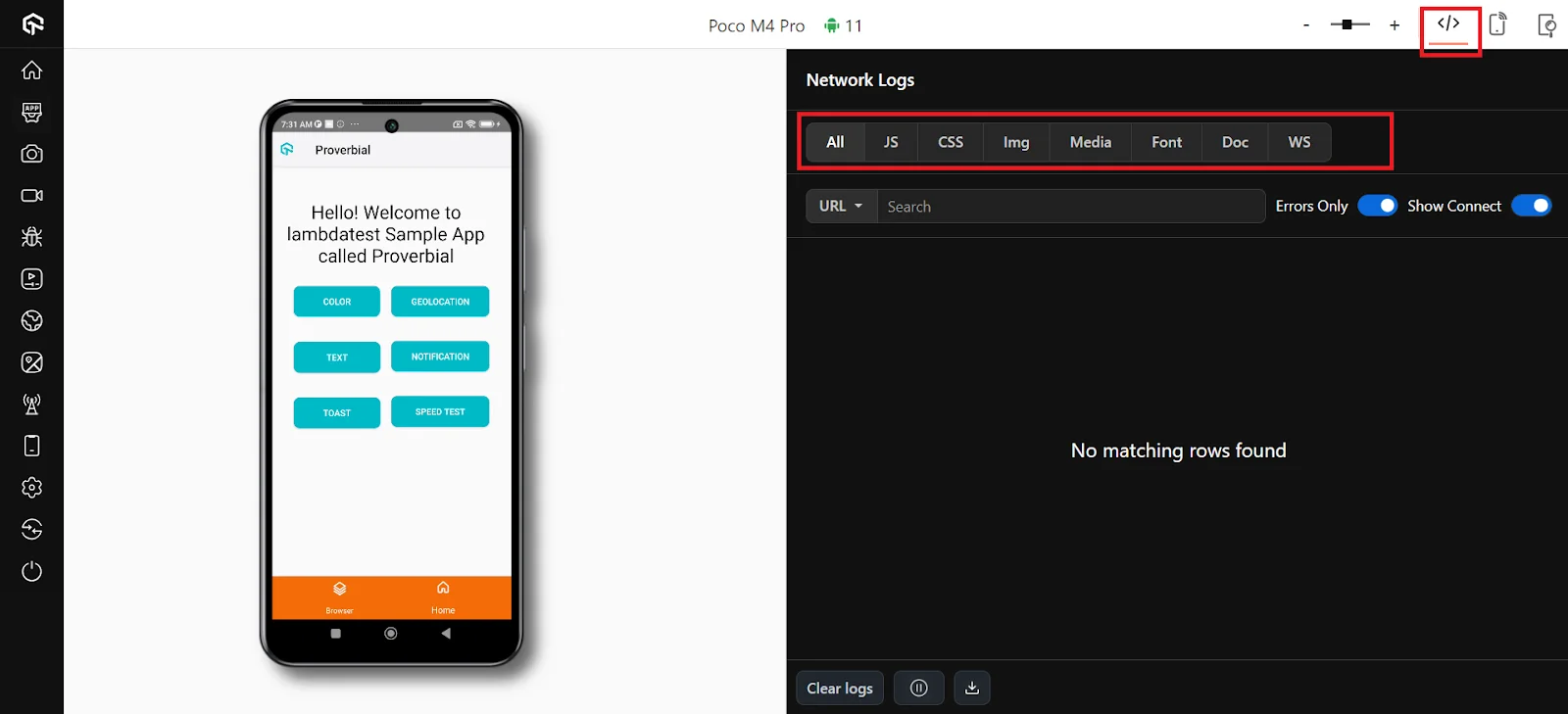
You can also perform mobile app automation with TestMu AI to ensure the application's functionality across multiple real devices. You can quickly run automated tests on different real devices, reducing the time and effort required for testing.

The platform supports mobile app automation using mobile testing frameworks like Appium, Espresso, and XCUITest, making writing and executing test scripts for mobile app automation on real devices easier.
How Is AI Changing Android Testing?
AI is changing Android testing by writing Espresso and Appium tests from plain-English steps, healing locators when layouts change, and flagging visual differences across screen sizes.
AI agents can also explore an app on a real device or emulator, tapping through screens to find crashes and dead ends that scripted tests never reach. That makes exploratory coverage cheaper across the long tail of Android devices.
Keep generated tests reviewable and run them on real devices before release, since emulators miss manufacturer skins and hardware behavior. Our guide to ai in test automation covers where AI fits in a suite.
Why Does Android Testing Matter?
Android testing matters because Android runs on thousands of device models and OS versions, and only testing across them keeps an app stable for every user.
No matter where one goes, they are bound to see a device running the Android operating system. Currently, Android devices are used in 190 countries out of 195, making their presence more significant than ever. That means that when an organization develops an app on Android, it can reach billions globally. This increases the responsibility of a tester manifold, as one fatal bug can affect so many users, resulting in business losses.
Android testing is a job of patience and careful planning. Jumping directly to the execution part yields faulty applications filled with bugs that no organization would want. This complete guide to Android testing provides various stages of testing that the testers should follow. It includes theoretical analysis and practical implementations, including the options a tester gets while executing these tests, such as cloud execution on tools like TestMu AI. When all these steps are taken carefully and executed perfectly, the resulting Android application is of premium quality.
Testing web or mobile apps without writing code? KaneAI by TestMu AI turns plain-English instructions into tests.
Author

Harish Rajora
Blogs: 97


Harish Rajora is a software developer at TestMu AI with over 6 years of hands-on experience in Python and cross-platform application development across Windows, macOS, and Linux. He has authored 800+ technical articles and worked on large-scale projects, including GenAI applications and core engineering features used by millions. Harish has led DevOps initiatives building CI/CD pipelines with Jenkins, AWS, GitLab, and GitHub, and holds an M.Tech in Software Engineering from IIIT Allahabad.
Reviewer

Siddhant Sinha
Reviewer
Siddhant Sinha is a Lead Member of Technical Staff at TestMu AI architecting Kane CLI, the command-line tool for browser automation from the terminal, where natural-language flows run in a real Chrome browser and return pass or fail with shareable proof. He has spent over three years at TestMu AI building scalable platforms that run tests at scale on real Android and iOS devices. His expertise covers platform architecture, large-scale distributed systems, and CLI design, shaped by earlier cloud-native engineering at Semut.io, including building Elasticsearch as a service.


Android Testing FAQs
Did you find this page helpful?
More Related Learning Hubs













TestMu AI forEnterprise
Get access to solutions built on Enterprise
grade security, privacy, & compliance
- Advanced access controls
- Advanced data retention rules
- Advanced Local Testing
- Premium Support options
- Early access to beta features
- Private Slack Channel
- Unlimited Manual Accessibility DevTools Tests