
What Is Accessibility Testing? Types, Examples & Tools
Make websites, web apps, and native mobile apps usable for everyone. Learn the types of accessibility testing, WCAG 2.2 standards, real test cases, and how to stay compliant with the ADA, Section 508, and the EAA.



World’s Largest Virtual Agentic
Engineering and Quality Conference

Trusted by 2M+ users globally at




"We have tripled our tests and are now executing tests in less than 2 hours with 78% Faster Test Execution"


"We figured out a more efficient way to monitor system health and resolve failures earlier in lower environments."





"TestMu AI UI is really good and user-friendly; supports testing with different OS, Versions, browsers, and devices."


"With 70% faster test execution, TestMu AI helped us achieve faster time-to-market and enhanced CX."



Last Updated on:
What Is Accessibility Testing?
Accessibility testing is the practice of evaluating a website, web app, or native mobile app to confirm that people with visual, auditory, motor, or cognitive disabilities can perceive, operate, and understand it. It measures conformance against the WCAG success criteria, organized under four principles, Perceivable, Operable, Understandable, and Robust (POUR), and against the laws that reference them, the ADA, Section 508, and the European Accessibility Act.
It is a non-functional testing type, and in practice it runs in three layers: automated scans that catch deterministic failures such as missing alt text, low contrast, and invalid ARIA; manual testing with screen readers and keyboards for the judgment calls automation cannot make; and validation with real assistive-technology users. Because every release can introduce a new barrier, it is run continuously rather than once, and it covers native mobile apps as well as the browser.
Benefits of Accessibility Testing

Legal Compliance
Meet WCAG 2.2, the ADA, Section 508, and the European Accessibility Act, and cut the risk of lawsuits and regulatory penalties.

Wider Audience Reach
Make your product usable for the 1.3 billion people, 1 in 6 worldwide, who live with a disability.

Better UX and SEO
Semantic structure, captions, contrast, and keyboard support help every user and improve search visibility.

Lower Remediation Cost
Catch issues during design and development instead of retrofitting a shipped product where defects are tangled into production code.

Web and Mobile Coverage
Test browsers and native Android and iOS apps under one WCAG program instead of disconnected tools.

CI-Native Scans
Run automated WCAG checks on every build so accessibility regressions fail fast, like any other test.
Accessibility testing is how teams confirm that people with disabilities can actually use a website, web app, or mobile app. The gap between products that pass and products that ship is wide, and it carries legal, commercial, and engineering cost. Skipping it locks out a large audience and risks non-compliance with WCAG 2.2, the ADA, Section 508, and the EU's European Accessibility Act.
95.9% of the top 1M home pages fail WCAG 2 (WebAIM Million 2026) | 1.3B people, 1 in 6 worldwide, live with a disability (WHO) | 39 WCAG-aligned checks auto-scanned on every build | 10,000+ real Android and iOS devices for mobile accessibility |
This guide covers the types of accessibility testing, WCAG testing and the other key compliance frameworks, the test cases that matter, and how to build accessibility into your workflow with a cloud-based accessibility testing platform.
Overview
Accessibility testing checks whether a website, web app, or mobile app can be used by people with visual, auditory, motor, or cognitive disabilities. It combines automated scanning that catches deterministic WCAG violations at scale with manual testing, using tools like TestMu AI and the NVDA screen reader, for the judgment calls automation cannot make.
Types of Accessibility Testing
- Manual testing: Manual testing involves human testers using screen readers and keyboard navigation to evaluate real user experiences and judge context-dependent criteria.
- Automated testing: Automated testing uses engines to scan the DOM and quickly identify deterministic violations like missing alt text and poor color contrast.
- Hybrid testing: Hybrid testing gates every build with automated scans while reserving manual and assistive-technology testing for complex judgment calls.
Recommended Accessibility Testing Tools
- TestMu AI: TestMu AI pairs an Axe-core scanner running 39 WCAG-aligned checkpoints with a built-in screen reader and DevTools extension to run manual and automated tests in one place.
- Axe-core: Axe-core parses the rendered DOM to quickly flag deterministic violations like missing alt text, poor color contrast, and improper HTML structure.
- Lighthouse: Lighthouse is an automated tool that scans the DOM to identify deterministic accessibility violations such as missing alt text and poor color contrast.
- WAVE: WAVE is an automated tool that scans the DOM to identify deterministic accessibility violations and assist developers in evaluating web page structure.
- NVDA: NVDA is a manual screen reader that allows human testers to evaluate context-dependent criteria like logical focus order and screen reader announcements.
- VoiceOver: VoiceOver is a manual screen reader that helps human testers evaluate real user experiences, keyboard navigation, and logical focus order.
- JAWS: JAWS is a manual screen reader that enables human testers to navigate products and judge context-dependent criteria like logical focus order and meaningful alt text.
Why Accessibility Testing Is Necessary
- Legal compliance: Accessibility testing ensures compliance with WCAG 2.2, the ADA, Section 508, and the European Accessibility Act to avoid lawsuits and fines.
- Market reach: Accessibility testing expands digital product access to the 1.3 billion people worldwide who live with a disability according to the WHO.
How to Perform Accessibility Testing
- Continuous integration: Teams should run automated WCAG scans on every build to catch common failures early when they cost less to fix.
- Real device coverage: Teams should test native mobile applications on real devices rather than relying solely on browser-based emulation to ensure accurate accessibility evaluations.
Types of Accessibility Testing
Accessibility testing splits into three approaches. Most teams run all three, because each catches issues the others miss.
- Manual accessibility testing - human testers navigate the product with screen readers (NVDA, VoiceOver, JAWS), keyboard-only input, and screen magnifiers. This is the only reliable way to judge context-dependent criteria like logical focus order, meaningful alt text, and whether an error message actually makes sense to a non-sighted user.
- Automated accessibility testing - tools such as axe-core, Lighthouse, and WAVE scan the DOM and flag deterministic violations: missing alt text, low color contrast, empty form labels, and invalid ARIA (compare options in our roundup of automated accessibility testing tools). It is fast and CI-friendly, but a Deque study of more than 13,000 pages found automation catches roughly 57% of issues on its own.
- Hybrid accessibility testing - automation gates every build for the common, high-frequency violations, while manual and assistive-technology testing covers the judgment calls. This is the model most WCAG 2.2 and Section 508 programs run in practice.
Difference between Manual and Automated Accessibility Testing
| Aspect | Manual Accessibility Testing | Automated Accessibility Testing |
|---|---|---|
| How it works | A tester drives the product with a screen reader (NVDA, JAWS, VoiceOver) and the keyboard alone, judging whether the experience actually works, not just whether the markup is technically present. | An engine such as Axe-core parses the rendered DOM and flags rule-based violations: missing alt text, low contrast, empty labels, invalid ARIA. It is deterministic and repeatable but reasons about code, not meaning. |
| Strengths |
|
|
| Where it falls short | It is slow and resource-heavy, needs trained testers, and does not scale to a large site on its own. | A Deque study found it covers only about 57% of issues; it is blind to judgment calls like meaningful alt text and intuitive focus order. |
| Best for |
|
|
| When to use | Pre-release audits of critical flows like sign-up and checkout, validating custom components, and confirming the screen reader experience before a launch. | Gating every CI build, regression-checking large sites, and catching the common, high-frequency violations as early as the commit that introduces them. |
The split matters because automation has a ceiling. The W3C is explicit that evaluation tools cannot determine accessibility, they can only assist in doing so. Automate the deterministic checks on every commit, and reserve manual plus assistive-technology testing for keyboard traps, focus order, and whether screen reader output actually makes sense.
In the TestMu Conference 2026 session Stop Guessing A11y: Auto-Generate Playwright Tests from Your GraphQL Schema, Vanessa Johnson pushes that deterministic half further, adding lightweight @a11y hints for labels and roles to a GraphQL schema so it becomes the source of truth that Playwright and axe-core tests are generated from.

Types of Disabilities Accessibility Testing Covers
Accessibility is not one audience. Testing has to account for four broad categories of disability, each with different barriers and assistive technology:
- Visual - blindness, low vision, and color blindness. These users rely on screen readers, magnification, and sufficient color contrast, so alt text, contrast ratios, and screen reader output matter most.
- Auditory - deafness and being hard of hearing. Audio and video need captions, transcripts, and visual cues that do not depend on sound.
- Motor - limited dexterity, tremors, or paralysis. These users navigate by keyboard, switch devices, or voice, so every control must be keyboard-operable with a visible focus indicator and large enough touch targets.
- Cognitive - dyslexia, ADHD, and memory or learning differences. Clear language, predictable navigation, consistent layouts, and forgiving error handling reduce cognitive load.
A test plan that only checks one category, usually visual, leaves the other three untested. Mapping each test case to the disability it protects keeps coverage honest.
Accessibility Standards and Laws to Test Against
Accessibility is a legal requirement, and the bar keeps rising. In April 2024 the US Department of Justice adopted WCAG 2.1 Level AA as the Title II standard for state and local government websites and apps, and in the EU the European Accessibility Act has applied to private-sector digital products and services since 28 June 2025. Non-conformance invites lawsuits, fines, and lost public-sector contracts, so your tests should map to the frameworks below:
- WCAG 2.2 - the W3C's Web Content Accessibility Guidelines, built on four principles (Perceivable, Operable, Understandable, Robust) across three levels: A, AA, and AAA. Level AA is the target most laws reference.
- Americans with Disabilities Act (ADA) - the US anti-discrimination law. The DOJ's 2024 Title II rule pins it to WCAG 2.1 Level AA for state and local government digital services.
- Section 508 - requires US federal agencies and their vendors to make electronic and information technology meet WCAG 2.0 Level AA. See our guide to Section 508 compliance for the full requirements.
- European Accessibility Act (EAA) - applies WCAG-aligned requirements to private-sector products and services across the EU from 28 June 2025, referencing EN 301 549. Our EU Accessibility Act 2025 guide covers who is in scope and how to prepare.
- EN 301 549 - the European accessibility standard for ICT, harmonized with WCAG and used for both EAA and public-sector compliance.
- WAI-ARIA - the W3C's Accessible Rich Internet Applications spec, which makes dynamic, scripted UI such as menus, modals, and live regions understandable to assistive technology.

Note: Manually mapping every screen to WCAG 2.2 is slow. TestMu AI scans your pages against WCAG, ADA, and Section 508 and points to the exact elements to fix. Start Testing Now!
Legal Acts Followed in Different Countries
| Region | Compliance Standard | Description |
|---|---|---|
| United Kingdom | Requires organizations to make reasonable adjustments to ensure that disabled people can access their services, including online services. | |
| United States | Ensures accessibility of electronic and information technology used by federal agencies, closely aligning with WCAG 2.0 Level AA guidelines. | |
| Europe | Sets common accessibility requirements for certain products and services, including websites and mobile apps, across EU member states. | |
| Canada | Prohibits discrimination based on disability and requires that federal government departments and agencies ensure their electronic content is accessible. | |
| India | Mandates that websites and online content be accessible to persons with disabilities, though specific standards may vary. | |
| Australia | Prohibits discrimination against people with disabilities and requires that public services, including websites, be accessible. |

A Quick Comparison of Accessibility Testing Tools
No single tool covers both layers of accessibility testing. Automated engines catch deterministic violations at scale; screen readers catch the judgment calls automation cannot make. Most programs run at least one of each. This is a quick reference, not a full roundup. For the complete list with pricing and licensing details, see our guide to the best accessibility testing tools.
| Tool | Type | WCAG Coverage | Best For |
|---|---|---|---|
| TestMu AI | Hybrid (automated + manual) | 39 web checks, 15 iOS checks, 18 Android checks, all WCAG-mapped | Running automated and manual accessibility testing across web and native mobile from one platform, with CI/CD gating and scheduled monitoring |
| Axe-core | Automated (open source) | WCAG 2.0, 2.1, and 2.2 A/AA rules | Wiring deterministic checks directly into a Selenium, Cypress, or Playwright suite |
| Lighthouse | Automated | A subset of axe-core rules via Chrome DevTools | A quick single-page audit during local development |
| WAVE | Automated (visual overlay) | WCAG-mapped, annotated directly on the page | Visually inspecting exactly where a violation sits on the rendered page |
| NVDA | Manual (screen reader) | N/A - human judgment | Free Windows screen reader testing of focus order and announcements |
| JAWS | Manual (screen reader) | N/A - human judgment | Enterprise Windows screen reader testing; the most widely deployed screen reader among AT users |
| VoiceOver | Manual (screen reader) | N/A - human judgment | Built into macOS and iOS, for testing Apple platforms without extra software |
TestMu AI is the only row in that table that spans both layers itself: the same Axe-core-based scanner that gates CI/CD builds also powers a built-in screen reader and DevTools extension, so a WCAG testing program does not need to stitch together a separate automation library, browser extension, and manual screen reader workflow.
How To Perform Accessibility Testing Using TestMu AI
TestMu AI covers accessibility across the whole delivery lifecycle: CI/CD automation, scheduled monitoring, native mobile app testing, live testing on real devices, a browser DevTools extension, and screen readers. Here is how each surface works.
Perform Accessibility in Automation Testing
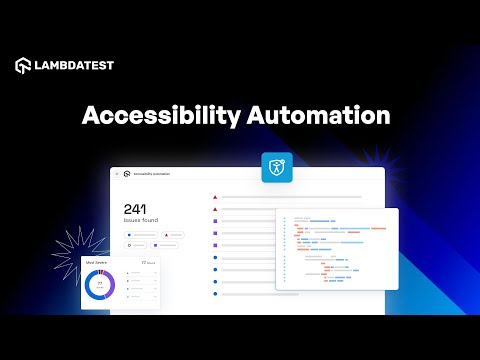
TestMu AI Accessibility Automation runs WCAG checks inside your existing Selenium, Cypress, and Playwright suites, so every automated run also flags accessibility regressions without extra effort.
With automatic DOM monitoring, the checks keep running as your UI changes, so accessibility compliance does not drift between releases.
To kick off automated accessibility testing, check out the guide on Accessibility Automation.
Every automated run produces the same artifact for each violation: the failing element, the WCAG success criterion it breaks, a severity rating (Critical, Serious, Moderate, or Minor), and specific fix guidance, all collected in the Accessibility tab of the Automation dashboard. Because the scanner applies the same 39 WCAG-aligned checkpoints on every build, a contrast regression or a newly unlabeled field fails the run the moment it is introduced, instead of surfacing weeks later in an audit.
Here is a minimal Playwright check using the open-source @axe-core/playwright integration. It fails the build on any WCAG 2.1 A or AA violation, so accessibility regressions are caught in CI like any other test:
const { test, expect } = require('@playwright/test');
const AxeBuilder = require('@axe-core/playwright').default;

test('selenium playground has no WCAG A/AA violations', async ({ page }) => {
  await page.goto('https://www.testmuai.com/selenium-playground/');

  const { violations } = await new AxeBuilder({ page })
    .withTags(['wcag2a', 'wcag2aa', 'wcag21a', 'wcag21aa'])
    .analyze();

  expect(violations).toEqual([]);
});
That example runs the open-source axe engine locally. TestMu AI's own Accessibility Automation works differently: it triggers the scan on the cloud grid through a lambda-accessibility-scan hook (called after each stable screen) and reports every violation into the Accessibility tab of the Automation dashboard, so you get the same WCAG checks across real browsers and operating systems without wiring up axe yourself.
For the full breakdown of axe-core setup, scoping scans with include/exclude/withTags, WCAG conformance levels, and what automated testing structurally cannot catch, see Playwright Web Accessibility Tests With axe-core.
Execute Your Automation Test with Accessibility Tool
Step 1: Set Up Your Test Suite
You can configure and test using your own project or a sample repository. If using your own project, update the Hub endpoint in your test file to establish communication between your tests and browser nodes. Configure the desired capabilities as needed:
ChromeOptions browserOptions = new ChromeOptions();
browserOptions.setBrowserVersion("latest");

HashMap<String, Object> ltOptions = new HashMap<>();
ltOptions.put("platformName", "Windows 11");
ltOptions.put("build", "Accessibility Automation Build");
ltOptions.put("name", "Accessibility Java Sample");
ltOptions.put("user", System.getenv("LT_USERNAME"));
ltOptions.put("accessKey", System.getenv("LT_ACCESS_KEY"));
browserOptions.setCapability("LT:Options", ltOptions);
Step 2: Establish User Authentication
Export your TestMu AI credentials from the TestMu AI Profile page using the commands below:
Linux / MacOS:
export LT_USERNAME="YOUR_LAMBDATEST_USERNAME"
export LT_ACCESS_KEY="YOUR_LAMBDATEST_ACCESS_KEY"
Windows:
set LT_USERNAME="YOUR_LAMBDATEST_USERNAME"
set LT_ACCESS_KEY="YOUR_LAMBDATEST_ACCESS_KEY"
Step 3: Configure Accessibility Capabilities
Set the accessibility keys directly on browserOptions, not inside the LT:Options block. Target Level AA, since that is the conformance level the ADA, Section 508, and the EAA reference:
browserOptions.setCapability("accessibility", true);                    // Enable accessibility testing
browserOptions.setCapability("accessibility.wcagVersion", "wcag21aa");  // Target WCAG 2.1 Level AA
browserOptions.setCapability("accessibility.bestPractice", false);      // Exclude best-practice-only issues
browserOptions.setCapability("accessibility.needsReview", true);        // Include issues that need manual review
Step 4: Execute and Monitor Your Test
Run your tests and access the Automation Dashboard. Click on the Accessibility tab to view the generated report.
Schedule Recurring Scans for Continuous Monitoring
One-off scans miss the regressions introduced after launch. Scheduled accessibility scans run on a recurring basis without anyone kicking them off. Add URLs manually, by CSV upload, or by pointing it at your sitemap, set a daily, weekly, or monthly cadence with a timezone, and configure saved logins or a tunnel for pages behind authentication. Email and Slack alerts fire when a scheduled run detects new violations, so a content editor publishing an image without alt text is caught the same day, not at the next audit.
Scan Native Mobile Apps on Real Devices (App Scanner)
Native Android and iOS apps carry success criteria a browser scanner never sees: touch target sizing, Dynamic Type and font scaling, and TalkBack or VoiceOver labelling. The App Scanner lets you inspect a native build screen by screen on a real device, with no code required, once you pick the app build, device, and WCAG scope in its scan configurations. It validates accessibility labels, on-device color contrast, touch targets (minimum 44x44 dp), Dynamic Type support, and screen reader announcements, running on real devices rather than emulators. The App Scanner also enforces native Android checks such as the missing input value rule for Android controls, flagging inputs whose current value is never exposed to TalkBack.
Automate Native App Accessibility with Appium
To shift native app accessibility into CI, add an accessibility-scan checkpoint to an existing Appium suite. On each stable screen, TestMu AI runs its automated mobile rules, 15 for iOS drawn from the iOS accessibility rule repository and 18 for Android, then reports into the same Accessibility tab as your web runs.
Live Testing on Real Devices
Run a manual accessibility check on any URL on real Windows and macOS browsers. This is how you test website and web-app accessibility interactively before automating it:
- Sign up on TestMu AI and log in to your account.
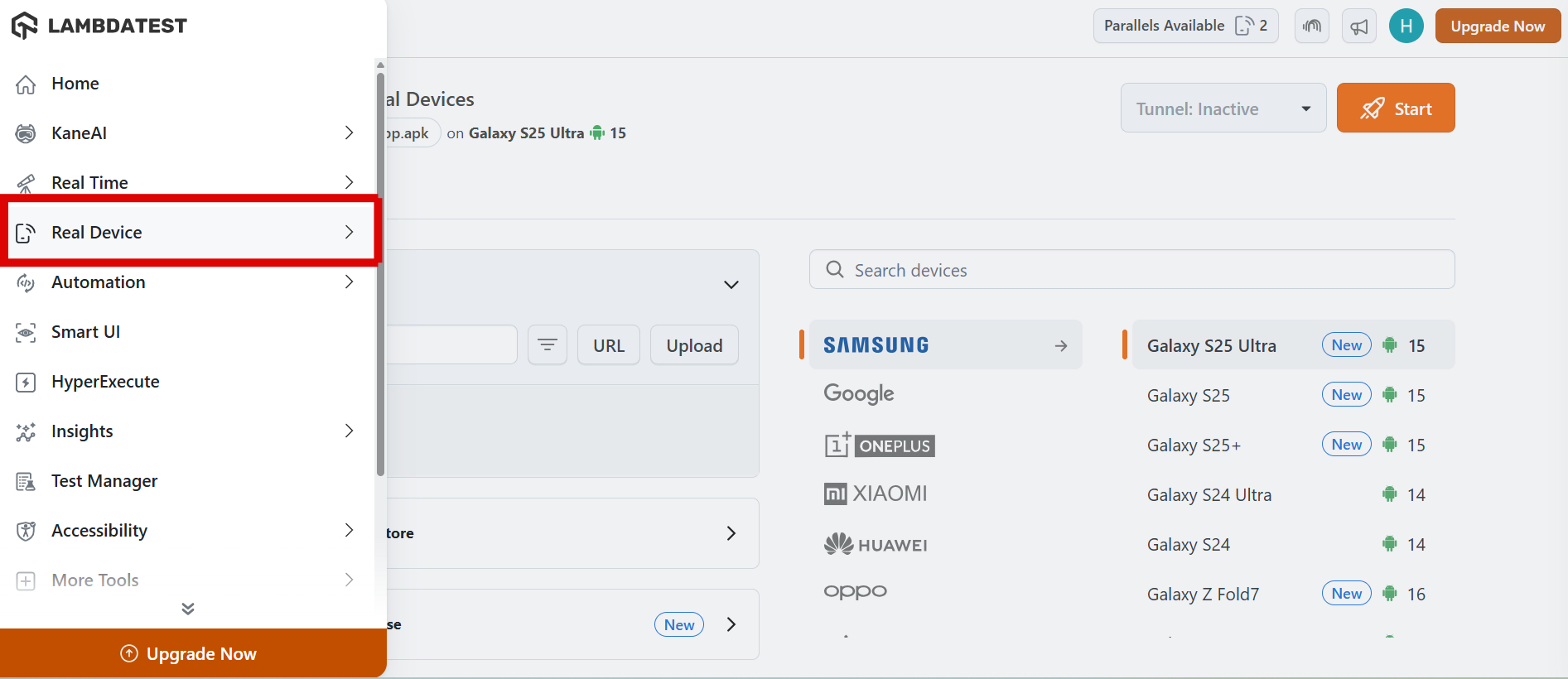
- From the left sidebar, choose Real Device > Browser Testing.
- Enter a test URL of your choice, and choose VERSION, OS, and RESOLUTION. After that, click on START.
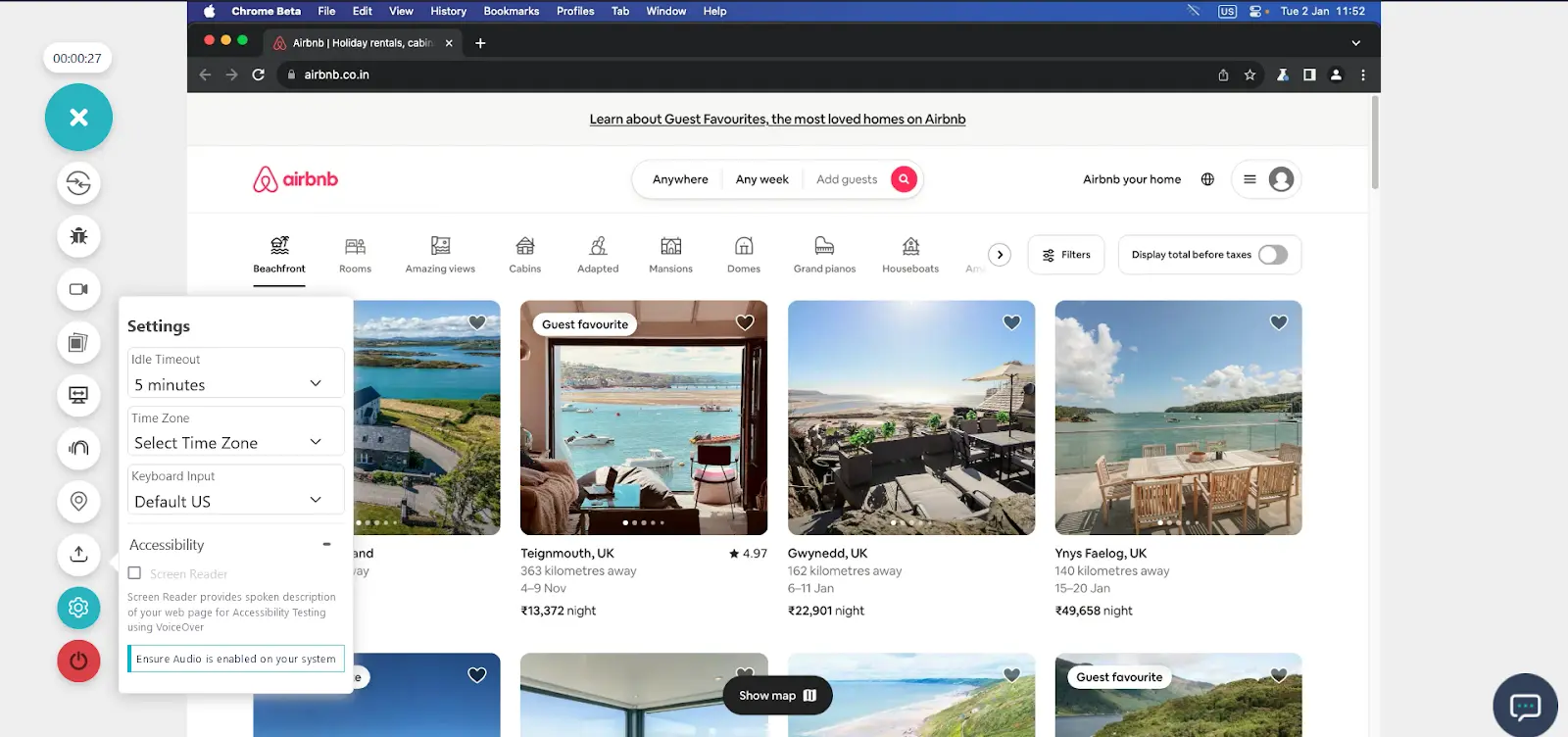
- After a cloud-based machine launches, click on the Settings icon and choose Accessibility.
Utilize the Accessibility DevTools Chrome Extension for Manual Testing
The TestMu AI Accessibility DevTools Chrome extension lets developers and testers scan pages for WCAG issues directly in the browser and get fix guidance inline. Here is how to use it:
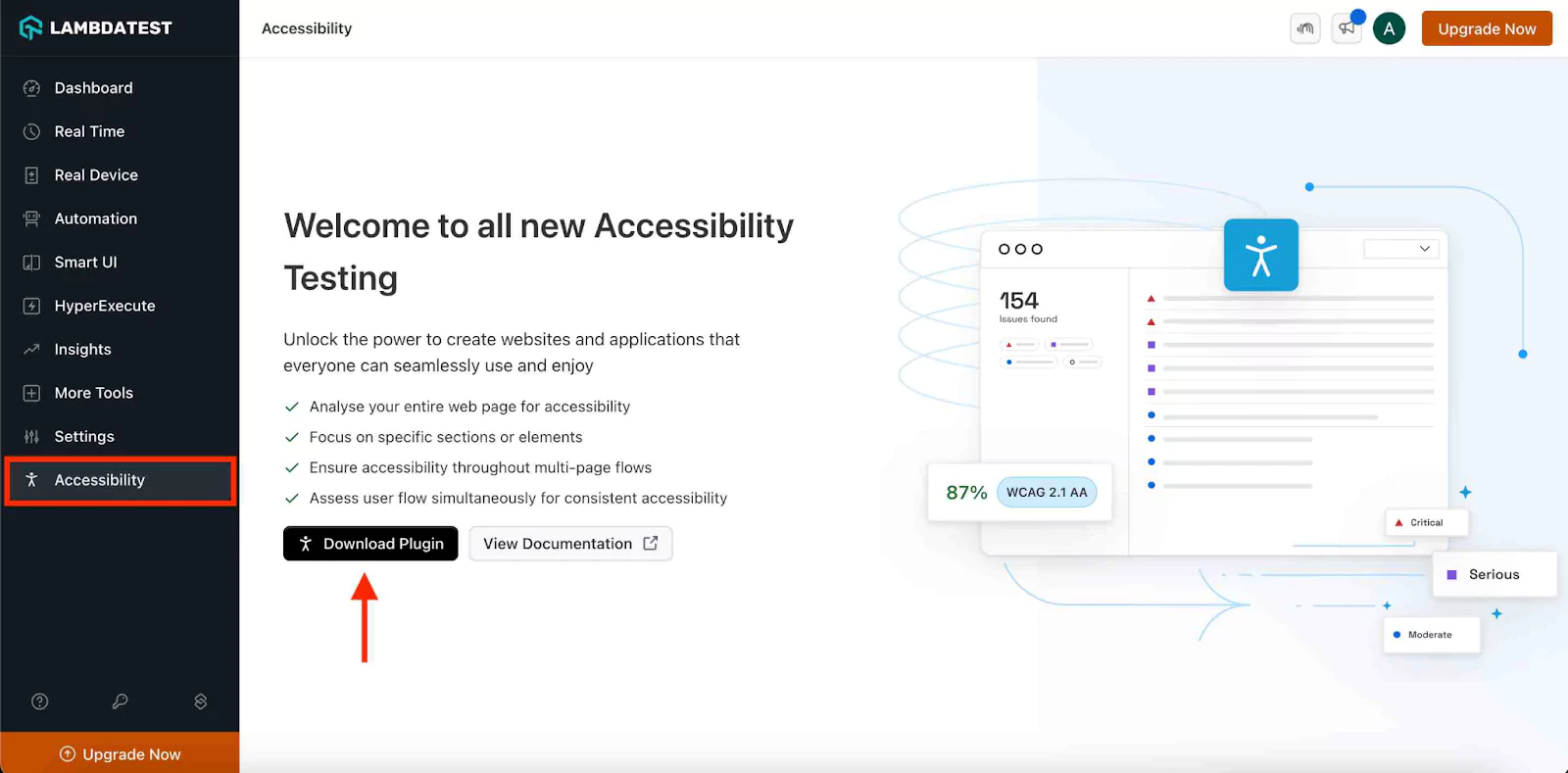
- Install the extension - go to the Accessibility Dashboard and click the "Download Plugin " button.
- Access DevTools - open the website you wish to test. Navigate to the browser's inspect section and select the Accessibility DevTools option. This will reveal the extension's features and tools.
- Select and run your scan - from the main accessibility dev tools menu, select the preferred type of accessibility scan and run it. Accessibility DevTools offers several scanning options:
- Single Page Scan - conduct a comprehensive analysis of an individual page to assess its accessibility compliance and adherence to best practices.
- Partial Page Scan - focus on specific sections or elements within a page for a targeted accessibility check.
- Multi-Page Workflow Scan - sequentially review multiple pages or workflows to ensure consistent accessibility standards across different user flows.
- Multiple Page Scan - evaluate the accessibility of various pages to ensure site-wide compliance.
- Review the scan - execute the selected scan option to identify any accessibility issues. The scan will provide detailed feedback, highlighting areas that require improvement and ensuring that your site or app meets accessibility standards.
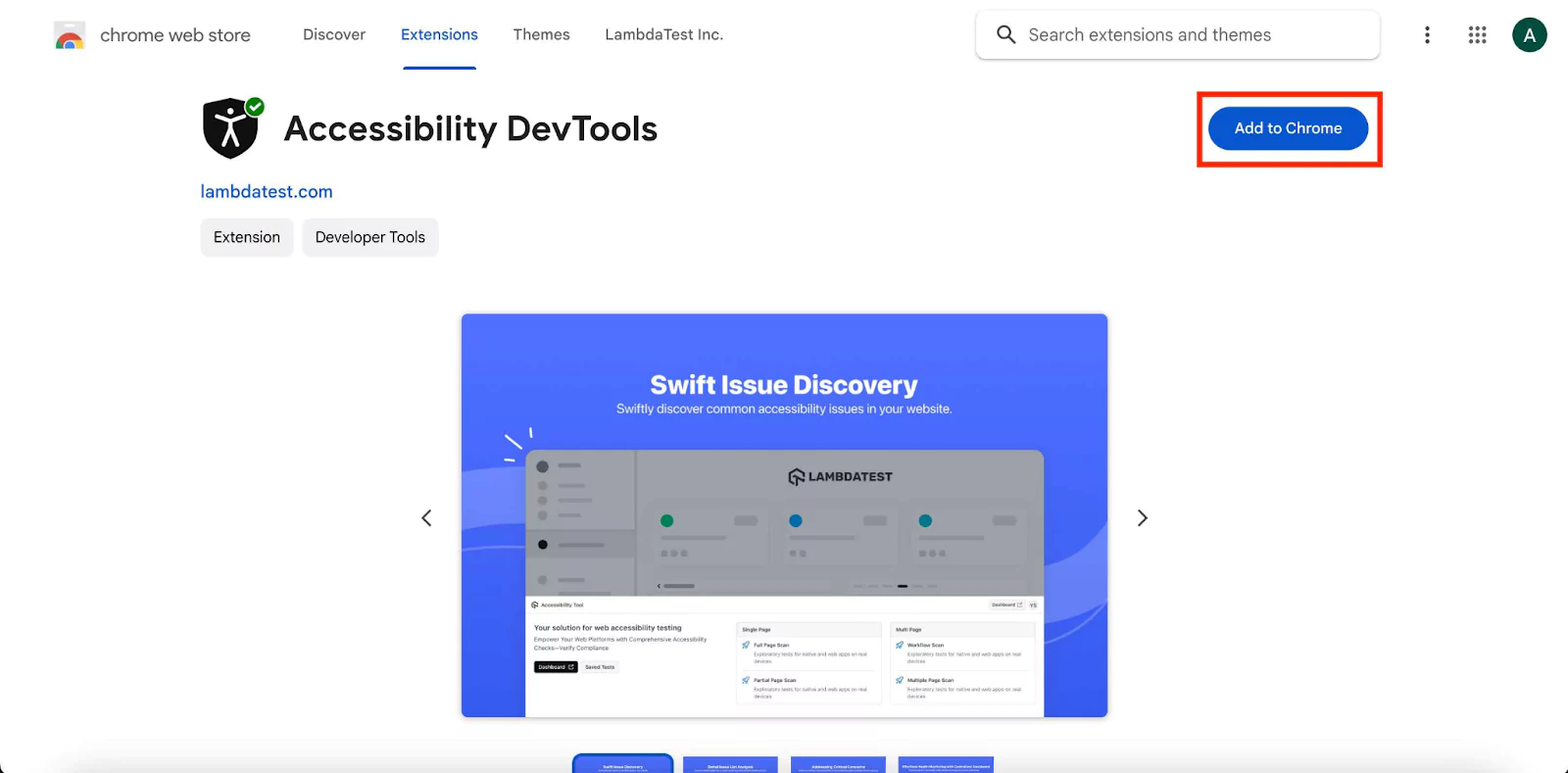
You will be redirected to the Chrome Web Store, where you can install the TestMu AI Accessibility DevTools extension. This tool will help you evaluate the accessibility of your website.
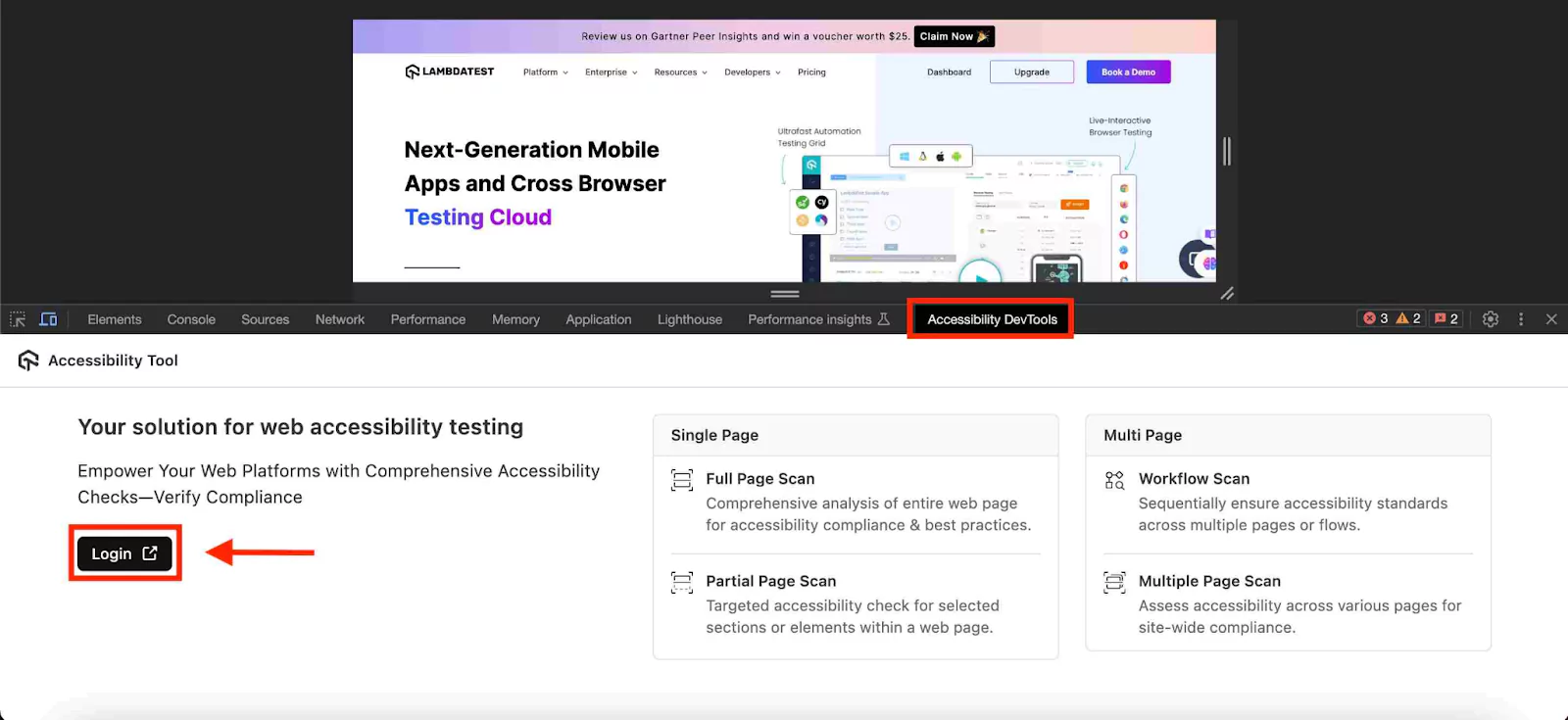
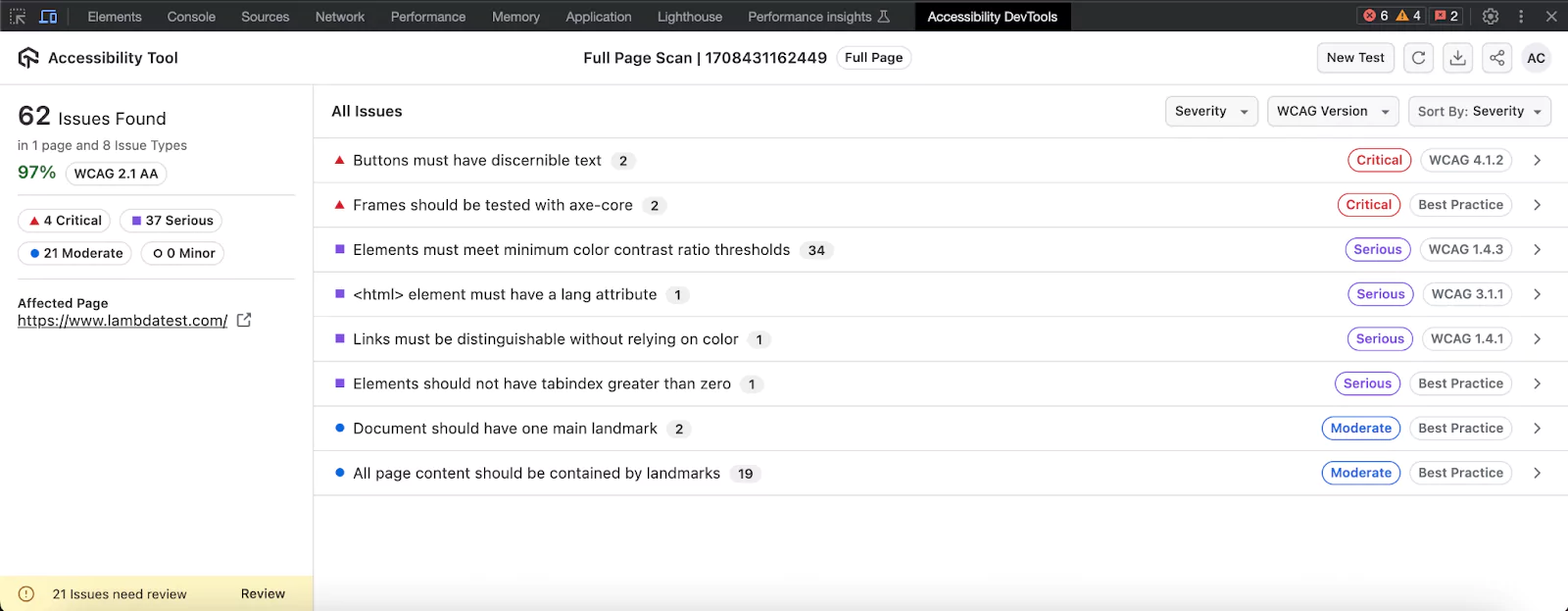
To get a detailed analysis of your accessibility scan, click on the "Dashboard" button on the accessibility devtools menu. You can also access the report directly through your TestMu AI dashboard.
Screen Reader Testing
Automated checks confirm an accessible name exists; only a screen reader confirms it makes sense when read aloud. In a live session, open Settings and select the Screen Reader checkbox to get a verbal description of the page from the screen reader bundled with the chosen OS, NVDA on Windows or VoiceOver on macOS, with TalkBack and VoiceOver covering native mobile apps. Walk the critical flows, sign-up, checkout, and error states, and listen for whether labels, focus order, and announcements actually guide a non-sighted user.
The reach goes beyond web and mobile screens: the platform also scans PDF documents for screen reader compatibility and exposes accessibility analysis inside AI coding tools through a Model Context Protocol (MCP) server, so a developer can request a scan from the editor while building. Connect it once in Claude Code, Cursor, or GitHub Copilot, and a prompt like "run an accessibility report on this page" or "build my local React app and check it for accessibility issues" triggers a real scan without leaving the editor. The point of spanning these surfaces is one compliance record instead of disconnected tools.
Use the Accessibility Agent Skill with an AI Coding Agent
If an AI coding agent such as Claude Code, Cursor, GitHub Copilot, or Gemini CLI writes or maintains your test suite, the accessibility-skill in TestMu AI's open-source agent-skills repository teaches the agent the exact capability names, scan hooks, and framework quirks for turning on accessibility scanning in Selenium, Playwright, Cypress, or Appium, instead of letting it guess or hallucinate an API.
Install it alongside any other framework skill already in use:
git clone https://github.com/LambdaTest/agent-skills && cd agent-skills
npx agentskillsforall add https://github.com/LambdaTest/agent-skills.git --skill accessibility-skill
Once installed, a prompt like "add the accessibility capability to my Selenium suite and scan the checkout page with WCAG 2.1 AA" is enough for the agent to wire up the same accessibility capability and lambda-accessibility-scan hook covered above, correctly for whichever framework is in use. For the full framework-by-framework setup, severity scoring, and what automation still cannot catch, see our guide on using the accessibility agent skill.
Test Cases for Accessibility Testing
These are standard accessibility test cases every web and mobile app should pass; together they catch the most common accessibility issues. An accessible product works with screen readers, speech-recognition software, and screen magnification:
- Alt text (WCAG 1.1.1) - every informative image exposes a description that conveys its purpose, and decorative images use an empty alt so screen readers skip them.
- Keyboard operability (WCAG 2.1.1) - tab through the entire interface and confirm every link, button, and field is reachable and operable, with a visible focus indicator and no point where focus gets trapped.
- Color contrast (WCAG 1.4.3) - text clears 4.5:1 against its background, or 3:1 for large text, and no information is signalled by color alone.
- Form labels and errors (WCAG 3.3.1, 3.3.2) - every field carries a programmatic label, and validation errors are announced as text, not just a red border.
- Captions and transcripts (WCAG 1.2.x) - video has synchronized captions and audio has a transcript, so nothing important depends on hearing.
- Resize and reflow (WCAG 1.4.4, 1.4.10) - content stays readable and usable at 200% zoom and reflows without forcing horizontal scrolling.
- Headings and structure (WCAG 1.3.1) - headings are nested in order and landmarks are present, so assistive technology can navigate the page by its structure.
- Touch target sizing, mobile (WCAG 2.5.5) - every interactive control on a native screen meets a minimum 44x44 dp target, since a small tap target is the mobile equivalent of a keyboard trap for users with motor impairments.
- Screen reader labels on native controls (WCAG 4.1.2) - every button, toggle, and input on an Android or iOS screen exposes a name and role to TalkBack or VoiceOver, not just a visual icon.

Examples of Accessibility Testing
It helps to see what a scan actually surfaces. Each example below pairs a common real-world failure with the WCAG success criterion it breaks and the concrete fix, so you know not just what to check but what "pass" looks like.
Example 1 - Low color contrast (WCAG 1.4.3)
Light-gray placeholder text on a white field is the most-flagged violation on the web. WCAG 1.4.3 requires a contrast ratio of at least 4.5:1 for normal text and 3:1 for large text (18.66px bold or 24px regular). A scan reports the measured ratio and the failing element; the fix is darkening the foreground or lightening the background until it clears the threshold. See our deeper guide on color contrast accessibility.
Example 2 - Missing or unhelpful text alternatives (WCAG 1.1.1)
An automated tool flags an image with no alt attribute, but it cannot judge whether alt="image1.jpg" is meaningful. That is the split between automation and manual review: automation confirms the attribute exists; a human confirms it describes the image's purpose. Decorative images take an empty alt="" so screen readers skip them.
Example 3 - Incorrect ARIA roles (WCAG 4.1.2)
A div styled to look like a button but missing role="button" and keyboard handlers is announced as plain text by a screen reader. WCAG 4.1.2 (Name, Role, Value) requires every interactive control to expose its name and role. The fix is usually a native button element, or the correct ARIA role plus keyboard event handling when a native element is not possible.
Example 4 - Keyboard traps and focus order (WCAG 2.1.1, 2.1.2)
A modal that opens but cannot be dismissed with the keyboard traps a keyboard-only user. This is a judgment call automation flags as passing, which is why a Keyboard Scan and a manual screen reader pass matter. WCAG 2.1.1 requires every action to be keyboard-operable and 2.1.2 forbids focus traps; the fix is trapping focus inside the modal while open and returning it to the trigger on close.
Accessibility Testing Metrics
A pass/fail scan result does not tell a team whether its accessibility program is actually improving. Track these instead:
- WCAG pass rate by conformance level - the share of automated checks passing at Level A versus Level AA, tracked over time rather than as a single snapshot, since most laws target AA.
- Violations by severity - the count of Critical, Serious, Moderate, and Minor findings per scan. A flat total can hide a shift from many Minor issues to a few Critical ones, so severity mix matters more than the raw count.
- Violation density per page - violations divided by page count, which makes a 10-page and a 500-page site comparable and shows whether new pages are shipping cleaner than old ones.
- Mean time to remediation - how long a violation stays open from first detection to fix, split by severity. Critical issues on high-traffic flows should close in days, not the months a periodic audit cycle allows.
- Regression rate - the share of previously fixed violations that reappear, which is what CI-gated scanning and scheduled monitoring are specifically built to drive toward zero.
- Manual test coverage - the share of critical user flows, sign-up, checkout, search, that have had a screen reader and keyboard-only pass, since automated coverage alone cannot answer whether the product actually works.
These numbers matter beyond engineering. In 2025, UsableNet tracked more than 5,000 digital accessibility lawsuits filed across US federal and state courts, and Seyfarth Shaw recorded 3,117 federal website accessibility filings, up 27% from 2,452 in 2024. An audit trail of pass rates, severity trends, and remediation times is what demonstrates a systematic accessibility testing program if that record is ever reviewed.
Common Challenges in Accessibility Testing and How to Solve Them
Most accessibility programs stall on the same few problems. Here is how to handle each:
- Over-trusting automated scans - a clean automated report is not compliance; a Deque study found automation covers only about 57% of issues. Pair every automated run with manual keyboard and screen reader testing for the rest.
- Regressions after launch - a new image without alt text or a modal without focus management slips in between audits. Wire accessibility checks into CI and schedule recurring scans so regressions fail fast instead of surfacing months later.
- Dynamic and single-page app content - modals, live regions, and route changes never appear in a static DOM scan. Use workflow-style scans that capture each step of an interaction, not just the initial page load.
- Mobile coverage gaps - web-only tools miss native app criteria like touch target size and Dynamic Type. Test native Android and iOS apps on real devices, not just the browser.
- No clear ownership - accessibility defects pile up when nobody owns them. Treat them like any other bug, file them with the WCAG criterion and severity, and assign them in the same tracker your team already uses.
Best Practices for Accessibility Testing
Strong accessibility programs share a few habits. Build these into your workflow:
- Shift left - fold WCAG checks into design reviews and the definition of done, so a component is not "complete" until it passes contrast, label, and keyboard checks.
- Automate the floor, test the ceiling by hand - gate CI on the deterministic share automation catches (about 57% per Deque), and reserve manual screen reader and keyboard passes for focus order and meaningful announcements.
- Test with assistive technology, not just about it - run NVDA, JAWS, VoiceOver, and TalkBack on the real flows; screen reader output is the only proof an accessible name actually reads well in context.
- Map every issue to a success criterion - tag each finding with its WCAG criterion and conformance level so the team triages by impact, not guesswork.
- Cover real browsers and real devices - the same markup behaves differently across browsers and on native mobile, so validate on actual configurations rather than a single emulator.
- Include users with disabilities - a short round of usability testing with assistive-technology users surfaces barriers no automated checklist predicts.
- Re-test on every release - treat accessibility like a regression suite; dynamic sites drift, so scheduled and CI-triggered scans keep conformance from decaying.
- Keep an audit trail - export scan history and conformance reports, because the evidence of a systematic program is what stands up in a compliance review.
- Target Level AA - make WCAG 2.2 Level AA the baseline, since that is the bar the ADA, Section 508, and the EAA reference.
Conclusion
Start by running an automated scan on your highest-traffic page, then triage the violations by WCAG level. Layer in manual screen reader and keyboard testing for the flows automation cannot judge, wire the axe-core check into CI so regressions fail the build, and schedule a full manual audit before each major release.
To put this into practice, run your first scan with the TestMu AI accessibility testing cloud and follow the accessibility testing documentation for setup. To validate your skills, the Accessibility Testing 101 certification walks through WCAG conformance hands-on.
For ongoing coverage, work through our web accessibility guide and the web accessibility checklist to keep WCAG 2.2 compliance on track across releases.
Note: This article was researched and drafted with AI assistance, then reviewed, fact-checked, and published by Ajay Balamurugadas, Co-Founder, Weekend Testing at TestMu AI, whose listed expertise includes Web Accessibility Testing. Technically reviewed for WCAG 2.2 accessibility compliance by Mayank Bhola, Co-Founder and Head of Products at TestMu AI, who owns the Accessibility Testing product line. Sources cited are from primary standards bodies including the W3C, ADA.gov, and the European Commission. Read our editorial process and AI use policy for details.
Frequently asked questions
Author

Ajay Balamurugadas
Blogs: 2


Ajay Balamurugadas is a software tester with nearly 19 years of experience and a co-founder of Weekend Testing. He is an active voice in the Context-Driven Testing community and a graduate of Rapid Software Testing, BBST, and Problem Solving Leadership. He has authored several practical testing books, including 50+ Mistakes of My Software Testing Career, and delivered the keynote at CAST 2015. On TestMu AI (formerly LambdaTest), he writes on accessibility testing and improving as a software tester.