

Power Your Software Testing with AI Agents and Cloud
The Native AI-Agentic Cloud Platform to Supercharge Quality Engineering. Test Intelligently and Ship Faster.


- TestMu AI (Formerly LambdaTest)
- /
- Blog
- /
- How to Use Playwright to Run Tests
How to Use Playwright to Run Tests
Explore how to use Playwright to run tests on different browsers. Learn how to install and configure Playwright to set up a reliable environment for test execution.
Last Updated on:
Playwright is an open-source framework that supports end-to-end testing through multiple browser and OS combinations. You can use Playwright to run tests across various rendering engines like Chromium, WebKit, and Firefox using a single API. Its cross-browser support ensures your website works as expected across all major browsers and browser versions.
Key Takeaways
- Playwright installs with the npm init playwright@latest command, which downloads the project files, dependencies, and its own builds of Chromium, Firefox, and WebKit rather than using the browsers already on the machine.
- Running npx playwright test executes a suite locally across the default browsers, and passing a project name such as --project=Firefox targets a single browser from the command line.
- Playwright UI Mode, launched with npx playwright test --ui, is an interactive test runner for exploring and debugging tests, with a dropdown for switching between Chromium, Firefox, and WebKit.
- Playwright runs headless by default, so setting the headless option to false in playwright.config.js, or passing --headed on the command line, launches browsers with a visible interface.
- Playwright runs tests in parallel across isolated workers by default, and the worker count is set with the --workers flag or the workers property in playwright.config.ts.
- Playwright tests run in CI pipelines such as GitHub Actions, where a matrix over chromium, firefox, and webkit sweeps every browser on each code change.
- TestMu AI runs Playwright tests in the cloud through its WebSocket endpoint and automation capabilities, removing the scalability and reliability limits of running a suite on one local machine.
- The Playwright MCP server lets agents such as Claude Code and GitHub Copilot drive a real browser through structured tool calls, but runs are non-deterministic, so treat an AI-generated script as a draft and add explicit assertions.
How to Run Tests in Playwright?
Below are the steps to install Playwright, write your first test, and run it across browsers such as Chromium, Firefox, and WebKit.
Install Playwright
1. Install the latest version of Node.js. Once installed, you can confirm your Node.js version by running the following command:
node -v
2. Install Playwright using the below given command, which sets up everything: project files, dependencies, and browsers:
npm init playwright@latest
Once the installation is completed, you’ll see a playwright.config.ts file (or .js if you chose JavaScript), a package.json with dependencies, and a sample test file.
Note: Playwright doesn’t rely on your system’s browsers. Instead, it fetches its versions of Chromium, Firefox, and WebKit (Safari’s engine). These browsers are tied to Playwright’s release.
Write Your First Test
The ltKaneAi.spec file below automates the process of filling out the “Schedule a Demo” form on the TestMu AI KaneAI page.
Test Scenario:
- Visit the KaneAI website.
- Click on the Book a Demo button.
- Fill in personal and contact information.
- Provide a custom message to schedule the demo.
// @ts-check
import { test, expect } from '@playwright/test';
test('Schedule a demo form automation', async ({ page }) => {
   await page.goto('https://www.testmuai.com/kane-ai/');
   await page.locator('section', { hasText: 'KaneAI - GenAI-Native Testing' }).getByRole('button', { name: 'Book a Demo' }).click();


   await page.getByRole('textbox', { name: 'First Name*' }).fill('Peter');
   await page.getByRole('textbox', { name: 'Last Name*' }).fill('Broke');
   await page.getByRole('textbox', { name: 'Work Email*' }).fill('peterbroke@tqa.com');
   await page.getByRole('textbox', { name: 'Phone Number*' }).fill('5676543210');
   await page.getByRole('textbox', { name: 'Your message' }).fill('Looking forward to exploring the capabilities of Kane AI');
});

Run the Test
To run the tests, execute the following command in the terminal:
npx playwright test
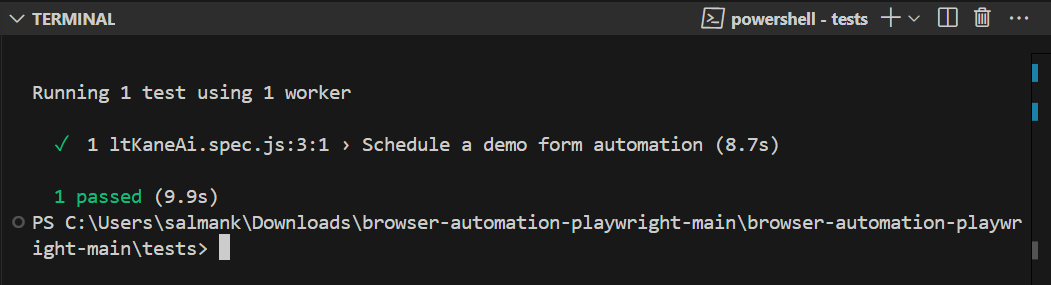
Using Playwright to run tests may help test how your website behaves on different browsers, such as Chromium, Firefox, and WebKit. However, there are a couple of challenges with scalability and reliability as your testing needs grow.
To overcome these challenges, opting for cloud-based testing solutions such as TestMu AI is a viable option.
How to Run Playwright Tests on TestMu AI?
TestMu AI is a GenAI-native test execution platform that allows you to perform Playwright automation across various browsers and operating systems.
By moving test execution to cloud testing platforms like TestMu AI, you can reduce costs related to setting up test infrastructure and accelerate your software release cycles.
To get started, refer to the documentation on Playwright testing with TestMu AI.

If you want to perform Playwright automation on the TestMu AI platform, update your test script to connect using the TestMu AI WebSocket URL.
wsEndpoint: `wss://cdp.lambdatest.com/playwright?capabilities=${encodeURIComponent(JSON.stringify(capabilities))}`
After that, add your TestMu AI Username and Access Key as environment variables and define automation capabilities for browser, browser version, platform and other settings.
const capabilities = [
  {
    browserName: "MicrosoftEdge",
    browserVersion: "latest",
    "LT:Options": {
      platform: "Windows 11",
      build: "Playwright Sample Build",
      name: "Playwright Schedule KaneAI Demo functionality on Windows 11 - MicrosoftEdge",
      user: process.env.LT_USERNAME,
      accessKey: process.env.LT_ACCESS_KEY,
      network: true,
      video: true,
      console: true,
    }
  }
];
You can generate the above Playwright capabilities from the TestMu AI Automation Capabilities Generator.
After that, you can run the tests using the following command:
node lambdatestPlaywright.js
Now, visit the TestMu AI Web Automation dashboard to view the test execution results.
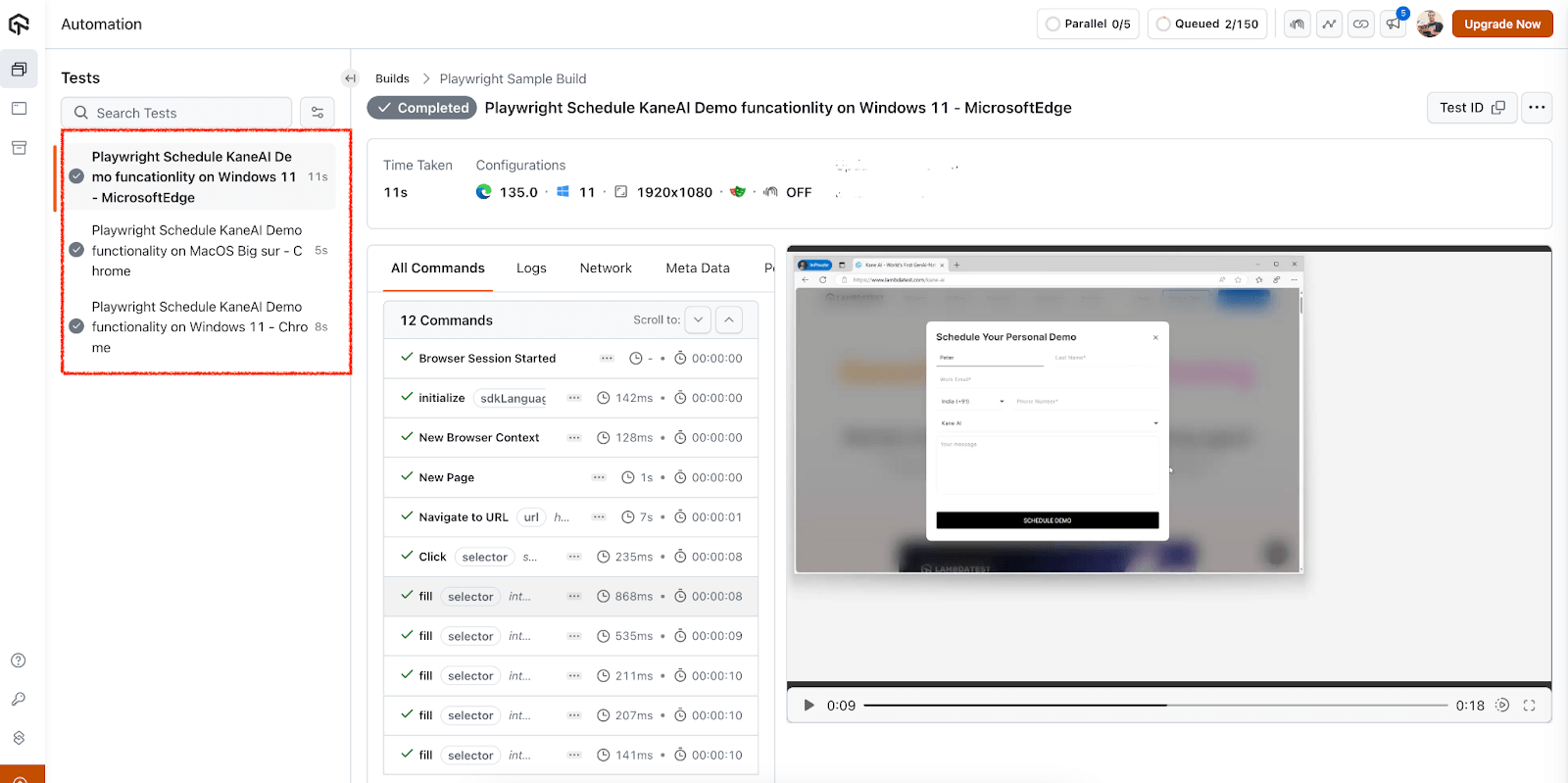
Methods to Run Playwright Tests
Playwright lets you run tests across different browsers with a single test suite. There are five different methods to perform Playwright automation.
Default Browser Configurations
By default, Playwright includes Chromium, Firefox, and WebKit rendering engines, and you can switch between them easily.
You can define multiple projects in your config file to target different browsers:
// playwright.config.js
import { defineConfig, devices } from '@playwright/test';


export default defineConfig({
  projects: [
    {
      name: 'Chromium',
      use: { browserName: 'chromium' },
    },
    {
      name: 'Firefox',
      use: { browserName: 'firefox' },
    },
    {
      name: 'WebKit',
      use: { browserName: 'webkit' },
    },
  ],
});
After doing the above configuration, run the command:
Let’s take a test scenario of the ltKaneAi.spec file and run it with default browser configurations using the below command:
npx playwright test --headed tests/ltKaneAi.spec.js
Specific Browser From CLI
You can run tests on a specific browser by passing the project name.
Execute the below command to run the test cases in all three browsers.
npx playwright test --project=Firefox
npx playwright test --project=chromium
npx playwright test --project=WebKit
UI Mode
Playwright UI Mode is a visual, interactive test runner that helps you explore, debug, and execute tests smoothly. You can launch UI mode by running the below command:
npx playwright test --ui
At the top-left corner of the UI Mode window, you’ll see a browser selector dropdown. From here, you can instantly switch between Chromium, Firefox, and WebKit.
Headed Mode
By default, you can perform Playwright browser testing in headless mode (no visible browser UI).
To launch browsers in headed mode, you can modify the playwright.config.js file and set the headless option to false.
use:
{
 headless: false,
},
projects: [
   {
     name: 'chromium',
     use: { ...devices['Desktop Chrome'] },
   },
    {
     name: 'firefox',
      use: { ...devices['Desktop Firefox'] },
    },
    {
      name: 'webkit',
     use: { ...devices['Desktop Safari'] },
    },
 ],
To run the test cases in headed mode, use the following command:
npx playwright test --headed
CI Pipelines
You can also perform Playwright browser testing through CI pipelines. For ready-to-use workflow configurations, test sharding across parallel jobs, and fixes for failures that only surface on the build server, refer to this guide on Playwright CI/CD pipelines.
Here’s an example of using GitHub Actions with Playwright:
jobs:
  test:
    strategy:
      matrix:
        browser: [chromium, firefox, webkit]
    runs-on: ubuntu-latest
    steps:
      - uses: actions/checkout@v4
      - name: Install dependencies
        run: npm ci
      - name: Run tests
        run: npx playwright test --project=${{ matrix.browser }}

Note: Run Playwright tests across 3000+ real environments. Try TestMu AI Now!
How to Run Playwright Tests in Parallel?
To speed up test execution, you can use Playwright to run tests in parallel. By default, Playwright runs tests in parallel across multiple workers.
For running Playwright tests using Jest as the test runner on the TestMu AI HyperExecute grid, see the Playwright Jest on HyperExecute documentation.
A worker in Playwright is an isolated environment that the test runner uses to run tests in parallel.
You can control the number of workers using the --workers flag:
npx playwright test --workers=4
You can also configure the workers property in your playwright.config.ts file:
export default {
  workers: 4,
};
For more advanced parallelization strategies, such as running tests fully in parallel or sequentially, you can use the fullyParallel and mode options in your configuration file.

Can AI Agents Run Playwright Tests Without a Script?
Yes. The Playwright MCP server lets agents such as Claude Code and GitHub Copilot drive a real Chromium, Firefox, or WebKit browser through structured tool calls instead of a fixed script. The agent still runs on top of Playwright; it only decides which action to call next, and every call still executes inside a normal Playwright browser context.
- Accessibility tree access: Playwright MCP reads the page's structured accessibility tree instead of screenshots, so a browser_click or browser_type call still resolves the right element after a layout change.
- Structured tool calls: The agent chooses from a fixed tool surface, including browser_navigate, browser_snapshot, and browser_click, and Playwright executes each call the same way a hand-written script would.
- Natural-language test creation: You describe a goal, such as "log in and confirm the dashboard loads," and the agent maps it to a sequence of Playwright API calls that you can save and replay as a reusable script.
- Non-deterministic runs: The agent can choose a different sequence of actions across two runs of the same instruction, so treat an AI-generated Playwright script as a draft. Review it, add explicit assertions, and only then add it to a suite your CI pipeline depends on.
Conclusion
Playwright makes it easy to get started with browser automation, from setup to writing and running your first test. It supports testing across all major browsers out of the box, ensuring cross-browser compatibility.
Moreover, you can also use Playwright to run tests on cloud-based testing platforms like TestMu AI to improve your testing efficiency and get much-needed scalability and reliability.
If your team uses JUnit as the test runner with Playwright, TestMu AI HyperExecute supports this combination natively. See the Playwright JUnit on HyperExecute documentation to get started.
With different methods to run tests, such as through the default configuration file, CLI targeting, UI mode, headed mode, and CI/CD integration, Playwright can adapt to your various testing needs.
Additionally, integrating Playwright with AI can enhance test creation, maintenance, and defect detection, making automation smarter and more efficient.
Citations
- Running and debugging tests: https://playwright.dev/docs/running-tests
Author

Parth Mistry
Blogs: 2

Parth Mistry is a Member of Technical Staff at TestMu AI (formerly LambdaTest), building SmartUI, the visual regression testing product. He developed and owns the SmartUI CLI, a modular TypeScript tool built on Playwright for multi-browser automation, and built the Storybook CLI for visual regression of UI components. He maintains cross-language SDKs in Python, Java, Ruby, C#, and Node.js, and engineered a Node-based visual rendering service on Kafka, Redis, MySQL, and S3. His migration of that service to an event-driven, KEDA-autoscaled architecture improved execution speed by 60% and cut annual infrastructure cost by $9,600. He also built the end-to-end SmartUI integration with KaneAI. Parth is a Google Summer of Code 2024 contributor and an alumnus of IIT Jodhpur.
Reviewer

Sri Harsha
Reviewer
Sri Harsha is Engineering Manager of the Open Source Program Office at TestMu AI (formerly LambdaTest), where he leads open-source engineering behind the Selenium and Appium automation grid and builds agentic AI systems for quality engineering. He is a member of the Selenium Technical Leadership Committee and a committer to WebdriverIO and Appium, and was recognized with the LambdaTest Delta Award 2023 for Best Contributor in open-source testing. He brings over 10 years of experience in software testing and automation, with earlier roles at EPAM Systems and ZenQ. Sri Harsha holds a B.Tech in Computer Science from Jawaharlal Nehru Technological University.


Frequently asked questions
Did you find this page helpful?
More Related Blogs
TestMu AI forEnterprise
Get access to solutions built on Enterprise
grade security, privacy, & compliance
- Advanced access controls
- Advanced data retention rules
- Advanced Local Testing
- Premium Support options
- Early access to beta features
- Private Slack Channel
- Unlimited Manual Accessibility DevTools Tests