
Power Your Software Testing with AI Agents and Cloud
The Native AI-Agentic Cloud Platform to Supercharge Quality Engineering. Test Intelligently and Ship Faster.


- TestMu AI (Formerly LambdaTest)
- /
- Blog
- /
- Complete Guide to Safari Developer Tools
How to Debug Websites Using Safari Developer Tools
Debugging websites for Safari before pushing them live is crucial. In this article, learn how to debug websites using Safari Developer Tools.
Last Updated on:
On This Page
- Why Debug Websites on Safari?
- What are Safari Developer Tools?
- Types of Developer Tools for Safari
- Benefits of Safari Developer Tools
- How to Enable Developer Tools in Safari?
- Methods to Debug Websites Using Safari Developer Tools
- Debugging Websites Using Safari Developer Tools on TestMu AI
- AI Browser Agents for Safari Debugging
Safari Developer Tools is Apple's built-in toolkit for inspecting and fixing web pages inside Safari, opened as the Web Inspector once the Develop menu is enabled. Beyond an Elements panel, it bundles a Timeline for performance profiling and a Storage Inspector for cookies, plus the safaridriver WebDriver, a REST server that Selenium clients in Python or Java can drive.
Apple's Safari user base spans desktop and mobile devices, and Safari Developer Tools plays a major role in keeping that experience solid. Apple provides built-in developer tools for the Safari browser with capabilities for improving the quality of websites and web applications. The developer tools for Safari support the latest web technologies out of the box, ranging from debugging JavaScript to auditing web performance.
In this article, we look at how to debug websites using Safari Developer Tools. But before that, let’s check out why it’s vital to debug websites on Safari. Let’s dive in!
Why debug websites on Safari?
Safari has been a part of the most popular browsers since 2003. Its first version was released the same year with Mac OS X Panther. Since the iPhone launched in 2007, a mobile version of Safari has been included in all iOS devices. If a user doesn’t change it, it’s the default browser on Apple devices.
Considering the number of Apple devices and their never-ending versions, the combinations of different features and screen resolutions are enormous. But when you debug websites on Safari before launch, your users can hop on to the Window that quickly takes them to your services and products.
Web developers must validate website appearance across different screen sizes to maintain cross browser compatibility. This ensures the correct rendering of web pages across various browsers. It also provides a comparatively superior user experience with consistency. It’s also essential to consider how a particular version of Safari might interact with a device’s hardware specifications. This adds to another form of verification that is crucial for the web development pipeline.
Once you go ahead and launch a website, debugging it after encountering a bug becomes almost impossible. That’s why it’s crucial to debug websites for Safari before they go live. After all, vulnerability, compromised navigation, and other incompetencies can turn a simple user interface into a screaming nightmare. Now, let’s see what Safari Developer Tools are and how they can help in the debugging process and ensure your websites are bug-free.
What are Safari Developer Tools?
Safari Developer Tools are a set of tools included with the Safari web browser to help developers and testers in designing, testing and debugging websites and web applications. They are similar to the developer tools in other browsers like Chrome or Firefox.
Here are the following features of Safari Developer Tools that you can leverage for debugging websites:
- Elements Inspector: Allows you to view and change the HTML and CSS of a webpage. You can see how changes to the code affect the layout and appearance of the website in real time.
- Console: Used for logging information during the development of a website and for interacting with JavaScript through a command line interface.
- Network: Shows all the network requests made by a webpage, which helps analyze the performance of your website and identify any loading issues.
- JavaScript Debugger: Lets you pause the JavaScript code at any point and step through it to understand how the code is executing, which is crucial for debugging.
- Performance Tools: Help you understand where the bottlenecks are in your website’s performance and provide insights on how to improve it.
- Storage Inspector: Enables you to manage data stored by websites in various forms like cookies, local storage, and session storage.
- Responsive Design Mode: Allows you to test how your webpages look and function on different screen sizes and resolutions, which is important for ensuring your website is mobile-friendly.
- Timeline: Helps you to record and analyze all the activities happening on your website over a period of time. This is particularly useful for identifying complex performance issues.
Safari Developer Tools caters not just to traditional web development, but also to the broader ecosystem of Apple products that ensures a consistent user experience. In addition, it offers a set of tools to help you test and debug web elements in Safari. We will explore them in the next section.

Types of Developer Tools for Safari
Safari’s development environment is quite comprehensive, extending beyond the standard web browser on a desktop. Here are different types of Safari Developer Tools.
- Develop Menu: This is the gateway to Safari Developer Tools. It provides access to various debugging tools for Safari itself, as well as for web content in other applications and on different devices like iPhones, iPads, and Apple TVs. To use it, you first need to enable the Develop menu in Safari’s preferences.
- Web Inspector: It helps you inspect all the resources and activity on your website, like Service Workers, Mac and Home Screen web apps, and JavaScript running inside your web applications. It makes your development more efficient across different Apple platforms. Web Inspector intuitive UI puts each core function in a separate tab. This helps you to rearrange what fits in your workflow.
- Responsive Design Mode: This feature is particularly important in modern web development. It allows developers to test how their web pages will look and function on different devices and screen sizes. By simulating various screen resolutions and orientations, developers can ensure that their webpages are mobile-friendly and adaptable to various viewing environments.
- WebDriver: WebDriver is a REST API that allows you to automate the testing of web interactions across different web browsers and platforms and all without writing code specific to each browser.
Explore this guide on Safari mobile view to test your site’s mobile layout directly in Safari Developer Tools. It’s a quick way to ensure your design looks great on all devices.
In Safari, the driver is called safaridriver, and it comes pre-configured with most Selenium client libraries. You can write your tests in various programming languages like Python, Java, PHP, JavaScript, or any other language that supports the W3C WebDriver protocol.
WebDriver runs a local web server capable of handling REST-style HTTP requests. This means it can integrate with range of testing setups and accept automation commands.
The above developer tools for Safari make it the preferred choice for web development, especially within the Apple ecosystem. In the upcoming section, we will look at the benefits of Safari Developer Tools.
Benefits of Safari Developer Tools
Safari Developer Tools offer a range of benefits that significantly enhance your web development process. Here are six notable advantages:
- End-to-End Web Inspection: It provide a rich set of functionalities for inspecting web content. The Web Inspector, a central component, allows for detailed inspection of HTML, CSS, and JavaScript that makes development more efficient across Apple platforms.
- Efficient Debugging: It offer various features like Console, Network, and Timelines which helps in quick identification and resolution of errors and performance issues. This makes the debugging process more streamlined and effective.
- Optimized Web Performance: With tools like the Network and Timelines tabs, developers can analyze and optimize websites for peak performance. This ensures faster load times and smoother interactions for users.
- Responsive Design Testing: The Responsive Design Mode in Safari is help developers and designers to build web experiences that adaptable to various screen sizes. This feature is crucial for ensuring that webpages are mobile-friendly and visually appealing across different devices.
- Advanced Auditing Capabilities: Safari’s Audit feature allows developers to ensure that web pages adhere to modern web design guidelines and specifications, including common code and accessibility standards.
- Security and Privacy: Safari also strongly focuses on user privacy and security. This ensures that web development and testing do not compromise the safety and confidentiality of user data.
Now you know what benefits Safari Developer Tools offers, let’s see how to enable Safari Developer Tools.
How to Enable Developer Tools in Safari?
By default, the Show Develop menu in menu bar option is typically disabled in Safari. You need to manually enable it through the Safari Preferences if you want to access the Develop menu and its developer tools.
Once enabled, the Develop menu will appear in the menu bar, giving you access to various web development and debugging features.
Follow these steps to enable Safari Developer tools.
- Open the Safari browser on your Mac.
- Click on Safari, and select Preferences.
- Click on the Advanced tab.
- Check the Show Develop menu in menu bar option. Once selected, Safari’s developer tools can be accessed from the Develop menu located in the menu bar.

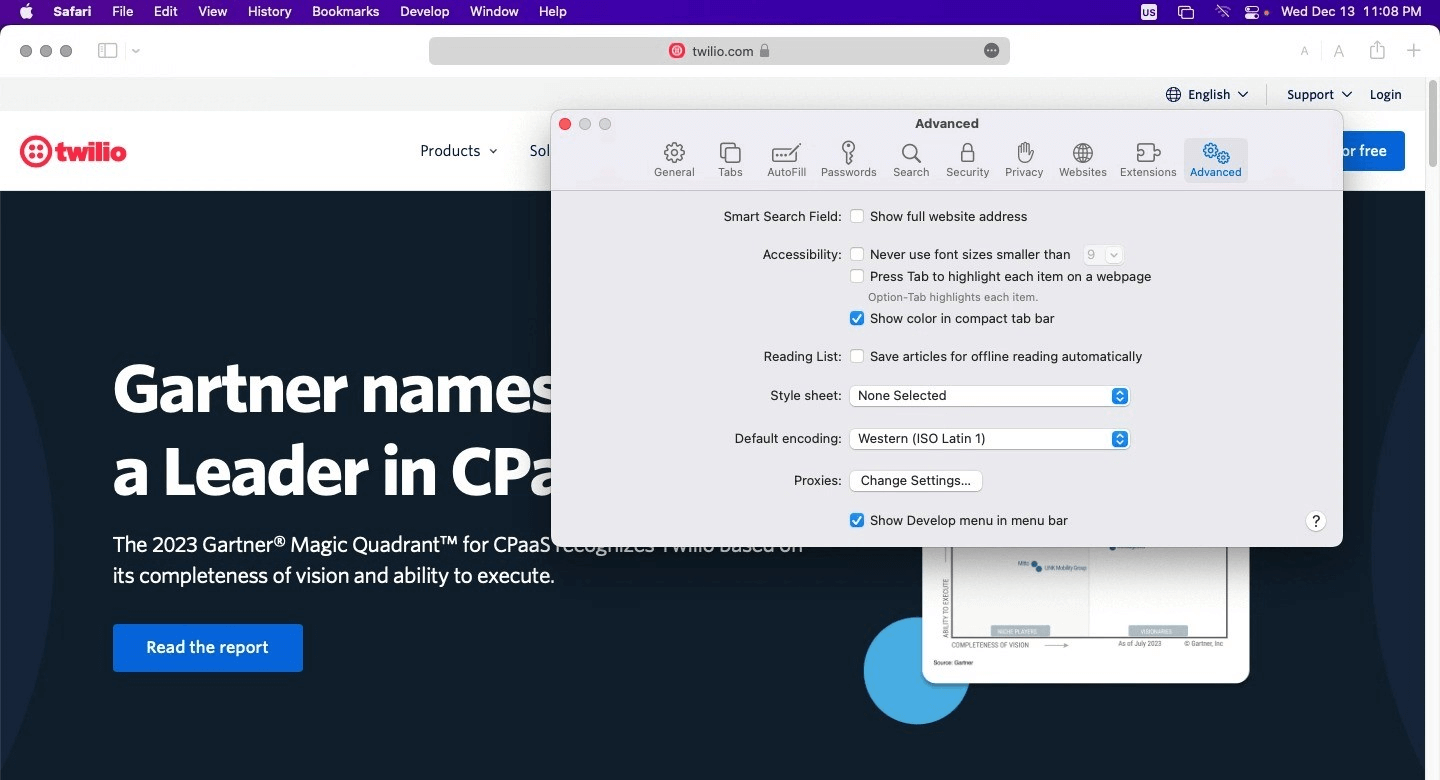
Once you’ve checked the box, the Develop menu will appear in the menu bar at the top of your screen. Now, you can access Safari Developer Tools for your web development and debugging process.

When it comes to testing websites and web applications, Safari Developer Tools can help you ensure that your website functions correctly across all browsers, devices, and platforms. Let’s dive deep into different Methods to debug websites using Safari Developer Tools for your testing needs.
Methods to Debug Websites Using Safari Developer Tools
Before debugging websites using Safari Developer tools, it’s essential to have a device that runs on iOS or macOS. This section will explore three different techniques to debug websites using Safari Developer Tools.
- Debug using Responsive Design Mode
- Debug using Web Inspector
- Remote debugging on OS X
- Debug on Cloud
Let’s look at different methods one by one!
Debugging Websites Using Responsive Design Mode
In this section of the article on Safari Developer Tools, we will look at how you can debug the mobile view of a website using Safari Developer tools. Remember that you need to enable the Developer menu before accessing the Responsive Design Mode since it’s disabled by default for Safari.
- After launching the Safari browser, select Preferences > Advanced.
- Check the box and click the Show Develop menu in menu bar.
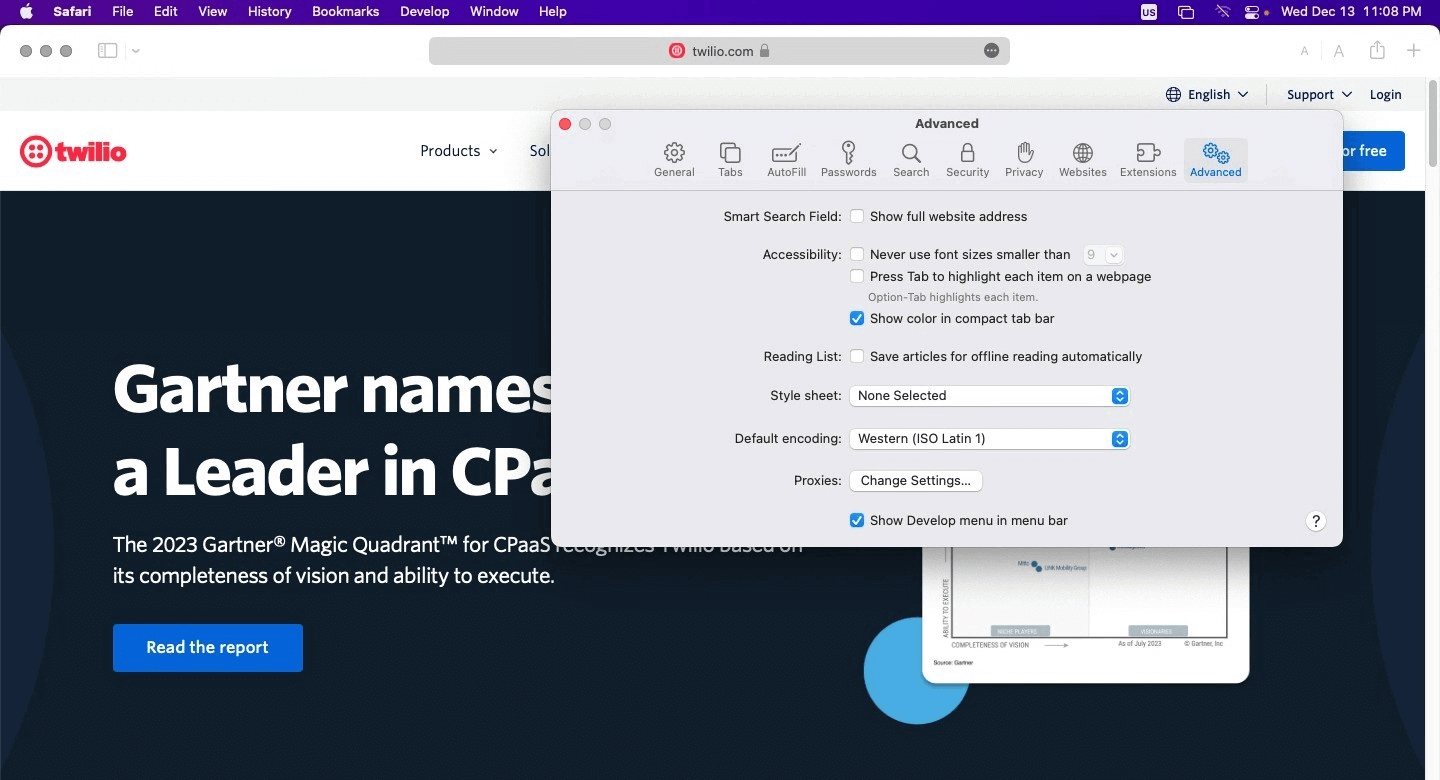
Here is how it looks.
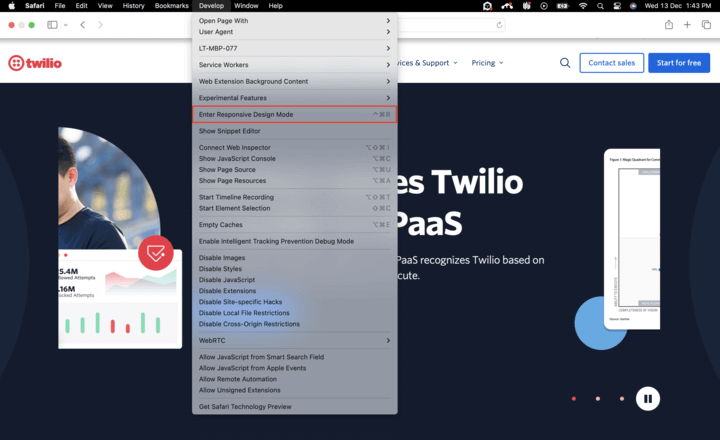
Below are the steps for viewing a website’s mobile version with the help of Safari Developers Tools.
- Launch Safari and visit the URL of your choice.
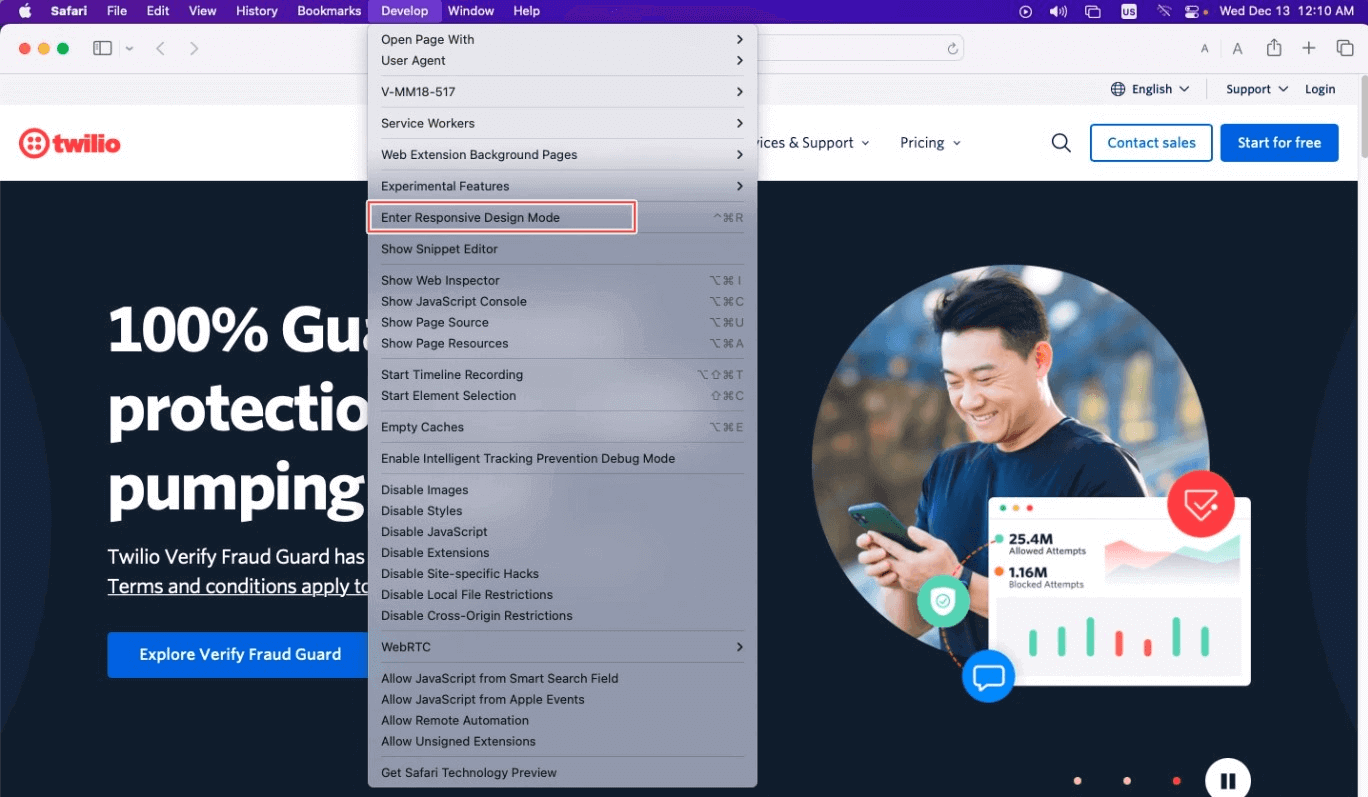
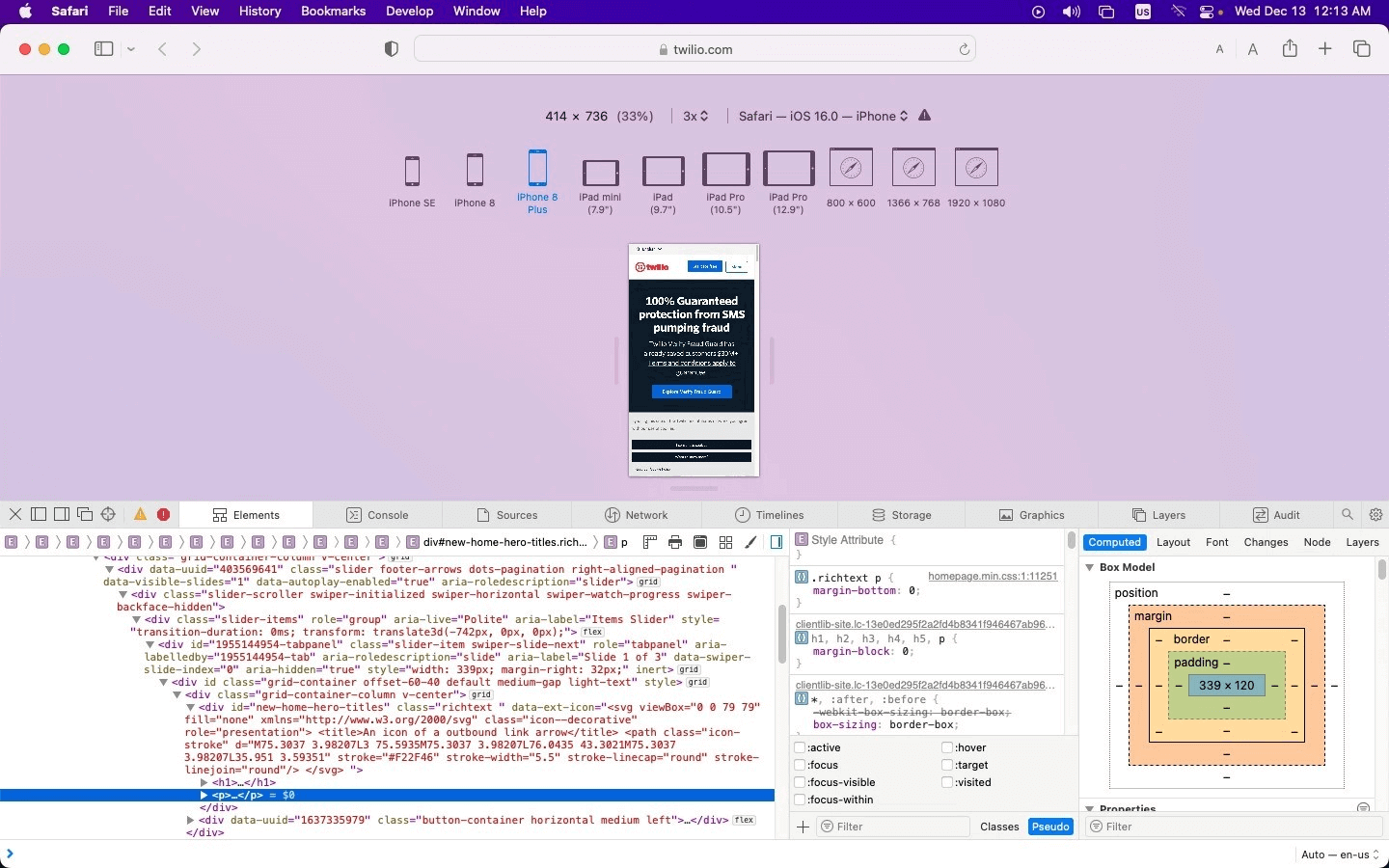
- Go to Develop > Enter Responsive Design Mode from the menu bar.
- After that, you can view the desired website by selecting the Apple mobile device.
- If you wish to debug a particular issue for a specific viewport or screen size or inspect a particular element, Web Inspector is the key to doing it. Developers can find it in the development view and use the element selector to inspect specific elements after activating the inspector.

Debugging Websites Using Web Inspector
As mentioned in the above method, here is how you can easily debug websites on iPhone and iPads on Safari using the Web Inspector.
Let’s take a look.
- Connect your iPad or iPhone to the machine.
- Navigate to Settings > Safari > Advanced and enable the Web Inspector toggle button.
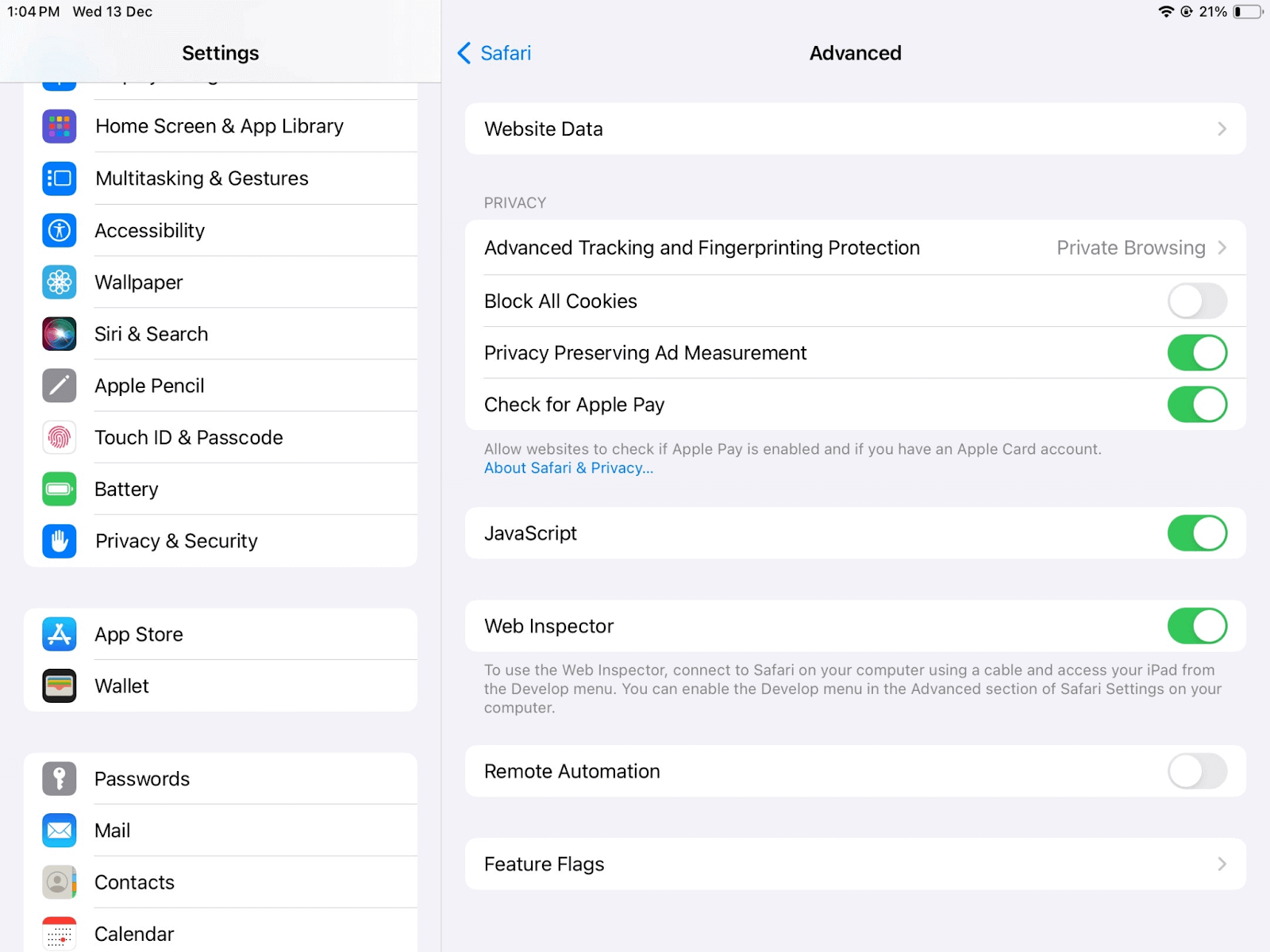
You can now preview the desired web page on your Safari browser on mobile or start debugging using Safari Developer tools.
Remote Debugging on OS X
Remote debugging iOS Safari on OS X can be a challenging task. But it’s simpler than you might think. First, install the Safari browser version on your computer.
- Connect an iPhone or iPad to a Mac computer with the help of a USB.
- Enable Web Inspector on your device by selecting Settings > Safari > Advanced and switching on the Web Inspector toggle. This will switch it on in case it isn’t in the default mode.
- After successfully enabling Web Inspector, do the same with the develop menu by selecting Safari > Preferences > Advanced and checking the box in the menu bar. Don’t do anything if it’s enabled already by default.
- Ensure your devices are plugged in on your computer before opening your desired web page. Select Develop > iOS device name and select the page you wish to debug.
- Now, you can view and update the DOM (Document Object Model) and access the JavaScript console and other features and options.
Debugging on Cloud
When it comes to debugging websites using Safari Developer Tools, it’s crucial for developers and testers to ensure their websites work flawlessly across various Safari and macOS versions. However, testing this on the local machine is not possible due to resource constraints and time, as well as the costs involved in setting up those resources.
For this, cloud-based testing is a feasible approach to debug websites using Safari Developer Tools across different Safari browser versions and macOS platforms. Cloud-based testing platforms like TestMu AI provide integrated developer tools for Safari, allowing users to debug websites in real time on real macOS machines.

Note: Debug your website at your fingertips. Try TestMu AI Today!
Debugging Websites Using Safari Developer Tools on TestMu AI
TestMu AI is an AI-powered test orchestration and execution platform offering an online browser farm of 3000+ real browsers and operating systems to test websites and web applications. Therefore, you can perform web testing on different versions online to identify browser compatibility issues. In addition, it facilitates browser testing on real Safari browsers online that run on real macOS machines. This ensures website compatibility on legacy Safari versions all the way back to Safari 5.1.
It also enables devs and testers to test on Safari browser online across different real Safari browser versions and macOS operating systems. They can easily view and debug any JavaScript, CSS, or HTML web applications or websites and check their websites through changes in code via Safari Developer Tools.
TestMu AI also offers a Safari Web Inspector to inspect elements on iPhones. Users get a broad range of Safari browser versions for debugging, ensuring a pixel-perfect customer experience. In addition, using parallel testing, TestMu AI helps you reduce test execution time for testing your website on mobile and virtual macOS online.
The best thing about the TestMu AI platform is that you don’t even have to install or download anything, not even virtual machines.
Also, with TestMu AI integrations, you can directly mark your bugs from TestMu AI and use Asana, Jira, or other bug management tools. In addition to that, users can also move them to GitLab GitHub or carry out communication over Slack. Other integrations include Zenkit, Userback, and more.
TestMu AI tunnel allows users to access online Safari browsers for local page testing of private or locally hosted web apps for browser compatibility on different Safari browsers. Single-click responsive testing and full-page screenshot testing are some added functionalities.
Using Safari Developer Tools for Desktop Browser Testing
Below are the steps to debug websites with the TestMu AI platform on desktop browsers using developer tools for Safari.
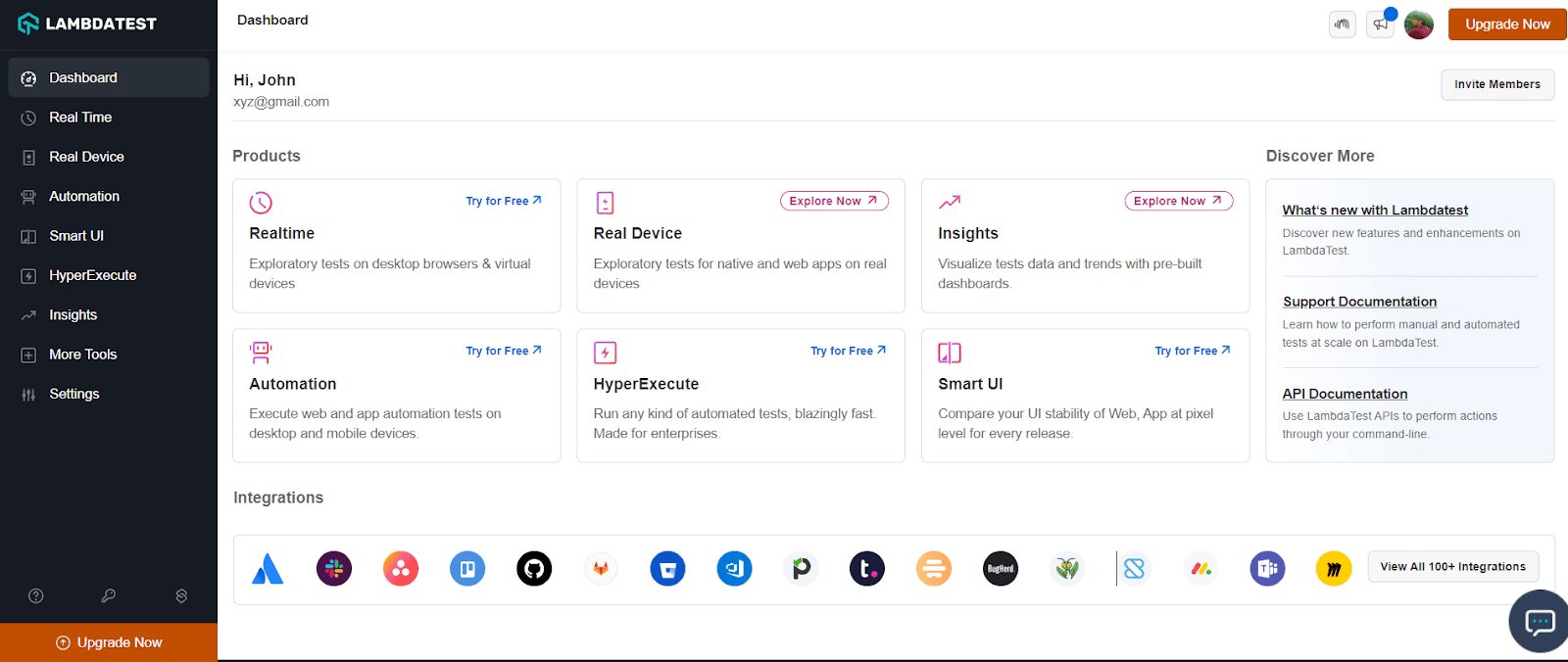
- Login to your TestMu AI account. If you don’t have an account, register on TestMu AI.
- Go to Real Time > Browser Testing.
- Enter a test URL, select the Safari browser, and choose VERSION, OS, and RESOLUTION. Then, click START.
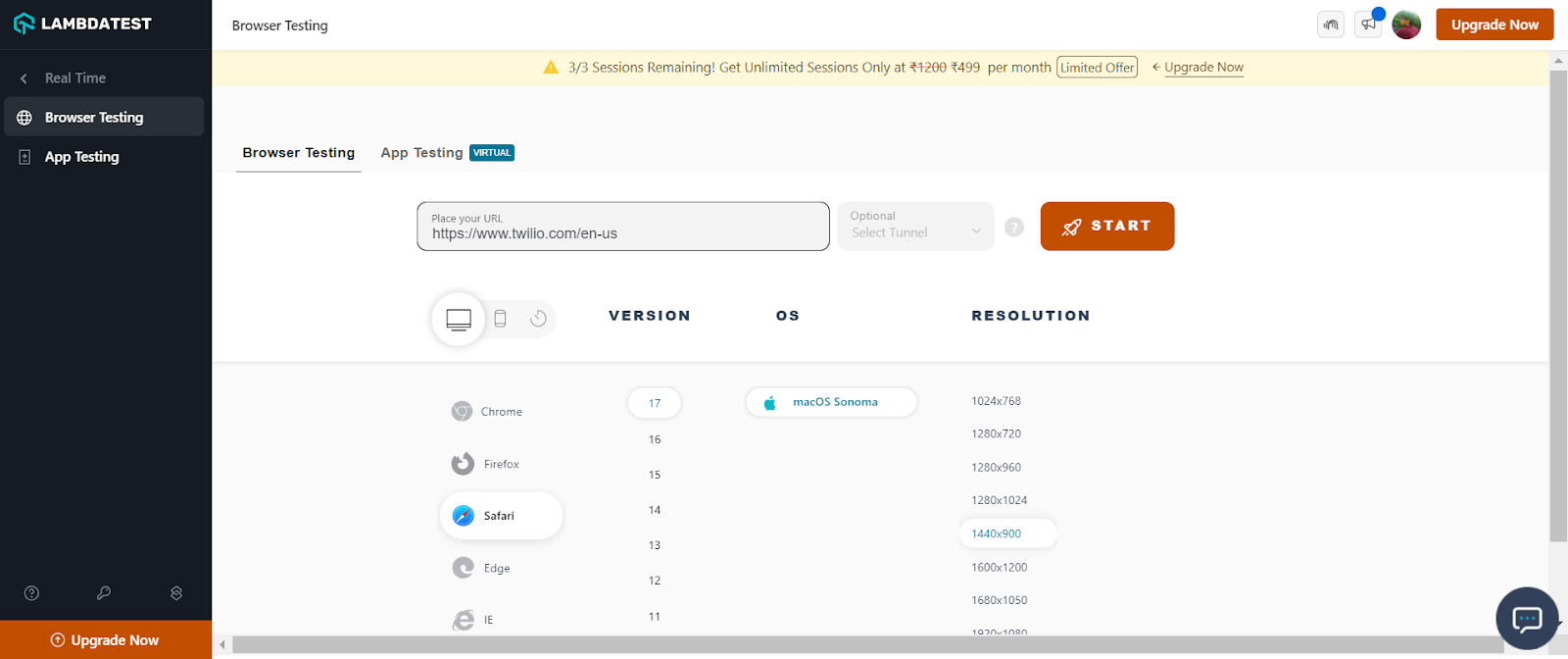
It will route you to the selected cloud-based real macOS machine. To open the Safari Developer Tools, right-click on Inspect and start debugging. You can leverage other built-in features offered by TestMu AI, like geolocation testing, uploading files, accessibility, and much more.
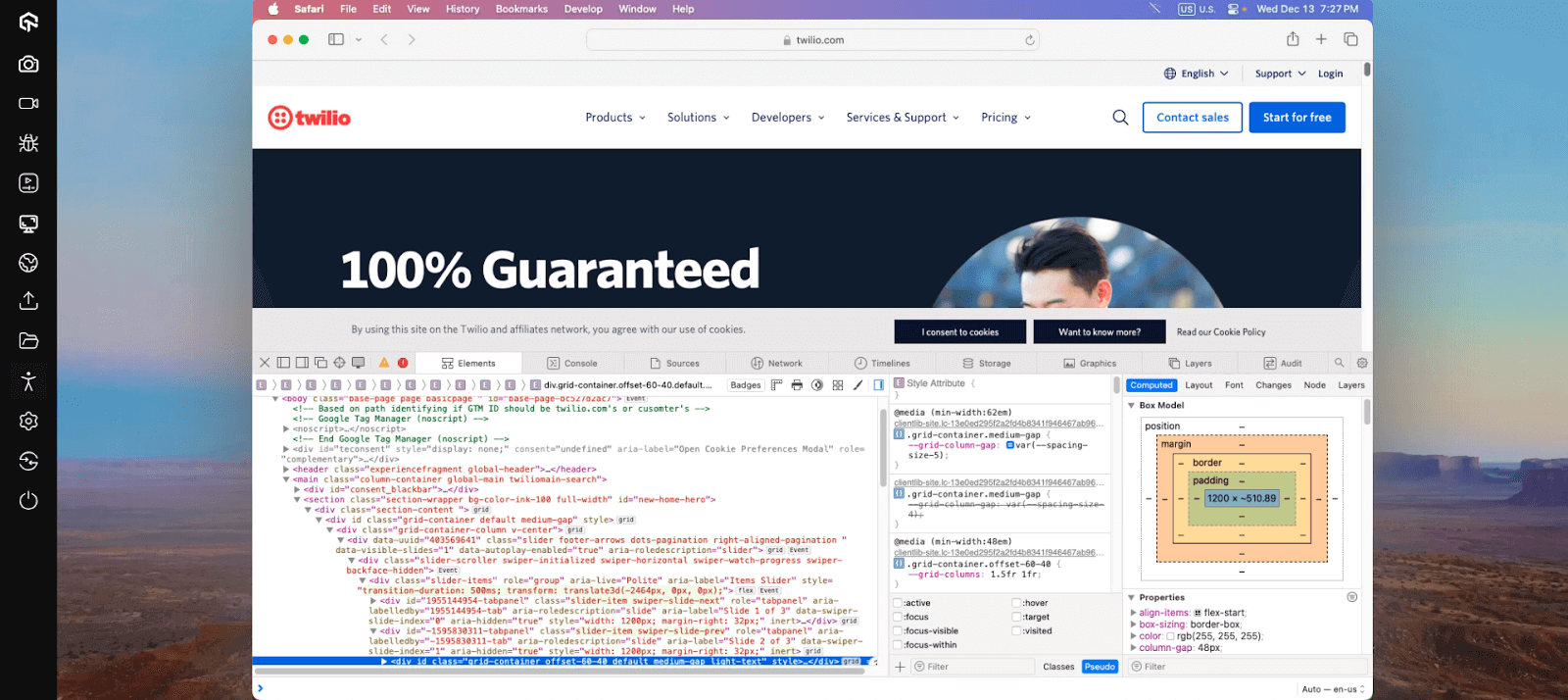
Using Safari, you can use the Responsive Design Mode while debugging your websites on TestMu AI.
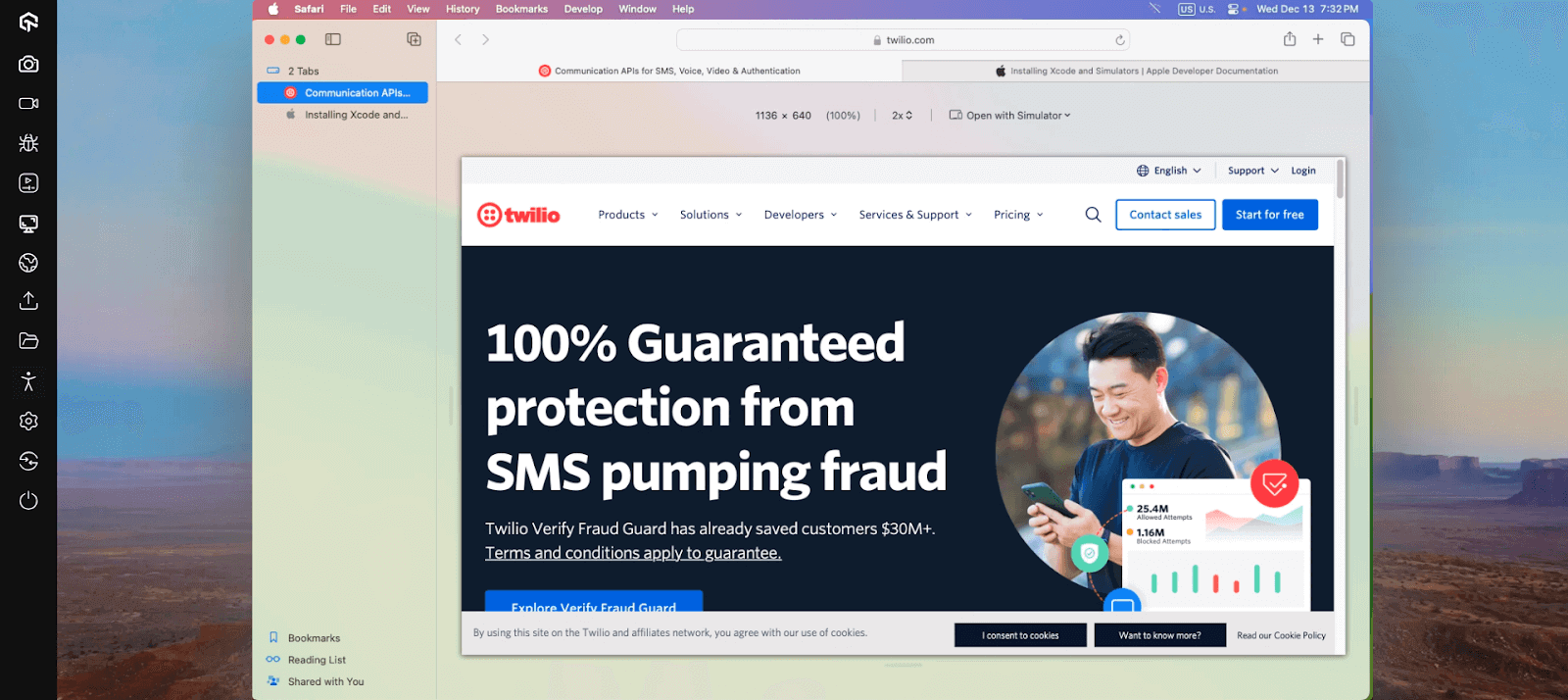
Now, let’s look at how to use developer tools in Safari for mobile browsers on TestMu AI.
Using Safari Developer Tools for Mobile Browser Testing
Shown below are the steps to debug websites with the TestMu AI platform on mobile browsers using Safari Developer Tools.
- If you want to test on iOS simulators, select Real Time > Browser Testing from the left sidebar. To test on a real device cloud, choose Real Device > Browser Testing.
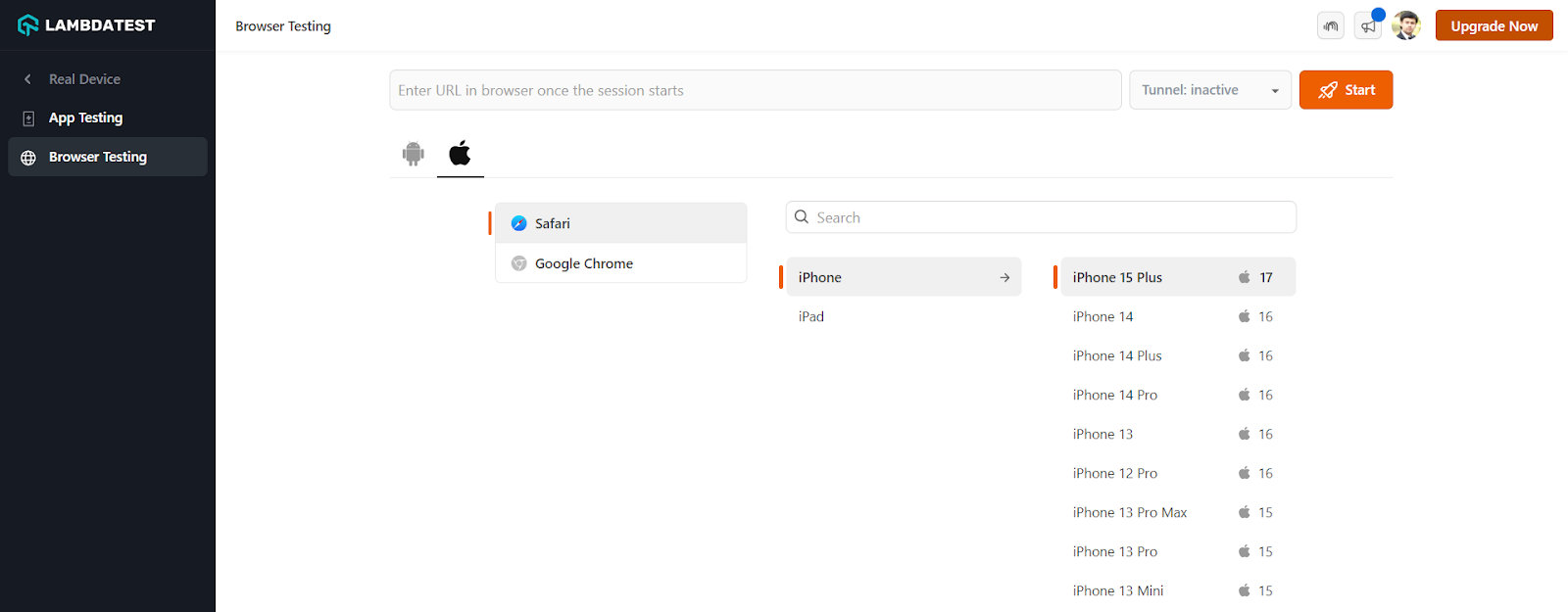
- Select the iPhone or iPad and choose the model on which you wish to run the tests. Then, click Start.
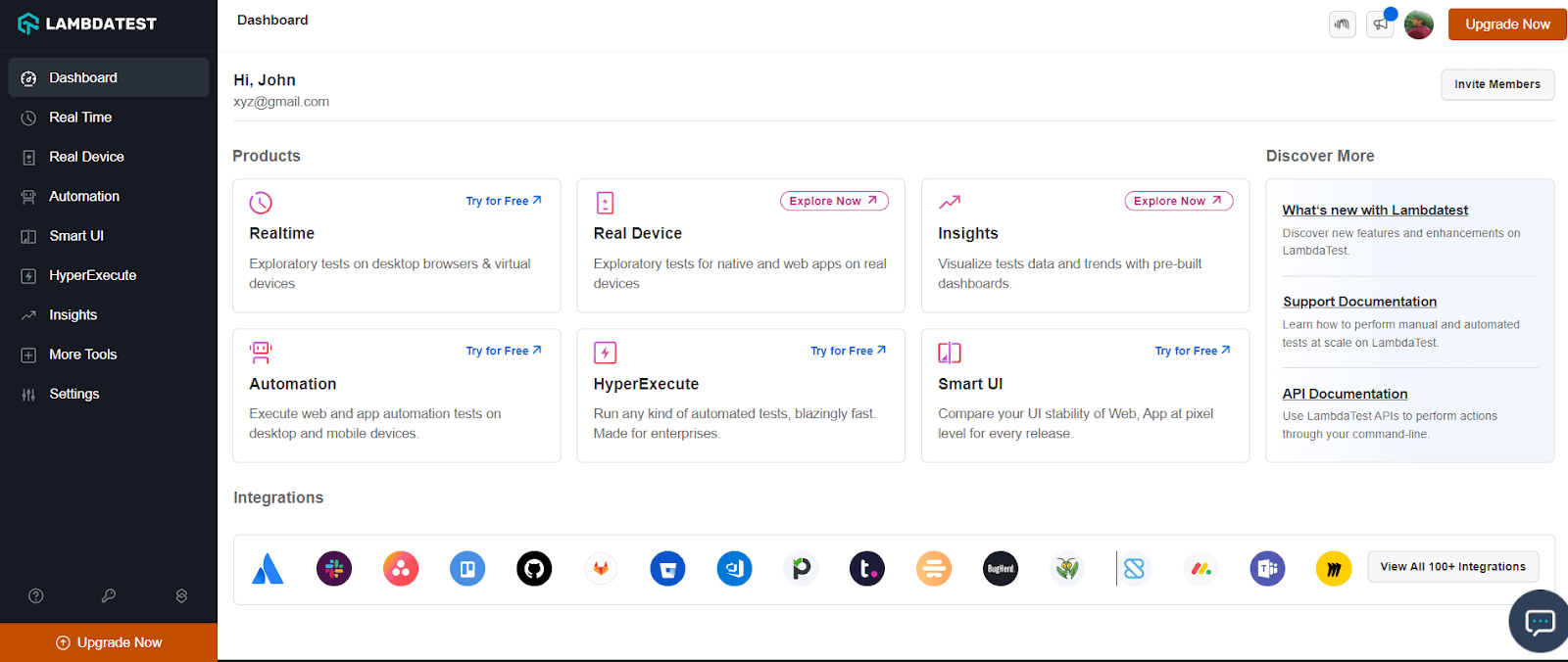
For demonstration, let’s choose Real Device.
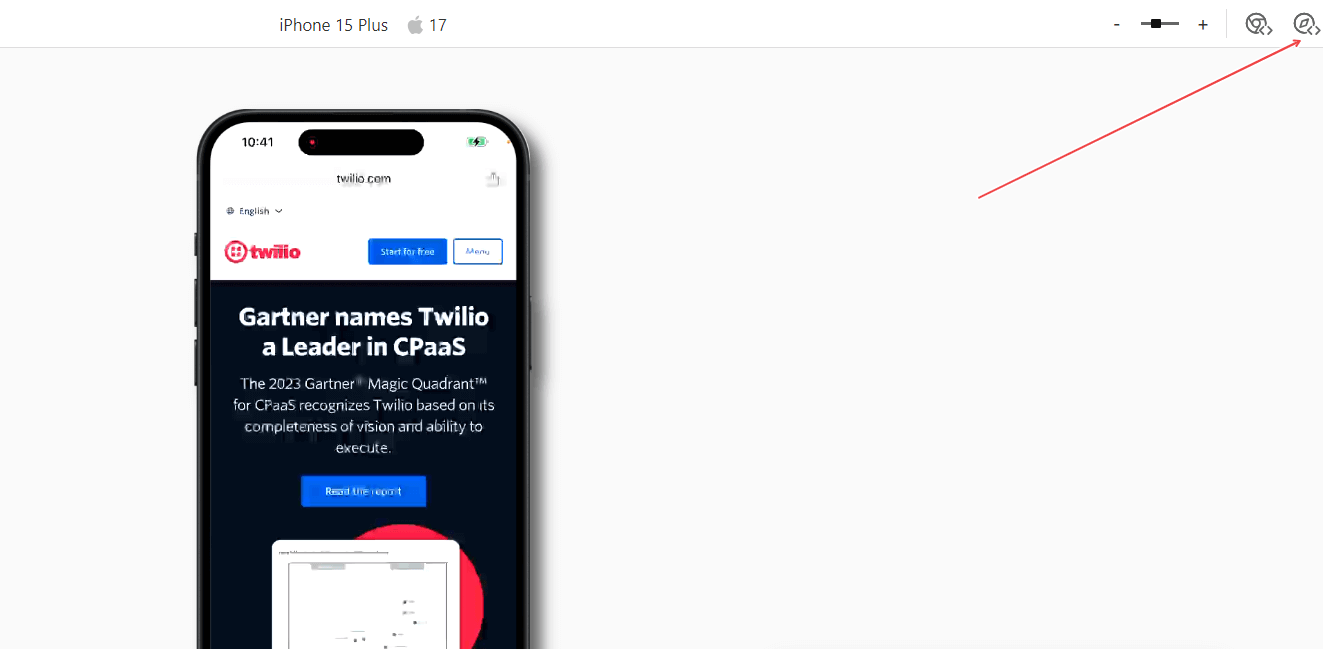
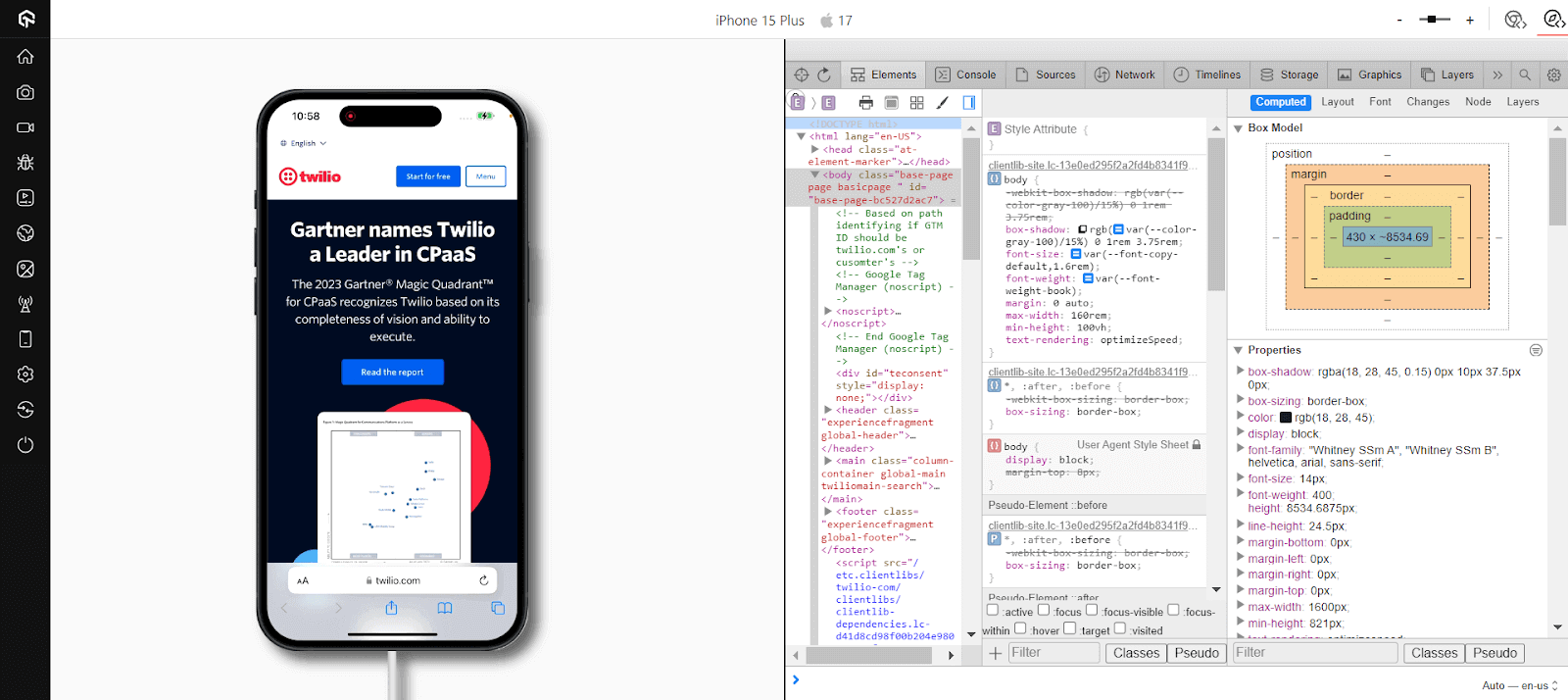
It will route you to the selected cloud-based iOS device. To open the integrated Safari Developer Tools, click the Safari Web Inspector icon.
It will launch developer tools with which you can debug your web applications or websites on a real iPhone running a real Safari browser.
If you want to debug websites on real devices, here is a quick tutorial on performing real-time browser testing on real devices.

For more video tutorials around mobile app testing, Selenium testing, subscribe to the TestMu AI YouTube Channel.
Can AI Browser Agents Debug Websites in Safari?
AI browser agents can drive Safari through the safaridriver WebDriver interface, but most agent frameworks are built around the Chrome DevTools Protocol, which Safari does not support, so Safari automation stays slower and more limited than Chrome or Firefox.
- WebDriver-only control: safaridriver exposes the W3C WebDriver protocol, so an agent can click, type, and navigate, but it cannot subscribe to Chrome DevTools Protocol events like network requests or console logs the way it can in a Chromium browser.
- Accessibility-tree navigation: without those events, a browser-driving agent falls back to the accessibility tree or a screenshot to locate elements, then still needs Web Inspector's Console open to catch JavaScript errors it cannot pull automatically.
- Real limitation: an agent testing Chrome can read the network waterfall and console output directly through the protocol; on Safari it cannot, so failures still need a manual check in Web Inspector before you can trust the agent's pass or fail result.
Until Safari exposes the same protocol-level events as Chrome and Firefox, treat an AI agent's Safari run as accessibility-tree automation, and confirm any JavaScript errors in the Web Inspector Console yourself rather than expecting the agent to report them.
100+ Free Online Tools From TestMu AI!
TestMu AI has come up with an index of 100+ free online tools for developers and testers. From HTML, XML, and JSON formatters to robust data generators, and hash calculators. TestMu AI’s free online tools are built to help engineering teams accelerate and be more productive with their daily activities.
Code Tidy
- JSON Prettify
- JSON Minify
- HTML Prettify
- HTML Minify
- JavaScript Minify
- CSS Minify
- CSS Prettify
- XML Minify
- XML Prettify
Data Format
- IDN Encode
- IDN Decode
- XML to JSON Converter
- JSON to XML Converter
- BCD to Decimal
- HEX to Decimal
- Decimal to BCD
- UTF8 Decode
- UTF8 Encode
- HEX to RGB Converter
- RGB to HEX Converter
- HTML to Markdown Converter
- Markdown to HTML Converter
- Decimal to Gray Code Converter
- Gray Code to Decimal
- URL Decode
- URL Encode
- Base64 Encode
- Base64 Decode
- Text to HTML Entities Converter
- HTML Entities to Text Converter
Random Data
- Random JSON Generator
- Random XML Generator
- Random CSV Generator
- Random YAML Generator
- Placeholder Image Generator
- Random Binary Generator
- Random Character Generator
- Random Color Generator
- Random Date Generator
- Random Decimal Fraction Generator
- Random Decimal Generator
- Random GUID Generator
- Random HEX Generator
- Random Octal Generator
- Random IP Generator
- Random MAC Generator
- Random Number Generator
- Random Paragraph Generator
- Random Password Generator
- Random Time Generator
- Random UUID Generator
- Random Sentence Generator
- Random String Generator
- Random Word Generator
- Random Data from RegEXP
- Test Data Generator
- Lorem Ipsum Generator
- Credit Card Number Generator
- QR Code Generator
- Random Byte Generator
Security Tools
- Hash Calculator
- HMAC Generator
- CRC32 Hash Calculator
- CRC32B Hash Calculator
- Ripe MD 128 Hash Calculator
- Ripe MD 160 Hash Calculator
- Ripe MD 256 Hash Calculator
- Ripe MD 320 Hash Calculator
- MD2 Hash Calculator
- MD4 Hash Calculator
- Adler32 Hash Calculator
- Gost Hash Calculator
- Whirlpool Hash Calculator
- MD5 Hash Calculator
- SHA1 Hash Calculator
- SHA256 Hash Calculator
- SHA384 Hash Calculator
- SHA512 Hash Calculator
Utils
- Find and Replace String
- HTML Escape
- HTML Unescape
- Difference Checker
- Shuffle Letters
- Shuffle Text Lines
- Sorting List
- Split Your String
- Text Lowercase
- Text Uppercase
- Text Repeater
- Text Rotator
- Character Count
- Word Count
- Lines Count
- Sentence Count
- URL Parse
- JSON Escape
- JSON Unescape
- Extract Text from HTML
- Extract Text from JSON
- Extract Text from XML
- Strip HTML
- JSON Validator
Summing Up!
You won’t automatically gain a billion users by designing a feature-filled website. Even if you manage to acquire people to browse your website with compromised features, they will encounter bugs and leave your platform forever. Remember that retention is vital to ensure consistent conversions and high ROI besides gaining users. Every bug in your interface takes your customers closer to your competitors.
The methods mentioned above are helpful for QA teams to debug websites using developer tools for Safari. Interface bugs can lie on the spectrum of simply being annoying and causing major user experience disruptions. Debugging on Safari browsers is necessary to launch web applications that work well under all conditions.
Some developers and testers might find website debugging for Safari challenging. However, it’s important to remember how crucial it is to offer a satisfying and seamless user experience for better customer acquisition and retention.
Do you have any questions about debugging a website using Safari Developer Tools? Let us know in the comments below.

Author

Salman Khan
Blogs: 140


Salman is a Test Automation Evangelist and Community Contributor at TestMu AI, with over 6 years of hands-on experience in software testing and automation. He has completed his Master of Technology in Computer Science and Engineering, demonstrating strong technical expertise in software development, testing, AI agents and LLMs. He is certified in KaneAI, Automation Testing, Selenium, Cypress, Playwright, and Appium, with deep experience in CI/CD pipelines, cross-browser testing, AI in testing, and mobile automation. Salman works closely with engineering teams to convert complex testing concepts into actionable, developer-first content. Salman has authored 120+ technical tutorials, guides, and documentation on test automation, web development, and related domains, making him a strong voice in the QA and testing community.


Frequently asked questions
Did you find this page helpful?
More Related Blogs

TestMu AI forEnterprise
Get access to solutions built on Enterprise
grade security, privacy, & compliance
- Advanced access controls
- Advanced data retention rules
- Advanced Local Testing
- Premium Support options
- Early access to beta features
- Private Slack Channel
- Unlimited Manual Accessibility DevTools Tests