

Power Your Software Testing with AI Agents and Cloud
The Native AI-Agentic Cloud Platform to Supercharge Quality Engineering. Test Intelligently and Ship Faster.


- TestMu AI (Formerly LambdaTest)
- /
- Learning Hub
- /
- How to Enable Safari Mobile View [6 Quick Methods]
How to Enable Safari Mobile View [6 Quick Methods]
Learn how to enable Safari mobile view with multiple methods, tips, and troubleshooting to test and optimize your site on mobile devices.
Last Updated on:
On This Page
- Why Use Safari Mobile View?
- How Do You Enable Safari Mobile View on Desktop?
- How Do You Test Safari Mobile View With TestMu AI?
- Which Safari Mobile View Method Is Right for You?
- What Are Common Issues in Safari Mobile View?
- How Is AI Changing Safari Mobile View Testing?
- How Should You Combine Safari Mobile View Methods?
- What Sources Does This Safari Mobile View Guide Cite?
Whether you are debugging layouts, testing a mobile-only feature, or verifying responsive behavior, Safari mobile view is something you will reach for often. Knowing which method fits your scenario cuts down both setup time and effort.
Overview
To enable Safari mobile view on desktop, developers can activate the Develop menu to access Responsive Design Mode for viewport simulation, while professional testers should use TestMu AI to run scalable, production-grade cross-browser tests on real iOS devices via cloud infrastructure.
- Best for quick layout checks: Custom size - Enter Responsive Design Mode in Safari and manually drag the browser window to test how your website layout behaves dynamically across different custom screen widths.
- Best for exact device dimensions: Fixed size devices - Select a preset iPhone or iPad from the top bar in Responsive Design Mode to automatically adjust the viewport to match specific device specifications.
- Best for realistic rendering and touch interactions: Simulators - Use Xcode-linked simulators within Safari's Responsive Design Mode to preview mobile rendering, touch interactions, and layout scaling on specific virtual hardware.
- Best for precise code-level debugging: Developer tools - Open Safari's Web Inspector to manually set viewport dimensions, inspect element attributes, and debug layout issues directly at the code level.
- Best for testing server-side mobile delivery: User agent - Change Safari's User Agent string to a mobile device identity, forcing servers to deliver the mobile version of the website and reload the page automatically.
- Best for production-grade cross-browser testing: TestMu AI - Test Safari mobile view on real iOS devices via cloud infrastructure to ensure accurate rendering, perform geolocation testing, and simulate real-world network conditions.
Why Use Safari Mobile View?
Safari mobile view lets you debug layouts, test mobile-only features, and catch device-specific issues without leaving your desktop.
- Large market share: According to Statcounter, as of April 2026, Safari holds a significant mobile browser market share of 17.09%. During development, testing, and debugging, Safari mobile view is essential.
- Faster debugging: Opening Safari's mobile view on desktop gives instant access to device-specific debugging. It helps catch layout issues like button sizing before they reach production.
- Leverage developer tools: Using Safari developer tools to debug websites is crucial when you need to tweak network bandwidth for granular testing.
- Access features without app installation: If a feature is available only for the mobile view, you can use these methods to access it through desktop Safari without a mobile app.
- Accelerate development and testing: Since Safari mobile view can be opened up in seconds for any device of choice, it speeds up the development and testing process.
How Do You Enable Safari Mobile View on Desktop?
Enable the Develop menu via Safari > Settings > Advanced. Once active, it gives you access to Responsive Design Mode, simulators, and User Agent from the menu bar.
This Safari developer menu appears in the macOS menu bar alongside File, Edit, and Bookmarks. To enable it:
1. Open Safari > Settings > Advanced.
2. Check the Show Develop menu in menu bar. (On the latest macOS versions, this may appear as Show features for web developers.)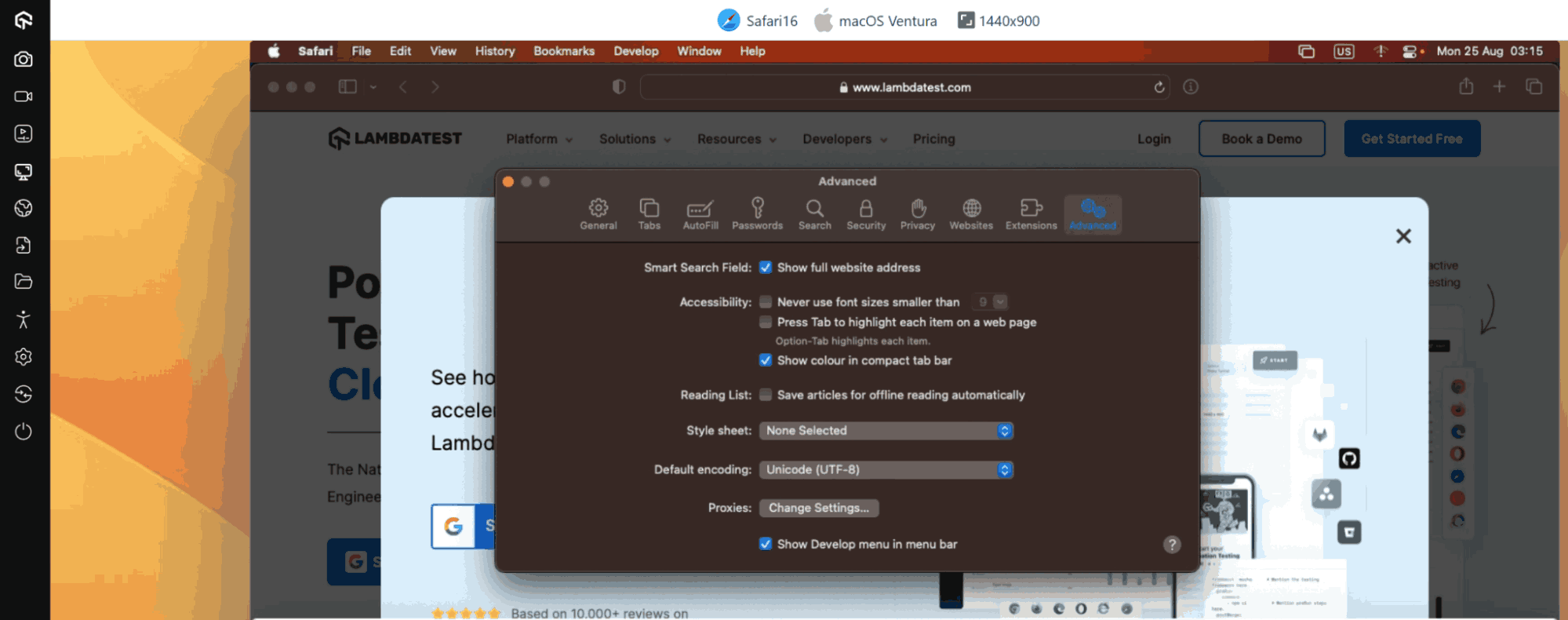
Once enabled, the Develop menu will appear in the menu bar, giving you access to tools for responsive design, simulators, user agents, and other developer features.

Note: Test your websites across 3000+ Safari desktop and mobile browsers. Try TestMu AI Now!
Enable Safari Mobile View With Custom Size
One of the simplest ways to view a site in mobile layout is by adjusting Safari’s window to a custom size. This is useful for quick checks on how a design responds at different breakpoints.
To do this:
Step 1: Go to Develop > Enter Responsive Design Mode.
Step 2: Once the mode is active, drag the edges of the window to resize it manually.
As you resize, the viewport adjusts dynamically, letting you test how your website behaves across a range of screen widths without being tied to a specific device preset.
Enable Safari Mobile View With Fixed Size
Custom resizing is a quick way to check responsiveness, but it only gives a rough idea of how a site adapts.
For deeper testing, you often need to replicate specific device dimensions. Safari makes this easier by providing a set of fixed sizes so you don’t waste time dragging the viewport to match exact breakpoints.
To use this option:
Step 1: Go to Develop > Enter Responsive Design Mode.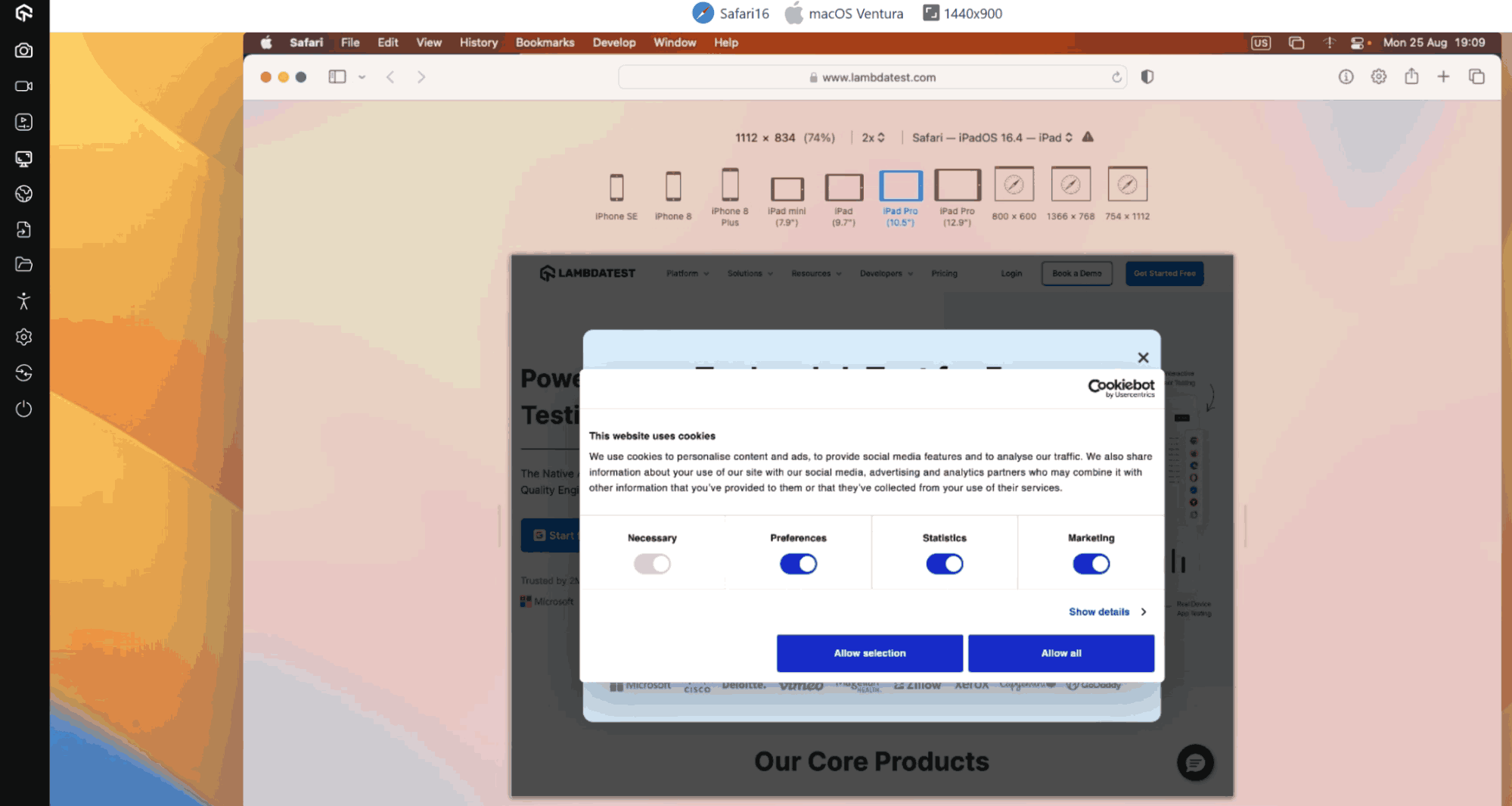
Step 2: At the top of the window, select a device from the list. Safari will automatically adjust the viewport to match that device’s specifications.
Note: On macOS Sonoma and later, the device list may not appear by default. Install Xcode, add target simulators, and they will show up in Responsive Design Mode.
New to Xcode? Learn what is Xcode and how it works.
Safari Web Inspector works in this mode too. After selecting a device, you can right-click any element to inspect and debug it just as you would in desktop Safari.
This method is one of the fastest ways to test layouts across multiple devices without switching hardware, making it a go-to for debugging elements at scale.
Enable Safari Mobile View With Simulators
Unlike viewport resizing, simulators render how a site actually appears and behaves on a specific device like an iPhone or iPad, giving you a much more accurate preview.
To use this feature:
Step 1: Go to Develop > Enter Responsive Design Mode.
Step 2: On the right side, you’ll see a list of available simulators.
Step 3: Select a device to render the website as it would appear on that hardware.
If no simulators are listed, you’ll need to install Xcode and download the required simulators through it. Once installed, they’ll automatically appear in Safari’s Responsive Design Mode.
This approach is useful when you need a realistic preview of smaller devices where layout nuances, text scaling, and touch-friendly design become critical.
Enable Safari Mobile View With Developer Tools
Developer tools let you manually set viewport dimensions inside Safari's Web Inspector for precise control.
The Web Inspector is Safari's built-in debugging tool. It shows element attributes, network parameters, page dimensions, storage data, and render timing.
To use it:
Step 1: Right-click on the webpage and select Inspect Element.
Step 2: In the Elements tab, manually adjust the viewport dimensions to match your target mobile device.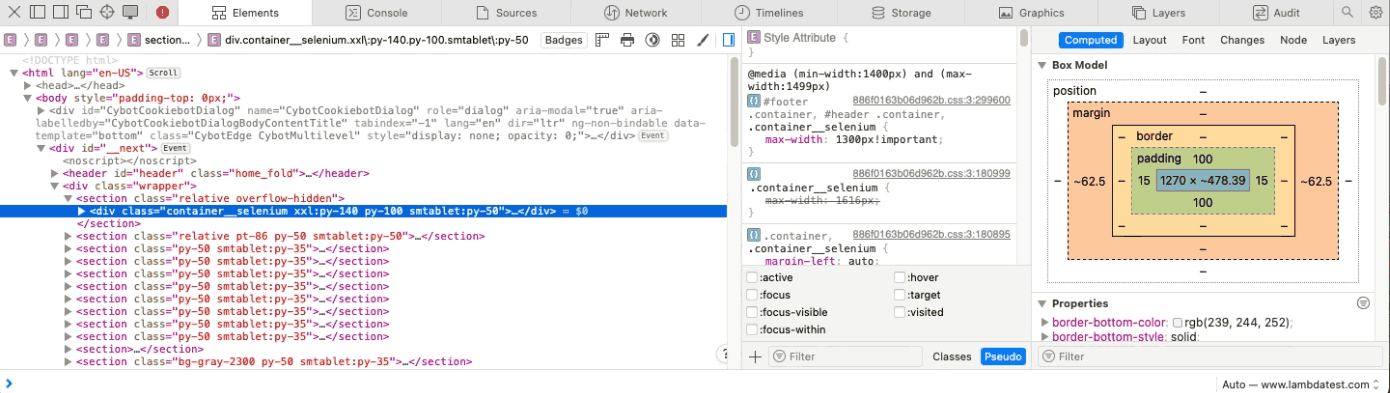
This lets you see how the page behaves at different sizes, though it requires knowing the exact specifications of the devices you want to emulate.
While this method offers the most technical control, it is also the most time-consuming. It’s best suited for developers who need to debug issues at the code level rather than quickly preview layouts.
Enable Safari Mobile View With User Agent
Every browser identifies itself to a server using a User Agent string, which contains details about the device, operating system, and browser version. For example, Safari on macOS might send something like:
Mozilla/5.0 (Macintosh; Intel macOS X 15<i>6</i>1) AppleWebKit/605.1.15 (KHTML, like Gecko) Version/18.5 Safari/605.1.15 This is sent in request headers so the server knows what version of a site to deliver.
Changing the User Agent makes the server treat your browser as a mobile device, loading the mobile version of the site.
Safari makes this process straightforward:
Step 1: Enable the Develop menu in Safari’s settings.
Step 2: From the menu bar, go to Develop > User Agent.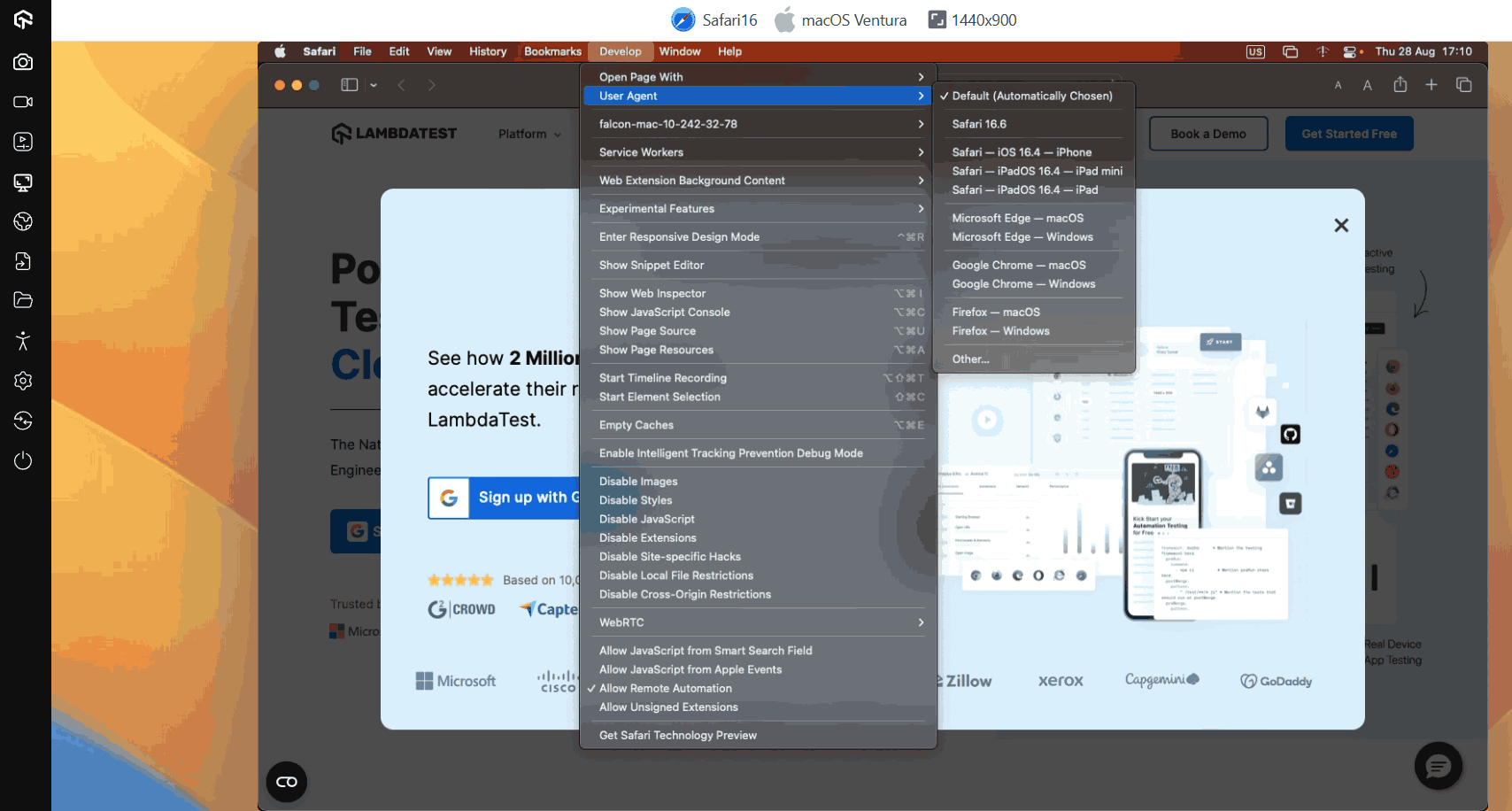
Step 3: Choose the device profile you want Safari to mimic.
The page reloads automatically to match the mobile layout, and the browser resends requests so you can test server-side behavior without a physical device.
Important: Safari behaves differently on macOS and iOS than other browsers. Skipping mobile view testing leads to usability and functionality issues.
These methods work for small projects but slow down at scale. Cloud platforms like TestMu AI offer faster, scalable testing.
How Do You Test Safari Mobile View With TestMu AI?
TestMu AI lets you test on macOS browsers and real iOS devices in the cloud, launched directly from your browser with no local setup.
You can then test Safari’s mobile view across different macOS versions, making it a scalable, cost-effective option for frequent or large-scale testing. This also covers the Windows and Linux case, since every method above needs desktop Safari: a virtual macOS online session puts a real macOS machine in your browser, so you can open the Develop menu without owning a Mac.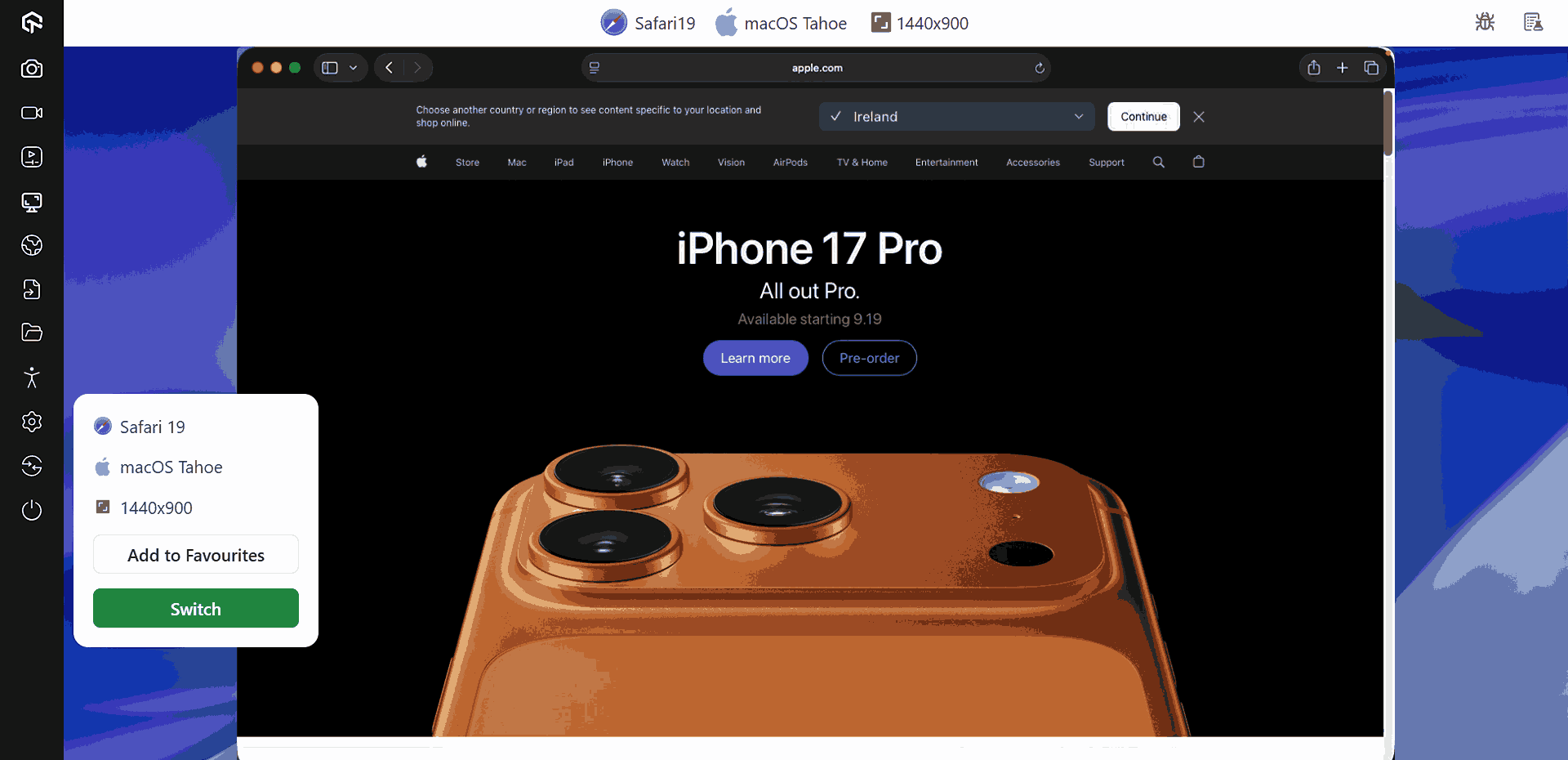
Features:
- Cross Browser Testing: Perform cross browser testing on real Safari browsers to quickly isolate browser-specific anomalies and ensure uniform experiences.
- Real iOS Devices: Test your websites on real iPhones and iPads, ensuring Safari-specific rendering and interaction issues are accurately captured.
- Extensive device and OS coverage: Test across iOS versions and device models from legacy iPhones to the latest iPads. TestMu AI also provides Safari browsers for Windows and Safari browsers for Linux, removing the need to switch OS.
- Geolocation Testing: Perform geolocation testing to simulate test sessions from different regions to validate localized content, compliance banners, and currency formats in Safari.
- Network Throttling: Recreate real-world bandwidth conditions such as 4G, 5G, or custom speeds to ensure smooth performance for users on slower or unstable networks.
- Advanced Debugging Tools: Access console logs, network requests, screenshots, and video recordings to identify issues with precision and provide reproducible bug reports.

Which Safari Mobile View Method Is Right for You?
Developers use Responsive Design Mode, testers use a real device cloud, and general users rely on User Agent or simulators.
- Developer: A quick viewport rescale is enough to verify layout at mobile sizes. Responsive Design Mode is the right tool.
- Tester: Use a real device cloud like TestMu AI. It provides mobile view on real devices and supports automation across frameworks like Appium.
- General user: The Develop menu and User Agent option are enough. If needed, download Xcode to add an iOS simulator accessible directly from the browser.
What Are Common Issues in Safari Mobile View?
Common Safari mobile view issues are the mobile site loading by default, the desktop site showing in responsive mode, skewed performance metrics, and touch and hover problems.
These are the most common issues you may run into when using Safari's mobile view tools on desktop, along with how to fix them.
- Mobile site loading by default: Desktop Safari keeps loading the mobile version even after restart. Open the Develop menu and reset the User Agent to Default to restore normal behavior.
- Desktop site in responsive mode: The server still identifies the request as desktop because the User Agent has not changed. Switch to the User Agent method so the server delivers the mobile version correctly.
- Skewed performance metrics: Responsive mode and User Agent both run on your desktop's local resources, so numbers won't reflect real mobile conditions. Use a platform like TestMu AI with real devices for accurate metrics.
- Touch and hover issues: Viewport resizing does not emulate touch events or mobile hover behavior. Use Xcode simulators or cloud-based real devices when testing touch interactions.
How Is AI Changing Safari Mobile View Testing?
AI is changing Safari mobile view testing with visual AI that compares screenshots across iPhone and iPad viewports and flags real layout breaks while ignoring pixel noise. This makes visual regression testing practical across many Apple devices.
AI testing agents can also turn a plain-language test, such as checking a checkout flow on an iPhone in Safari, into steps that run on real devices, which covers WebKit behavior that Chrome-based device emulation cannot reproduce.
Confirm AI-flagged differences on a real iPhone or iPad before filing bugs, because Responsive Design Mode only resizes the desktop browser and does not reproduce touch input or mobile performance. Our roundup of AI testing tools compares the options.
How Should You Combine Safari Mobile View Methods?
Combine Safari mobile view methods by using Responsive Design Mode for quick layout checks, simulators or user agents for mobile-only behavior, and real iOS devices before release.
Safari mobile view serves different needs: accessing mobile-only features, verifying layouts, or running early QA checks. Each method comes with trade-offs in accuracy, resource usage, time, and cost.
Match the method to your need. For quick layout checks, Safari’s built-in tools are sufficient. For thorough or business-critical testing, TestMu AI delivers the accuracy and scalability required.
What Sources Does This Safari Mobile View Guide Cite?
This guide cites Apple's official Safari page, the primary source for Safari's features and supported platforms.
- Apple Safari: https://www.apple.com/in/safari/
Author

Harish Rajora
Blogs: 100


Harish Rajora is a software developer at TestMu AI with over 6 years of hands-on experience in Python and cross-platform application development across Windows, macOS, and Linux. He has authored 800+ technical articles and worked on large-scale projects, including GenAI applications and core engineering features used by millions. Harish has led DevOps initiatives building CI/CD pipelines with Jenkins, AWS, GitLab, and GitHub, and holds an M.Tech in Software Engineering from IIIT Allahabad.
Reviewer

Isha Vyas
Reviewer
Isha Vyas is a Lead Member of Technical Staff at TestMu AI (formerly LambdaTest), building the frontend of the quality engineering platform. She works across React.js, responsive web design, and jQuery to ship and maintain the platform's user-facing web interfaces. She brings nearly seven years of frontend engineering experience at the company, with earlier work as a Software Developer at Mantra Labs. Isha holds a B.Tech in Computer Science from Swami Keshwanand Institute of Technology, Management and Gramothan, Jaipur.


Safari Mobile View FAQs
Did you find this page helpful?
More Related Learning Hubs
TestMu AI forEnterprise
Get access to solutions built on Enterprise
grade security, privacy, & compliance
- Advanced access controls
- Advanced data retention rules
- Advanced Local Testing
- Premium Support options
- Early access to beta features
- Private Slack Channel
- Unlimited Manual Accessibility DevTools Tests