

Power Your Software Testing with AI Agents and Cloud
The Native AI-Agentic Cloud Platform to Supercharge Quality Engineering. Test Intelligently and Ship Faster.


- TestMu AI (Formerly LambdaTest)
- /
- Blog
- /
- How To Inspect Elements On iPhone?
How to Inspect Element on iPhone: Safari, Chrome, and No-Mac Methods
Every modern web browser has a robust set of developer tools for testing element alignment and functionality. This article will show how to inspect elements on iPhone and iPad.
Last Updated on:
To inspect element on iPhone, turn on Web Inspector on the iPhone under Settings > Apps > Safari > Advanced, connect it to a Mac with a cable, then open Safari on the Mac and choose the page from the Develop menu. Without a Mac, open Safari on a real iPhone in a cloud device lab and use its built-in Web Inspector instead.
TL;DR
- Inspecting an element on iPhone requires turning on Web Inspector under Settings > Apps > Safari > Advanced on the iPhone.
- Safari on a Mac shows the connected iPhone in its Develop menu after Show features for web developers is checked in Safari Settings > Advanced.
- Chrome on iPhone can be inspected from Safari on a Mac from Chrome 115, after turning on Web Inspector in Chrome's Settings > Content Settings.
- Web Inspector is always enabled in the iOS Simulator that comes with Xcode, so no device or settings change is needed.
- Without a Mac, a cloud real device lab opens Safari on a real iPhone in the browser with Web Inspector built in.
- Viewport emulators such as LT Browser show mobile layouts but run a desktop engine, so they do not reproduce iOS Safari rendering.
Methods to Inspect Element on iPhone
Choose the method by what you have: a Mac, a physical iPhone, or neither.
| Method | Needs a Mac? | Real iOS Safari? | Best for |
|---|---|---|---|
| Safari Web Inspector with a cable | Yes | Yes | Debugging on your own iPhone |
| Chrome on iOS via Safari | Yes | Chrome on iOS (WebKit) | Chrome-specific issues on iPhone |
| iOS Simulator in Xcode | Yes | Yes, simulated | Quick checks across iPhone models and iOS versions |
| Cloud real iPhones | No | Yes | Windows and Linux users, many devices |
| Viewport emulators such as LT Browser | No | No | Responsive layout checks, not Safari bugs |
How to Inspect Element on iPhone With Safari Web Inspector
Apple's guide to inspecting iOS and iPadOS web content describes the steps. You need an iPhone or iPad, a Mac, and a cable.
- On the iPhone, open Settings, go to Apps > Safari, scroll to Advanced, and turn on Web Inspector.
- On the Mac, open Safari, choose Safari > Settings, go to the Advanced pane, and check Show features for web developers. This adds the Develop menu.
- Connect the iPhone to the Mac with a cable and trust the Mac if the iPhone asks.
- Open the page in Safari on the iPhone, then on the Mac open Develop, hover over the iPhone's name, and select the page. A Web Inspector window opens and stays attached to that tab across navigations.
- After the first cable connection, you can choose Connect via Network from the device submenu to inspect over Wi-Fi.
How to Inspect Chrome on iPhone
According to the Chrome team's post on debugging Chrome on iOS, Chrome 115 and later can be inspected with Safari Web Inspector on iOS 16.4 or later.
- In Chrome on the iPhone, go to Settings > Content Settings, turn on Web Inspector, and relaunch Chrome.
- Connect the iPhone to the Mac, open Safari's Develop menu, hover over the iPhone, and select the Chrome tab.
Chrome on iOS renders with WebKit, like Safari, so layout bugs usually reproduce in both.
How to Inspect in the iOS Simulator
Web Inspector is always enabled for simulators, and booted simulators appear in Safari's Develop menu on the Mac like connected devices. Open the page in Safari inside the Simulator from Xcode, then select it from the Develop menu. This is the fastest way to check several iPhone models without the hardware; see setting up an iOS Simulator for testing for the Xcode setup.
How to Inspect Element on iPhone Without a Mac
If you work on Windows or Linux, use real iPhones in the cloud. TestMu AI's Real Device Cloud gives access to 10,000+ real Android and iOS devices, and its iOS browser sessions include Safari Web Inspector:
- Log in to your TestMu AI account.
- From the left panel, go to Real Device > Browser Testing.
- Choose iOS, select Safari, pick an iPhone or iPad model and iOS version, and click Start.
- Click the Safari Web Inspector icon at the top right of the session to open the inspector.
For locally or privately hosted pages, a tunnel connects the cloud device to your local server so you can inspect a build before it is deployed.

Note: Run your tests across 3,000+ browser and OS combinations. Try TestMu AI Today!
Inspect Mobile Layouts With a Viewport Emulator
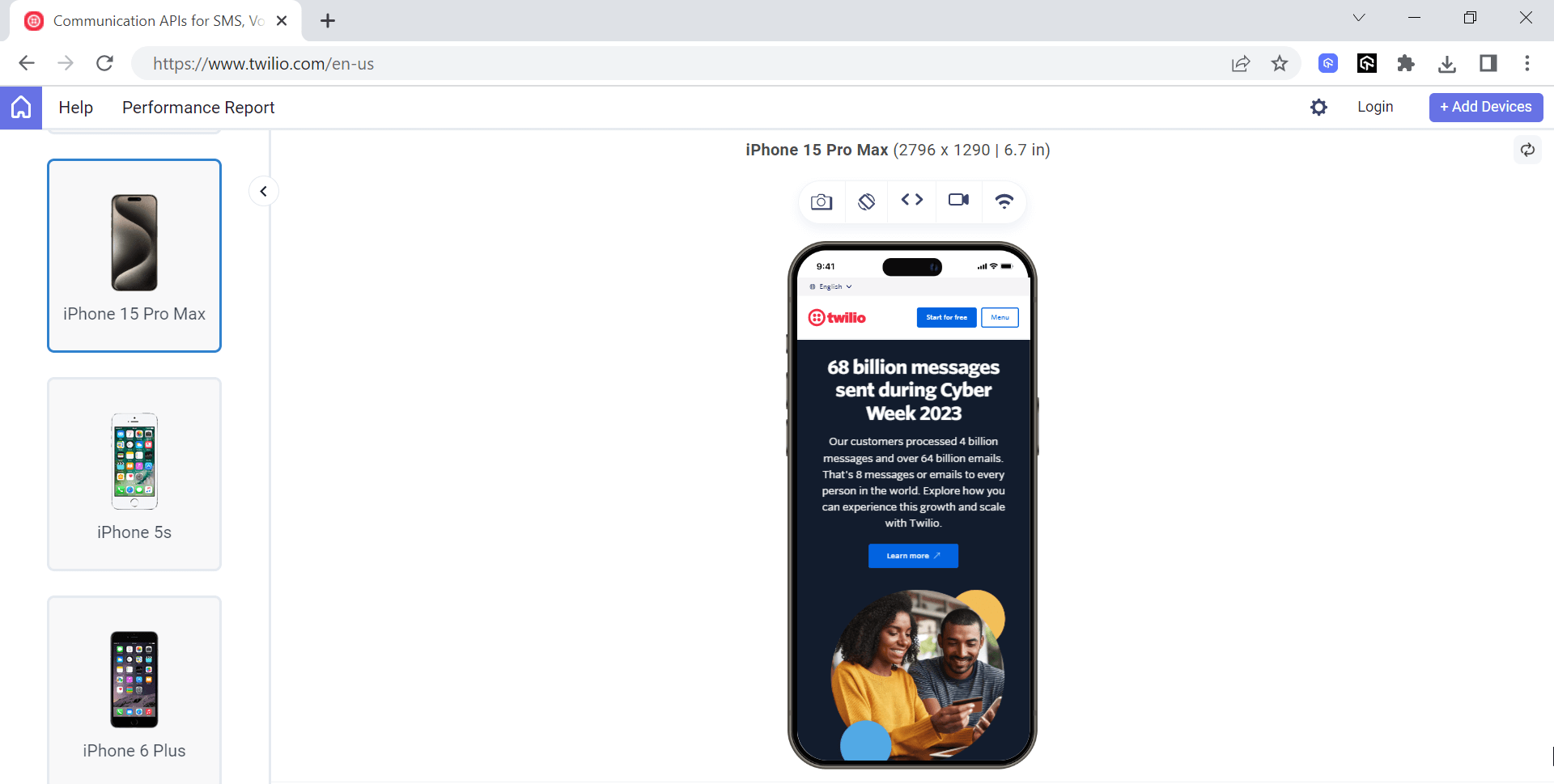
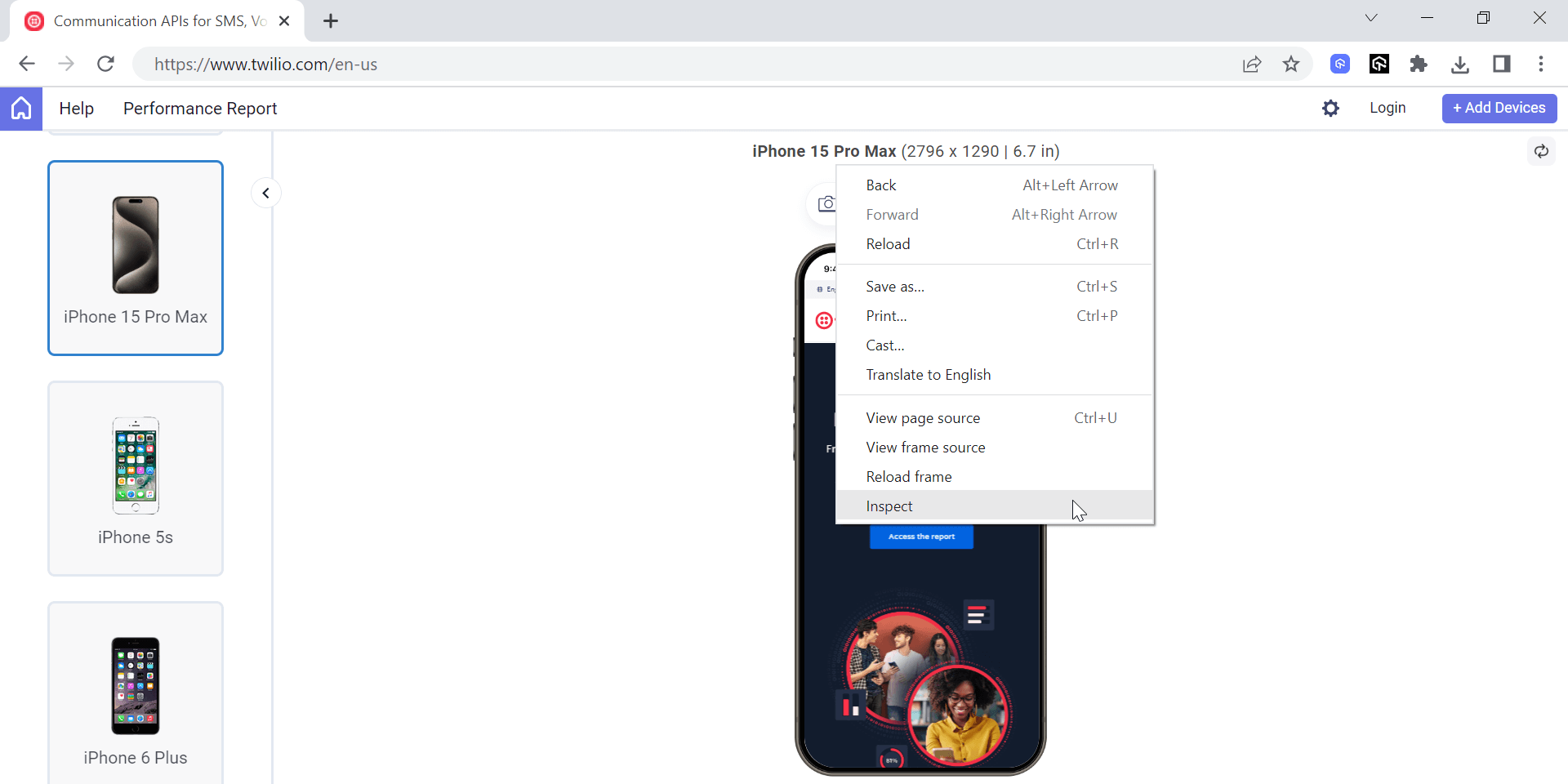
LT Browser, a free desktop app from TestMu AI, shows a page in 50+ preset device viewports, including iPhone sizes, with a debugger for inspecting elements. Select an iPhone viewport, enter the URL, and press the debugger button, or right-click and choose Inspect.
For the Android side of the same workflow, see how to inspect elements on Android devices. Viewport emulators render with a desktop engine, so they catch responsive layout problems but not iOS Safari rendering bugs; confirm those on Safari itself.
Other Ways to View Page Source on iPhone
- Web Inspector apps - The App Store has third-party apps named Web Inspector that show a page's HTML, CSS, and console on the iPhone itself; useful for a quick look when no Mac is nearby.
- Shortcuts - An iOS shortcut that runs JavaScript on a Safari page can display its source, but it is read-only and harder to use than Web Inspector.
- Adobe Edge Inspect - Older guides recommend this tool, but Adobe discontinued it, so it is not an option for current iOS versions.

Conclusion
If you have a Mac, turn on Web Inspector on your iPhone and inspect through Safari's Develop menu; if you do not, start a Safari session on a real iPhone in TestMu AI and open its built-in Web Inspector. The documentation on browser testing on real devices covers the setup.
Author

Harish Rajora
Blogs: 100


Harish Rajora is a software developer at TestMu AI with over 6 years of hands-on experience in Python and cross-platform application development across Windows, macOS, and Linux. He has authored 800+ technical articles and worked on large-scale projects, including GenAI applications and core engineering features used by millions. Harish has led DevOps initiatives building CI/CD pipelines with Jenkins, AWS, GitLab, and GitHub, and holds an M.Tech in Software Engineering from IIIT Allahabad.
Reviewer

Shubham Soni
Reviewer
Shubham Soni is a Senior Member of Technical Staff at TestMu AI (formerly LambdaTest), building the Real Device Cloud and real-time testing infrastructure. He optimized the WebRTC services that power live testing to sub-100ms latency with adaptive bitrate streaming, led a frontend migration from Angular to React that cut page load time from 5-6 seconds to 1-1.5 seconds, and contributes to the official Device SDK. He led a team of four to build an accessibility testing product covering manual and automated testing and mentored a team of six on a real-time testing product. He brings over eight years of experience and earlier scaled a cloud code platform to 200K+ monthly users. Shubham holds a B.Tech in Computer Science.


Inspect Element on iPhone FAQs
Did you find this page helpful?
More Related Blogs
TestMu AI forEnterprise
Get access to solutions built on Enterprise
grade security, privacy, & compliance
- Advanced access controls
- Advanced data retention rules
- Advanced Local Testing
- Premium Support options
- Early access to beta features
- Private Slack Channel
- Unlimited Manual Accessibility DevTools Tests