
Power Your Software Testing with AI Agents and Cloud
The Native AI-Agentic Cloud Platform to Supercharge Quality Engineering. Test Intelligently and Ship Faster.


- TestMu AI (Formerly LambdaTest)
- /
- Learning Hub
- /
- Accessibility Testing: What It Is & How to Test Websites
Accessibility Testing: What It Is & How to Test Websites
Make websites, web apps, and native mobile apps usable for everyone. Learn the types of accessibility testing, WCAG 2.2 standards, real test cases, and how to stay compliant with the ADA, Section 508, and the EAA.
Last Updated on:
Accessibility testing is the process of checking that people with visual, hearing, motor, or cognitive disabilities can use a website, web app, or mobile app. It measures the product against the WCAG 2.2 success criteria, the technical standard behind the ADA, Section 508, and the European Accessibility Act, using automated scans, manual keyboard and screen reader testing, and testing with assistive-technology users.
For websites, web accessibility testing checks every page template against those criteria; for native apps, it adds platform checks such as touch target size and TalkBack or VoiceOver labels. Teams that run it on every build, through an accessibility testing platform that scans web and mobile apps, catch regressions on the commit that introduces them instead of in a pre-launch audit.
TL;DR
Accessibility testing checks whether people with visual, hearing, motor, or cognitive disabilities can perceive, operate, and understand a website or app. Teams test against WCAG 2.2 Level AA by combining automated scans with manual keyboard and screen reader testing. Laws reference older versions, WCAG 2.1 AA for ADA Title II and WCAG 2.0 AA for Section 508, so meeting 2.2 AA covers both.
- Automated scanning: Engines such as axe-core flag missing alt text, unlabeled fields, and low contrast on every build, but a 2021 Deque study found automation covers only about 57% of accessibility issues.
- Manual and screen reader testing: Keyboard-only passes plus screen reader passes with NVDA or JAWS on Windows, VoiceOver on macOS and iOS, and TalkBack on Android cover what automation cannot judge, such as focus order, meaningful alt text, and clear announcements.
- WCAG conformance levels: Level A is the minimum, Level AA is the target most accessibility laws reference, and Level AAA is the strictest level and is not achievable for all content.
- Current failure rate: The WebAIM Million 2026 report found detectable WCAG failures on 95.9% of the top one million home pages, up from 94.8% in 2025.
- Web and mobile coverage: TestMu AI runs automated WCAG scans in CI, manual checks with the Accessibility DevTools extension, and native app scans on real Android and iOS devices.
What Is Accessibility Testing?
Accessibility testing, often shortened to a11y testing (the a11y meaning guide explains the numeronym), is the evaluation of a website, web app, or native mobile app to confirm that people with visual, auditory, motor, or cognitive disabilities can perceive, operate, and understand it. The yardstick is the WCAG success criteria, organized under the four POUR principles (Perceivable, Operable, Understandable, Robust), which the ADA, Section 508, and the European Accessibility Act all reference.
It is a non-functional testing type, and in practice it runs in three layers: automated scans that catch deterministic failures such as missing alt text, low contrast, and invalid ARIA; manual testing with screen readers and keyboards for the judgment calls automation cannot make; and validation with real assistive-technology users. Because every release can introduce a new barrier, it is run continuously rather than once, and it covers native mobile apps as well as the browser.
A concrete example: a checkout button built from a styled div passes every functional test, but a screen reader announces it as plain text and a keyboard user cannot reach it. An accessibility test catches both failures, the missing role under WCAG 4.1.2 and the missing keyboard access under WCAG 2.1.1, before a customer does. It is also distinct from usability testing, which asks whether a product is easy to use for everyone; the overlap and the differences are covered in accessibility vs usability.
What Are the Benefits of Accessibility Testing?
Accessibility testing lowers legal risk, opens the product to more users, and makes accessibility defects cheaper to fix by catching them on every build. The full business case, with the numbers behind each point, is in why accessibility testing is important; the short version:
- Legal compliance - meet WCAG 2.2, the ADA, Section 508, and the European Accessibility Act, and cut the risk of lawsuits and regulatory penalties.
- Wider audience reach - the World Health Organization estimates that 1.3 billion people, about 16% of the global population, experience significant disability.
- Better UX and SEO - semantic structure, captions, contrast, and keyboard support help every user and improve search visibility.
- Lower remediation cost - catch issues during design and development instead of retrofitting a shipped product where defects are tangled into production code.
- Web and mobile coverage - test browsers and native Android and iOS apps under one WCAG program instead of disconnected tools.
- CI-native scans - run automated WCAG checks on every build so accessibility regressions fail fast, like any other test.
What Are the Types of Accessibility Testing?
Accessibility testing is done three ways: manual testing with assistive technology, automated scanning against WCAG rules, and hybrid testing that combines both. Most teams run all three, because each catches issues the others miss.
- Manual accessibility testing - human testers navigate the product with screen readers (NVDA, VoiceOver, JAWS), keyboard-only input, and screen magnifiers. This is the only reliable way to judge context-dependent criteria like logical focus order, meaningful alt text, and whether an error message actually makes sense to a non-sighted user.
- Automated accessibility testing - tools such as axe-core, Lighthouse, and WAVE scan the DOM and flag deterministic violations: missing alt text, low color contrast, empty form labels, and invalid ARIA (compare options in our roundup of automated accessibility testing tools). It is fast and CI-friendly, but a 2021 Deque study of more than 13,000 pages found automation catches roughly 57% of issues on its own.
- Hybrid accessibility testing - automation gates every build for the common, high-frequency violations, while manual and assistive-technology testing covers the judgment calls. This is the model most WCAG 2.2 and Section 508 programs run in practice.
What Is the Difference Between Manual and Automated Accessibility Testing?
Manual accessibility testing has people use the product with screen readers and keyboards to judge whether it actually works. Automated accessibility testing has an engine such as axe-core flag rule-based WCAG violations in the DOM, which is fast and repeatable but cannot judge meaning, so teams pair the two.
| Aspect | Manual Accessibility Testing | Automated Accessibility Testing |
|---|---|---|
| How it works | A tester drives the product with a screen reader (NVDA, JAWS, VoiceOver) and the keyboard alone, judging whether the experience actually works rather than whether the markup is merely present. | An engine such as Axe-core parses the rendered DOM and flags rule-based violations: missing alt text, low contrast, empty labels, invalid ARIA. It is deterministic and repeatable but reasons about code, not meaning. |
| Strengths |
|
|
| Where it falls short | It is slow and resource-heavy, needs trained testers, and does not scale to a large site on its own. | Covers only part of WCAG, and is blind to judgment calls like meaningful alt text and intuitive focus order. |
| Best for |
|
|
| When to use | Pre-release audits of critical flows like sign-up and checkout, validating custom components, and confirming the screen reader experience before a launch. | Gating every CI build, regression-checking large sites, and catching the common, high-frequency violations as early as the commit that introduces them. |
The split matters because automation has a ceiling. The W3C's guidance on selecting evaluation tools states that tools cannot determine accessibility; they can only assist in doing so. Automate the deterministic checks on every commit, and reserve manual plus assistive-technology testing for keyboard traps, focus order, and whether screen reader output actually makes sense.
In the TestMu Conference 2026 session Stop Guessing A11y: Auto-Generate Playwright Tests from Your GraphQL Schema, Vanessa Johnson pushes that deterministic half further, adding lightweight @a11y hints for labels and roles to a GraphQL schema so it becomes the source of truth that Playwright and axe-core tests are generated from.

Which Disabilities Does Accessibility Testing Cover?
Accessibility testing covers visual, auditory, motor, and cognitive disabilities. Each category brings different barriers and relies on different assistive technology:
- Visual - blindness, low vision, and color blindness. These users rely on screen readers, magnification, and sufficient color contrast, so alt text, contrast ratios, and screen reader output matter most.
- Auditory - deafness and being hard of hearing. Audio and video need captions, transcripts, and visual cues that do not depend on sound.
- Motor - limited dexterity, tremors, or paralysis. These users navigate by keyboard, switch devices, or voice, so every control must be keyboard-operable with a visible focus indicator and large enough touch targets.
- Cognitive - dyslexia, ADHD, and memory or learning differences. Clear language, predictable navigation, consistent layouts, and forgiving error handling reduce cognitive load.
A test plan that only checks one category, usually visual, leaves the other three untested. Mapping each test case to the disability it protects keeps coverage honest.
Which Standards and Laws Does Accessibility Compliance Testing Cover?
Accessibility compliance testing checks a product against WCAG 2.2, the ADA, Section 508, the European Accessibility Act, and EN 301 549. WCAG Level AA is the target most of these laws reference.
In April 2024 the US Department of Justice adopted WCAG 2.1 Level AA as the Title II standard for state and local government websites and apps; an interim final rule published on April 20, 2026 moved the compliance dates to April 26, 2027 for entities serving 50,000 or more people and April 26, 2028 for smaller entities and special districts. Our ADA Title II checklist breaks the rule into testable steps.
In the EU, the European Accessibility Act (Directive 2019/882) has applied to covered products and services since 28 June 2025. Non-conformance invites lawsuits, fines, and lost public-sector contracts, so your tests should map to the frameworks below:
- WCAG 2.2 - the W3C's Web Content Accessibility Guidelines, built on four principles (Perceivable, Operable, Understandable, Robust) across three levels: A, AA, and AAA. Level AA is the target most laws reference; the differences between WCAG A, AA, and AAA decide which criteria you test, and our WCAG testing guide walks through the criteria one by one.
- Americans with Disabilities Act (ADA) - the US anti-discrimination law. The DOJ's 2024 Title II rule pins it to WCAG 2.1 Level AA for state and local government digital services, due by April 26, 2027 or April 26, 2028 depending on population, after an April 2026 rule pushed the original dates back one year.
- Section 508 - requires US federal agencies and their vendors to make electronic and information technology conform to WCAG 2.0 Level A and AA under the US Access Board's Revised 508 Standards (E205.4). See our guide to Section 508 compliance for the full requirements. Vendors usually document conformance in a Voluntary Product Accessibility Template (VPAT) during federal procurement.
- European Accessibility Act (EAA) - applies WCAG-aligned requirements to private-sector products and services across the EU from 28 June 2025, referencing EN 301 549. Our EU Accessibility Act 2025 guide covers who is in scope and how to prepare.
- EN 301 549 - the European accessibility standard for ICT, harmonized with WCAG and used for both EAA and public-sector compliance.
- WAI-ARIA - the W3C's Accessible Rich Internet Applications spec, which makes dynamic, scripted UI such as menus, modals, and live regions understandable to assistive technology.
Legal Acts Followed in Different Countries
Accessibility law differs by country, but nearly every regime points to WCAG Level AA as the technical standard, so one WCAG test program covers most jurisdictions. The table lists the main acts, who they bind, and where they point:
| Region | Compliance Standard | Description |
|---|---|---|
| United Kingdom | Equality Act 2010 | Requires organizations to make reasonable adjustments to ensure that disabled people can access their services, including online services. |
| United States | Section 508 | Ensures accessibility of electronic and information technology used by federal agencies; the Revised 508 Standards require WCAG 2.0 Level A and AA conformance. |
| Europe | European Accessibility Act (EAA) | Sets common accessibility requirements for products and services such as e-commerce, banking services, e-books, and smartphones across EU member states. Our guide on how to test for European Accessibility Act compliance turns the requirements into a test plan. |
| Canada | Accessible Canada Act (2019) | Requires federally regulated entities, including the broadcasting, telecommunications, and transportation sectors, to identify and remove accessibility barriers. |
| Ontario, Canada | Accessibility for Ontarians with Disabilities Act (AODA) | Since January 1, 2021, designated public sector organizations and businesses or non-profits with 50 or more employees must make all public websites meet WCAG 2.0 Level AA. |
| India | Rights of Persons with Disabilities Act | Mandates that websites and online content be accessible to persons with disabilities, though specific standards may vary. |
| Australia | Disability Discrimination Act 1992 | Prohibits discrimination against people with disabilities and requires that public services, including websites, be accessible. |

A Quick Comparison of Accessibility Testing Tools
The accessibility testing tools most teams run are an automated engine (axe-core, Lighthouse, or WAVE), a screen reader (NVDA, JAWS, or VoiceOver), and a platform such as TestMu AI that runs both layers at scale. No single tool covers both layers on its own: automated engines catch deterministic violations at scale, and screen readers catch the judgment calls automation cannot make. This table is a quick reference, not a full roundup. For the complete list with pricing and licensing details, see our guide to the best accessibility testing tools; for narrower shortlists, see the roundups of Section 508 compliance testing tools and enterprise accessibility testing platforms.
To run the automated and manual layers without maintaining your own setup, try the accessibility testing tool from TestMu AI.
| Tool | Type | WCAG Coverage | Best For |
|---|---|---|---|
| TestMu AI | Hybrid (automated + manual) | Web, iOS, and Android rule sets, each mapped to WCAG | Running automated and manual accessibility testing across web and native mobile from one platform, with CI/CD gating and scheduled monitoring |
| Axe-core | Automated (open source) | WCAG 2.0, 2.1, and 2.2 A/AA rules | Wiring deterministic checks directly into a Selenium, Cypress, or Playwright suite |
| Lighthouse | Automated | A subset of axe-core rules via Chrome DevTools | A quick single-page audit during local development |
| WAVE | Automated (visual overlay) | WCAG-mapped, annotated directly on the page | Visually inspecting exactly where a violation sits on the rendered page |
| NVDA | Manual (screen reader) | N/A - human judgment | Free Windows screen reader testing of focus order and announcements |
| JAWS | Manual (screen reader) | N/A - human judgment | Enterprise Windows screen reader testing; the most-used primary desktop screen reader (55.0%, with NVDA at 32.9%) in the WebAIM Screen Reader User Survey #11, run in July and August 2026 |
| VoiceOver | Manual (screen reader) | N/A - human judgment | Built into macOS and iOS, for testing Apple platforms without extra software |
TestMu AI is the only row in that table that spans both layers itself: the same axe-core based scanner runs in CI/CD builds, in the DevTools extension, and in scheduled scans, and its live sessions bundle NVDA or VoiceOver for the manual pass, so a WCAG testing program does not need to stitch together a separate automation library, browser extension, and screen reader workflow.
How to Test Website Accessibility
To test website accessibility, scan each page template with an automated tool, then check keyboard access, screen reader output, contrast, zoom, forms, and media by hand against WCAG 2.2 Level AA. The W3C's Easy Checks give a quick first review, but the W3C states they are not a complete evaluation of accessibility, so run the full pass below:
- Set the scope and target - pick WCAG 2.2 Level AA and list one page per template (home, listing, detail, form, account) plus the critical flows: sign-up, search, and checkout.
- Run an automated scan - scan every template with an axe-core based tool, such as the TestMu AI WCAG accessibility checker, and fix the deterministic failures first, such as missing alt text, empty form labels, and invalid ARIA. US federal teams follow the same split formally: the Section508.gov testing hub pairs automated tools with the manual ICT Testing Baseline and the DHS Trusted Tester process.
- Do a keyboard-only pass - put the mouse away and use Tab, Shift+Tab, Enter, Space, and Esc. Every control must be reachable (WCAG 2.1.1), focus must never get stuck (2.1.2), and it must move in a logical order (2.4.3) with a visible indicator (2.4.7).
- Do a screen reader pass - run NVDA with Firefox or Chrome on Windows and VoiceOver with Safari on macOS. Navigate by headings and landmarks, and confirm every control announces its name, role, and state.
- Check contrast - text needs at least 4.5:1, or 3:1 for large text (1.4.3), and UI components and graphics need 3:1 against adjacent colors (1.4.11). The free color contrast checker gives the ratio for any color pair.
- Zoom and reflow - resize text to 200% (1.4.4) and narrow the viewport to 320 CSS pixels (1.4.10); content should stay usable without scrolling in two directions.
- Check forms and errors - every field needs a label or instructions (3.3.2), and errors must be identified in text, not by a red border alone (3.3.1). The walkthrough on testing forms and error handling for accessibility covers the screen reader checks for each field state.
- Check media - prerecorded video needs captions (1.2.2), and audio-only content needs a transcript.
- Log, fix, and retest - record each issue with its WCAG criterion and severity, retest after the fix, and add the automated scan to CI so the same failure cannot return.
How Do You Perform Accessibility Testing With TestMu AI?
TestMu AI lets you scan web and mobile apps for WCAG issues at every stage of delivery: CI/CD automation, scheduled monitoring, native mobile app testing, live testing on real devices, a browser DevTools extension, and screen readers.
Perform Accessibility in Automation Testing
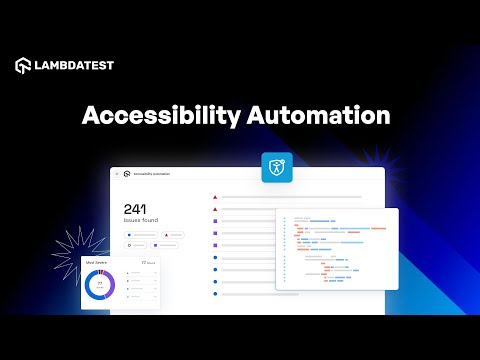
TestMu AI Accessibility Automation runs WCAG checks inside your existing Selenium, Cypress, and Playwright suites, so every automated run also flags accessibility regressions without extra effort.
With automatic DOM monitoring, the checks keep running as your UI changes, so accessibility compliance does not drift between releases.
To get started, check out the guide on automated accessibility testing.
Every automated run produces the same artifact for each violation: the failing element, the WCAG success criterion it breaks, a severity rating (Critical, Serious, Moderate, or Minor), and specific fix guidance, all collected in the Accessibility tab of the Automation dashboard. Because the scanner applies the same WCAG-aligned rules on every build, a contrast regression or a newly unlabeled field fails the run the moment it is introduced, instead of surfacing weeks later in an audit.
Here is a minimal Playwright check using the open-source @axe-core/playwright integration. It fails the build on any WCAG 2.0, 2.1, or 2.2 Level A or AA violation that axe checks, so accessibility regressions are caught in CI like any other test:
const { test, expect } = require('@playwright/test');
const AxeBuilder = require('@axe-core/playwright').default;

test('selenium playground has no WCAG A/AA violations', async ({ page }) => {
  await page.goto('https://www.testmuai.com/selenium-playground/');

  const { violations } = await new AxeBuilder({ page })
    .withTags(['wcag2a', 'wcag2aa', 'wcag21a', 'wcag21aa', 'wcag22aa'])
    .analyze();

  expect(violations).toEqual([]);
});
That example runs the open-source axe engine locally. TestMu AI's own Accessibility Automation works differently: it triggers the scan on the cloud grid through a lambda-accessibility-scan hook (called after each stable screen) and reports every violation into the Accessibility tab of the Automation dashboard, so you get the same WCAG checks across real browsers and operating systems without wiring up axe yourself.
For the full breakdown of axe-core setup, scoping scans with include/exclude/withTags, WCAG conformance levels, and what automated testing structurally cannot catch, see Playwright Web Accessibility Tests With axe-core; the Cypress equivalent is in Cypress accessibility testing, and the pipeline side, gating pull requests and nightly builds on the results, is in accessibility testing in CI/CD pipelines.
How to Run an Accessibility Scan in a Selenium Java Test
Step 1: Set Up Your Test Suite
You can configure and test using your own project or a sample repository. If using your own project, update the Hub endpoint in your test file to establish communication between your tests and browser nodes. Configure the desired capabilities as needed:
ChromeOptions browserOptions = new ChromeOptions();
browserOptions.setBrowserVersion("latest");

HashMap<String, Object> ltOptions = new HashMap<>();
ltOptions.put("platformName", "Windows 11");
ltOptions.put("build", "Accessibility Automation Build");
ltOptions.put("name", "Accessibility Java Sample");
ltOptions.put("user", System.getenv("LT_USERNAME"));
ltOptions.put("accessKey", System.getenv("LT_ACCESS_KEY"));
browserOptions.setCapability("LT:Options", ltOptions);
Step 2: Establish User Authentication
Export your TestMu AI credentials from the TestMu AI Profile page using the commands below:
Linux / MacOS:
export LT_USERNAME="YOUR_LAMBDATEST_USERNAME"
export LT_ACCESS_KEY="YOUR_LAMBDATEST_ACCESS_KEY"
Windows:
set LT_USERNAME="YOUR_LAMBDATEST_USERNAME"
set LT_ACCESS_KEY="YOUR_LAMBDATEST_ACCESS_KEY"
Step 3: Configure Accessibility Capabilities
Set the accessibility keys directly on browserOptions, not inside the LT:Options block. Target Level AA, since that is the conformance level the ADA, Section 508, and the EAA reference:
browserOptions.setCapability("accessibility", true);                    // Enable accessibility testing
browserOptions.setCapability("accessibility.wcagVersion", "wcag22aa");  // Target WCAG 2.2 Level AA
browserOptions.setCapability("accessibility.bestPractice", false);      // Exclude best-practice-only issues
browserOptions.setCapability("accessibility.needsReview", true);        // Include issues that need manual review
Step 4: Execute and Monitor Your Test
Run your tests and access the Automation Dashboard. Click on the Accessibility tab to view the generated report.
Schedule Recurring Scans for Continuous Monitoring
One-off scans miss the regressions introduced after launch. Scheduled accessibility scans run on a recurring basis without anyone kicking them off. Add URLs manually, by CSV upload, or by pointing it at your sitemap, set a daily, weekly, or monthly cadence with a timezone, and configure saved logins or a tunnel for pages behind authentication. Email and Slack alerts fire when a scheduled run detects new violations, so a content editor publishing an image without alt text is caught the same day, not at the next audit. The setup, screen by screen, is in how to schedule accessibility scans.
Scan Native Mobile Apps on Real Devices (App Scanner)
Native Android and iOS apps carry success criteria a browser scanner never sees: touch target sizing, Dynamic Type and font scaling, and TalkBack or VoiceOver labelling. Our guide to mobile accessibility testing covers the manual pass on each platform, and the mobile app accessibility checklist maps every screen check to its WCAG 2.2 criterion. The App Scanner lets you inspect a native build screen by screen on a real device, with no code required, once you pick the app build, device, and WCAG scope in its scan configurations. It validates accessibility labels, on-device color contrast, touch target size, Dynamic Type support, and screen reader announcements, running on real devices rather than emulators. The App Scanner also enforces native Android checks such as the missing input value rule for Android controls, flagging inputs whose current value is never exposed to TalkBack.
Automate Native App Accessibility with Appium
To shift native app accessibility into CI, add a lambda-accessibility-scan checkpoint to an existing Appium suite after each stable screen. TestMu AI then runs its automated mobile rules, including the checks in the iOS accessibility rule repository, and reports into the same Accessibility tab as your web runs; the step-by-step for both platforms is in automated accessibility testing for Android and iOS apps. Teams authoring mobile tests in KaneAI get the same checkpoint without Appium code: typing a forward slash in the authoring box inserts an accessibility scan step at the current screen, and the test is tagged accessibility-scan for filtering.
Live Testing on Real Devices
Run a manual accessibility check on any URL on real Windows and macOS browsers. This is how you test website and web-app accessibility interactively before automating it:
- Sign up on TestMu AI and log in to your account.
- From the left sidebar, choose Real Device > Browser Testing.
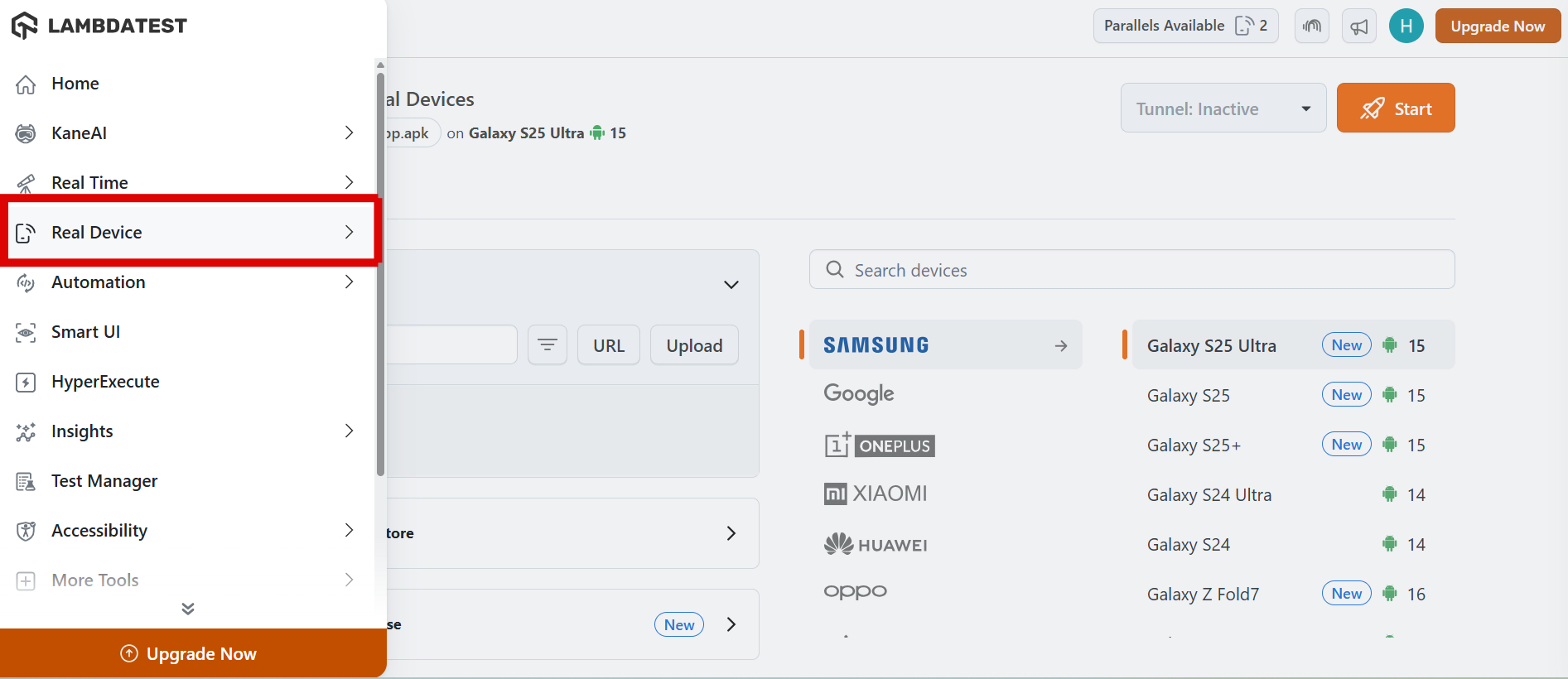
- Enter a test URL of your choice, and choose VERSION, OS, and RESOLUTION. After that, click on START.
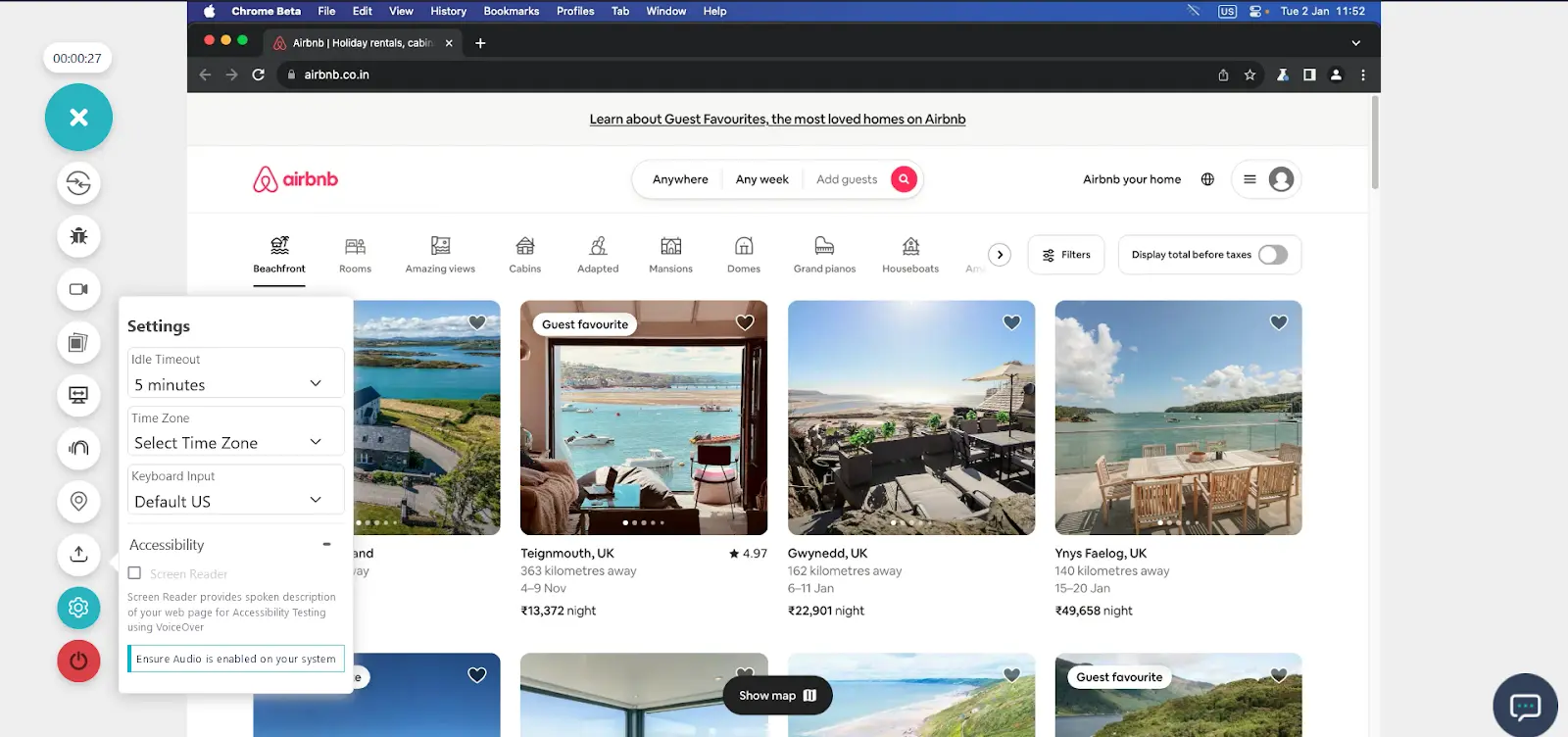
- After a cloud-based machine launches, click on the Settings icon and choose Accessibility.
Use the Accessibility DevTools Chrome Extension for Manual Testing
The TestMu AI Accessibility DevTools Chrome extension lets developers and testers scan pages for WCAG issues directly in the browser and get fix guidance inline (it sits alongside the other accessibility extension tools in our roundup). Here is how to use it:
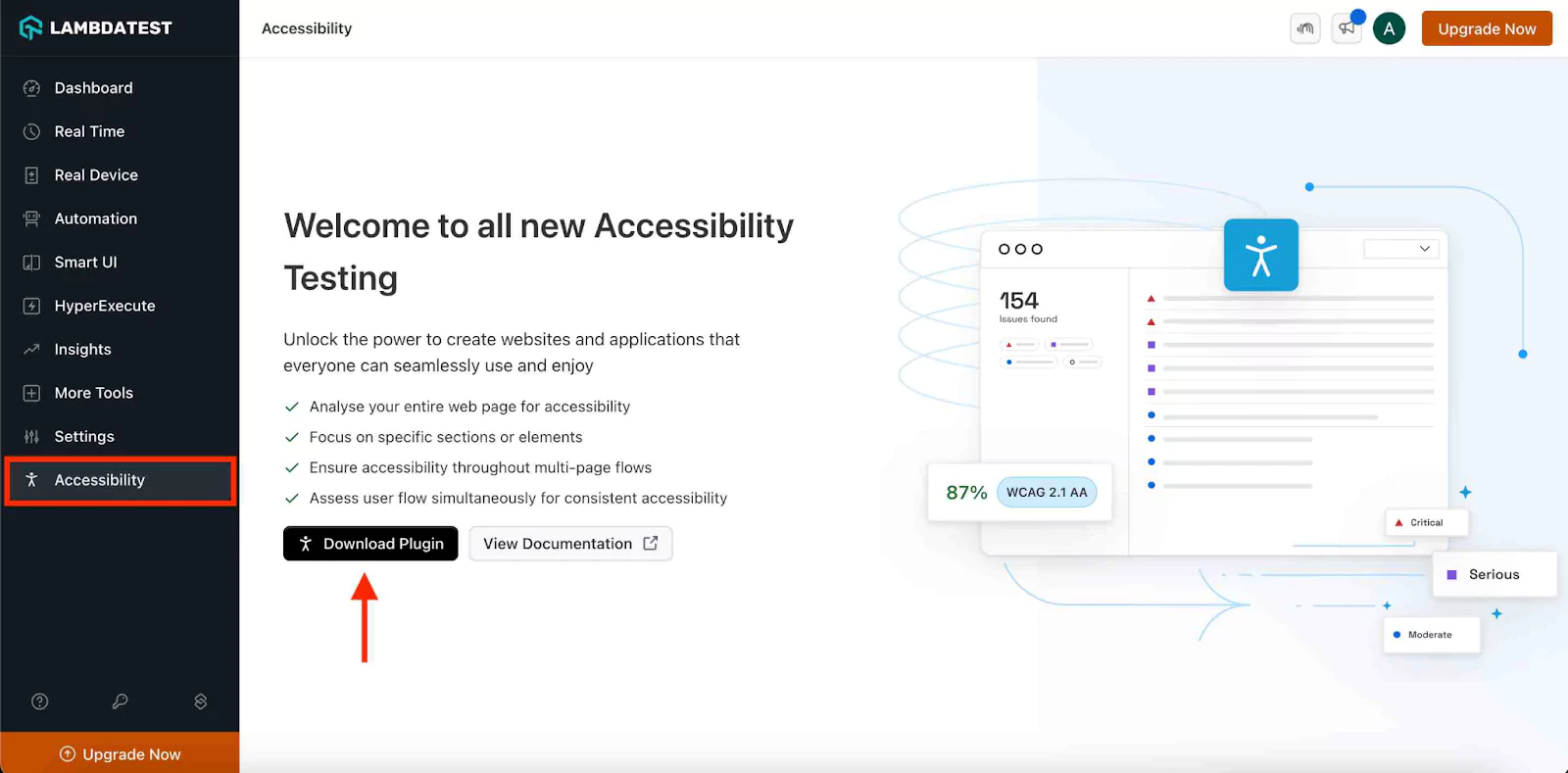
- Install the extension - go to the Accessibility Dashboard and click the "Download Plugin " button.
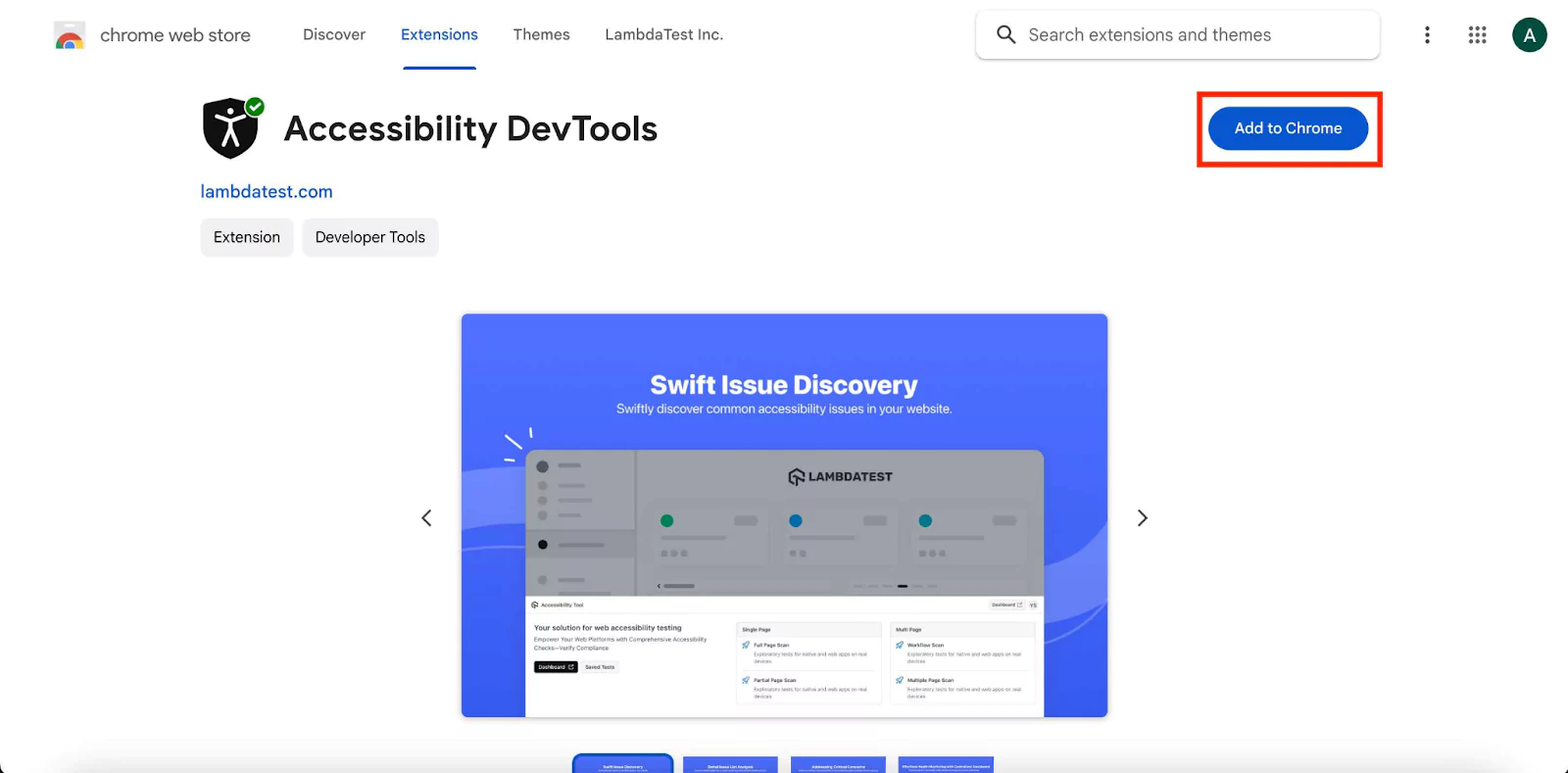
You will be redirected to the Chrome Web Store, where you can install the TestMu AI Accessibility DevTools extension. This tool will help you evaluate the accessibility of your website.
- Access DevTools - open the website you wish to test. Navigate to the browser's inspect section and select the Accessibility DevTools option. This will reveal the extension's features and tools.
- Select and run your scan - from the main accessibility dev tools menu, select the preferred type of accessibility scan and run it. Accessibility DevTools offers several scanning options:
- Single Page Scan - conduct a comprehensive analysis of an individual page to assess its accessibility compliance and adherence to best practices.
- Partial Page Scan - focus on specific sections or elements within a page for a targeted accessibility check.
- Multi-Page Workflow Scan - sequentially review multiple pages or workflows to ensure consistent accessibility standards across different user flows.
- Multiple Page Scan - evaluate the accessibility of various pages to ensure site-wide compliance.
- Keyboard Scan - validate keyboard-only operability, focus order, and keyboard traps on the interactive elements of a page, the failures a DOM-only scan cannot fully judge.
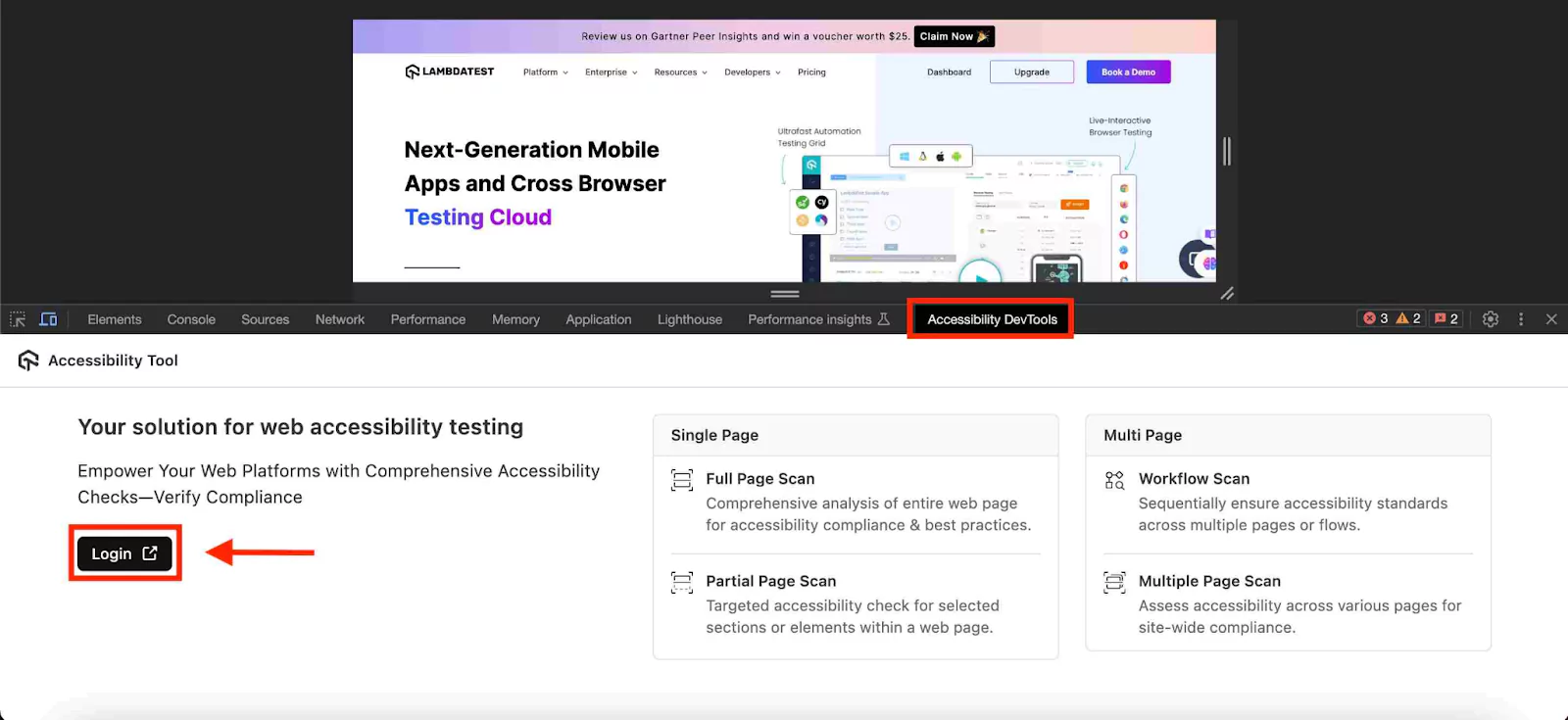
- Review the scan - execute the selected scan option to identify any accessibility issues. The scan will provide detailed feedback, highlighting areas that require improvement and ensuring that your site or app meets accessibility standards.
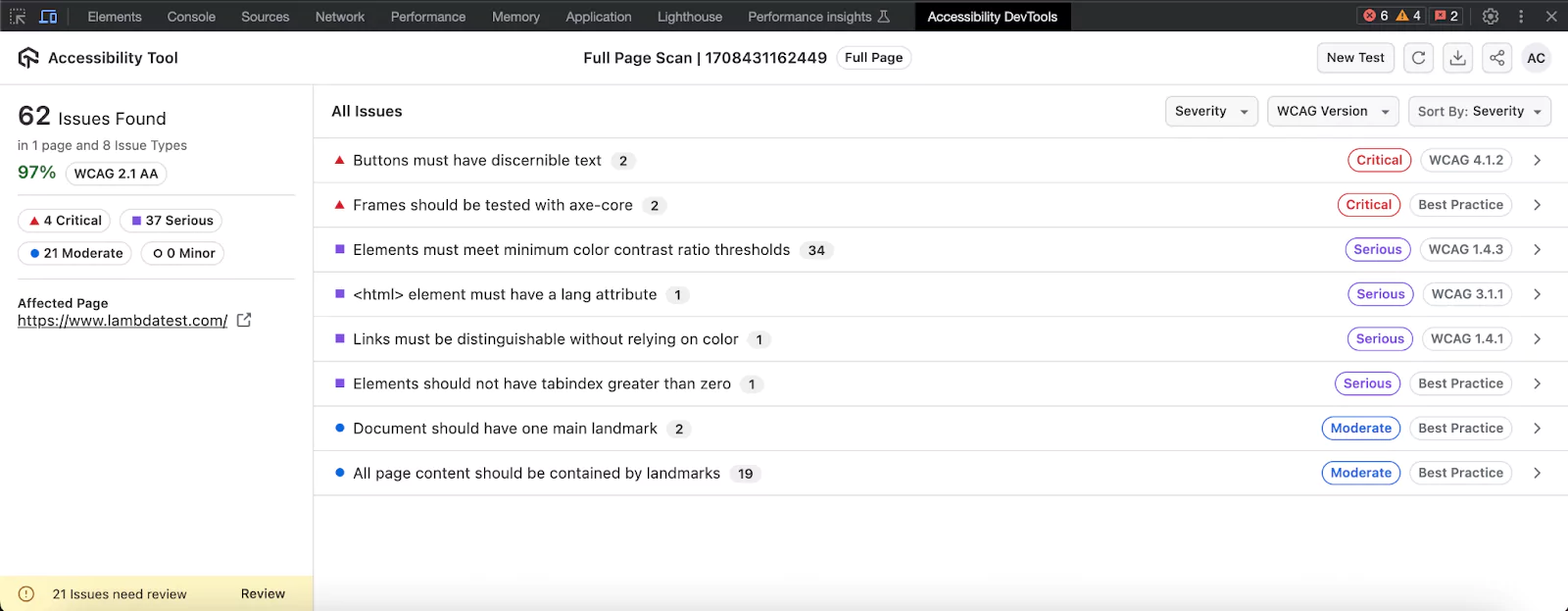
To get a detailed analysis of your accessibility scan, click on the "Dashboard" button on the accessibility devtools menu. You can also access the report directly through your TestMu AI dashboard.
Screen Reader Testing
Automated checks confirm an accessible name exists; only a screen reader confirms it makes sense when read aloud. In a live session, open Settings and select the Screen Reader checkbox to get a verbal description of the page from the screen reader bundled with the chosen OS, NVDA on Windows or VoiceOver on macOS, with TalkBack and VoiceOver covering native mobile apps. Walk the critical flows, sign-up, checkout, and error states, and listen for whether labels, focus order, and announcements actually guide a non-sighted user.
The reach goes beyond web and mobile screens: the platform also scans PDF documents for screen reader compatibility and exposes accessibility analysis inside AI coding tools through the Accessibility MCP Server, so a developer can request a scan from the editor while building. Connect it once in Claude Code, Cursor, or GitHub Copilot, and its three tools, getAccessibilityReport for public URLs, buildLocalAppForAnalysis for a local React app, and analyseAppViaTunnel for an app running behind a tunnel, turn a prompt like "run an accessibility report on this page" into a real scan without leaving the editor. The walkthrough on how to run a WCAG 2.2 audit on any website from your IDE shows a full report from that flow.
Use the Accessibility Agent Skill with an AI Coding Agent
If an AI coding agent such as Claude Code, Cursor, GitHub Copilot, or Gemini CLI writes or maintains your test suite, the accessibility-skill in TestMu AI's open-source agent-skills repository teaches the agent the exact capability names, scan hooks, and framework quirks for turning on accessibility scanning in Selenium, Playwright, Cypress, or Appium, instead of letting it guess or hallucinate an API.
Install it alongside any other framework skill already in use:
git clone https://github.com/LambdaTest/agent-skills && cd agent-skills
npx agentskillsforall add https://github.com/LambdaTest/agent-skills.git --skill accessibility-skill
Once installed, a prompt like "add the accessibility capability to my Selenium suite and scan the checkout page with WCAG 2.2 AA" is enough for the agent to wire up the same accessibility capability and lambda-accessibility-scan hook covered above, correctly for whichever framework is in use. For the full framework-by-framework setup, severity scoring, and what automation still cannot catch, see our guide on using the accessibility agent skill.

Note: Manually mapping every screen to WCAG 2.2 is slow. TestMu AI scans your pages against WCAG, ADA, and Section 508 and points to the exact elements to fix. Start Testing Now!
What Test Cases Should Web Accessibility Testing Cover?
These are standard accessibility test cases every web and mobile app should pass; together they catch the most common accessibility issues. An accessible product works with screen readers, speech-recognition software, and screen magnification:
- Alt text (WCAG 1.1.1) - every informative image exposes a description that conveys its purpose, and decorative images use an empty alt so screen readers skip them.
- Keyboard operability (WCAG 2.1.1) - tab through the entire interface and confirm every link, button, and field is reachable and operable, with a visible focus indicator and no point where focus gets trapped.
- Color contrast (WCAG 1.4.3) - text clears 4.5:1 against its background, or 3:1 for large text, and no information is signalled by color alone.
- Form labels and errors (WCAG 3.3.1, 3.3.2) - every field carries a programmatic label, and validation errors are announced as text rather than signalled by a red border alone.
- Captions and transcripts (WCAG 1.2.x) - video has synchronized captions and audio has a transcript, so nothing important depends on hearing.
- Resize and reflow (WCAG 1.4.4, 1.4.10) - content stays readable and usable at 200% zoom and reflows without forcing horizontal scrolling.
- Headings and structure (WCAG 1.3.1) - headings are nested in order and landmarks are present, so assistive technology can navigate the page by its structure.
- Touch target sizing (WCAG 2.5.8) - every interactive control meets the Level AA minimum of 24x24 CSS pixels. Level AAA (WCAG 2.5.5) raises it to 44x44 CSS pixels. Small tap targets block users with motor impairments, which is why the TestMu AI App Scanner checks touch target size on native screens.
- Screen reader labels on native controls (WCAG 4.1.2) - every button, toggle, and input on an Android or iOS screen exposes a name and role to TalkBack or VoiceOver instead of only a visual icon.

Examples of Accessibility Testing
Low contrast, missing alt text, wrong ARIA roles, and keyboard traps are the failures an accessibility test surfaces most often. Each example below pairs the failure with the WCAG success criterion it breaks and the concrete fix, so you know not just what to check but what "pass" looks like.
Example 1 - Low color contrast (WCAG 1.4.3)
Low-contrast text is the most common failure in the WebAIM Million 2026, detected on 83.9% of the top one million home pages. WCAG 1.4.3 requires a contrast ratio of at least 4.5:1 for normal text and 3:1 for large text (about 24px regular or 18.5px bold). A scan reports the measured ratio and the failing element; the fix is darkening the foreground or lightening the background until it clears the threshold. See our deeper guide on color contrast accessibility.
Example 2 - Missing or unhelpful text alternatives (WCAG 1.1.1)
An automated tool flags an image with no alt attribute, but it cannot judge whether alt="image1.jpg" is meaningful. That is the split between automation and manual review: automation confirms the attribute exists; a human confirms it describes the image's purpose. Decorative images take an empty alt="" so screen readers skip them.
Example 3 - Incorrect ARIA roles (WCAG 4.1.2)
A div styled to look like a button but missing role="button" and keyboard handlers is announced as plain text by a screen reader. WCAG 4.1.2 (Name, Role, Value) requires every interactive control to expose its name and role. The fix is usually a native button element, or the correct ARIA role plus keyboard event handling when a native element is not possible; for icon-only controls, an aria-label supplies the accessible name the visual icon leaves out.
Example 4 - Keyboard traps and focus order (WCAG 2.1.1, 2.1.2)
A modal that opens but cannot be dismissed with the keyboard traps a keyboard-only user. This is a judgment call automation flags as passing, which is why a Keyboard Scan and a manual screen reader pass matter. WCAG 2.1.1 requires every action to be keyboard-operable and 2.1.2 forbids focus traps; the fix is trapping focus inside the modal while open and returning it to the trigger on close.
Accessibility Testing Metrics
The accessibility testing metrics worth tracking are WCAG pass rate by conformance level, violations by severity, violation density per page, mean time to remediation, regression rate, and manual test coverage. A single pass/fail scan result answers none of these, and they are what show whether a program is improving:
- WCAG pass rate by conformance level - the share of automated checks passing at Level A versus Level AA, tracked over time rather than as a single snapshot, since most laws target AA.
- Violations by severity - the count of Critical, Serious, Moderate, and Minor findings per scan. A flat total can hide a shift from many Minor issues to a few Critical ones, so severity mix matters more than the raw count.
- Violation density per page - violations divided by page count, which makes a 10-page and a 500-page site comparable and shows whether new pages are shipping cleaner than old ones.
- Mean time to remediation - how long a violation stays open from first detection to fix, split by severity. Critical issues on high-traffic flows should close in days, not the months a periodic audit cycle allows; accessibility remediation tools that attach the fix to each finding and re-check the page after the change are what move this number.
- Regression rate - the share of previously fixed violations that reappear, which is what CI-gated scanning and scheduled monitoring are specifically built to drive toward zero.
- Manual test coverage - the share of critical user flows, sign-up, checkout, search, that have had a screen reader and keyboard-only pass, since automated coverage alone cannot answer whether the product actually works.
These numbers matter beyond engineering. In 2025, UsableNet tracked more than 5,000 digital accessibility lawsuits filed across US federal and state courts.
Seyfarth Shaw recorded 3,117 federal website accessibility filings in 2025, up 27% from 2,452 in 2024. An audit trail of pass rates, severity trends, and remediation times is what demonstrates a systematic accessibility testing program if that record is ever reviewed.
Common Challenges in Accessibility Testing and How to Solve Them
The common challenges in accessibility testing are over-trusting automated scans, regressions after launch, dynamic single-page app content, browser and screen reader combinations, mobile coverage gaps, and unclear ownership. Each has a direct fix:
- Over-trusting automated scans - a clean automated report is not compliance, because many WCAG criteria need human judgment. Pair every automated run with manual keyboard and screen reader testing for the rest.
- Regressions after launch - a new image without alt text or a modal without focus management slips in between audits. Wire accessibility checks into CI and schedule recurring scans so regressions fail fast instead of surfacing months later.
- Dynamic and single-page app content - modals, live regions, and route changes never appear in a static DOM scan. Use workflow-style scans that capture each step of an interaction, not just the initial page load.
- Browser and screen reader combinations - a screen reader reads the accessibility tree each browser builds, not your HTML, so identical markup is announced differently by NVDA with Firefox, JAWS with Chrome, and VoiceOver with Safari. Test the pairings your users rely on; cross browser accessibility lists the issues that differ by browser.
- Mobile coverage gaps - web-only tools miss native app criteria like touch target size and Dynamic Type. Test native Android and iOS apps on real devices, not just the browser.
- No clear ownership - accessibility defects pile up when nobody owns them. Treat them like any other bug, file them with the WCAG criterion and severity, and assign them in the same tracker your team already uses.
Best Practices for Accessibility Testing
Accessibility testing best practices come down to testing early, automating the deterministic checks on every build, testing by hand with real assistive technology, and keeping evidence. In practice:
- Shift left - fold WCAG checks into design reviews and the definition of done, so a component is not "complete" until it passes contrast, label, and keyboard checks.
- Automate the floor, test the ceiling by hand - gate CI on the deterministic checks automation catches, and reserve manual screen reader and keyboard passes for focus order and meaningful announcements.
- Test with assistive technology, not just about it - run NVDA, JAWS, VoiceOver, and TalkBack on the real flows; screen reader output is the only proof an accessible name actually reads well in context.
- Map every issue to a success criterion - tag each finding with its WCAG criterion and conformance level so the team triages by impact, not guesswork.
- Cover real browsers and real devices - the same markup behaves differently across browsers and on native mobile, so validate on actual configurations rather than a single emulator.
- Include users with disabilities - a short round of usability testing with assistive-technology users surfaces barriers no automated checklist predicts.
- Re-test on every release - treat accessibility like a regression suite; dynamic sites drift, so scheduled and CI-triggered scans keep conformance from decaying.
- Keep an audit trail - export scan history and conformance reports, because the evidence of a systematic program is what stands up in a compliance review.
- Target Level AA - make WCAG 2.2 Level AA the baseline, since it also satisfies the WCAG 2.1 AA and 2.0 AA versions that ADA Title II and Section 508 require.
Conclusion
Start by running an automated scan on your highest-traffic page, then triage the violations by WCAG level. Layer in manual screen reader and keyboard testing for the flows automation cannot judge, wire the axe-core check into CI so regressions fail the build, and schedule a full manual audit before each major release.
To put this into practice, run your first scan with the TestMu AI Accessibility Testing Agent and follow the accessibility testing documentation for setup. To validate your skills, the Accessibility Testing 101 certification walks through WCAG conformance hands-on.
For ongoing coverage, work through our web accessibility guide and the web accessibility checklist to keep WCAG 2.2 compliance on track across releases. If you are hiring or interviewing for this work, the accessibility testing interview questions cover WCAG, ARIA, and screen readers at every level.
Note: This article was researched and drafted with AI assistance, then reviewed, fact-checked, and published by Rahul Mishra, Lead Member of Technical Staff at TestMu AI, whose listed expertise includes Accessibility Testing, WCAG Compliance, and ADA Compliance. Technically reviewed for WCAG 2.2 accessibility compliance by Shubham Soni, Senior Member of Technical Staff at TestMu AI, whose listed expertise includes Accessibility Testing and who led the team that built an accessibility testing product covering manual and automated testing. Sources cited are from primary standards bodies and government sites including the W3C, ADA.gov, Section508.gov, and the European Commission. Read our editorial process and AI use policy for details.
Author

Rahul Mishra
Blogs: 17

Rahul Mishra is a Lead Member of Technical Staff at TestMu AI, leading frontend engineering and accessibility testing across the quality engineering platform. He mentors frontend engineers, runs code reviews and sprint planning, optimizes React.js rendering performance, and makes product features accessible to users with disabilities through WCAG and ADA-compliant accessibility audits. He brings 10+ years of experience across React.js, VueJS, TypeScript, Swift, Objective-C, and AWS, with earlier work as a Technical Lead at VectoScalar Technologies. Rahul holds a B.E. in Information Technology.
Reviewer

Shubham Soni
Reviewer
Shubham Soni is a Senior Member of Technical Staff at TestMu AI, building the Real Device Cloud and real-time testing infrastructure. He optimized the WebRTC services that power live testing to sub-100ms latency with adaptive bitrate streaming, led a frontend migration from Angular to React that cut page load time from 5-6 seconds to 1-1.5 seconds, and contributes to the official Device SDK. He led a team of four to build an accessibility testing product covering manual and automated testing and mentored a team of six on a real-time testing product. He brings over eight years of experience and earlier scaled a cloud code platform to 200K+ monthly users. Shubham holds a B.Tech in Computer Science.


Accessibility Testing FAQs
Did you find this page helpful?
More Related Learning Hubs

TestMu AI forEnterprise
Get access to solutions built on Enterprise
grade security, privacy, & compliance
- Advanced access controls
- Advanced data retention rules
- Advanced Local Testing
- Premium Support options
- Early access to beta features
- Private Slack Channel
- Unlimited Manual Accessibility DevTools Tests