

Power Your Software Testing with AI Agents and Cloud
The Native AI-Agentic Cloud Platform to Supercharge Quality Engineering. Test Intelligently and Ship Faster.


- TestMu AI (Formerly LambdaTest)
- /
- Blog
- /
- 9 Best Accessibility Remediation Tools I Tested in October 2026
9 Best Accessibility Remediation Tools I Tested in October 2026
I seeded a test web page with 13 accessibility bugs and tested 9 remediation tools on what they catch, how they guide fixes, and what needs manual review.
Published on:
Accessibility remediation tools find WCAG failures, point to the exact element and the fix, and re-check the page after you change the code. The WebAIM Million 2026 report found detected WCAG 2 failures on 95.9% of the top one million home pages, with an average of 56.1 errors per page.
To rank them, I built a test web page with 13 known accessibility bugs and ran a few of the tools against three versions of it: broken, fixed per the tools' guidance, and fully fixed. The ranking weighs how well each tool guides and confirms a fix, not only how many issues it detects.
TL;DR
The best accessibility remediation tools are TestMu AI, for WCAG scans inside existing CI test suites across web and mobile apps, and axe DevTools, for element-level fix guidance in the browser. For checks that need human judgment, such as keyboard access and alt text quality, TestMu AI's Guided Tests walk you through each one.
Best Accessibility Remediation Tools by Use Case
- Best for CI across web and mobile apps: TestMu AI - runs WCAG 2.1 AA scans inside Selenium, Playwright, Cypress, and Appium suites on its cloud grid and reports severity and fix guidance per issue.
- Best for per-element fix guidance: axe DevTools - the free extension's axe-core engine reports each failing element with its measured contrast ratio, hex colors, and target ratio; guided tests are paid.
- Best free CI gate: Pa11y - free and open source; Pa11y CI exits with code 2 when issues reach your threshold, and Pa11y flagged a placeholder-only email field that axe-core did not.
- Best for fixing PDFs: Adobe Acrobat Pro - checks PDFs against PDF/UA and WCAG 2.0, and its Fix action repairs an item or prompts you to fix it; it requires an Acrobat Pro subscription.
A 100 accessibility score is not compliance: Lighthouse scored a test page 100 while its Add to cart control was still unreachable by keyboard.
Our Review Standards
I compared each tool on detection, fix guidance, re-scan and build gating, manual-check support, and coverage across web pages, apps, and PDFs. I ran a few of them hands-on and assessed the rest on their documentation, and TestMu AI, our product, is held to the same rubric. For detection-only scanners, see our list of accessibility testing tools.
9 Best Accessibility Remediation Tools, Compared
| Tool | Best for | Fix guidance | Price model |
|---|---|---|---|
| TestMu AI (Formerly LambdaTest) | CI scans across web and mobile apps | WCAG criterion, severity, element, and fix guidance per issue | Plans on the TestMu AI pricing page |
| Google Lighthouse | Quick score in Chrome DevTools | Failing elements with a short description | Free, built into Chrome |
| Adobe Acrobat Pro | PDF remediation | Fix action and Reading Order tool | Acrobat Pro subscription |
| axe DevTools | Per-element fixes in the browser | Fix list per element plus a rule page per issue | Free extension; paid Pro and Bundle |
| Siteimprove Accessibility | Site-wide monitoring, documents included | Agents rank issues by risk and guide remediation | Not listed on the product page |
| Pa11y | Free CI gate | Message, technique code, selector, and a color suggestion | Free, open source |
| Accessibility Insights for Web | Guided manual assessment | How-to-fix guidance for about 20 manual tests | Free, open source |
| WAVE | Visual checks for content editors | In-page icons for errors, alerts, and contrast | Browser extensions; subscription API |
| TestParty | Source-code fixes with audits | Fixes delivered in your code editor or tools | See the vendor's site |
1. TestMu AI (Formerly LambdaTest)
TestMu AI Accessibility Testing runs axe-core scans inside the Selenium, Playwright, Cypress, and Appium suites you already run on its cloud grid. Each violation is reported with its WCAG success criterion, a Critical to Minor severity, the failing element, and remediation guidance. Scans cover WCAG 2.0, 2.1, and 2.2 at conformance Levels A, AA, and AAA, the technical standard behind ADA, Section 508, and European Accessibility Act compliance.
Key features
- Scan hook in existing tests - call
lambda-accessibility-scanafter each page state, or turn on autoscan in Selenium to scan every navigation. - Guided Tests for judgment calls - the DevTools extension runs the automatic checks first, then asks short questions covering keyboard (2.1.1, 2.4.7), images (1.1.1), interactive elements (4.1.2), and hover content (1.4.13), per the Guided Tests documentation.
- Native apps and PDFs - the same suite scans Android and iOS apps on real devices through Appium or the App Scanner, and scans PDF documents.
- Results for AI agents - the Accessibility MCP Server returns reports to Claude Code, Cursor, and other MCP clients.
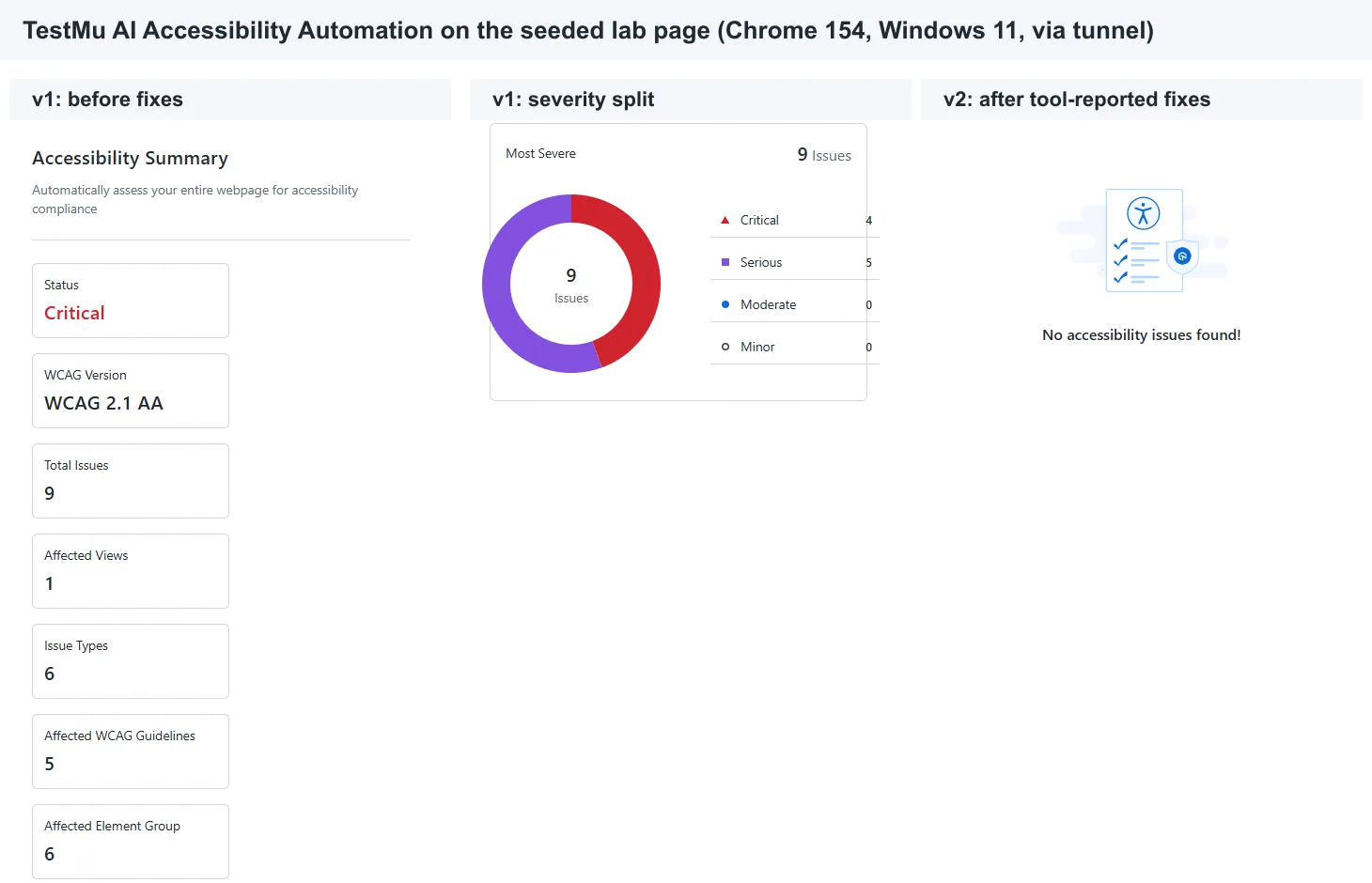
Lab result: on my test page, which TestMu AI scanned on Chrome 154 and Windows 11 through a TestMu tunnel, it flagged 9 issues on the broken version (4 Critical, 5 Serious) and confirmed both fixed versions came back clean.
Pros
- One platform covers CI scans, scheduled monitoring, and mobile apps, and each run gets a shareable report link.
- Guided Tests target the keyboard and alt text defects that every automated run in my test missed.
Cons
- Playwright accessibility tests on the grid need real Chrome rather than Playwright's bundled Chromium.
- Guided manual tests run in the DevTools extension, so plan them as a separate step from your CI scans.
Pricing: requires a TestMu AI account; plan limits are on the TestMu AI pricing page, where the enterprise tier lists unlimited manual Accessibility DevTools tests.
2. Google Lighthouse
Lighthouse ships inside Chrome DevTools and scores accessibility as a weighted average of pass-or-fail audits, weighted by axe-core's user impact ratings. Google's scoring documentation says a page gets no partial credit for an audit, and manual audits do not affect the score.
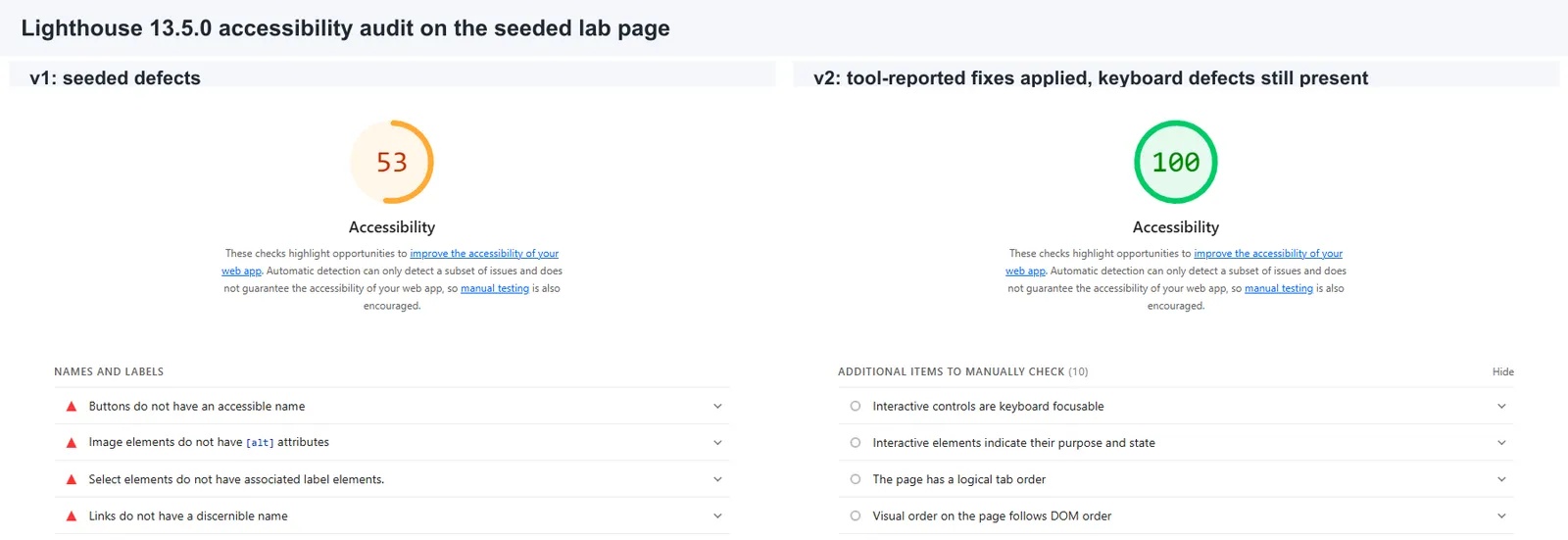
Lab result: Lighthouse 13.5.0 found 9 of 10 defects and scored v1 at 53. It scored v2 and v3 at 100, even though v2 still had three barriers; its report listed 10 manual checks, starting with "Interactive controls are keyboard focusable".
Pros
- Free, built in, and a fast regression signal on every page you open.
- Lists each failing element with its selector.
Cons
- Its 100 sat on top of a page that failed a keyboard walk.
- Web pages only.
Pricing: free, built into Chrome.
3. Adobe Acrobat Pro
Acrobat Pro's Prepare for accessibility action automates many PDF tasks, runs the Accessibility Checker against PDF/UA and WCAG 2.0, and gives instructions for items that need manual fixes.
Key features
- Fix action - from the checker panel, Fix either repairs an item automatically or opens a dialog to fix it by hand.
- Reading Order tool - examines the structure, reading order, and contents of the PDF.
- Accessibility report - marks each check Passed, Skipped By User, Needs Manual Check, or Failed, with links to help.
Evidence: not lab-tested; scored on Adobe's Acrobat help documentation.
Pros
- Purpose-built for PDFs, which web scanners do not cover.
- Repairs many items in place instead of only listing them.
Cons
- Adobe notes the checker cannot tell essential from nonessential content, so every result needs review.
- It does not run on dynamic XFA forms or PDF portfolios.
Pricing: these tools require an Acrobat Pro subscription.
4. axe DevTools
axe DevTools is Deque's browser extension built on axe-core, the open-source rules engine that TestMu AI's scanner also runs. The free tier includes axe-core automation plus remediation documentation and guidance, and Deque states a commitment to zero false positives.
Key features
- Free extension - axe-core scans in the browser, with export, save, and share of results.
- Intelligent Guided Tests - the paid Pro and Bundle tiers add guided testing, AI-enhanced automation, user flow analysis, and component testing.
- Bundle tooling - adds CI/CD integration, linting, API access, and reporting, and Deque also offers mobile testing tools.
Lab result: I ran axe-core 4.14.0 directly rather than the extension interface. It found 9 of 10 defects in 328 ms and did not report the placeholder-only email field. For the promo line, it returned the measured ratio of 2.52, both hex colors, and the 4.5:1 target.
Pros
- The most specific fix text of the engines I ran, with a Deque University rule page linked for every issue.
- The free tier is enough to start fixing a page today.
Cons
- Guided tests and CI integration sit in the paid tiers.
- I scored the engine, not the extension's interface, so the extension's workflow is scored on documentation.
Pricing: free extension; Pro and Bundle tiers are priced on Deque's site.
5. Siteimprove Accessibility
Siteimprove Accessibility is an enterprise platform for continuous monitoring and remediation across public sites, authenticated pages, PDFs, documents, and apps. It maps findings to WCAG 2, ADA Title II, Section 508, and the European Accessibility Act.
Key features
- Risk-based prioritization - agents rank issues by risk and guide remediation.
- Developer workflow hooks - works in VS Code, Claude Code, Figma, and CI/CD, with an MCP server and a browser extension.
- Expert services - specialists holding CPWA, CPACC, or WAS certifications run manual audits, workshops, and VPAT writing.
Evidence: not lab-tested; scored on Siteimprove's product page, checked in October 2026.
Pros
- Covers documents and authenticated pages in the same program as the public site.
- Human audits and VPAT writing are available from the same vendor.
Cons
- Built for enterprise rollouts rather than a single developer fixing one page.
- I could not verify rule-level detection without an account.
Pricing: not listed on the product page.
6. Pa11y
Pa11y is an open-source command-line tool that runs HTML_CodeSniffer by default and can also run axe-core. Pa11y CI runs it across a list of URLs as part of accessibility testing in CI/CD pipelines and exits with code 2 when issues reach the threshold you set.
Key features
- Two engines - choose htmlcs, axe, or both for each run.
- Build gating -
--thresholdsets how many errors, warnings, or notices pass before the build fails. - Technique codes - every message carries its WCAG technique, such as H37 for a missing alt attribute.
Lab result: Pa11y 10.0.0 reported 10 errors covering all 10 defects in 3.7 seconds, the only tool to flag the placeholder-only email field. It also warned that the click-only Add to cart div needed a keyboard equivalent, and for each low-contrast element it suggested a replacement: change text colour to #767676.
Pros
- The best measured detection in my test, with concrete color fixes.
- A real build gate at no cost.
Cons
- Web pages only, with no app or PDF coverage.
- Some warnings are noise, such as asking for an optgroup on a three-option size list.
Pricing: free and open source; Pa11y CI is licensed LGPL-3.0-only.
7. Accessibility Insights for Web
Accessibility Insights for Web is Microsoft's open-source extension for Chrome and Microsoft Edge. FastPass checks about 50 requirements automatically and visualizes Tab stops in under five minutes, while Assessment walks you through WCAG 2.1 AA.
Key features
- FastPass - automated checks plus a Tab stops view for keyboard access problems.
- Assessment - roughly 20 manual tests with step-by-step instructions, examples, and how-to-fix guidance.
Evidence: not lab-tested; scored on Microsoft's documentation. Its Tab stops view is built to surface the kind of keyboard gap my v2 page still had.
Pros
- Free guided manual testing for the criteria scanners cannot judge.
- Each manual test explains how to fix what it finds.
Cons
- An assessment takes manual effort on every page.
- The extension has no build gate.
Pricing: free and open source.
8. WAVE
WAVE is WebAIM's evaluation tool, available online and as Chrome, Firefox, and Edge accessibility extensions that place icons for errors, contrast errors, alerts, features, structure, and ARIA on the page itself. The extension runs entirely in your browser, so it can check intranet, password-protected, and dynamically generated pages.
Key features
- Suspicious alternative text alert - fires when alt text is an image file name, the exact pattern of the IMG_0042.jpg thumbnail that none of the tools I ran flagged.
- Subscription API - collects test data across many pages for programmatic checks.
Evidence: not lab-tested; scored on WebAIM's WAVE documentation.
Pros
- Visual and readable for content editors without a developer at hand.
- Its documented alert rules catch file-name alt text.
Cons
- The extension checks one page at a time.
- Pipeline use requires the subscription API or the stand-alone engine.
Pricing: the extensions install from the Chrome, Firefox, and Edge stores; the API is a subscription service.
9. TestParty
TestParty delivers accessibility fixes in your source code editor or tools and integrates with IDEs, CI/CD pipelines, and content management systems. It pairs automated remediation with a manual auditing team of CPACC-certified professionals.
Key features
- Platform integrations - Shopify, WordPress, Drupal, React, Angular, GitLab, Jira, and Slack are among the listed integrations.
- Human audits - manual testing and remediation services alongside the automation.
Evidence: not lab-tested; scored on TestParty's homepage.
Pros
- Fixes land in your code rather than in a script layered over the page.
- Human auditors review what automation cannot judge.
Cons
- I could not assess fix quality without an account.
- Confirm any vendor compliance claim with your own audit before relying on it.
Pricing: see the vendor's site.
What Are Accessibility Remediation Tools?
Accessibility remediation tools are software that finds WCAG failures, names the failing element and the fix, and checks the page again after the change. Detection-only checkers stop at the report, while remediation tools add fix guidance, tracking, and re-verification, and leave judgment calls such as alt text quality to human testers.
The W3C's guide to selecting web accessibility evaluation tools states the limit directly: tools "can not determine accessibility, they can only assist in doing so." My rubric gives manual-check support the same weight as detection for that reason.
The failures these tools fix most often are the ones the WebAIM Million 2026 report measured across home pages:
- Low contrast text - on 83.9% of home pages.
- Missing alternative text for images - on 53.1% of home pages.
- Missing form input labels - on 51% of home pages.
- Empty links - on 46.3% of home pages.
- Empty buttons - on 30.6% of home pages.
- Missing document language - on 13.5% of home pages.
My test page seeded every one of those failure types. For the method behind each check, see this guide to WCAG testing.

Note: TestMu AI runs these WCAG checks inside the Selenium, Playwright, and Cypress suites you already run, so every build produces an accessibility report with severity and fix guidance. Try TestMu AI free.
Accessibility Overlays vs Remediation Tools
An overlay is a script that modifies a page in the visitor's browser; a remediation tool helps you change the source code that every visitor receives.
In April 2025 the US Federal Trade Commission approved a final order against accessiBe, which had claimed its accessWidget plug-in could make any website compliant with WCAG. The FTC order bars accessiBe from representing that its automated products can make any website WCAG-compliant and requires a $1 million payment.
None of the nine tools ranked here is an overlay; each one points you at code to change. Ask any vendor that promises compliance from a single script tag for evidence from a manual audit.
How I Tested the Tools
I built a test web page styled as an online shoe store, with 13 known accessibility bugs: 10 that WCAG rule engines can detect, covering all six WebAIM failure types, and 3 that need human judgment. I then made v2 by fixing only what the tools reported, and v3 by also fixing the judgment defects.
| Seeded defect | WCAG criterion | Category |
|---|---|---|
| Page has no lang attribute | 3.1.1 | Rule-detectable |
| Logo image has no alt text | 1.1.1 | Rule-detectable |
| Logo link has no accessible name | 2.4.4, 4.1.2 | Rule-detectable |
| Cart icon link has no text | 2.4.4, 4.1.2 | Rule-detectable |
| Search icon button has no name | 4.1.2 | Rule-detectable |
| Product image has no alt text | 1.1.1 | Rule-detectable |
| Promo text at 2.52:1 contrast | 1.4.3 | Rule-detectable |
| Email field labelled only by a placeholder | 3.3.2, 4.1.2 | Rule-detectable |
| Size select has no label | 1.3.1, 4.1.2 | Rule-detectable |
| Notify me button at 1.98:1 contrast | 1.4.3 | Rule-detectable |
| Thumbnail alt text is "IMG_0042.jpg" | 1.1.1 | Needs human judgment |
| Add to cart is a click-only div | 2.1.1 | Needs human judgment |
| Focus outline removed from every control | 2.4.7 | Needs human judgment |
Placeholder-only labels count as a defect because the W3C forms tutorial says placeholder text is not a replacement for labels, and screen readers do not treat it as one.
Every tool I ran used Chrome 154. axe-core 4.14.0, Pa11y 10.0.0 with its default HTML_CodeSniffer runner, and Lighthouse 13.5.0 ran locally, while TestMu AI ran Selenium on its cloud grid (Windows 11, WCAG 2.1 AA) and reached my local server through a TestMu tunnel. To run the same scan on your own pages, use this Selenium setup and swap in your URL:
const { Builder } = require('selenium-webdriver');

const capabilities = {
  browserName: 'Chrome',
  browserVersion: 'latest',
  'LT:Options': {
    platformName: 'Windows 11',
    build: 'Accessibility Remediation Tools',
    name: 'Accessibility scan',
    user: process.env.LT_USERNAME,
    accessKey: process.env.LT_ACCESS_KEY,
    // With selenium-webdriver 4.x, keep the accessibility capabilities inside LT:Options
    accessibility: true,
    'accessibility.wcagVersion': 'wcag21aa',
    'accessibility.bestPractice': false,
    'accessibility.needsReview': true,
  },
};

(async () => {
  const hub = 'https://' + process.env.LT_USERNAME + ':' + process.env.LT_ACCESS_KEY + '@hub.lambdatest.com/wd/hub';
  const driver = await new Builder().usingServer(hub).withCapabilities(capabilities).build();
  try {
    await driver.get('https://www.testmuai.com/selenium-playground/simple-form-demo/');
    const result = await driver.executeScript('lambda-accessibility-scan');
    console.log(result); // "Lambda accessibility scan completed"
  } finally {
    await driver.quit();
  }
})();
For the three judgment defects, I tabbed through v2 and v3 with Playwright and logged each focus stop, its accessible name, and its outline.
Test Results
Pa11y led on detection and was the only engine to flag the placeholder-only email field, a gap covered in this guide to testing accessible forms, and to warn about the click-only div. axe-core and TestMu AI returned the same nine findings, Lighthouse failed the same six audits, and TestMu AI's report shows it ran axe-core 4.12.0.
Lighthouse gave v2 a 100 while three barriers remained, which matches Google's scoring documentation: manual audits do not affect the score.
The keyboard walk showed what the scores missed:
v2: 6 tab stops | "Add to cart" reachable by keyboard: false
   1. a "Trailhead Gear home" outline=NONE
   2. a "Cart" outline=NONE
   3. button "Search" outline=NONE
   4. input "Email address" outline=NONE
   5. select "Size 8Size 9Size 10" outline=NONE
   6. button "Notify me" outline=NONE
   thumbnail alt: "IMG_0042.jpg"
v3: 7 tab stops | "Add to cart" reachable by keyboard: true
   1. a "Trailhead Gear home" outline=solid 3px
   2. a "Cart" outline=solid 3px
   3. button "Search" outline=solid 3px
   4. button "Add to cart" outline=solid 3px
   5. input "Email address" outline=solid 3px
   6. select "Size 8Size 9Size 10" outline=solid 3px
   7. button "Notify me" outline=solid 3px
   thumbnail alt: "Outsole tread pattern of the Trail Runner X2"
On v2, keyboard users could not reach Add to cart, none of the six focus stops showed an outline, and the thumbnail still announced a file name. Fixing them took three code changes: a real button element, a focus-visible outline, and descriptive alt text.
Fix guidance also differed for the same defect, the 2.52:1 promo text:
| Tool | What it told me about the promo text |
|---|---|
| axe-core | "Element has insufficient color contrast of 2.52 (foreground color: #a3a3a3, background color: #ffffff, font size: 11.3pt (15px), font weight: normal). Expected contrast ratio of 4.5:1", plus a rule page link |
| Pa11y | "Expected a contrast ratio of at least 4.5:1, but text in this element has a contrast ratio of 2.52:1. Recommendation: change text colour to #767676." |
| Lighthouse | "Background and foreground colors do not have a sufficient contrast ratio." with the failing selector |
| TestMu AI | Reported under Serious in the WCAG 2.1 AA report, with a shareable summary link and issue-level fix guidance in the dashboard |
Before you ship a replacement color, confirm it with a color contrast checker.
TestMu AI ranks first because it covers web pages, native apps, and PDFs from the same CI runs. If you only fix web pages, axe DevTools gives the more specific fix text in the browser.

Austin Siewert
Co-Founder, Steadfast Systems
Discovered @TestMu AI yesterday. Best browser testing tool I've found for my use case. Great pricing model for the limited testing I do 👏
2M+ Devs and QAs rely on TestMu AI
Deliver immersive digital experiences with Next-Generation Mobile Apps and Cross Browser Testing Cloud

How to Choose an Accessibility Remediation Tool
Pick by where your fixes happen:
- Cloud test suites - if you already run Selenium, Playwright, Cypress, or Appium in the cloud, TestMu AI adds WCAG scans to those runs and covers native apps and PDFs.
- Browser-based fixing - start with the free axe DevTools extension, and add Accessibility Insights for Web when you need guided manual tests.
- Free pipeline gate - Pa11y CI fails the build at a threshold you choose.
- Content editing - WAVE shows problems in place, including file-name alt text.
- Large estates with documents - Siteimprove monitors sites, PDFs, and authenticated pages.
- PDF backlogs - Acrobat Pro's checker and Fix action.
- Vendor-delivered fixes - TestParty delivers code fixes with a human audit team.
Whichever tool you pick, run the loop that caught my v2 page:
- Scan every page template in CI and fix critical blockers on core user journeys first, then serious issues, the order the issue remediation guide recommends.
- Re-scan after each batch of fixes and compare the new report with the last one.
- Tab through every interactive control and confirm each one is reachable and shows a visible focus indicator; TestMu AI's Keyboard Scan assists with this check.
- Read every alt attribute and replace file names and filler words with a description of the image.
- Walk your core journeys with a screen reader such as NVDA or VoiceOver, following this guide to screen reader testing.
Conclusion
Start this week by adding one of these accessibility remediation tools to the CI job for your highest-traffic template, then tab through that page yourself before you call it fixed. If your suites already run on TestMu AI, enable the accessibility capability and the scan hook with the accessibility automation docs.
To build the manual side of the skill, take the Accessibility Testing 101 certification.
Note: AI assistance was used in researching and drafting this article. Himanshu Sheth (Director of Marketing (Technical Content) at TestMu AI, expertise in Software Testing and Automation Testing) verified every statistic, link, and product claim against primary sources before publication, following our editorial process and AI use policy. Sources cited include the W3C, the US Federal Trade Commission, WebAIM, and each tool vendor's own documentation.
Author

Himanshu Sheth
Blogs: 143


Himanshu Sheth is the Director of Marketing (Technical Content) at TestMu AI, with over 8 years of hands-on experience in Selenium, Cypress, and other test automation frameworks. He has authored more than 130 technical blogs for TestMu AI, covering software testing, automation strategy, and CI/CD. At TestMu AI, he leads the technical content efforts across blogs, YouTube, and social media, while closely collaborating with contributors to enhance content quality and product feedback loops. He has done his graduation with a B.E. in Computer Engineering from Mumbai University. Before TestMu AI, Himanshu led engineering teams in embedded software domains at companies like Samsung Research, Motorola, and NXP Semiconductors. He is a core member of DZone and has been a speaker at several unconferences focused on technical writing and software quality.
Reviewer

Sai Krishna
Reviewer
Sai Krishna is Director of Engineering at TestMu AI (formerly LambdaTest), where he leads agentic AI for quality engineering, building AI agents that autonomously drive mobile and conversational test automation. His current focus is Agent Testing and Model Context Protocol (MCP) support for mobile. He is a core contributor and member of the Appium open-source project and the creator of AppiumTestDistribution and appium-device-farm. With over 14 years of experience including more than 9 years at Thoughtworks as a Principal Consultant, he holds a BSc in Electronics and speaks regularly at TestMu and Appium Conf on Appium, mobile automation, and agentic AI in testing.


Accessibility Remediation Tools FAQs
Did you find this page helpful?
More Related Blogs
TestMu AI forEnterprise
Get access to solutions built on Enterprise
grade security, privacy, & compliance
- Advanced access controls
- Advanced data retention rules
- Advanced Local Testing
- Premium Support options
- Early access to beta features
- Private Slack Channel
- Unlimited Manual Accessibility DevTools Tests