
Scan Your Website for WCAG Accessibility Issues
TestMu AI Accessibility Testing Agent Runs Automated WCAG Checks on Real Devices, and Screen Readers, Then Ties Each Fix to the Rule It Fails.

- TestMu AI (Formerly LambdaTest)
- /
- Blog
- /
- How To Perform Cypress Accessibility Testing
How To Perform Cypress Accessibility Testing
This article on Cypress accessibility testing discusses the importance of accessibility testing and how to perform Cypress accessibility testing on a cloud grid.
Last Updated on:
Cypress accessibility testing runs automated WCAG checks inside your existing Cypress end-to-end suite, so accessibility failures surface on every commit instead of during a late audit. Plugins such as @cypress-audit/pa11y and cypress-axe add a single command to a spec file, then fail the test when a page breaks a rule like insufficient color contrast.
This guide covers why accessibility testing matters, whether it can be automated, how to run Pa11y with Cypress, how to scale those tests on a cloud grid, and what AI tooling changes about the work.
Overview
Perform Cypress accessibility testing by integrating Pa11y to scan web pages for violations directly in your test suite. For large-scale execution, run these tests on TestMu AI to verify accessibility across multiple browsers and operating systems in parallel.
Why is Accessibility Testing Important?
- Best for legal compliance: Web accessibility testing - This practice ensures web applications comply with accessibility laws in many countries, helping organizations avoid potential legal consequences.
- Best for expanding audience reach: Inclusive design - This approach ensures that your web applications are usable by everyone, including individuals with disabilities who rely on assistive technologies.
- Best for ethical responsibility: Accessible product design - This practice focuses on making digital products available to all users, ensuring equal access regardless of their physical or cognitive abilities.
Is it Possible to Automate Accessibility Testing?
- Best for automated workflow integration: Axe-Core - This engine runs quick, consistent accessibility checks and integrates directly into automated testing frameworks like Cypress for continuous development testing.
- Best for quick browser audits: Google Lighthouse - This browser extension allows developers and testers to run rapid, automated accessibility checks directly within the browser to identify issues quickly.
How to Perform Cypress Accessibility Testing?
- Best for real-time violation detection: Cypress integration - Integrating tools like Pa11y and Axe-Core into Cypress allows teams to automatically check web pages for accessibility issues during development.
- Best for test script execution: Custom commands - Using commands like cy.pa11y() within Cypress test scripts enables automated, repeatable accessibility audits against target web pages.
How to Use Pa11y for Cypress Accessibility Testing?
- Best for command-line automation: Pa11y - This command-line tool loads web pages to highlight accessibility violations, providing detailed reports on issues like insufficient color contrast or missing alt text.
How to Perform Cypress Accessibility Testing on the Cloud Grid?
- Best for large-scale cross-browser testing: TestMu AI - This cloud grid executes Cypress accessibility tests in parallel across multiple browsers and operating systems to maximize test coverage and efficiency.
- Best for in-browser developer testing: TestMu AI Accessibility DevTools - This Chrome extension provides full, partial, multi-page, and workflow scans to help testers efficiently discover and report accessibility issues.
The importance of Accessibility Testing
The success of an application depends on whether everyone can achieve their goals through their chosen technologies.
We must test an interface against a set of guidelines if we want to be considered for accessibility testing. Common issues that the WCAG doesn’t cover may be considered as well. If you have an accessibility policy, it is good to test your site against its criteria. There are a lot of broad use cases that are covered by the WCAG 2.1 criteria.
Accessibility testing should be focused on the application’s actual use. There are a lot of reasons why a product might not be accessible. It can be a problem with the software itself or how it was designed. Testing for accessibility is about the user and what they want to do. If you create a feature that does not help a user accomplish a task, you need to ask yourself: “Why not?”. Accessibility testing is about making sure a product works for everyone.
Is it possible to automate Accessibility Testing?
Automated accessibility testing uses special software to check your digital product for accessibility problems based on set accessibility standards. The advantages of these tests are that they can be done multiple times during the product’s development and are quick and straightforward to perform, giving you speedy results.
Accessibility testing is an essential part of quality assurance, and there are many different ways of conducting it. Unfortunately, exploratory testing for people with impairments is only one of many options, and sometimes it’s necessary to use other accessibility testing tools.
Test websites against criteria; many modern testing tools help companies like ours. For example, you can use a keyboard or screen reader that people with disabilities commonly use. Axe or Google Lighthouse are browser extensions that can run accessibility checks.
Axe-Core is the most common tool for automated accessibility testing in your software development process. Numerous projects are built on top of the Axe-Core; if you use Selenium, WebdriverIO, Cypress, or another automated testing framework, you can implement Axe in your tests.
Ensure Web Inclusivity With Accessibility DevTools
In addition to these tools, such as Axe and Google Lighthouse, you can leverage the Accessibility DevTools offered by TestMu AI. This Chrome extension provides a convenient way to test for accessibility issues directly within your browser. It offers features like Full Page Scan, Partial Page Scan, Multi-Page Scan, Workflow Scan, Quick Issue Discovery, and more. These features allow testers to efficiently test, manage, and report accessibility issues, ensuring the website is accessible to everyone, including users with disabilities and visual impairments.
3M+ Devs and QAs Rely on TestMu AI for Web & App Testing Across 3,000+ Browsers and 50,000+ Real Devices
 Sign up with google
We want to try new things in this article on Cypress accessibility testing, so I would like to share my new finding, pa11y, a powerful tool for accessibility testing.

Austin Siewert
Co-Founder, Steadfast Systems
Discovered @TestMu AI yesterday. Best browser testing tool I've found for my use case. Great pricing model for the limited testing I do 👏
3M+ Devs and QAs rely on TestMu AI
Deliver immersive digital experiences with Next-Generation Mobile Apps and Cross Browser Testing Cloud
Pally and Cypress Accessibility Testing
Firstly, let’s talk about Pally, a command-line interface that loads web pages and highlights any accessibility issues it finds. Second, Pa11y is an automated accessibility testing tool. It runs accessibility tests on your pages via the command line so that you can automate your testing process(Pa11y is licensed under the Lesser General Public License (LGPL-3.0-only).
Now, let’s focus on Cypress and Pally and follow the below-mentioned steps for performing Cypress accessibility testing:
- Install the dependency in our local project using the below command:
npm install --save-dev @cypress-audit/pa11y

const { pa11y, prepareAudit } = require("@cypress-audit/pa11y");

module.exports = (on, config) => {
  on("before:browser:launch", (browser = {}, launchOptions) => {
    prepareAudit(launchOptions)
  })

  on("task", {
    pa11y: pa11y(), // calling the function must be important
  })
}
import "@cypress-audit/pa11y/commands"
describe('Accessibility Testing Cypress', () => {
   before(function(){
       cy.visit(`${config.URL2}`)
   })

   it('verify full Home Page is displayed correctly', () =>{

       cy.pa11y()
   })
npx cypress open.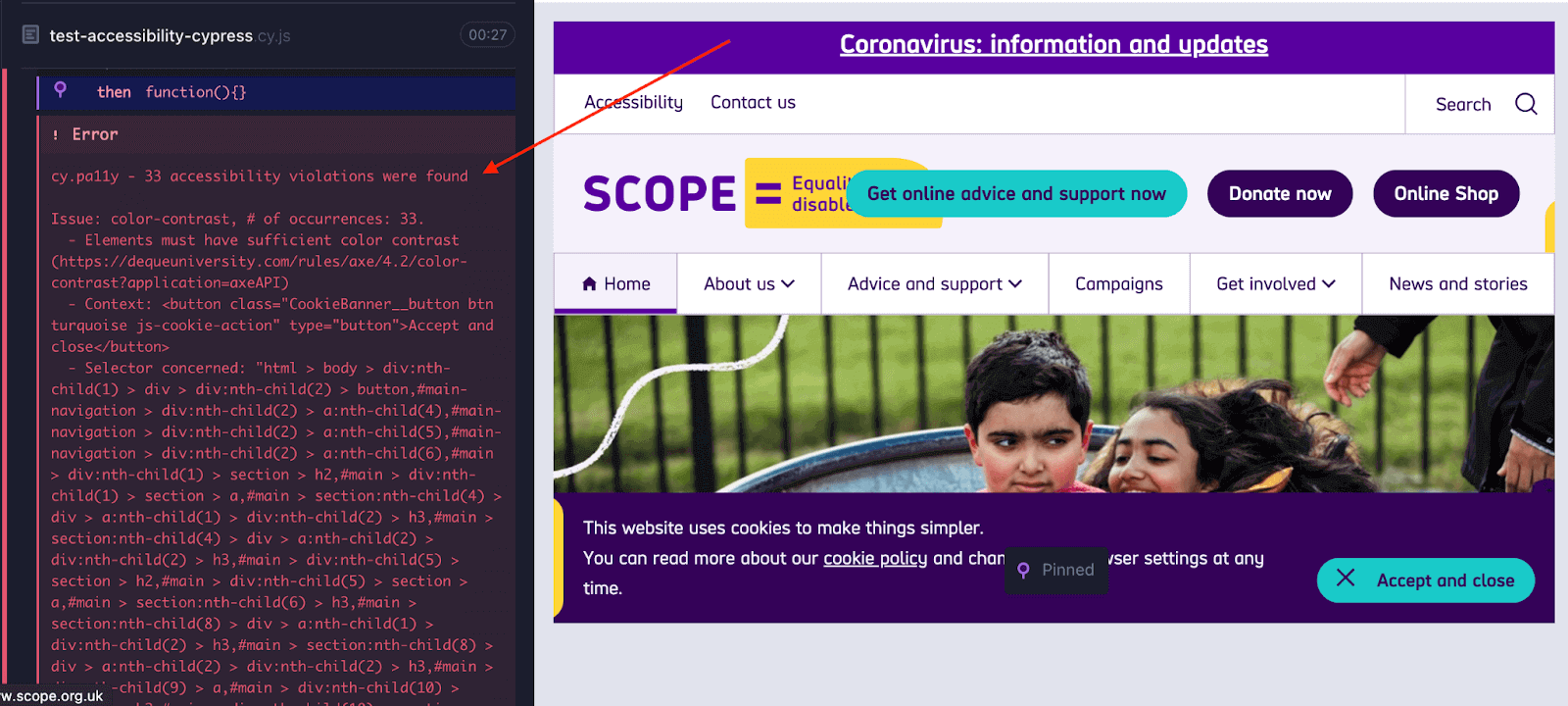
As we identified from the image above, it displays some errors; more specifically, 36 accessibility violations were found.
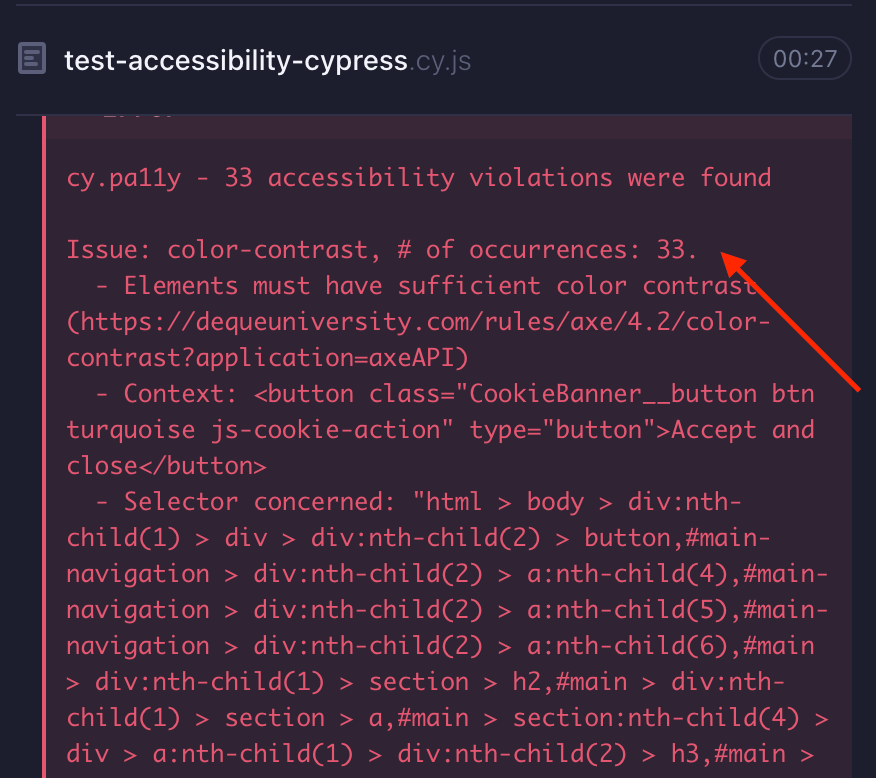
As we identified from the image above, it displays some errors/violations; more specifically, 33 accessibility violations were found. We can see more details related to all the rules here.
The only violation is color contrast; text elements must have sufficient color contrast against the background; as we can see, 33 elements are not following that rule.
Code Walkthrough
import config from './config.json'
import MainPage from '../../page-objects/components/MainPage'

describe('Accessibility Testing Cypress', () => {
   before(function(){
       cy.visit(`${config.URL2}`)
   })

   it('verify full Home Page is displayed correctly', () =>{

       //Using Pally as our tool for Accessibility Testing
       cy.pa11y()
   })


   it('Verify a search in Google', () => {

       cy.origin(`${config.URL3}`, () => {
           cy.visit('/')
       })
       MainPage.searchGoogle('Accessibility Testing')
       cy.pa11y()

   })

})
Let’s start defining our config.json file; here, we can include some data and URLs:
{
   "URL1": "https://www.testmuai.com/blog/",
   "URL2": "https://www.scope.org.uk",
   "URL3": "http://www.google.com"
}
After that, we need to define our structure; as we can see on the following line of code -> import MainPage from ‘../../page-objects/components/MainPage’, we want to separate our Cypress locators from our tests, saying that this is the Page Object Model structure. We can find that under the “page-objects” folder:
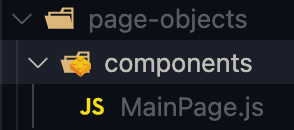
MainPage.js
export default class MainPage {

   static searchGoogle(text){
       cy.get(`input[role='combobox']`).type(`${text} {enter}`)
   }
}
As we mentioned above, our methods and locators can be found here; in our example, we try to do a simple search on Google.
describe('Accessibility Testing Cypress', () => {
   before(function(){
       cy.visit(`${config.URL2}`)
   })
For this case, we are using a before() hook that will open up our page before all of our tests, and after that, we can notice two tests, one related to a full-page home validation and the second one for the google search validation.
it('verify full Home Page is displayed correctly', () =>{

       //Using Pally as our tool for Accessibility Testing
       cy.pa11y()
   })


   it('Verify a search in Google', () => {

       cy.origin(`${config.URL3}`, () => {
           cy.visit('/')
       })
       MainPage.searchGoogle('Accessibility Testing')
       cy.pa11y()

   })
You can go through the following video from the TestMu AI YouTube channel to learn more about Cypress hooks:

You can subscribe to the channel and get the latest tutorials around Cypress testing, automated browser testing, CI/CD, and more!
And here is the test execution, which indicates that our Cypress accessibility testing approach is working:
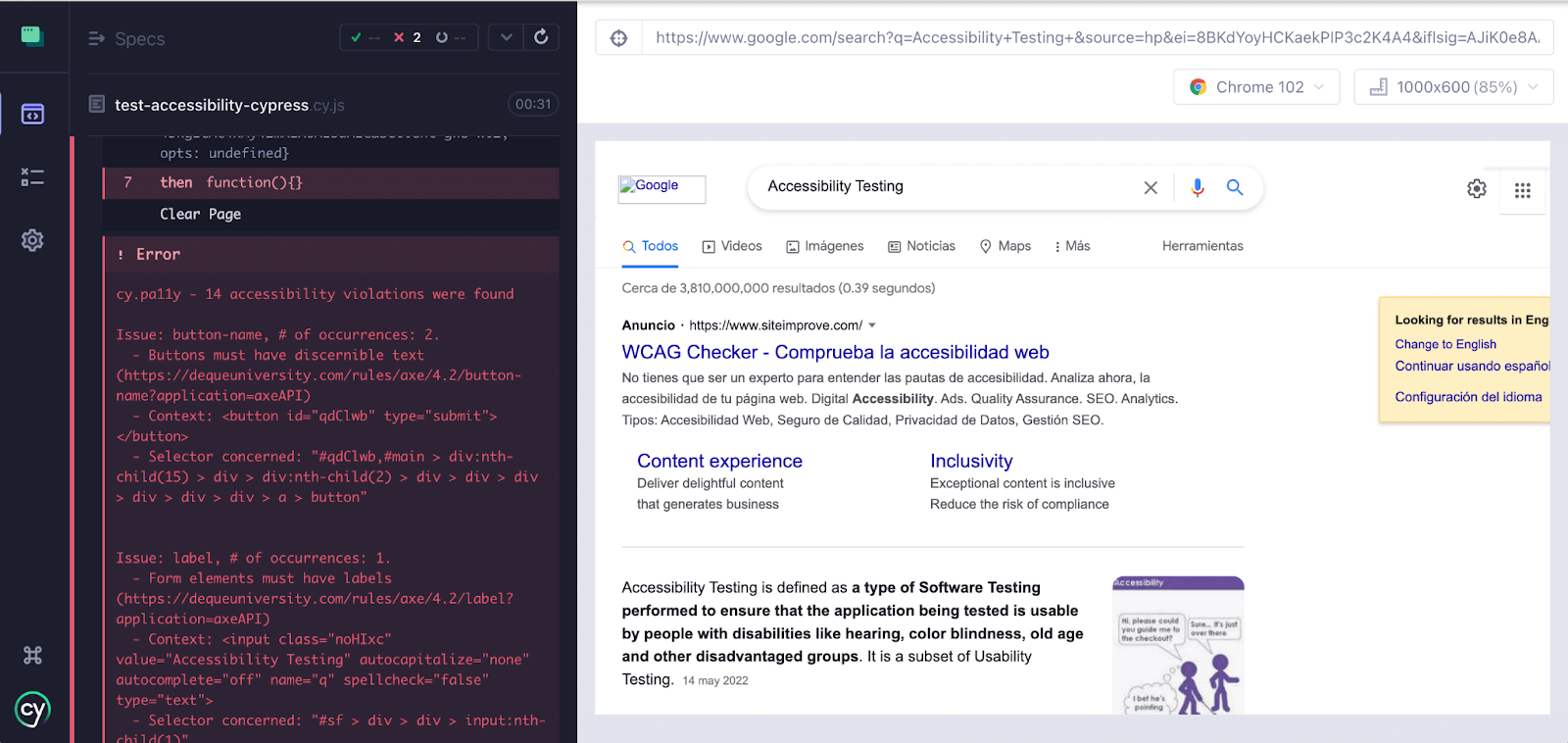
On the Cypress 9.x line, cy.origin was an experimental command and had to be switched on in the Cypress configuration file, as shown below:
"e2e": {
    "experimentalSessionAndOrigin": true
  },
If we don’t enable it, Cypress will throw an error:
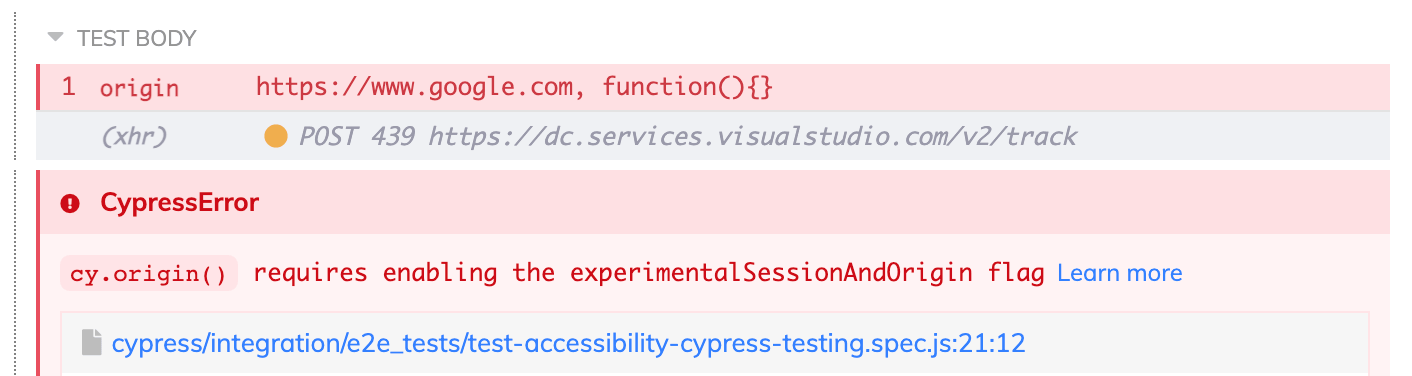
That flag applies only to the Cypress 9.x line. The Cypress cy.origin documentation states that experimentalSessionAndOrigin is not used since Cypress 12.0.0 and the associated functionality is enabled by default, so on a current Cypress release you call cy.origin with no configuration change.

In the next section of this tutorial on Cypress accessibility testing, we will learn how to perform accessibility testing on the Cypress cloud grid.
How to perform Cypress Accessibility Testing on the cloud grid?
We can use a Cypress cloud grid like TestMu AI, which provides automated cross browser testing on 40+ browsers and operating systems, and Cypress parallel testing to expedite the test execution and help perform Cypress testing at scale. In addition, it will help improve our overall test coverage by resulting in better product quality as we can cover different combinations using the same test scripts.
To get started with Cypress e2e testing, follow the below-mentioned steps:
- Install TestMu AI Cypress CLI on your machine. Trigger the following command to install the same:
npm install -g lambdatest-cypress-cli
lambdatest-cypress init
"lambdatest_auth": {
      "username": "<Your LambdaTest username>",
      "access_key": "<Your LambdaTest access key>"
{
  "lambdatest_auth": {
     "username": "",
     "access_key": ""
  },
  "browsers": [
     {
        "browser": "MicrosoftEdge",
        "platform": "Windows 10",
        "versions": [
           "latest"
        ]
     },
     {
        "browser": "Chrome",
        "platform": "Windows 10",
        "versions": [
           "latest"
        ]
     },
     {
        "browser": "Firefox",
        "platform": "Windows 10",
        "versions": [
           "latest"
        ]
     }
  ],
"run_settings": {
     "cypress_config_file": "cypress.json",
     "build_name": "build-Cypress-test",
     "parallels": 5,
     "specs": "./cypress/integration/e2e_tests/*.spec.js",
     "pluginsFile": true,
     "ignore_files": "",
     "npm_dependencies": {
        "cypress": "9.0.0",
        "@cypress-audit/pa11y": "^1.3.0",
        "cypress-plugin-snapshots": "^1.4.4",
        "cypress-visual-regression": "^1.6.2"
     },
     "feature_file_suppport": true
  },
"tunnel_settings": {
    "tunnel": false,
    "tunnelName": null
}
lambdatest-cypress run
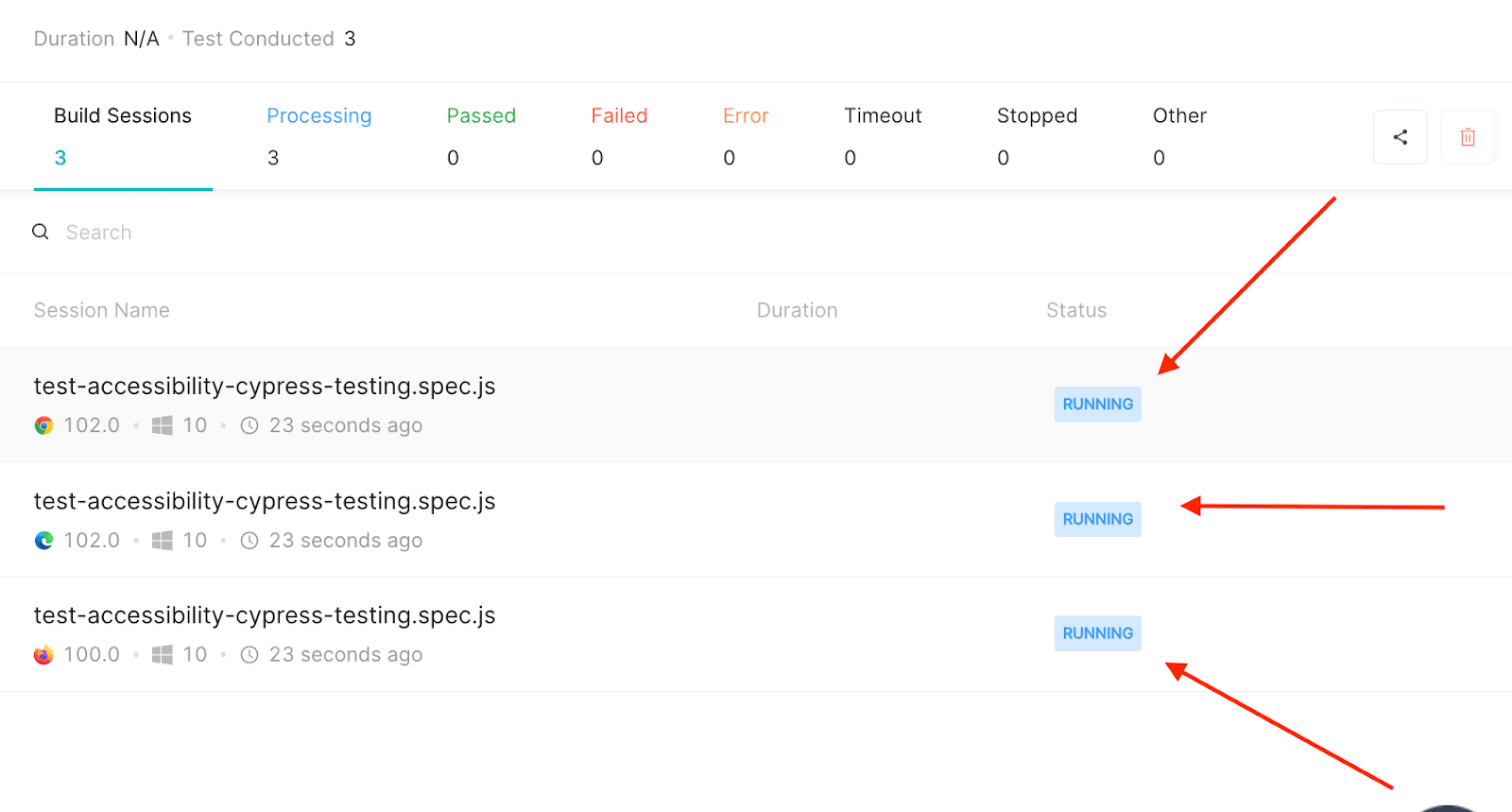
Shown below is the test execution status from the TestMu AI Automation Dashboard.
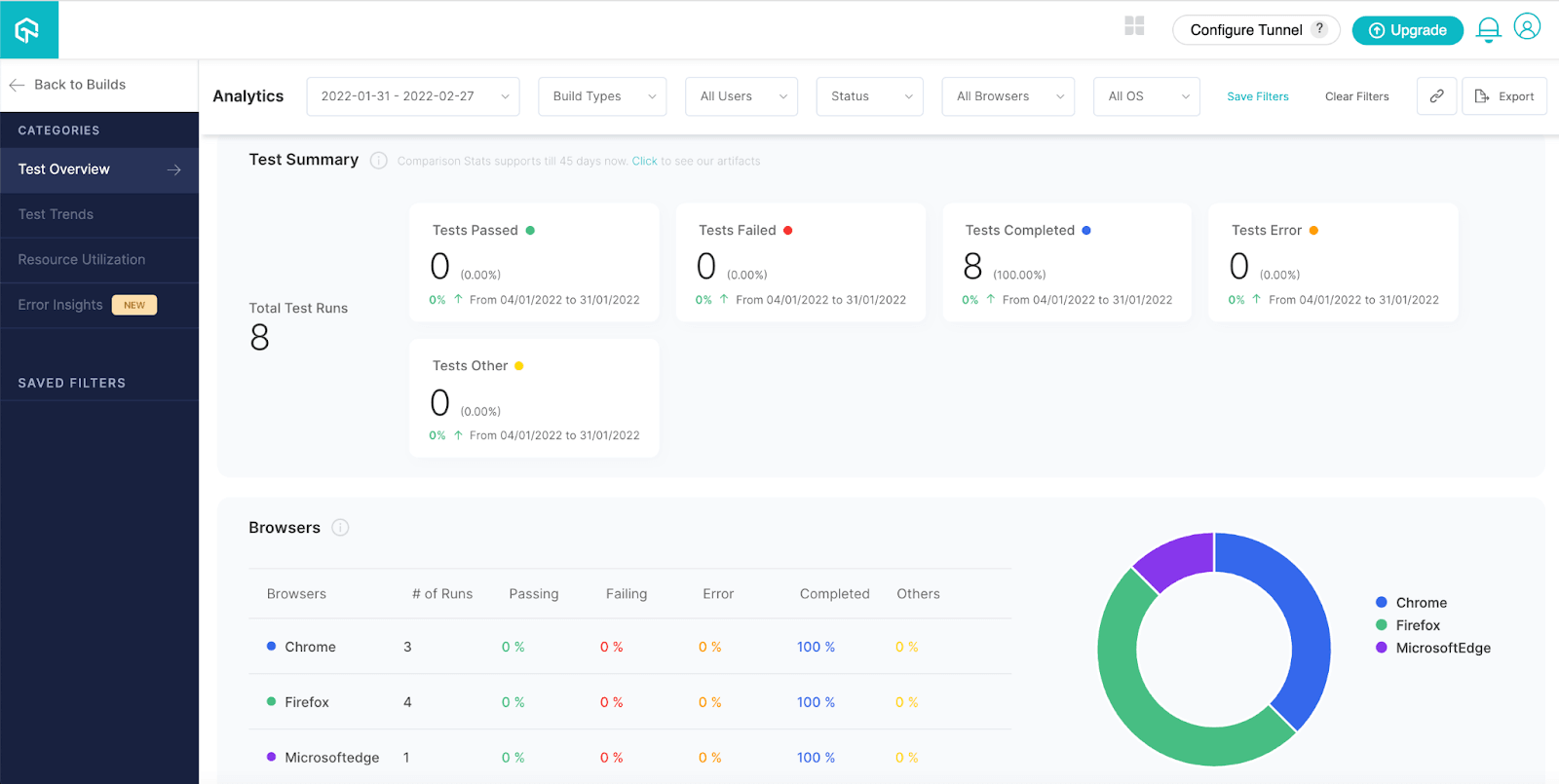
To view test performance metrics, navigate to the TestMu AI Analytics Dashboard. The Test Overview will provide a snapshot of tests consistent with stable behavior. Meanwhile, the Test Summary will display the total number of tests passed or failed and any completed and pending tests.
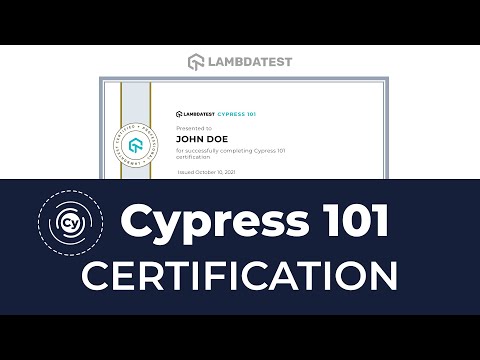
If you are a developer or a tester and have a basic understanding of Cypress and want to take your knowledge to the next level, then this Cypress 101 certification course is for you.
Austin Siewert
Co-Founder, Steadfast Systems
Discovered @TestMu AI yesterday. Best browser testing tool I've found for my use case. Great pricing model for the limited testing I do 👏
3M+ Devs and QAs rely on TestMu AI
Deliver immersive digital experiences with Next-Generation Mobile Apps and Cross Browser Testing Cloud
Here’s a short glimpse of the Cypress 101 certification from TestMu AI:
How Does AI Change Cypress Accessibility Testing?
AI changes three parts of Cypress accessibility testing: writing the spec, triaging the violations a scan returns, and deciding what still needs a human. It does not change what an automated rule engine can detect.
- Spec drafting: a coding assistant can turn a page description into a spec that calls cy.pa11y() or cy.checkA11y() on each route. Review the selectors it picks, because a wrong selector scans the wrong element and still passes.
- Violation triage: a scan that reports 33 color contrast nodes usually has one root cause in a shared style. An LLM grouping the report by rule and by CSS class turns a long node list into a short fix list.
- Cypress Accessibility: Cypress now ships a commercial accessibility product inside Cypress Cloud that scores runs and tracks violations over time, alongside the open source plugin route this tutorial uses.
- Regression gating: agents that open pull requests can run the accessibility spec before a human reviews the diff, so a new contrast or missing label failure is caught in CI rather than in review.
The limitation is unchanged. The Cypress accessibility testing documentation states that no automated scan can prove an interface is fully accessible and works well for users with disabilities. An AI assistant writes the checks faster; it does not widen the rule set those checks run.
Treat AI output as a first draft. Keyboard traps, focus order, screen reader announcements and meaningful alt text still need a person on the page, which is why manual accessibility testing stays in the plan.
Final Thoughts
It’s important to ensure your website is accessible to all visitors, including those who have disabilities. In this Cypress tutorial, we learned the importance of accessibility testing and how to perform Cypress accessibility testing on a cloud grid.
Let’s include Accessibility Testing in our projects; Accessibility is easy to consider once you start caring about it. The importance here is to embrace accessibility as part of our Automation testing. Let’s keep applications accessible to as many people as possible.

My suggestion to all Testers is to consider accessibility in your test automation projects; we should work together and keep applications available to all. Accessibility can help us to generate a real impact.
To deepen your Cypress automation expertise, don’t miss our comprehensive guide on the top Cypress interview questions packed with insights to help you shine in your next interview.
Happy Bug Hunting!
Author

Enrique
Blogs: 11


Enrique DeCoss, Senior Quality Assurance Manager at FICO is an industry leader in quality strategy with 16+ of experience implementing automation tools. Enrique has a strong background in Testing Tools, API testing strategies, performance testing, Linux OS and testing techniques. Enrique loves to share his in-depth knowledge in competencies including, Selenium, JavaScript, Python, ML testing tools, cloud computing, agile methodologies, and people Management.
Cypress Accessibility Testing FAQs
Did you find this page helpful?
More Related Blogs

TestMu AI forEnterprise
Get access to solutions built on Enterprise
grade security, privacy, & compliance
- Advanced access controls
- Advanced data retention rules
- Advanced Local Testing
- Premium Support options
- Early access to beta features
- Private Slack Channel
- Unlimited Manual Accessibility DevTools Tests