

Power Your Software Testing with AI Agents and Cloud
The Native AI-Agentic Cloud Platform to Supercharge Quality Engineering. Test Intelligently and Ship Faster.


- TestMu AI (Formerly LambdaTest)
- /
- Blog
- /
- Mobile Accessibility Testing: How to Test iOS and Android
Mobile Accessibility Testing: How to Test iOS and Android Apps
Mobile accessibility testing checks iOS and Android apps with VoiceOver, TalkBack, Accessibility Scanner, and automated scans. See the process and tools.
Last Updated on:
Mobile accessibility testing checks whether an Android or iOS app works for users with visual, auditory, motor, or cognitive impairments.
The Web Content Accessibility Guidelines, the current W3C accessibility standard, set measurable pass or fail criteria for this testing, including minimum touch-target size and screen-reader compatibility.
This guide covers why mobile accessibility testing matters, the checklist to run, testing approaches and tools, and the steps to run a test end to end.
TL;DR
- Mobile accessibility testing checks whether an app works for users with visual, auditory, motor, or cognitive impairments.
- WCAG 2.2 is the current W3C accessibility standard and adds mobile-relevant criteria such as minimum touch-target size and a dragging-movement alternative.
- Manual testing with TalkBack on Android and VoiceOver on iOS catches usability issues that automated scanners miss.
- Automated scanners such as Google's Accessibility Scanner and GTXiLib catch small touch targets and missing labels but cannot judge context or intent.
- The Americans with Disabilities Act, WCAG, the CVAA, and the European Accessibility Act each set legal accessibility requirements for mobile apps.
- Combining manual testing, automated scanning, and feedback from users with disabilities gives the most complete picture of an app's accessibility.
What Is Mobile Accessibility Testing?
Mobile accessibility testing is a crucial subset of software testing that focuses on ensuring mobile applications are accessible to all users, including those with disabilities. This testing evaluates how easily individuals can access and use content on mobile devices such as smartphones and tablets.
The term "a11y," a shorthand for accessibility, highlights its significance in testing. It stems from the fact that there are 11 letters between the 'a' and 'y' in "accessibility." By performing accessibility testing, teams can identify and rectify design issues that may prevent users with disabilities from fully engaging with the mobile application.
Why Perform Mobile Accessibility Testing?
Mobile accessibility testing is important for several reasons, some of which are as follows:
- It addresses diverse needs, including those using assistive technologies, mobile accessibility testing aligns with organizations' goals of providing inclusive digital applications and services.
- It involves validating the correct implementation of essential accessibility features such as screen readers, keyboard navigation, appropriate color contrast, and readable text size.
- It includes assessing the color schemes and text sizing within the application to ensure that content is legible and distinguishable on smaller mobile screens.
- It helps meet legal obligations that help mitigate the risk of discrimination-related lawsuits.
The Web Accessibility Initiative (WAI) within the World Wide Web Consortium (W3C) brings together individuals and groups worldwide to create strategies and directives and help facilitate accessibility for individuals with disabilities on the web.
Mobile app testing for web and native apps is also available through Creative Commons funding, which can be used to ensure accessibility for disabled individuals when using mobile and tablet devices. WAI also addresses accessibility issues like the diverse screen sizes of mobile devices and different input modalities, including speech gestures, touchscreen, etc.

Note: Test Your Websites and Web Apps Using Screen Reader. Try TestMu AI Today!
Rules Defining Accessibility in Mobile Apps
Mobile app accessibility is guided by key regulations designed to ensure everyone, including those with disabilities, can use digital services. These laws and standards set the requirements:
- Americans with Disabilities Act (ADA) - This important U.S. civil rights law fights discrimination against people with disabilities in all public life areas. It wasn't initially focused on digital content, but court decisions and Department of Justice statements have expanded its reach to include digital accessibility. This means mobile apps must be accessible to people with disabilities, often following well-established web accessibility standards.
- Web Content Accessibility Guidelines (WCAG) - Created by the World Wide Web Consortium (W3C), these guidelines are globally recognized as the standard for web accessibility. They offer clear principles and practical steps to make web content accessible to a broad spectrum of disabilities. The guidelines are categorized into three levels of accessibility (A, AA, AAA), with AA being the target level for most compliance efforts.
- Twenty-First Century Communications and Video Accessibility Act (CVAA) - This act ensures that advanced communications services and products are accessible to people with disabilities. It spans various digital and telecommunications technologies, ensuring features like text messaging, email, and video communications are accessible. For mobile apps, the CVAA underlines the importance of including accessibility features in communication tools.
- European Accessibility Act (EAA): Enforced since June 2025 in EU member states, the EAA seeks to enhance the accessibility of products and services in the EU market. This includes e-commerce platforms, electronic reading formats, and mobile apps. It requires all new products and services marketed to be accessible, thus widening the scope of compliance beyond traditional web content.
What Should a Mobile Accessibility Test Cover?
A complete pass covers screen reader labels and reading order, touch target size and gestures, text scaling and contrast, captions and audio alternatives, forms and error messages, and orientation. The item-by-item version is in the mobile app accessibility testing checklist, and the WCAG 2.2 criteria behind each item are explained in what mobile accessibility means.
Touch targets show why each check has to apply the WCAG rule rather than a plain measurement. I measured every visible link, button, and form field on the TestMu AI Selenium Playground home page at a 390 x 844 touch viewport on Chrome on the TestMu AI cloud:
- By measurement alone - 145 of 161 visible targets were smaller than 24 CSS pixels in at least one dimension, including a 22 x 22 menu button and list links 19 pixels tall.
- By the WCAG 2.2 rule - axe-core's target-size check, which applies the spacing exception in 2.5.8 Target Size (Minimum), passed all 161, because each small target had enough clear space around it.
A tester working from pixel sizes alone would have filed 145 false failures. Check spacing before logging a target-size bug, and still try the smallest controls with a finger on a real device, since passing the minimum does not make a 22 x 22 button easy to hit.
Approaches to Perform Mobile Accessibility Testing
To run accessibility tests, different approaches help to ensure the accessibility of mobile applications. Some of those approaches are as follows:
Manual Testing
Manual testing involves using the built-in accessibility features of mobile operating systems to test accessibility.
For Android apps, tools such as TalkBack (Android's screen reader), Switch Access, and various settings that adjust display and interaction settings are used to cover navigation, touch interactions, auditory feedback, and visual cues.
When it comes to iOS apps, features like VoiceOver (a screen reader), Switch Control, and Voice Control are used to simulate the interaction from the perspective of users with visual, motor, or speech disabilities.
Automation Testing
Automation testing involves writing automated test cases to check for specific accessibility criteria. This process uses accessibility testing tools that can speed testing and identify issues like color contrast, text size, and screen reader compatibility.
For instance, Google's Accessibility Scanner for Android scans apps and highlights areas that could hinder accessibility, such as small touch targets or insufficient color contrast. Tools like A11YTools and ColorSlurp assist in identifying and resolving accessibility barriers, such as improper navigation flow and inadequate color contrast.

AI-driven scanners now also check WCAG 2.2 criteria such as Target Size (Minimum) and Dragging Movements and can walk an app screen by screen, but they cannot judge whether a label makes sense in context; that still needs a tester using TalkBack or VoiceOver.
User Testing
Gathering feedback from users with disabilities who interact with your app can provide invaluable insights into their experiences and challenges. This method helps ensure that the app not only complies with accessibility standards but also meets the practical needs of its users.
Testing With Analysis Tools
Testing with analysis tools is another approach for mobile accessibility testing. These tools offer a way to automate the scanning of your mobile application to identify accessibility issues. Even though these tools provide a valuable first pass at catching common issues, they are not exhaustive.
Mobile Accessibility Testing Tools
Google's guide to testing Android app accessibility recommends combining manual testing, analysis tools, automated tests, and user testing. These tools cover each part on Android and iOS:
- TalkBack, Switch Access, and Voice Access (Android) - Built-in assistive technology for the manual pass: can you reach every element by swiping, and complete main workflows with a switch or by voice?
- Accessibility Scanner (Android) - Google's free app scans the screen you are on and suggests fixes for content labels, clickable items, contrast, and touch target size.
- Google Play pre-launch report - Runs accessibility checks on an uploaded build, grouped into touch target size, low contrast, content labeling, and implementation.
- Accessibility Test Framework for Android - Google's open-source library of accessibility checks, which Espresso tests can run automatically during instrumentation tests.
- VoiceOver and Voice Control (iOS) - Built-in assistive technology for the manual pass on iPhone and iPad.
- Accessibility Inspector (Xcode) - Apple's tool for inspecting and auditing the accessibility properties of iOS app screens; see this guide to using Accessibility Inspector.
Older lists often include GTXiLib and GSCXScanner for iOS, but Google has archived both repositories on GitHub, so plan new work around the tools above.
How to Perform Mobile Accessibility Testing?
Here are the steps to perform accessibility testing of your mobile apps:
- Understand Compliance Standards - Begin by aligning your testing with accessibility standards such as the Web Content Accessibility Guidelines (WCAG) 2.2 Level AA. These standards are crucial benchmarks in evaluating the accessibility of digital services.
- Setup Testing Environment - Configure your testing suite with necessary assistive technologies and tools. This setup is analogous to preparing a development environment but focuses on tools like screen readers, color contrast analyzers, and accessibility inspection tools.
It is recommended to use an online device farm to run accessibility tests across different devices to ensure your application performs as intended.
- Integrate Manual and Automated Testing - Combine manual testing - where testers manually interact with the application using accessibility tools - to catch nuanced usability issues, with automated accessibility testing to swiftly identify overt compliance gaps. Tools like Axe or Google Accessibility Scanner can automate the identification of issues such as missing alt text or insufficient color contrast.
- Check and Fix Bugs - Fix the identified issues based on their priority. Once updates are made, retest the app to ensure the fixes were successful and no new issues have been introduced.
- Documentation - Maintain comprehensive test documentation detailing the methodologies, findings, and bug fixes. This documentation is vital for stakeholder reviews and maintaining an audit trail for compliance.
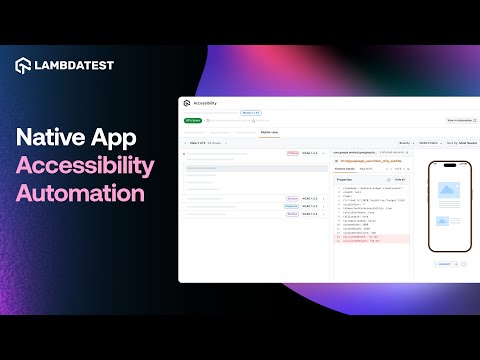
For native apps, TestMu AI's accessibility testing suite covers the manual and automated steps on real devices. The App Scanner inspects Android and iOS screens one at a time with no code, flagging TalkBack gaps, small touch targets, and unlabeled components. For regression coverage, lambda-accessibility-scan checkpoints run inside existing Appium suites, and in KaneAI you can type / during test authoring to add an accessibility scan step to a mobile flow.
2M+ Devs and QAs Rely on TestMu AI for Web & App Testing Across 3000 Real Devices
 Sign up with google
The accessibility automation documentation covers the setup for each framework.
Best Practices of Mobile Accessibility Testing
Here are some of the best practices through which you can improve mobile accessibility testing include the following:
- Use automated tests for mobile accessibility testing, but don't solely depend on them. Automated accessibility tools are available for both Android and iOS platforms. However, no automated test is flawless, and mobile app testing tools have their limitations.
- Prioritize accessibility from the outset. Many significant accessibility barriers can be quickly addressed during the initial stages of development.
- Engage your entire team in discussions about WCAG. Make it clear that everyone has a role to play - designers should ensure color accessibility, developers need to ensure content compatibility for assistive technology users, and content creators must provide clear instructions.
- Avoid making assumptions about your users' abilities. When developing features, consider whether they are usable for people who can't perceive color, those who can't use motion controls, and keyboard-only users. Creating user experience personas for disabilities can facilitate this process.
- Customize your testing approach for your mobile app to cover all types of users. Therefore, test your application or site manually in various situations.
- Review your markup using native screen readers (VoiceOver for iOS and Google TalkBack for Android).
- Ensure keyboard accessibility by testing without touchscreen controls.
- Where possible, use real devices for testing. Mobile environment simulators may not accurately replicate features such as geolocation or accelerometers.
- Avoid taking a one-size-fits-all approach to mobile testing. Every app is unique, and testing methodologies differ between web and native apps. It's essential to recognize that no content can be 100% accessible to all users; therefore, testing aims to minimize barriers and adhere closely to WCAG guidelines.
Common Mobile Accessibility Testing Myths
Numerous myths exist regarding mobile accessibility tests, which can cause organizations to misinterpret their benefits.
Here are some common myths about mobile accessibility testing:
- Myth - Only benefits individuals with disabilities.Reality: Enhances usability for all users, including those with temporary or situational limitations.
- Myth - It's too expensive.
Reality: Early integration of accessibility can reduce costs and improve long-term maintenance and updates.
- Myth - Only necessary for public-facing websites.
Reality: Accessibility is crucial for all digital products to ensure inclusivity and compliance with legal standards.
- Myth - Considered a one-time process.Reality: Accessibility testing is an ongoing process that requires updates as new content and features are developed.
- Myth - Automated testing can replace manual testing.Reality: While automated testing is useful, manual testing is essential to catch issues that automated tools can miss.
- Myth - Primarily concerned with making content visually appealing to users with disabilities.Reality: It's about making content accessible and functional for users with various disabilities, not just about visual appeal.
Conclusion
Pick your app's most-used flow and run it once with TalkBack on an Android phone and once with VoiceOver on an iPhone, then run Accessibility Scanner on each screen you visited. Log only issues that fail a WCAG 2.2 rule, and add the same checks to your Appium or Espresso suite so they run on every build.
Author

Nazneen Ahmad
Blogs: 39


Nazneen Ahmad is a freelance Technical Content SEO Writer with over 6 years of experience in crafting high ranking content on software testing, web development, and medical case studies. She has written 60+ technical blogs, including 50+ top-ranking articles focused on software testing and web development. Certified in Automation Basic and Advanced Training - XO 10, she blends subject knowledge with SEO strategies to create user focused, authoritative content. Over time, she has shifted from quick, keyword-heavy drafts to producing content that prioritizes user intent, readability, and topical authority to deliver lasting value.
Reviewer

Shubham Soni
Reviewer
Shubham Soni is a Senior Member of Technical Staff at TestMu AI (formerly LambdaTest), building the Real Device Cloud and real-time testing infrastructure. He optimized the WebRTC services that power live testing to sub-100ms latency with adaptive bitrate streaming, led a frontend migration from Angular to React that cut page load time from 5-6 seconds to 1-1.5 seconds, and contributes to the official Device SDK. He led a team of four to build an accessibility testing product covering manual and automated testing and mentored a team of six on a real-time testing product. He brings over eight years of experience and earlier scaled a cloud code platform to 200K+ monthly users. Shubham holds a B.Tech in Computer Science.


Mobile Accessibility Testing FAQs
Did you find this page helpful?
More Related Blogs
TestMu AI forEnterprise
Get access to solutions built on Enterprise
grade security, privacy, & compliance
- Advanced access controls
- Advanced data retention rules
- Advanced Local Testing
- Premium Support options
- Early access to beta features
- Private Slack Channel
- Unlimited Manual Accessibility DevTools Tests