
Power Your Software Testing with AI Agents and Cloud
The Native AI-Agentic Cloud Platform to Supercharge Quality Engineering. Test Intelligently and Ship Faster.


- TestMu AI (Formerly LambdaTest)
- /
- Blog
- /
- POUR Principles: The Accessibility Foundation Every Tester Should Know
POUR Principles: The Accessibility Foundation Every Tester Should Know
Learn the POUR framework behind WCAG, Perceivable, Operable, Understandable, Robust, with real tester scenarios for catching accessibility bugs before users do.
Published on:
A customer opens an application to pay an electricity bill, a task they have done many times before. Today they are using a screen reader while recovering from an eye injury. They navigate confidently through the page until they reach the "Pay Now" button, and then there is silence.
The screen reader says only "Button." No explanation, no context, no clue what happens next. A task that should take thirty seconds becomes stressful.
As testers, we often celebrate when functional tests pass, APIs return a 200 OK, UI elements render correctly, and performance stays within limits, yet someone still cannot complete the journey. That is the uncomfortable reality of accessibility: bugs here rarely crash an application, but when they slip through, they quietly exclude the person on the other side of the screen.
Overview
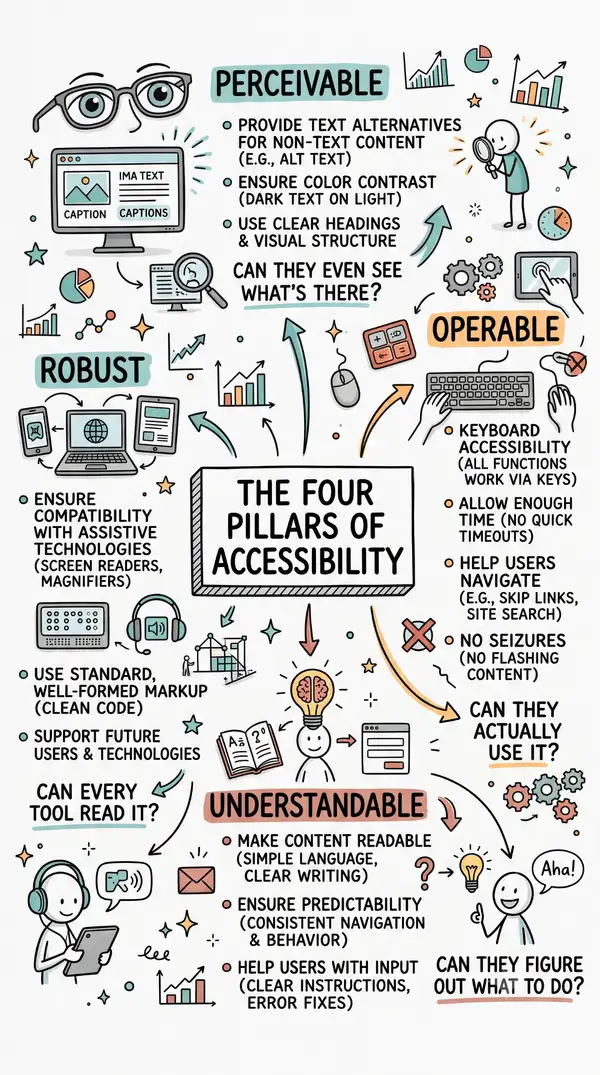
POUR is the four-principle framework behind WCAG: content has to be Perceivable, Operable, Understandable, and Robust for people using assistive technology. Most POUR violations surface with a keyboard, a screen reader, and a close read of every error message, no specialized accessibility background required to start checking.
The Four POUR Principles
- Perceivable: every element needs a non-visual equivalent, alt text, captions, and sufficient color contrast, so a user who cannot see or hear the page still gets the information.
- Operable: every interaction has to work with a keyboard alone, with no mouse-only traps, visible focus, and enough time to complete a task.
- Understandable: labels, instructions, and error messages have to tell the user exactly what to do next, not just that something failed.
- Robust: custom UI has to use correct HTML elements and ARIA roles so screen readers, voice control, and other assistive technology can actually parse it.
Where to Start Testing
Automated scanners such as TestMu AI's accessibility testing suite catch roughly a third of POUR violations; a keyboard and a screen reader session cover most of the rest, which is why every section below pairs a principle with a manual test a tester can run today.
What Is the POUR Framework?
The Web Content Accessibility Guidelines (WCAG) organize accessibility around four principles known by the acronym POUR: Perceivable, Operable, Understandable, and Robust. WebAIM popularized POUR as a way to make WCAG's structure memorable for people building and testing real products, not just reading a standards document.
Not everyone experiences a page the same way. Some people use screen readers, some cannot hear audio, and some rely on high contrast and larger text just to read the screen. If a page only works for someone who can see and hear everything flawlessly, POUR names exactly which group of users is being excluded, and why.
For a broader walkthrough of the underlying standards, our step-by-step web accessibility guide covers WCAG conformance levels in more depth before you get into testing specifics.
Perceivable: Can They Even See What's There?
Perceivable means every piece of information on a page needs an alternative format. A user who cannot see the screen still needs to know what is there, and a user who cannot hear it still needs the same content in another form.
- Missing alt text: an image with no alt attribute means a screen reader says nothing, or worse, reads out a filename like "image_20240305_final_v2.png" that means nothing to the listener.
- Missing captions: a video with no captions leaves Deaf and hard-of-hearing users out of the content entirely.
- Audio-only content: a podcast or voice note with no transcript creates the same gap in a different format.
A checkout page I tested once had a small "SSL Secured" badge that looked fine visually, but the badge was an image with no alt text. A screen reader user had no way of knowing the site was secure, which is not a minor bug. It is a trust issue at the exact moment a customer is deciding whether to hand over payment details.
Check every image for alt text that actually describes the content, not just whether the attribute exists. Tools like TestMu AI can flag a missing or empty alt attribute in seconds, which is where automated scanning earns its keep before a human ever opens a screen reader.
Operable: Can They Actually Use It?
One test to run on every project: put the mouse down and use only the keyboard. Tab to move forward, Shift+Tab to go back, Enter to activate, Space to toggle. If a full user journey completes with only those keys, the flow is in good shape.
This matters for anyone who cannot use a mouse: people with motor disabilities, people using switch devices, and people navigating by voice. WCAG 2.1.1 Keyboard, Level A, requires that everything available by mouse is also available by keyboard, with no exceptions.
- Invisible focus: an outline gets styled away and keyboard users lose track of where they are on the page.
- Focus traps: a dialog opens, tabbing moves through its options, and there is no keyboard way to close it, so the user is stuck inside.
- Unreachable widgets: a date picker opens on click, but focus never moves into the calendar, so a keyboard user cannot select a date.
- Session timeouts: a session expires with no way to extend it, which especially fails users who simply need more time to complete a form.
Tab through every user flow, confirm focus is always visible, and check that modals can be closed with the keyboard alone. Our Keyboard Scan feature in Accessibility DevTools automates part of this check, flagging unreachable elements and trap risk before a human has to tab through manually.
Understandable: Can They Figure Out What to Do?
This principle is about language, clarity, and predictability. A user should never have to guess what went wrong, why it went wrong, or what to do next.
Compare "Invalid input. Please try again" to "Phone number is too short. Enter a 10-digit number like 0123456789." Both are error messages, but only one tells the user how to fix it. WCAG 3.3.1 Error Identification requires that an error be identified and described in text, not just implied by a red border.
Understandable also means consistency. If clicking the logo goes home on one page, it should go home on every page, and if a button says "Save" on one screen, it should not say "Store" on the next.
In one registration form I tested, the password field turned red on submit with no message, no hint, and no visible rules anywhere on the page. The user could only guess what to change, resubmit, watch it turn red again, and give up. That is a test failure, and more than that, it is a product failure.
Read every error message in the application out loud and ask whether a first-time user would know what to do next. Our guide to testing forms and error handling for accessibility compliance covers the exact WCAG criteria and code patterns for labels, required fields, and error messages.
Robust: Can Every Tool Read It?
This principle is about code quality and the future. A page can look perfect in Chrome, but assistive technology does not see the screen. It reads the underlying code, and if that code uses the wrong elements, the experience breaks.
A div styled to look like a button is not a button to a screen reader, a voice control tool, or a braille display. A span styled to look like a heading will not show up in the heading-navigation shortcuts screen reader users rely on to jump around a page.
I have seen this pattern more than once: a developer builds an animated custom dropdown out of divs and JavaScript. It looks great, but a screen reader user reaches it and hears nothing useful, and a voice control user who says the visible label out loud gets no response. The component simply does not exist for them.
The fix is usually the correct native HTML element, a real button or select, with an ARIA role added only when a custom component is genuinely unavoidable. Open the browser's accessibility tree in dev tools and confirm interactive elements carry the right roles and labels. Our explainer on what an accessibility testing suite actually checks breaks down which of these checks run automatically versus which still need a human.

Austin Siewert
Co-Founder, Steadfast Systems
Discovered @TestMu AI yesterday. Best browser testing tool I've found for my use case. Great pricing model for the limited testing I do 👏
2M+ Devs and QAs rely on TestMu AI
Deliver immersive digital experiences with Next-Generation Mobile Apps and Cross Browser Testing Cloud

Why Does This Matter for Testers?
Accessibility testing is often treated as optional, handed to a specialist, or pushed to "next release." On some teams it only gets attention once a regulation forces the issue, and I have been guilty of deprioritizing it myself.
According to the World Health Organization, an estimated 1.3 billion people worldwide live with some form of disability, roughly one in six people. Holding that number in mind changes how the word "customer" reads on a ticket.
When a feature ships with an accessibility bug, the team is not just failing a checklist item. It is locking real people out of banking, healthcare, job applications, and education, the categories of software that matter most.
Testers sit at exactly the right point to catch this, because we already touch every feature and run every flow before it reaches a customer. Our accessibility testing hub is a good next stop for building this into a QA process from scratch rather than bolting it on later.
This is not a burden added to an already full test plan. It is a position of real influence, since testers are often the last honest check before a feature reaches the people it is meant to serve.
Where Should You Begin?
None of this requires becoming an accessibility specialist first. Start today, on one page already in your test queue.
- Tab through one page or flow without a mouse and write down exactly where you got stuck.
- Add an alt-text check to your existing test cases, not just whether the attribute exists but whether it actually describes the content.
- Install an accessibility scanner browser extension and run it against the same page.
- Turn on a screen reader, NVDA, JAWS, or VoiceOver, and complete one real task from start to finish.
If you write test plans, add a POUR section with four questions per feature: is it Perceivable, is it Operable, is it Understandable, is it Robust. That is a small addition that catches a disproportionate number of real user-facing bugs.
TestMu AI's accessibility testing suite is one place to run steps two and three above without switching tools. It runs axe-core based automated scans covering close to 40 WCAG-aligned rules, plus a Chrome DevTools extension for ad-hoc page checks and built-in access to NVDA, JAWS, VoiceOver, and TalkBack for the manual screen reader pass this article keeps coming back to.
Automated scanning alone still only catches roughly 30 to 40 percent of real accessibility issues, which is exactly why the Operable and Understandable checks above need a human at the keyboard too.

Note: Run the same axe-core based scans described in this article, plus Keyboard Scan and screen reader sessions, from one TestMu AI dashboard. Start free
One Last Thought
Start your next sprint by adding one POUR question to a single test plan you already own, then expand from there once it becomes routine.
The best testers do not just check whether a feature works. They ask who it works for, and POUR is the framework that carries that question into every sprint instead of leaving it to chance.
It is not about checking a compliance box. It is about the person on the other side of the screen who just wants to pay a bill, apply for a job, or sign up for something, the same way anyone else would. See the accessibility testing documentation to wire automated POUR checks into a suite you already run.
Note: This article was researched and drafted with AI assistance, then reviewed, fact-checked, and published by Pricilla Bilavendran, Community Contributor at TestMu AI with 15+ years of QA and automation testing experience. Technically reviewed for WCAG accessibility compliance by Shahzeb Hoda. Sources cited are from primary standards bodies, the W3C's WAI documentation and the World Health Organization. Read our editorial process and AI use policy for details.
Author

Pricilla Bilavendran
Blogs: 11


Pricilla Bilavendran is a QA professional with 15+ years of experience across functional, ETL, automation, and API testing. She specializes in API testing and automation using Postman, Newman, Selenium, and Java, and has led teams delivering quality engineering programs in fintech and enterprise domains. A Postman Supernova and AWS Community Builder, Pricilla is an active speaker, mentor, and blogger, sharing hands-on testing practices through talks, workshops, and community initiatives. She currently leads API-focused QA teams in Malaysia and holds an MBA and a B.Tech in Information Technology.
Reviewer

Shahzeb Hoda
Reviewer
Shahzeb Hoda is the Associate Director of Marketing and a Community Contributor at TestMu AI, leading strategic initiatives in developer marketing, content, and community growth. With 10+ years of experience in quality engineering, software testing, automation testing, and e-learning, he has authored and reviewed 70+ technical articles on software testing and automation. Shahzeb holds an M.Tech in Computer Science from BIT, Mesra, and is certified in Selenium, Cypress, Playwright, Appium, and KaneAI. He brings deep expertise in CI/CD pipeline automation, cross-browser testing, AI-driven testing practices, and framework documentation. On LinkedIn, he is followed by 3,700+ engineers, developers, DevOps professionals, tech leaders, and enthusiasts.


POUR Principles FAQs
Did you find this page helpful?
More Related Blogs

TestMu AI forEnterprise
Get access to solutions built on Enterprise
grade security, privacy, & compliance
- Advanced access controls
- Advanced data retention rules
- Advanced Local Testing
- Premium Support options
- Early access to beta features
- Private Slack Channel
- Unlimited Manual Accessibility DevTools Tests