
Power Your Software Testing with AI Agents and Cloud
The Native AI-Agentic Cloud Platform to Supercharge Quality Engineering. Test Intelligently and Ship Faster.


- TestMu AI (Formerly LambdaTest)
- /
- Blog
- /
- Cross Browser Accessibility: Common Issues and How to Test
Cross Browser Accessibility: Common Issues and How to Test
Cross browser accessibility covers semantic HTML, keyboard focus, alt text, color contrast, and captions. Learn the common issues and how to test each one.
Last Updated on:
Cross browser accessibility means a website stays usable for screen reader users, keyboard-only users, and people on older browsers, in every browser you support.
A screen reader reads the accessibility tree the browser builds, not your HTML, so identical markup is announced differently in Chrome with NVDA and in Safari with VoiceOver. That is why accessibility testing has to run in more than one browser.
This guide covers the common cross browser issues for accessibility, how to test cross browser accessibility, and how AI changes that testing.
Key Takeaways
- Cross browser accessibility means a website works for screen reader users, keyboard-only users, people with color blindness, and people on older browsers or mobile devices, in every browser that site supports.
- WCAG 2.2 became a W3C Recommendation on 12 December 2024 and adds nine success criteria to WCAG 2.1, including Target Size (Minimum), which asks for a pointer target of at least 24 by 24 CSS pixels.
- A screen reader announces a page through the accessibility tree the browser builds, so identical markup can be read out differently in Chrome with NVDA and in Safari with VoiceOver.
- Semantic HTML heading and paragraph tags let screen readers tell one block of text from another, while font tags and line breaks used for visual styling leave a page with no structure to announce.
- The axe-core engine finds on average 57% of WCAG issues automatically, so tab order and alt text quality still need a manual pass on every supported browser.
- AI agents that drive a browser through the Playwright MCP server read the same accessibility tree a screen reader reads, so a button with no accessible name is missed by both.
Common Cross Browser Issues for Accessibility
When we talk about accessibility in web technology, the direct thing that it is related with is website and web app accessibility. Since modern websites are built on HTML, CSS, and JS technologies the unsaid problems lie behind their tech.
Accessibility now has a published baseline you can test against. WCAG 2.2 became a W3C Recommendation on 12 December 2024 and adds nine success criteria on top of WCAG 2.1, including Focus Not Obscured, Dragging Movements, Redundant Entry, and Target Size (Minimum). Target Size (Minimum) is a Level AA criterion, and it asks for a pointer target of at least 24 by 24 CSS pixels. Browsers do not enforce these rules for you, so you still have to check each one on every browser you support.
The browser also decides what a screen reader says. A screen reader reads your page through the accessibility tree that the browser builds, so the same markup can be announced one way in Chrome with NVDA and another way in Safari with VoiceOver. Test each platform with the pairing its users actually run, and treat a clean pass in one browser as a result for that browser alone.
Let's discuss them one by one.
Issues Affecting Accessibility
The main hero of front-end tech, HTML has to offer a lot more than to just coding of a website. The various tags and structures used in HTML adds a lot to the accessibility of a website.
Semantic structure is necessary to maintain while writing HTML codes for making sure that the code is accessible. As you might be aware of heading tags h1 , h2 , h3 , etc and paragraph tags in HTML p , these tags when used by screen readers helps them to understand and distinguish between the different texts.
Example of Semantic HTML
<h1>My main heading </h1>

<p>I'll write a basic introduction here </p>

<h2>My first subheading</h2>
<p>About the content in first subheading</p>

<h3>One more subheading</h3>
<p>More content</p>

<p> Let's end it</p>
Example of Bad HTML
<font size="5">My main heading</font>
<br><br>
I'll write a basic introduction here
<br><br>
I'll add another paragraph here too.
<br><br>
<font size="4">My first subheading</font>
<br><br>
About the content in first subheading
<br><br>
<font size="3">One more subheading</font>
<br><br>
More content
<br></br>
Let's end it
As you can see from the structure that Semantic structure contains headings and paragraphs, this makes it easier for various screen readers and also for the search engine to get a clear context of your content
This also adds to the SEO of your website. Using a semantic HTML helps the search engines to find out and read your content easily. It is an added advantage.

Using Keyboard to Access some Features
People who are very fond of using keyboard to do every function are not going to like your website if you don't make it accessible using the basic keyboard features.
For example
- Tab functionality to switch between different buttons and text inputs
- Enter button to click on any button or to submit a form
- Esc functionality to close a popup
- Alt and Left Arrow on Windows, or Command and Left Arrow on macOS, to go back to the previous page
- And different shortcuts that we love to use in our daily life
This causes a huge affect on the accessibility of your website to a section of users. So you need to make sure that your website is accessible through native keyboard in different browsers
Focus visibility is the part that breaks between browsers most often. A control can be reachable with Tab everywhere and still show no visible focus ring in one browser, because each browser draws its own default focus style and a CSS reset removes it in a single line. WCAG 2.2 also added Focus Not Obscured (Minimum) at Level AA, which fails when a sticky header or a cookie banner entirely hides the element that just received focus. Tab through every browser you support and watch where the focus indicator actually lands.
Alt Text in Accessibility
If someone is having visual impairments, seeing or reading content is not the thing for him. In that case, alt text or text alternatives provide an important deal to the user. By using alt text in images in your content, you make it easier for search engine to find out the content easily. Once figured out, screen readers can speak out loud the content to the user and he can access your content.
You can use alt attribute to add alt text to your images.
For example if you want to add an alt text 'testalttext' to an image testimage.jpg located at www.yourwebsite.com/assets you can use the following code.
<img loading="lazy" src="http://www.yourwebsite.com/assets/testimage.jpg" alt="testalttext" />
You need to test if your alt text works across different browsers. Many times some tags work fine on one browser but fail on others. Make sure they work on every browser.
Color Schemes and Contrasts
People with color blindness are not blind but they see colors differently. While deciding the background colors for your website, you need to take care of people who see colors differently too.
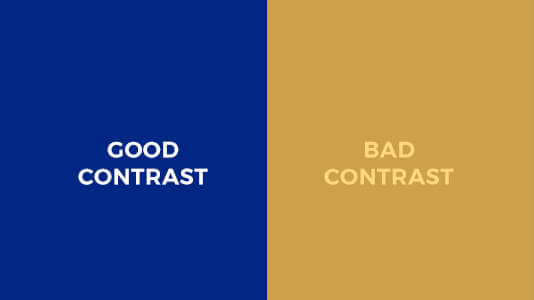
Keeping a good contrast in your website can make a huge difference for the people with color blinds and make your website accessible to those too
Closed Captions: Aid to Accessibility
By using closed captions in Videos, you can make it accessible for people with hearing ailments. They can access your videos and other video content by going through the closed captions.
This also helps your content to be more search engine friendly along with being accessible to a different section of your audience.
Key Takeaway: Semantic HTML, keyboard operation, alt text, hidden content, color contrast, and closed captions are the six places cross browser accessibility usually breaks, and each one has to be checked in every browser a site supports.
How Do You Test Cross Browser Accessibility?
Run an automated scan on every browser you support, then finish the rest by hand. Automated rules cover a fixed slice of the problem. The axe-core engine reports that it finds on average 57% of WCAG issues automatically, and its rule set covers WCAG 2.0, 2.1 and 2.2 at levels A, AA and AAA. The rest are judgement calls, such as whether alt text actually describes the image or whether the tab order follows the visual order, and no scanner settles those for you.
Put the scan inside the test run you already have. The Playwright accessibility testing guide uses the @axe-core/playwright package and lets you filter to the tags wcag2a, wcag2aa, wcag21a and wcag21aa, so one spec can run the same rule set against Chromium, Firefox and WebKit in turn. For WebdriverIO suites, the Deque axe integration guide runs axe-core scans on the TestMu AI cloud grid. Playwright states the limit plainly in that guide: many accessibility problems can only be discovered through manual testing. Keep the keyboard pass and the screen reader pass in your plan rather than treating a green scan as the finish line.
There is now a second reason to get the markup right. AI agents read the same accessibility tree your screen reader reads. The Playwright MCP server, which lets an AI assistant drive a browser, uses Playwright's accessibility tree rather than pixel-based input, and its documentation says no vision models are needed because it operates purely on structured data. It drives Chrome, Firefox, WebKit and Microsoft Edge. So a button with no accessible name is invisible twice. A screen reader cannot announce it, and an agent working through the page cannot find it either. The same markup fixes serve both.
Key Takeaway: Testing cross browser accessibility means running an axe-core scan across Chromium, Firefox, and WebKit and then checking tab order and alt text quality by hand, because the axe-core engine catches on average 57% of WCAG issues.
How Does AI Change Cross Browser Accessibility Testing?
AI shortens the manual half of the work, but it still runs one browser at a time. Intelligent Guided Tests in axe DevTools take the checks a scanner cannot settle and turn them into question and answer prompts, so the tester confirms things like table header relationships and interactive semantics one component at a time instead of reading the whole page by hand. Deque describes them as a semi-automated route to results that an automated rule cannot produce on its own.
Browser vendors have added assistants of their own. The AI assistance panel in Chrome DevTools is powered by Gemini and will explain an element's computed styles, which helps when a focus ring disappears or a contrast ratio drops and you cannot see which rule caused it. Google labels that feature experimental in the same documentation and states that it may generate inaccurate information, so treat what it returns as a lead you verify rather than a finding you file.
Neither tool changes the shape of the job. Intelligent Guided Tests run inside a browser extension and the DevTools assistant runs inside Chrome, so an answer you get in one browser is an answer for that browser only. The accessibility tree that decides what a screen reader announces is still built separately by each engine, which means the AI-assisted pass has to be repeated wherever your users actually are. What AI removes is the time spent locating the elements worth checking. What it does not remove is the second opinion from a real screen reader on a real browser.
Key Takeaway: AI assistants such as axe DevTools Intelligent Guided Tests and the Gemini-powered Chrome DevTools panel speed up the manual accessibility pass, but both work in one browser at a time, so the cross browser repetition stays.
Ending Note
There are various small things that we usually ignore while developing and testing a website and demean them. But, these things can affect your website largely by making it accessible to every section of people.
Taking care of every small element ,tag,and feature across all the browsers can add a huge value to your website.
You can test your website's attributes across different browsers using TestMu AI and see if your website is accessible to every section of users.
Happy Testing!
Is your app accessible to everyone? TestMu AI's Accessibility Testing finds WCAG issues across web and mobile before release.
Author

Deeksha Agarwal
Blogs: 34


Deeksha is a Senior Product Manager at The Economic Times and a Community Evangelist with 8+ years of experience. She is followed by 6,000+ QA professionals, software testers, tech leaders, and enthusiasts across global communities. Deeksha has authored 40+ expert bios for TestMu AI, focusing on cross-browser testing, mobile app testing, regression testing, usability testing, and automation. Previously at TestMu AI, she drove product growth in native app testing and responsive browser features, combining product leadership with deep QA expertise.


Cross Browser Accessibility FAQs
Did you find this page helpful?
More Related Blogs

TestMu AI forEnterprise
Get access to solutions built on Enterprise
grade security, privacy, & compliance
- Advanced access controls
- Advanced data retention rules
- Advanced Local Testing
- Premium Support options
- Early access to beta features
- Private Slack Channel
- Unlimited Manual Accessibility DevTools Tests