
Power Your Software Testing with AI Agents and Cloud
The Native AI-Agentic Cloud Platform to Supercharge Quality Engineering. Test Intelligently and Ship Faster.


- TestMu AI (Formerly LambdaTest)
- /
- Blog
- /
- Accessibility MCP Server: Audit and Fix WCAG Issues in Your IDE
Accessibility MCP Server: Audit and Fix WCAG Issues in Your IDE
The Accessibility MCP Server audits WCAG issues from your IDE in natural language. Walk through all three tools, IDE setup, and one real detect-to-fix loop.
Last Updated on:
In the 2026 WebAIM Million report, 95.9% of the top one million home pages had detected WCAG 2 failures, up from 94.8% a year earlier and reversing six straight years of small improvements. Pages averaged 56.1 errors each, low-contrast text alone appeared on 83.9% of them, and detected errors rose 10.1% in a single year.
Those failures are rarely hard to fix; they reach production because no accessibility testing runs while the code is being written. The Accessibility MCP Server closes that gap. It puts a WCAG scanner inside the AI assistant you already code with, so you can ask for an accessibility report, read the violations in plain English, apply a fix, and re-scan without opening a browser or shipping a build. This guide walks through all three of its tools with real prompts, working setup, and a detect-to-fix loop you can run today.
MCP is the Model Context Protocol, an open standard for connecting AI applications to external tools. If you have configured any MCP server before, the Accessibility MCP Server from TestMu AI works the same way; TestMu AI introduced it alongside its wider MCP servers for testing.
Overview
What is the Accessibility MCP Server?
It is a Model Context Protocol server from TestMu AI that exposes accessibility analysis as tools inside AI code editors, so you audit pages for WCAG issues with a natural-language prompt instead of a separate app. It runs at https://mcp.lambdatest.com/mcp and signs in over OAuth.
Which of the three tools should you use?
- Public URL is live - getAccessibilityReport audits any reachable page.
- App is not deployed yet - buildLocalAppForAnalysis builds and hosts your branch, then audits it.
- App is running on localhost - analyzeAppViaTunnel audits the live runtime DOM over a tunnel.
What do you need to run it?
A TestMu AI account and an MCP-capable client such as Claude Code, Cursor, or GitHub Copilot. The three tools are part of TestMu AI's accessibility testing suite, which uses the axe-core engine and maps every finding to a WCAG success criterion.
Why In-Editor Accessibility Auditing Matters
Accessibility defects are cheapest to fix at the moment they are written and most expensive once they reach a compliance audit. The WebAIM Million numbers show why the late-audit model fails at scale: contrast, alt text, and form labels are the most common failures, and they are exactly the failures an automated scan catches in seconds.
The problem has never been detection difficulty. It is workflow friction. Most existing checks live outside the editor: a browser extension needs the app built and open, a CI job runs after the push, and a formal audit happens weeks later. Each one asks the developer to leave the code and come back, so the check gets skipped under deadline. An AI-assisted accessibility workflow removes that friction by moving the scan into the assistant where the code is already being written.
- No context switch - the scan runs in the same chat where you edit the component, so the fix and the check share one loop.
- No build or deploy required - two of the three tools audit code that has never been published, so a branch is checkable before it merges.
- Fixes come with the findings - the report is read by the assistant, which can explain each violation and rewrite the offending markup in place.
- Shift left is real - the check happens before the commit, where a fix costs minutes instead of a remediation sprint.
The Accessibility MCP Server and Its Three Tools
The Accessibility MCP Server is a single endpoint, https://mcp.lambdatest.com/mcp, that authenticates over OAuth against your TestMu AI account. Once your client is connected, it exposes three accessibility tools. The whole design turns on picking the right one for the state your app is in, so start here before wiring anything up.
| Tool | Use it when | What it audits | Deploy needed |
|---|---|---|---|
| getAccessibilityReport | The page is already live at a public URL | Any reachable public page | Already deployed |
| buildLocalAppForAnalysis | The app is not deployed and you want a pre-merge check | Your un-deployed React build, hosted by TestMu AI | No |
| analyzeAppViaTunnel | The app is running on localhost with runtime state | The live runtime DOM over a TestMu AI tunnel | No |
All three return the same shape of result: a list of WCAG violations, each with the failing element, the success criterion it breaks, a severity, and remediation guidance. Because the assistant receives that structured output, the natural next step in the same conversation is a fix. You never copy findings between tools.
Connect the Accessibility MCP Server to Your IDE
Connection is a one-time step per client. The endpoint is the same everywhere; only the command to register it changes. The table below covers the most common clients, and the full client list is in the Accessibility MCP Server documentation.
| Client | How to add it |
|---|---|
| Claude Code | Run the CLI command below in your project |
| Cursor | One-click install, or Settings, then Tools and MCP; a .cursor/mcp.json shares it with the team |
| GitHub Copilot (VS Code) | Command Palette, then MCP: Add Server; or a .vscode/mcp.json file |
| OpenAI Codex CLI | codex mcp add mcp-lambdatest --url https://mcp.lambdatest.com/mcp |
For Claude Code, register the Streamable-HTTP endpoint in one line, then approve the OAuth prompt that opens in your browser:
claude mcp add --transport http mcp-lambdatest https://mcp.lambdatest.com/mcpAny client that lacks a preset accepts the same server through a universal JSON config. Drop this into the client's MCP configuration and restart it:
{
  "mcpServers": {
    "mcp-lambdatest": {
      "url": "https://mcp.lambdatest.com/mcp"
    }
  }
}
If a client only speaks STDIO, wrap the same URL with the mcp-remote bridge so the transport is bridged locally:
{
  "mcpServers": {
    "mcp-lambdatest": {
      "command": "npx",
      "args": ["-y", "mcp-remote@latest", "https://mcp.lambdatest.com/mcp"]
    }
  }
}
Once connected, confirm the tools are live by asking the assistant to list its MCP tools; you should see the three accessibility tools, one for public URLs, one for local builds, and one for tunneled localhost apps. From here, every audit is a sentence.
Tool 1: Audit Any Public URL with getAccessibilityReport
getAccessibilityReport is the tool for pages that are already live. You give it a URL and it returns a WCAG report you can read in the assistant. The prompt is exactly what you would say out loud:
Run an accessibility report on https://example.com and show me
the violations and how to fix them.
To show the kind of report the tool returns, here is a real scan run with axe-core, the open-source engine behind TestMu AI's accessibility analysis, against the public TestMu AI ecommerce Playground. It found eight rule failures across 36 elements:
axe-core 4.10.2  -  8 rule failures, 36 elements affected

[critical] image-alt              1   WCAG 1.1.1        Images must have alternative text
[serious]  color-contrast        13   WCAG 1.4.3        Elements must meet minimum contrast ratio
[serious]  link-name              1   WCAG 2.4.4, 4.1.2 Links must have discernible text
[moderate] region                17   best-practice     All content should sit inside a landmark
[moderate] heading-order          1   best-practice     Heading levels must only increase by one
[moderate] landmark-one-main      1   best-practice     Document should have one main landmark
[moderate] landmark-unique        1   best-practice     Landmarks need a unique accessible name
[moderate] page-has-heading-one   1   best-practice     Page should contain a level-one heading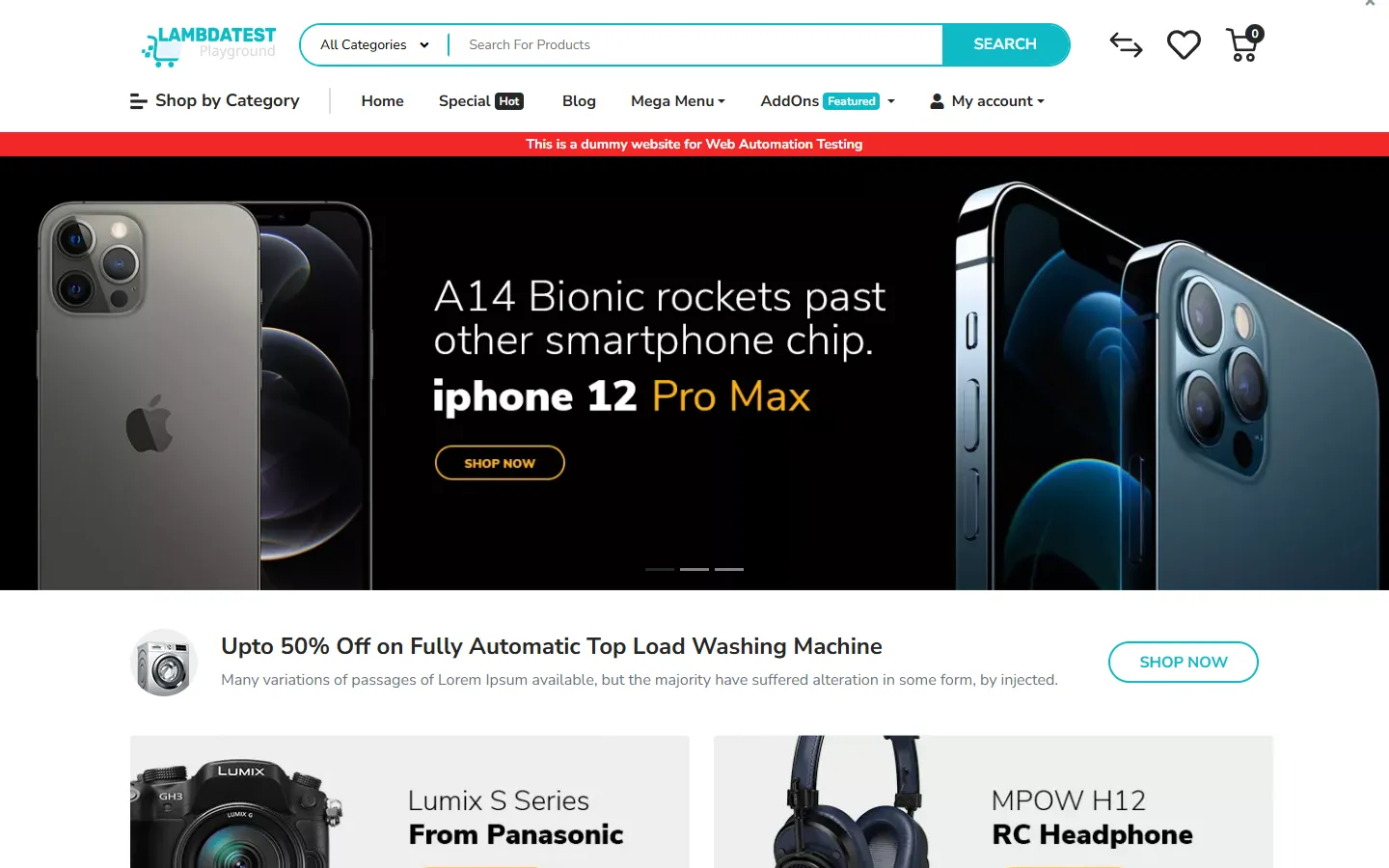
Take the single critical issue, image-alt, and run the detect-to-fix loop the MCP workflow is built around.
- Detect - the scan flags a promotional image with no alt attribute, a failure of WCAG 1.1.1 Non-text Content. The offending markup is roughly
<img src="html-1.png">, an image with no text alternative. - Explain - a screen reader has no text to announce for that image, so a user who cannot see it never learns the page is advertising a washing-machine offer. The promotion is invisible to assistive technology.
- Fix - add a description that conveys the image's purpose:
<img src="html-1.png" alt="Up to 50% off fully automatic top-load washing machines" />. - Re-scan - ask for the report again. image-alt clears, the critical count drops to zero, and you move to the next issue with the same loop.
The 13 color-contrast failures are the most common category, matching WebAIM's finding that contrast is the top issue on the web. Each one needs a foreground and background pair that clears the WCAG 1.4.3 contrast minimum of 4.5:1 for normal text. You can check a proposed pair before you commit it with the free color contrast checker.
Because getAccessibilityReport needs only a reachable URL, it also audits pages you do not own, such as a client site, a vendor embed, or a competitor's URL. That workflow, scoped to the WCAG 2.2 ruleset, is covered end to end in the guide on how to run a WCAG 2.2 audit on any website.

Note: Every finding here came from a real scan, not a mockup. Point the Accessibility MCP Server at your own pages and run the same detect-to-fix loop in your editor. Start free with TestMu AI.
Tool 2: Test a Local App Before You Deploy
This is the tool with no equivalent in a browser extension. buildLocalAppForAnalysis takes your un-deployed project, builds it, serves it on TestMu AI infrastructure, and audits the result, all from one prompt. There is no staging URL, no preview deploy, and no CI run in the loop.
Build my local React app in ./storefront on port 3000 and check
it for accessibility issues.
The tool accepts the project path and a port, and it can take a custom build command when your app does not use the default. The report comes back in the same conversation, so the workflow is identical to Tool 1 once the build finishes.
- Feature-branch gate - confirm a new page or component passes WCAG AA before you open the pull request, not after review.
- No infrastructure to stand up - you do not maintain a staging environment or a preview-deploy pipeline just to run one accessibility check.
- Same fix loop - the assistant reads the violations and rewrites the JSX in place, then you rebuild and re-scan to confirm the count dropped.
- Built output rather than source guesswork - because it audits the compiled build, it sees the markup a browser would actually render, including what your components emit after transpilation.
One honest limit: the build tool audits the app in its initial rendered state. If a violation only appears after a user logs in, opens a modal, or loads data, that state lives at runtime, which is what the next tool is for.
Tool 3: Audit a Running Localhost Server Over the Tunnel
analyzeAppViaTunnel audits the app you already have running on your machine. You start your dev server, connect a TestMu AI tunnel, and the tool evaluates the live runtime DOM, the exact state a browser is rendering right now. This is the tool for single-page apps where client-side routing and API-loaded content mean the meaningful markup does not exist until the app runs, and it is also how you reach screens behind a login, since you sign in on the running app before the audit; the full workflow is in auditing a login-gated or SSO-protected app for accessibility.
I have a local app running on port 3000 via a TestMu AI tunnel.
Check it for accessibility failures.
The tool takes the port your app runs on plus the tunnel name and ID, and returns the same WCAG report structure. Reach for it over the build tool whenever the state you care about is produced by running code rather than by static output.
- Client-side routes - a React or Vue route that renders only after navigation is audited in the state the user actually sees.
- API-driven content - lists, tables, and cards populated from a fetch call are present in the DOM by the time the scan reads them.
- Interactive widgets - modals, accordions, and menus that inject markup on open can be audited in their expanded state.
The audit runs from TestMu AI infrastructure across the tunnel to your machine, so treat it as a check of the rendered DOM your dev server produces. It reads what your running app serves over the tunnel, which is precisely why it catches runtime-only issues the static build cannot.
What the Scans Catch, and What Still Needs a Human
Automated accessibility scanning is fast and reliable on machine-detectable rules, and it is the right first pass on every page. It is not a compliance guarantee. Being honest about the boundary is what separates a useful accessibility program from a false sense of safety, because a clean automated report still leaves the judgment-based criteria untested.
| The automated scan catches this | A human still has to check this |
|---|---|
| Missing alt text and empty controls | Whether the alt text is actually meaningful |
| Contrast below WCAG thresholds | Whether color alone is used to convey meaning |
| Missing form labels and broken ARIA | Whether focus and tab order are logical |
| Missing landmarks and heading order | Whether screen reader announcements make sense |
| Broken name, role, or value on components | Reading level and cognitive load |
The MCP tools own the left column, and they own it well, catching the failures that make up most of the WebAIM Million errors before the code merges. The right column needs a keyboard and a screen reader. To decide which conformance target you are even aiming at, the differences between WCAG conformance levels are the place to start; AA is the standard bar for ADA, Section 508, AODA, and the EAA.
From the In-Editor Loop to the Full Suite
The MCP Server is the pre-commit surface. The same axe-core engine and the same WCAG rule set power the rest of TestMu AI's Accessibility Testing suite, so a fix you catch in the editor is enforced everywhere else the app is tested. Across six testing surfaces, the suite runs accessibility as a continuous quality gate rather than a one-time scan. Beyond the in-editor MCP Server, those surfaces include:
- DevTools extension - on-demand browser scanning with Full Page, Partial Page, Workflow, and Keyboard scan types for manual review.
- Framework automation - accessibility assertions inside Selenium, Playwright, or Cypress suites, so every CI build re-checks the rules you fixed in the editor.
- Scheduled monitoring - recurring sitemap, CSV, or crawler-based scans that catch regressions from routine content and code changes.
- Manual mobile scanning - screen-by-screen accessibility inspection of native Android and iOS apps on real devices, no code required.
- Mobile automation - Appium and KaneAI-authored checkpoints for native app accessibility that web-only tools cannot reach.
The natural progression is editor to pipeline: catch it in the MCP loop, then let CI hold the line. Wiring the same checks into your build is covered in the guide on accessibility testing in CI/CD, and the broader picture of surfaces and coverage is laid out in what an accessibility testing suite includes.

Getting Started
Start with the smallest possible loop today. Add the server to the client you already use, then audit one live page you own with getAccessibilityReport and fix the first critical issue it returns. That single loop is the whole workflow in miniature; every other tool is the same pattern applied to un-deployed or running code.
- Connect once - register https://mcp.lambdatest.com/mcp in Claude Code, Cursor, or GitHub Copilot and approve the OAuth prompt.
- Audit one page - ask for an accessibility report on a URL you own and read the critical and serious issues first.
- Fix and re-scan - let the assistant rewrite the offending markup, then run the report again to confirm the count dropped.
- Move earlier - once the loop is familiar, use buildLocalAppForAnalysis on a branch before it merges so issues never reach a live URL.
The full tool reference, client list, and configuration details live in the Accessibility MCP Server documentation linked earlier, and the three tools are part of TestMu AI's accessibility testing suite. The WebAIM Million found that 95.9% of home pages fail WCAG on exactly the kind of issues an automated scan catches in seconds; the fastest way to keep your app out of that number is to run the scan where you write the code.
A related Testμ 2026 session, Auto-Generate Playwright Tests from Your GraphQL Schema, goes further into this.
Note: Researched and drafted with AI assistance, then reviewed, fact-checked, and approved by Rahul Mishra, Lead Member of Technical Staff at TestMu AI, whose listed expertise includes accessibility testing and WCAG compliance. Technically reviewed for accessibility and WCAG accuracy by Shubham Soni. Sources cited are from primary references including the W3C Web Accessibility Initiative and the WebAIM Million report. Read our editorial process and AI use policy for details.
Author
Rahul Mishra
Blogs: 17

Rahul Mishra is a Lead Member of Technical Staff at TestMu AI, leading frontend engineering and accessibility testing across the quality engineering platform. He mentors frontend engineers, runs code reviews and sprint planning, optimizes React.js rendering performance, and makes product features accessible to users with disabilities through WCAG and ADA-compliant accessibility audits. He brings 10+ years of experience across React.js, VueJS, TypeScript, Swift, Objective-C, and AWS, with earlier work as a Technical Lead at VectoScalar Technologies. Rahul holds a B.E. in Information Technology.
Reviewer

Shubham Soni
Reviewer
Shubham Soni is a Senior Member of Technical Staff at TestMu AI, building the Real Device Cloud and real-time testing infrastructure. He optimized the WebRTC services that power live testing to sub-100ms latency with adaptive bitrate streaming, led a frontend migration from Angular to React that cut page load time from 5-6 seconds to 1-1.5 seconds, and contributes to the official Device SDK. He led a team of four to build an accessibility testing product covering manual and automated testing and mentored a team of six on a real-time testing product. He brings over eight years of experience and earlier scaled a cloud code platform to 200K+ monthly users. Shubham holds a B.Tech in Computer Science.


Accessibility MCP Server FAQs
Did you find this page helpful?
More Related Blogs

TestMu AI forEnterprise
Get access to solutions built on Enterprise
grade security, privacy, & compliance
- Advanced access controls
- Advanced data retention rules
- Advanced Local Testing
- Premium Support options
- Early access to beta features
- Private Slack Channel
- Unlimited Manual Accessibility DevTools Tests