

Power Your Software Testing with AI Agents and Cloud
The Native AI-Agentic Cloud Platform to Supercharge Quality Engineering. Test Intelligently and Ship Faster.


- TestMu AI (Formerly LambdaTest)
- /
- Blog
- /
- Screen Reader Testing: How to Test With NVDA and VoiceOver
Screen Reader Testing: A Step-by-Step Accessibility Guide
Screen reader accessibility testing ensures your website and apps are accessible to users with visual or cognitive impairments. Learn how to run screen reader tests!
Last Updated on:
Screen reader accessibility testing typically starts with five checks: alt text on non-text visual content, a correct heading hierarchy, properly connected form labels, full keyboard operability, and text links whose anchor text describes where they lead. JAWS remains the most widely used paid option, while NVDA offers the same core checks as a free, open source alternative.
TL;DR
- Screen reader accessibility testing checks whether people who rely on screen readers can perceive, navigate, and operate a website or app.
- JAWS and NVDA are the common screen readers on Windows, VoiceOver is built into macOS and iOS, and TalkBack is built into Android.
- A basic screen reader test covers image alt text, heading and page structure, form labels, keyboard navigation, and descriptive link text.
- Screen readers depend on semantic HTML, so missing alt text, unlabeled form fields, and complex navigation become barriers for screen reader users.
- Test with at least one screen reader per supported operating system, because the same page can behave differently in NVDA and JAWS or across browsers.
- Screen reader testing works best as a recurring step in the development cycle, combined with automated accessibility scans.
What are Screen Readers?
Screen readers are software that converts text, buttons, images, and other screen elements into a usable format for those who cannot read them.
They function in two primary ways:
- Text-to-speech is a system that verbally reads words to the user.
- Braille display enables users to interpret output by feeling a tactile pad that converts words into braille.
These screen readers are created to be compatible with commonly used operating systems such as Windows, macOS, Android, and iOS. They can understand emails, web pages, and various other documents. Usually, a screen reader verbalizes UI content, such as headings, text, links, and images, using an artificial voice from a speech synthesizer through the device's sound card.
In addition to providing speech output, some screen readers offer features like magnifying web content and altering the appearance of a web page, such as increasing contrast or inverting colors. These capabilities are helpful for users with limited vision or color blindness.
The screen reader is activated when users navigate or interact with elements.
How Do Screen Readers Function?
Screen readers help users navigate websites using keyboard shortcuts. Key commands allow switching between elements, activating links, and accessing content. For instance, the Tab key cycles through interactive elements, and Enter triggers them.
Specific keys jump directly to headings or navigate lists, links, and forms. Screen readers also offer different reading, focusing, and browsing modes to adapt to various content types. They rely on well-structured semantic HTML to interpret the page layout and require alt text for images and captions for media to convey visual information audibly.
Let's see in more detail how it works:
- Text-to-Speech (TTS) Engine - It transforms written words into spoken language. The screen reader transmits the text to the TTS engine for processing, resulting in speech output. This includes linguistic processing to guarantee accurate pronunciation, intonation, and rhythm.
- Support for Braille Displays - It transforms text into Braille characters, shown on a Braille display that can be refreshed. The screen reader converts text to Braille code and transmits it to a Braille device, enabling users to read via touch.
- Keyboard Navigation - It permits users to move through content using keyboard commands.
- Operation - Screen readers offer a range of keyboard shortcuts for moving through various items, such as headings, links, buttons, and forms. Users can navigate between elements, click on links, and execute multiple actions without a mouse.
- Identification and Element Navigation - To recognize and explain items displayed on the screen. The screen reader analyzes the digital material to recognize components like headings, paragraphs, images, and buttons. Semantic information from HTML tags, ARIA roles, and other metadata is used to interpret and explain these elements to the user.
- Modes for Viewing the Screen - It offers various options for viewing and scrolling through information. Users can change between modes, such as reading, focus, and object.
- Provide Information - The information is provided based on the context and responses given.

Note: Test with NVDA on Windows and VoiceOver on real Apple devices from your browser. Try TestMu AI Today!
Popular Screen Readers for Accessibility
Following are some of the screen readers that testers can use for accessibility testing. Though there are other screen readers available, the following are the popular ones:
- Job Access With Speech (JAWS) - It is one of the most used screen readers and a good option for performing screen reader testing. This is compatible with Windows and supports different programming languages. You can also easily use the voice and speech rate with its built-in feature and navigate the web via voice commands. However, it is not freely available and requires purchase to use it.
- Non-Visual Desktop Access (NVDA) - It is another popular screen reader that is open source and freely available. It also works for Windows and allows users to access the content through braille display or voice.
- TalkBack - It is an accessibility feature built into Android devices to help visually impaired users interact with their devices. It provides spoken feedback, allowing users to hear what they touch, select, and activate on their device screen.
- VoiceOver - This screen reader is specifically designed for Apple. Although highly advanced, the QAs and developers generally don't recommend it for accessibility testing, as JAWS and NVDA do.
Which Screen Reader and Browser Pairings Should You Test?
Test the pairings your users actually run, because a screen reader behaves differently in each browser. The WebAIM Screen Reader User Survey #10, which collected 1,539 responses in December 2023 and January 2024 and is the latest survey with published results, reported these as the most common desktop combinations:
| Screen reader + browser | Share of respondents | Platform |
|---|---|---|
| JAWS + Chrome | 24.7% | Windows |
| NVDA + Chrome | 21.3% | Windows |
| JAWS + Edge | 11.4% | Windows |
| NVDA + Firefox | 10.0% | Windows |
| VoiceOver + Safari | 7.0% | macOS |
On mobile the order flips. In the same survey, 70.6% of respondents used VoiceOver on iOS as their primary mobile screen reader and 34.7% used TalkBack on Android. A practical minimum matrix is NVDA with Chrome, JAWS with Chrome or Edge, VoiceOver with Safari on macOS and iOS, and TalkBack with Chrome on Android.
What is Screen Reader Accessibility Testing?
Screen reader testing is the process of evaluating and verifying the accessibility of software applications by checking their compatibility with the screen reader. The primary purpose of the screen reader accessibility testing is to ensure that all the users, including those with visual impairment and who depend on screen readers, can navigate and engage with all the functionality and content on the web.
Its goal is to detect any accessibility issue faced by users with visual impairment and provide optimization and enhancement measures for better web accessibility. One of the crucial components in screen reader accessibility testing is to ensure that on-screen text is correctly labeled and organized. Screen readers rely on text labels to interpret web page content accurately. Hence, developers use descriptive and pertinent labels for all elements, including links, buttons, and form fields.
Additionally, testing screen reader accessibility involves evaluating the functionality of interactive components like menus, dropdowns, and buttons. Users with visual impairments should navigate and interact with these elements solely using their keyboard and screen reader. Therefore, ensuring proper labeling, focusability, and operability is crucial.
Why Perform Screen Reader Accessibility Testing?
Screen reader accessibility testing is one of the crucial tests for accessibility compliance that should not be skipped. Not only do users with visual impairments depend on screen readers, but other users also use screen readers. However, if the information on the UI is not accessible, it can create issues where users may struggle to understand and engage. It may also create difficulty using the suggested features, result in a negative user experience, and possibly drive away users.
Testing the accessibility of screen readers allows testers to directly experience the challenges faced by users who rely on them to access content. These barriers may include images without alt texts, complex navigation, and headings. This helps organizations improve overall inclusivity.
Some of the key benefits of screen reader testing are as follows:
- Ensuring websites or apps are accessible to users of screen readers is essential for expanding the audience reach. With this, organizations can connect with a large number of potential users, possibly onboarding new customers and enhancing profits.
- Showing a dedication to accessibility not only represents inclusiveness but also highlights social responsibility in an organization. This dedication can improve the brand's reputation, building user trust and loyalty.
- Implementing top accessibility practices benefits all users, no matter their abilities. Characteristics such as distinct labeling, alternative text for images, and keyboard navigation enhance usability for all individuals.
5 Types of Screen Reader Accessibility Tests
When establishing your accessibility testing protocol, it is suggested that you begin by testing basic functionalities. Below are the five tests that you should perform while starting your screen reader accessibility testing:
- Test Visual Content - Developers need to provide alternative text, known as alt text, for any non-text elements. This is to convey information because computers cannot interpret images like charts, illustrations, and photographs. You need to test the successful use of alt text. For this, you can use the Full Page Report feature of screen readers like JAWS.
- Test Document Structure - For those who rely on screen readers, the structure of a web page is essential in understanding its complex content and layout, unlike those who read visually. You should ensure the correct hierarchy of headings (H tags), crucial for effective screen reader navigation, optimizing SEO, and enhancing user experience. This involves using brief and easy-to-understand heading tags organized in a structured manner.
- Test Form Labels - When creating a form for capturing leads or reaching out to the organization, every field needs to have a corresponding label, like first name, last name, and email address. However, if incorrectly coded, form controls can confuse users of screen readers about the purpose, functionality, and current status (such as checked or unchecked) of the controls. You need to find cases where mandatory fields are not marked, labels are not connected to their respective controls, and errors related to forms.
- Test Keyboard - Having keyboard accessibility is essential, not just for people who use screen readers, but also for many other users. Evaluate the coordination of visual cues with screen reader responses. For example, check if developers have shown the movement of the cursor during navigation using the Tab key and see how menus and options are explored.
- Test Text Links - Links act as routes that connect users to different pages and functionalities within a website or app. Unreachable links limit users' access to some of the UI content. You should test the cases in which the anchor text of a link needs to give more information about where the link leads and what content can be expected, making it difficult for users to understand.

How to Perform Screen Reader Accessibility Testing?
Before diving into screen reader testing, it's crucial to recognize that solely testing with a screen reader does not ensure complete accessibility. A combination of manual and automation testing, both with and without screen readers, is essential.
Here are the steps to perform screen reader accessibility testing:
1. Setting Up Screen Readers: Set up the necessary screen readers:
- NVDA for Windows - Head over to the official NVDA website, download the software, and follow the installation guidelines provided. Dive into the NVDA user guide to familiarize yourself with its keyboard shortcuts and other settings.
- JAWS for Windows - Download the JAWS installer. If you're just testing the waters, activate the free trial. The JAWS quick start guide offers all the basics you'll need to get started with the installation and initial setup.
- TalkBack for Android - Enable TalkBack by navigating to the Accessibility settings on your Android device. Learn the necessary gestures and commands through the tutorial included in the system.
- VoiceOver for macOS and iOS - This tool comes pre-installed. Activate it through System Preferences on macOS or via the Settings app on iOS devices. Spend some time getting used to the essential VoiceOver gestures and commands.
2. Learn Screen Reader Navigation Before you dive into testing, take some time to get comfortable with the navigation techniques of these screen readers. This familiarity will help you simulate how visually impaired users interact with your website or app. You'll need to practice:
- Reading text aloud.
- Navigating through headings and other structural landmarks.
- Interacting with form fields and other interactive elements.
3. Prepare the Test Plan Now that you're familiar with the tools, it's time to outline your test plan. This should include defining clear testing objectives and organizing scenarios that will address key aspects of accessibility, such as navigation, form usability, link accessibility, and overall content structure.
4. Run Tests: With your plan, you can start the actual testing. Here's what to focus on:
- Ensure that navigation is intuitive and logical, using only keyboard controls.
- Check that HTML documents have language attributes to guarantee accurate screen reader interpretations.
- Verify that all images include descriptive alternative text.
- Confirm that screen readers correctly announce dynamic content like alerts and updates.
- Test form fields to ensure they are clearly labeled and provide the necessary guidance and error notifications.
- Ensure the site or app structure includes clear headings (H1, H2) and ARIA landmarks to enhance navigation.
- Check for the presence of 'skip navigation' and 'skip to main content' links.
- Disable autoplay elements to ensure they don't disrupt the user experience.
- Evaluate all interactive elements like buttons and links for functionality and clarity.
Essential Screen Reader Keyboard Commands
These commands, taken from WebAIM's guides to evaluating with NVDA and evaluating with VoiceOver, cover most of a web test. In NVDA, the NVDA key is Insert, or Caps Lock if you enable that option; in VoiceOver on macOS, VO means Control + Option. In NVDA, add Shift to move backwards.
| Task | NVDA (Windows) | VoiceOver (macOS) |
|---|---|---|
| Start reading | NVDA + Down Arrow | VO + A |
| Stop reading | Ctrl | Control |
| Next heading | H | VO + Command + H |
| Next link | K | VO + Command + L |
| Next form control | F | VO + Command + J |
| Next landmark | D | Use the rotor (VO + U) |
| List headings, links, or landmarks | NVDA + F7 (Elements List) | VO + U (rotor) |
| Switch browse and focus mode | NVDA + Space | Not applicable |
Check What a Screen Reader Will Announce
Before a full listening pass, check the accessibility tree, which is the data a screen reader reads out. I captured it for the Input Form Demo on the TestMu AI Selenium Playground with Playwright's ariaSnapshot() on Chrome and Windows 11 on the TestMu AI cloud. An excerpt:
- text: Company*
- textbox "Company"
- text: Website*
- textbox "Website"
- text: Country*
- combobox:
  - option "Choose an option" [disabled] [selected]
  - option "Afghanistan"
Every text field has a name, but the Country dropdown is a combobox with no name. The visible "Country*" text is not programmatically tied to it, so a screen reader user reaching it hears the role and "Choose an option" without learning which field it is. The fix is a label element whose for attribute matches the select's id. Confirm the result by listening to the field with NVDA or VoiceOver, since the tree shows what is exposed while each screen reader phrases it in its own way.
Enhance Screen Reader Accessibility Testing With TestMu AI
Various screen readers are available in the market. However, configuring each one to meet specific user needs can be difficult. Additionally, you need to ensure cross-browser accessibility and verify how your website or mobile apps perform across different browsers, devices, and operating systems. This is where TestMu AI's accessibility testing suite helps: testers run accessibility testing with screen readers across 3,000+ browser and OS combinations.
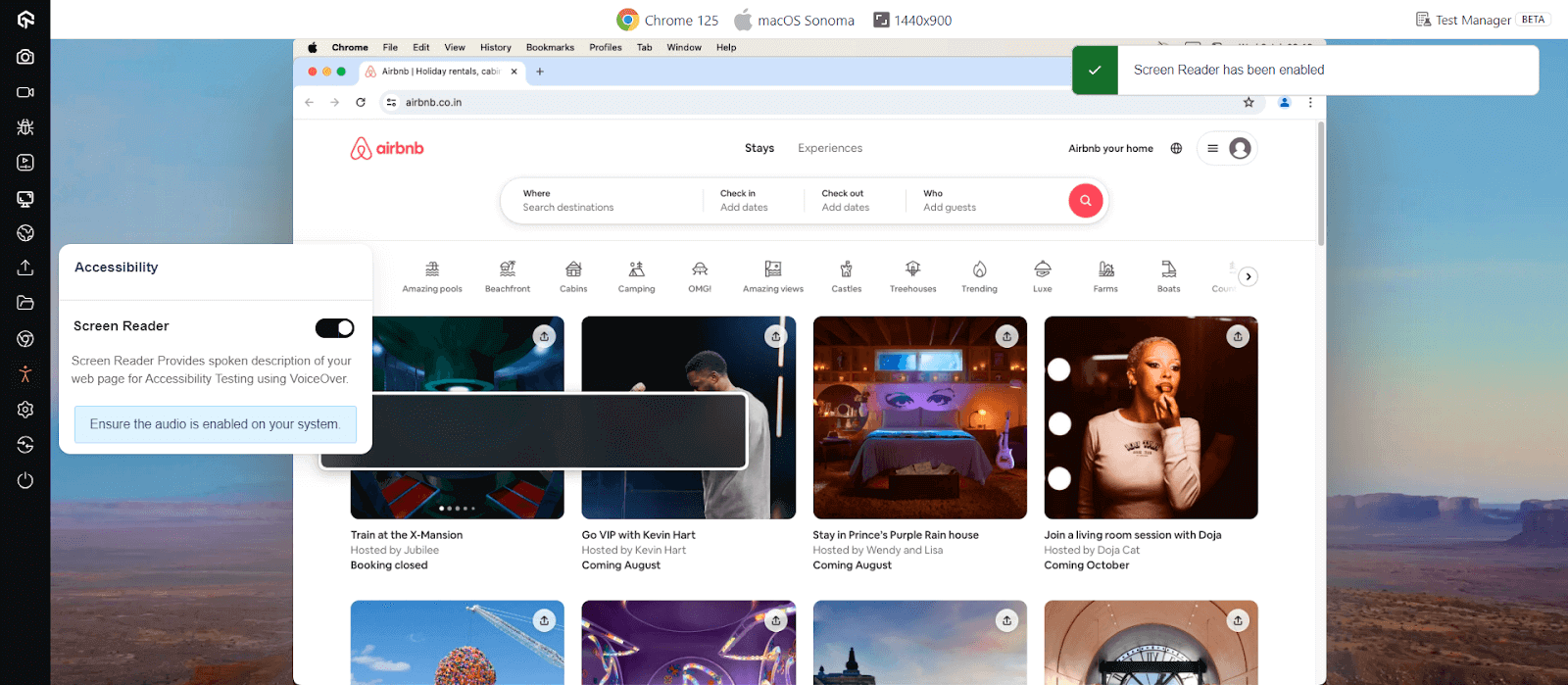
For instance, the below snap shows the running of accessibility tests using TestMu AI on Chrome, running on macOS Sonoma. The same real environments let you drive VoiceOver on real Apple devices straight from the browser, so you can validate Apple builds without wiring up a local Mac or iPhone.
On Windows, desktop live sessions include a Screen Reader tool that runs NVDA with Chrome or Edge. Turn on Speech Viewer to see each announcement as text, so you can copy exactly what the screen reader said into a bug report. It is a manual pass for judging reading order, focus, and announcement quality, and it complements automated accessibility scans rather than replacing them.
Besides screen reader testing, you can also leverage Accessibility DevTools Chrome Extension to boost your web page inclusivity.
For automated testing, TestMu AI integrates with popular frameworks like Selenium, Playwright, and Cypress to run automated accessibility checks in existing suites. The platform also includes support for screen readers, addressing the needs of users with visual impairments and ensuring smooth navigation and interaction, right down to native mobile checks such as the Android missing field label rule that flags controls TalkBack cannot announce.
To get started with automated accessibility testing, refer to this guide on Accessibility Automation.
Also, our Accessibility Testing Suite was launched in April 2025 and recognized as Product of the Day, securing the top spot on Product Hunt.
Best Practices for Screen Reader Accessibility Testing
Accessibility testers should incorporate specific screen reader testing best practices to ensure accessibility compliance. Here are some that you can follow:
- Test with Multiple Screen Readers - Ensure that at least one screen reader is tested for each operating system supported by your application or website. For instance, test NVDA with Firefox and note any differences when using NVDA with Chrome. A testing matrix can be useful for tracking which combinations of browsers and screen readers are tested.
- Test on Multiple Environments - It's crucial to test your application on multiple browsers, devices and operating systems. This includes ensuring compatibility with the older and earlier versions of screen readers to accommodate all potential users.
- Use Accessibility Testing Tools: Integrate accessibility testing tools with screen readers to validate whether web pages, applications, or documents are properly accessible to users who rely on them.
- Base Tests on User Data - Use analytics, particularly data regarding assistive technology usage, to guide your testing efforts. Understanding your users' preferences and needs can significantly impact your testing strategy and priorities.
- Comprehensive Review - Listen carefully to the entire page using a screen reader to check for errors. This includes verifying that all content is read correctly and in order.
- Focus on Form Accessibility - Pay close attention to how forms are handled. Ensure that each form field's label is announced clearly when navigated to using a keyboard. Note that some screen readers might skip over forms depending on their settings.
- Check Pronunciations - Make sure that abbreviations, email addresses, acronyms, and phone numbers are pronounced correctly by the screen reader. This ensures clarity and prevents miscommunication.
- Test Dynamic Content - Confirm that any prompts or pop-up content are promptly and accurately read by the screen reader. This is critical for ensuring that all dynamic content is accessible to users relying on screen readers.
Conclusion
Pick your highest-traffic flow and run it once with NVDA and Chrome using the commands above: jump by headings, tab through every control, and fill in the form while listening for each field's name. Then repeat on VoiceOver with Safari; the TestMu AI documentation on screen reader testing covers running that pass on cloud machines without a local Mac or iPhone.
Author

Nazneen Ahmad
Blogs: 39


Nazneen Ahmad is a freelance Technical Content SEO Writer with over 6 years of experience in crafting high ranking content on software testing, web development, and medical case studies. She has written 60+ technical blogs, including 50+ top-ranking articles focused on software testing and web development. Certified in Automation Basic and Advanced Training - XO 10, she blends subject knowledge with SEO strategies to create user focused, authoritative content. Over time, she has shifted from quick, keyword-heavy drafts to producing content that prioritizes user intent, readability, and topical authority to deliver lasting value.
Reviewer

Rahul Mishra
Reviewer
Rahul Mishra is a Lead Member of Technical Staff at TestMu AI (formerly LambdaTest), leading frontend engineering and accessibility testing across the quality engineering platform. He mentors frontend engineers, runs code reviews and sprint planning, optimizes React.js rendering performance, and makes product features accessible to users with disabilities through WCAG and ADA-compliant accessibility audits. He brings 10+ years of experience across React.js, VueJS, TypeScript, Swift, Objective-C, and AWS, with earlier work as a Technical Lead at VectoScalar Technologies. Rahul holds a B.E. in Information Technology.


Screen Reader Testing FAQs
Did you find this page helpful?
More Related Blogs
TestMu AI forEnterprise
Get access to solutions built on Enterprise
grade security, privacy, & compliance
- Advanced access controls
- Advanced data retention rules
- Advanced Local Testing
- Premium Support options
- Early access to beta features
- Private Slack Channel
- Unlimited Manual Accessibility DevTools Tests